How to Update Participant Attendance Records for RoP Weekend Events
Learn step-by-step how to update Participant attendance records, remove no-shows and cancellations, etc, using the admin table and WhatsApp photo references.
In this guide, we'll learn how to update participation records in Airtable after an event. We will use information from a marked attendance sheet to remove participants who did not attend and add their names to a cancellation list. This process helps keep event records accurate and up to date.
Let's get started
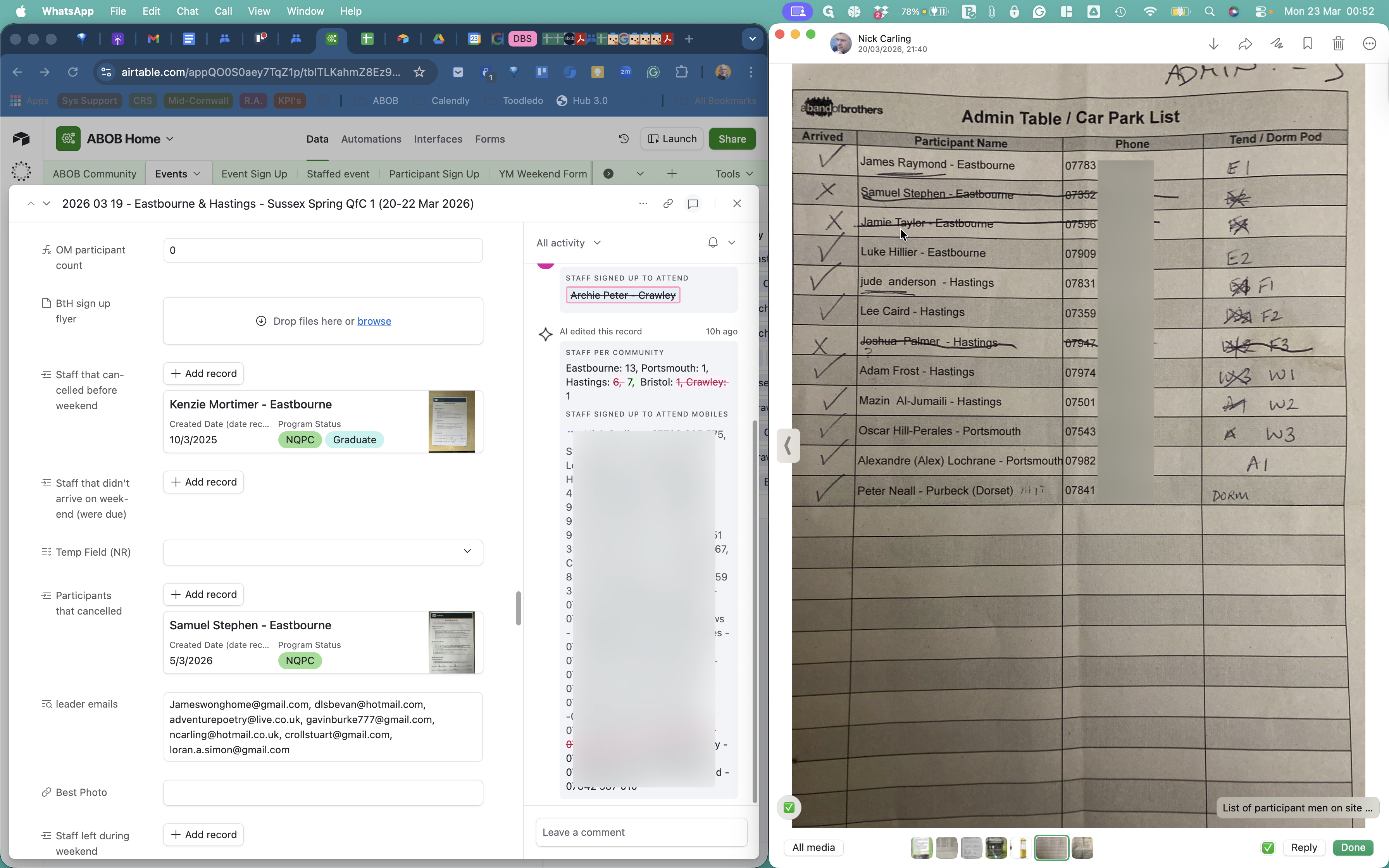
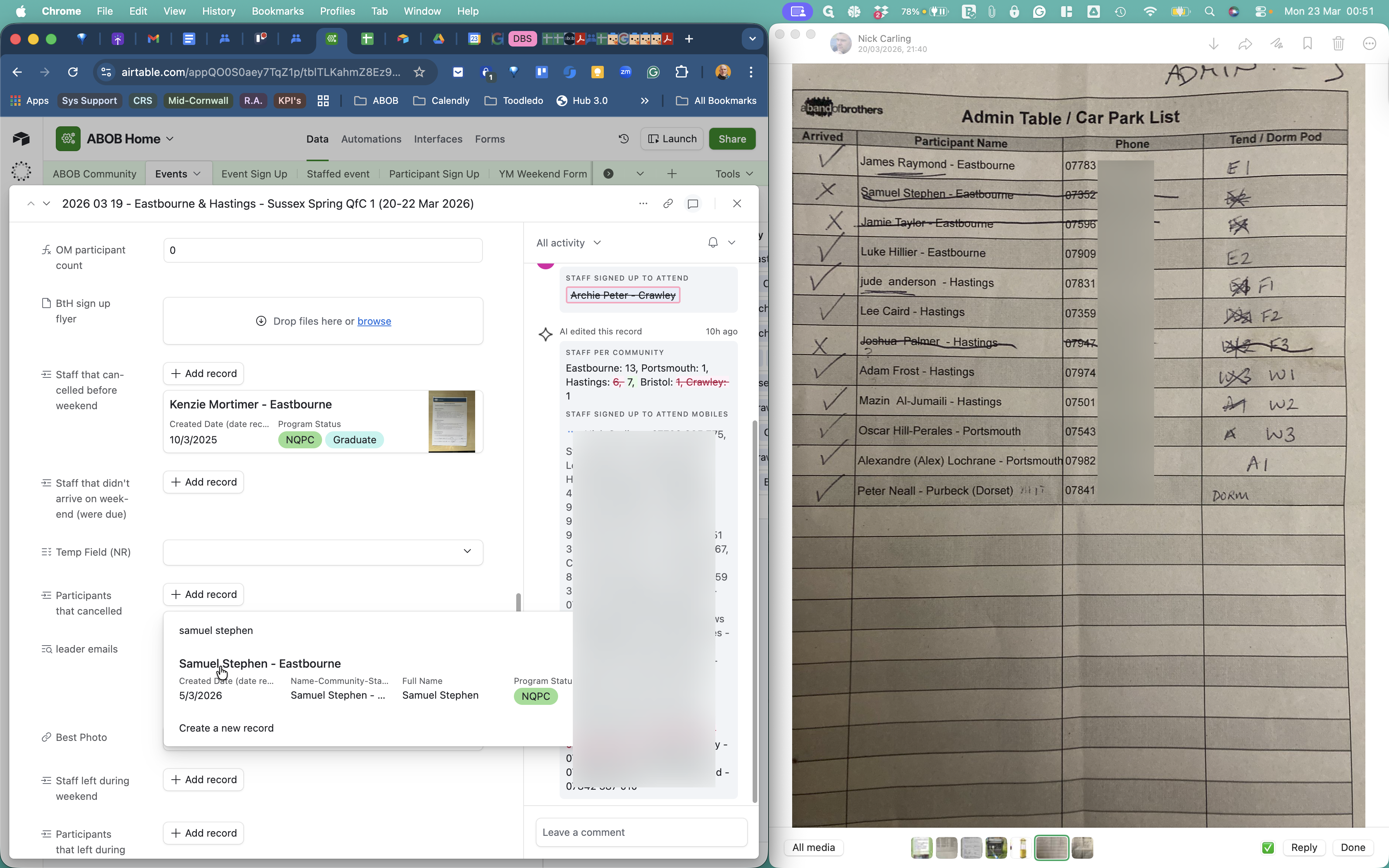
On the right-hand side, there is a photo of the admin table car park list from the leader pack. The outside leader marked this printed sheet with a pen. Ticks indicate those who arrived, and Xs show those who did not. Now we need to ensure that the participation records are updated by event and by participant. Go to Airtable and select the "All Future RP Weekends for ABOM Web Leaders" view.
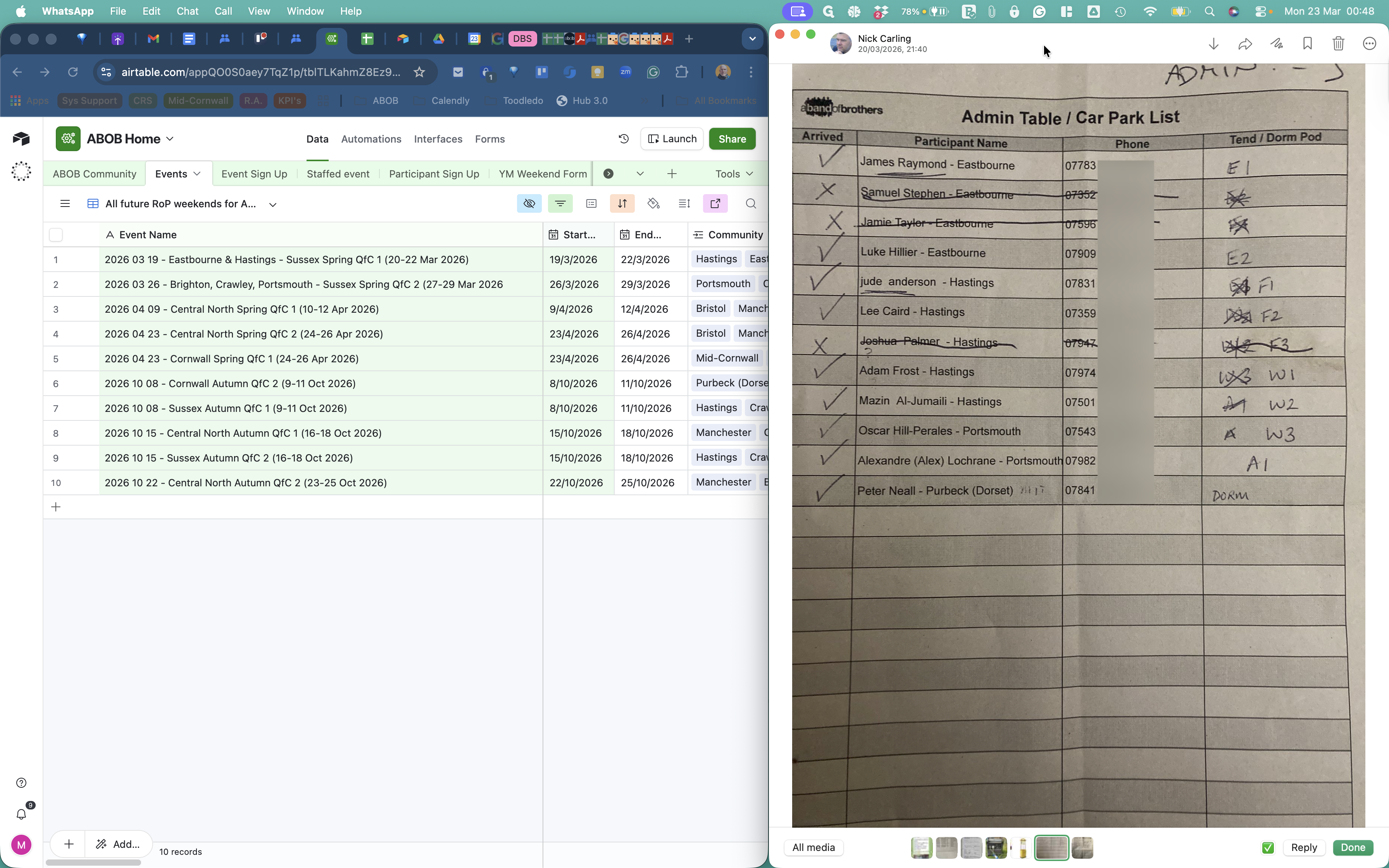
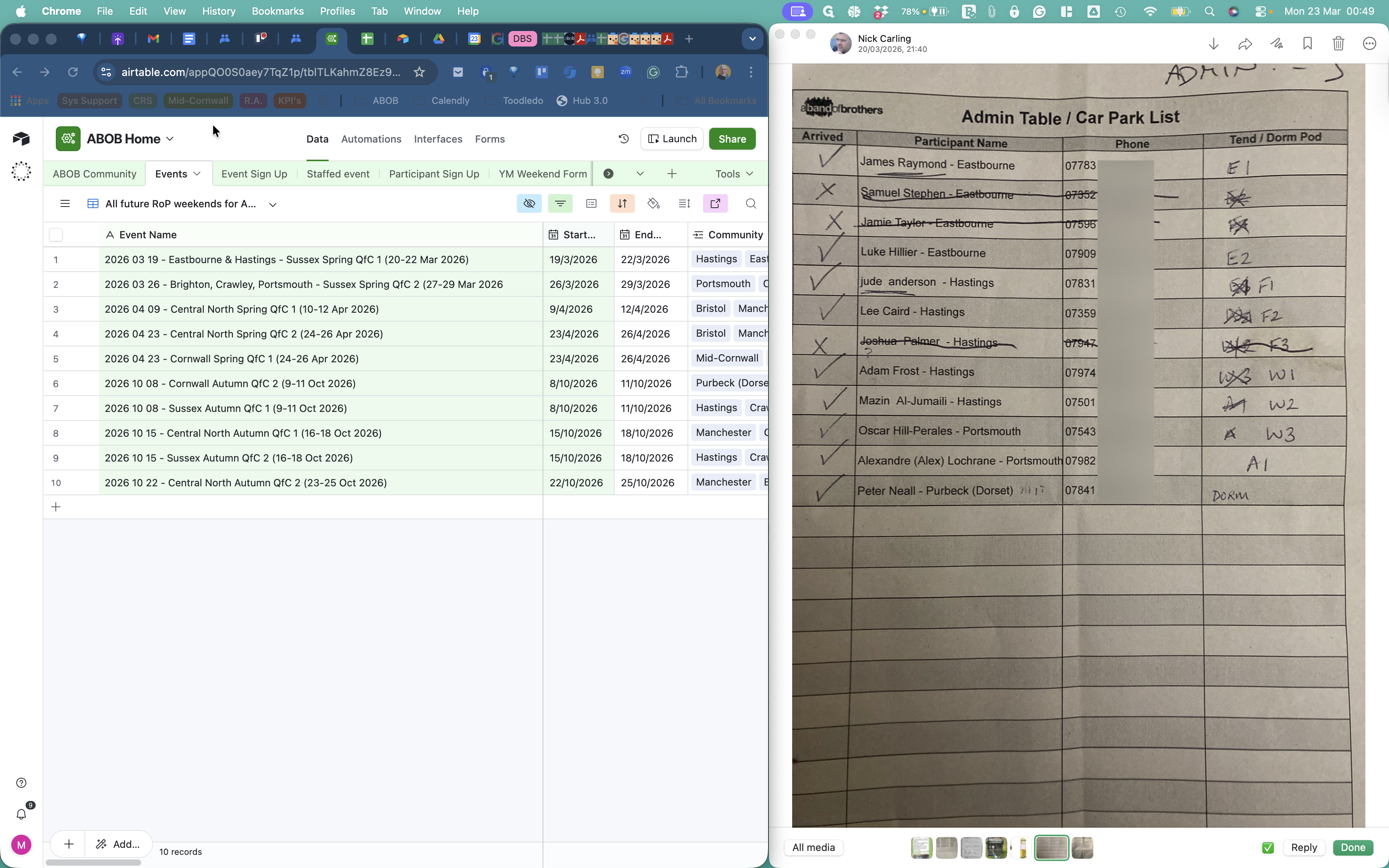
This is probably the best view. Next, we want to expand on it.
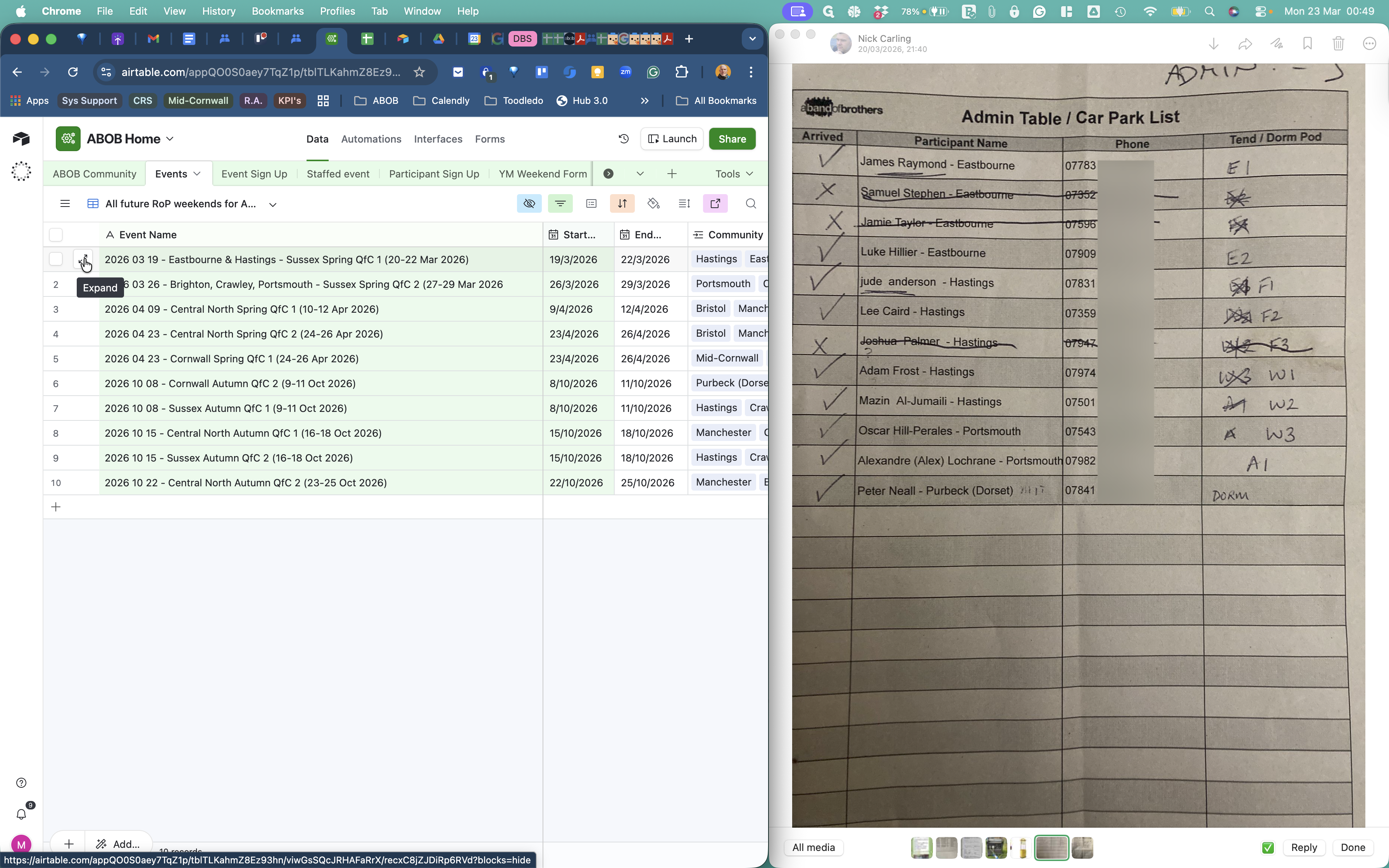
Next, scroll down to the Participants section.
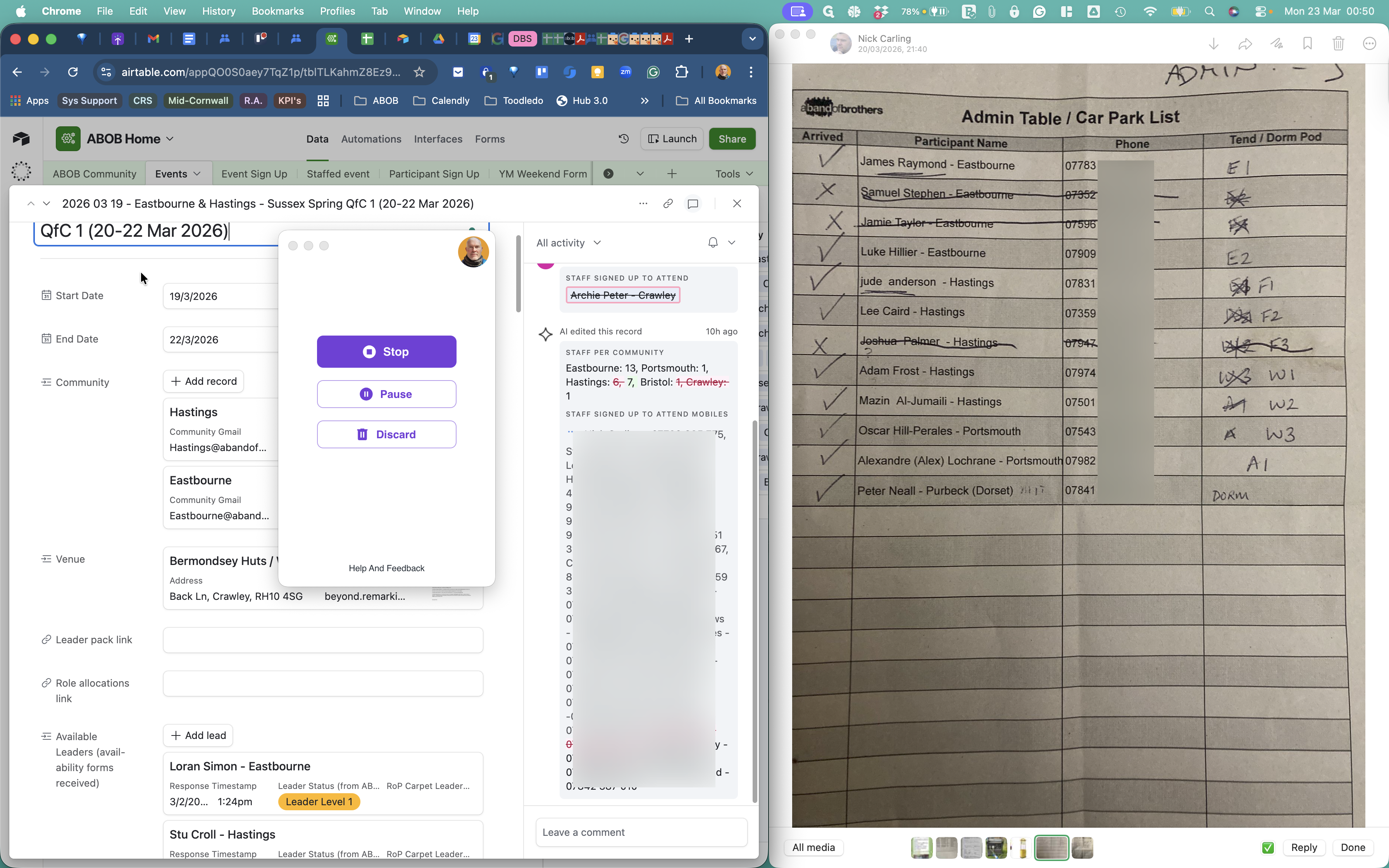
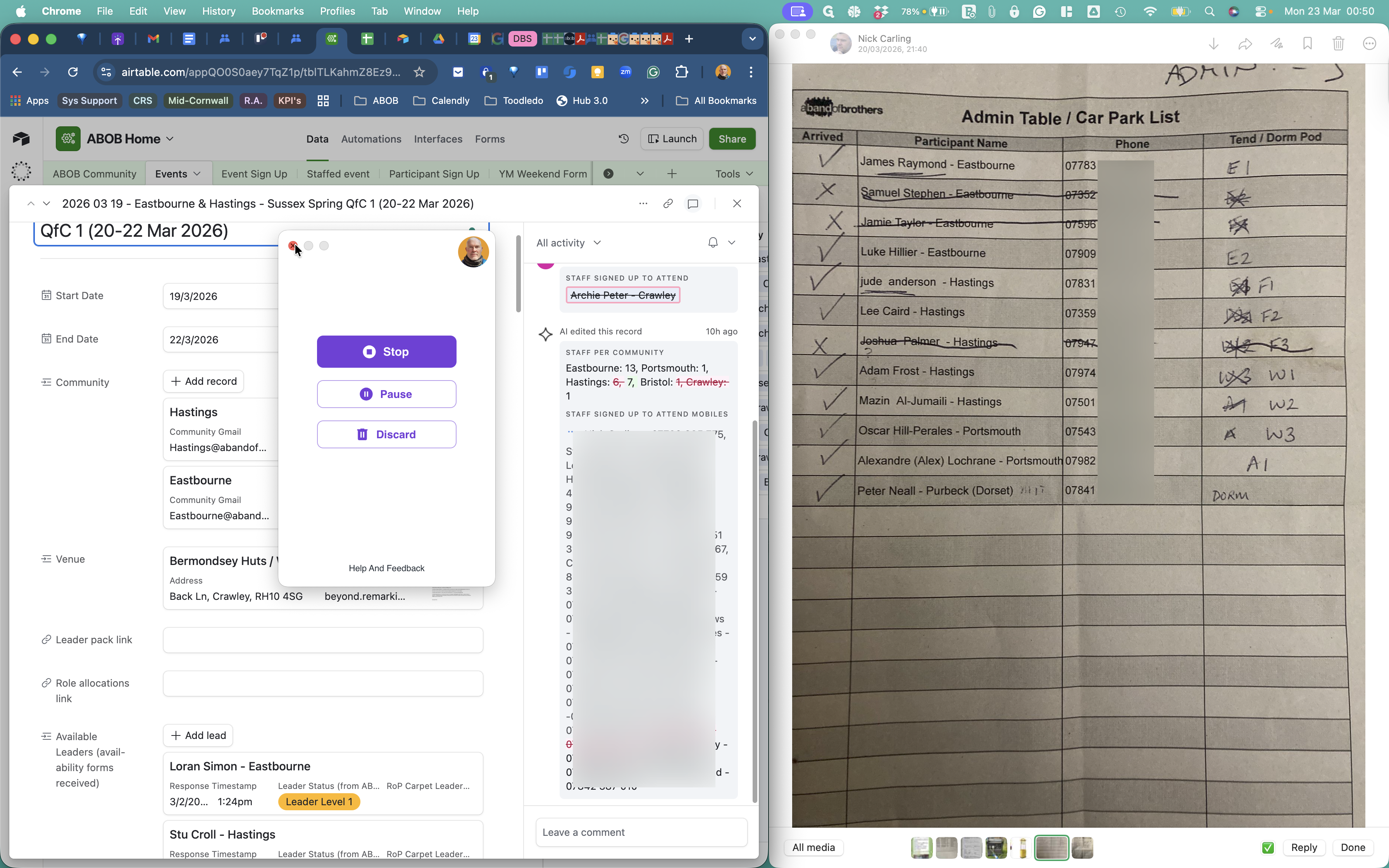
Here we have the participant names. These are the individuals who signed up. There are three individuals in the WhatsApp image who did not attend and need to be removed.
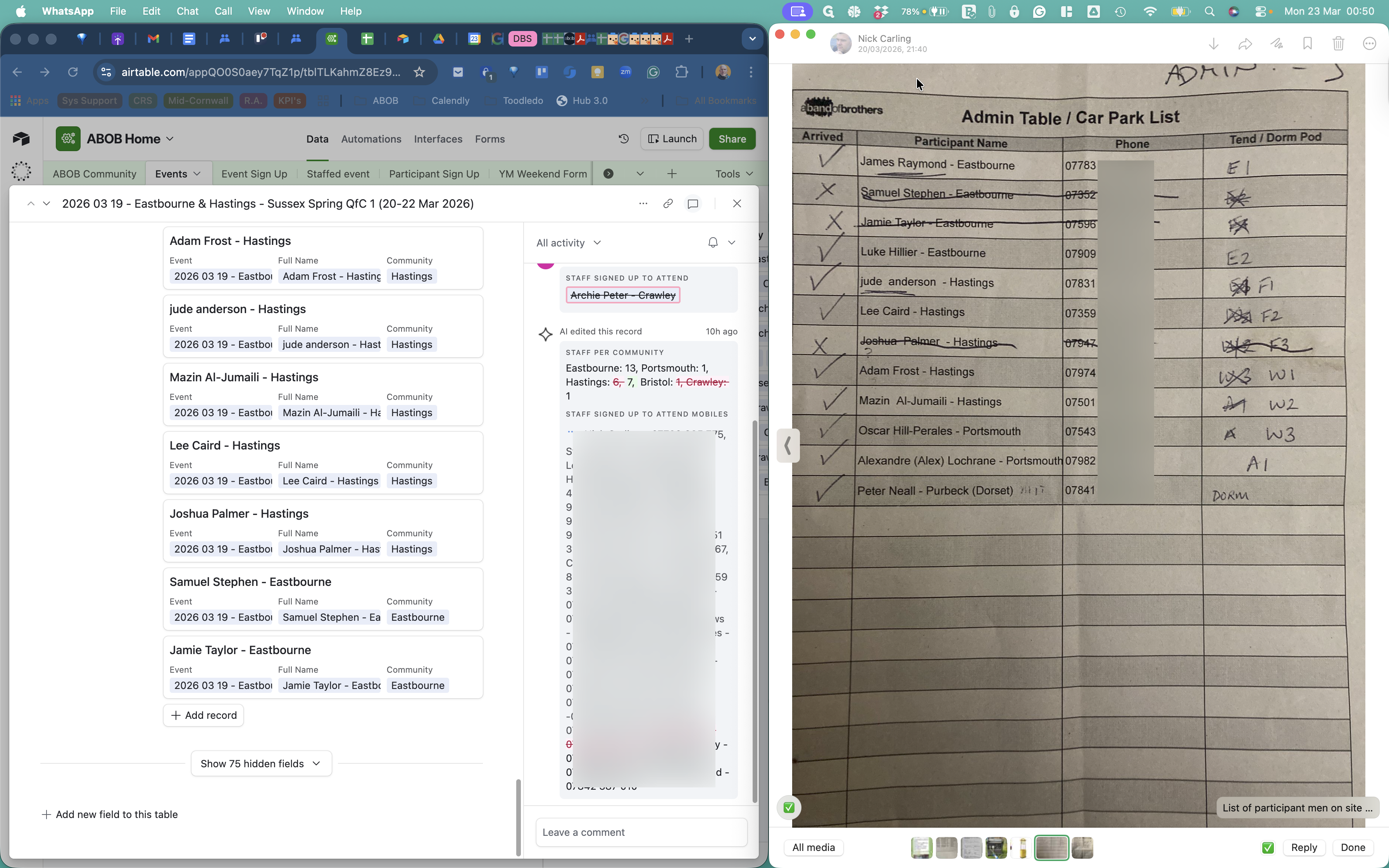
They are removed in this way. I'll do the first one and let you do the remaining two.
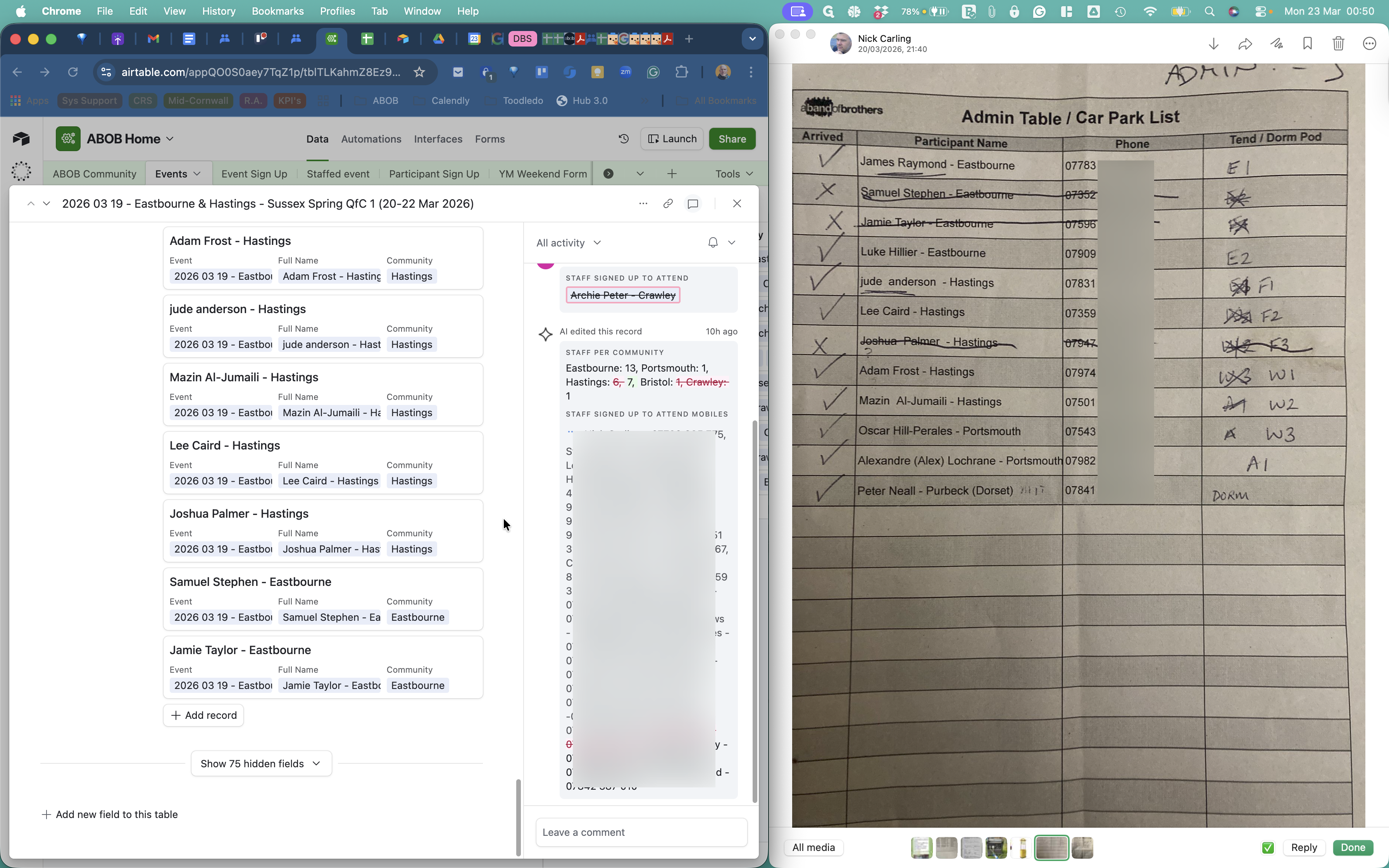
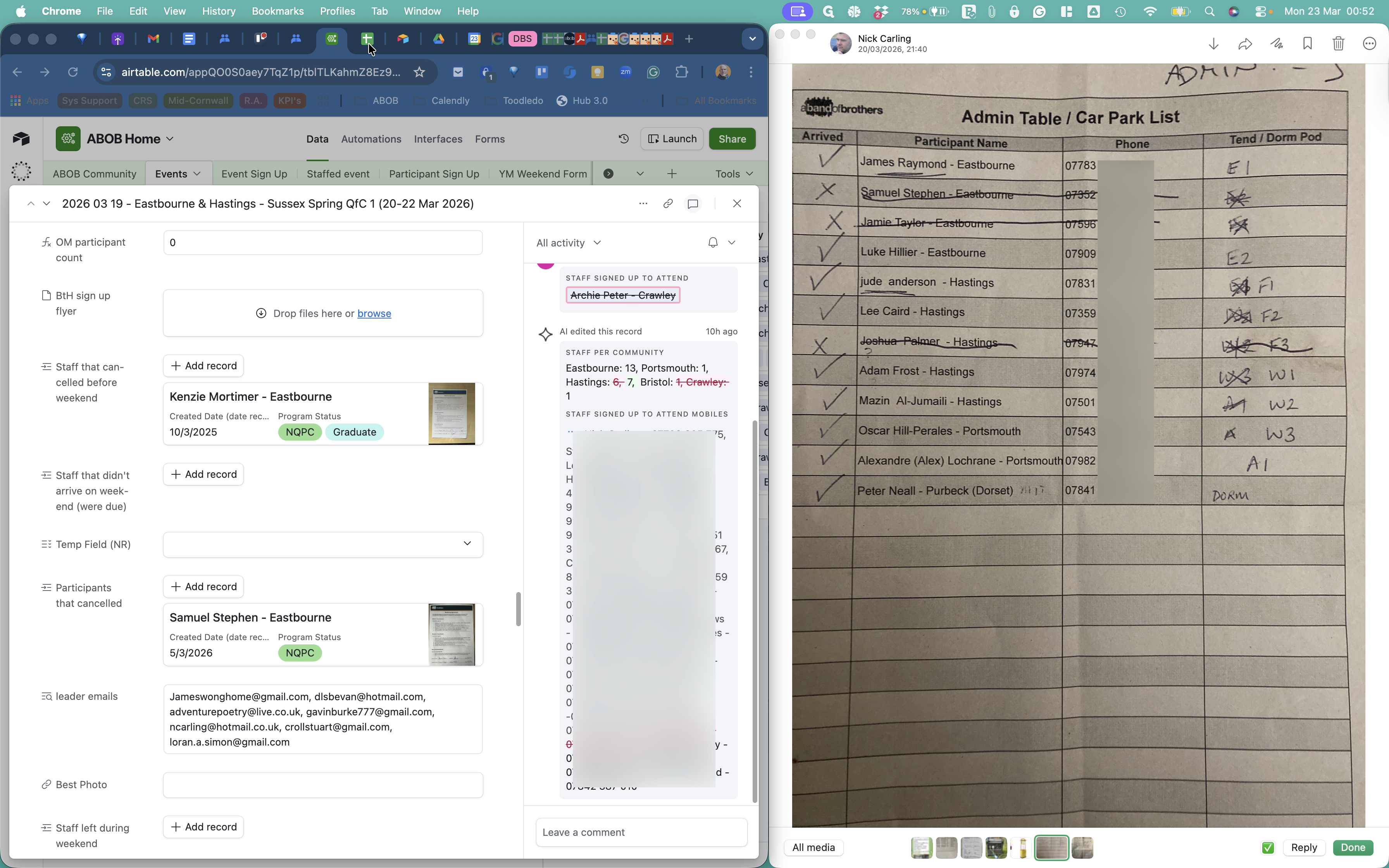
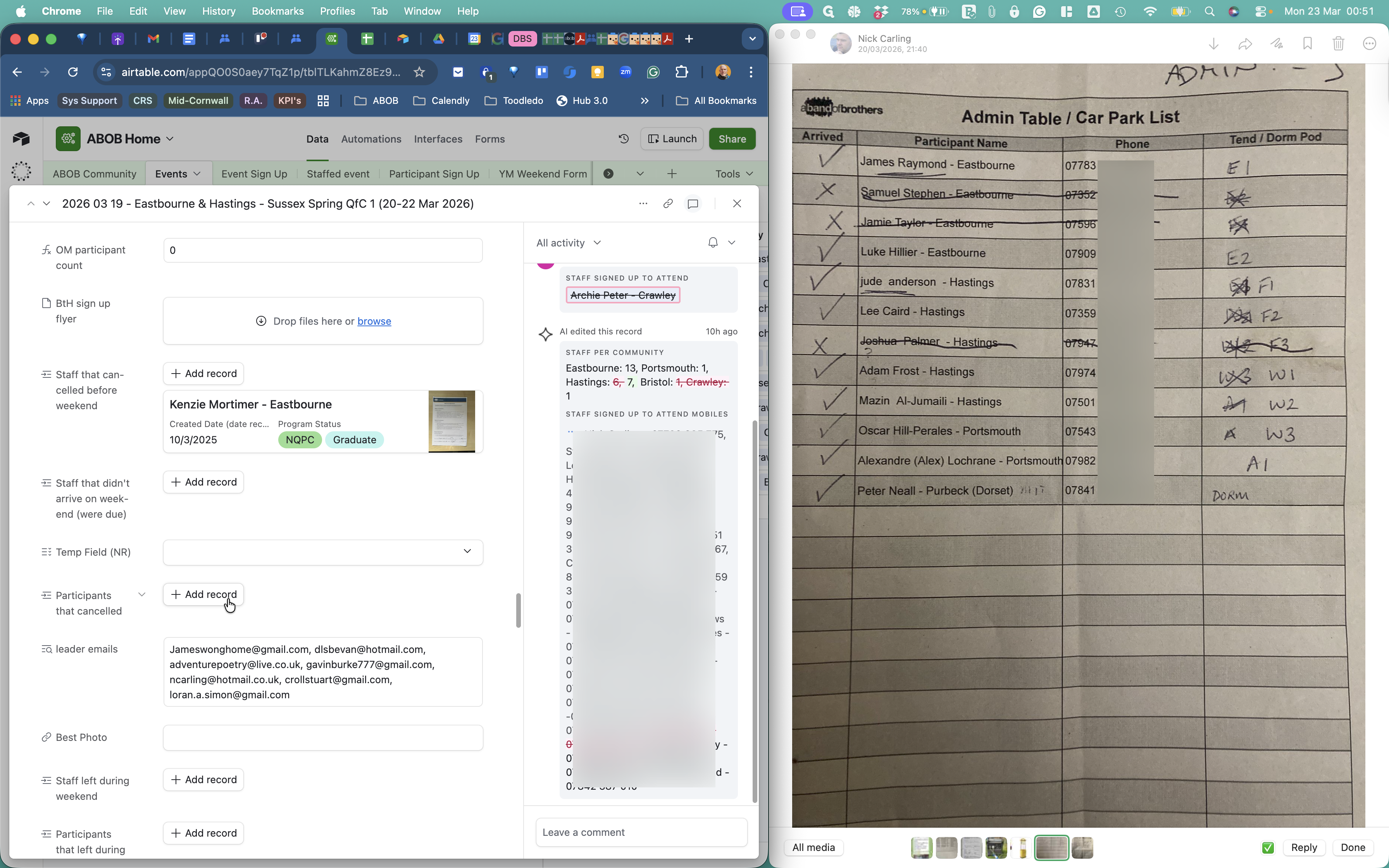
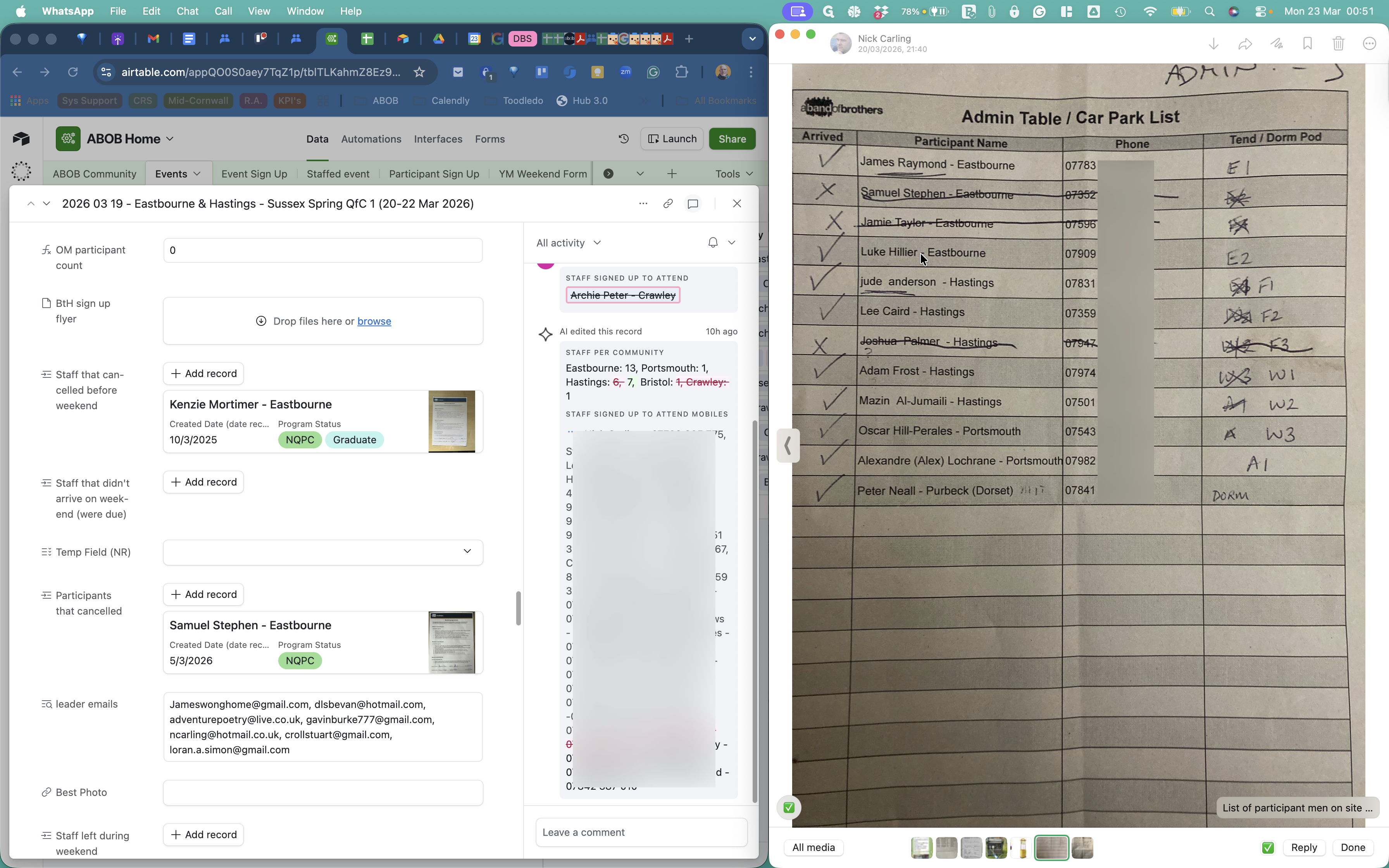
Starting from the top, Samuel Stephen didn't attend. Click X to unlink the record. Unhide the additional views. Next, add his name to the list of participants who canceled.
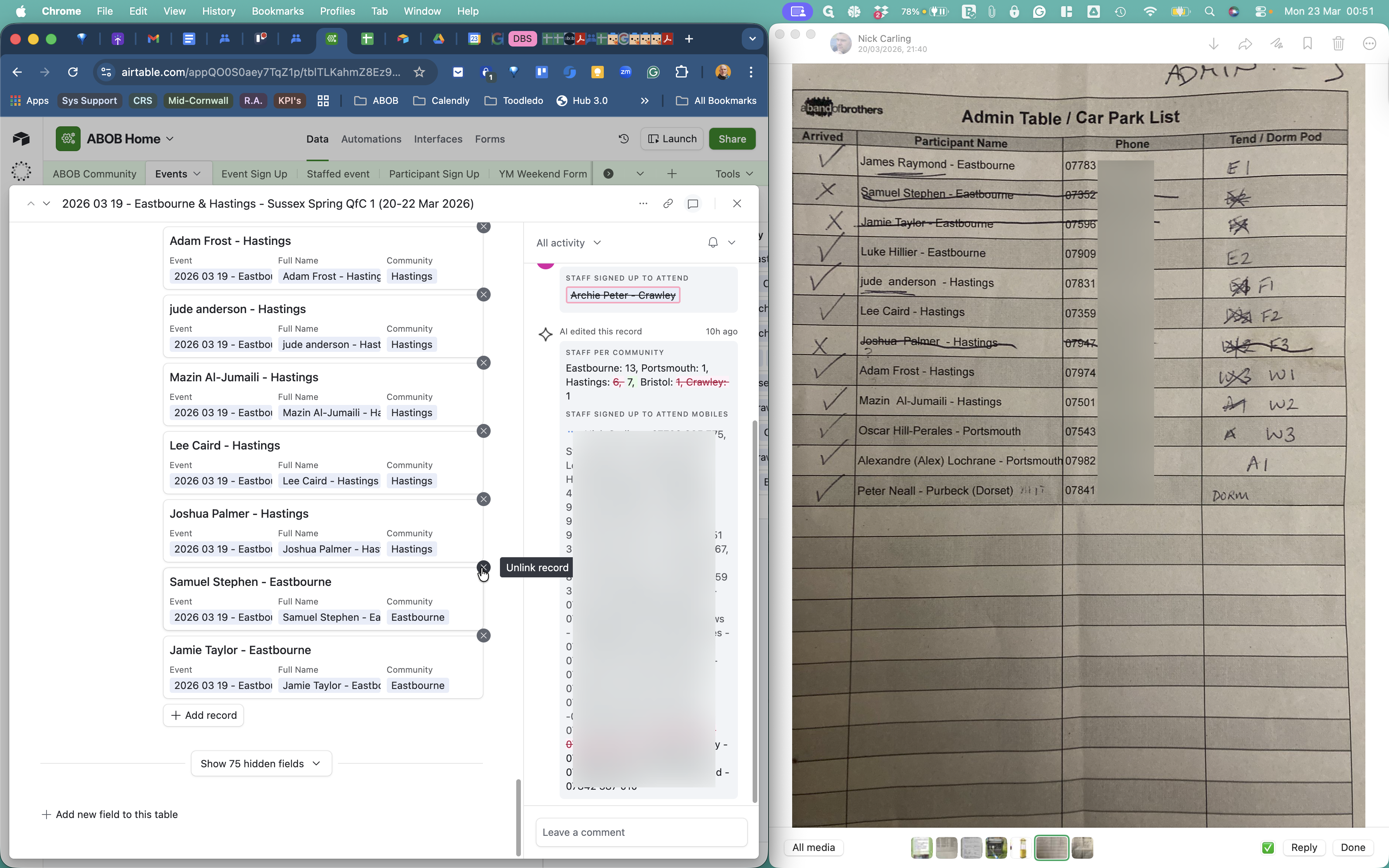
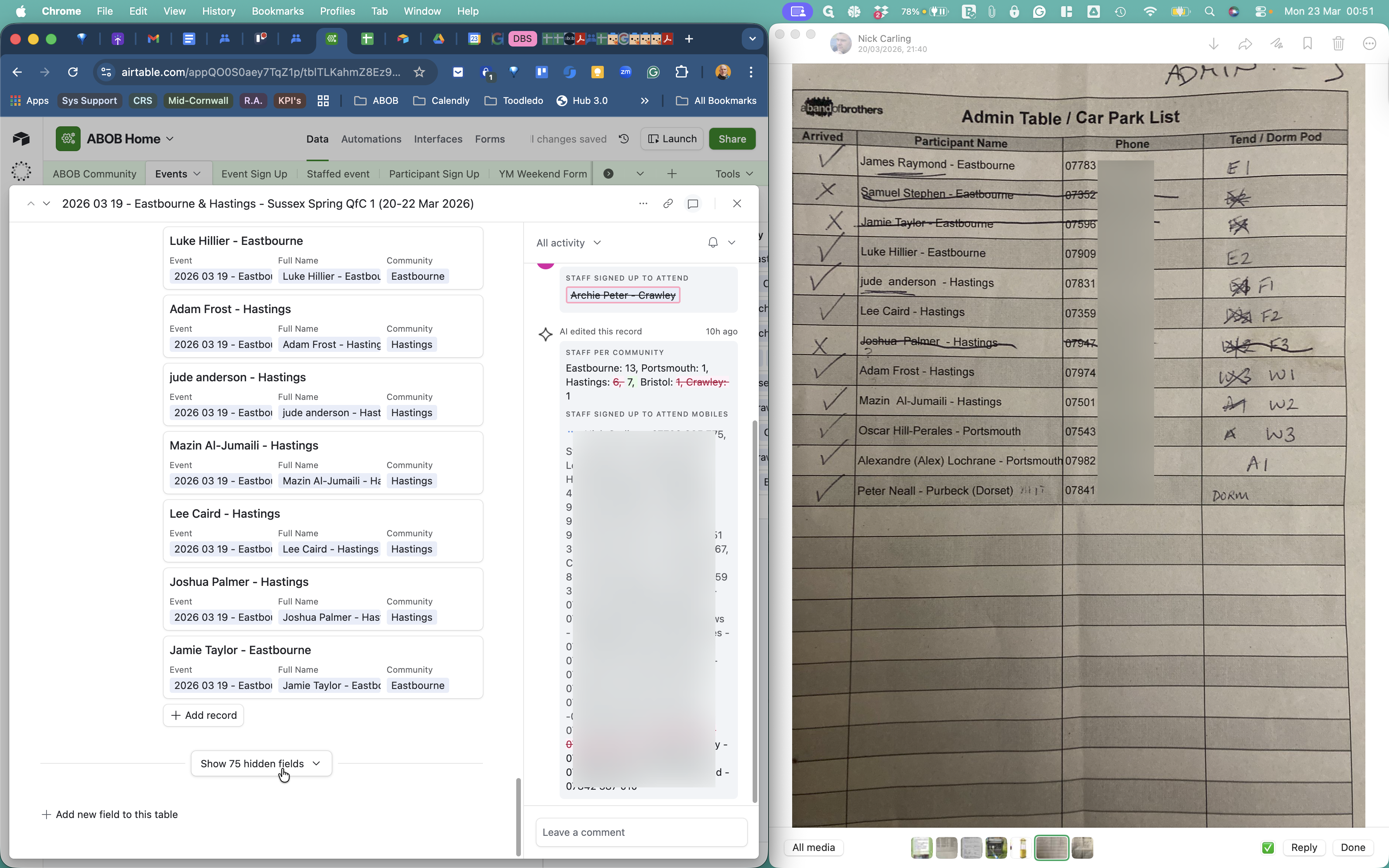
So you need to do that for ...
Joshua Palmer and Jamie Taylor.
The other thing you can do is...