How to Update Staff Attendance After an RoP Event (and most other event types)
Learn step-by-step how to efficiently update the list of Staff who actually attended a Rights-of-Passage weekend, or any event, automatically adjusting volunteer hours for the event.
In this guide, you'll learn how to update the list of staff who actually attended an event, which is different from those who only signed up. This process ensures that attendance records and volunteer hours are accurate after the event.
You'll see how to copy the list of staff from the 'Staff signed up to attend', and paste them into the 'Staff attended event' field, and then remove those who did not attend. This will bring the record of the staff who actually took part in the event up to date.
Let's get started
This is how to update the list of staff who actually attended an event. This is different from the staff who signed up. After a Rite of Passage weekend (or any event), update the list of staff who attended.
Update event attendance
Update volunteer hours for the event if empty (see the 'Hours Per Staff Man' field), which is 48 for RoP weekends
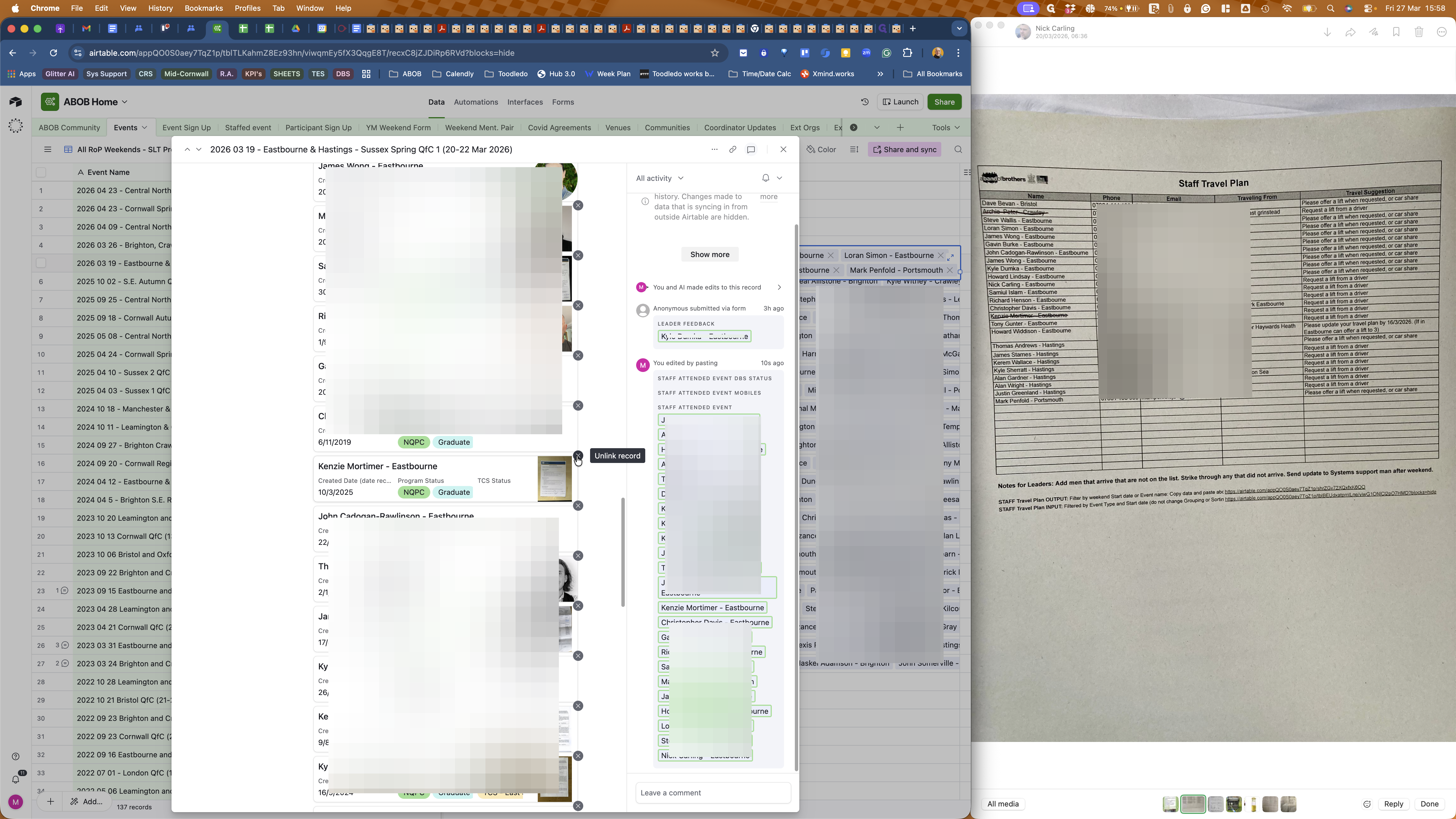
On the right side is a photo shared by the Outside Leader of the staff travel plan. He has crossed out the staff members who did not attend.
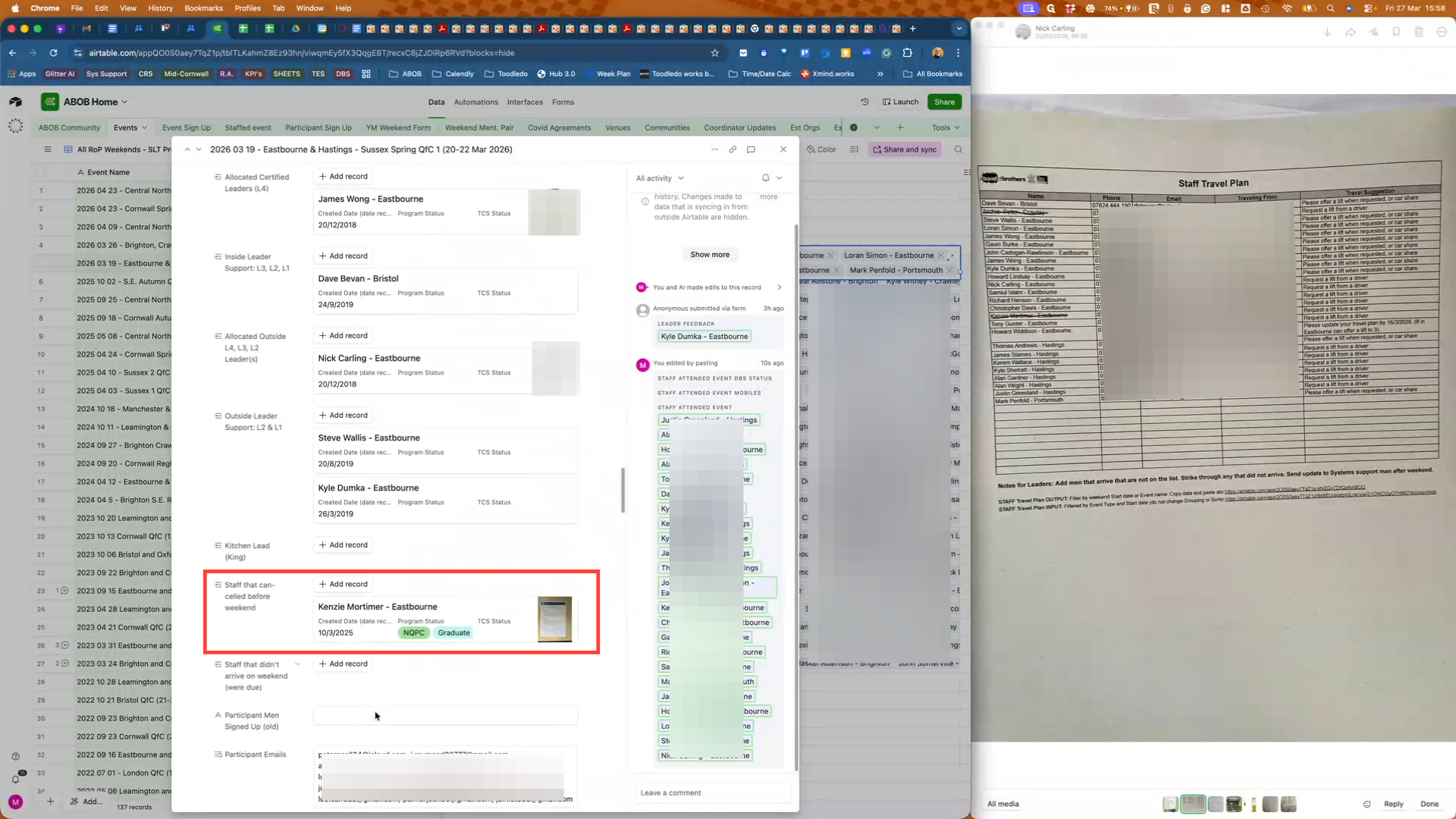
In this example, Archie signed up for the wrong weekend, so he was removed prior to the start anyway. Kenzie was supposed to attend, but he cancelled.
First, to add all staff members who attended, copy everyone in the 'Staff signed up to attend' fand paste them into the 'Staff attended event' field for the weekend or event.
Then, in the expanded view, delete those who did not attend.
See the list of RoP weekends in the Events table here: https://airtable.com/appQO0S0aey7TqZ1p/tblTLKahmZ8Ez93hn/viwqmEy5fX3QqgE8T?blocks=hide
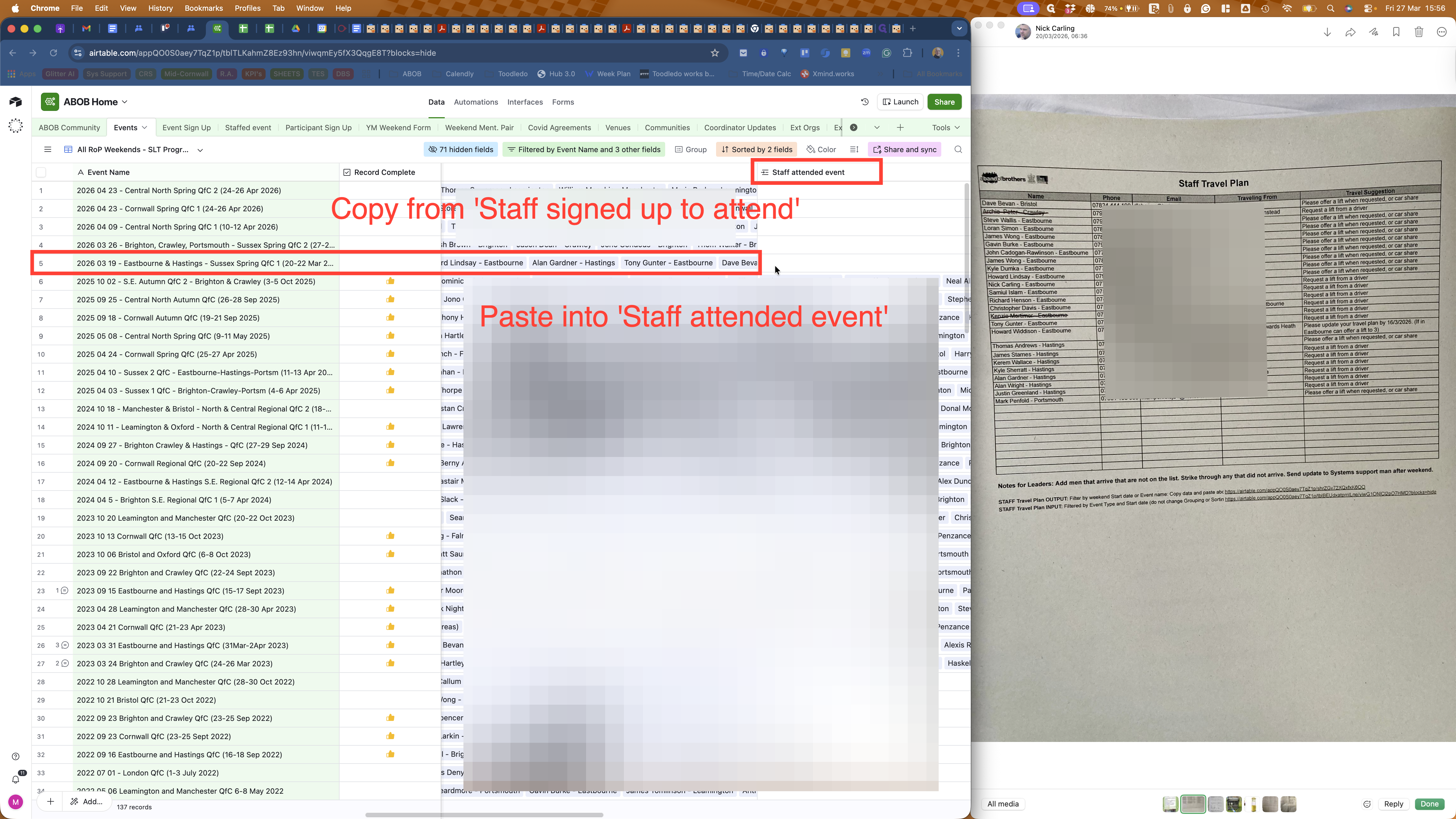
See the staff 'Staff signed up to attend' field for this event. Click on the field, then Cmd+C (Mac) or Ctrl + C (Win) to copy.
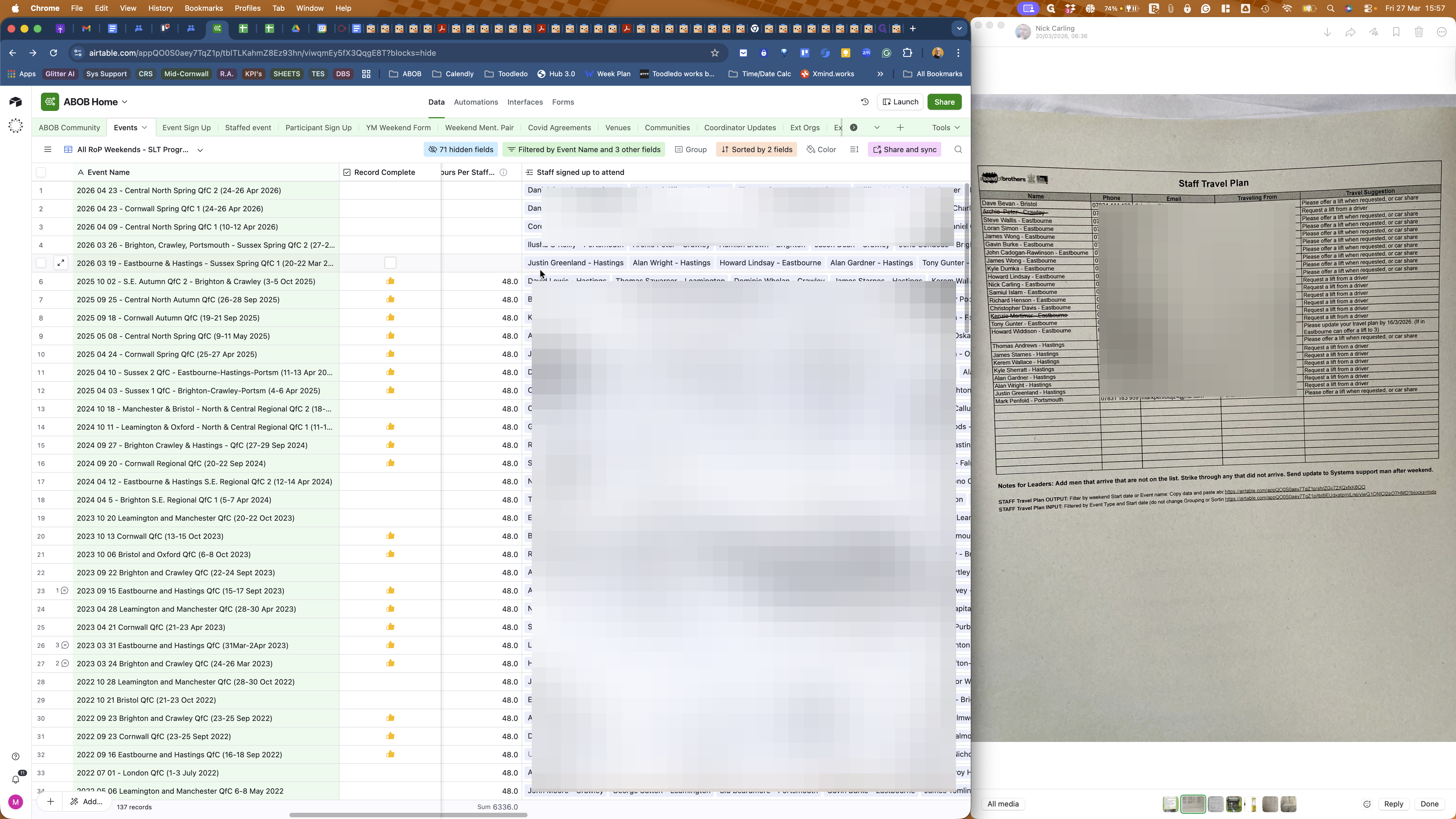
Now click on the empty 'Staff attended event' field to the right of it.
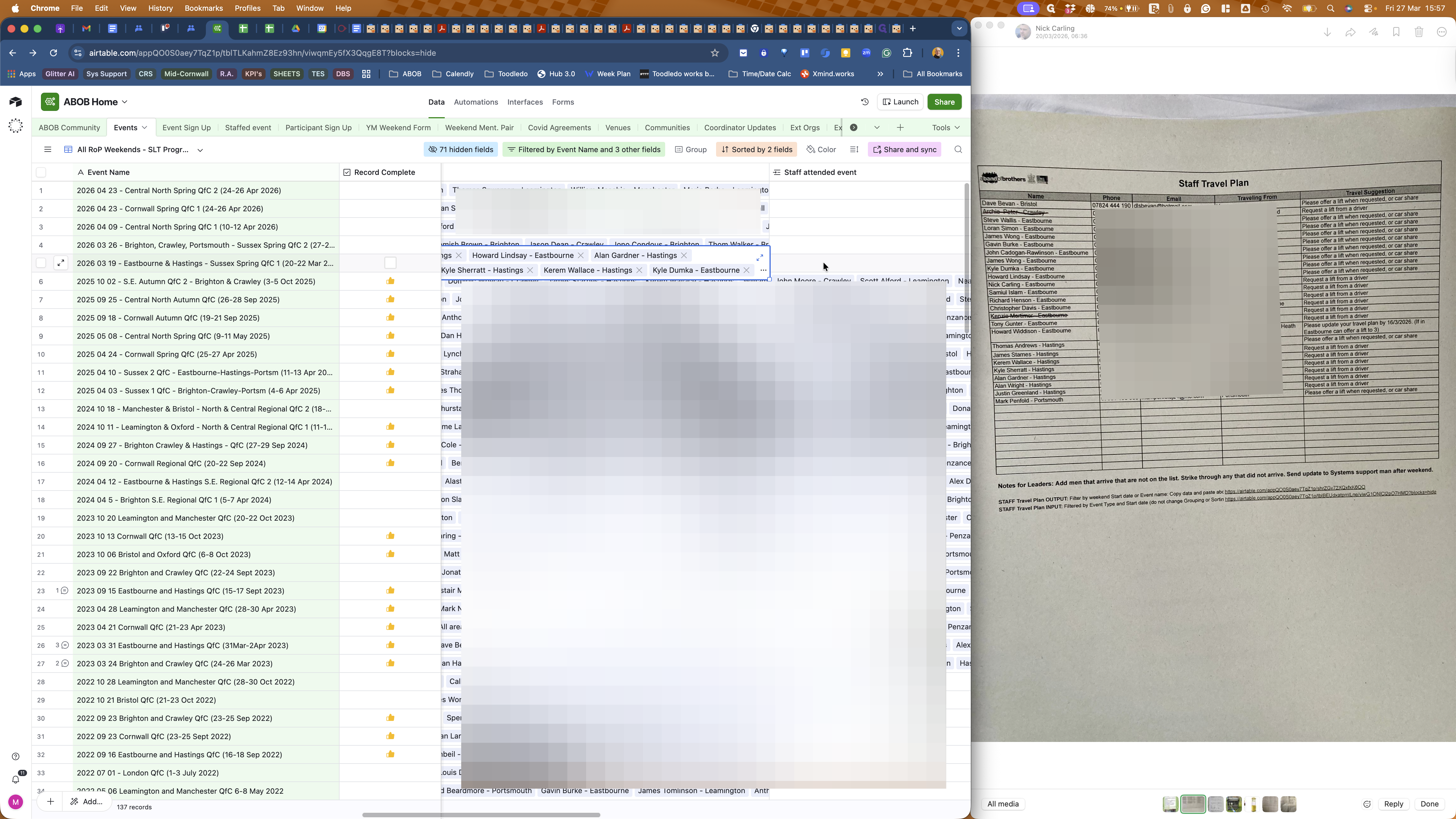
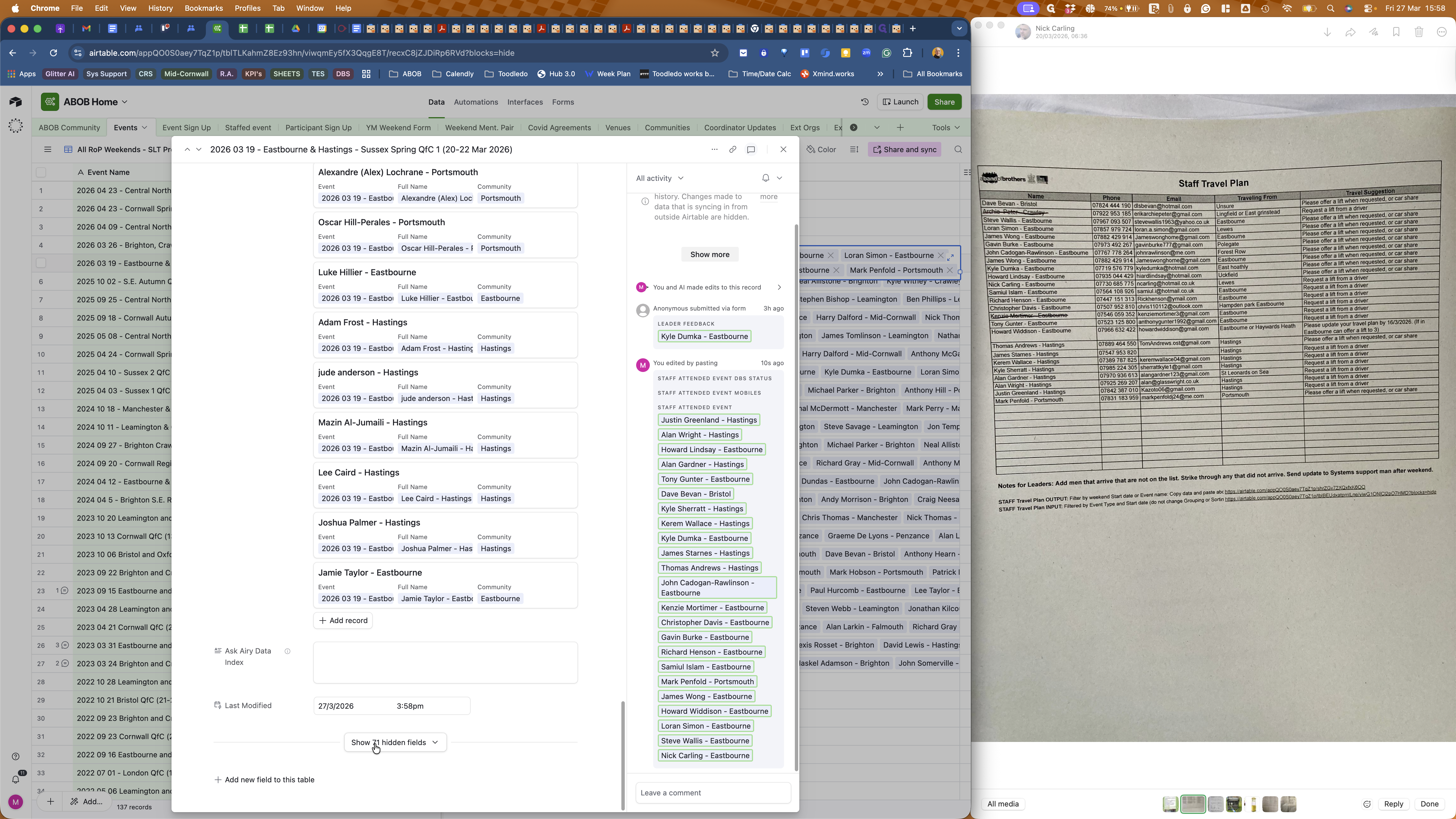
Now, expand the weekend view and scroll to the 'Staff attended event' list. Here, you can see all the staff whom you copied and pasted into that field from 'Staff signed up to attend'.
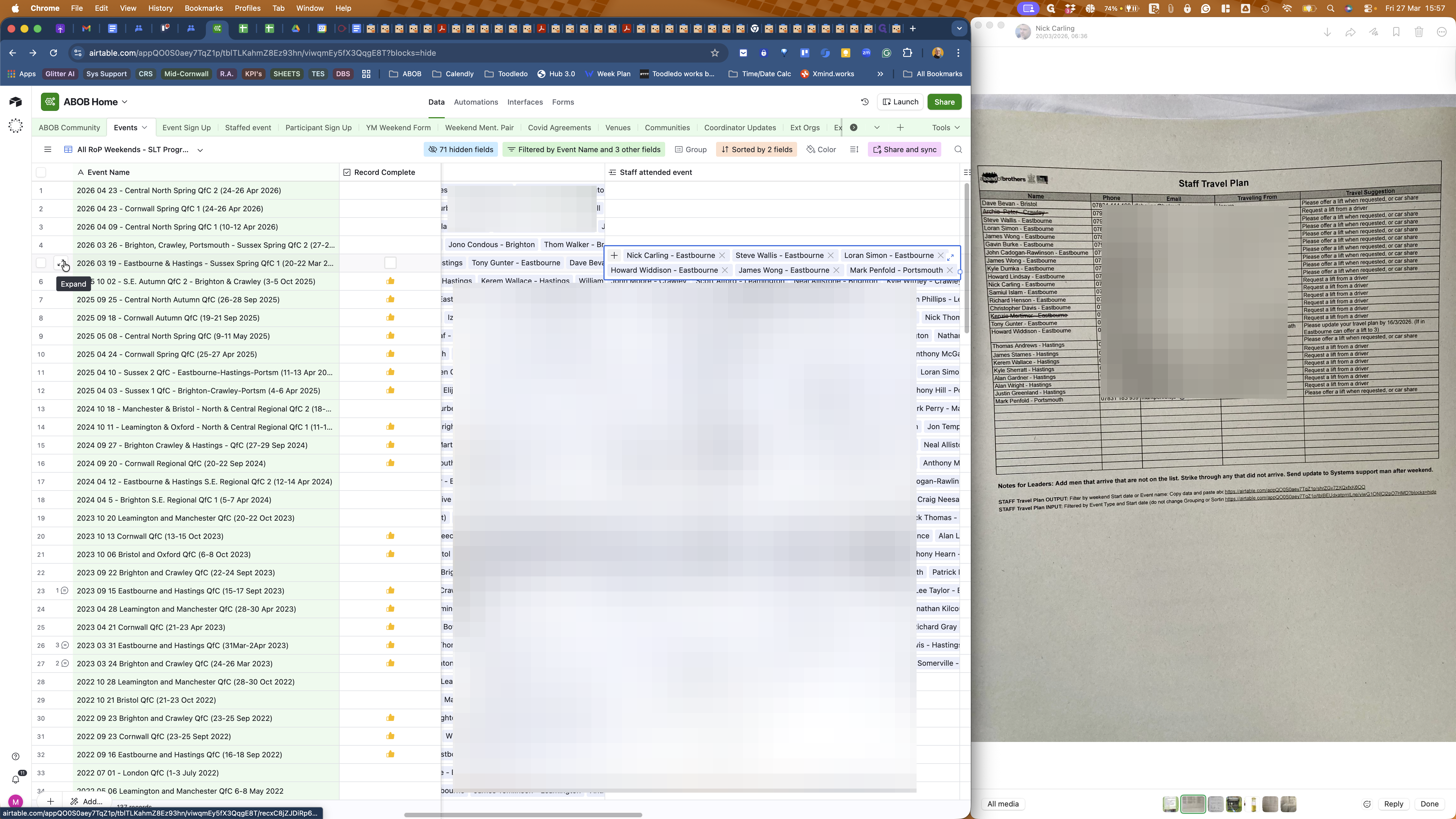
Only one staff member in this example event, whose name was in the Staff Travel Plan list in the Leader Pack, who did not attend. Find Kenzie's name.