
How to Update the Starwood Monthly Investor Report
Learn how to correctly roll forward directories, link external data tapes, and validate the rollforward schedule for the Starwood Monthly Investor Report.
This guide explains how to perform the monthly update for the Starwood Monthly Investor Report. By following this process, you will successfully roll forward the file directory, update the Monthly Investor Data Tape (MIDT) inputs, and validate the ending portfolio balances to ensure all report metrics are accurate.
This workflow applies to reporting analysts and finance teams responsible for generating standard monthly investor deliverables. It should be performed at the close of each reporting cycle once the new M3 external data tape is available.
Create the New Month's Directory
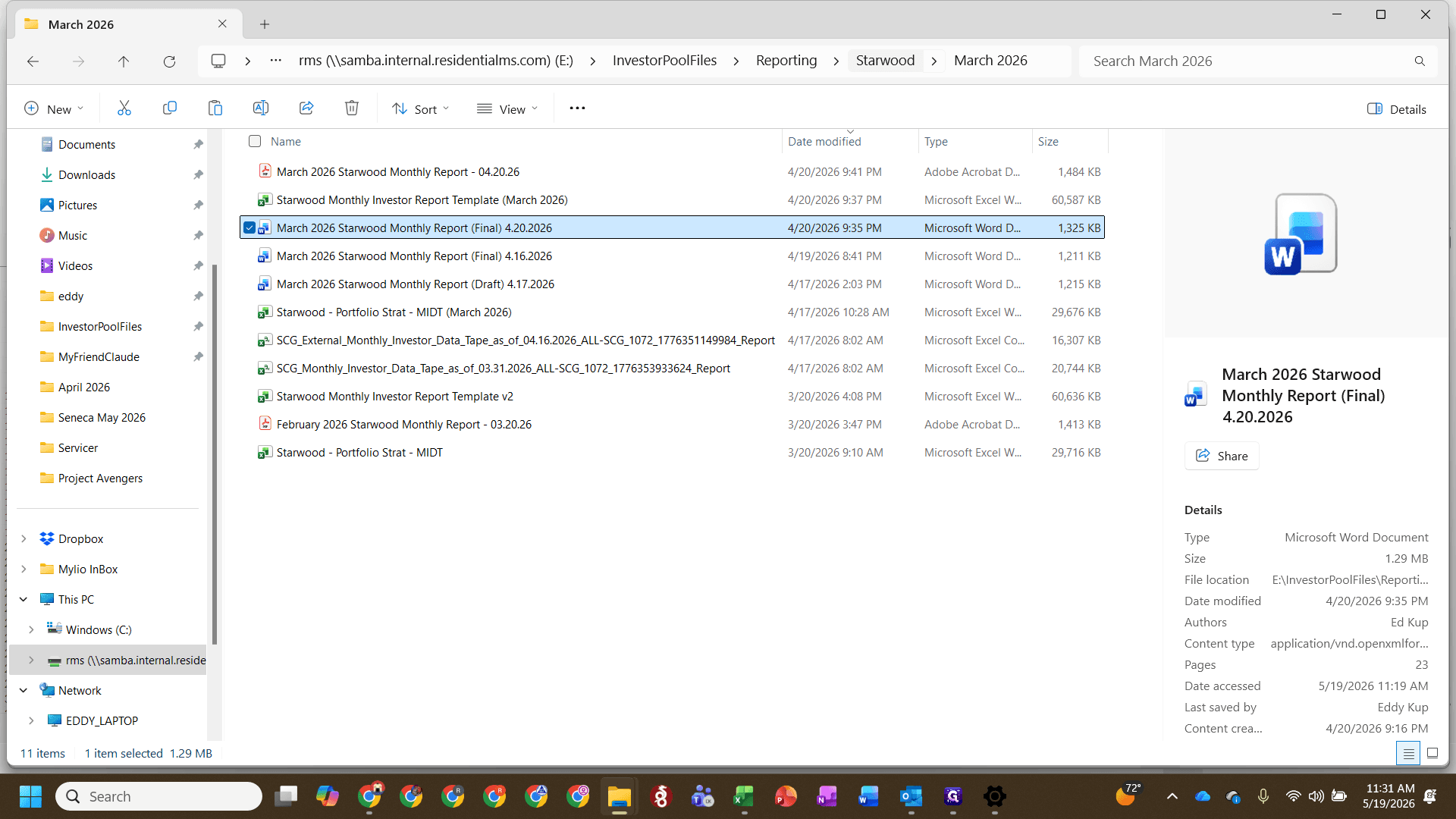
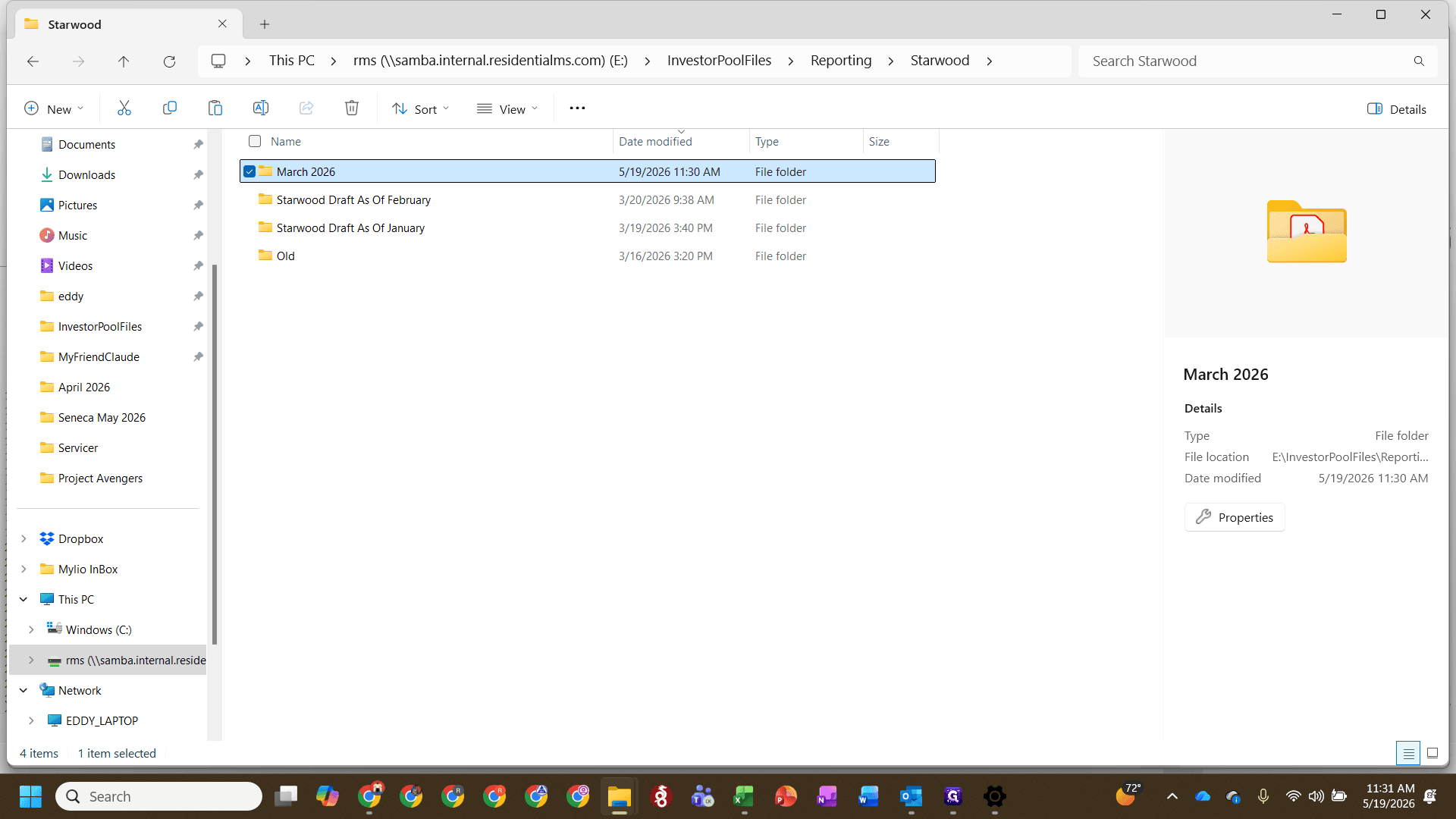
Start by rolling forward the previous month's files to establish your working directory for the current period.
Link External Workbooks
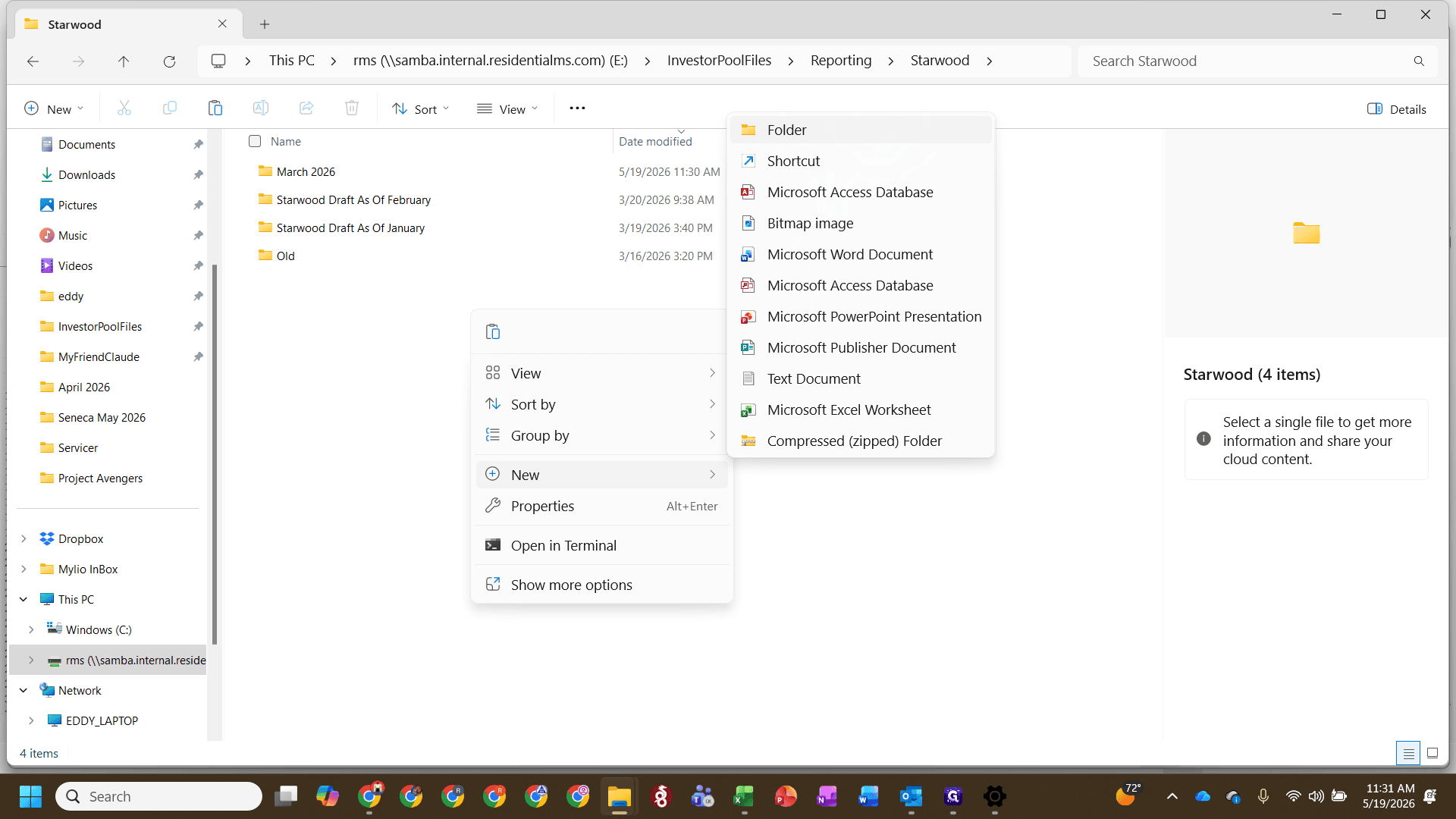
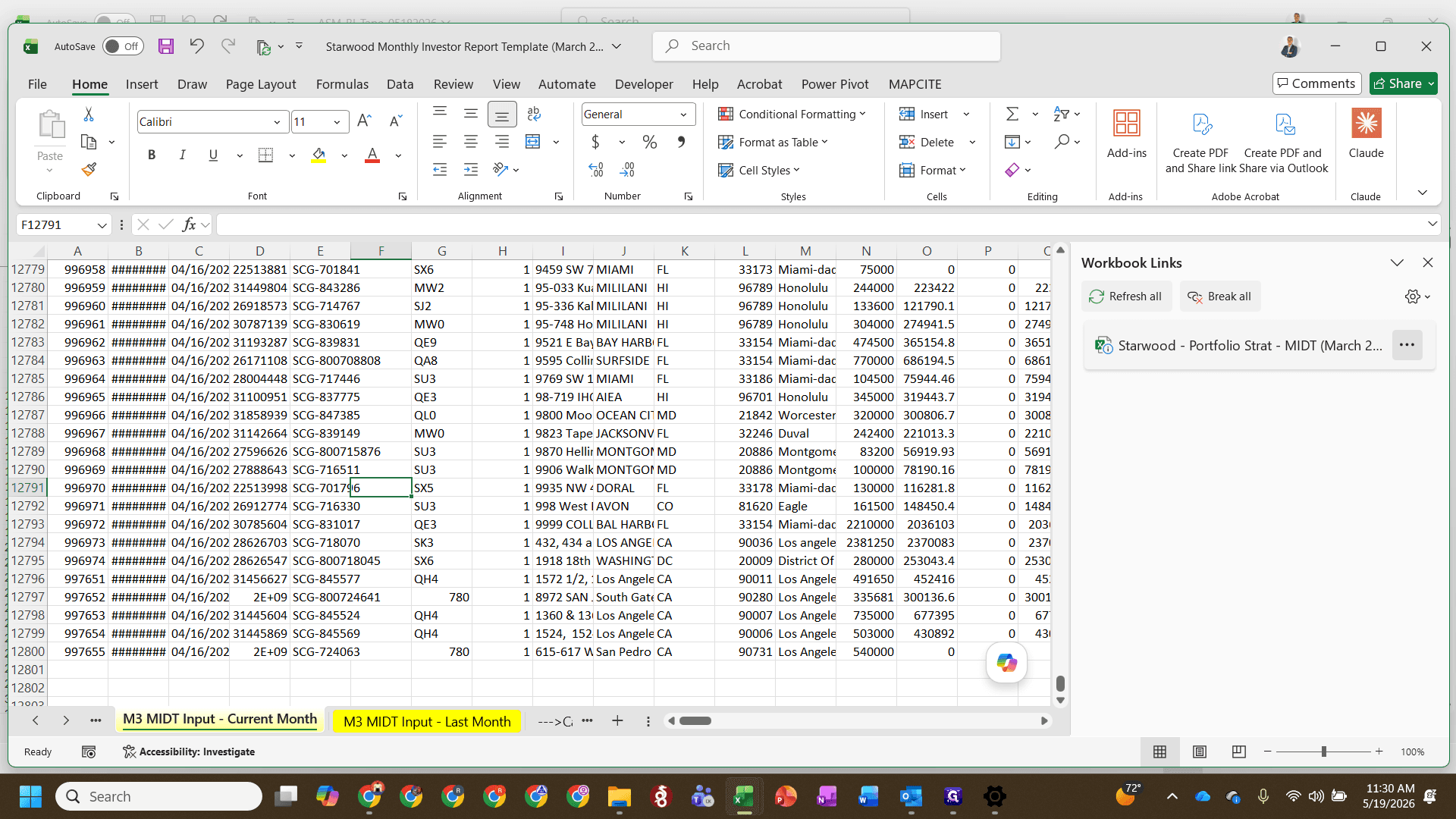
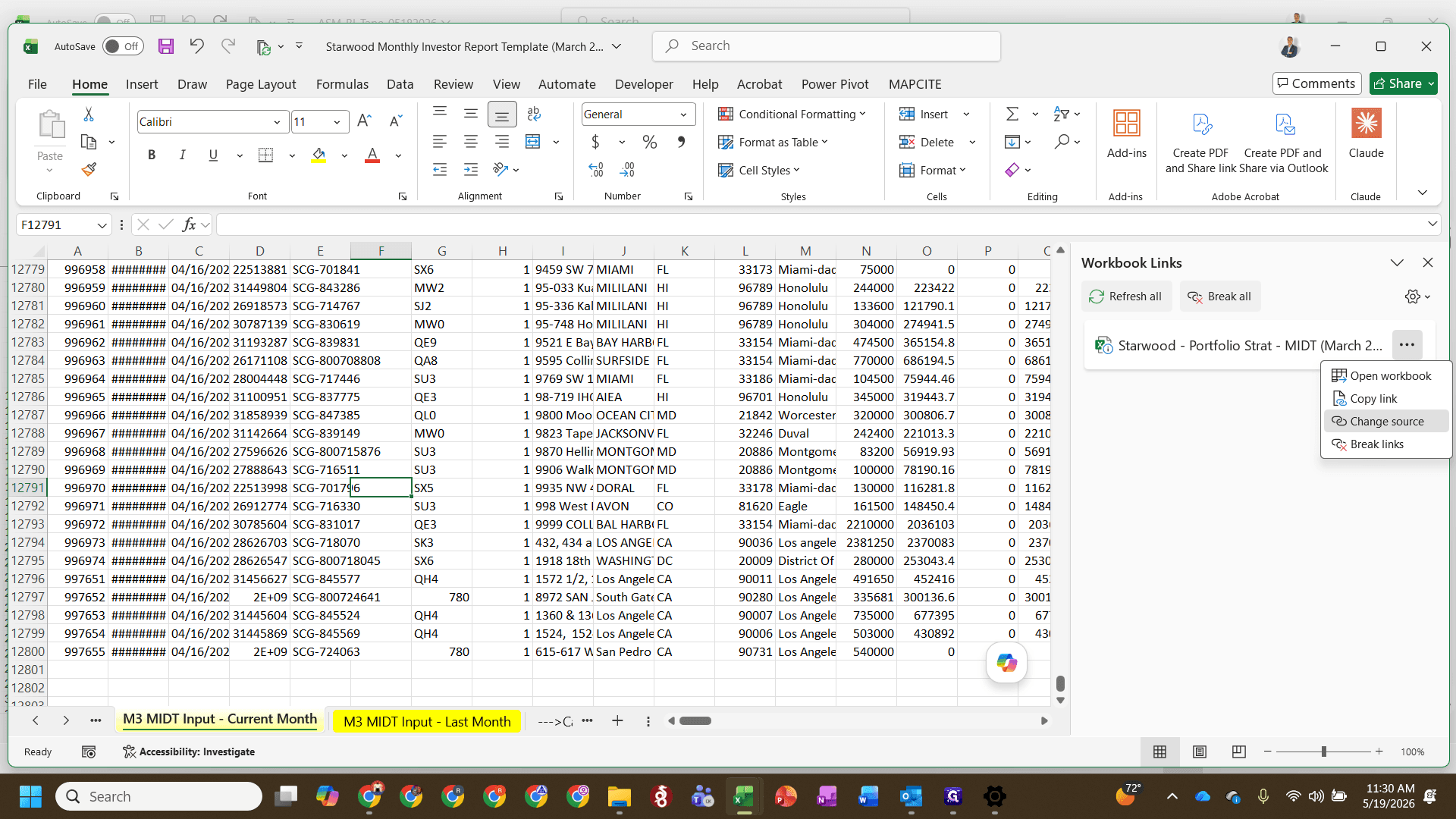
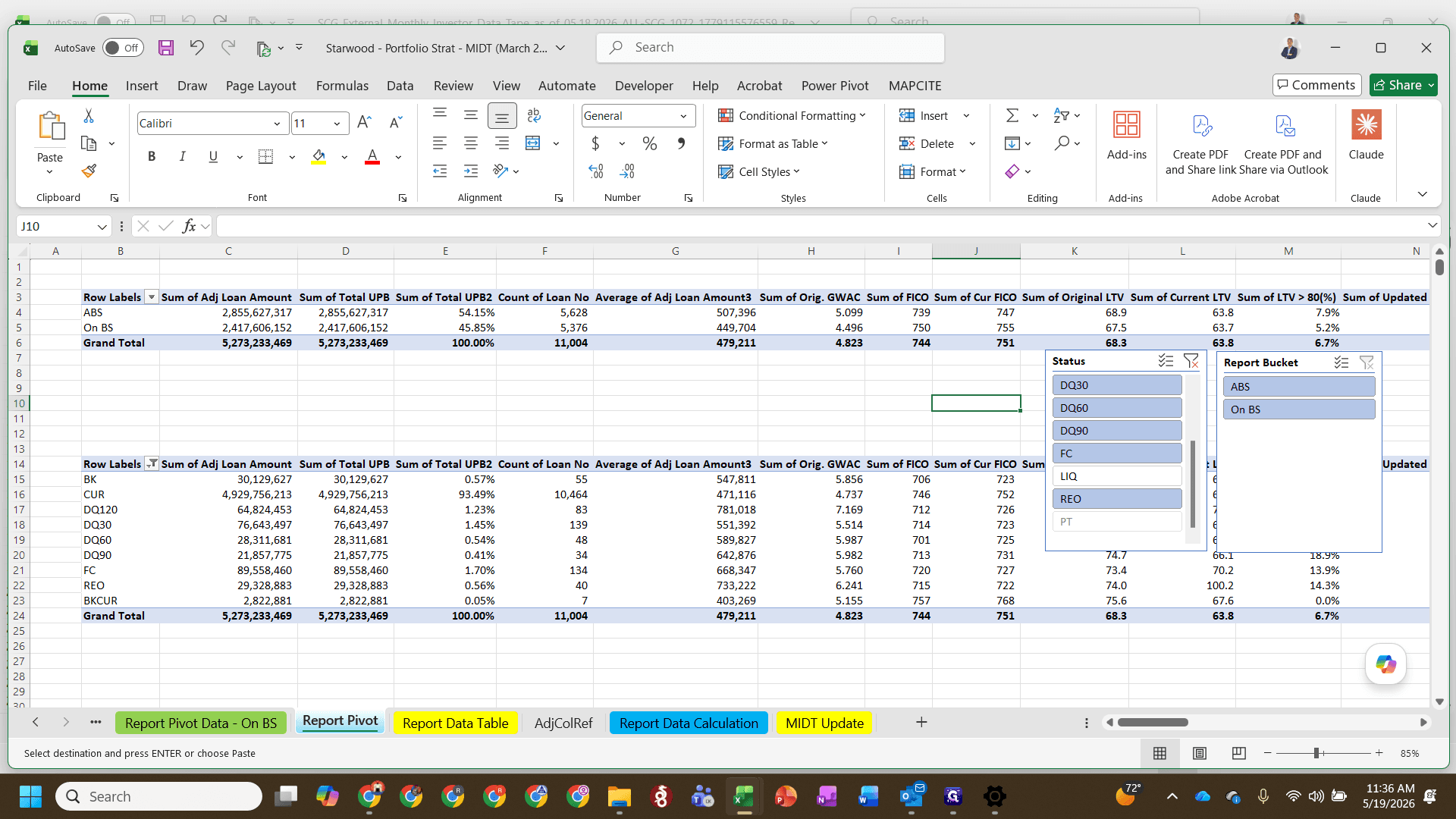
The report relies on several interconnected files. You must update the source links so the main template pulls from the current month's supporting data.
File Type | Purpose | How to Update |
|---|---|---|
Report Template | The primary Excel workbook containing the rollforward and output sheets. | Open directly; update workbook links within. |
Portfolio Strat | The supporting stratification data file. | Serve as the external source for the template. |
Word Report | The final text-based investor summary. | Update dates manually in the new draft copy. |
Update the Monthly Investor Data Tape (MIDT)
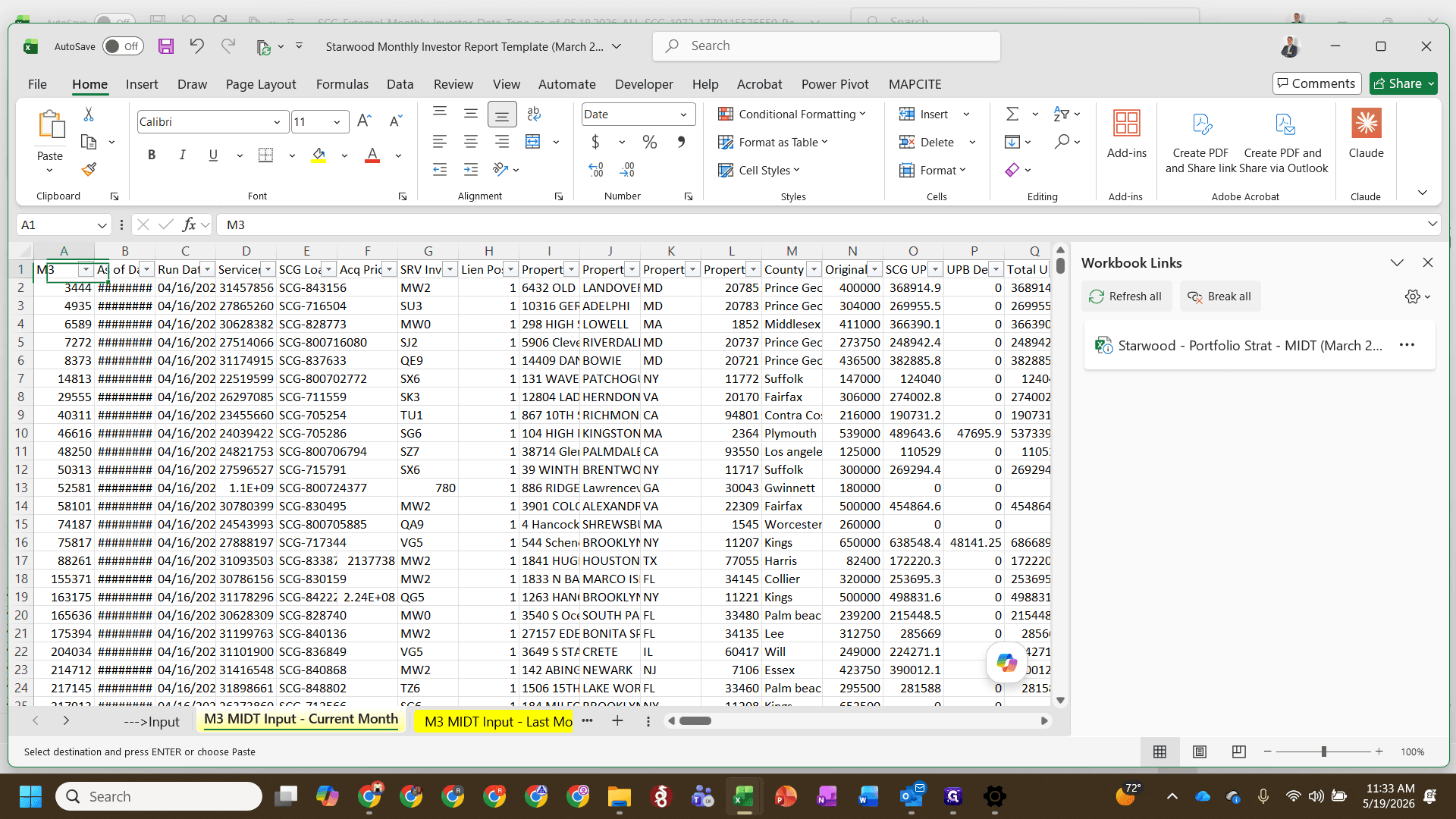
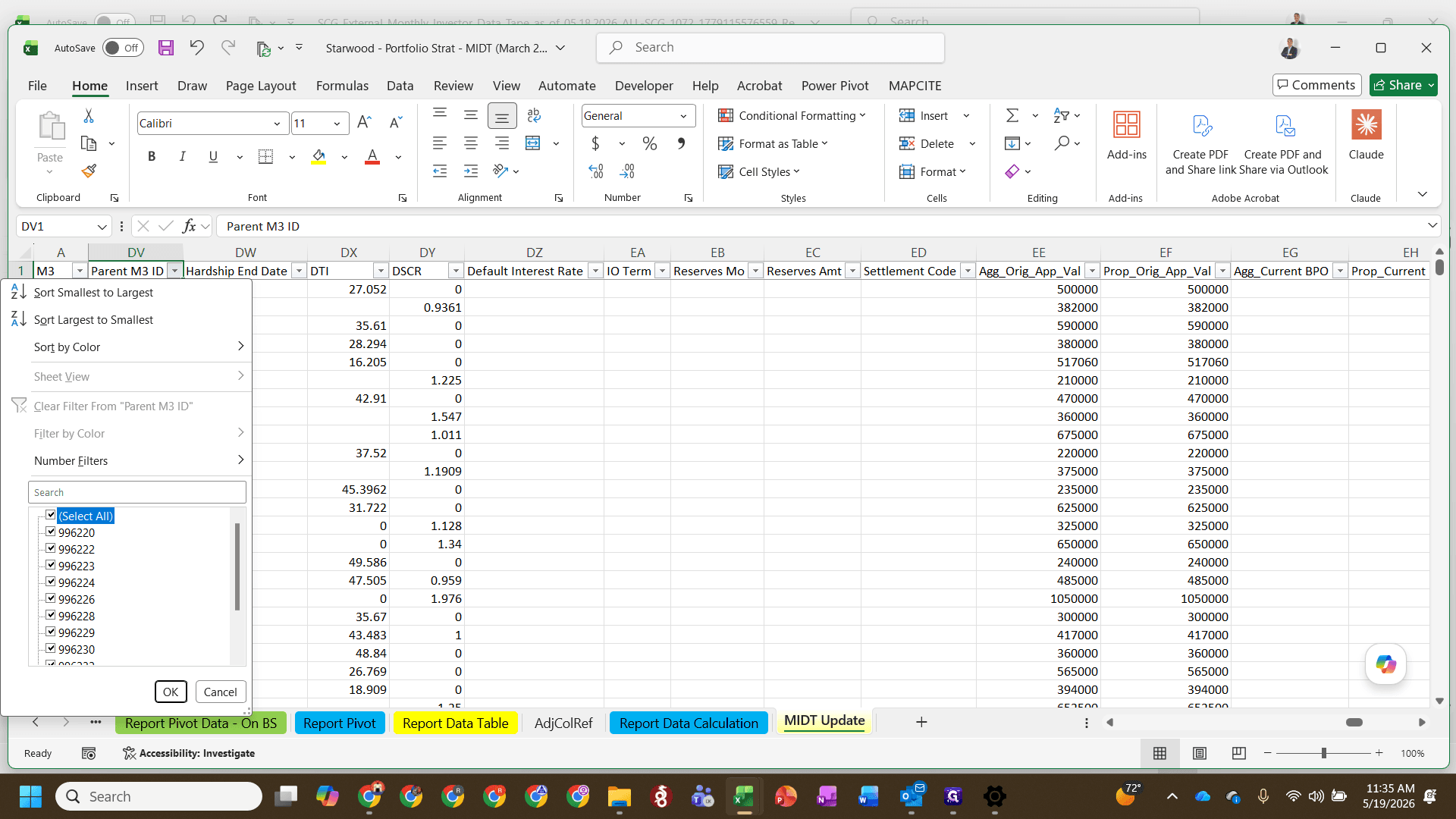
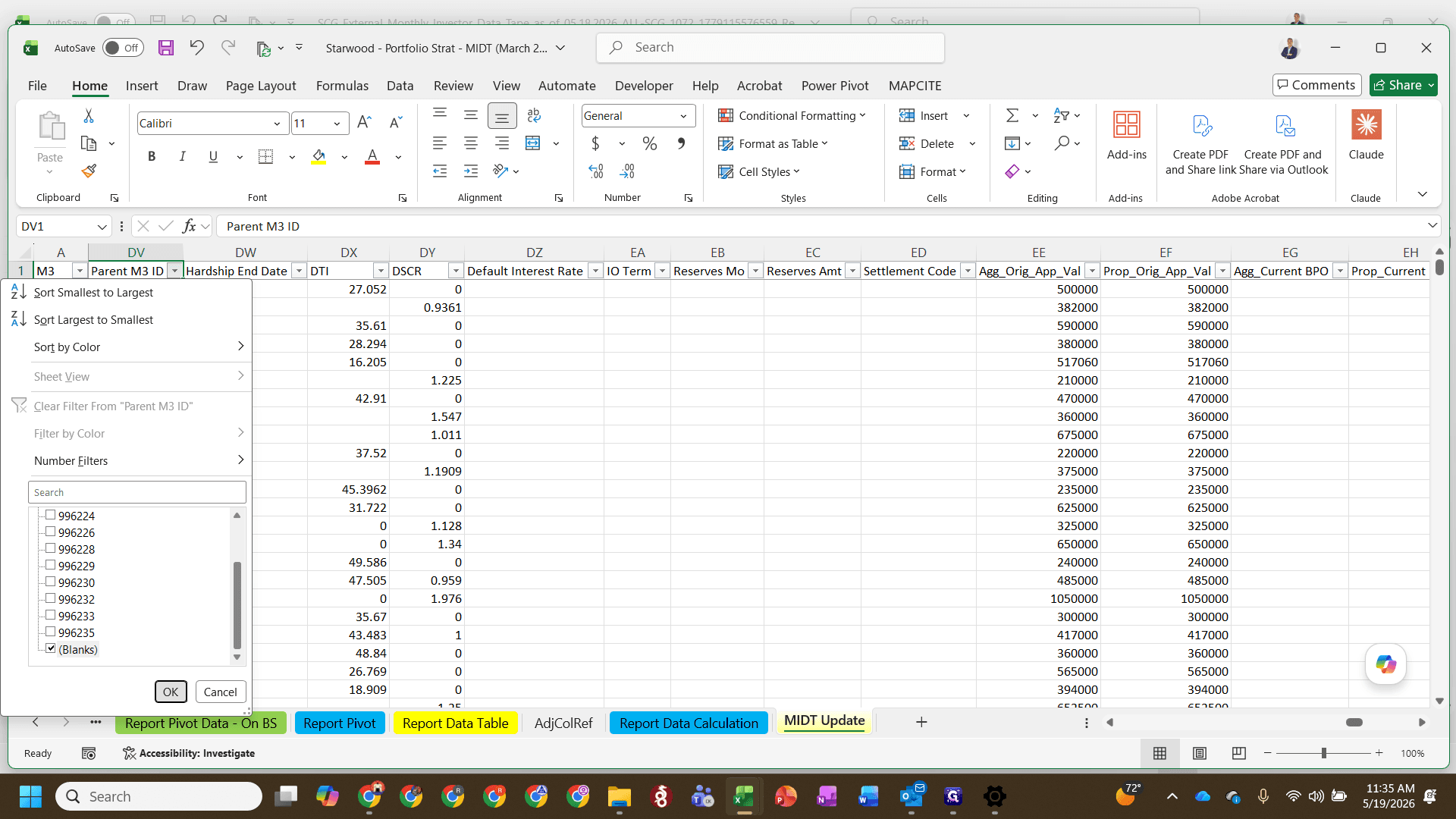
All manual inputs belong in the yellow tabs. You will need to move the previous month's current data to the "last month" tab, and paste the fresh M3 export into the current month tab.
Verify the Rollforward Checks
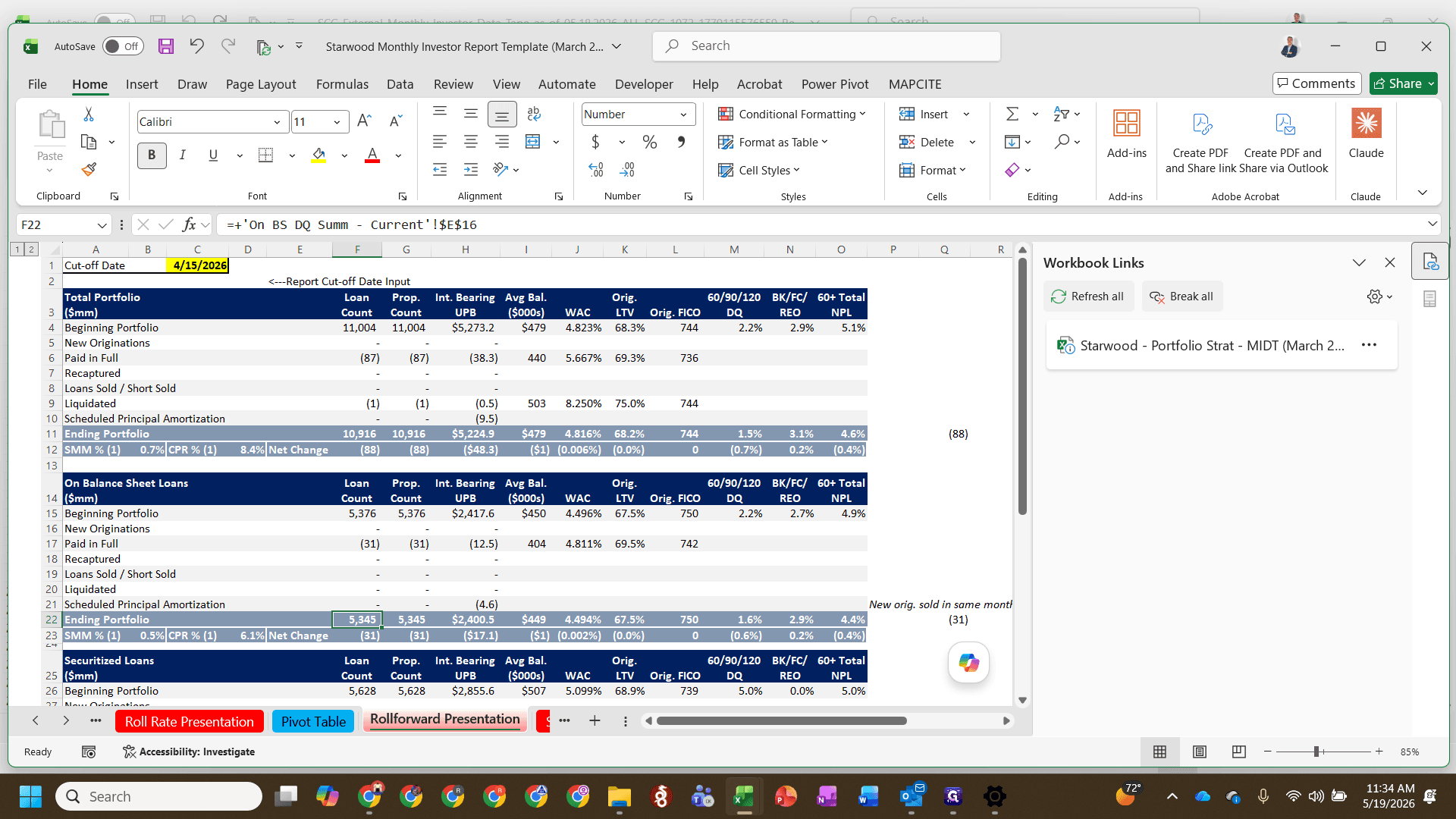
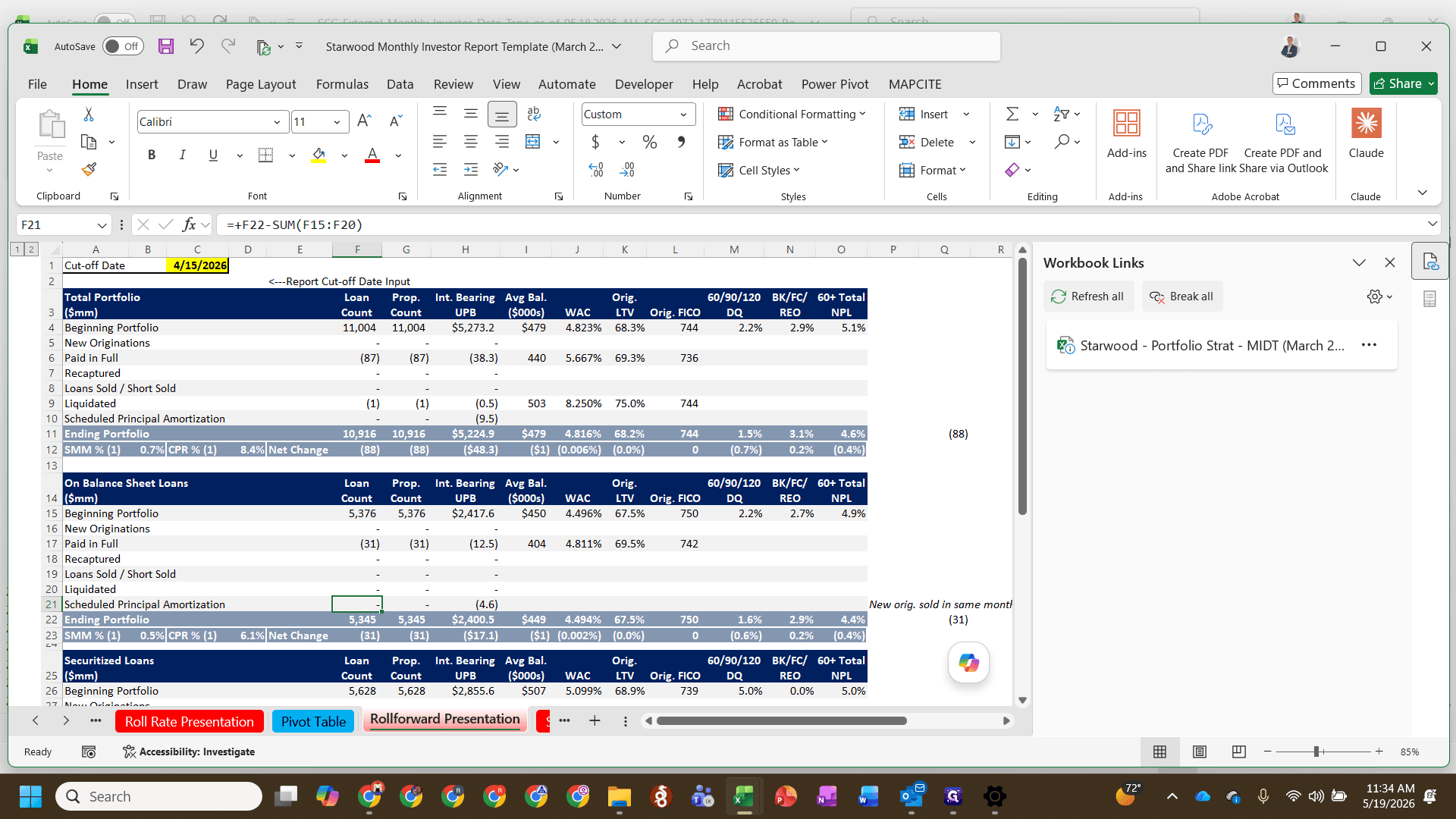
Once the data is populated, you must check your rollforward schedule to ensure no activities are missing or double-counted.
FAQ
Q: What should the ending portfolio balance equal?
A: The ending portfolio balance must equal the exact sum of the beginning portfolio balance plus all loan activities for the reporting period. If it doesn't tie out, a check will flag on the rollforward tab.
Q: What cutoff date should I use for the MIDT?
A: The cutoff date is usually one day before the as-of date (for instance, if the last payment date is the 13th). Always verify investor-specific requirements, as some investors use mid-month and others use month-end cutoff dates.
Glossary
Term | Definition |
|---|---|
MIDT | Monthly Investor Data Tape; the primary external data source containing the updated monthly loan metrics. |
M3 | The system of record from which the external monthly data tapes are exported. |
Rollforward | A financial schedule demonstrating the reconciliation between a beginning portfolio balance and an ending portfolio balance. |
Strat File | A supporting stratification file that groups underlying loan portfolio data by specific risk or performance attributes. |