
Updating ESR Home Page Slider and Recent Releases in WordPress
Learn step-by-step how to update the home page slider and Recent Releases section using Slider Revolution in WordPress. This guide covers editing slides, updating images, links, and ensuring your latest releases are featured.
In this guide, we'll learn how to update the slider and the Recent Releases section on your WordPress home page. This process includes editing images, text, and links in the Slider Revolution widget, as well as updating the image carousel for both desktop and mobile views. The goal is to keep your website content current and accurate.
Let's get started
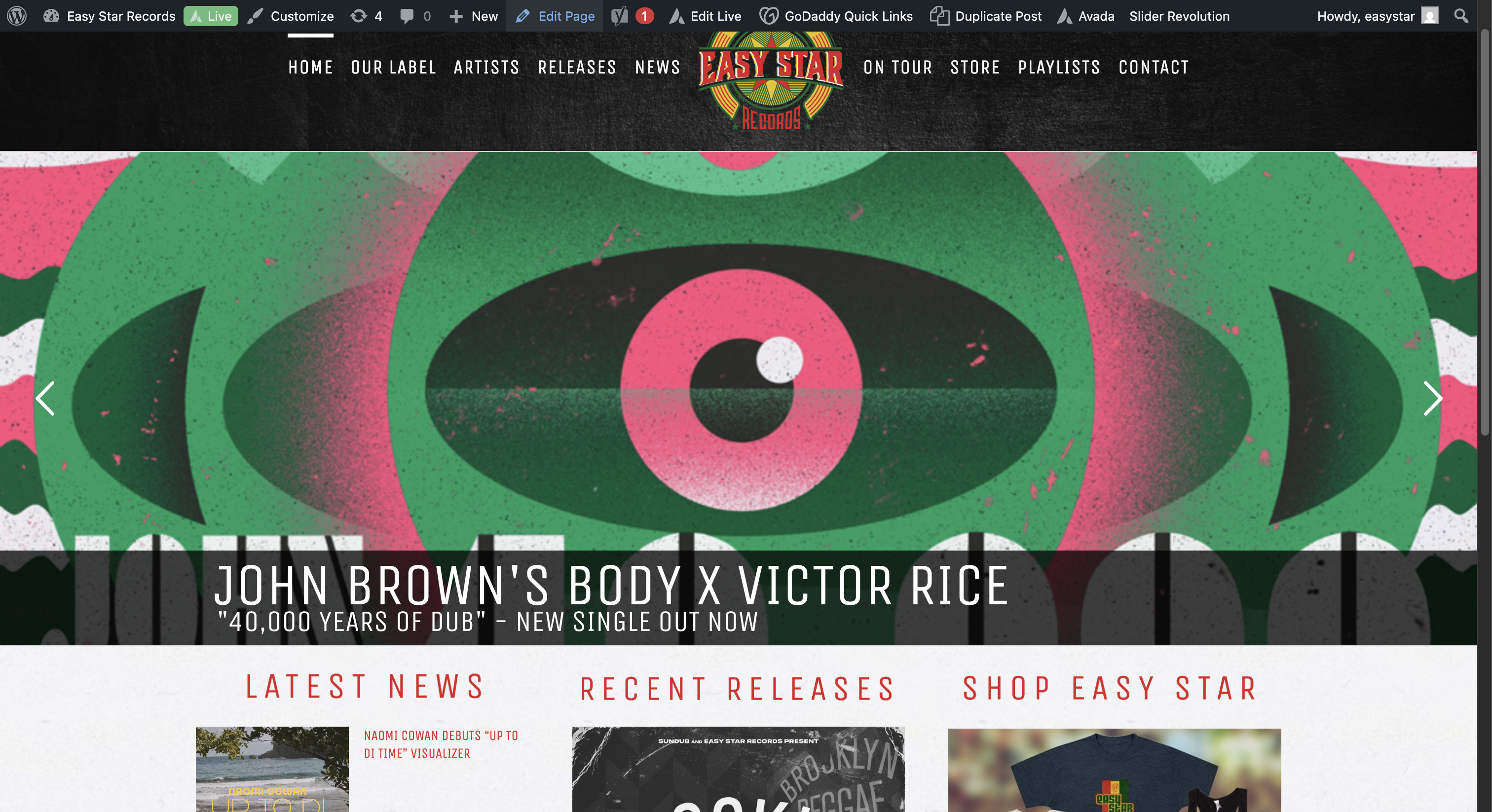
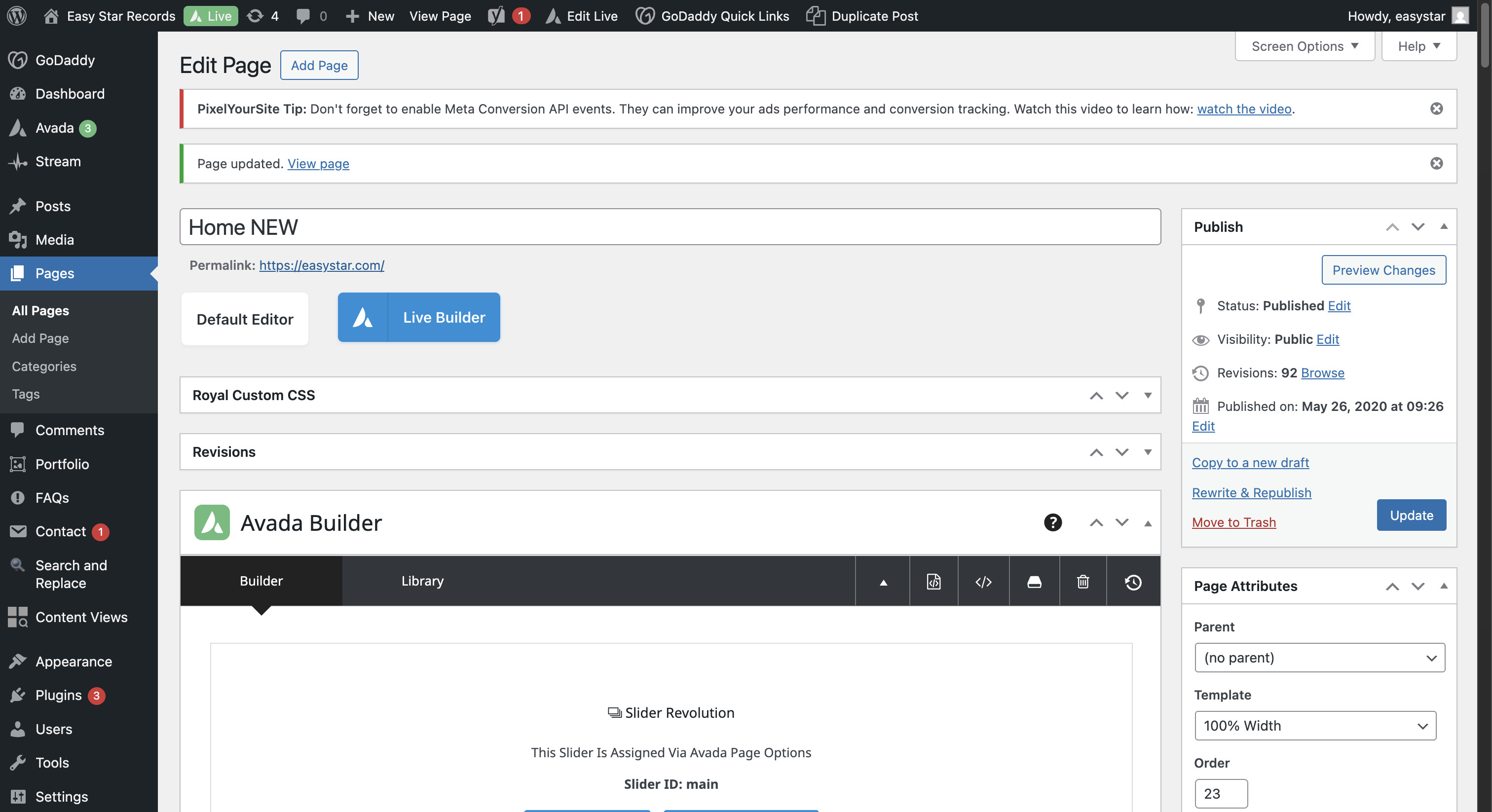
All right. We will learn how to update the slider on the home page and the Recent Releases section. Once logged in to WordPress, navigate to the home page. There will be a WordPress tool at the top. Click Edit Page. Once it loads, scroll down.
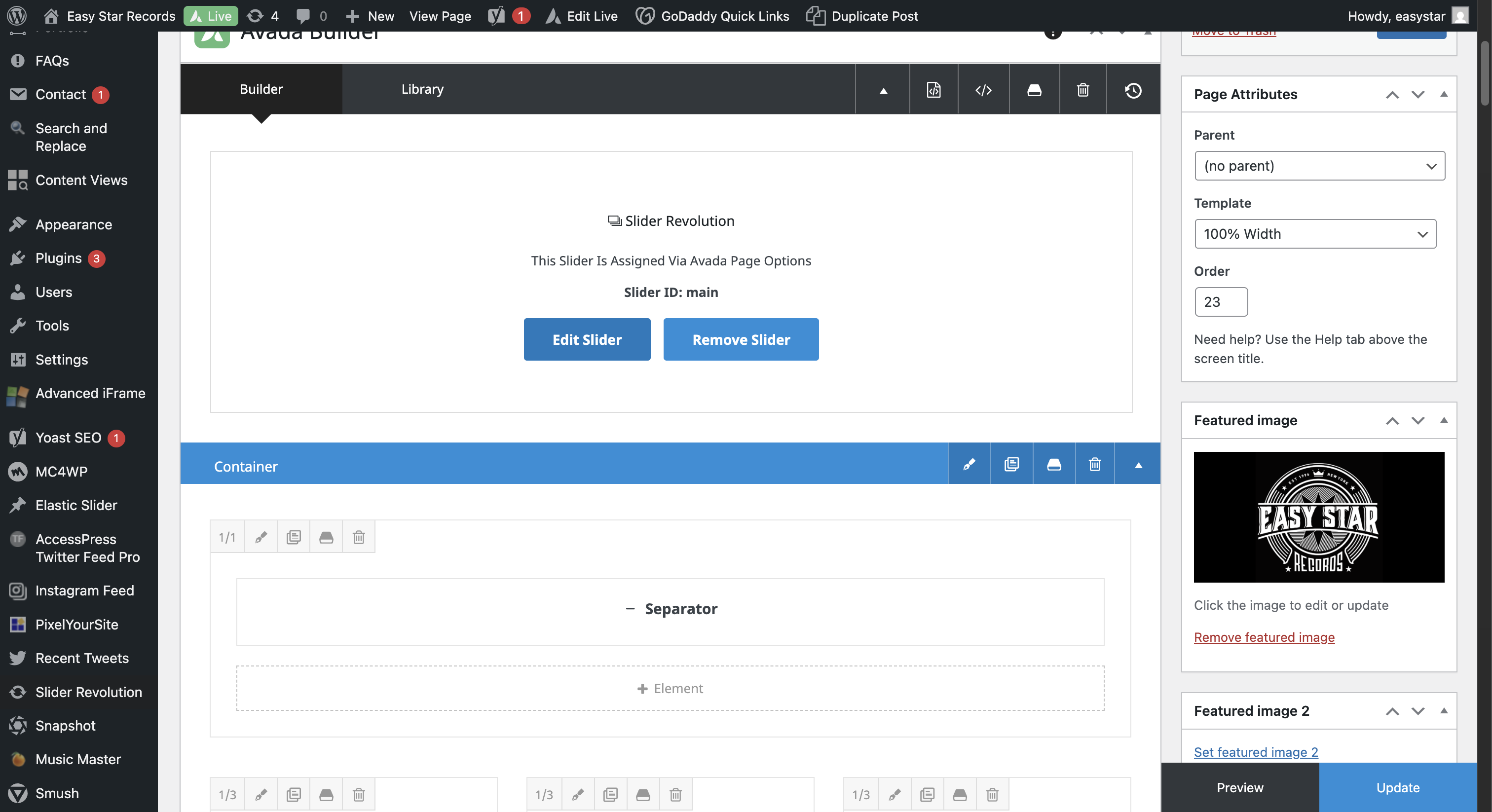
Here is the Slider Revolution widget. We are going to select Edit Slider.
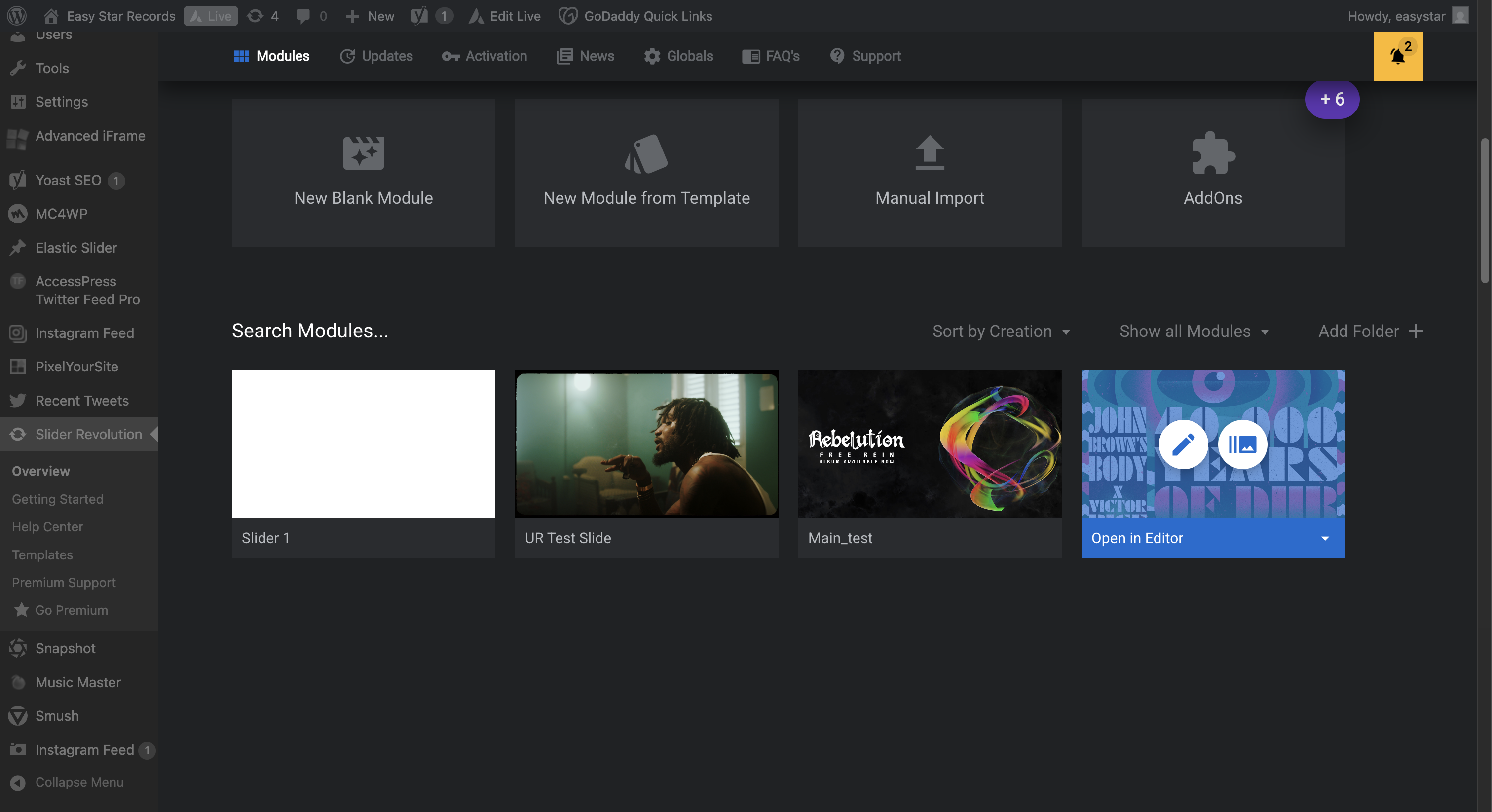
Once this loads, we will scroll down. We will edit the main slider.
At the top, you can see all the slides. Sometimes, the ninth slide is an evergreen slide for the Spotify playlist. Find the oldest slider, excluding the evergreen one, number eight. Move it to the first position, then edit it.
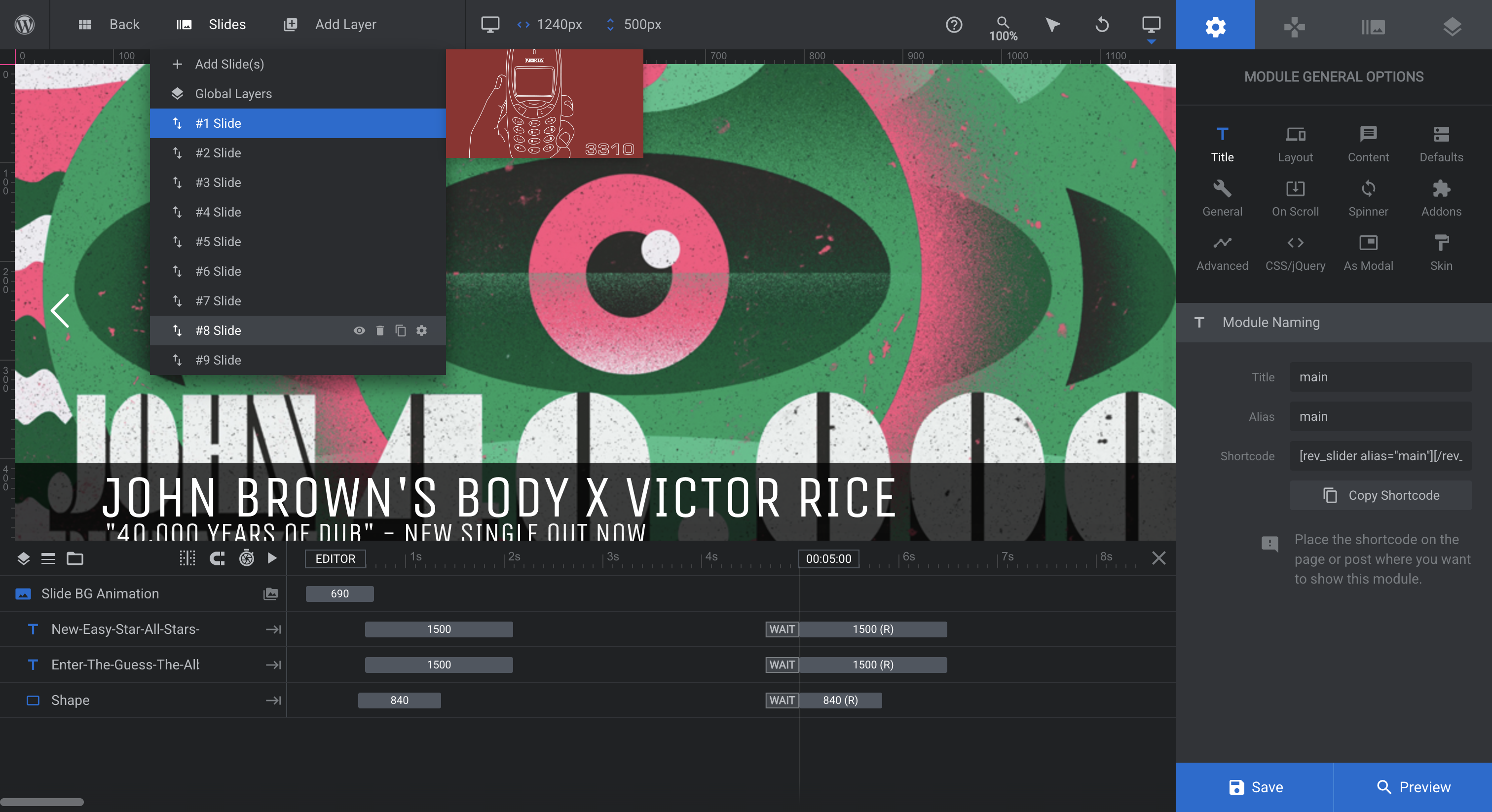
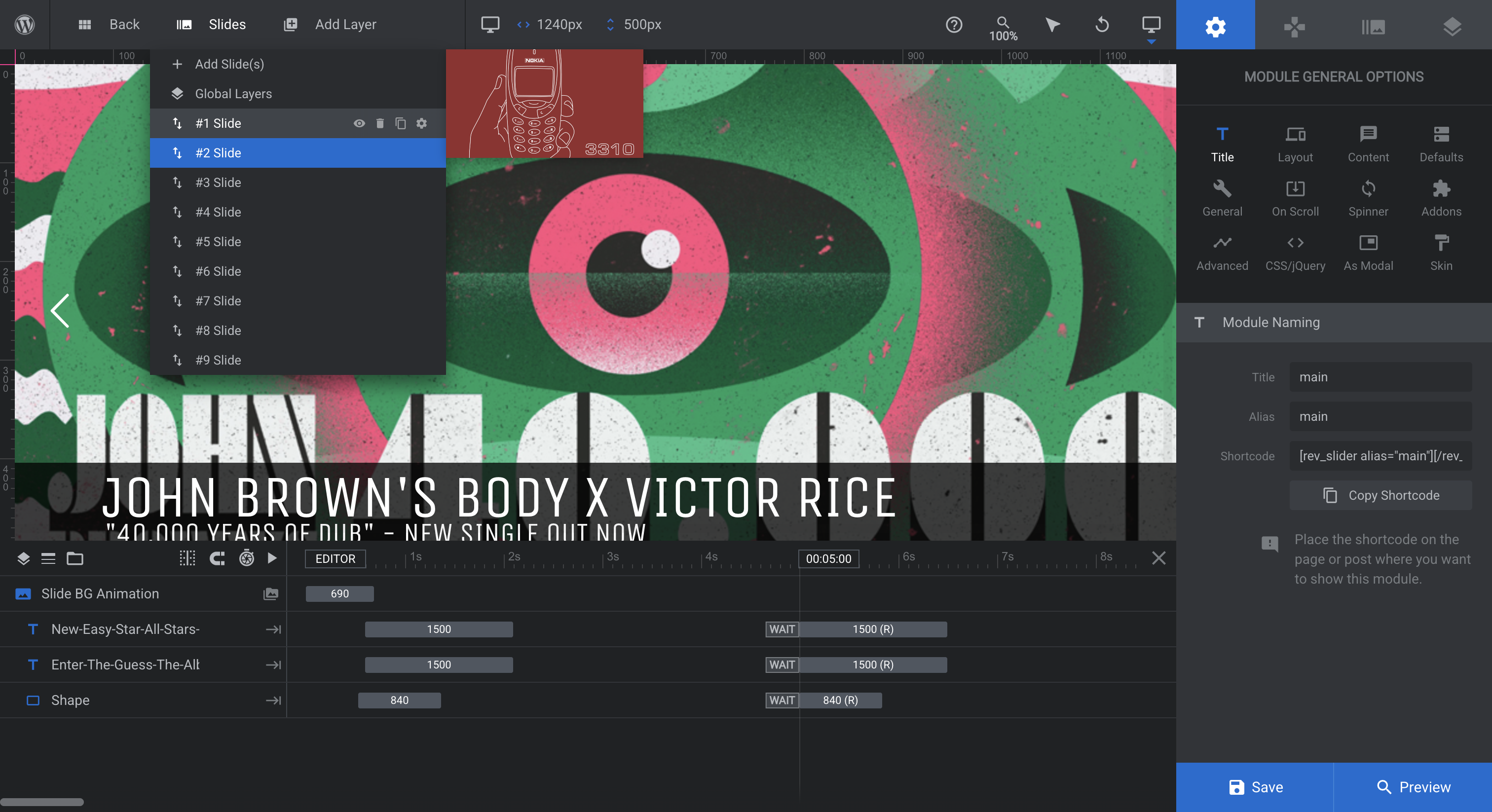
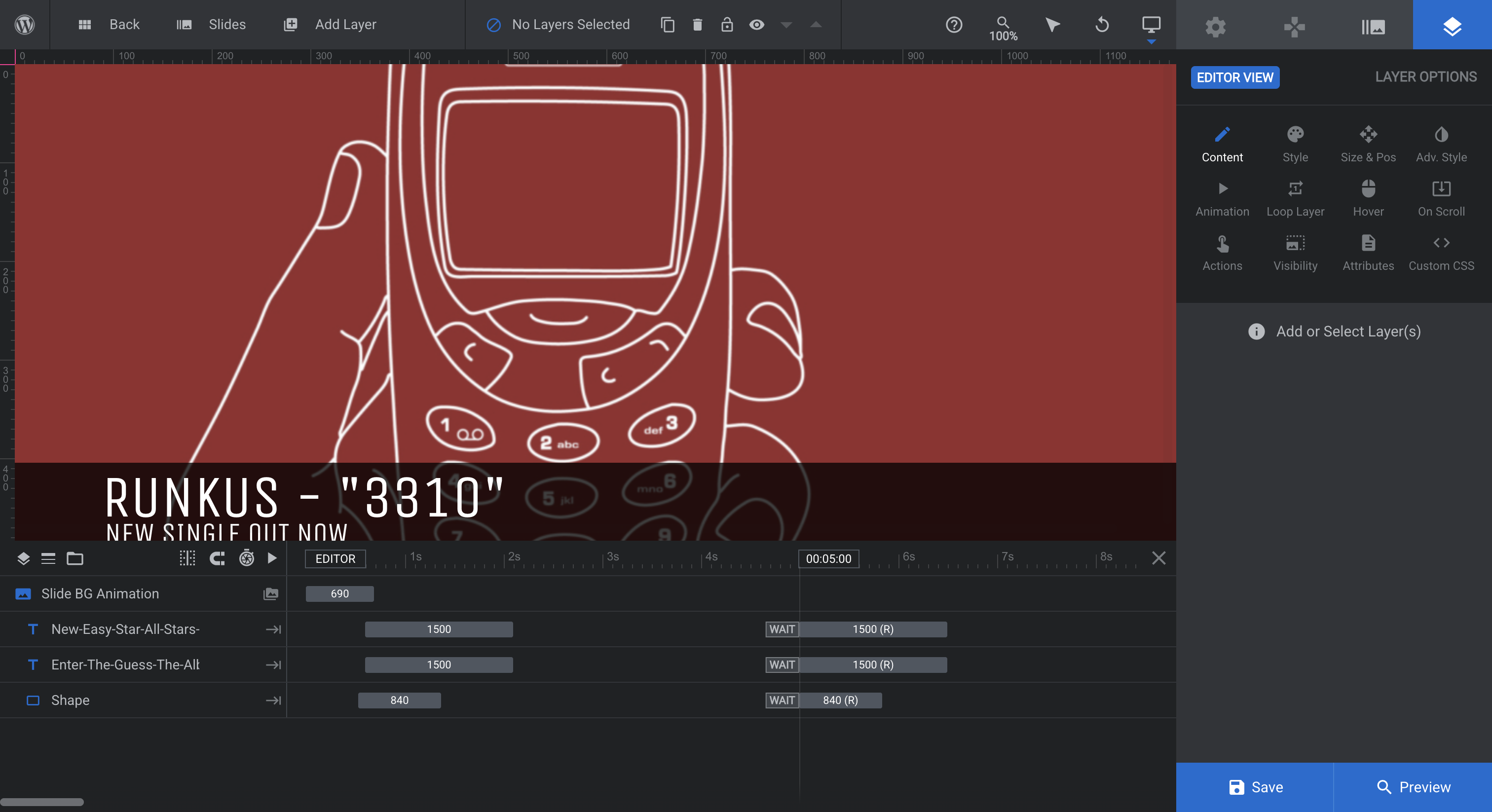
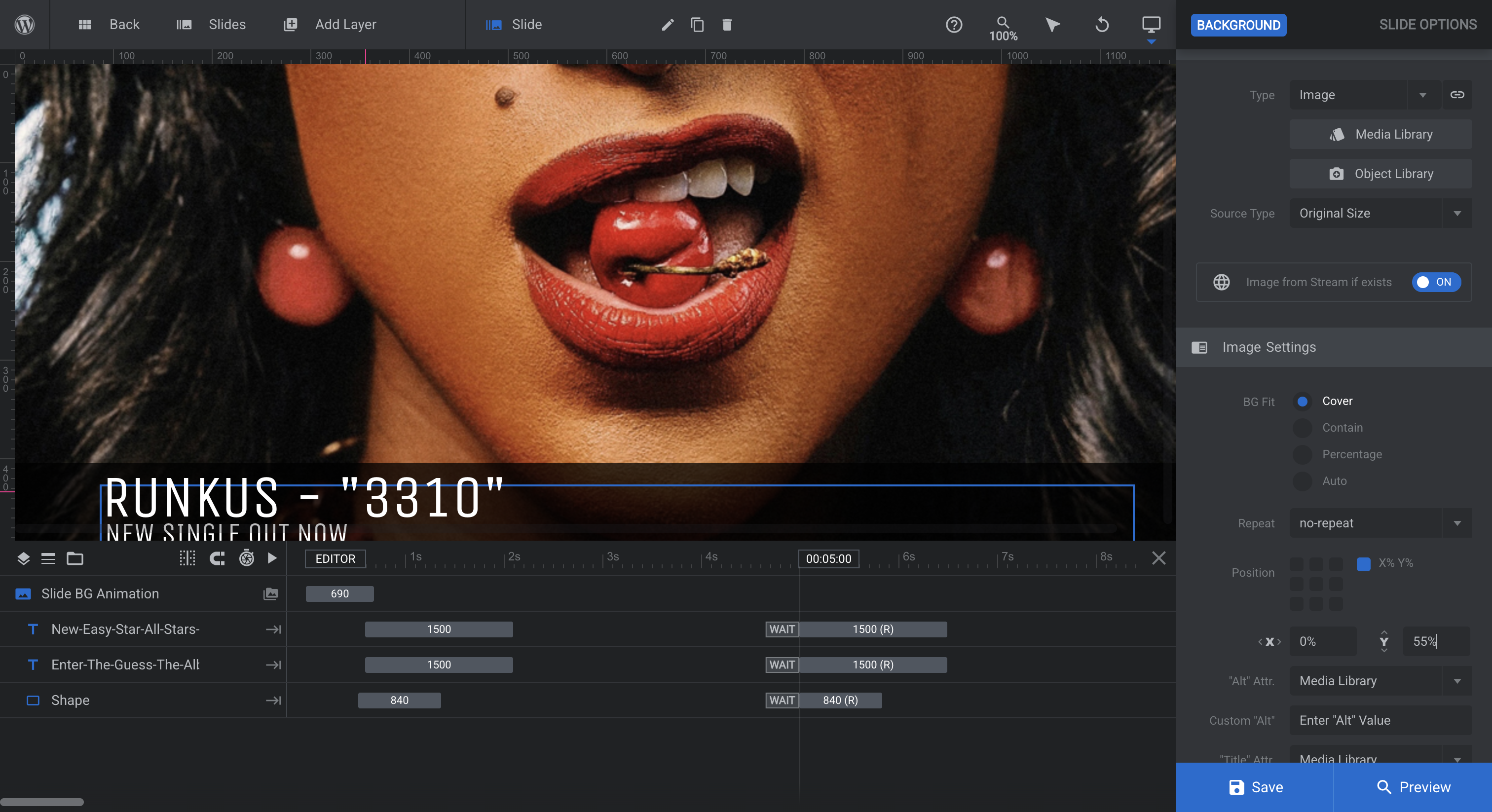
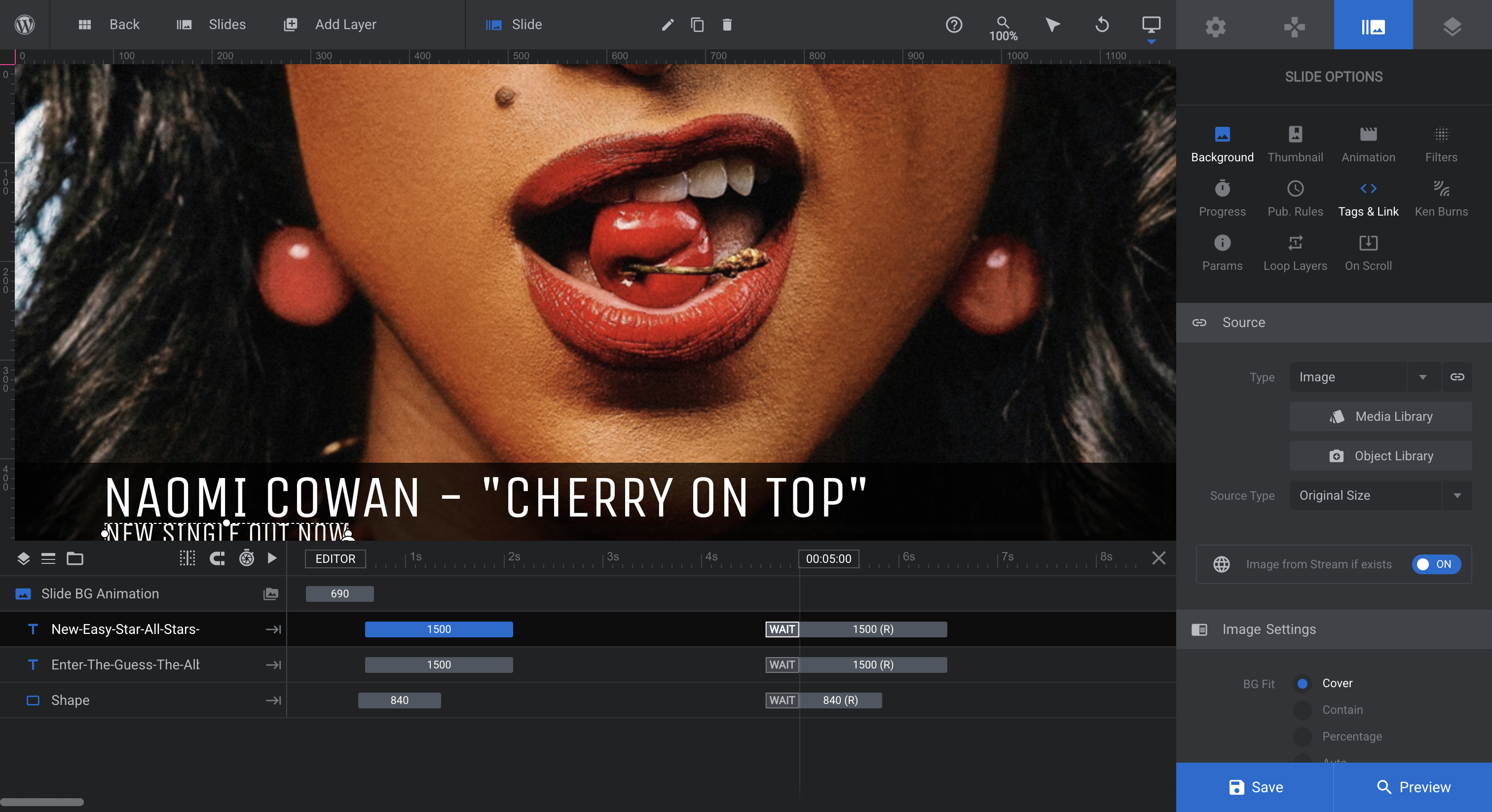
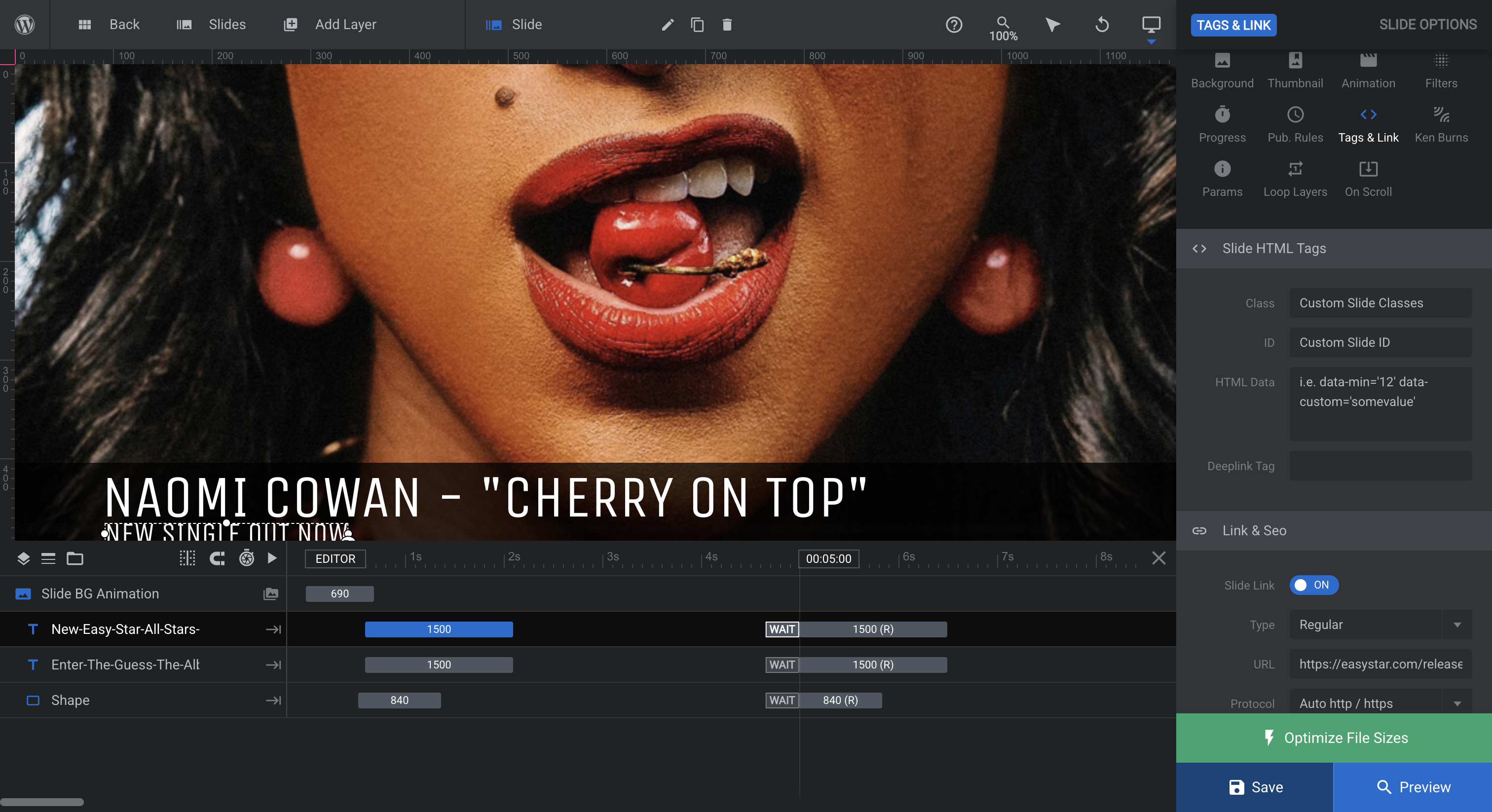
First, click on the Background option.
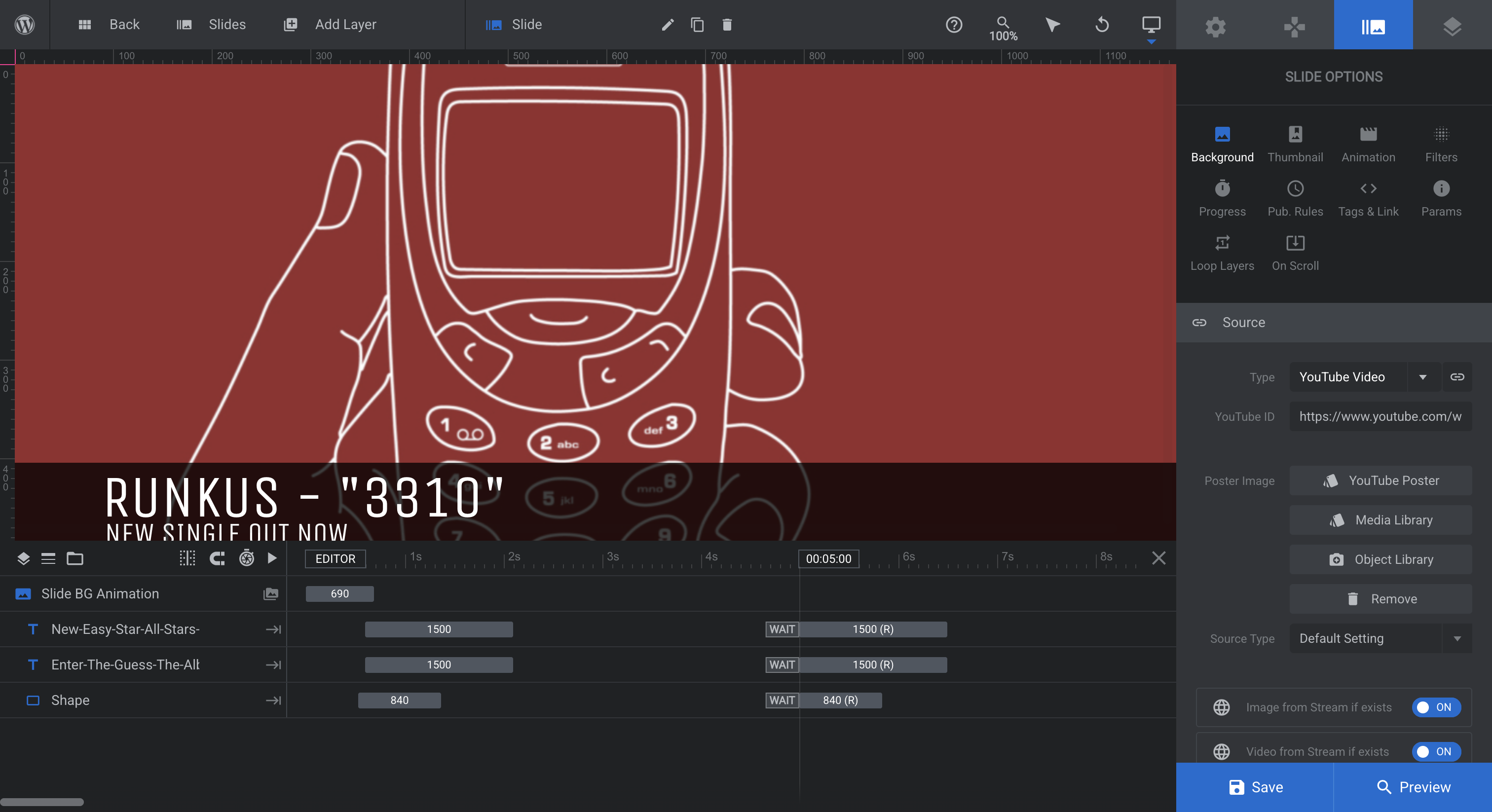
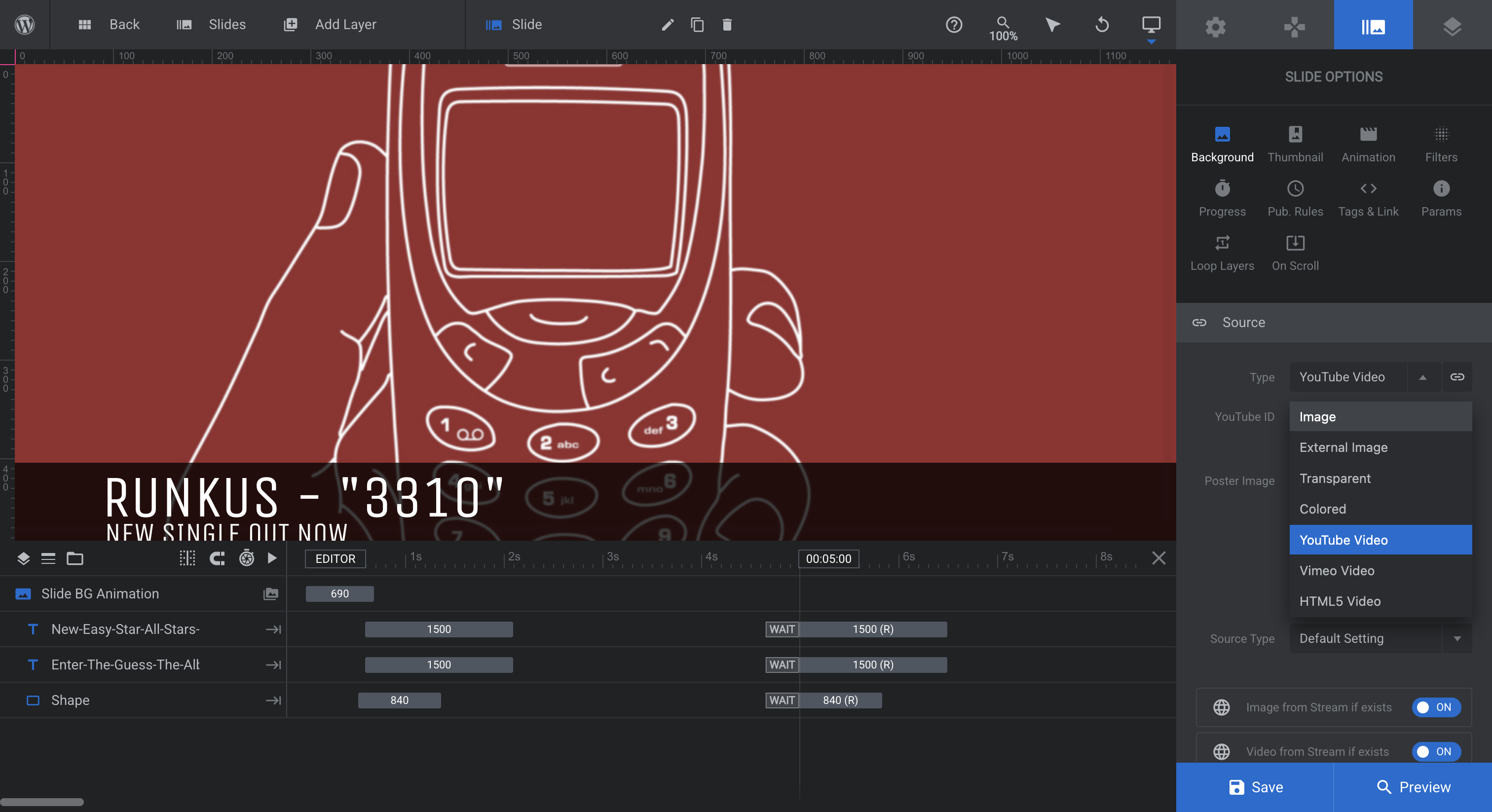
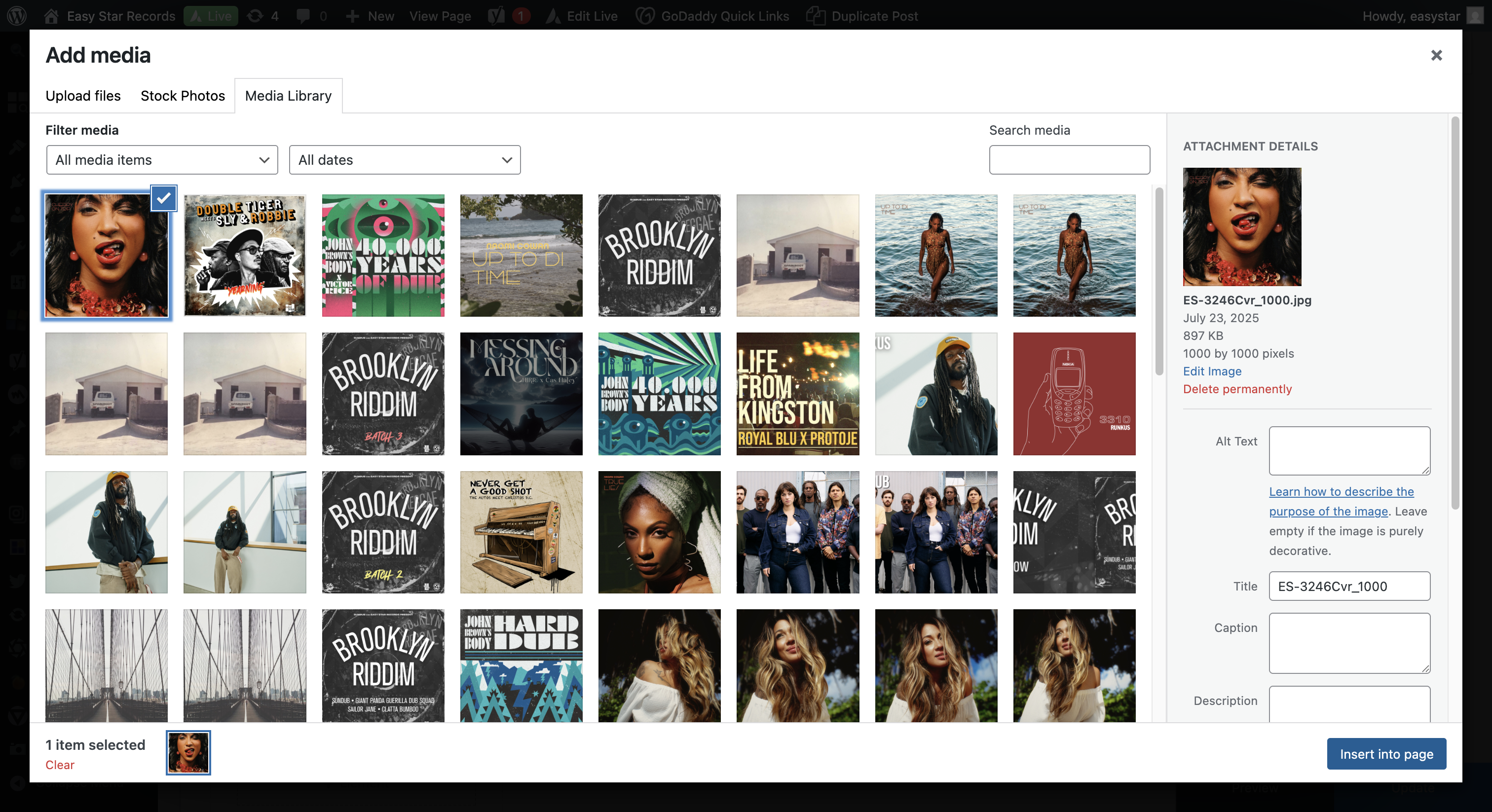
Today, we will use an image. In the background, go to Type, then Image. Select an image from the media library and insert it.
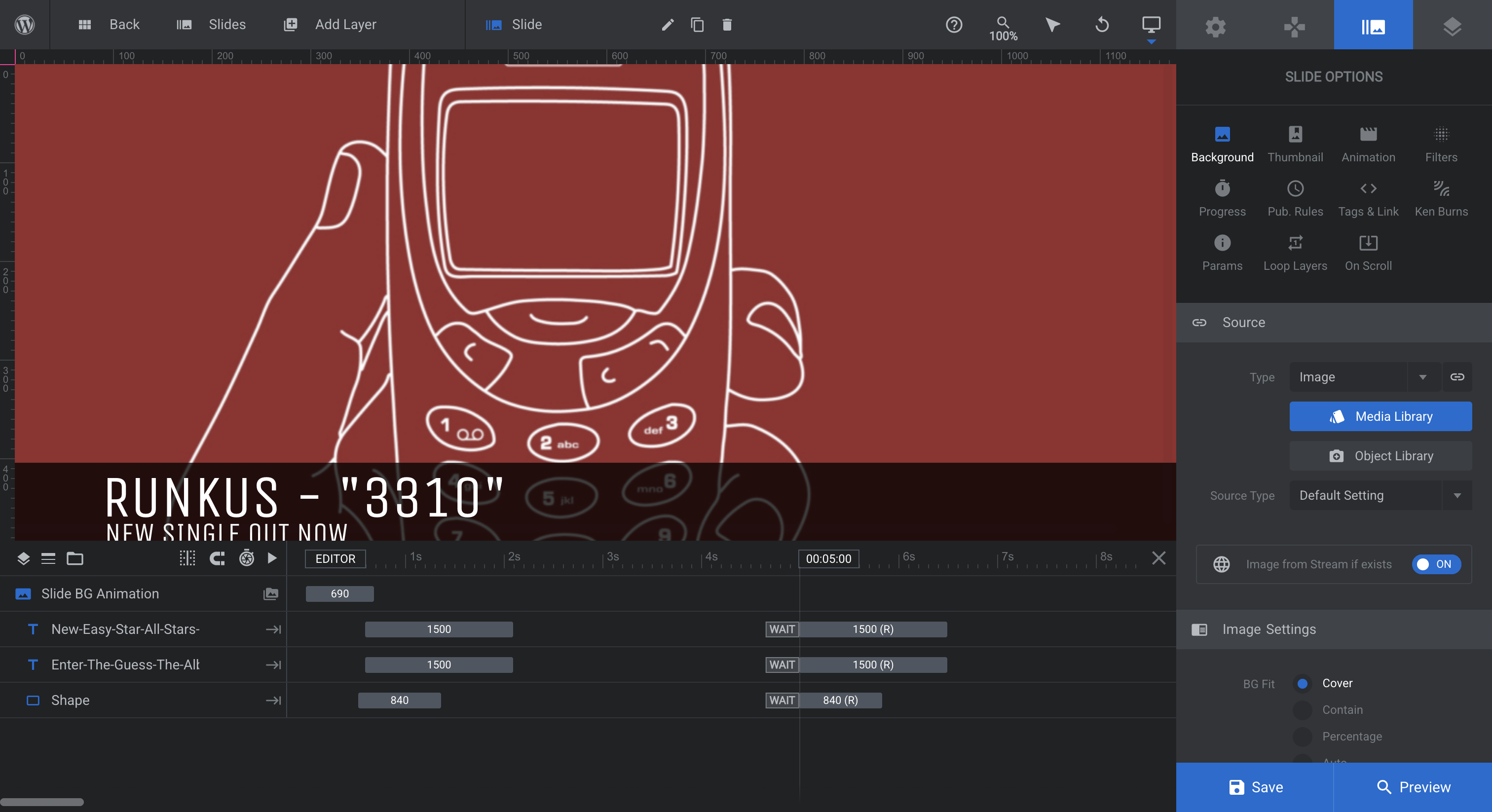
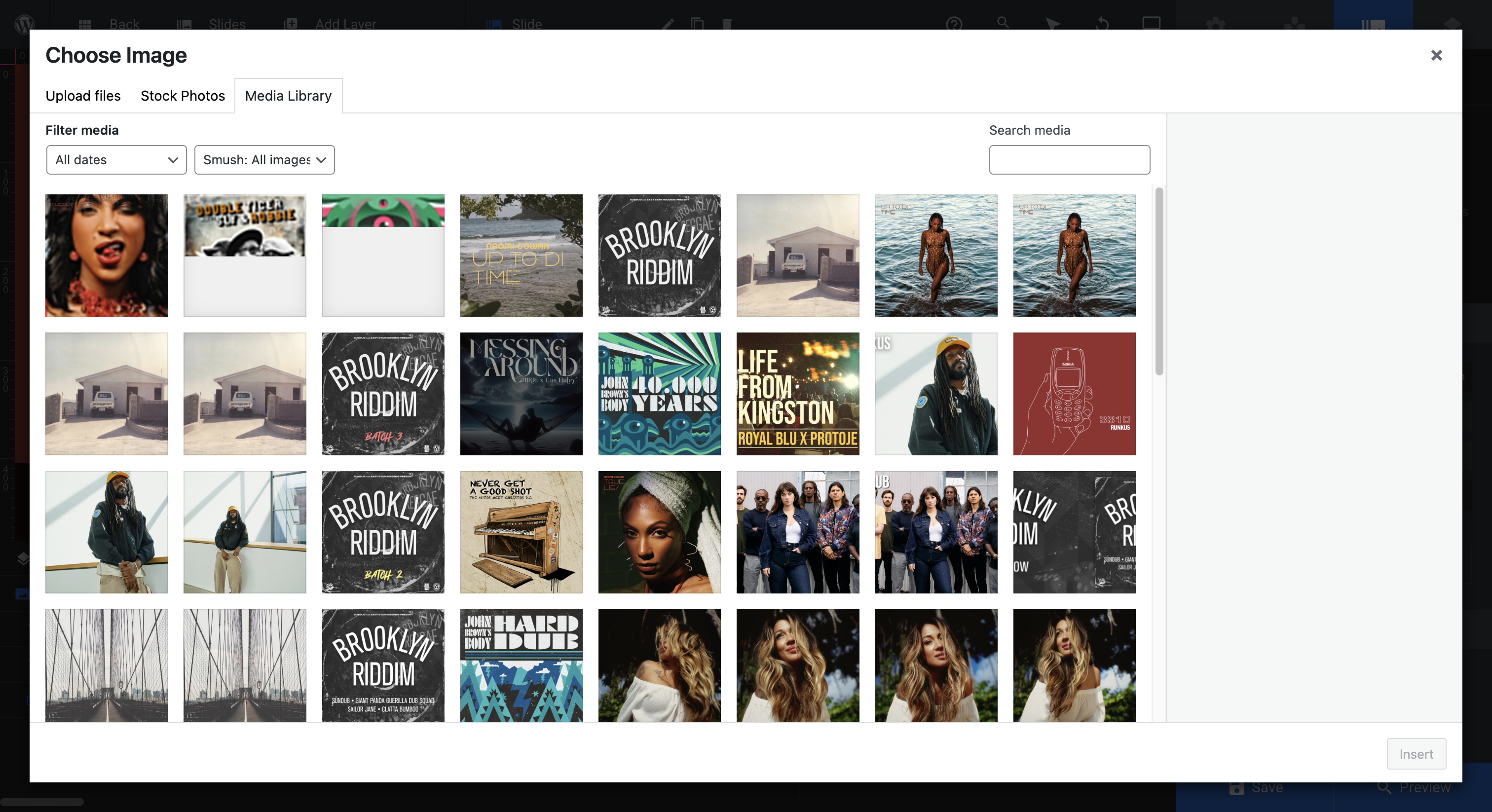
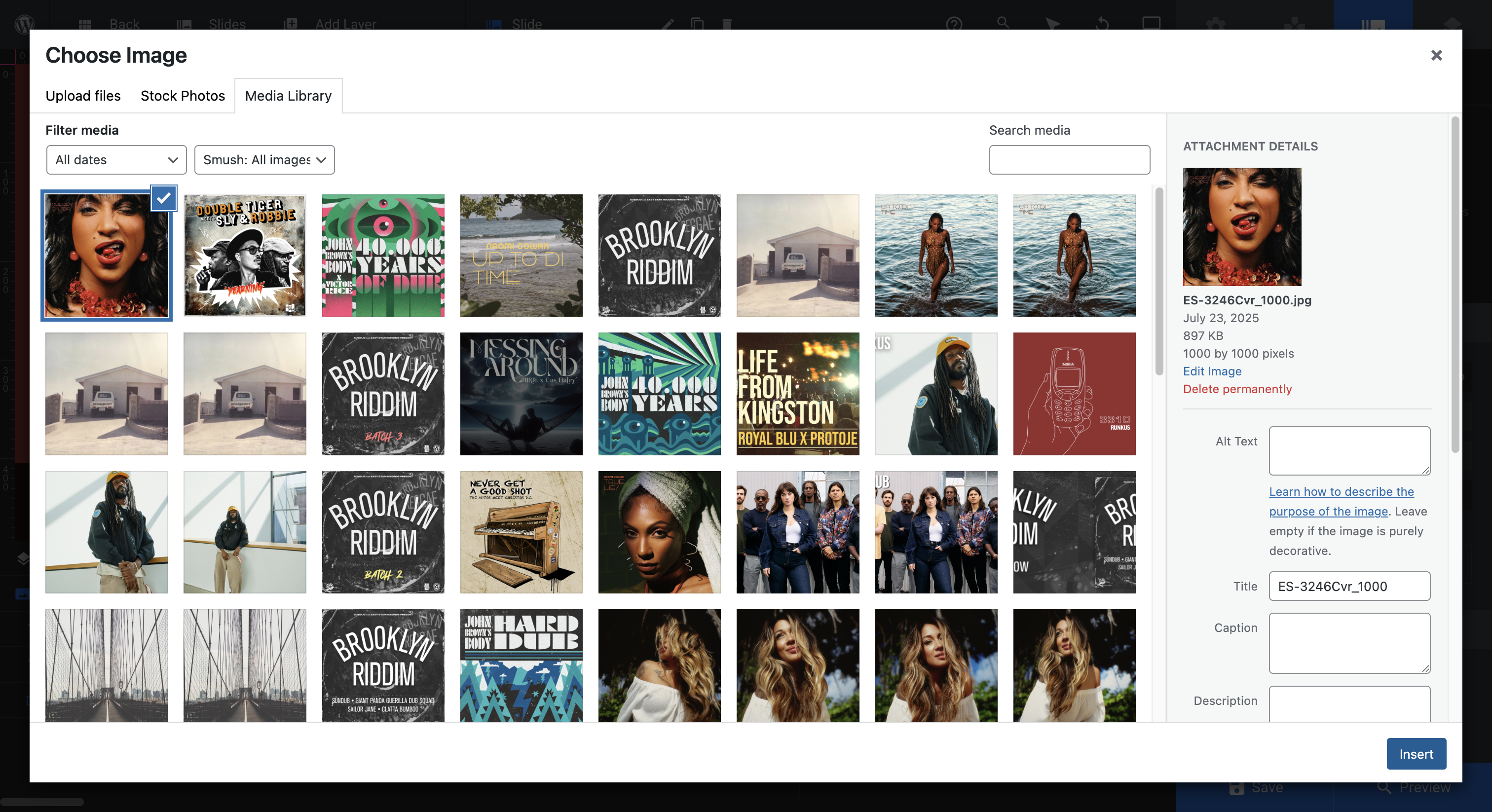
Sometimes, you may need to adjust the image alignment or use a different image instead of the cover art. To realign the image, click Cover, then Background Fit. Next, select the X-Y button. Y lets you move this up and down.
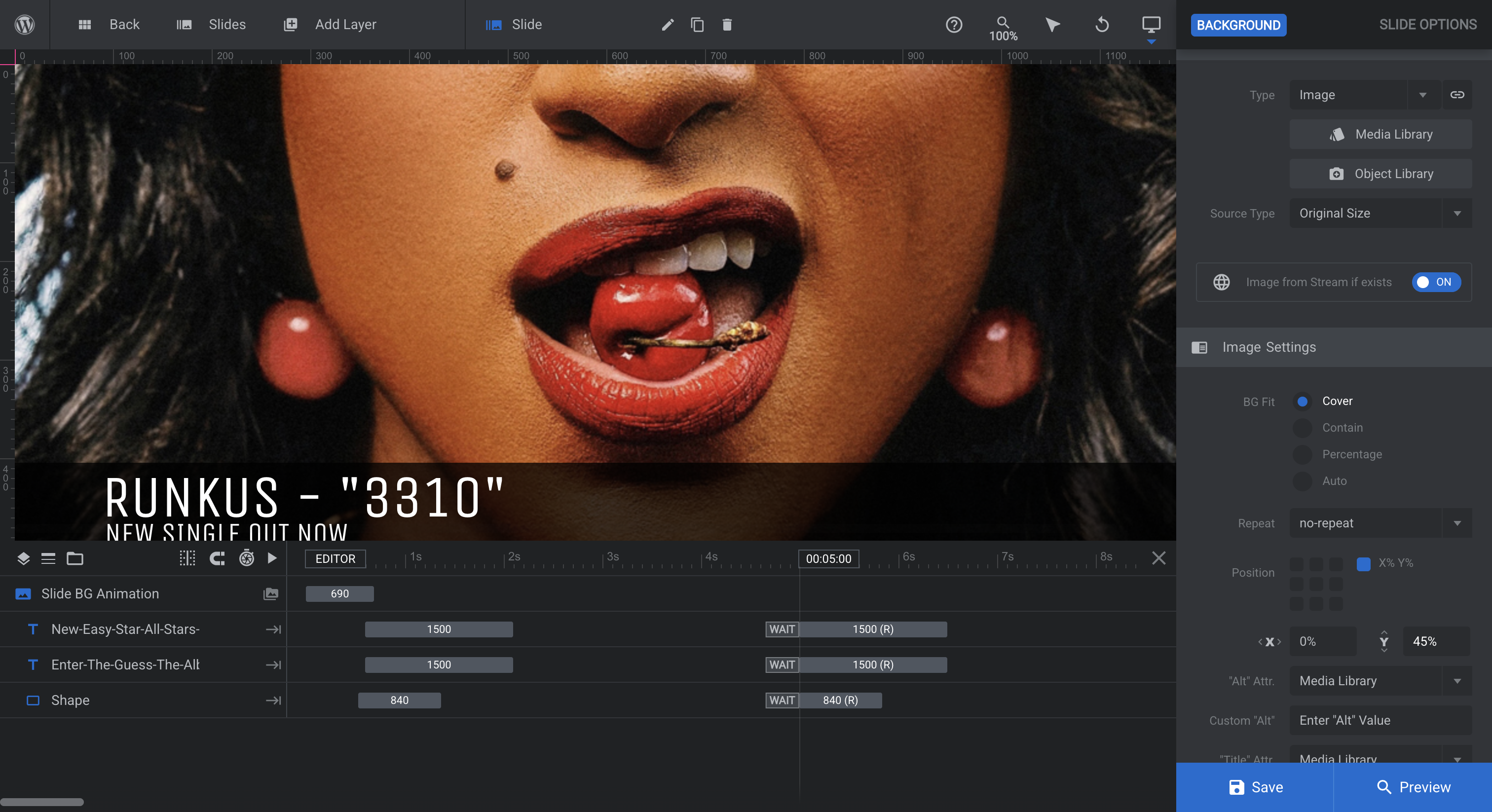
If I set it to zero, it moves to the top. If I set it to 100, it moves to the bottom. I think we'll go with 50. Eh. 40.
I don't... Let's use 60. Mm, 55. Sold. We will click on the text.
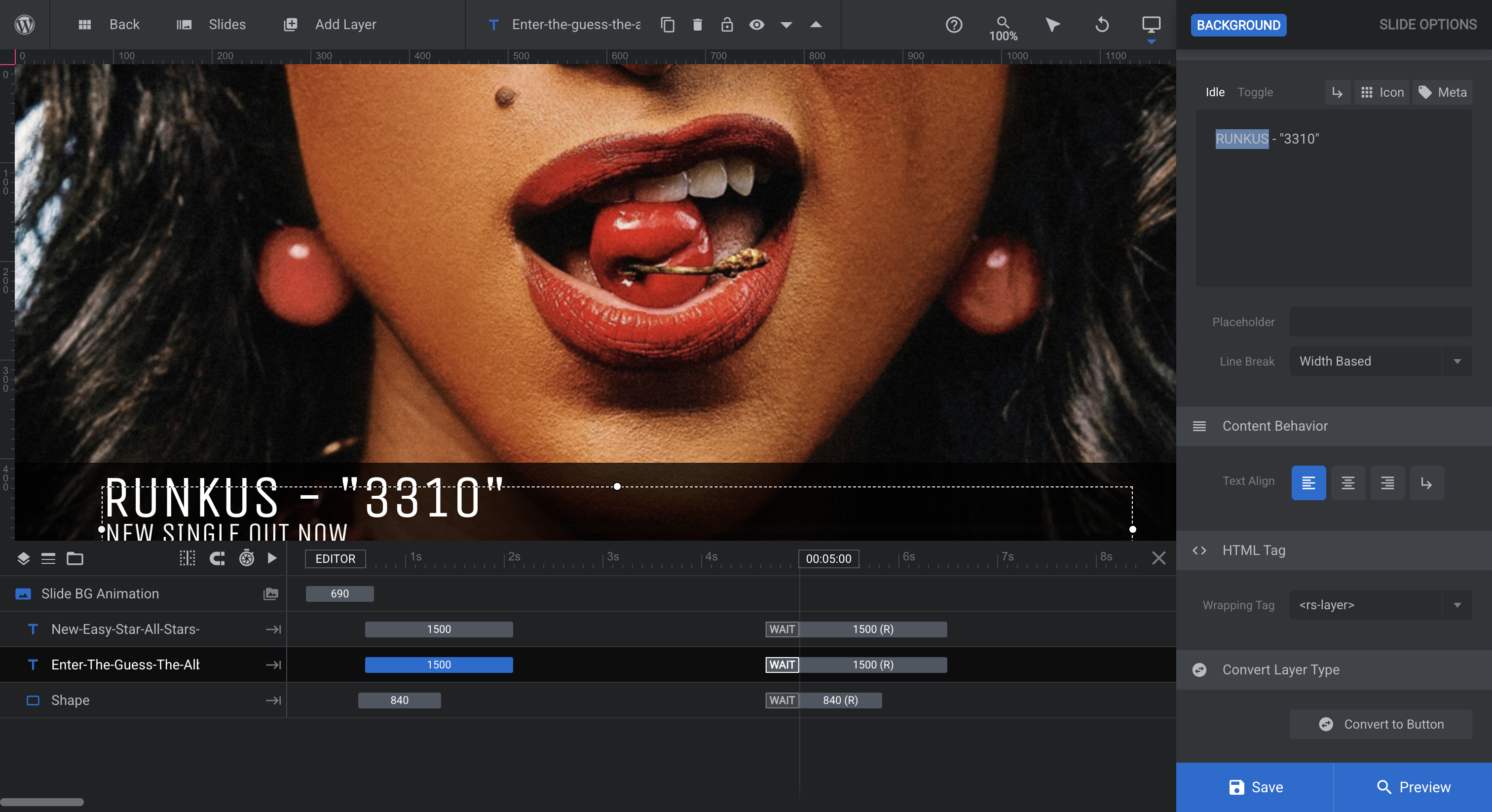
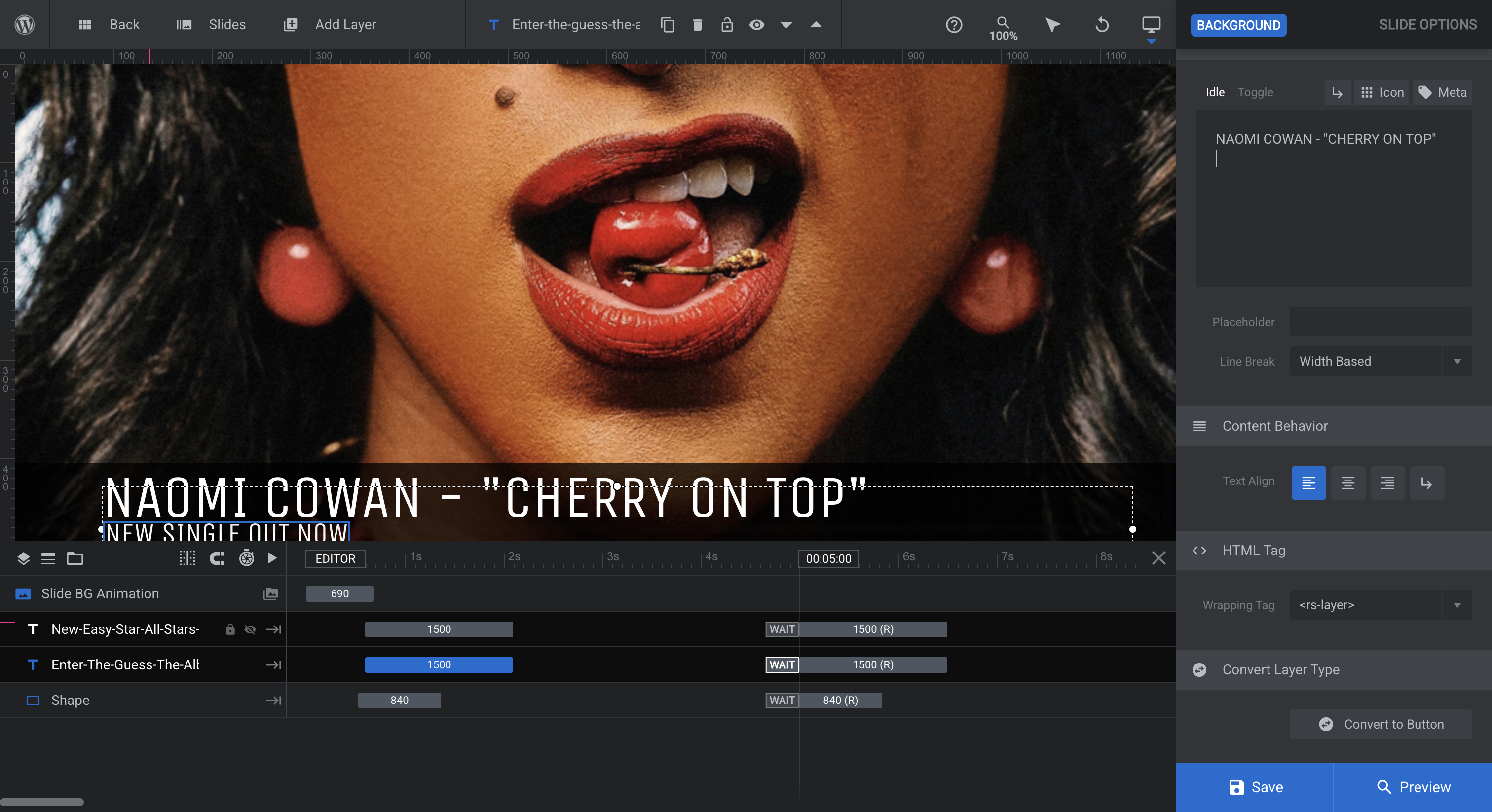
Make sure you are editing the correct text. Now, change this to whatever you want.
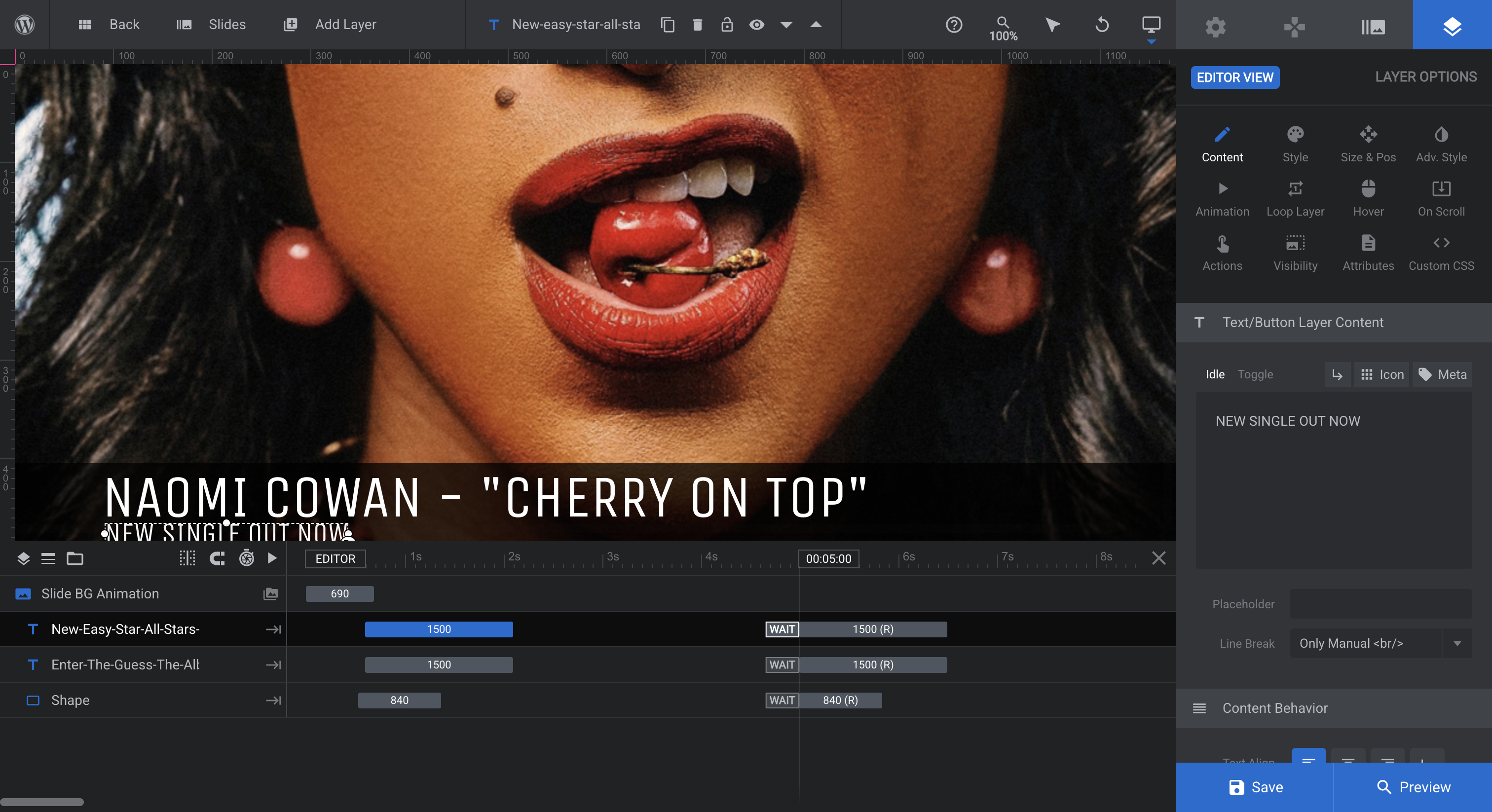
We can keep it as "New single out now." That's fine.
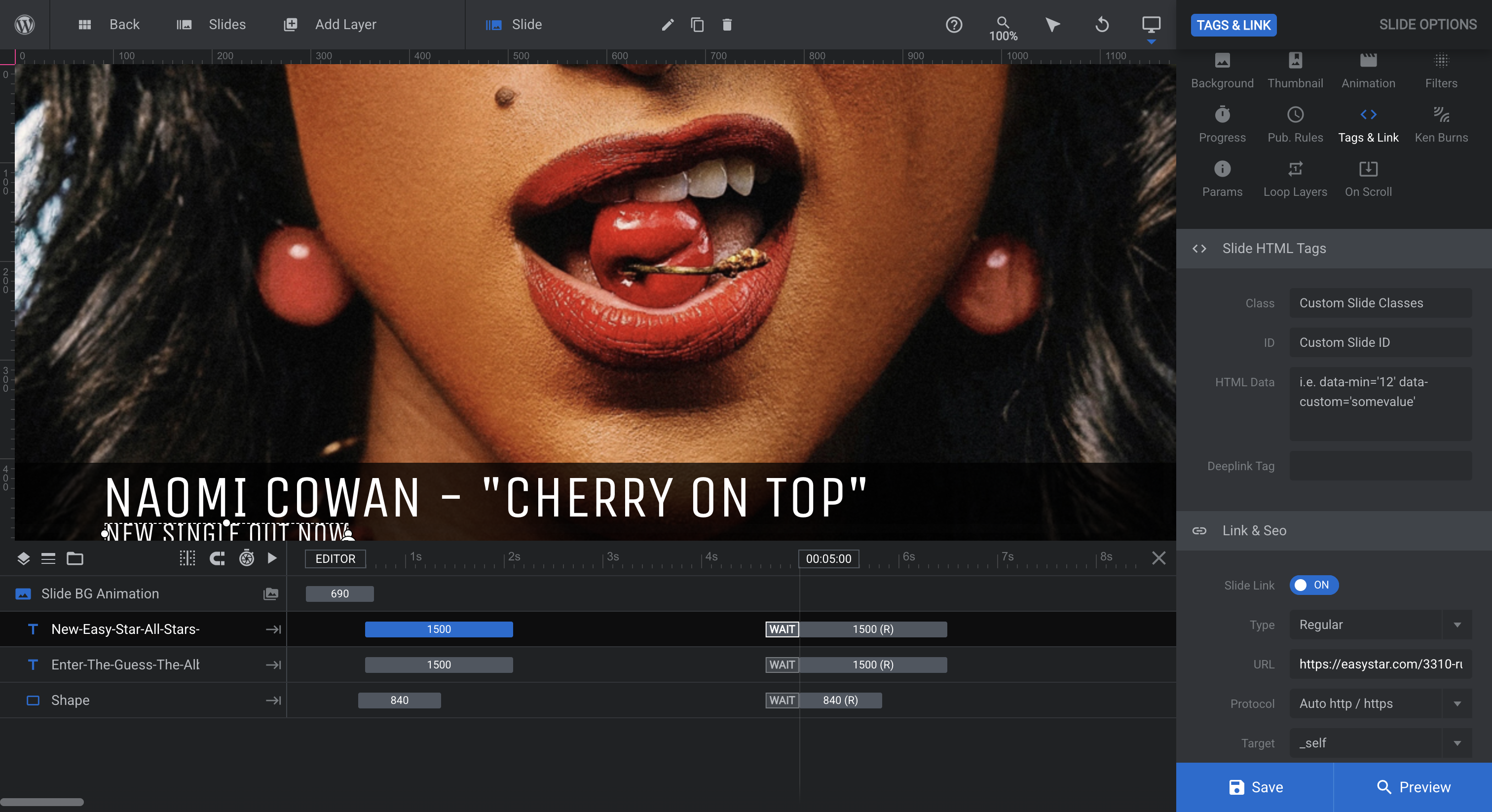
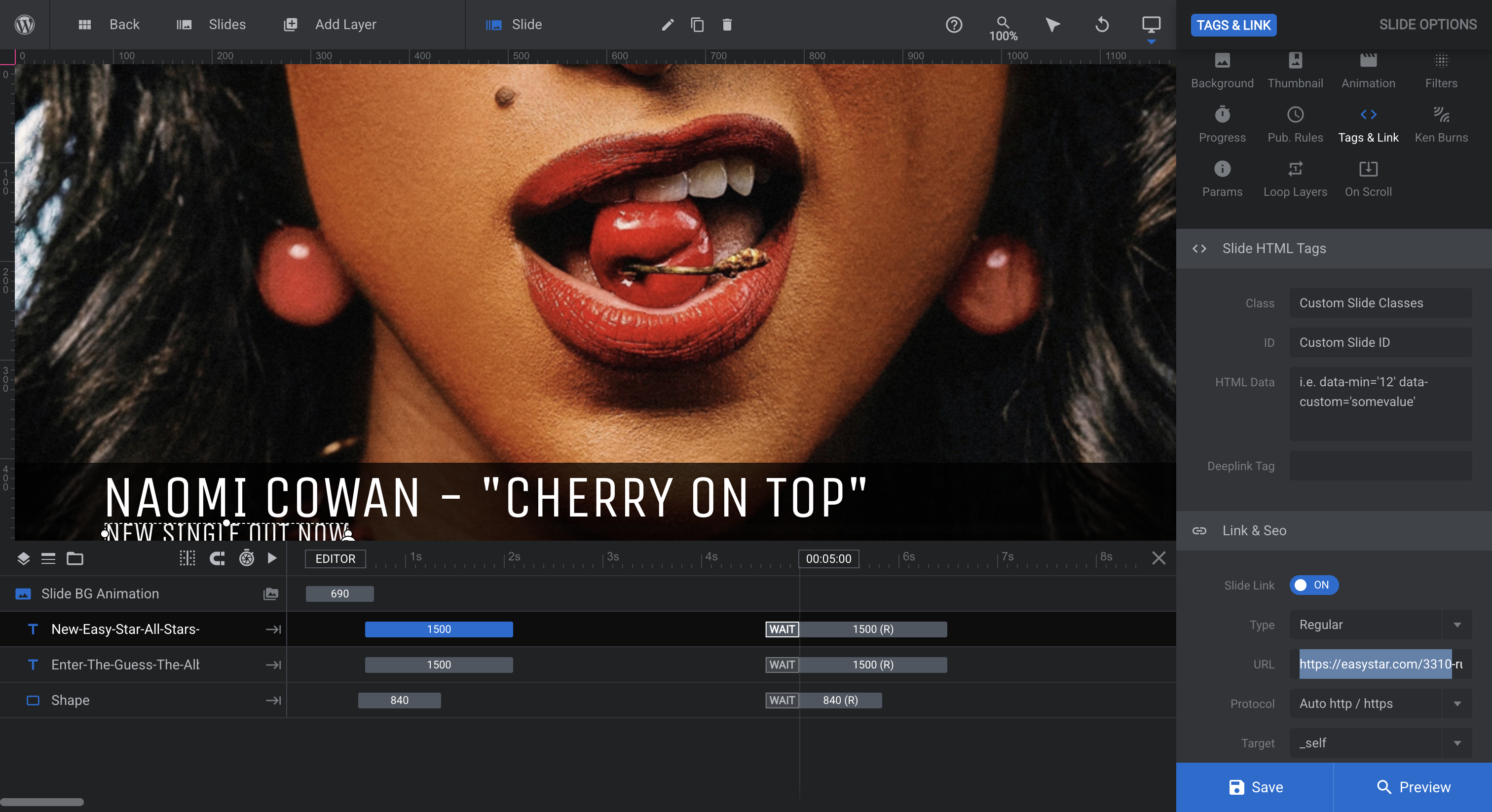
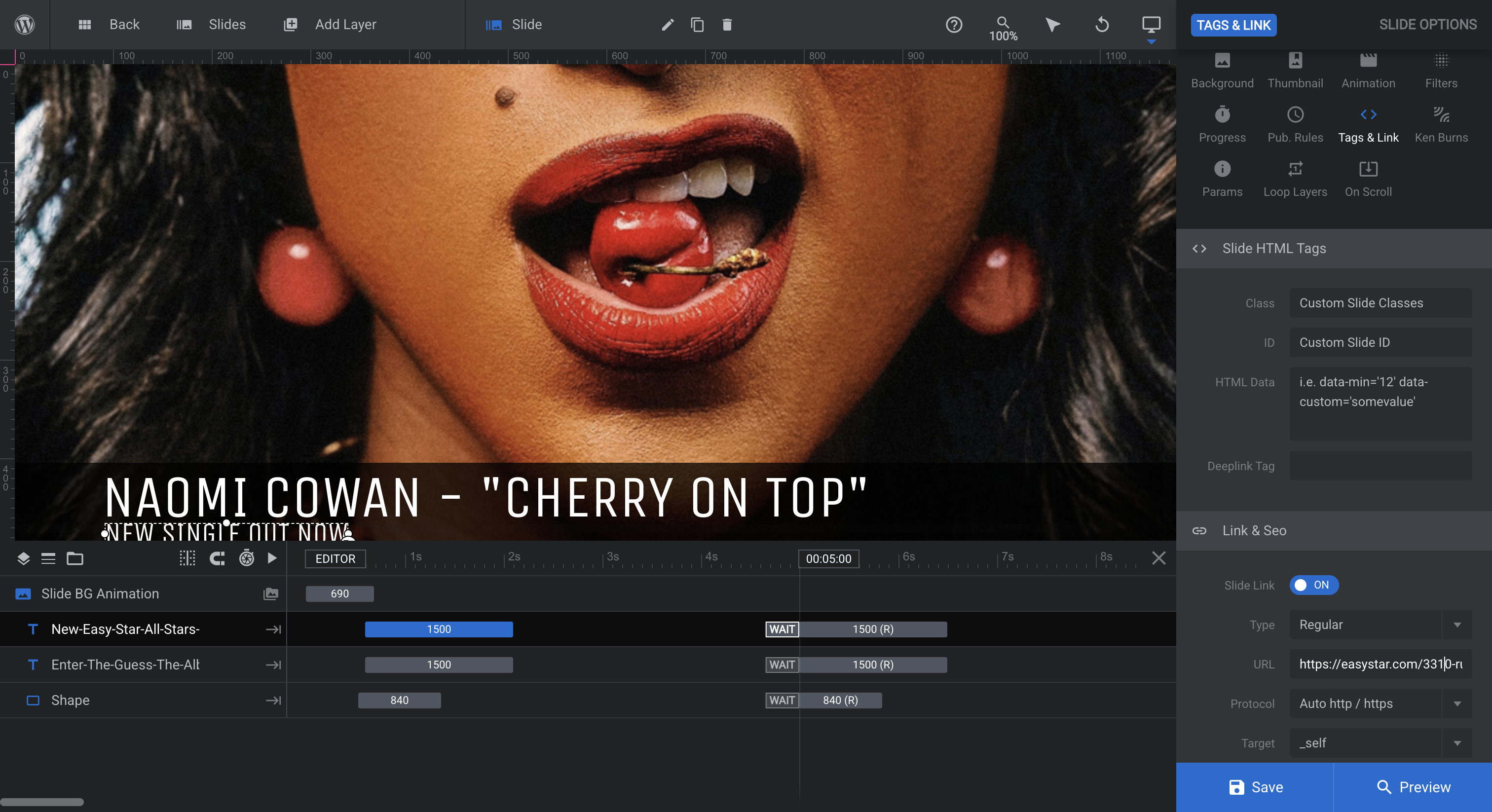
Let's see. Go back to the background section and click Tags/Link. Update the link to point to the release. If you want to link to an external website or a news article on the Easy Star website, enter that link here.
Everything else is good to go. You don't need to change any of the animations. It's all random, so it stays fresh. We just hit Save, and we're good to go.
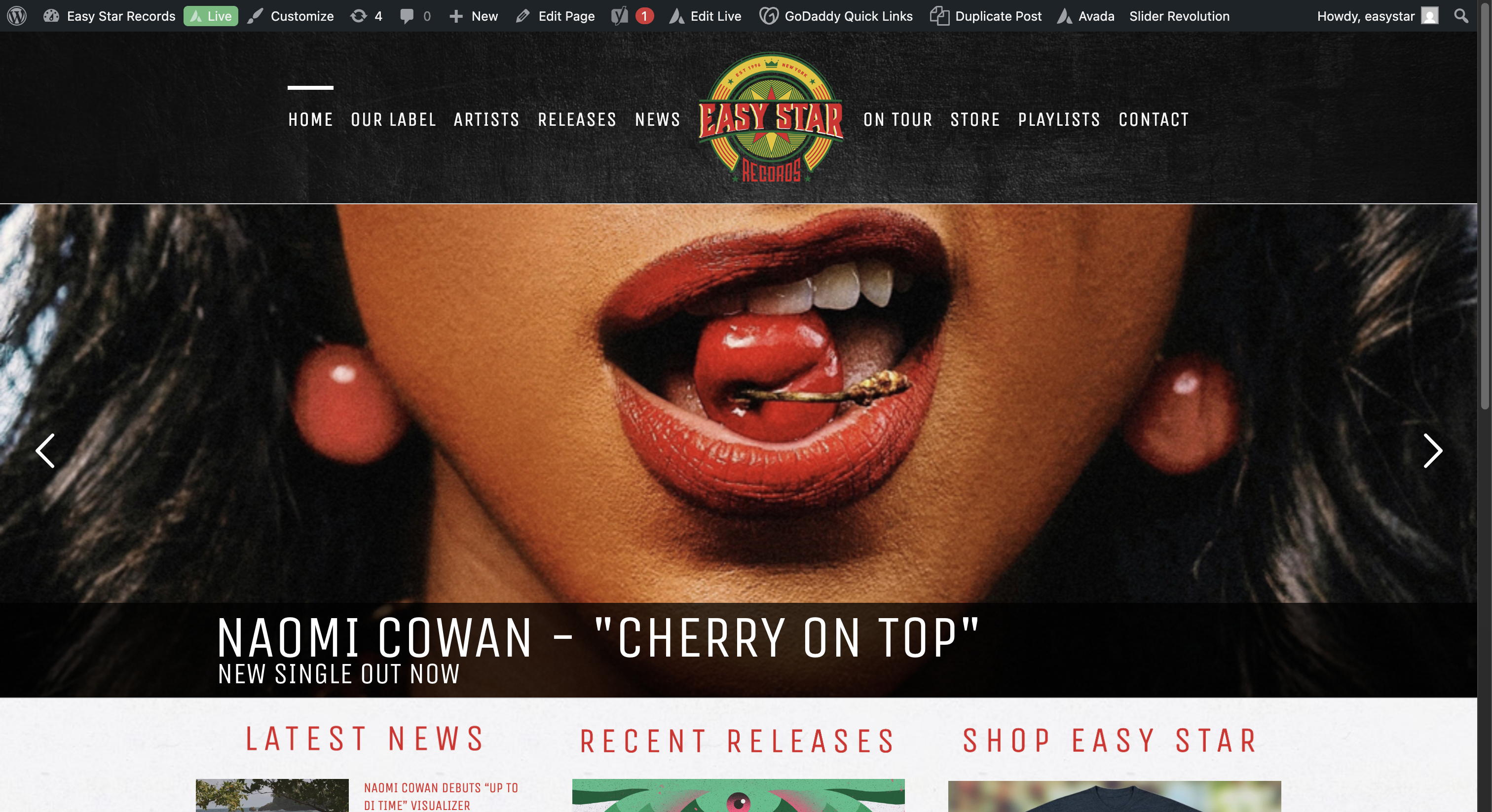
All right. Now let's check how that worked. There we go. We always test by clicking the slider to ensure it works.
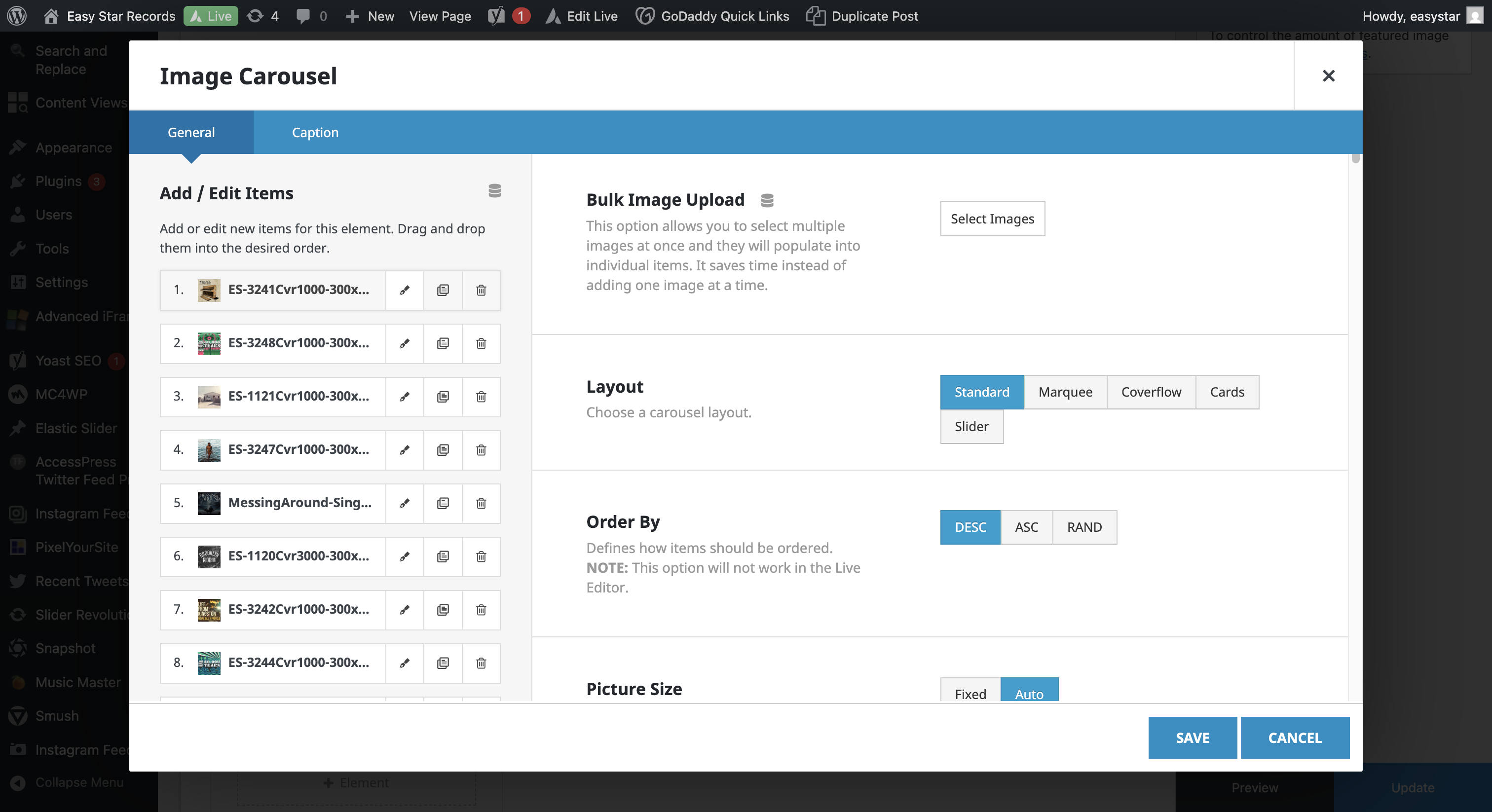
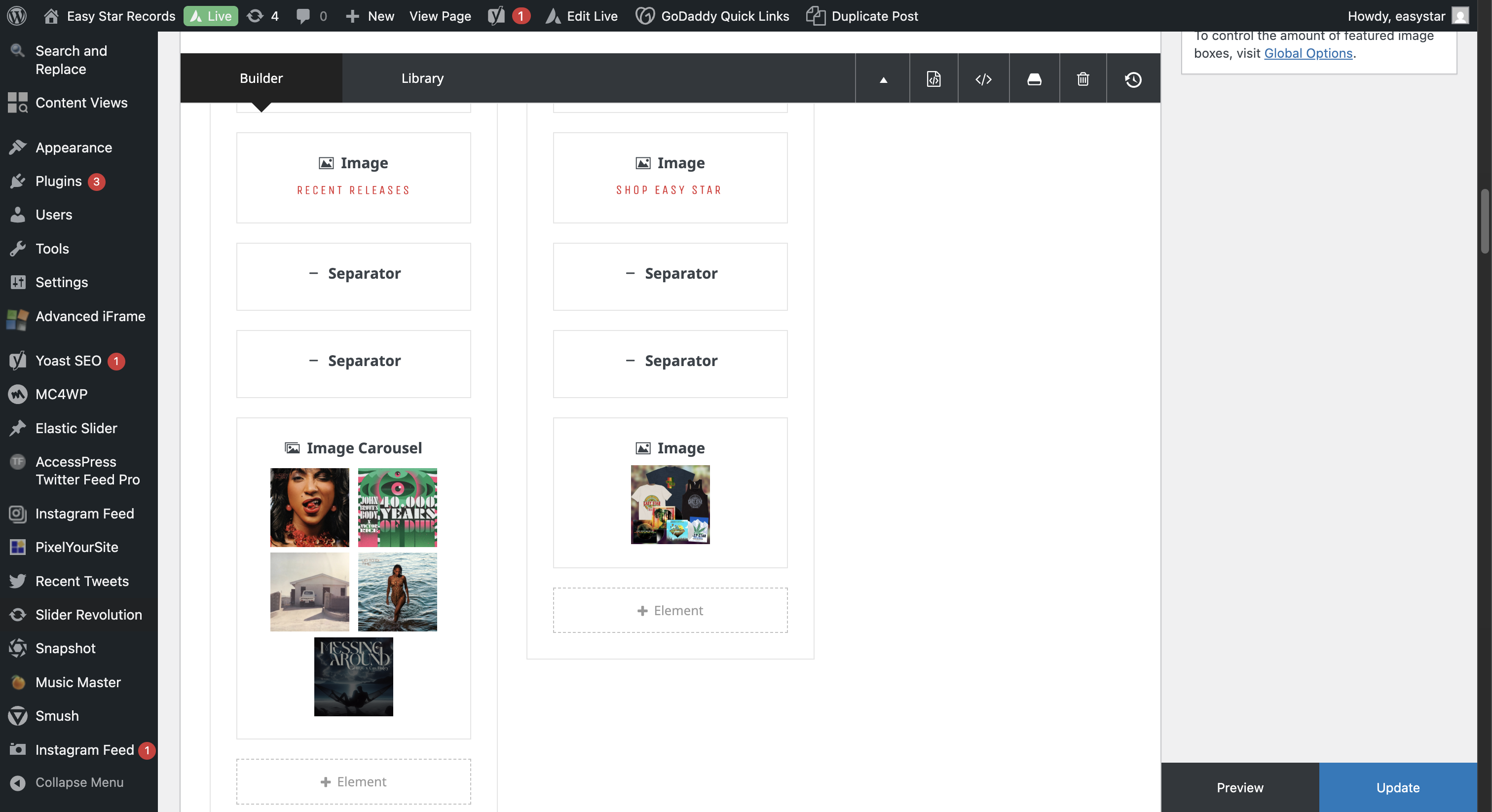
Great. To update the Recent Releases section, return to the home page, click Edit Page, scroll down, and locate the image carousel.
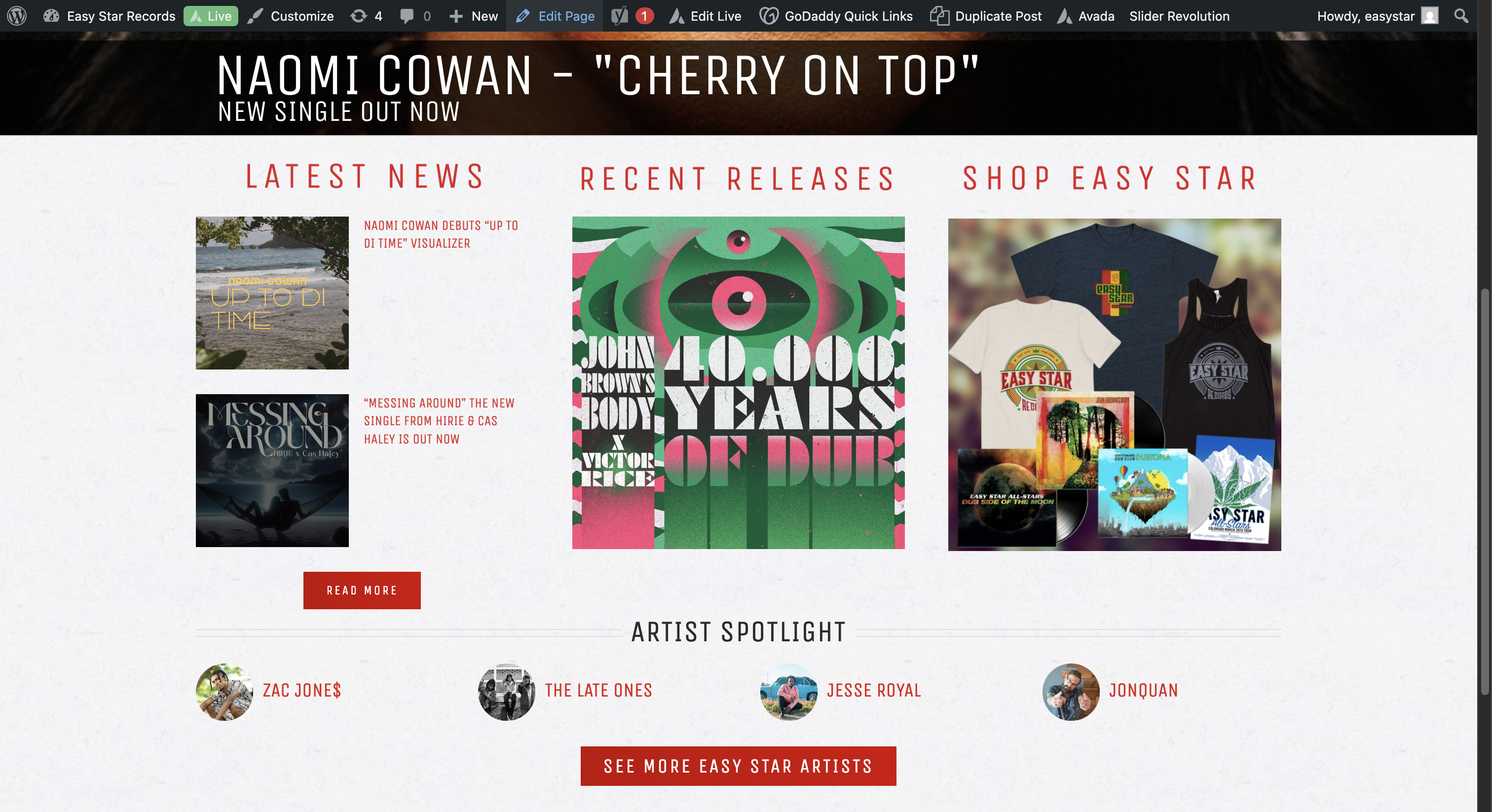
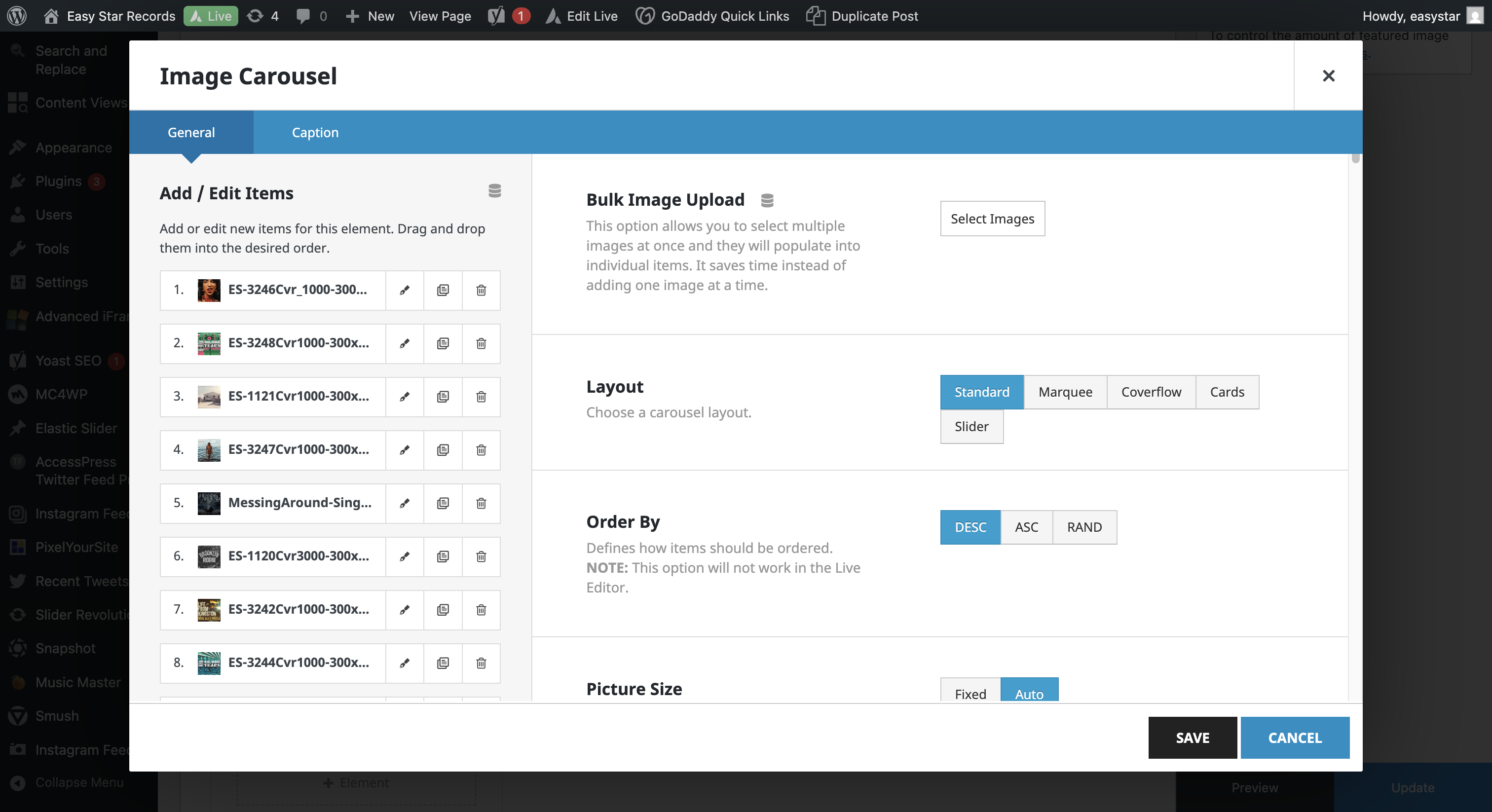
We will take the oldest release, number nine, and move it to the first position.
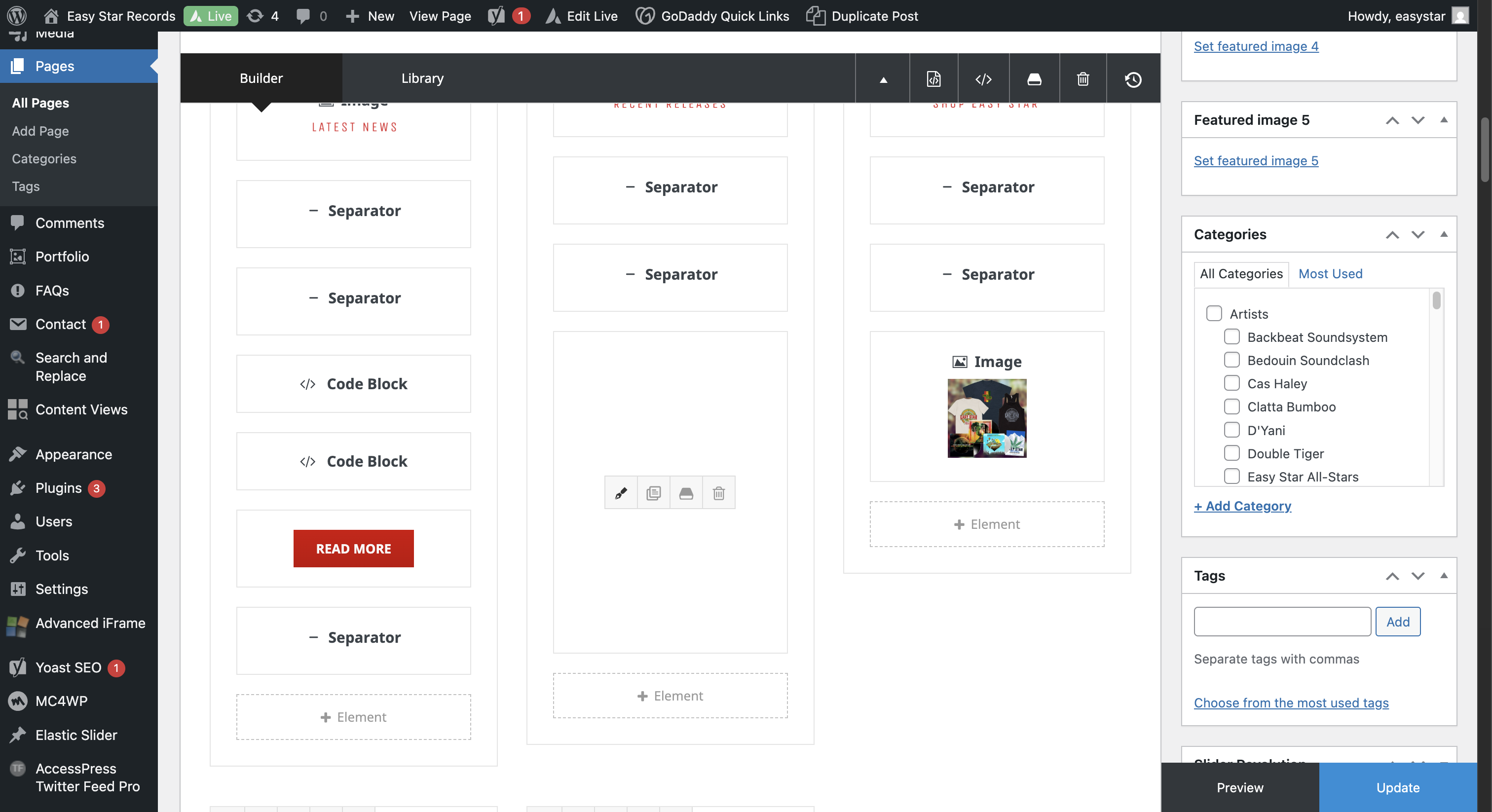
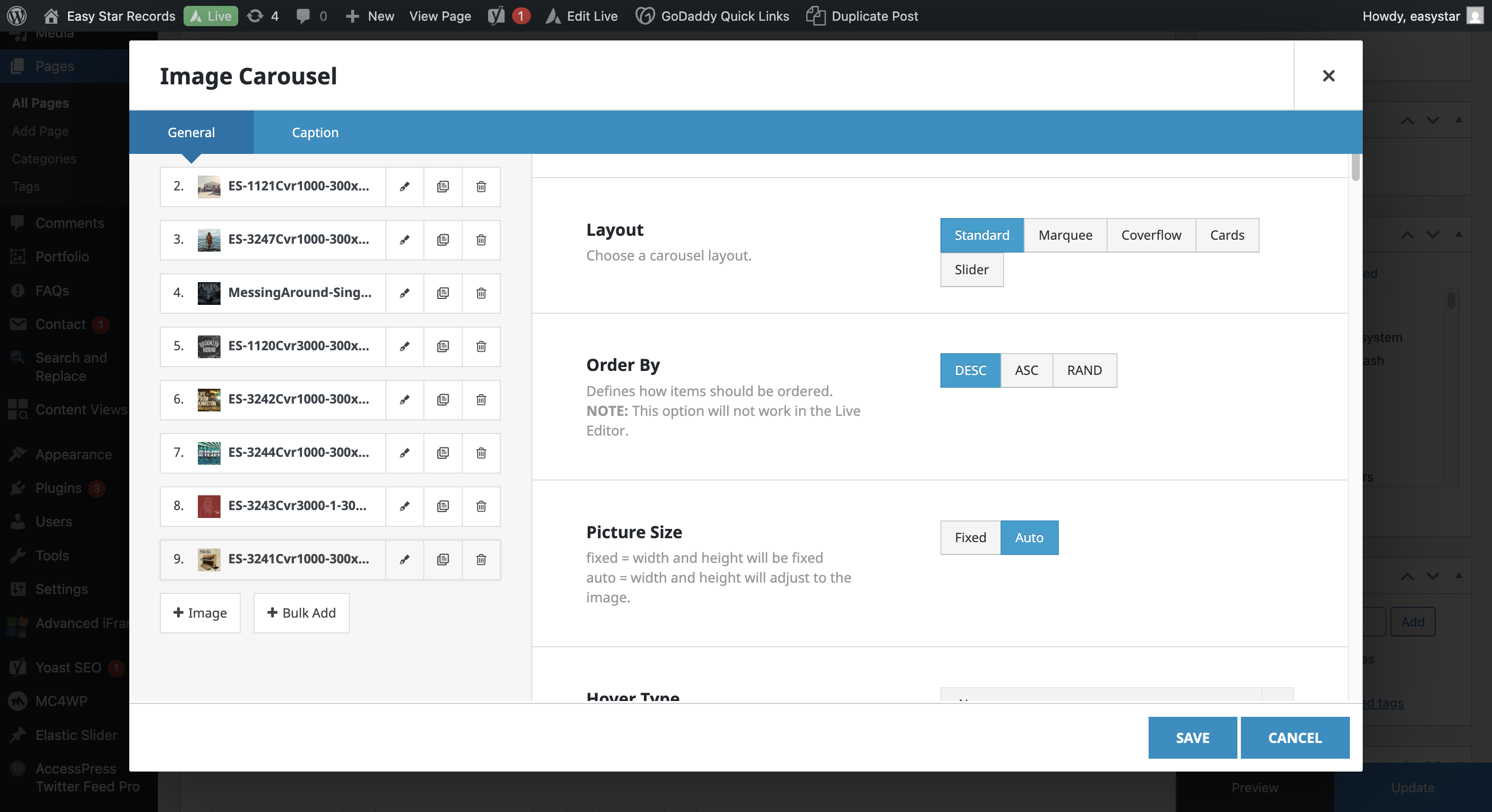
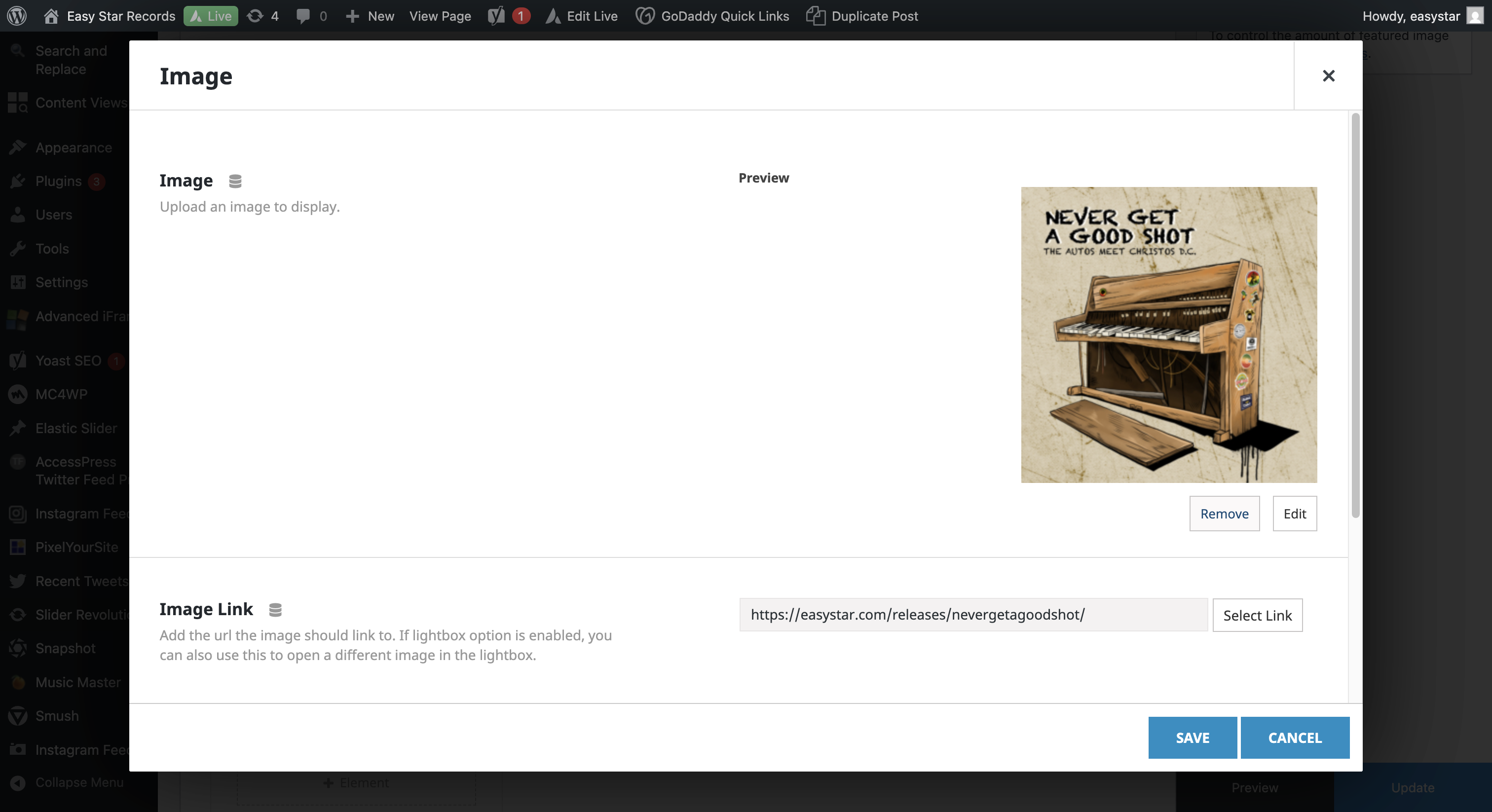
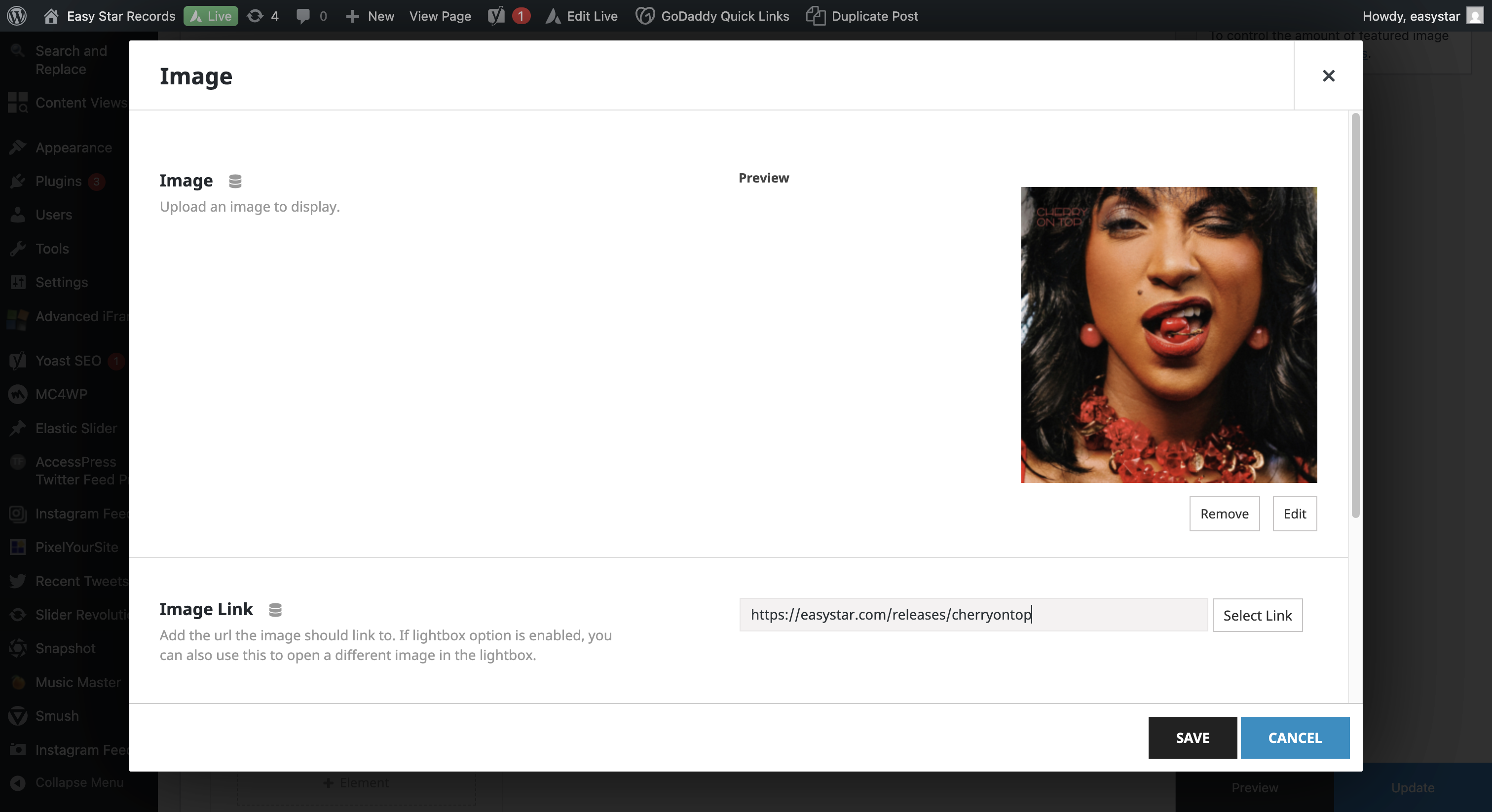
We’ll click Edit.
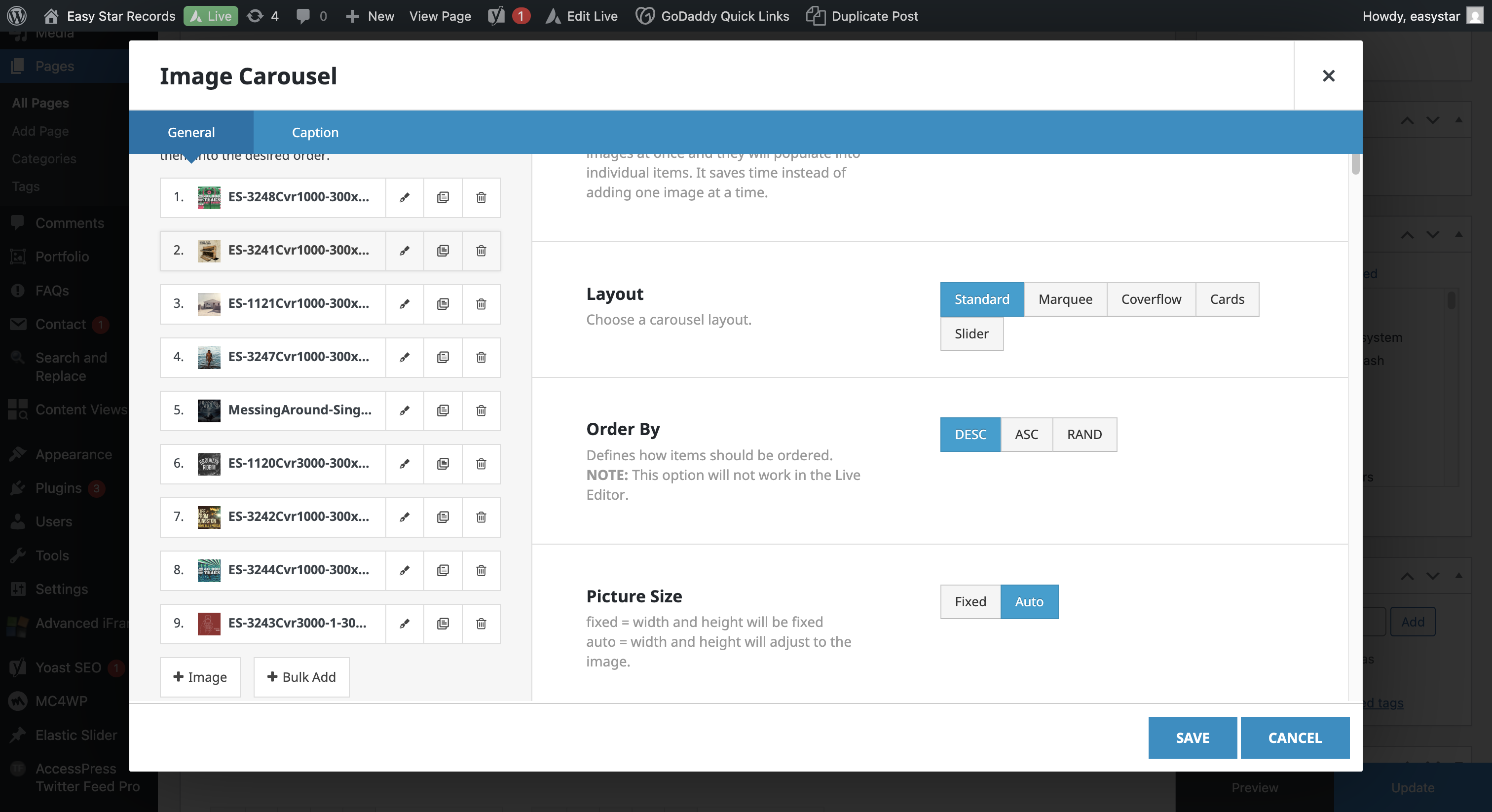
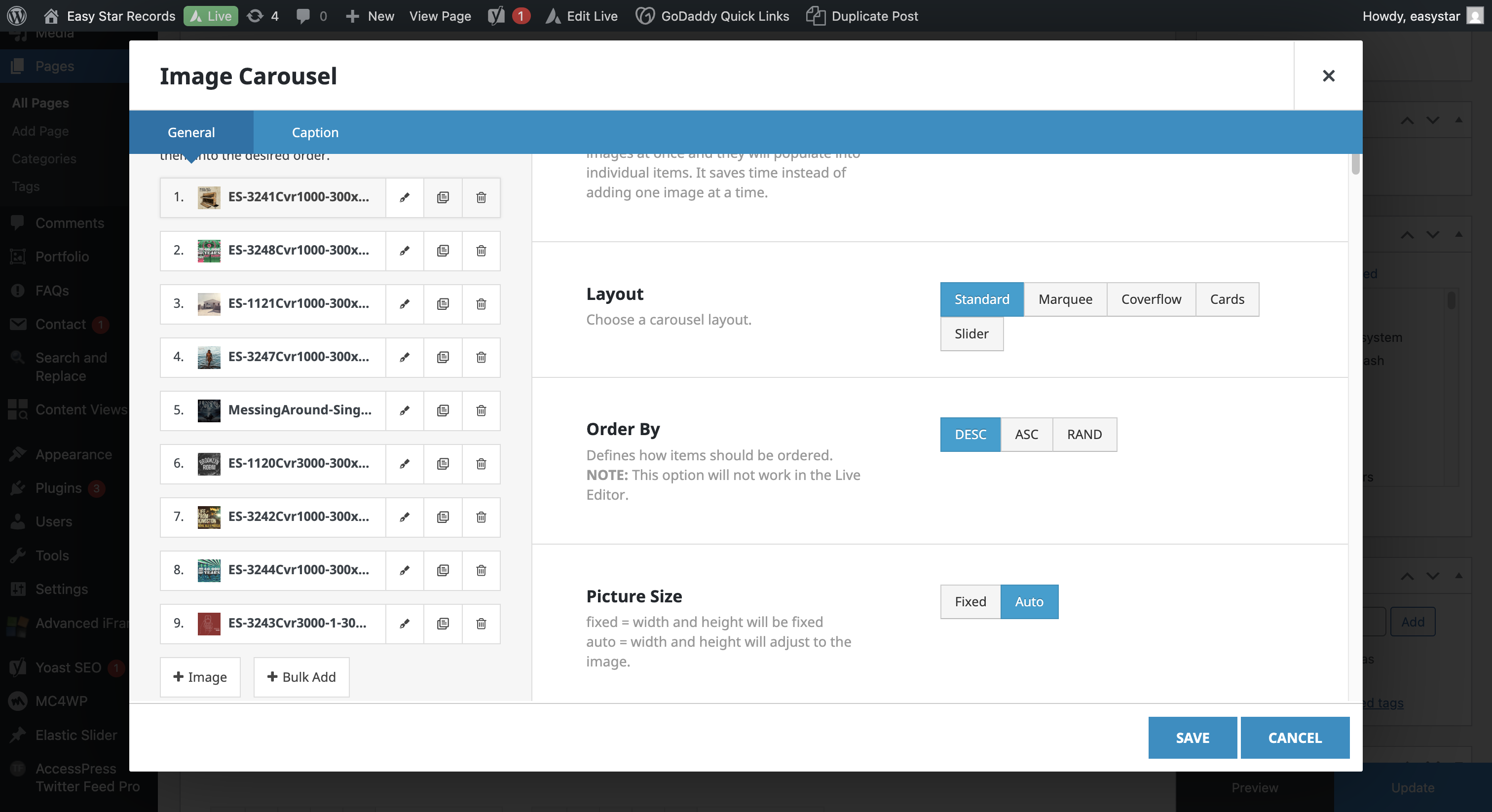
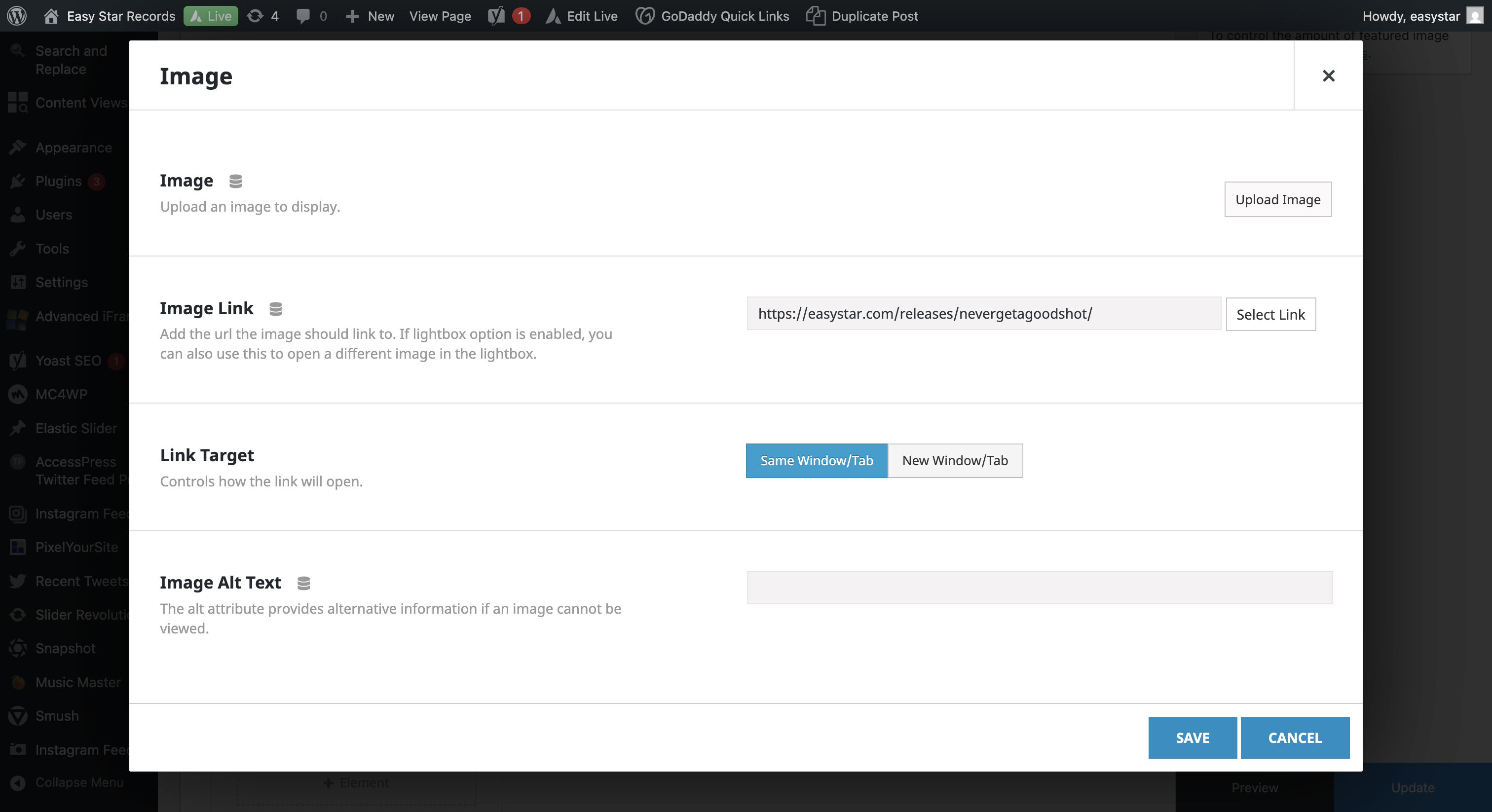
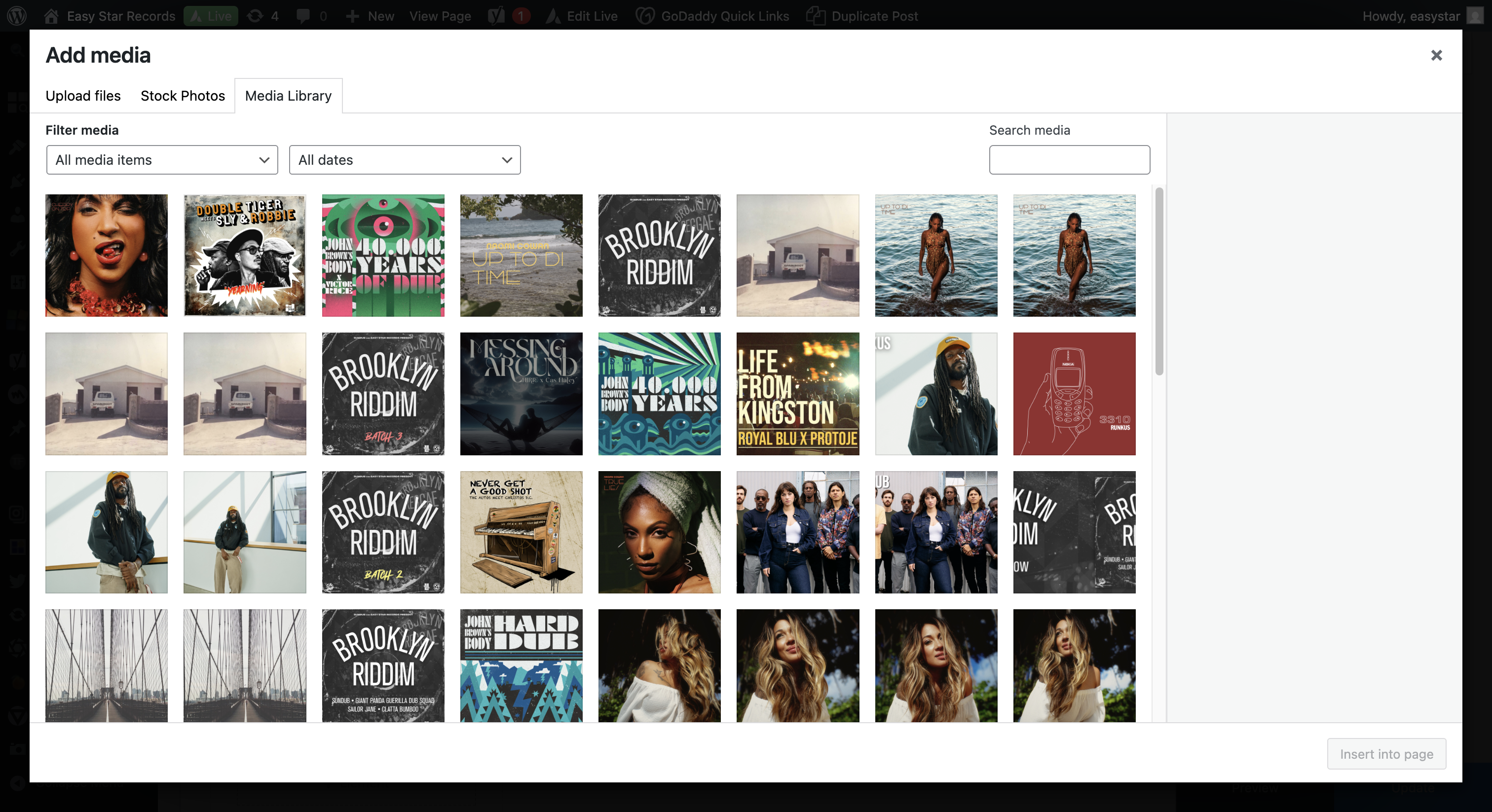
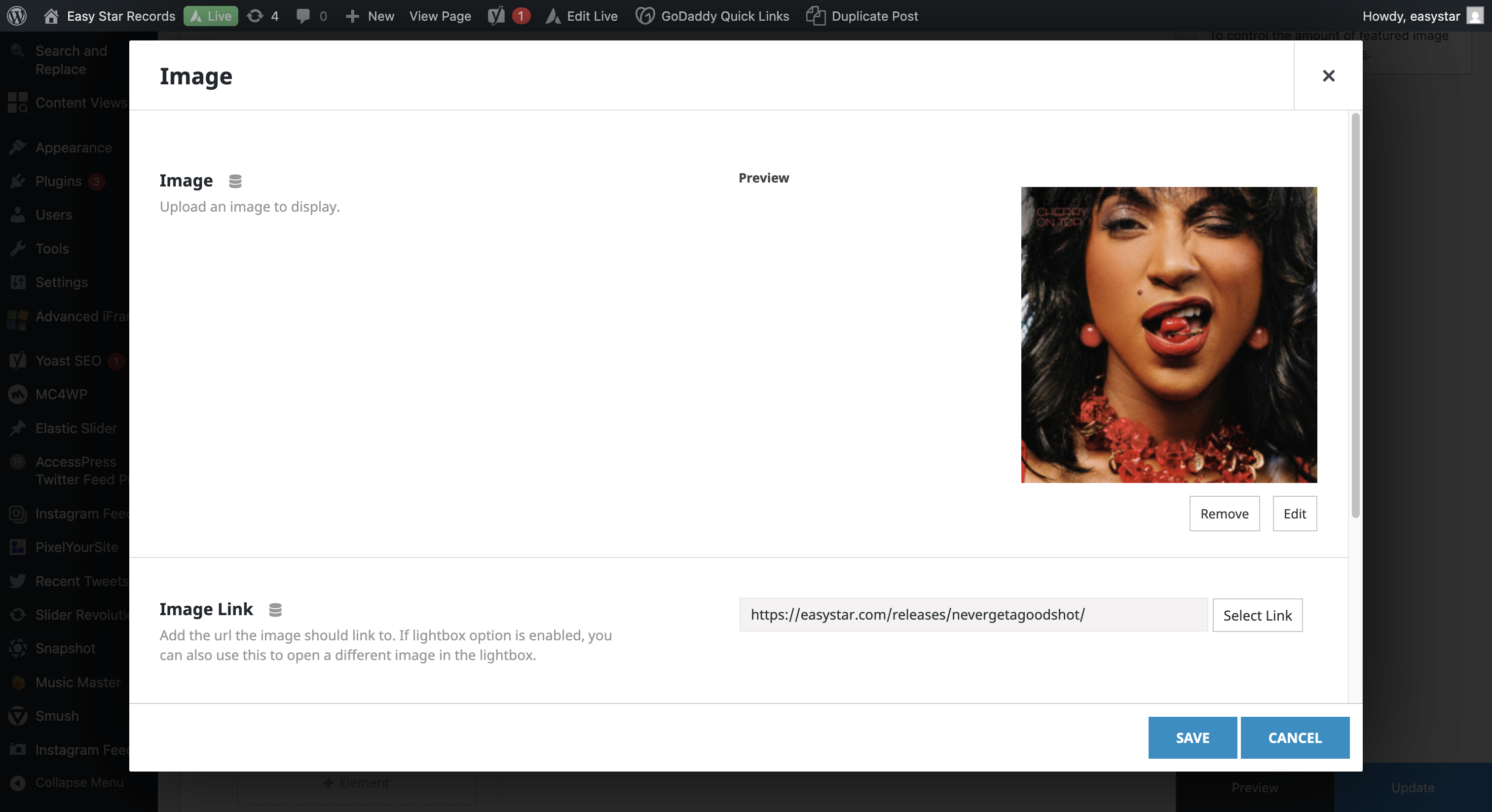
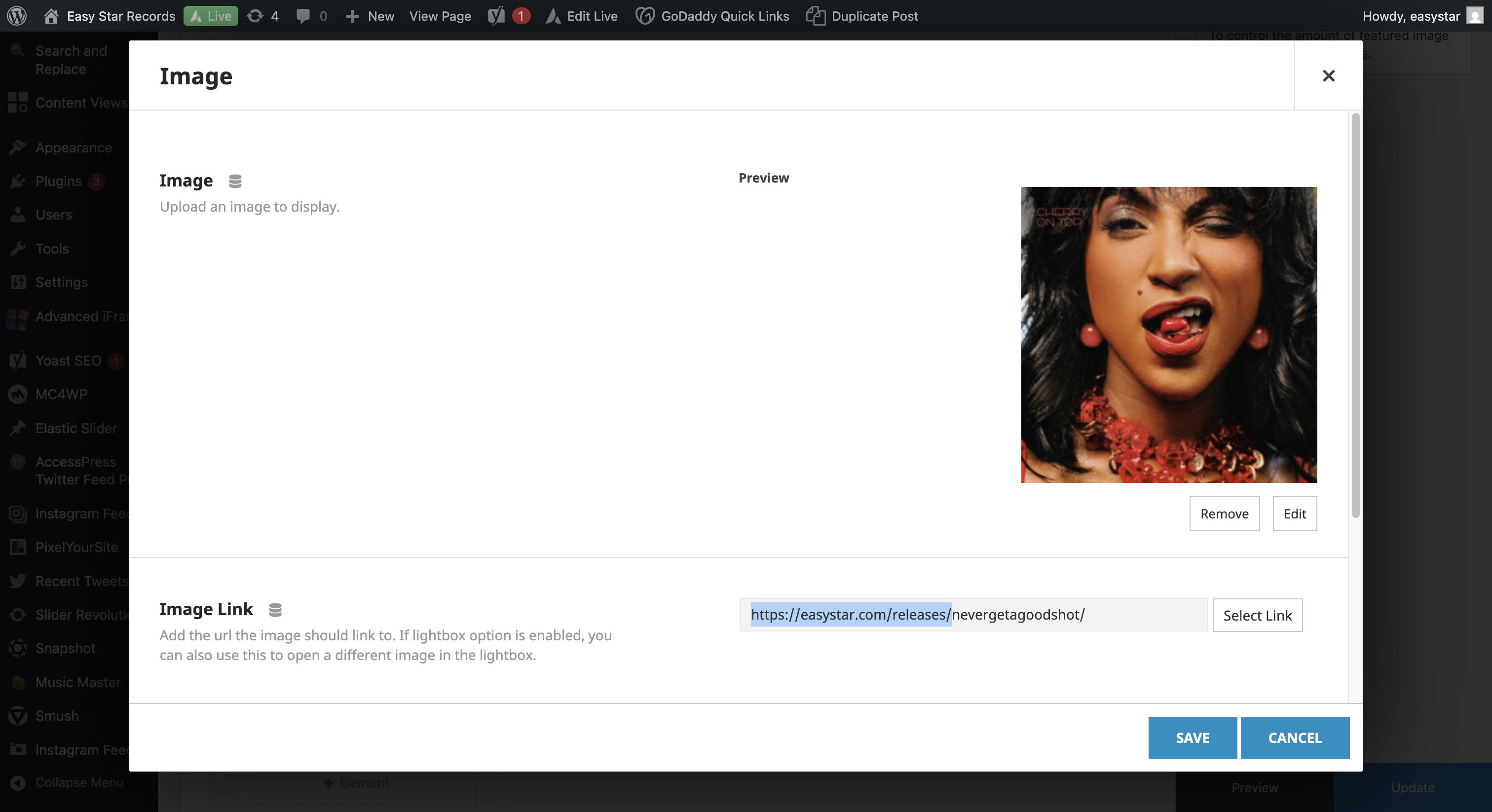
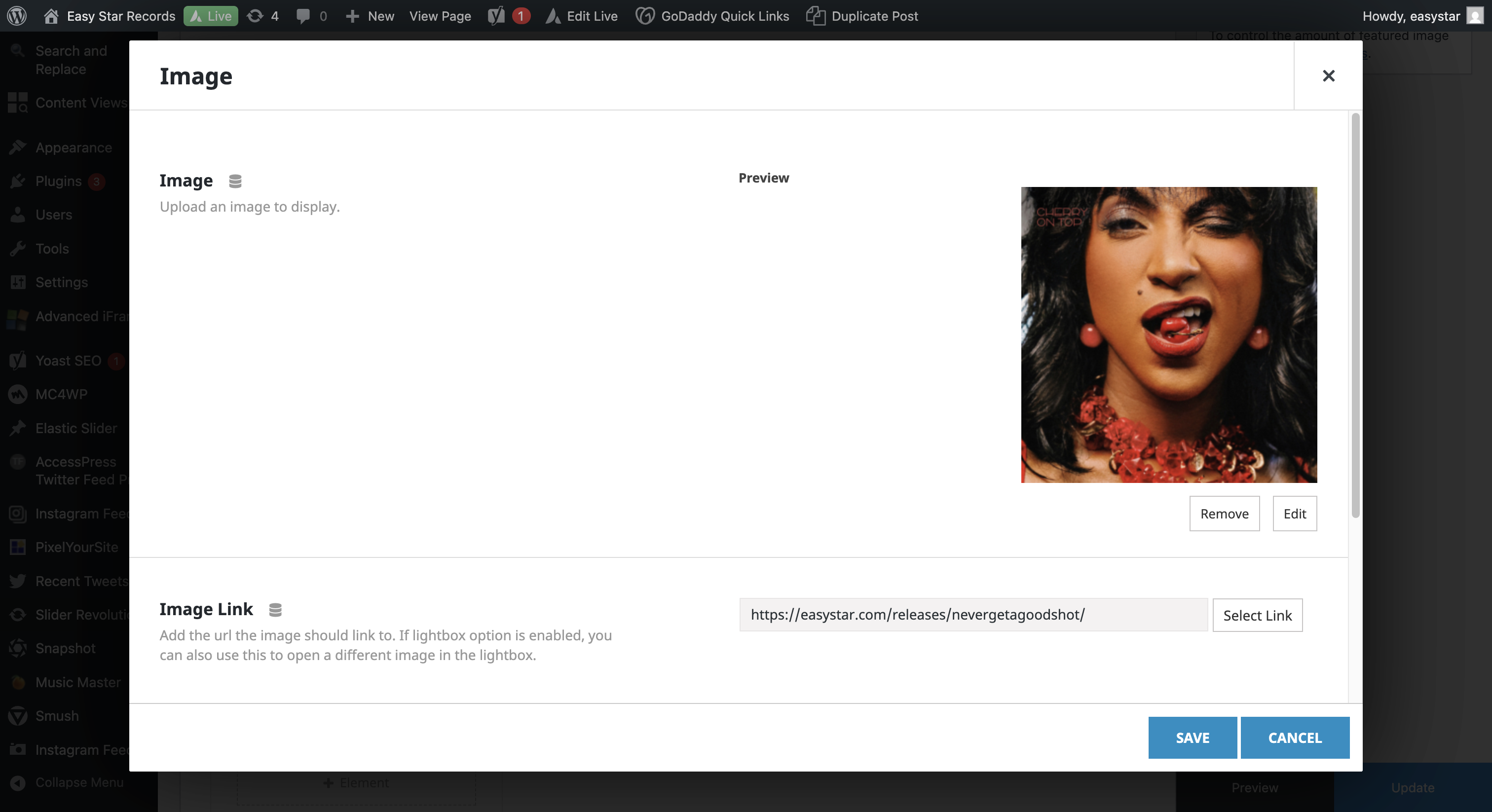
We will remove the old image, replace it with the latest release, and update the URL.
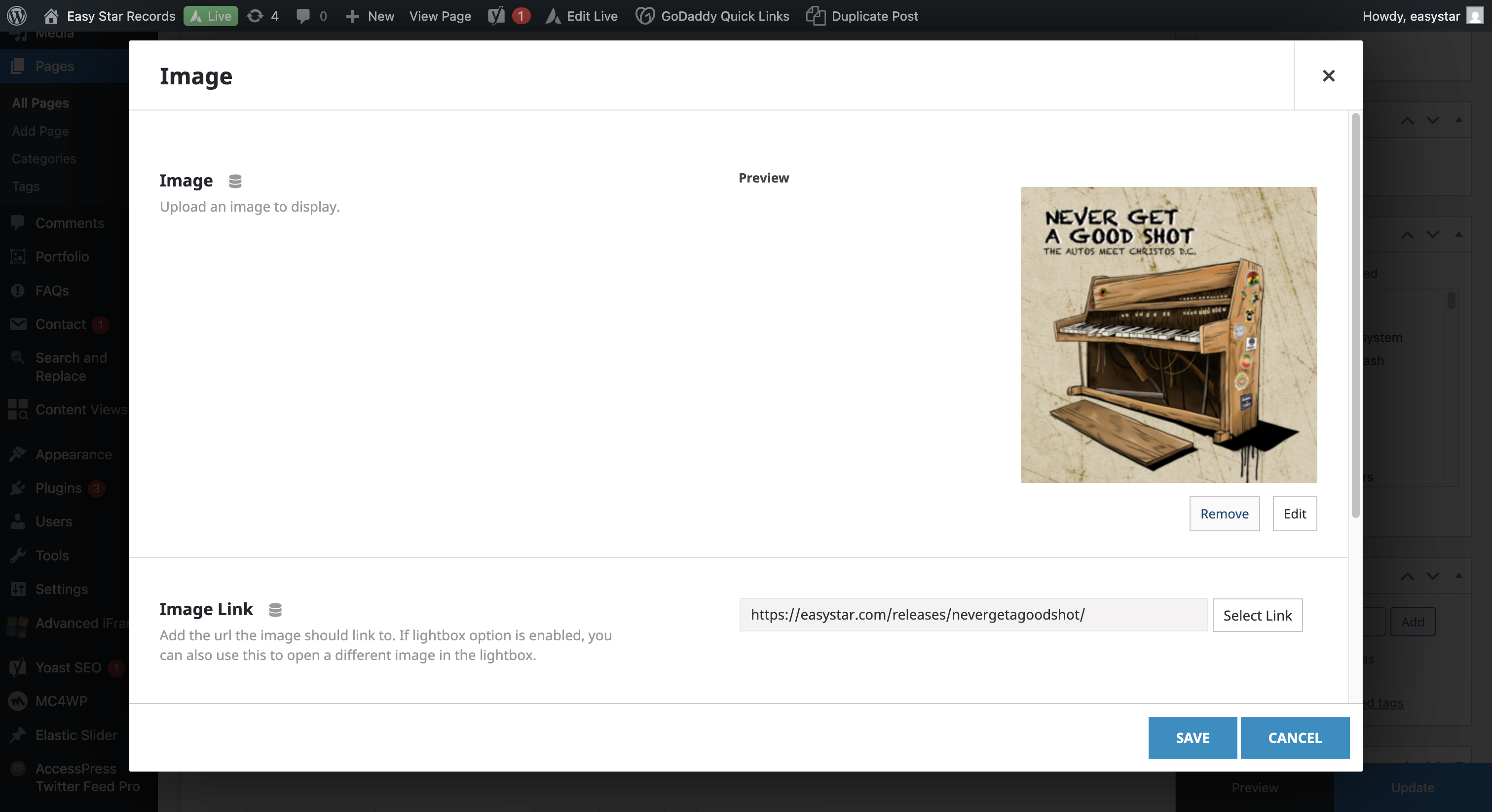
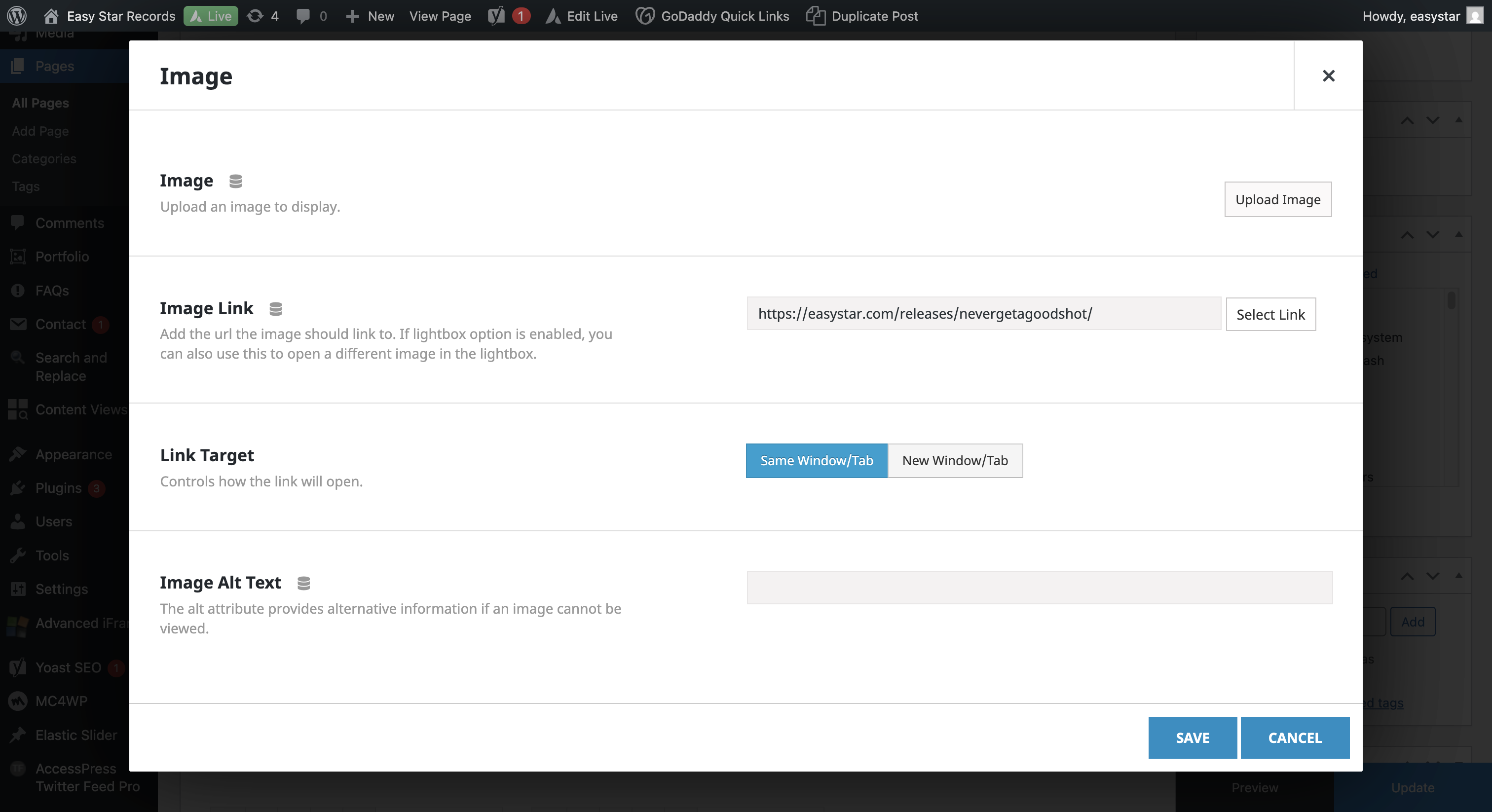
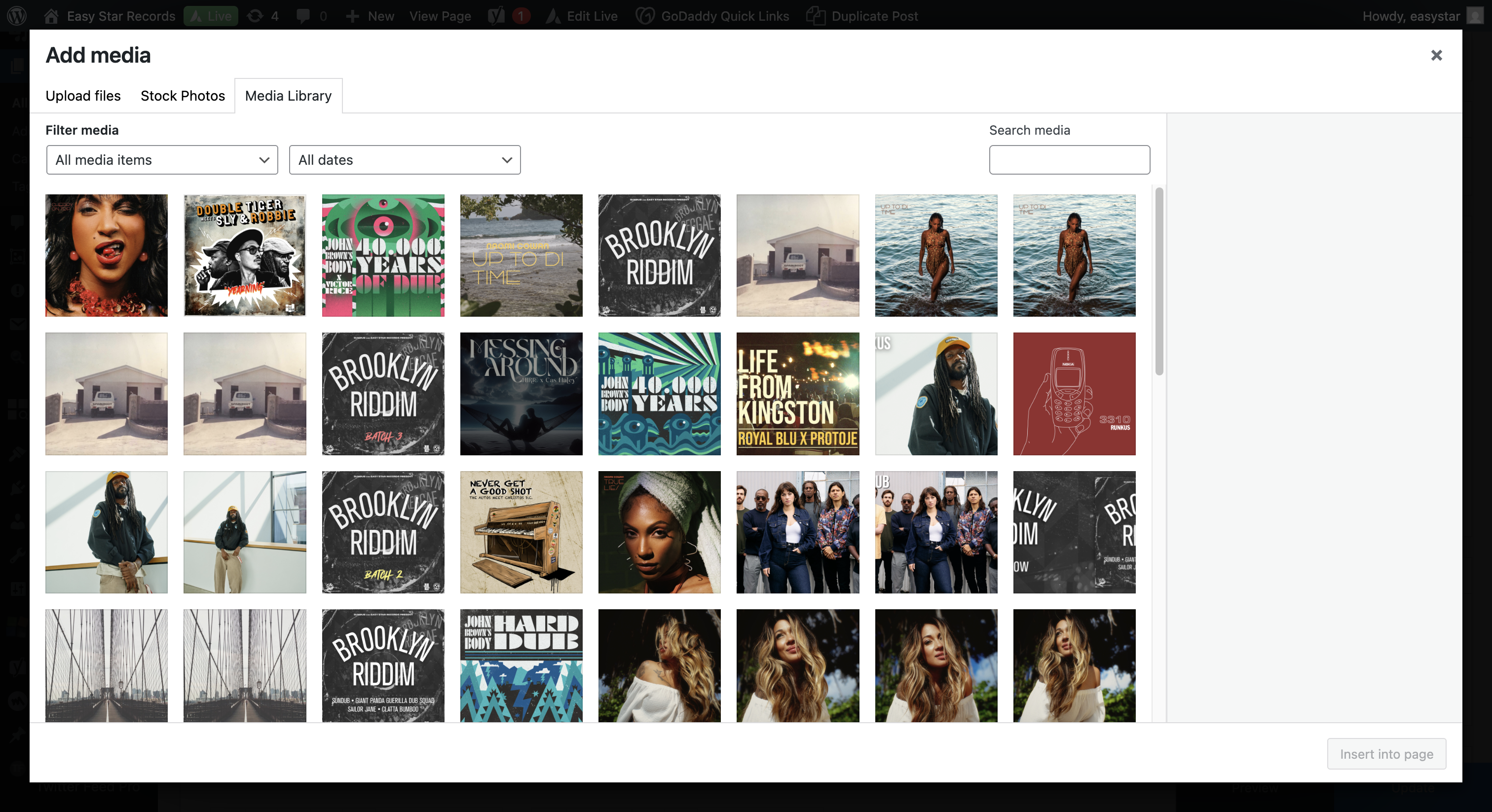
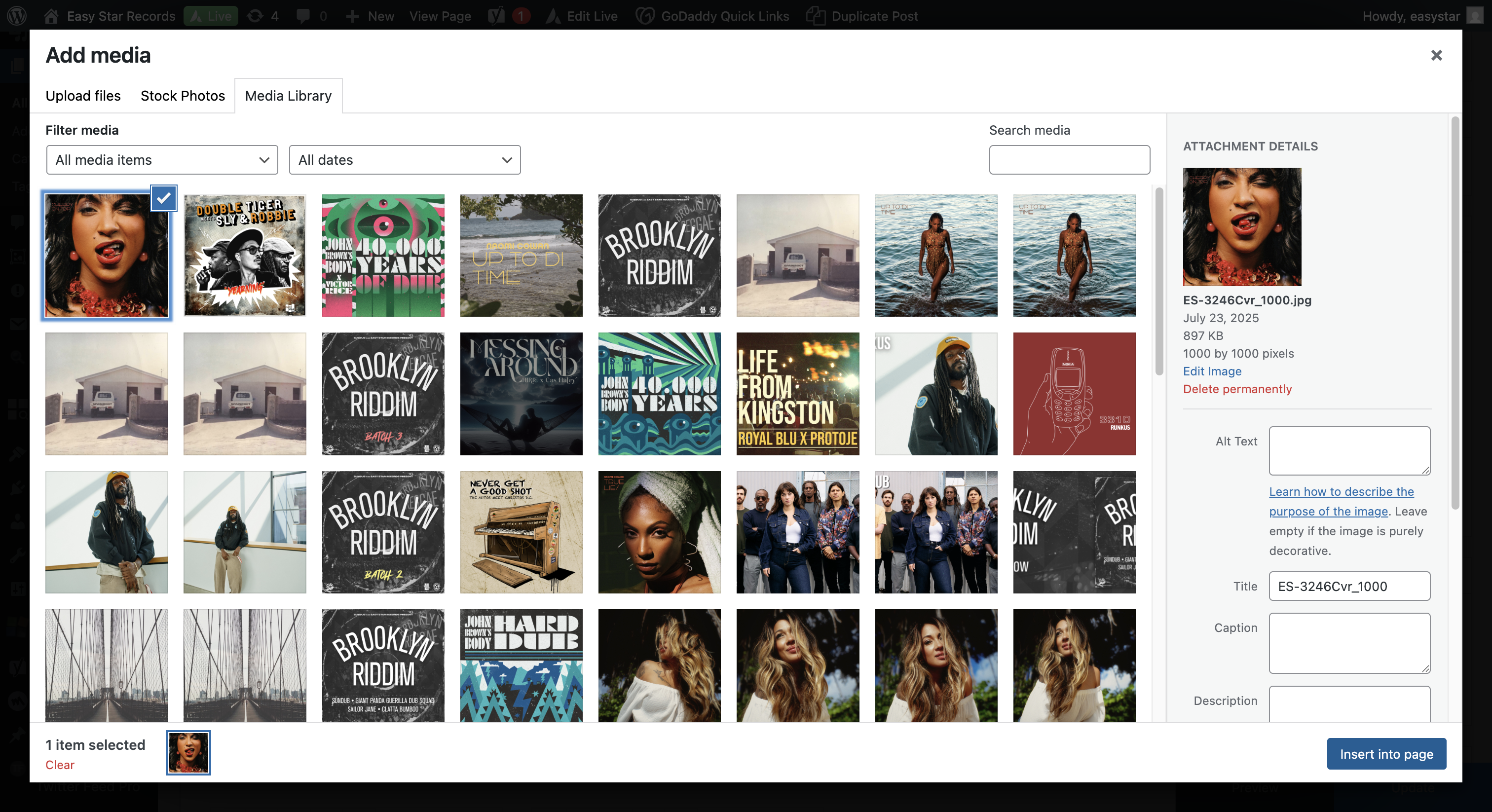
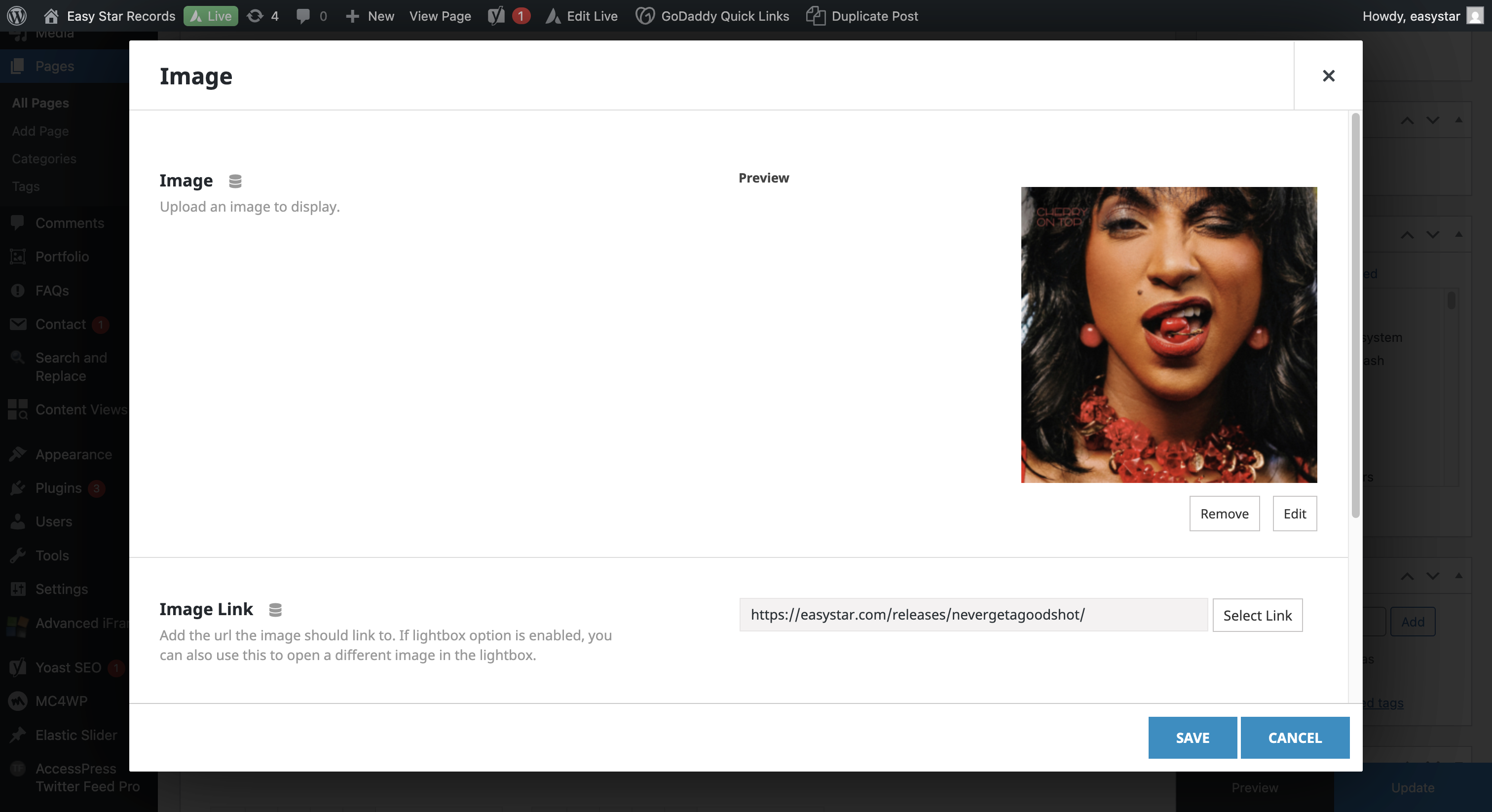
Now, the one we just edited is for desktop.
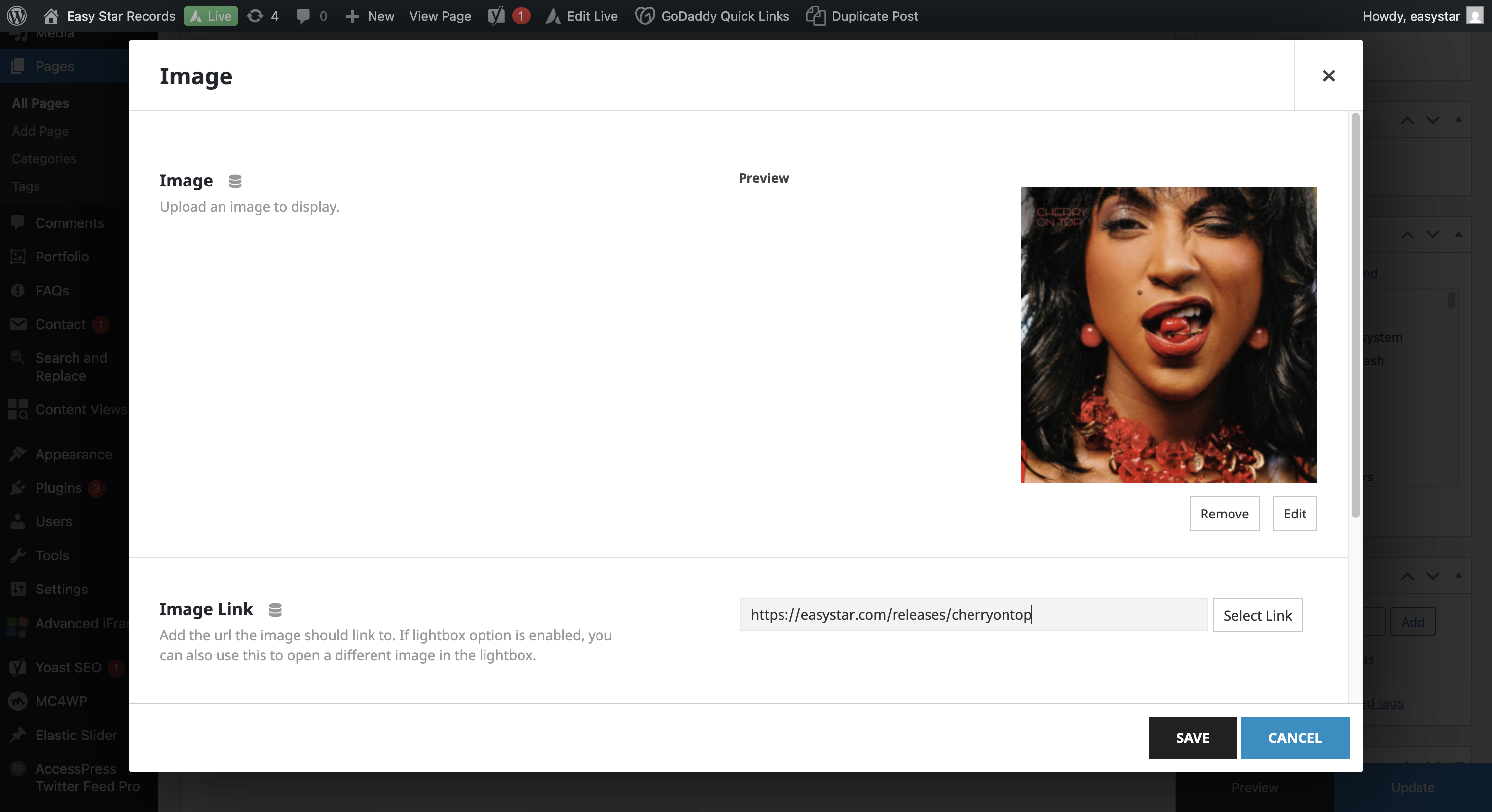
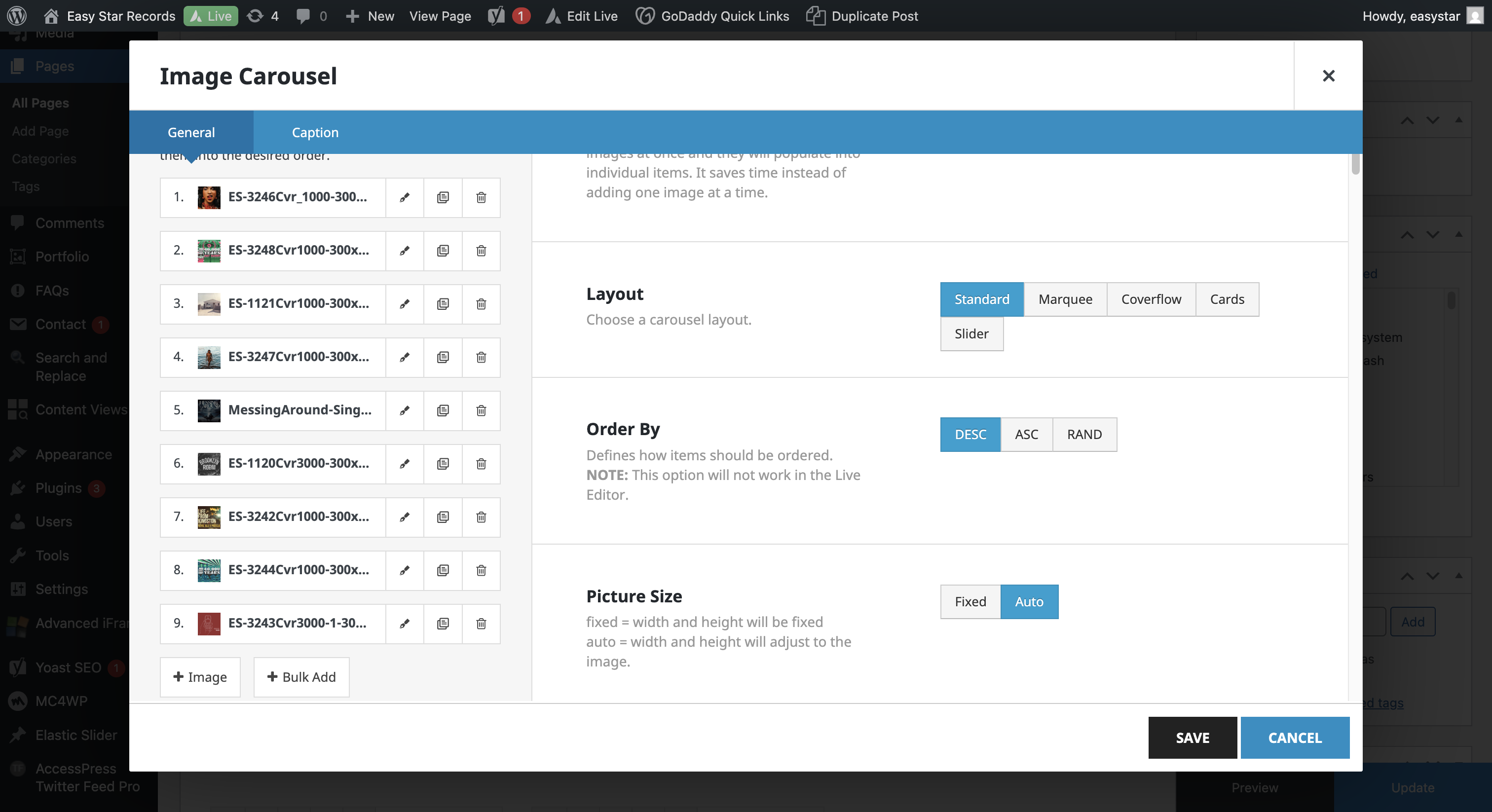
If you keep scrolling down, you'll see another image carousel.
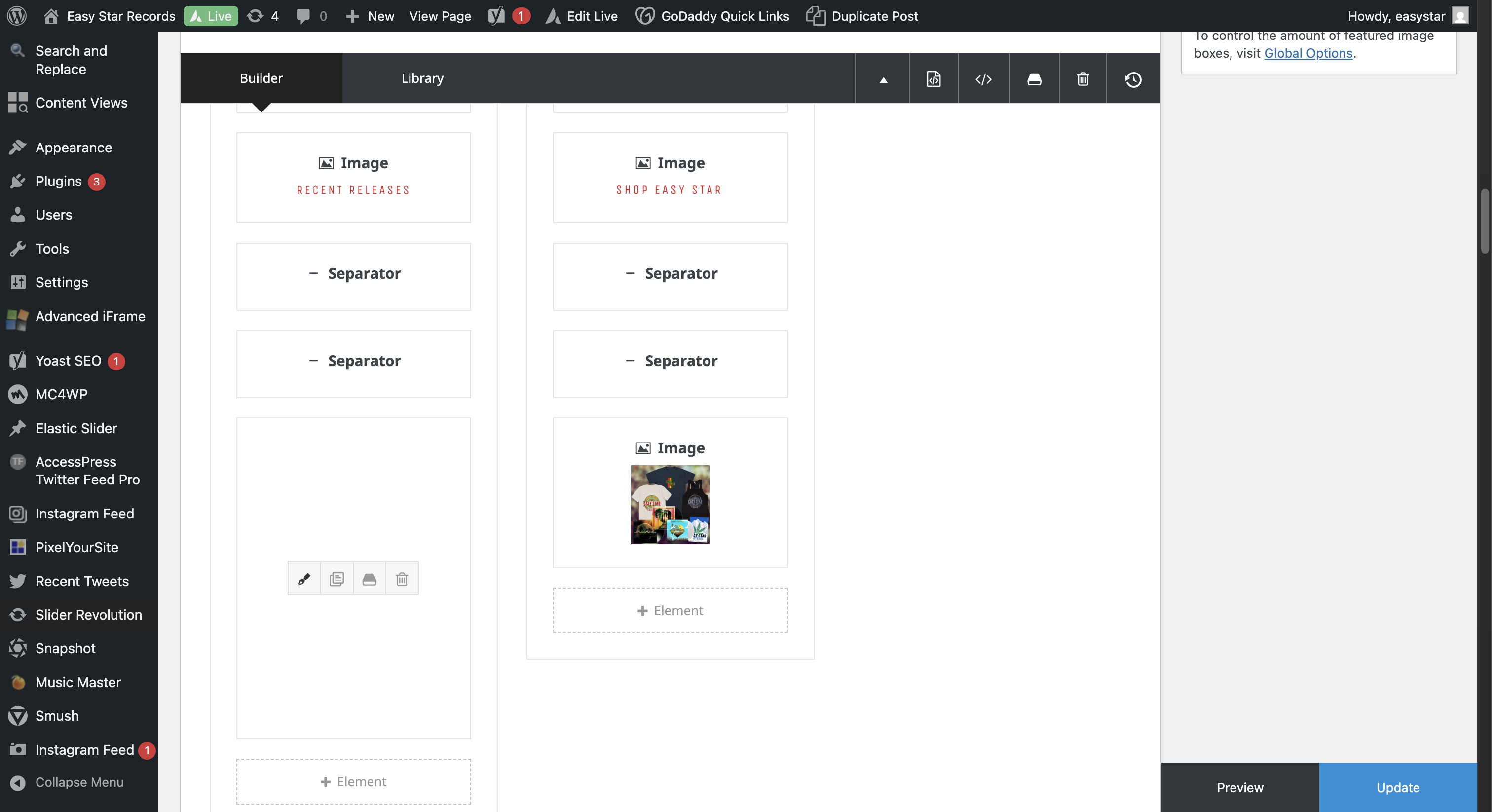
This applies to both mobile and tablet, so you need to update each one.
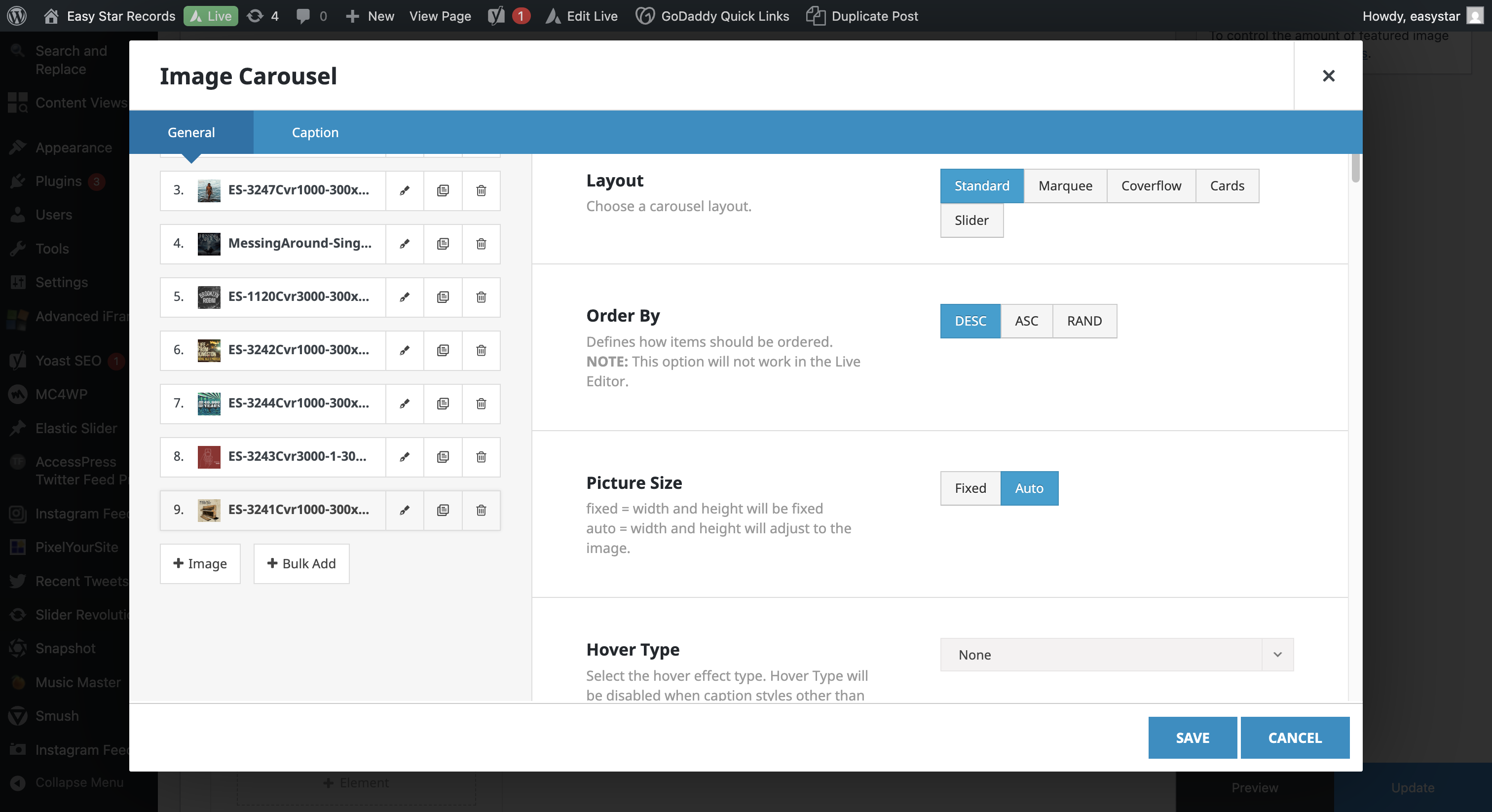
Move number nine to the first position. Replace the image with the new release and update the URL.
Save.
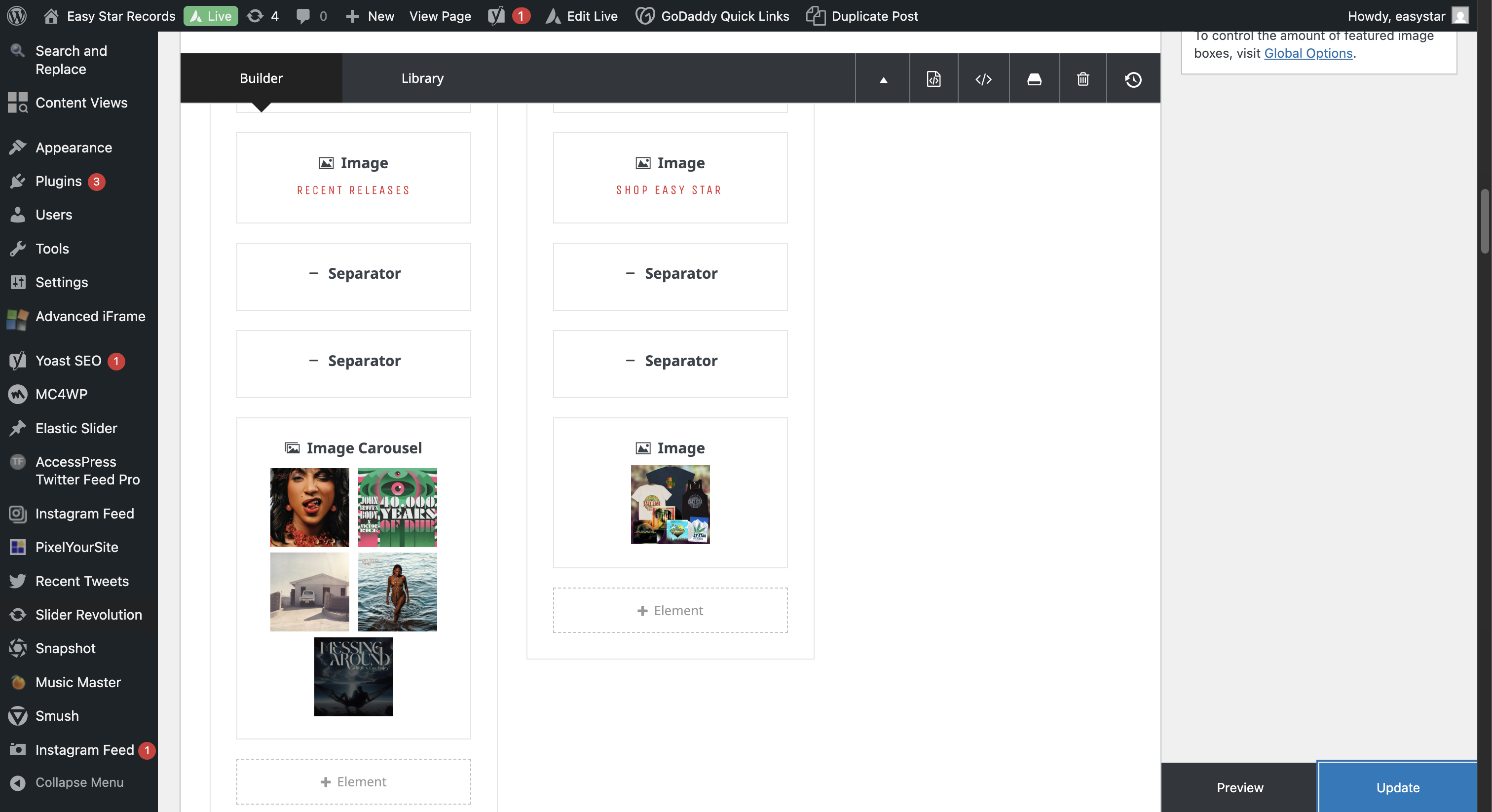
Update.
It's updated.
Let's check the home page.
The new slide is there. The new release slider is also available.
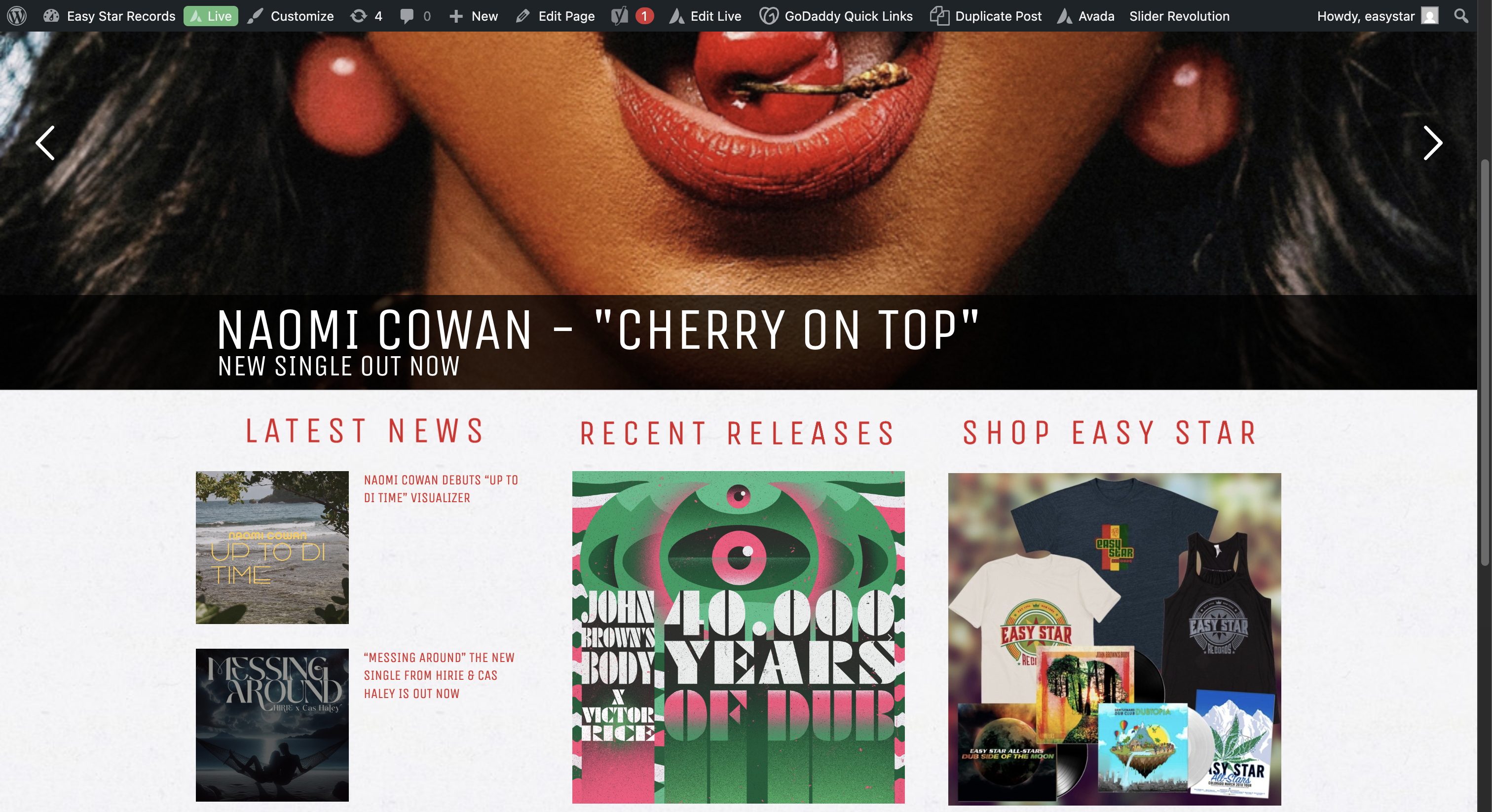
That's it.