
How to Update Your Email Address in Toast
Learn how to update your login email address in Toast web.
By Wendy
This guide explains how to update the login email address associated with your Toast account. Completing this task ensures your login credentials remain secure and you continue receiving important account notifications.
This process applies to any Thompson Restaurant manager who's Toast login is not currently set to their Thompson Restaurant email.
Navigate to Toast Tab, and login with your current credentials, to begin updating your account information.
1
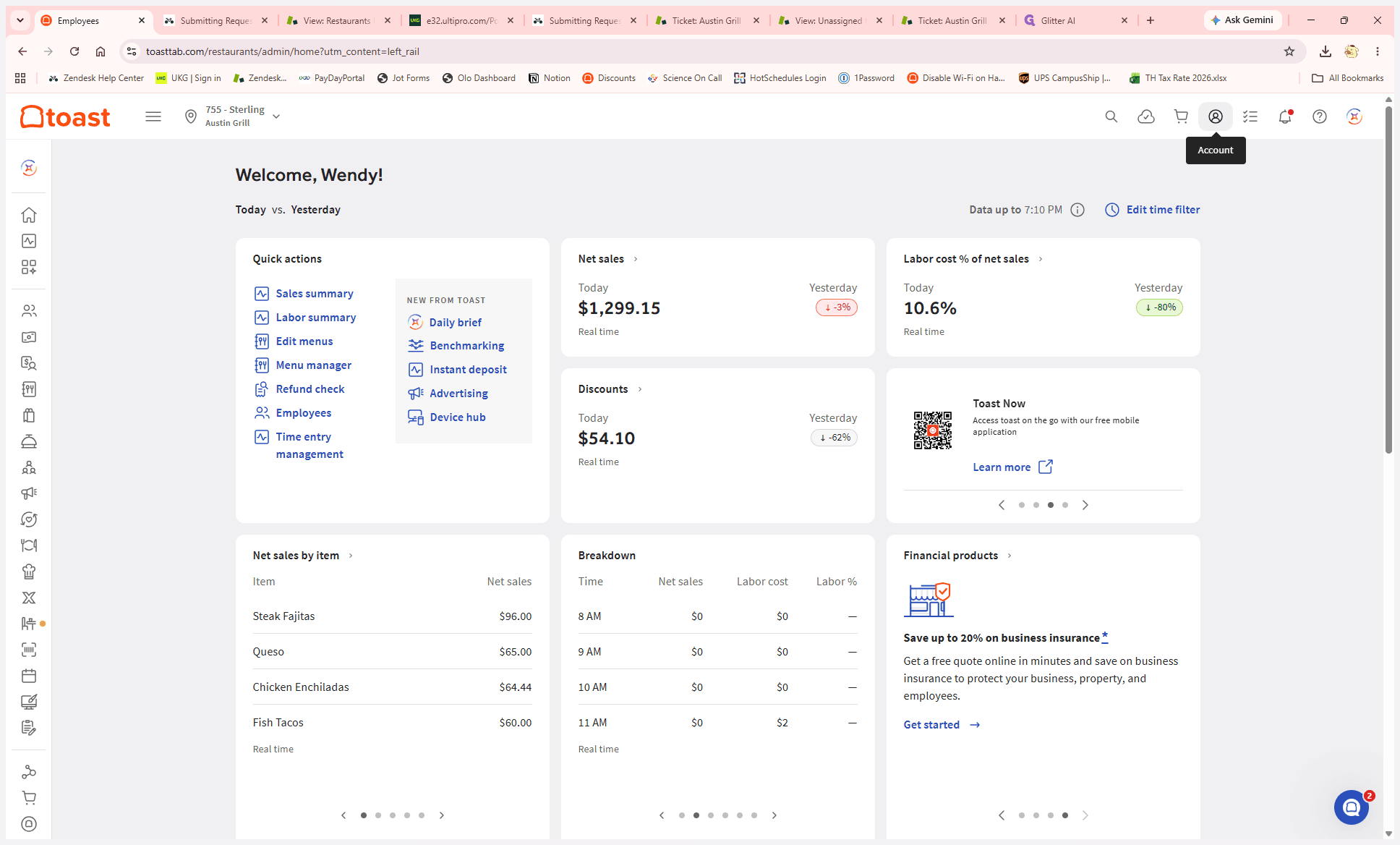
Click the User Account icon in the top right corner of the header.
2
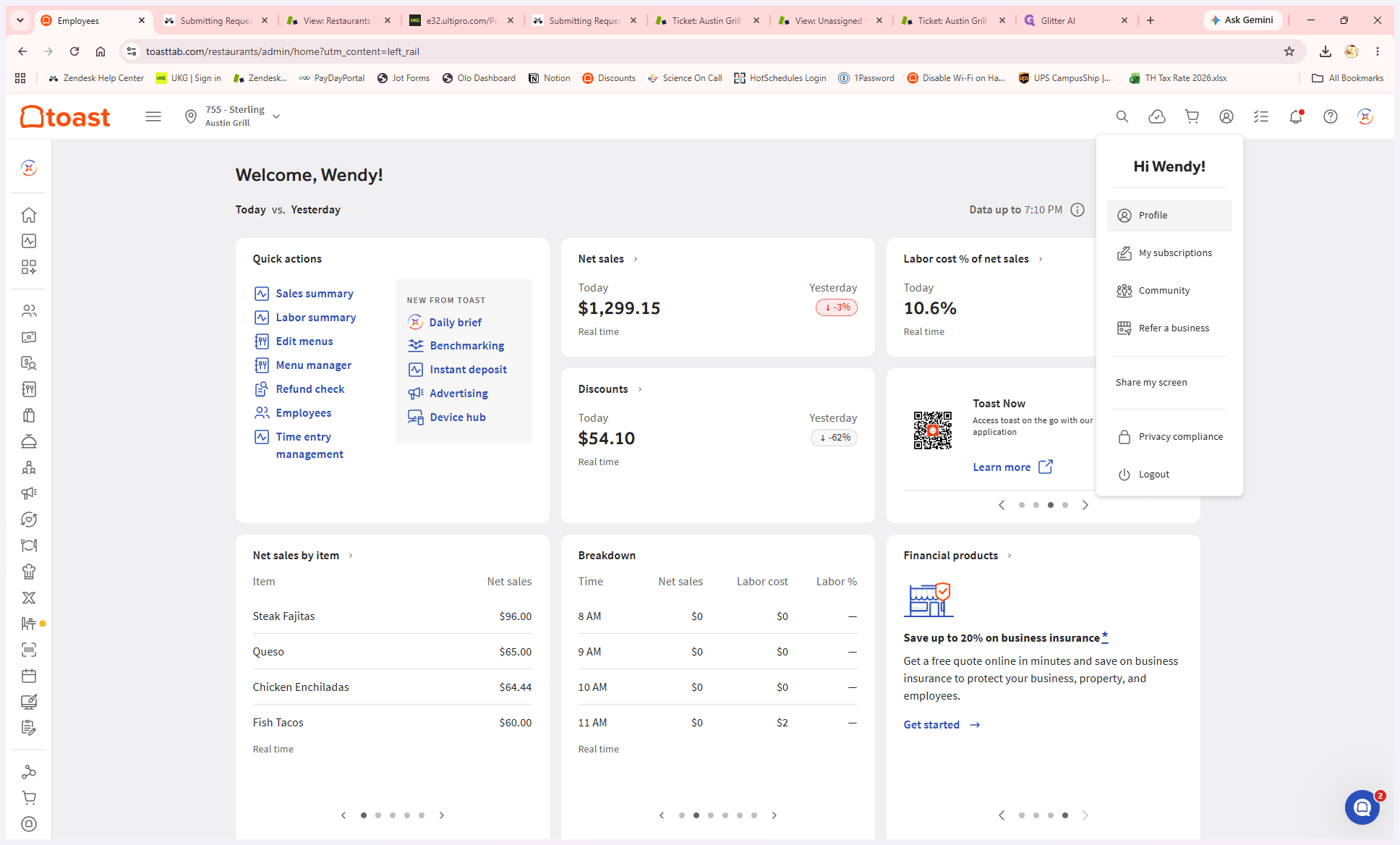
Select Profile from the dropdown menu.
3
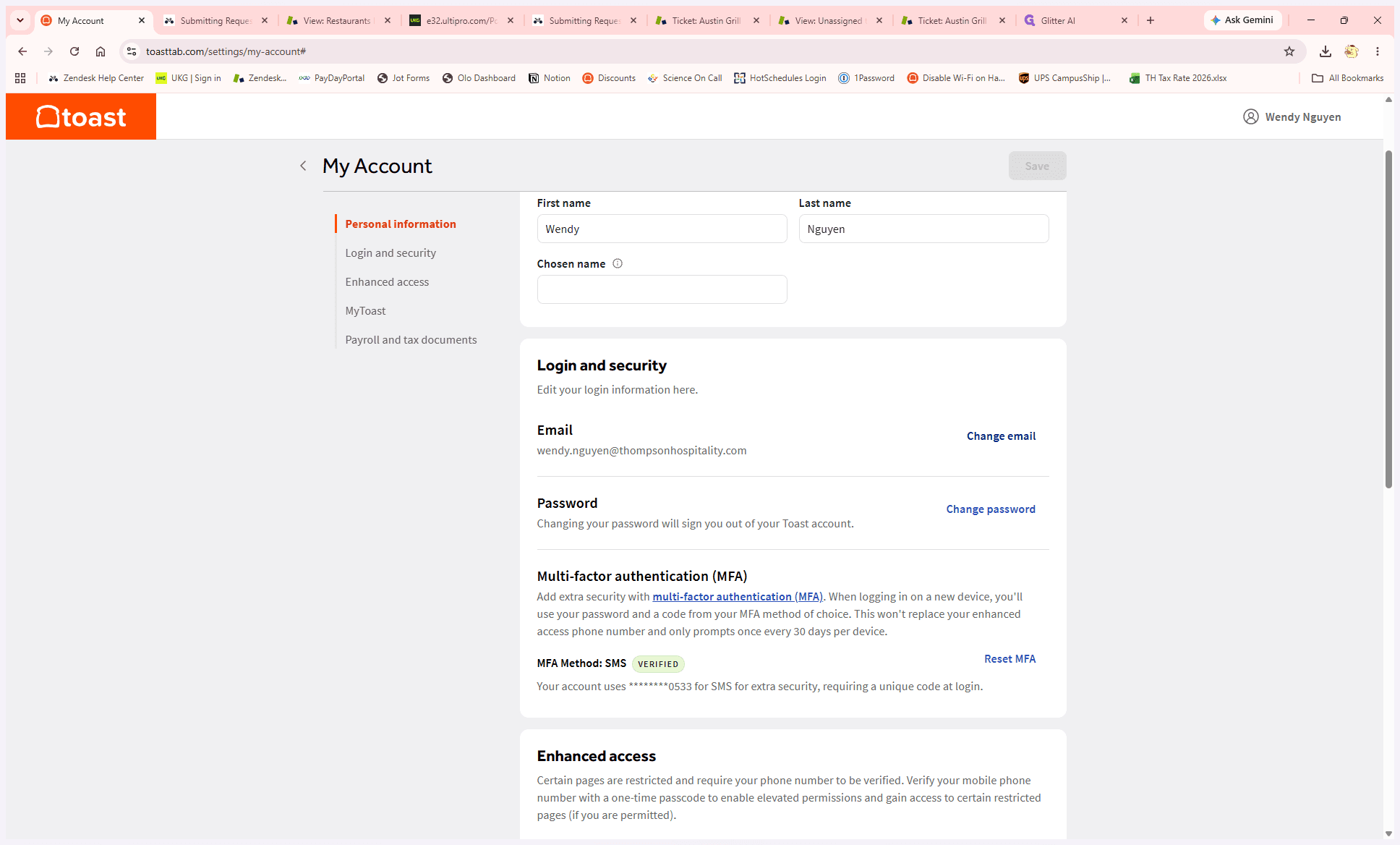
Click Change email on your My Account settings page.
4
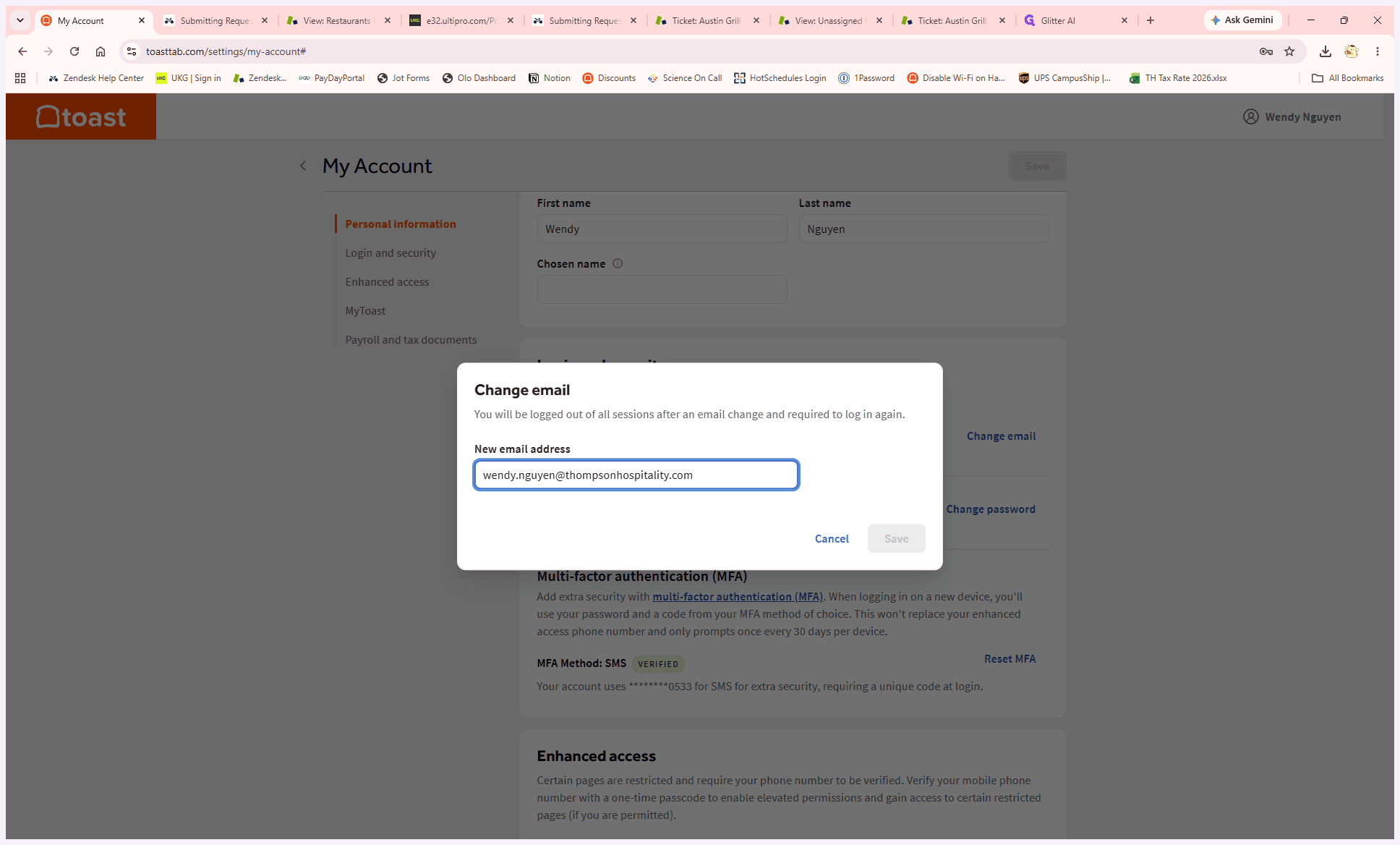
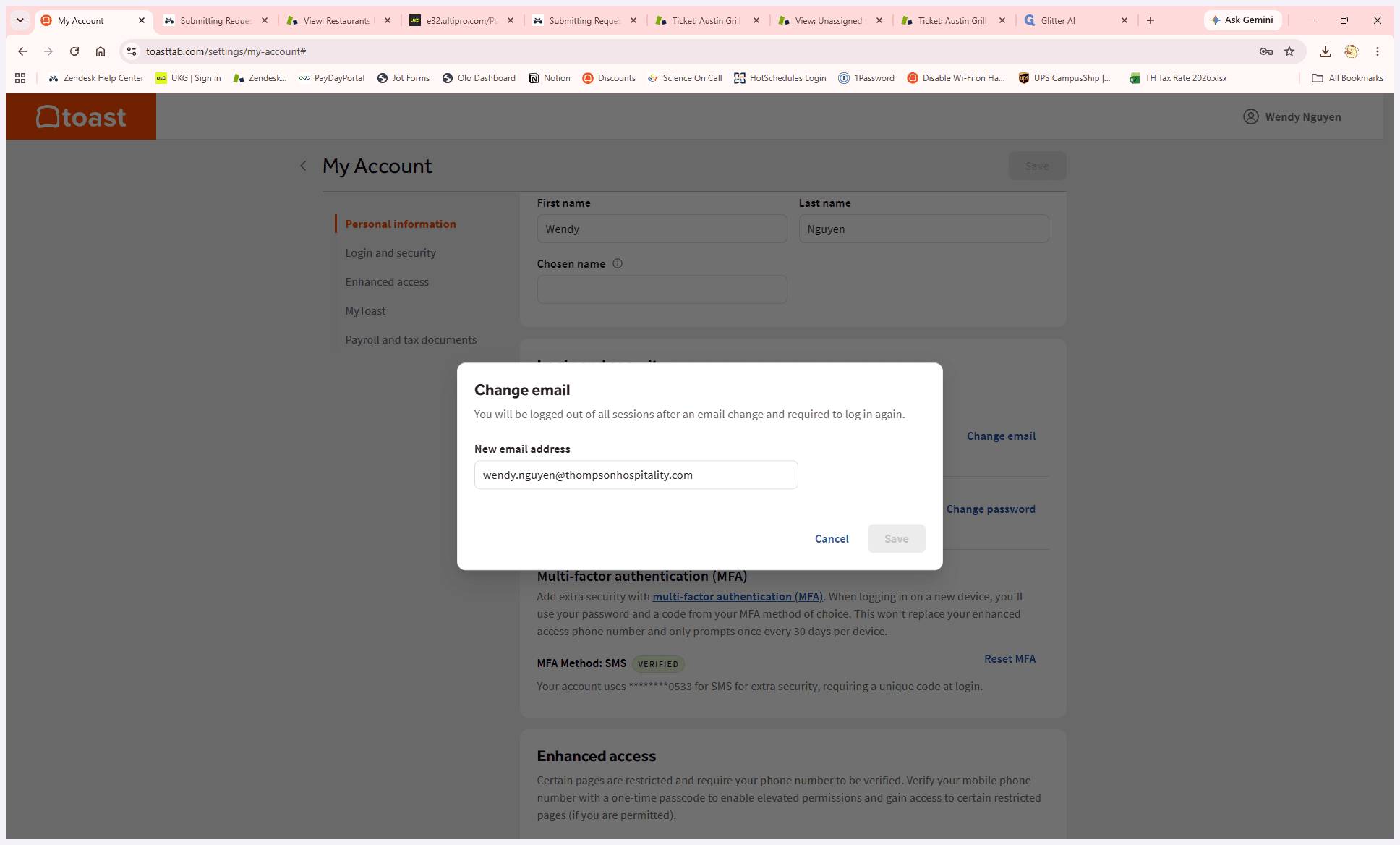
Enter your new email address into the text input field.
5
Click Save to confirm and save your new email address. Once saved, you're done!
6
If you run into any issues making updates, please submit an IT ticket. For more details on submitting an IT ticket, please reference this help article.