Icon

How to Upload and Amend a Packing List in the TRS Cargo Portal System

Learn step-by-step how to amend and upload a packing list to the TRS cargo portal system, including updating exporter and consignee details, invoice numbers, and order references.

By Mark Allison

In this guide, we'll learn how to amend and upload a packing list to the TRS cargo portal system. This process involves updating exporter and consignee details, adjusting invoice and order numbers, and saving the file in the correct format before uploading it to the portal.

These steps help ensure that your packing list meets TRS requirements and is properly linked to your sales order.

Let's get started

In this video, I will show you how to upload the packing list to the TRS cargo portal system. The uploading process is similar to others, but there is an extra step for the packing list.

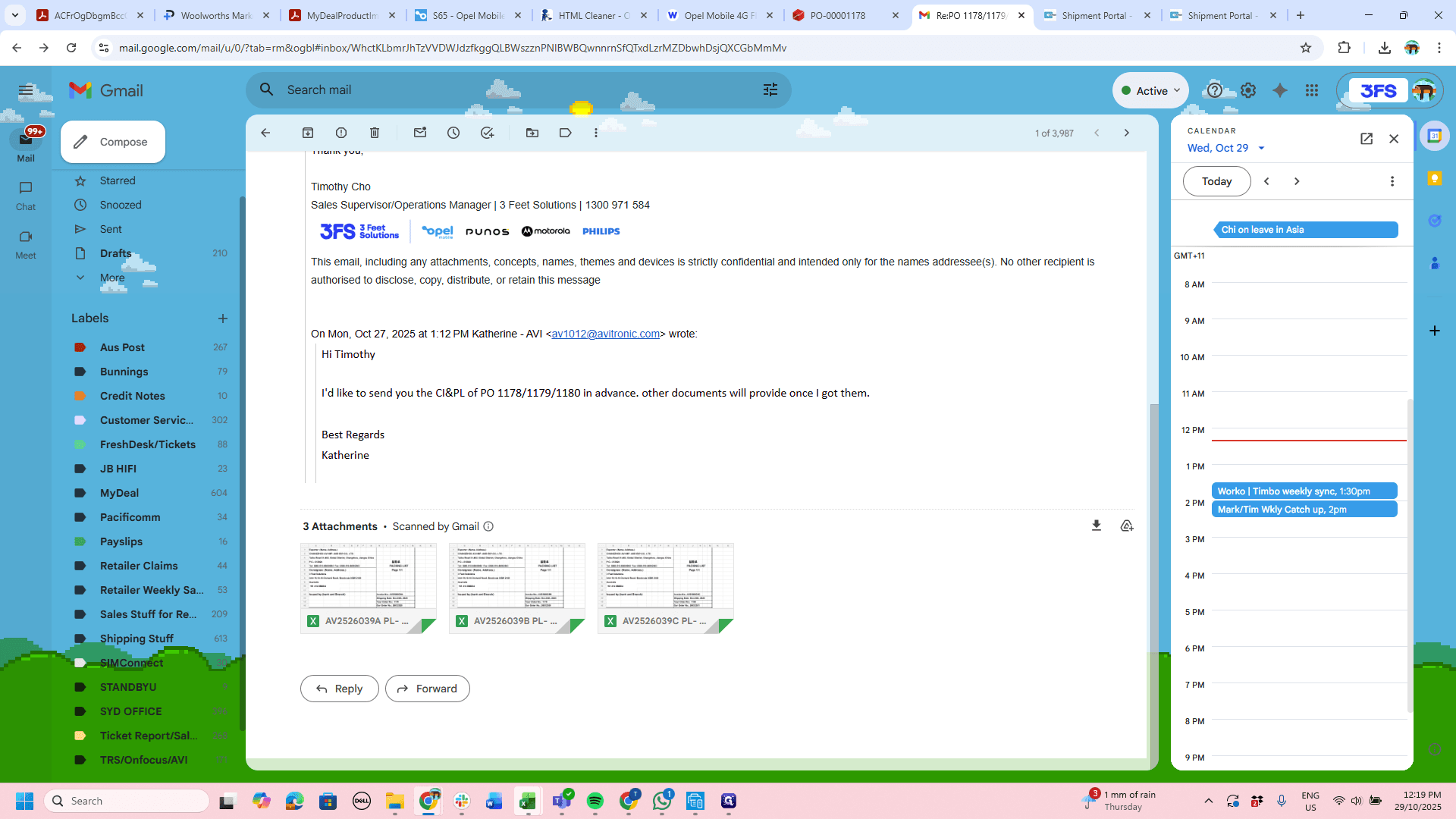
You will receive the packing list from the supplier.

Please see the attached packing list.

I've already downloaded the packing list. Now, we need to amend it.
1
Start by downloading the packing list sent by supplier
Step #1: Start by downloading the packing list sent by supplier

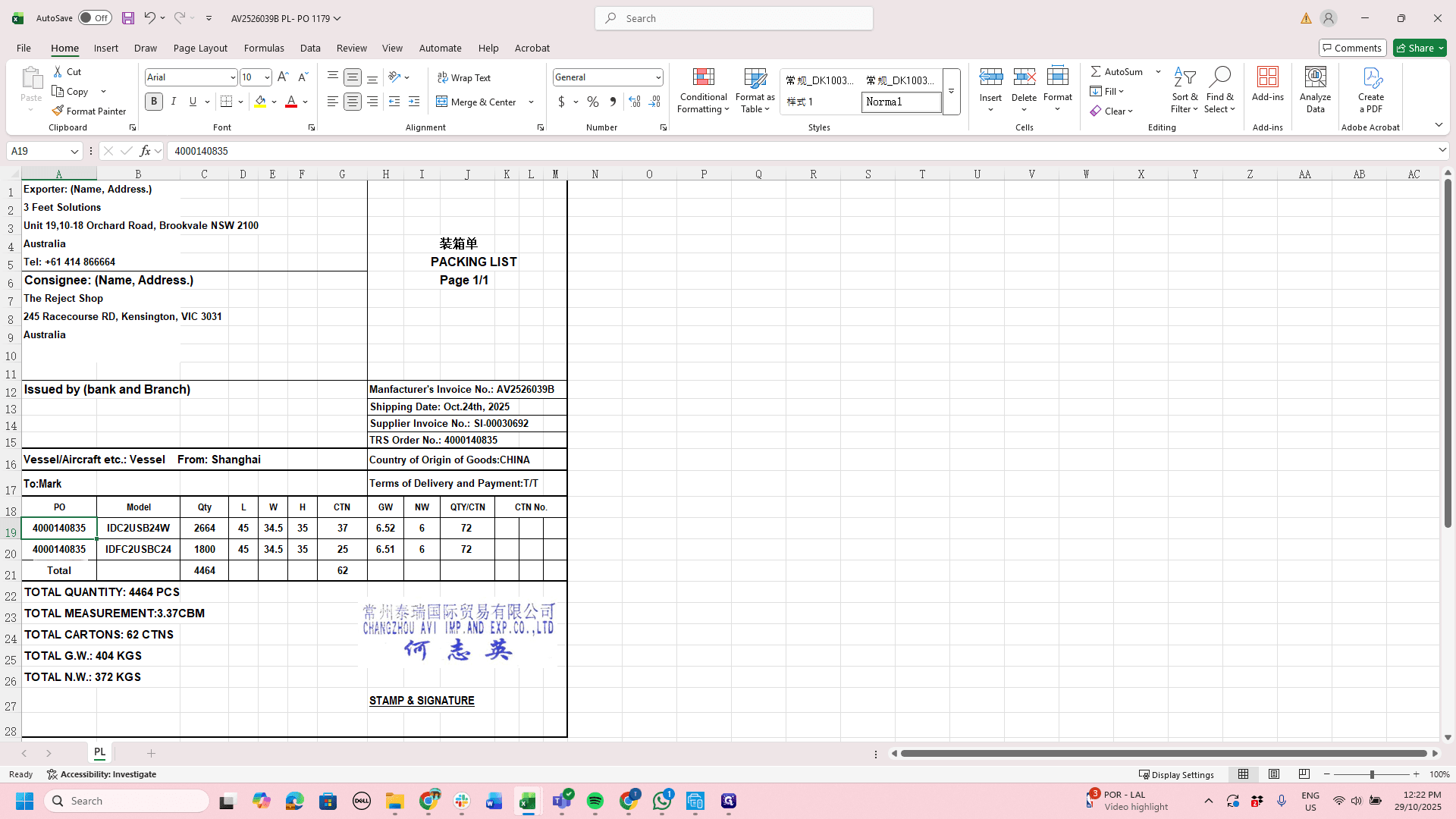
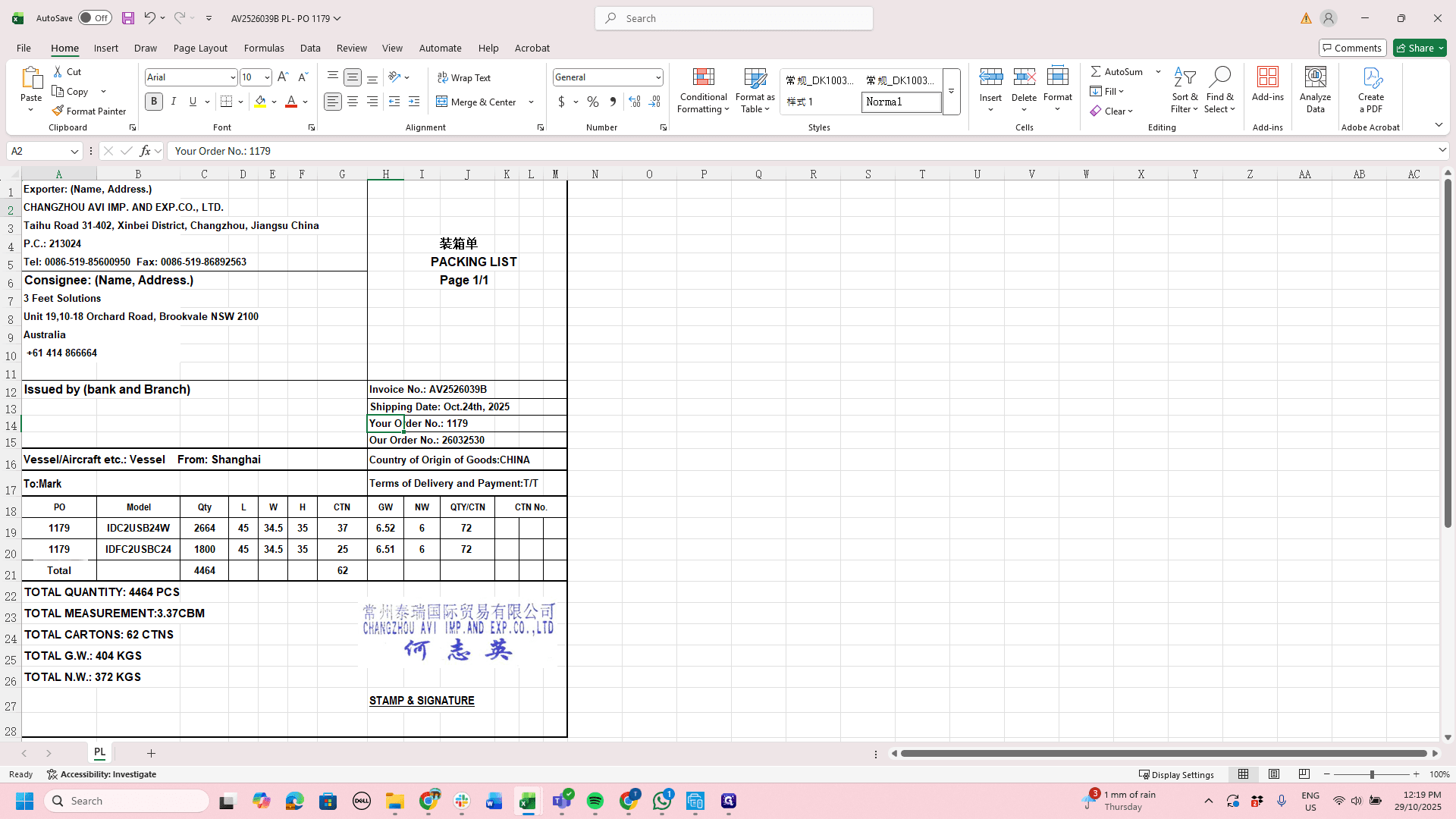
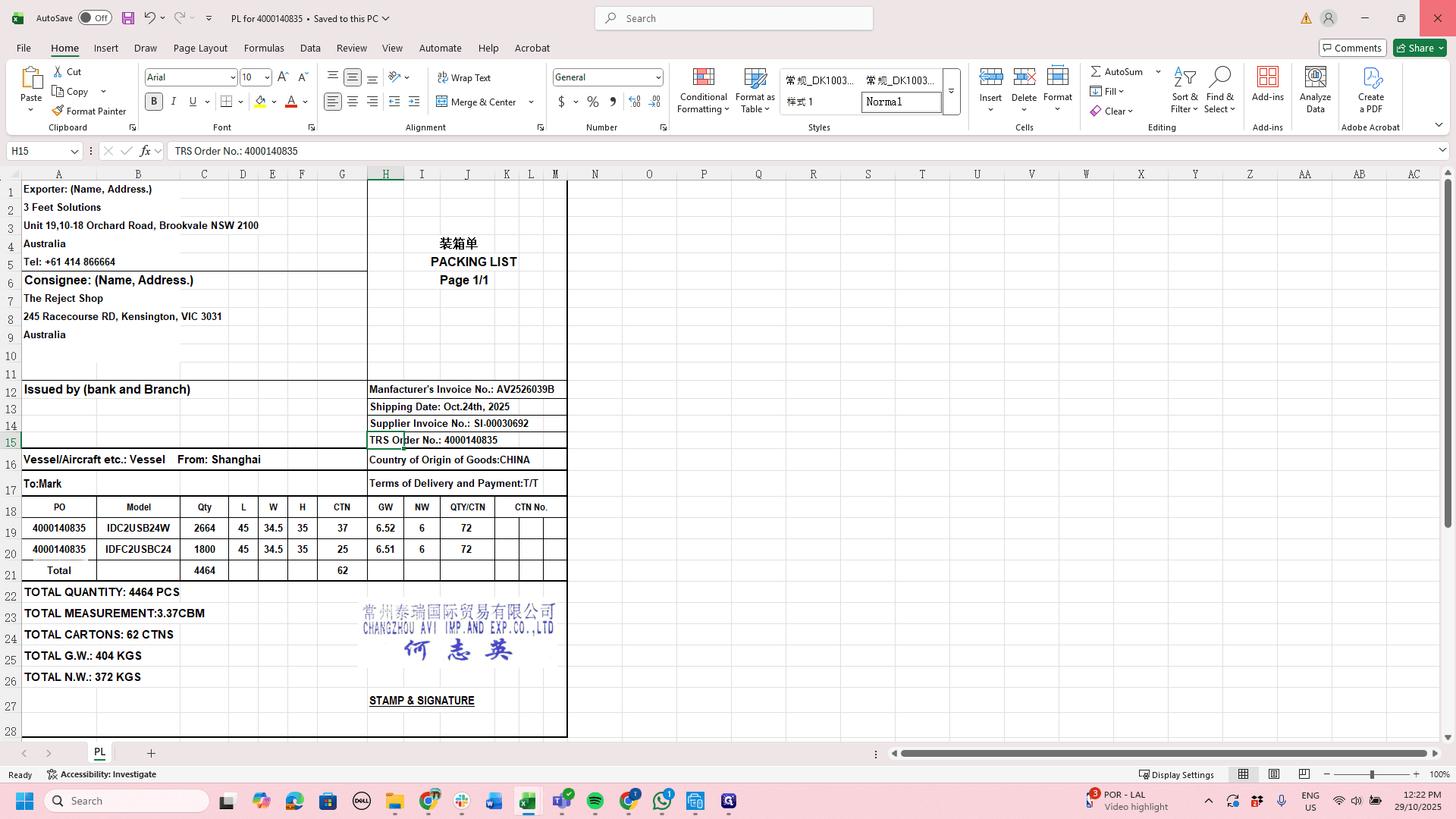
There are a few important things to note. The first thing we need to update is the exporter details, since we are the exporter.
2
Start by changing the Exporter and Consignee details
Step #2: Start by changing the Exporter and Consignee details

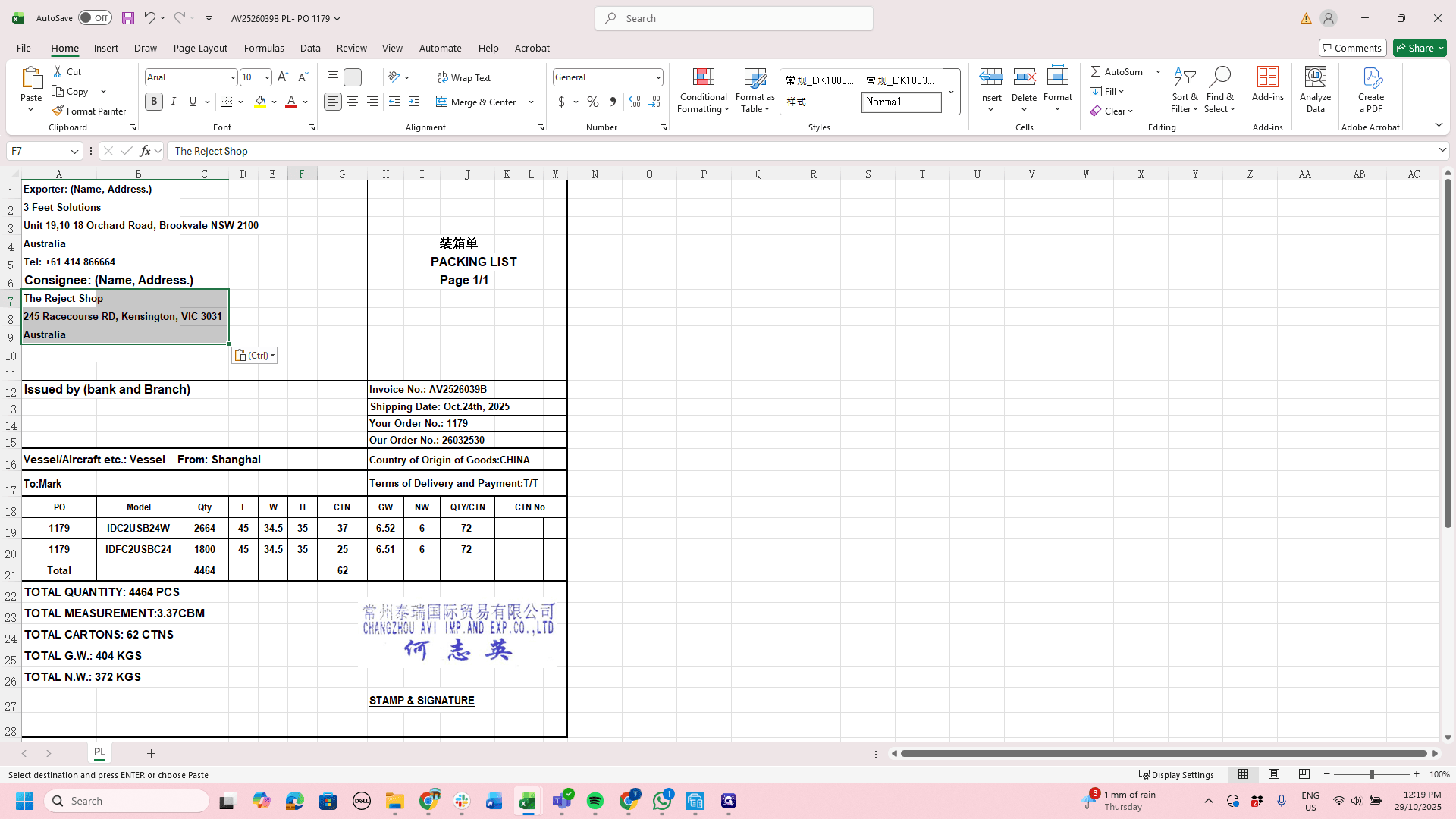
In that section, copy and paste the information. You can find it in a previous packing list.

Update the consignee information to 3FS, and then change Consignee it to the Reject Shop.

As seen below
3
Click here
Step #3: Click here

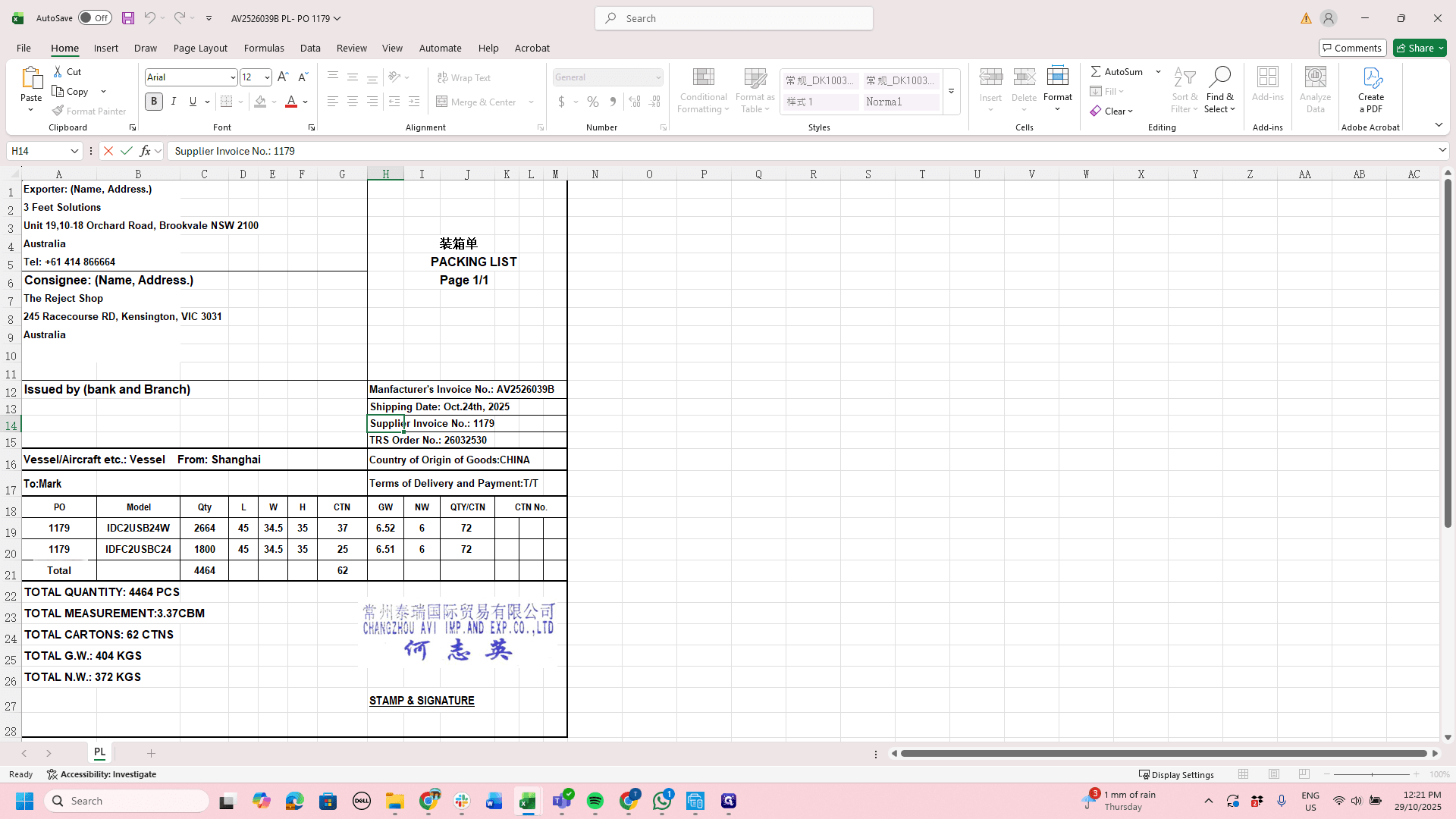
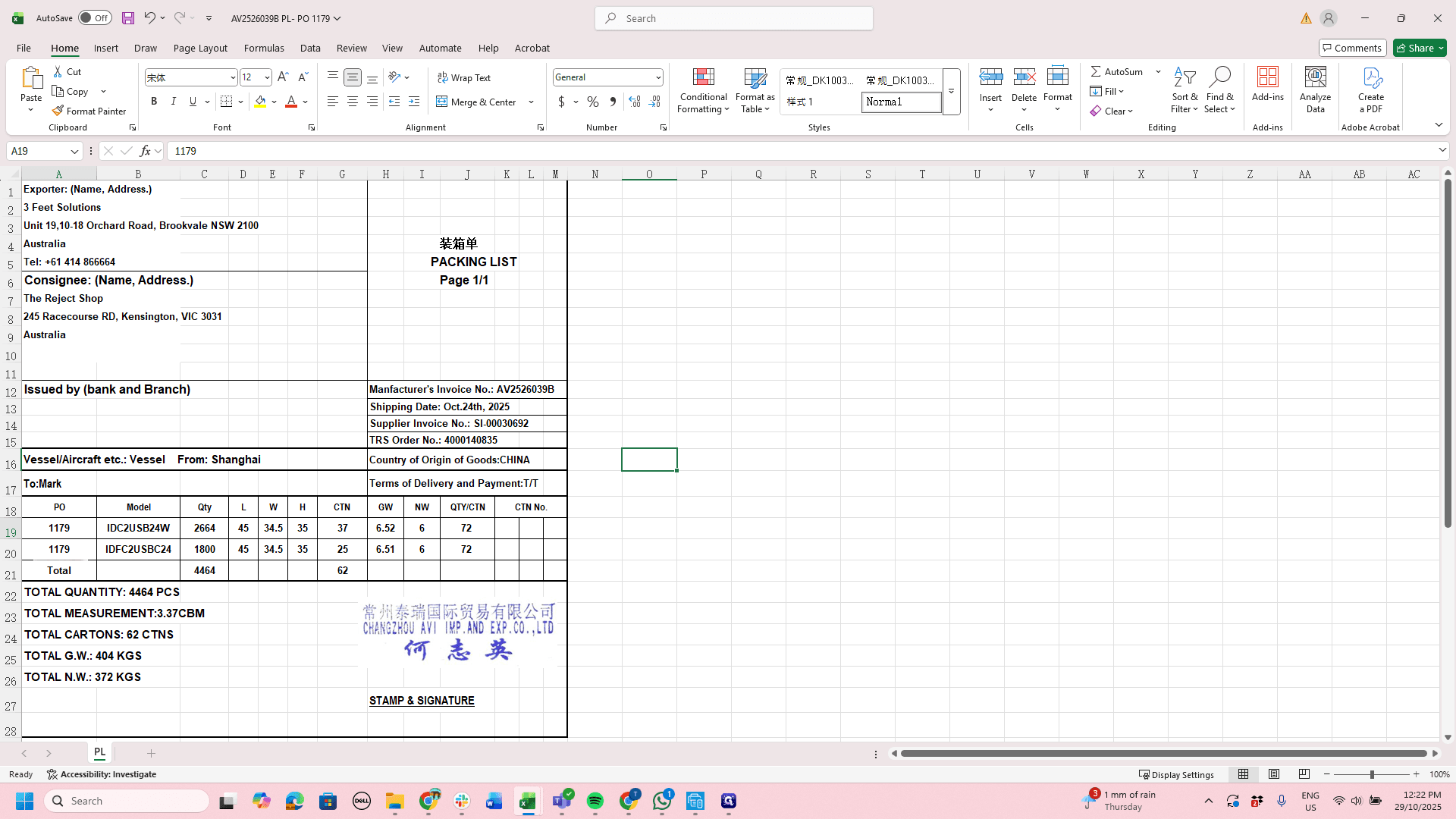
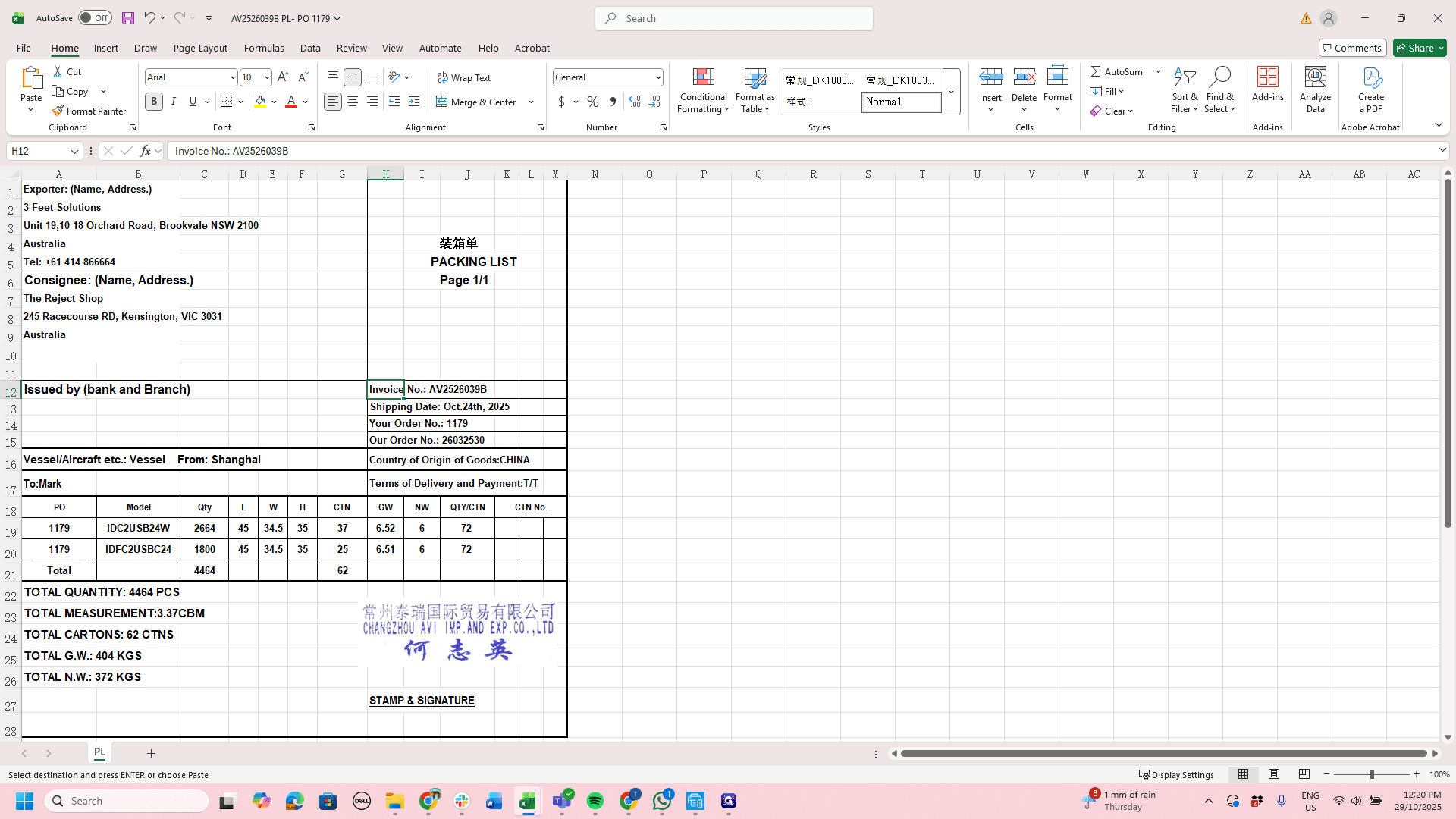
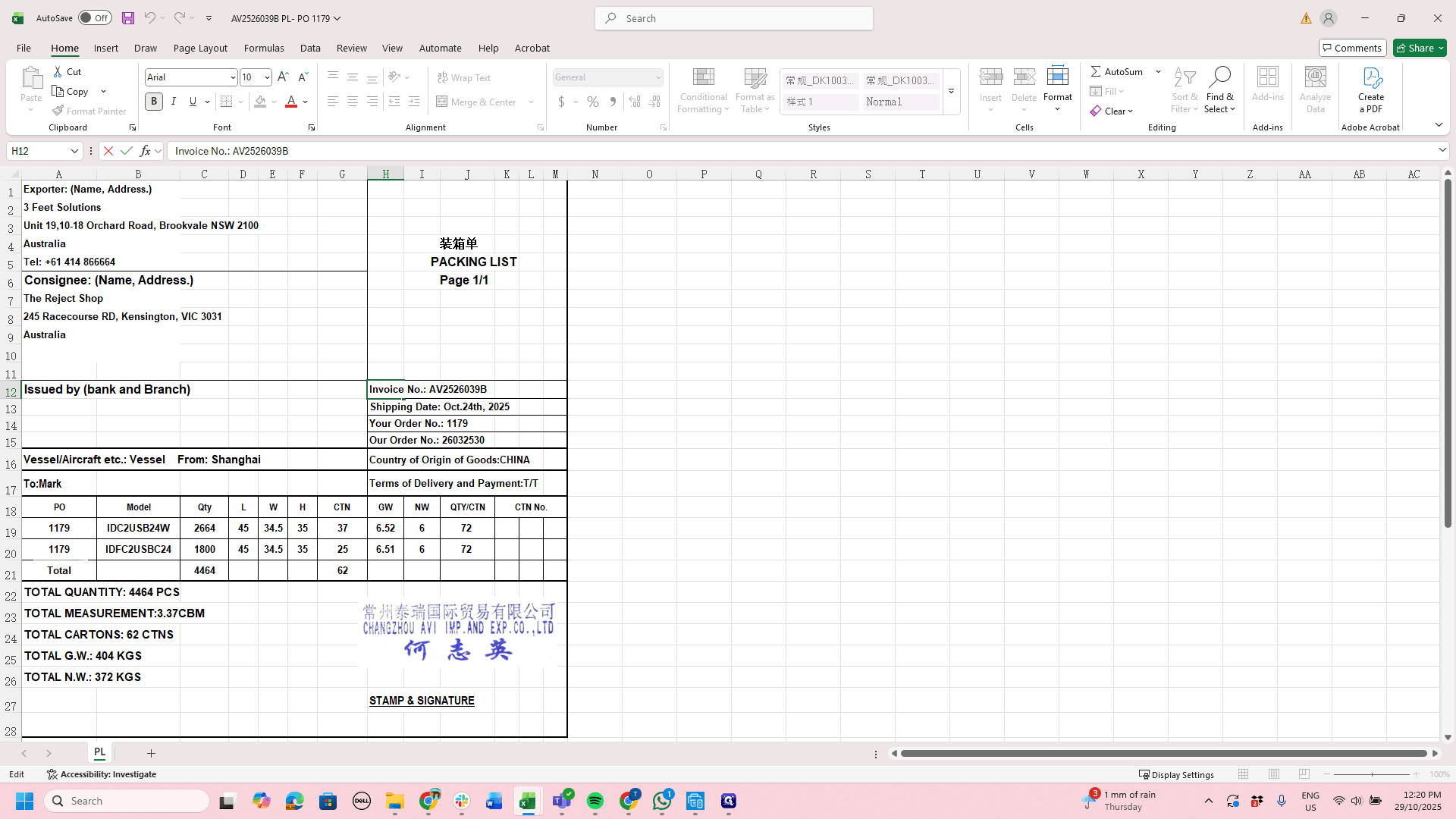
The second thing that needs to be changed here is that Invoice/Order Numbers in the section seen below
4
Double-click on "Invoice No .: AV2526039B"
Step #4: Double-click on "Invoice No .: AV2526039B"
5
Click on "Invoice No .: AV2526039B" - and change this to say 'Manufacturer's Invoice Number:'
Step #5: Click on "Invoice No .: AV2526039B" - and change this to say 'Manufacturer's Invoice Number:'

Instead of calling this the invoice number, we should specify that it is the manufacturer's invoice number. The shipping date will stay the same.

6
Type "Manufacturer's "

And calling this our...

7
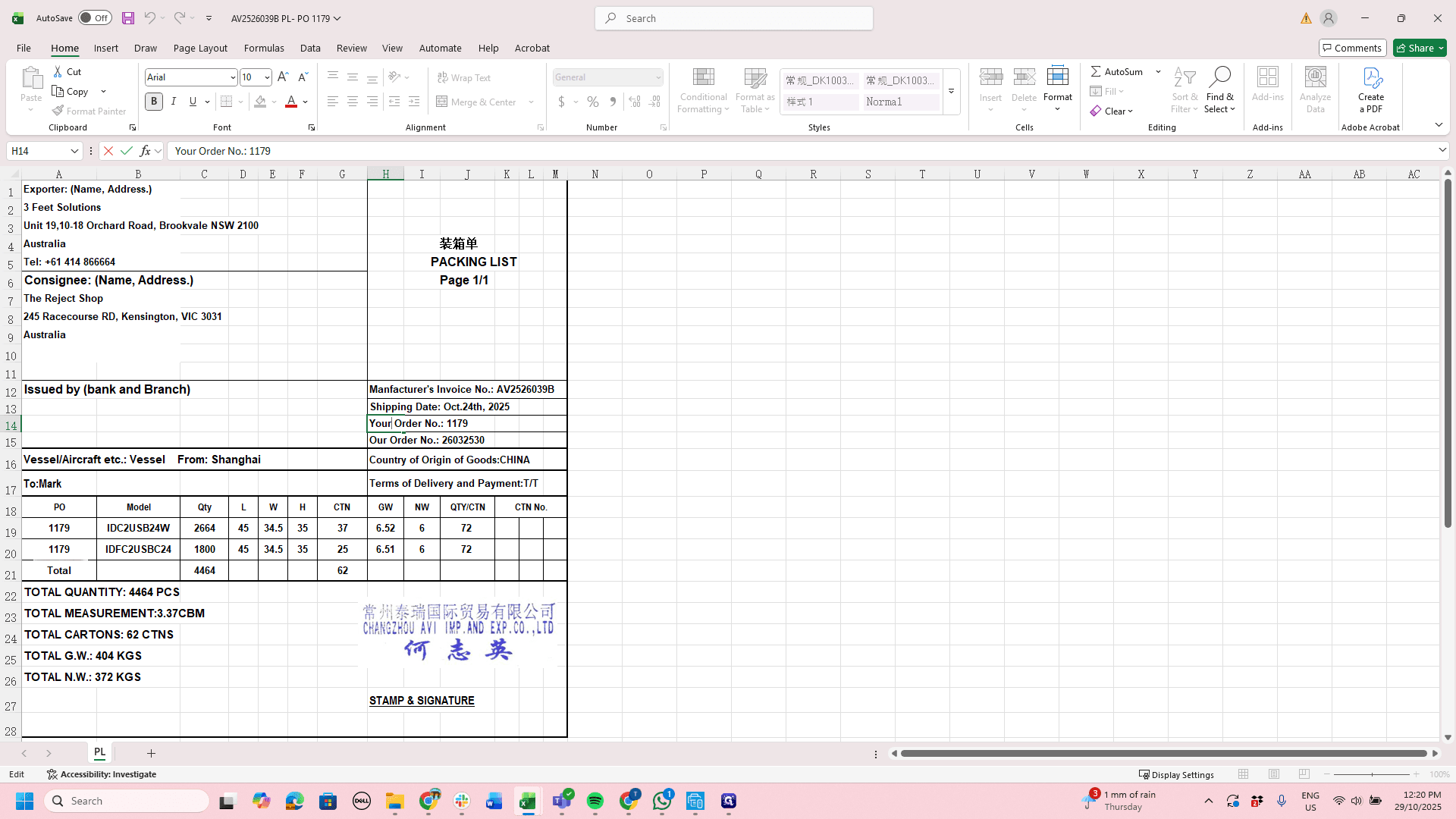
Drag "Your Order No .: 1179"
Step #7: Drag "Your Order No .: 1179"

Then change 'Your Order No' to 'Our Invoice Number' and put in the associated Sales invoice number from unleashed

8
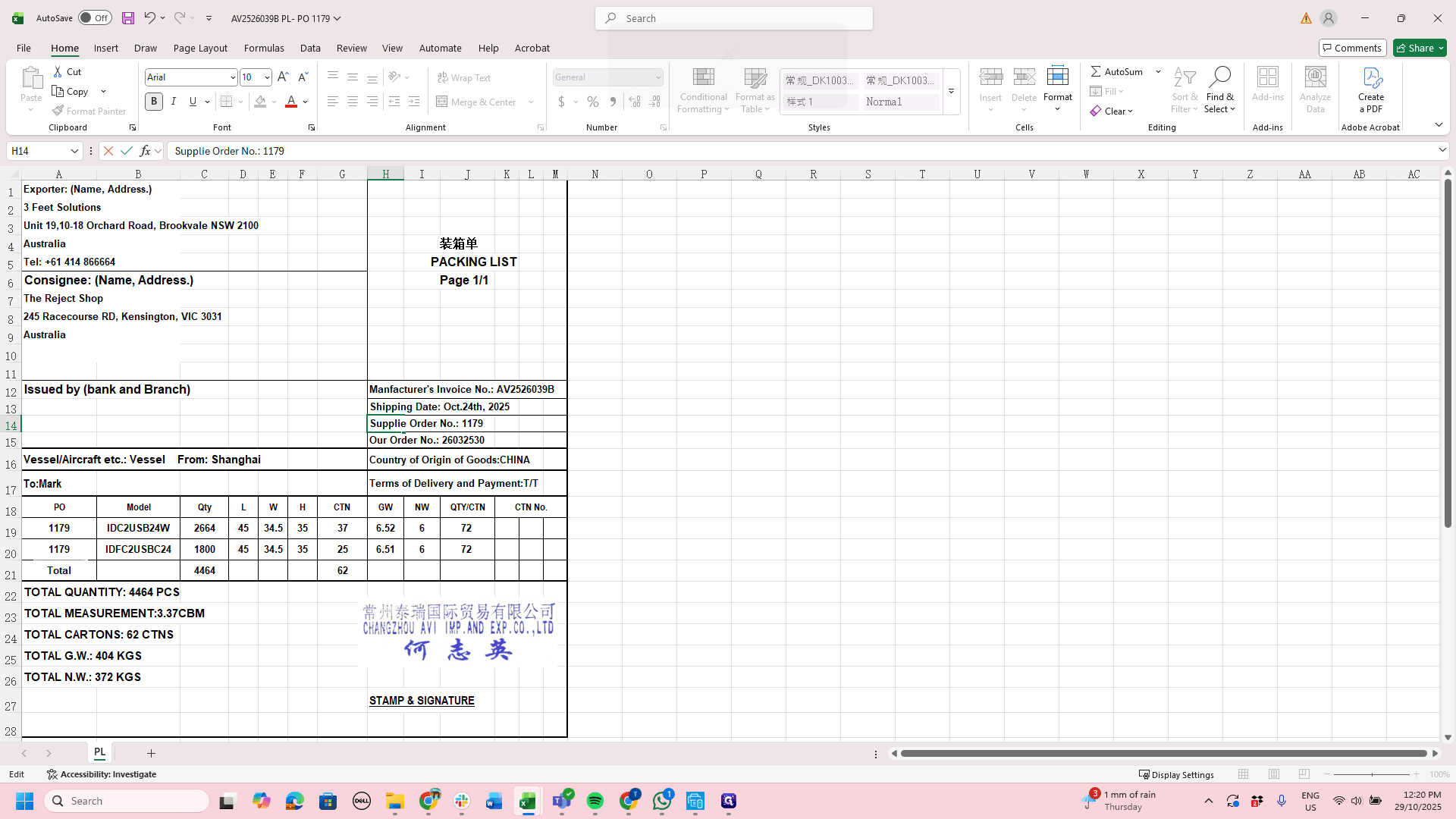
Click on "Supplier Order No"
Step #8: Click on "Supplier Order No"
9
Type "Invoice"
10
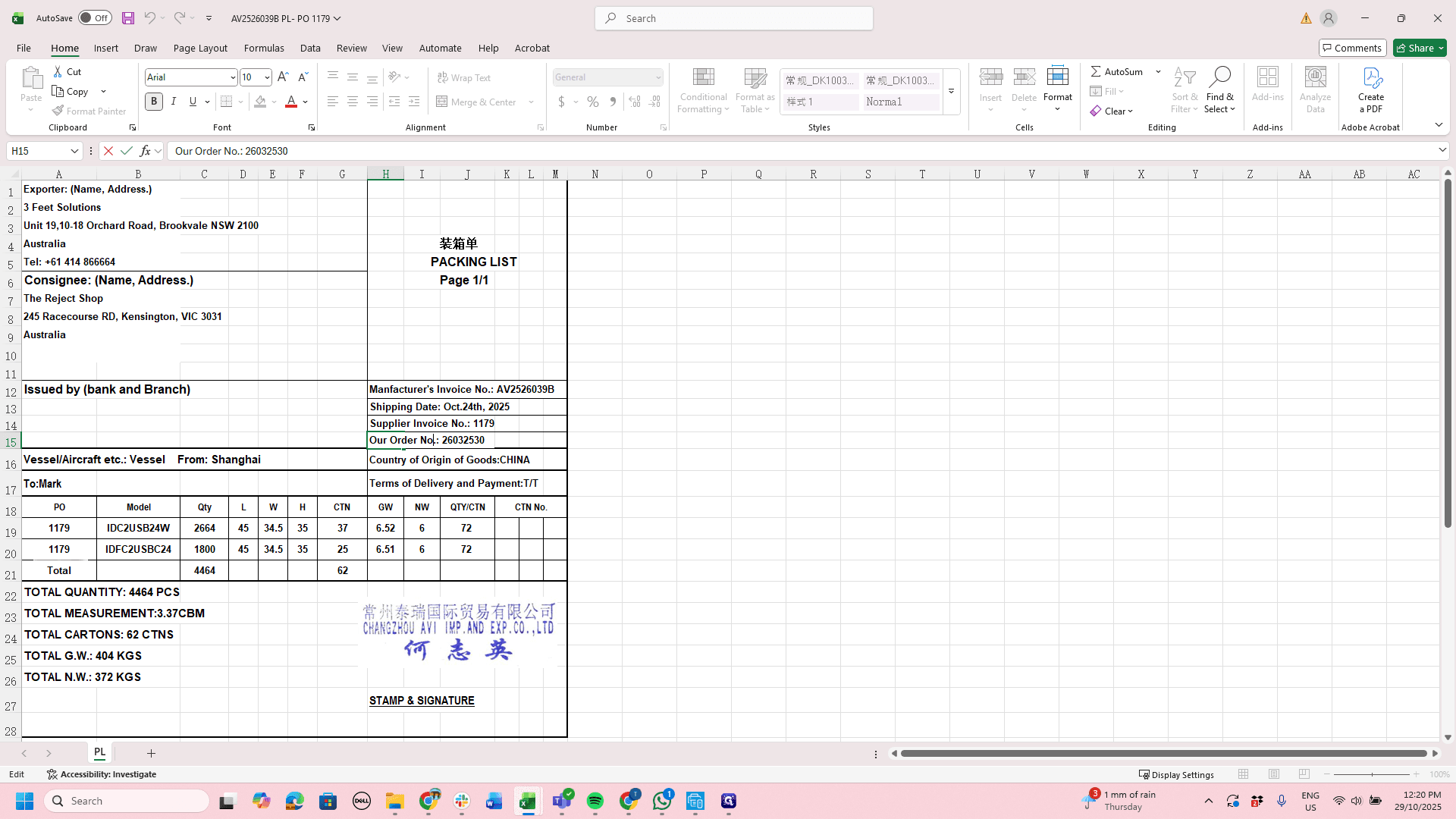
Drag "Our Order No .:"
Step #10: Drag "Our Order No .:"

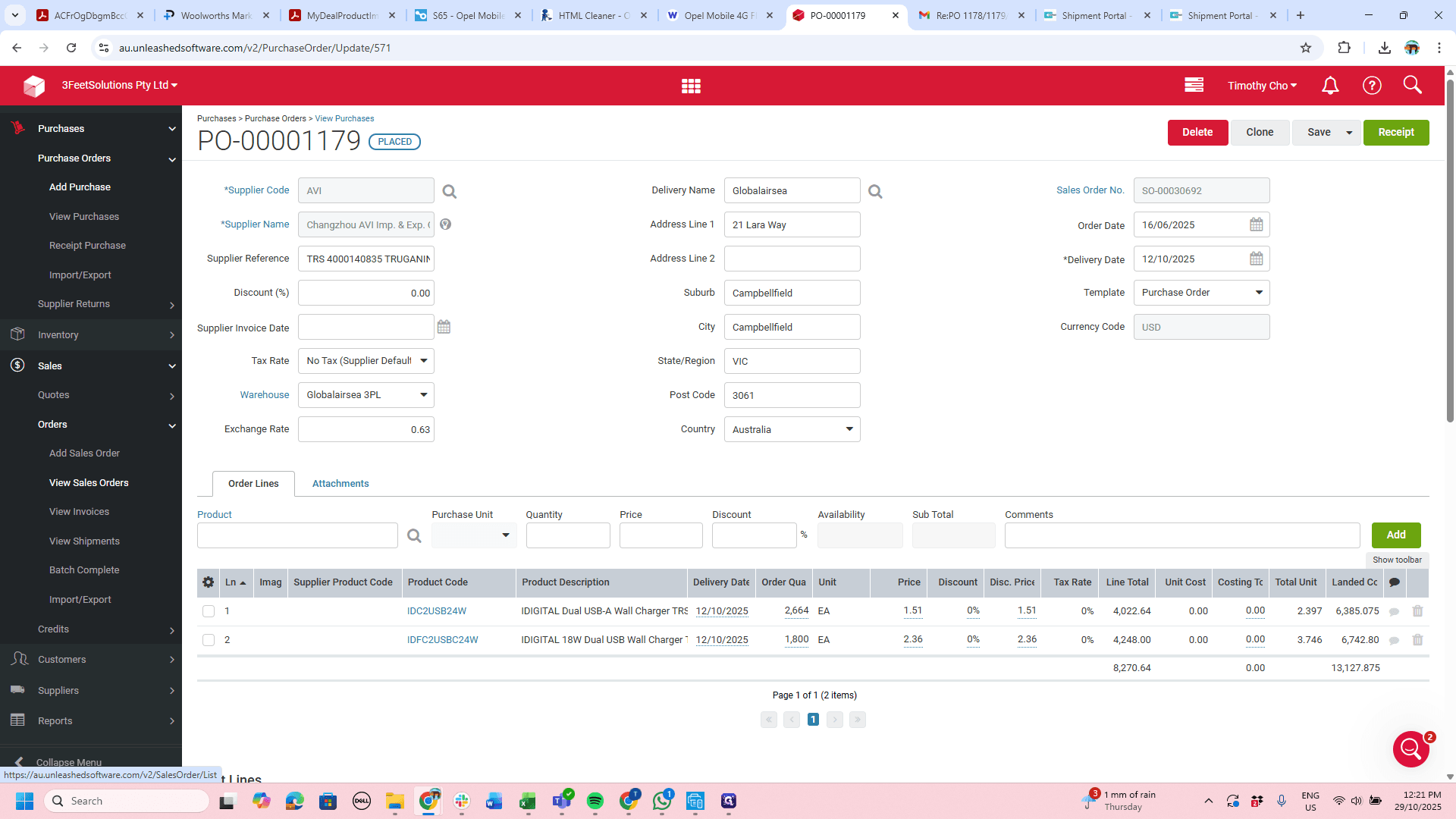
These details can be found directly in the order. This came from PO 1179. We can look up PO 1179 here.

11
Type "TRS Order No"

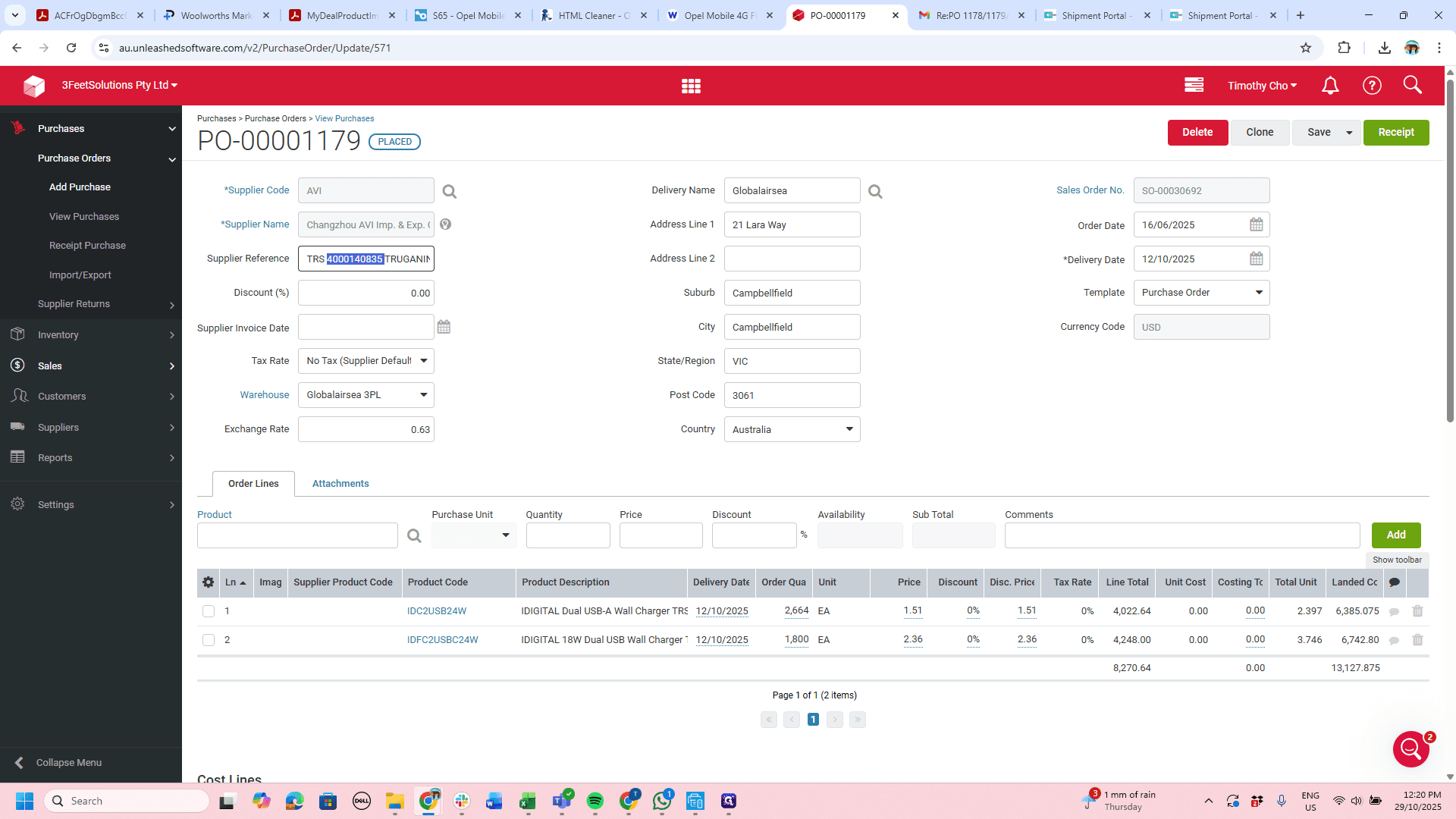
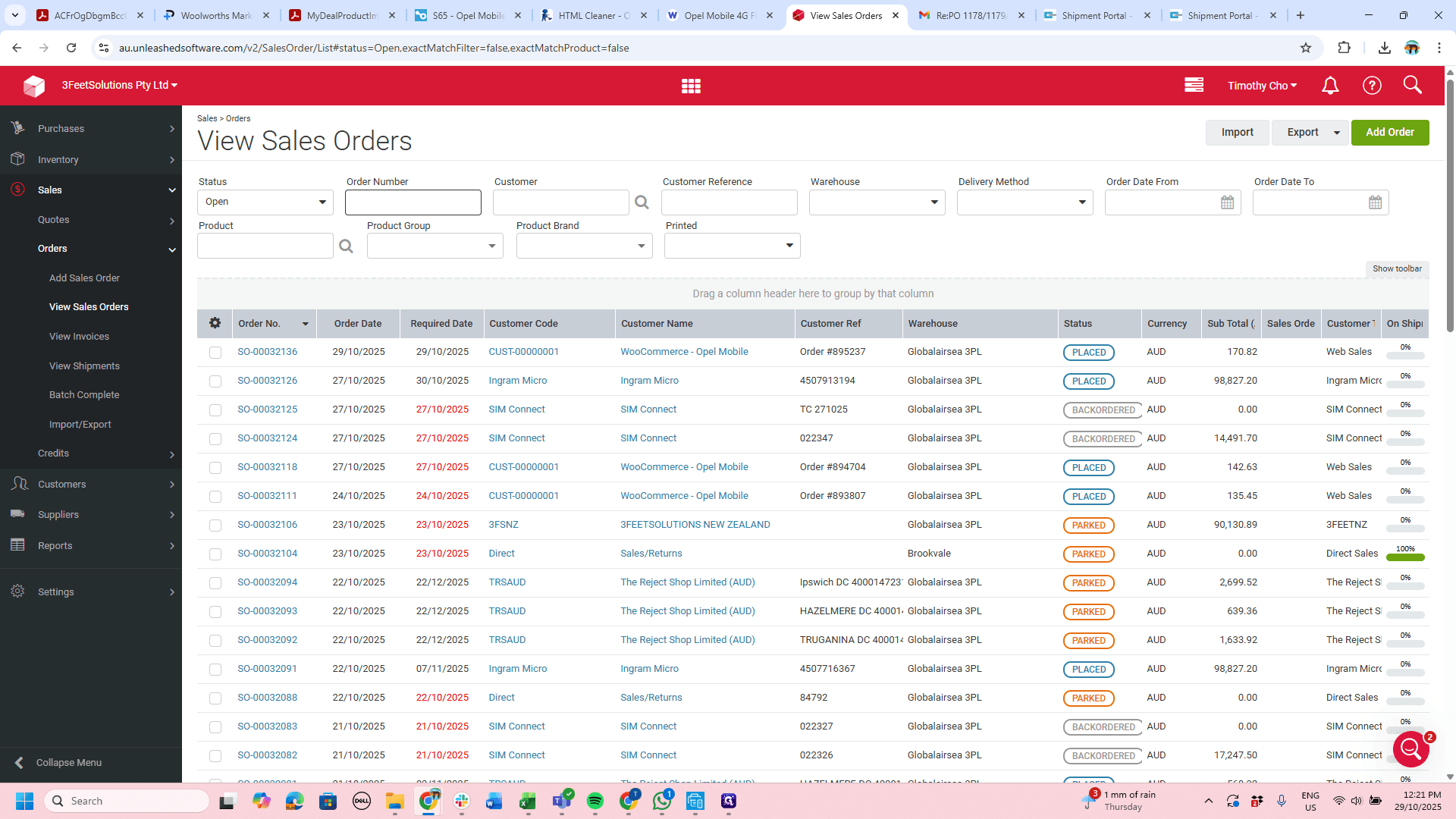
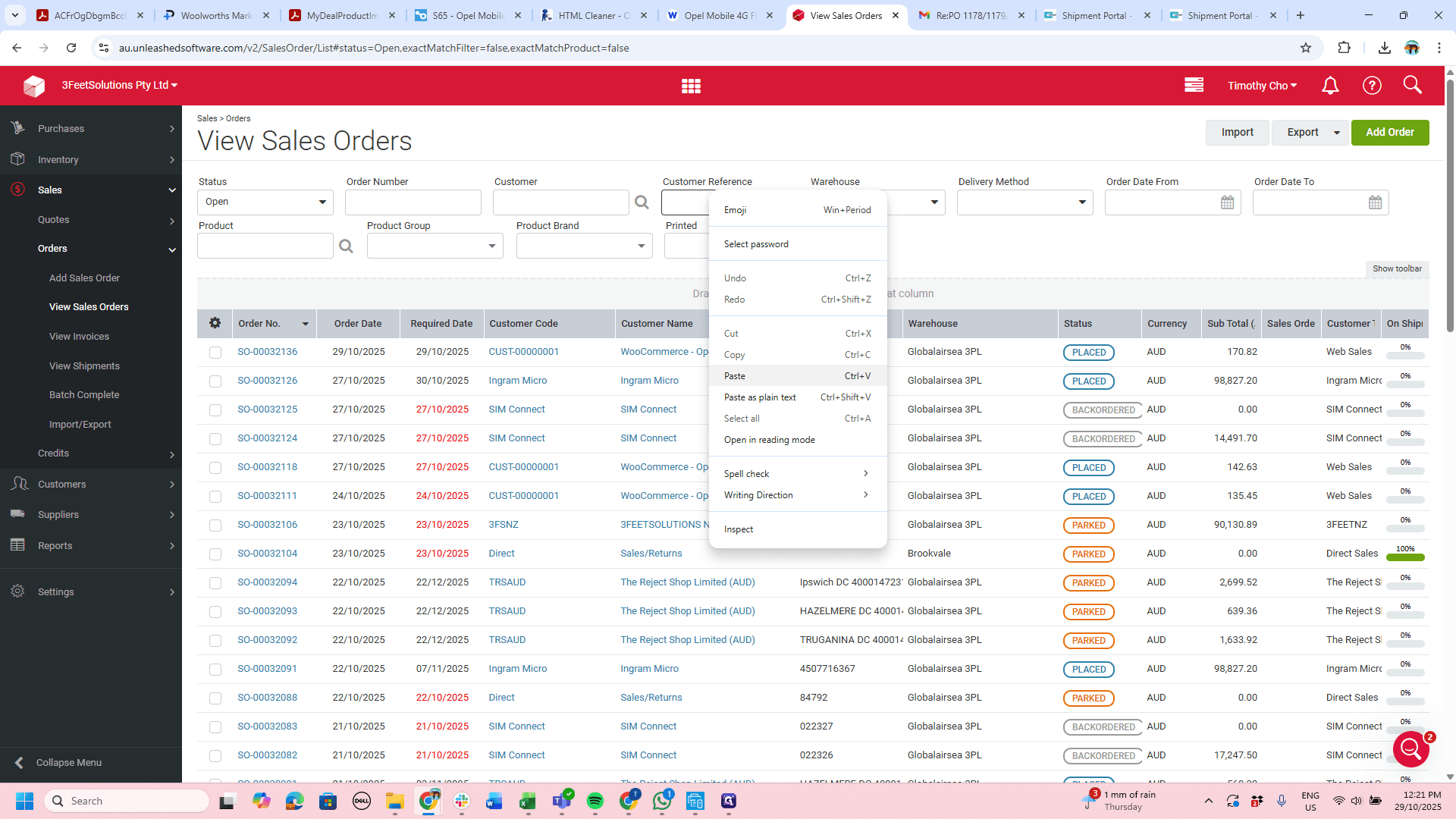
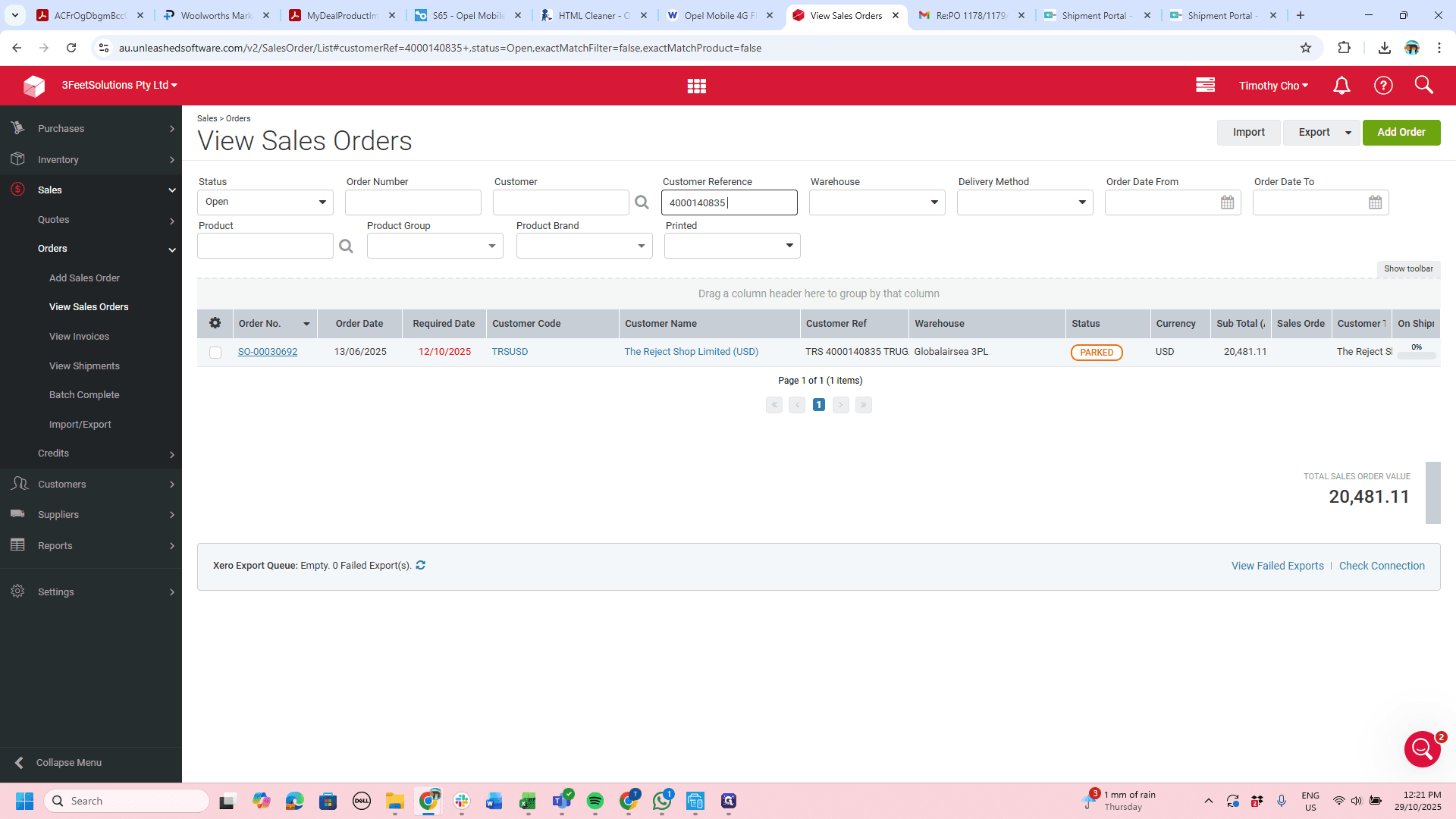
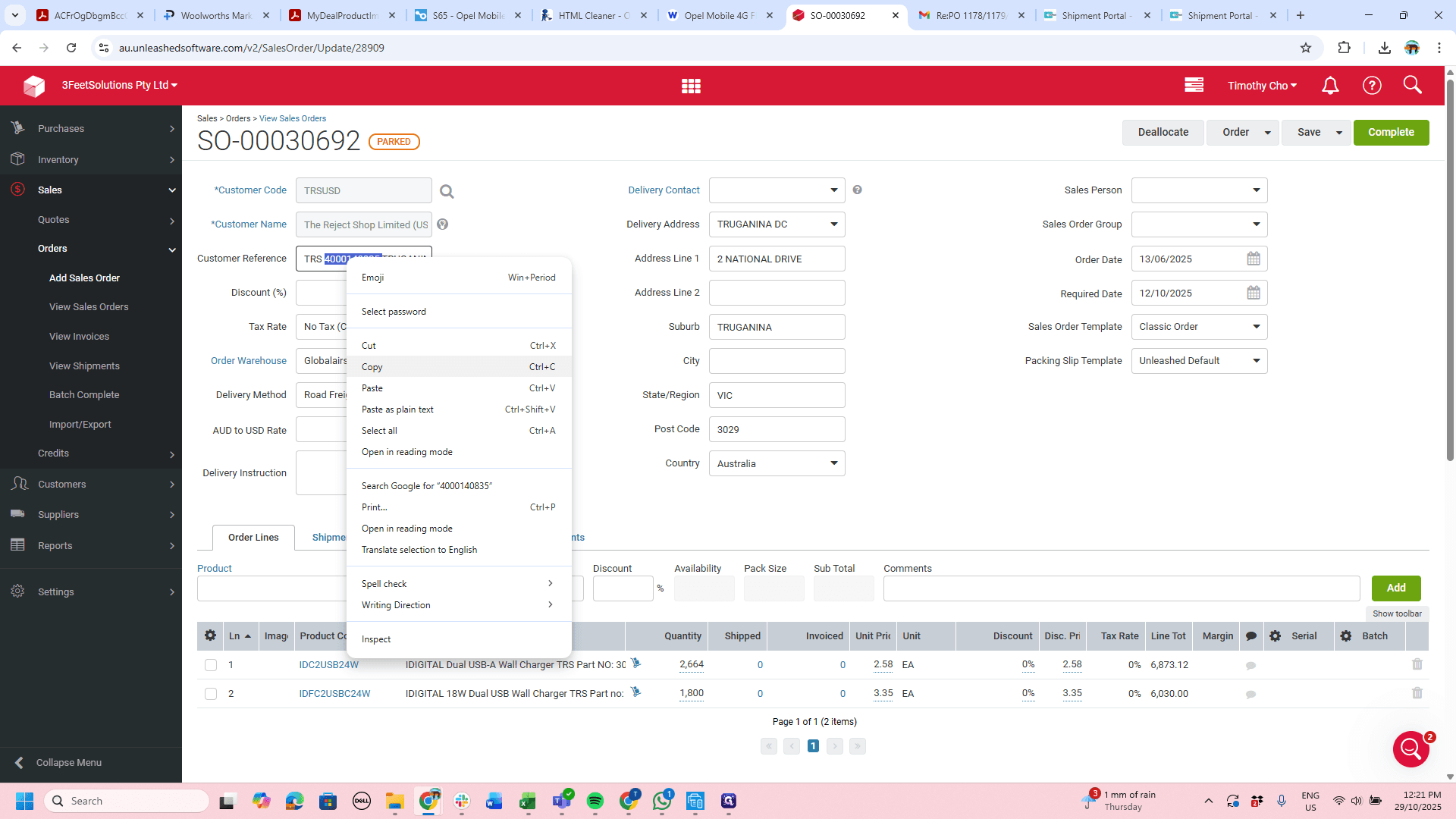
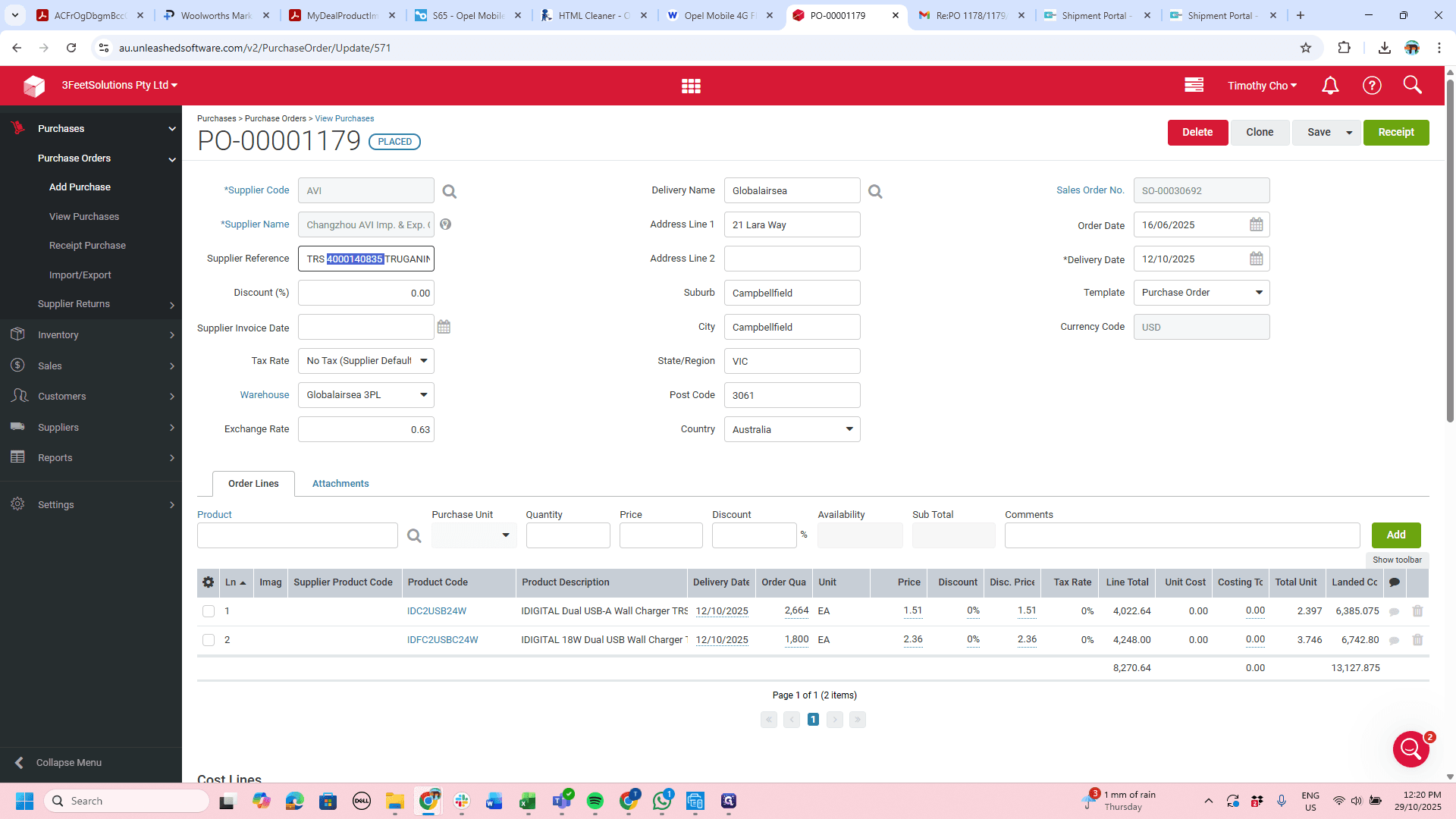
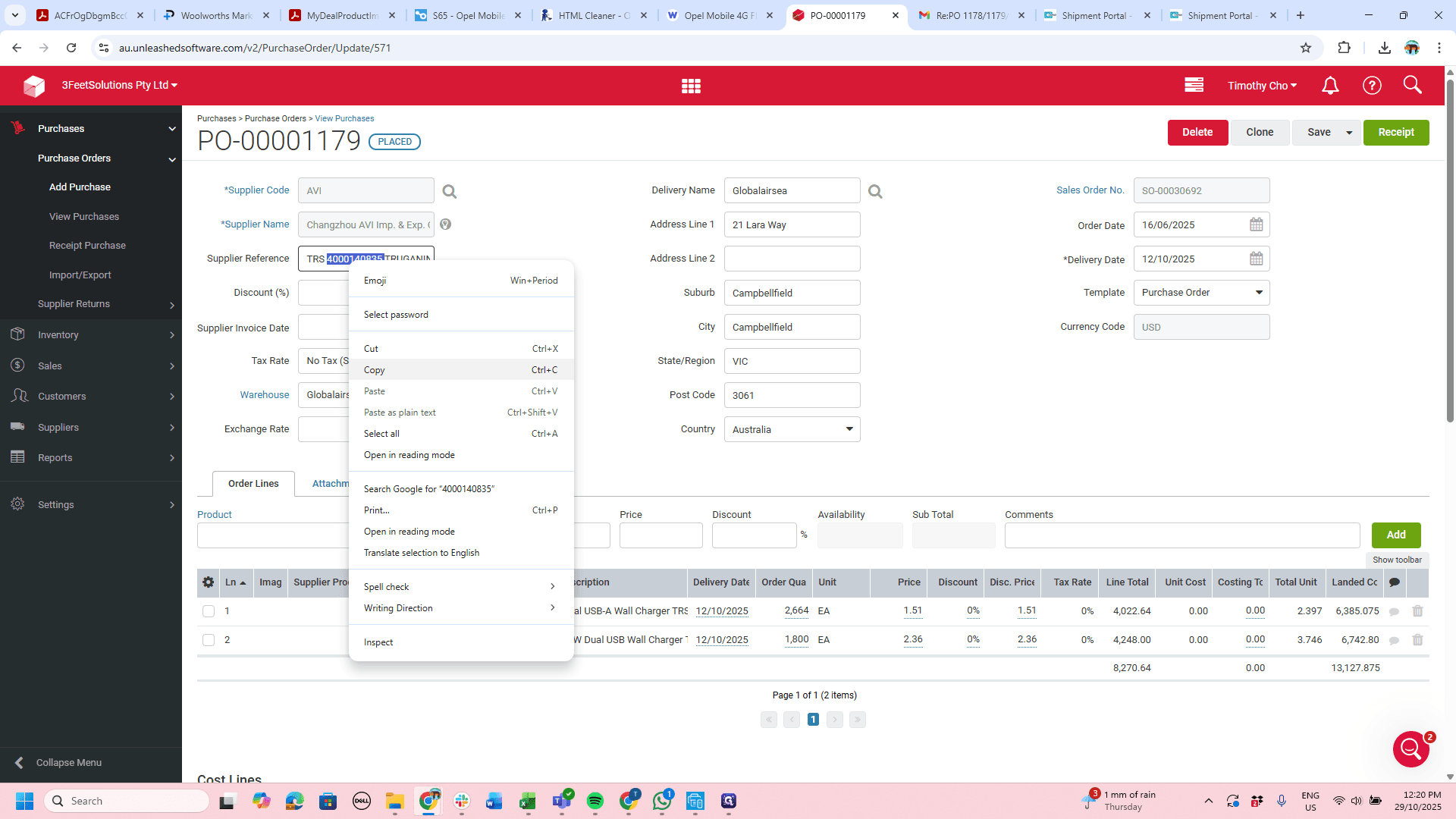
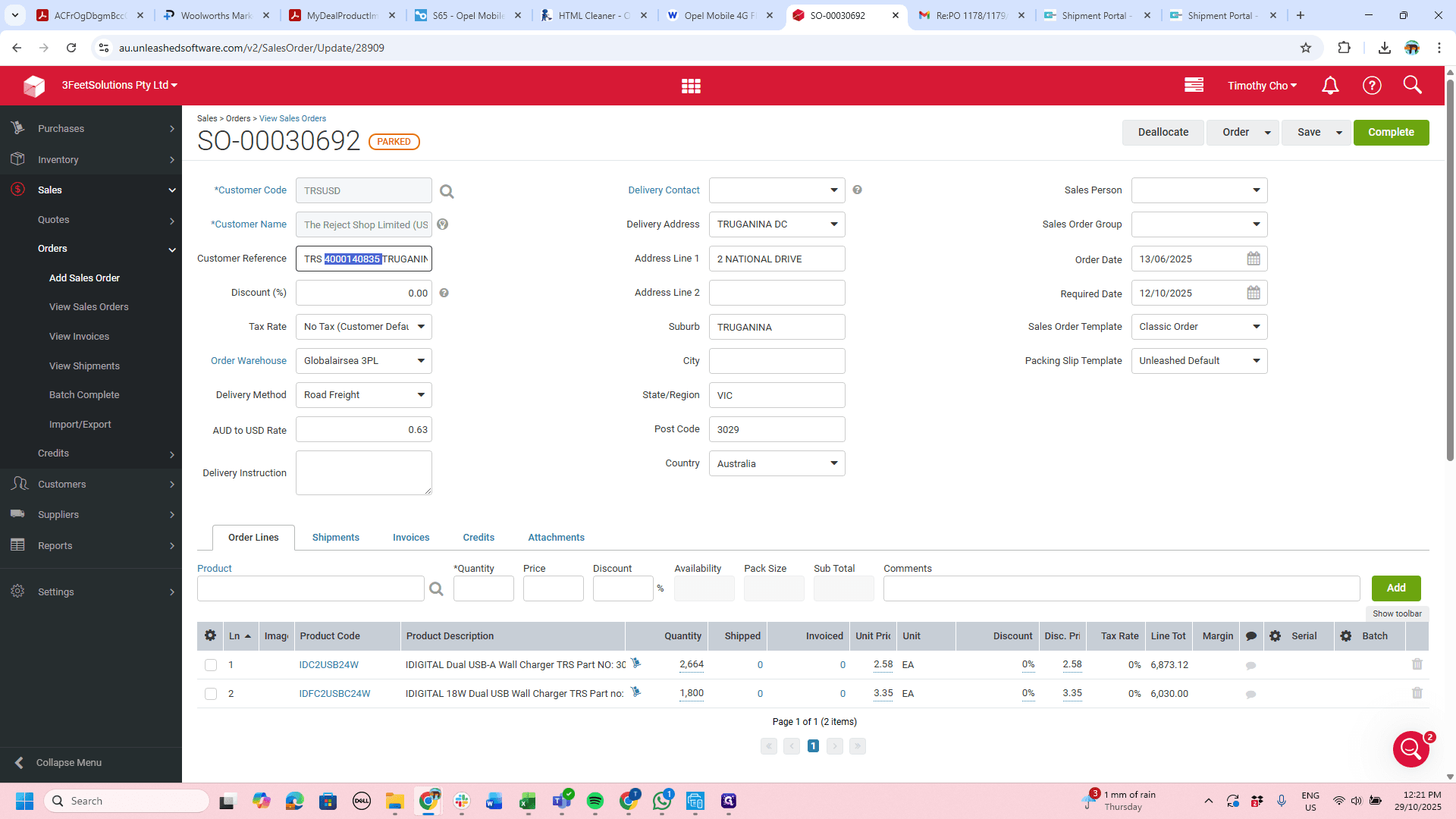
It's a bit of a convoluted way of doing it. We copy the TRS reference number, go to Sales, then Sales Orders, and select View Sales Orders. Paste the reference number, look up the relevant sales order number, and proceed.
12
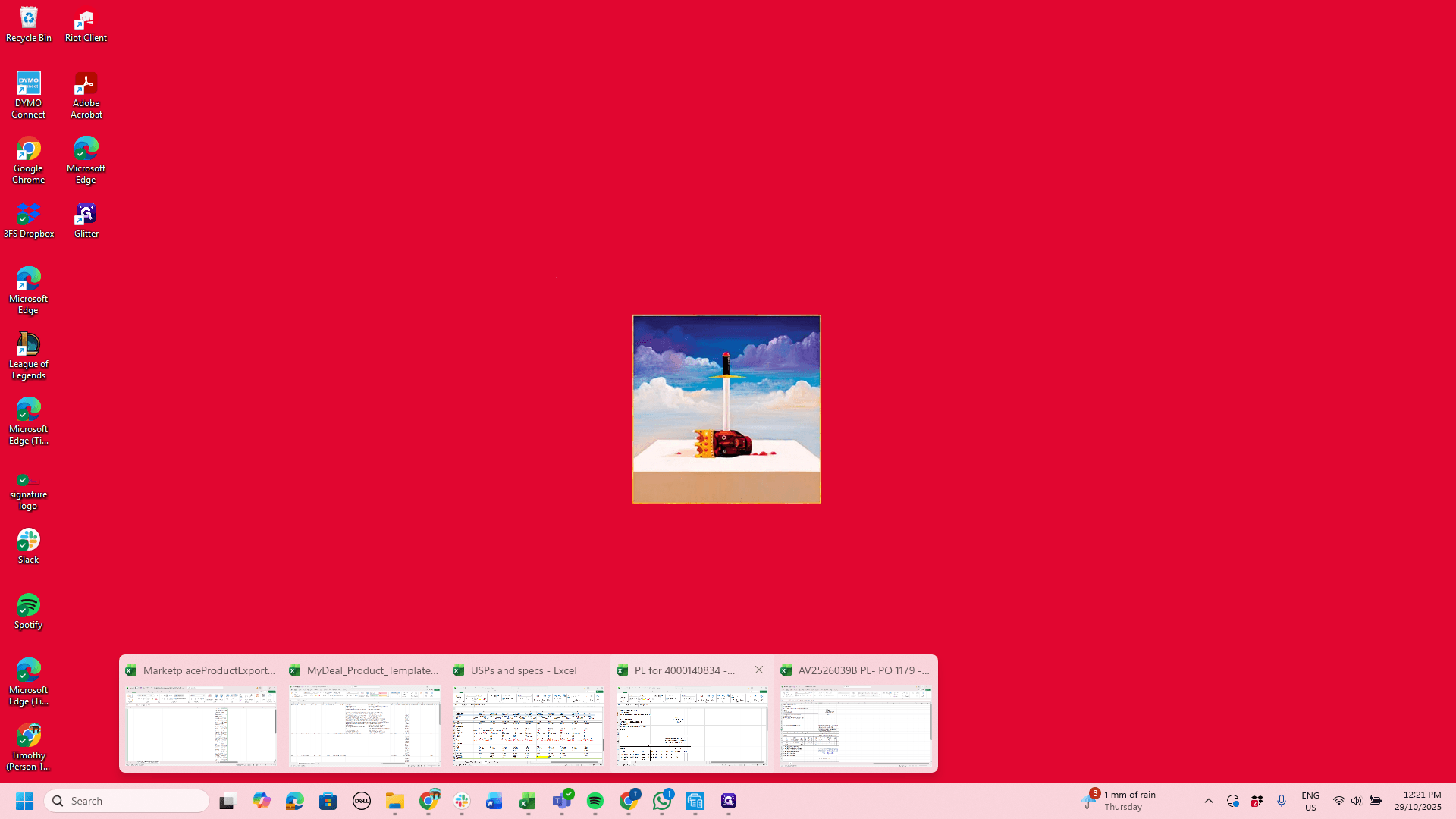
Right-click on "TRS 4000140835 TRUGANIN"
Step #12: Right-click on "TRS 4000140835 TRUGANIN"
13
Click here
Step #13: Click here
14
Click here
Step #14: Click here
15
Click here
Step #15: Click here
16
Click here
Step #16: Click here
17
Click on "View Sales Orders"
Step #17: Click on "View Sales Orders"
18
Right-click on "Customer Reference"
Step #18: Right-click on "Customer Reference"
19
Double-click on "Paste"
Step #19: Double-click on "Paste"
20
Type "Enter"
21
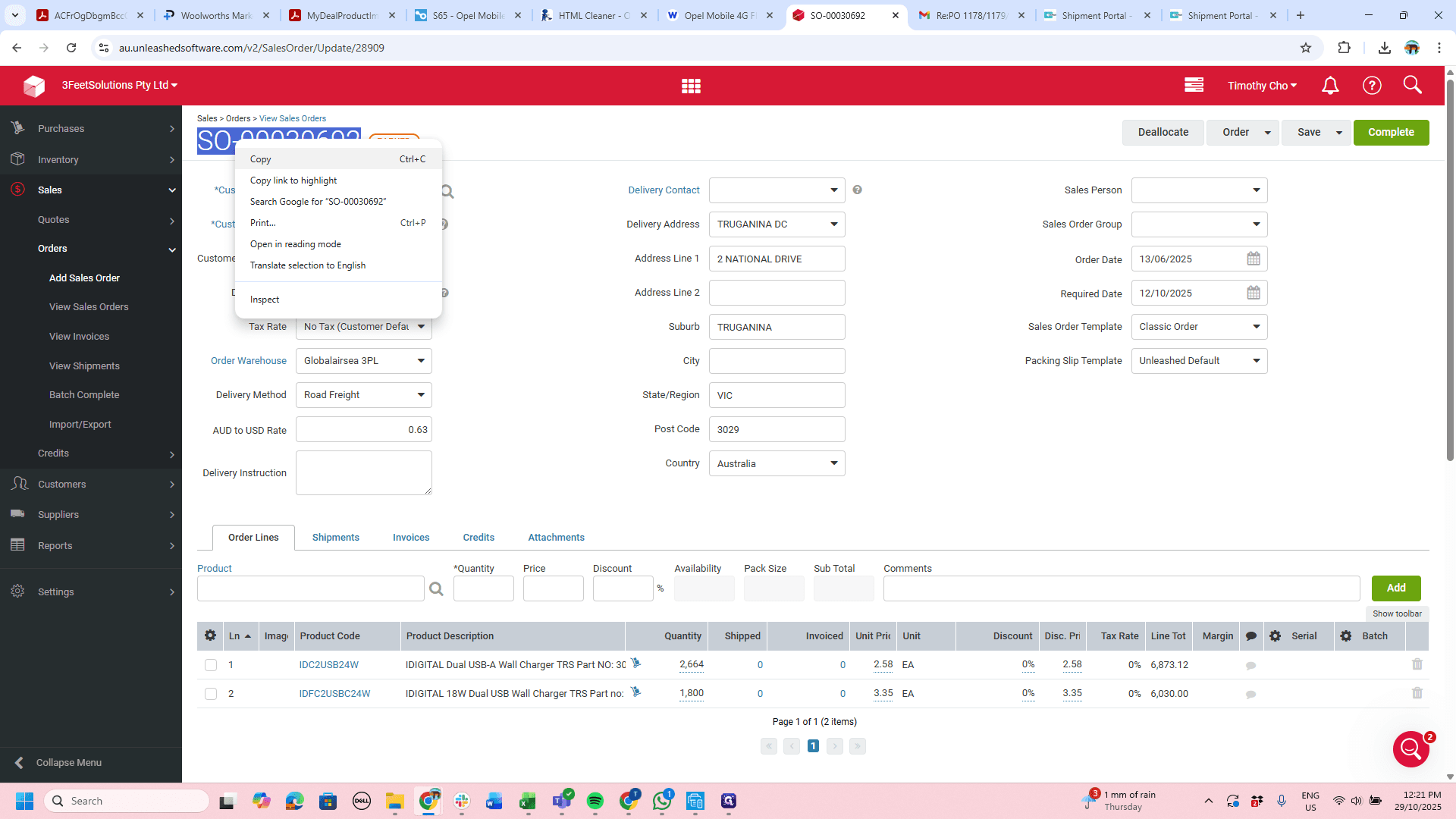
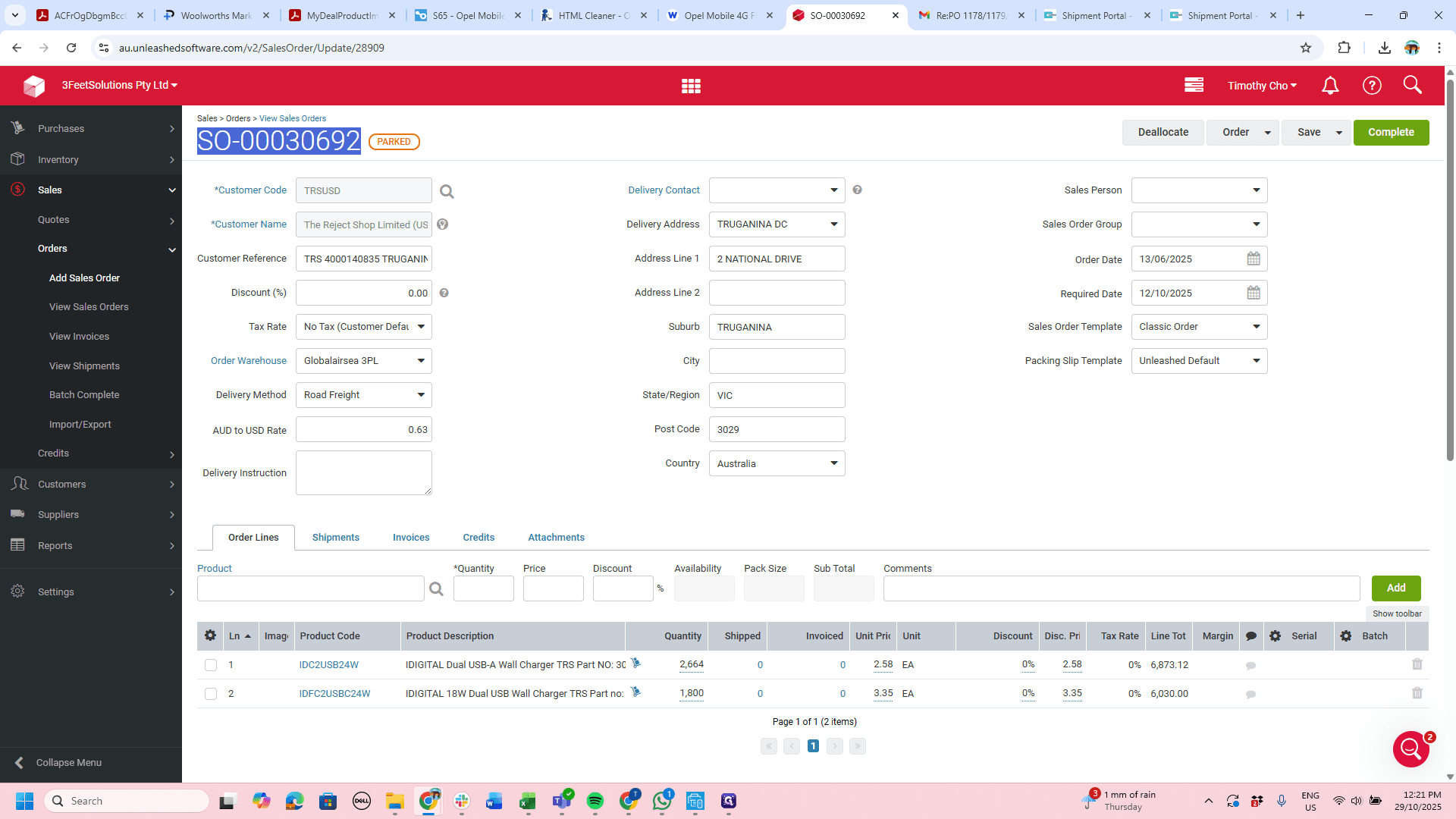
Click on "SO - 00030692"
Step #21: Click on "SO - 00030692"

In this case, it's here. Copy the sales order number, then go back to our order.
22
Right-click on "-"
Step #22: Right-click on "-"
23
Click on "Copy"
Step #23: Click on "Copy"

24
Drag here
Step #24: Drag here

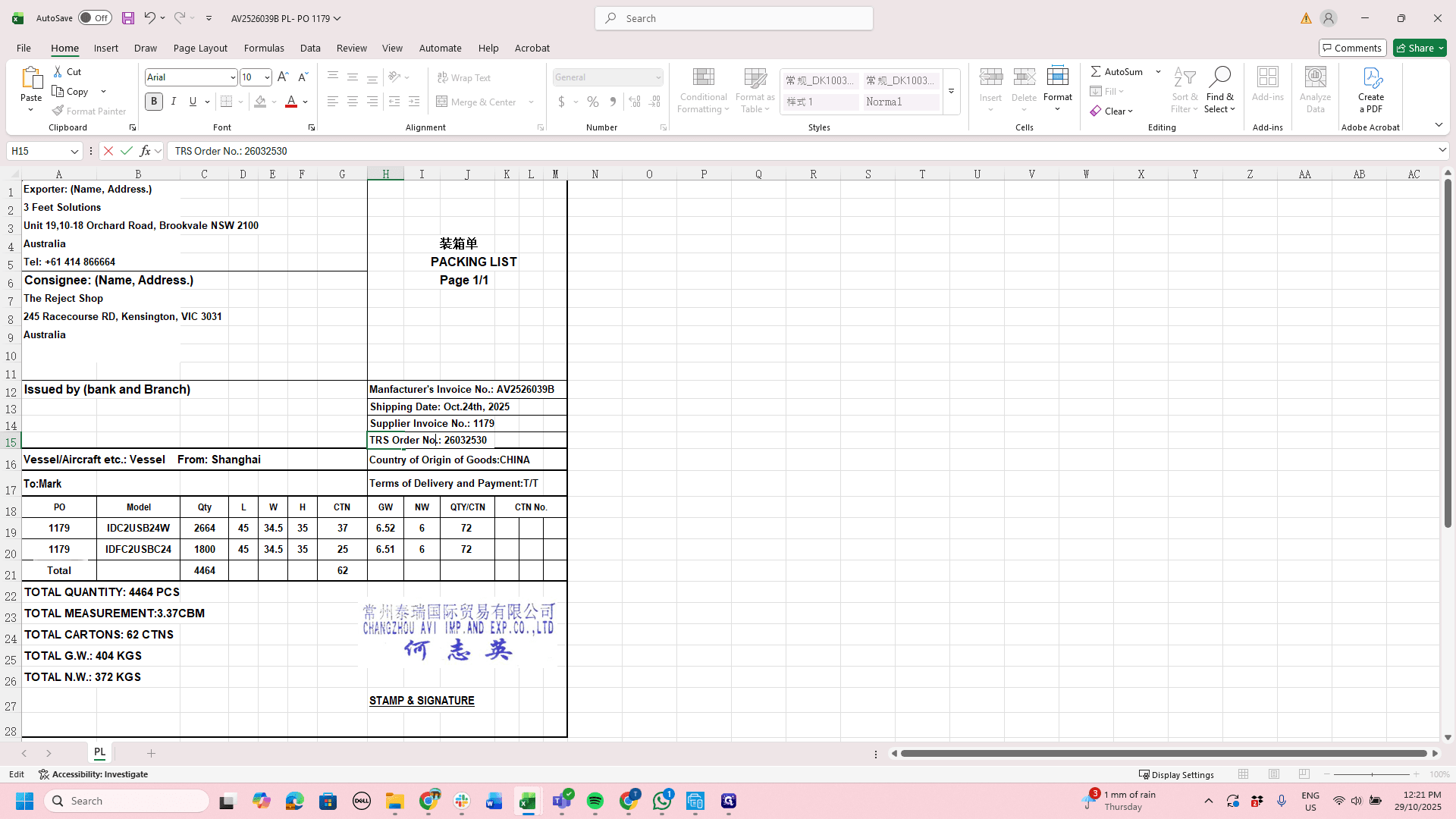
Then, change the supplier invoice number and add "SI," so it becomes sales invoice 3093692.
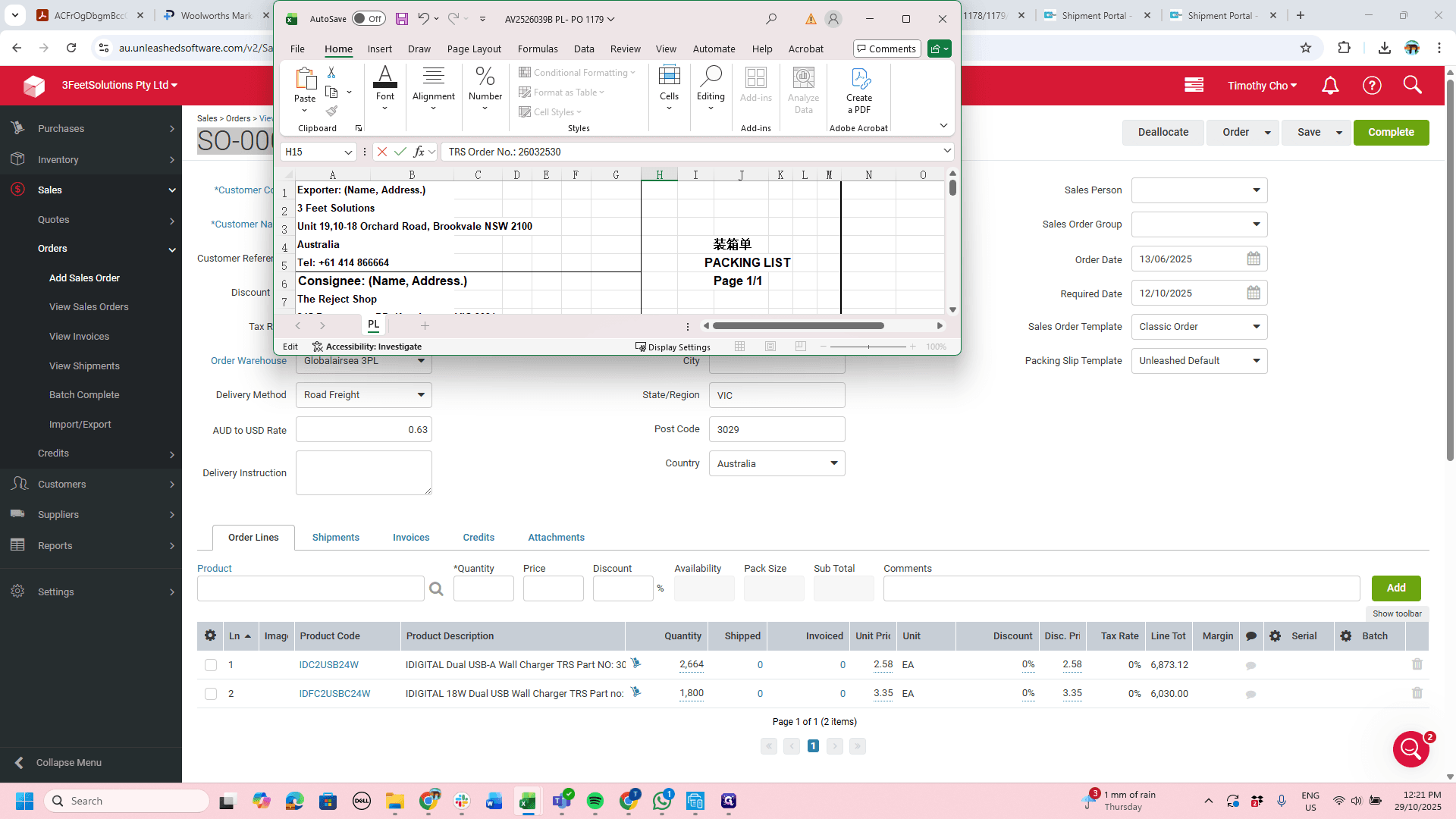
25
Click on "TRS Order No .: 26032530"
Step #25: Click on "TRS Order No .: 26032530"
26
Double-click on "TRS Order No .: 26032530"
Step #26: Double-click on "TRS Order No .: 26032530"
27
Click on "1179"
Step #27: Click on "1179"
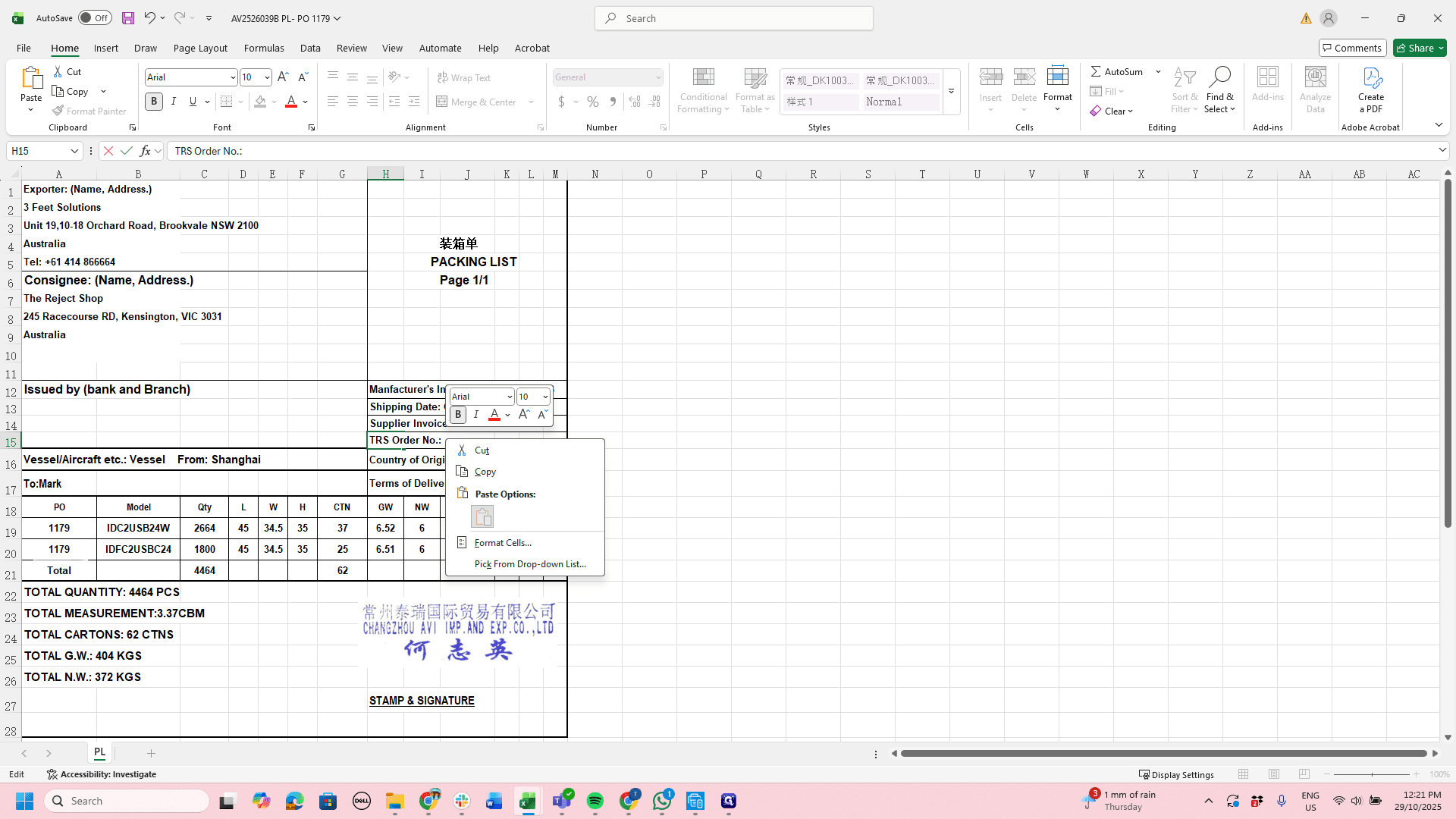
28
Right-click on "TRS Order No .: 26032530"
Step #28: Right-click on "TRS Order No .: 26032530"
29
Click here
Step #29: Click here
30
Click on "-"
Step #30: Click on "-"
31
Type "Backspace"

The TRS order number is the reference number they provide to us.
32
Click here
Step #32: Click here
33
Right-click on "TRS 4000140835 TRUGANIN"
Step #33: Right-click on "TRS 4000140835 TRUGANIN"
34
Click on "Copy"
Step #34: Click on "Copy"
35
Click here
Step #35: Click here
36
Click here
Step #36: Click here

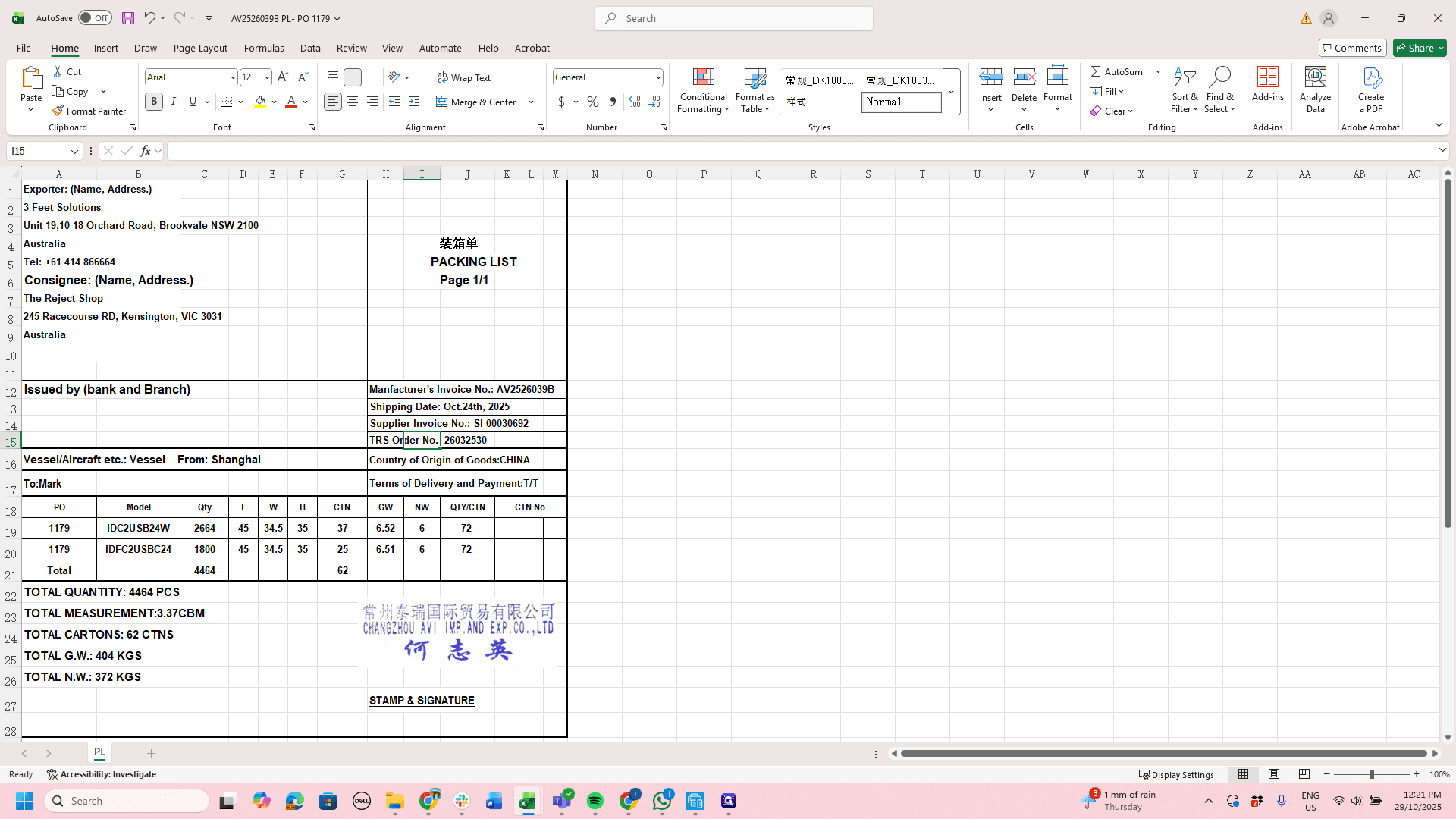
We would then call this the TRS order number. Remove the previous label.
37
Click here
Step #37: Click here
38
Click here
Step #38: Click here
39
Double-click on "TRS Order No. 26032530"
Step #39: Double-click on "TRS Order No. 26032530"
40
Double-click on "TRS Order No .:"
Step #40: Double-click on "TRS Order No .:"
41
Drag "- 00030692"
Step #41: Drag "- 00030692"

Remove this, then name it as "this."

42
Drag "TRS Order No .: 26032530"
Step #42: Drag "TRS Order No .: 26032530"
43
Right-click on "Supplier Invoice No .:"
Step #43: Right-click on "Supplier Invoice No .:"
44
Click here
Step #44: Click here
45
Click on "1179"
Step #45: Click on "1179"

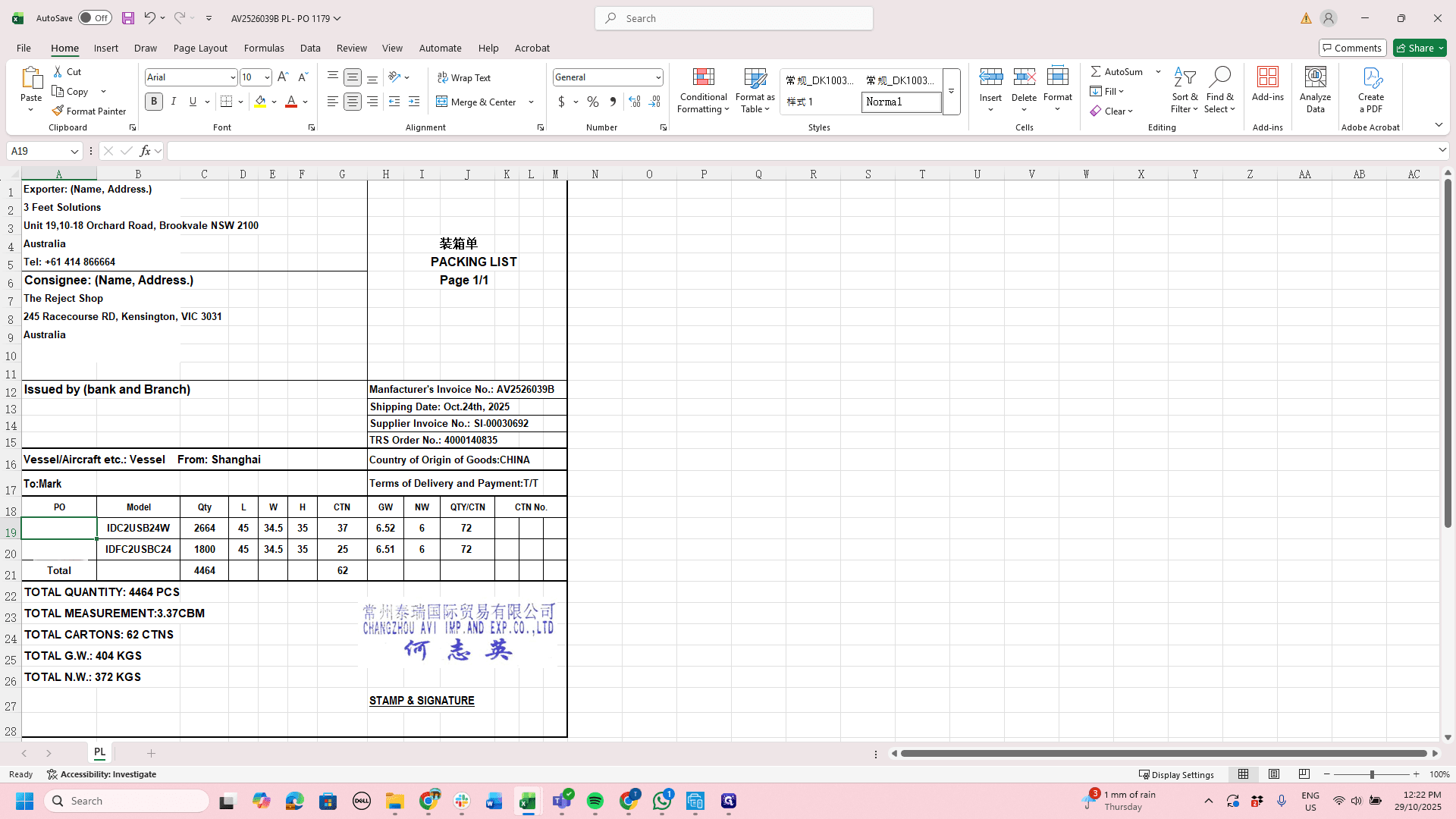
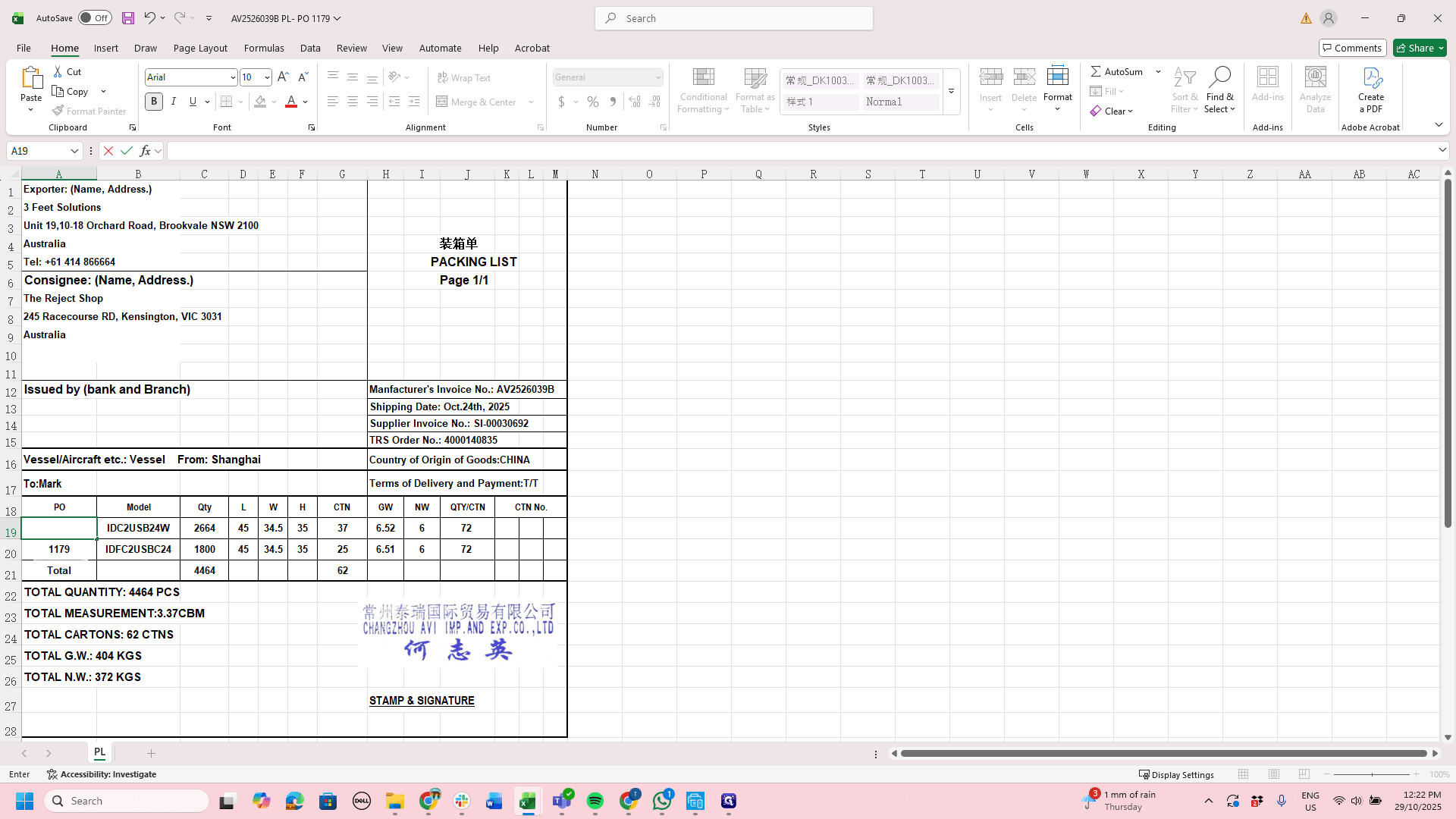
In the PO section, remove these numbers and paste the TRS reference number. That's all.
46
Type "Backspace"
47
Click here
Step #47: Click here
48
Type "Backspace"
49
Right-click here
Step #49: Right-click here
50
Right-click here
Step #50: Right-click here
51
Click here
Step #51: Click here

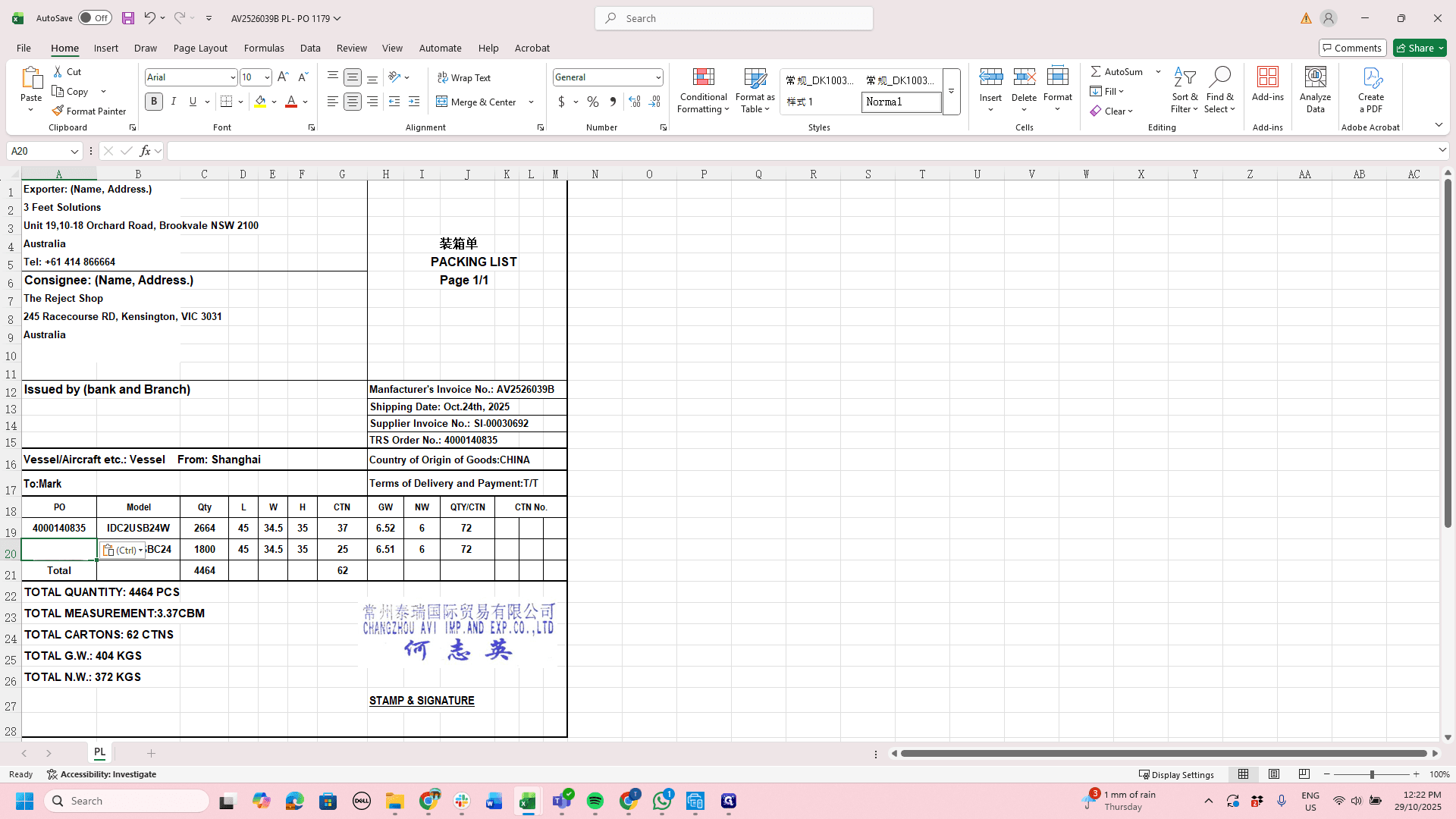
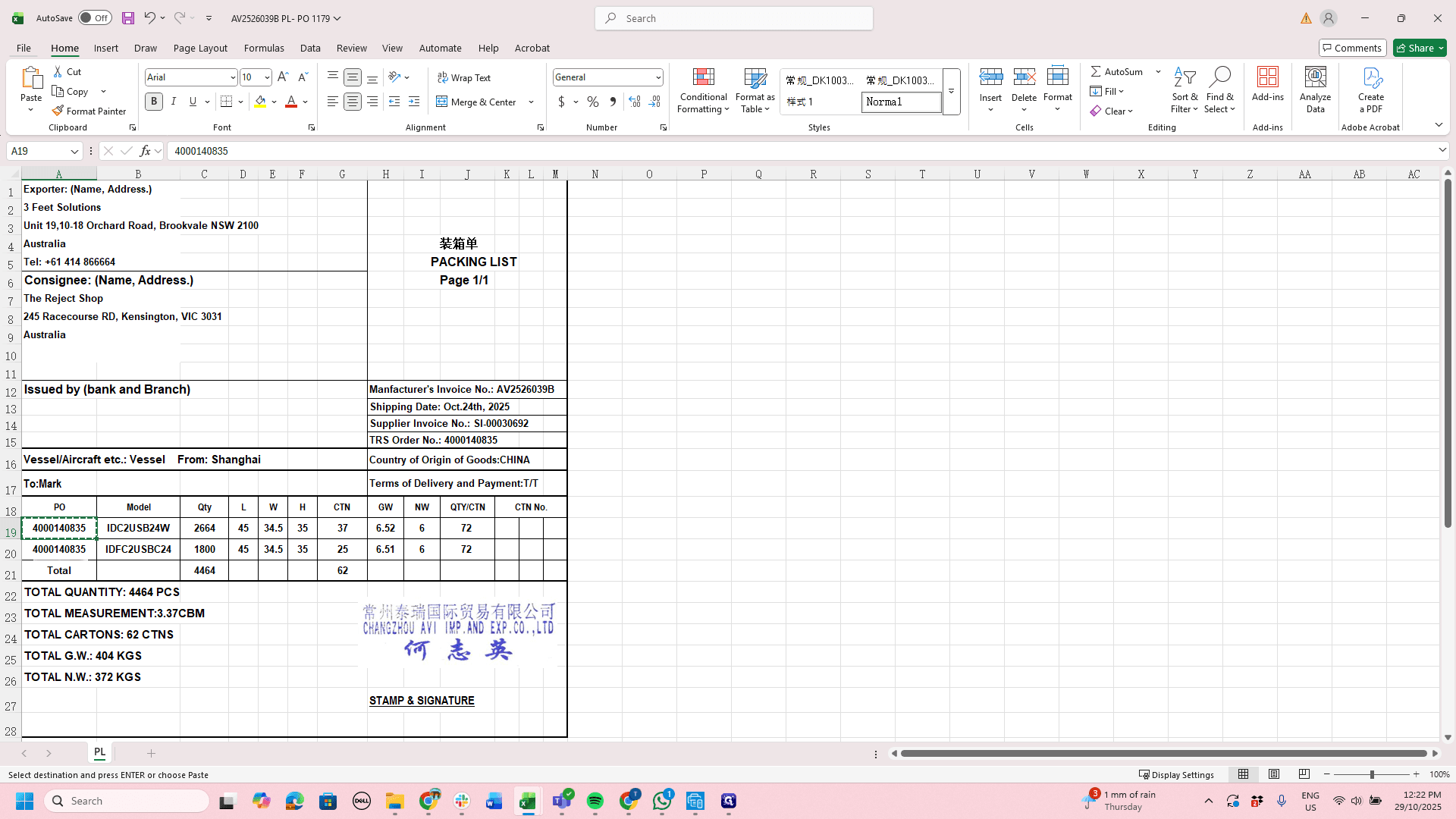
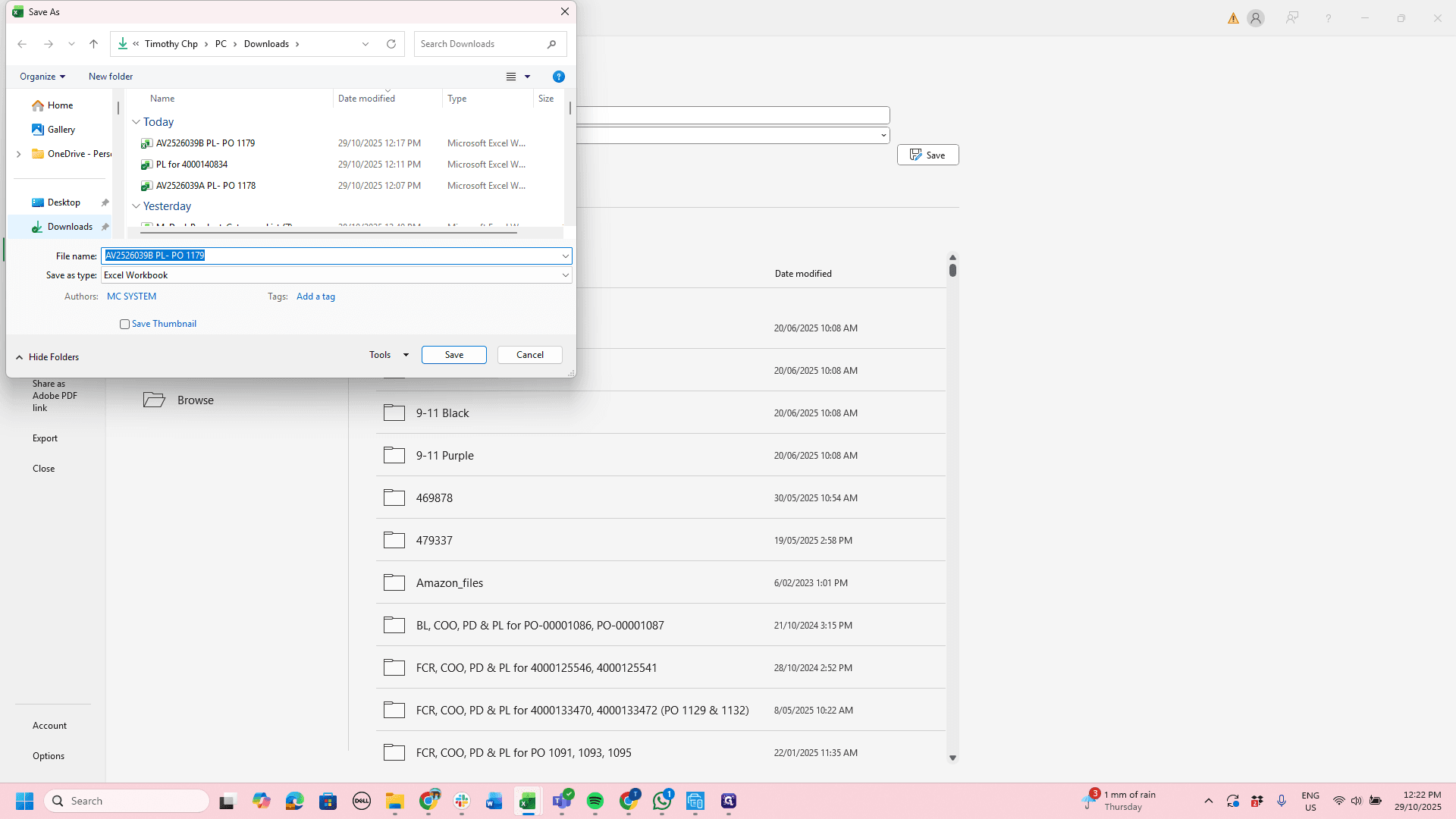
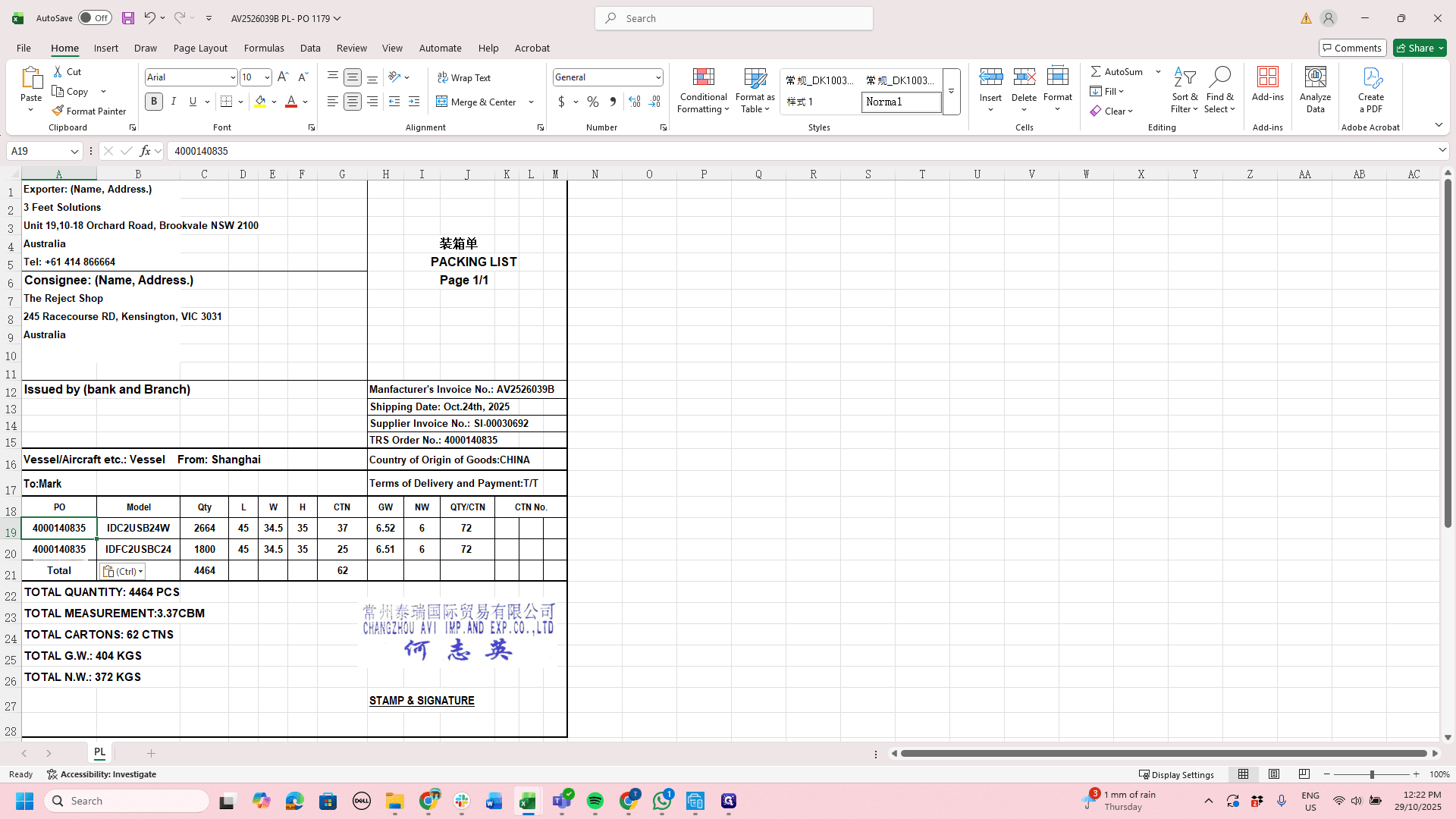
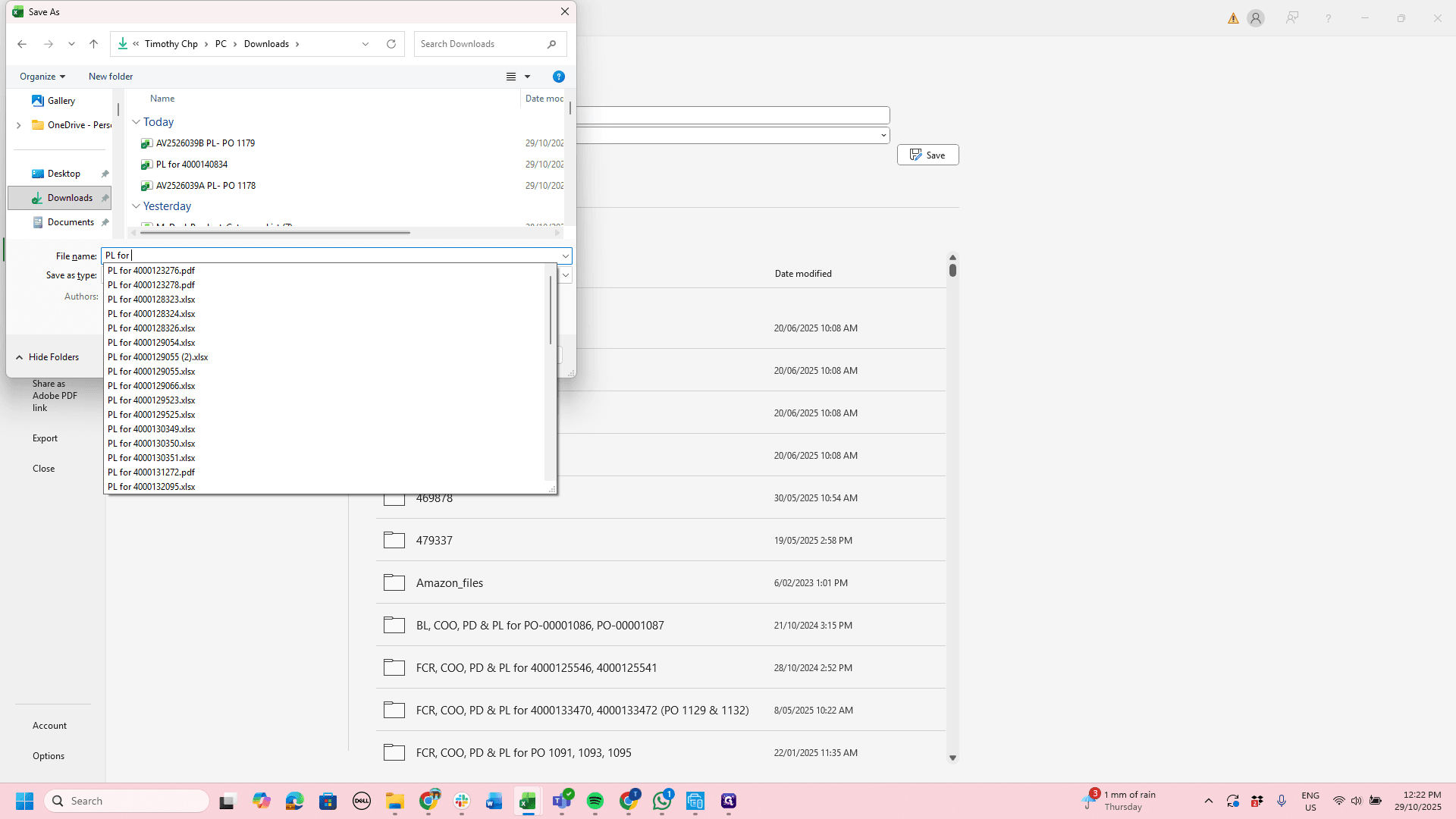
Next, save this file. Remember to use the same naming structure as in the previous TRS videos.
52
Right-click on "4000140835"
Step #52: Right-click on "4000140835"
53
Click on "Copy"
Step #53: Click on "Copy"
54
Click on "File"
Step #54: Click on "File"
55
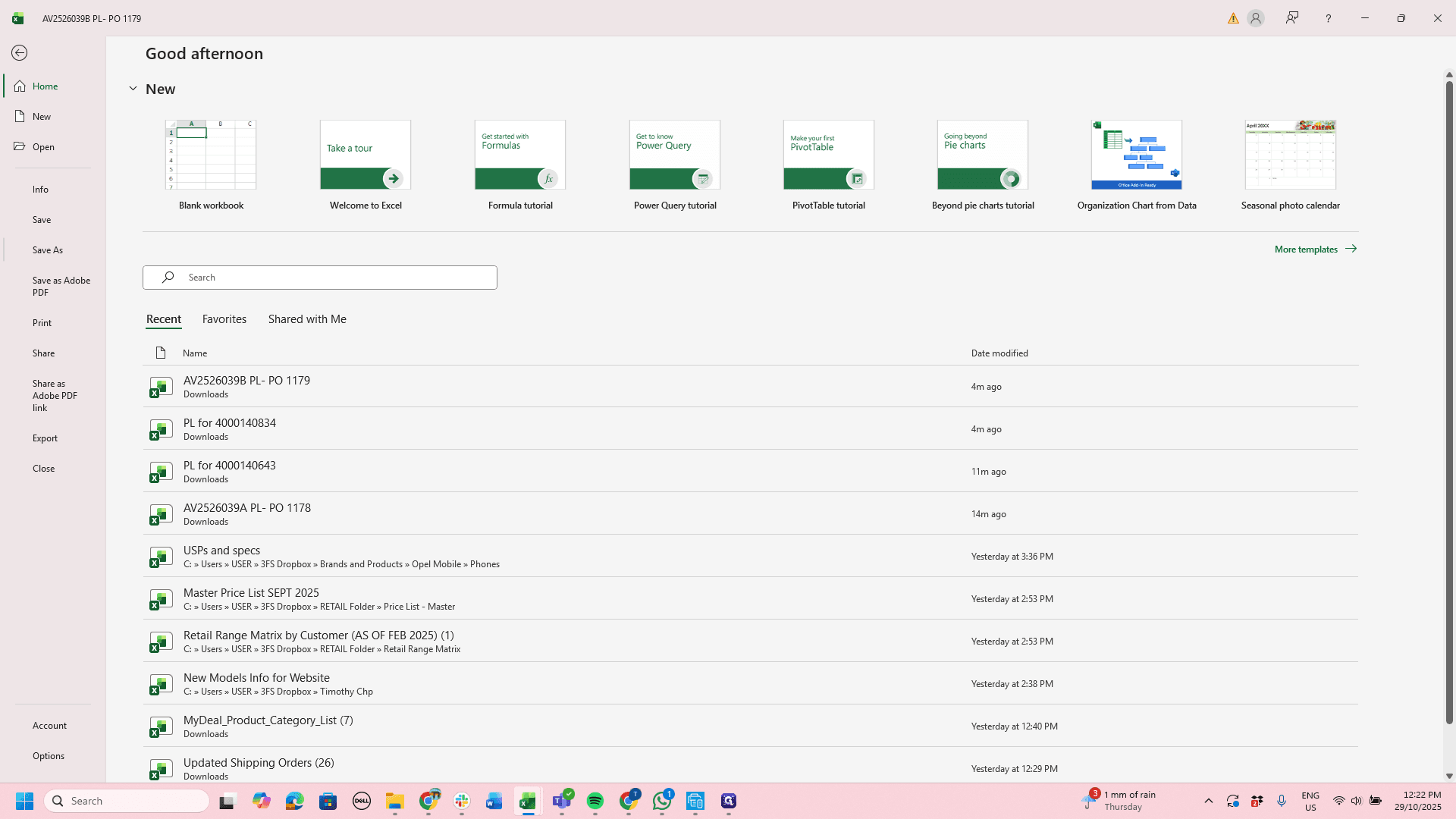
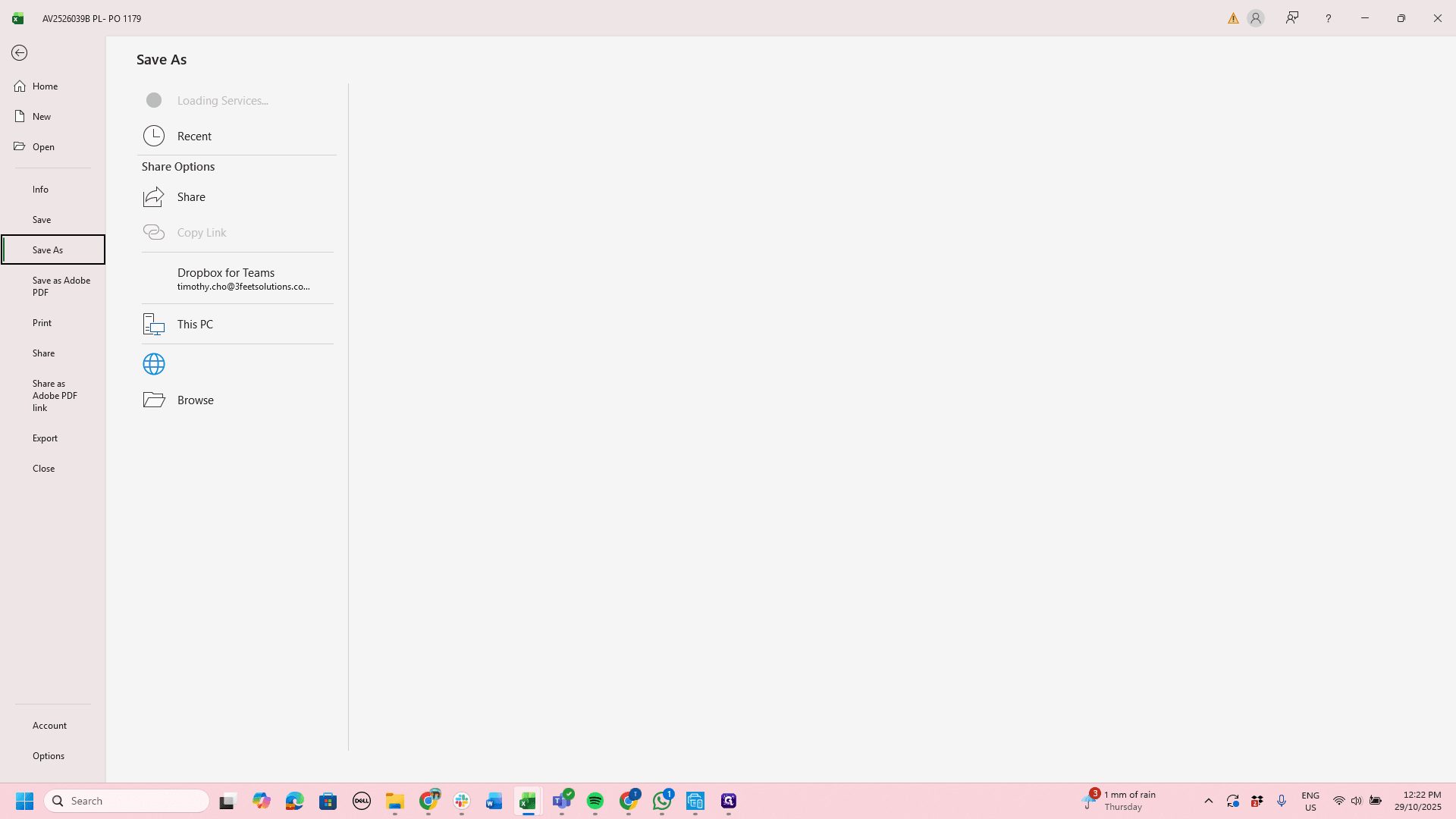
Click on "Save As"
Step #55: Click on "Save As"
56
Click on "Browse"
Step #56: Click on "Browse"
57
Click on "Downloads"
Step #57: Click on "Downloads"

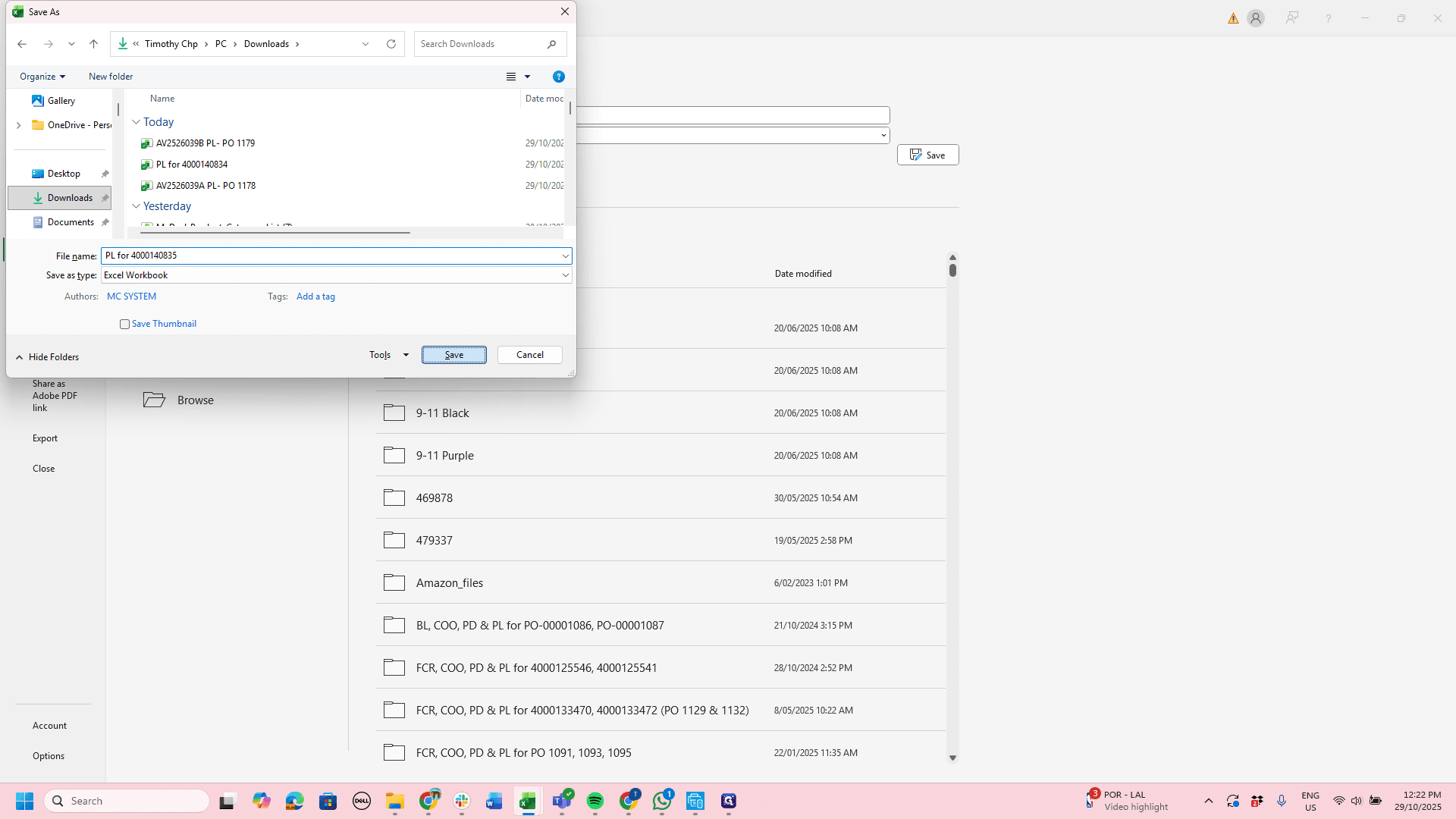
Go to Downloads, name the file "Packing List 4," and paste the TRS order number.
58
Type "PL for "
59
Right-click here
Step #59: Right-click here

60
Click on "Cancel"
Step #60: Click on "Cancel"

61
Right-click on "4000140835"
Step #61: Right-click on "4000140835"

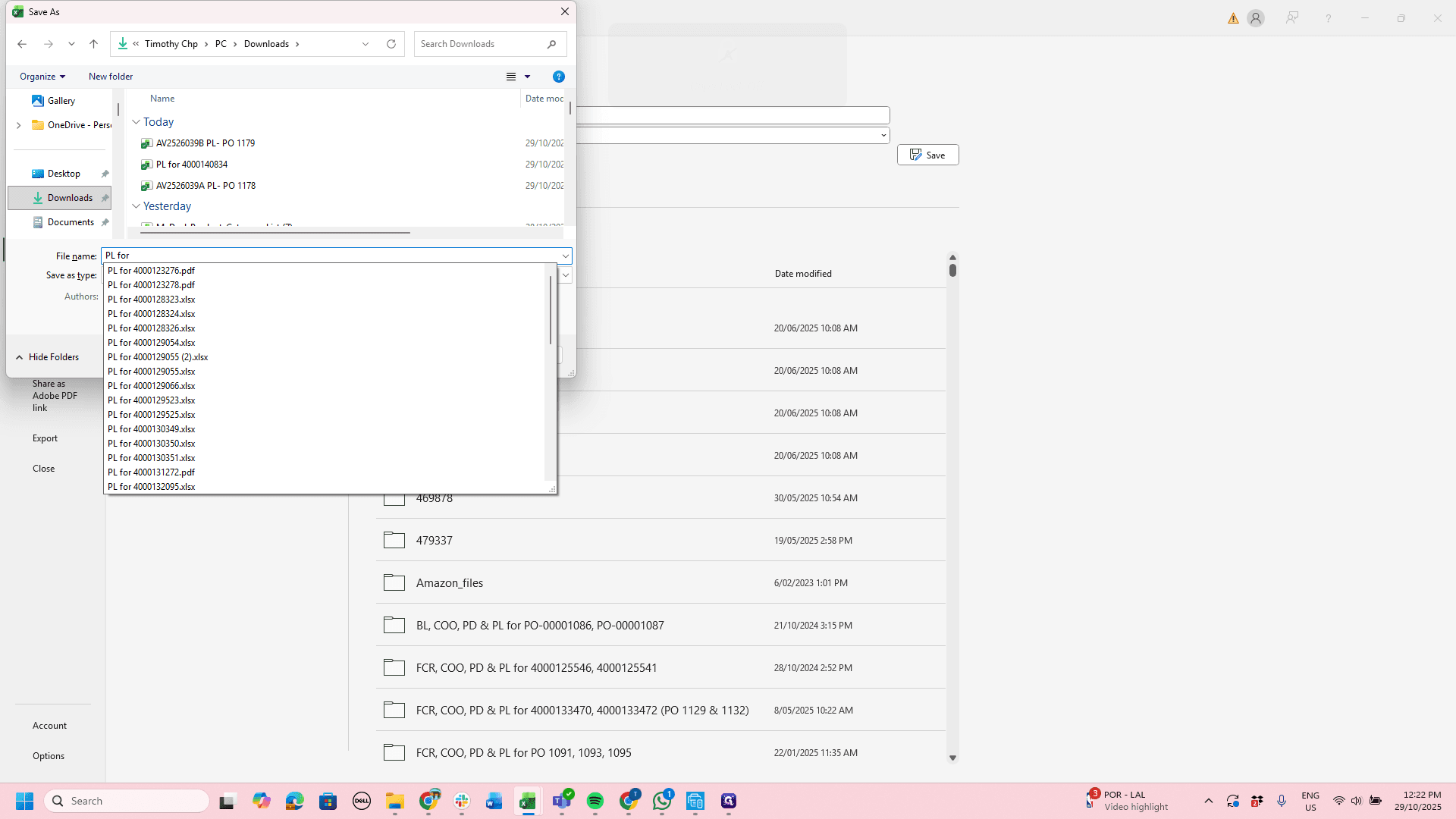
I would copy that, save it, then download and name it as shown.
62
Click on "TRS Order No .: 4000140835"
Step #62: Click on "TRS Order No .: 4000140835"
63
Double-click on "TRS Order No .: 4000140835"
Step #63: Double-click on "TRS Order No .: 4000140835"
64
Drag "00030692"
Step #64: Drag "00030692"
65
Right-click on "Invoice No .:"
Step #65: Right-click on "Invoice No .:"
66
Click on "LG Copy"
Step #66: Click on "LG Copy"
67
Click on "File"
Step #67: Click on "File"
68
Click on "Save As"
Step #68: Click on "Save As"
69
Click on "✓ Downloads ✰"
Step #69: Click on "✓ Downloads ✰"
70
Drag here
Step #70: Drag here
71
Rename file as example: 'PL for 4000123276'
Step #71: Rename file as example: 'PL for 4000123276'
72
Click on "Save"
Step #72: Click on "Save"

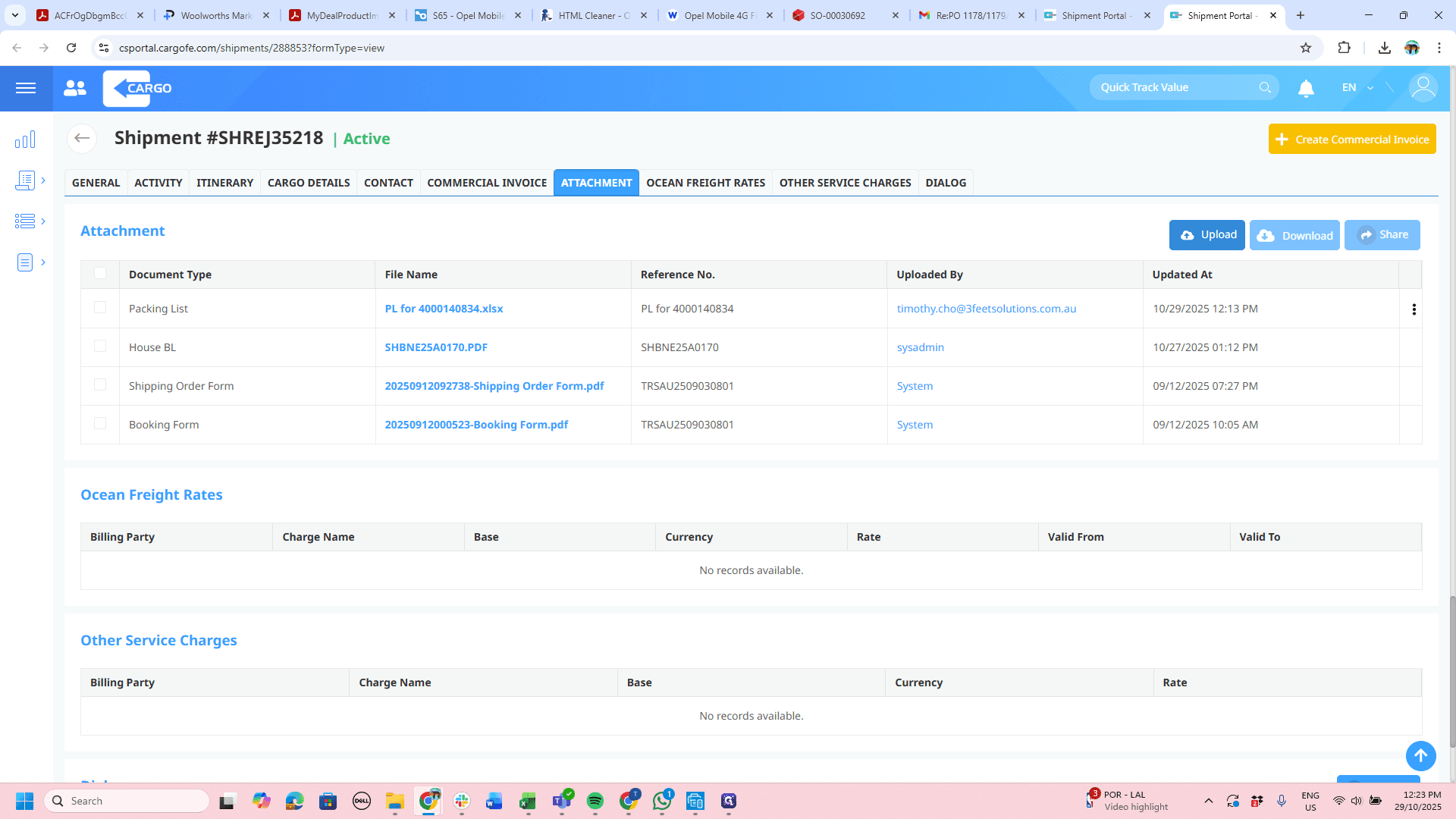
Save your work, close the window, go to the relevant portal, and upload the document as usual.
73
Click on "X"
Step #73: Click on "X"
74
Click here
Step #74: Click here
75
Click on "+ Upload"
Step #75: Click on "+ Upload"

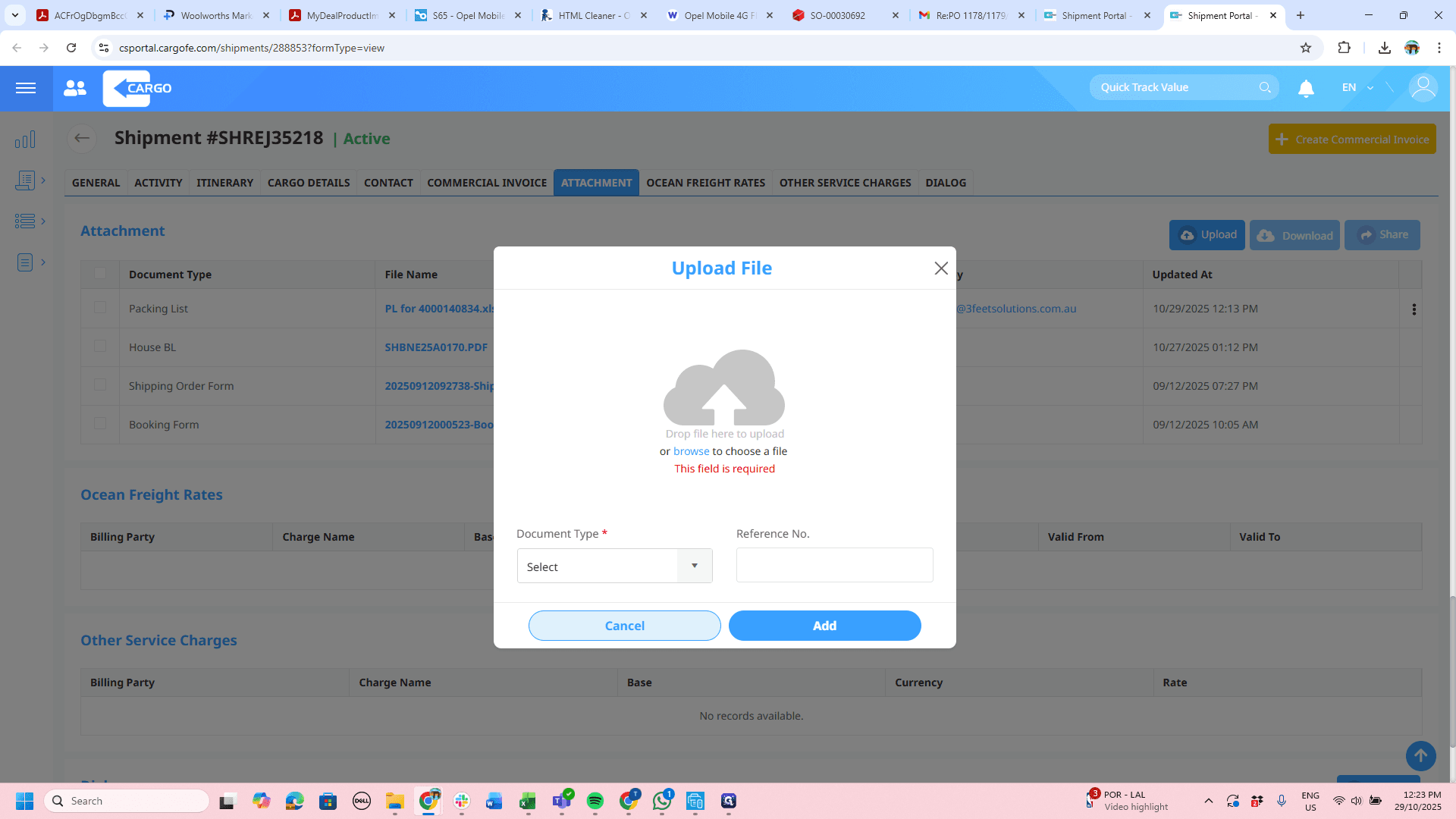
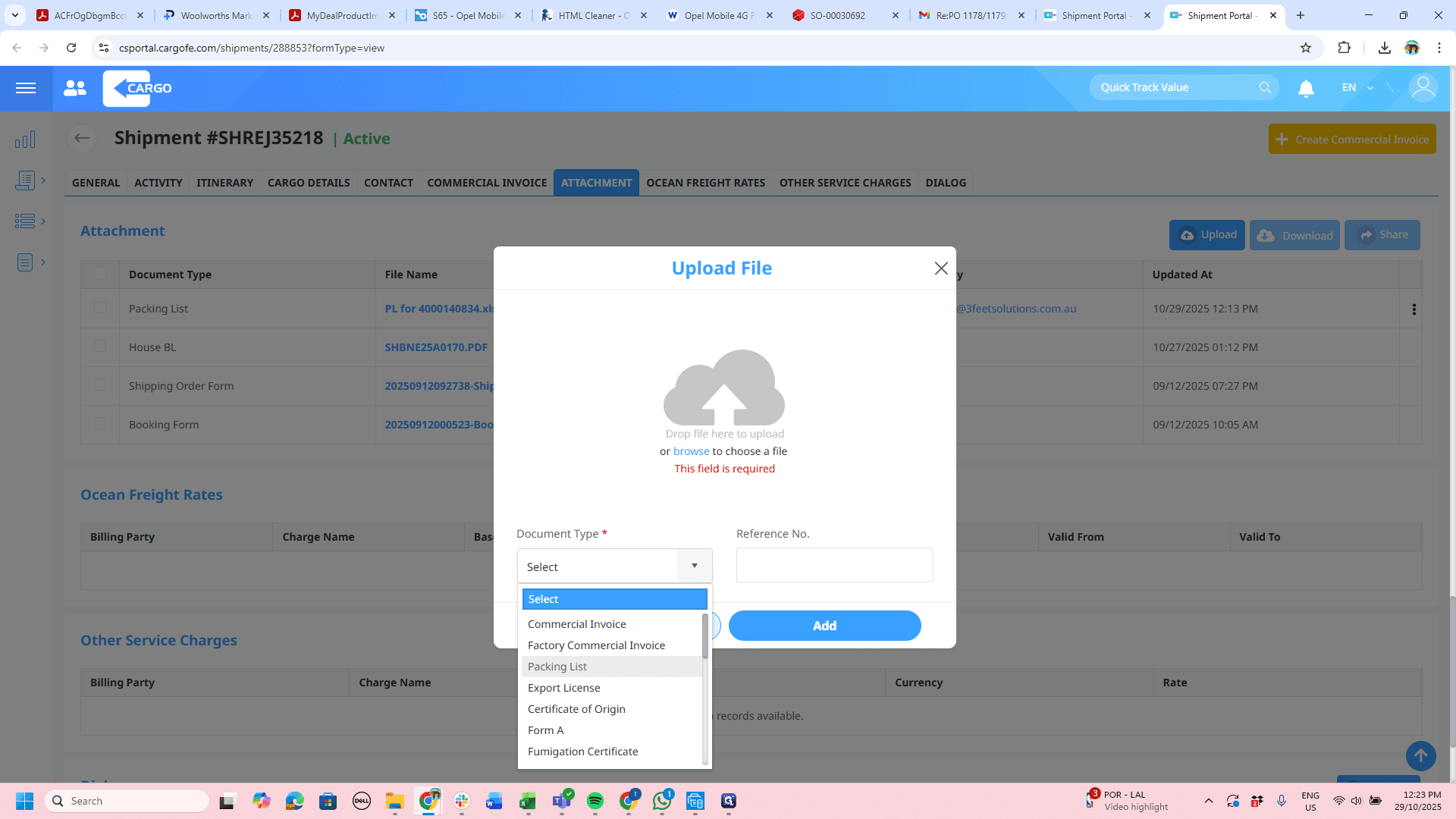
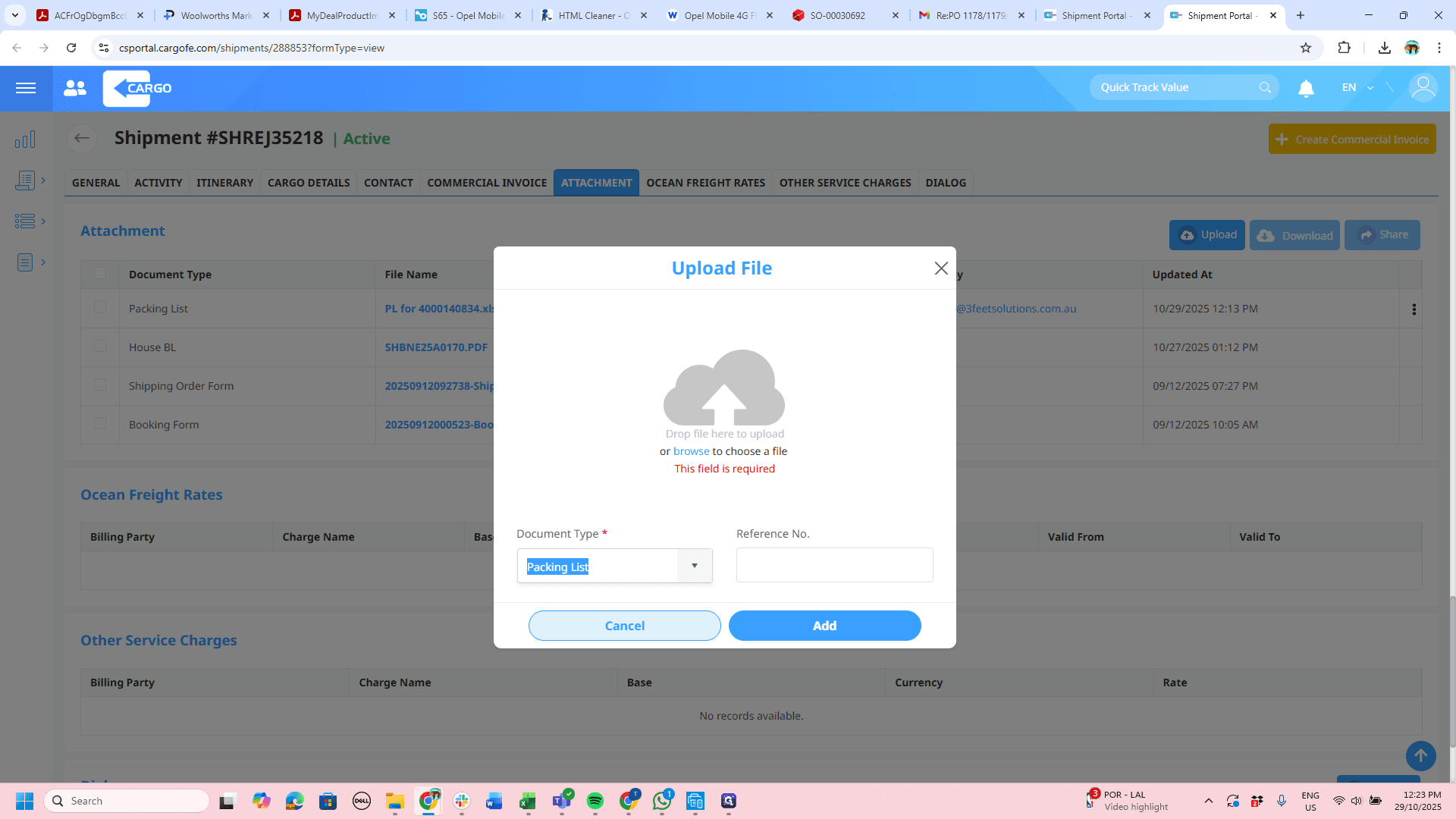
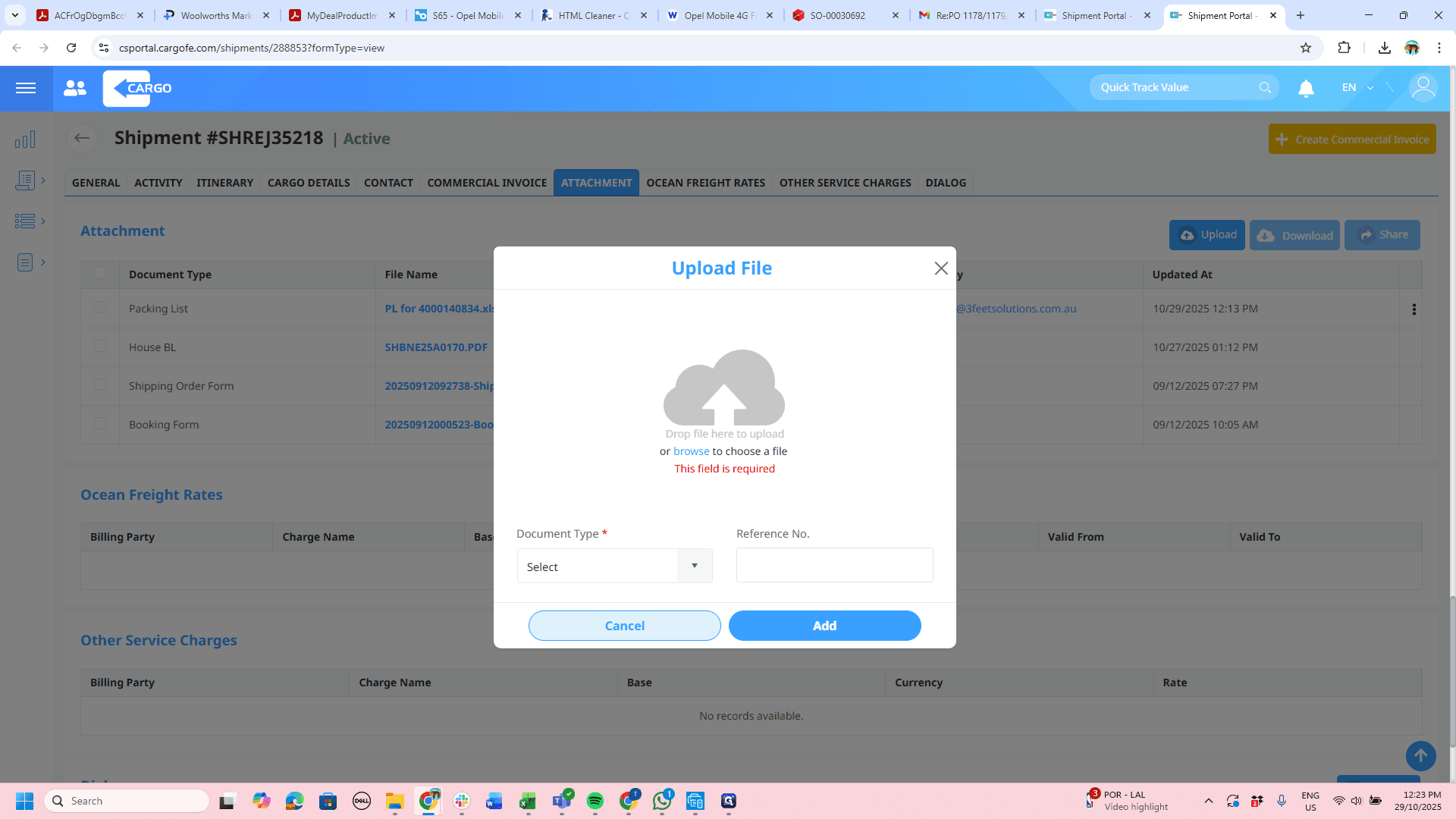
Browse and select the document. Choose Packing List, then paste the file number here again.
76
Click on "or browse to choose a file"
Step #76: Click on "or browse to choose a file"
77
Click here
Step #77: Click here
78
Click on "Packing List"
Step #78: Click on "Packing List"
79
Click here
Step #79: Click here

Select PL 4, click Add, and the document will upload.

80
Type "PL for "
81
Click here
Step #81: Click here
82
Double-click on "Your Older No .:"
Step #82: Double-click on "Your Older No .:"

Here’s how to amend and upload a packing list for TRS.