Icon

How to Upload Photos to Auto HDR and Convert to Virtual Twilight: Step-by-Step Guide

Learn how to upload photos to Auto HDR, convert them to Virtual Twilight, and optimize your workflow with step-by-step instructions. Discover tips for editing, bulk processing, and saving your images efficiently.

By Kyle Lux

In this guide, we'll learn how to upload photos to Auto HDR and convert them to Virtual Twilight. We will cover how to select and upload your images, adjust settings based on whether your photos have been edited, and process them for Virtual Twilight effects. You will also see how to review and download the final images.

Let's get started

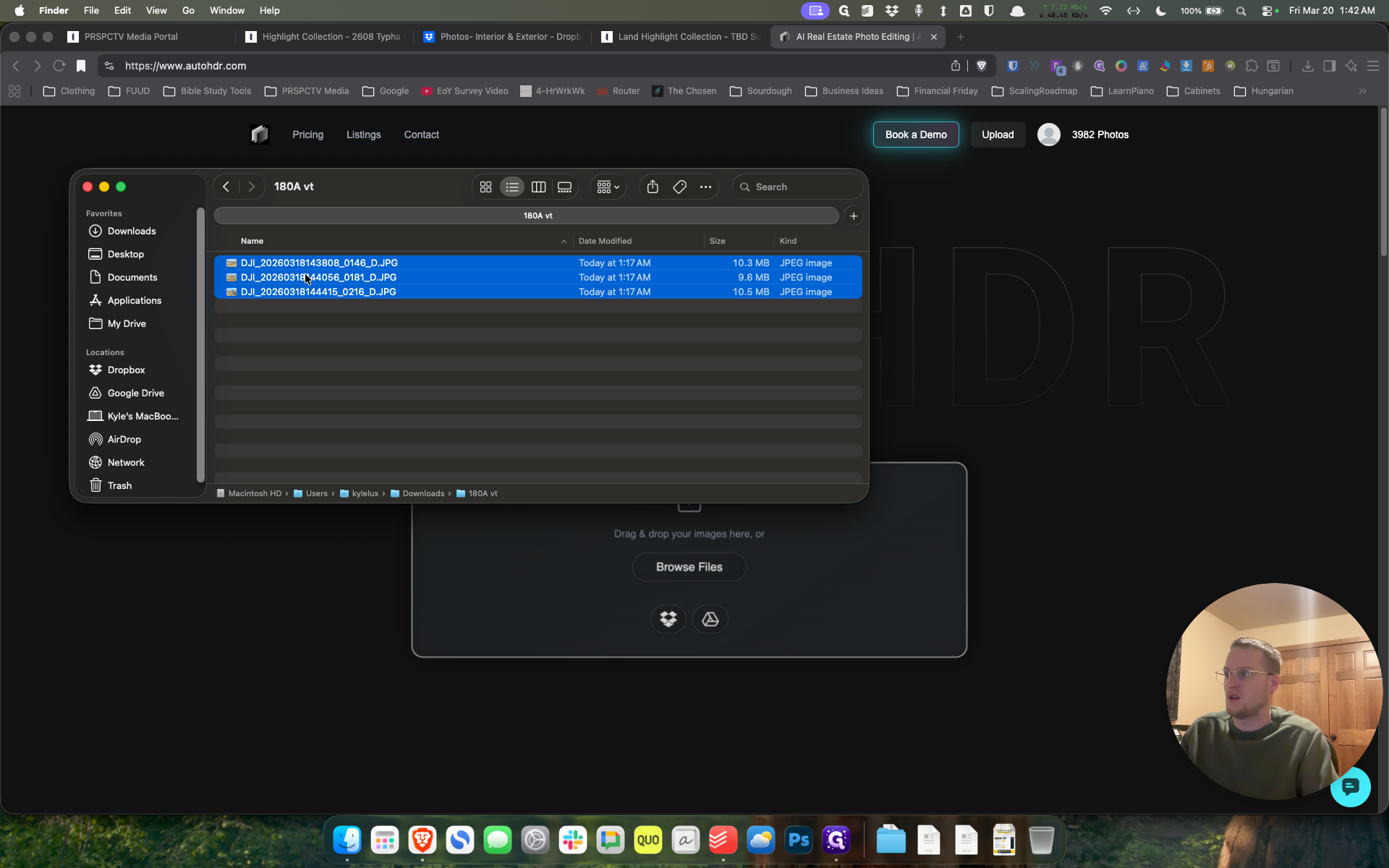
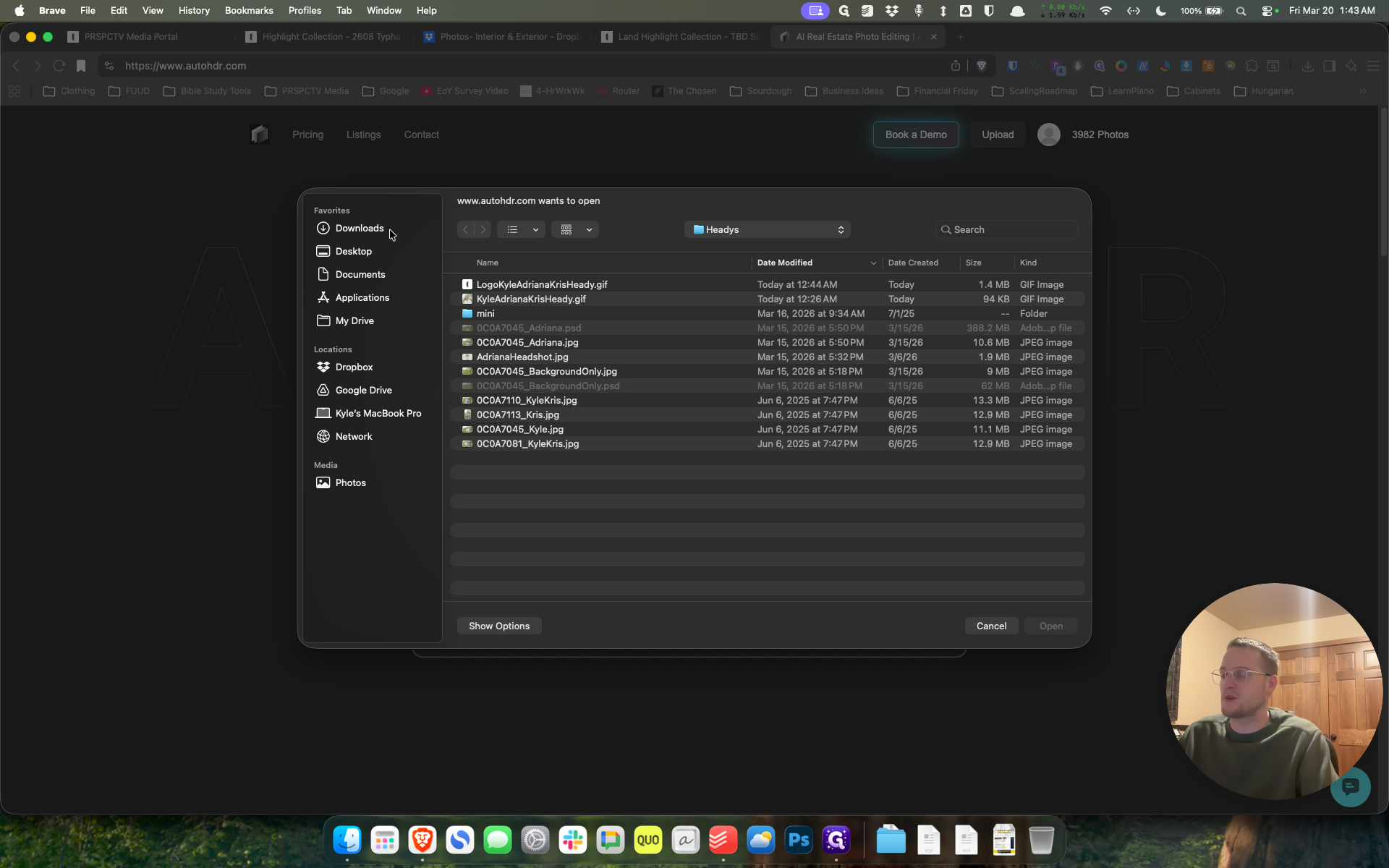
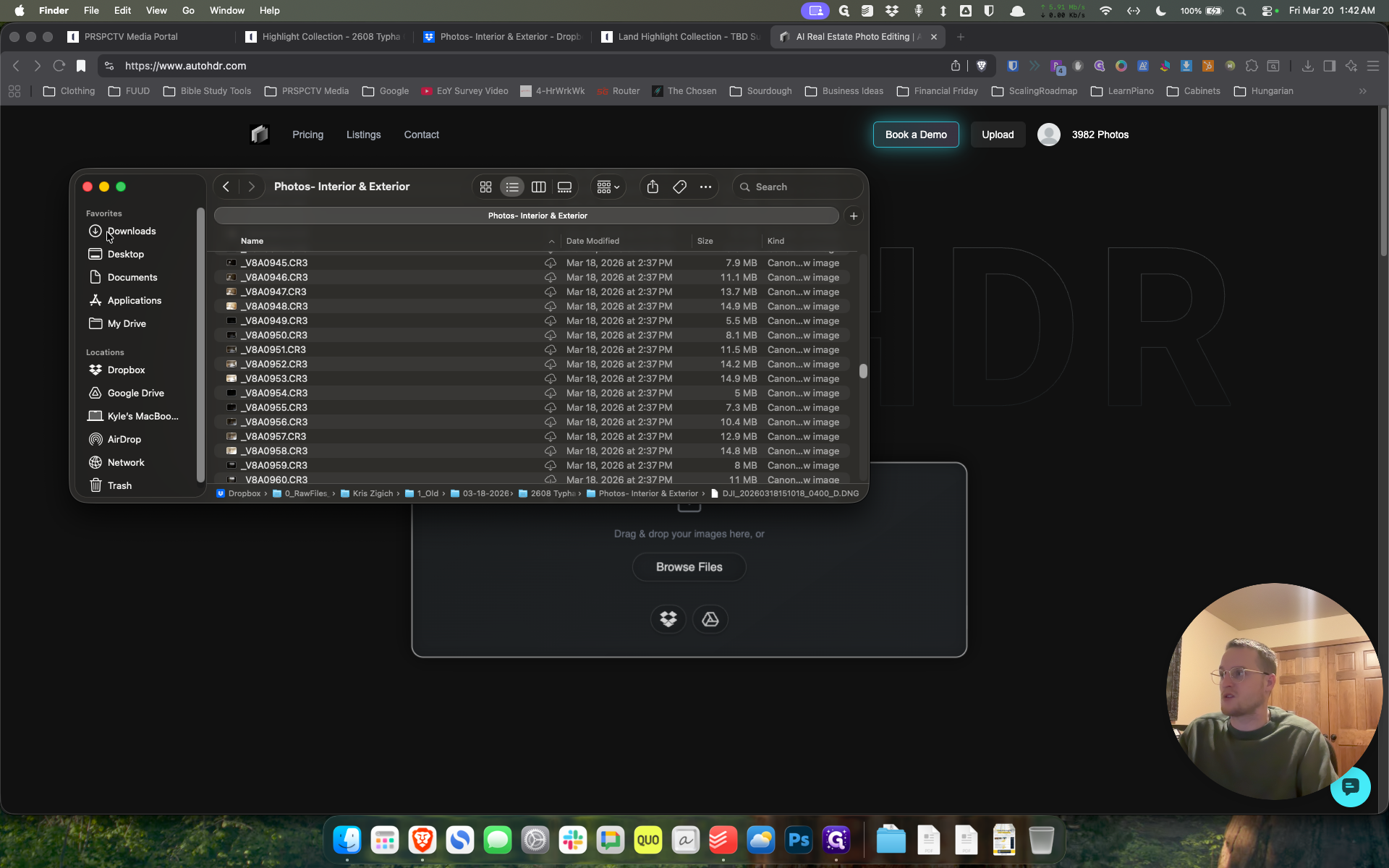
Okay. Here’s how to upload photos to Auto HDR. We will also look at converting them to Virtual Twilight. For this example, I have a few saved to my desktop, but we can also click "Browse Photos." Open Finder, then drag and drop.
1
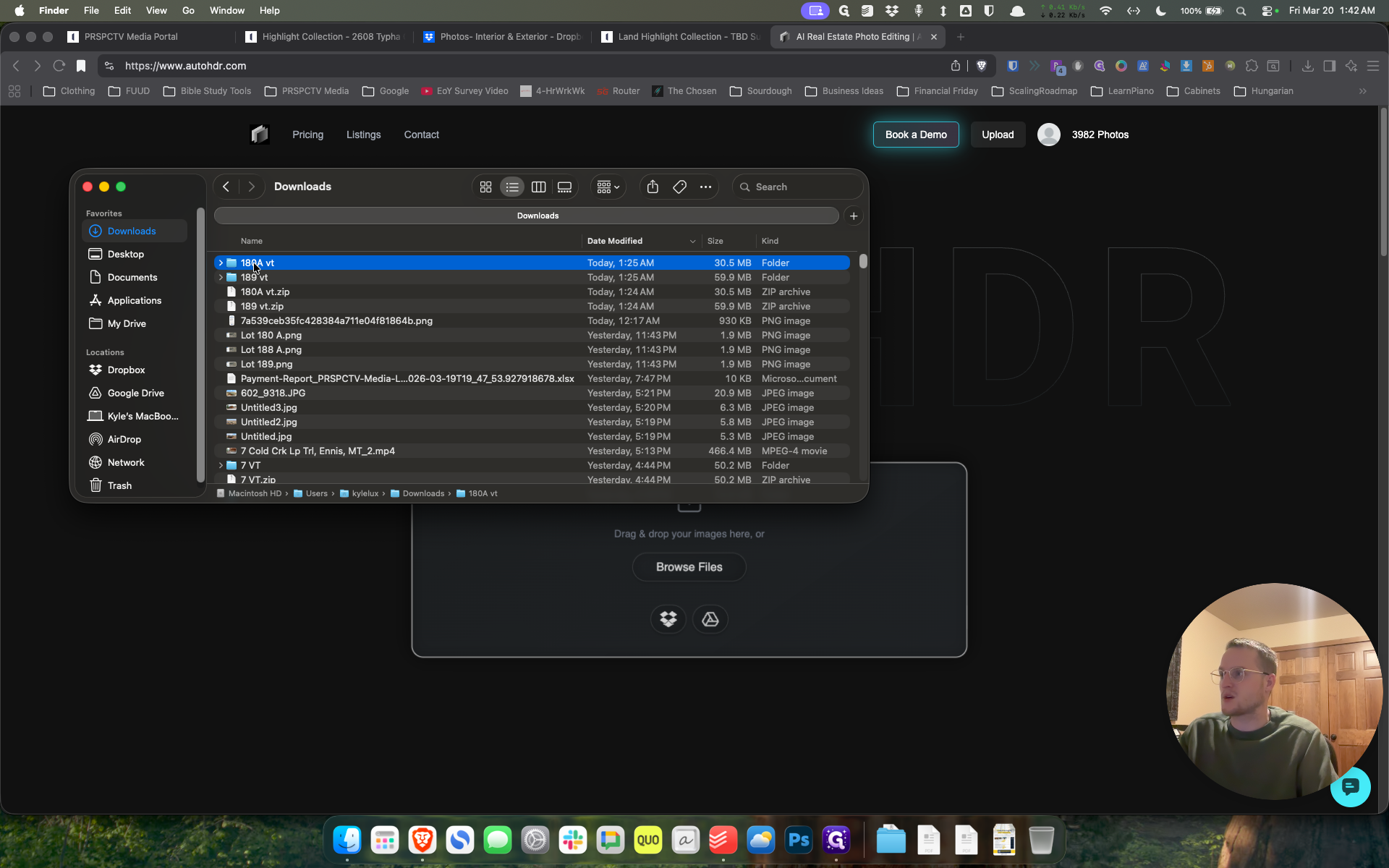
Click on "Downloads"
Step #1: Click on "Downloads"

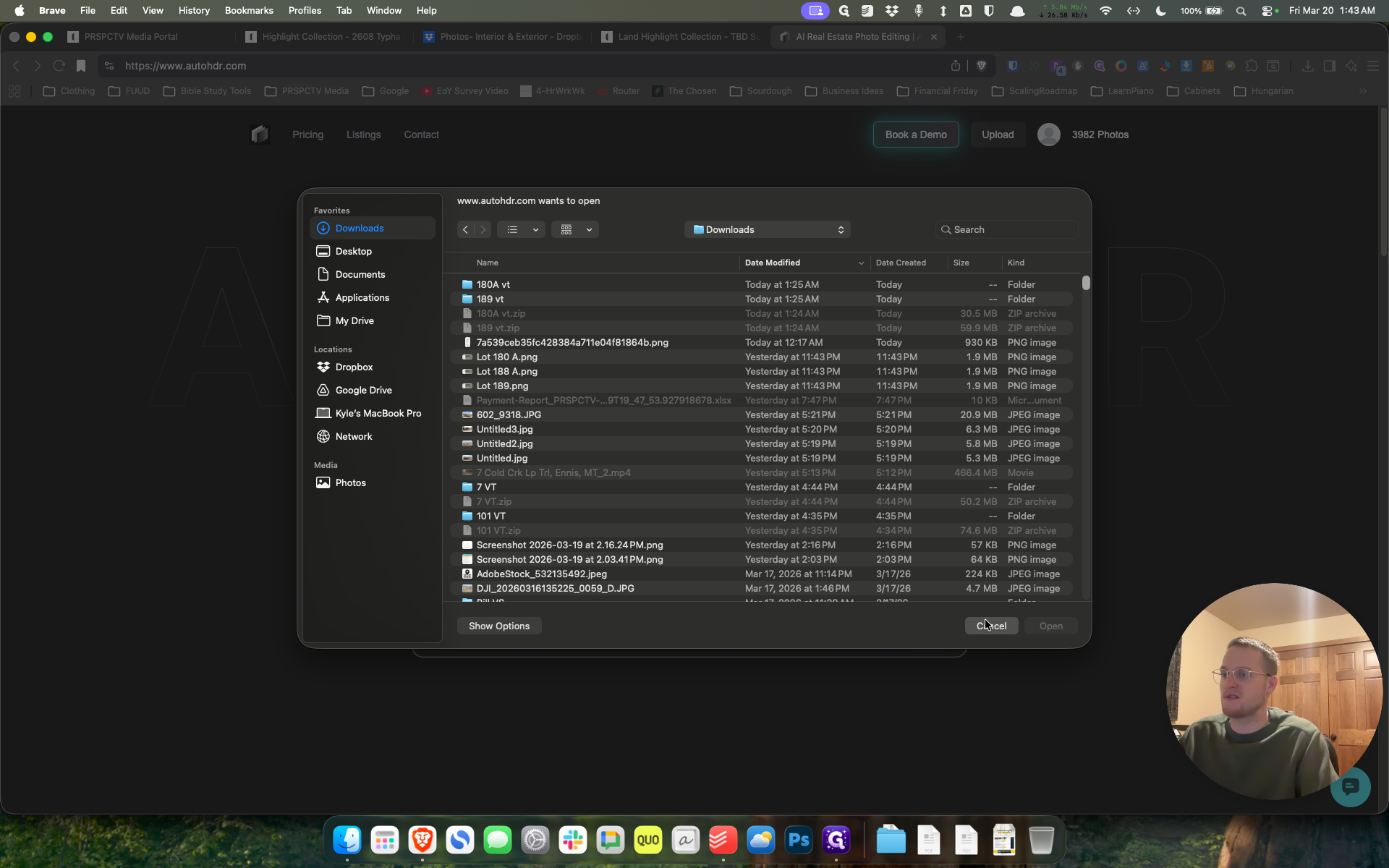
That's what we'll do for this one, since I have the three photos selected.
2
Double-click on "180A vt"
Step #2: Double-click on "180A vt"
3
Type "Cmd + A"
4
Drag "DJI_20260318 44056_0181_D.JPG"
Step #4: Drag "DJI_20260318 44056_0181_D.JPG"

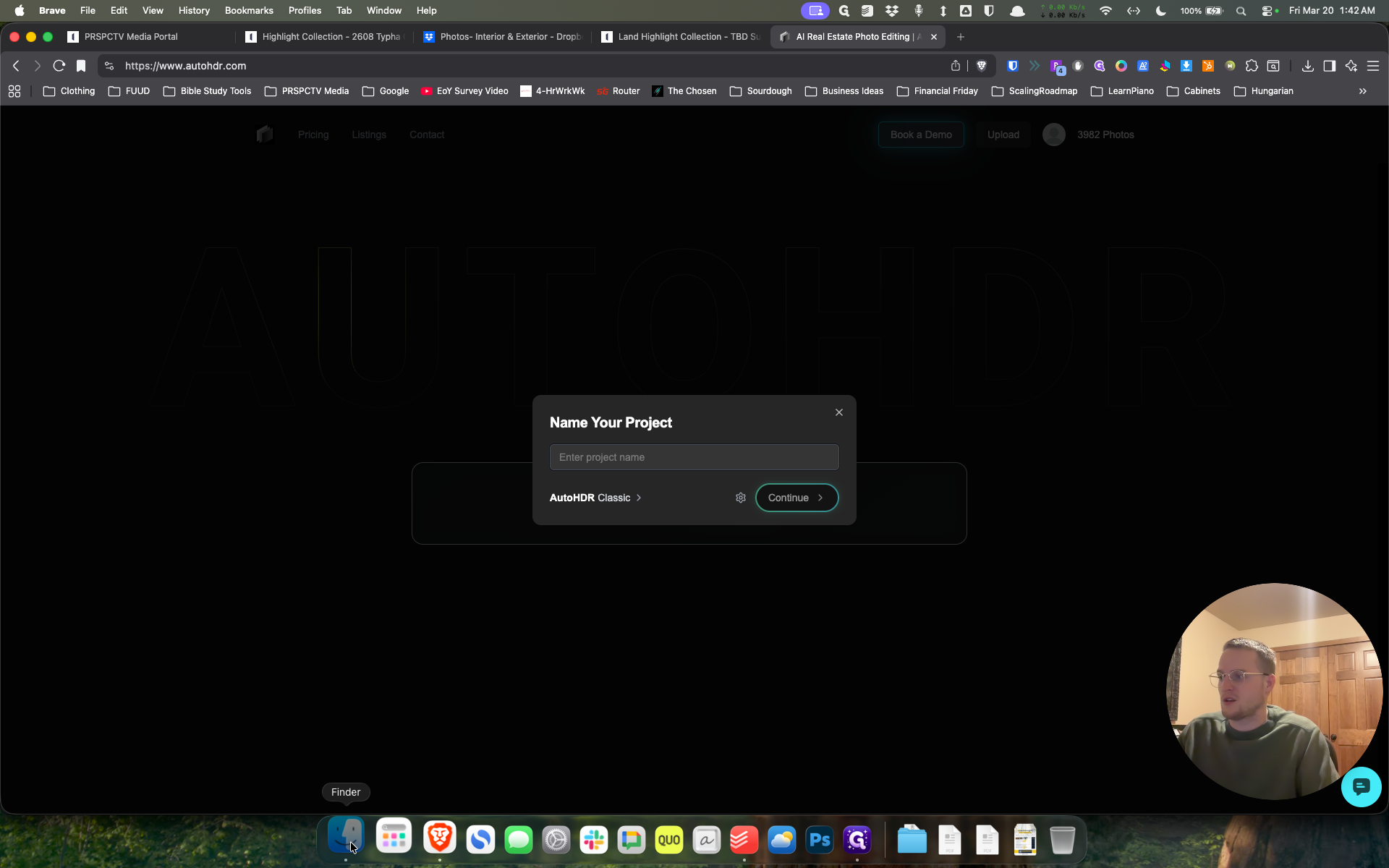
Then we will give it a name.

5
Click here
Step #5: Click here

I will call this 180A Lot Virtual Twilight.
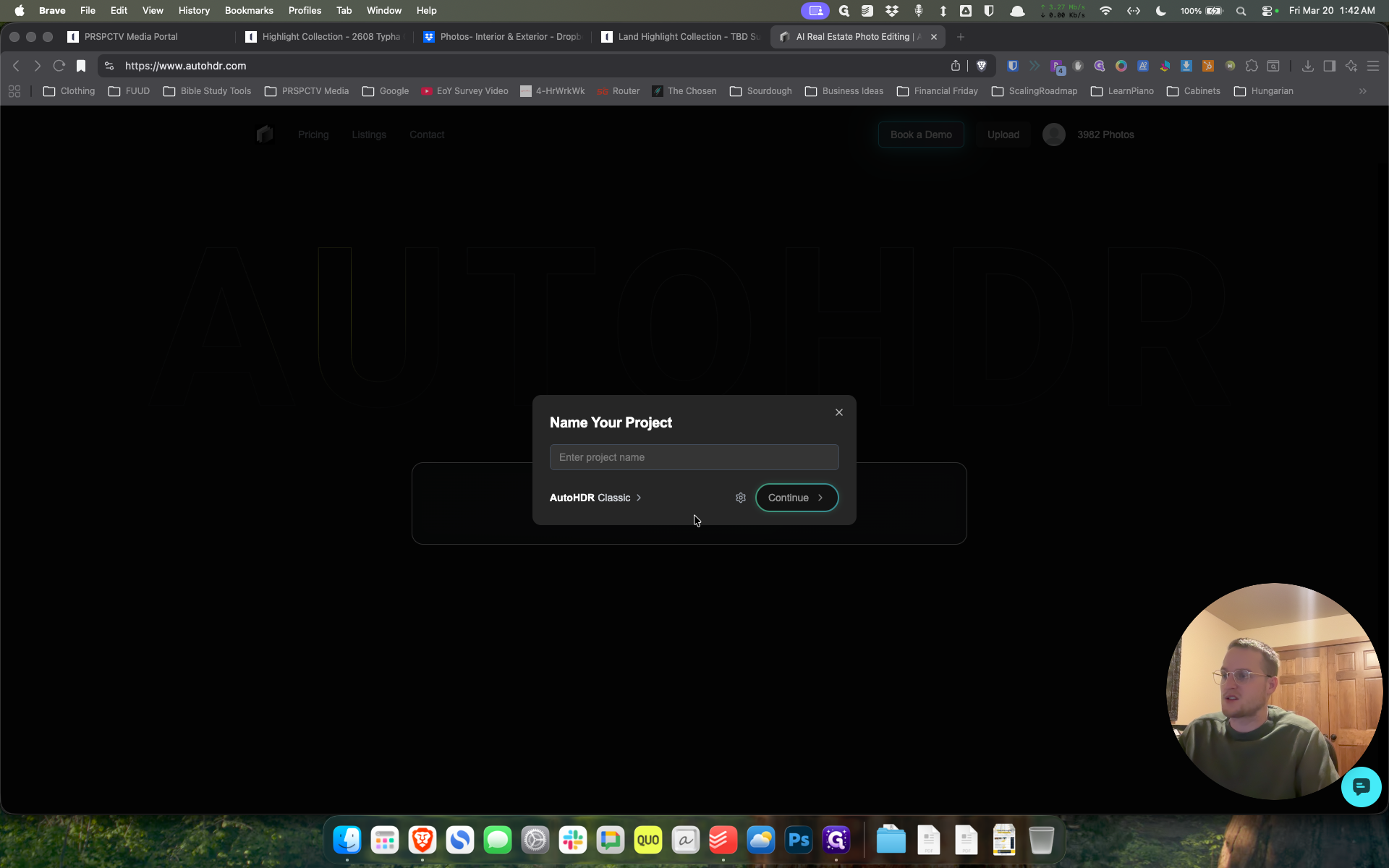
6
Click on "ما"
Step #6: Click on "ما"

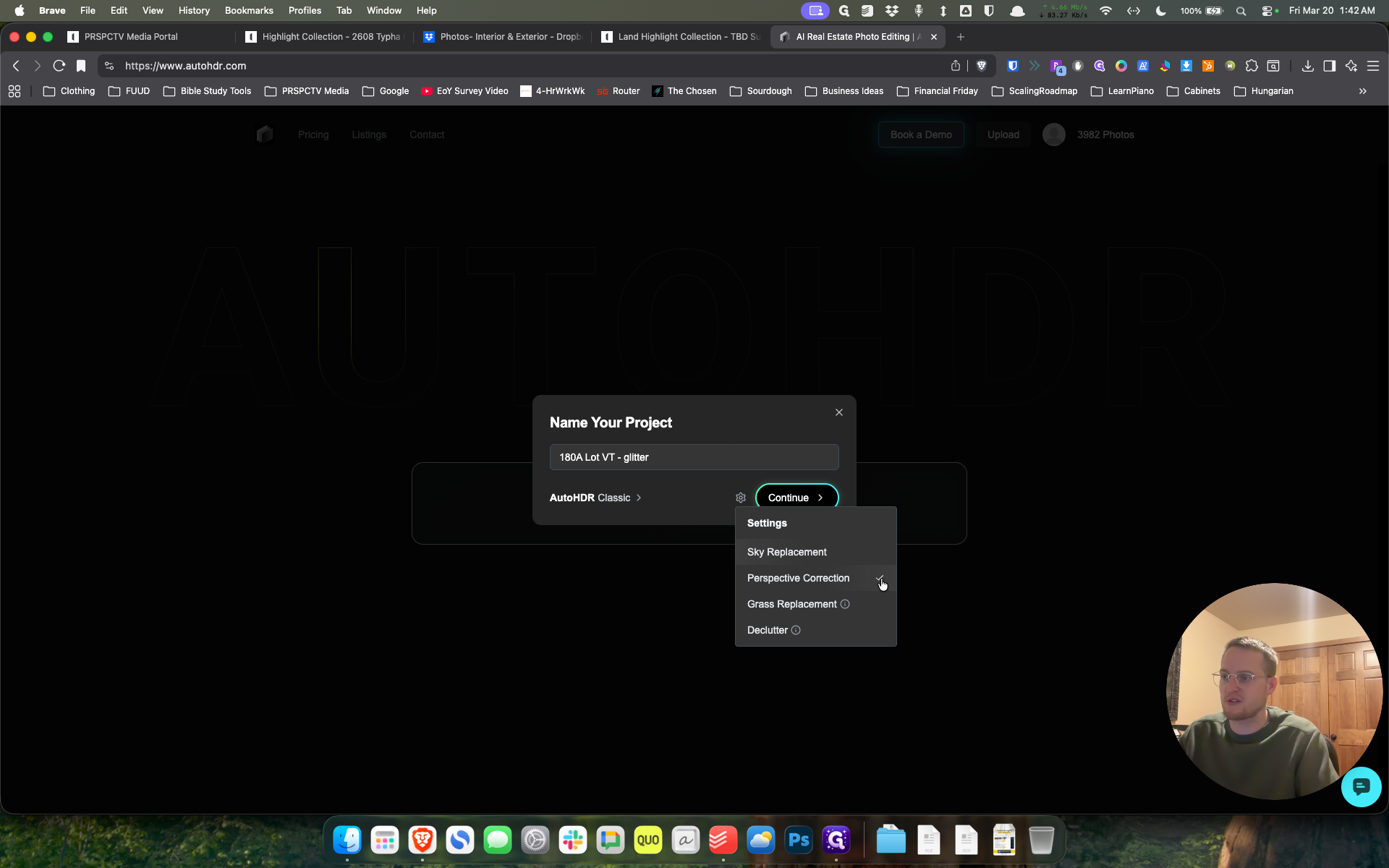
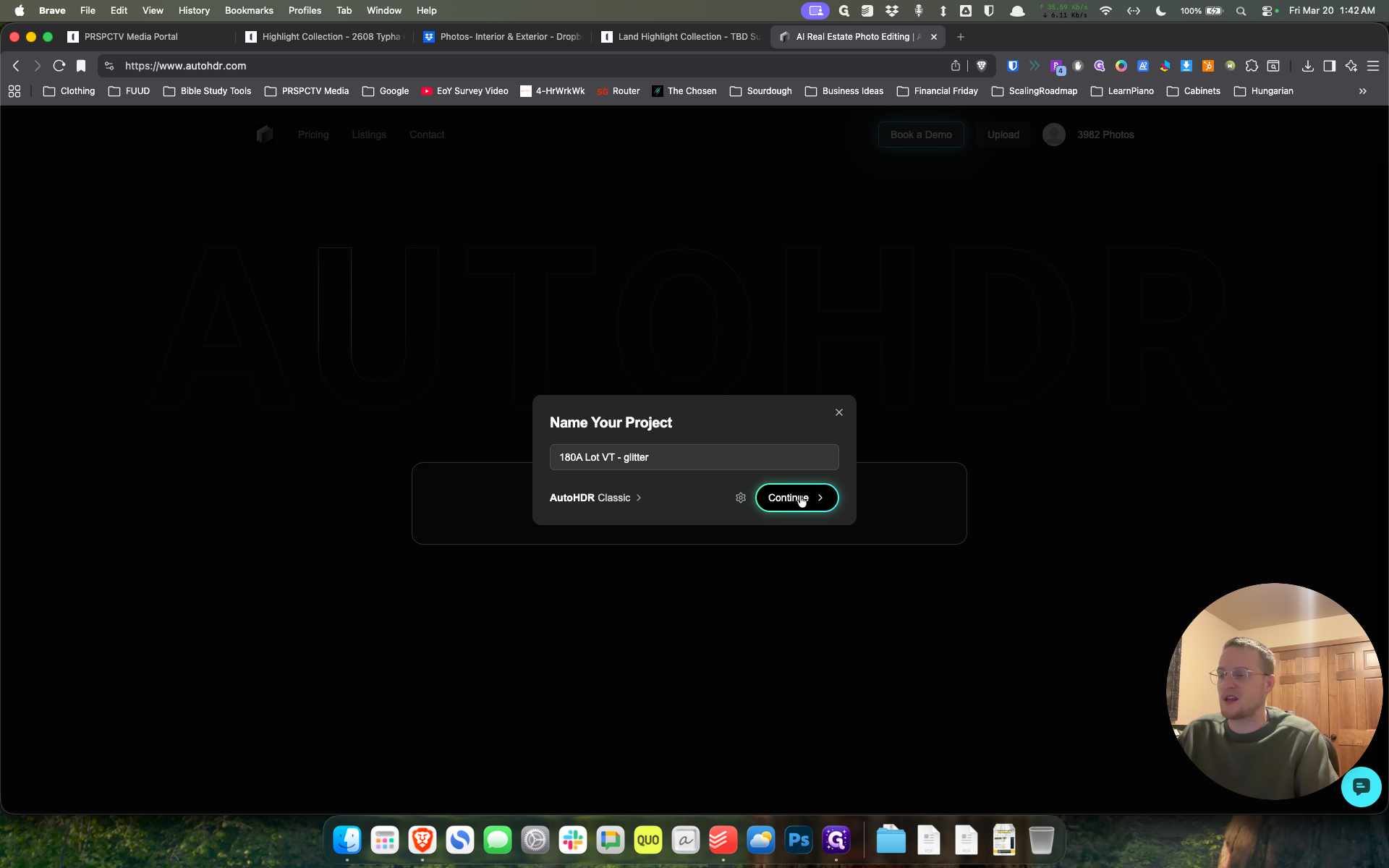
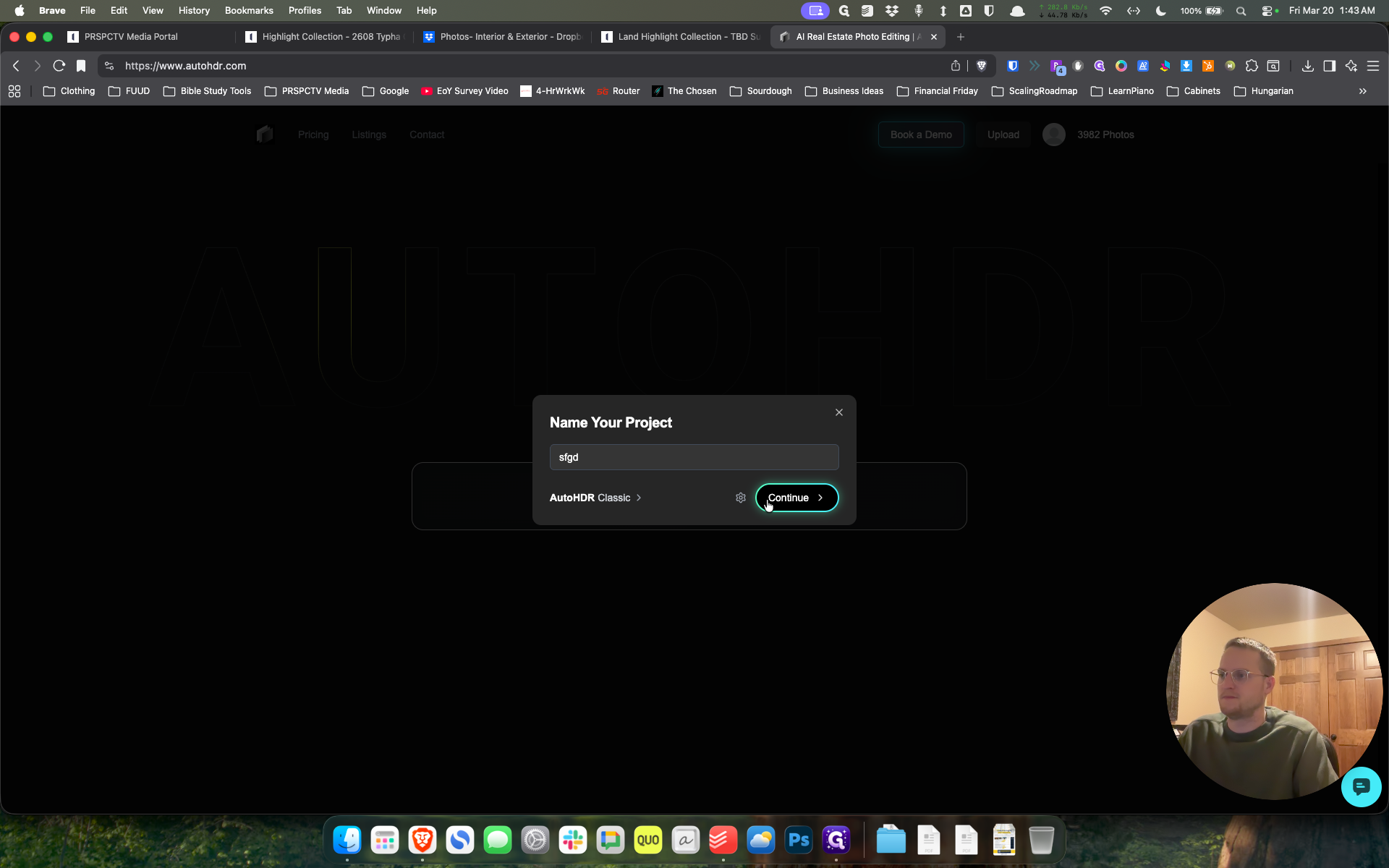
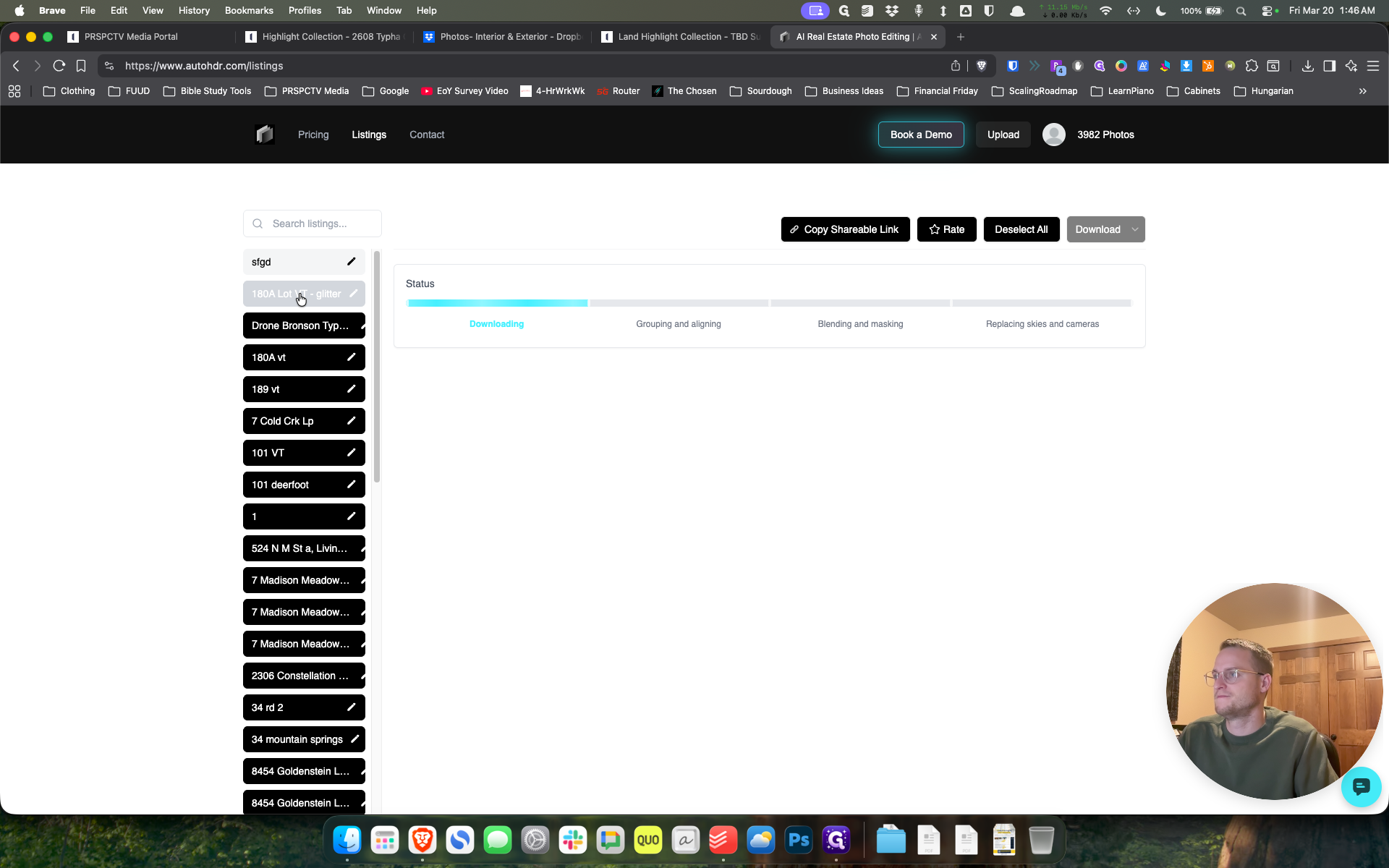
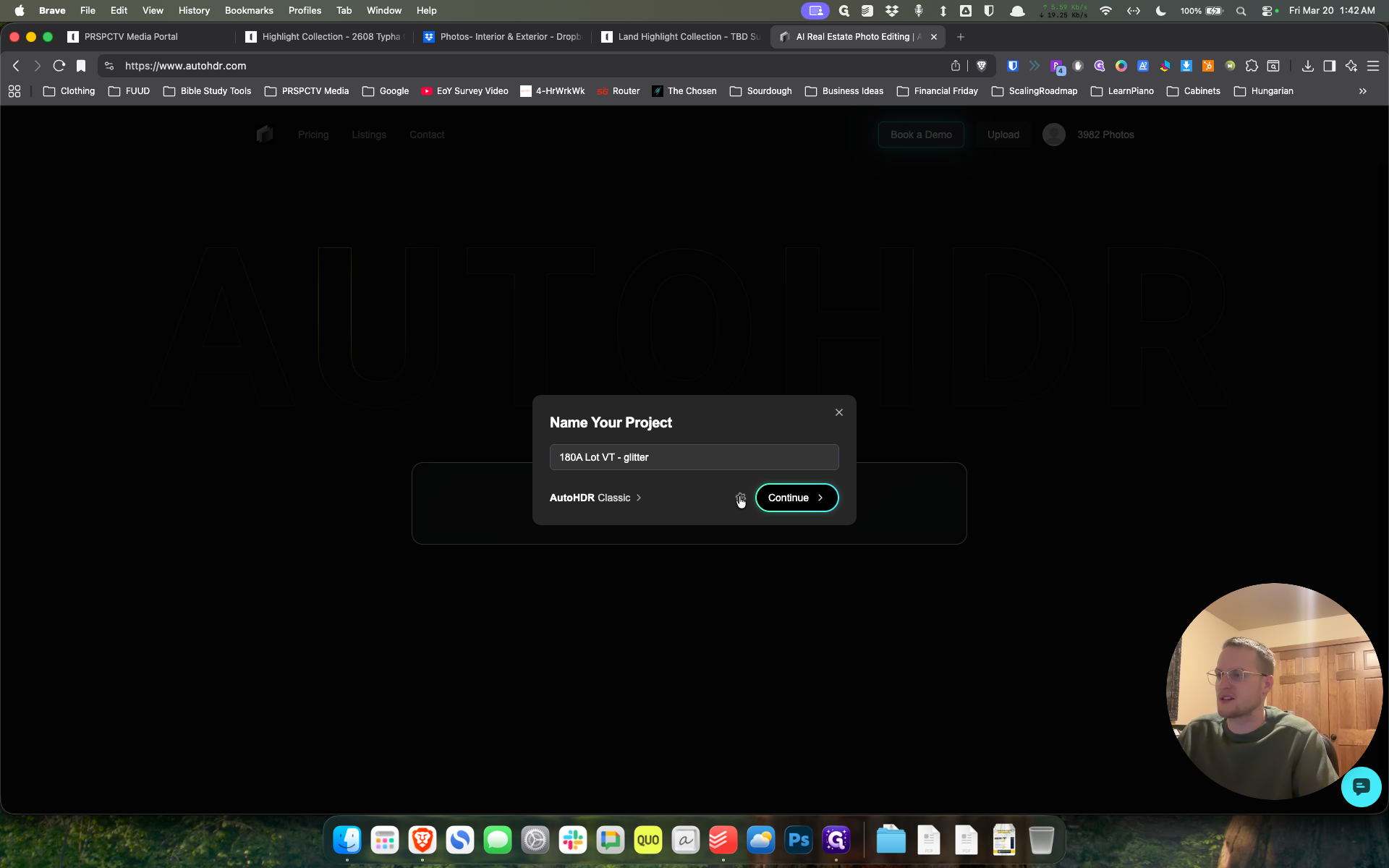
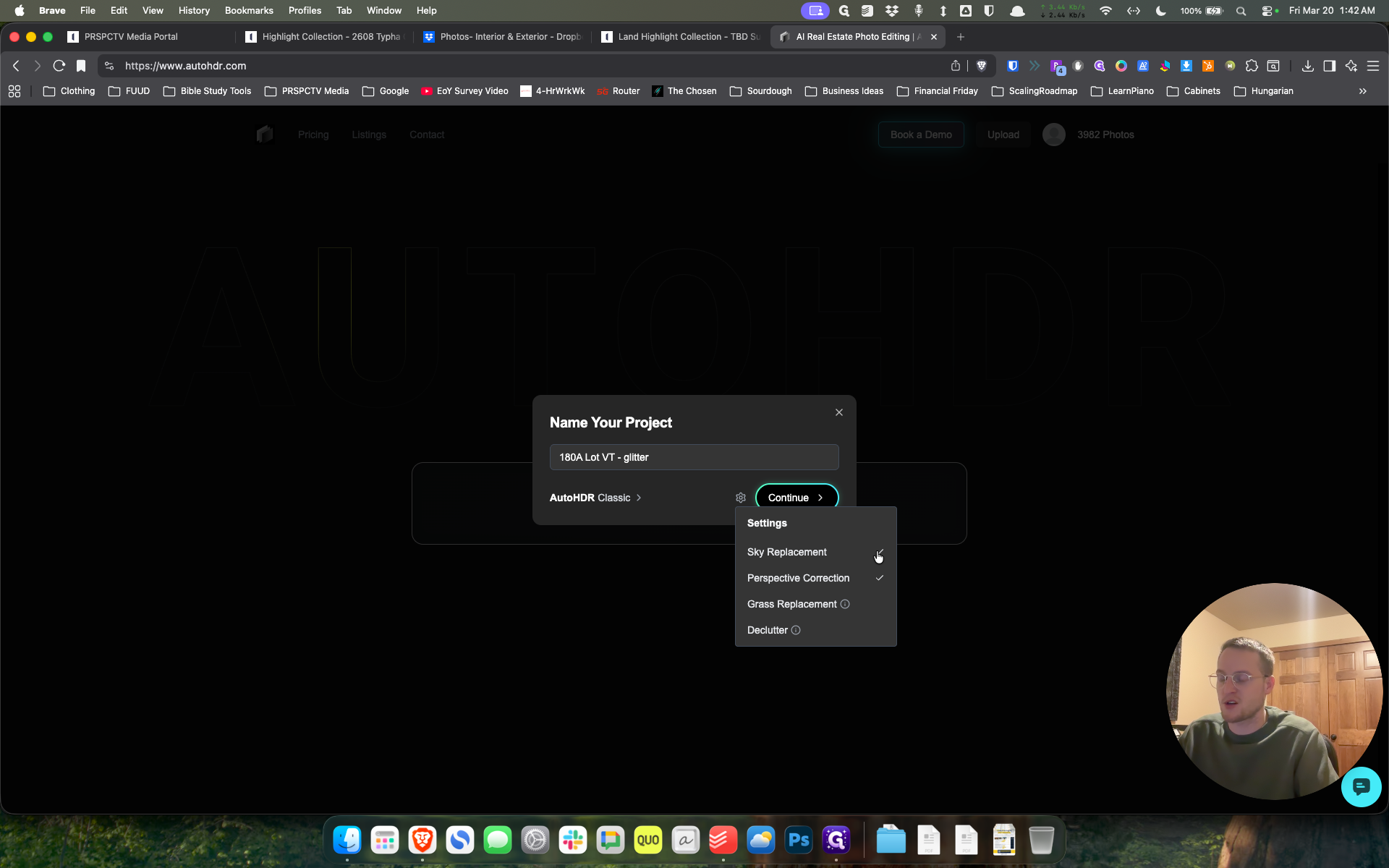
I'll refer to it as VT for short, and I'll call it Dash Glitter since I've already done one of these. We leave Auto HDR on classic. When the photos have already been edited by our editors, I turn off Perspective Correction and Sky Replacement, then hit continue.
7
Type "180A Lot VT - glitter"
8
Click here
Step #8: Click here
9
Click here
Step #9: Click here
10
Click here
Step #10: Click here
11
Click on "Continue >"
Step #11: Click on "Continue >"

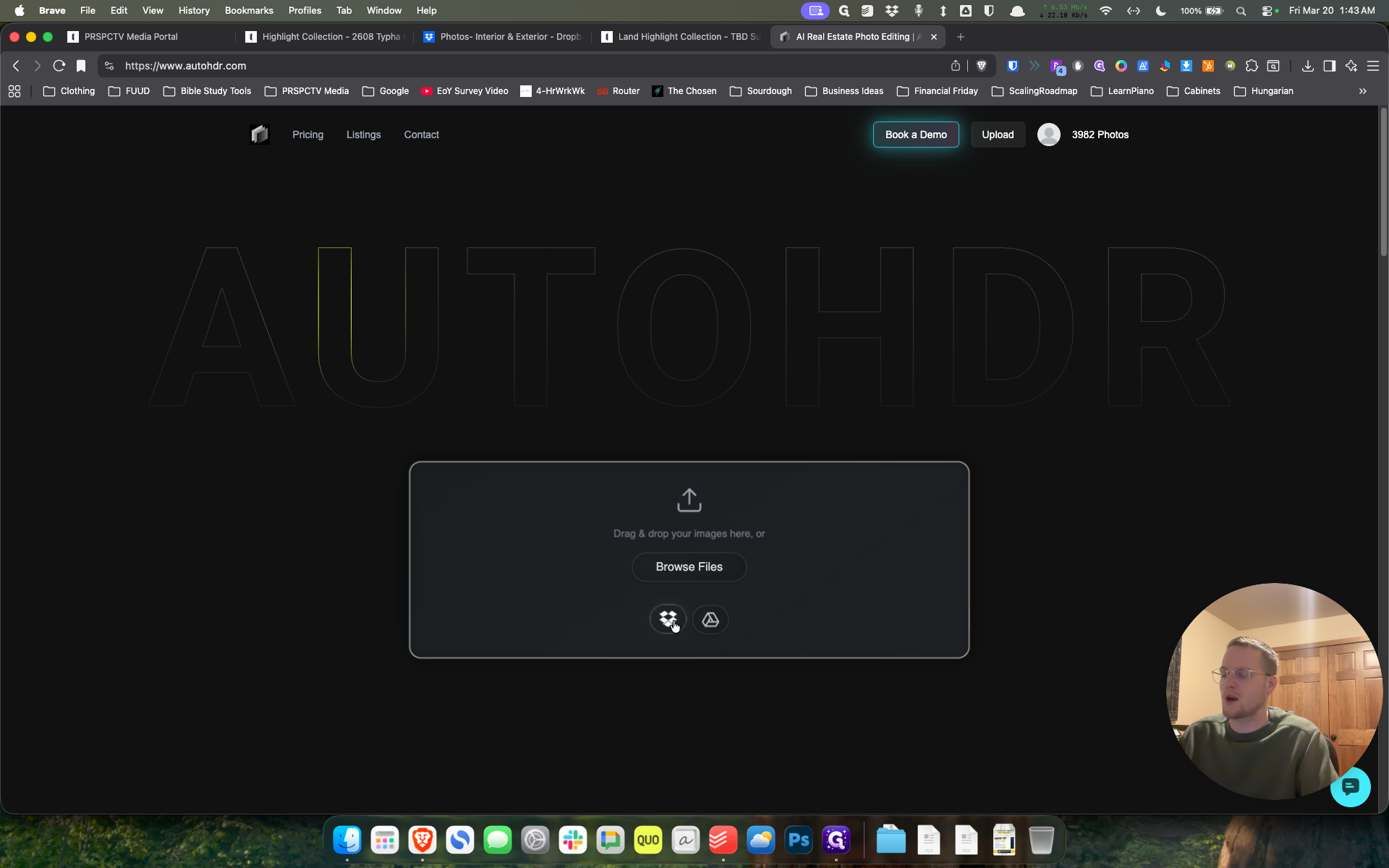
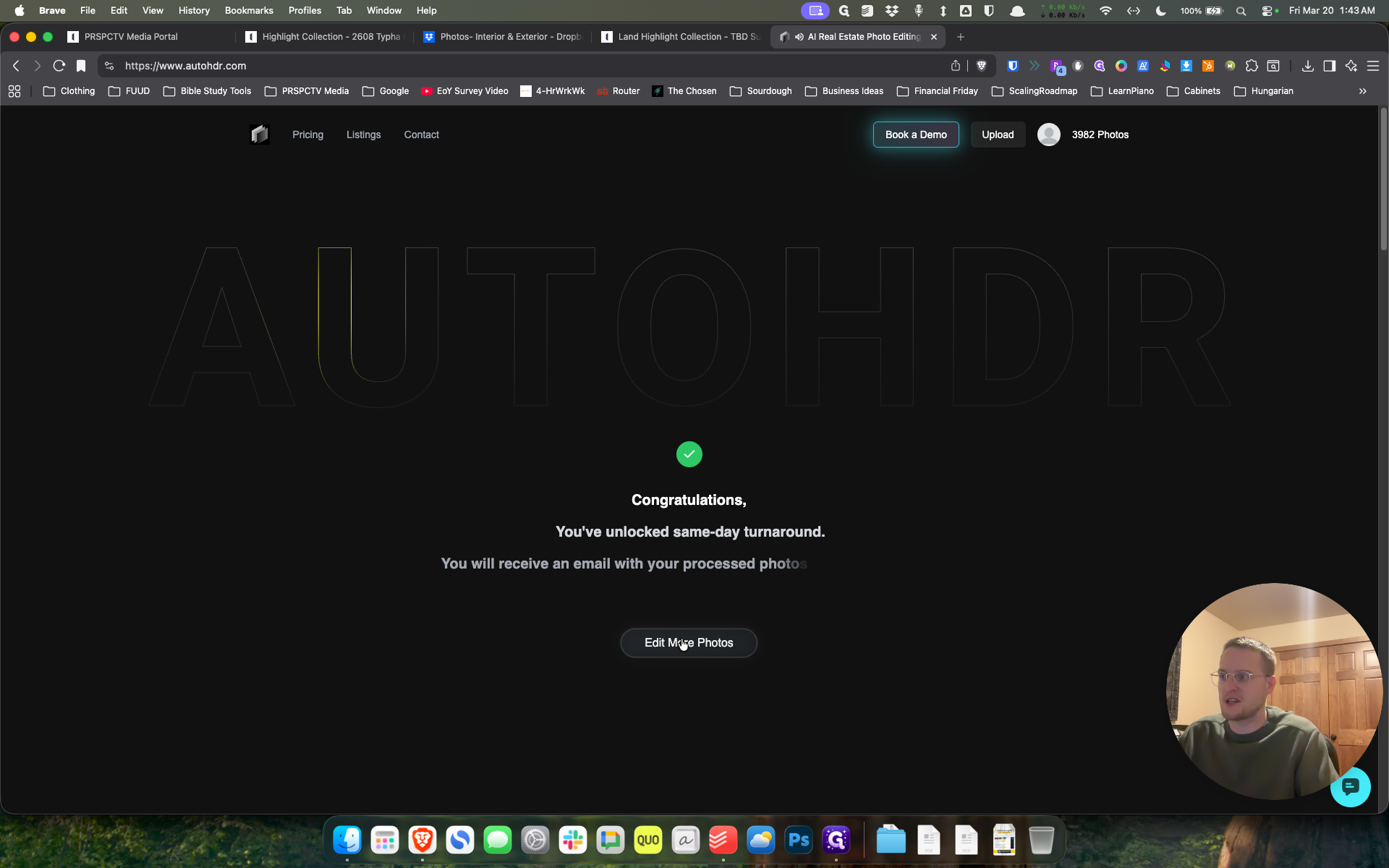
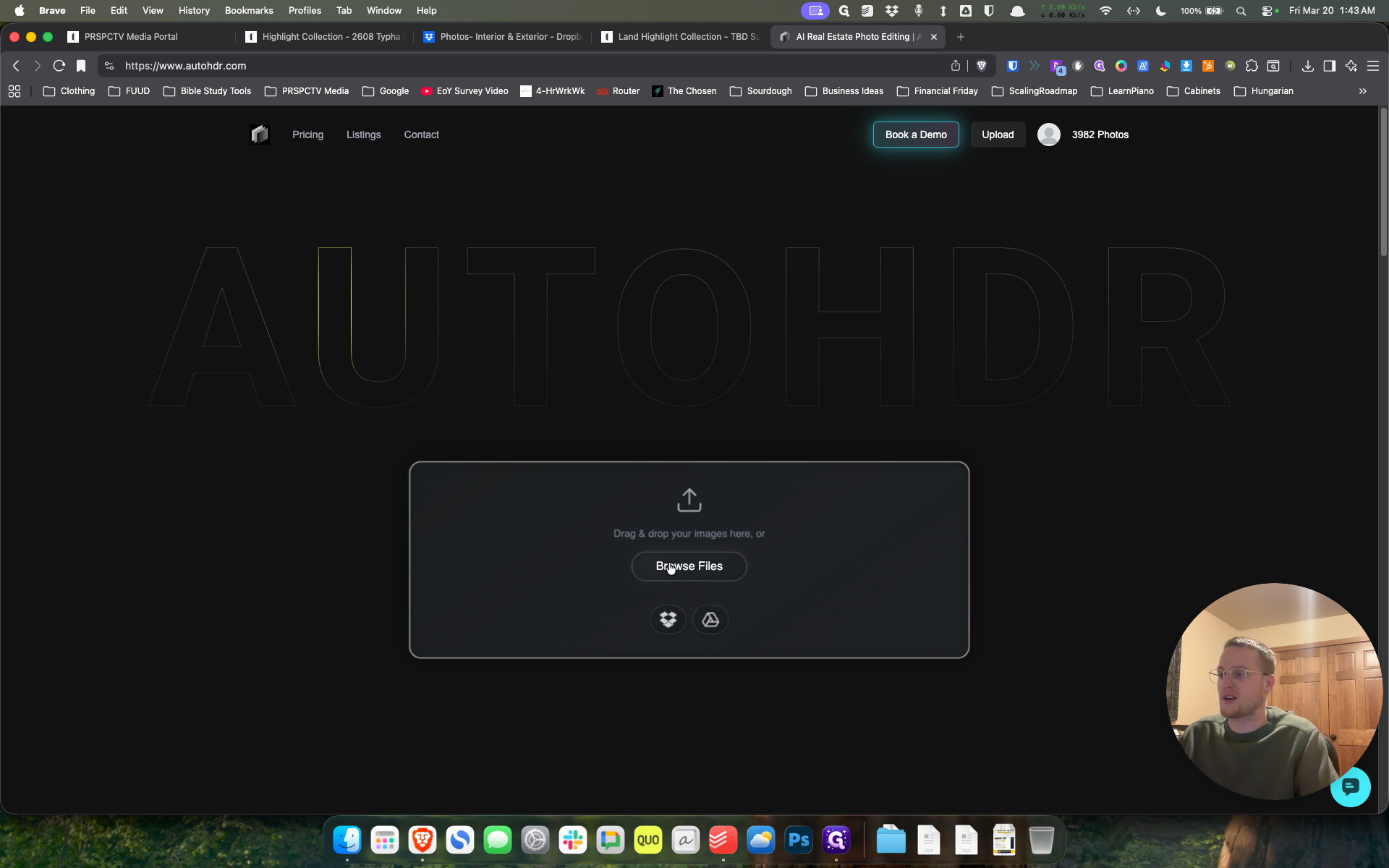
It will upload. It will take some time, depending on where the files are saved. The other option to edit photos is to go to "Browse Files." You can select them from your desktop or wherever you have them saved. I always save all my files in Dropbox.
12
Click on "Edit More Photos"
Step #12: Click on "Edit More Photos"
13
Click on "Browse Files"
Step #13: Click on "Browse Files"
14
Click on "W"
Step #14: Click on "W"
15
Click on "Chcel"
Step #15: Click on "Chcel"
16
Click here
Step #16: Click here
17
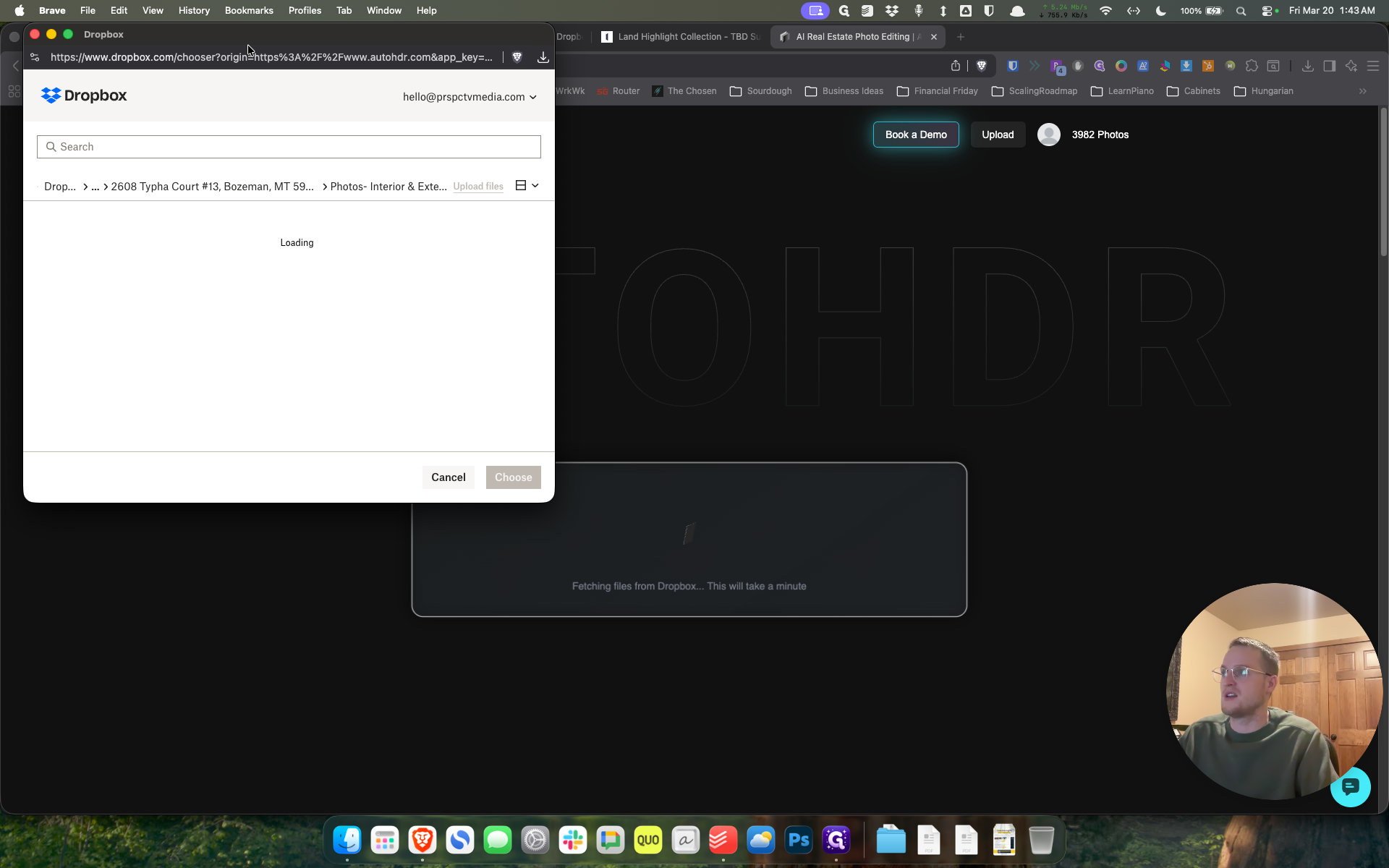
Drag "https://www.dropbox.com/chooser?origin"
Step #17: Drag "https://www.dropbox.com/chooser?origin"

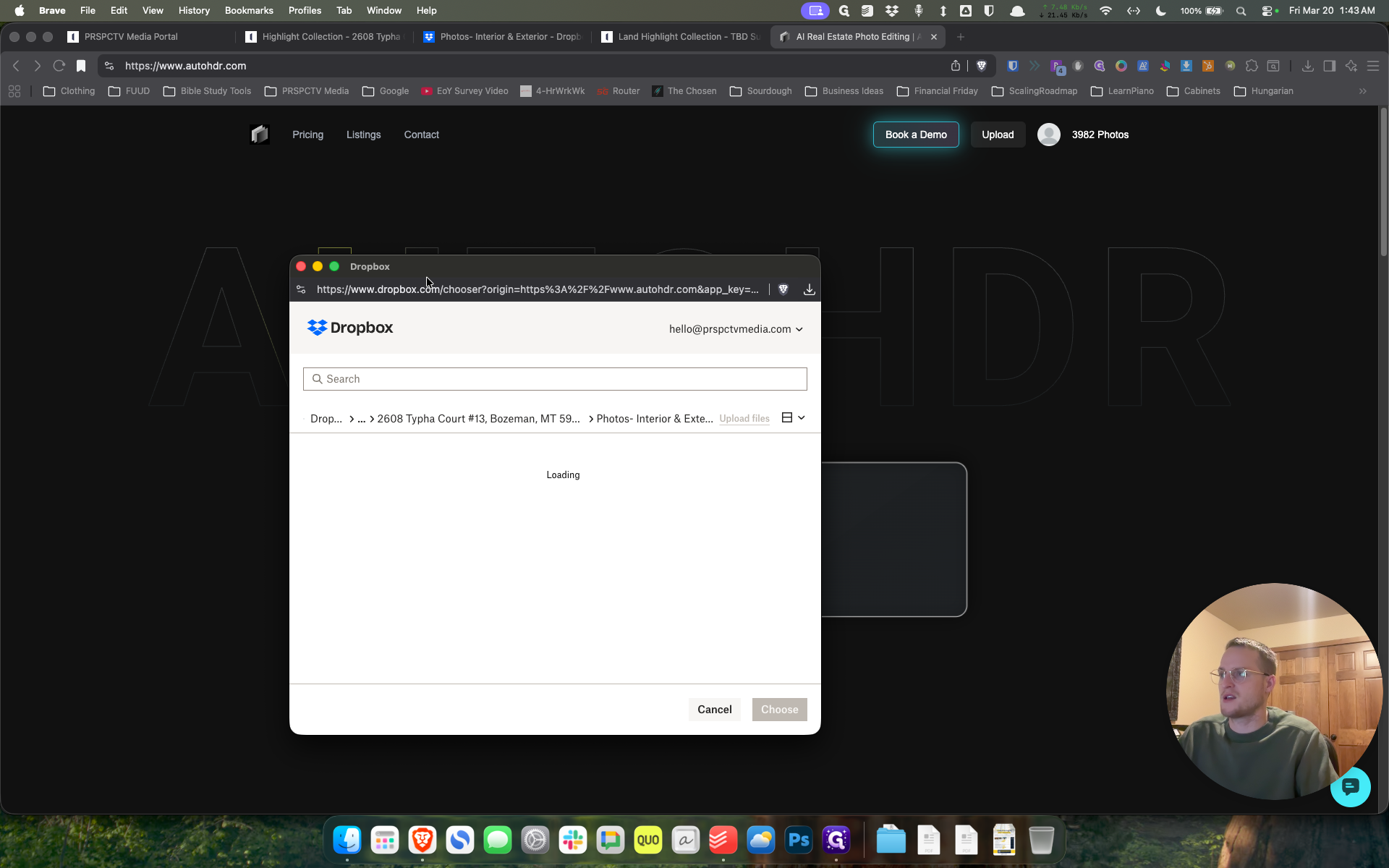
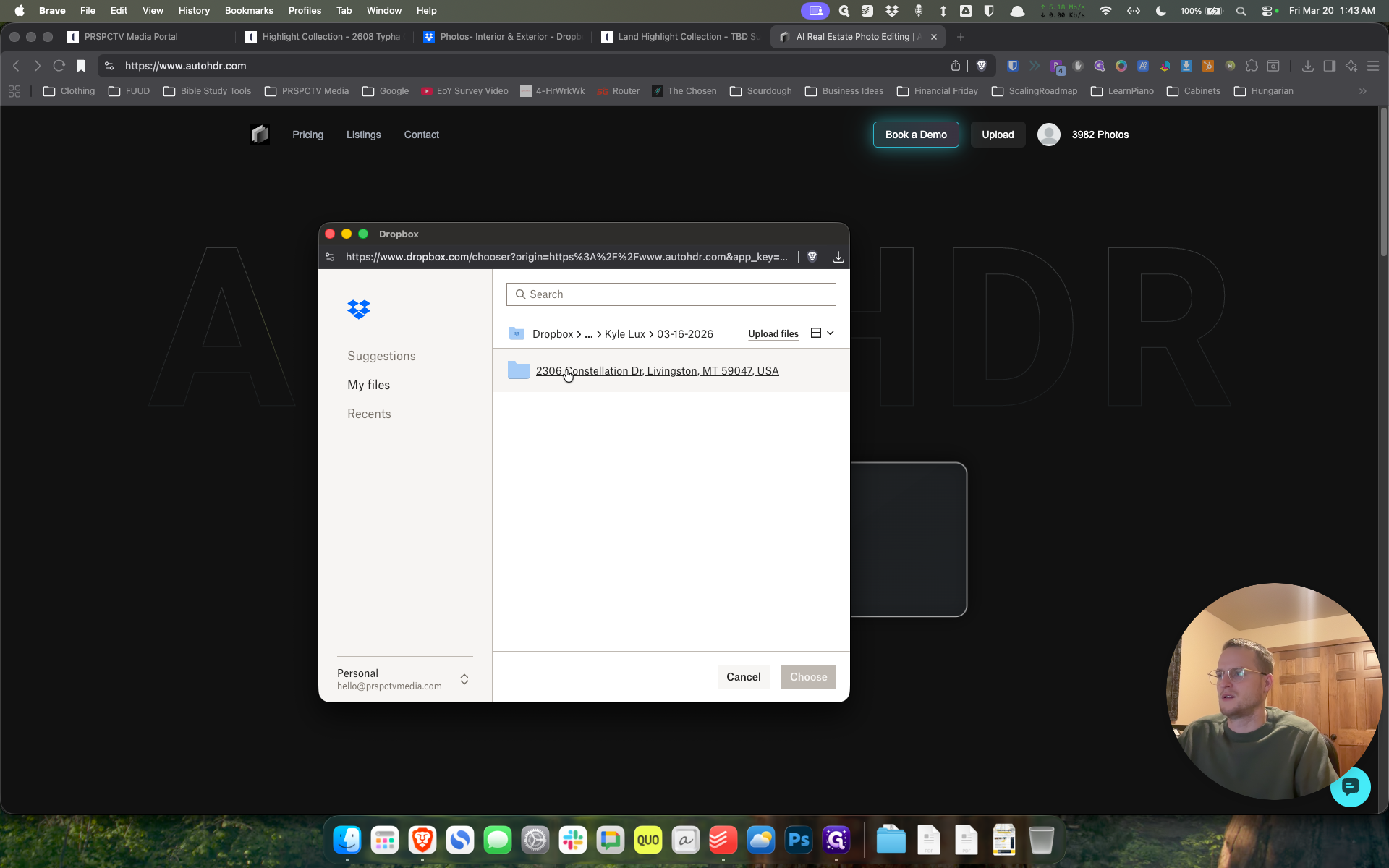
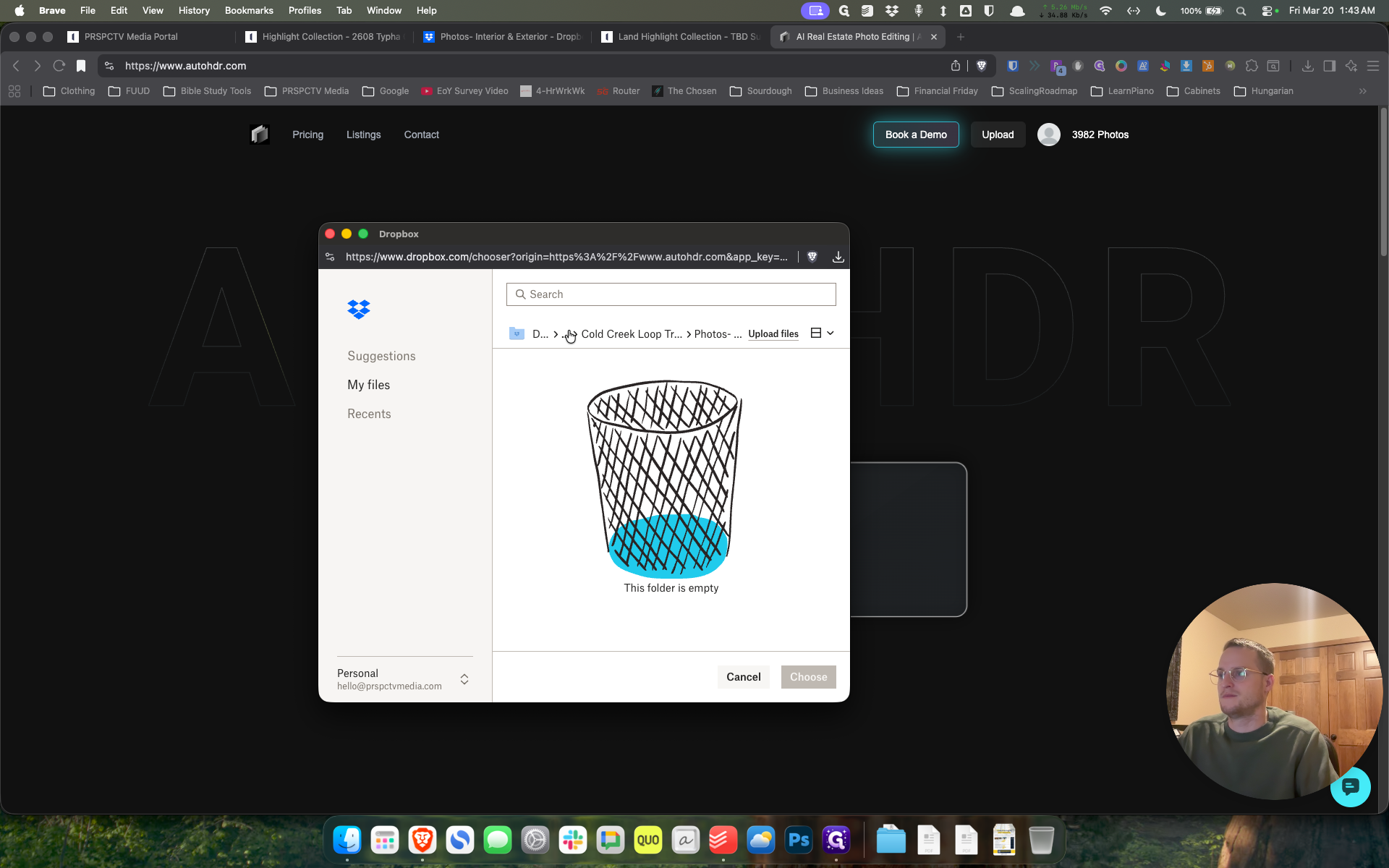
Then it links to Dropbox.

18
Click on "//www.dropbox.com/chooser"
Step #18: Click on "//www.dropbox.com/chooser"
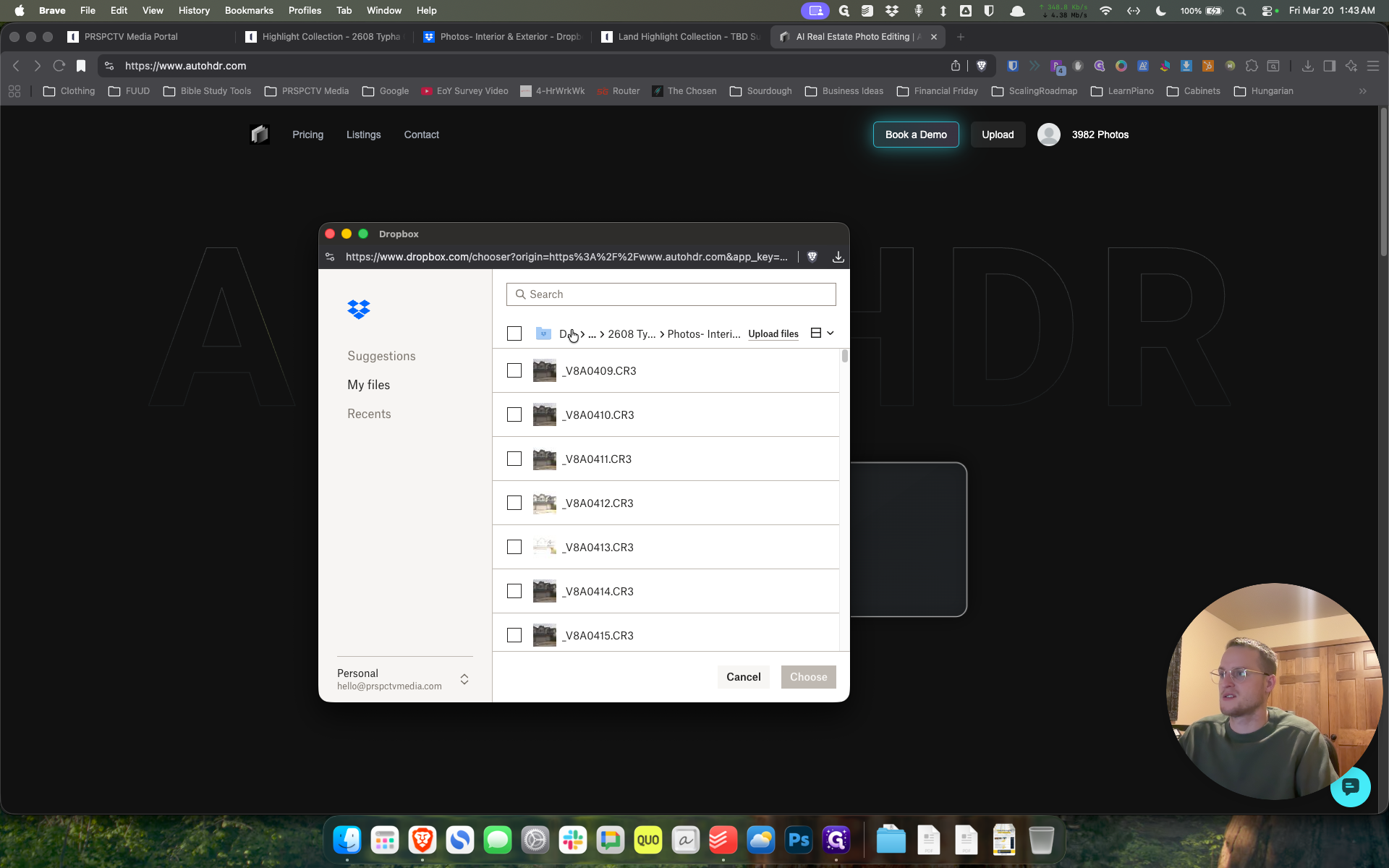
19
Click on "Day >"
Step #19: Click on "Day >"

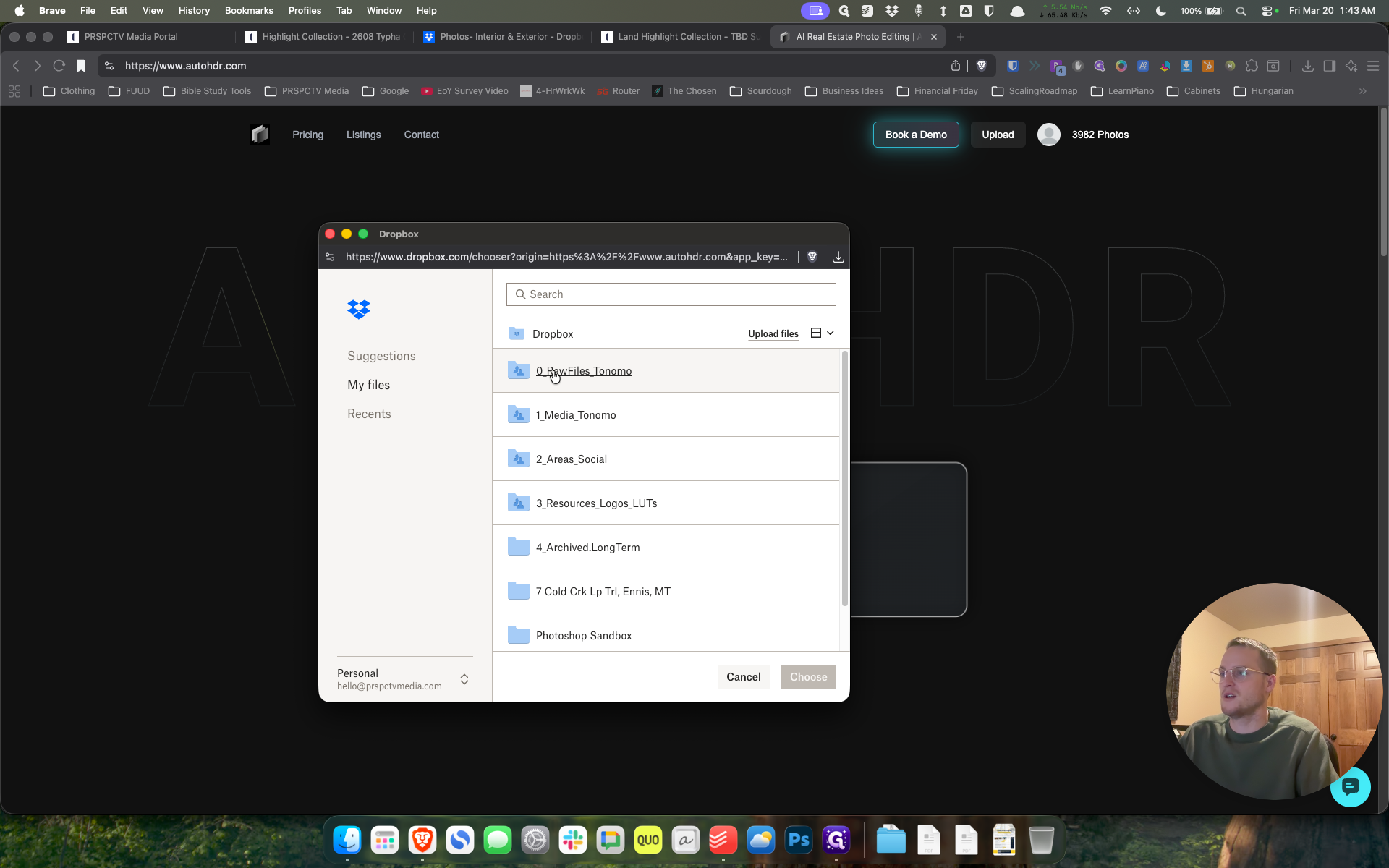
You can go Zero Raw.

20
Click on "0"
Step #20: Click on "0"
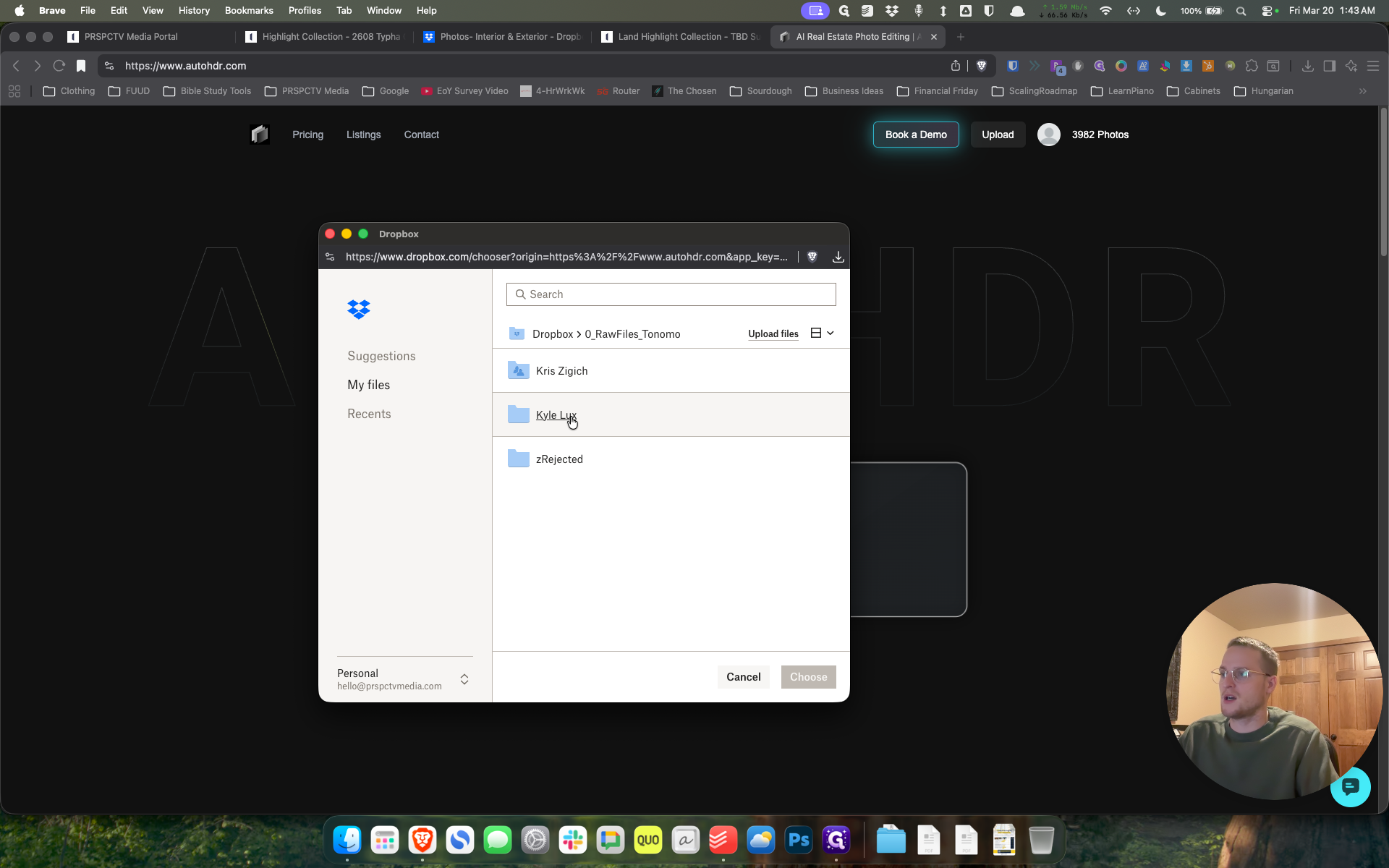
21
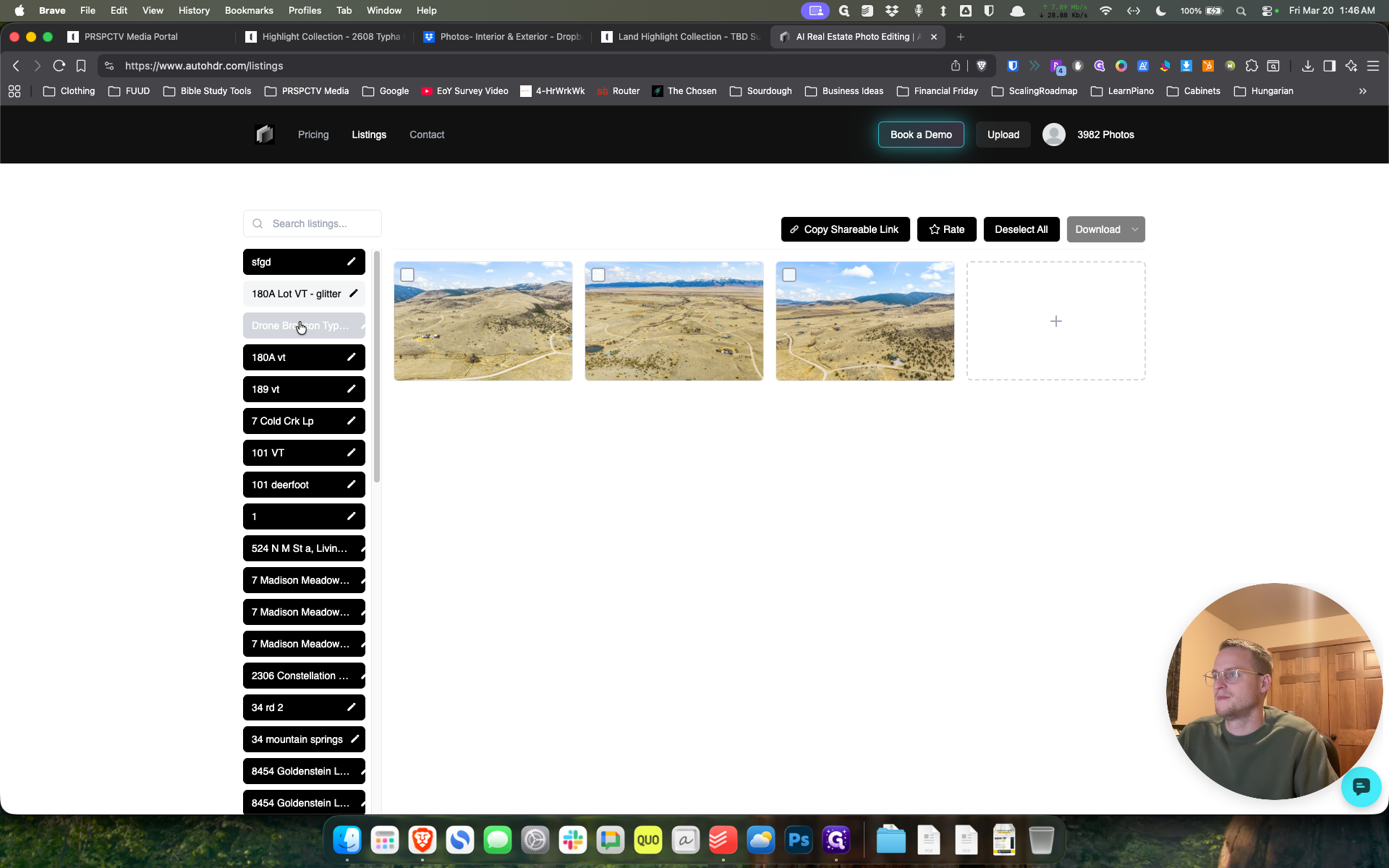
Click on "Ly"
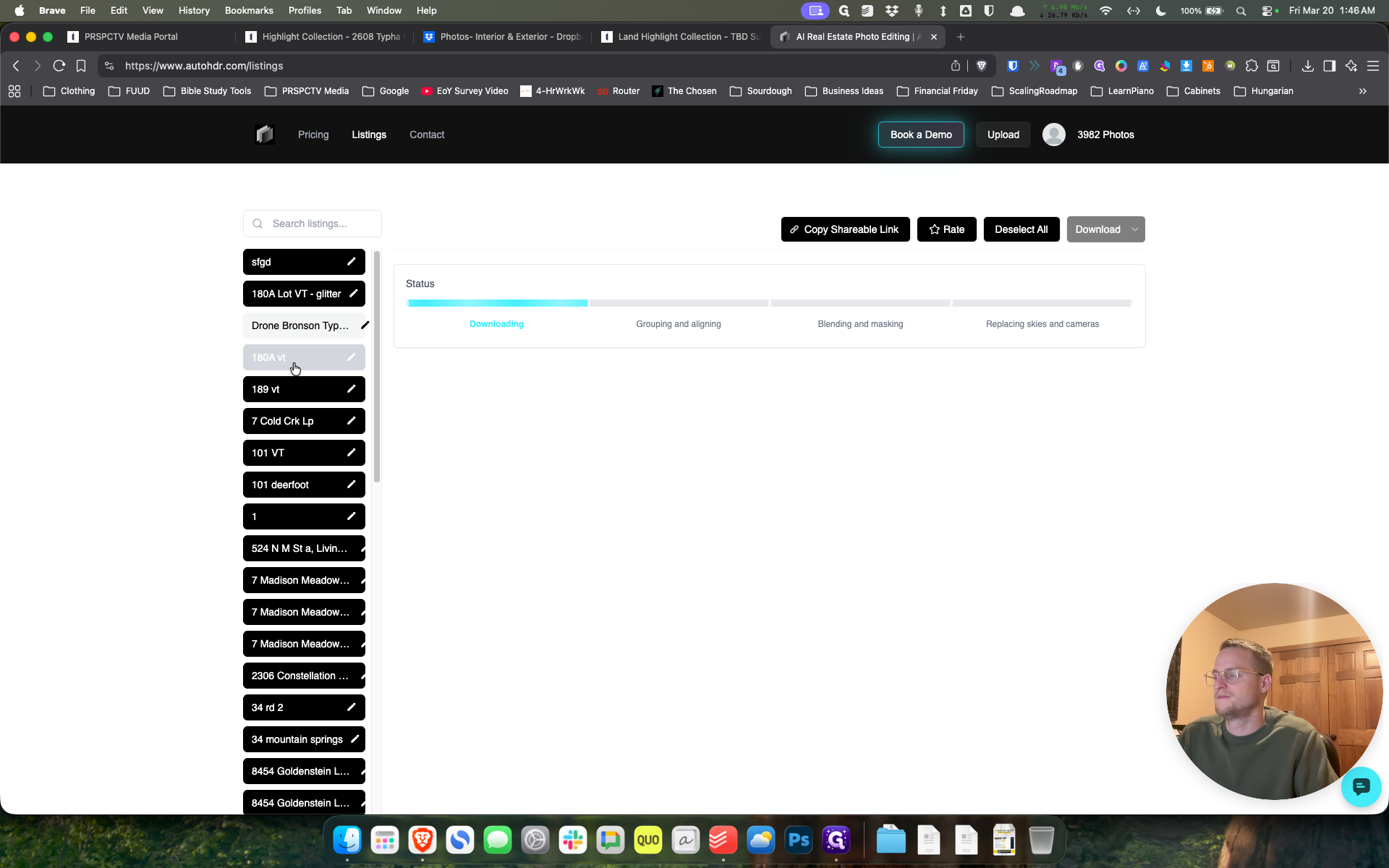
Step #21: Click on "Ly"

Let's go, Kyle.

22
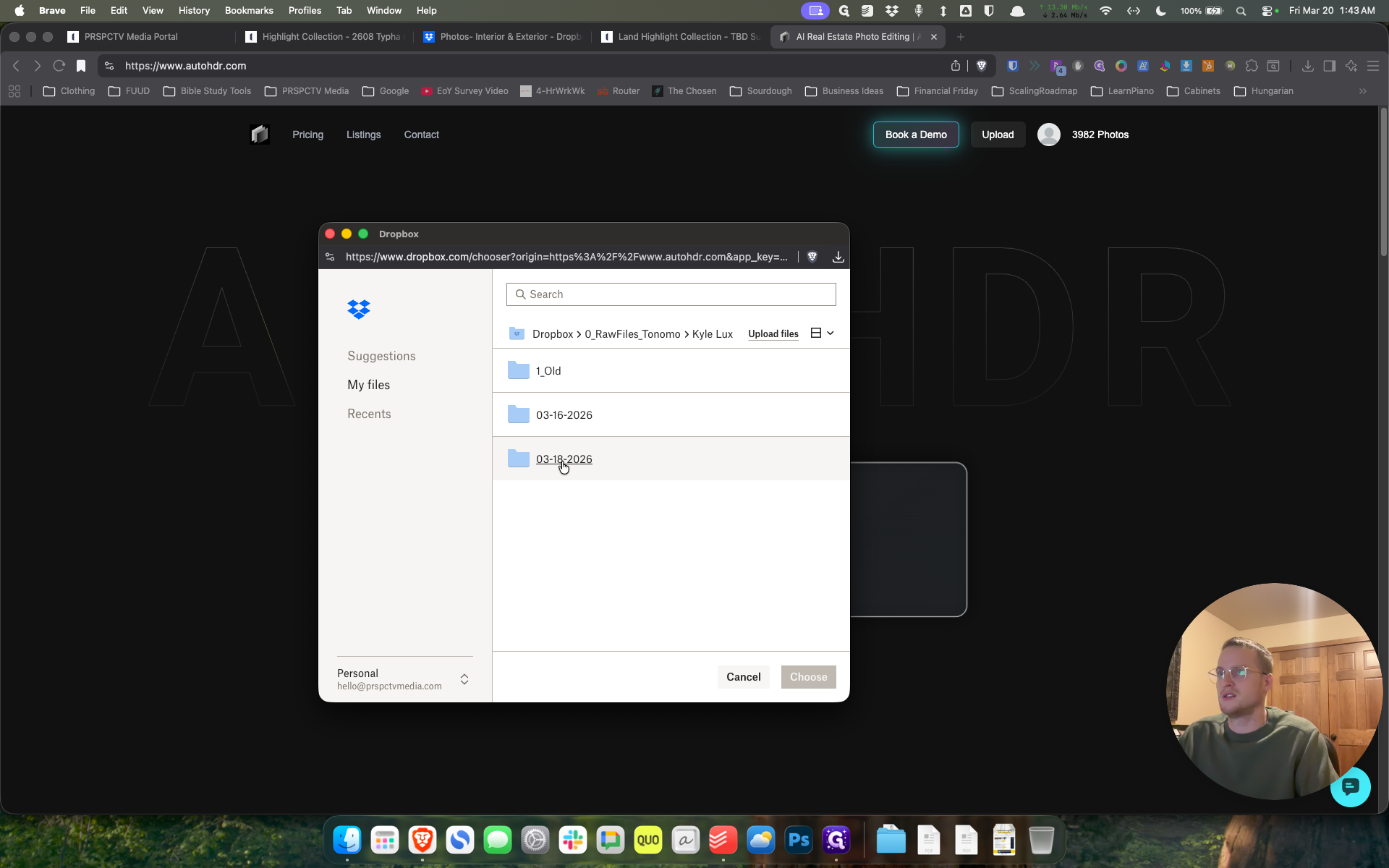
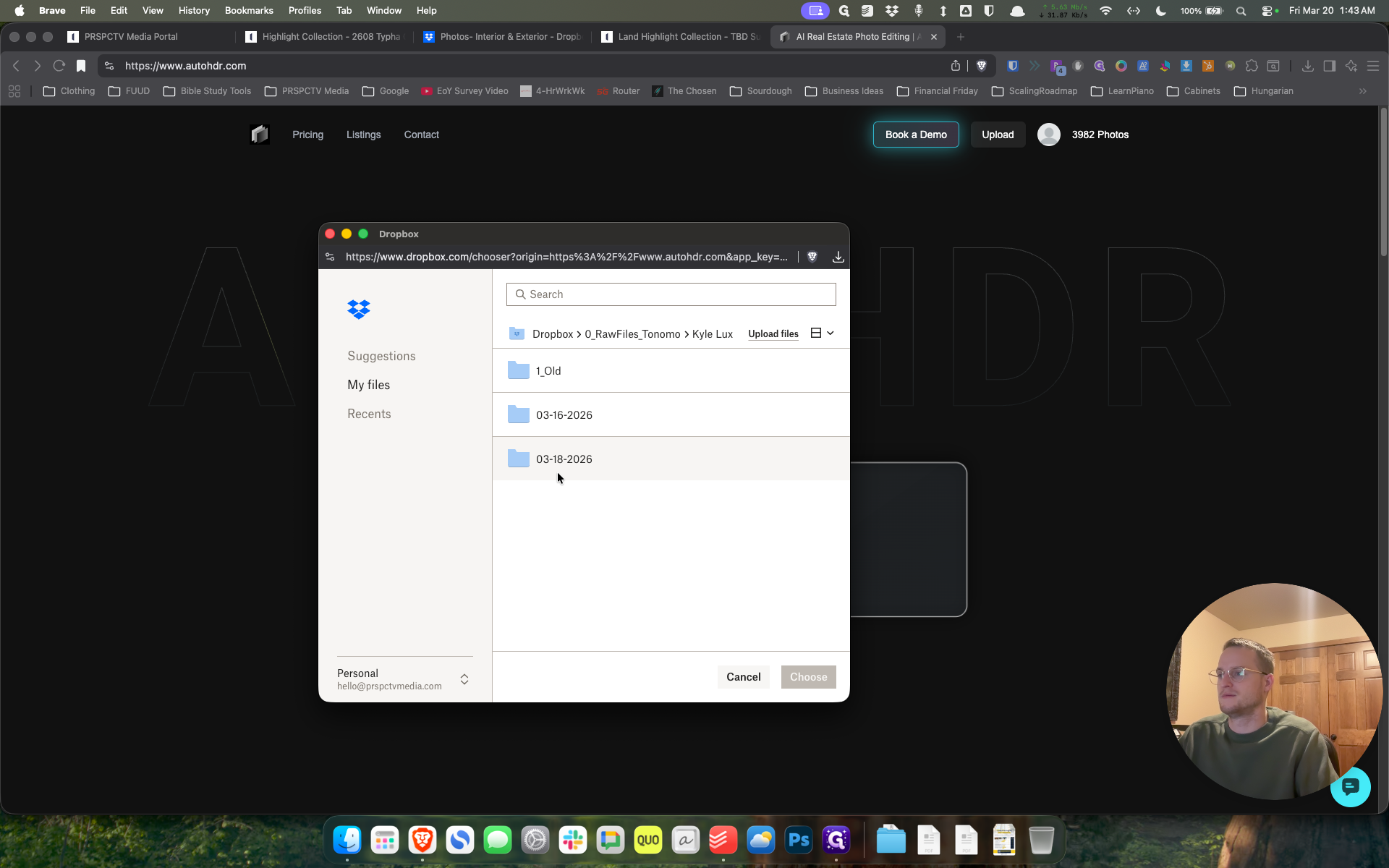
Click on "03-18-2026"
Step #22: Click on "03-18-2026"

Let's go to one of these shoots.

23
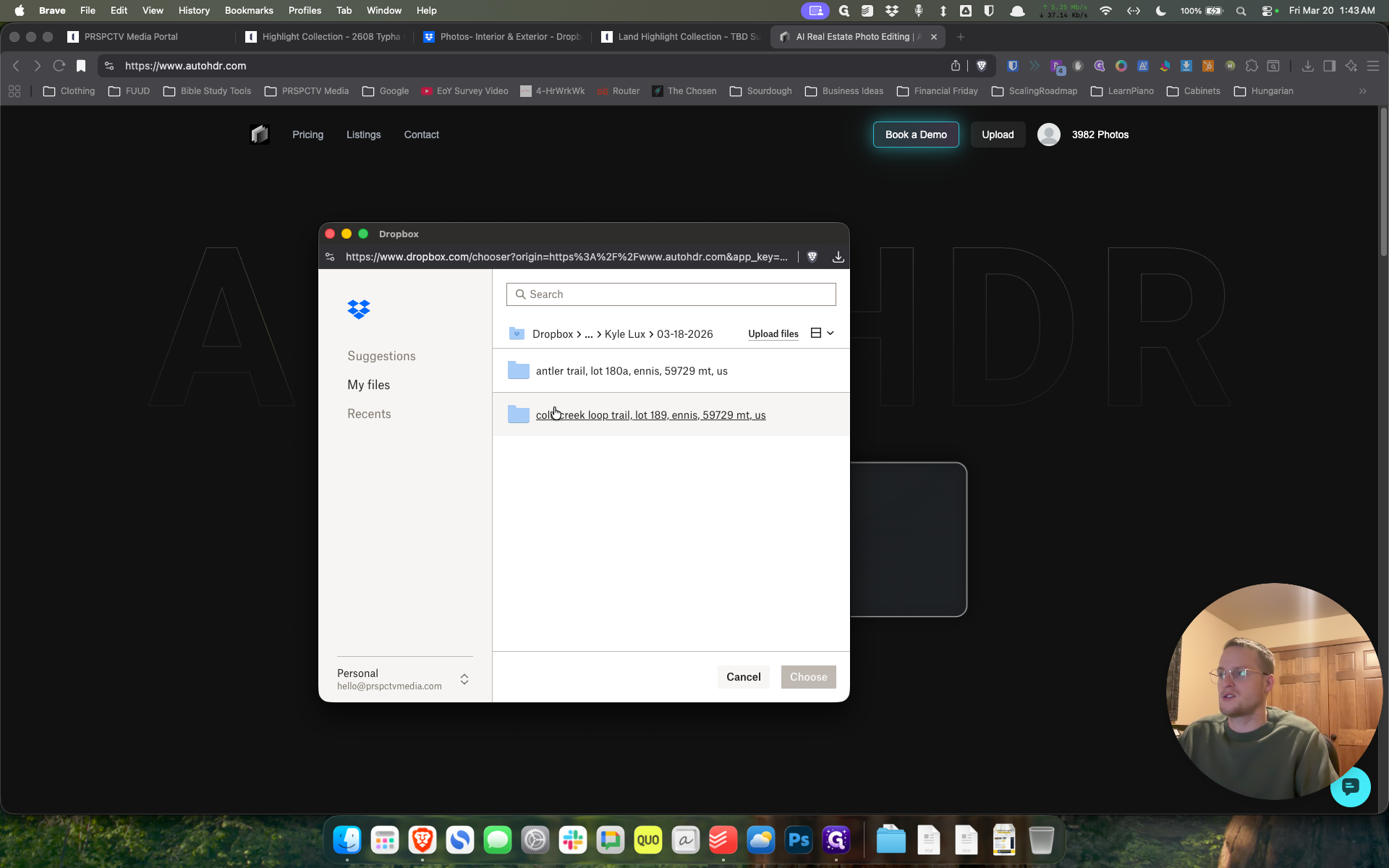
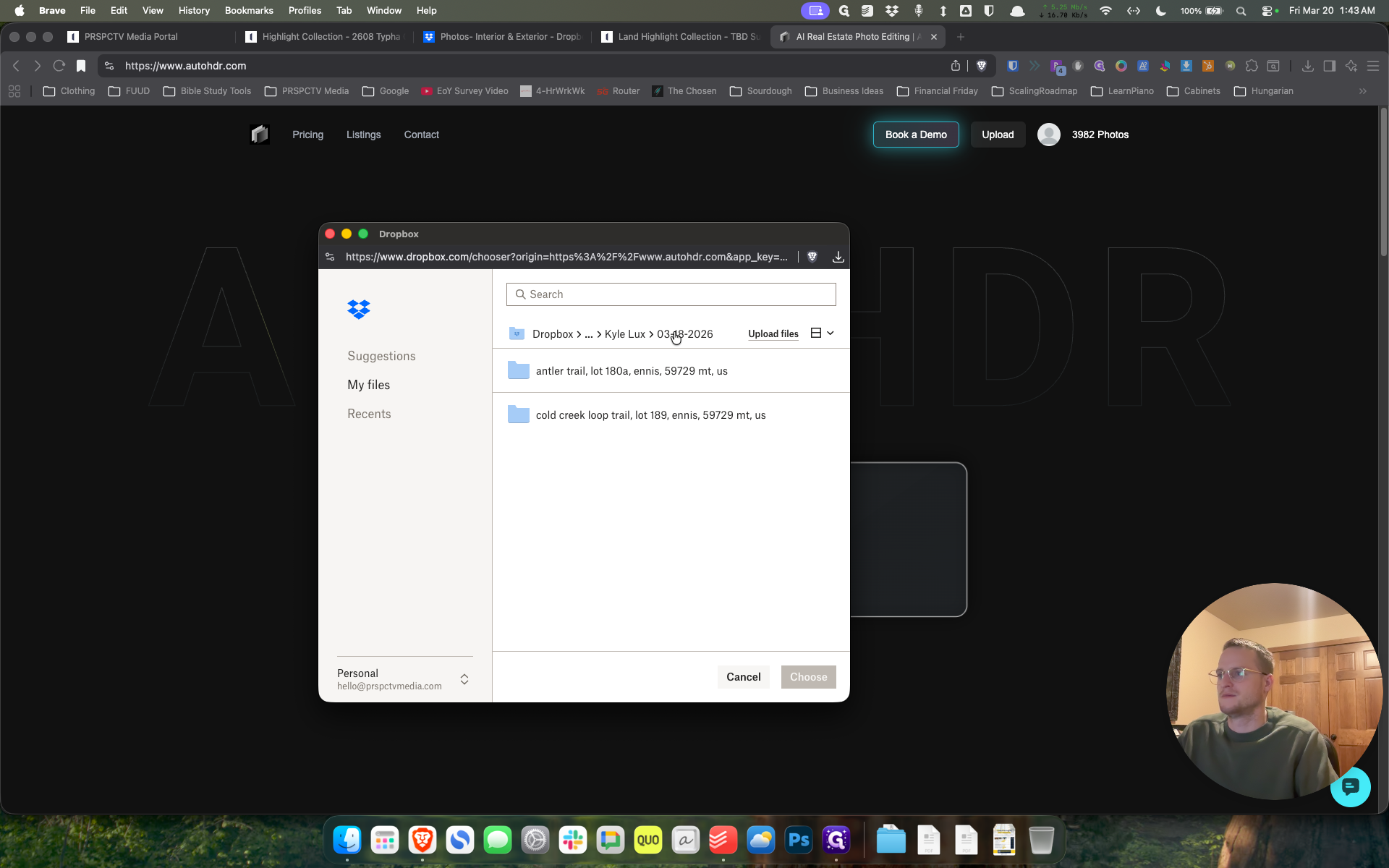
Click on "colcreek loop"
Step #23: Click on "colcreek loop"
24
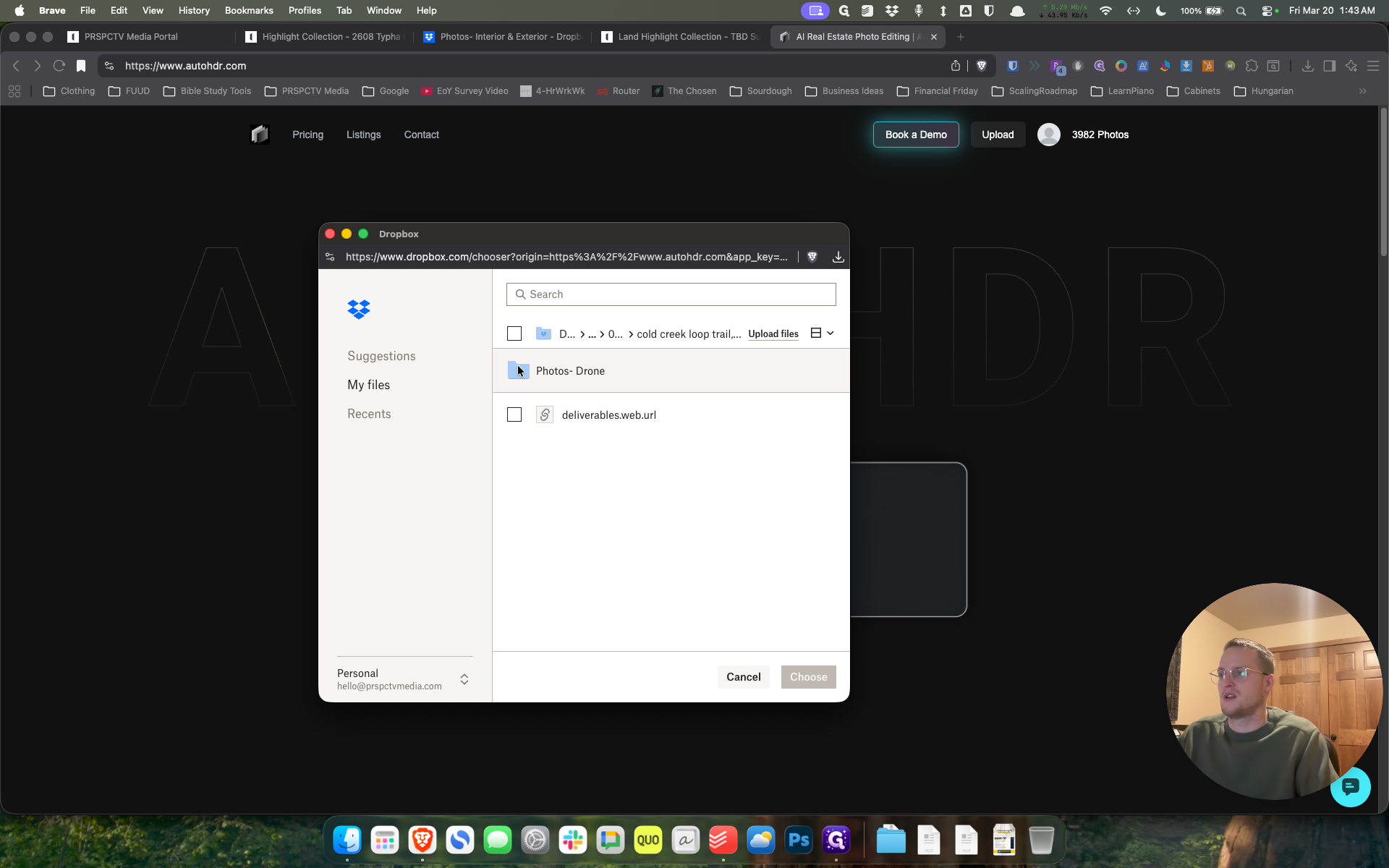
Click here
Step #24: Click here

For example, choose, and sometimes it will take some time.
25
Click on "D ... > ."
Step #25: Click on "D ... > ."
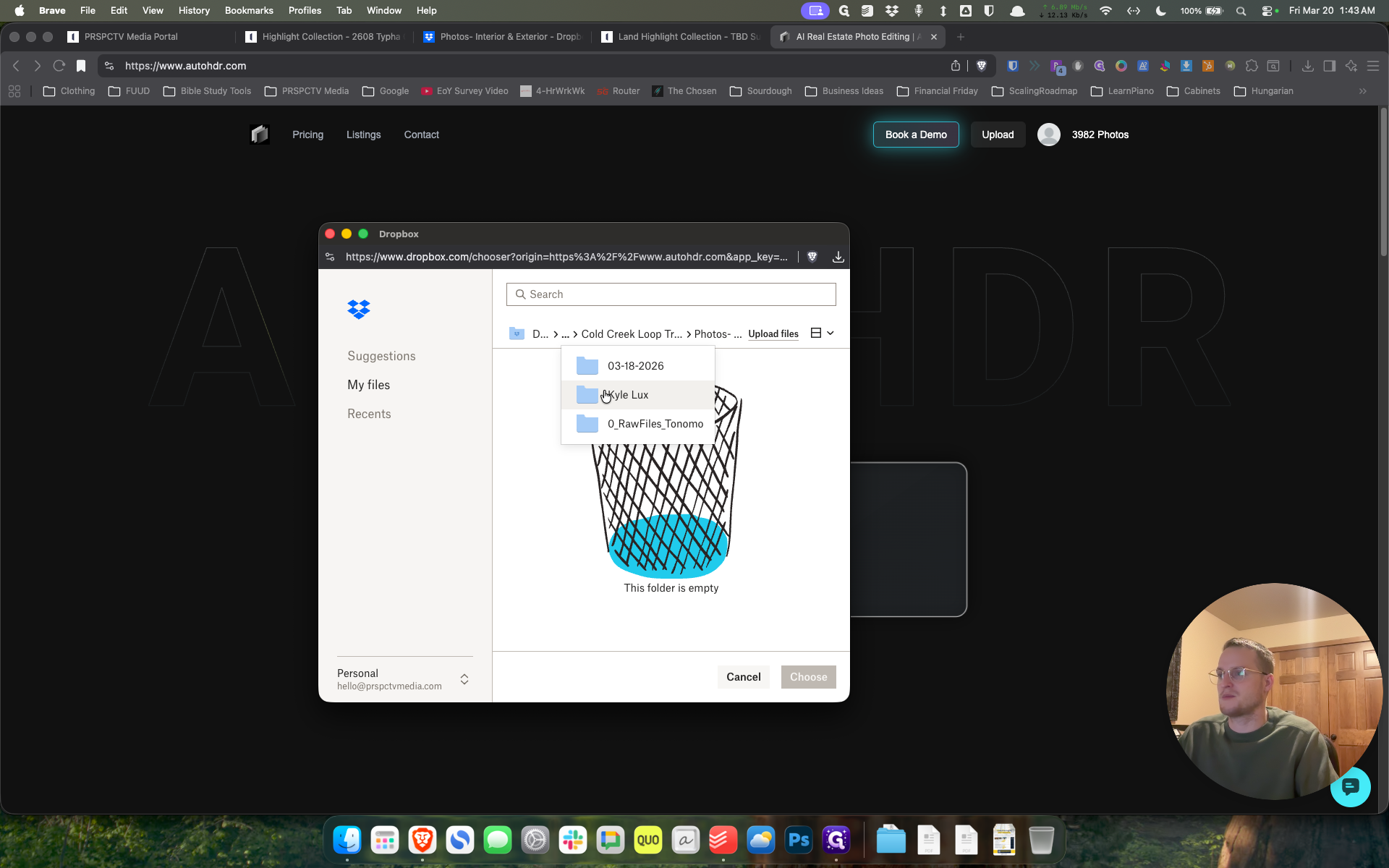
26
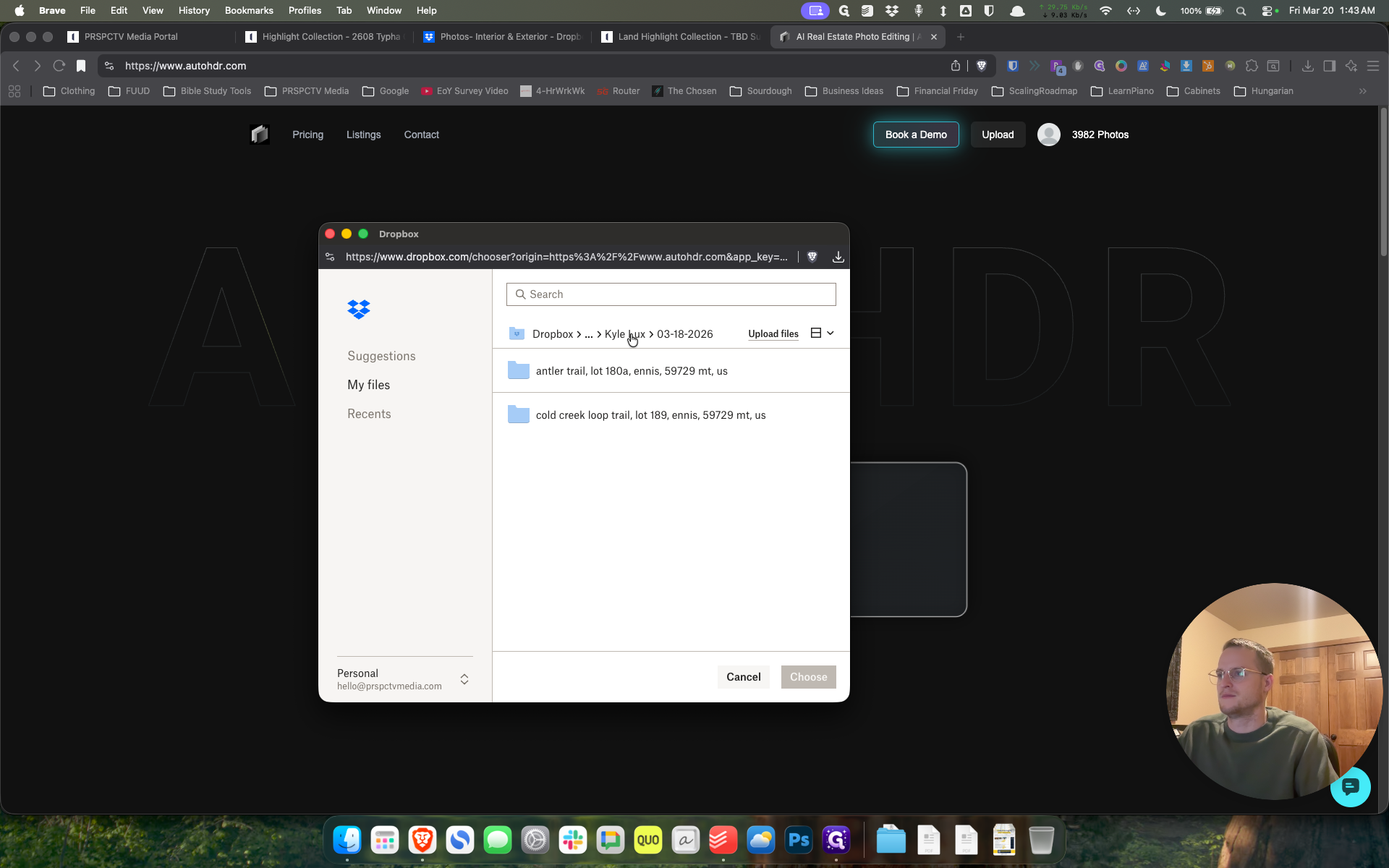
Click on "Kyle Lux"
Step #26: Click on "Kyle Lux"
27
Click here
Step #27: Click here
28
Click on "Dropbox > ... > Kyle Lux > 038-2026"
Step #28: Click on "Dropbox > ... > Kyle Lux > 038-2026"
29
Click on "Kyle hux >"
Step #29: Click on "Kyle hux >"
30
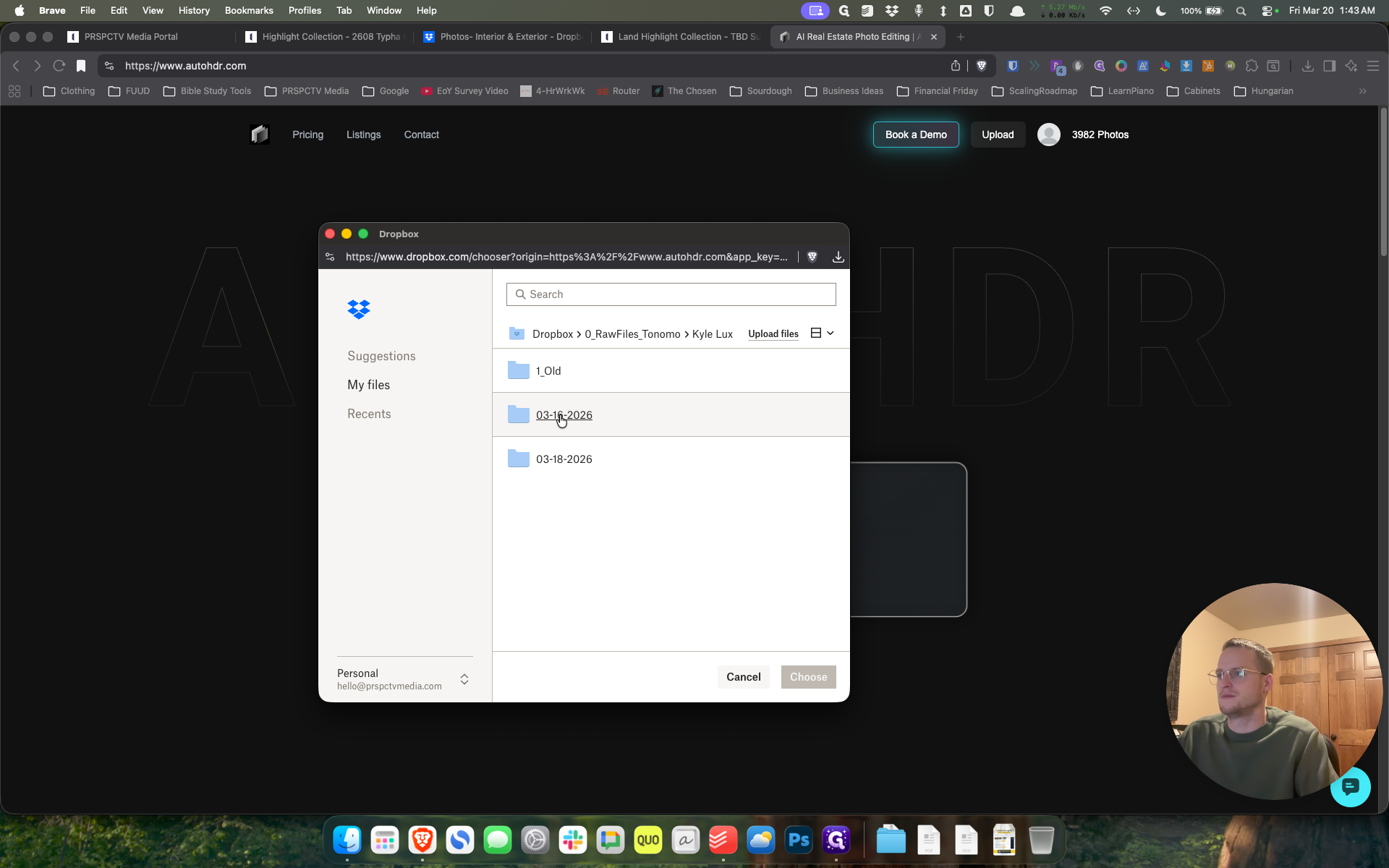
Click on "03-16-2026"
Step #30: Click on "03-16-2026"
31
Click on "2306"
Step #31: Click on "2306"
32
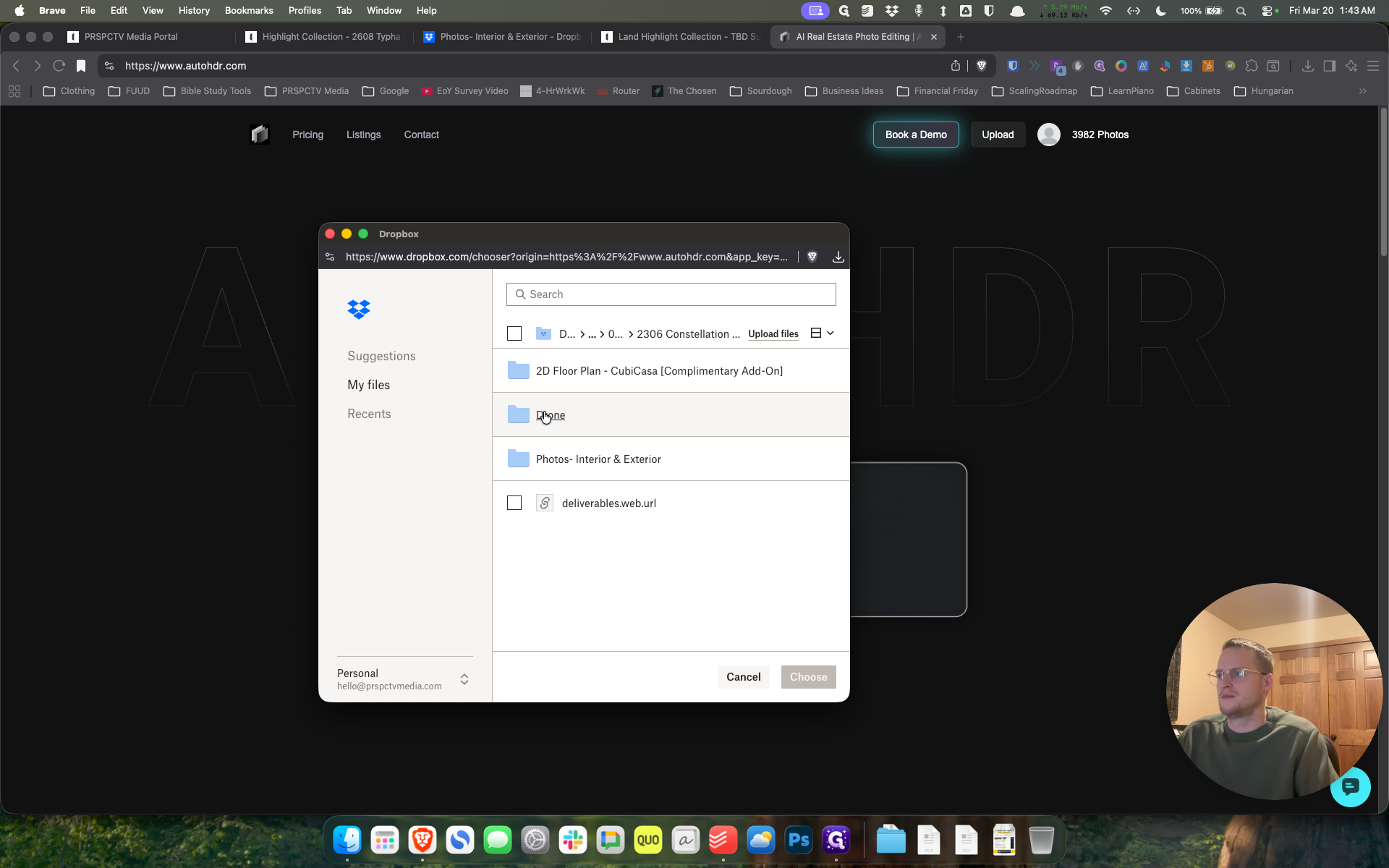
Click on "Dikone"
Step #32: Click on "Dikone"
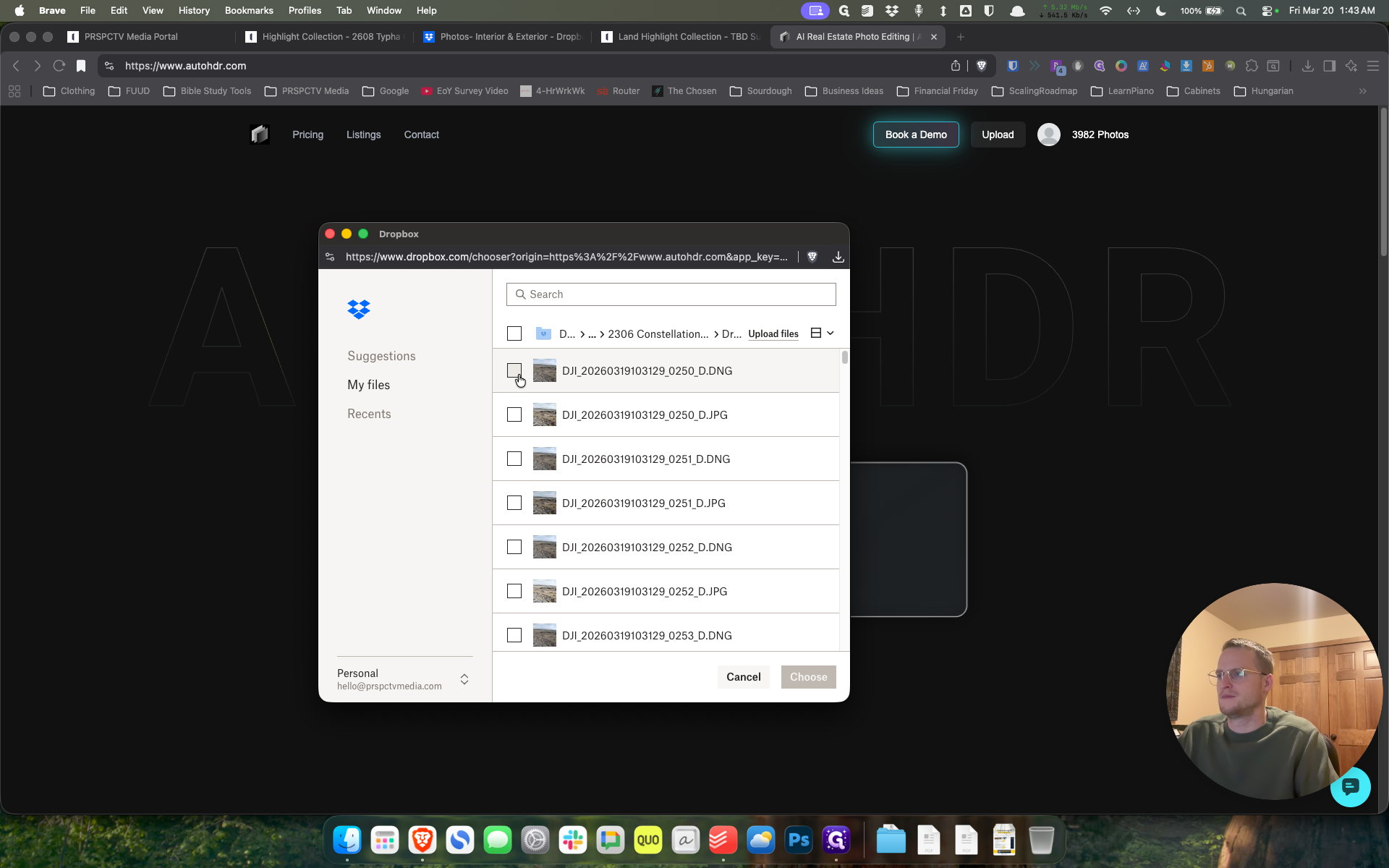
33
Click here
Step #33: Click here
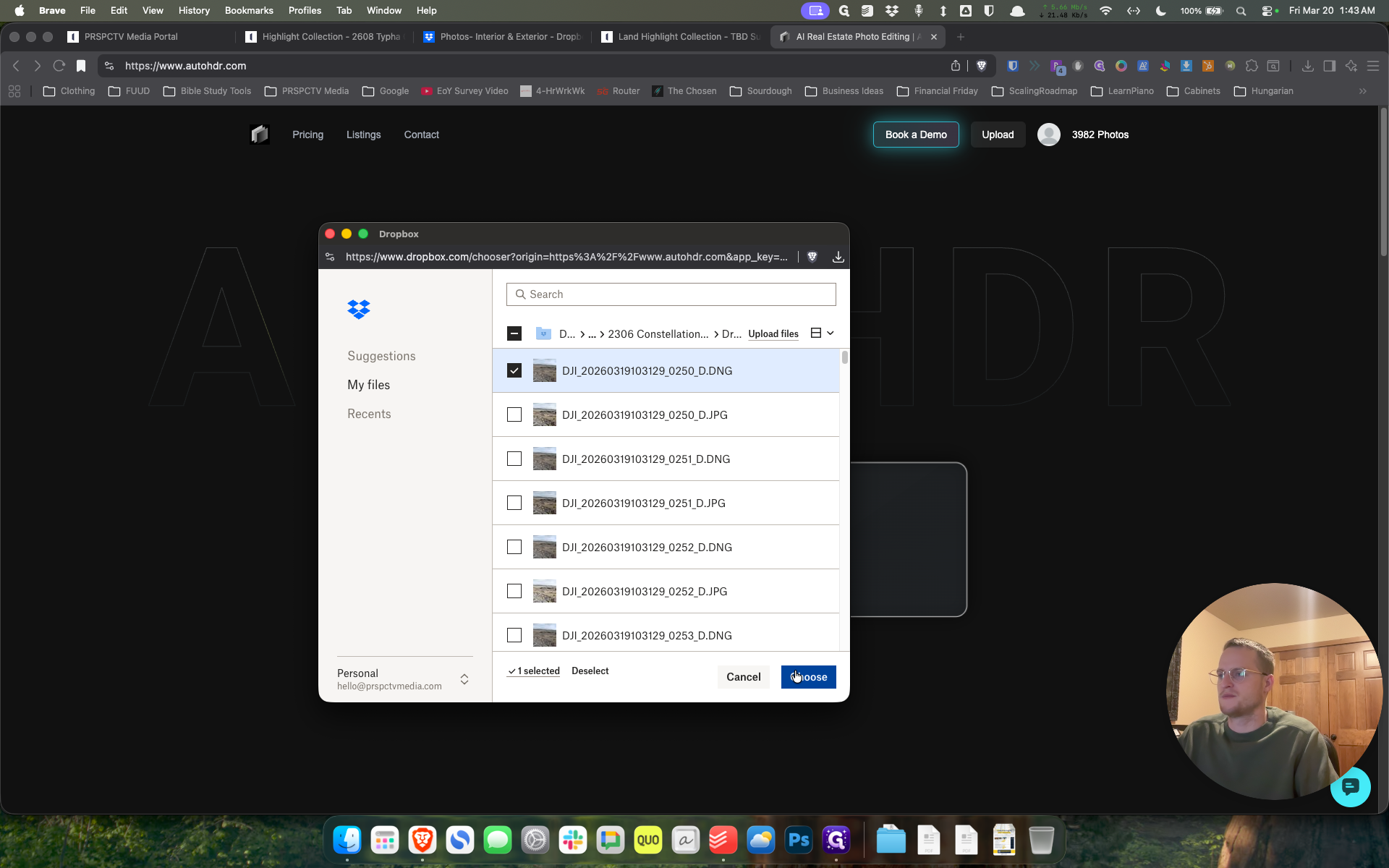
34
Click on "Choose"
Step #34: Click on "Choose"

I'm doing a random one.

35
Type "sfgd"
36
Click on "Continue"
Step #36: Click on "Continue"

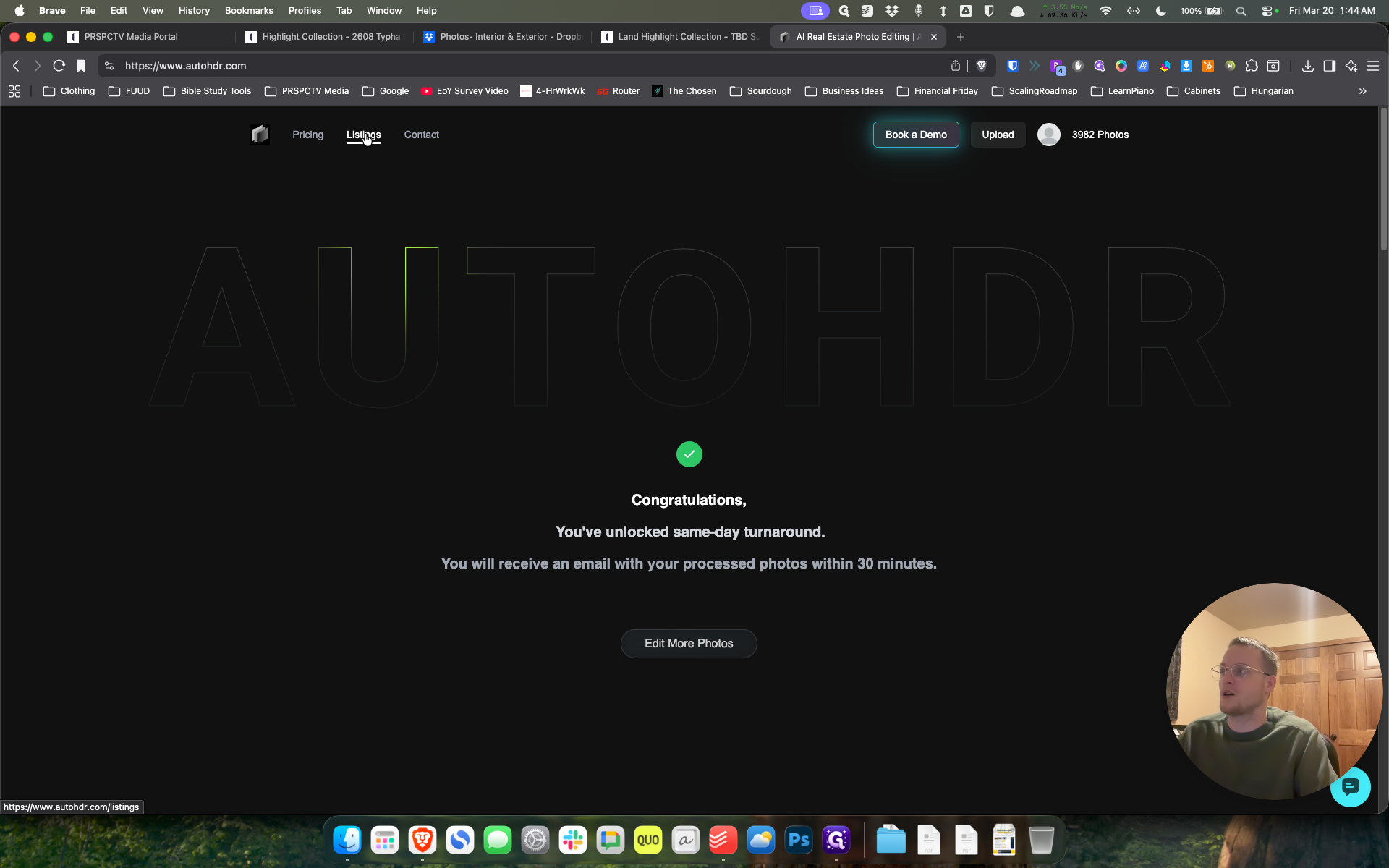
You should only turn off Perspective Correction and Sky Replacement if the photo has already been edited. However, if it has not been edited, leave those on. Now, whenever the photos are ready—and some already are—we're going to select Listings.
37
Click on "Listings"
Step #37: Click on "Listings"

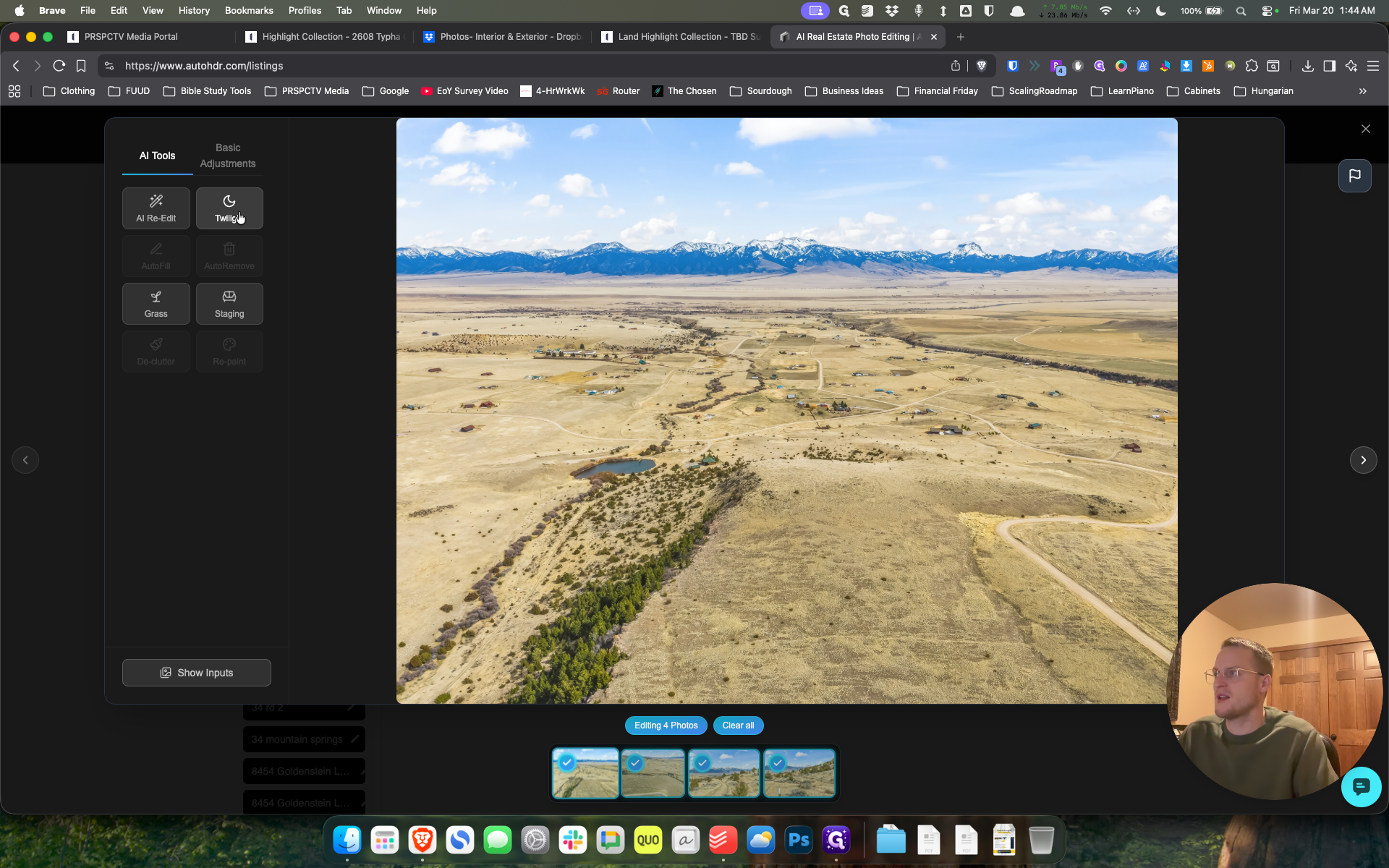
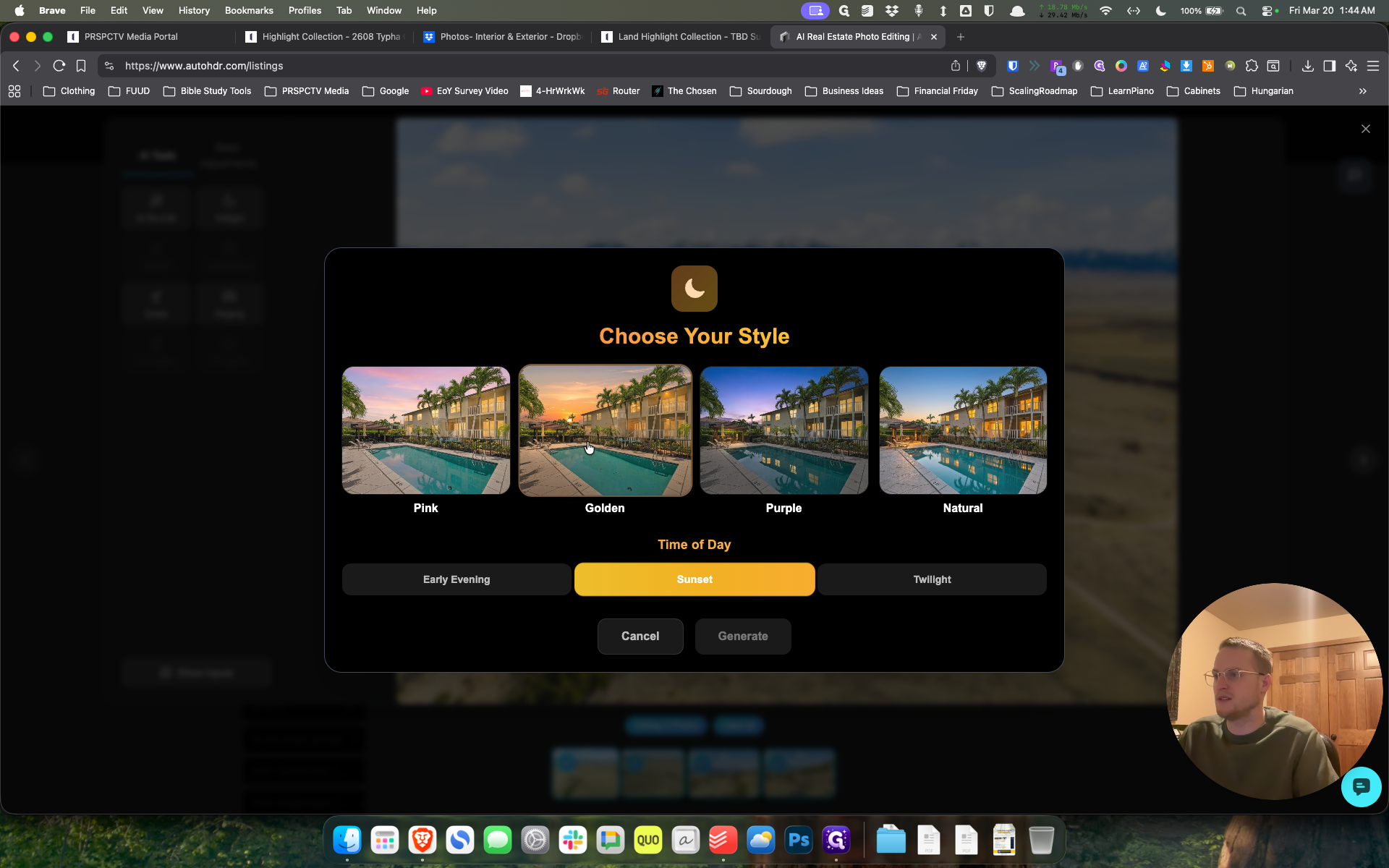
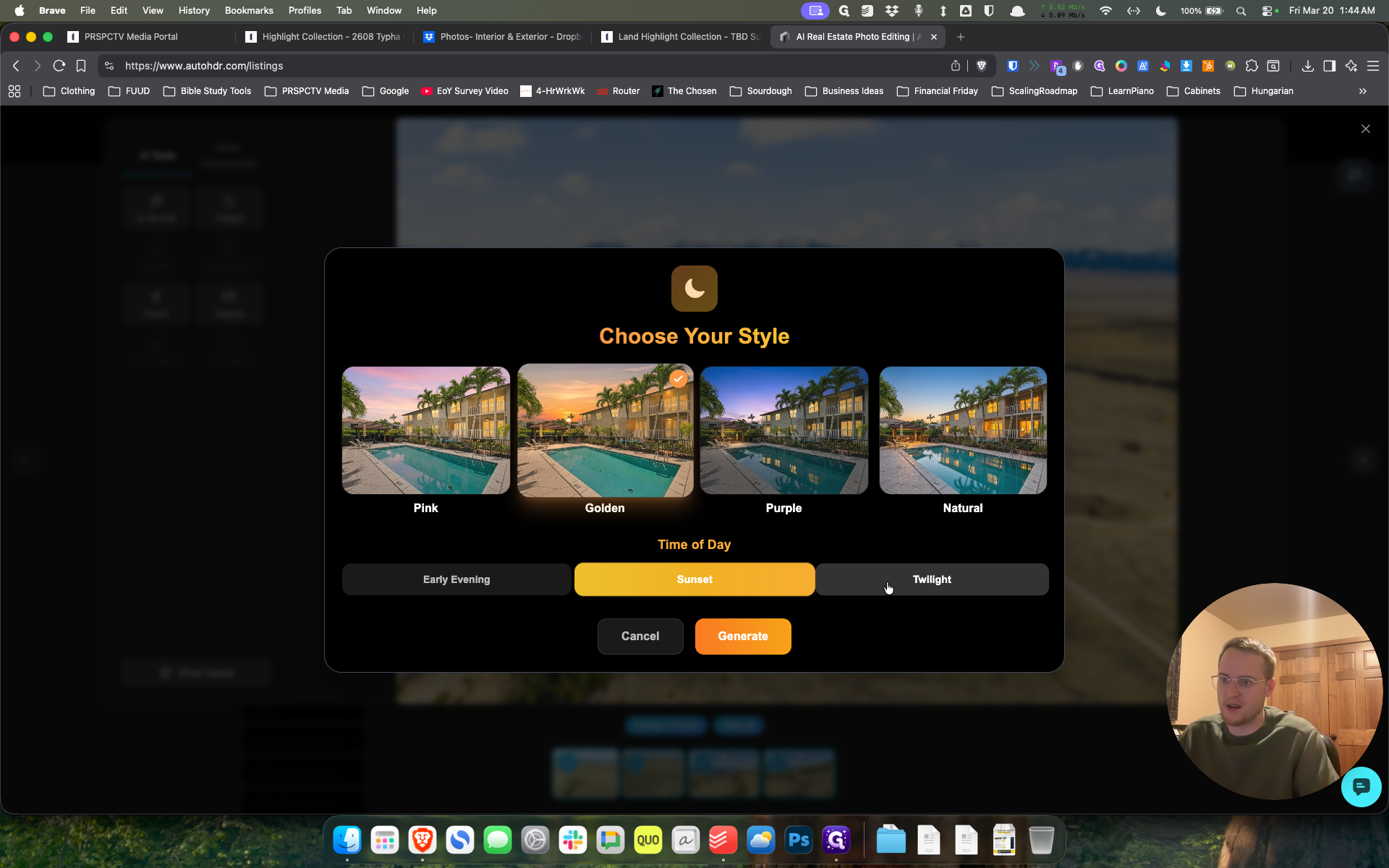
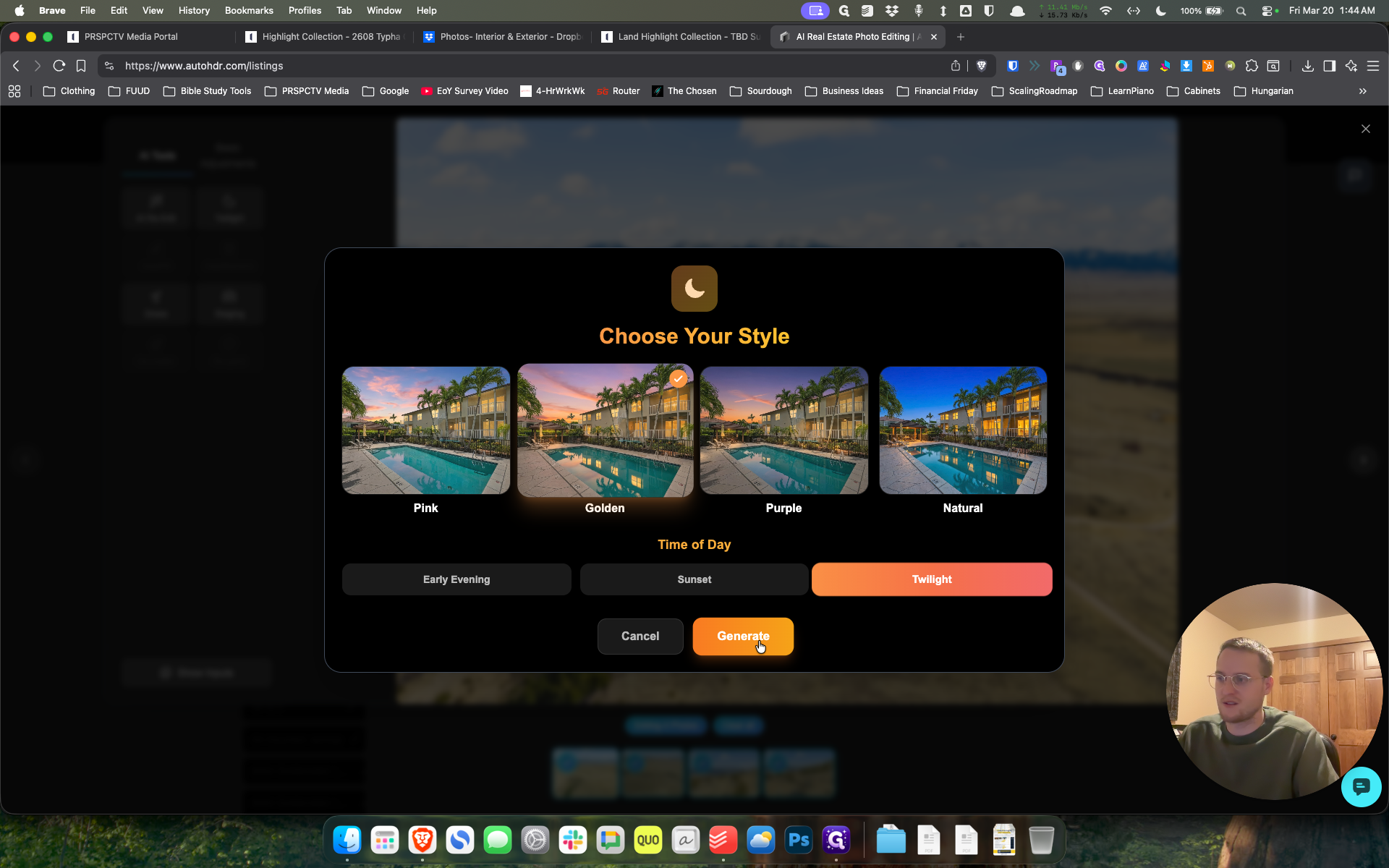
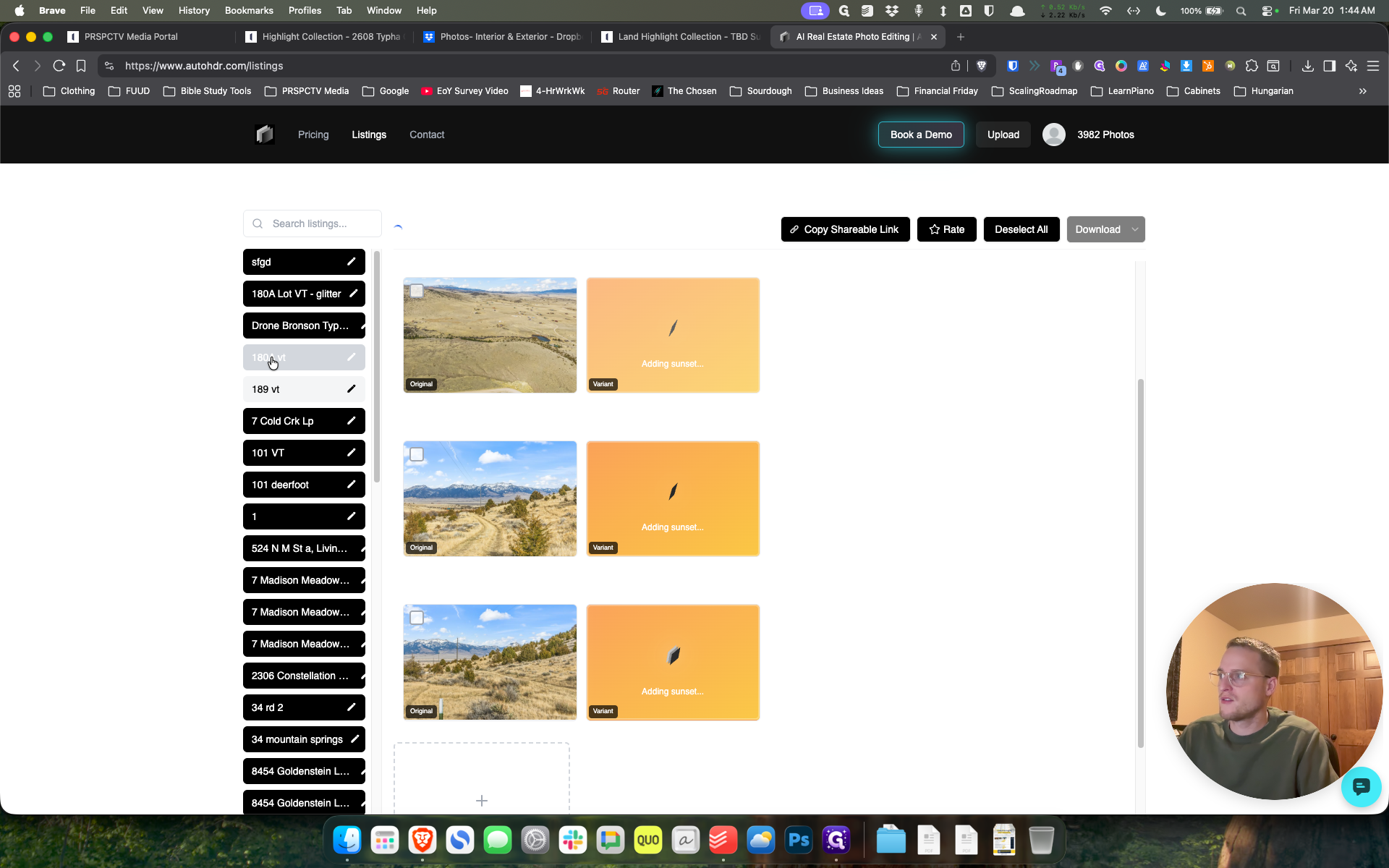
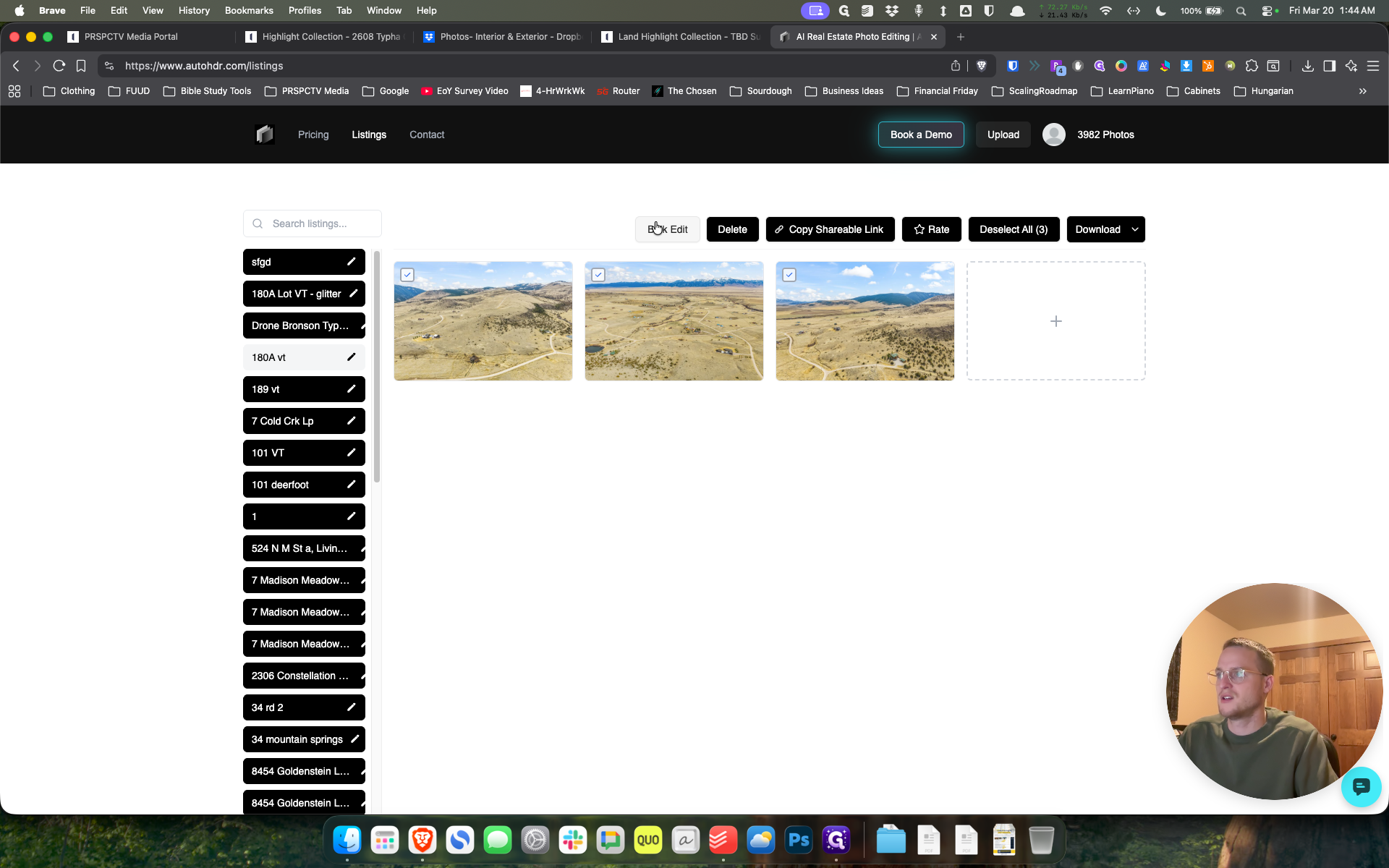
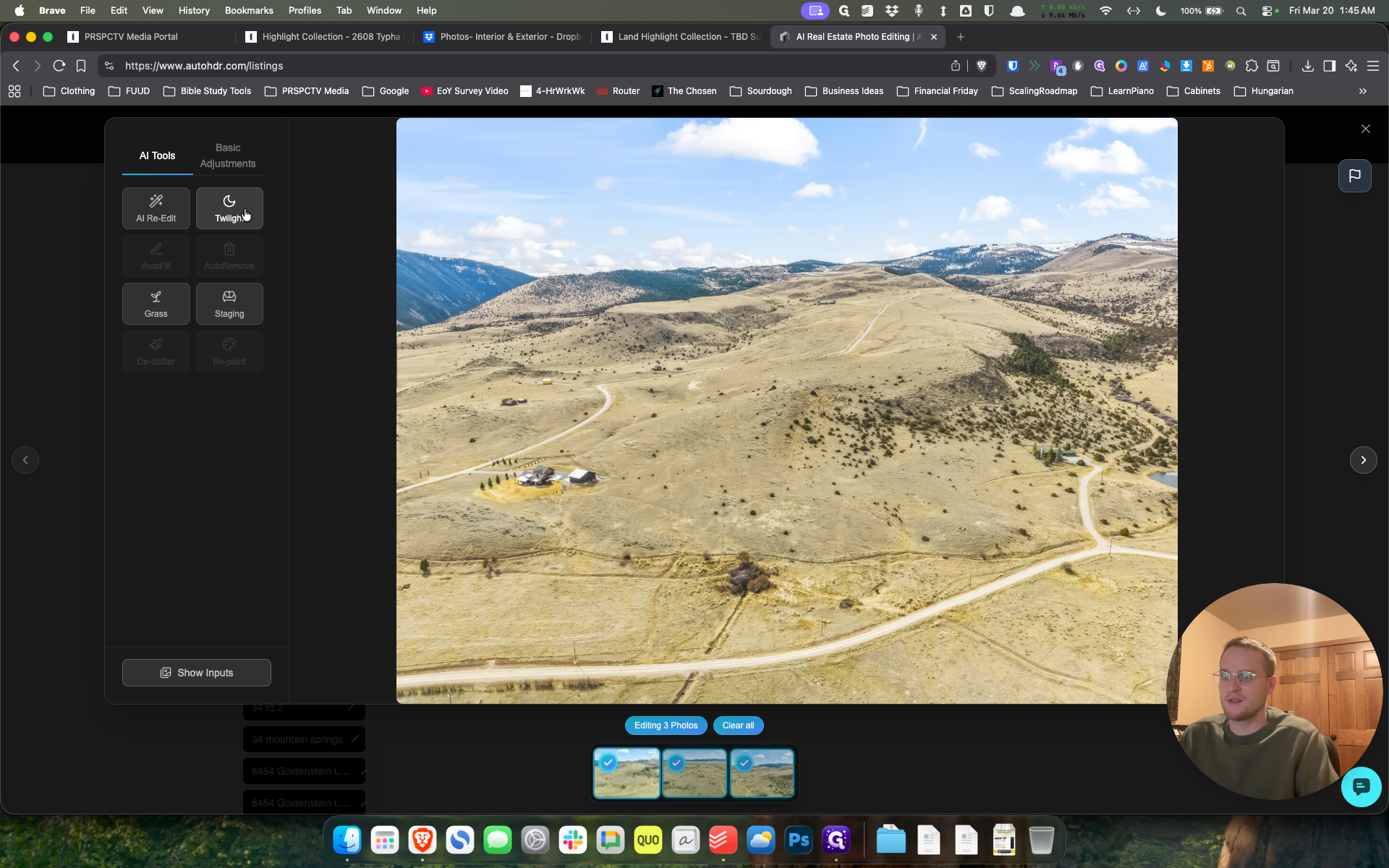
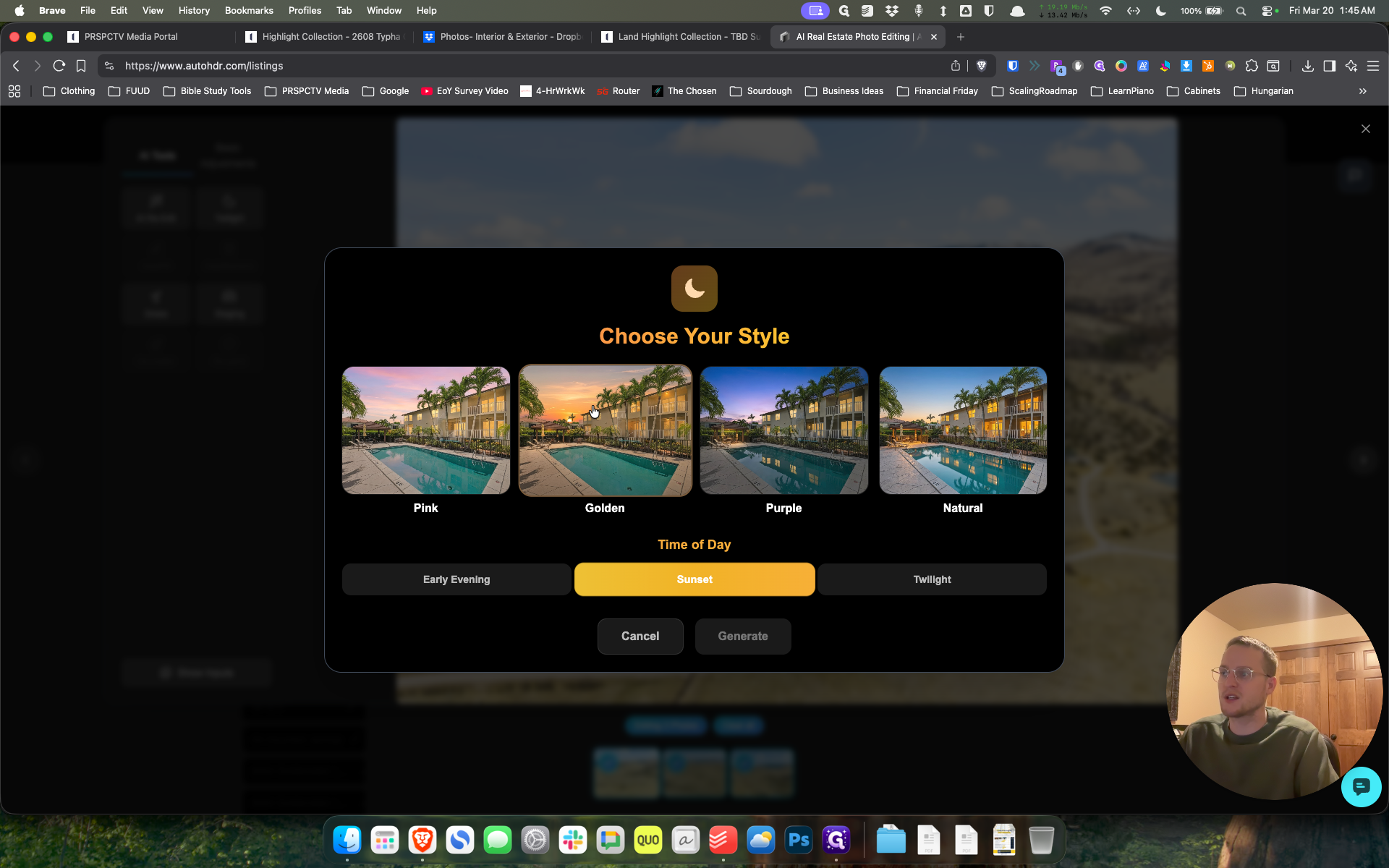
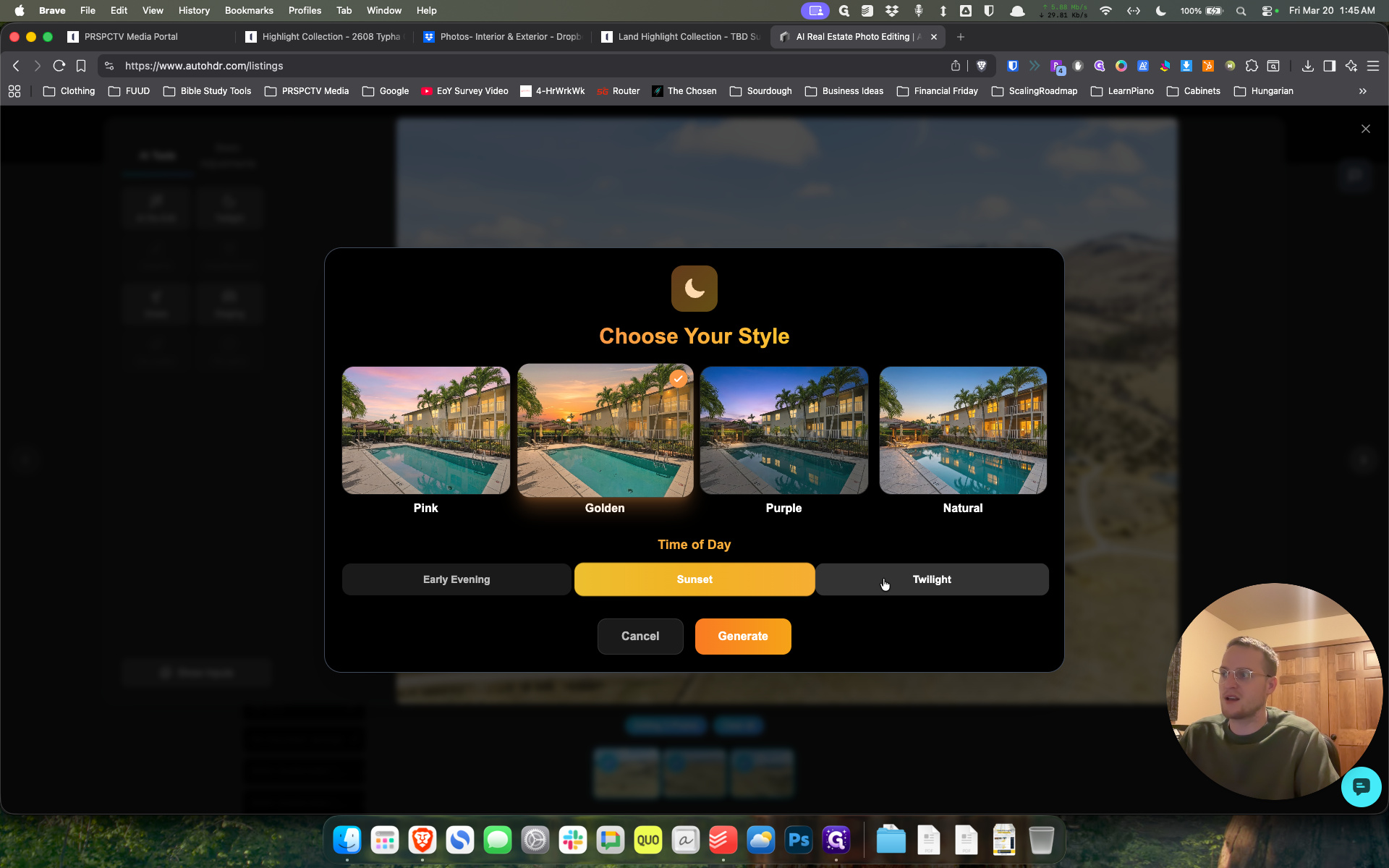
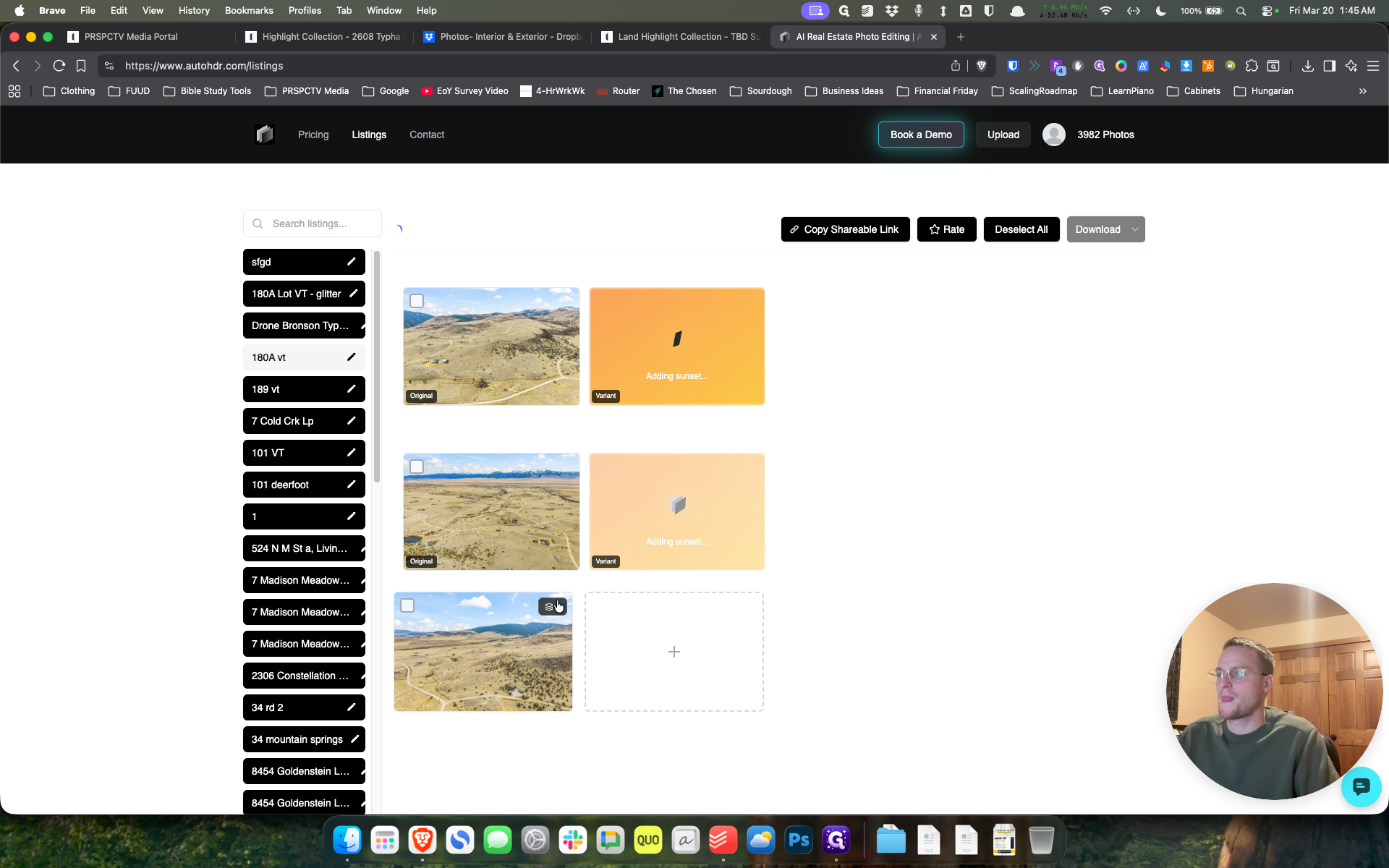
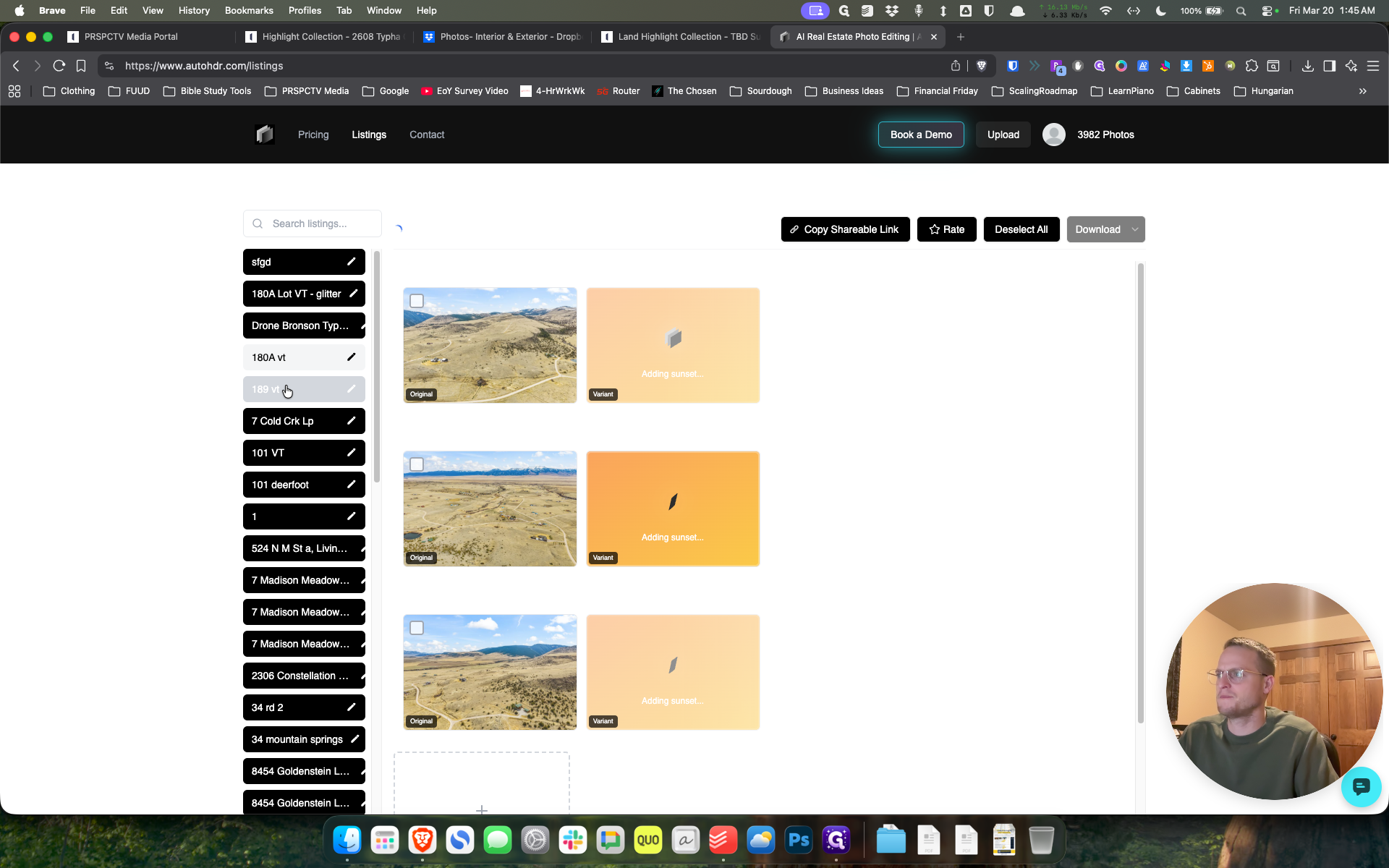
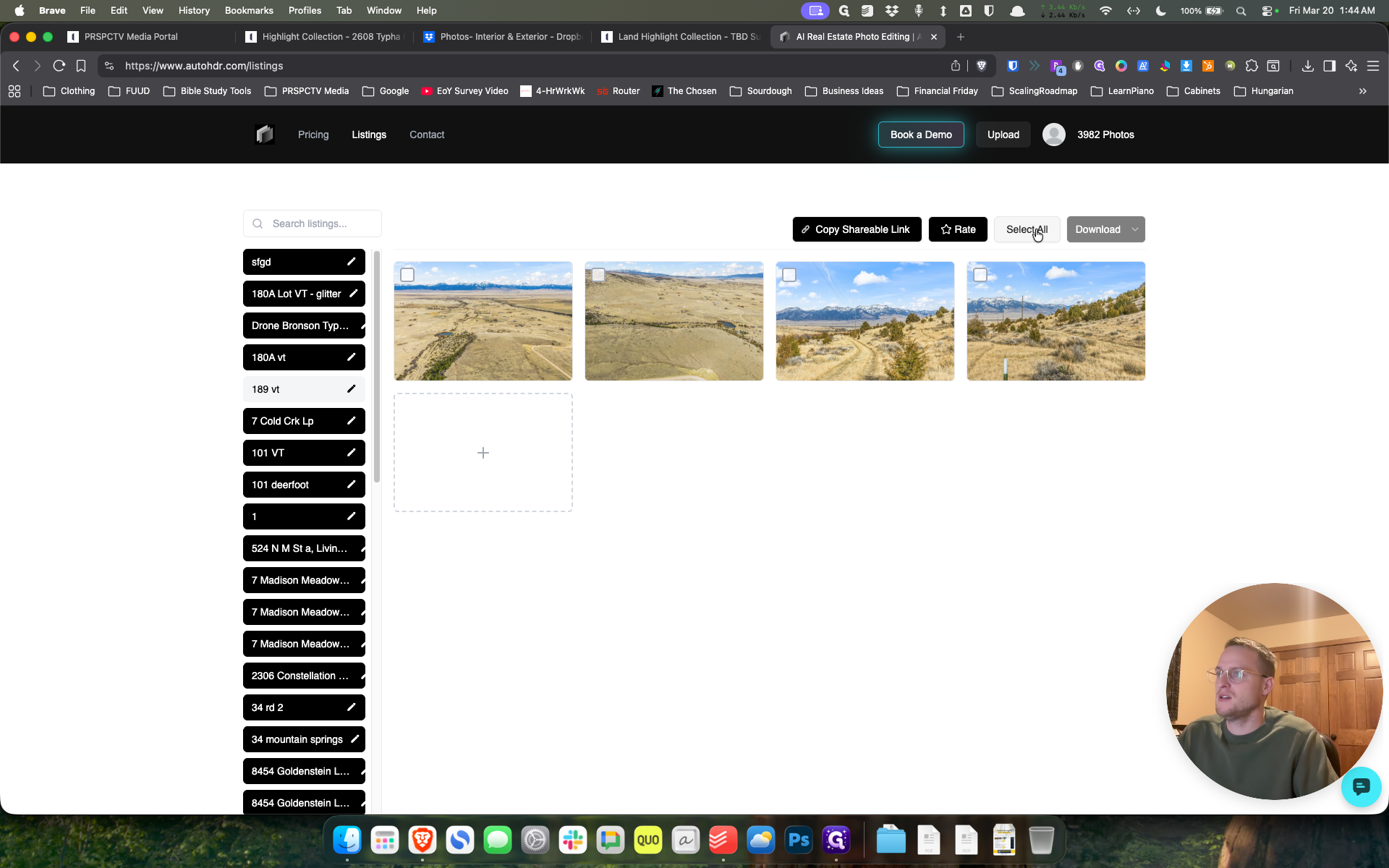
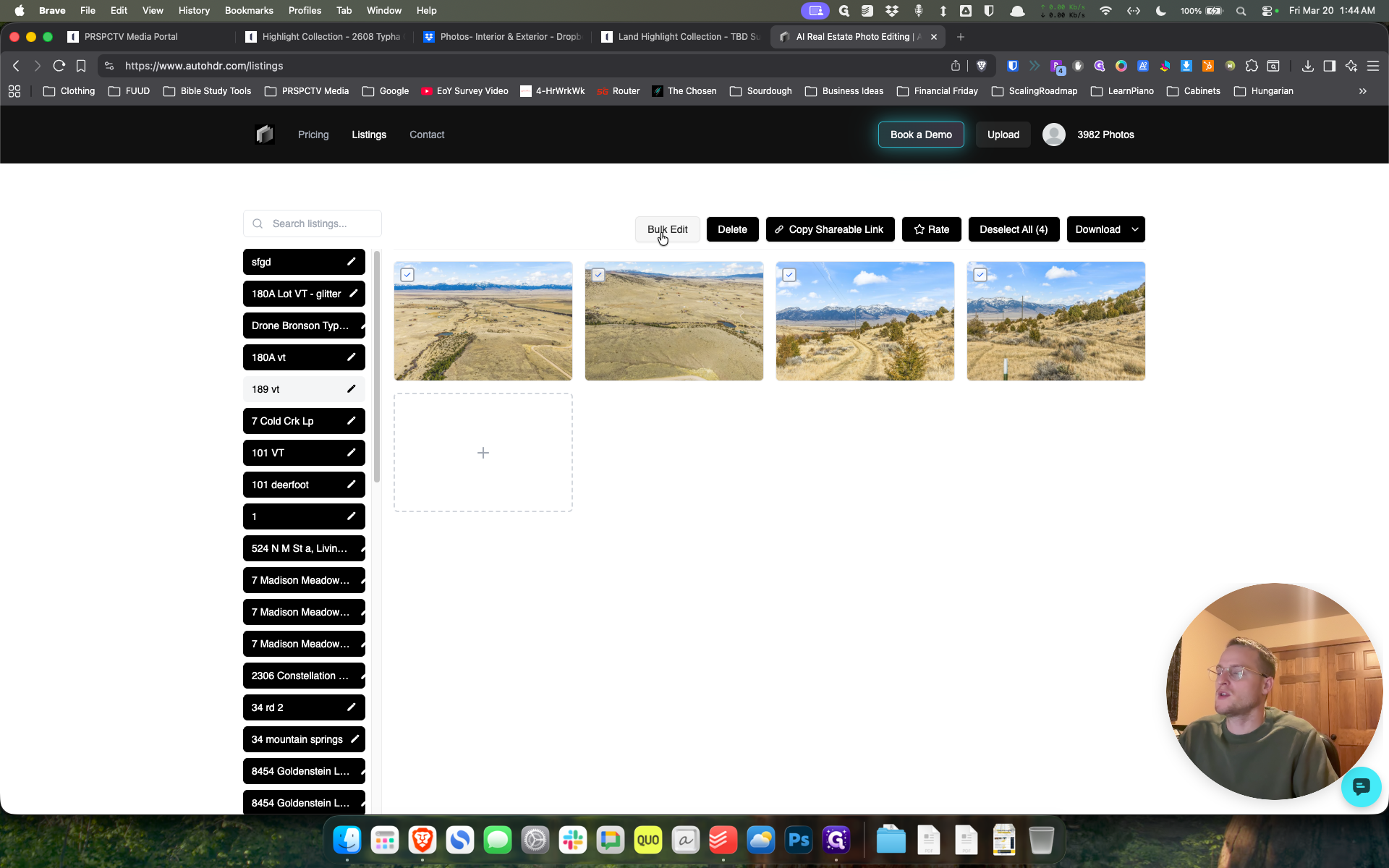
I uploaded these earlier today. Now, we'll go to 189 VT. I will select all, choose bulk edit, then select Twilight, Golden, and Twilight again.
38
Click on "SelectAll"
Step #38: Click on "SelectAll"
39
Click on "Bulk Edit"
Step #39: Click on "Bulk Edit"
40
Click on "Twilig"
Step #40: Click on "Twilig"
41
Click here
Step #41: Click here
42
Click here
Step #42: Click here

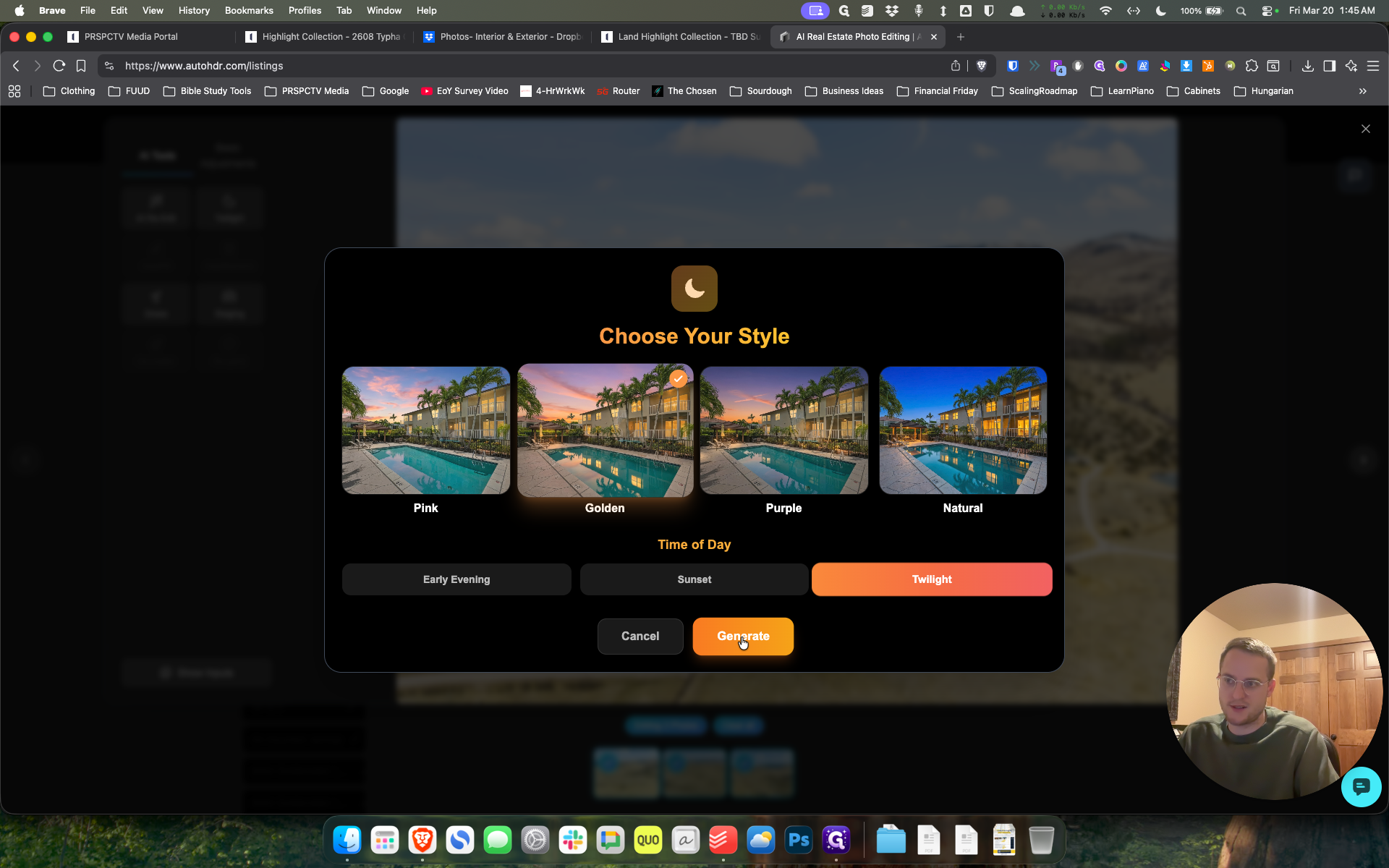
And then generate. That's fine.

43
Click on "Generate"
Step #43: Click on "Generate"
44
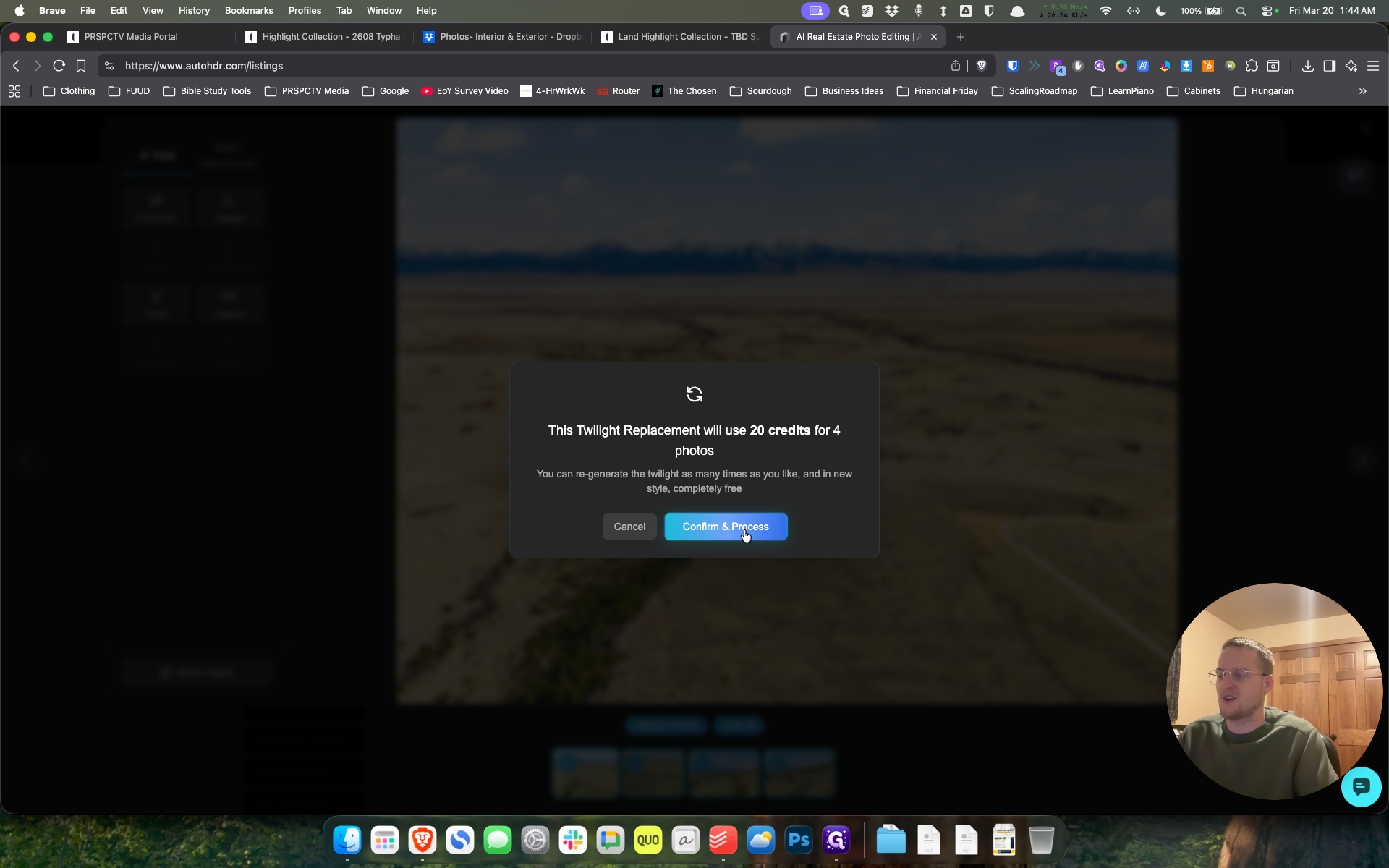
Click on "Confirm & Process"
Step #44: Click on "Confirm & Process"

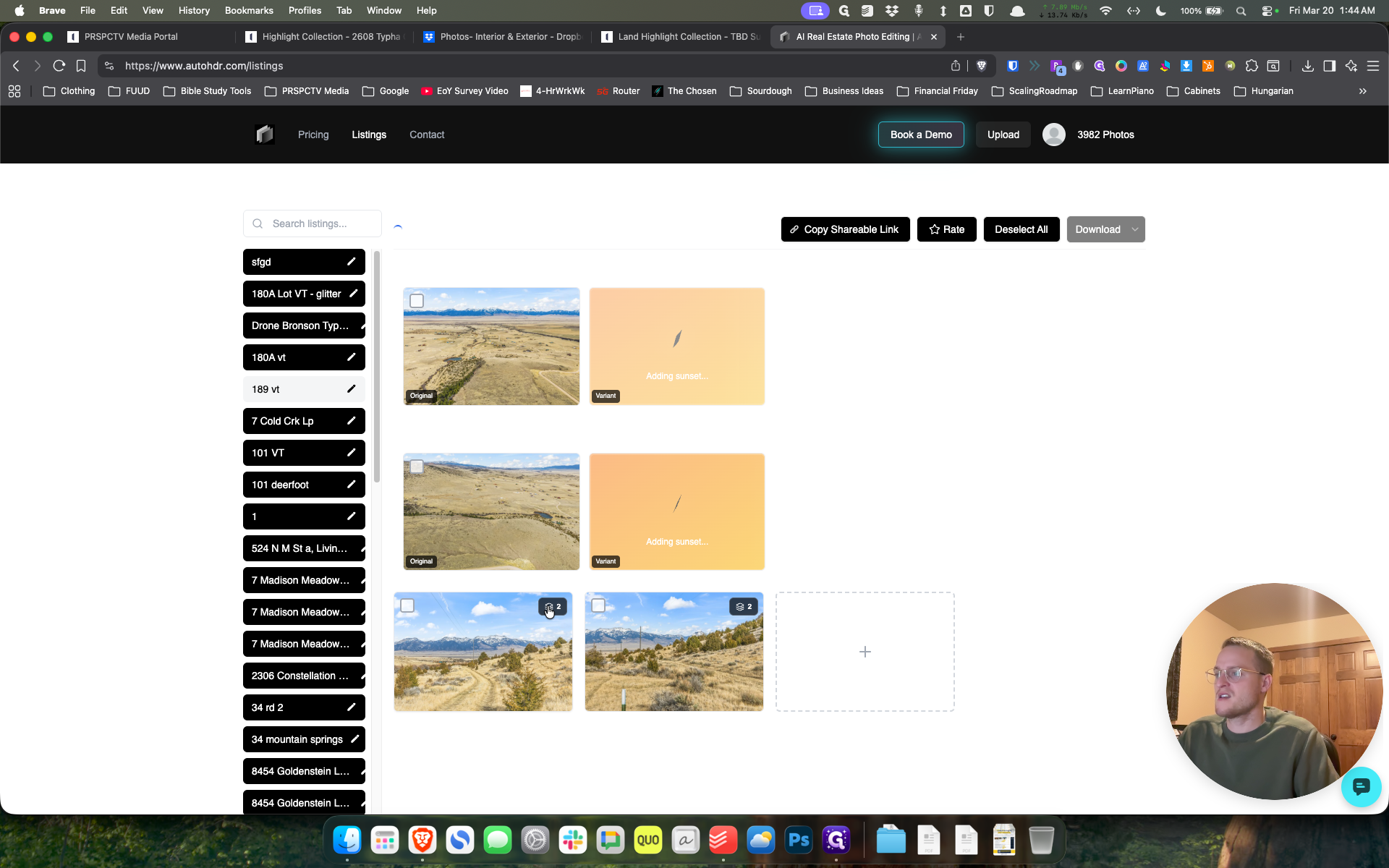
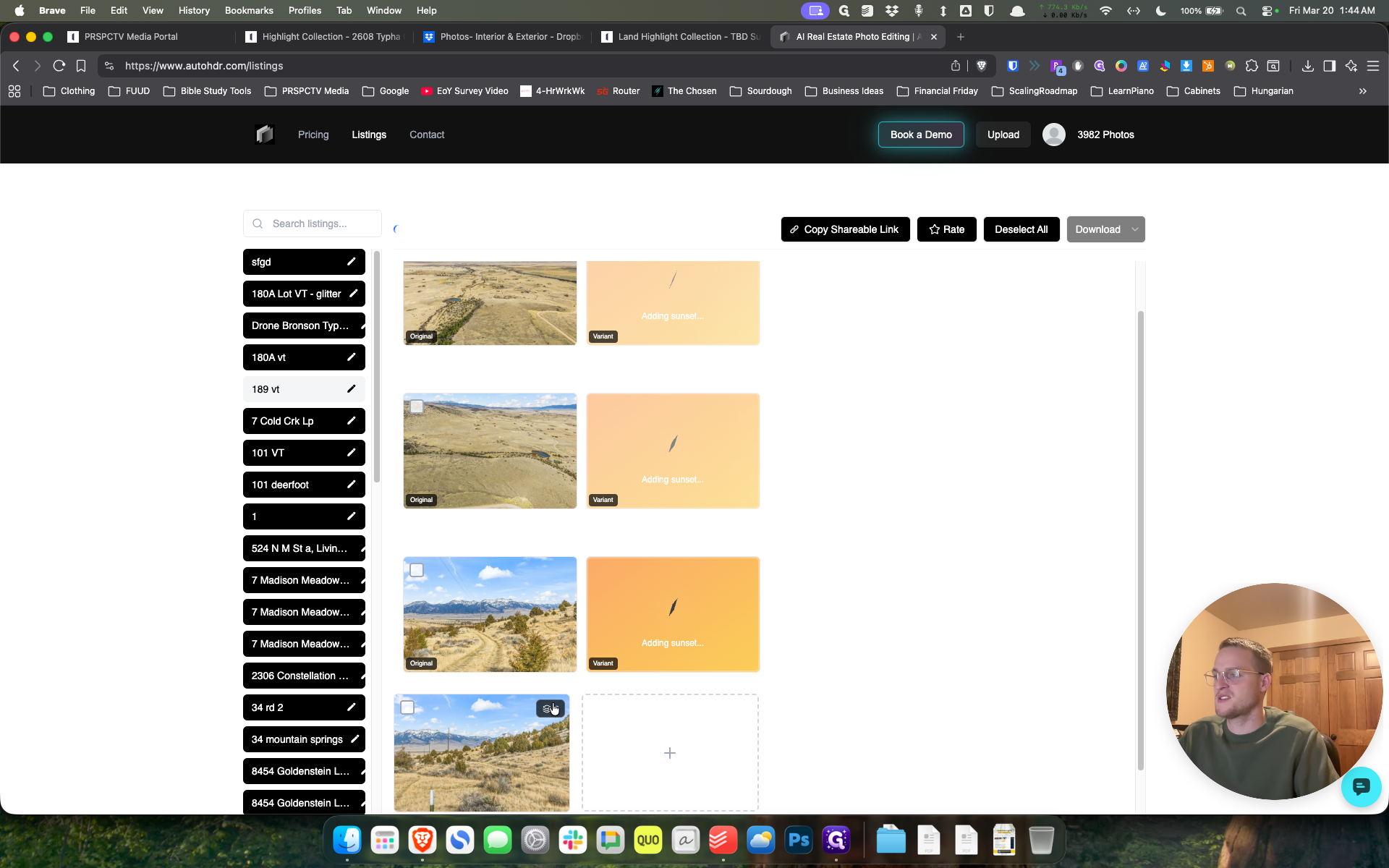
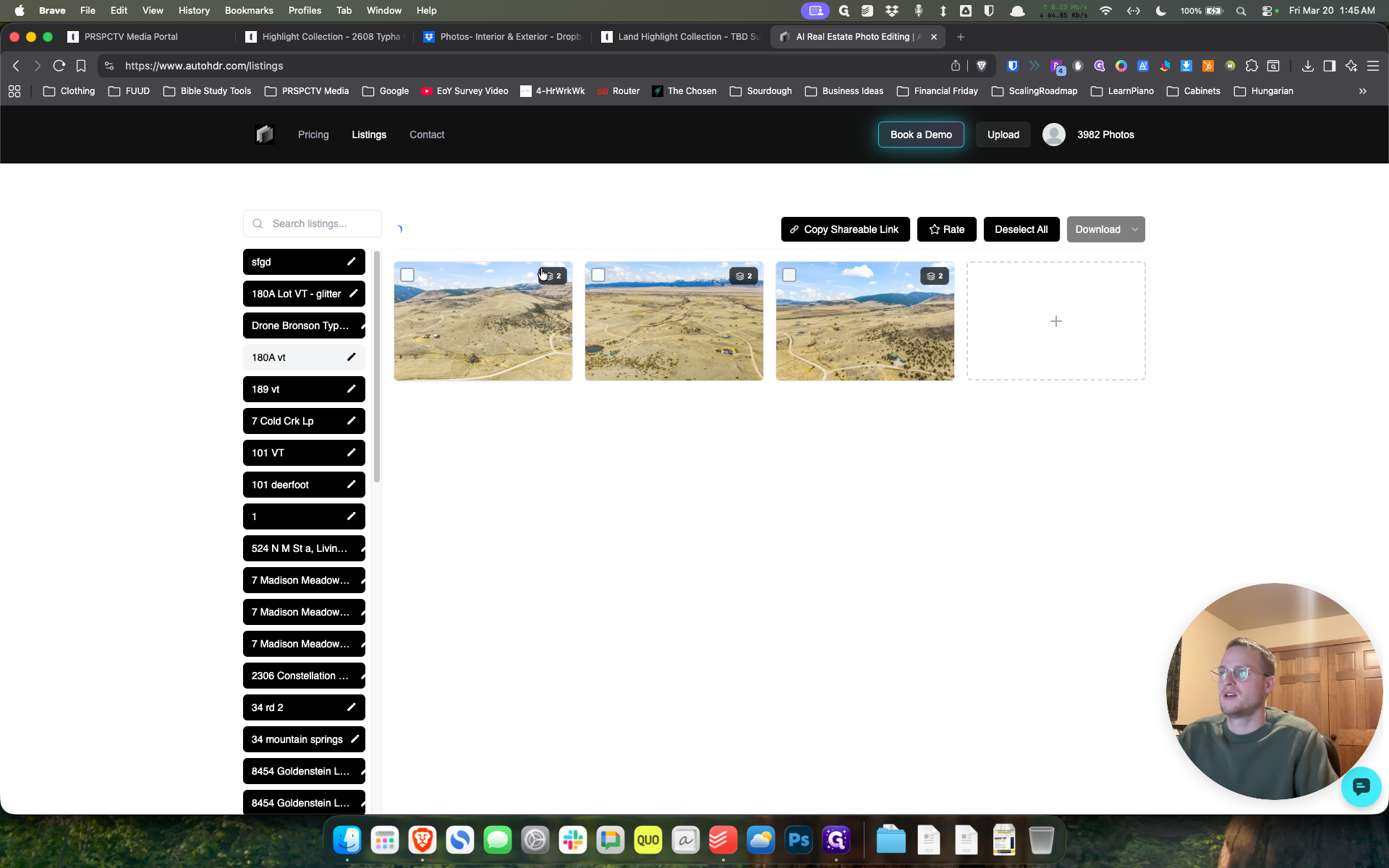
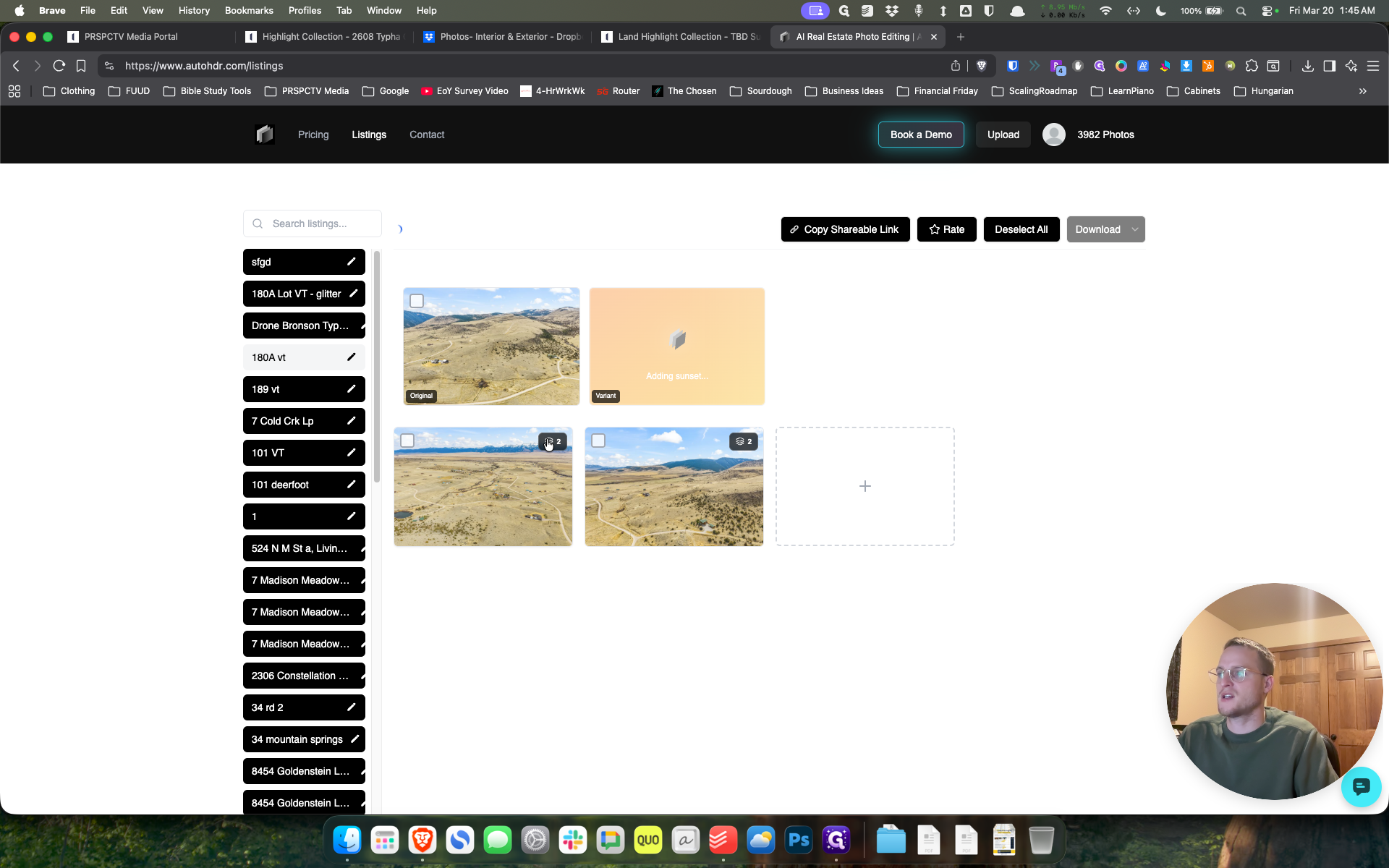
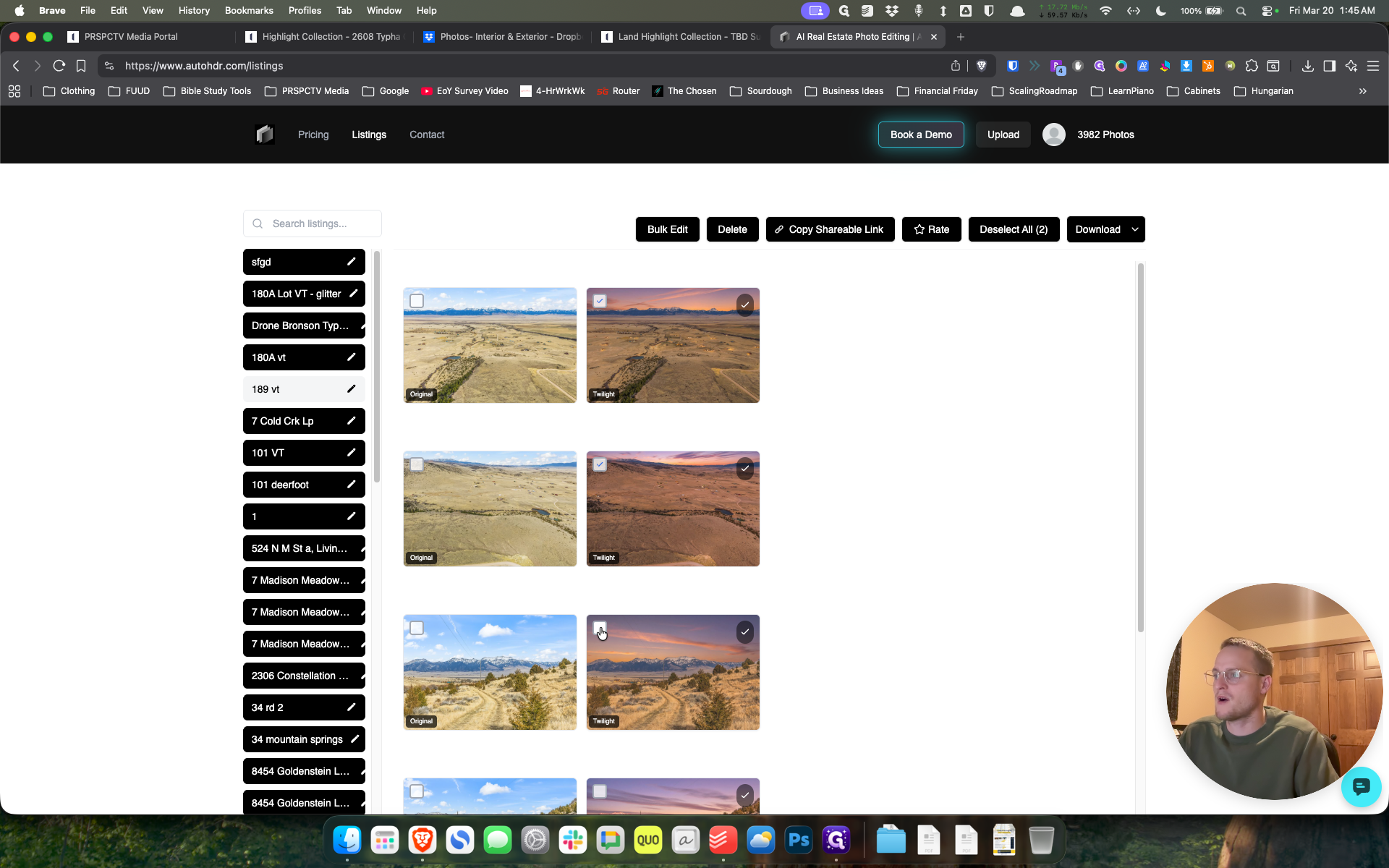
Confirm and process. Then, click on the stacked image here. When it's ready, it will display the variant with the Virtual Twilight.
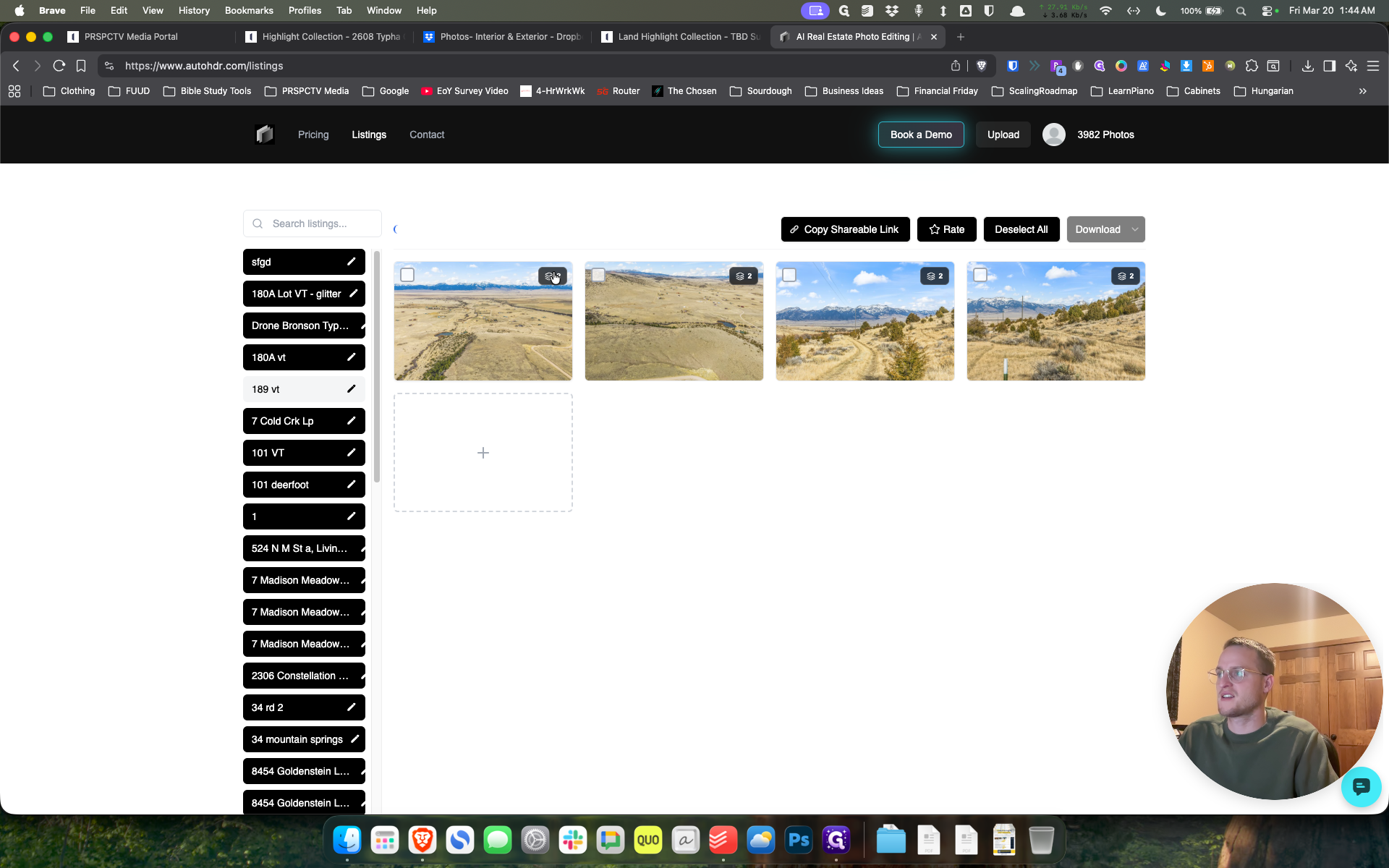
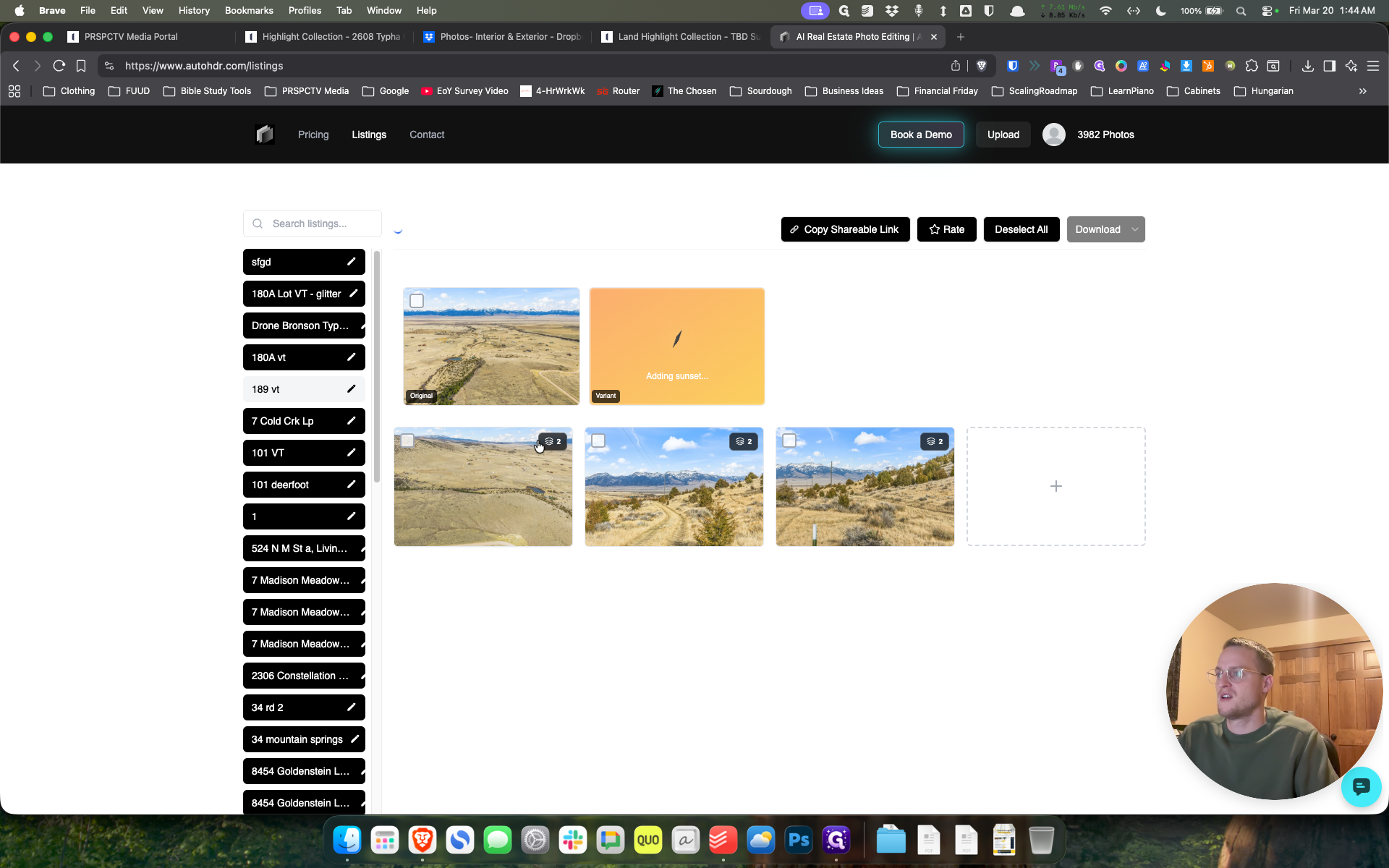
45
Click here
Step #45: Click here
46
Click on "은"
Step #46: Click on "은"
47
Click on "宿"
Step #47: Click on "宿"
48
Click here
Step #48: Click here

Again, that process.

49
Click on "180vt"
Step #49: Click on "180vt"

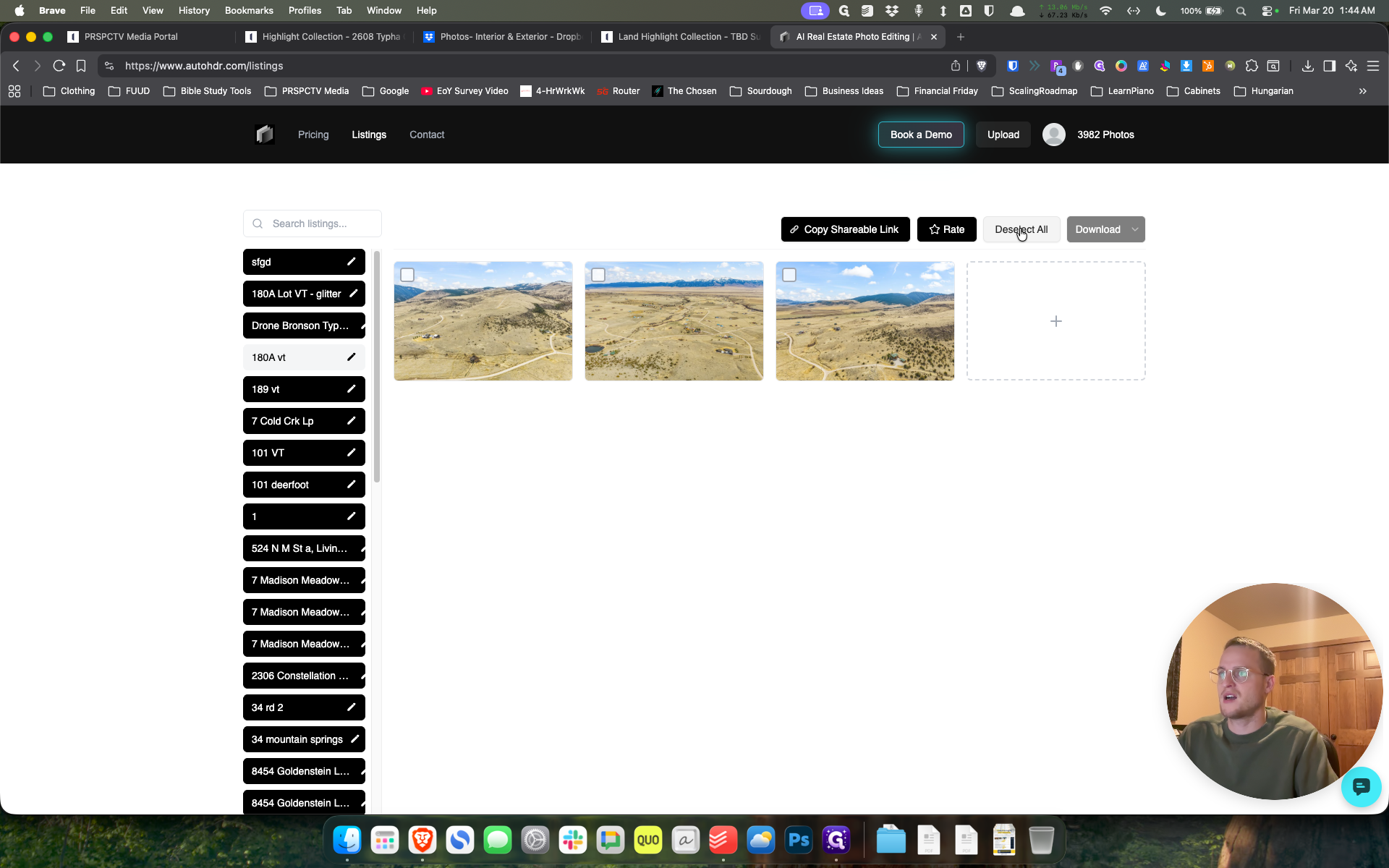
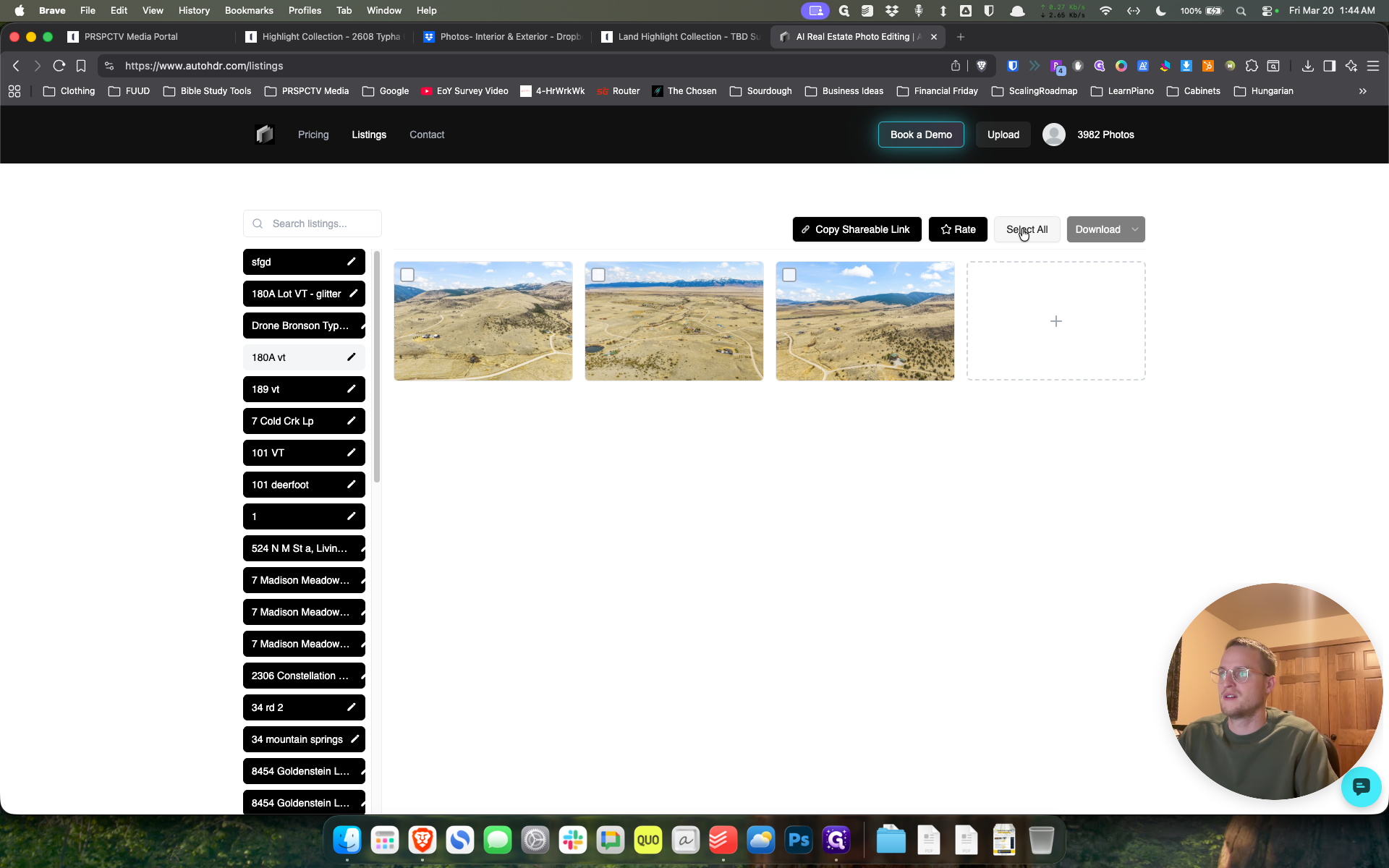
Click on it, select all, choose bulk edit, then click the Virtual Twilight button. Next, select Golden Twilight and generate.
50
Click on "Deselect"
Step #50: Click on "Deselect"
51
Click on "Select A"
Step #51: Click on "Select A"
52
Click on "Byk Edit"
Step #52: Click on "Byk Edit"
53
Click on "G"
Step #53: Click on "G"
54
Click here
Step #54: Click here
55
Click here
Step #55: Click here
56
Click on "Generate"
Step #56: Click on "Generate"

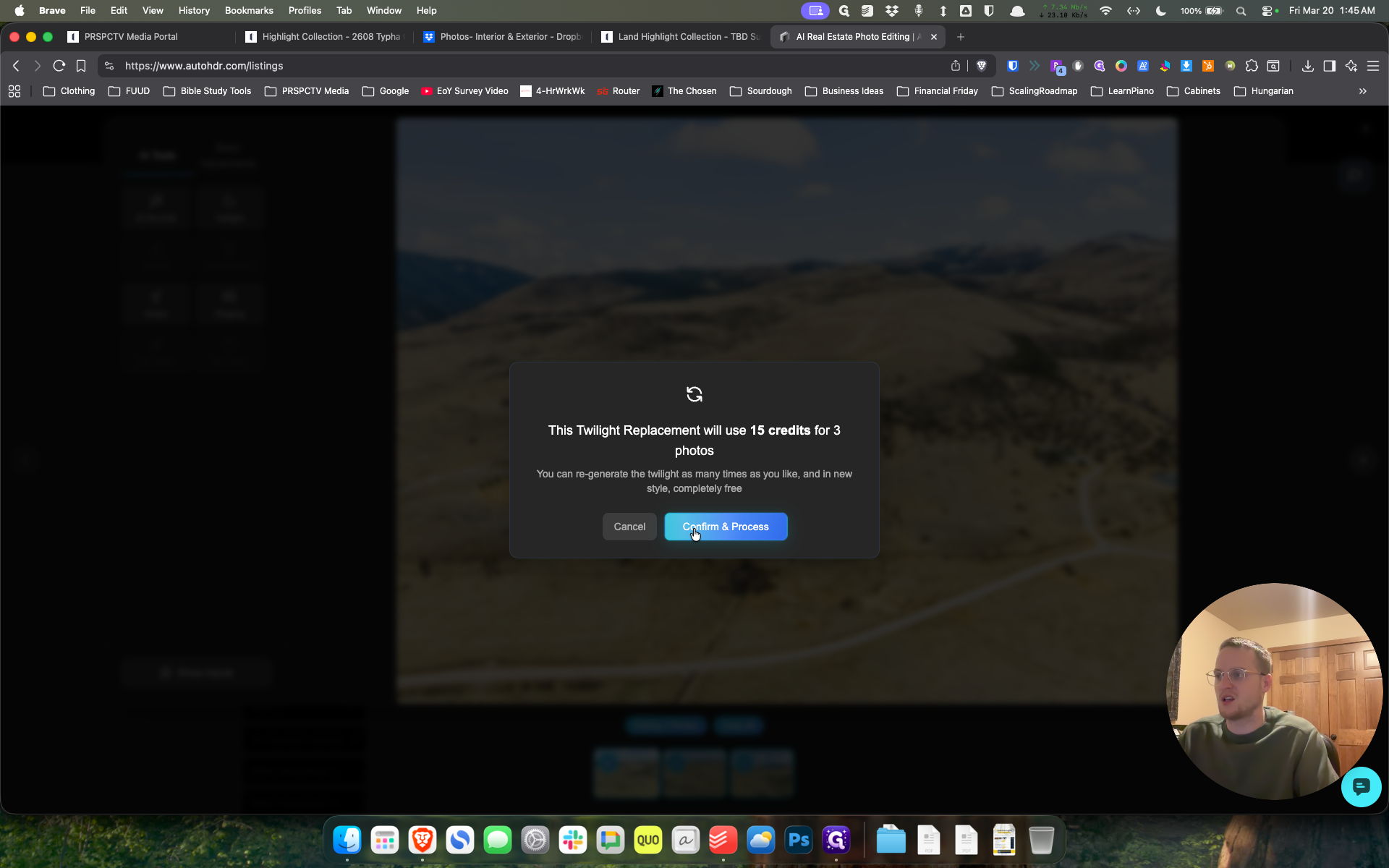
Confirm the process, open these, and when ready, we can review or download.
57
Click on "Confirm & Process"
Step #57: Click on "Confirm & Process"
58
Click here
Step #58: Click here
59
Click here
Step #59: Click here
60
Click here
Step #60: Click here

Generally looks good.

61
Click on "189 vt"
Step #61: Click on "189 vt"

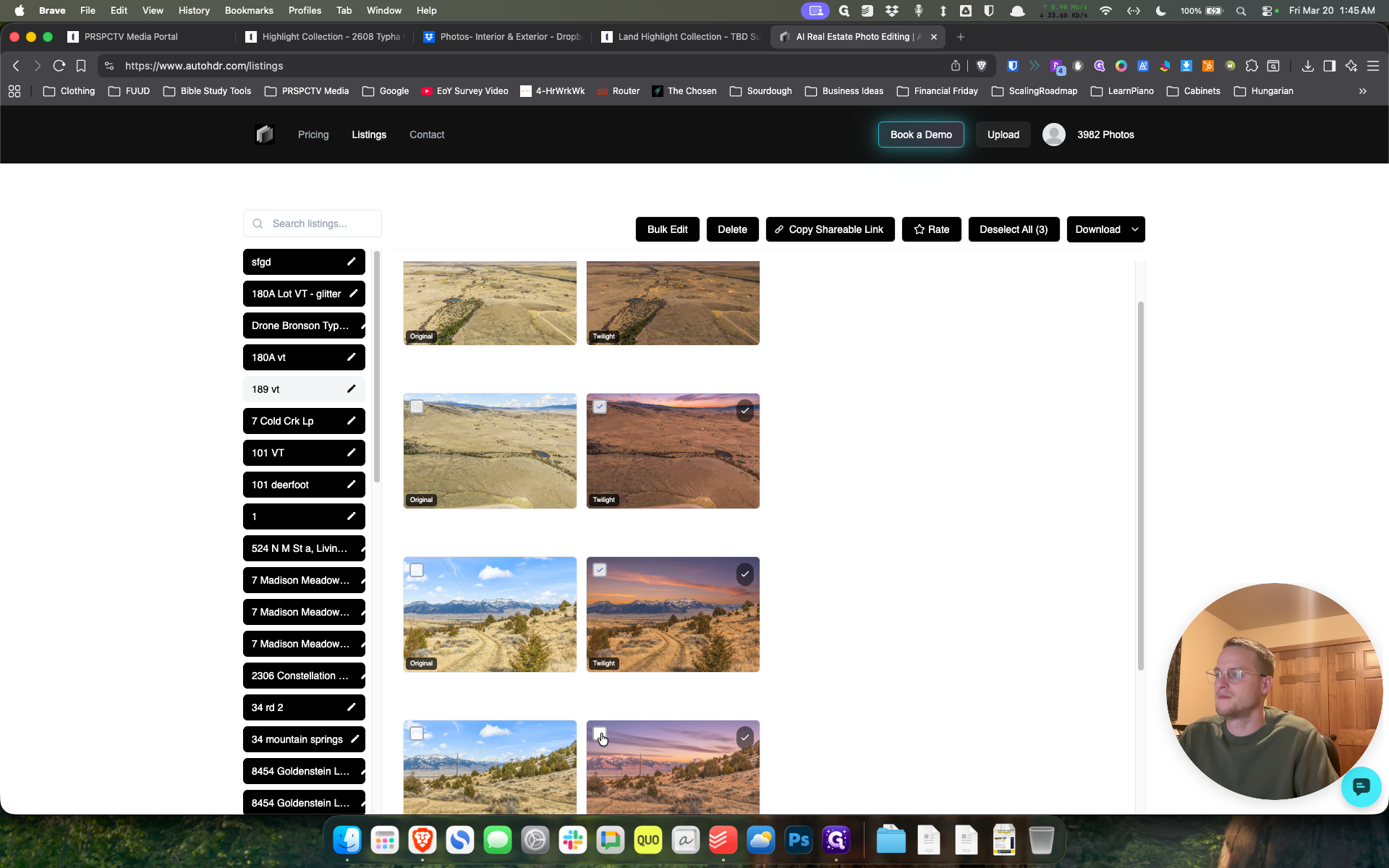
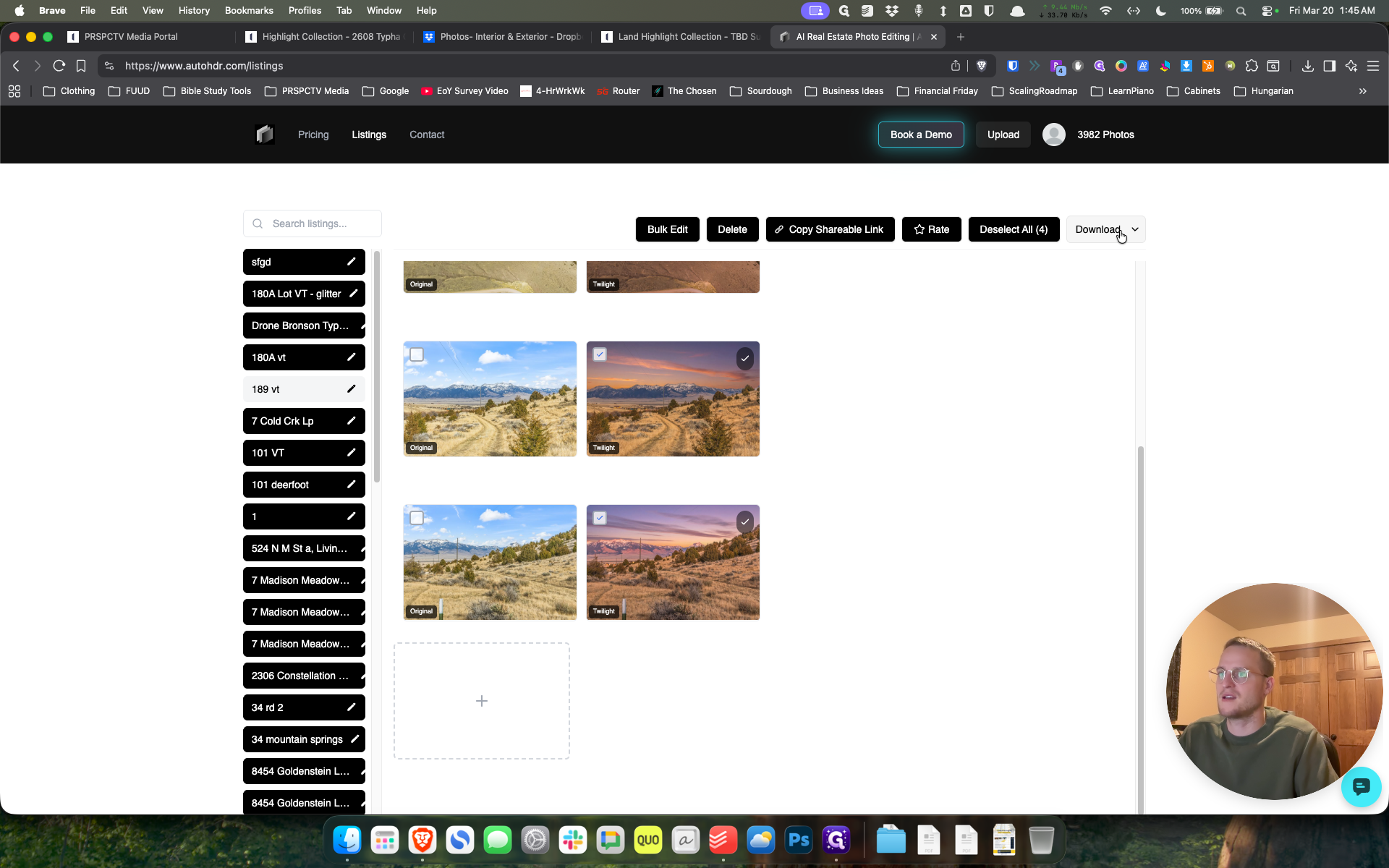
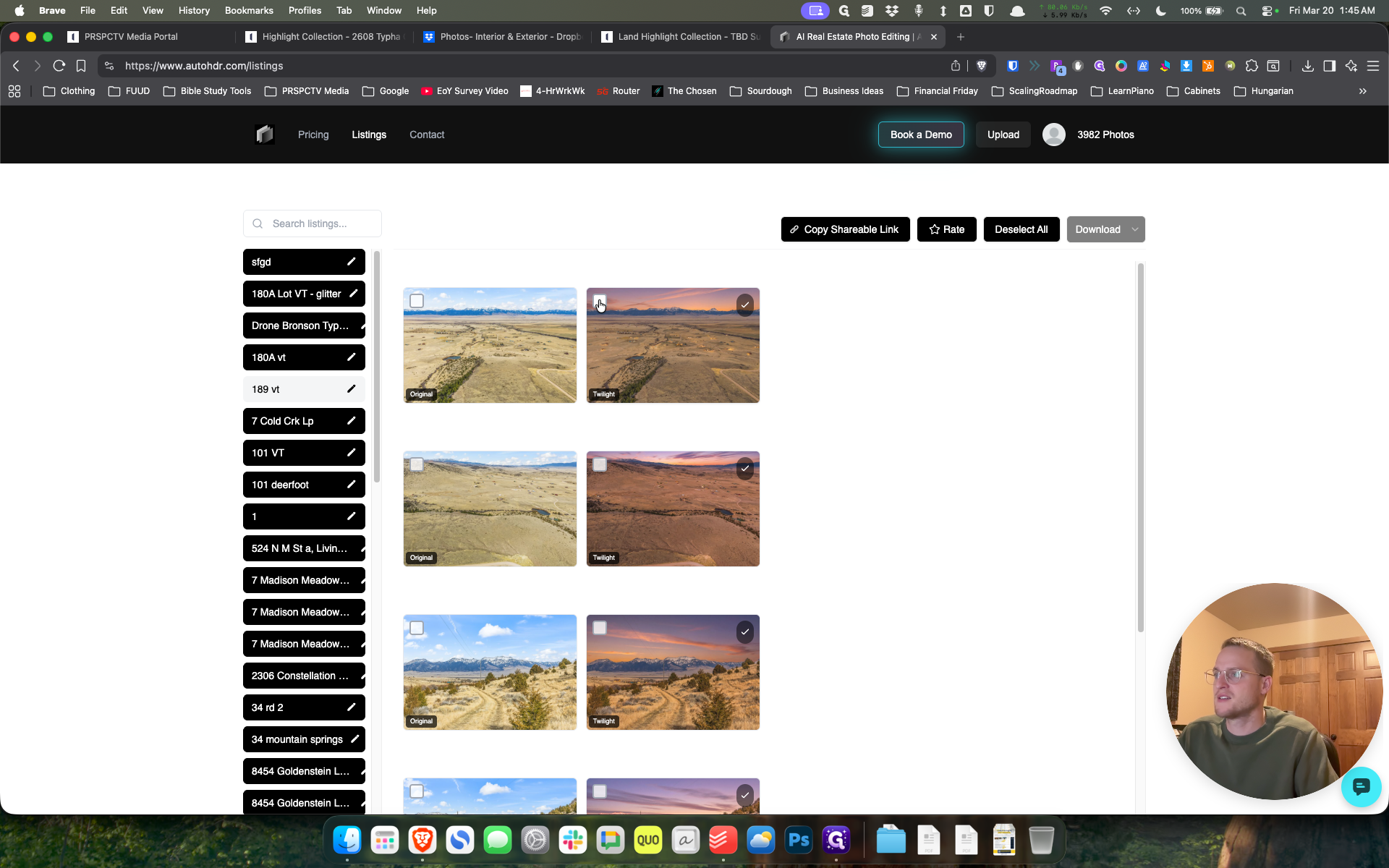
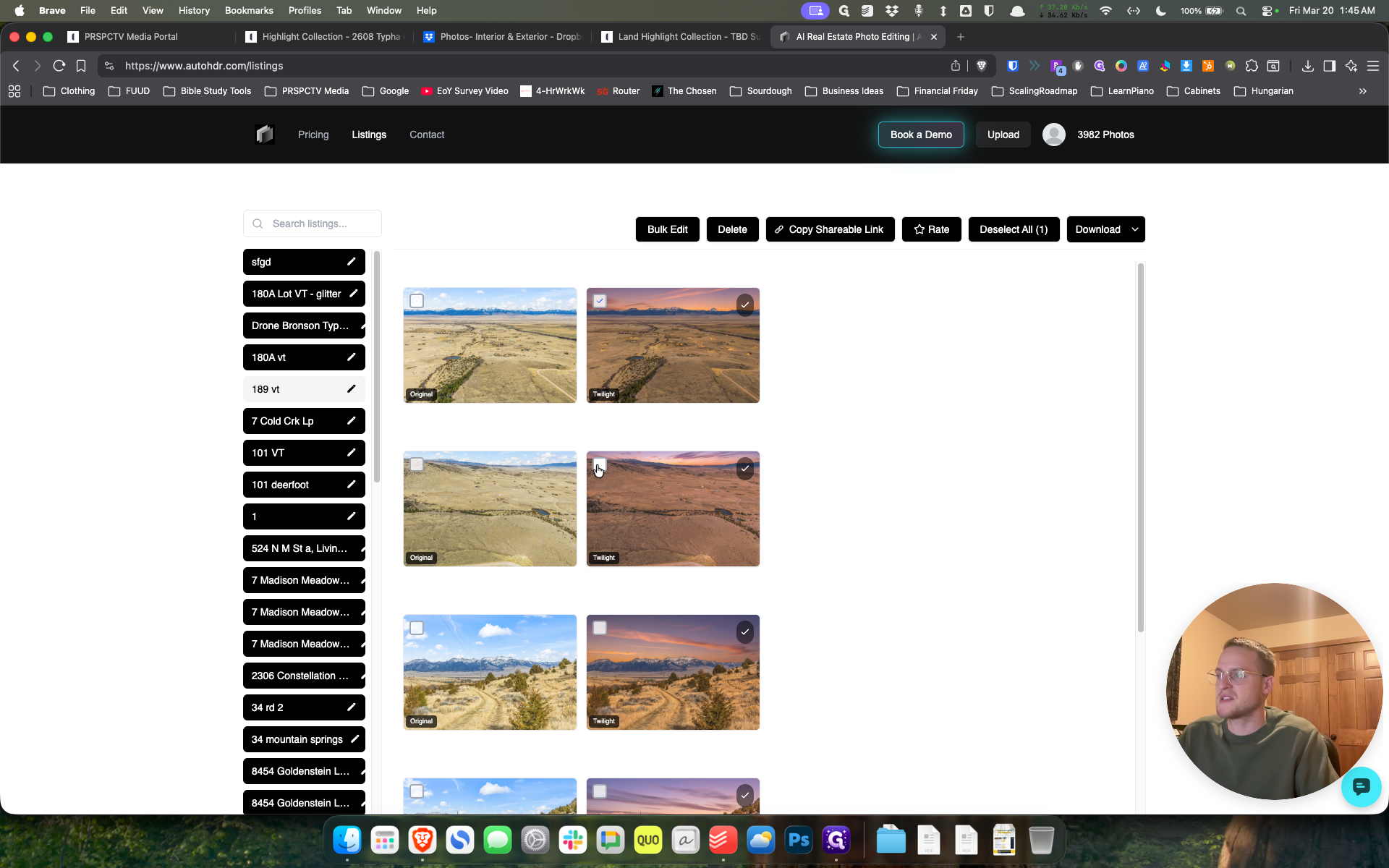
It may take some time. You can see that in just 30 seconds, it has already completed the replacement, which is very fast. Comparing them is good. It's getting a little darker. Often, it's about removing shadows.

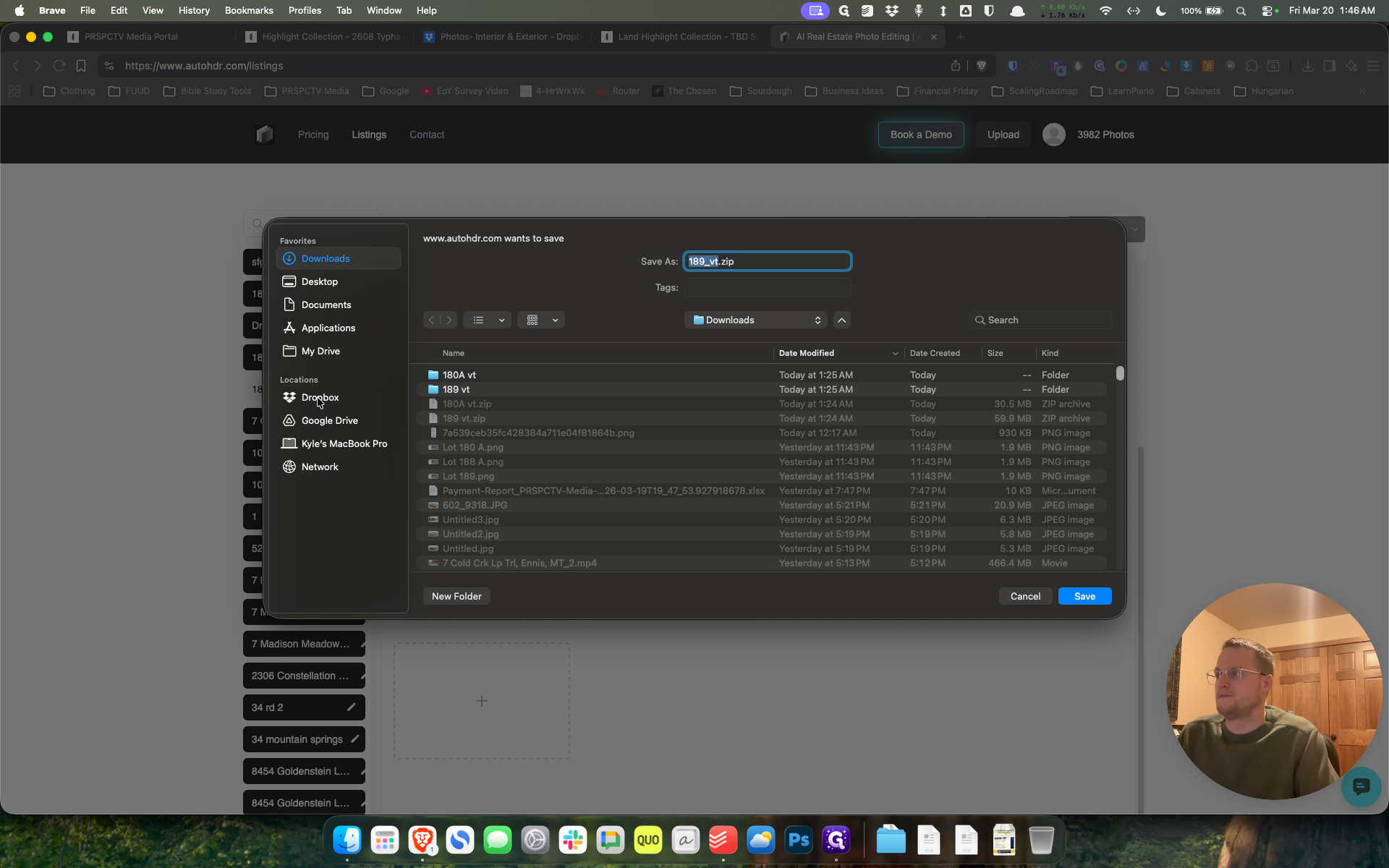
It doesn't always do that, and it hasn't been doing it very well. This is pretty good. I'm pretty happy with these. Select the specific photos you want, click download, and save them to the appropriate folder in Dropbox.
62
Click here
Step #62: Click here
63
Click here
Step #63: Click here
64
Click here
Step #64: Click here
65
Click here
Step #65: Click here
66
Click on "Download.m"
Step #66: Click on "Download.m"

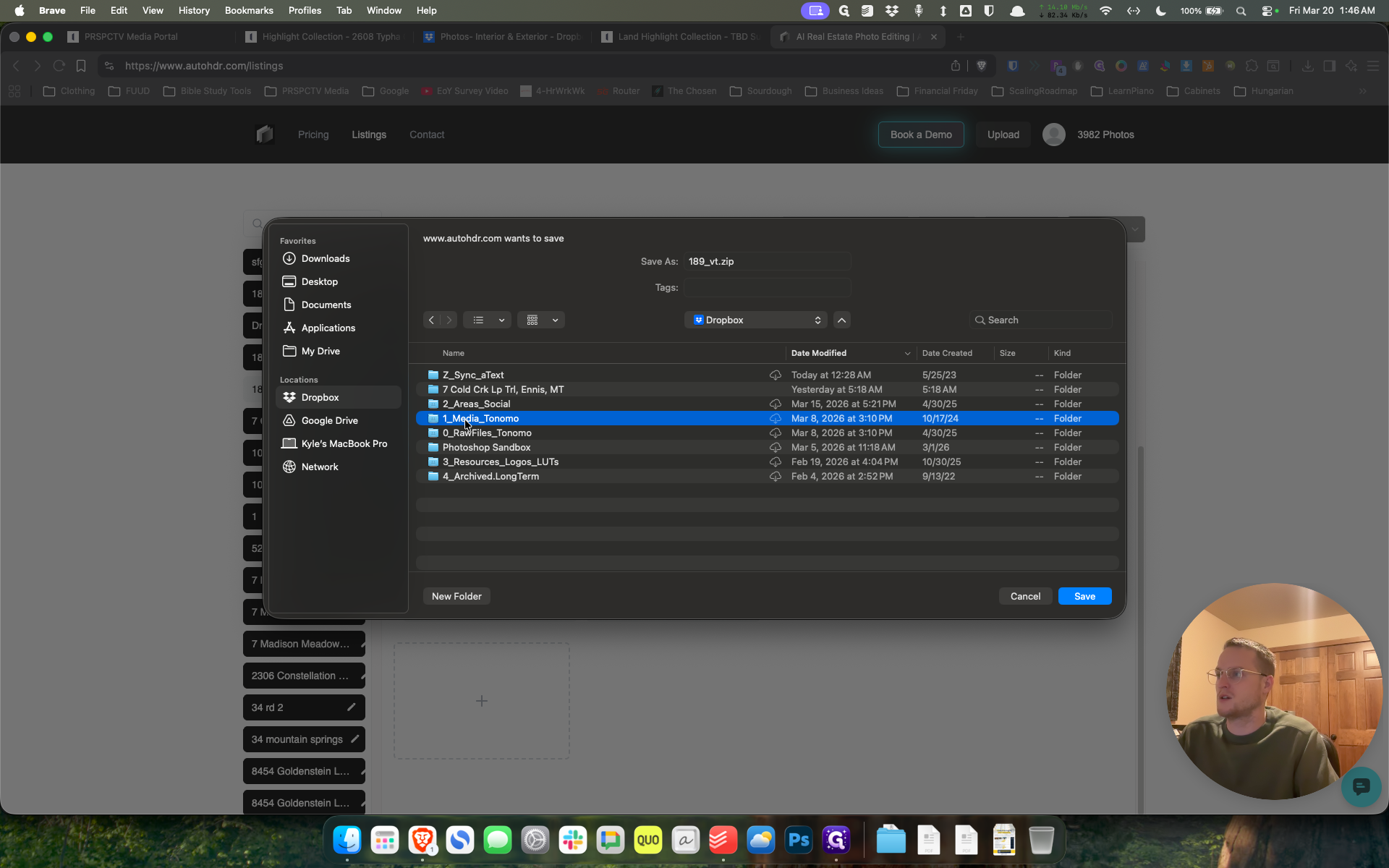
It's straightforward. Let's go with one for Jenny, and we'll save it that way.
67
Click on "** Dropbox"
Step #67: Click on "** Dropbox"
68
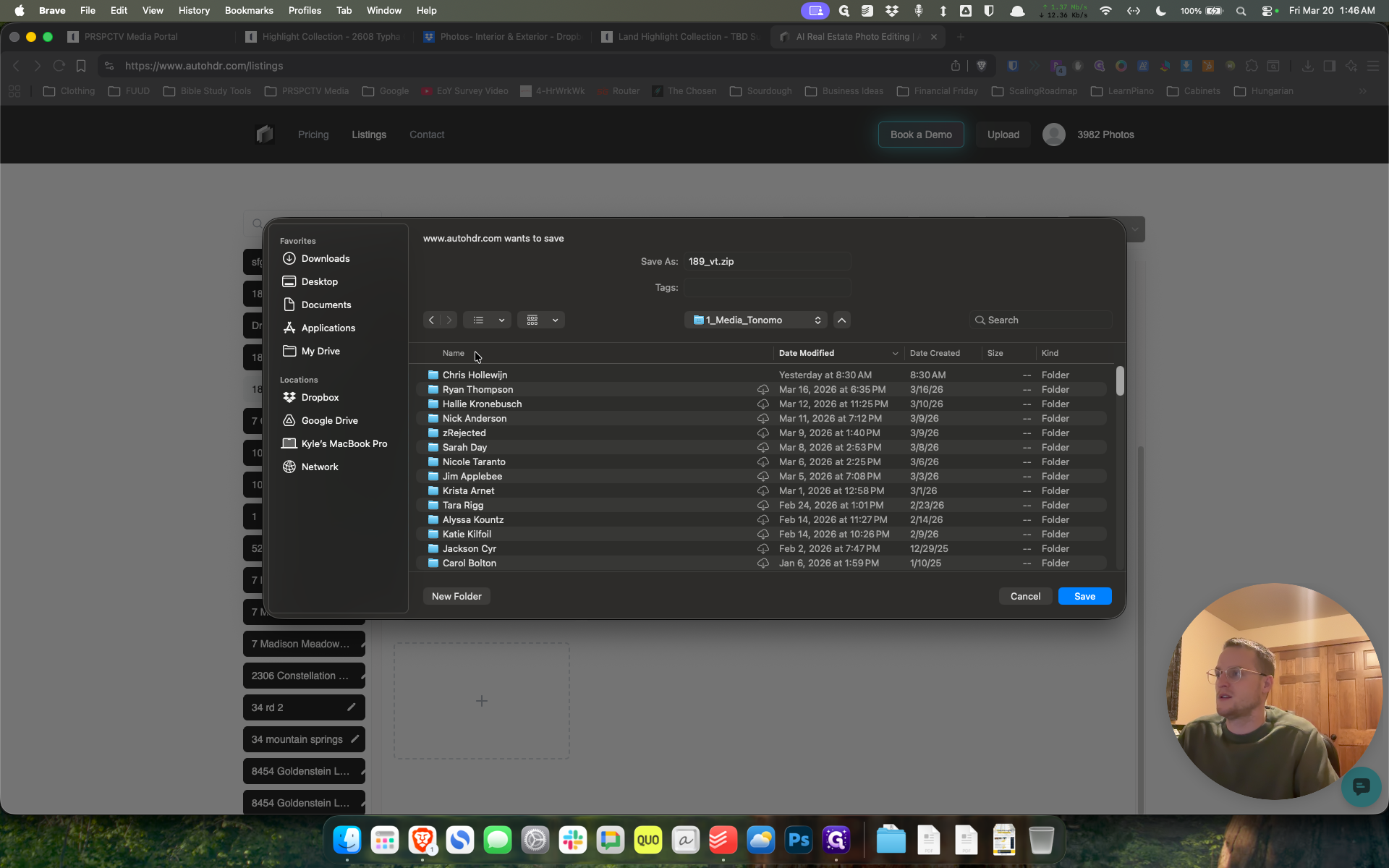
Double-click on "1_Media_Tonomo"
Step #68: Double-click on "1_Media_Tonomo"
69
Click on "W"
Step #69: Click on "W"

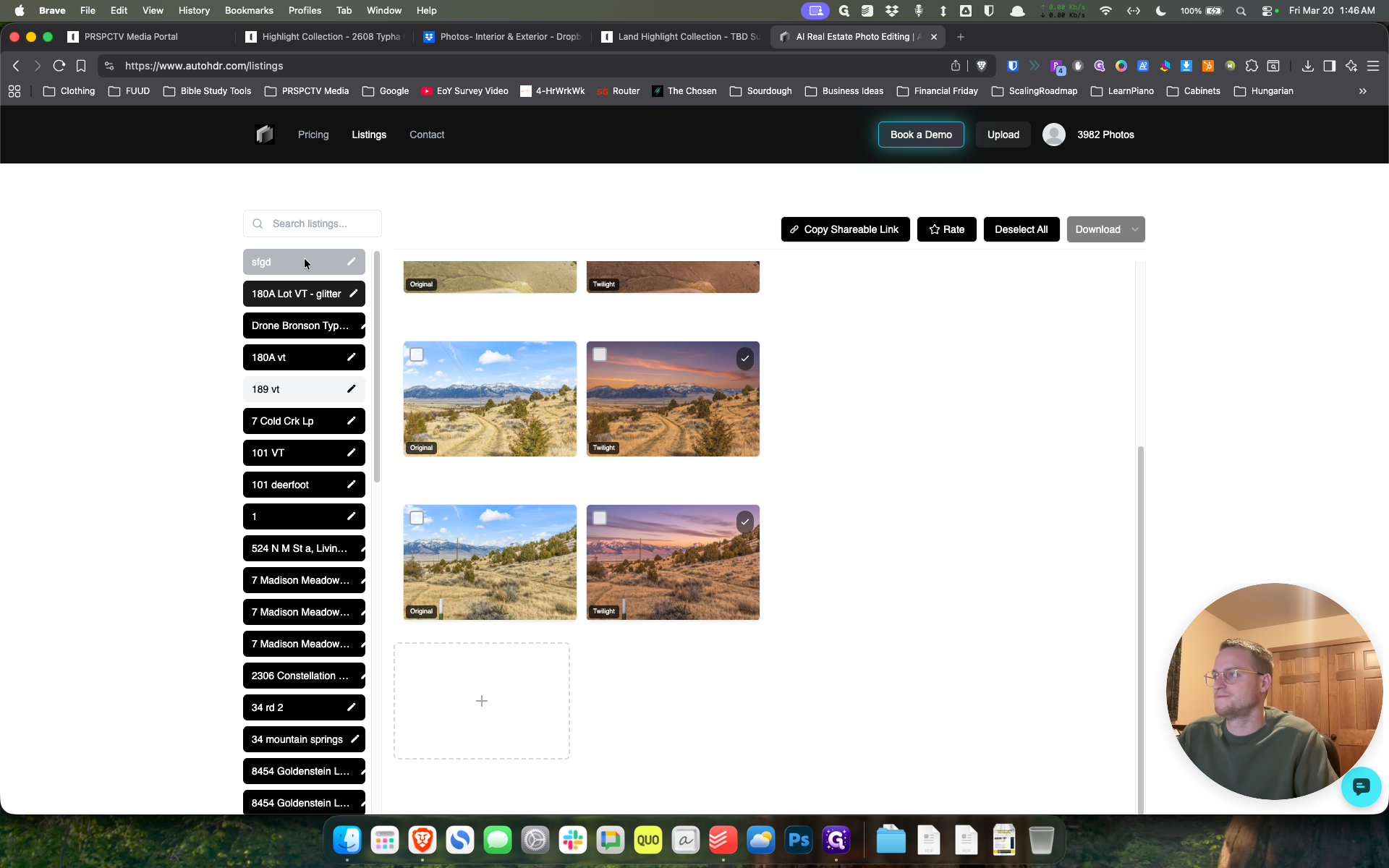
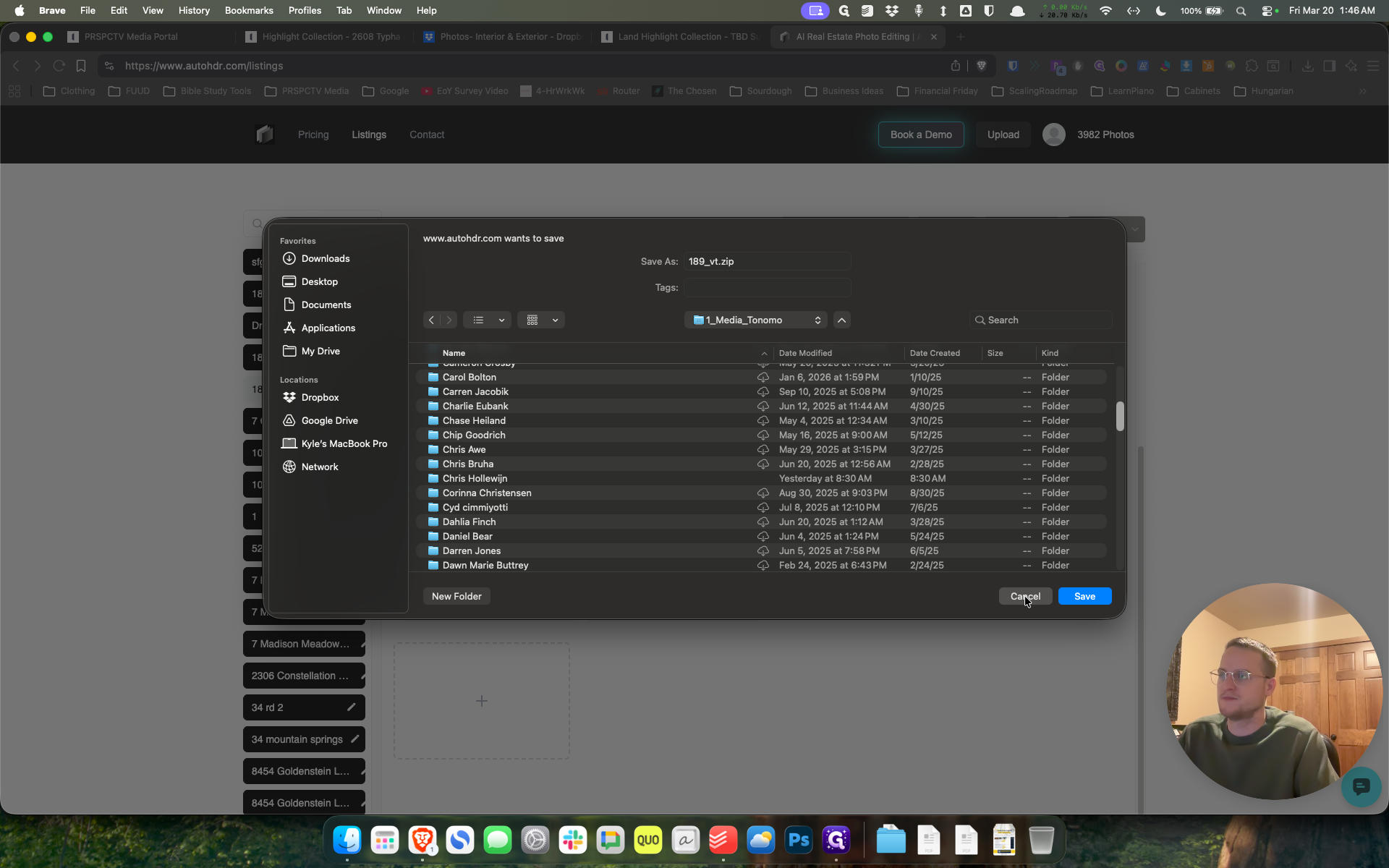
I will hit cancel, but that's the process.
70
Click on "Carcel"
Step #70: Click on "Carcel"
71
Click here
Step #71: Click here
72
Click on "- glitter"
Step #72: Click on "- glitter"
73
Click on "Drone Broon Typ ..."
Step #73: Click on "Drone Broon Typ ..."
74
Click on "180A vt"
Step #74: Click on "180A vt"

How to Upload Photos to Auto HDR and Convert to Virtual Twilight: Step-by-Step Guide