
How to Upload a SCORM Course in Sentrient
Learn how to upload a local SCORM compliance course, configure self-enrollment rules, and set review dates in the Sentrient learning management system.
This guide explains how to upload a new SCORM course file to the Sentrient learning management system and configure its enrollment settings. Completing this ensures your organization can distribute custom or localized compliance training, such as state-specific legislation courses.
This process is intended for L&D administrators and HR personnel who manage course libraries and employee compliance workflows.
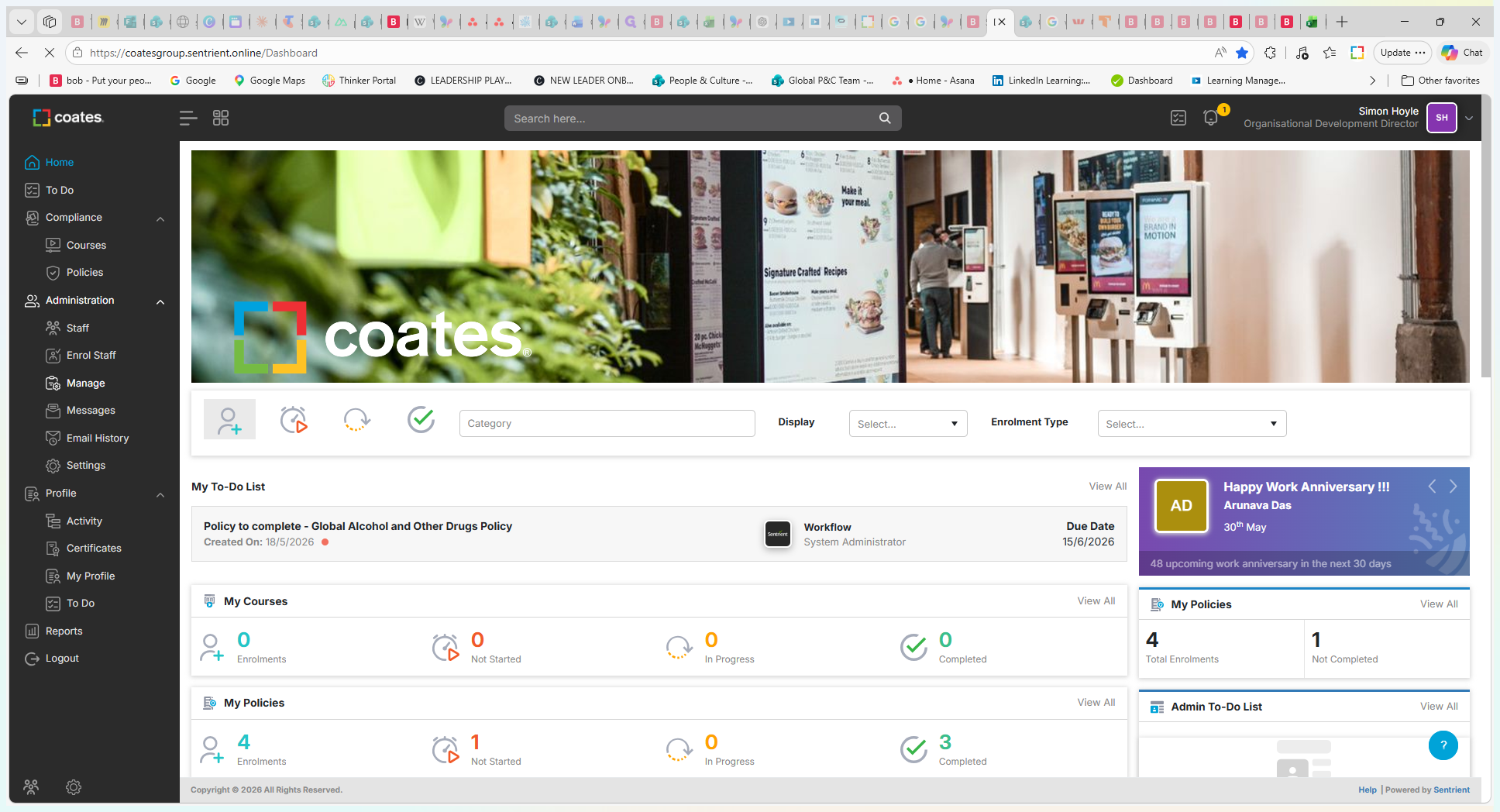
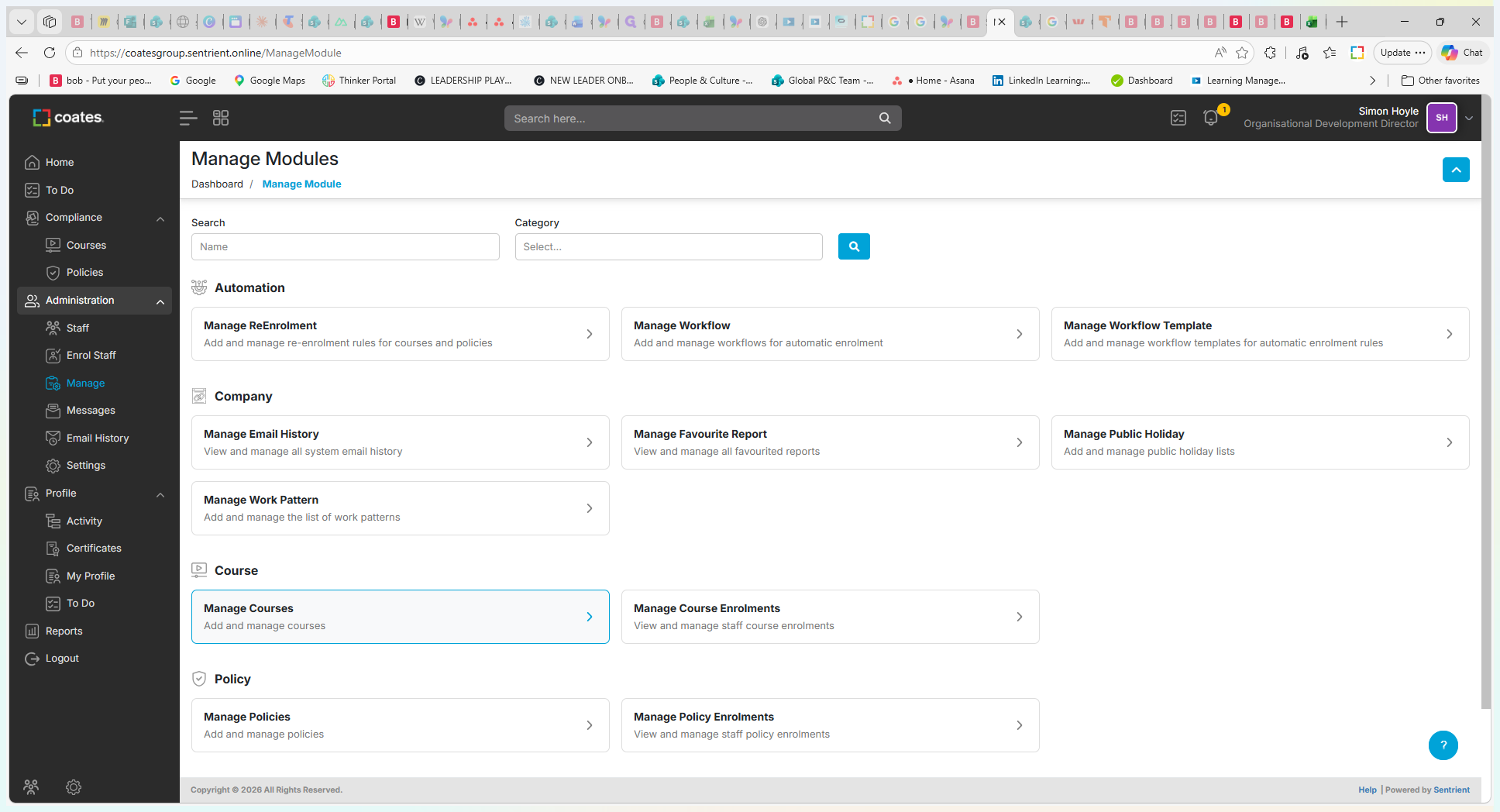
Navigate to Course Management
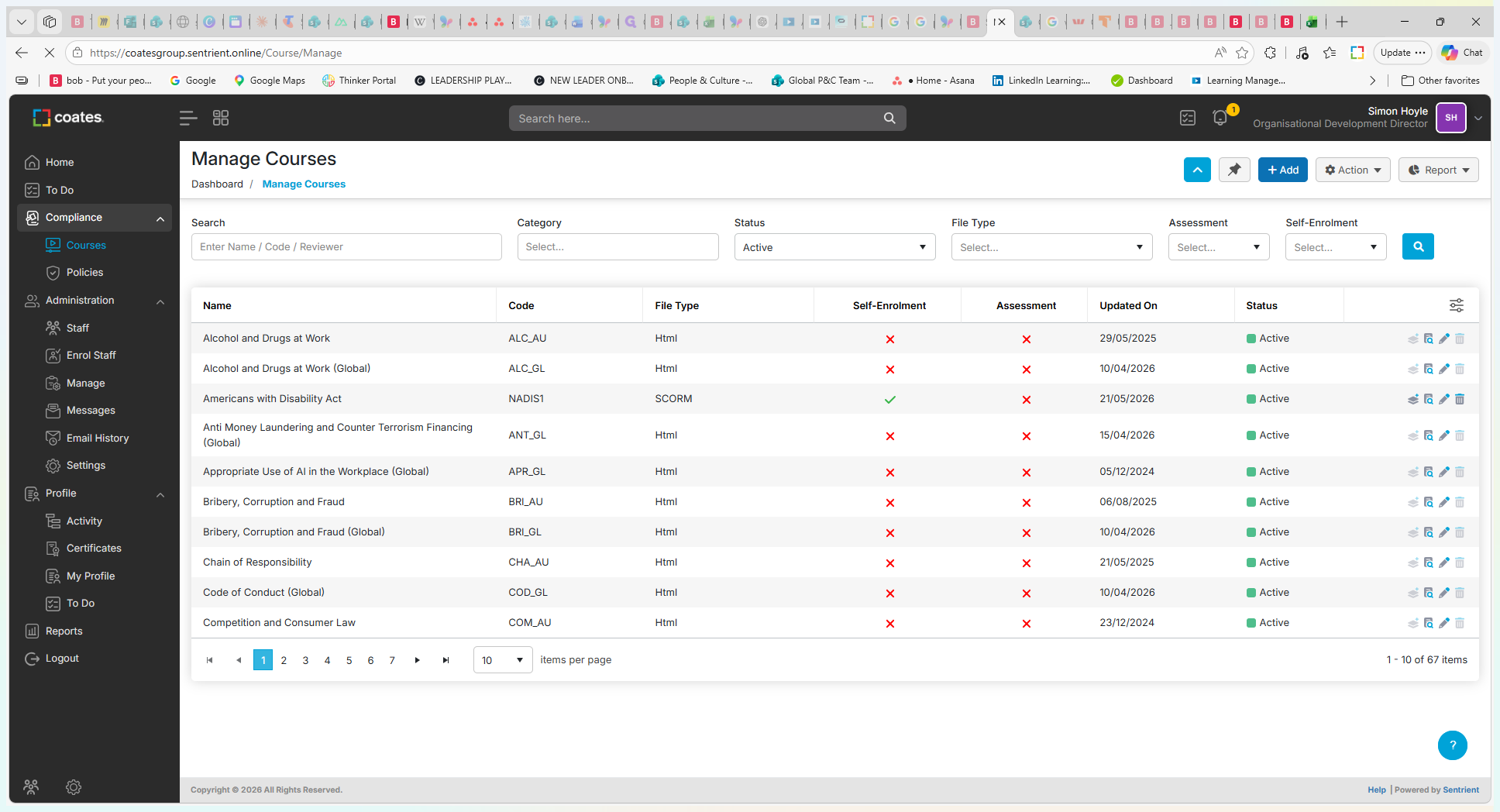
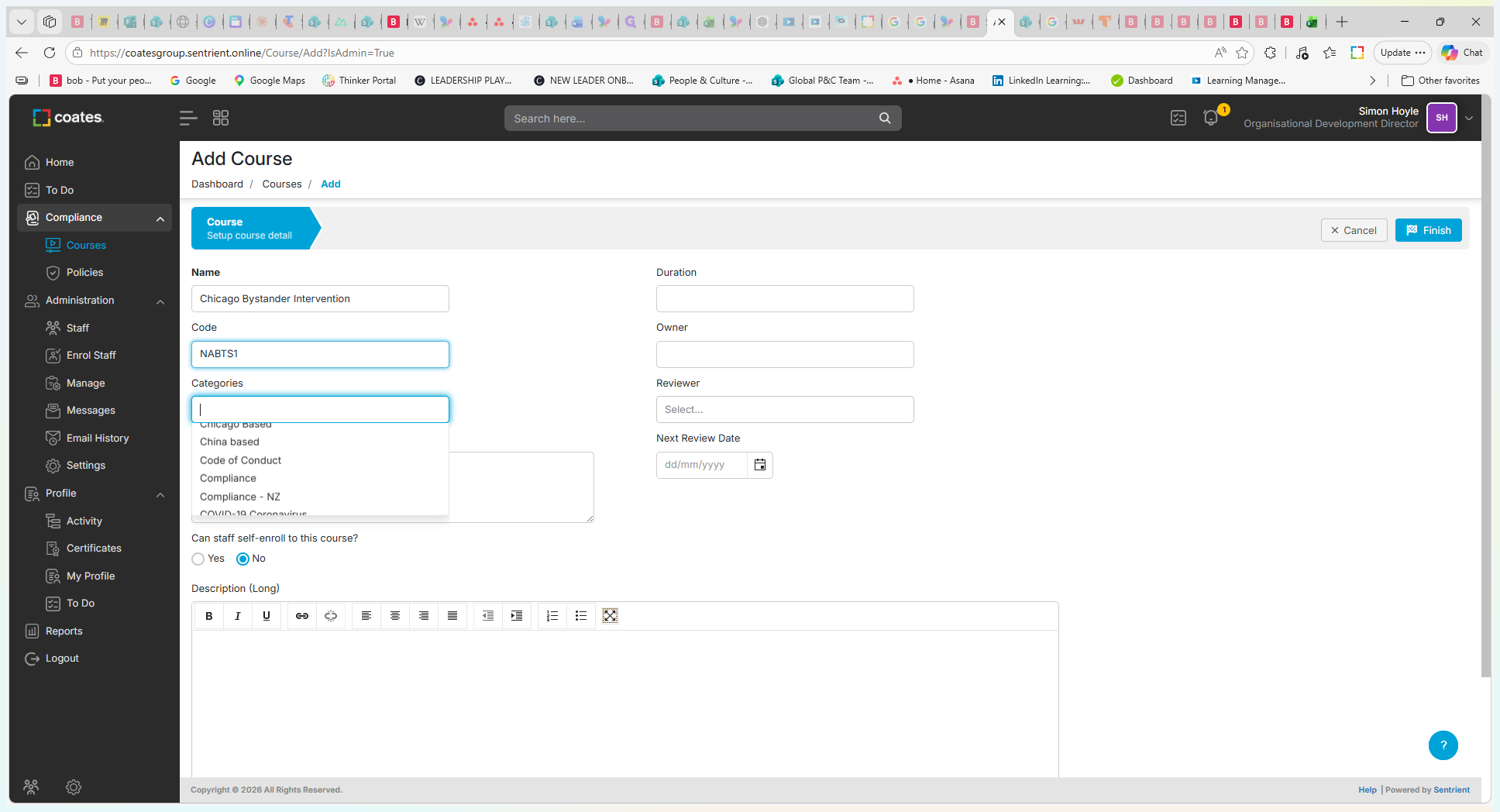
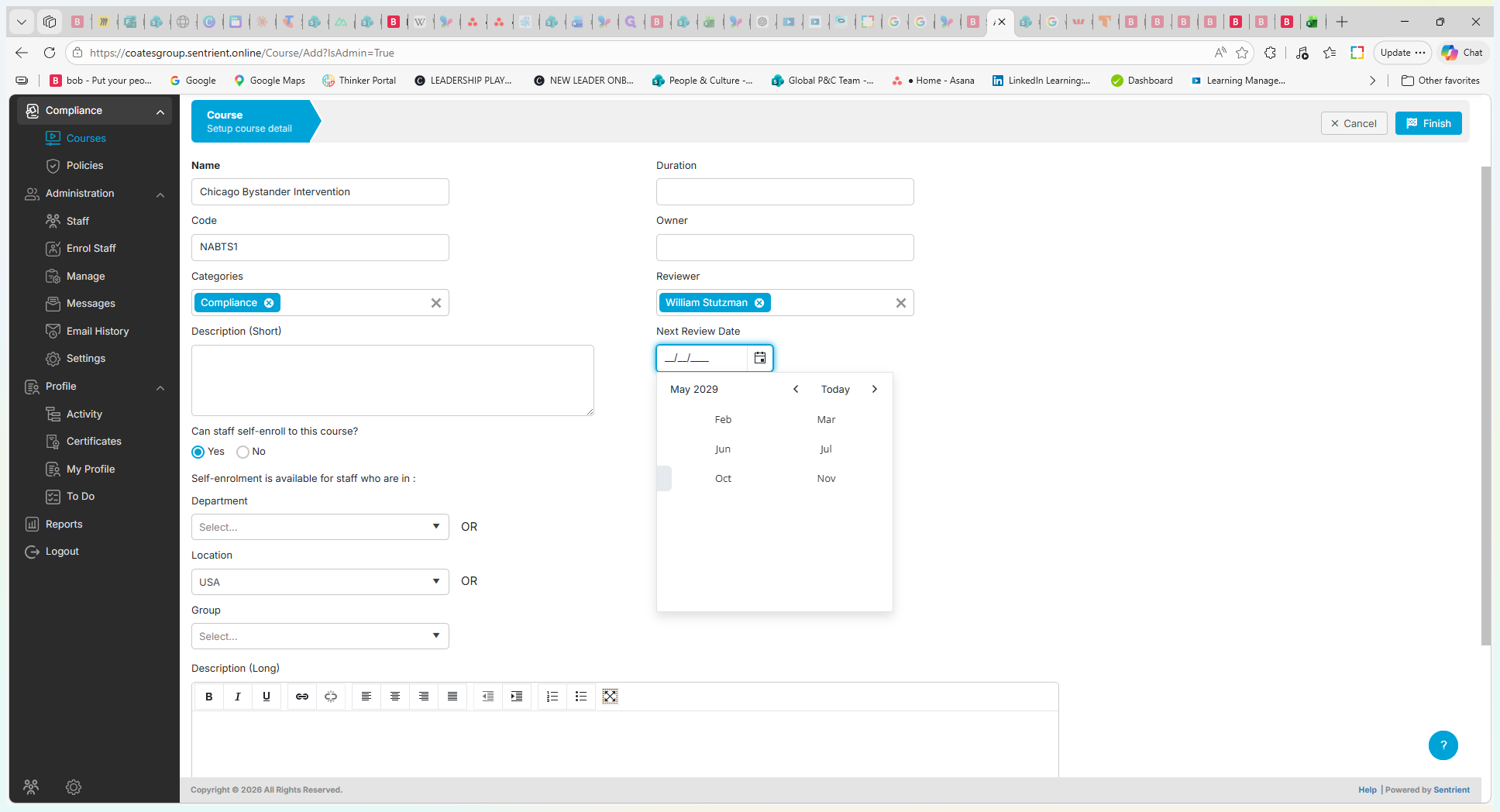
Configure Course Details
When creating a new course, you can define how and when employees can access the material.
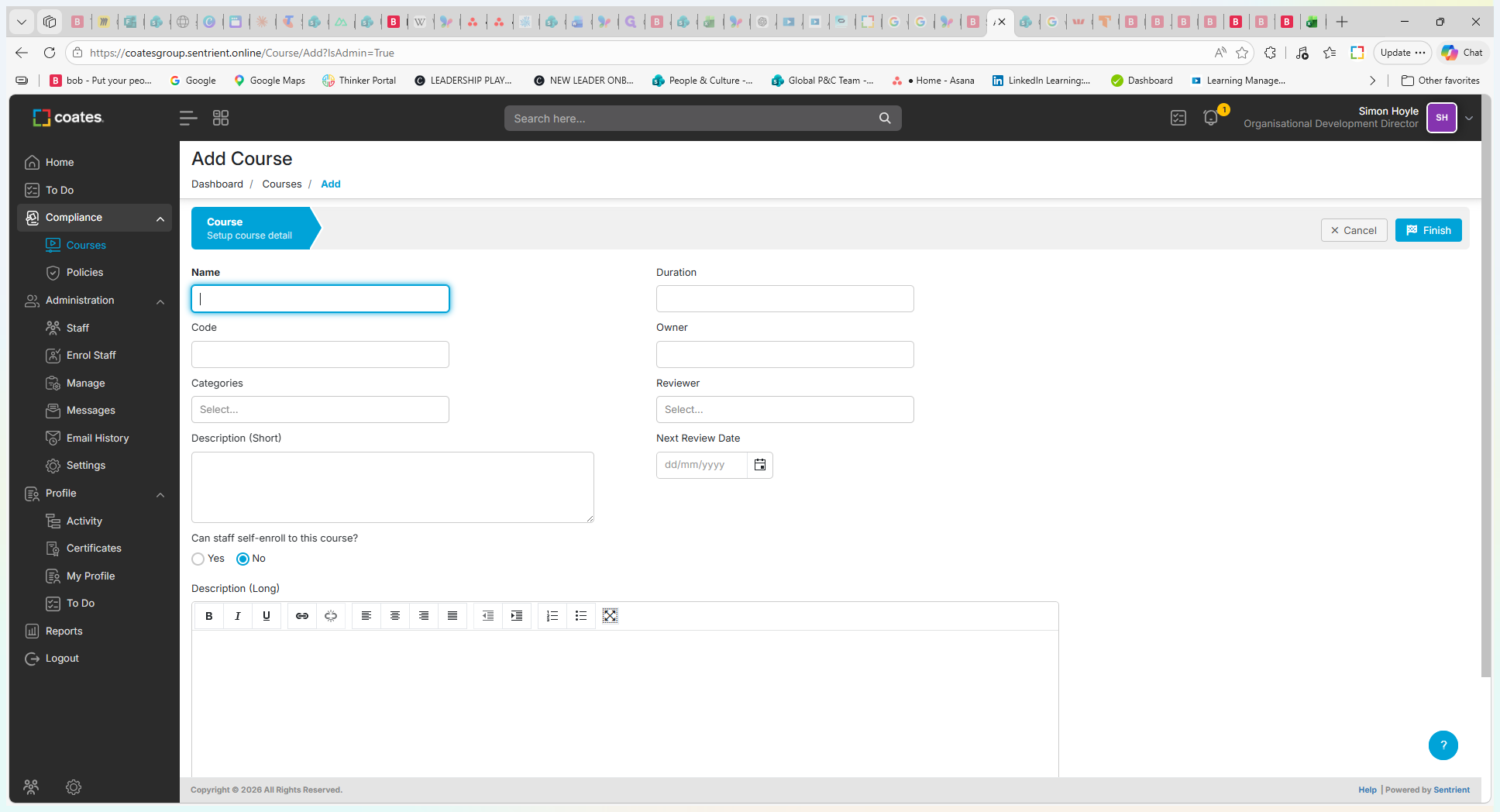
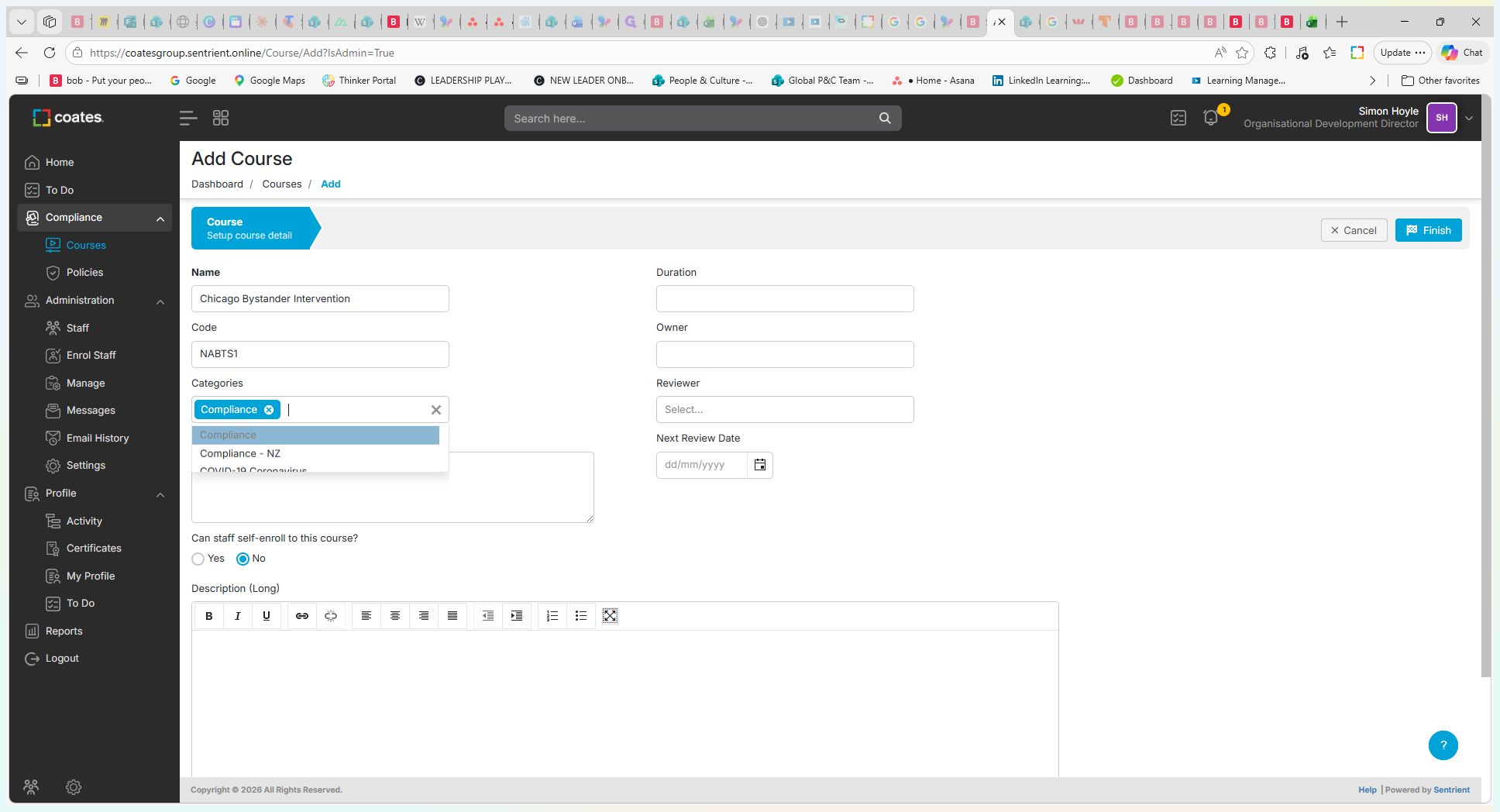
Use the following targeting fields to restrict who can see and self-enroll in the course:
Configuration Field | Purpose | Example |
|---|---|---|
Location | Restricts course visibility to users in specific regions. | Selecting "USA" for a Chicago-based legislation course. |
Group | Restricts the course to specific employment types. | "External Contractor" or "Permanent". Leave blank to make it available to all. |
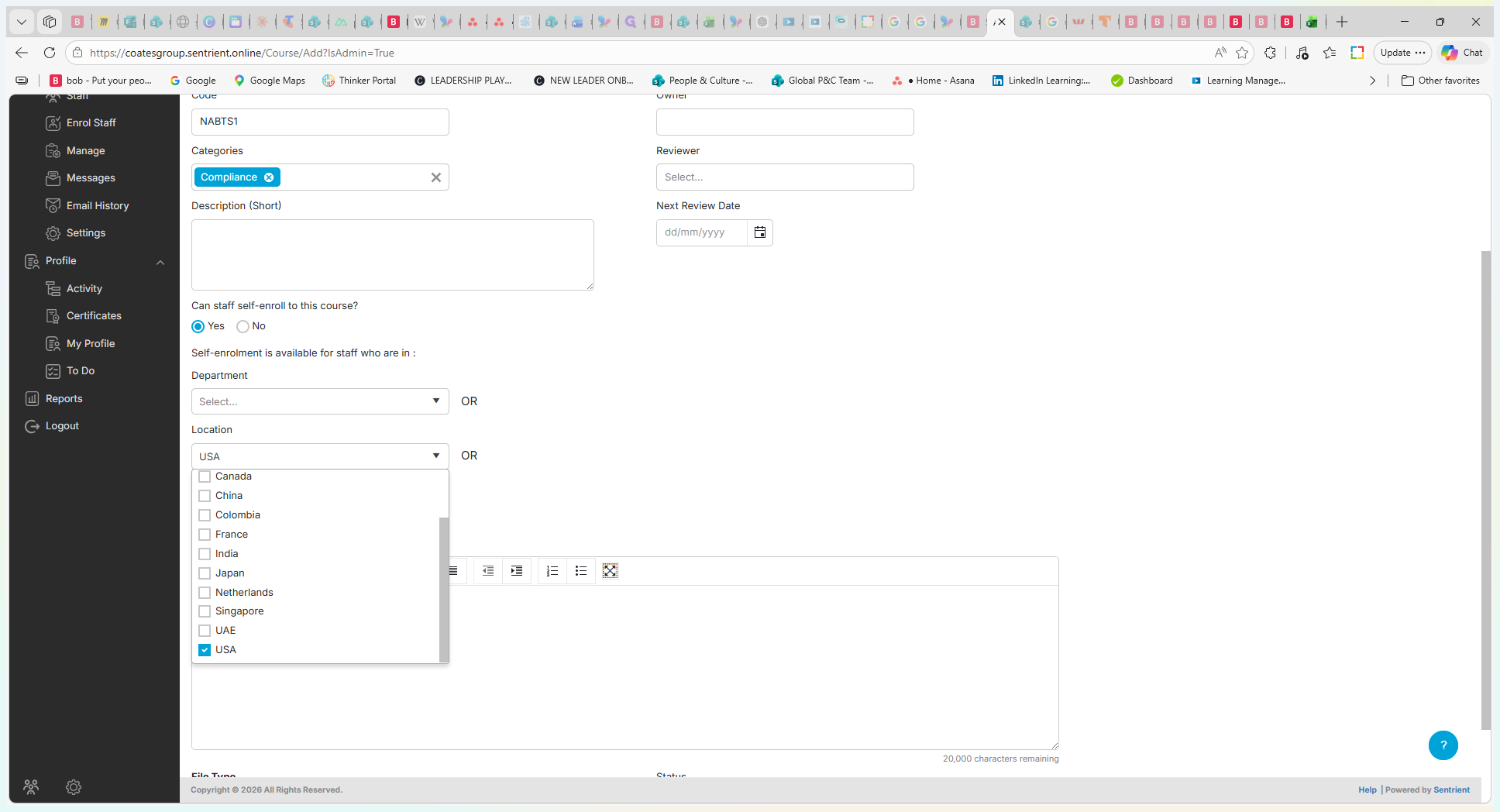
Set Review Dates and Upload Files
Compliance courses often require periodic updates based on new legislation or external licensing agreements.
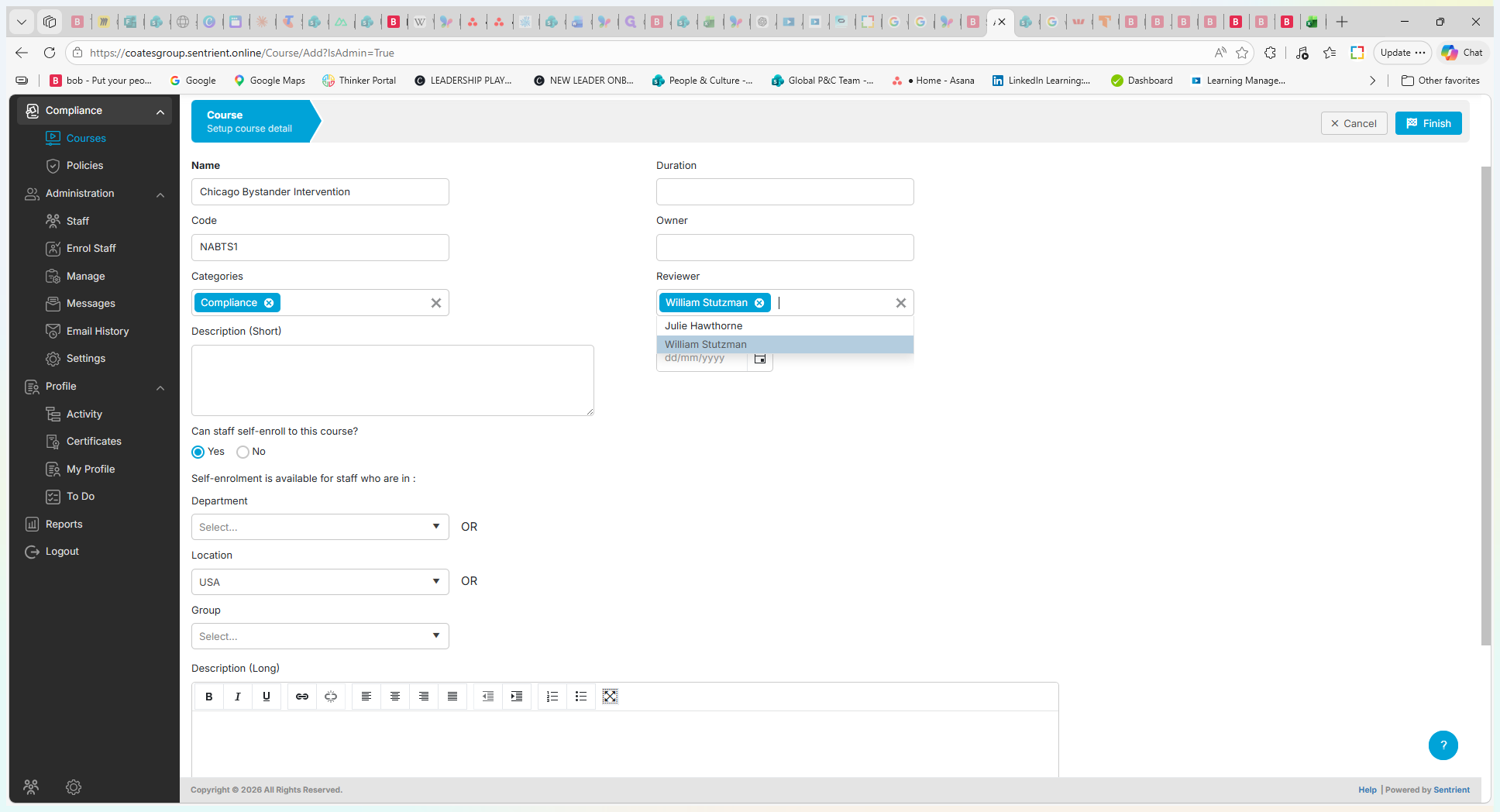
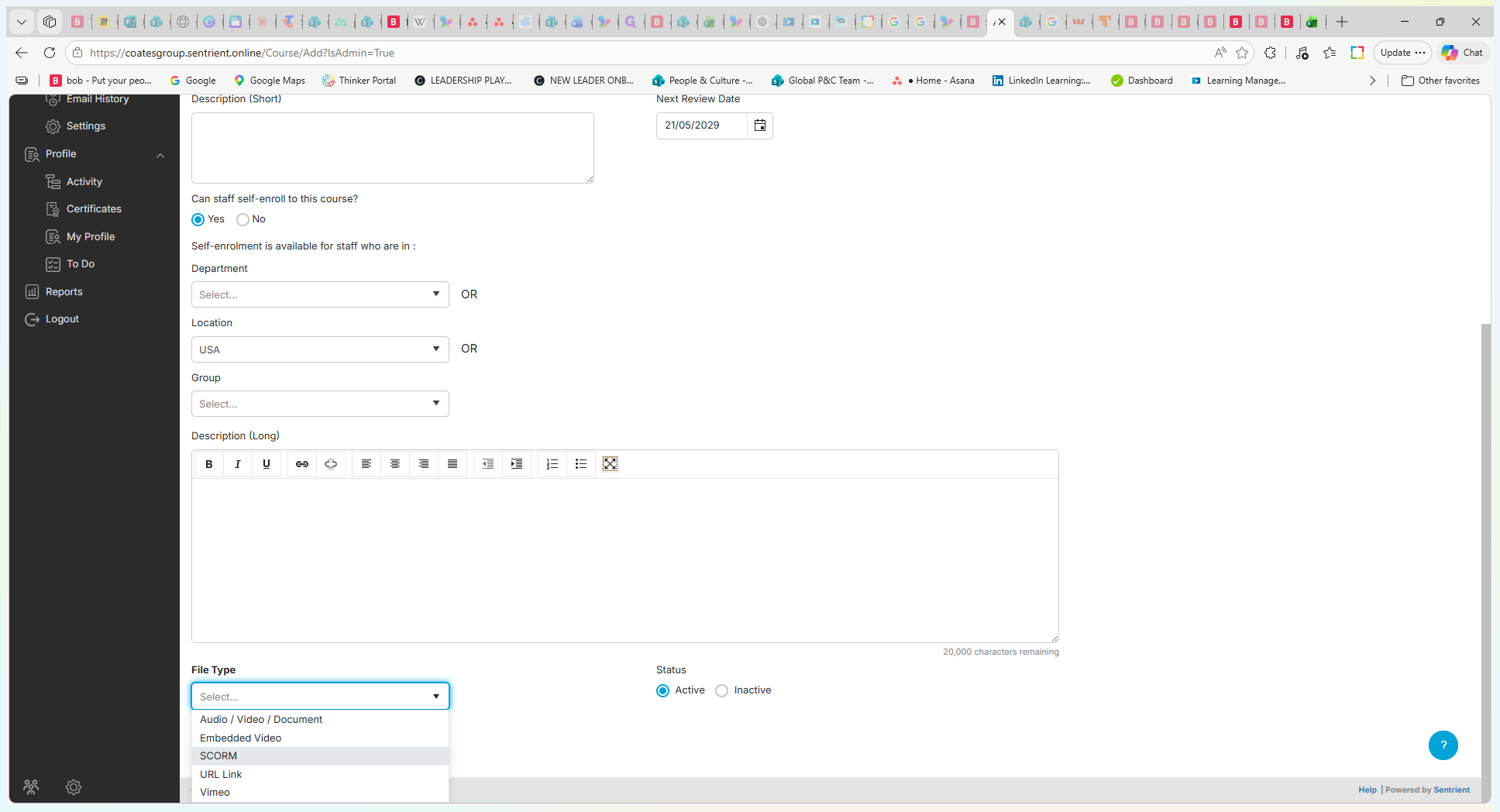
.zip SCORM file.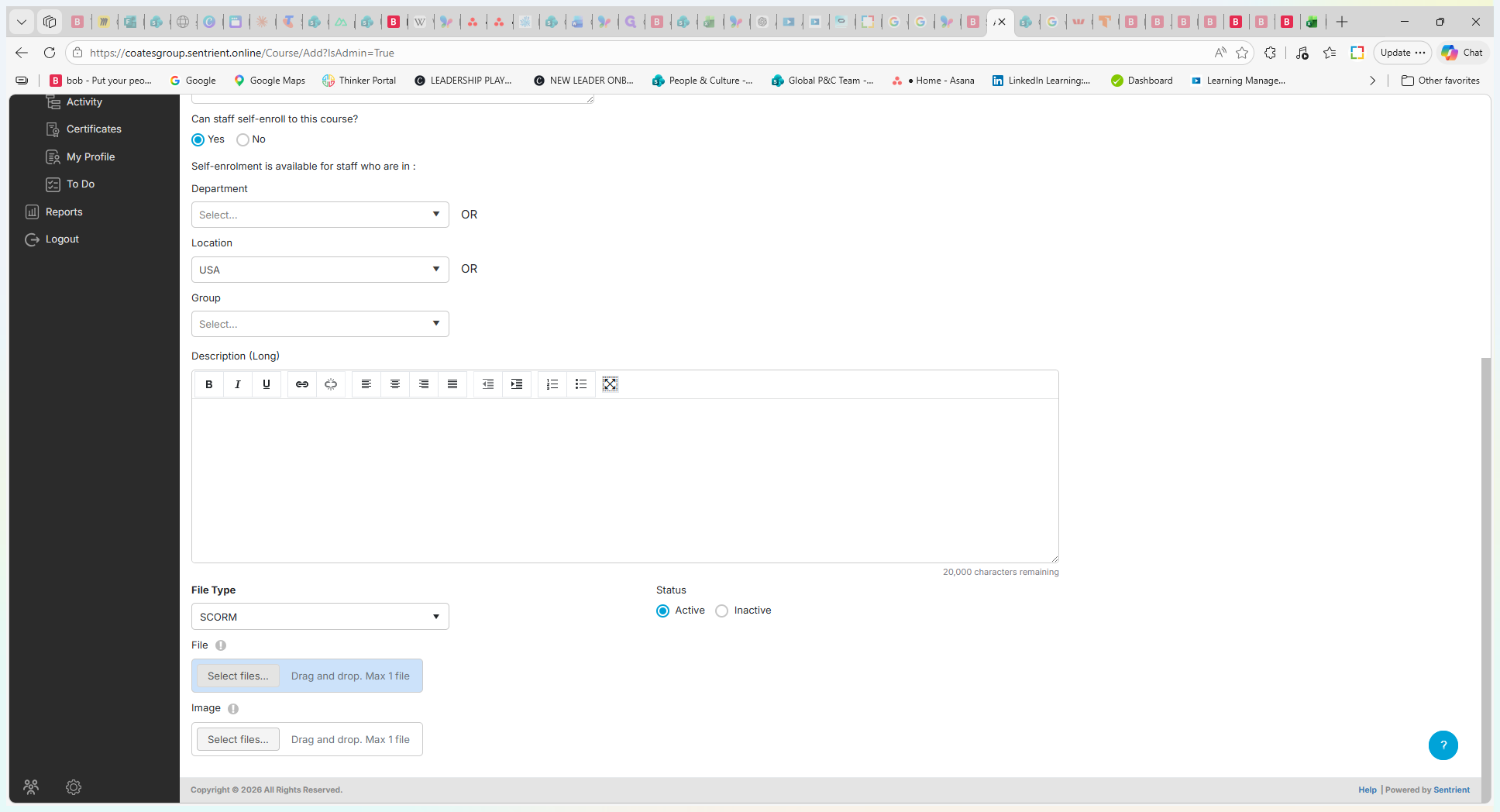
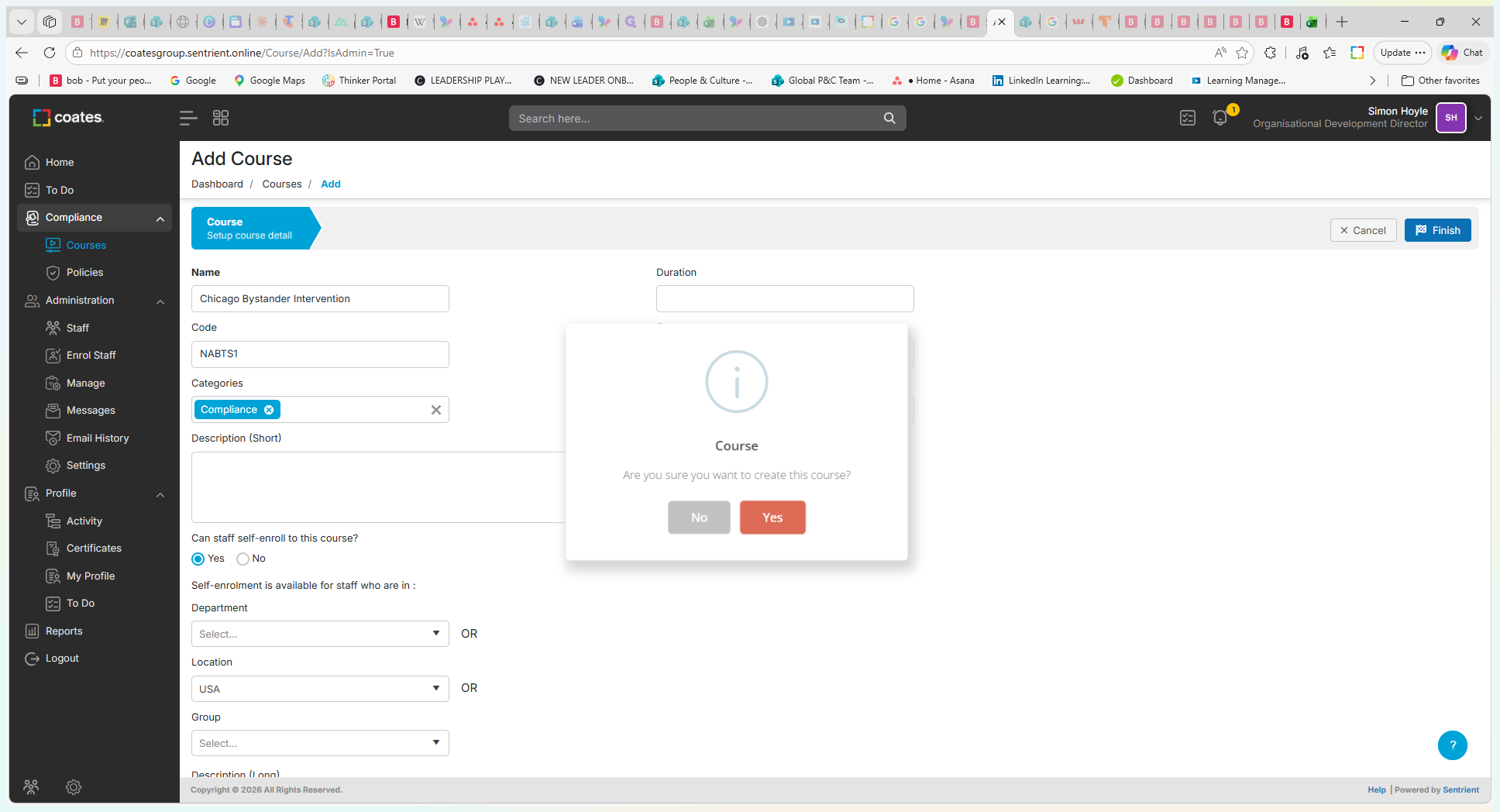
Once the system finishes uploading the relevant files, the course will be available in your library. You can now attach it to onboarding workflow templates or manually assign it to staff.
FAQ
Q: Can I restrict course self-enrollment to a specific city?
A: No, locations in Sentrient are currently limited to the country level (e.g., USA). You cannot target a specific city like Chicago using the native location filter.
Q: Do I need to select a target group for the course?
A: No. If the course is broadly applicable to all employment types (e.g., external contractors, interns, and permanent staff), you can safely leave the Group field blank.
Glossary
Term | Definition |
|---|---|
SCORM | A standard technical format for e-learning content that ensures external courses track progress and completion correctly inside a learning management system. |
Self-enrollment | A setting that allows employees to voluntarily access and start a course on demand directly from the library, rather than having it pushed to them. |
Workflow | An automated sequence in the LMS that assigns specific required courses to employees based on triggers like their start date or role. |