
How to Use DocuSeal Templates for Employee Forms and Signatures
Learn step-by-step how to use DocuSeal templates to send, sign, and manage employee forms efficiently. This guide covers signing in, sharing links, and handling completed documents.
In this guide, we'll learn how to send a form to an employee using DocuSeal and Homebase. You will see how to share a template link, guide the employee through filling out and signing the form, and access the completed document. This process helps you manage and store signed forms efficiently.
Let's get started
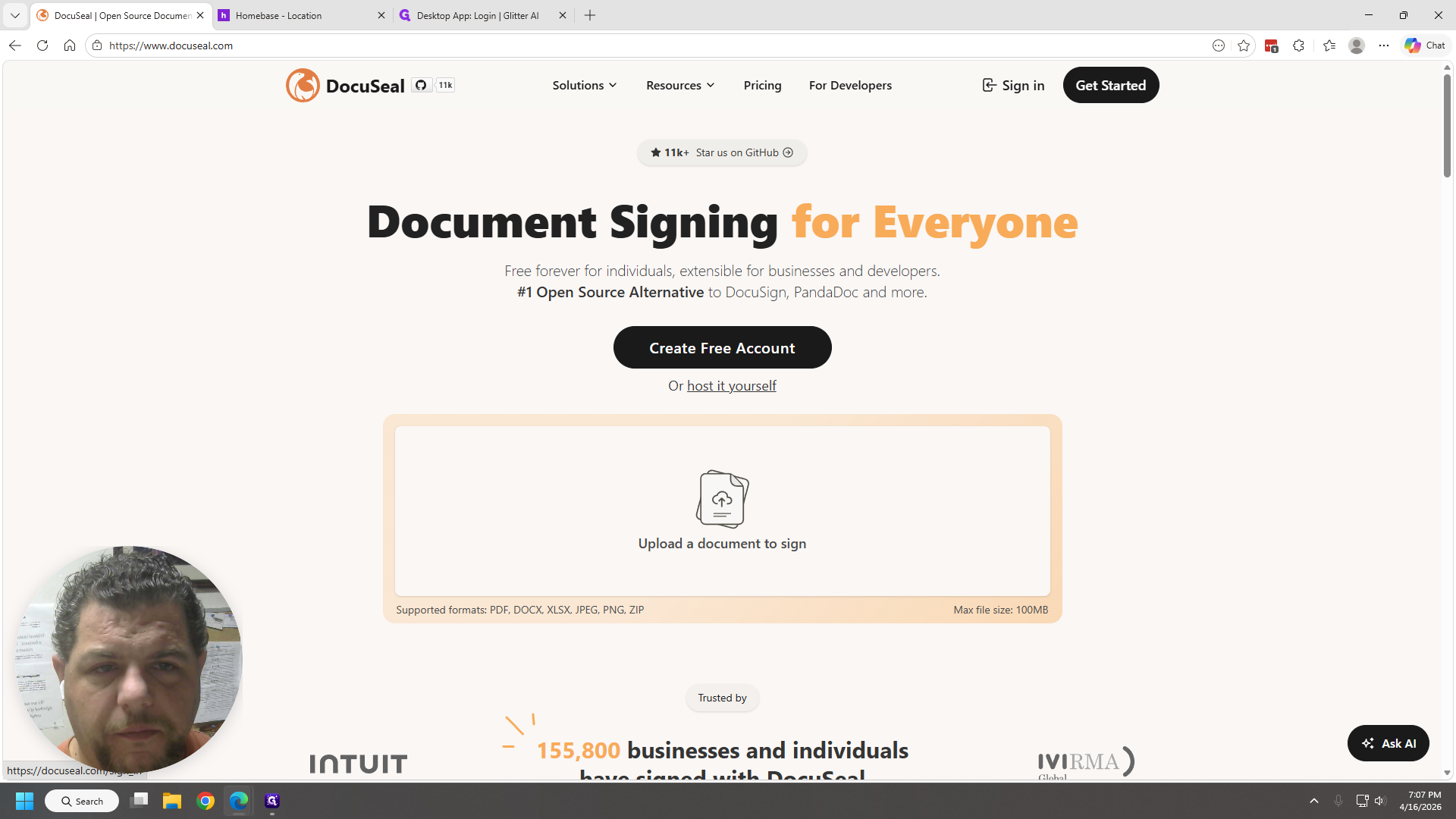
Okay. First, click the link I sent you in the email. Go to the Sign In option at the top.
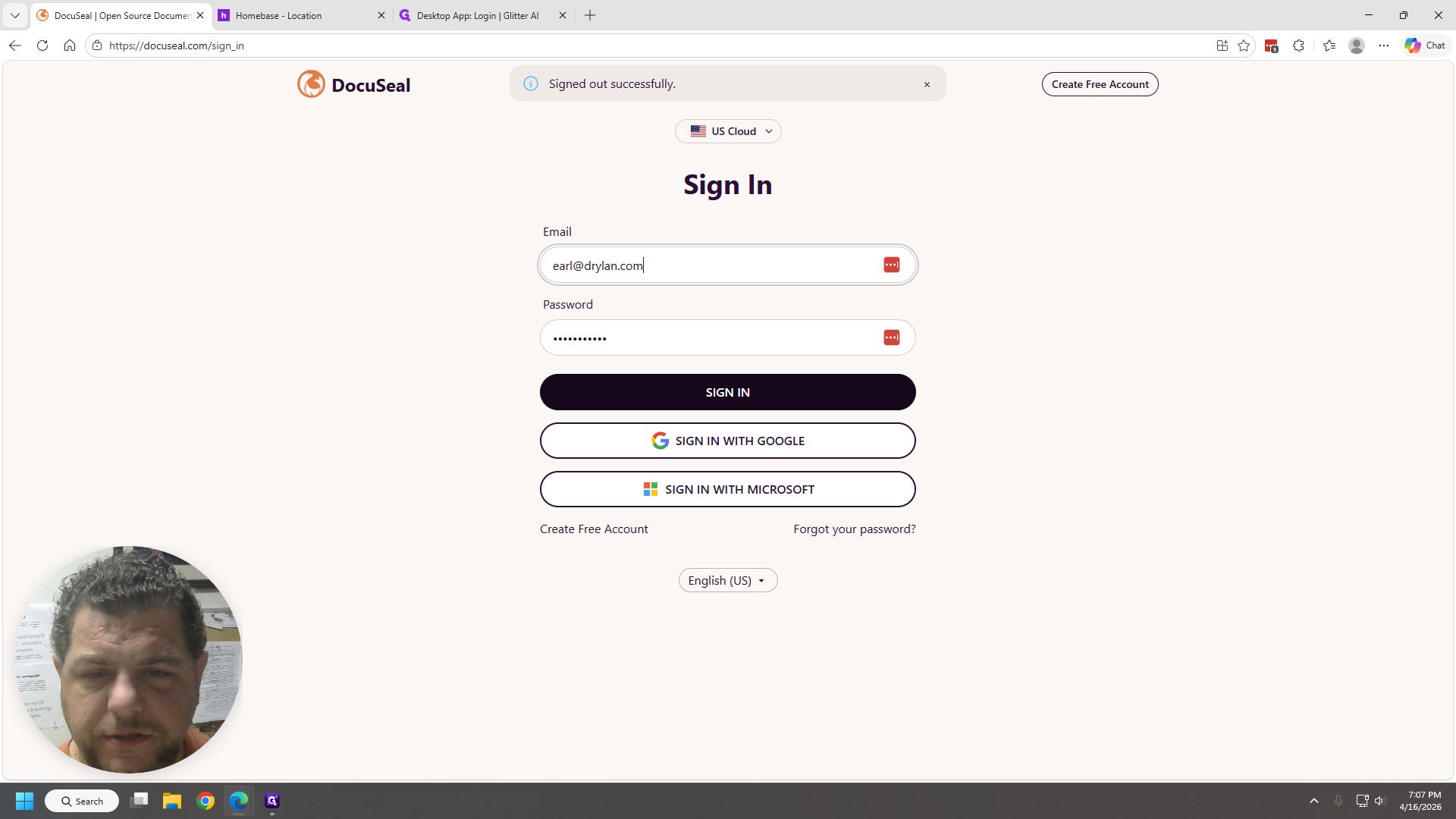
I have my username and password saved. Just enter the credentials.
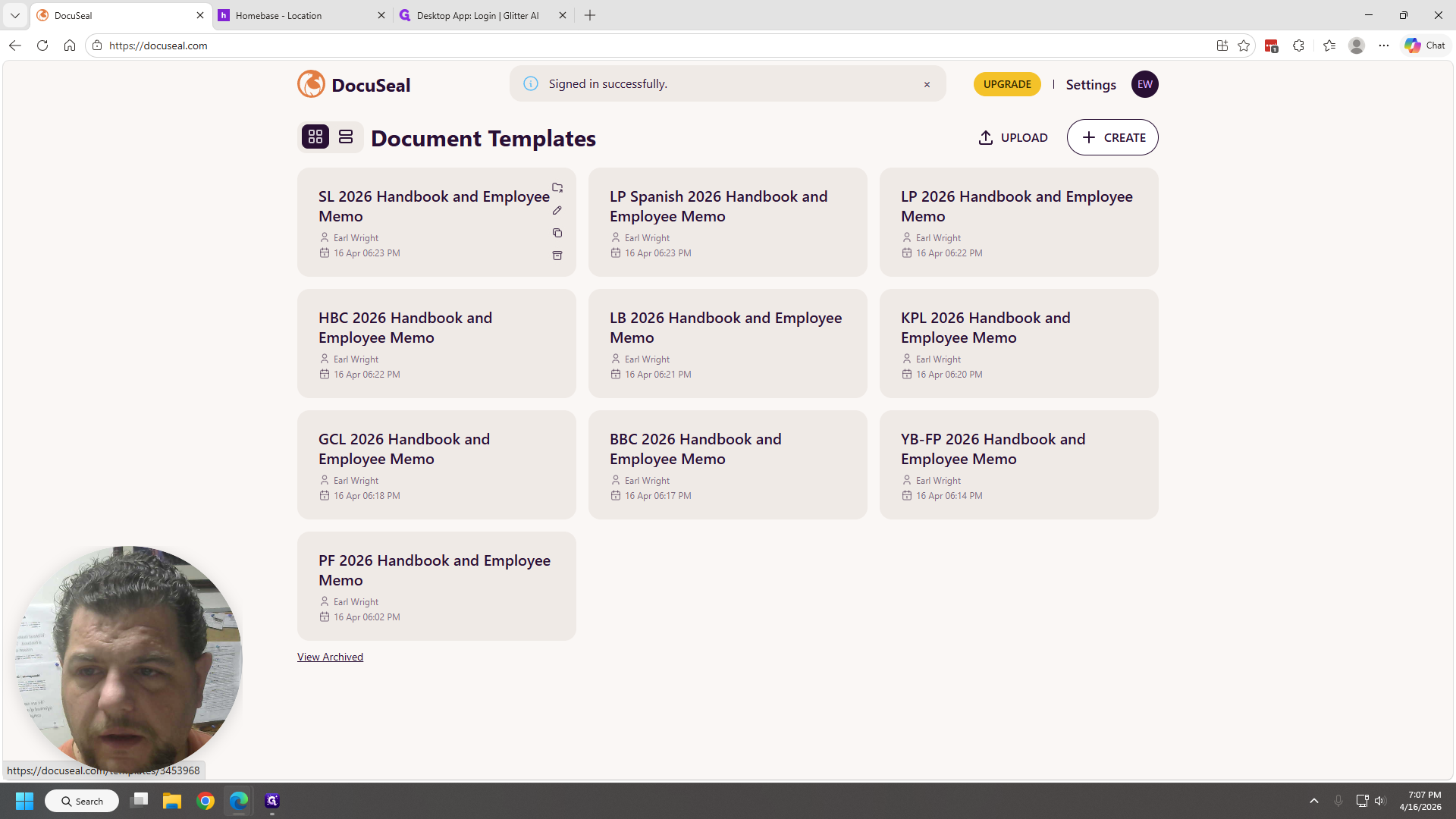
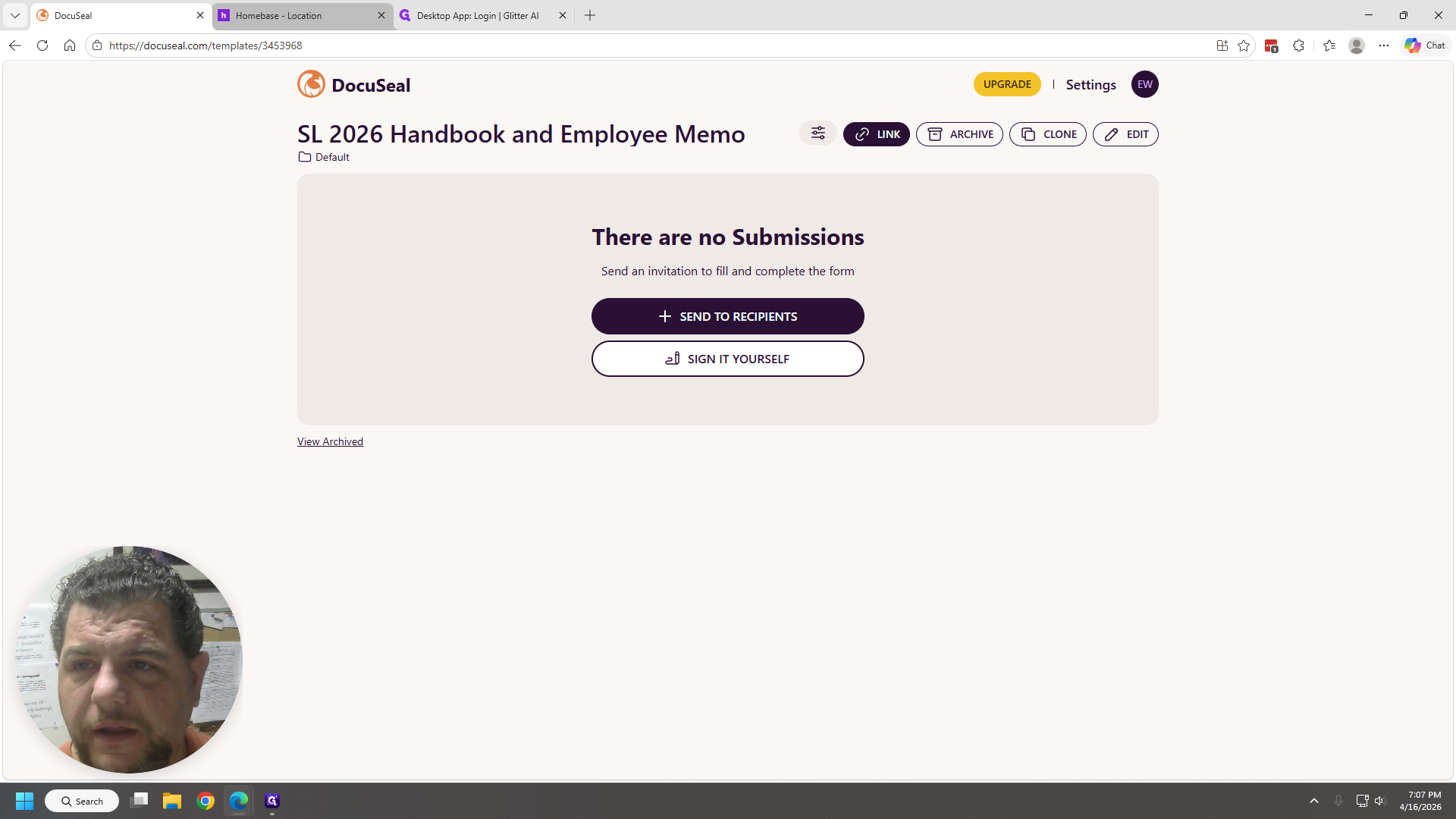
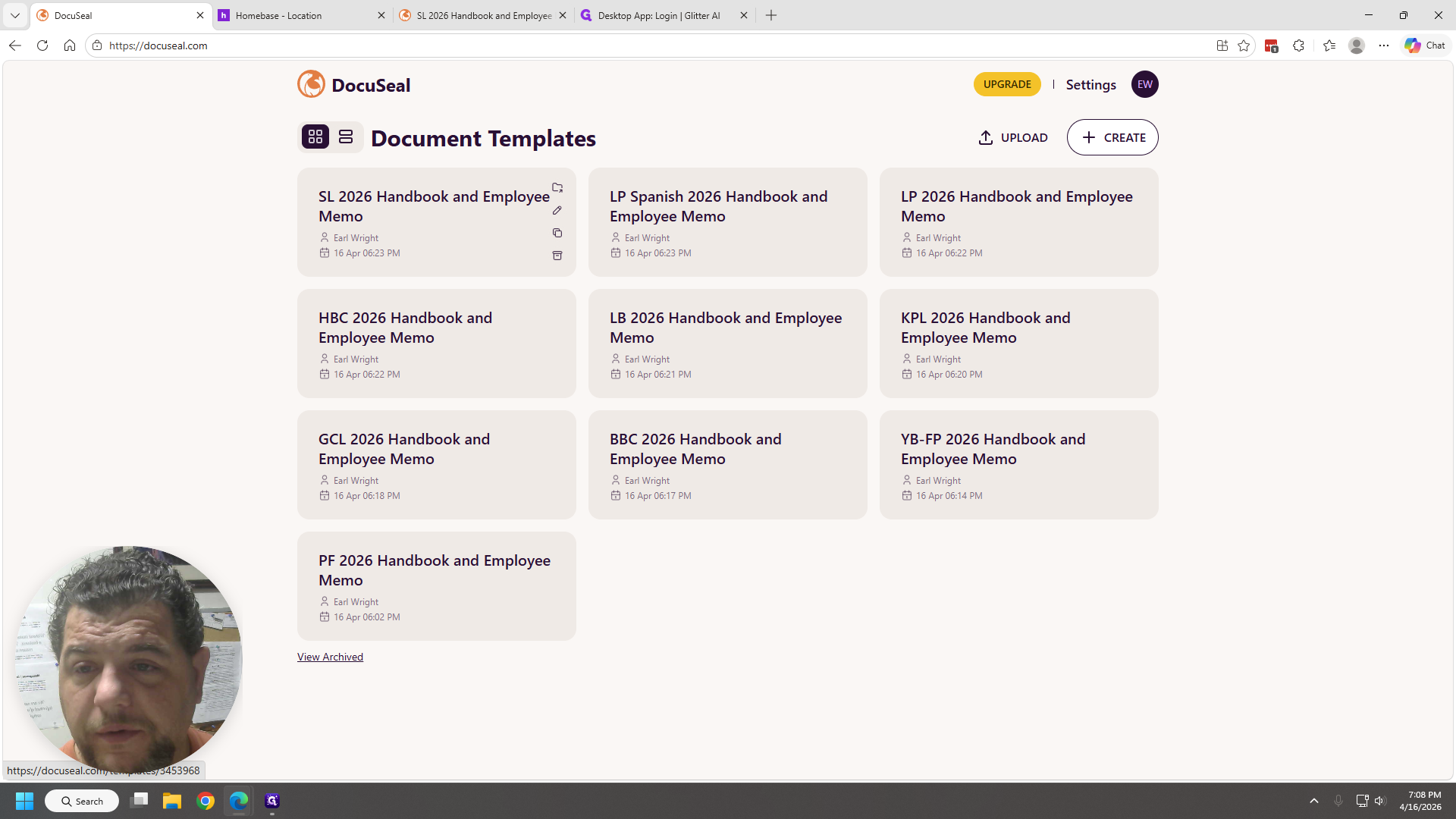
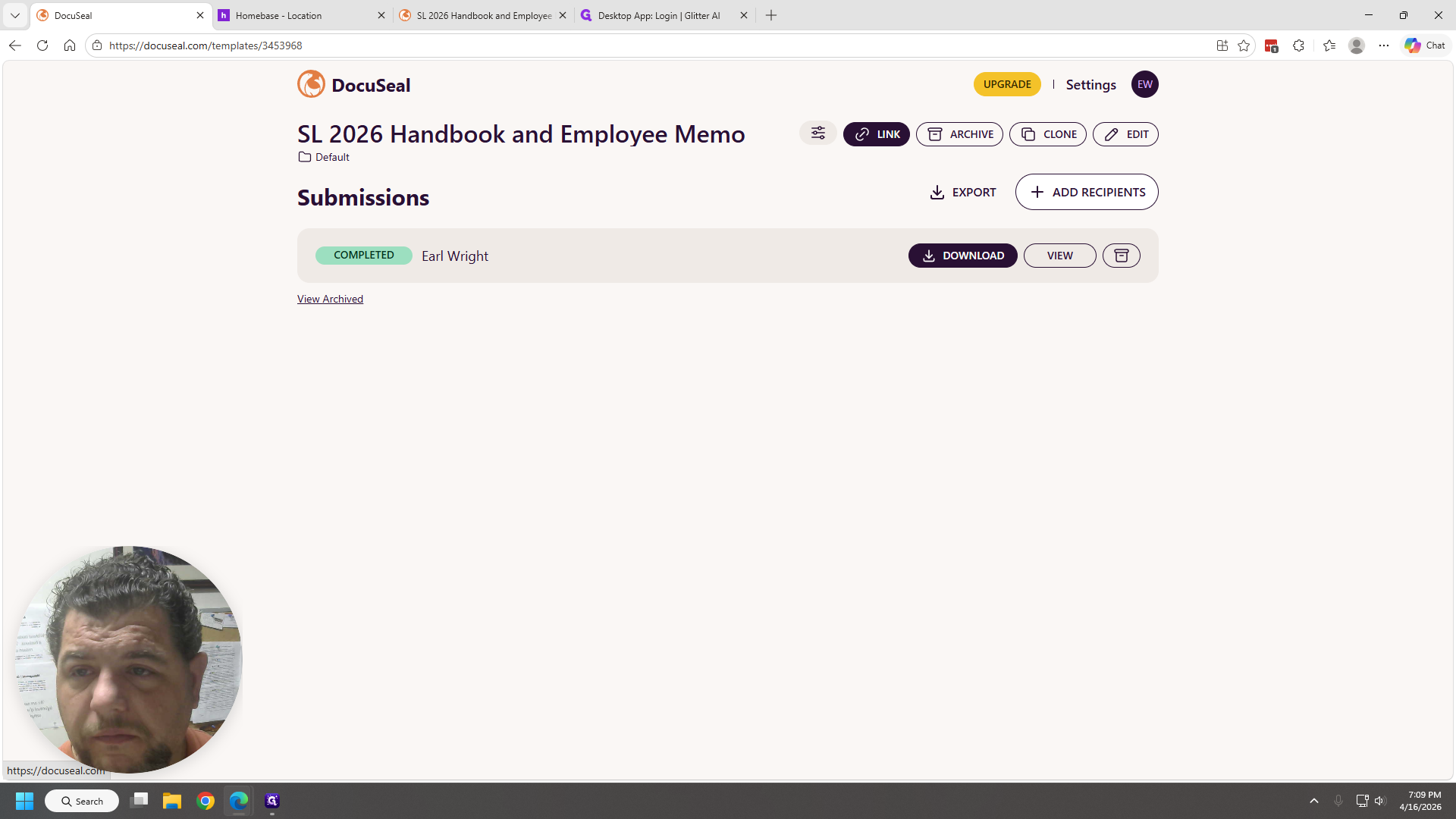
Go to Sign In. It will automatically open the DocuSeal templates. If you click on one, such as Sierra Lanes, there will be a link at the top.
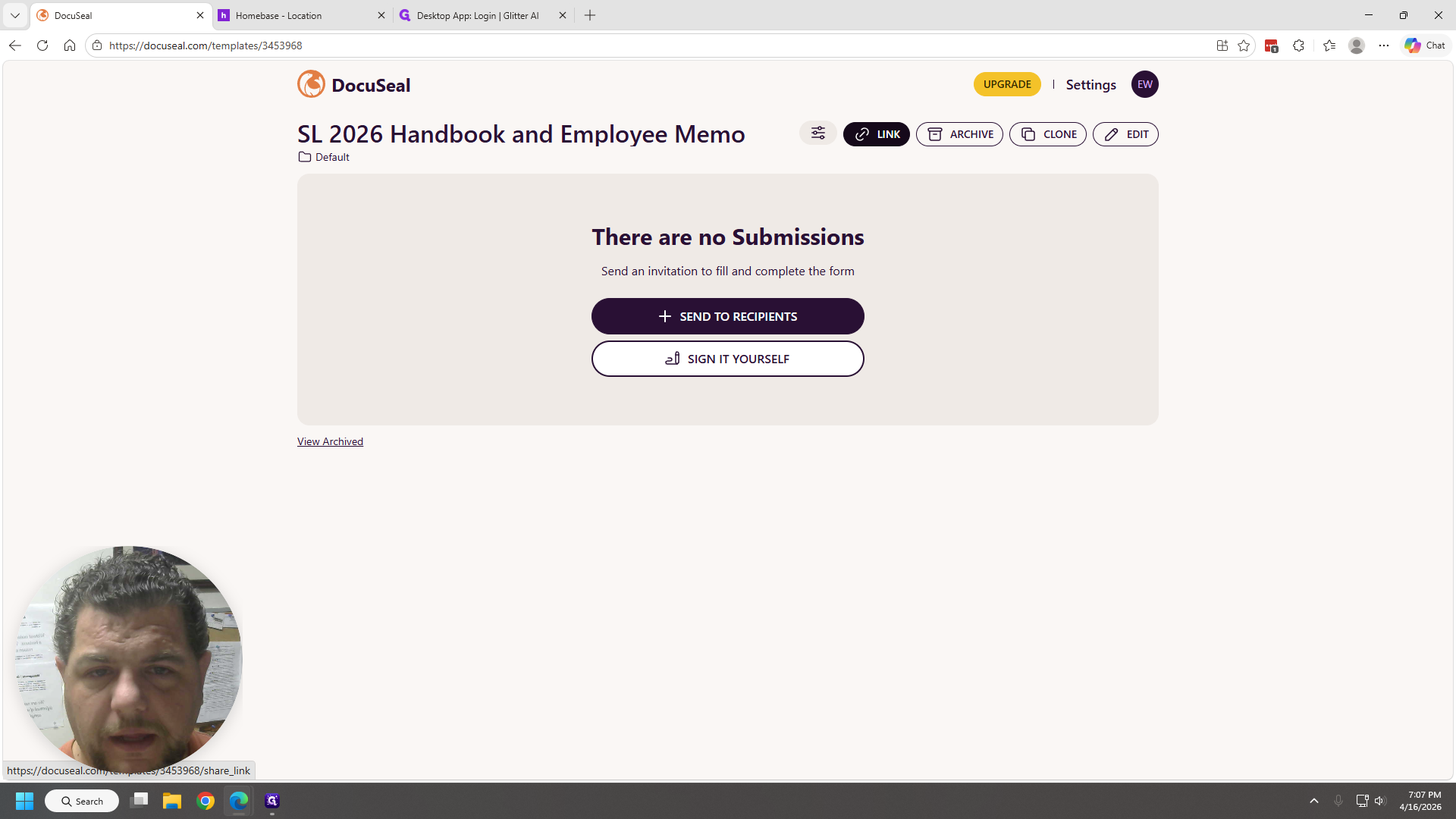
You can copy the link, close it, and then go to Homebase.
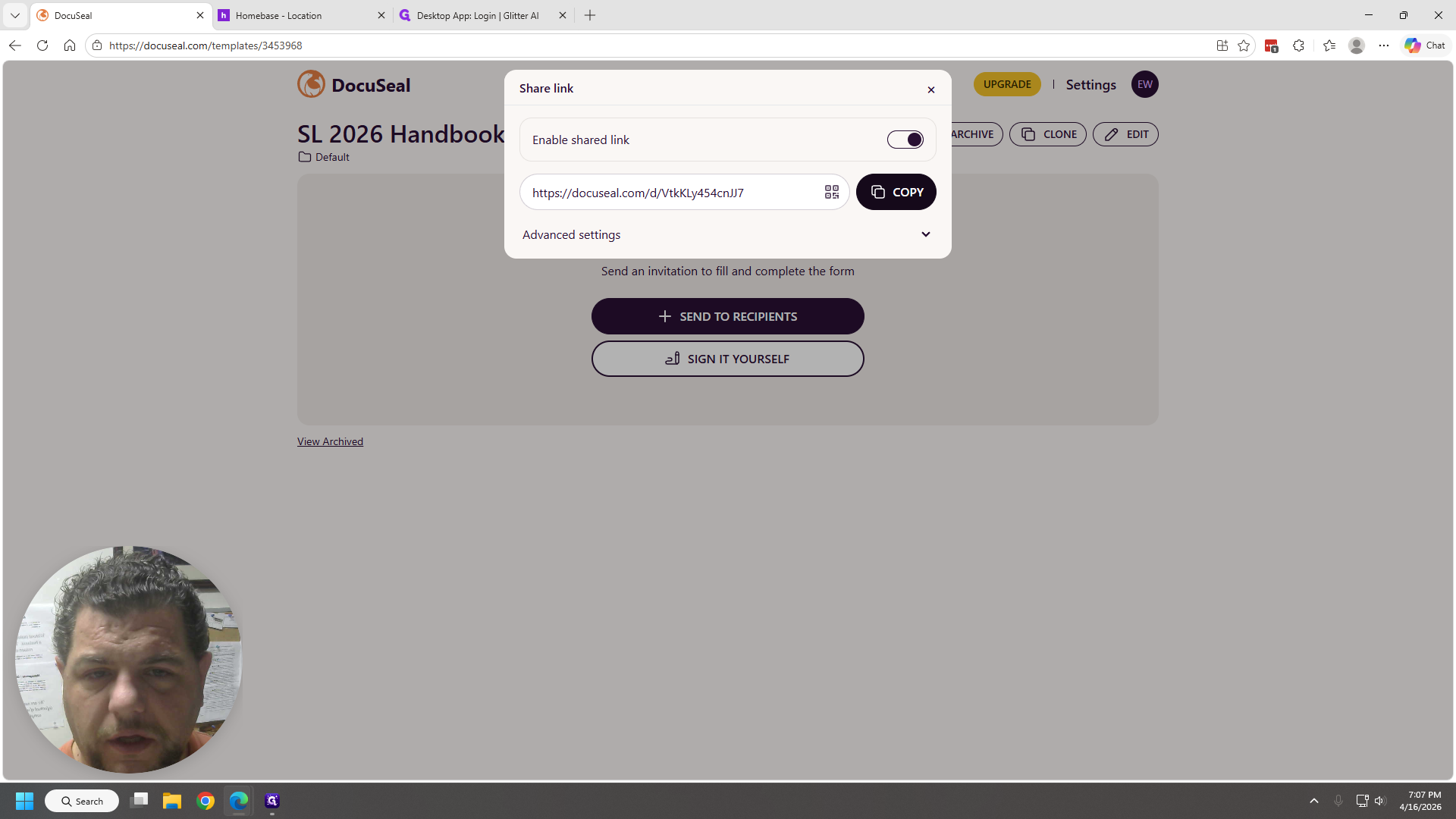
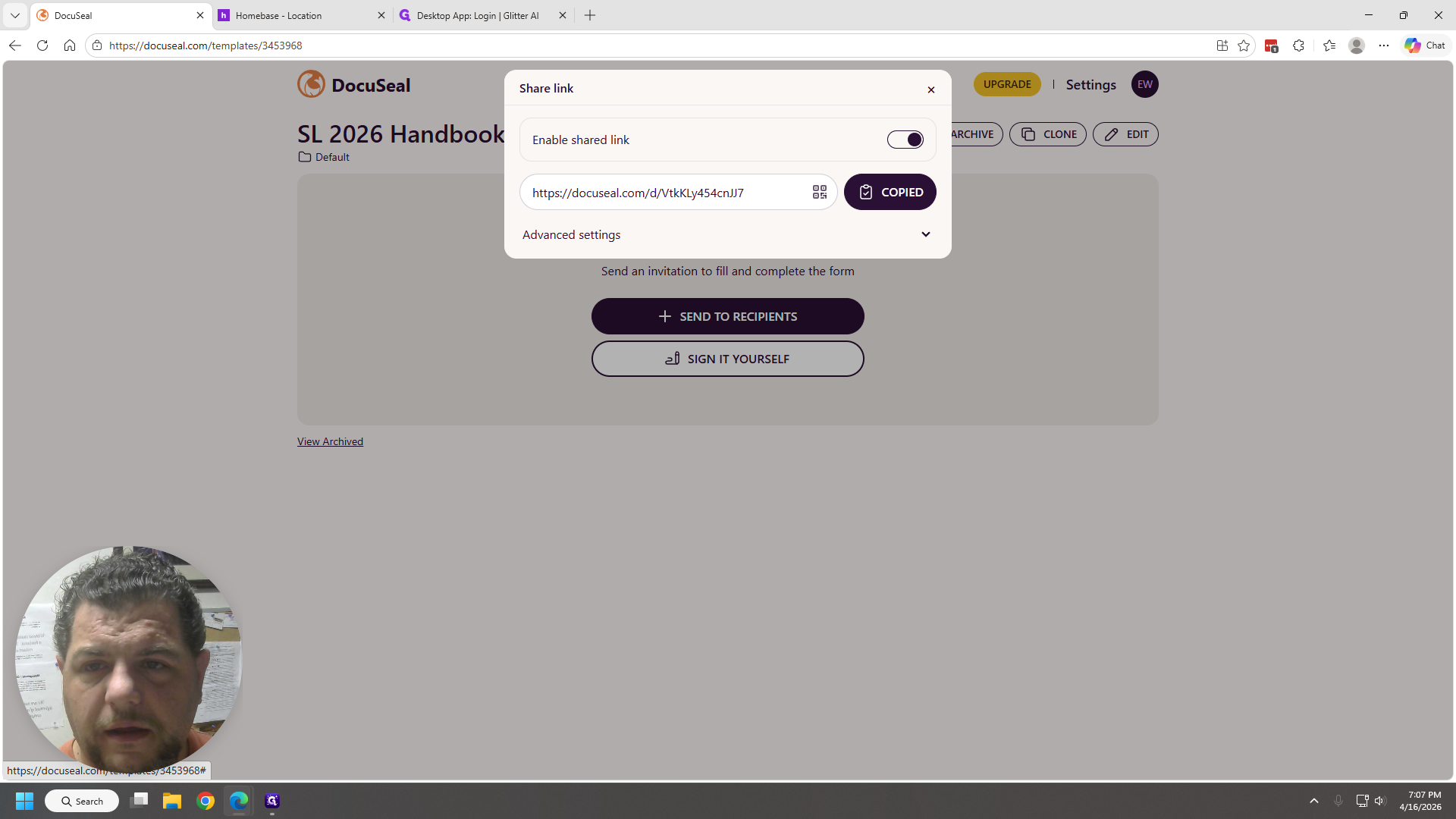
I'm already signed in. You can select an employee as you normally would.
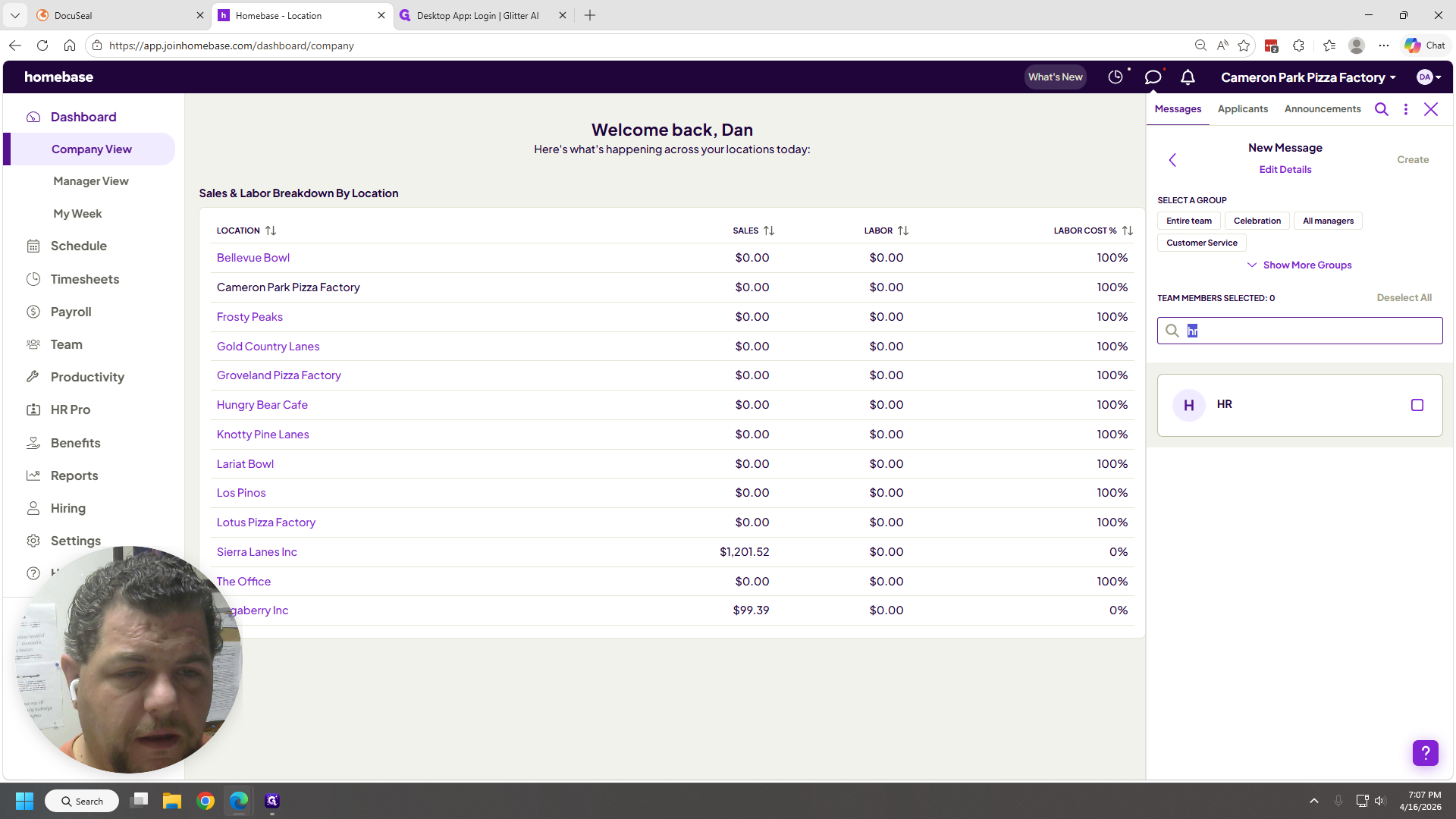
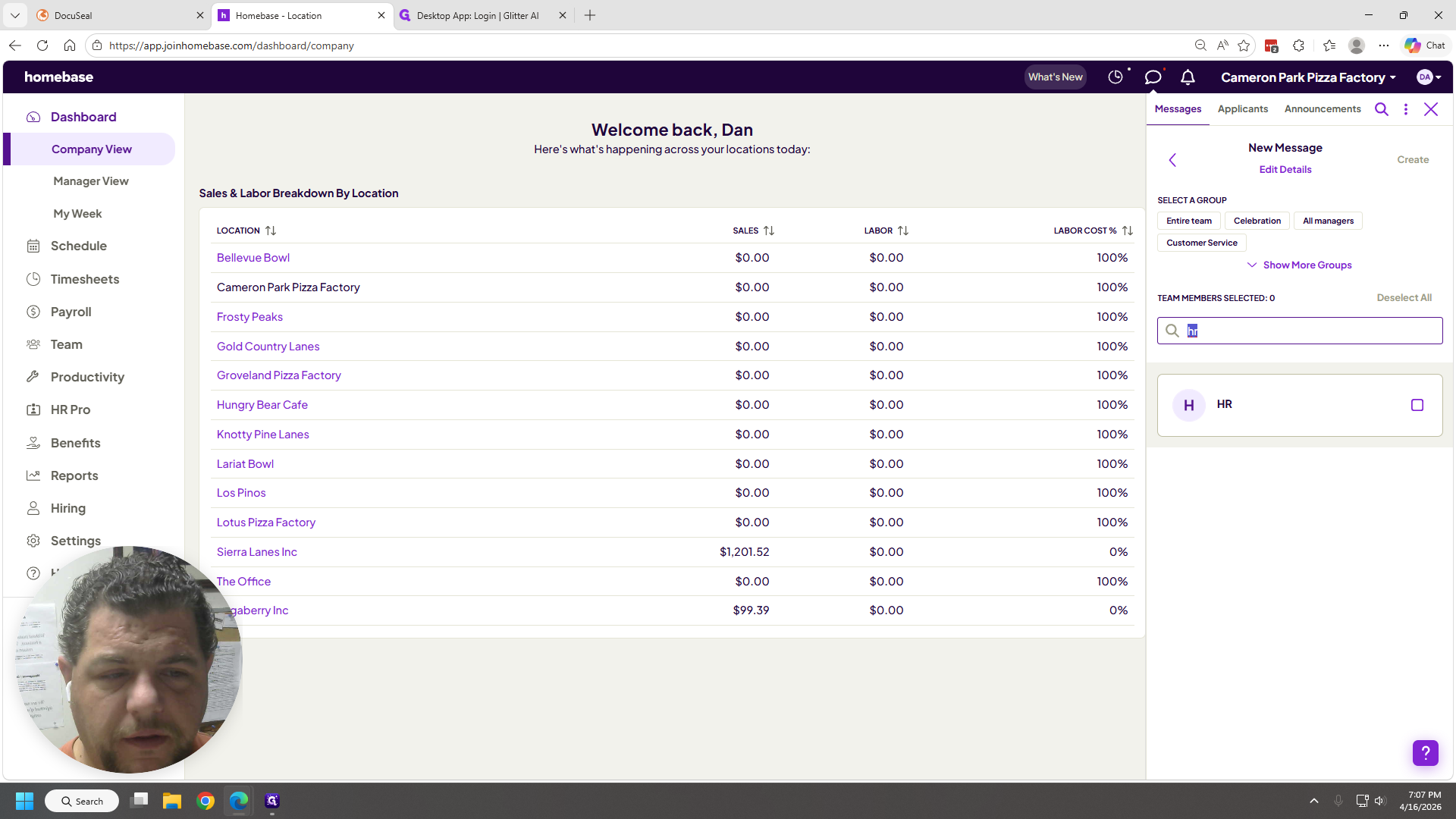
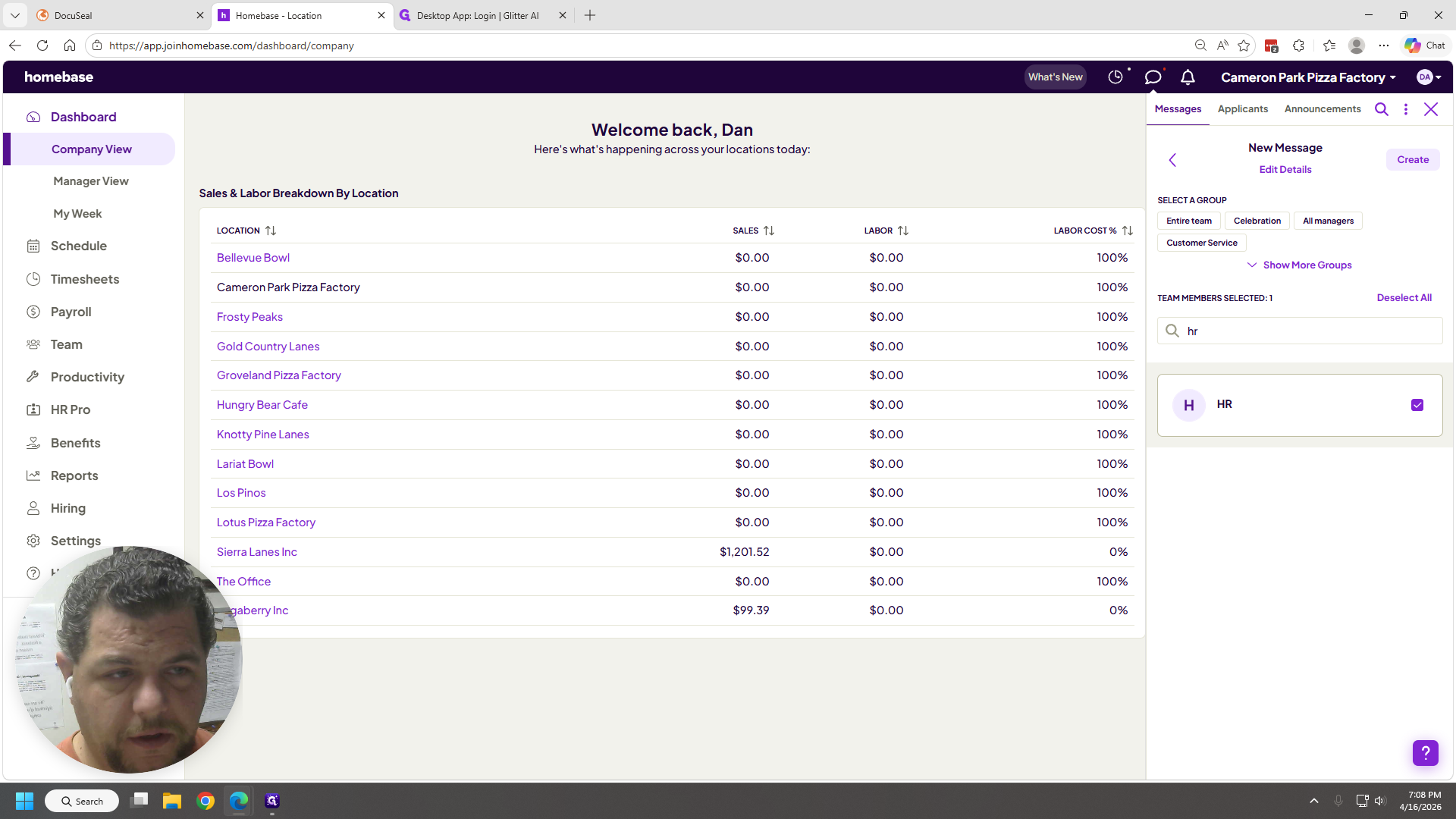
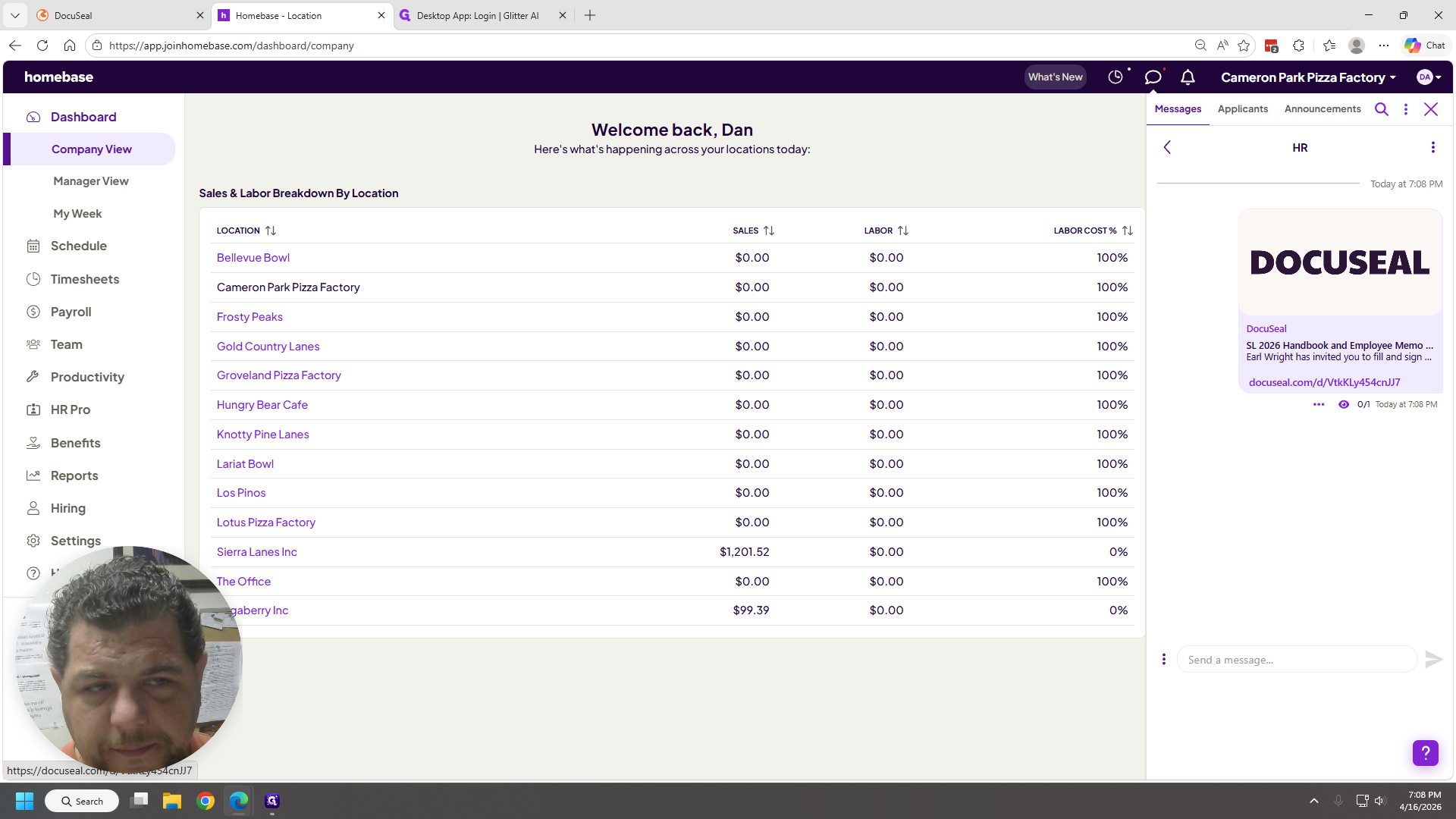
Create the message and paste the link.
When they receive the message and click it, they will automatically be invited to fill out a form.
I will start the form so you can see how it works.
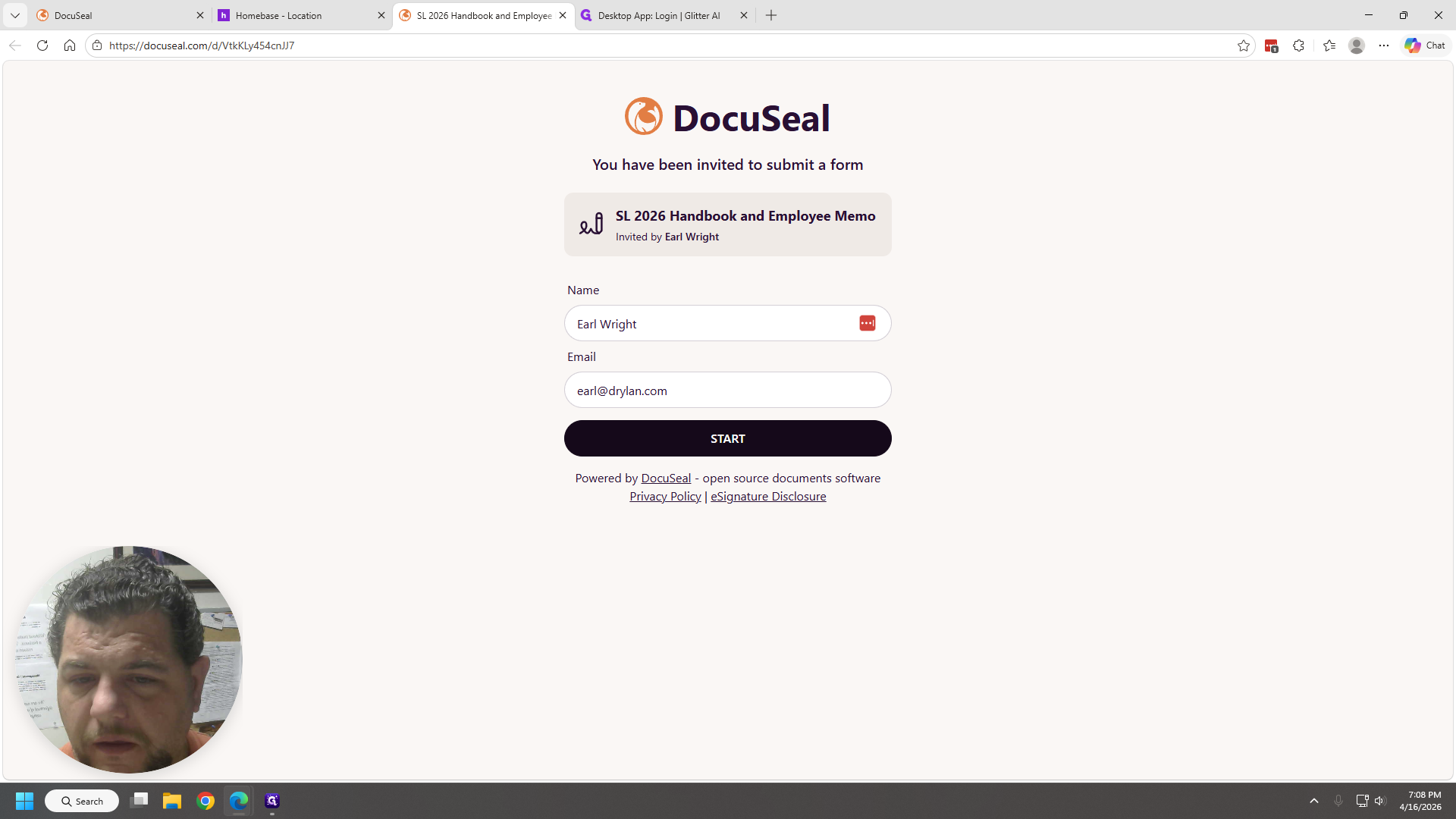
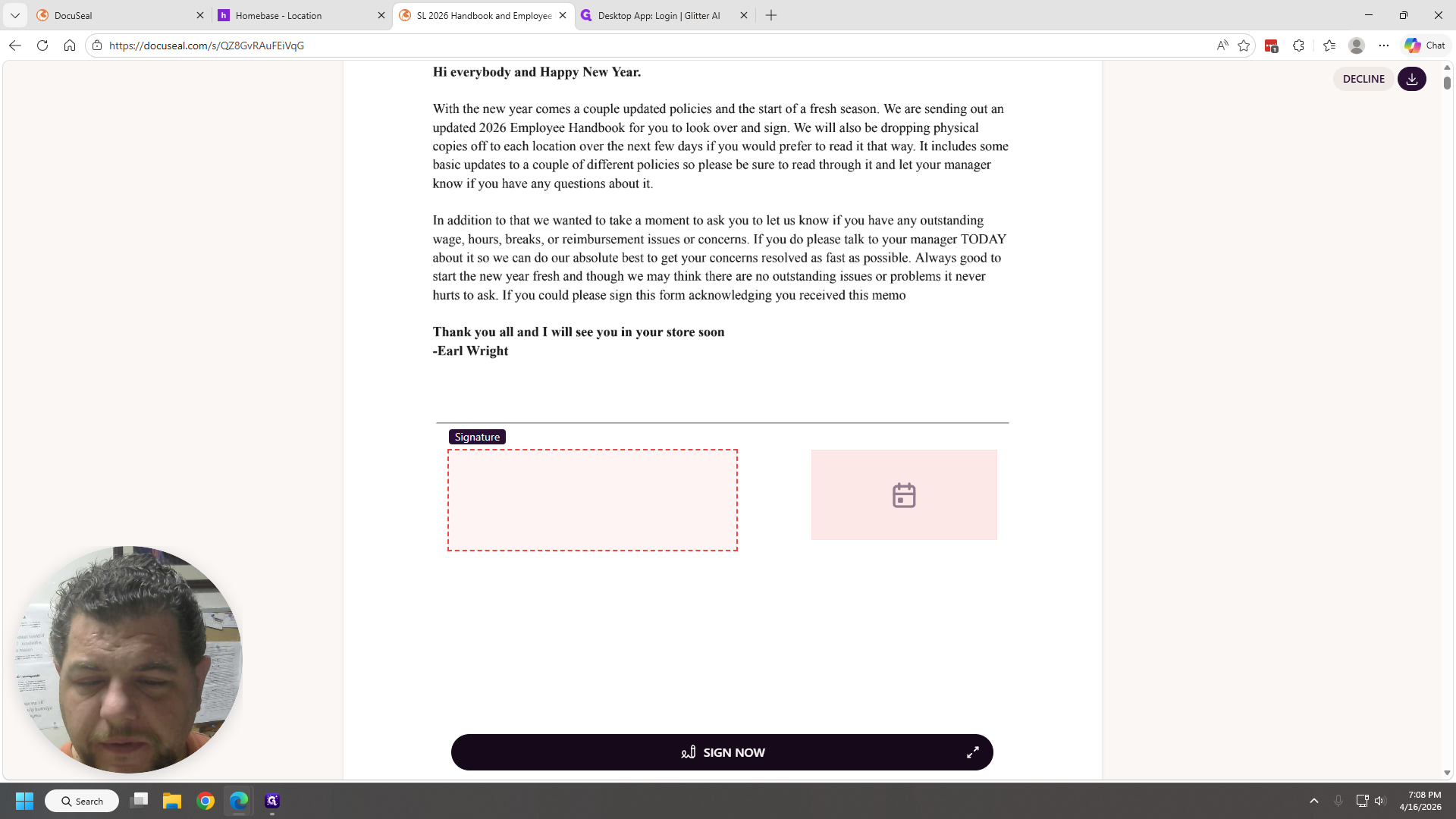
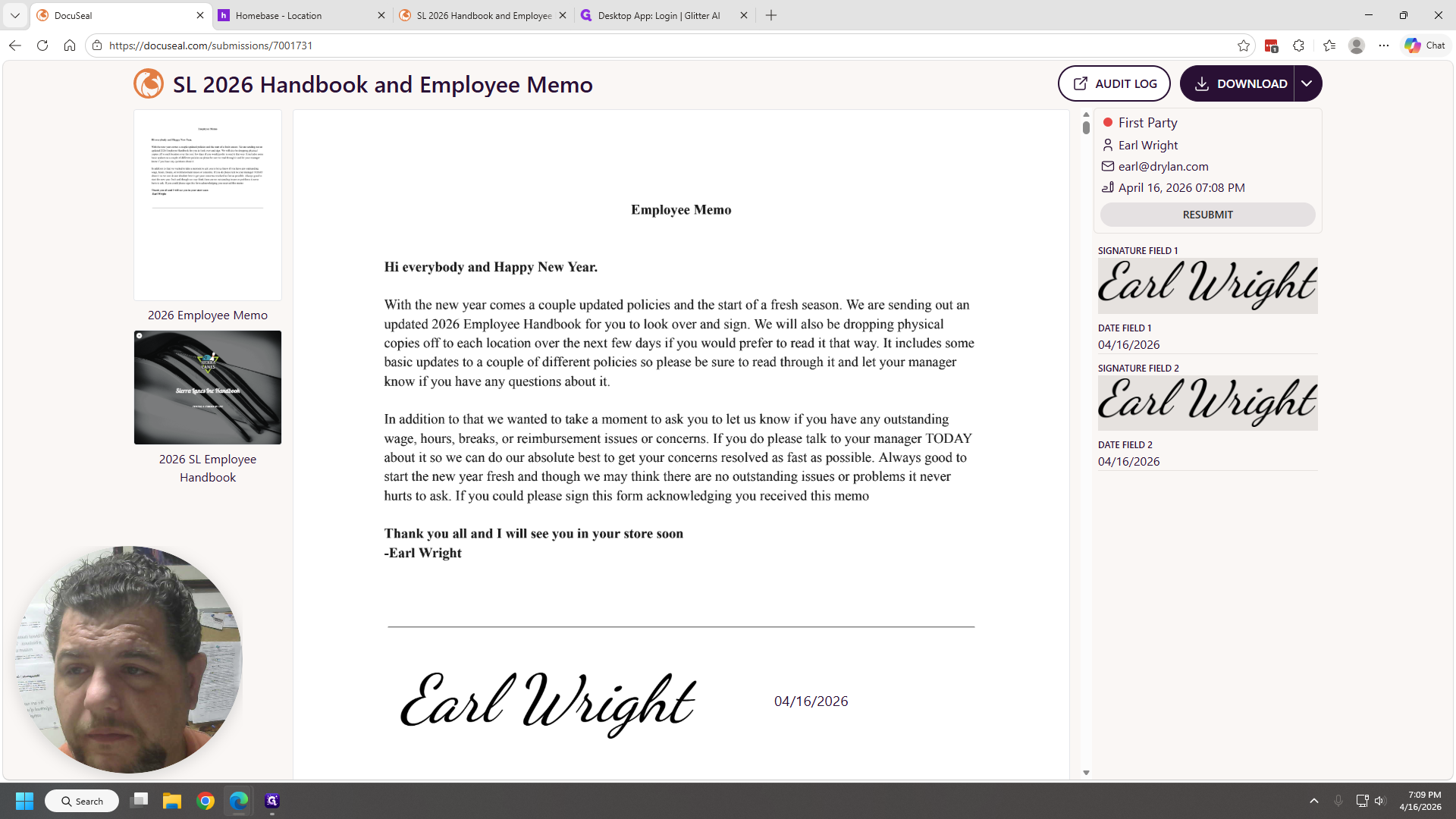
It's similar to DocuSign. It works well on their phone too. Click Sign Now.
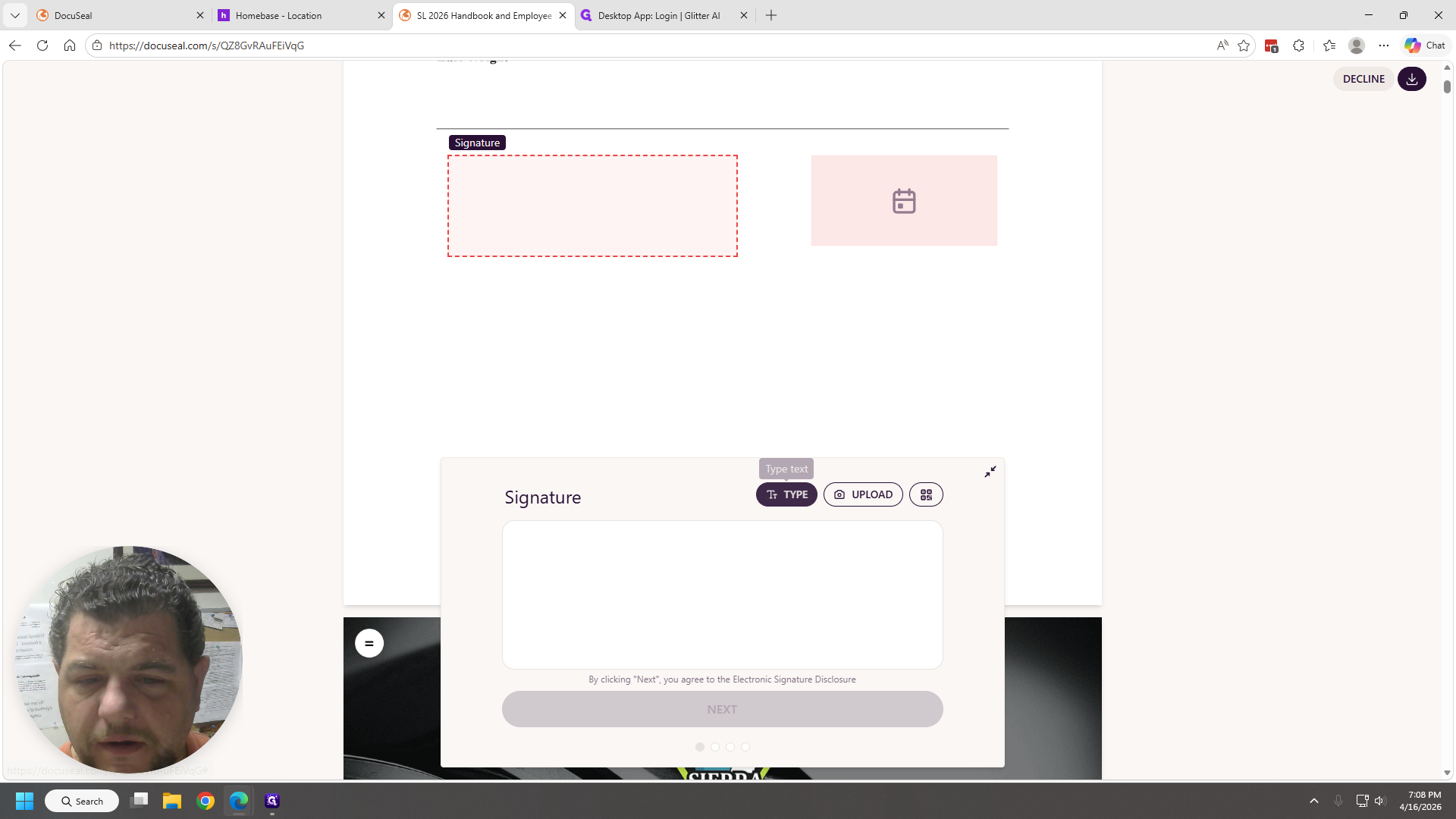
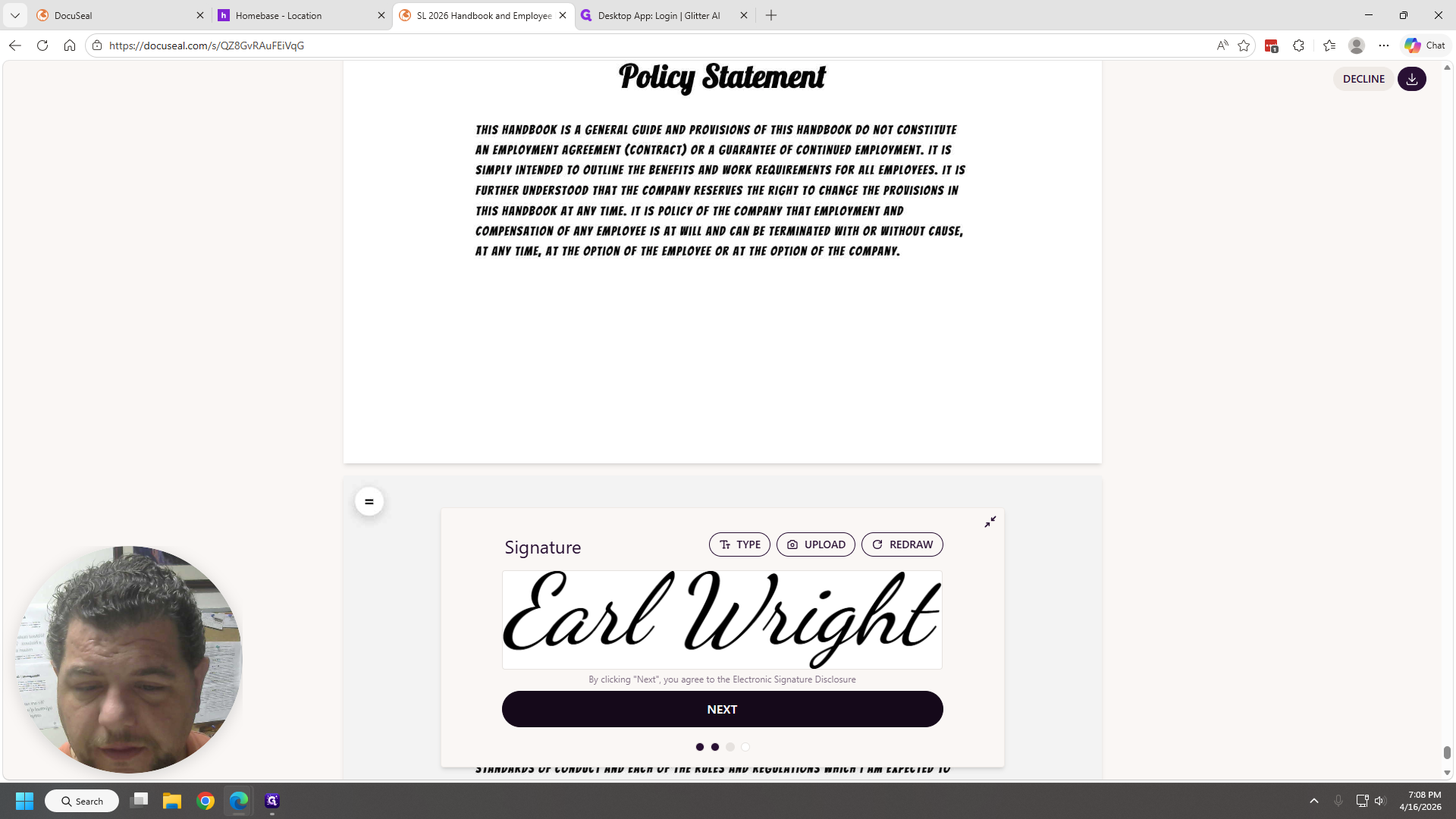
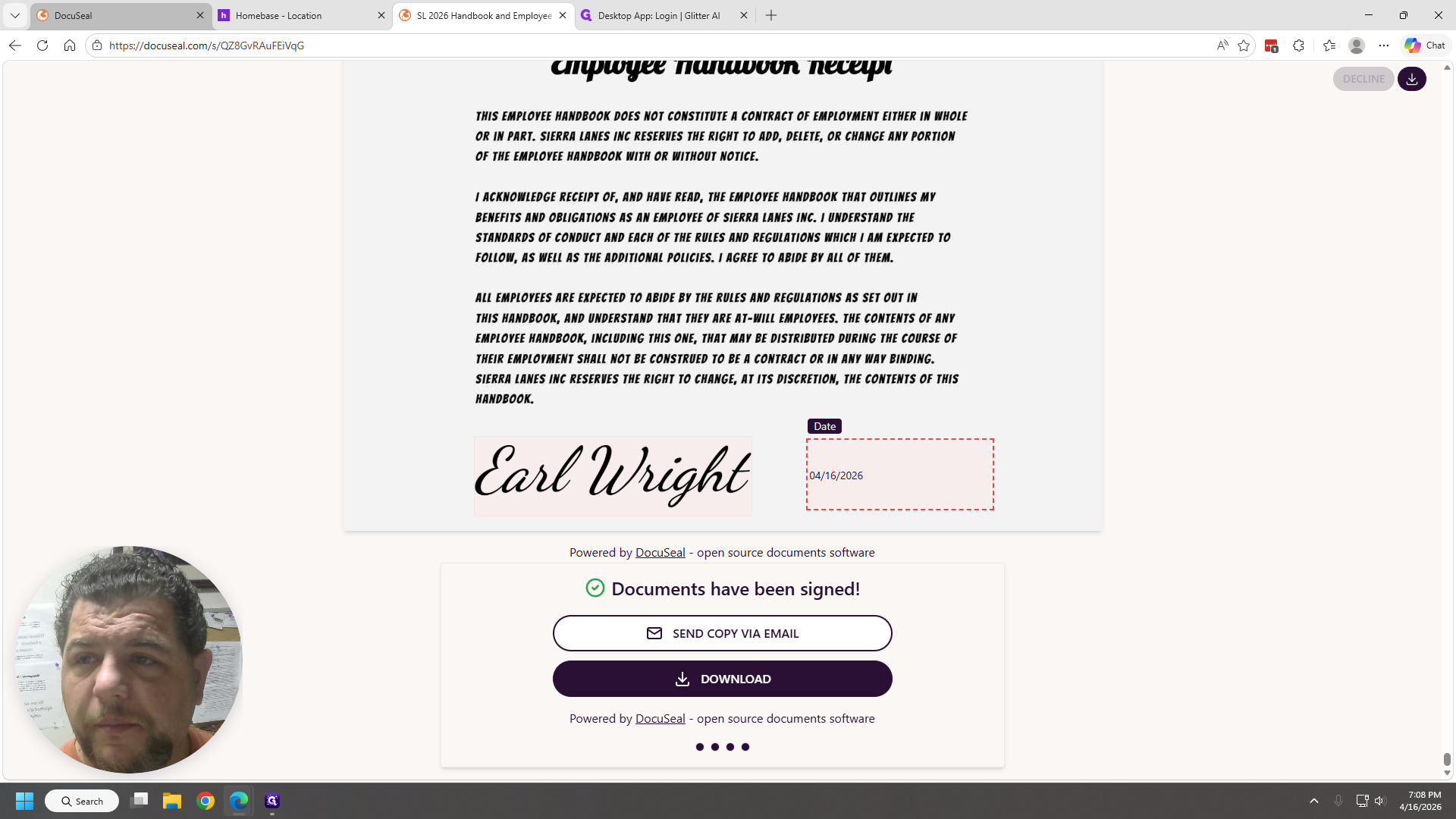
I can type my signature.
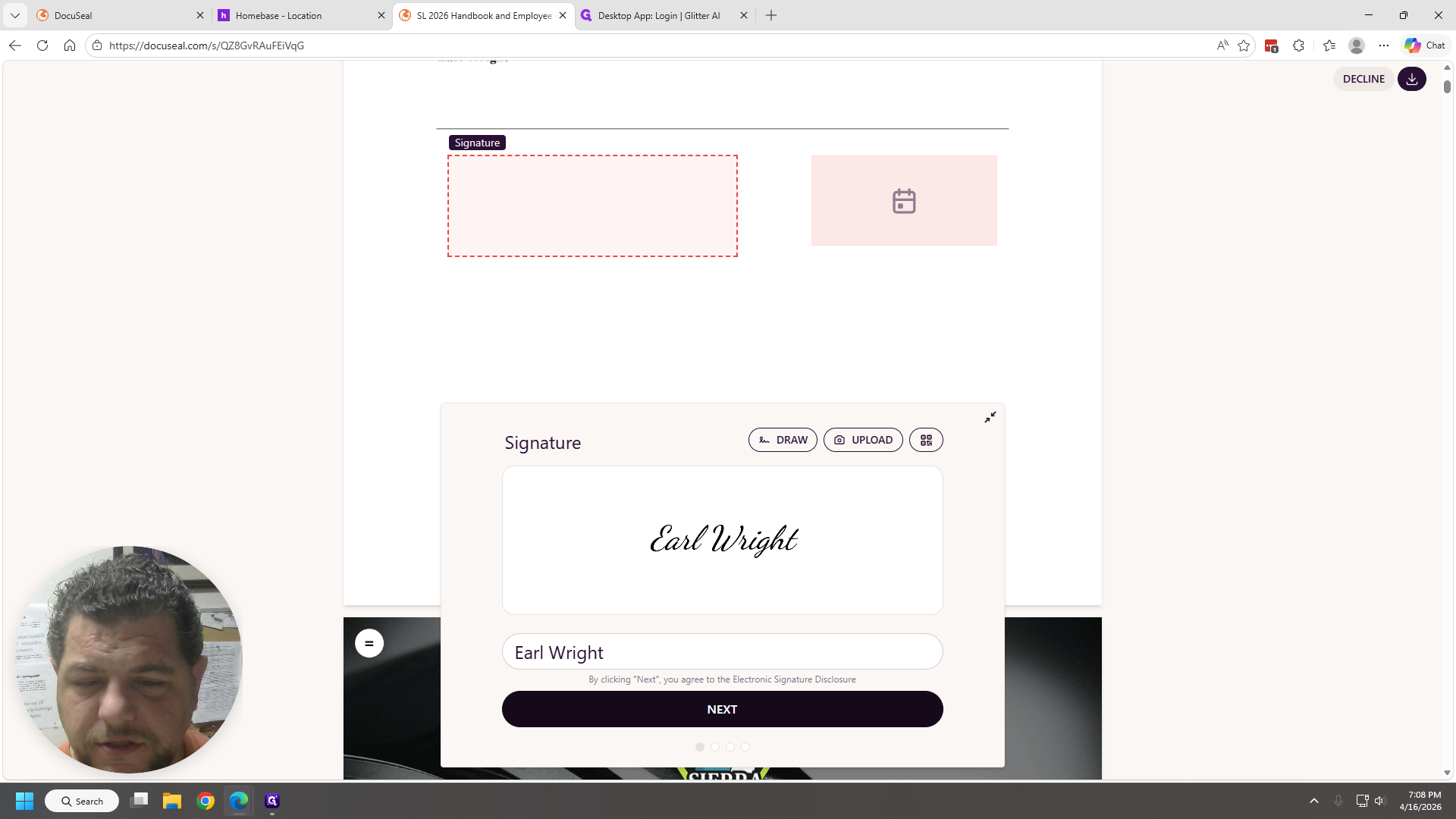
Next. Set the date to today.
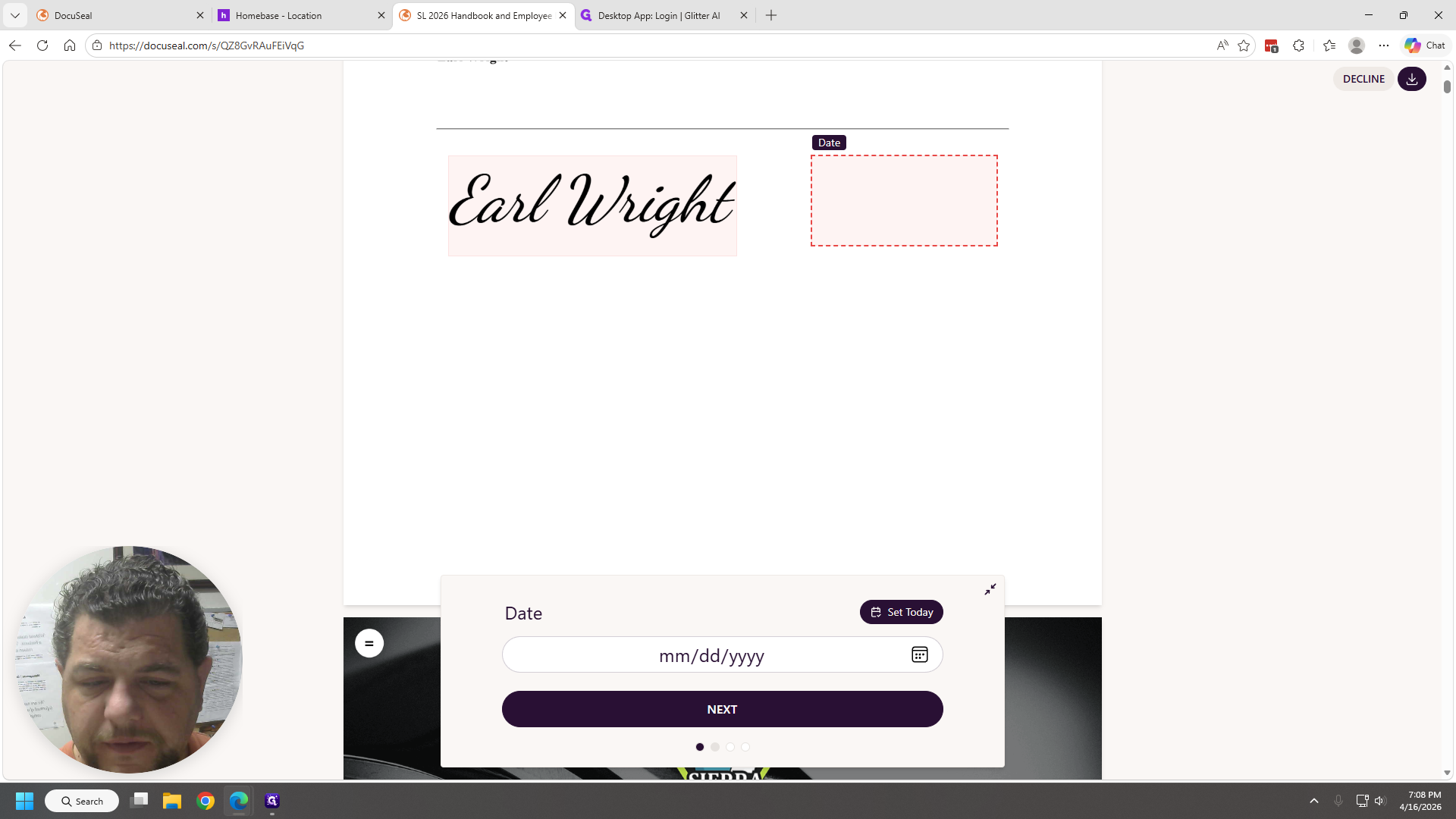
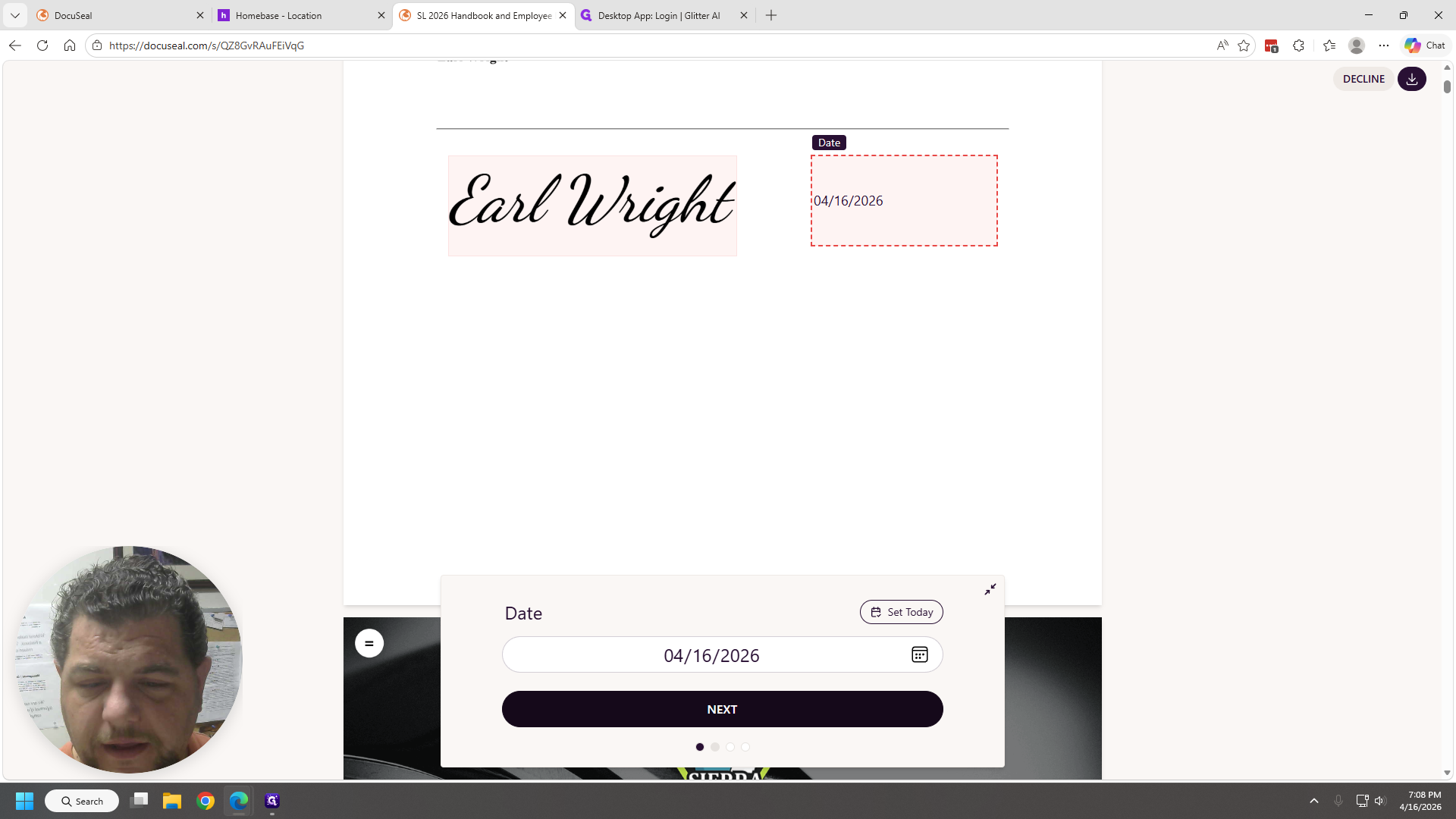
Next. It automatically scrolls to the bottom. They can read it or not; either way is fine.
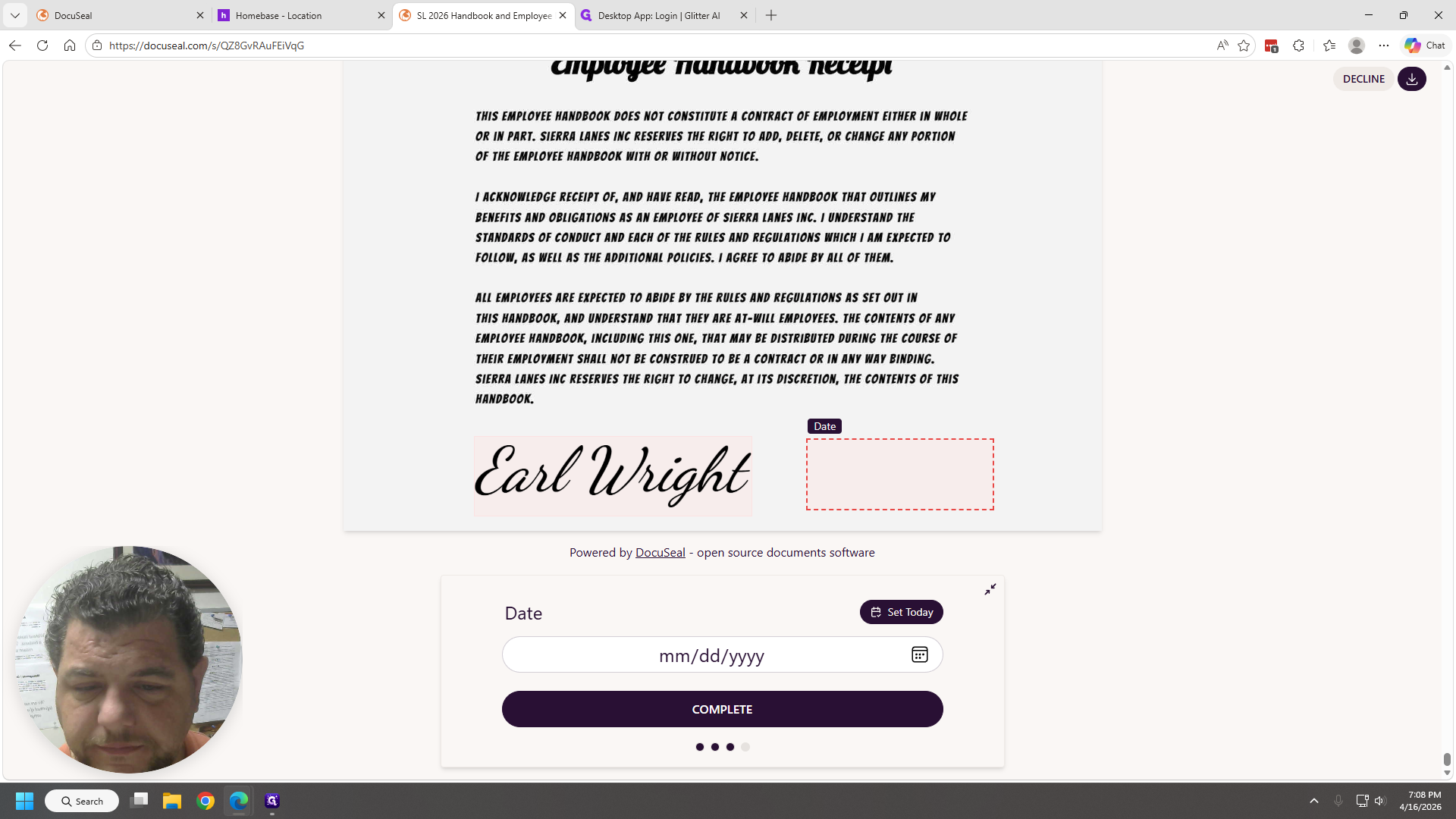
Next. Set today.
""
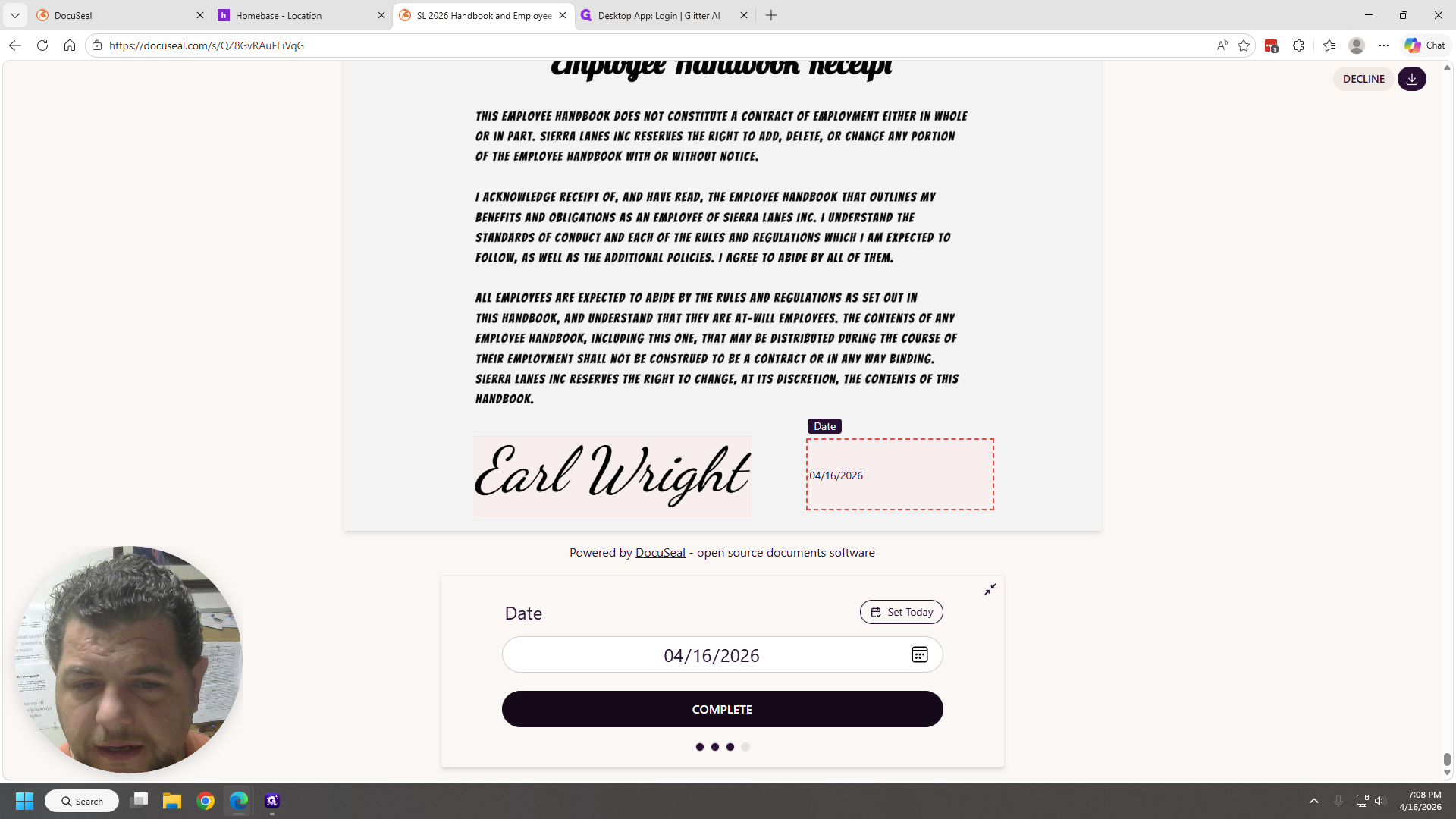
They're finished, as far as we're concerned. They can save it or do whatever they want. However, if you return to DocuSeal, which is important for us, sign back in.
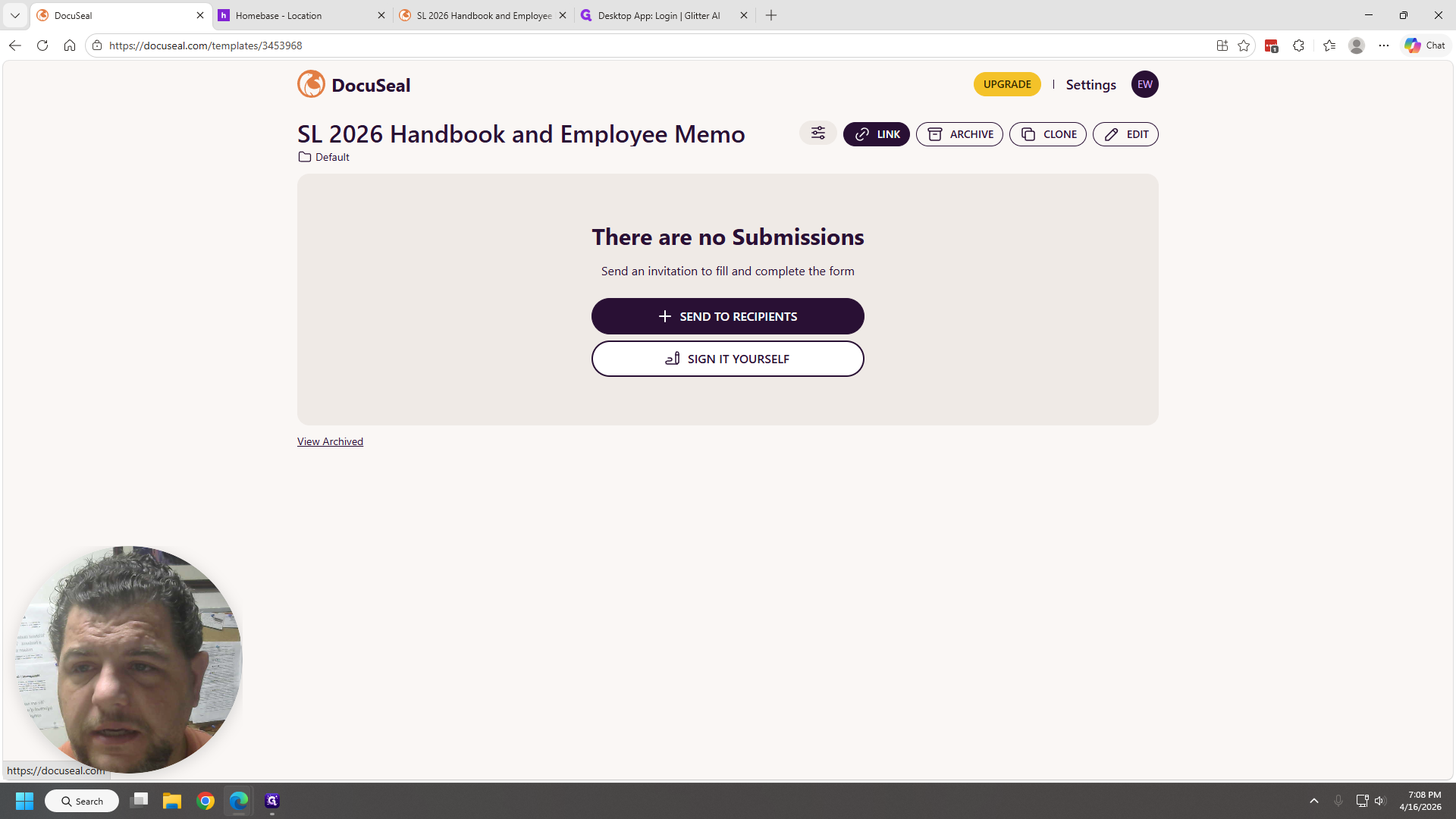
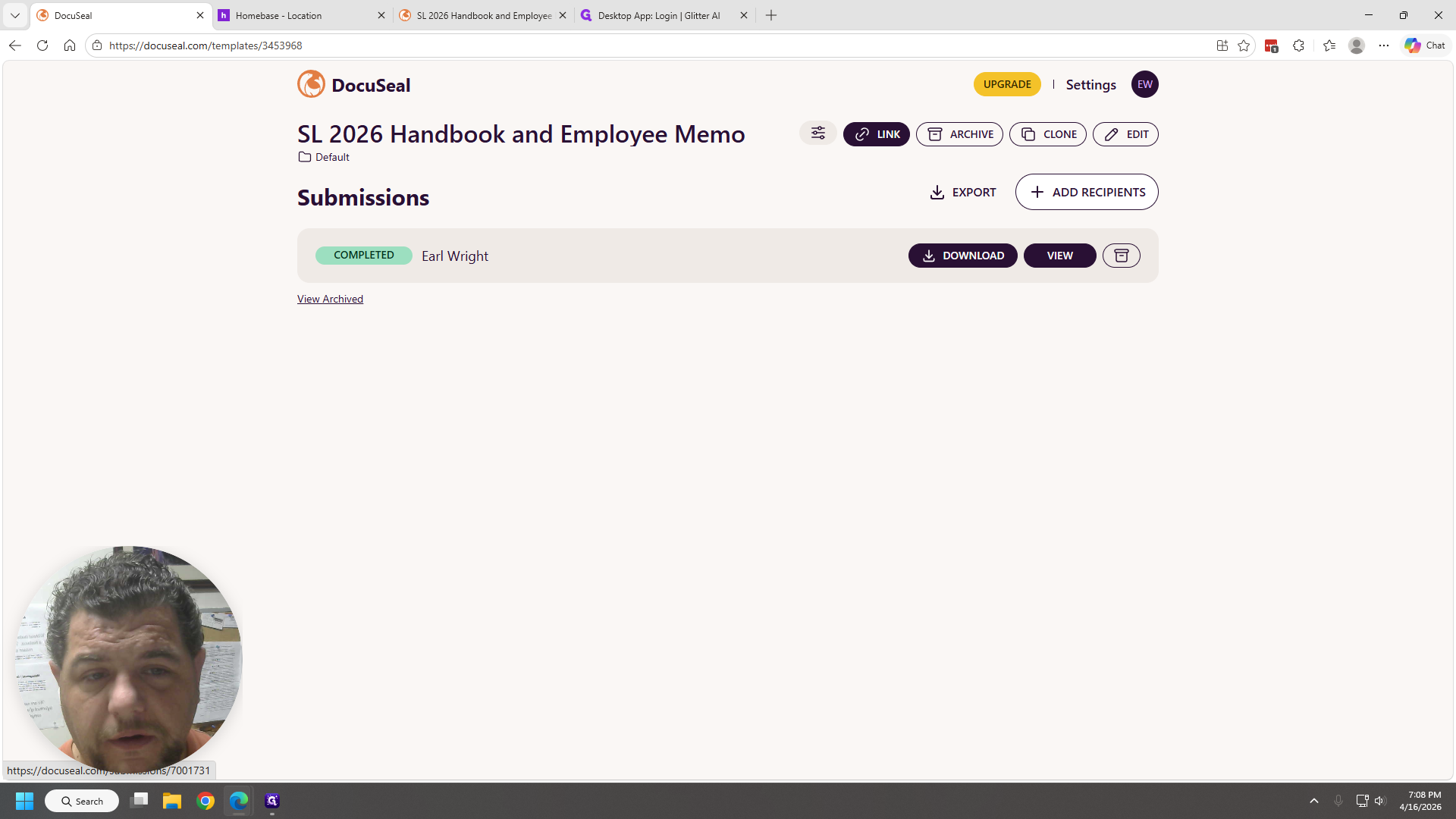
Now, when you click this, it not only shows the form where you can get the link, but also displays a completed version. You can download or view it, and it already has my name on it.
I think this will work out fine.
We are on a free trial with them. When the trial ends, we'll upgrade and complete the remaining signatures for them. We can delete the remaining documents from Heartland and upload these in their place.