How to Use the DRS Team Tasks Board for Anatomy Lessons Project Questions
Learn how to efficiently manage and update project questions in the DRS team tasks board. Step-by-step guide on adding notes, tagging team members, and organizing files for the Anatomy Lessons Project.
In this guide, we'll learn how to add questions to a project file on the DRS team tasks board and notify a team member. This process helps keep project communication clear and ensures that questions are seen and addressed quickly.
You'll see how to enter your questions, save your work, and alert the right person so nothing is missed.
Let's get started
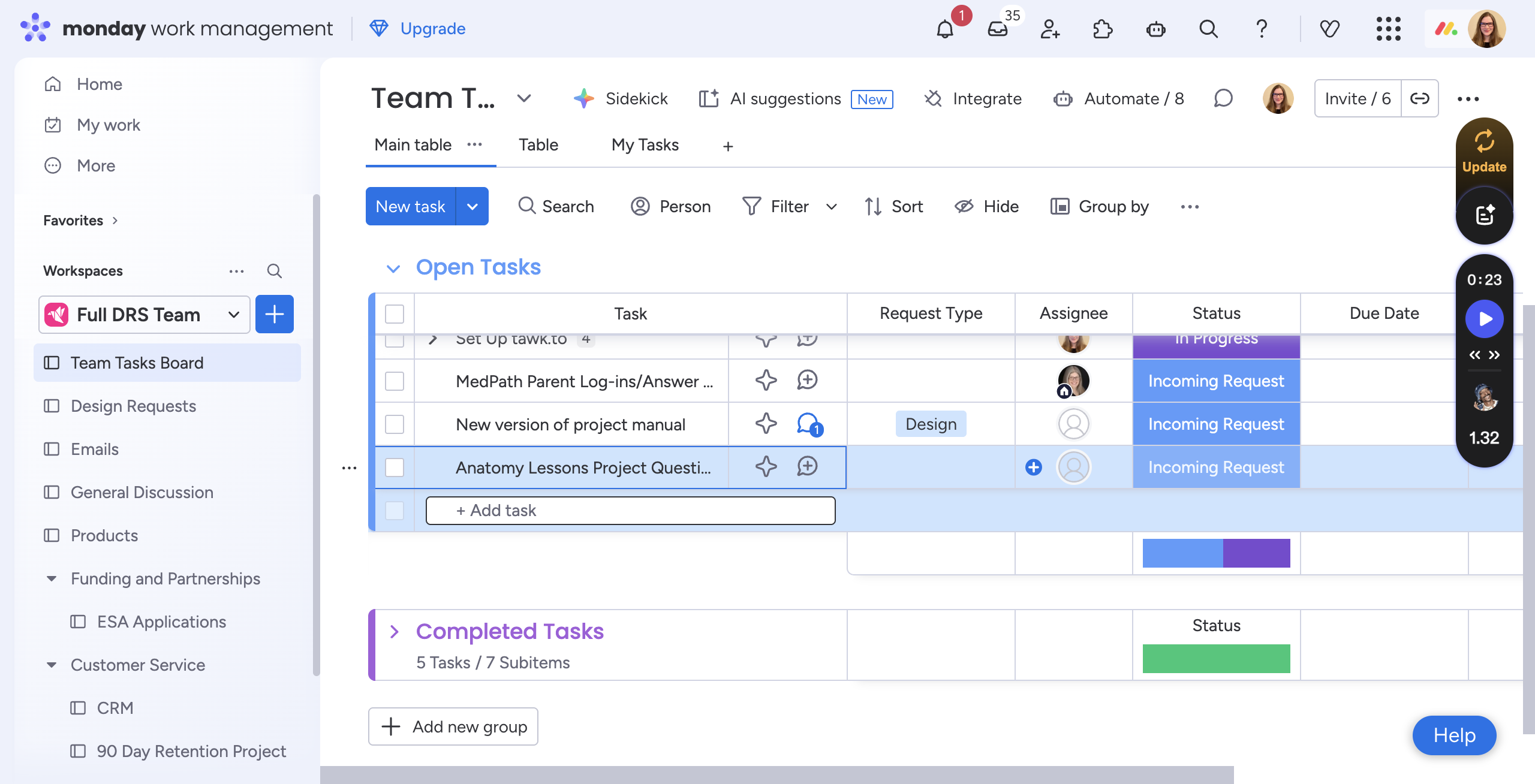
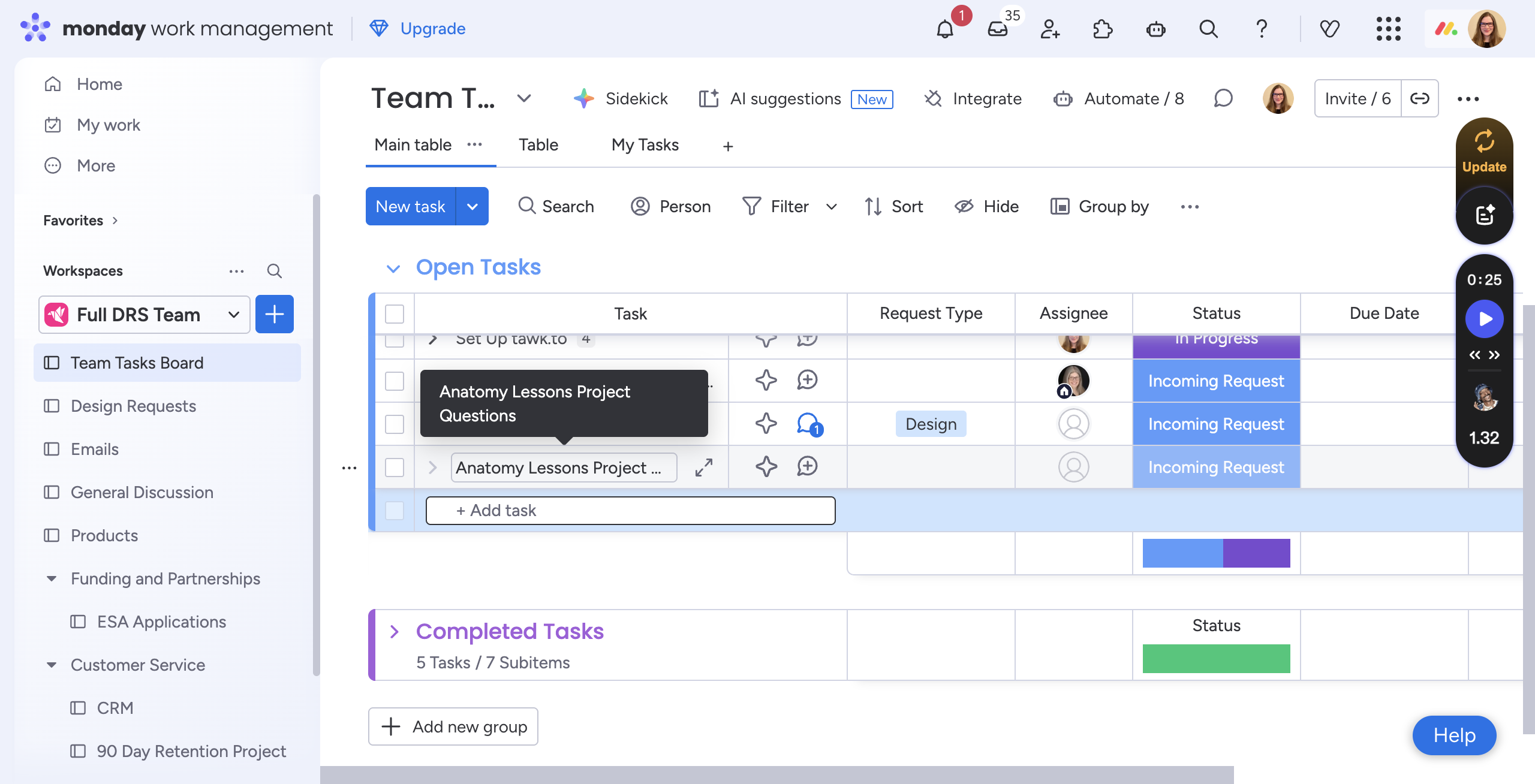
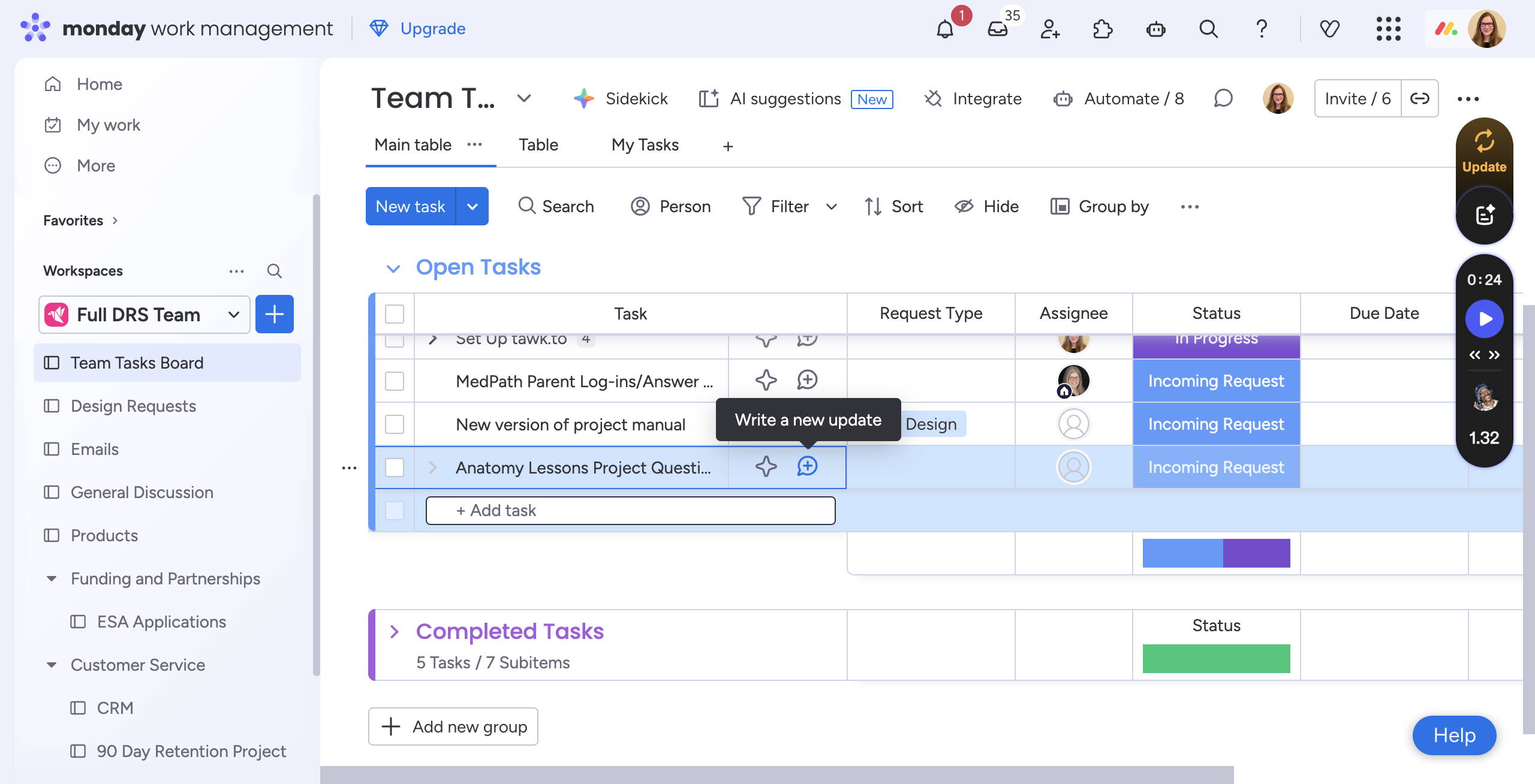
Here we are in the full DRS team tasks board. I created an item here called "Anatomy Lessons Project Questions."
Scroll over to the Notes file, right here. Click here to type your questions.
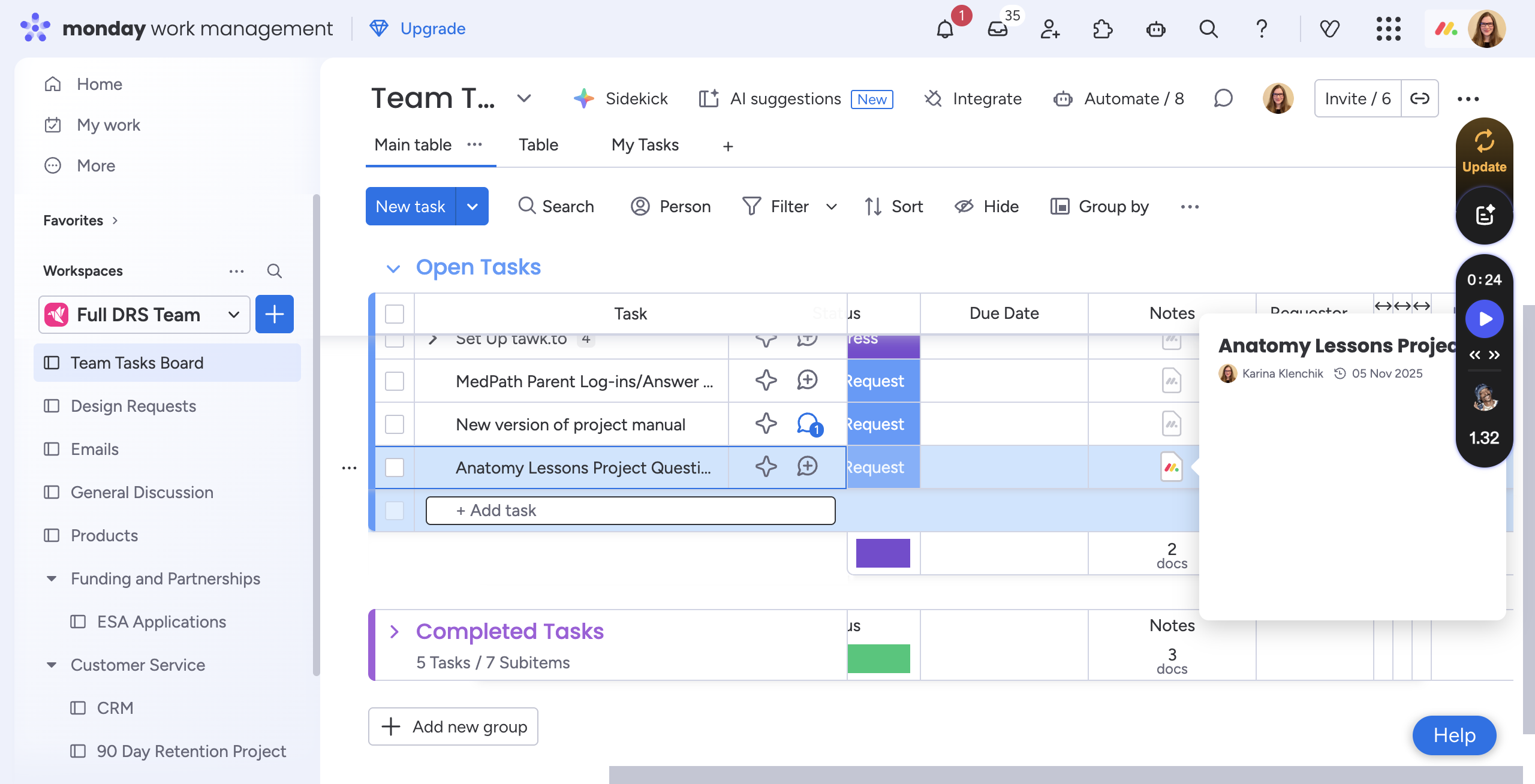
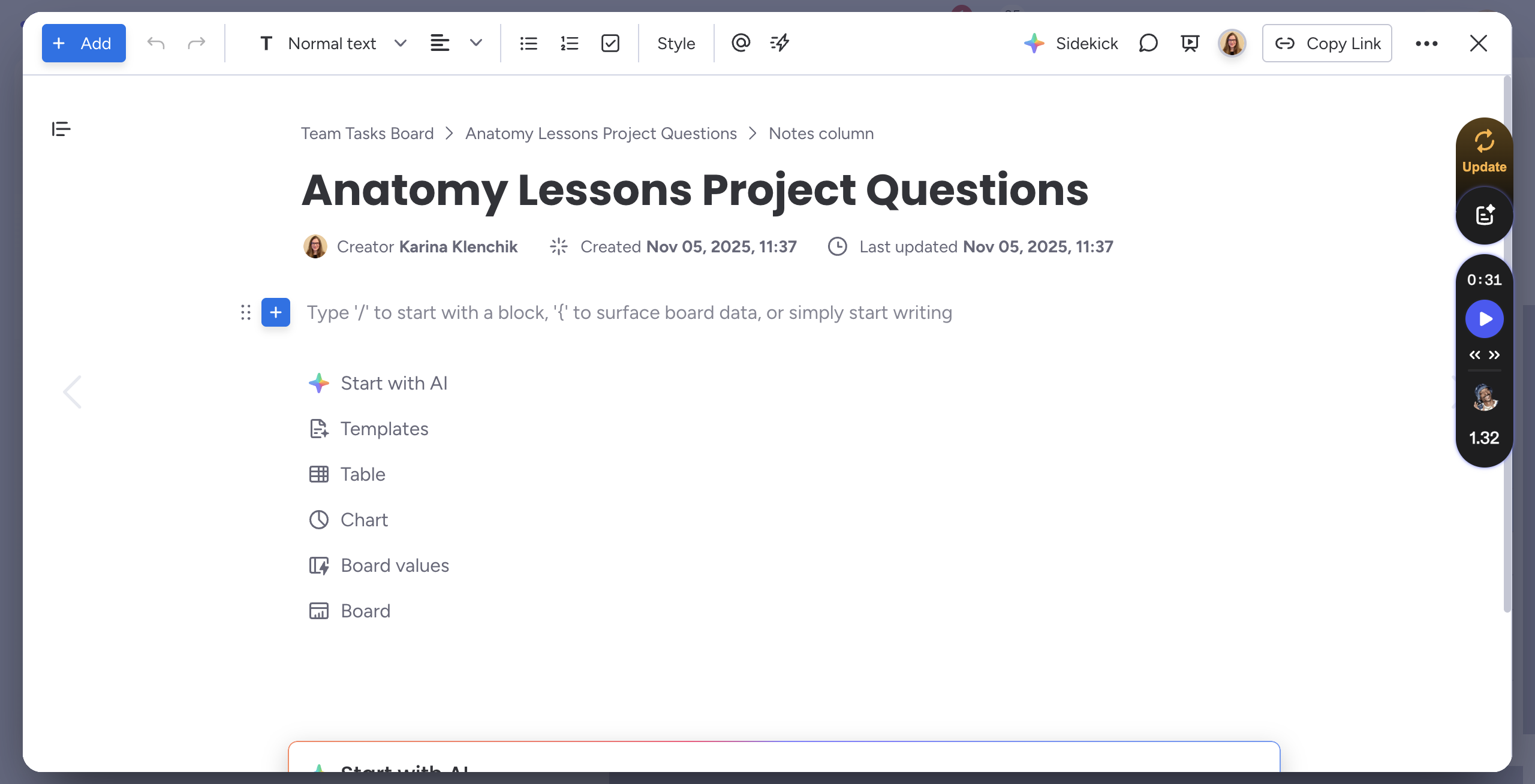
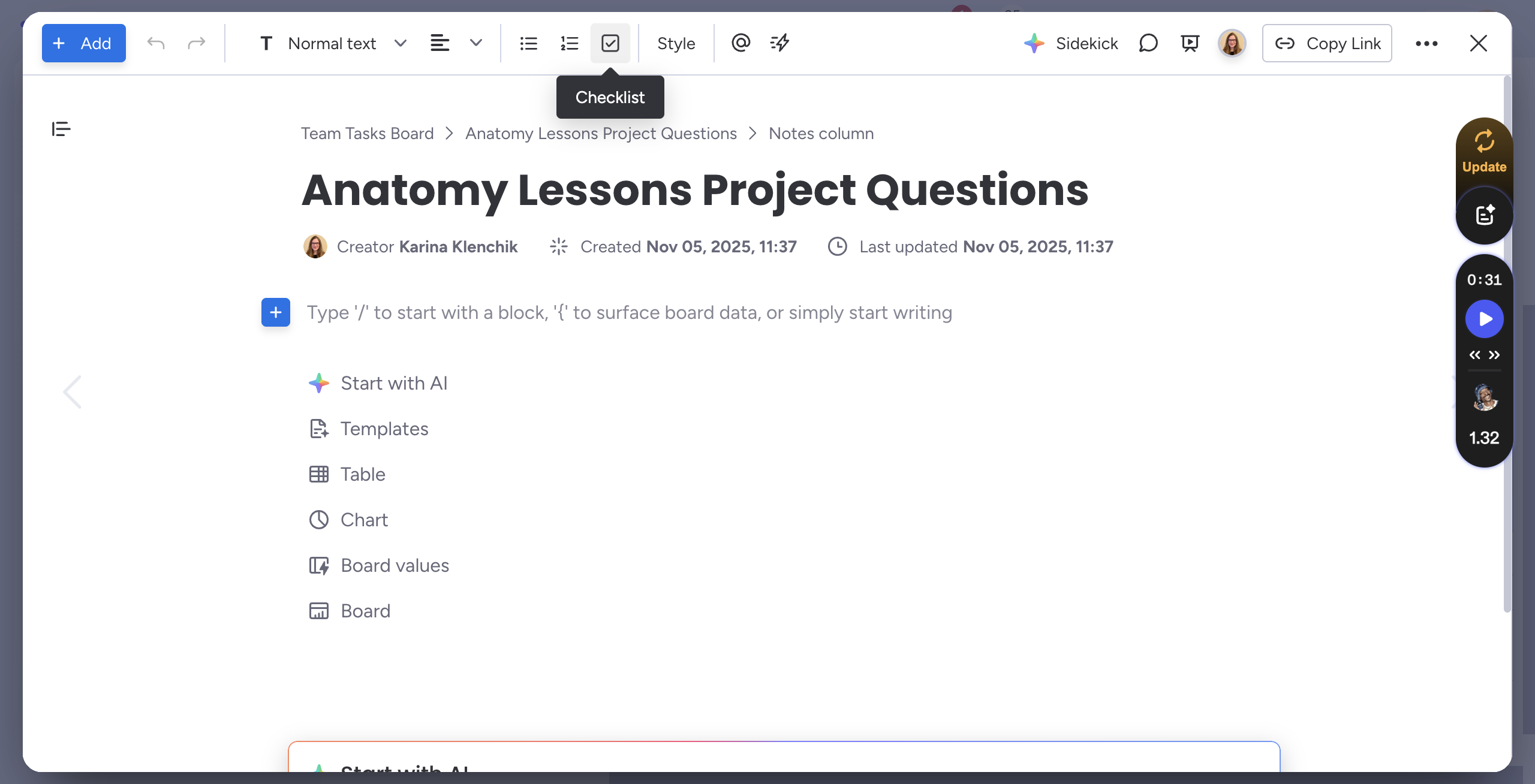
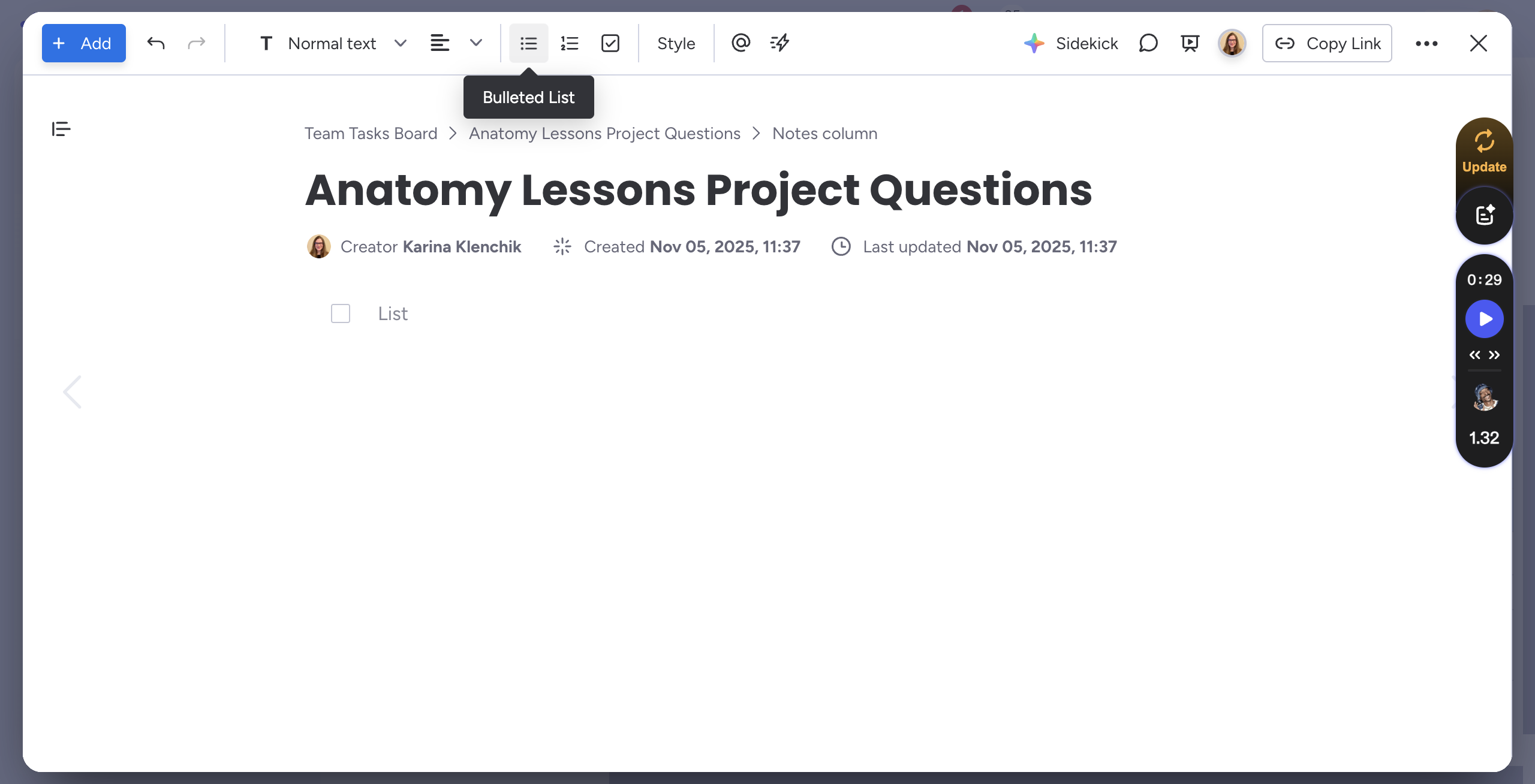
You can use a checklist, bullet points, numbers, or simply type in any format you prefer.
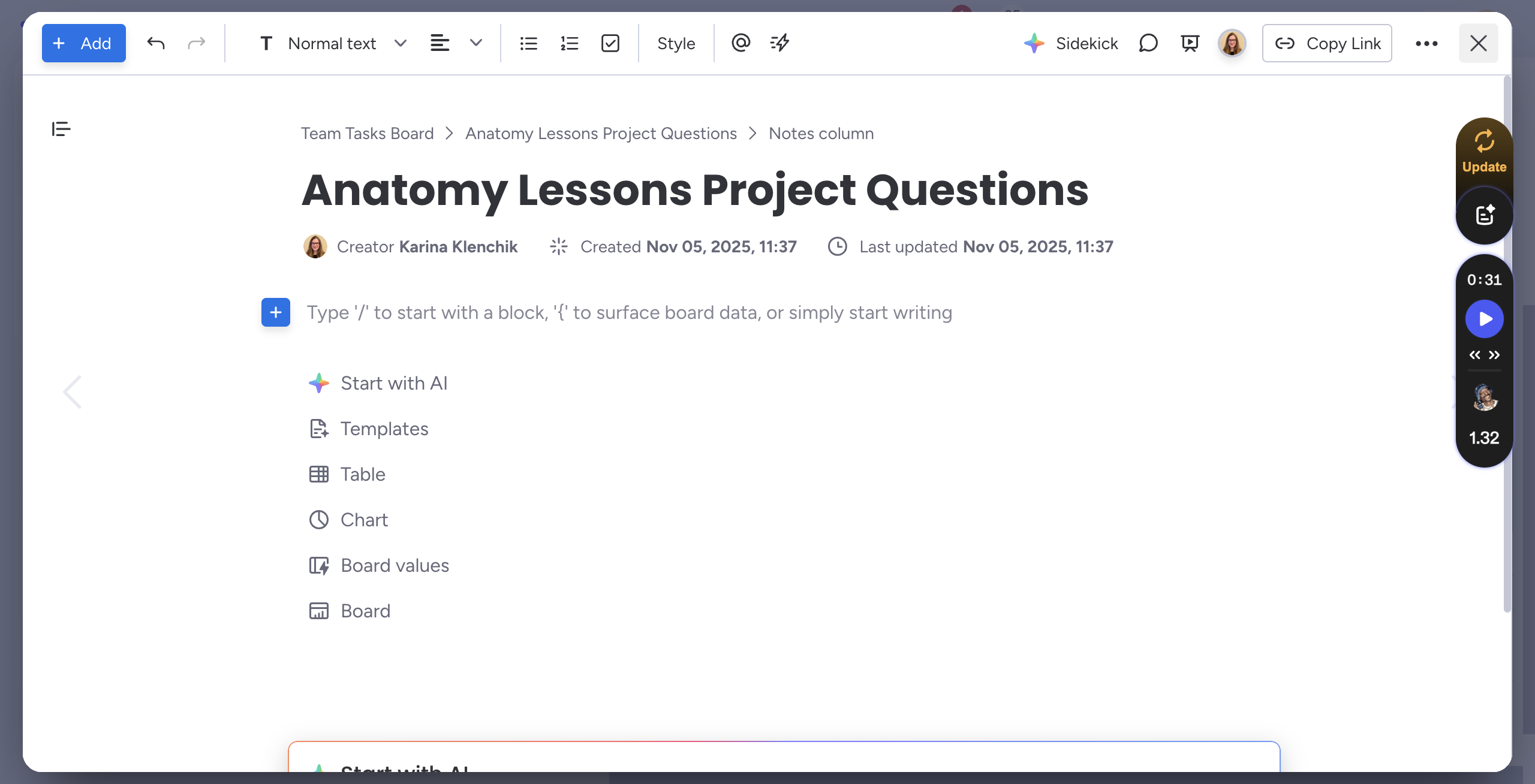
When you close out, it will automatically save. Then, tag Robin.
Click here, write a new update, type the at symbol, then select Robin.
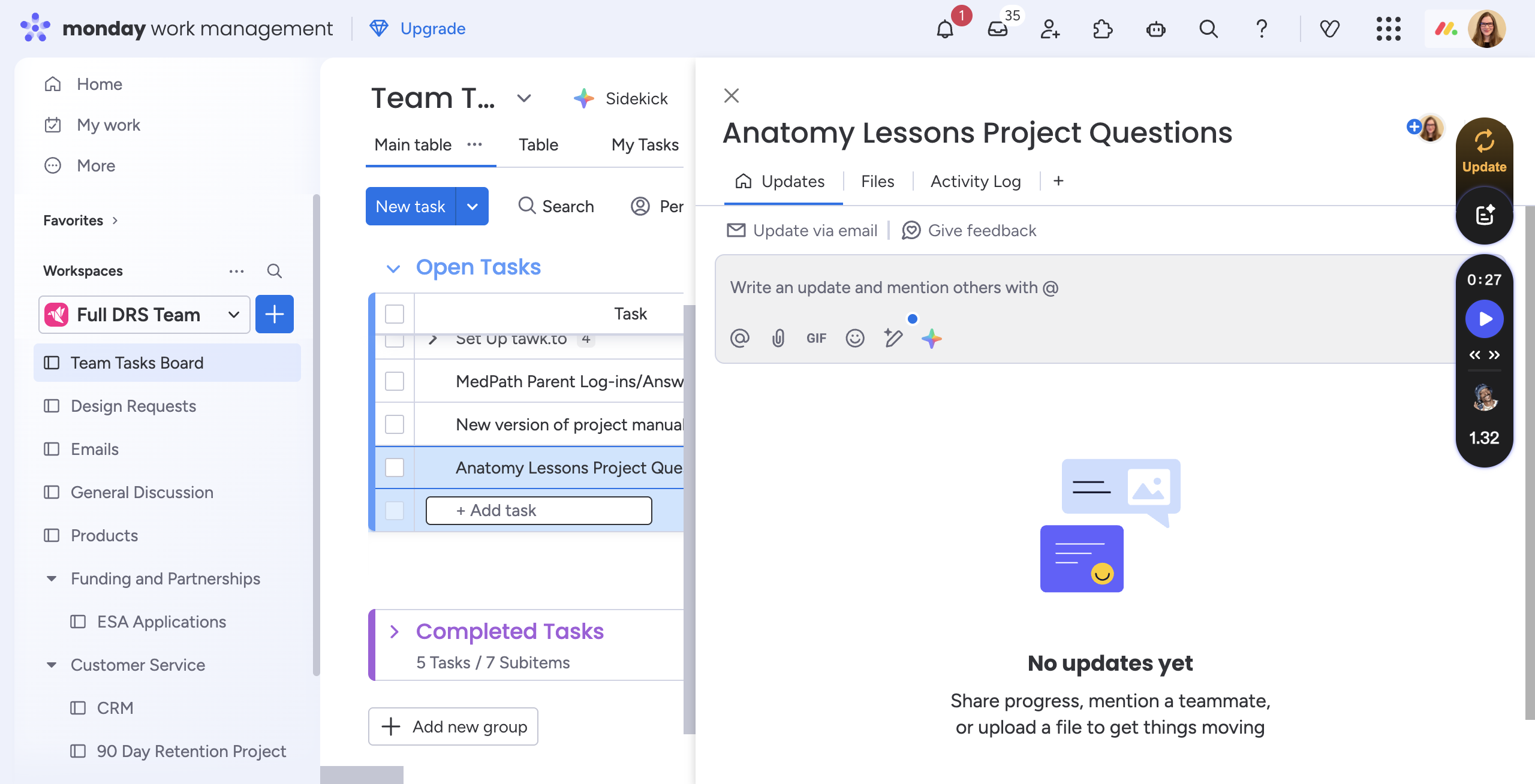
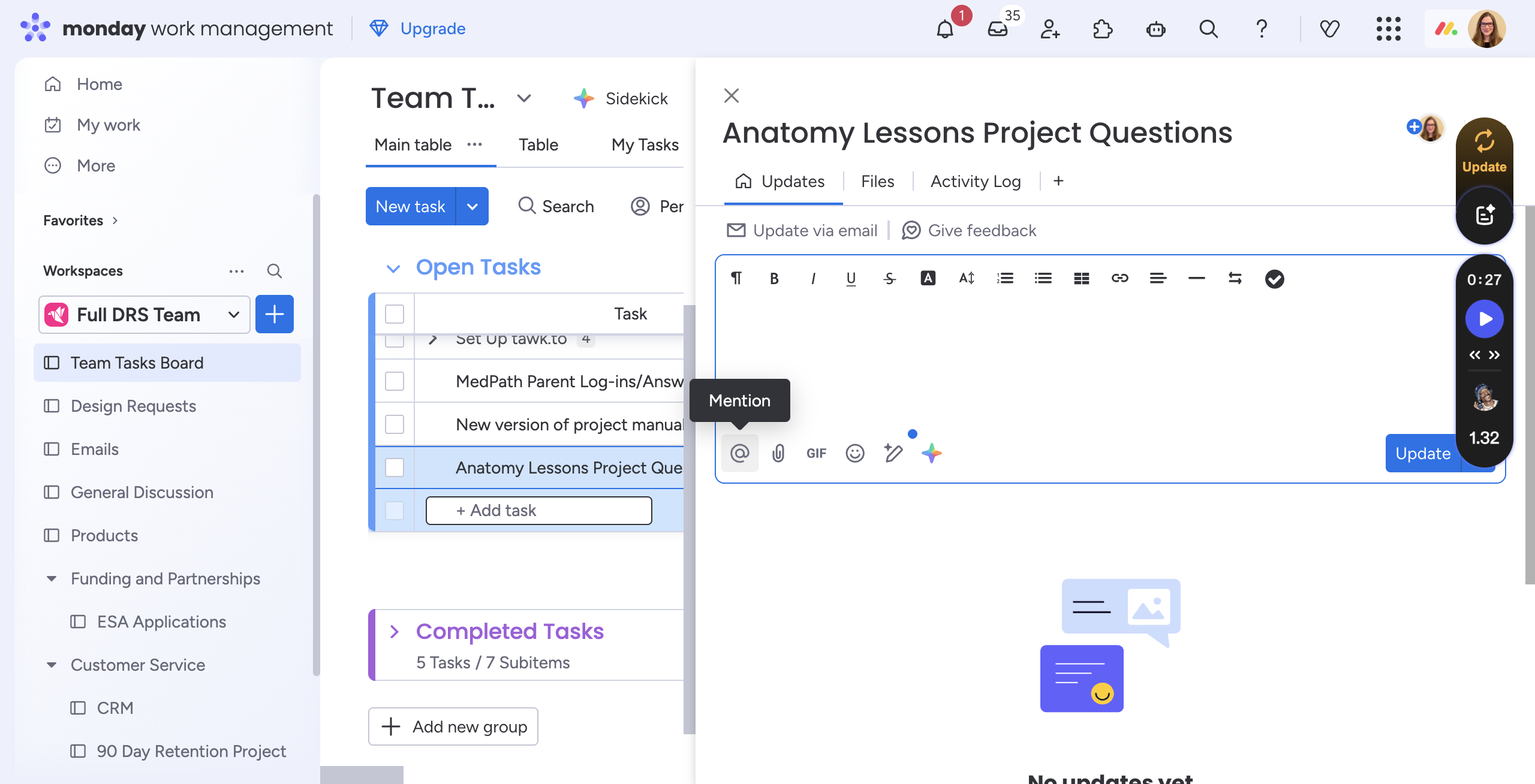
You could say, "Hey, Robin." I made this.
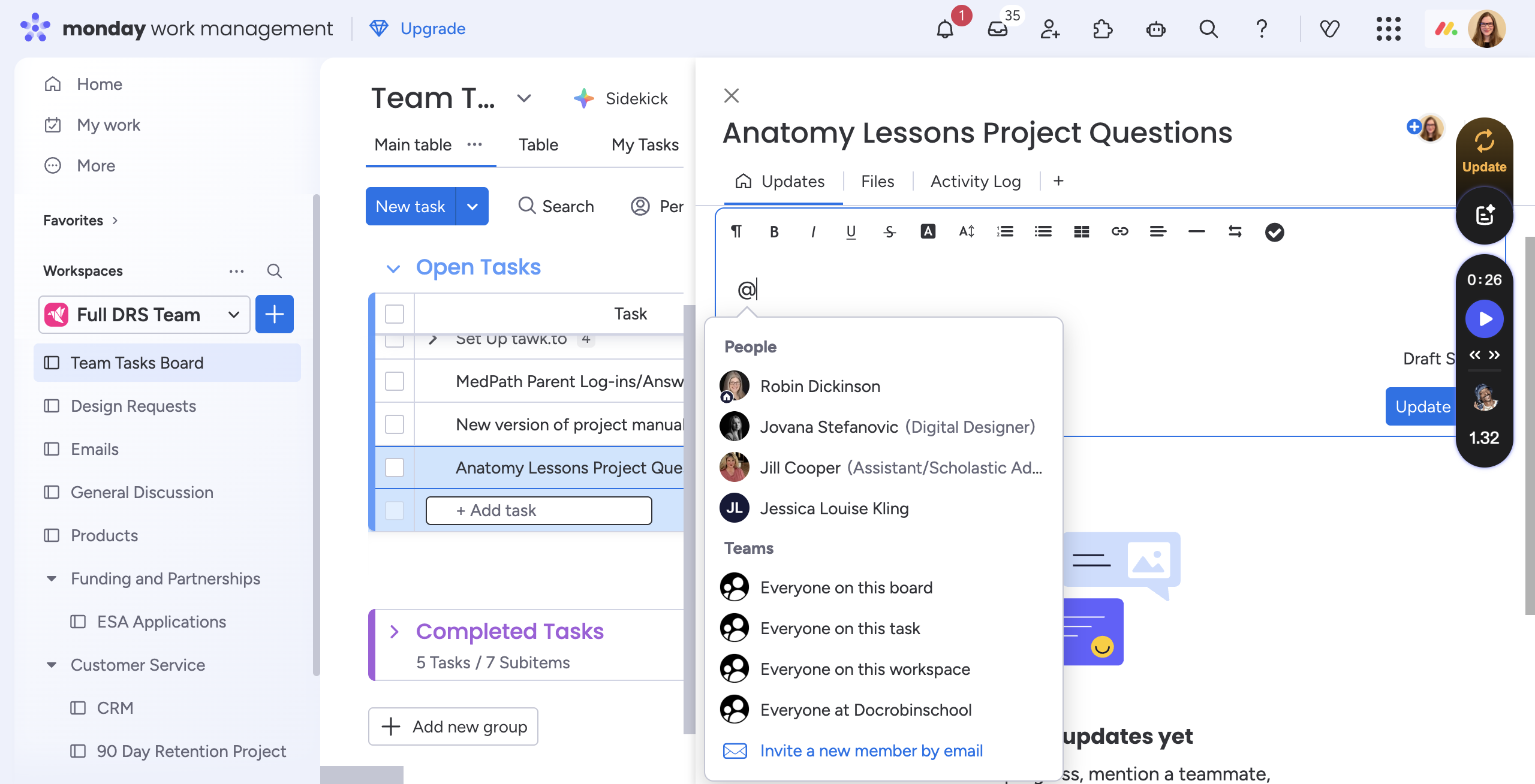
Check the files folder here to find the questions. You can update it, and Robin will be alerted.
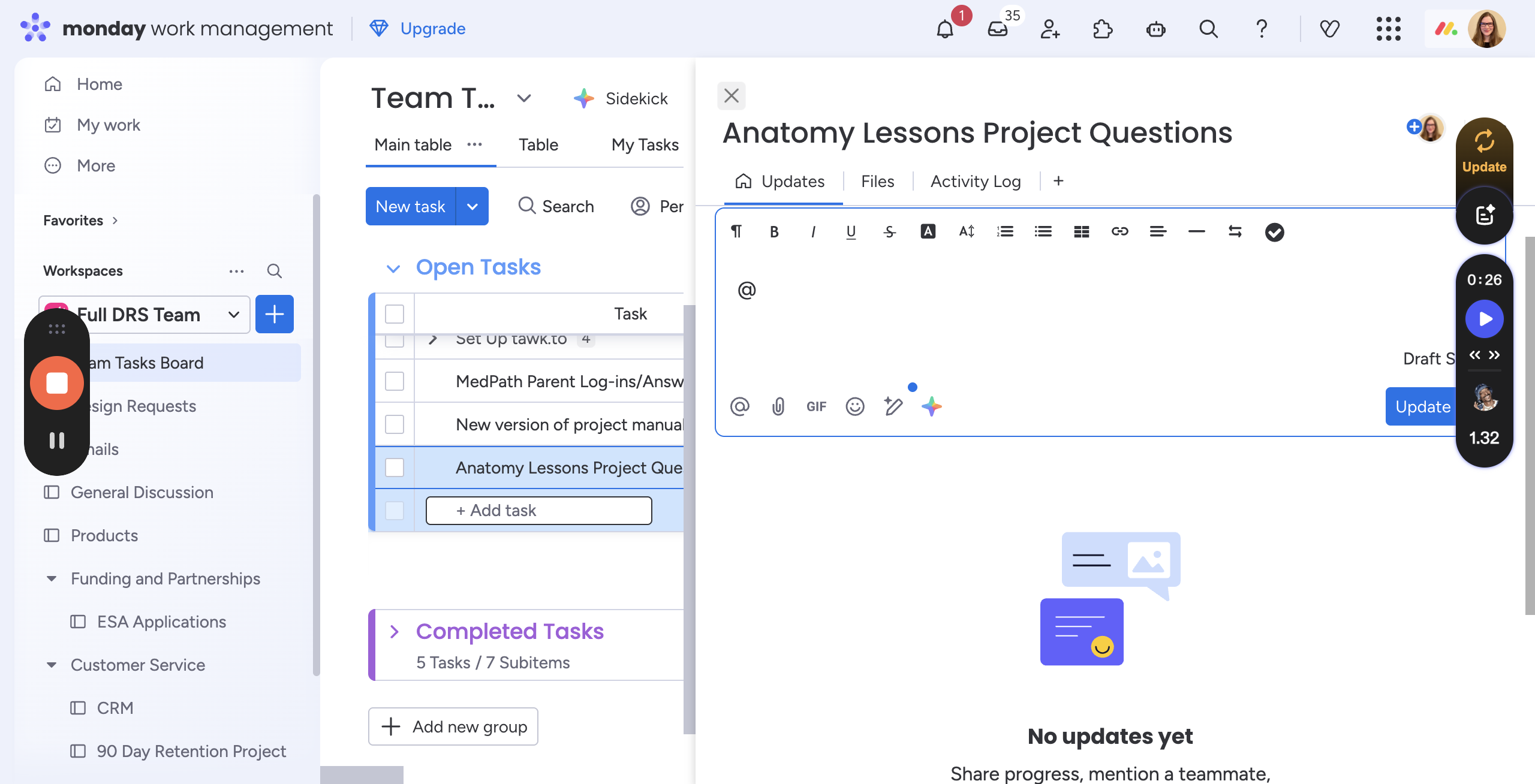
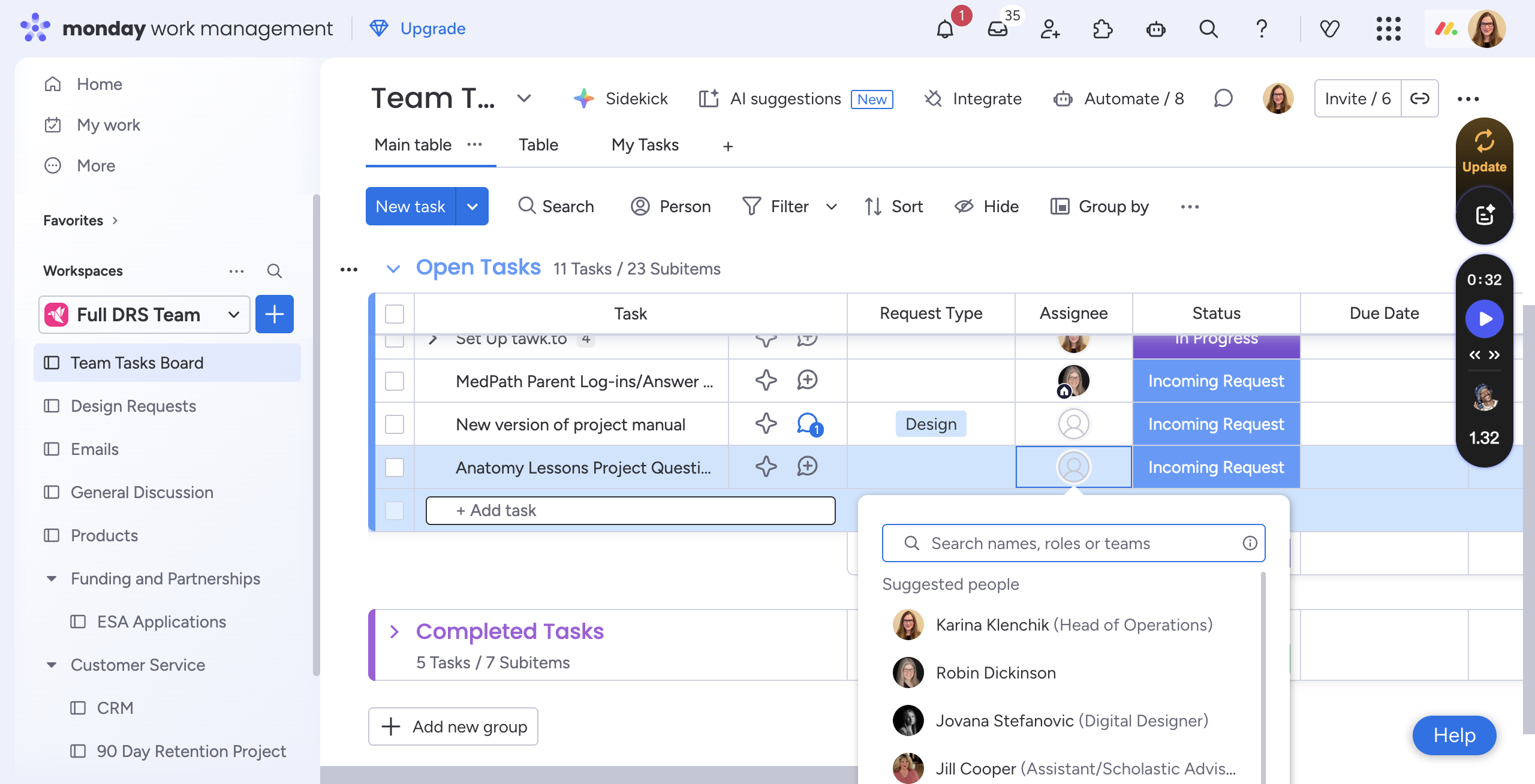
You can also add her photo here so she knows she is assigned to that task.