Gmail Templates for Photo and Video Orders
Learn how to efficiently use Gmail templates for sending photo editing and video orders to editors, including tips for customizing subjects, linking files, and meeting agent-specific preferences.
In this guide, we'll learn how to use Gmail templates to send files and information to editors. You will see how to update the subject line with the property address and link to the correct Dropbox folder for each project.
We will also cover how to adjust templates for different agents and brokerages, including adding branding when needed. This process helps keep communication clear and organized.
Let's get started
In this guide, we'll learn how to use Gmail templates to send files and information to editors. You will see how to update the subject line with the property address and link to the correct Dropbox folder for each project. We will also cover how to adjust templates for different agents and brokerages, including adding branding when needed.
Let's get started
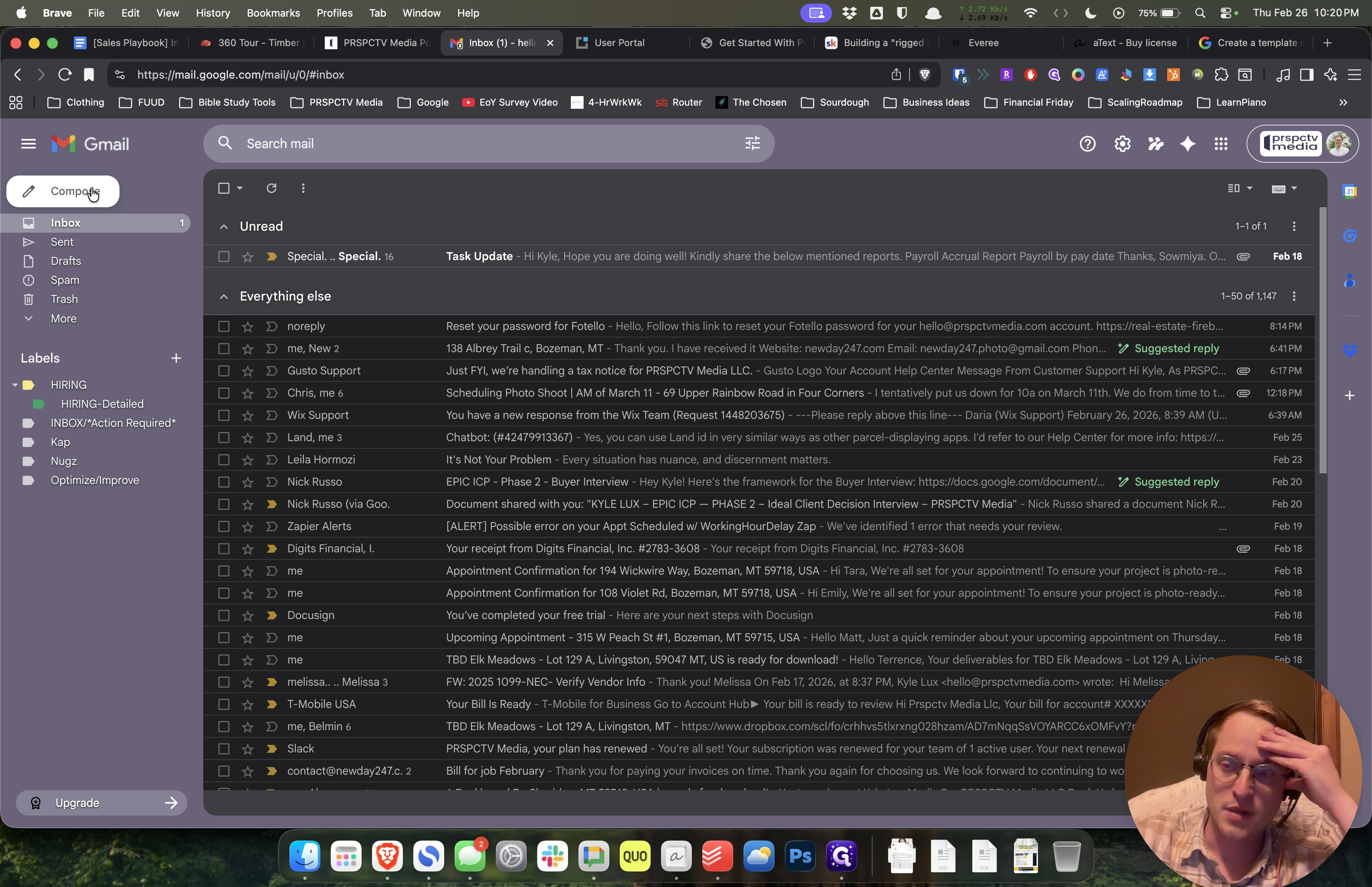
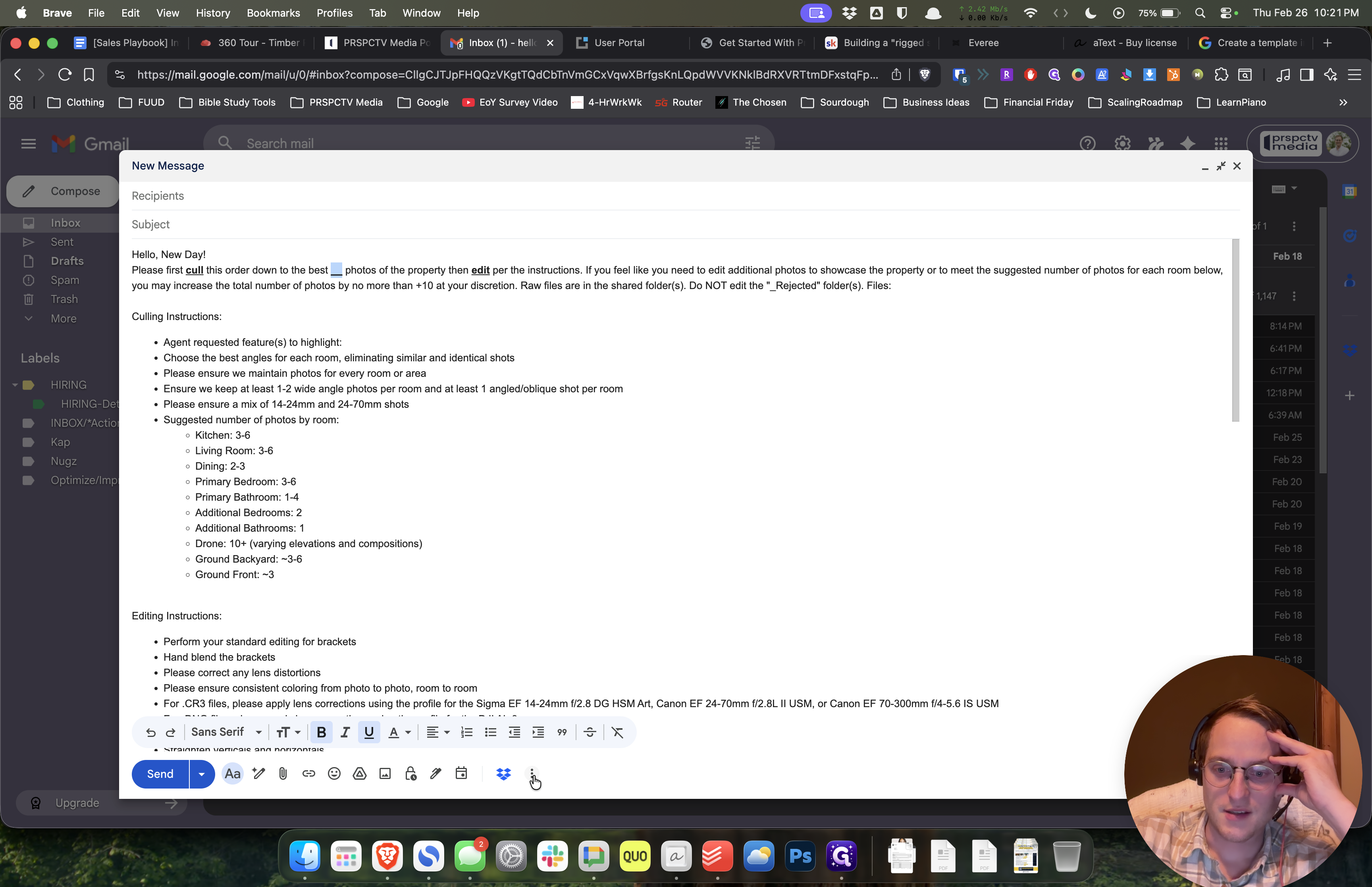
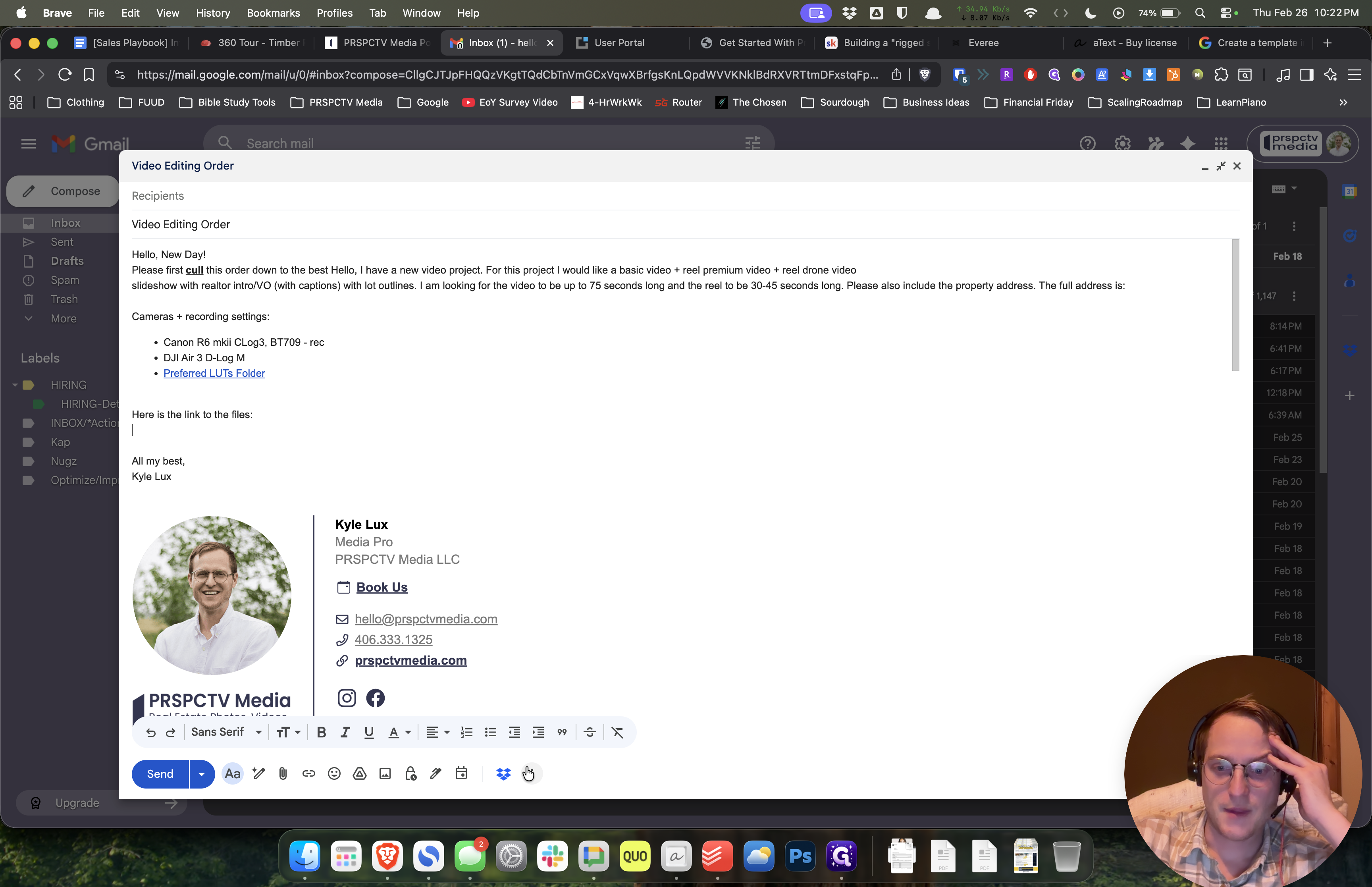
I added some templates to Gmail because you requested templates to send to editors. Go to Compose and click the three dots. You will now see templates available.
I added some templates to Gmail because you requested templates to send to editors. Go to Compose and click the three dots. You will now see templates.
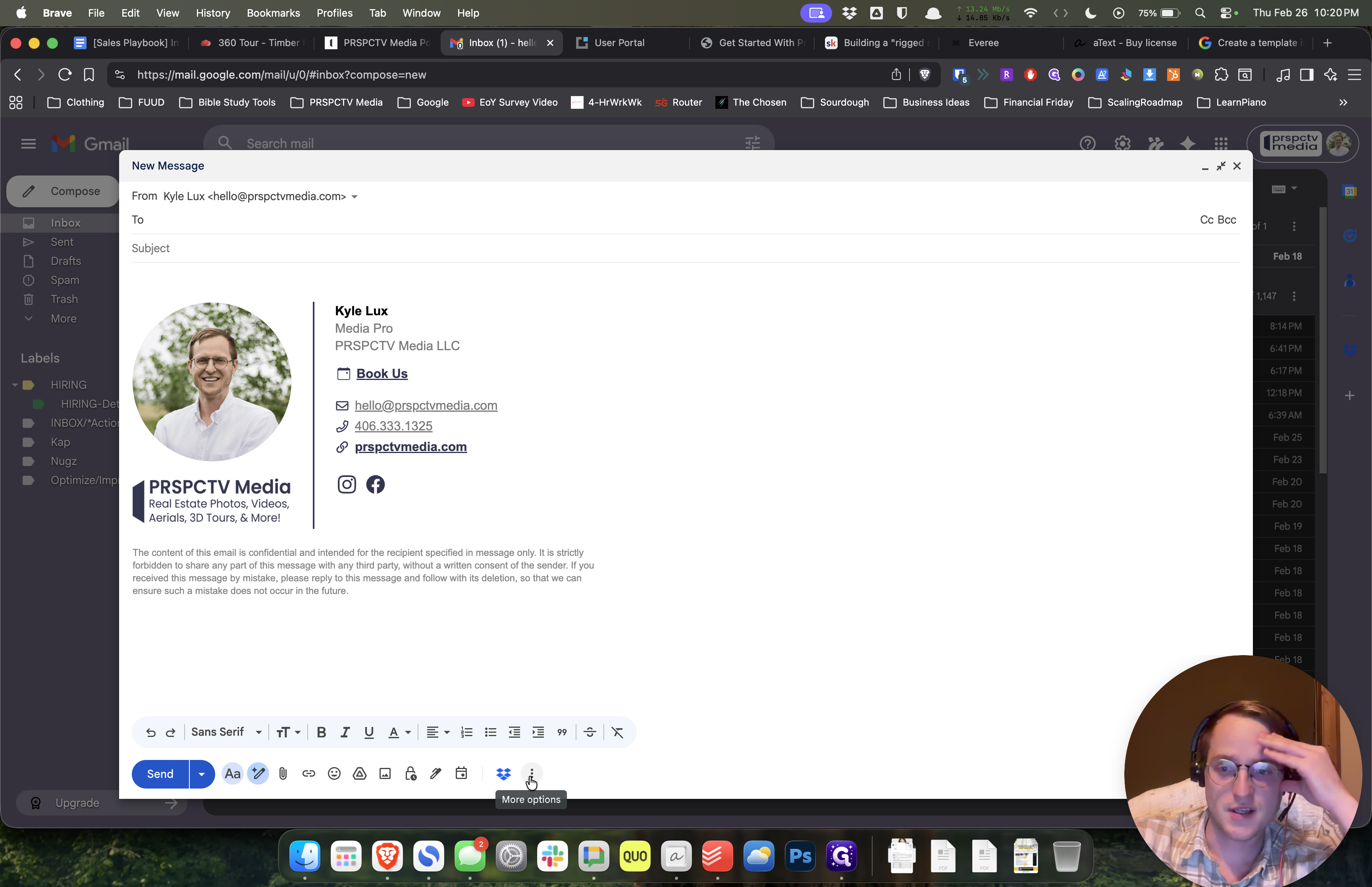
If you select Photo Editing Order, this is the template I will modify for photos.
If you select Photo Editing Order, this is the template I will use to modify photos.
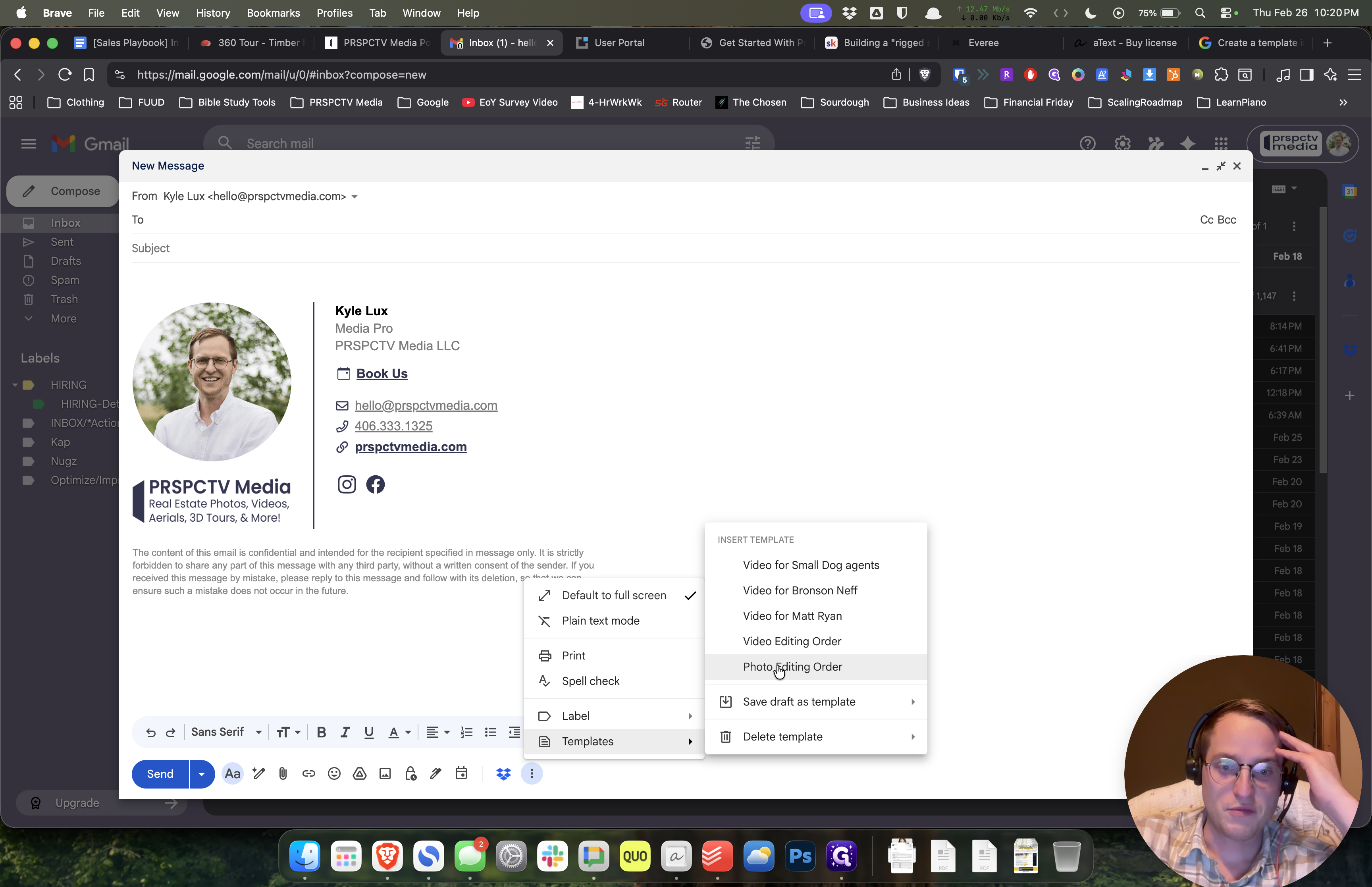
I'll enter the number of photos and similar details.
I'll enter the number of photos and similar details.
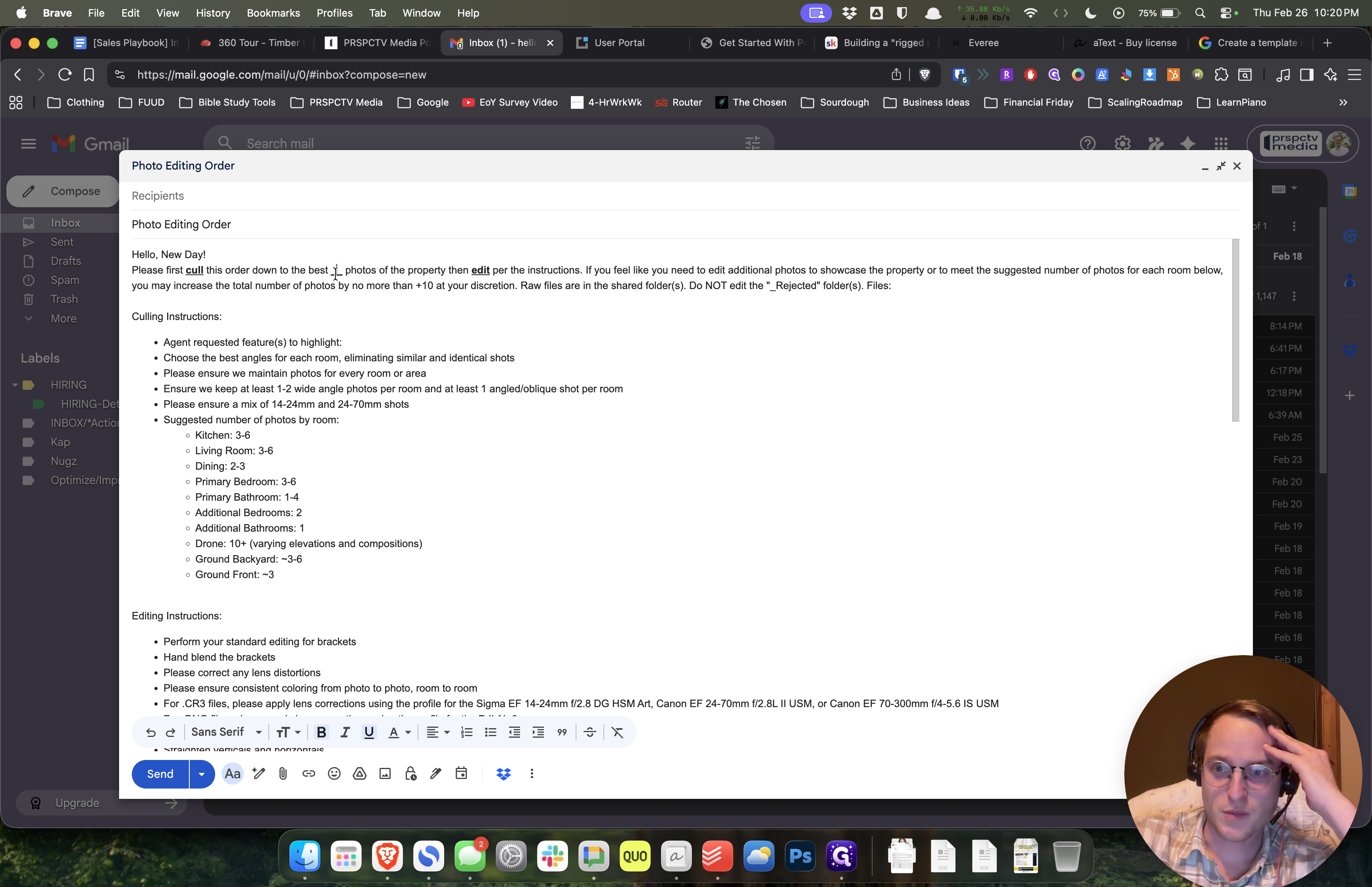
If you could change the Subject to the property address and link to the Dropbox file for the RAW folder for that specific property address, those are the two things that need to be updated.
If you could change the Subject to the property address and link to the Dropbox file for the RAW folder for that specific property address, those are the two things that need to be updated.
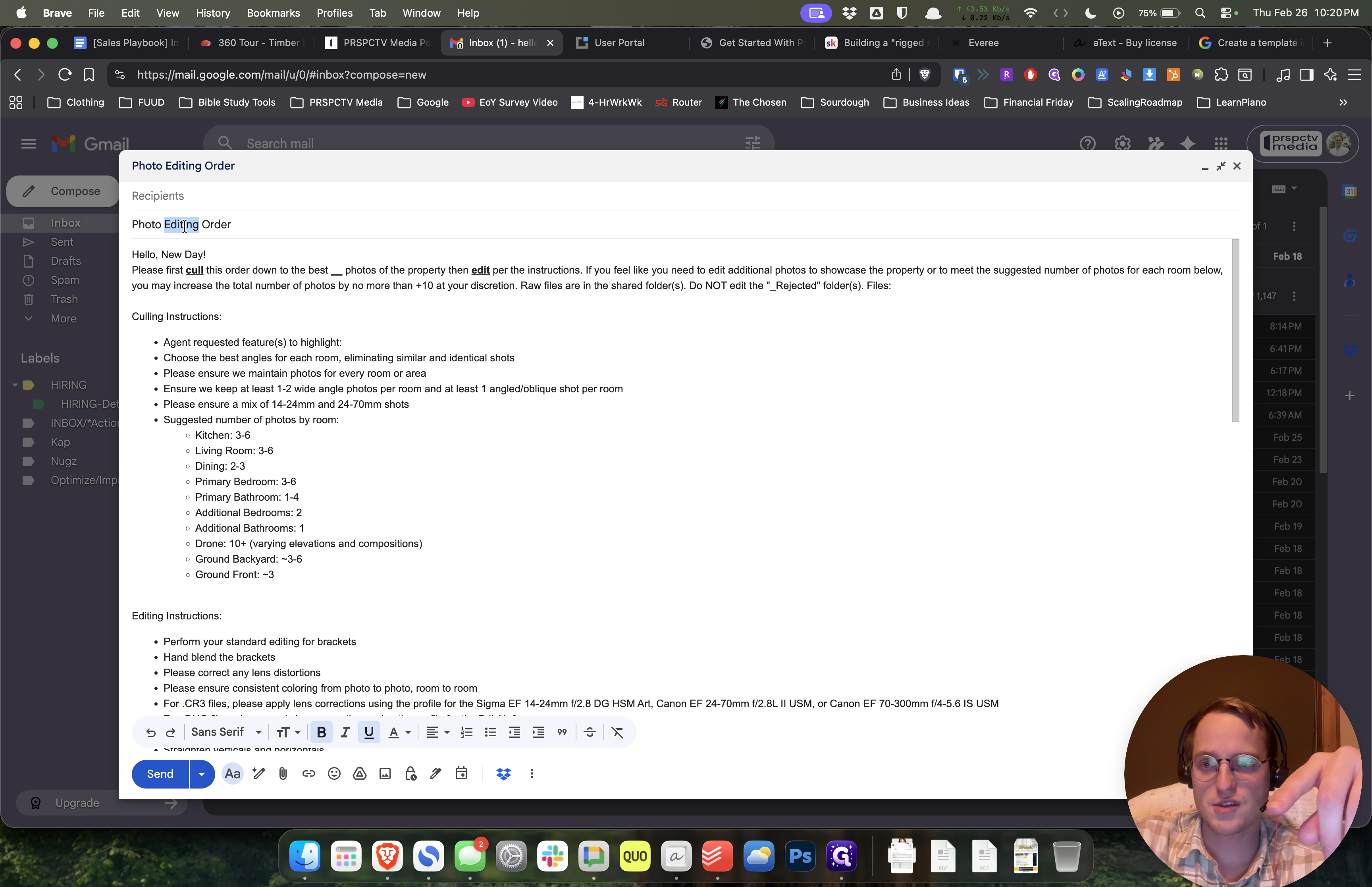
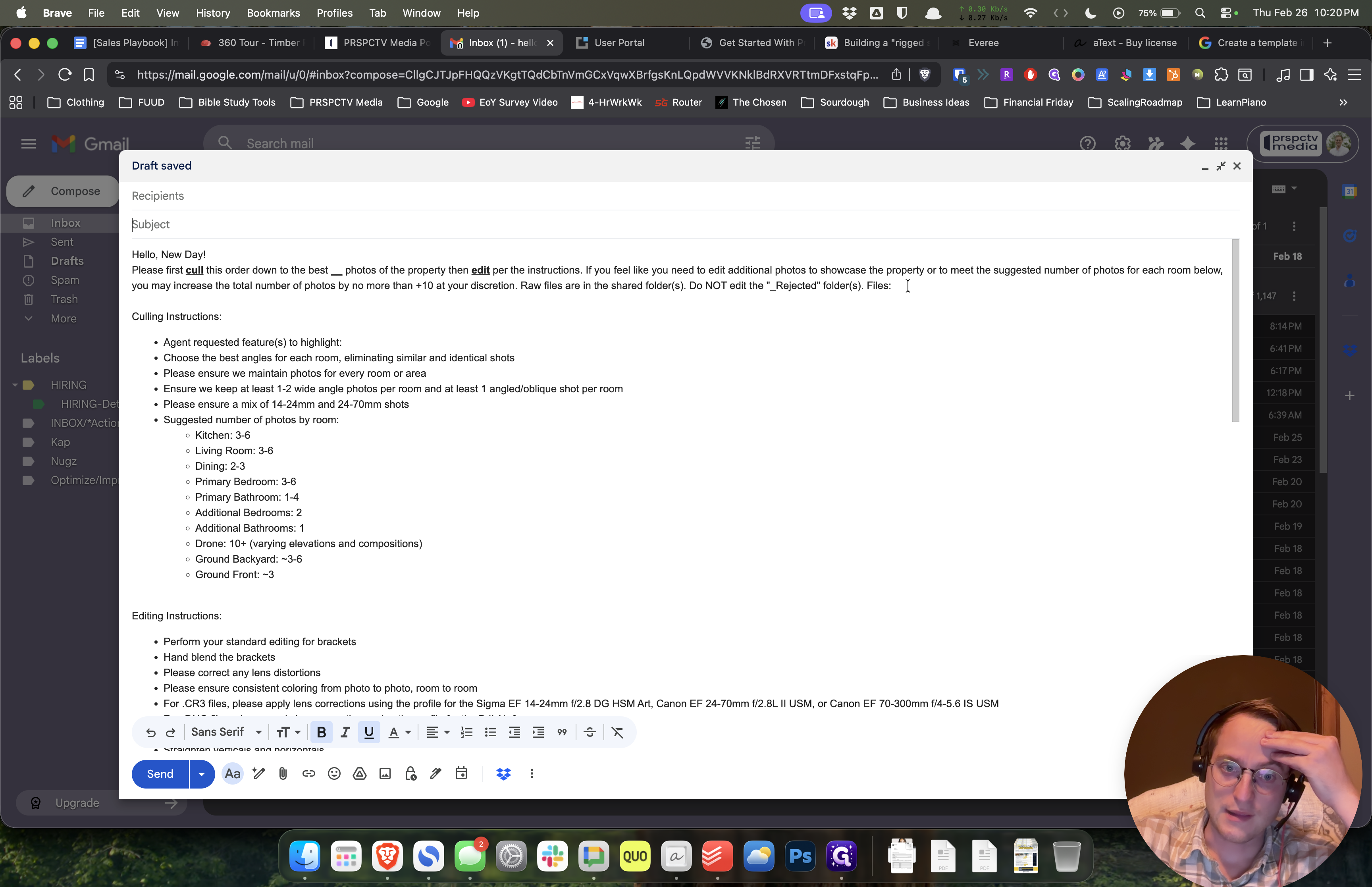
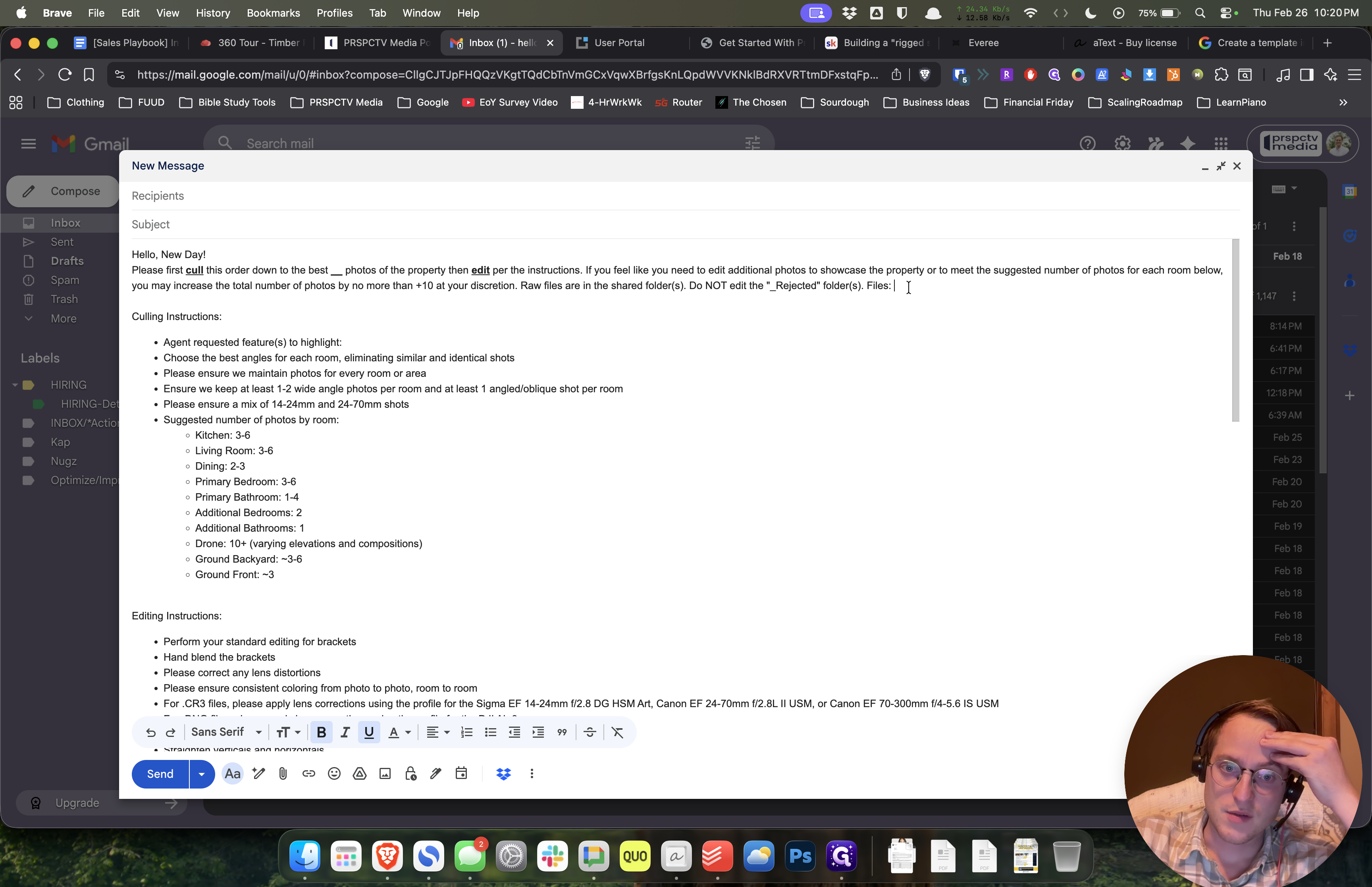
When I'm getting ready for the day, I can just send them over.
When I'm getting ready for the day, I can just send them over.
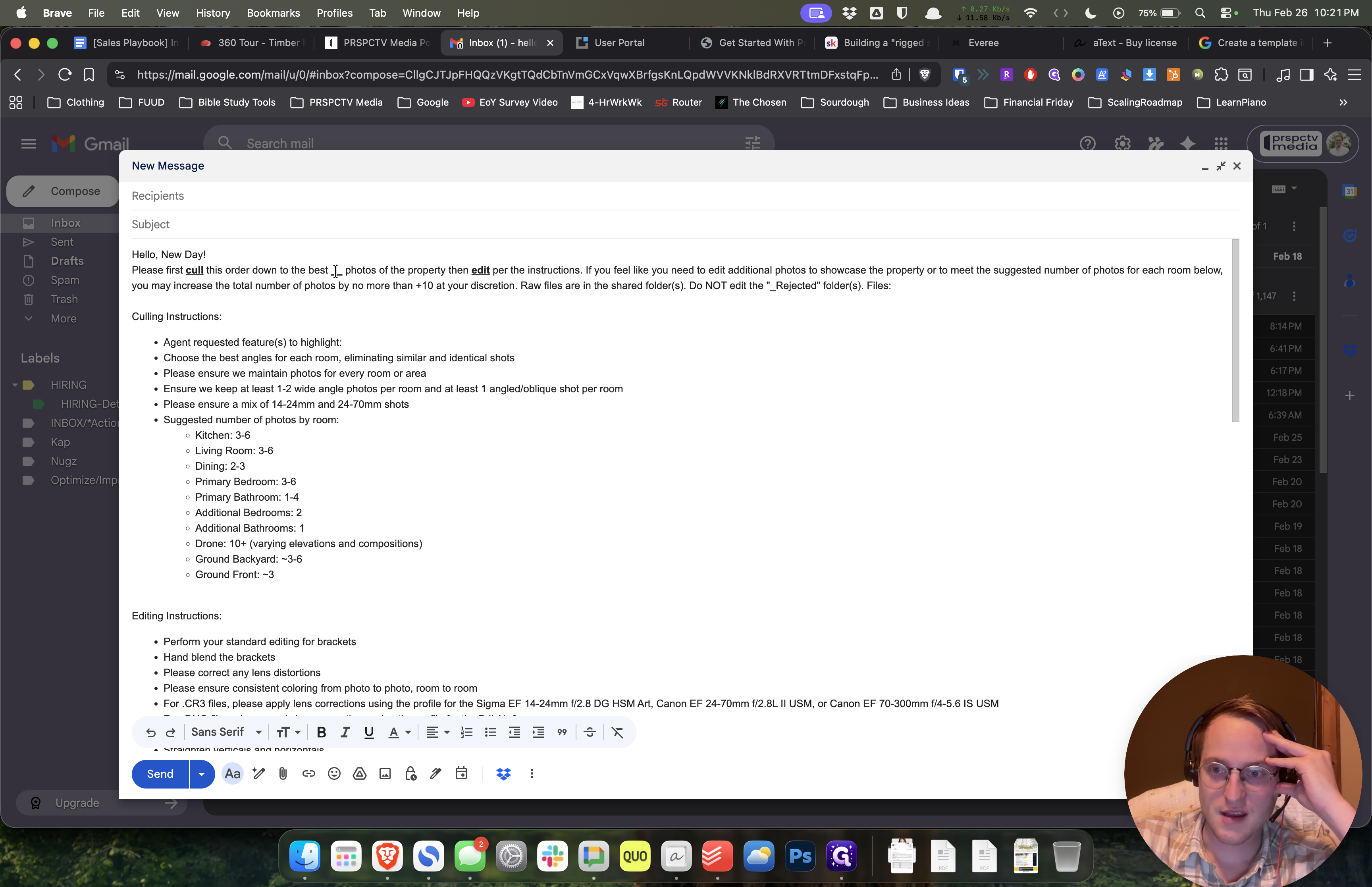
I can put the number of photos for each property, so that would be good. Similarly, we have other templates, including the standard one for a video.
I can put the number of photos for each property, so that would be good. Similarly, we have other templates, including the standard one for a video.
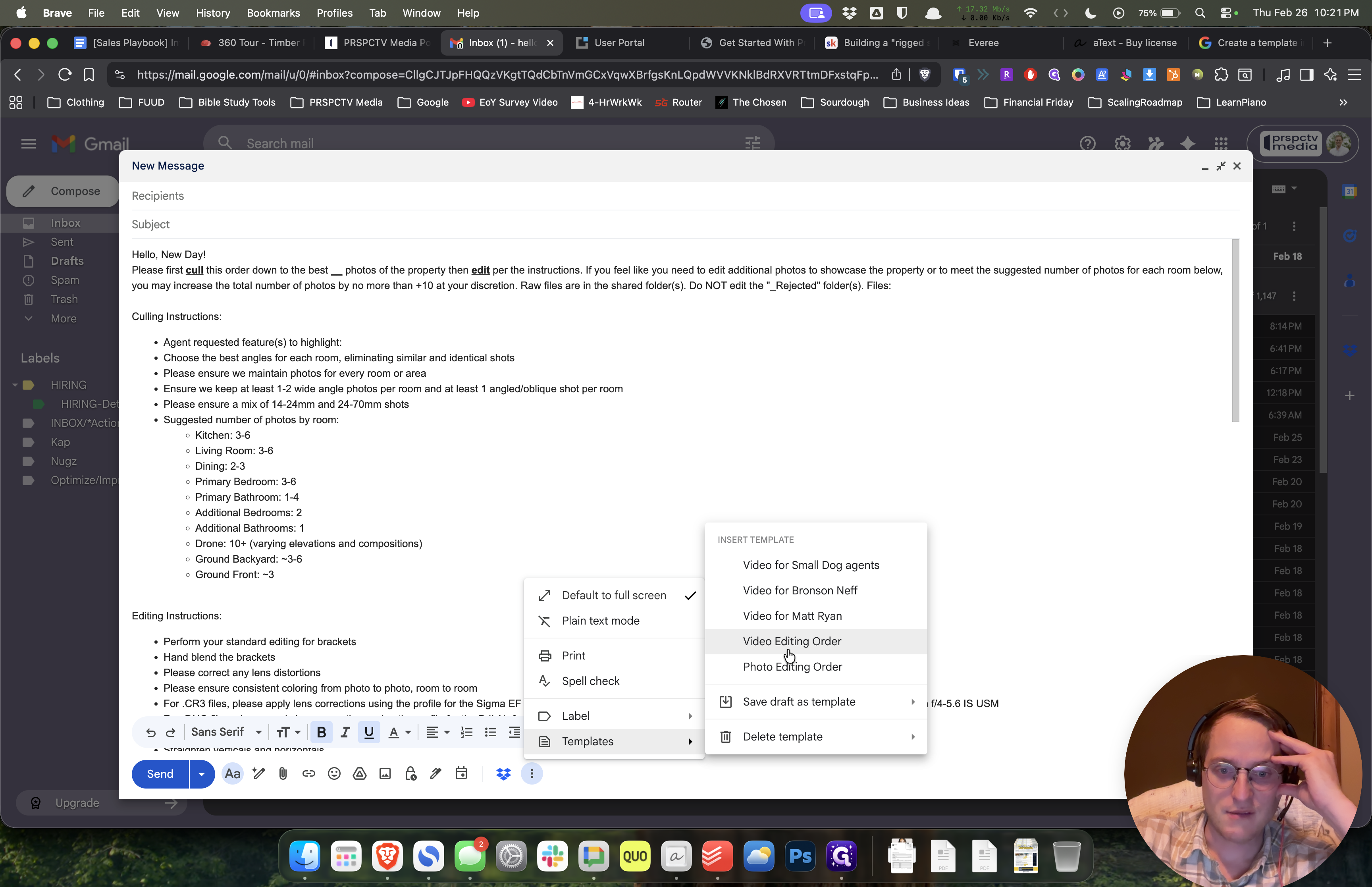
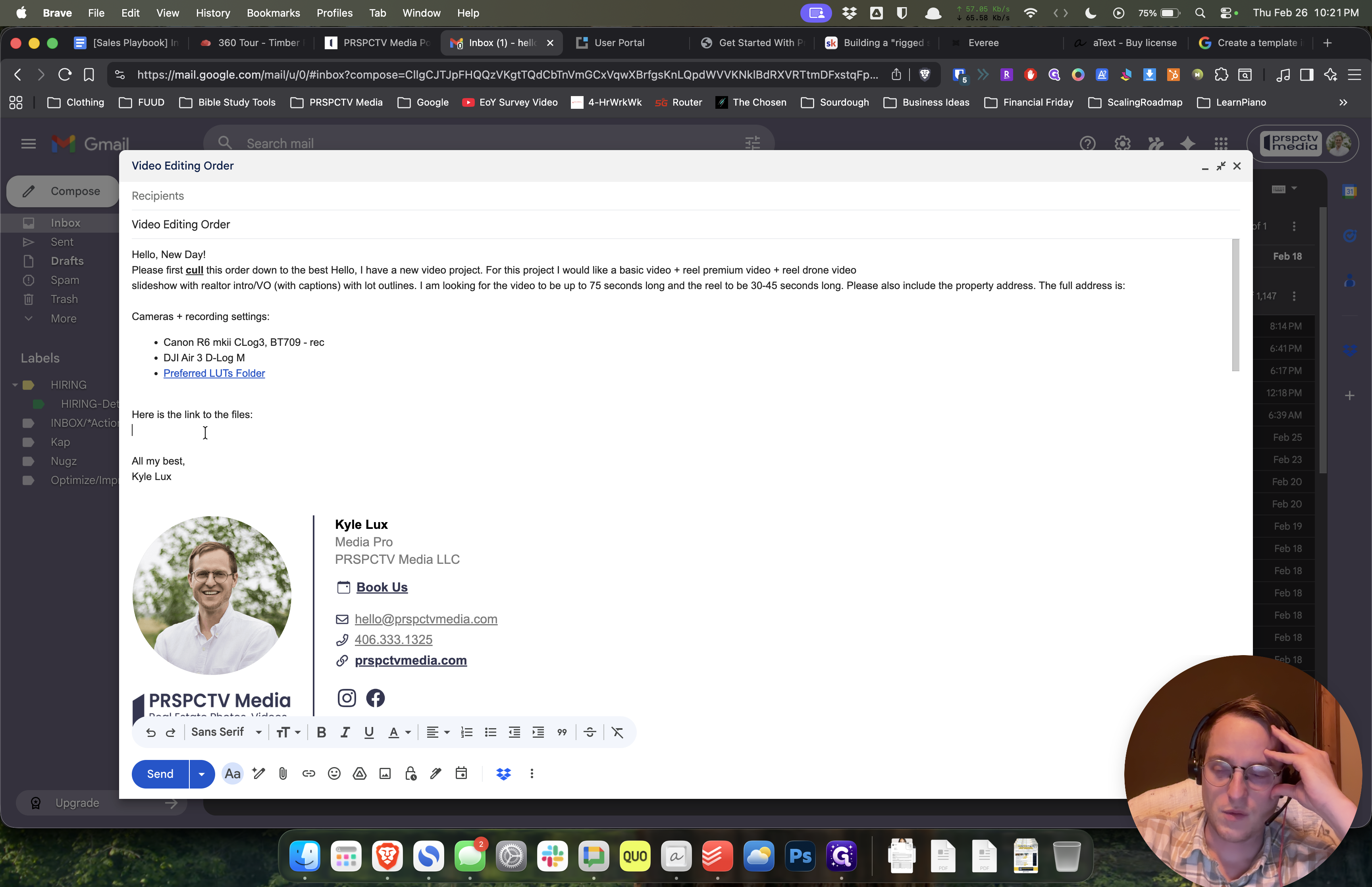
Please include the property address in the subject and add the folder to the specific video folder in the files. That would be very helpful.
Please include the property address in the subject and add the folder to the specific video folder in the files. That would be very helpful.
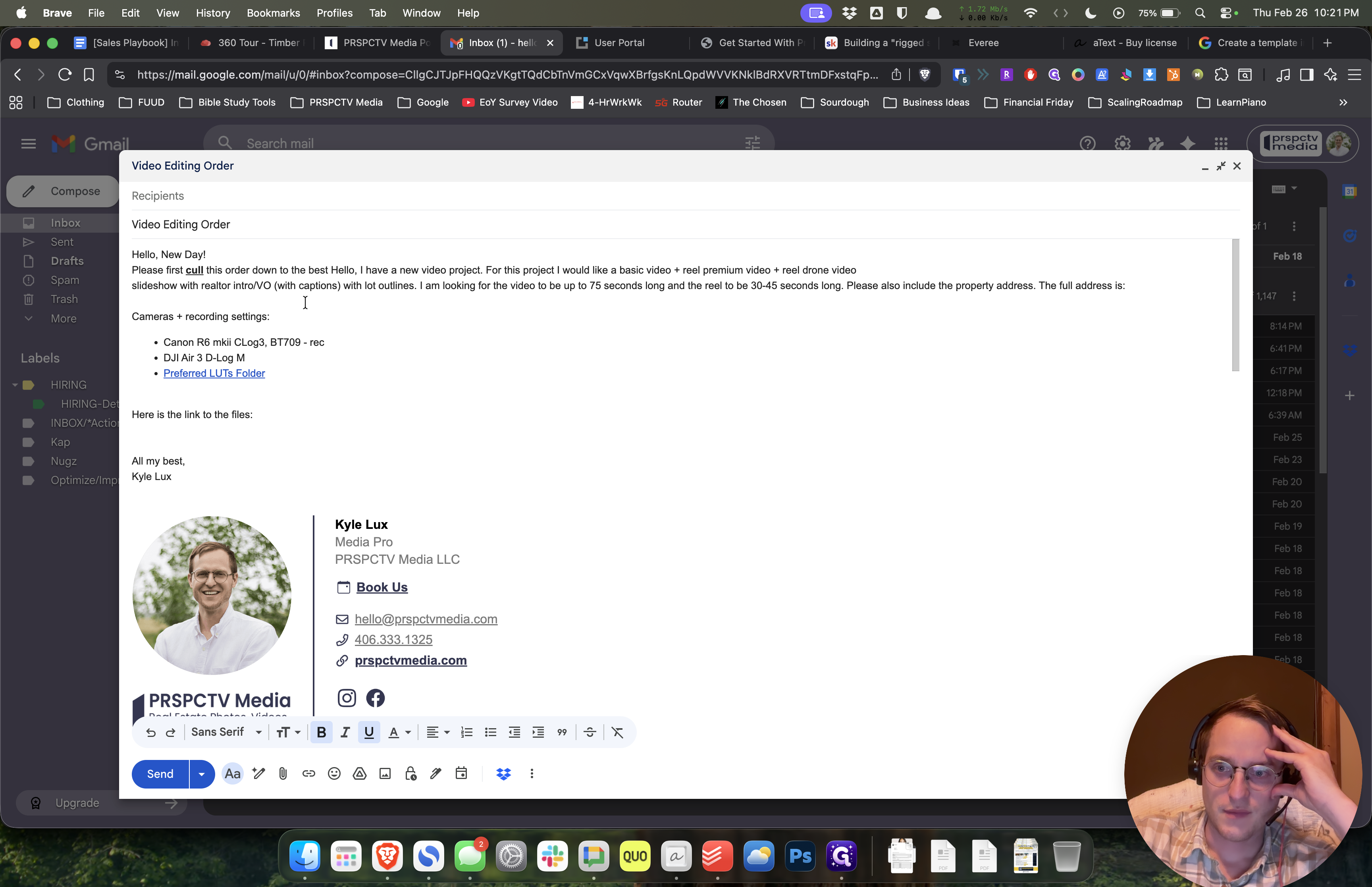
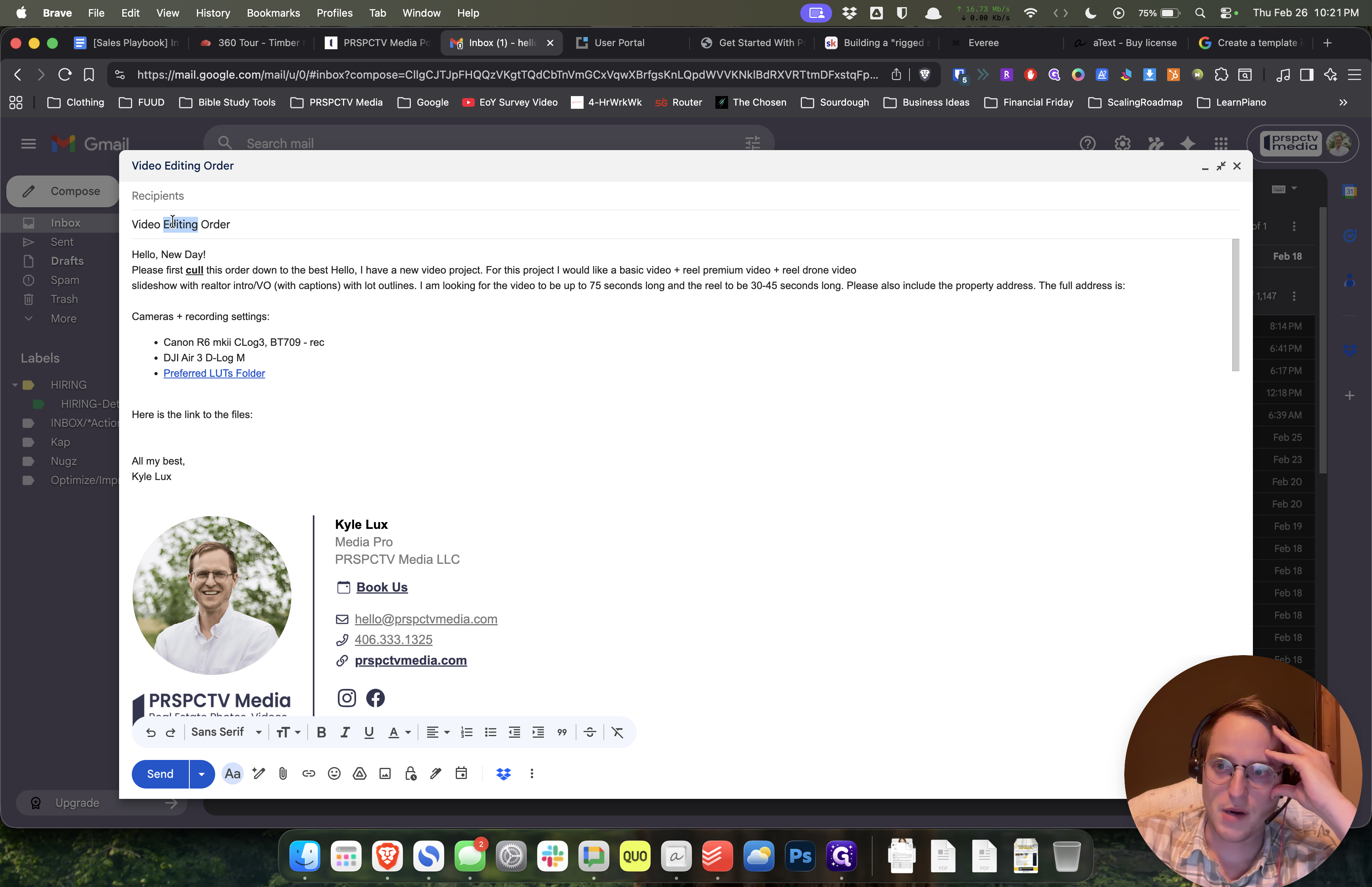
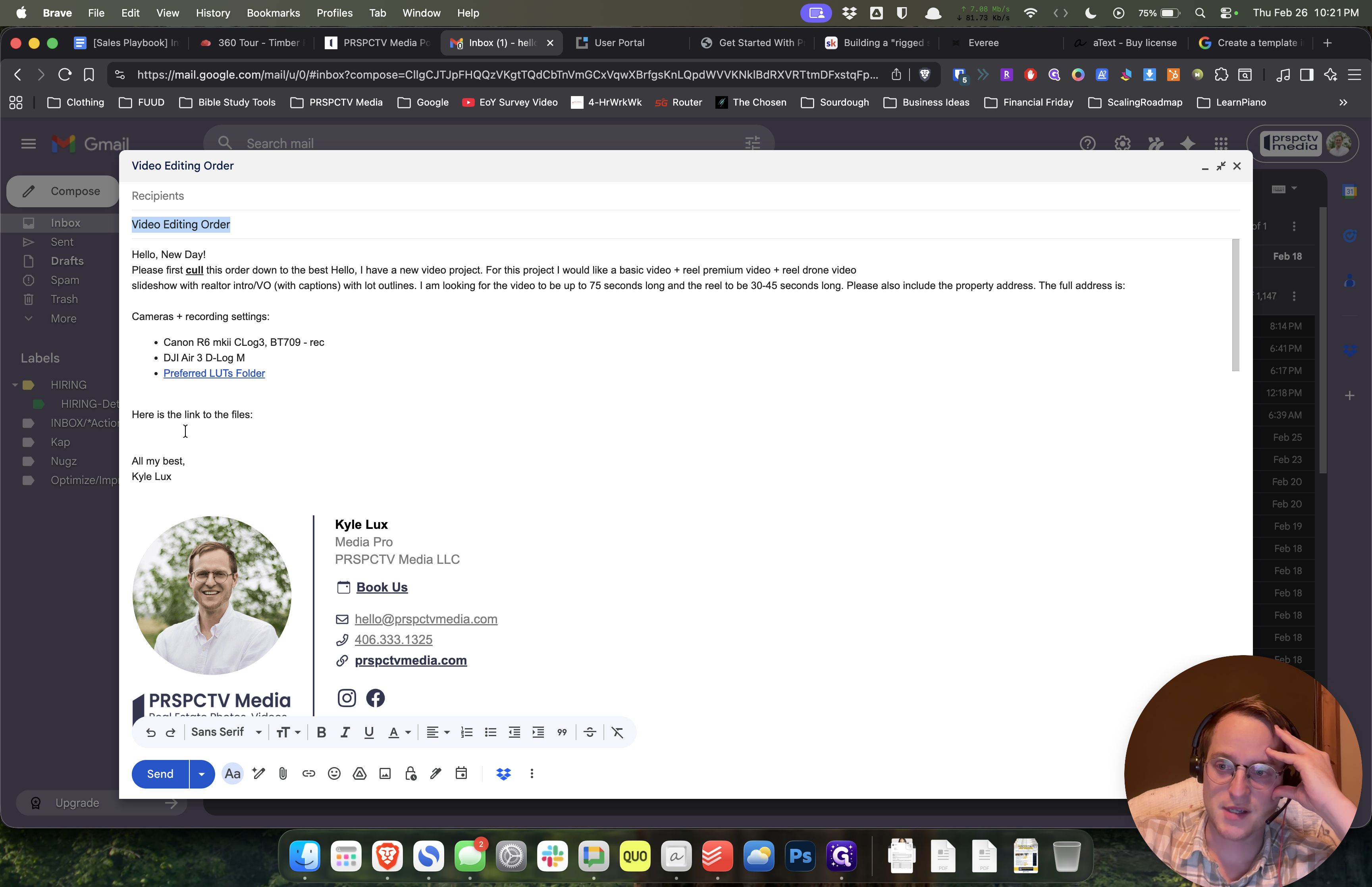
Generally speaking, everyone is creating a basic video and a reel.
Generally speaking, everyone is creating a basic video along with a reel.
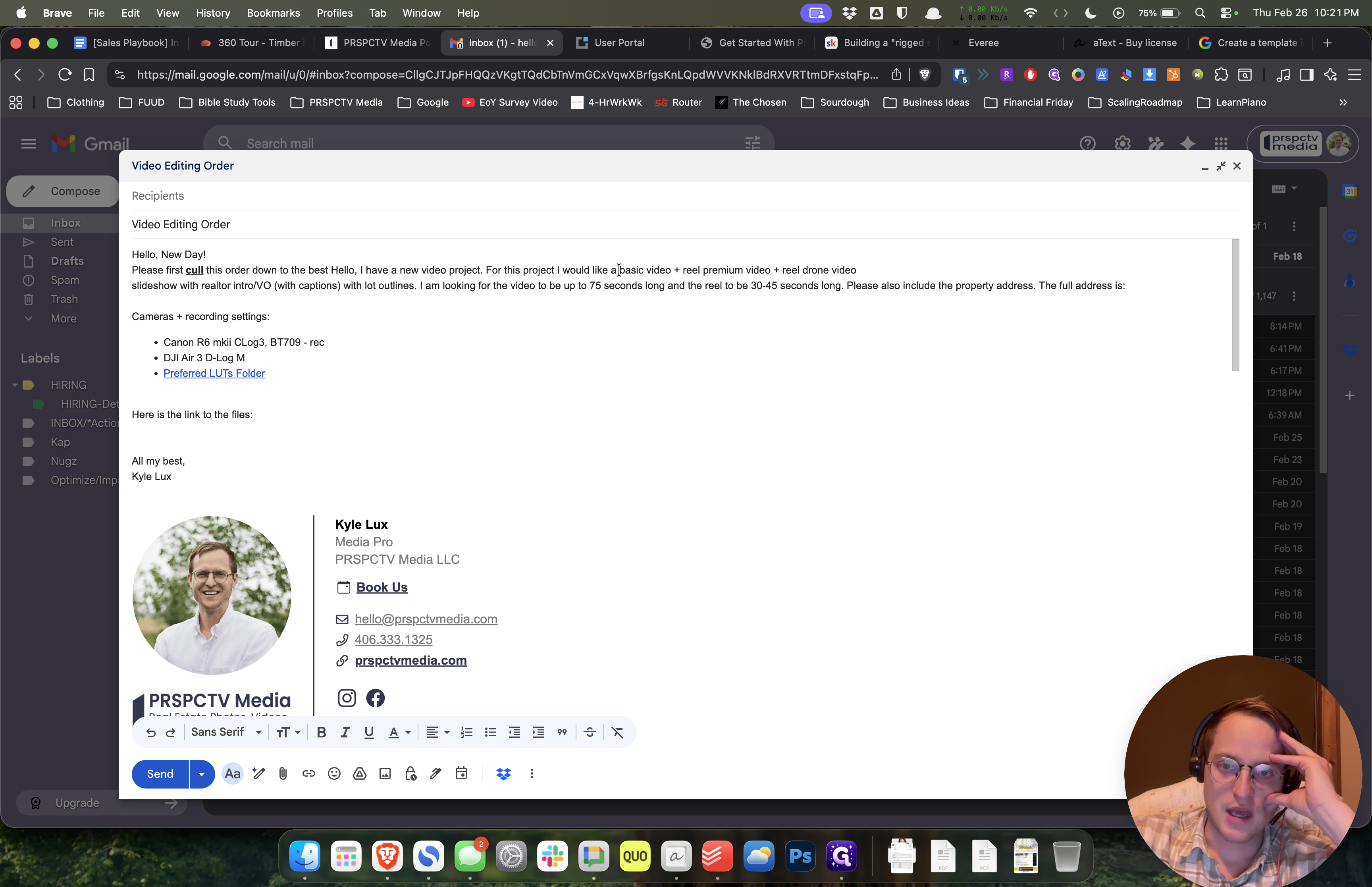
We rarely use these other options.
We rarely use these other options.
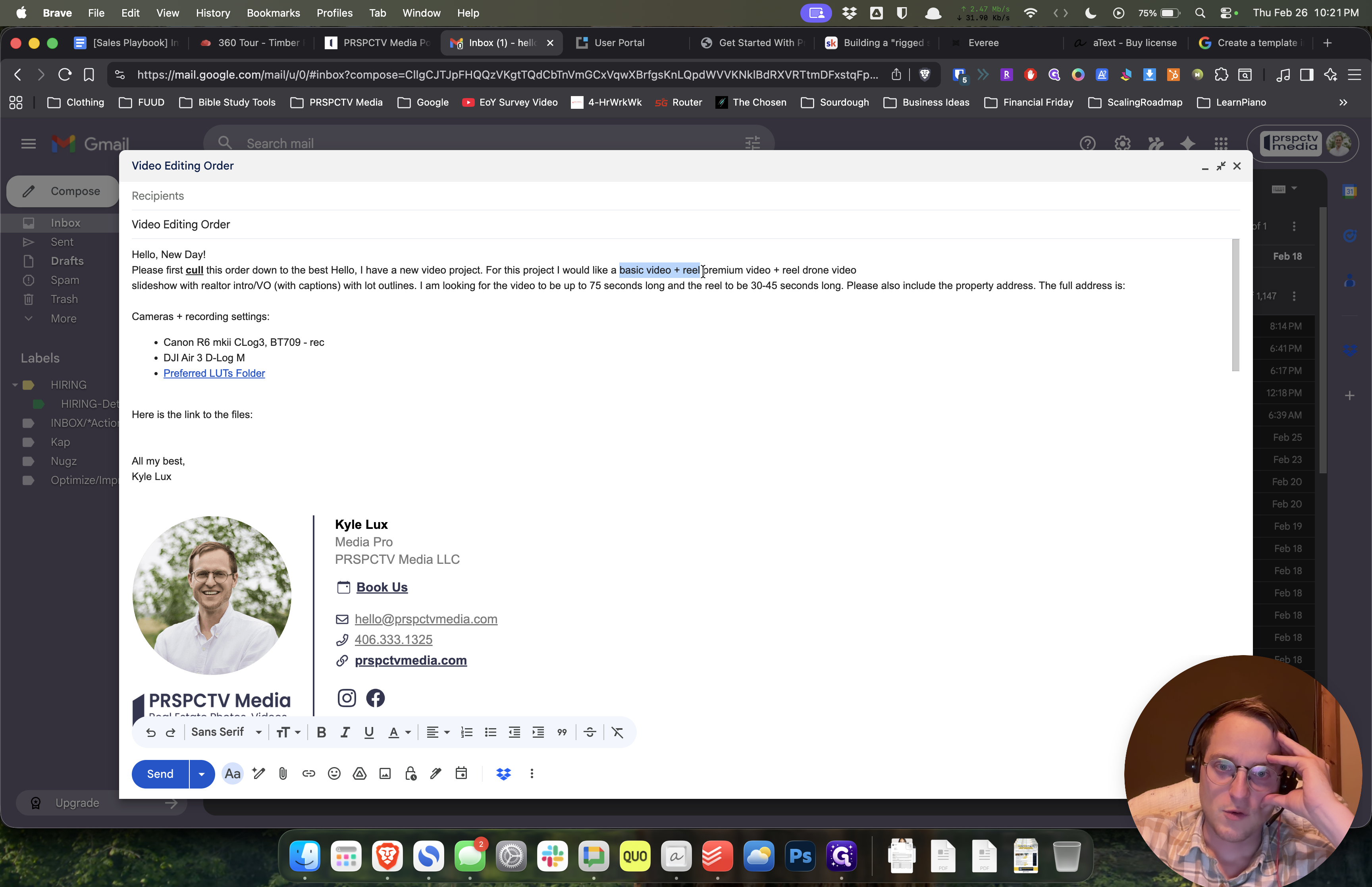
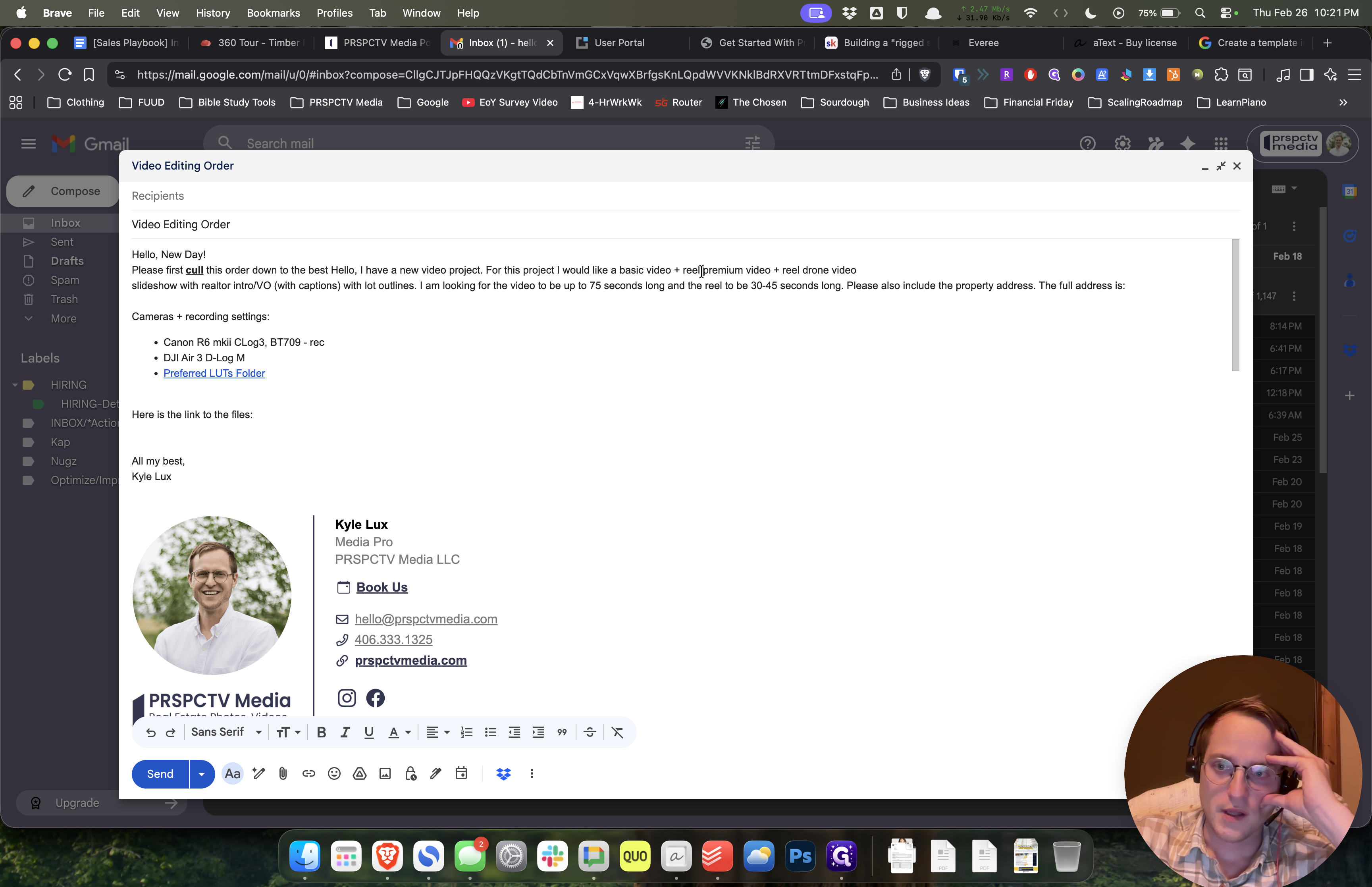
If there's an agent on camera, then we'll keep that in.
If there's an agent on camera, then we'll keep that in.
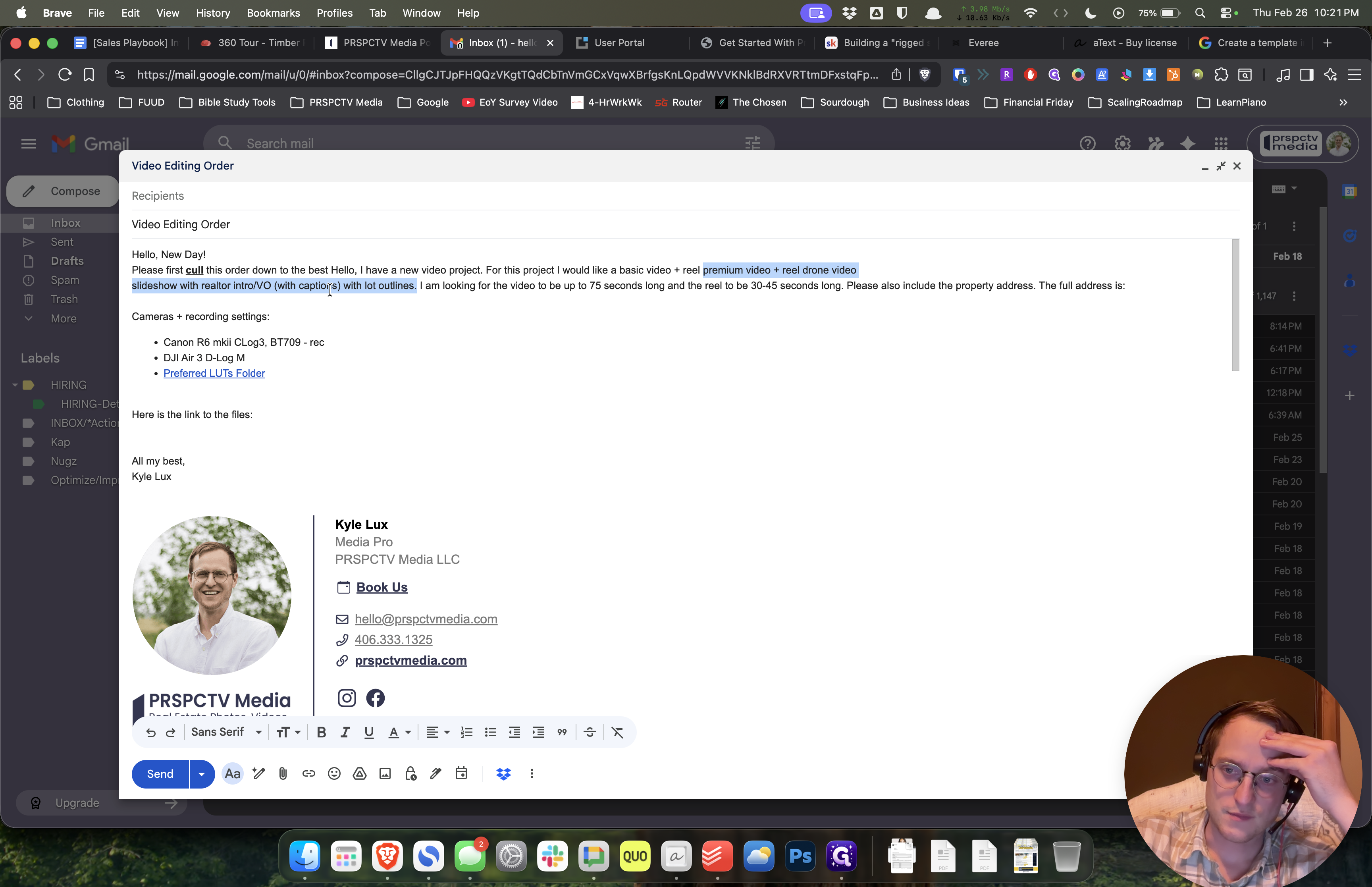
The main things I want you to change are simple. Please link to the files and include the address. That would be very helpful.
The main things I want you to change are simple. Please link to the files and include the address. That would be very helpful.
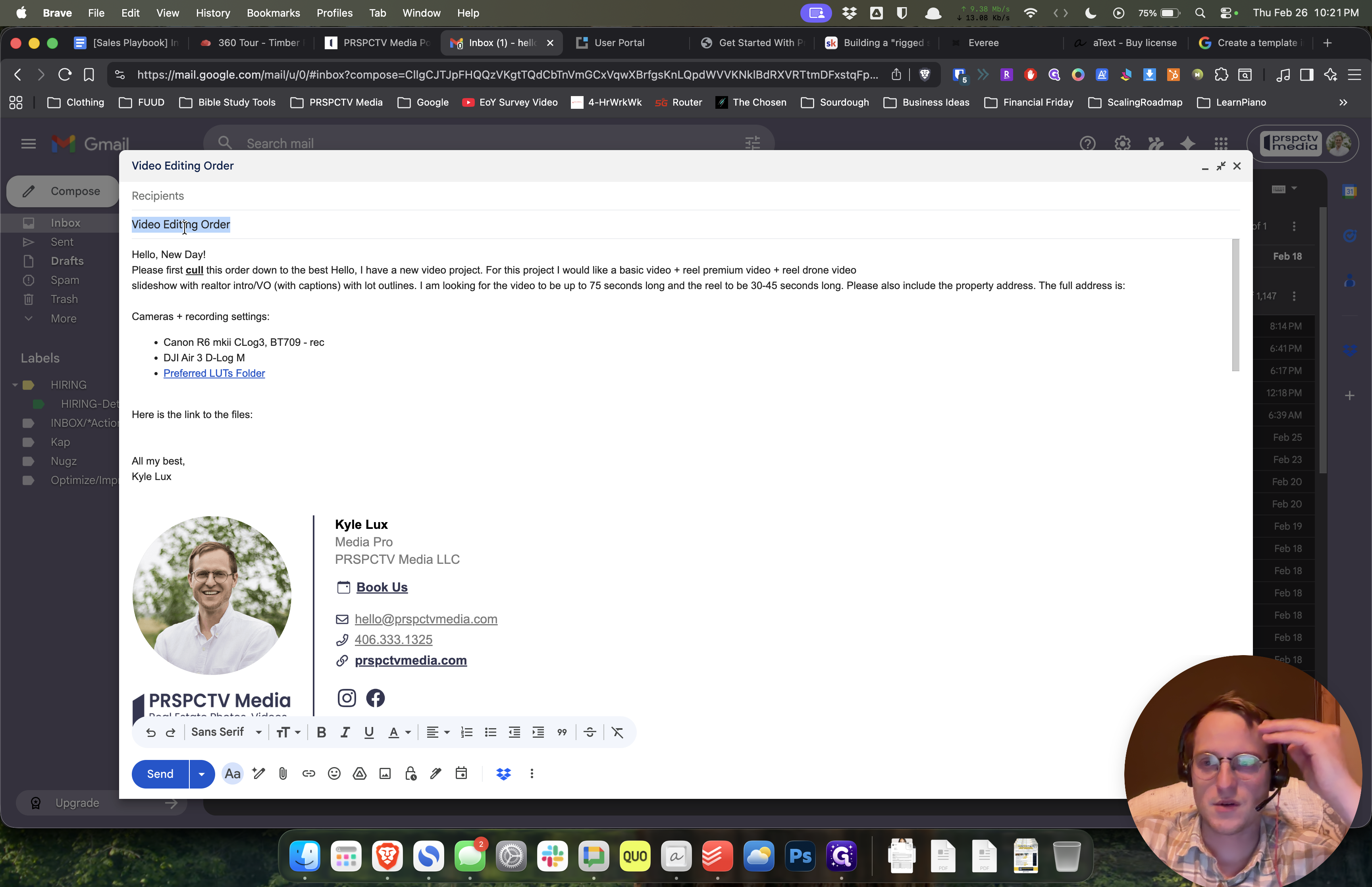
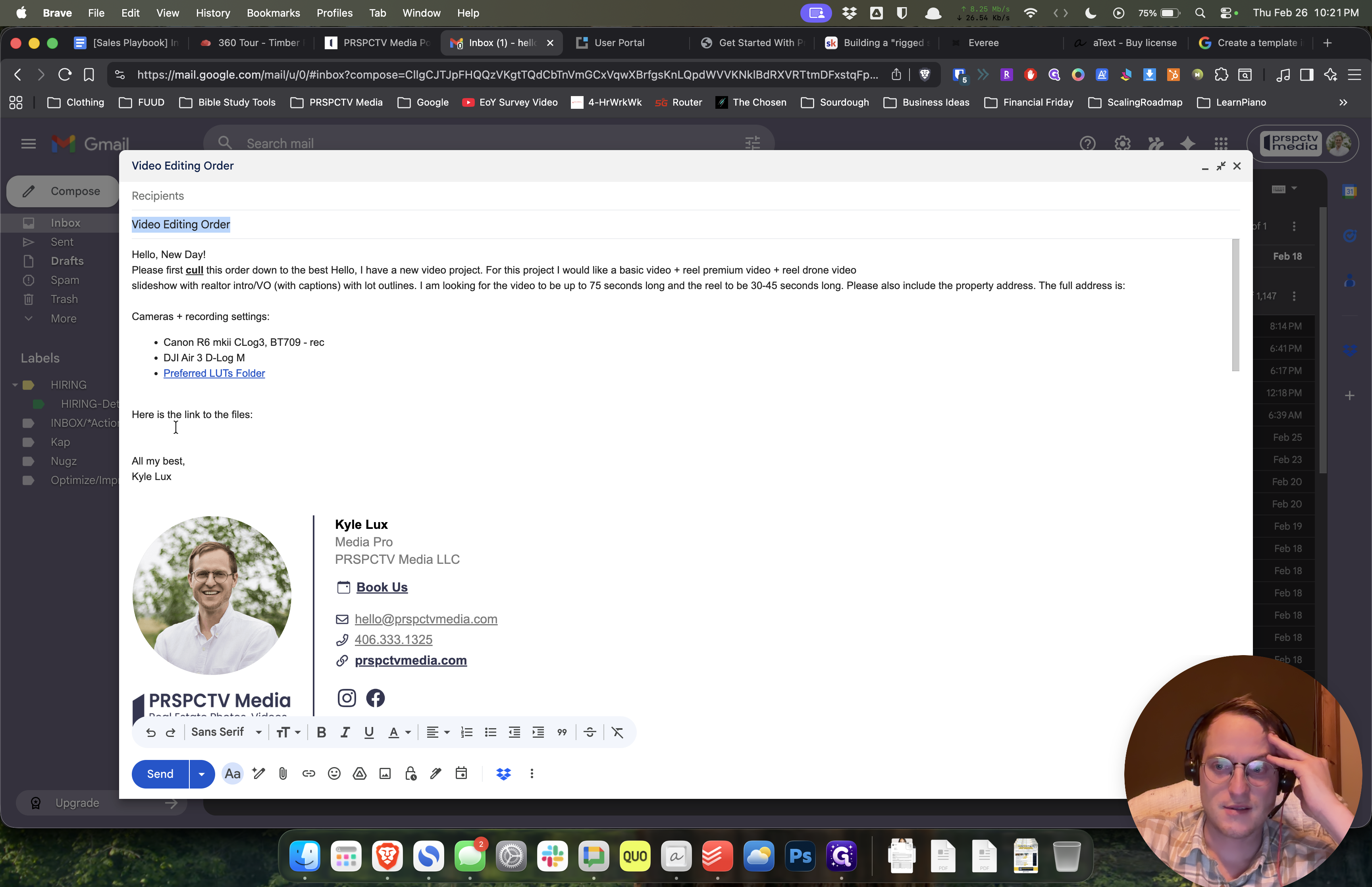
And then the templates change slightly if it's...
And then the templates change slightly if it's...
Matt Ryan is an agent with Bozeman Real Estate Group. Uh, Bronson F. She is also an agent with Bozeman Real Estate Group. They have two specific types of slight customer preferences for video. If the agent is with the brokerage Small Dog, you just need to check their profile to see if they are with Small Dog.
Small Dog has special requests for placing their logo and branding information in the bottom corners of the videos.
Matt Ryan is an agent with Bozeman Real Estate Group. Uh, Bronson F. She is also an agent with Bozeman Real Estate Group. They have two specific types of slight customer preferences for video. If the agent is with the brokerage Small Dog, you just need to check their profile to see if they are with Small Dog.
Small Dog has special requests for placing their logo and branding information in the bottom corners of the videos.
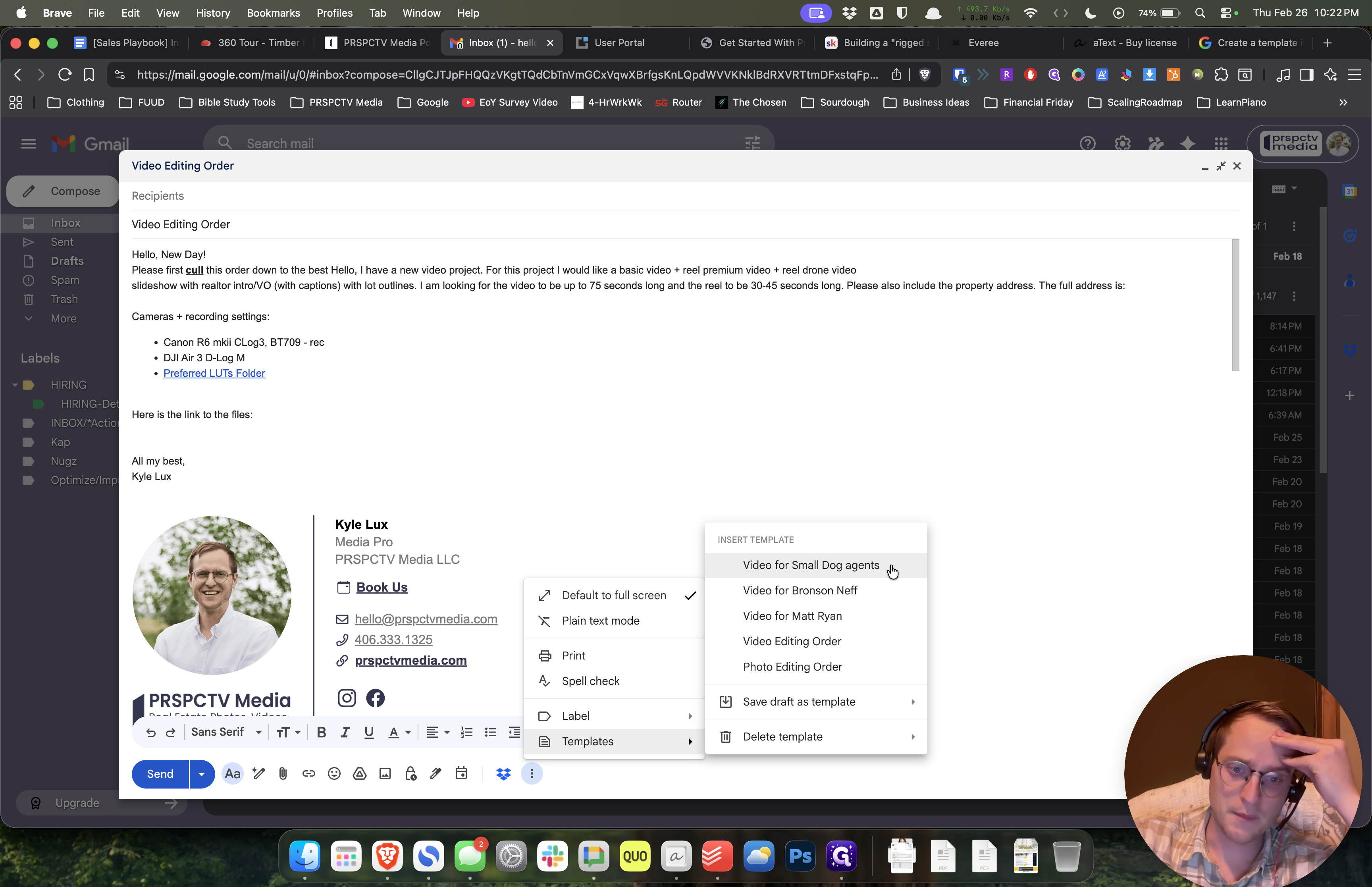
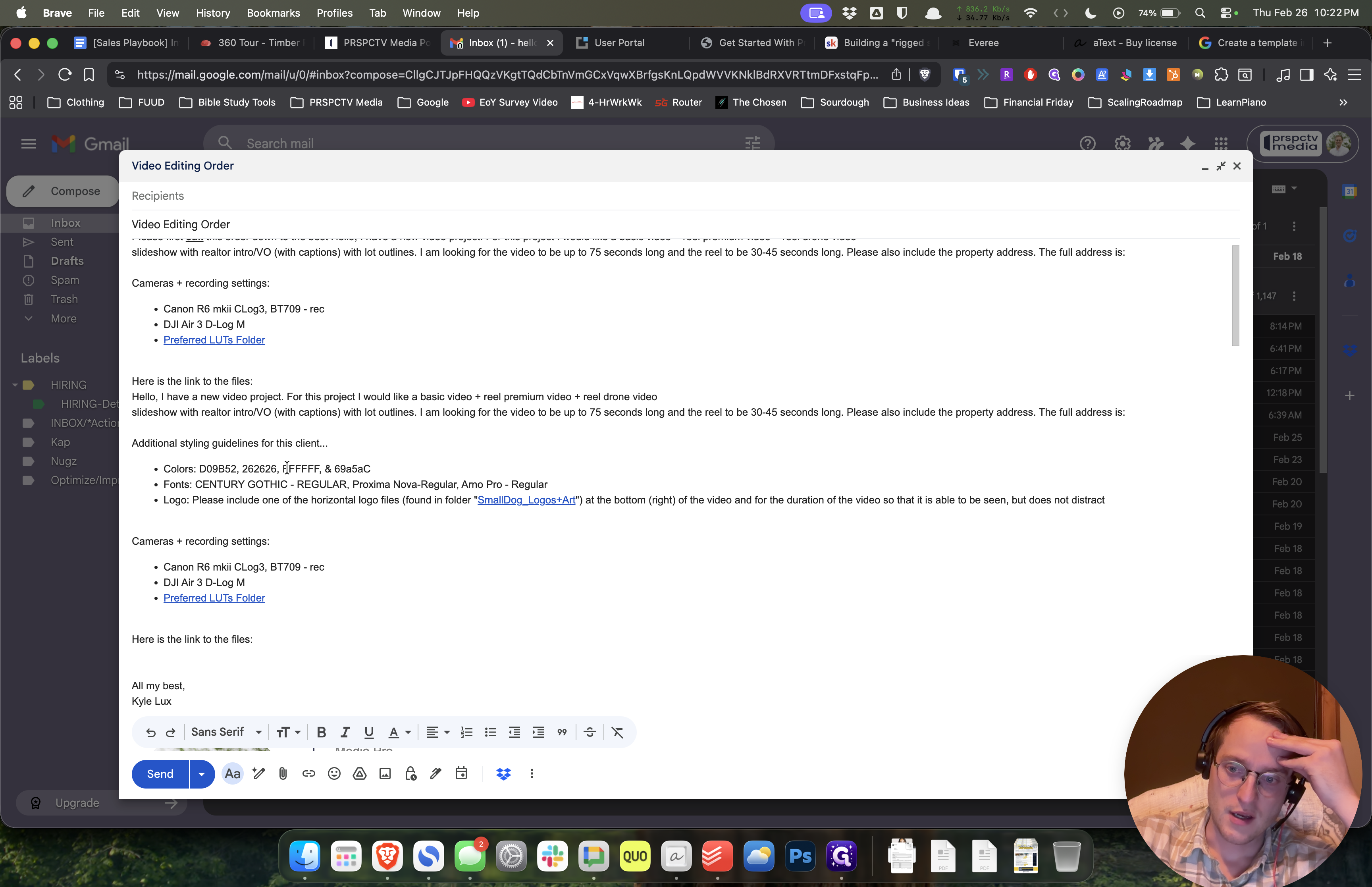
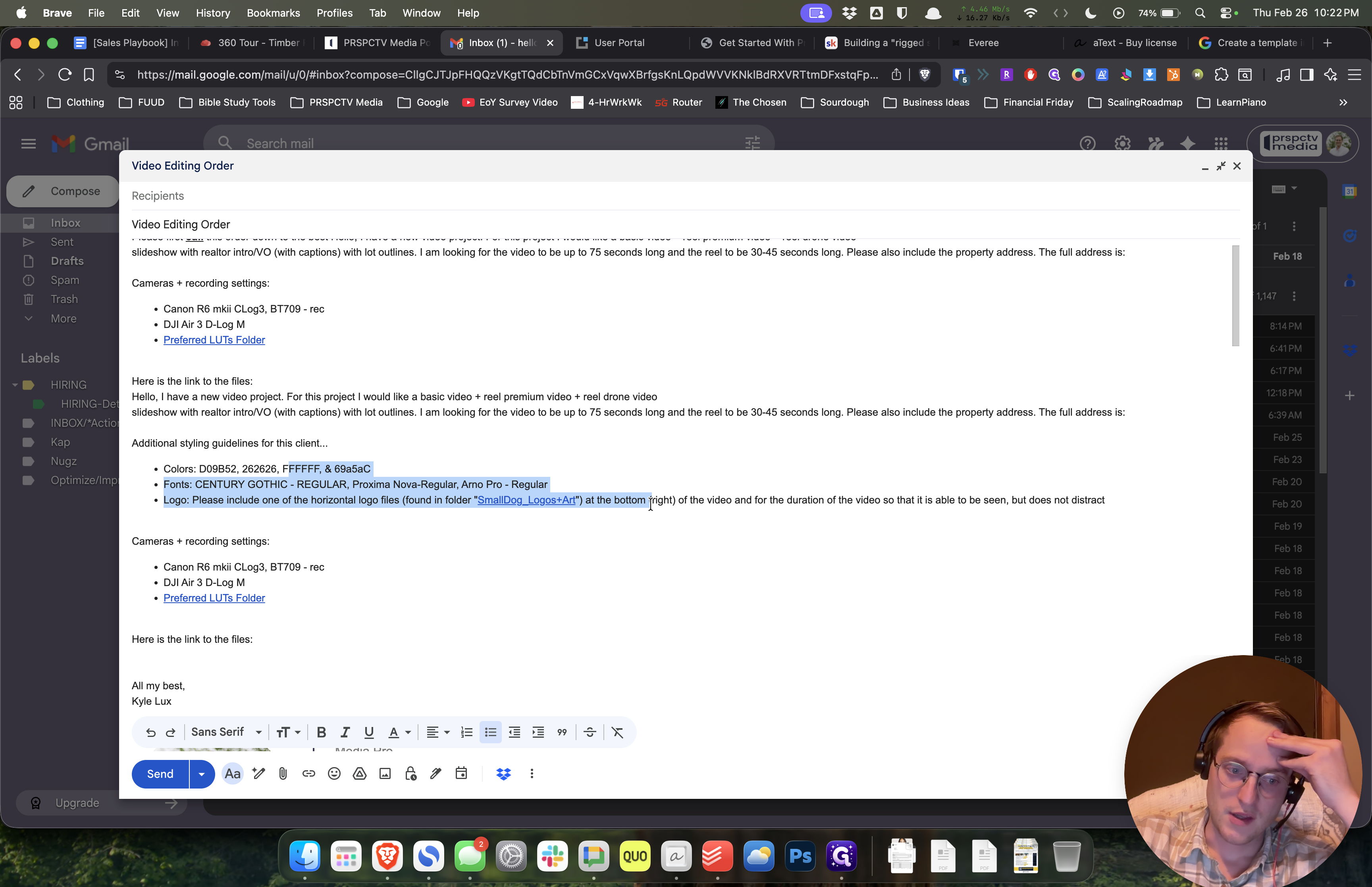
They have their own template as well. Those are all the templates. They are now in Gmail, and you should have access to them. If you don't, let me know. I think you should. Keep me posted.
They have their own template as well. Those are all the templates. They are now in Gmail, and you should have access to them. If you don't, let me know. I think you should. Keep me posted.