
End Term 1 2026- MPT Feedback Forms and Planning Documents for Effective Tutoring in Term 2
Learn how to efficiently use MPT feedback forms and planning documents to track student progress, set tutoring goals, and prepare for the next term. Tips for updating goals, managing homework, and planning for student success.
In this guide, we'll learn how to update and prepare MPT feedback forms and planning documents as you finish term one and get ready for term two. This process includes copying feedback from previous terms, adjusting tutoring goals for returning or new students, and making sure all planning documents reflect the correct term and year.
You'll also see how to track student progress, revise goals, and document any changes for the upcoming term.
Let's get started
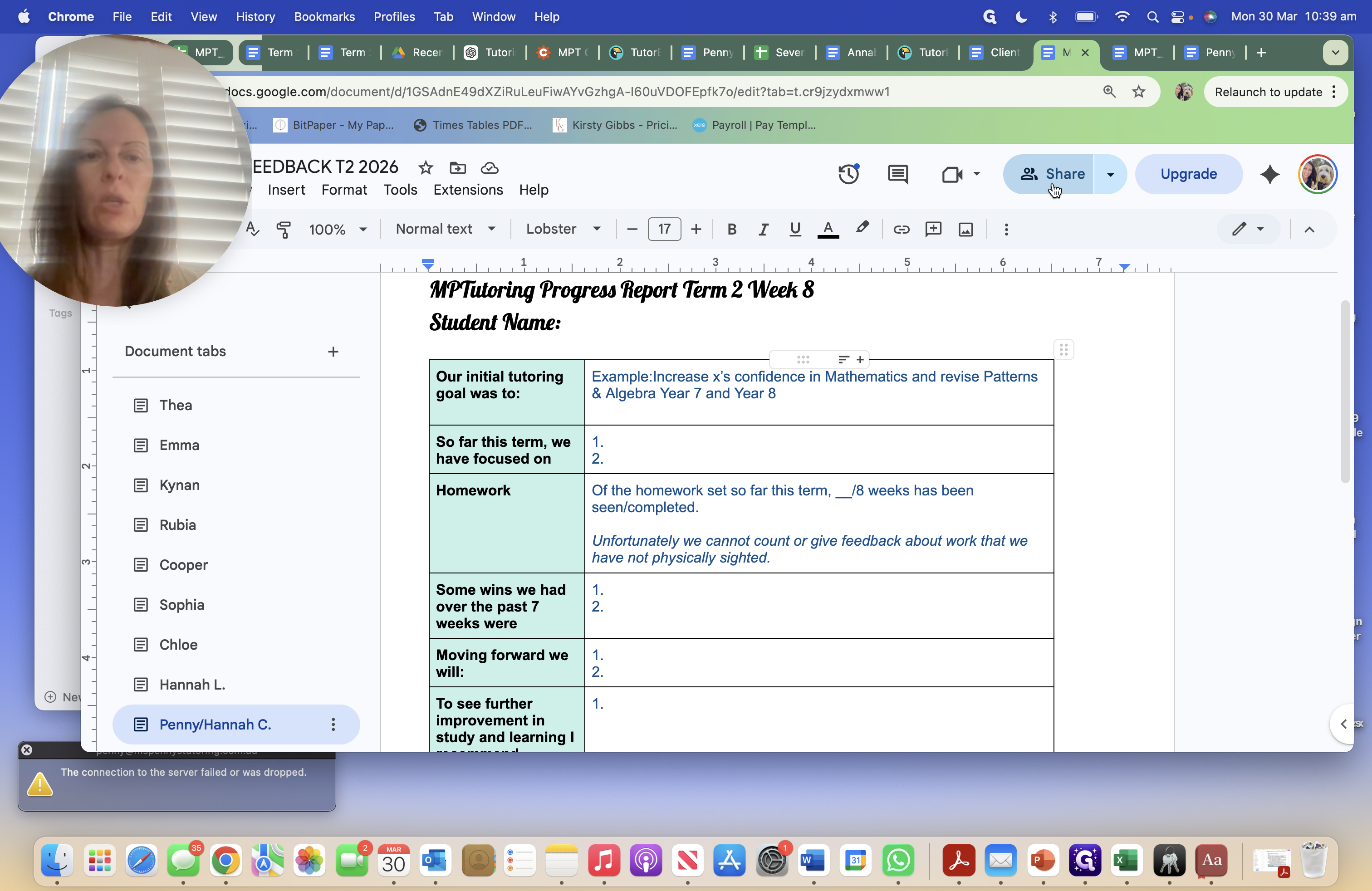
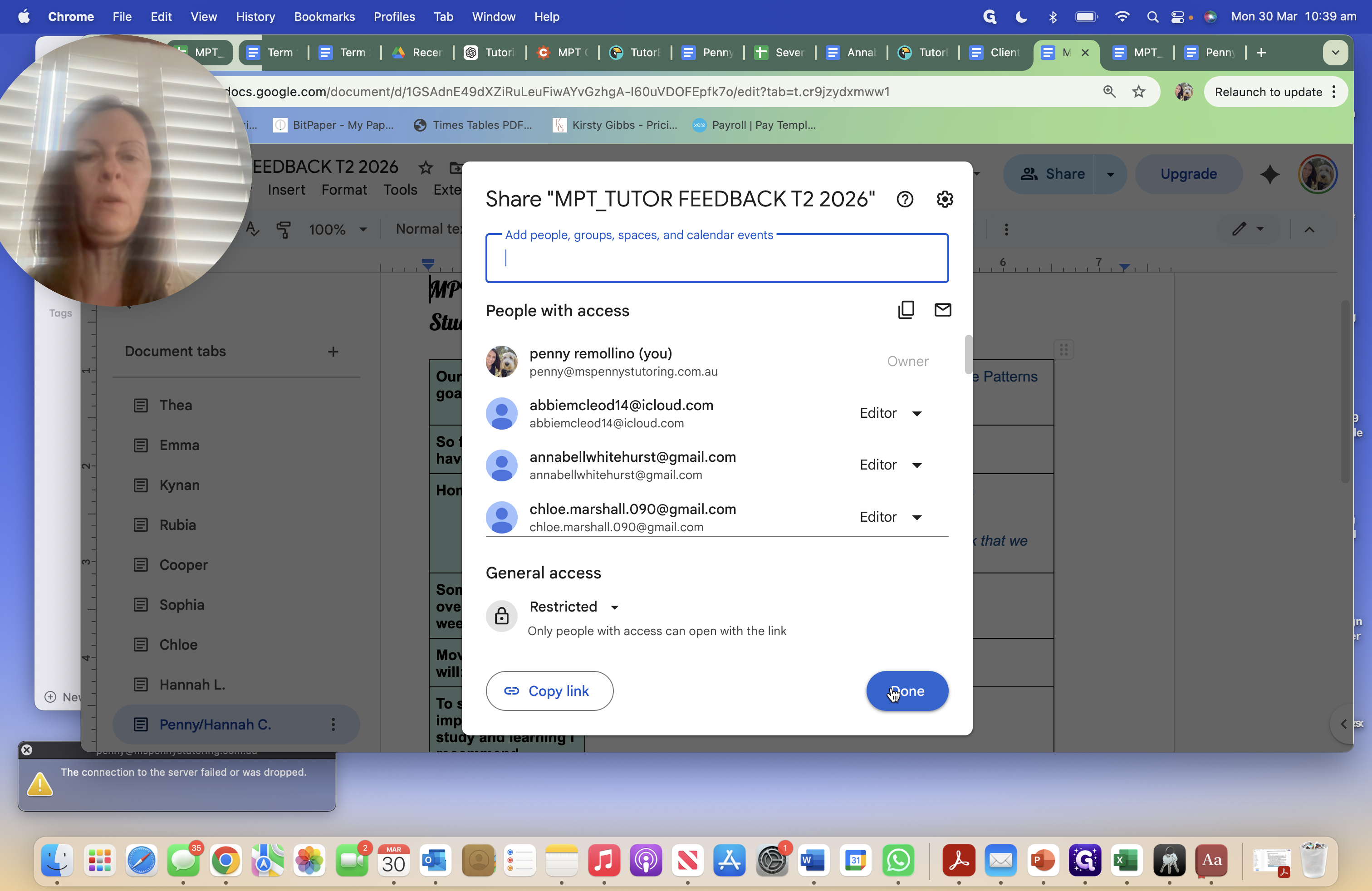
Hello, team. We are in term one, week 10. To finish this term and prepare for the next, we open our MPT feedback forms for term two, which have been shared with you.
Thank you, Grace.
We also open our MPT feedback forms for term one, and our planning documents are available.
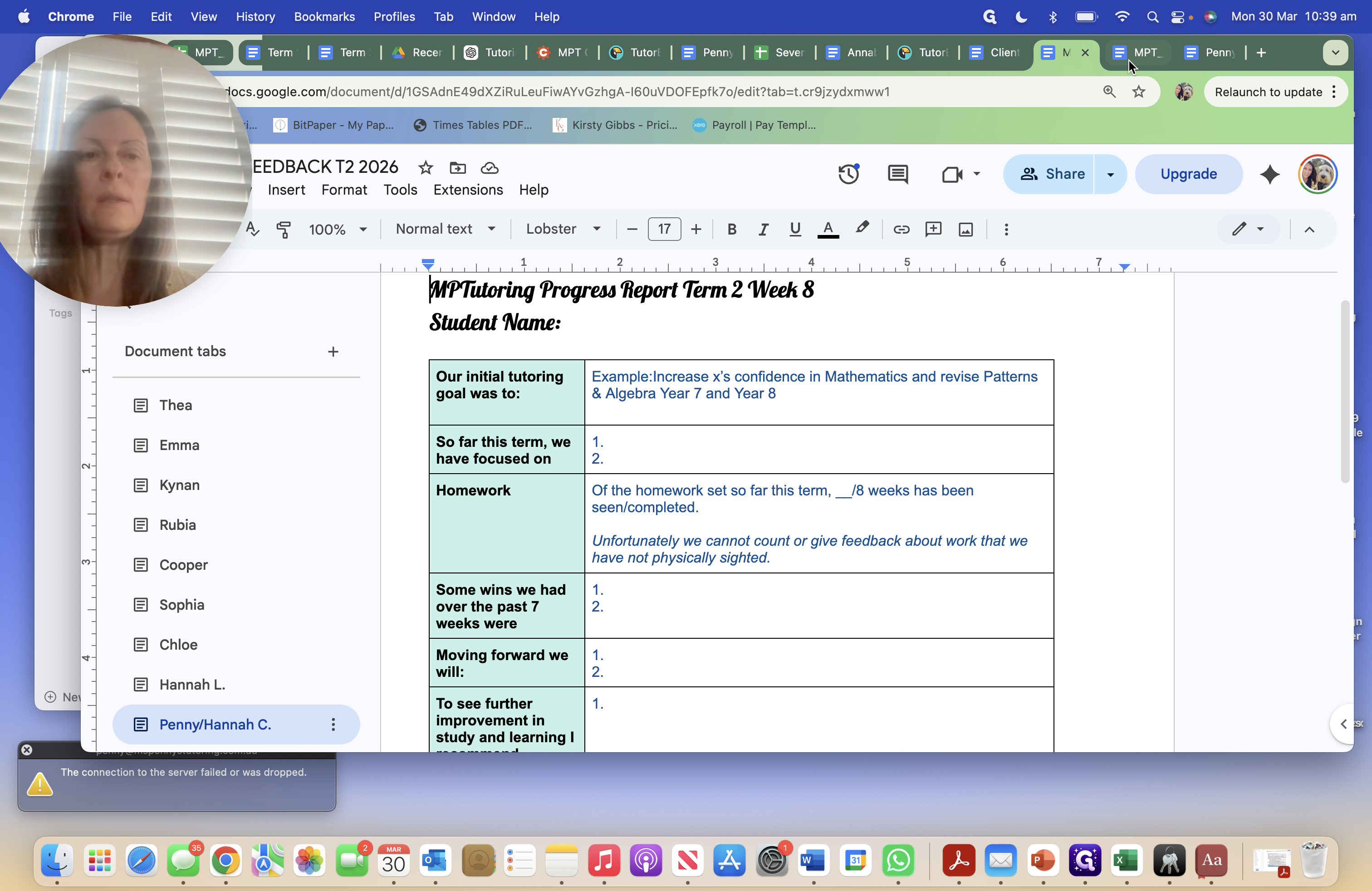
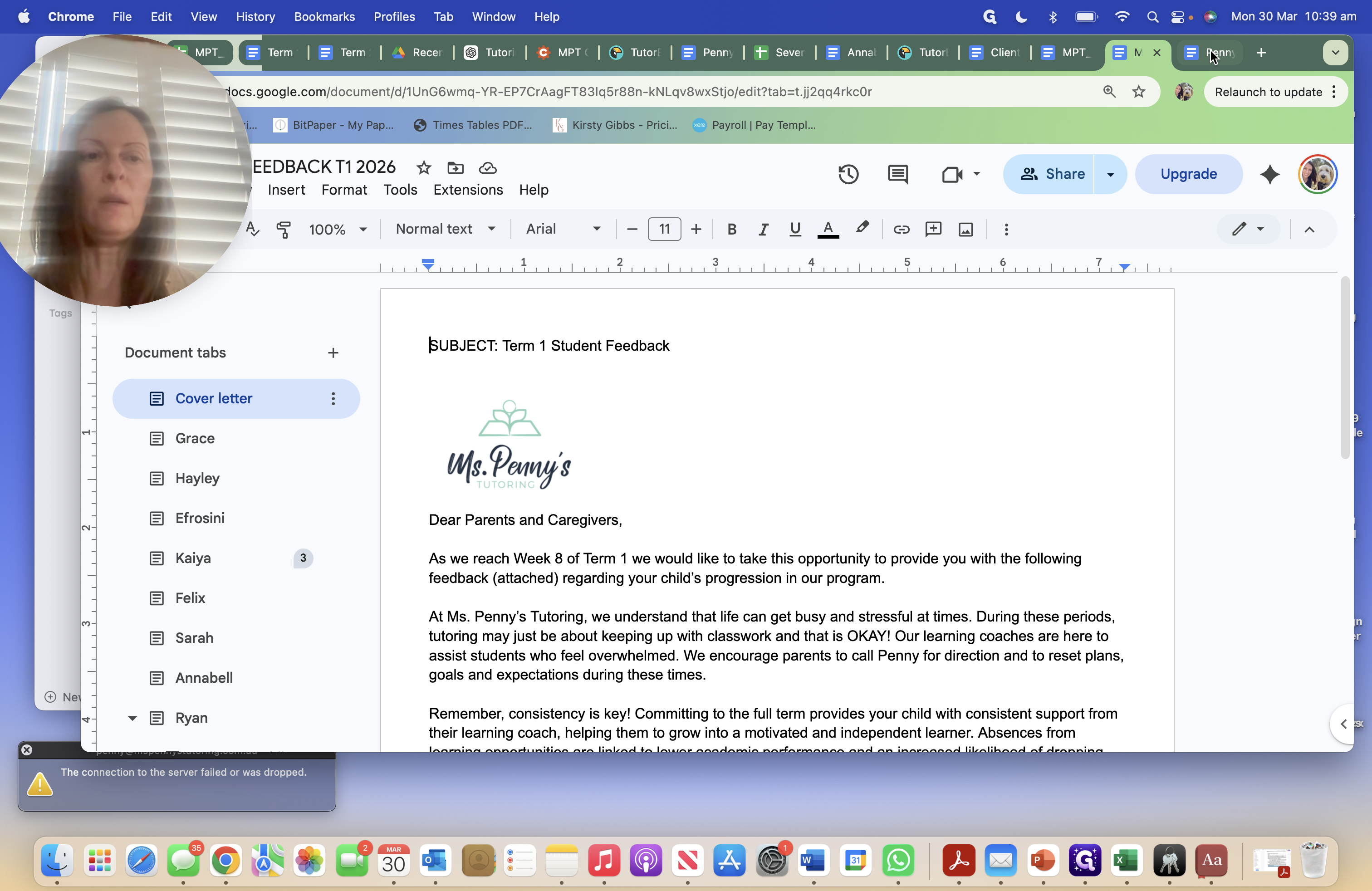
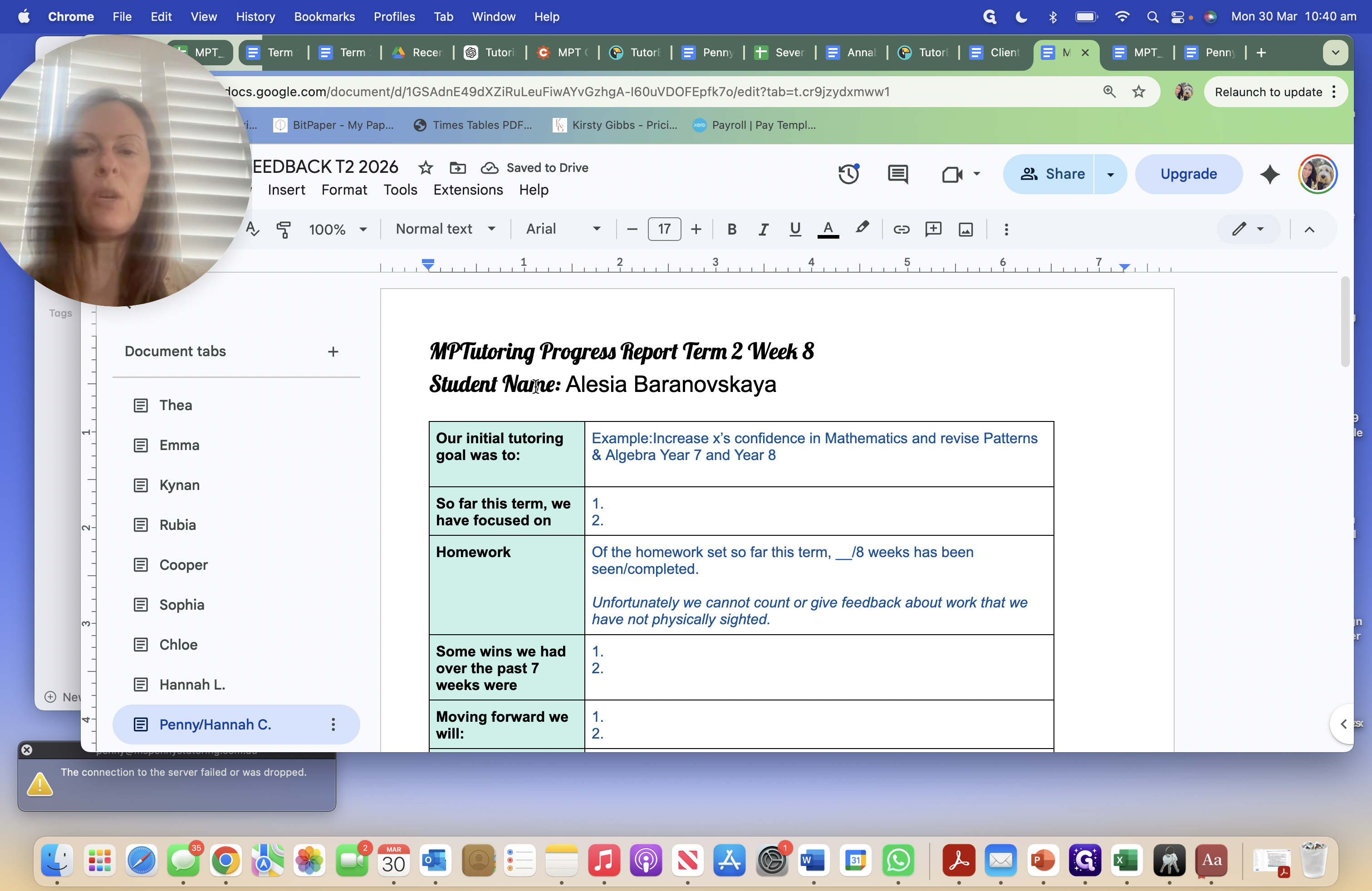
We go to our feedback forms from term one. If I scroll down to mine and use it as an example, I had Alessia here.
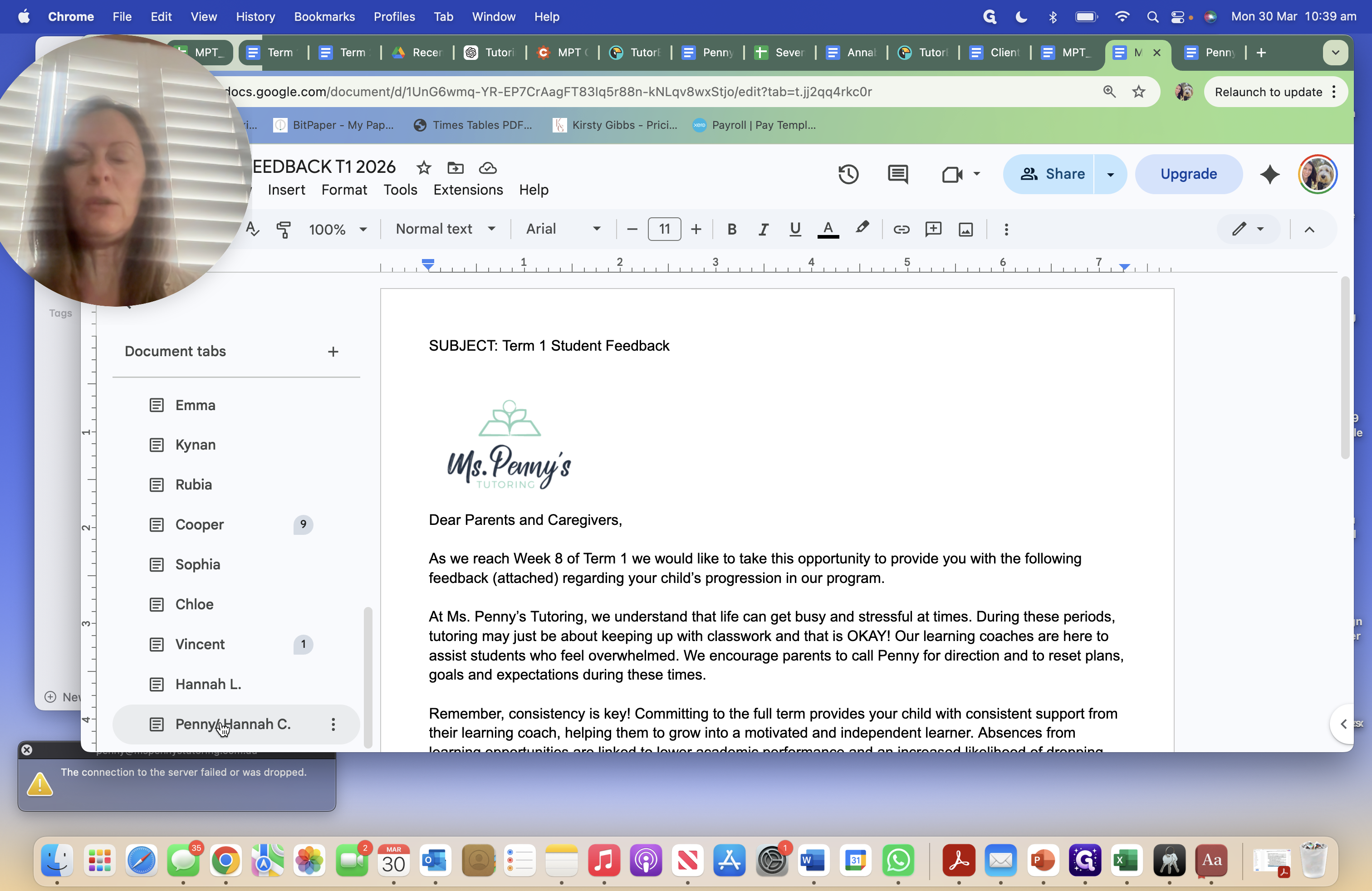
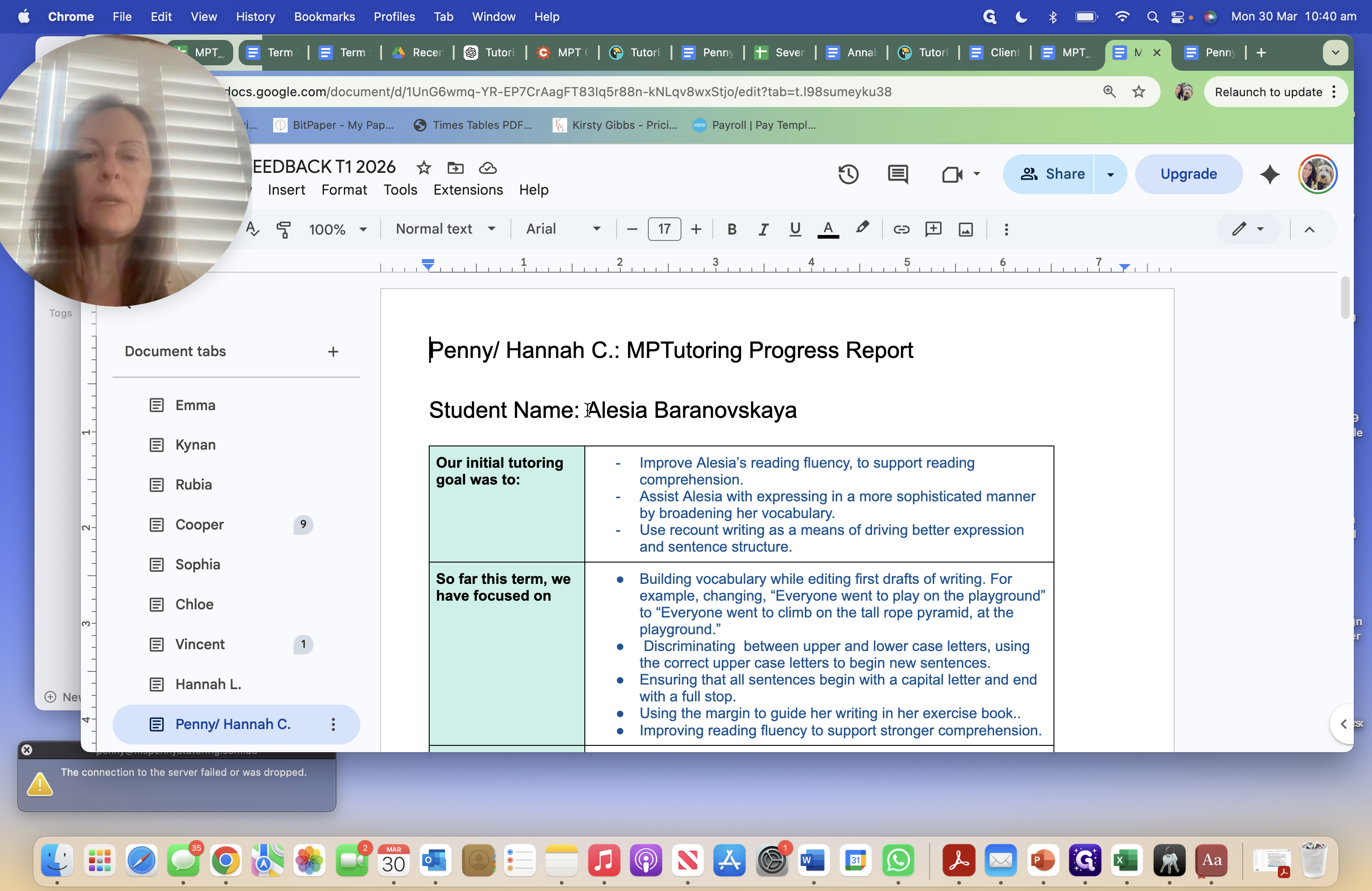
Copy with Command + C. I go ...
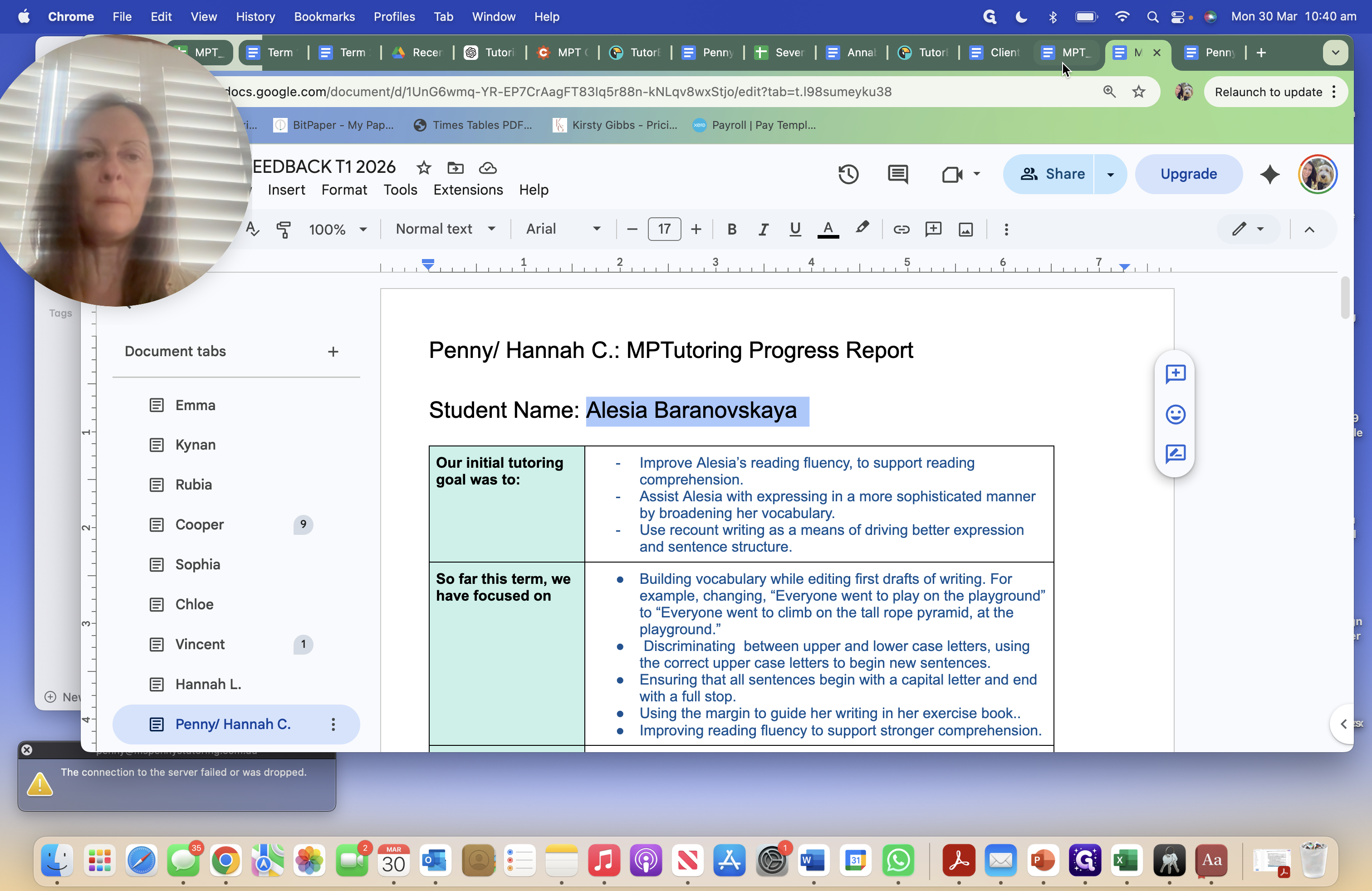
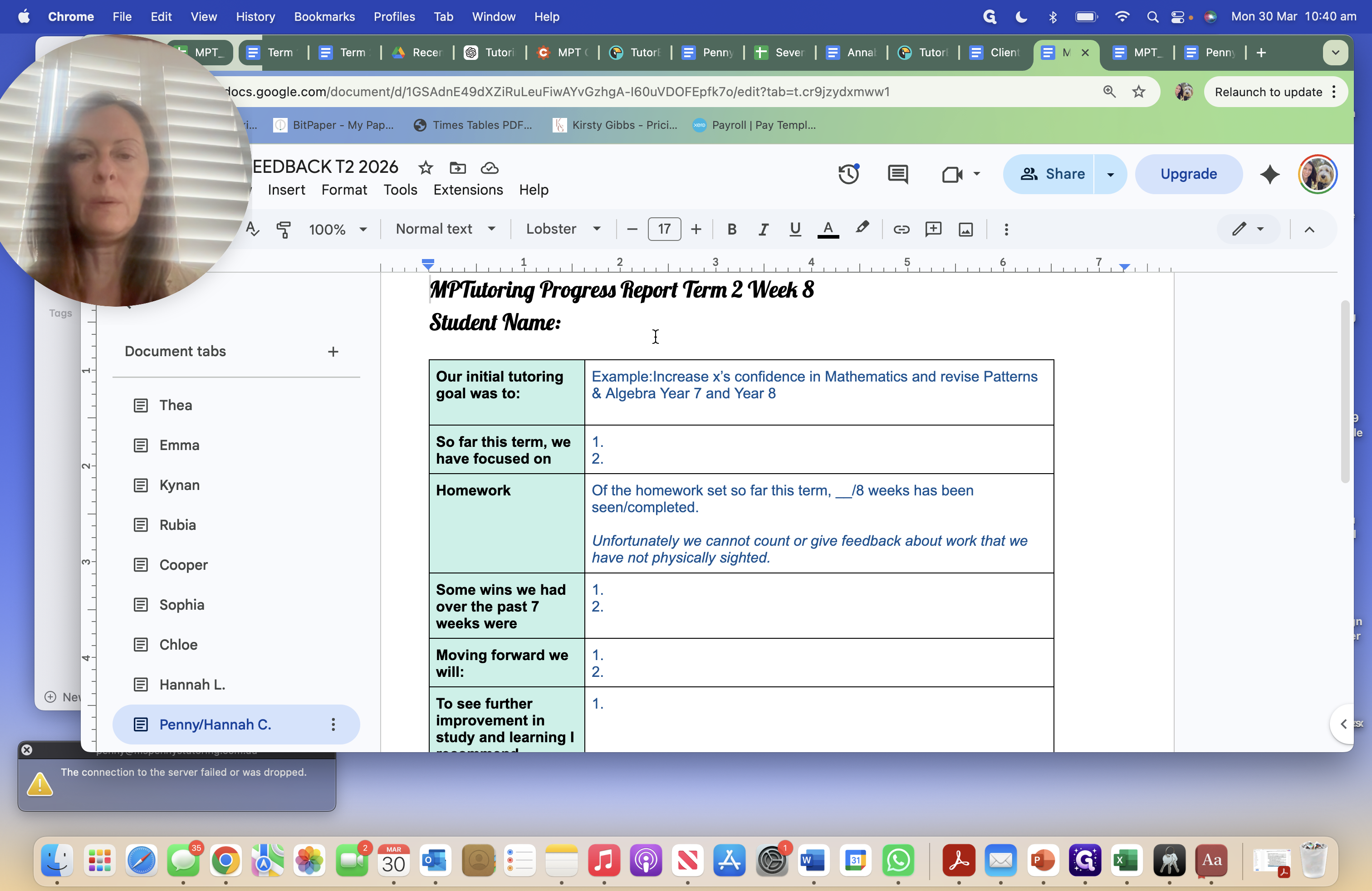
I should have copied and pasted this first to have it ready for my next student.
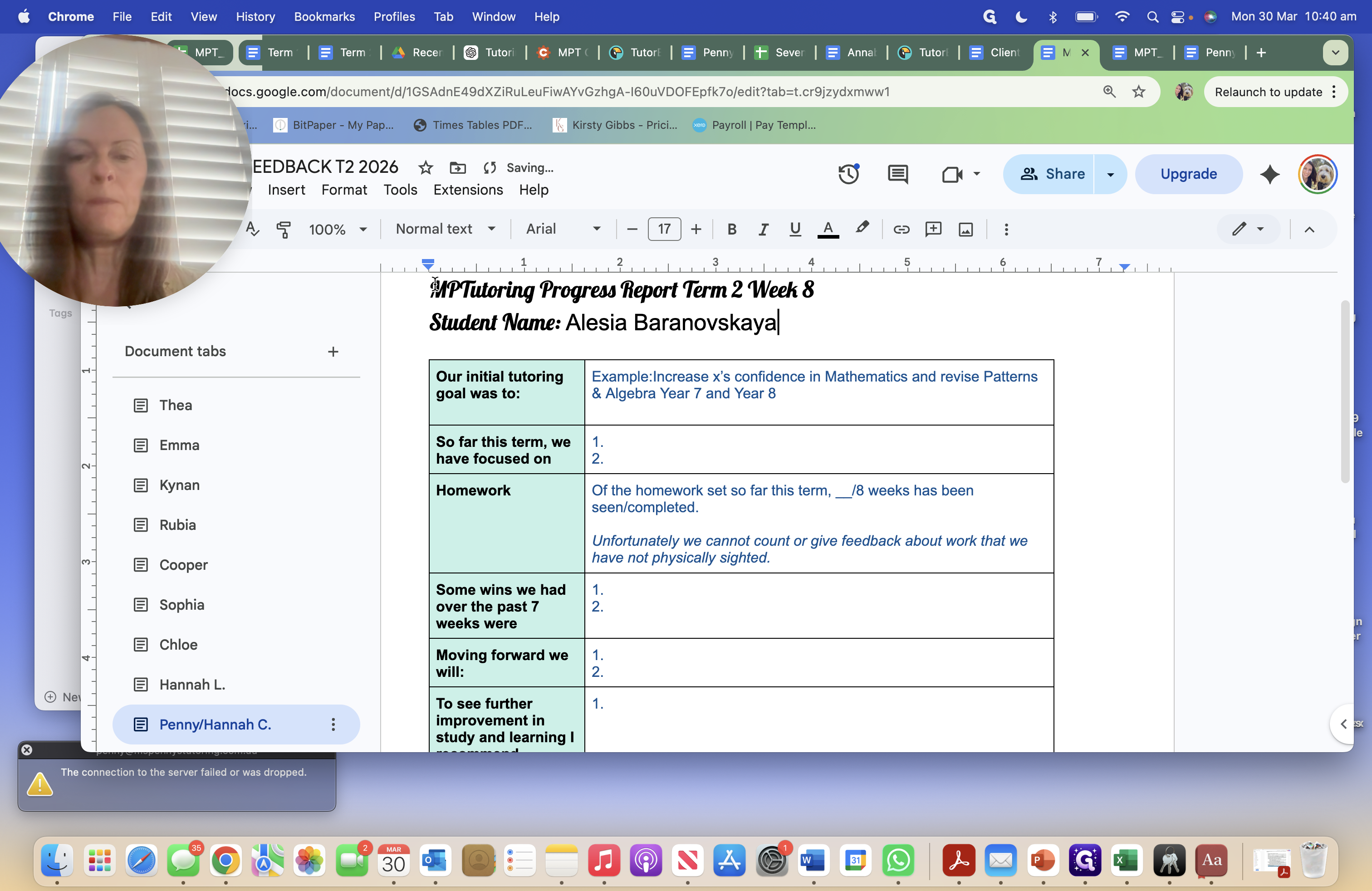
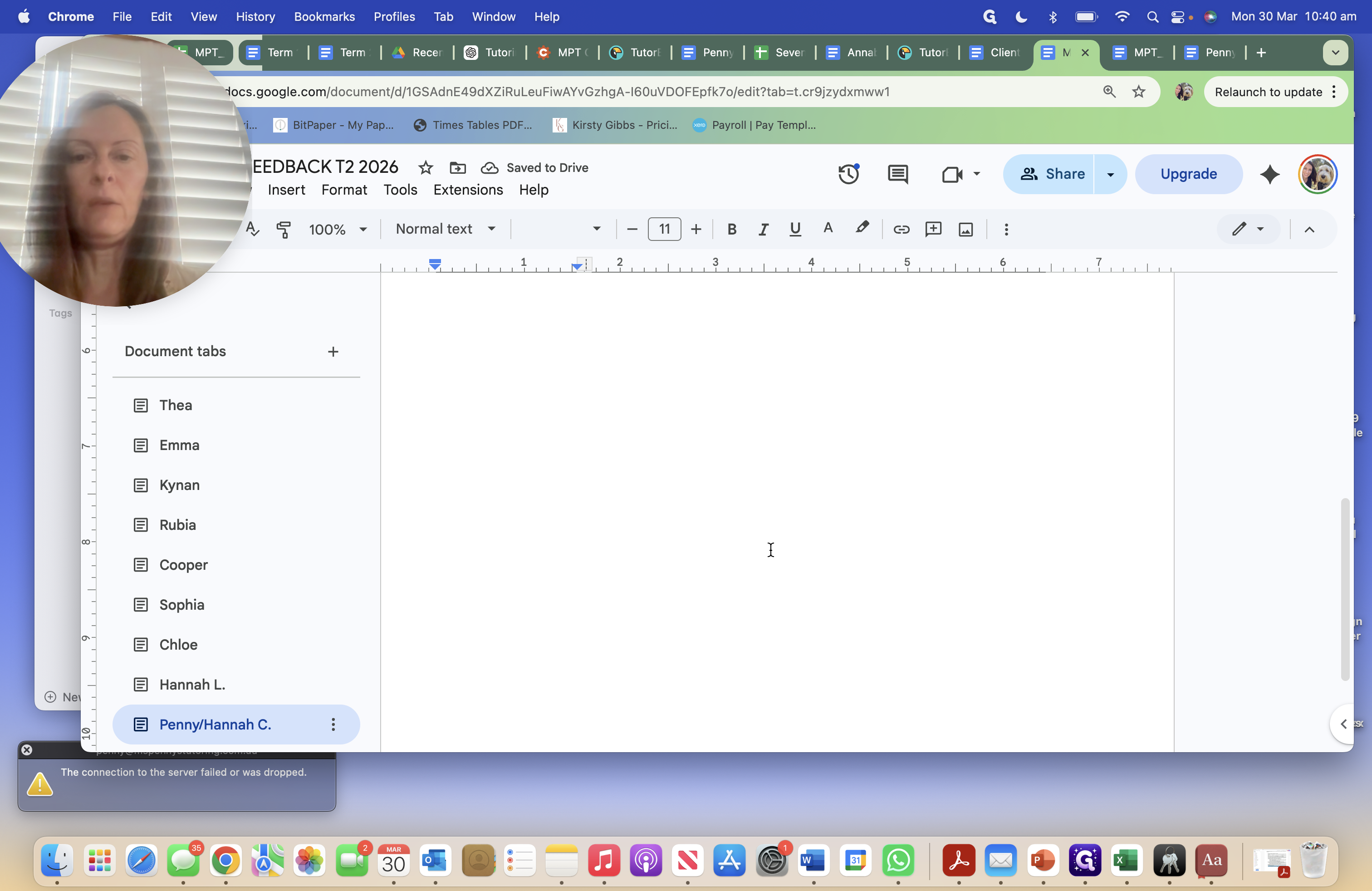
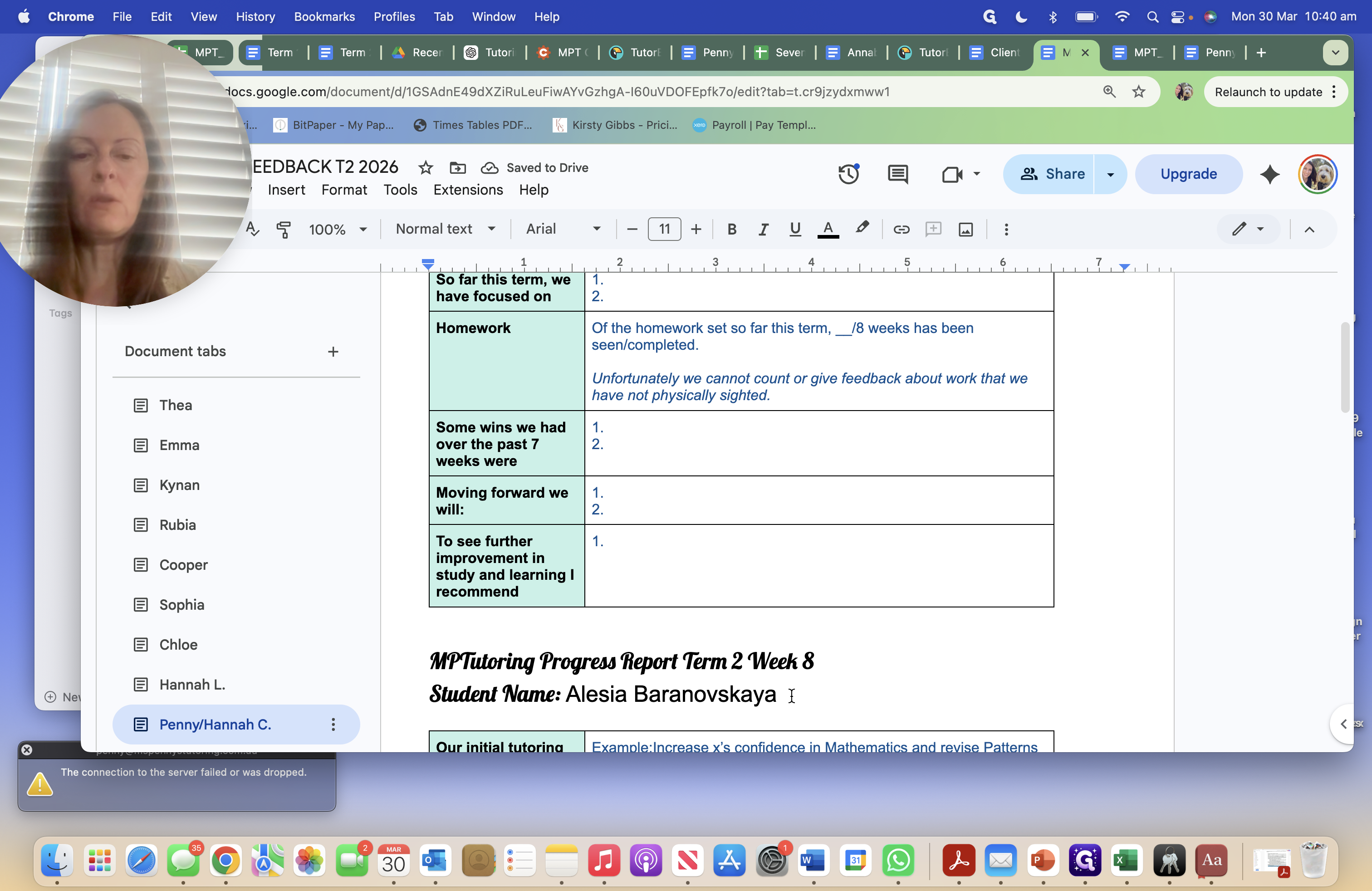
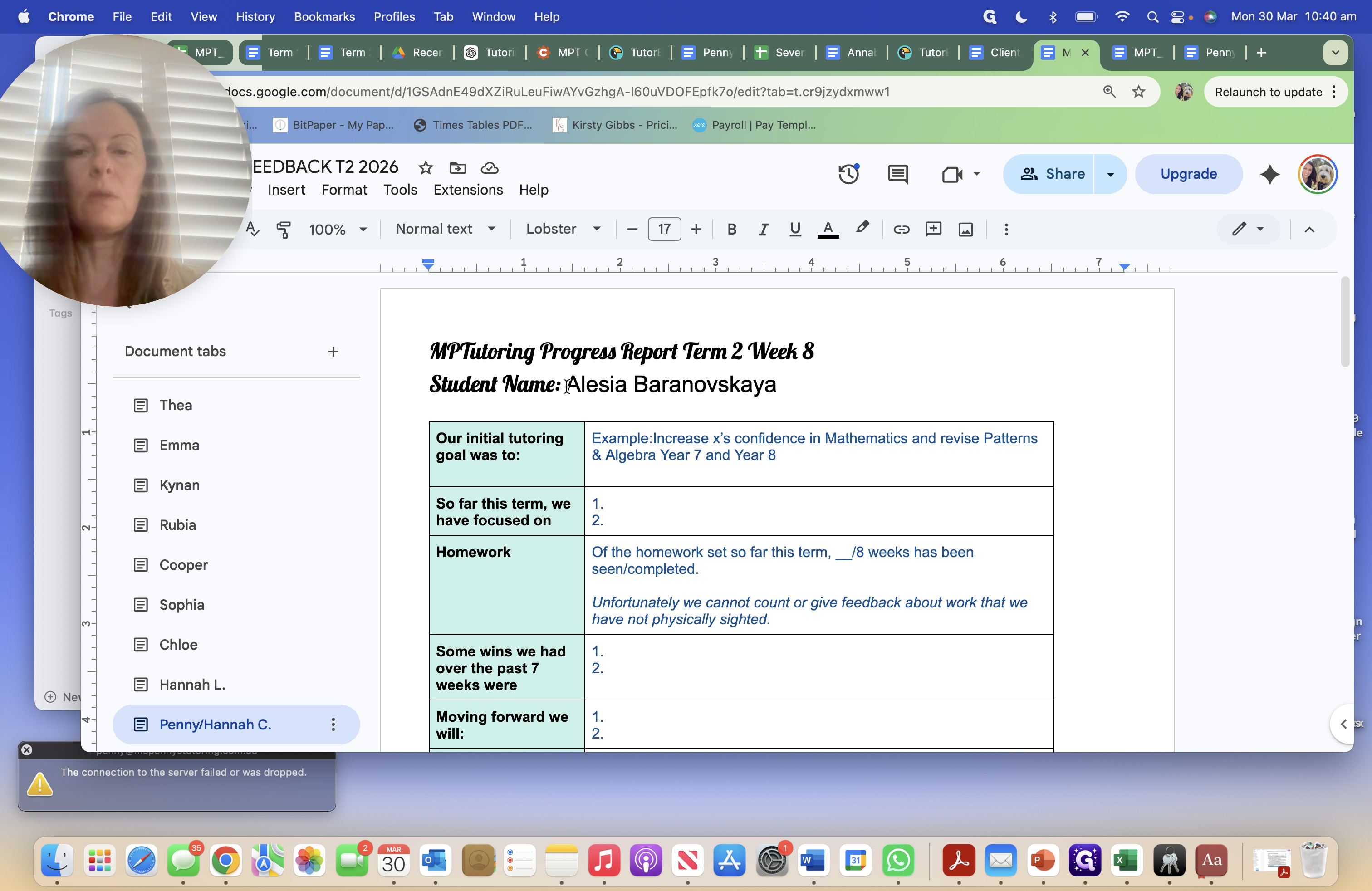
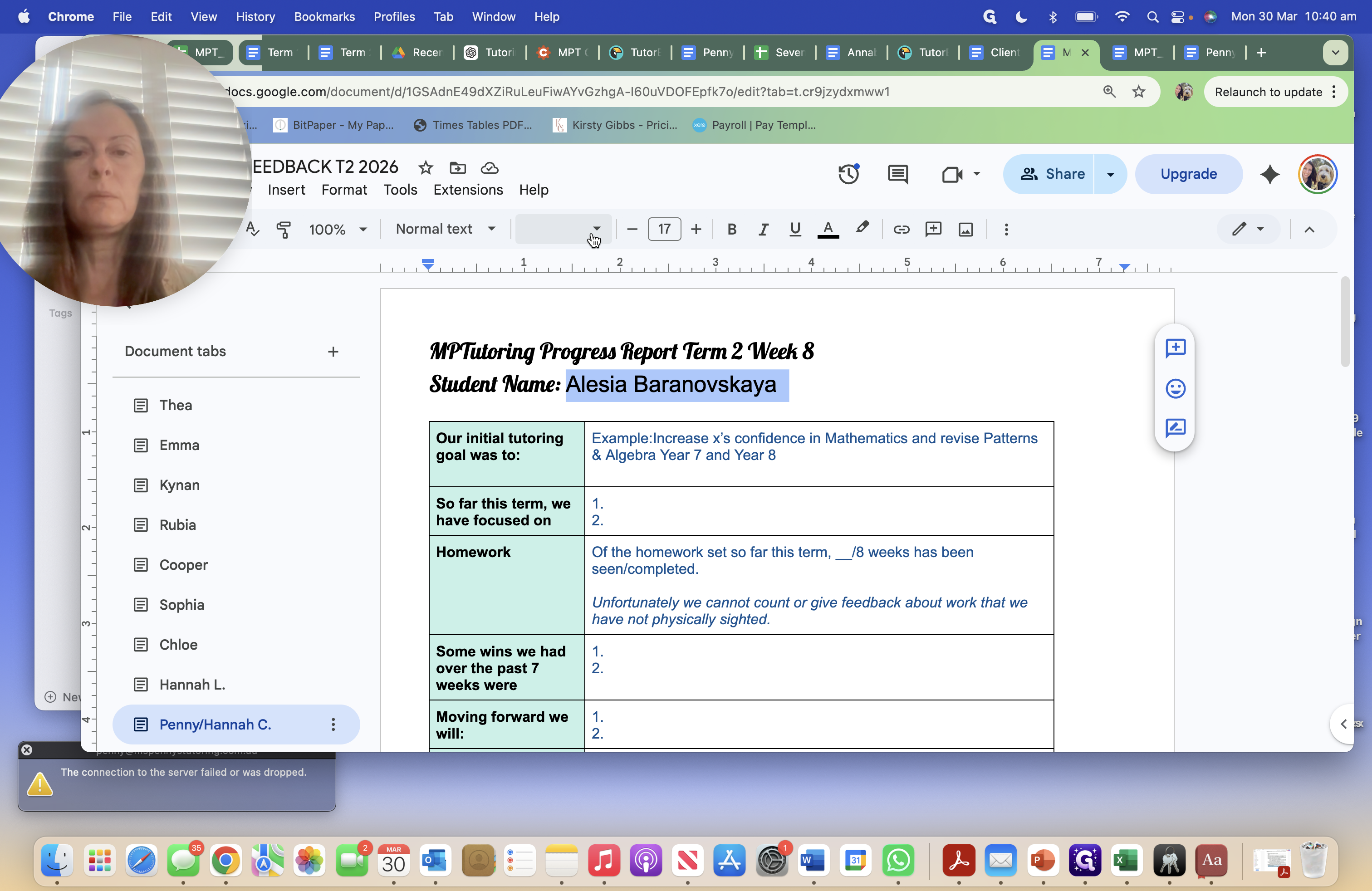
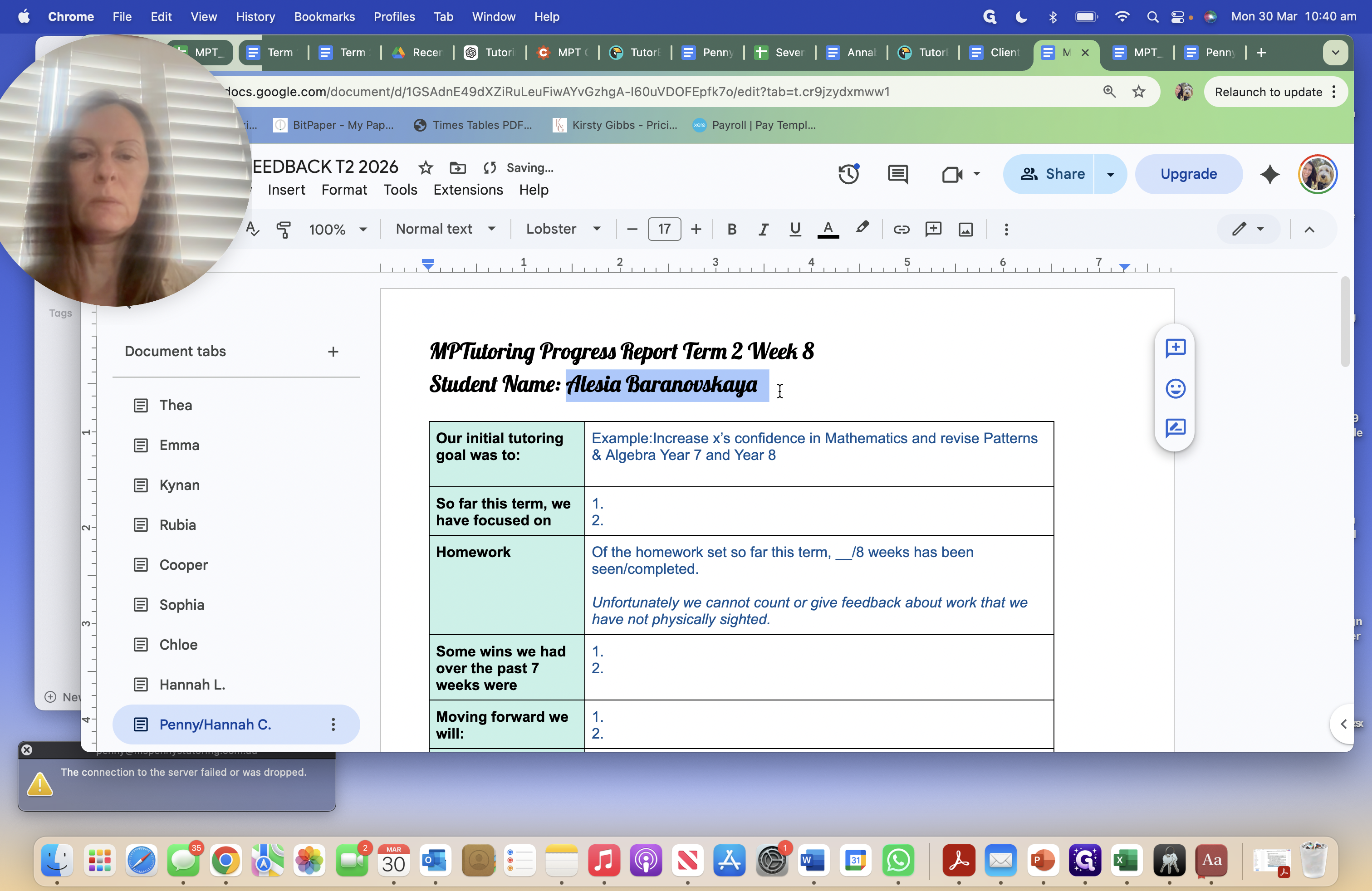
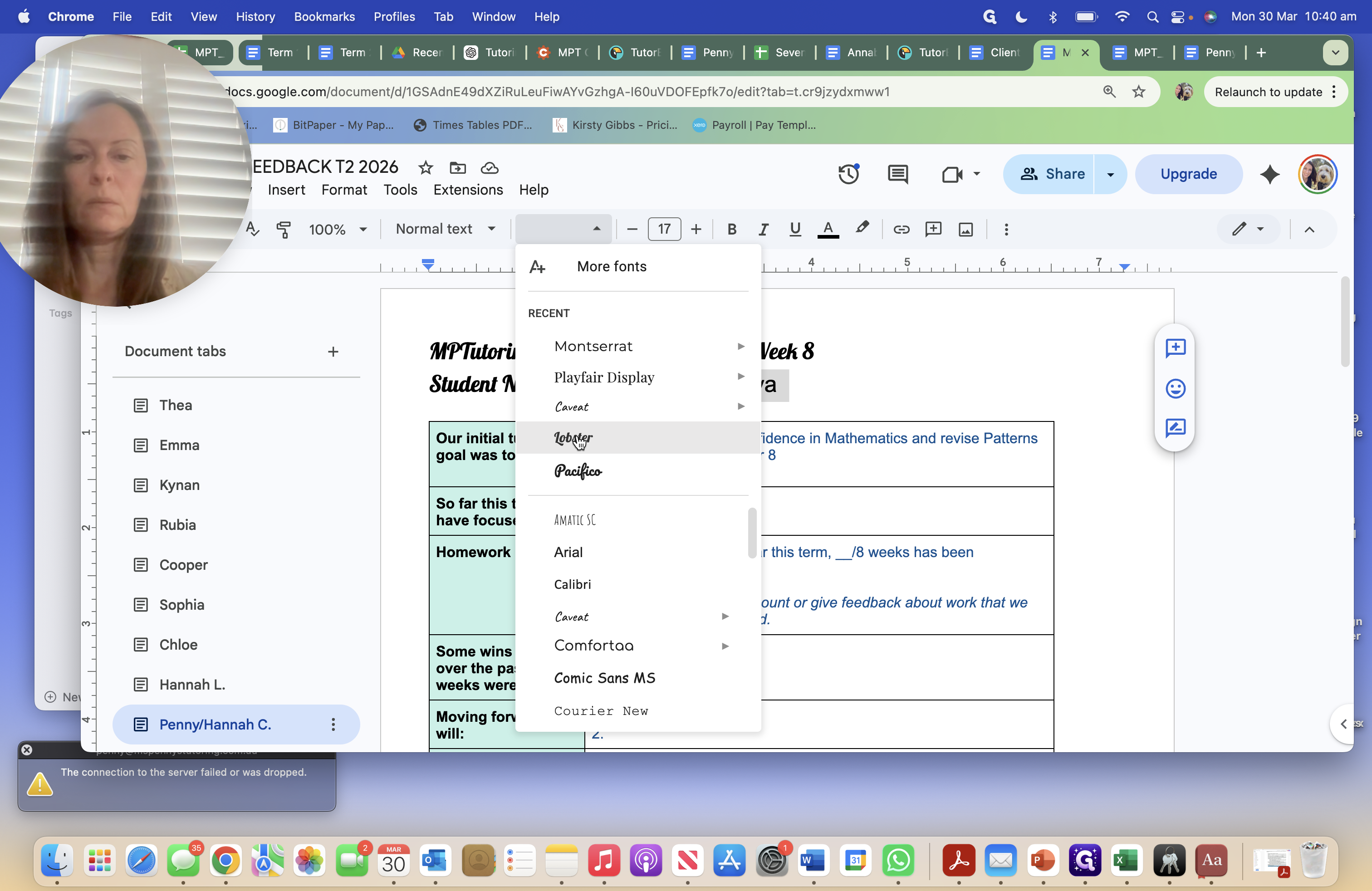
If you want to, just change the font.
This is Lobster.
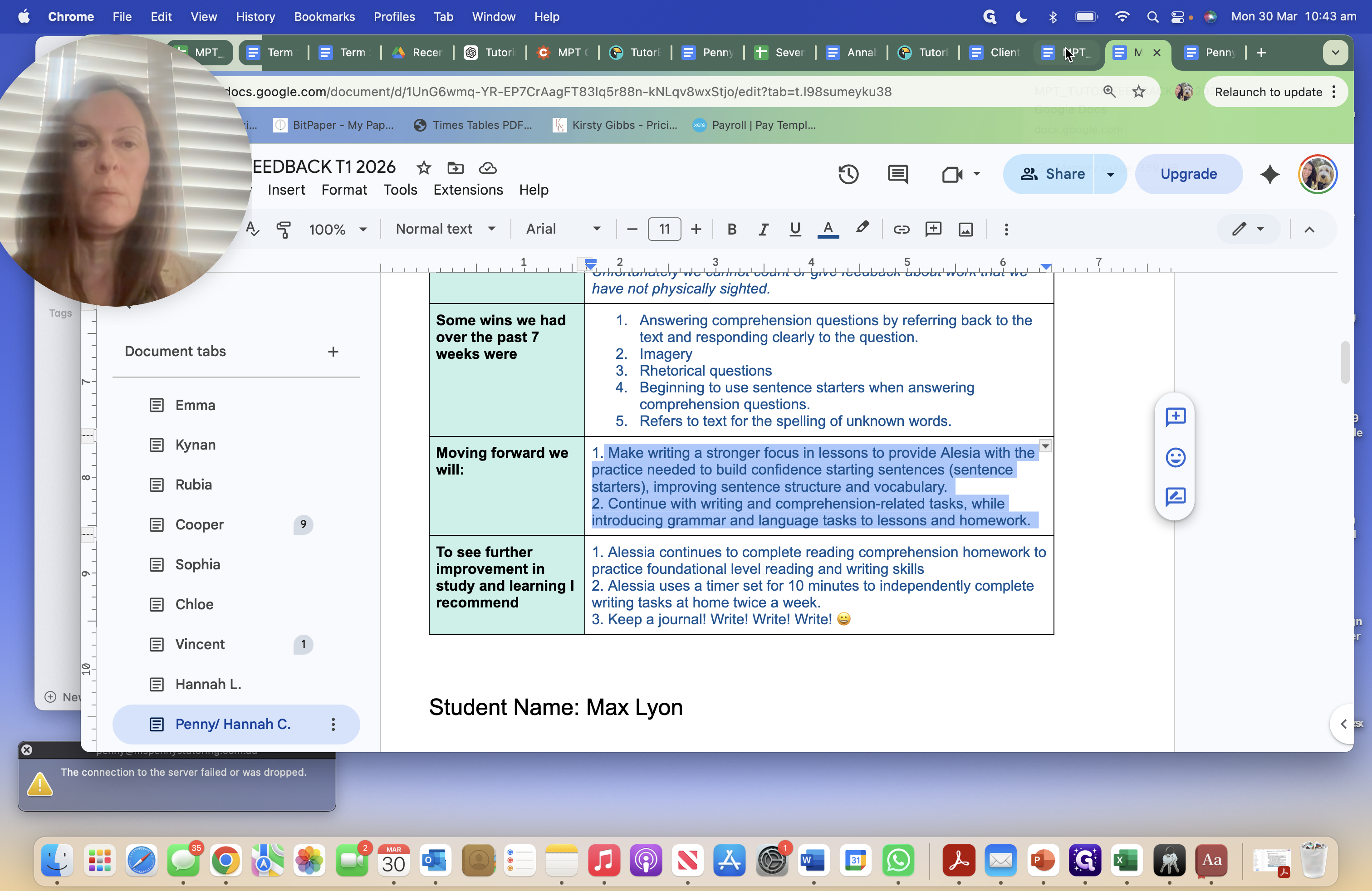
I go back to term one and say, "Moving forward, we will." I copy this and paste it here.
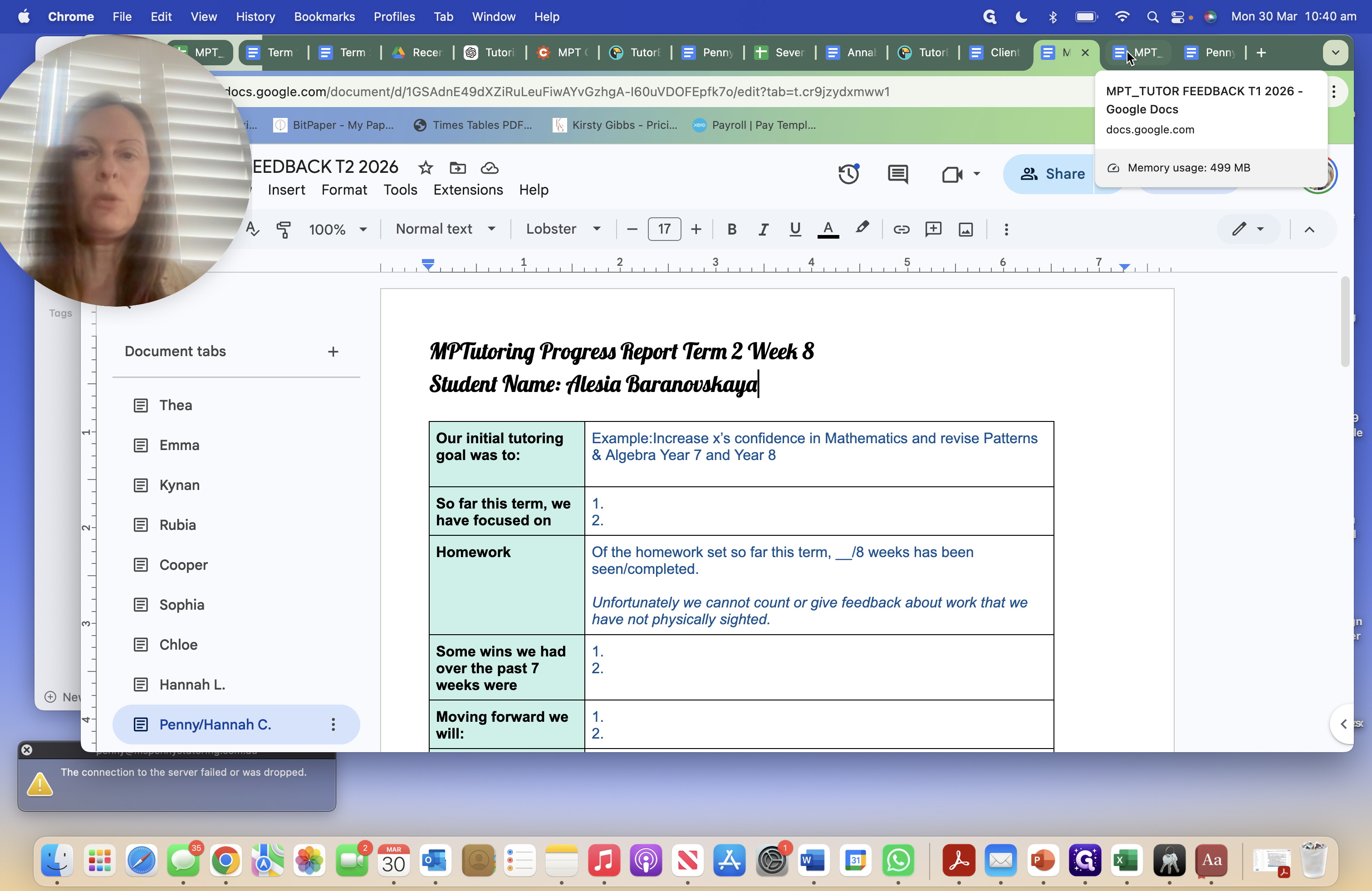
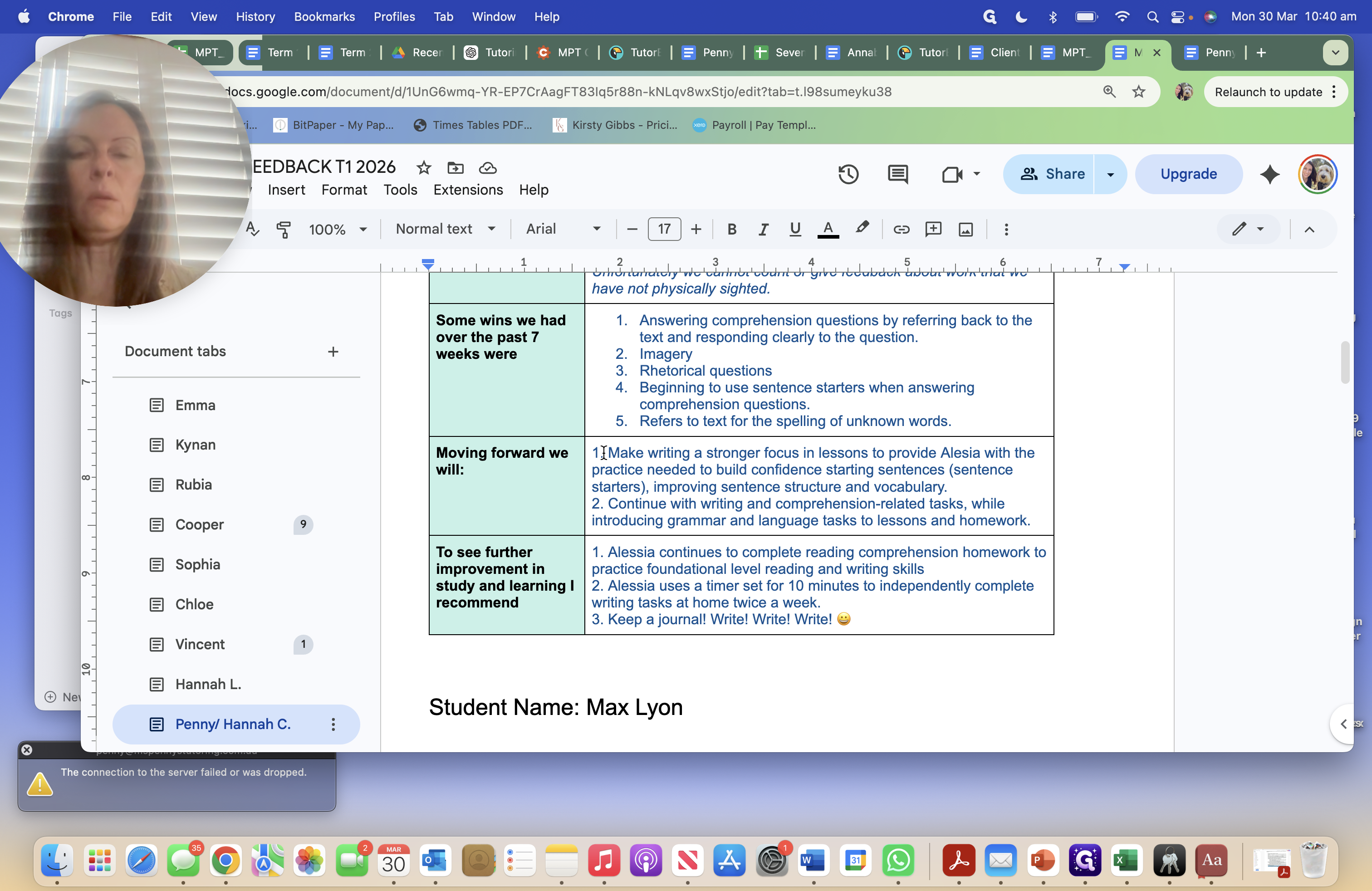
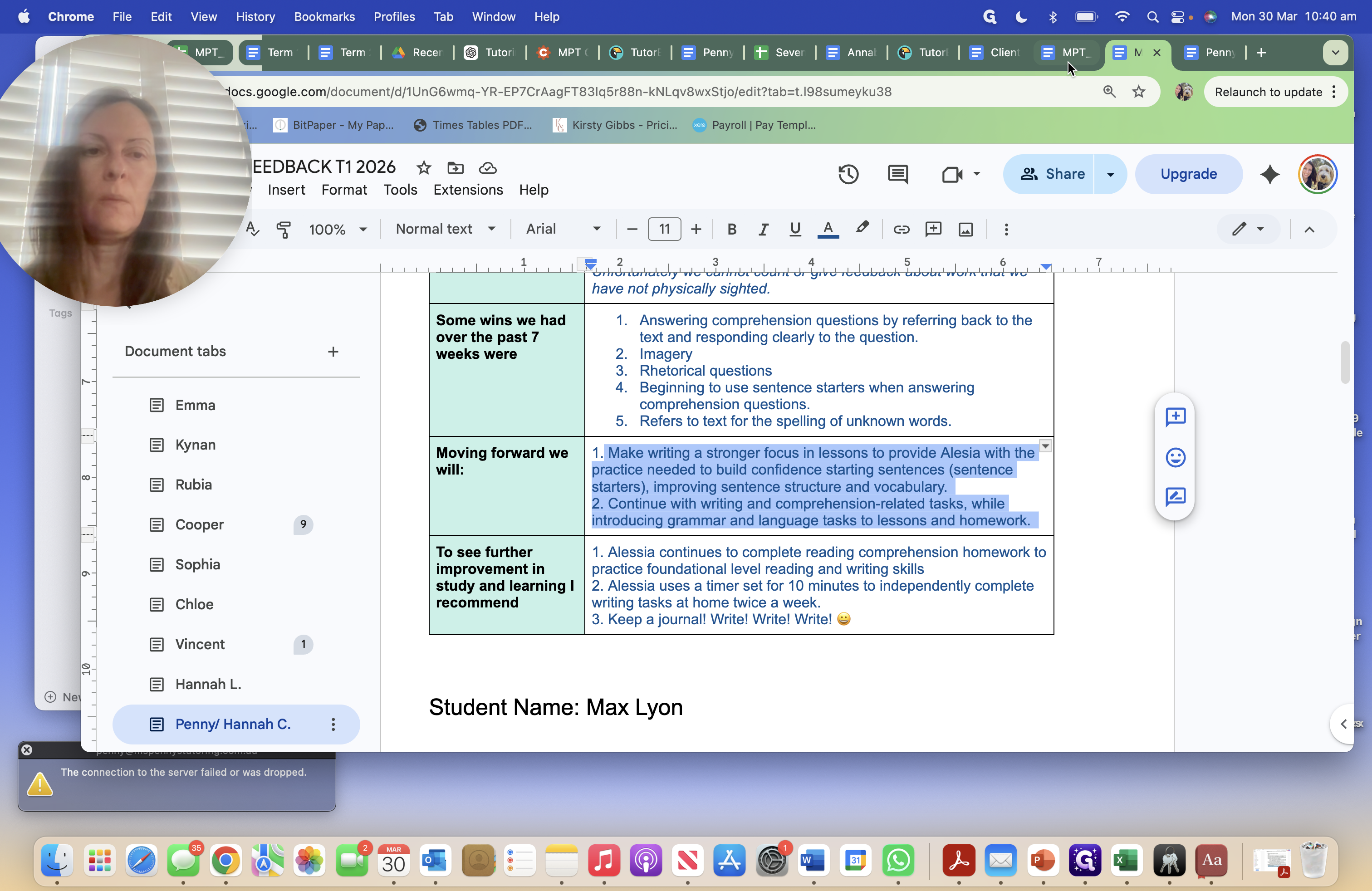
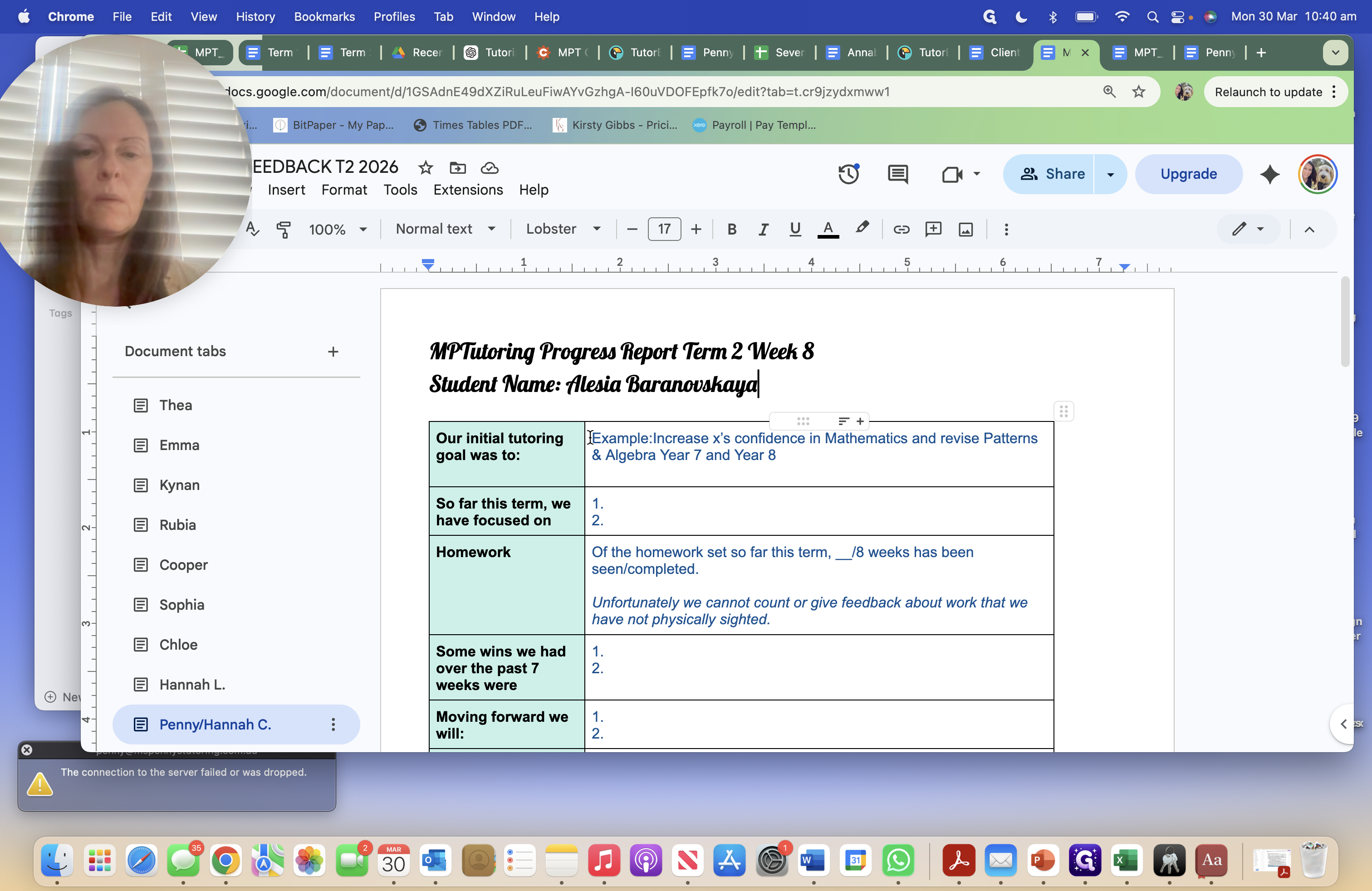
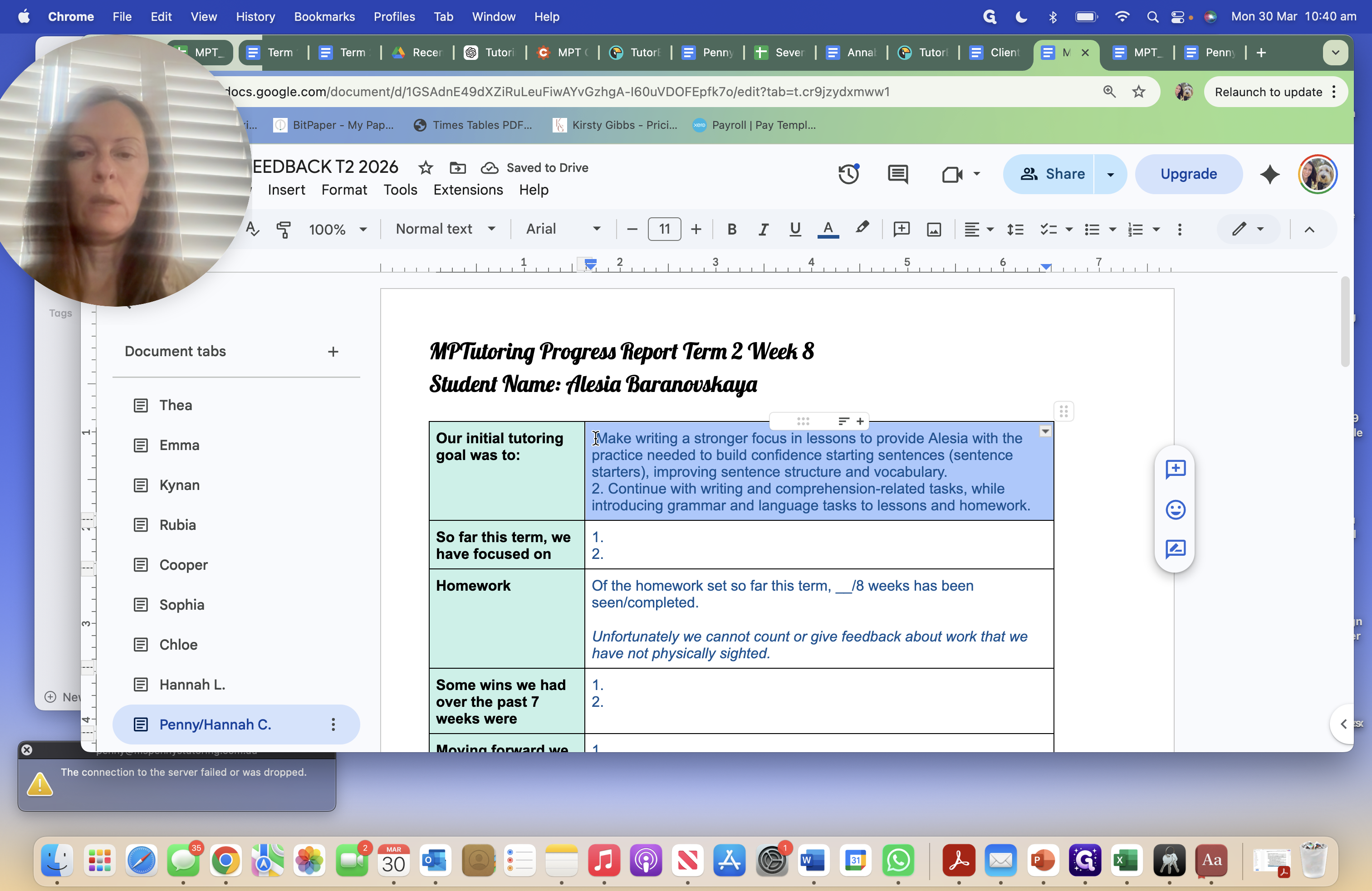
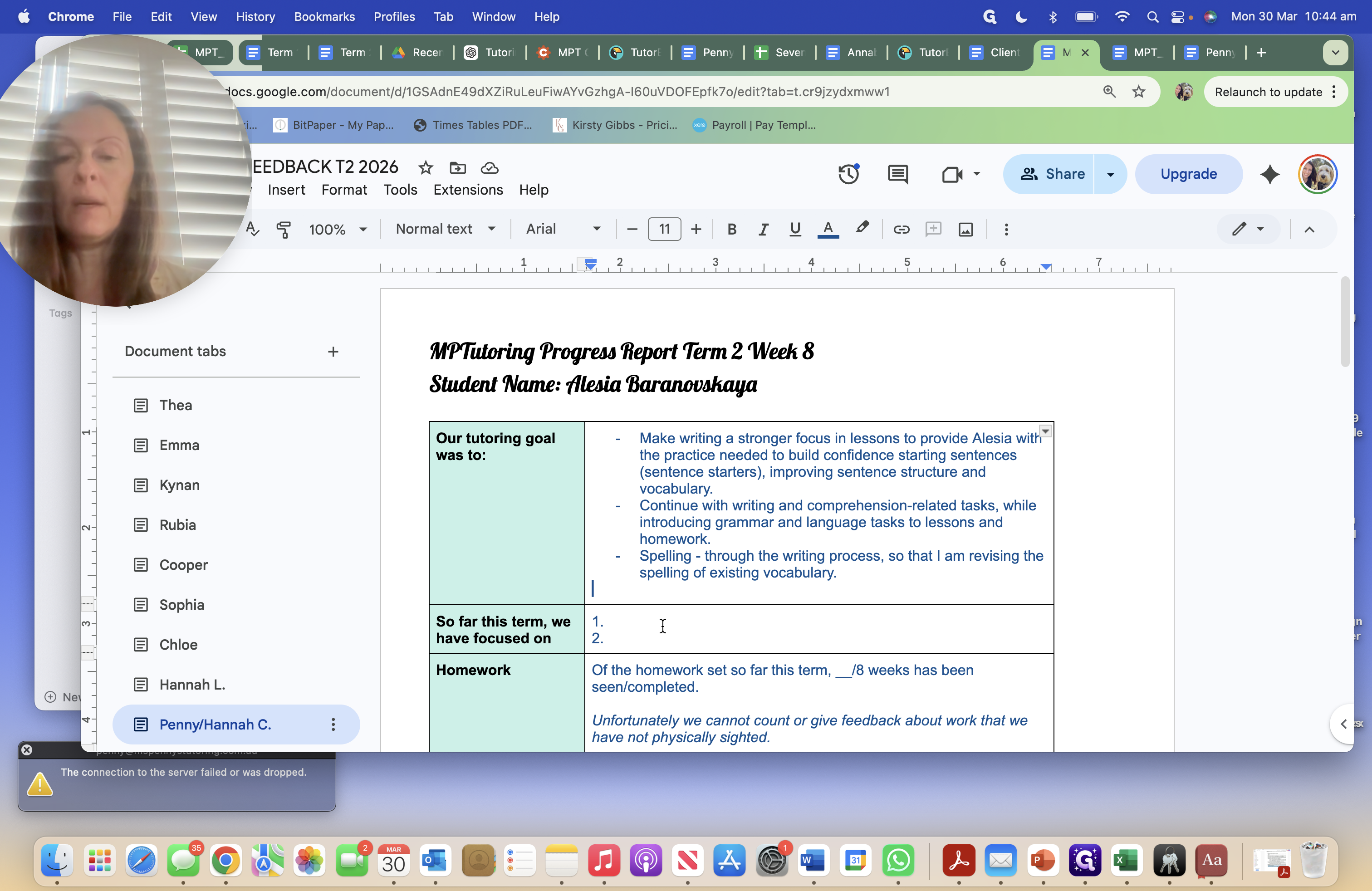
Now, this has become our initial tutoring goal. Because she was my student last term, use "Our tutoring goal was to" instead of "An initial tutoring goal." If you had the student in term one, it was "initial tutoring goal," but for a second term or if you inherit a student, use "Our tutoring goal was to." Everyone should use "Our tutoring goal was to," except for Vincent's students.
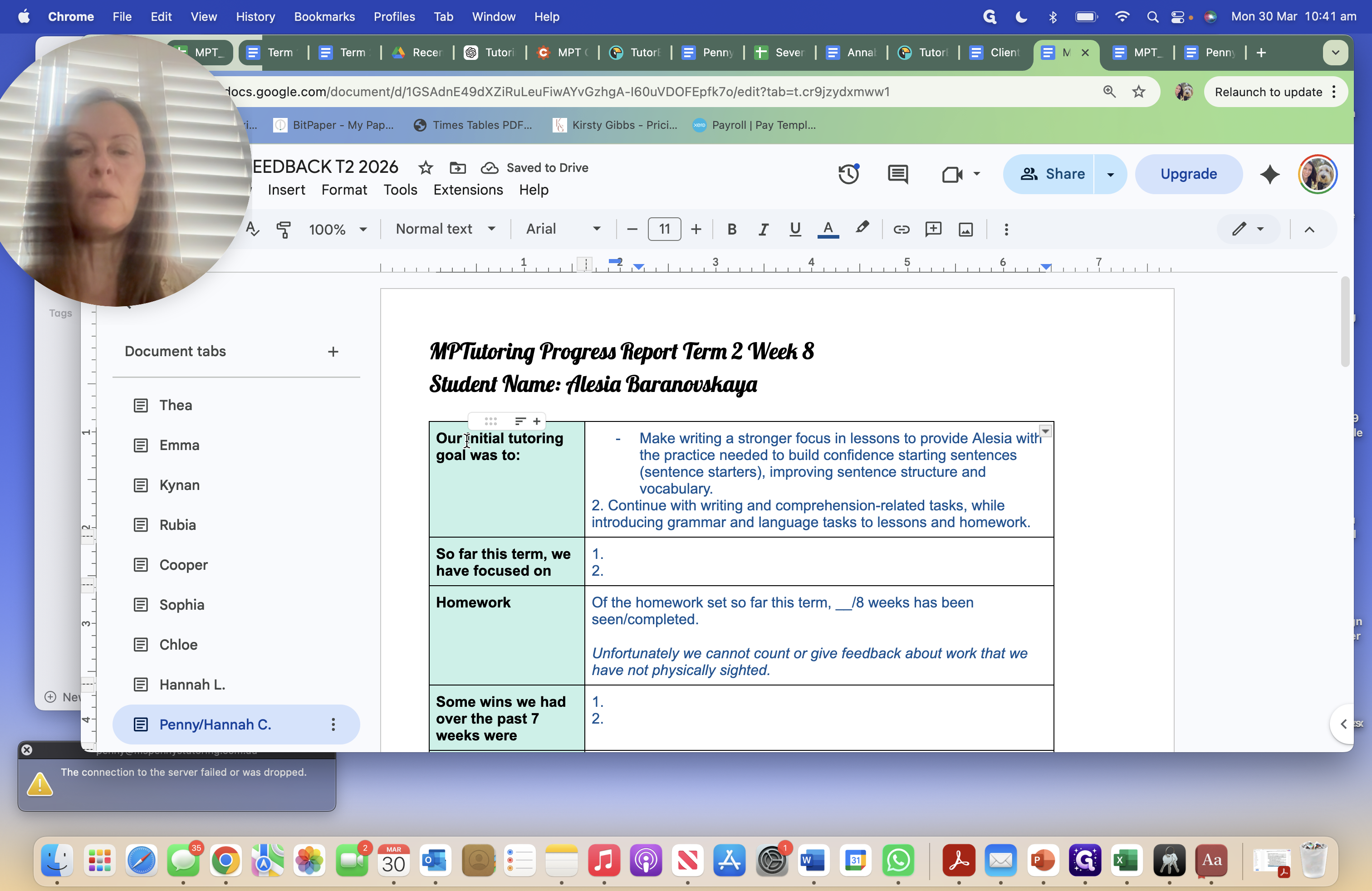
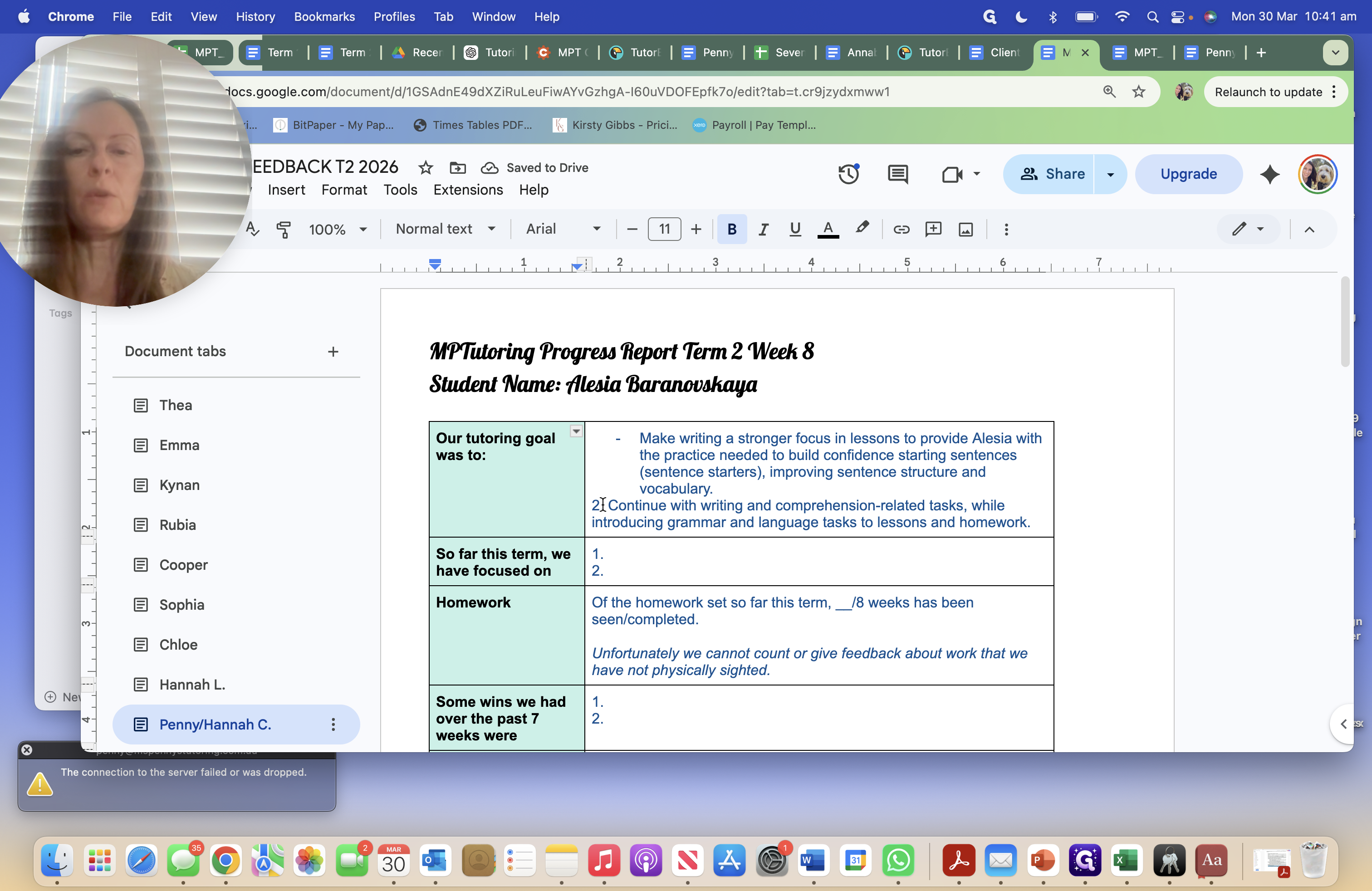
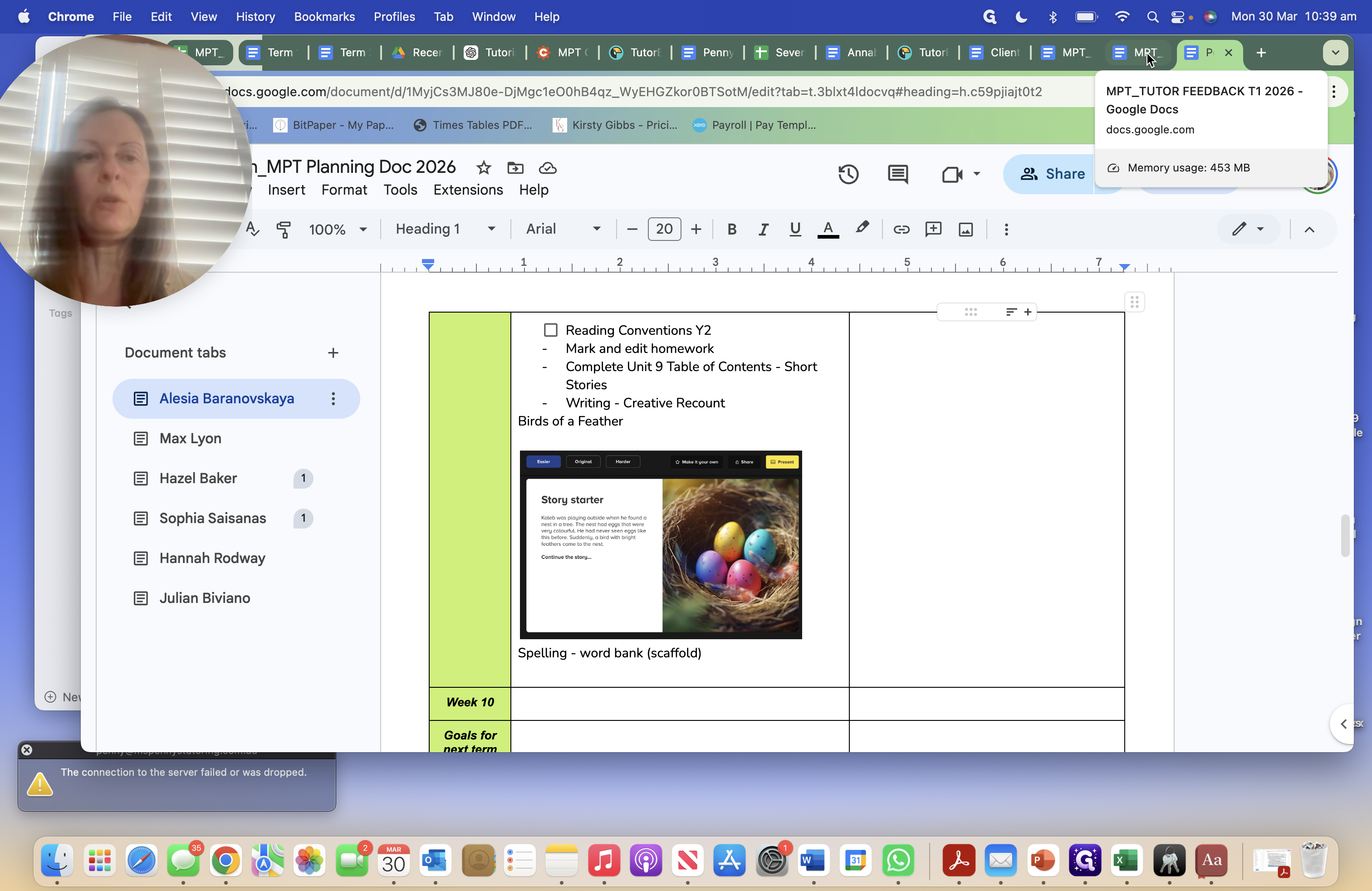
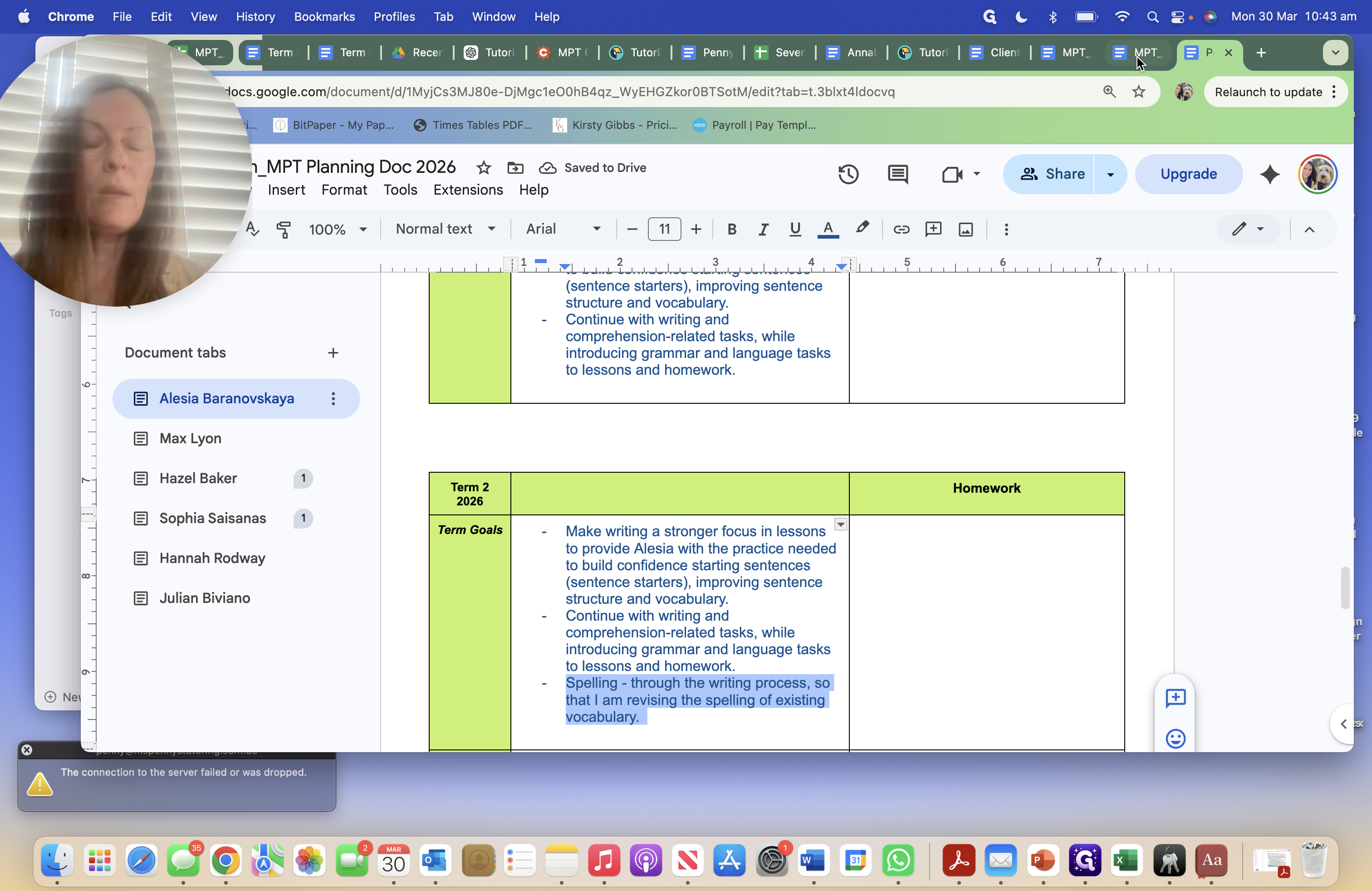
People who are getting Vincent students will need to wait and watch. I will show you any changes. The same thing will happen. I’ve done that. Next, I go to my planning document—this is Alessia’s planning doc—where I mark whether she has completed her homework by ticking when it’s done and highlighting in red when it’s not.
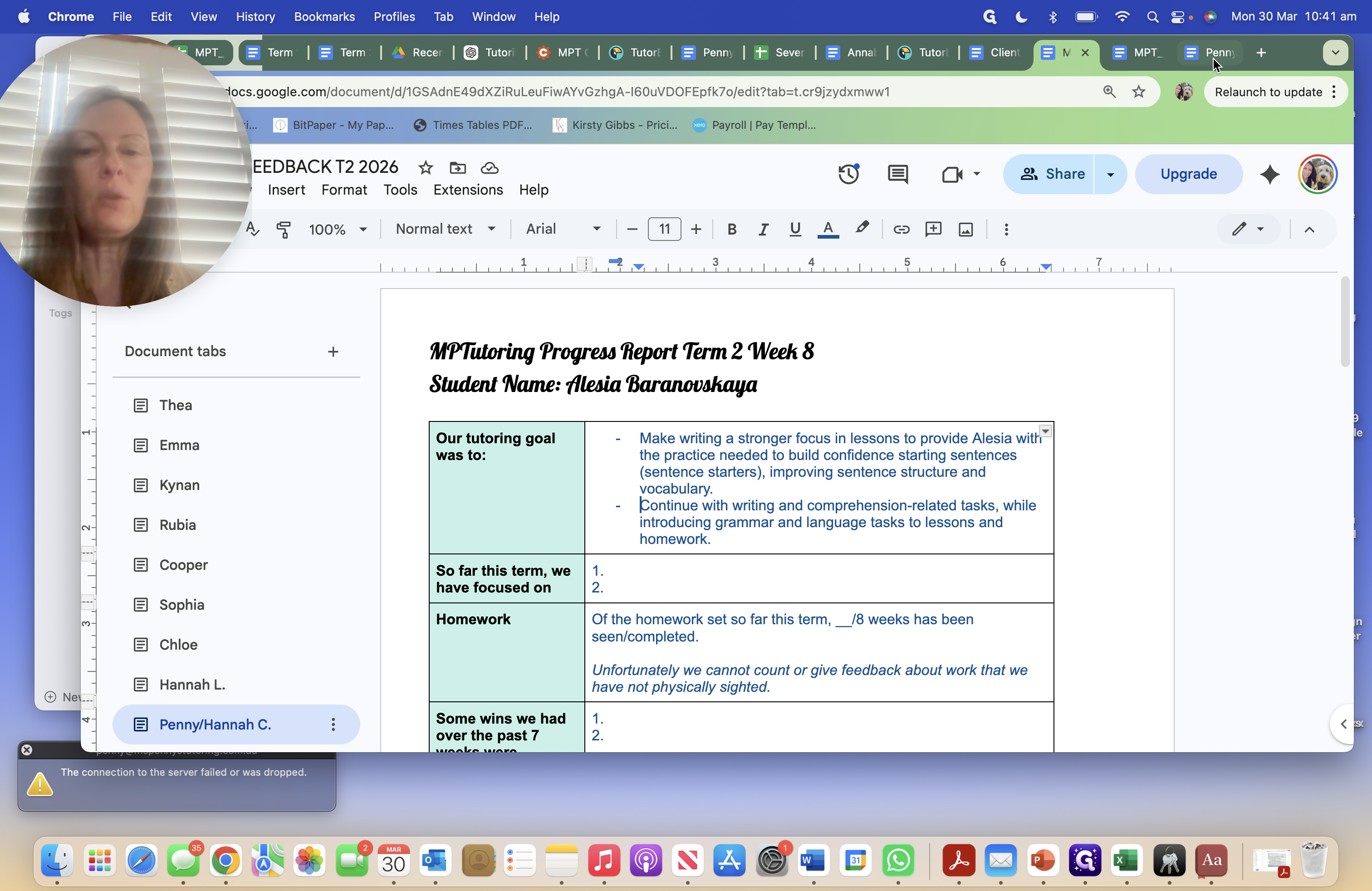
I’m going to do that, since I now have her tutoring goals for next term.
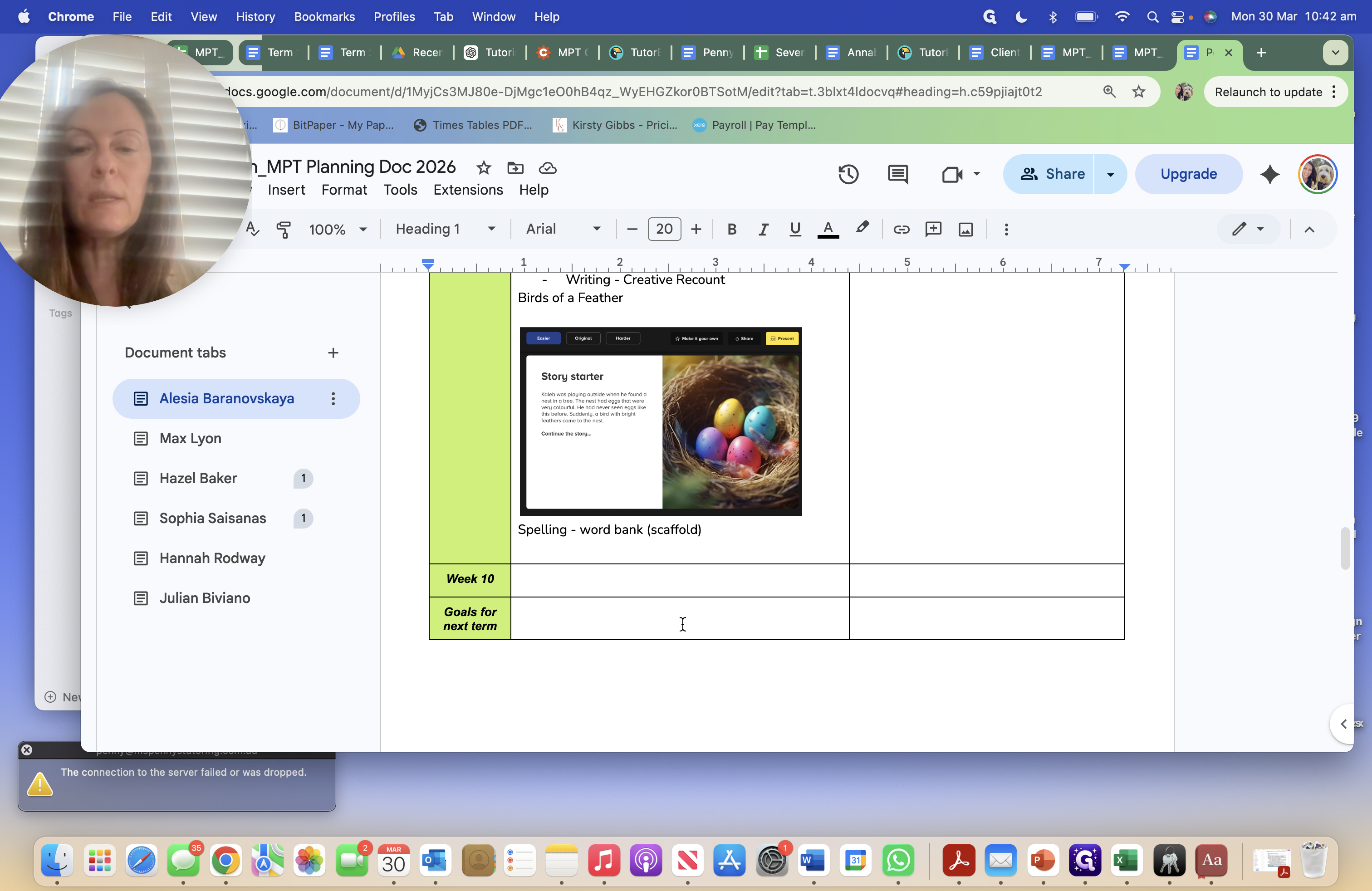
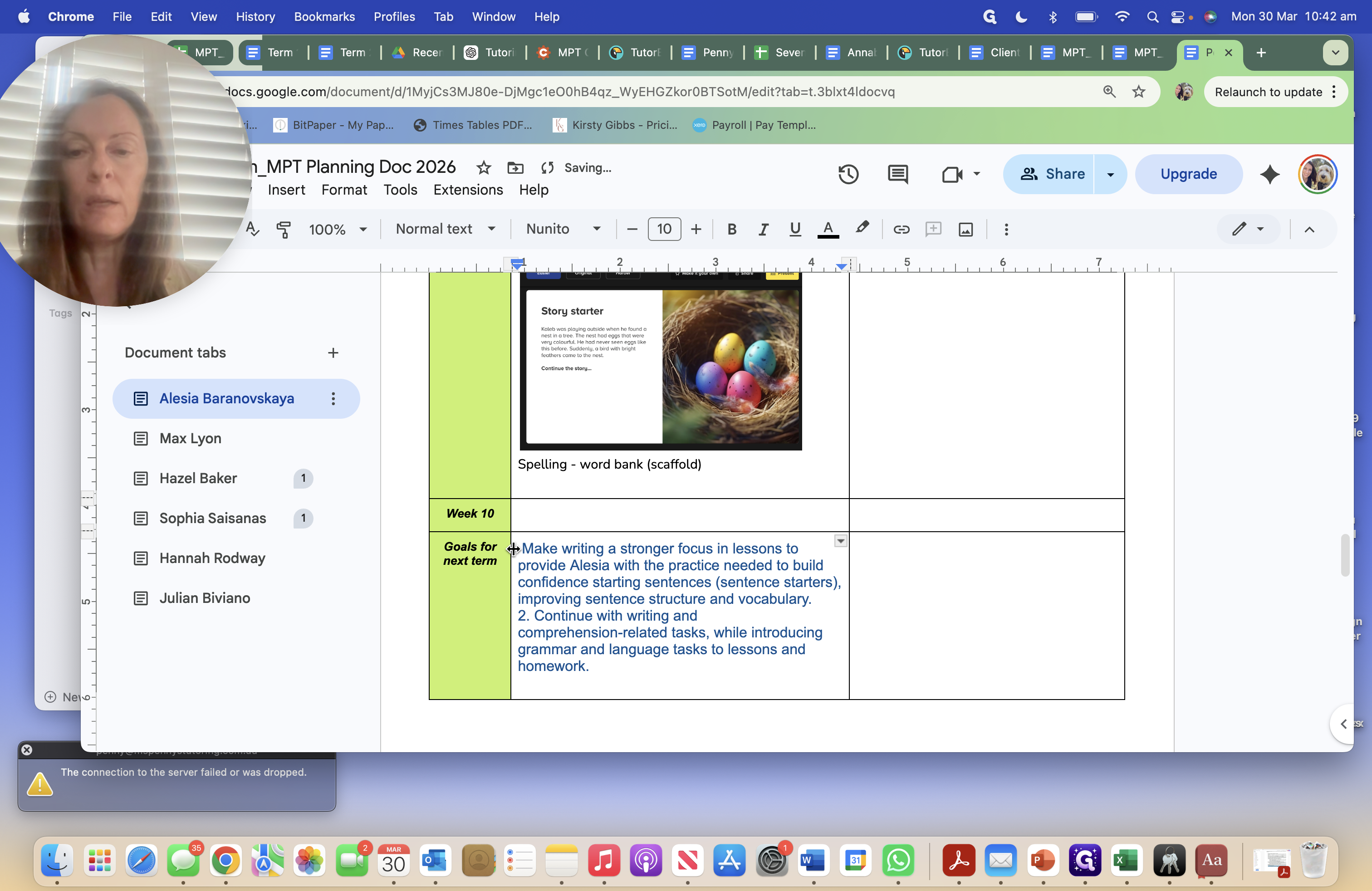
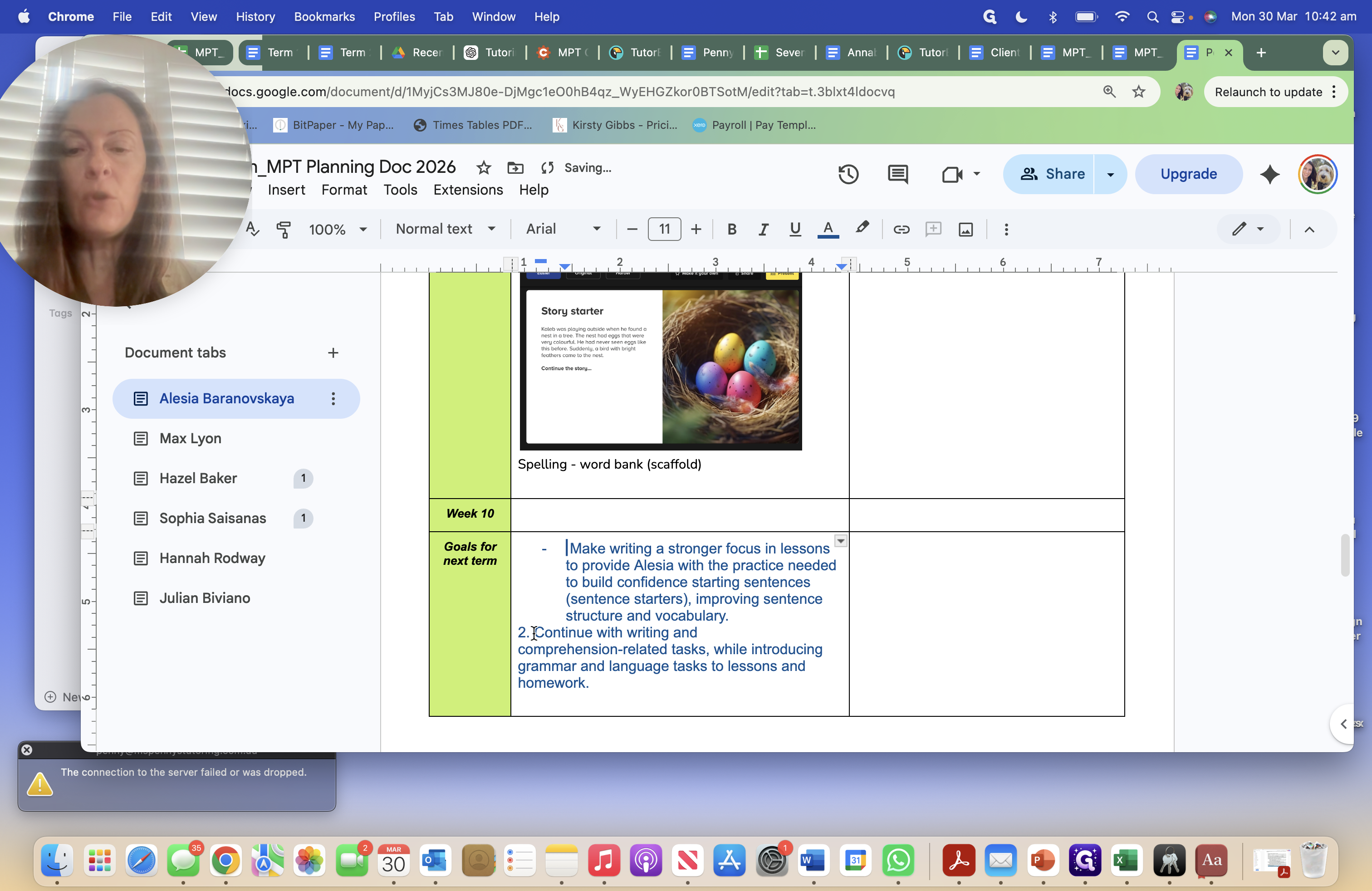
I will leave it at that for now. As I plan for next term, I will review and edit these to have them ready.
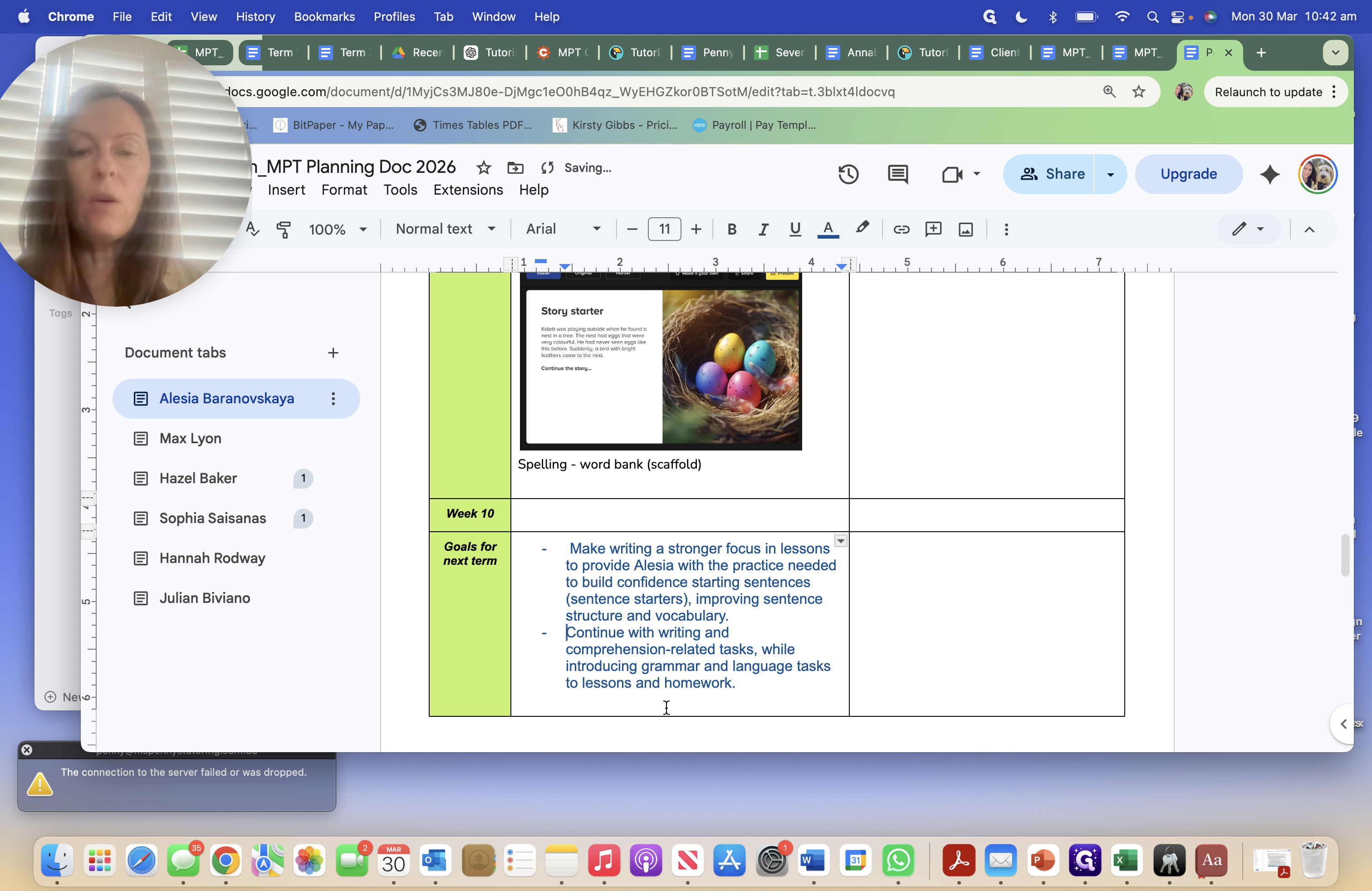
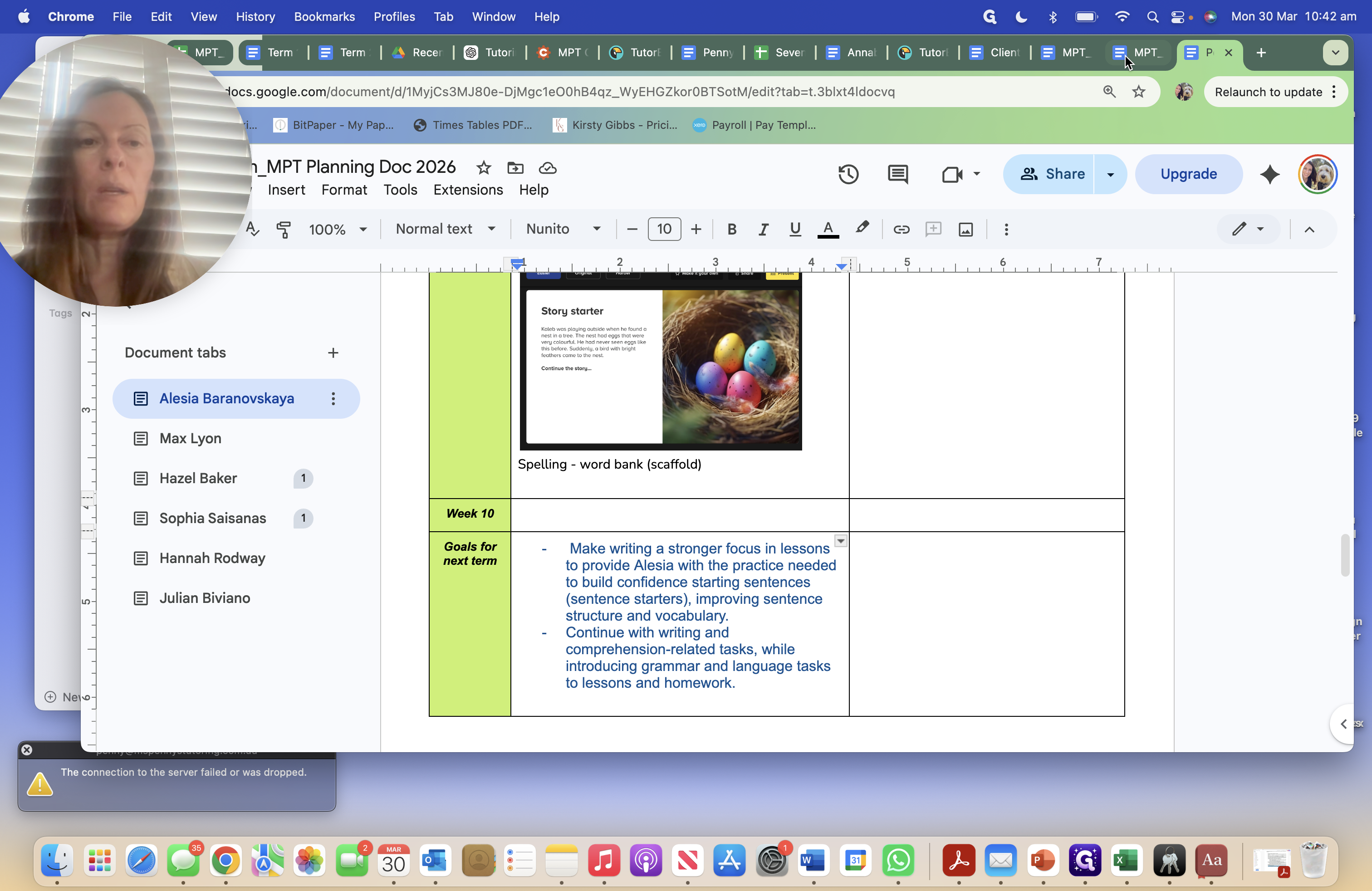
When I edit this and save it, this is what will happen...
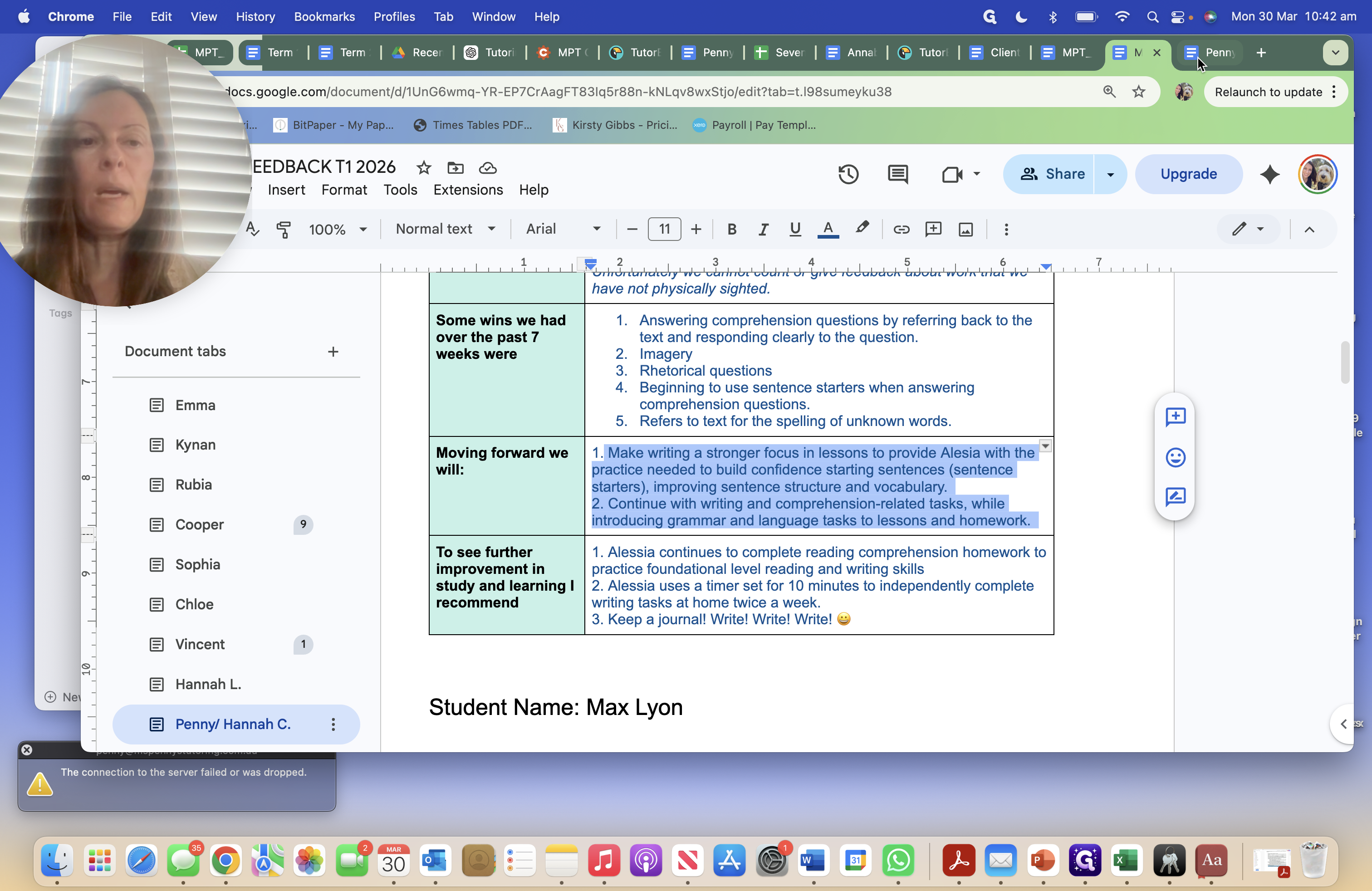
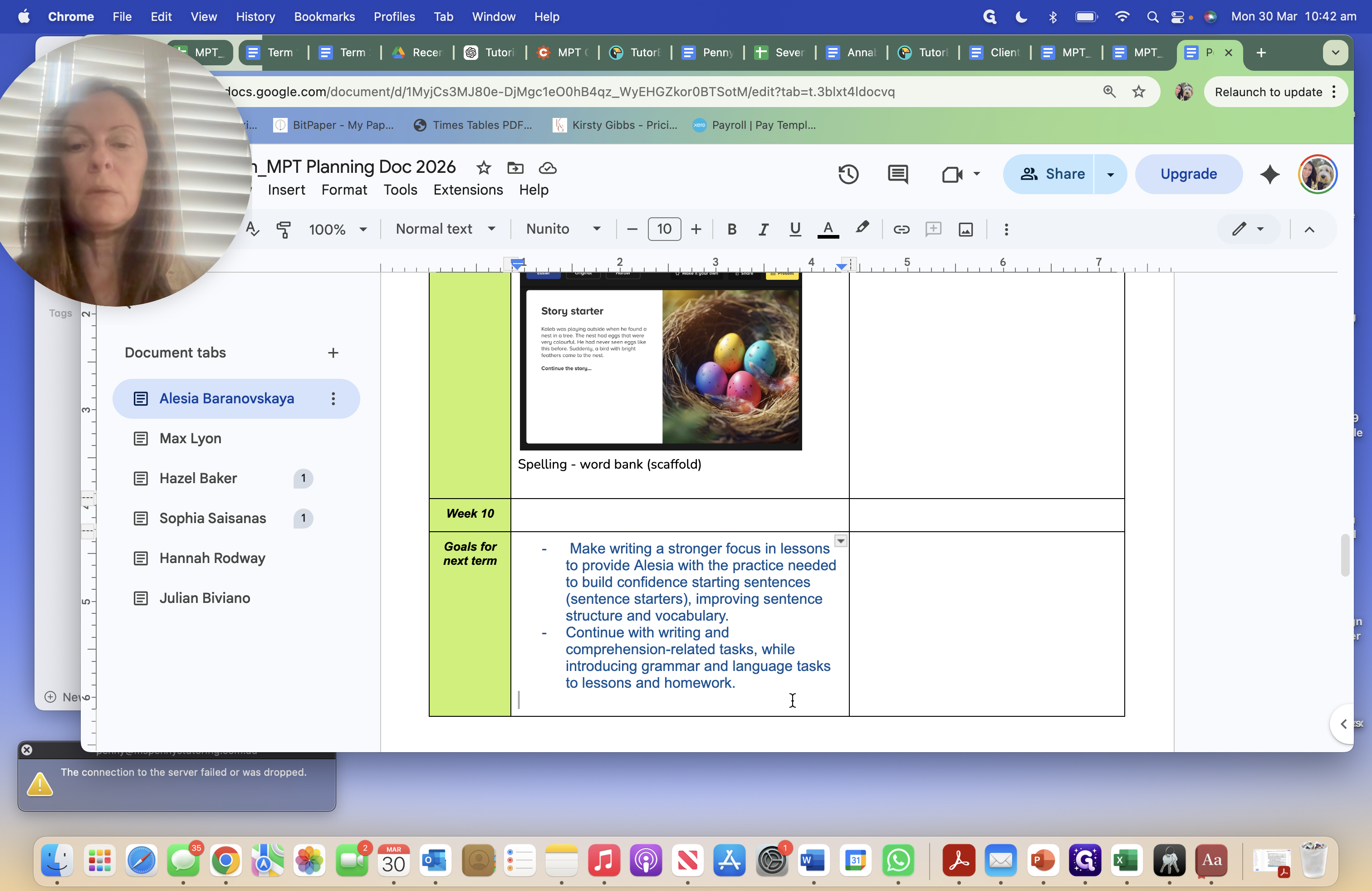
For planning, there she is.
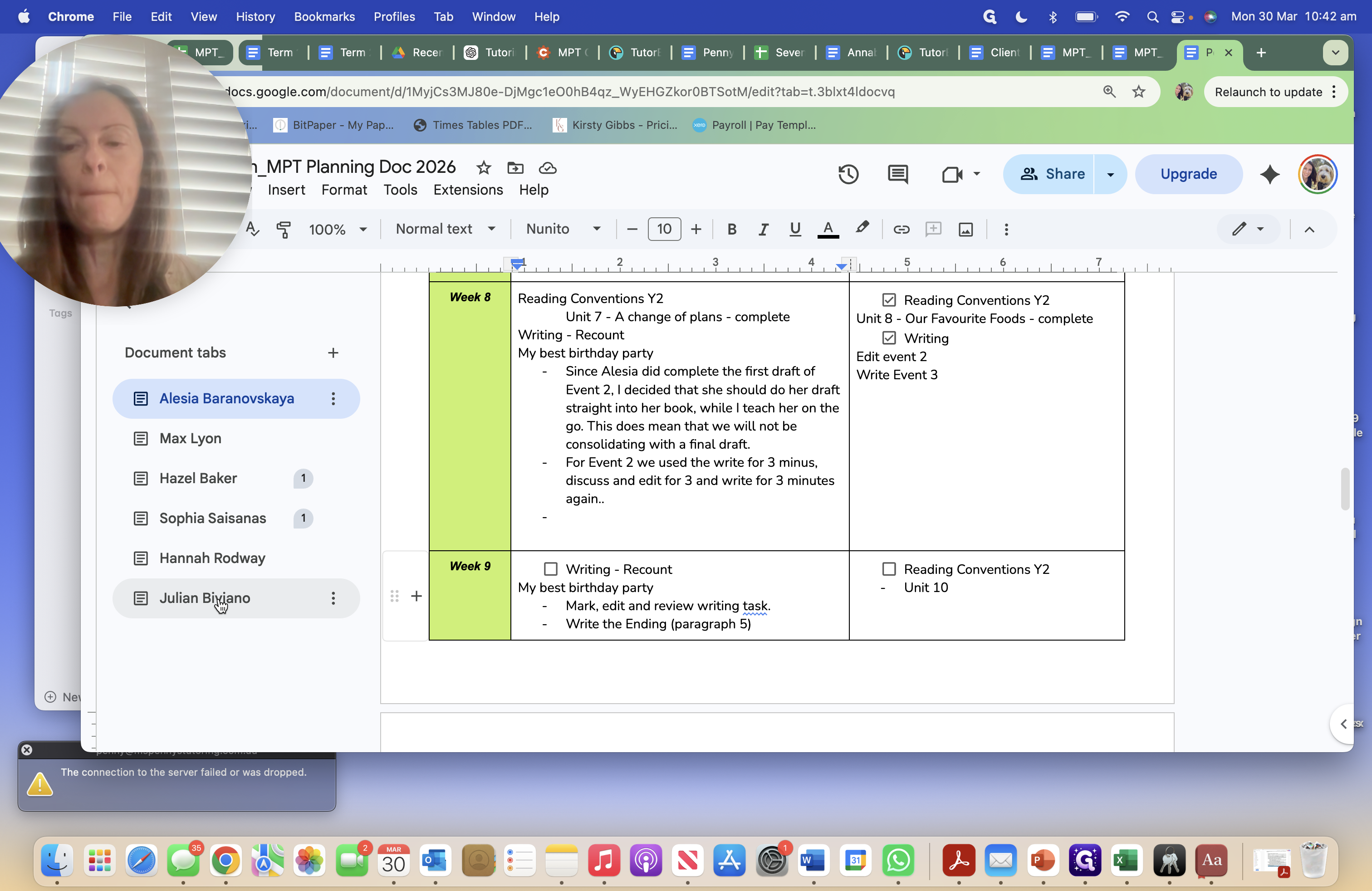
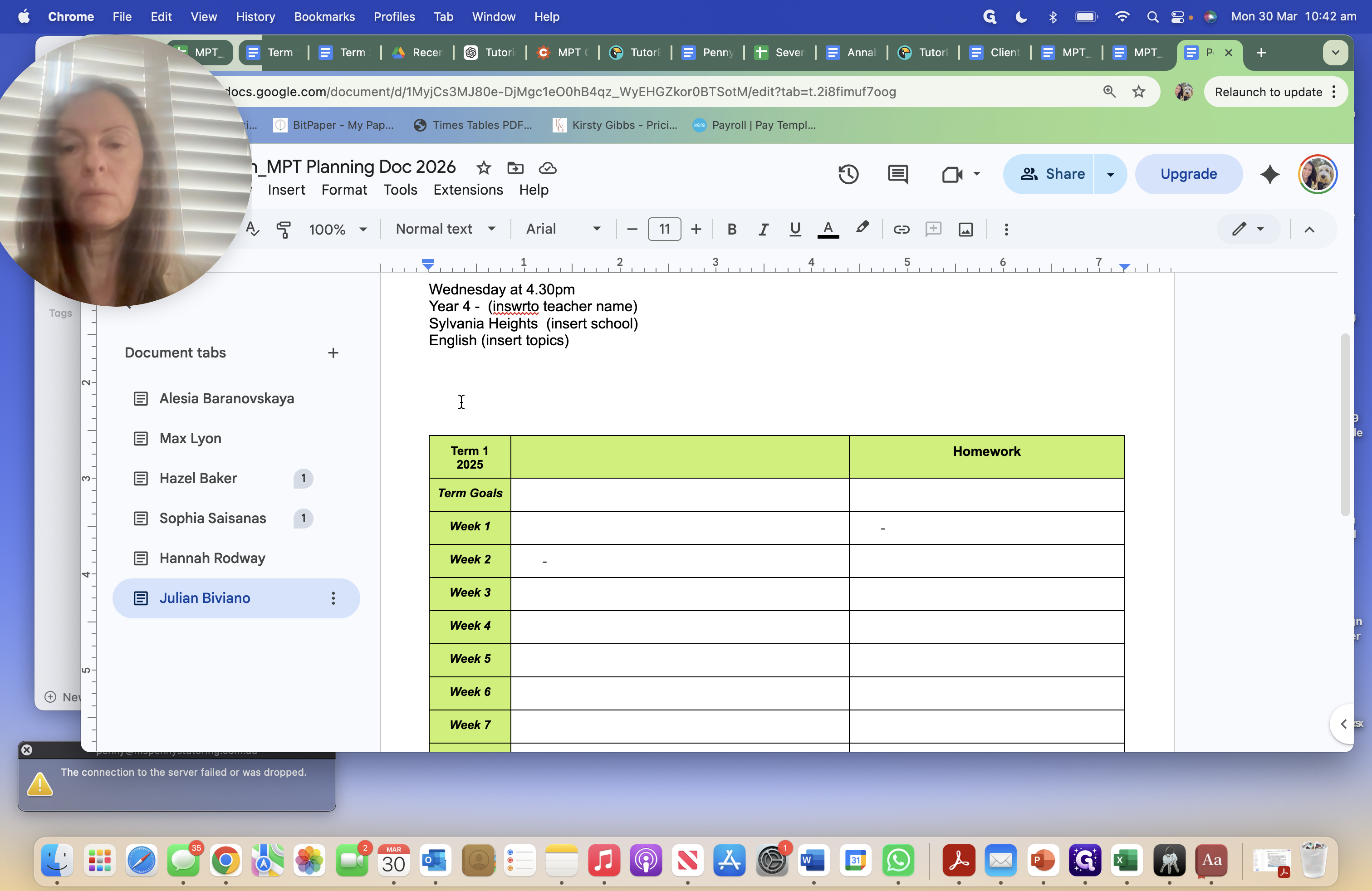
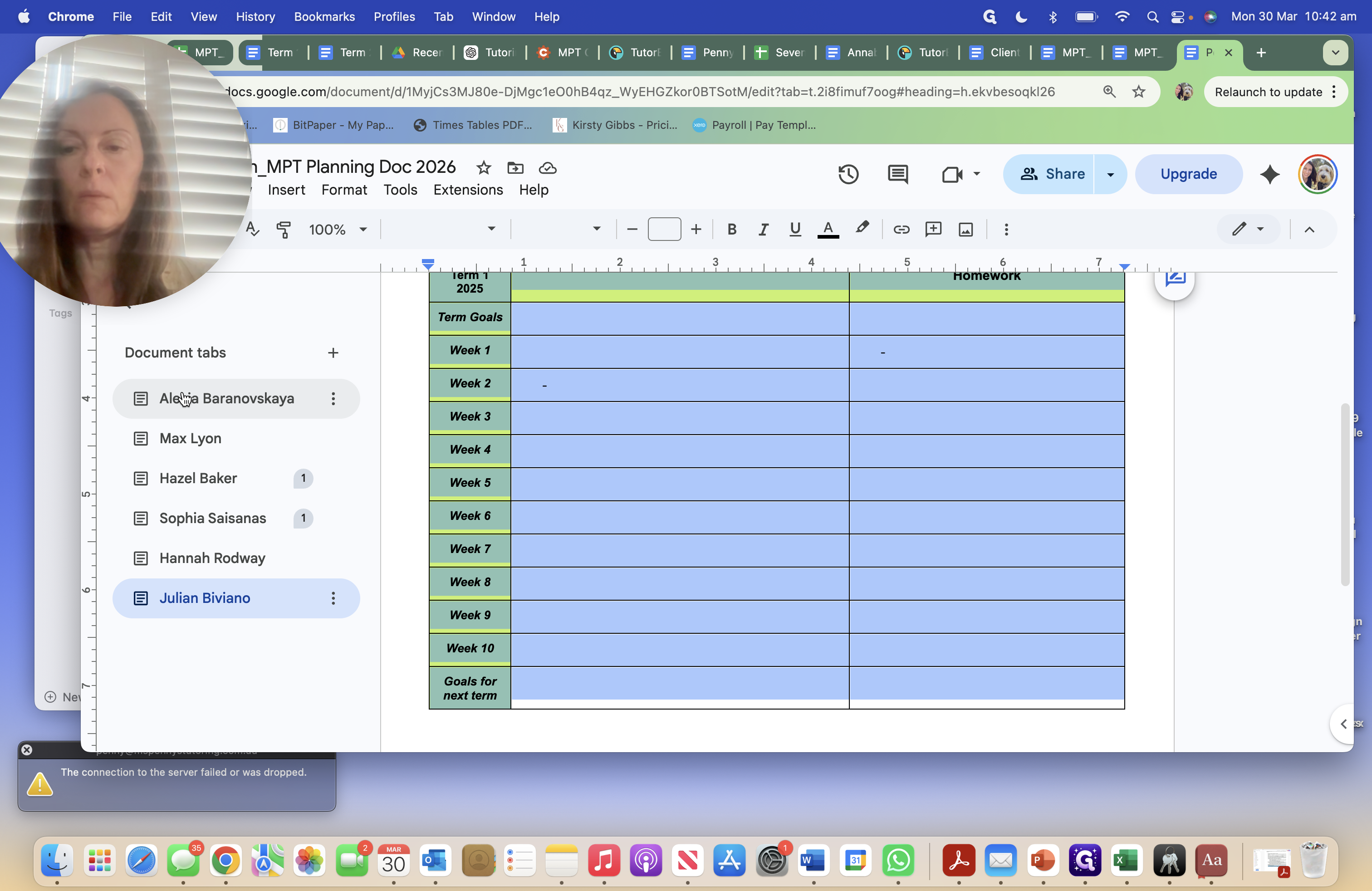
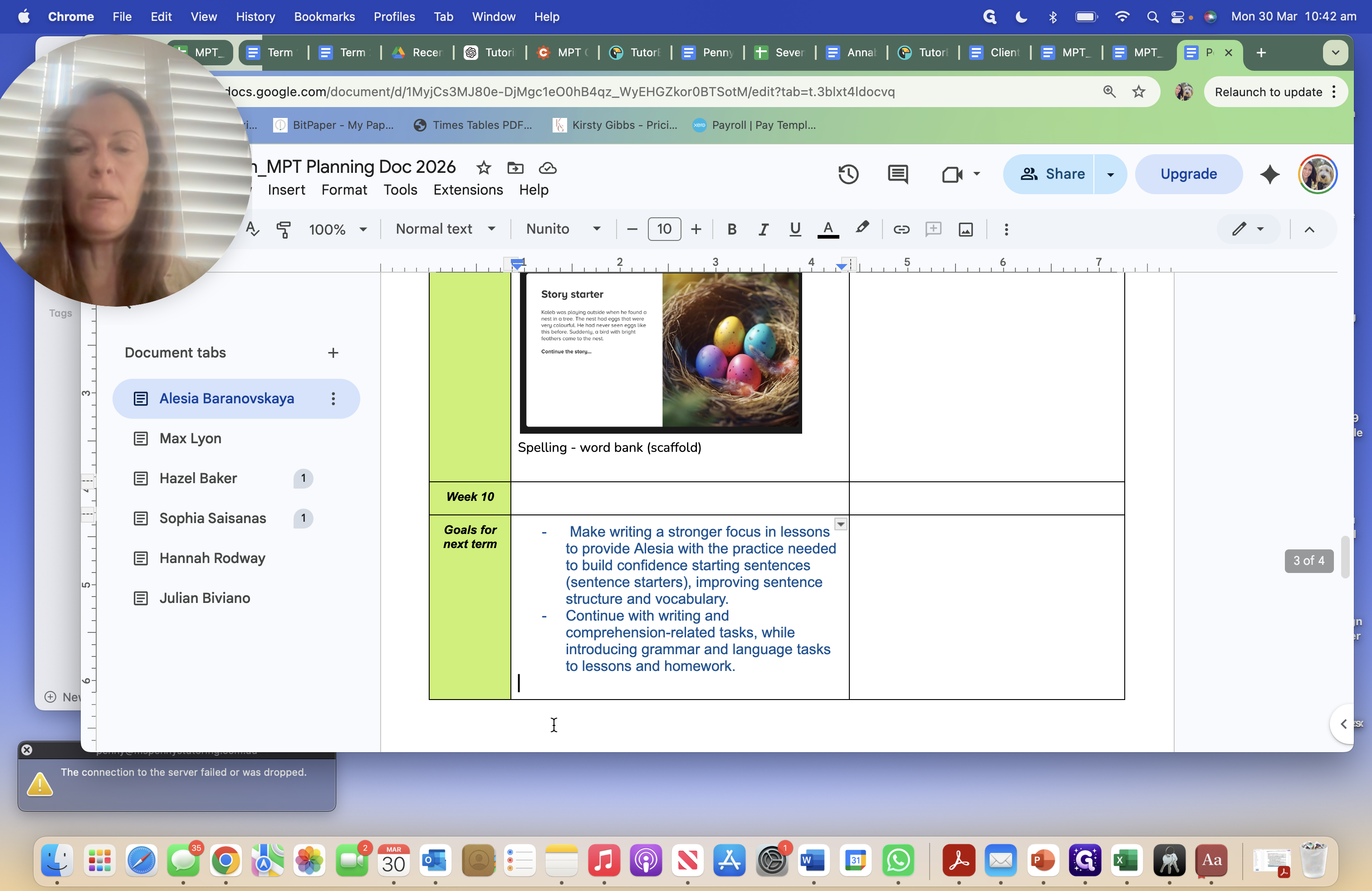
""
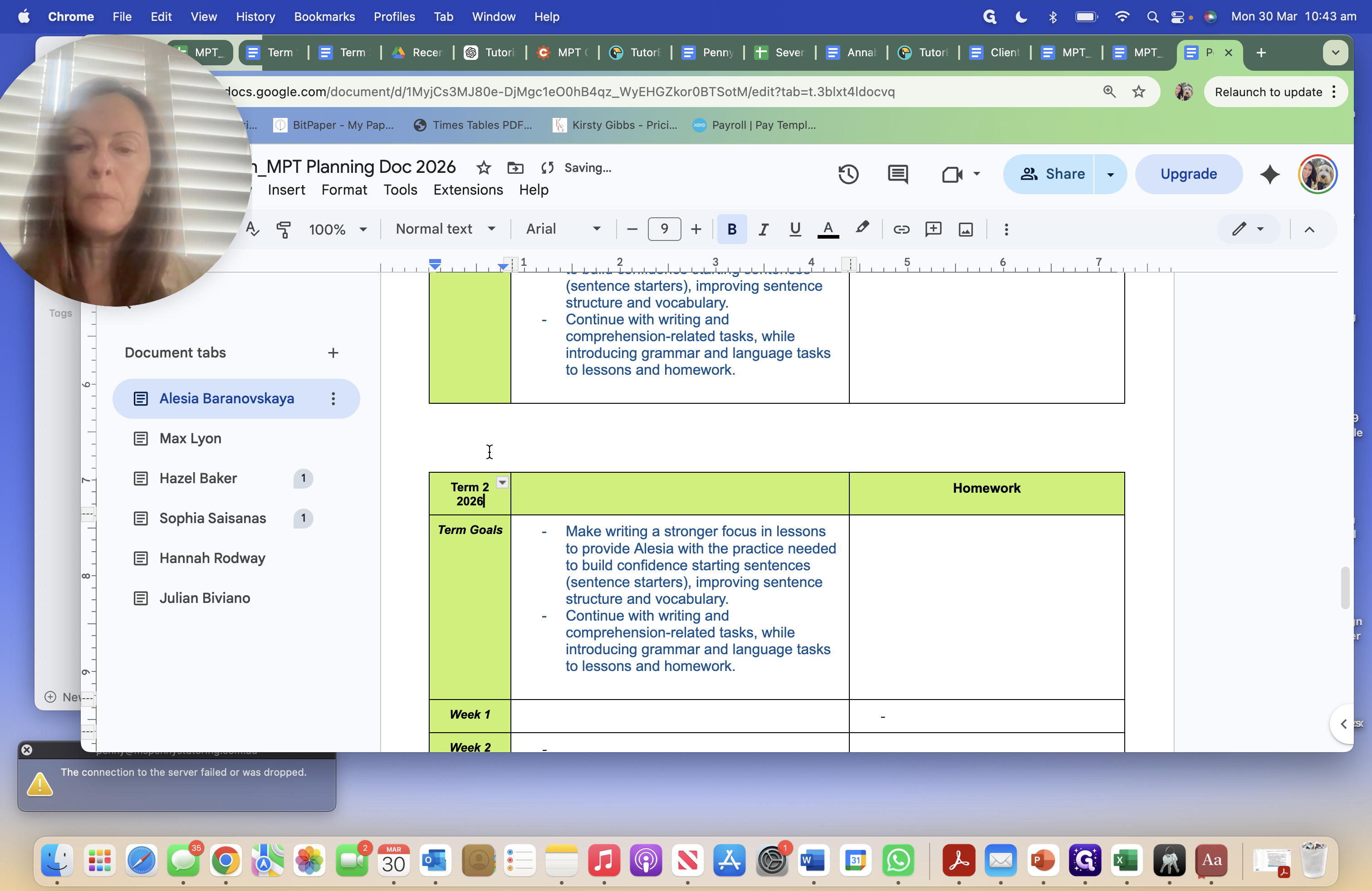
I'm moving this here now. Also, remember to change it to term two and update it to 2026.
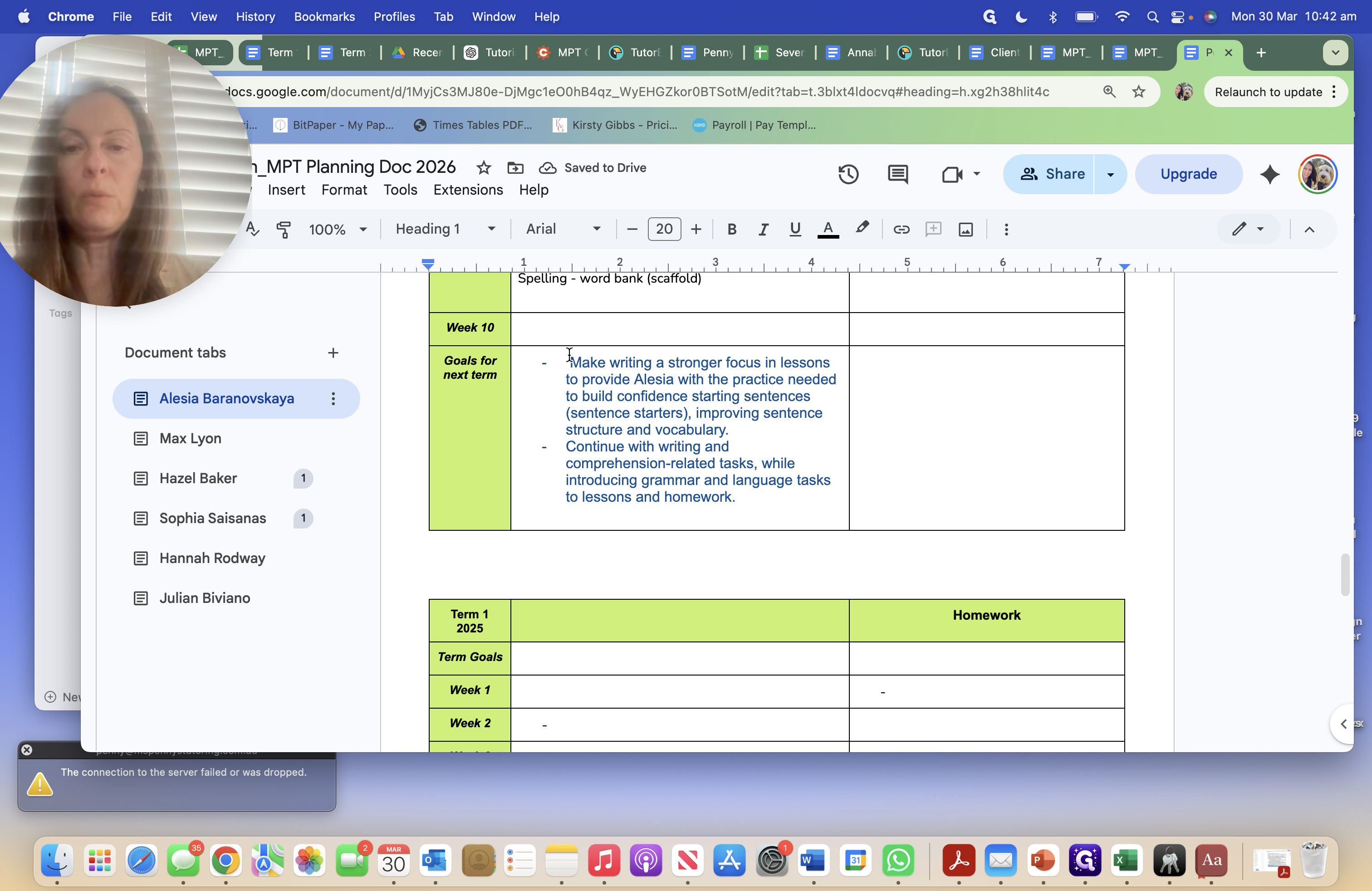
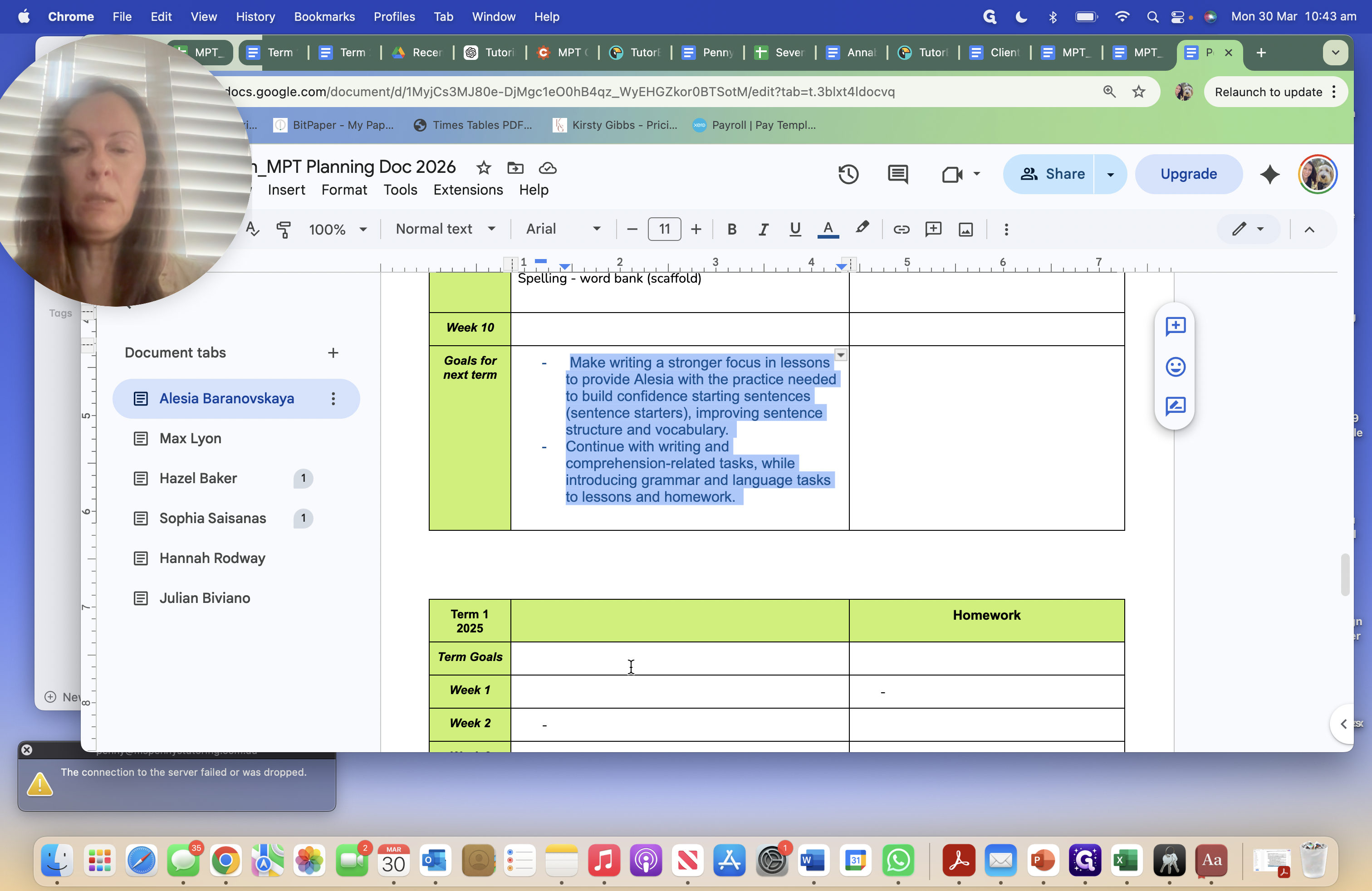
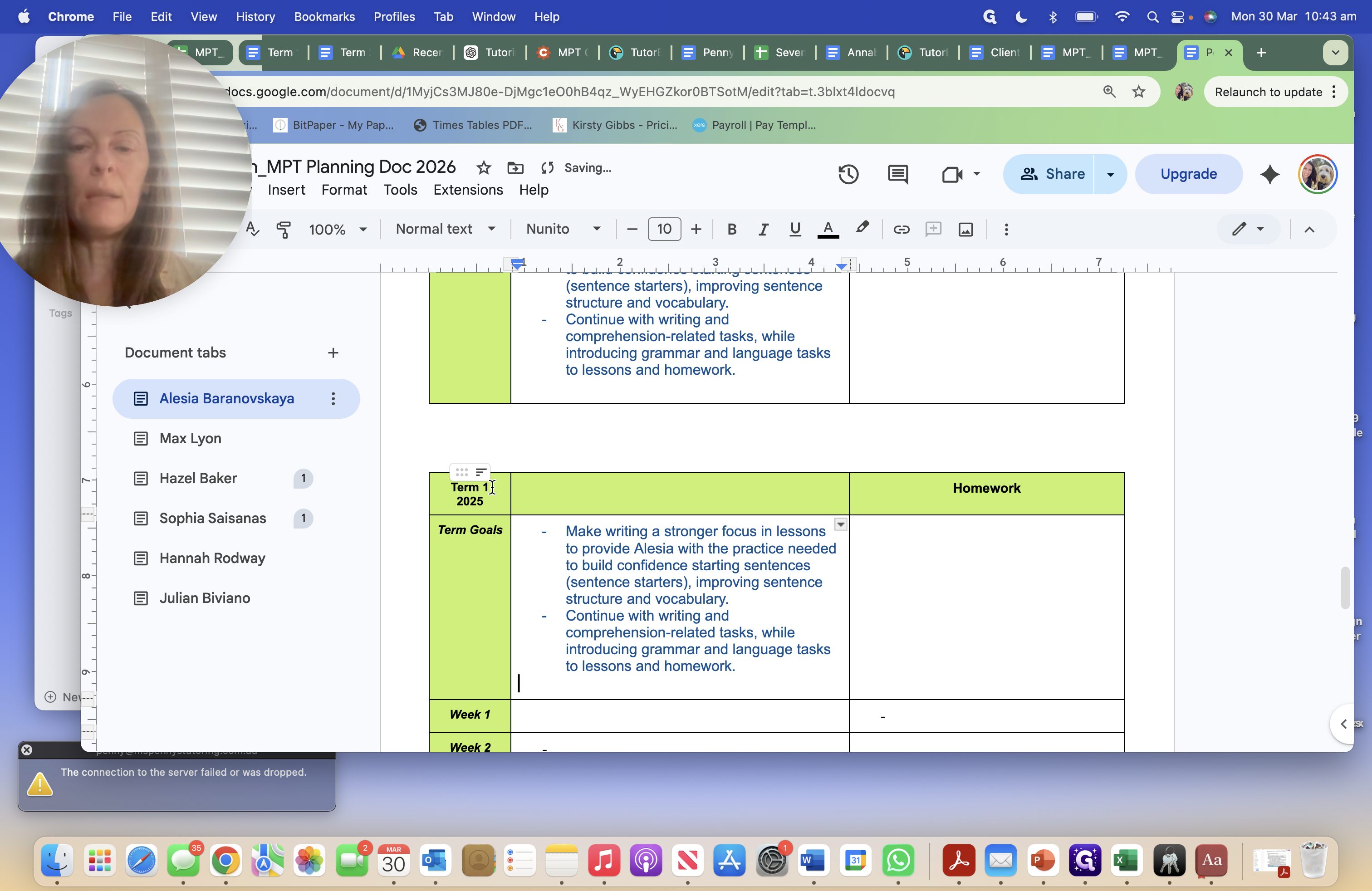
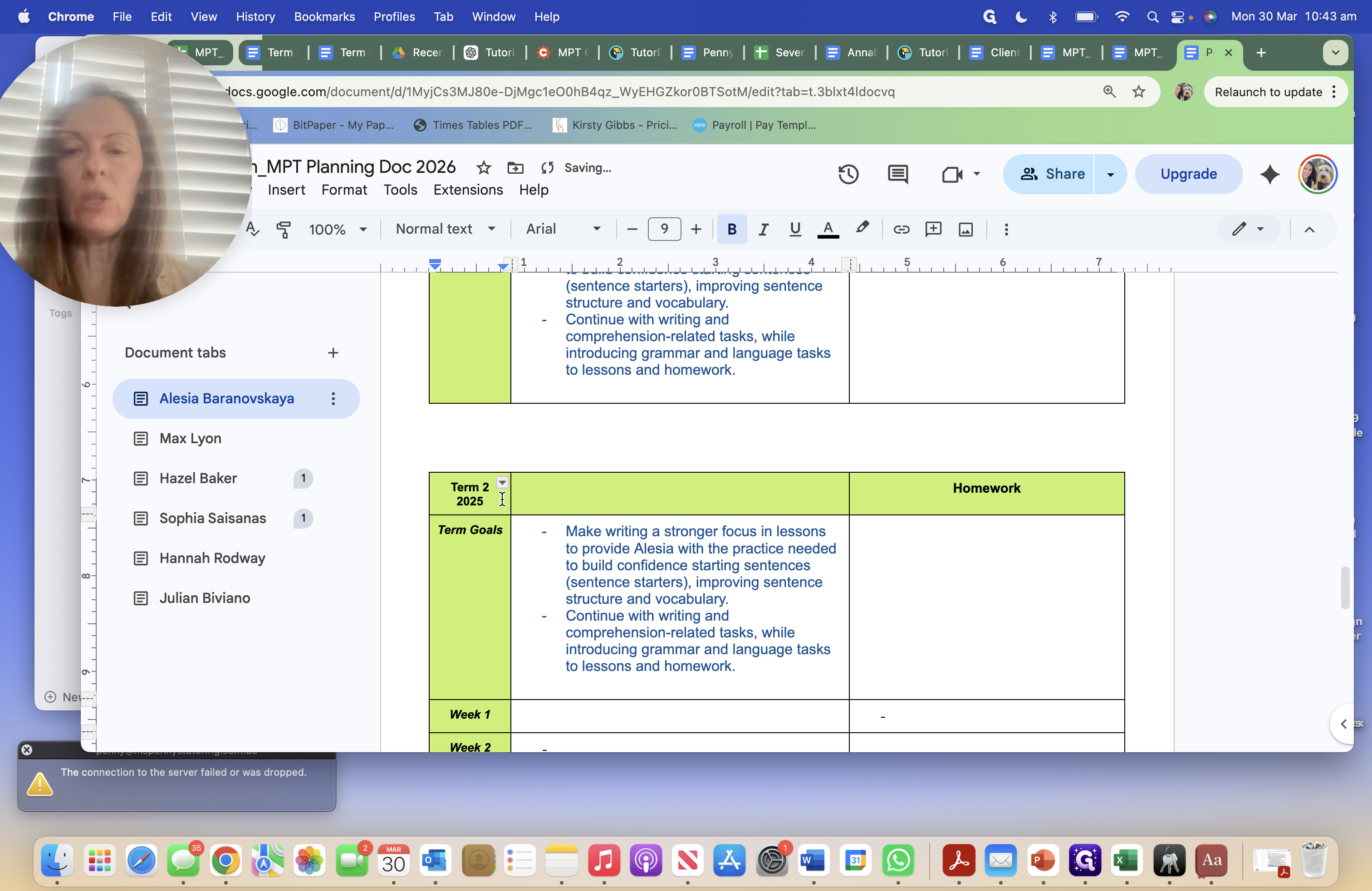
I will also be adding other things.
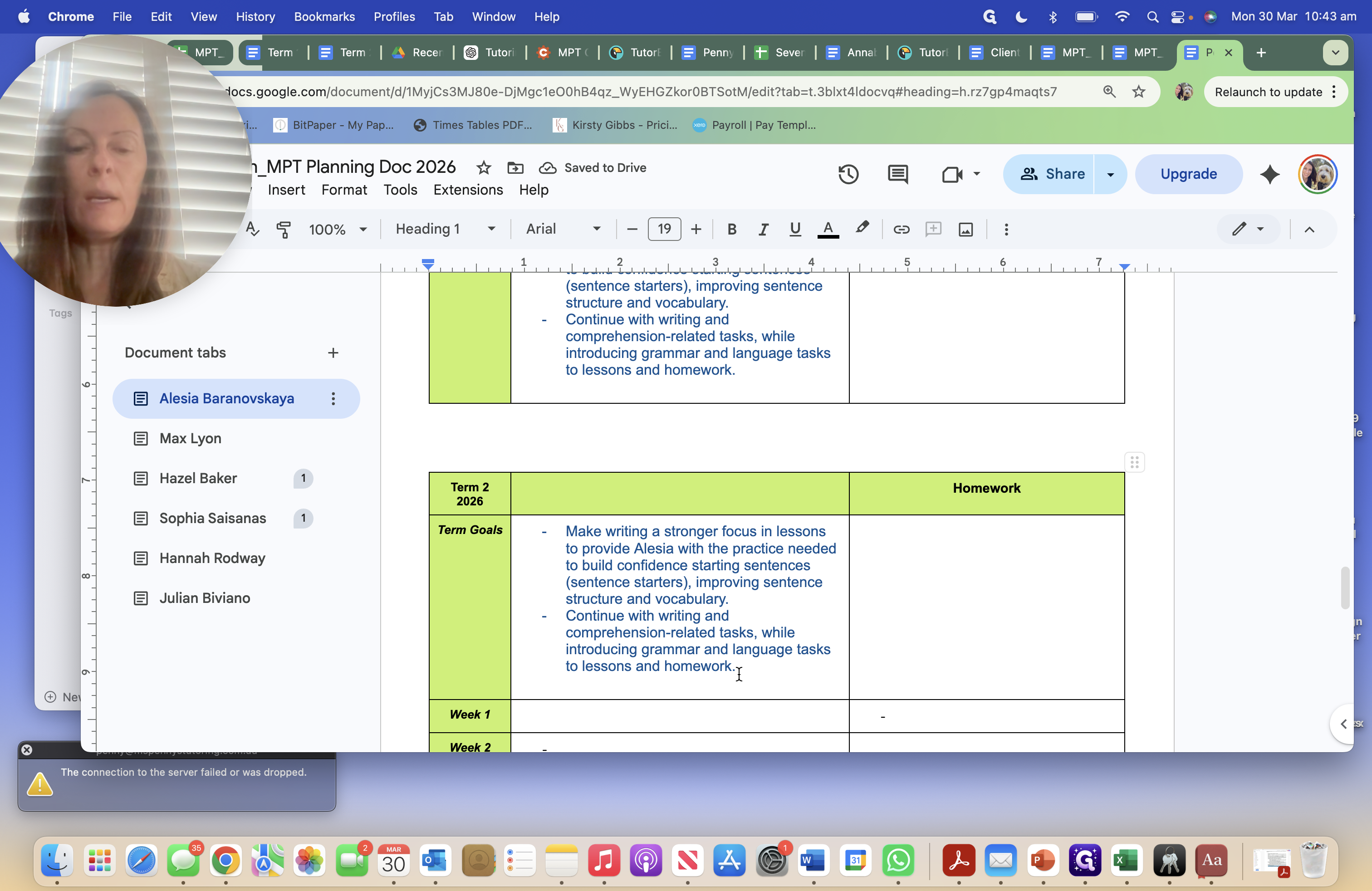
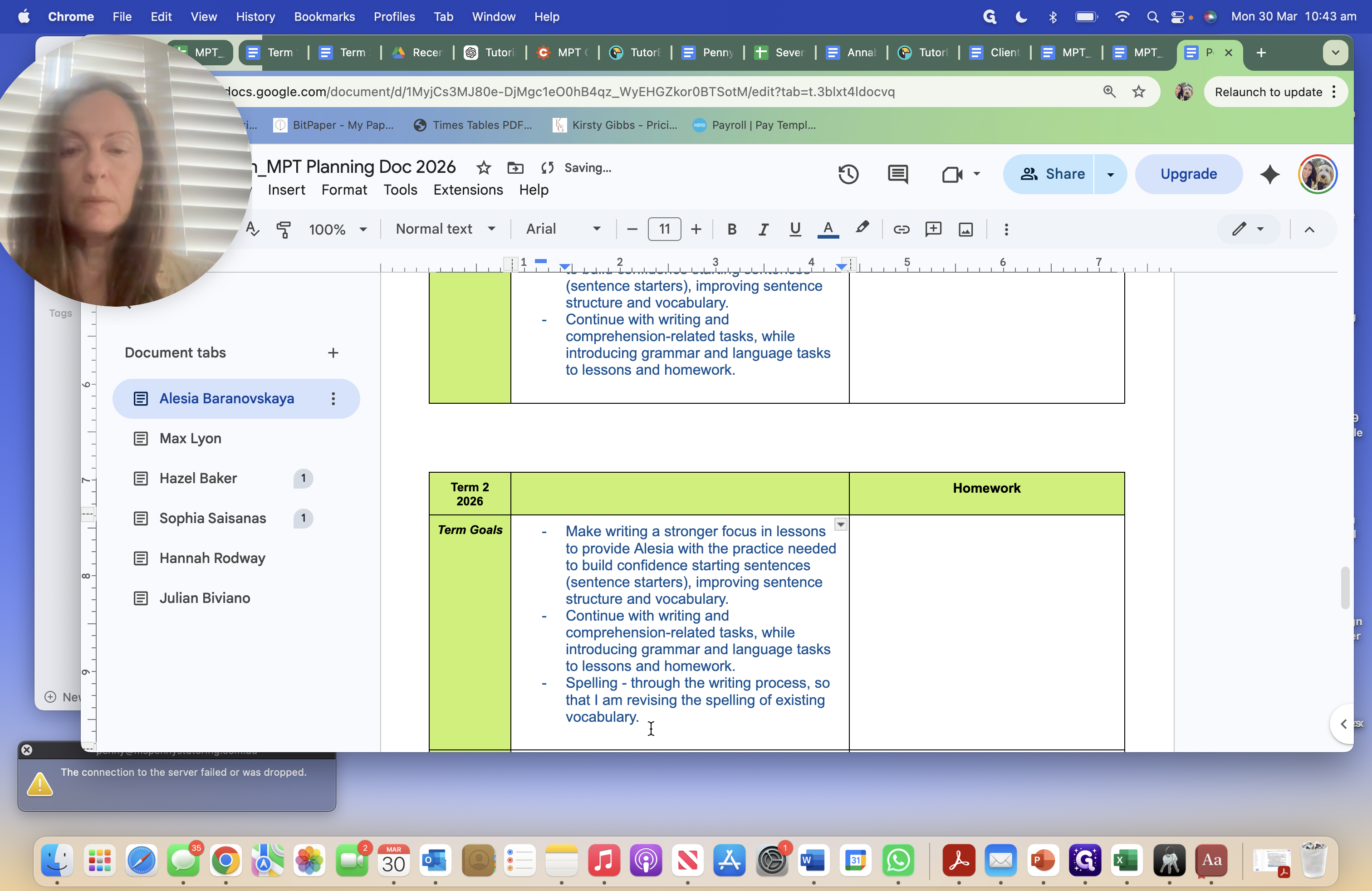
I want to work on spelling with her by using the writing process, revising the spelling of existing vocabulary.
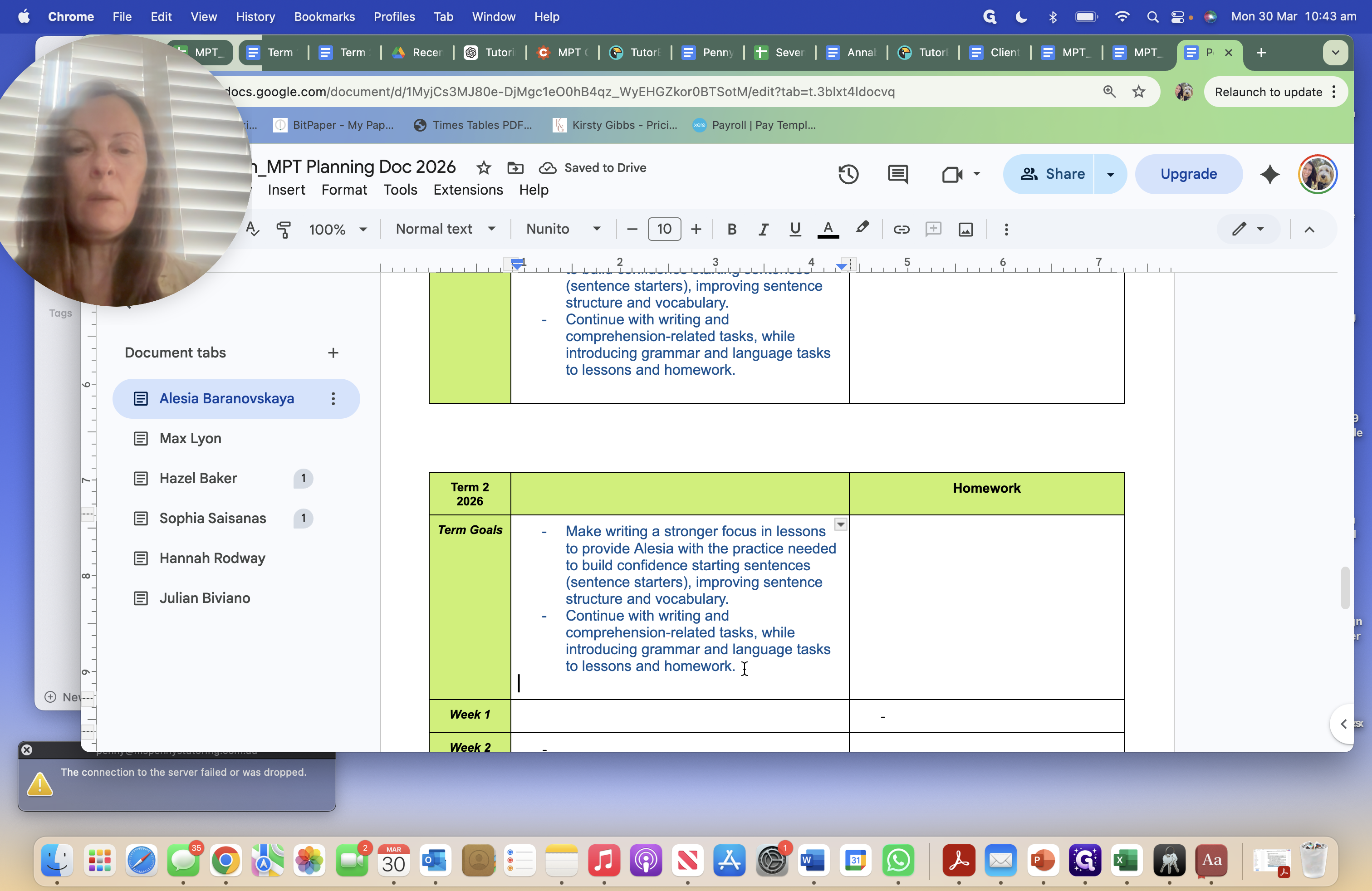
I'll tidy that up. Take that into account for my term two feedback.
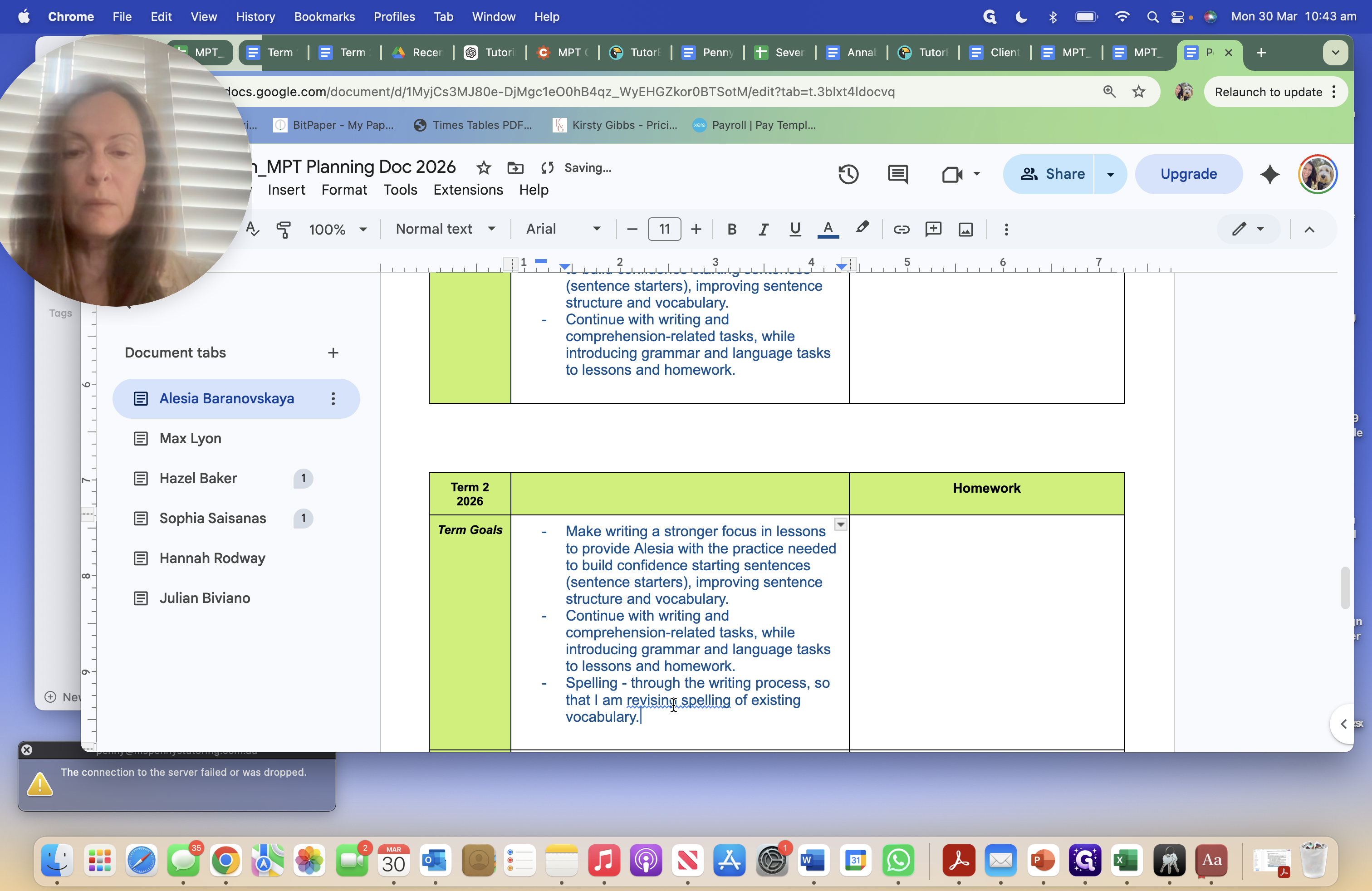
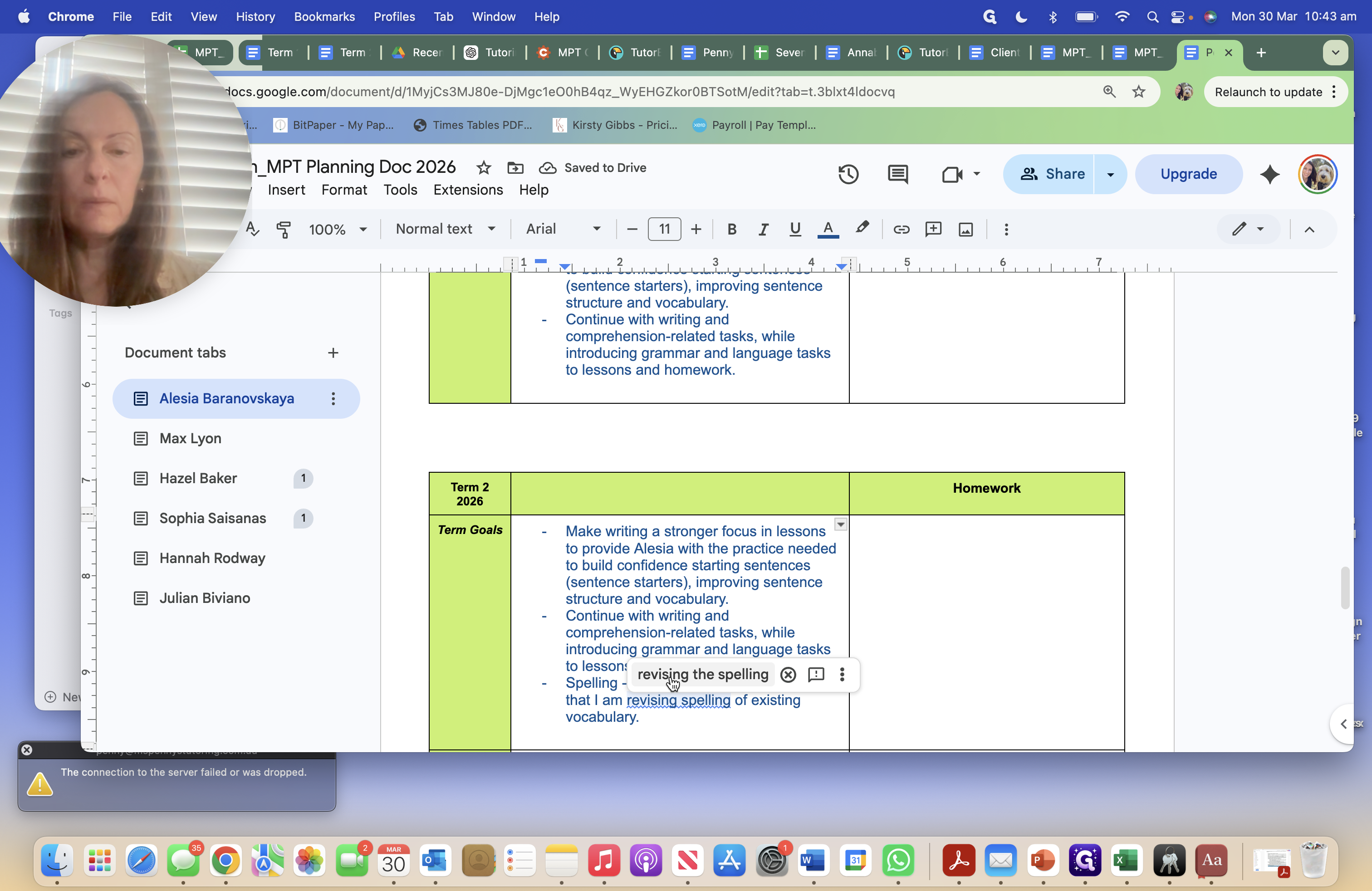
I can add to that or leave it as is, but now I know what I'm working with.
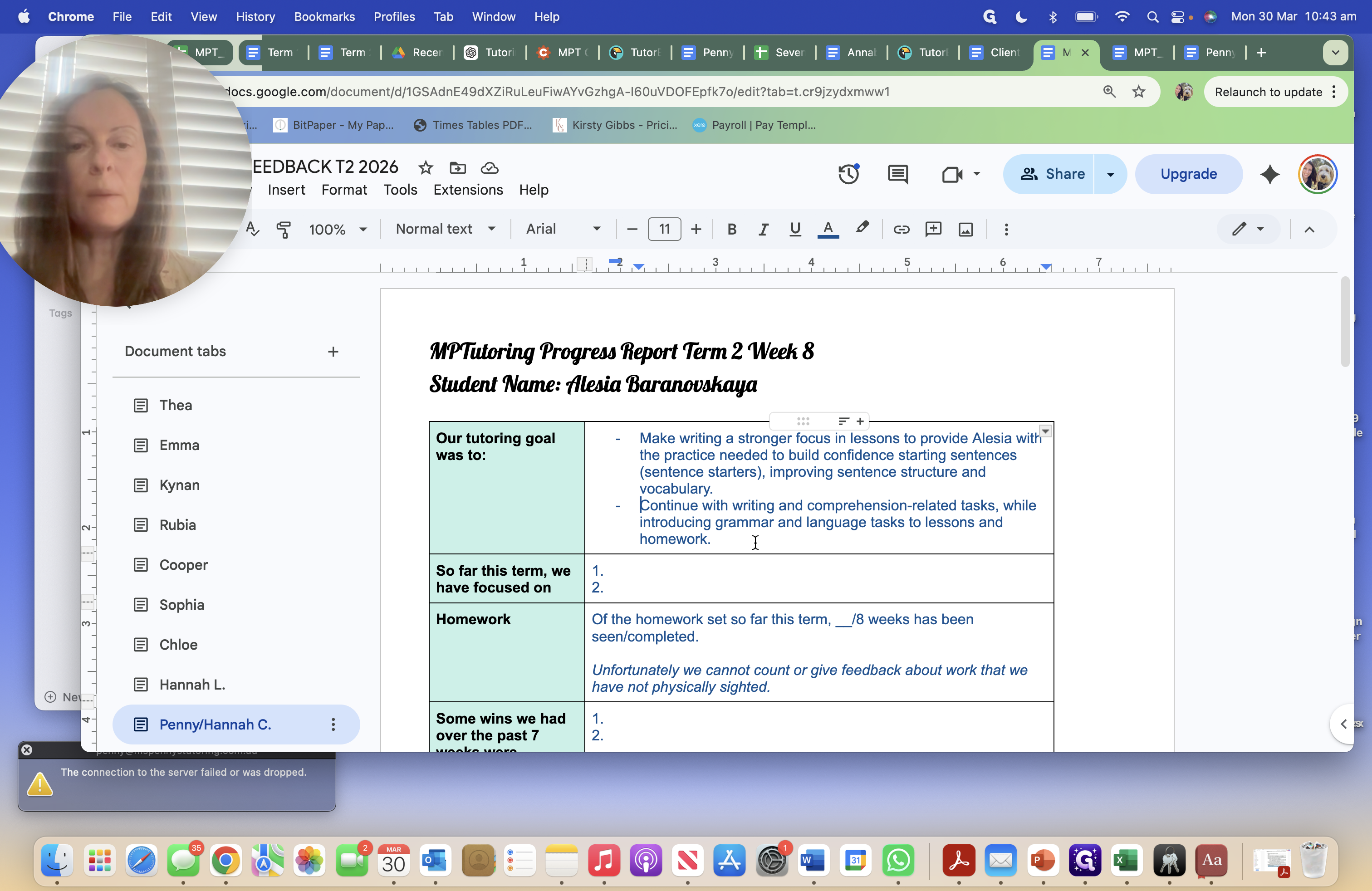
I know what I will be revising. If I introduce anything new beyond this, it will be included so far this term. I may not cover everything I planned for my tutoring goal.
I may not get to the spelling part because she might not be ready for it. I will state that, moving forward, we will.
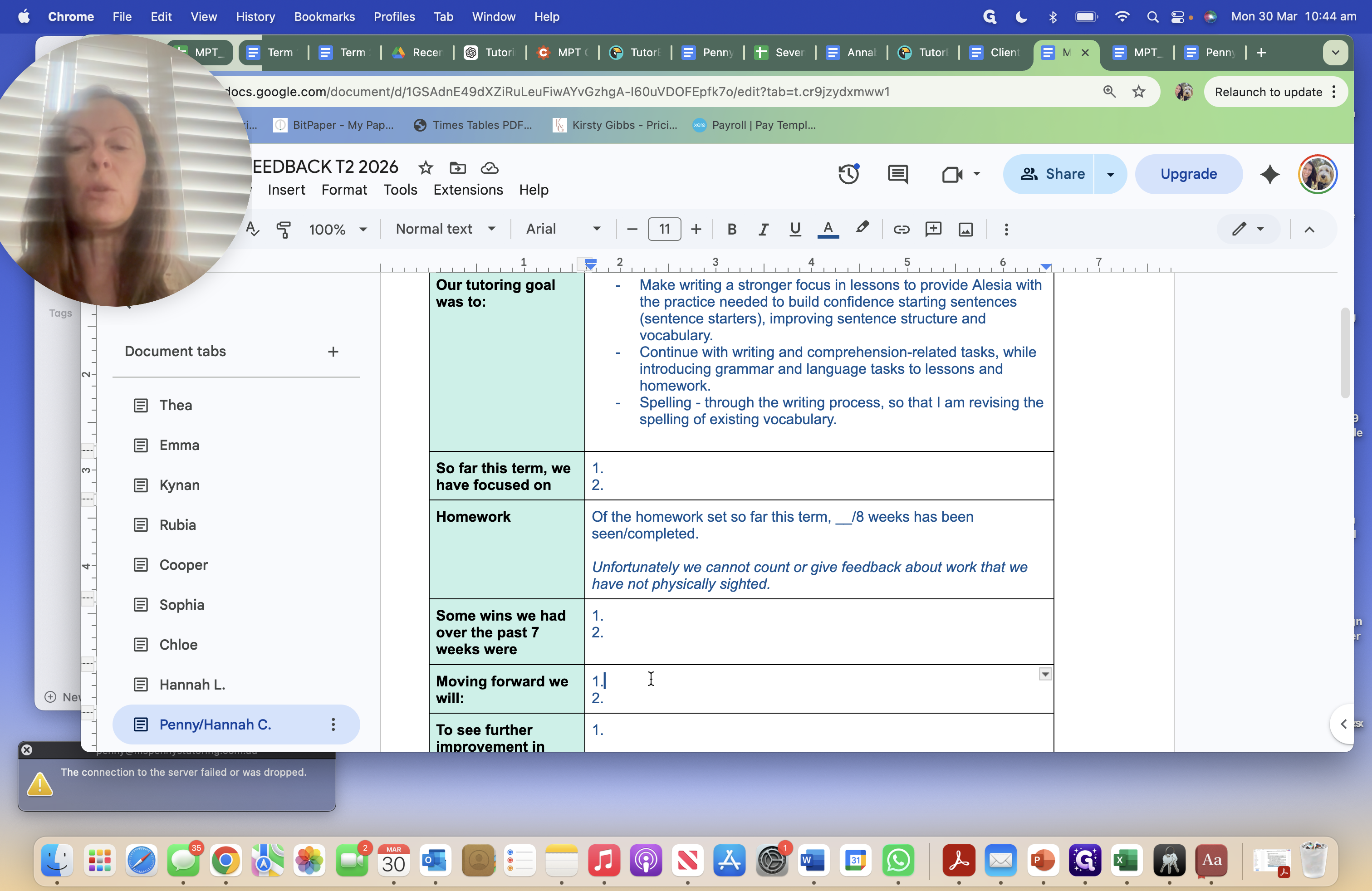
You know? Now we are moving forward. Perhaps she wasn't up to it because it took longer for her to focus on her reading structure. Her writing structure. I hope that makes sense. Have a great week, everyone.
Bye.