How to use the Call List
Learn how to navigate and utilize the call list feature in Traction. This tutorial covers filtering calls, viewing call details, and accessing call recordings for better customer management.
By Dominik Black
In this guide, we'll learn how to navigate and use the call list in Traction. The call list helps you review all inbound and outbound calls, filter information, and access call details such as customer profiles, call events, and recordings.
You will also see how to adjust the columns, view calls from different branches, and use features like call ratings and transcripts.
Let's get started
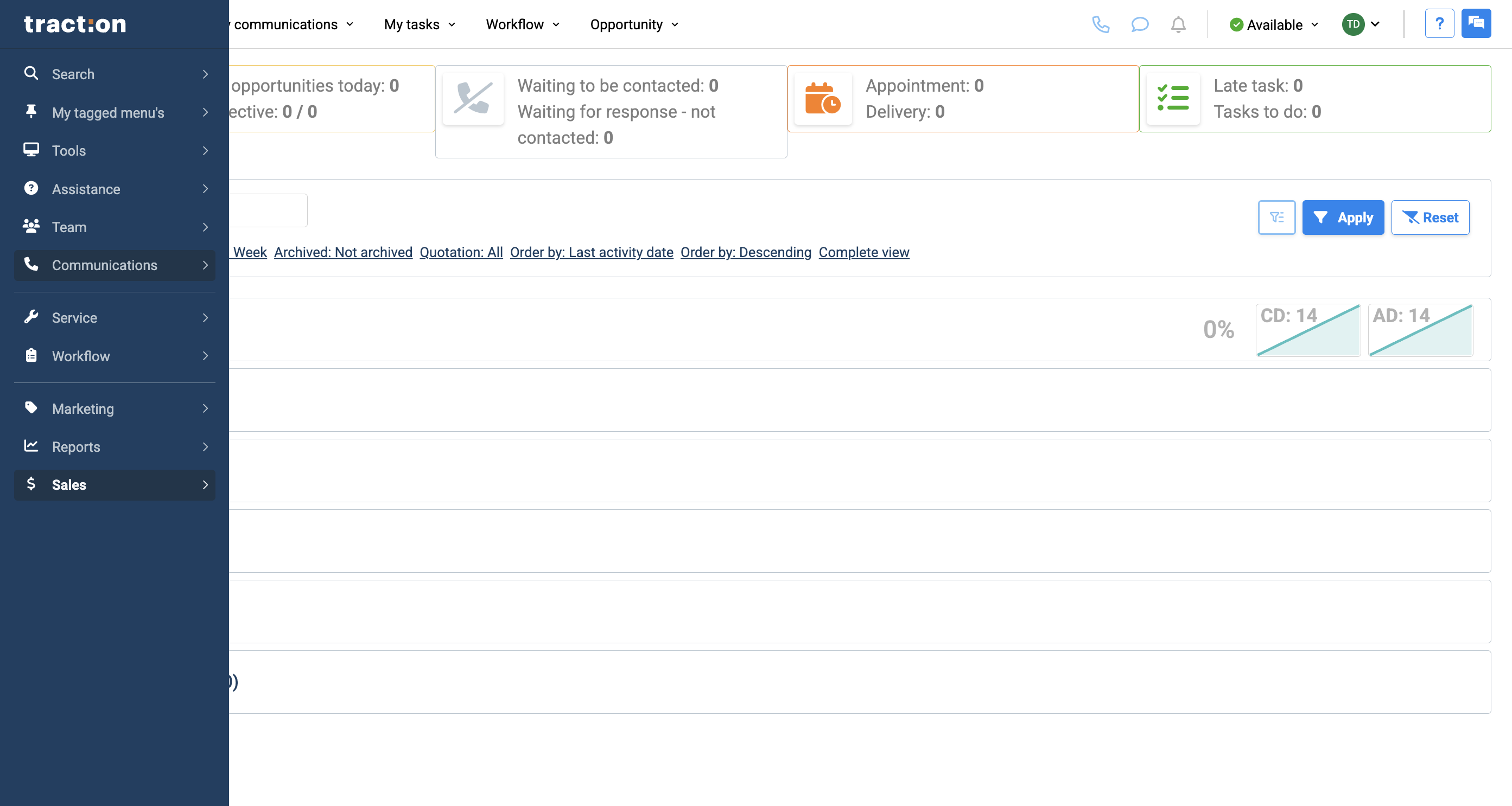
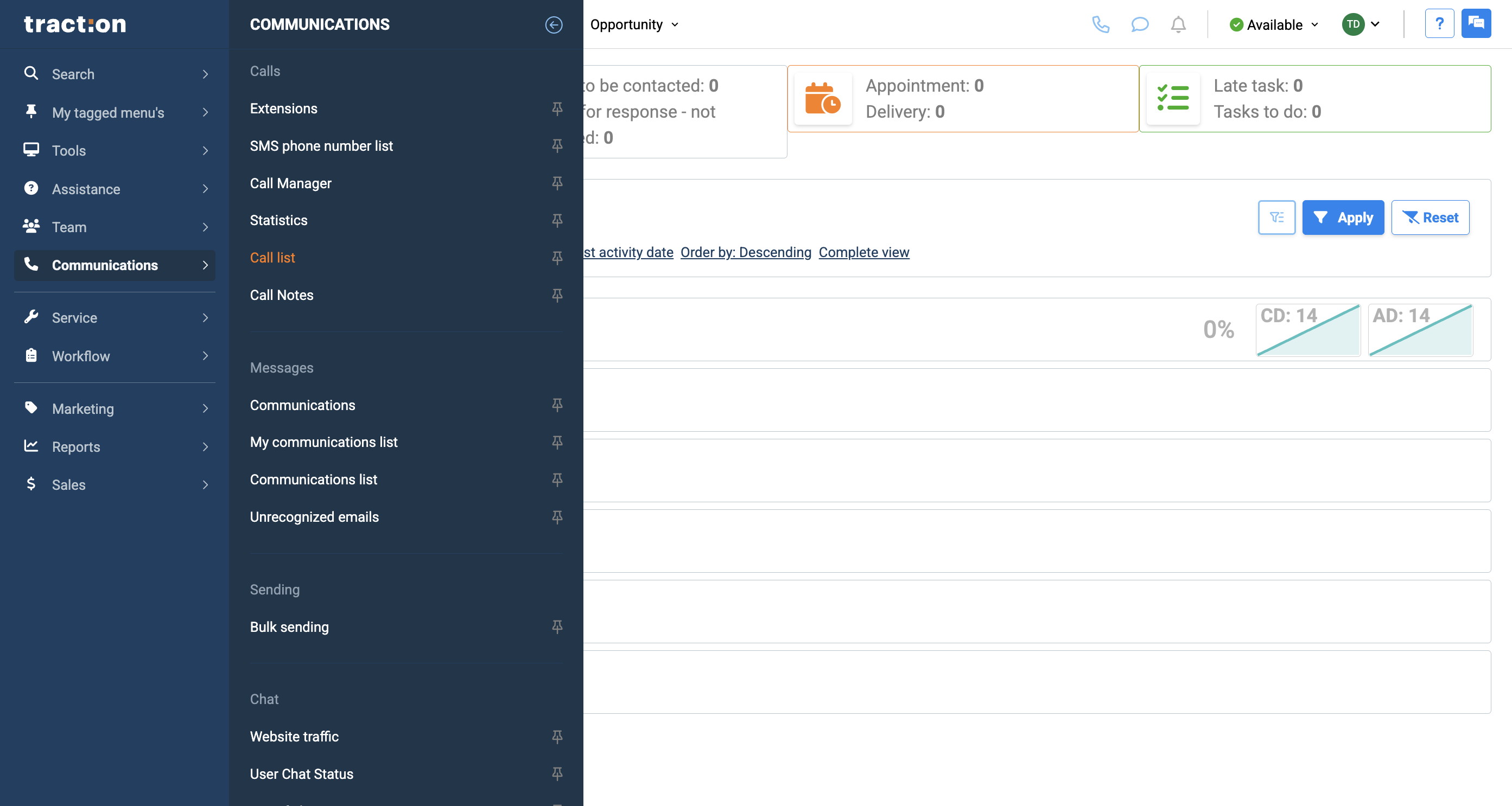
In this tutorial, we will look at the call list. The call list includes every inbound and outbound call made to or from your store. To find the call list, start in Communications and click on Call List.
1
Click Communications
2
Click Call list
3
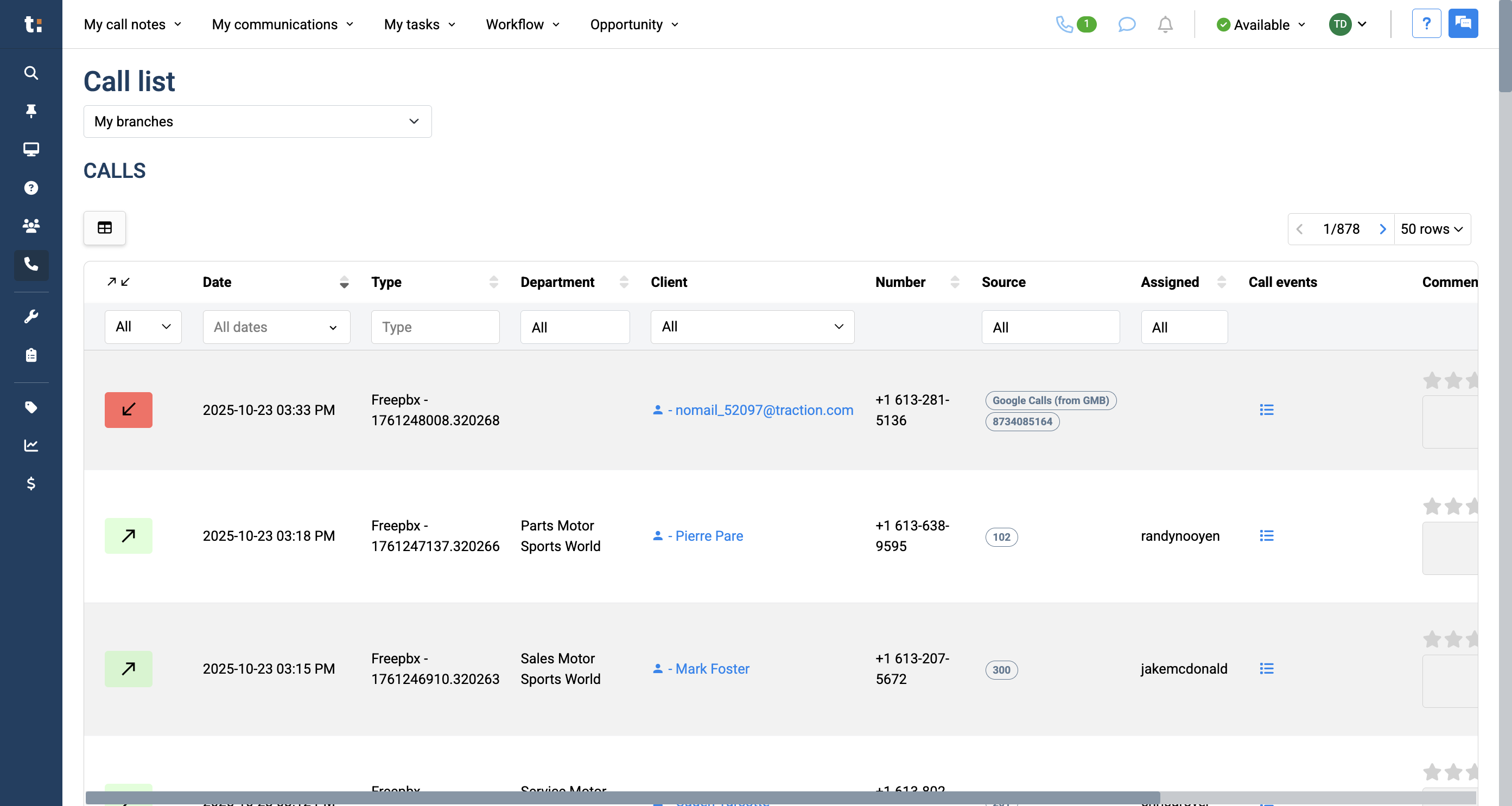
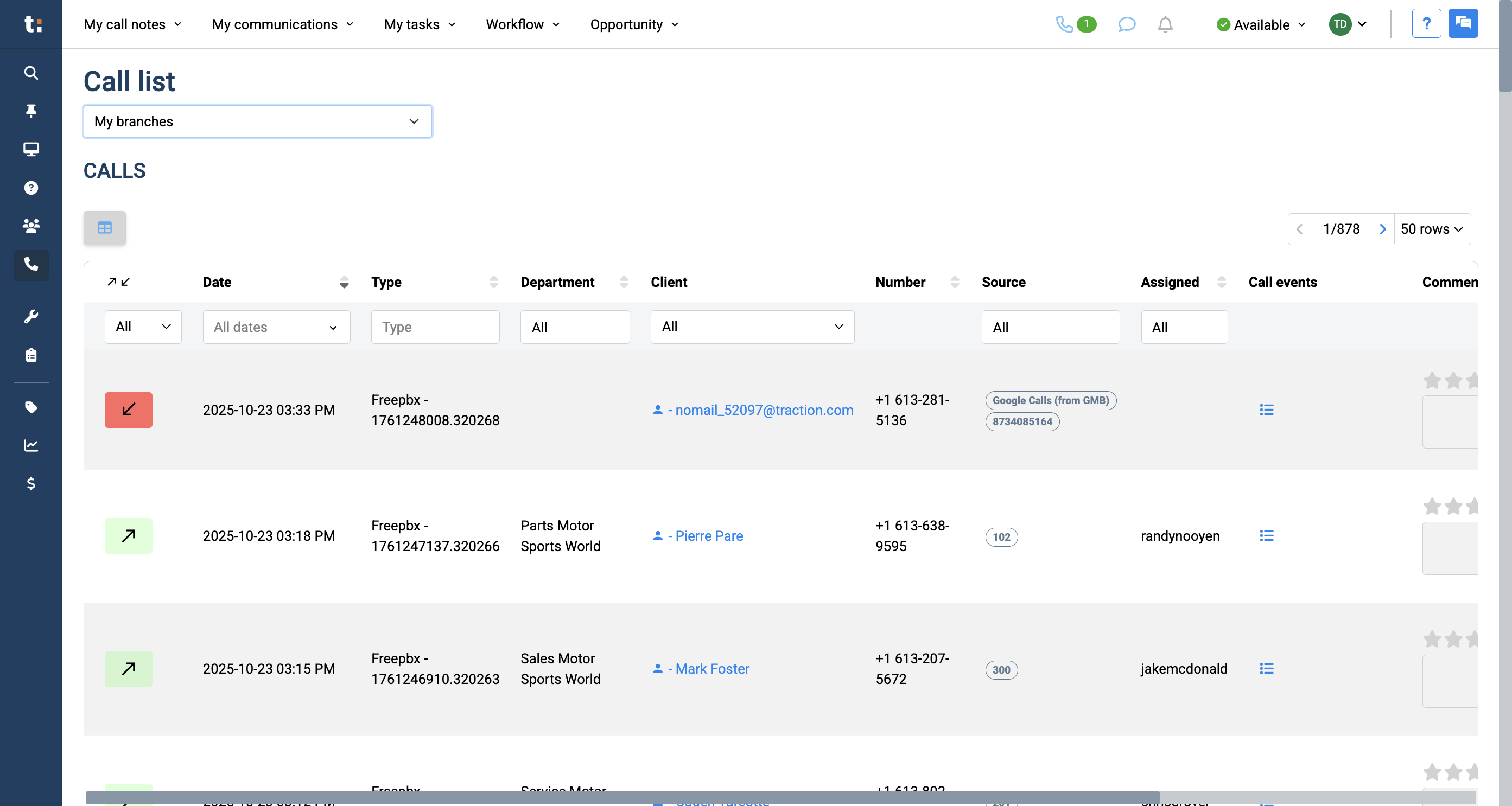
If your dealership has multiple branches, you will only see your own store by default. To view all dealership stores, select All Branches.
4
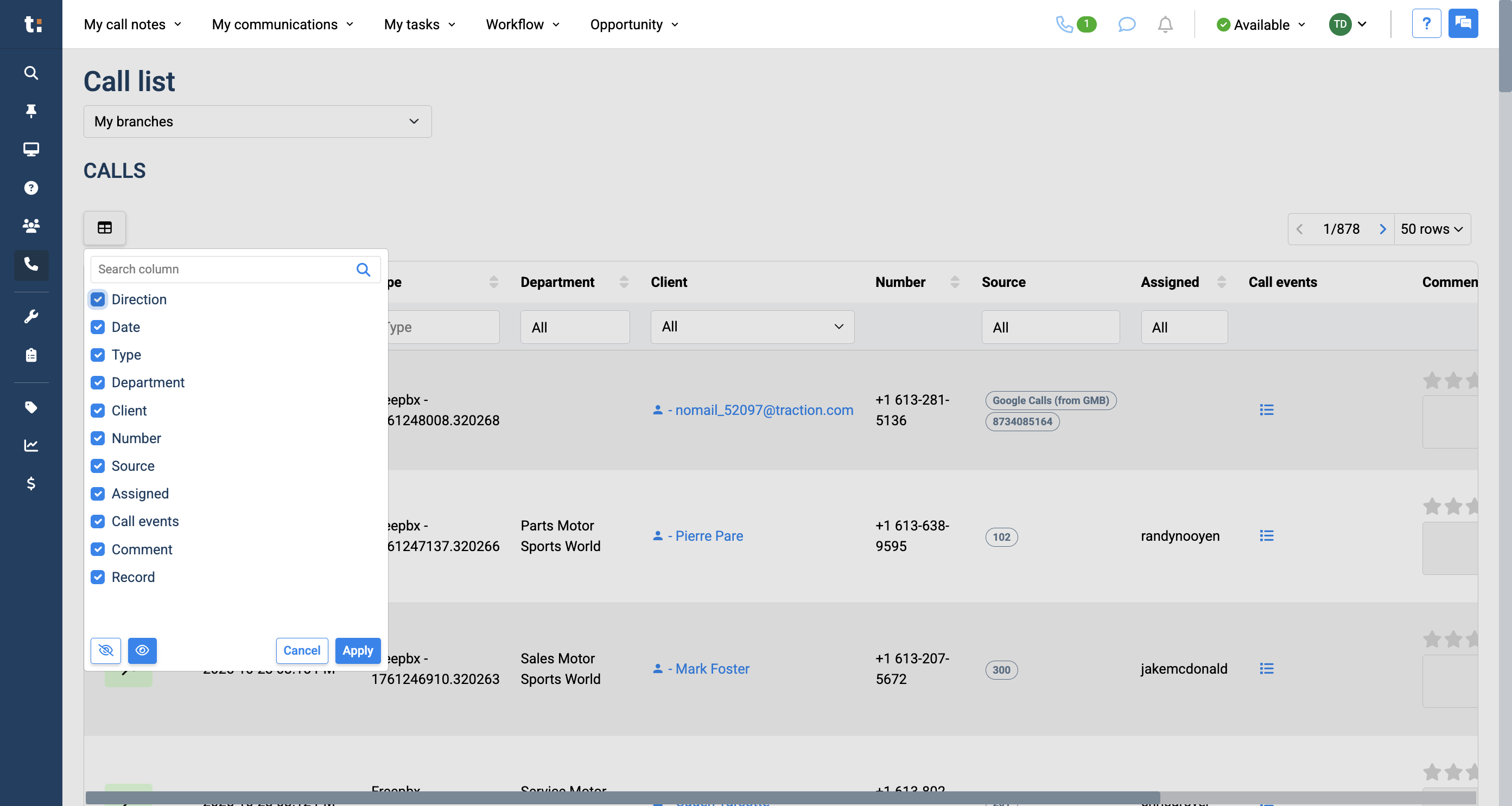
This button helps you filter your columns.
5
Click on it to deselect or reselect any columns you want to display in your call list.
6
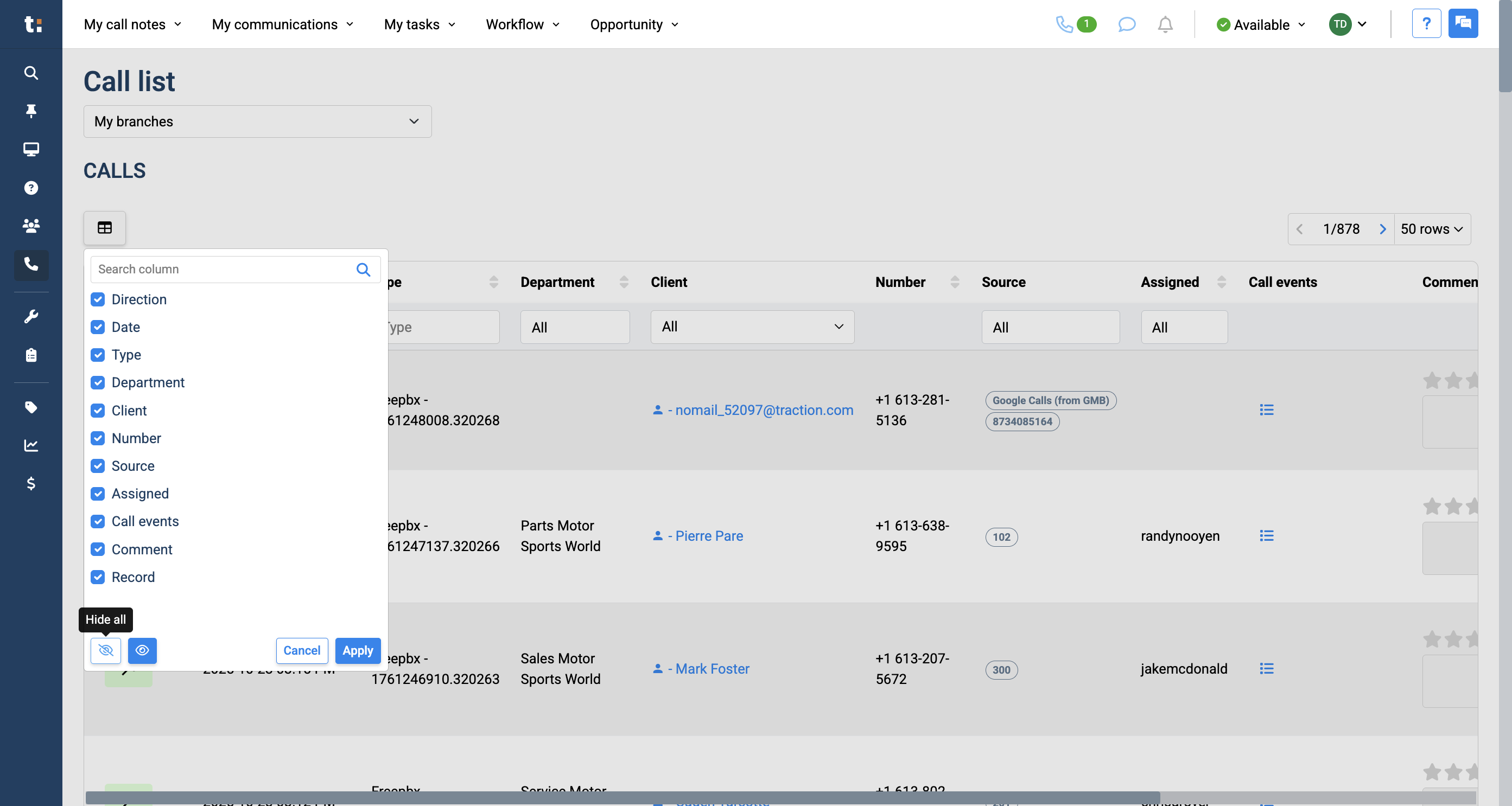
Here, you can hide all the columns. To select them all again, click the eye icon.
7
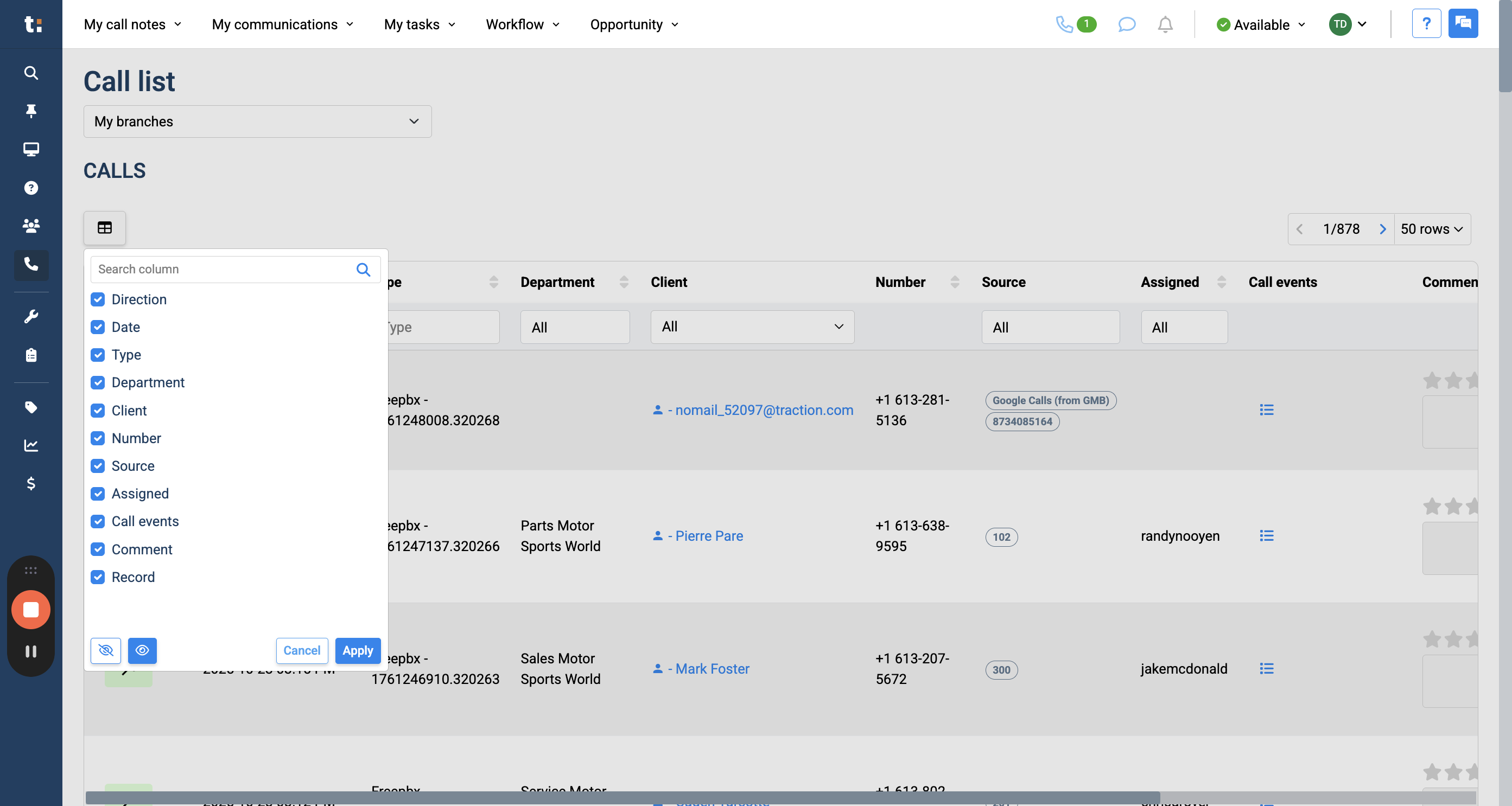
After you finish selecting your columns, you can either apply or cancel.
8
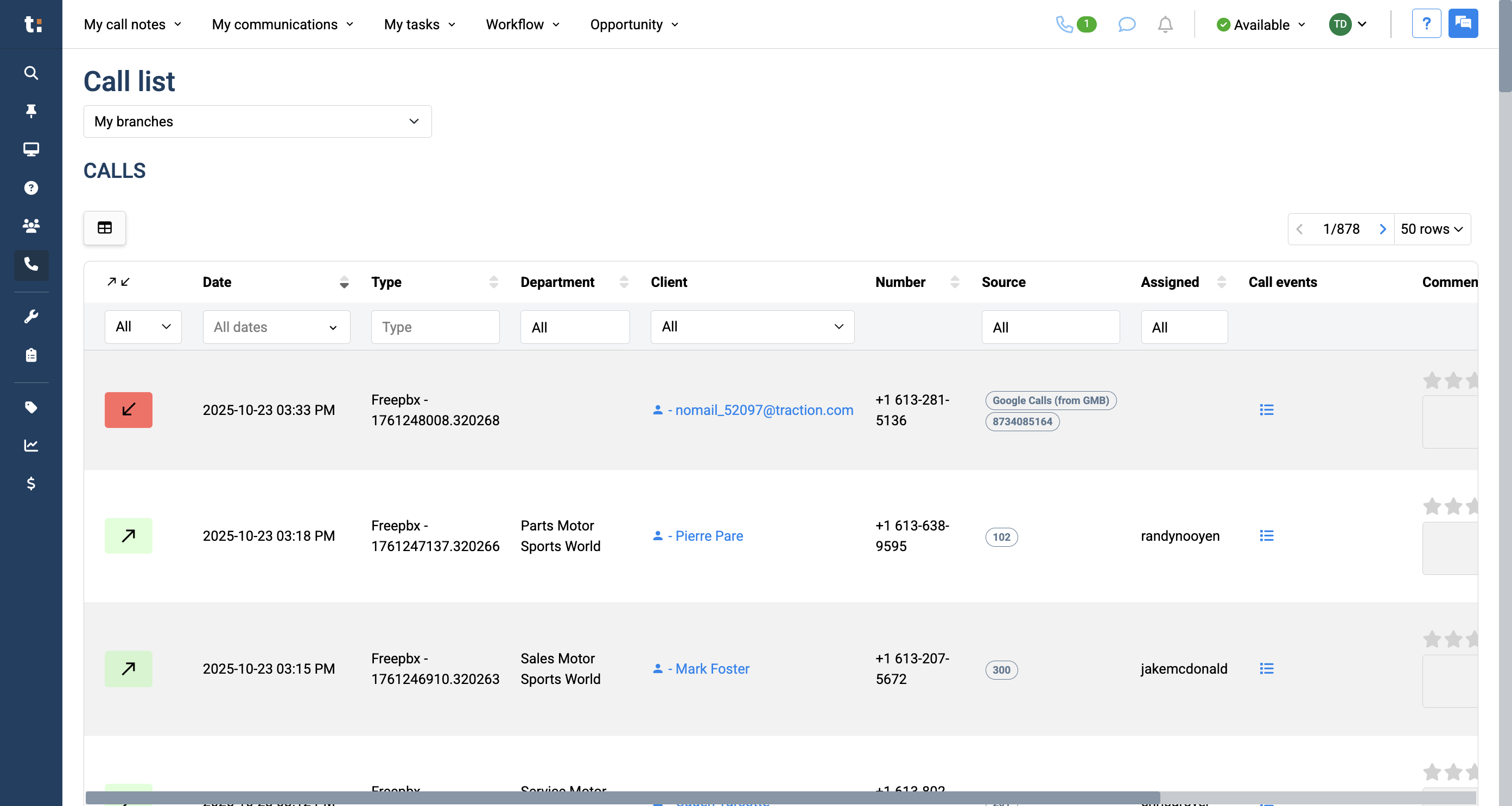
By default, we display 50 rows of calls. To view more rows, click this button.
9
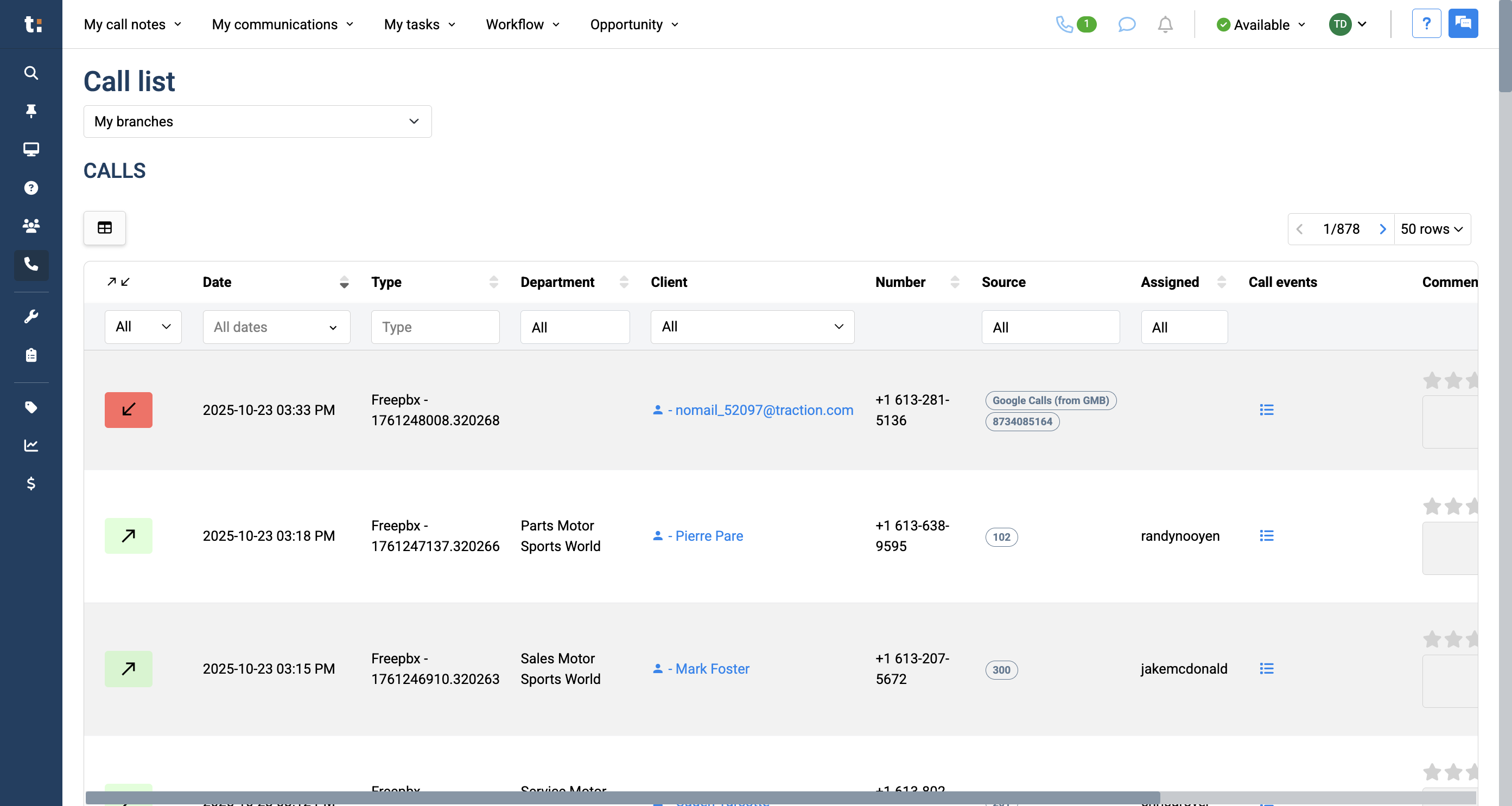
In the call list, start by looking at the icons on the left. The color and arrow show if the call was inbound or outbound, and whether it connected with an agent.
10
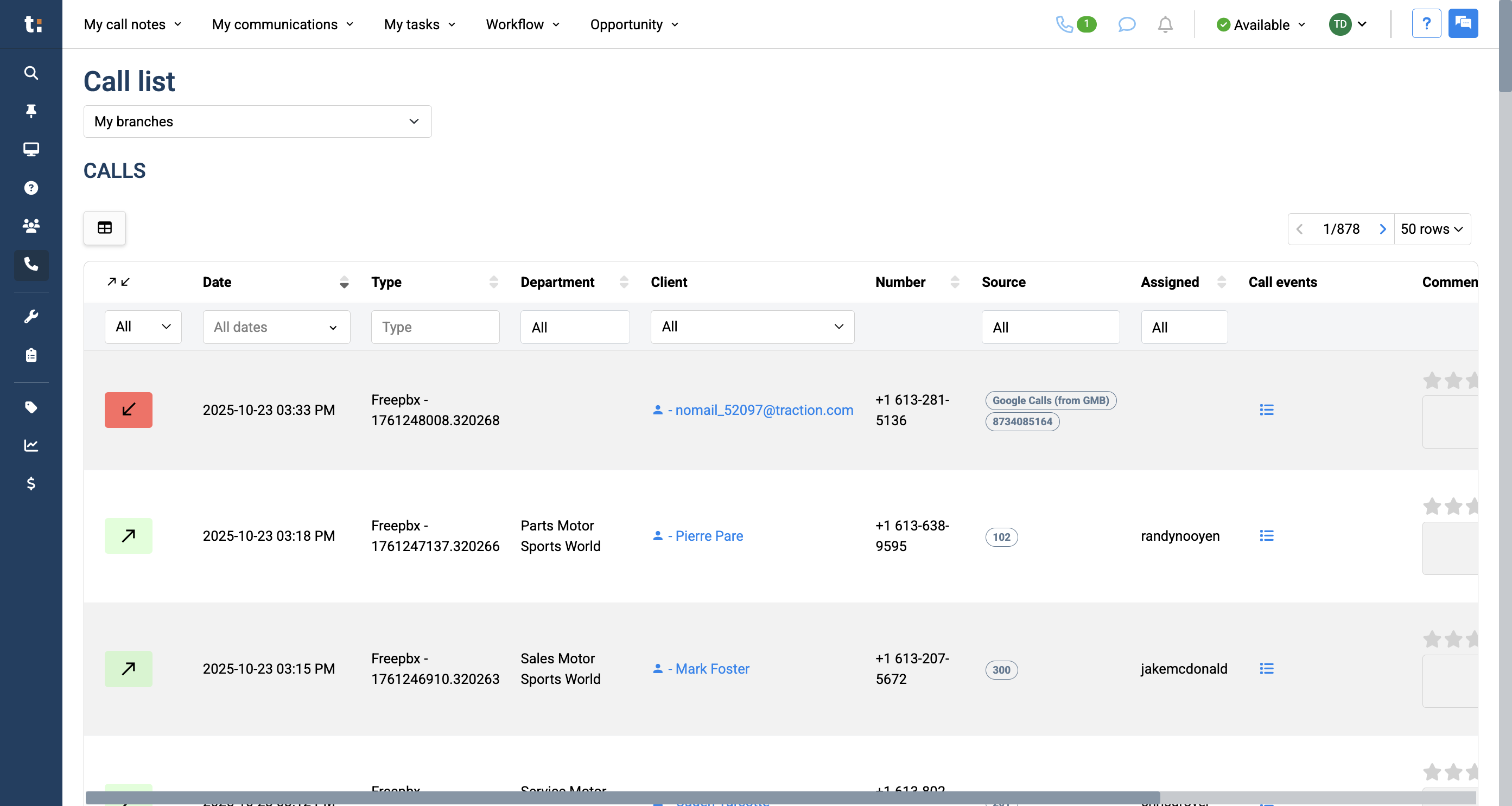
Next, we have the date and time of the phone call. We also have the department that received the phone call.
11
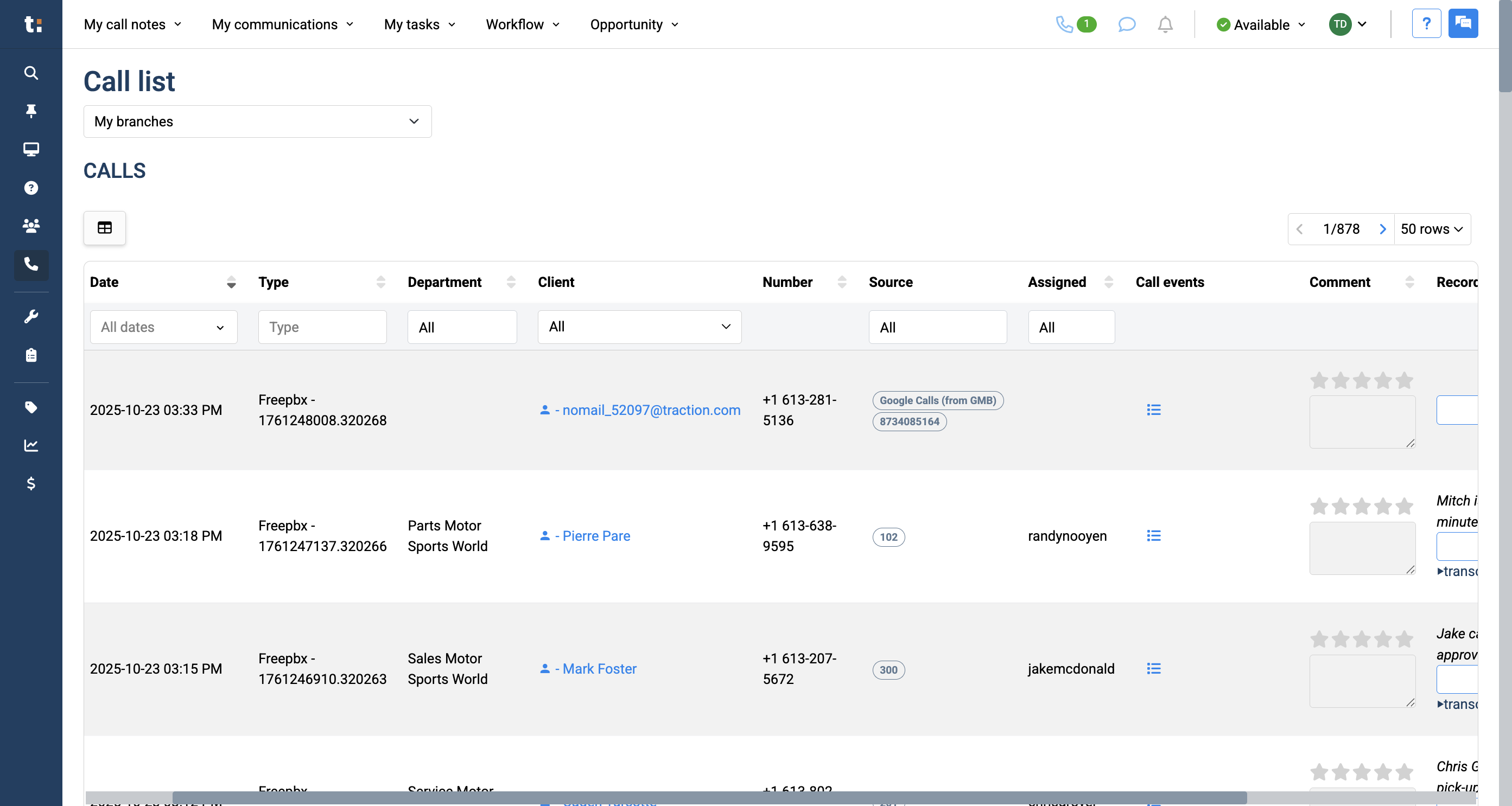
We have the customer's name and information. If the customer is calling for the first time and does not have caller ID, their email will appear as no-mail@traction.com.
12
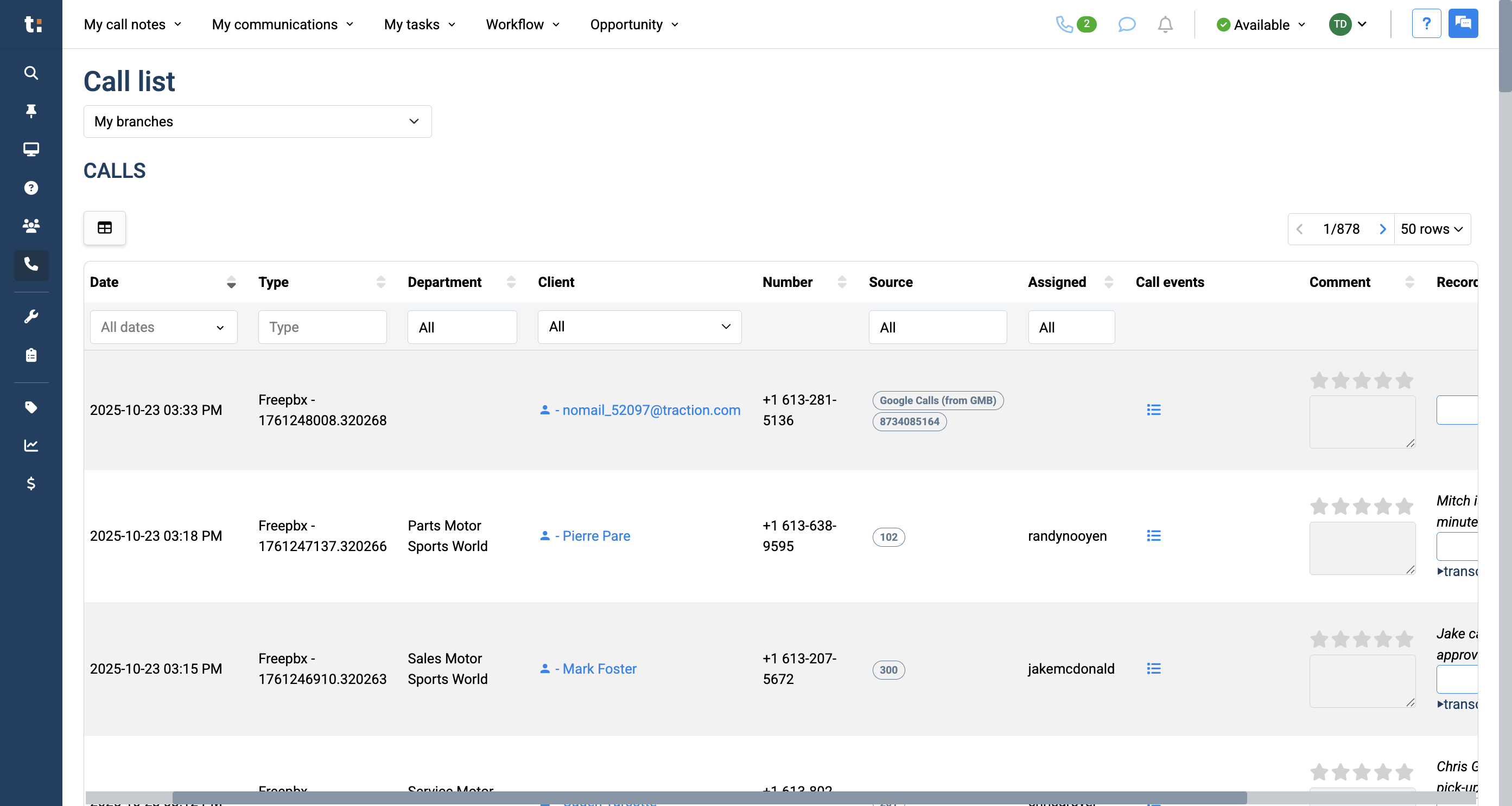
Clicking on a client's name takes you directly to their profile.
13
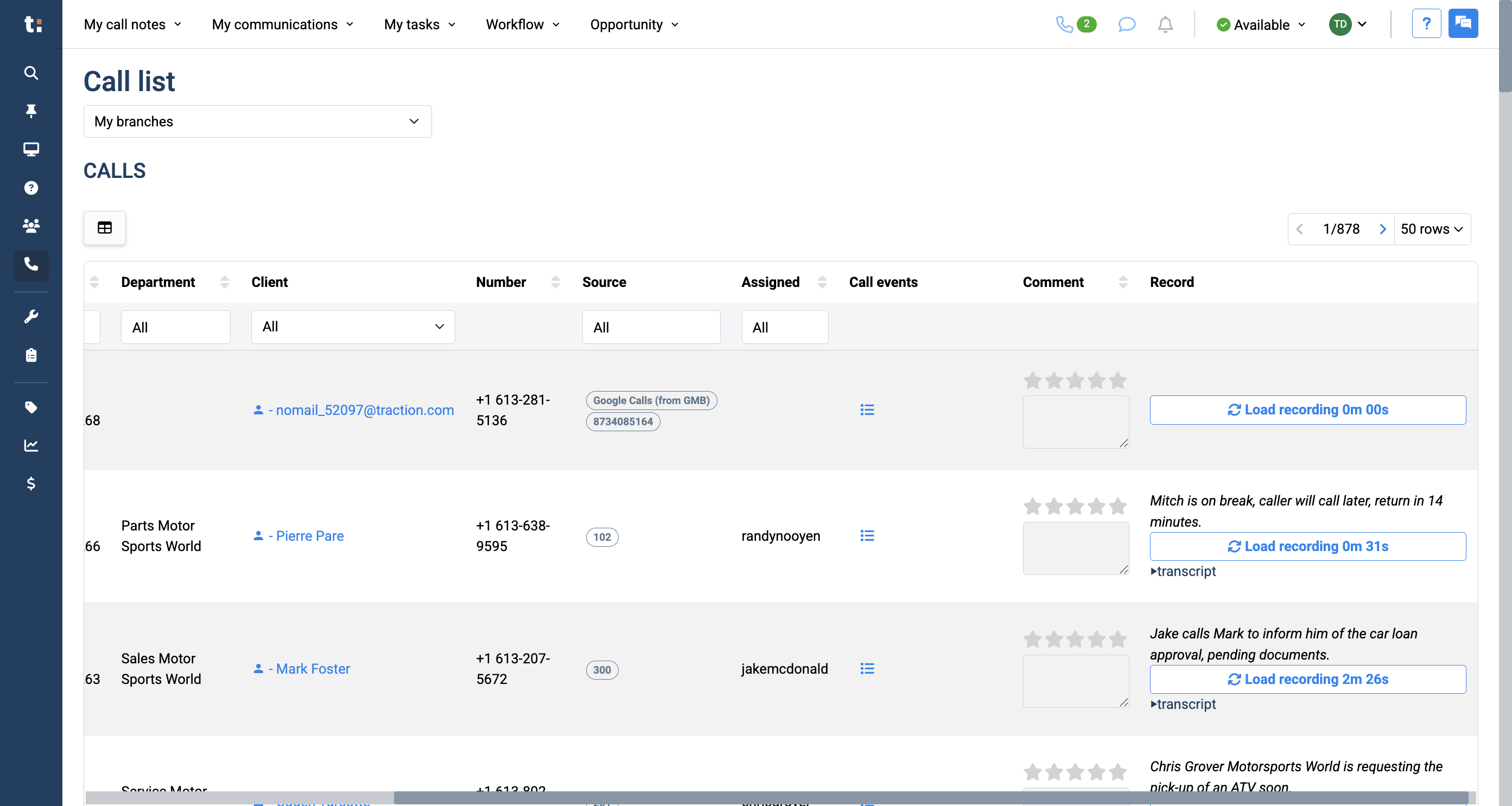
We have the customer's phone number, the source of the call, and the recipient of the call.
14
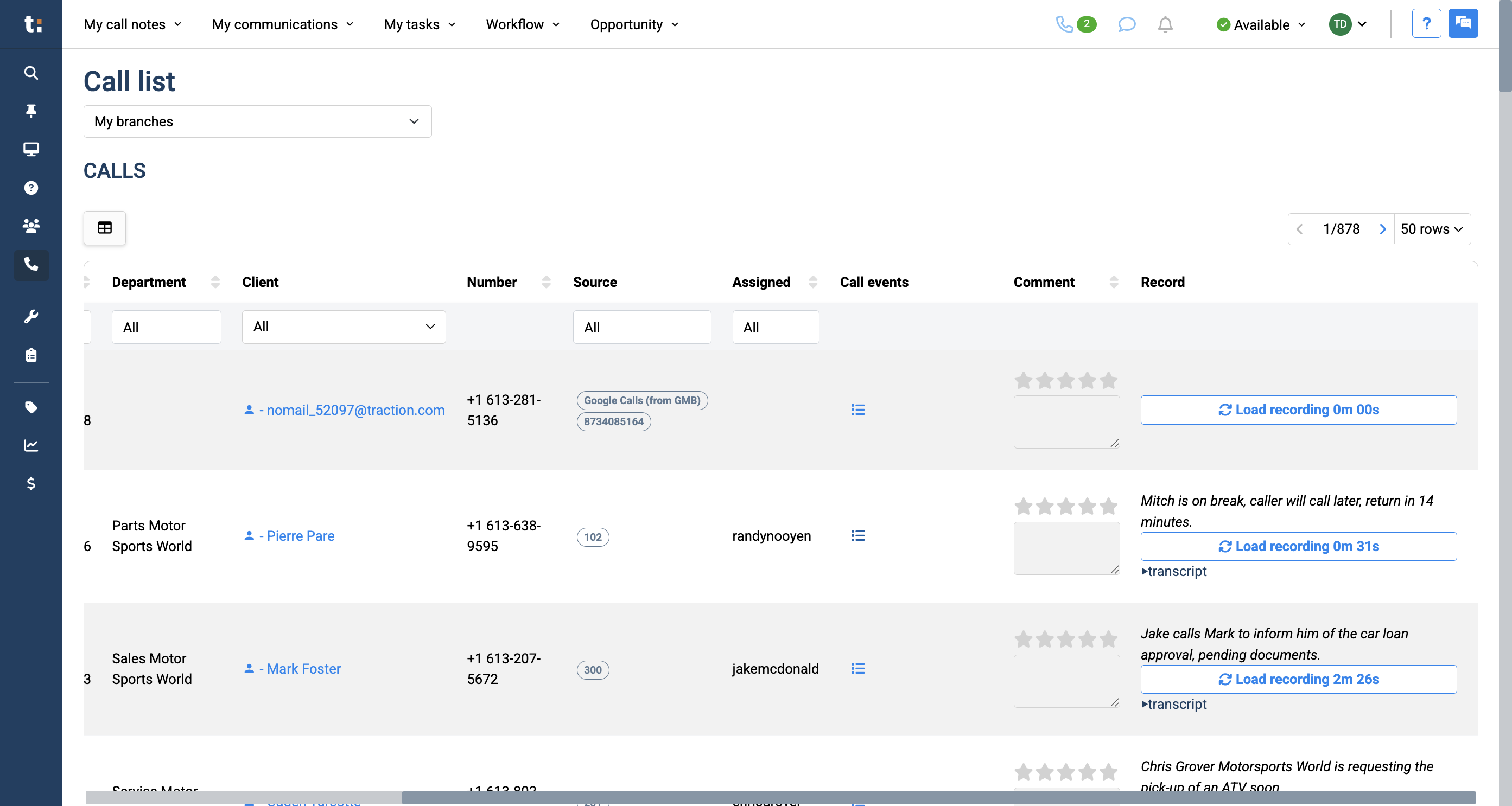
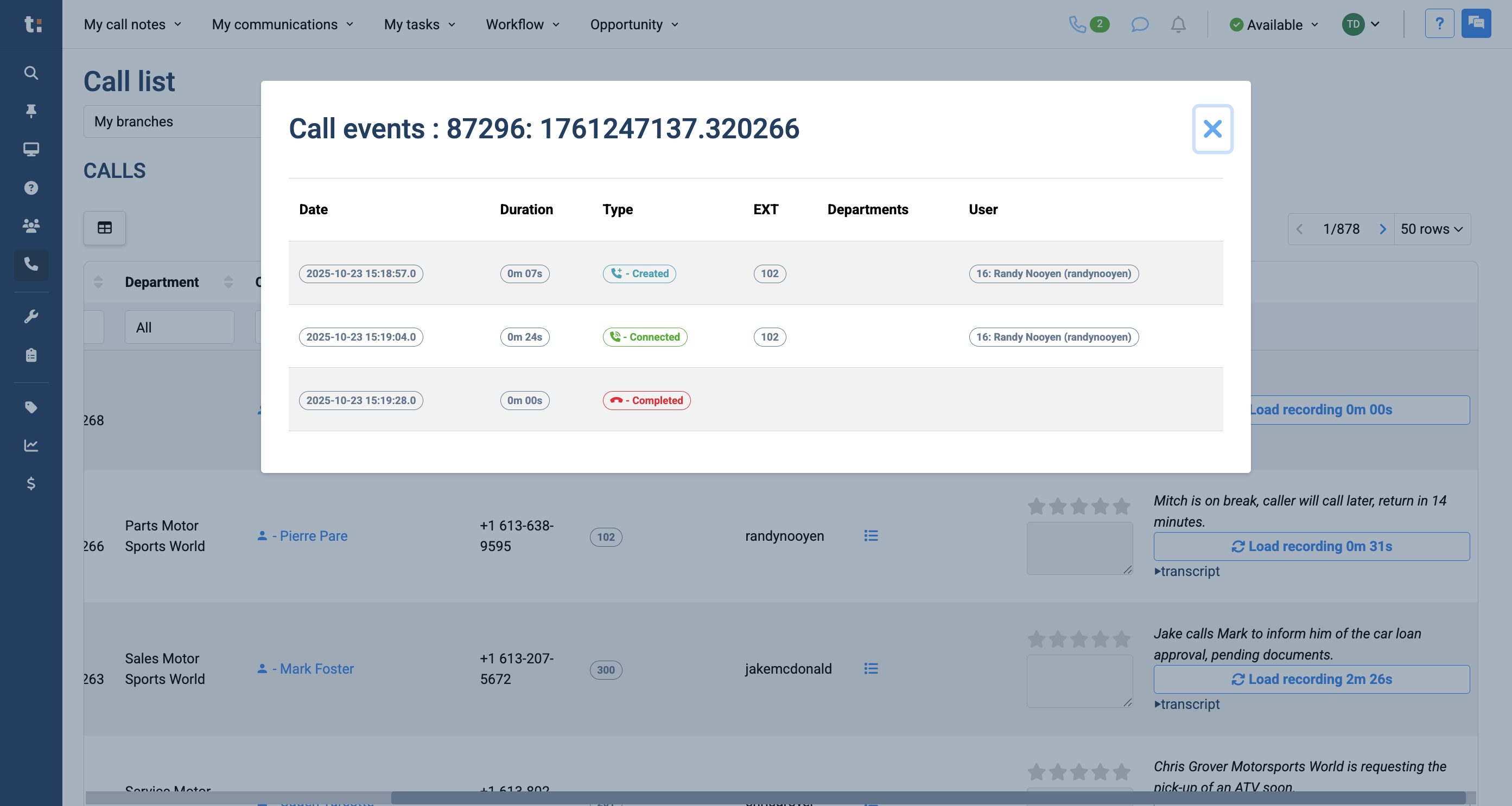
Click the blue button with three lines to view the full list of call events.
15
This provides information about the phone call, including whether it was connected, if it was transferred, and to whom it was transferred. You will also see when the phone call has been completed.
16
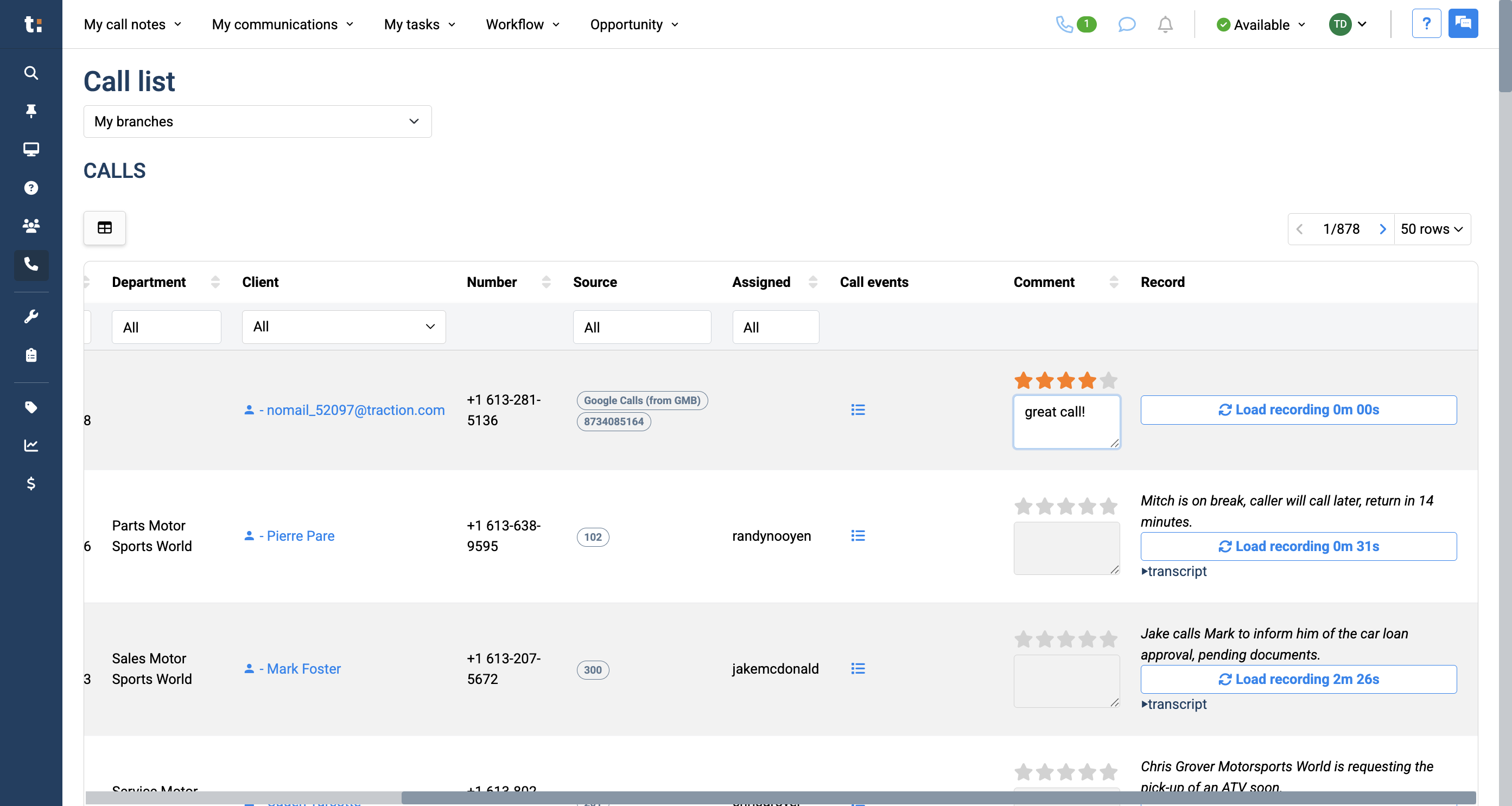
In the comments section, directors can rate the phone call after reviewing it. Once they have rated it, they can write a commentary.
17
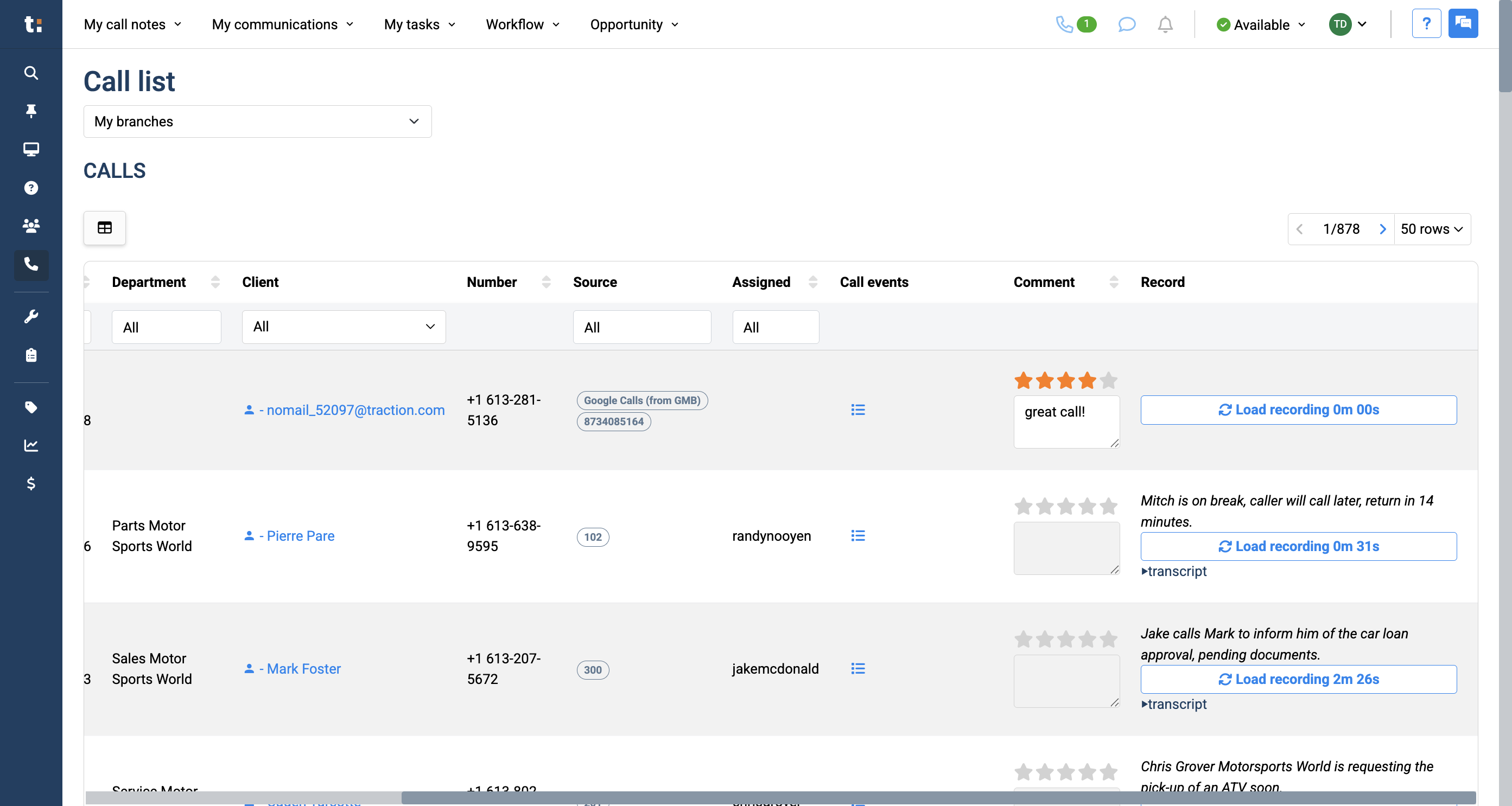
Lastly, in the record column, you'll find a summary of the phone call.
18
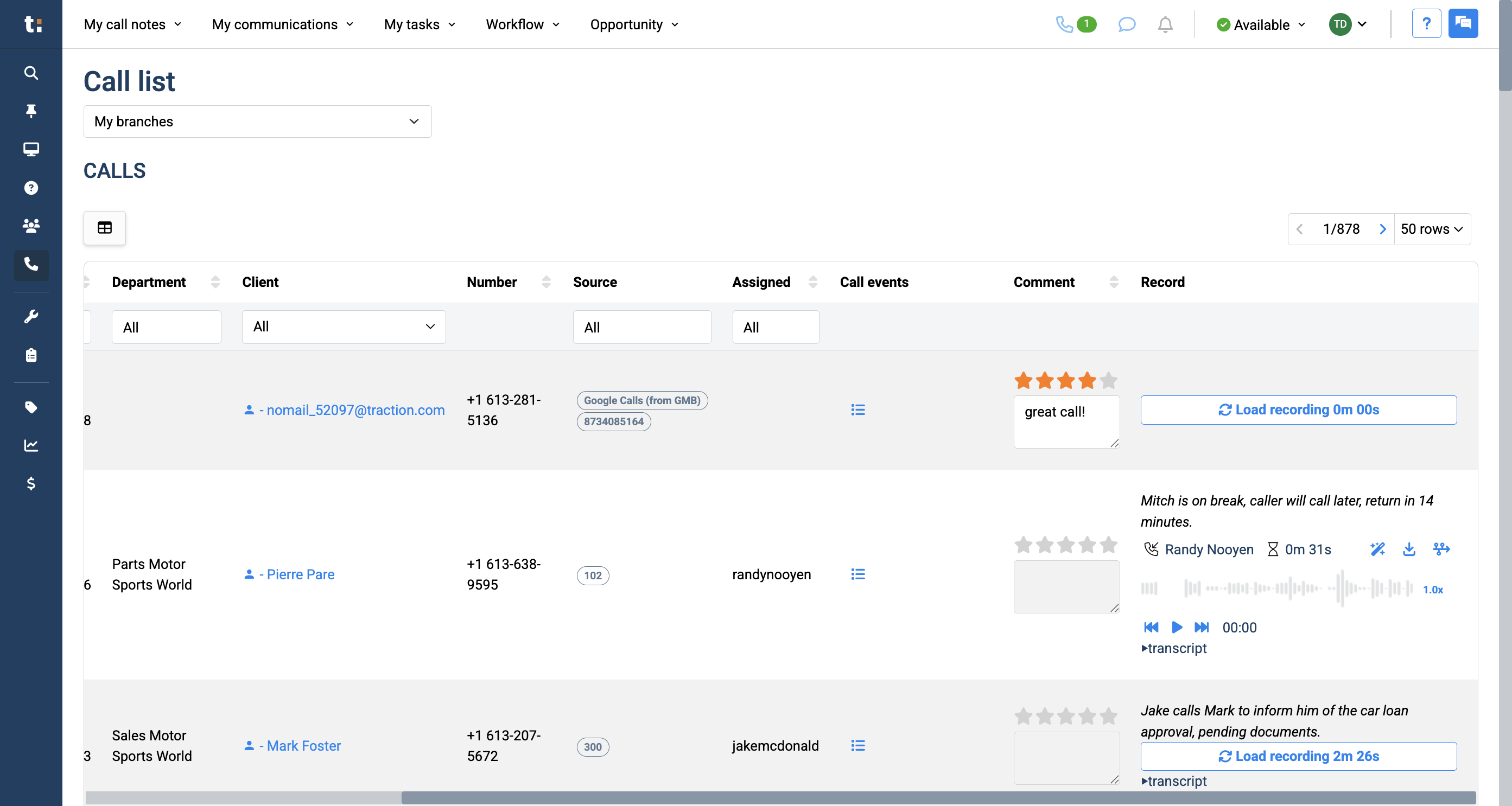
Click on the recording to load it, then press play to listen.
19
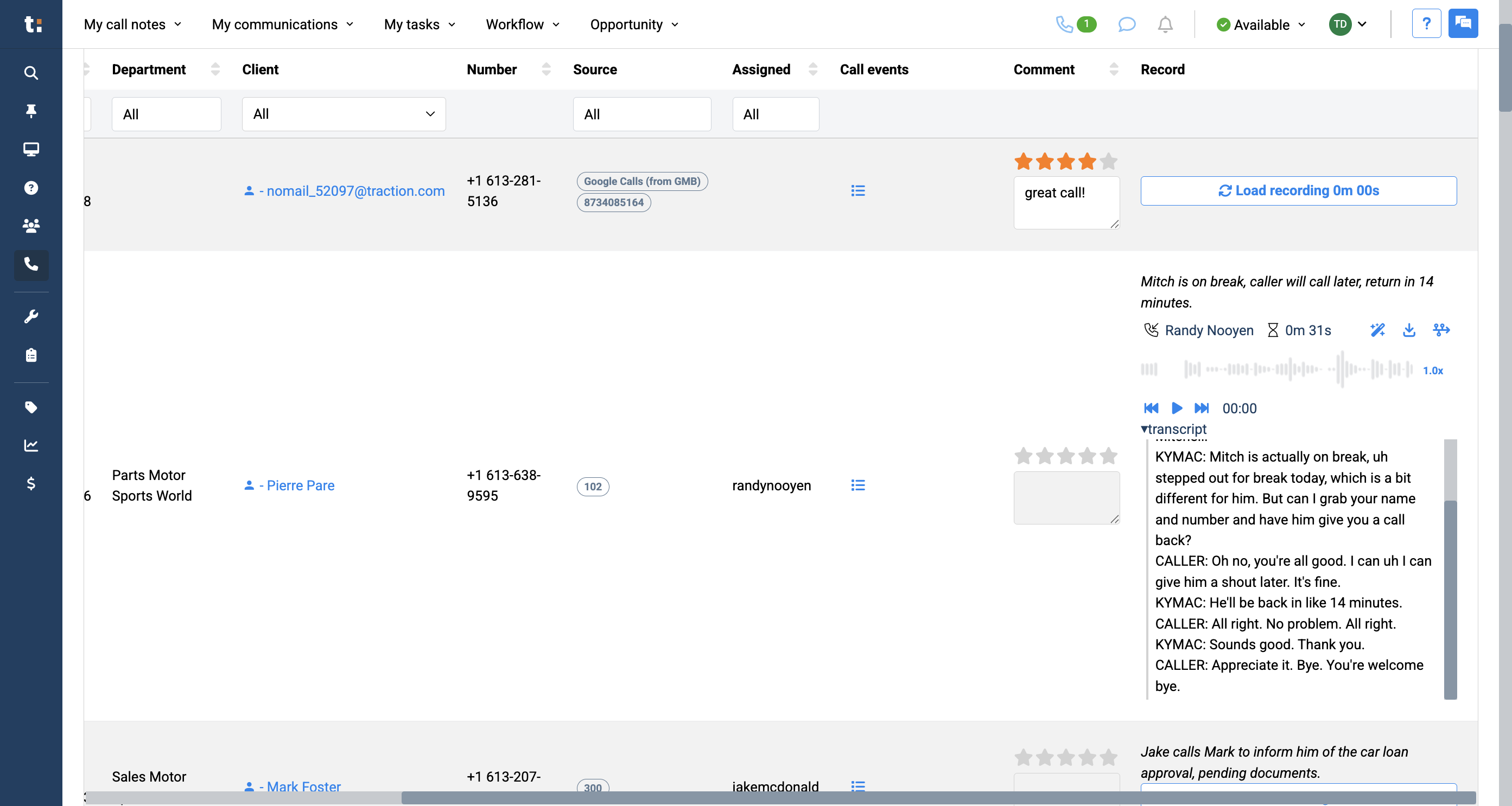
Finally, we provide the full transcirpt, so you can read it if you wish.
If you still have questions after consulting this article, please feel free to contact our support team at: support@tractiondk.zohodesk.com