
How to Use the Comments Tab in the Customer Profile
Learn how to access and use the Comments tab in the customer profile, including adding @ mentions, submitting comments, and understanding notification alerts for your dealership team.
By Dominik Black
In this guide, we'll learn how to use the comments tab within a customer profile. You will see how to view, add, and mention colleagues in comments. This helps your team share information and keep everyone updated.
Let's get started
1
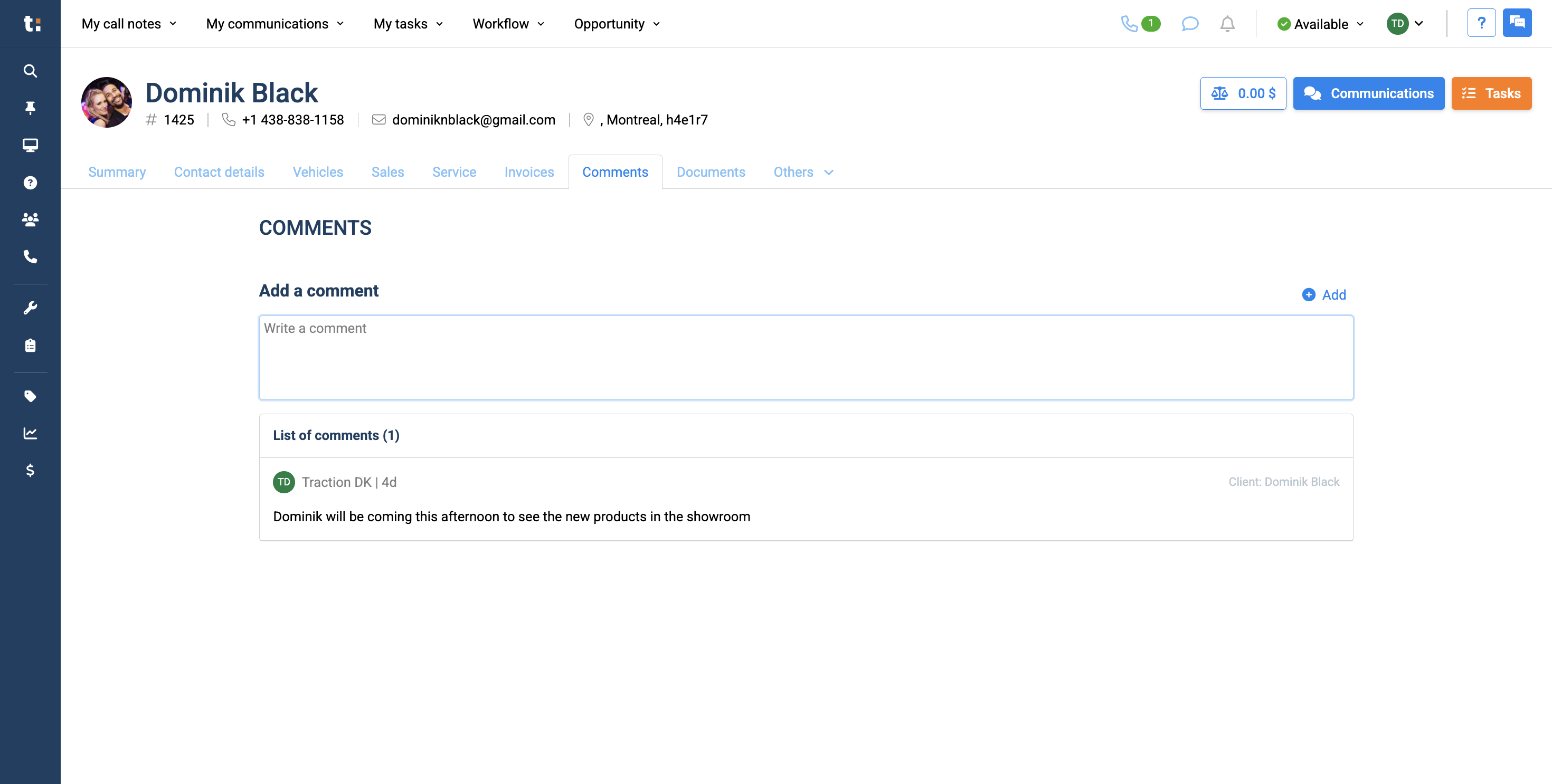
This article covers the comments tab in the customer profile. To access this tab, click Comments.
2
All comments from colleagues will be displayed. These comments cannot be deleted or modified.
3
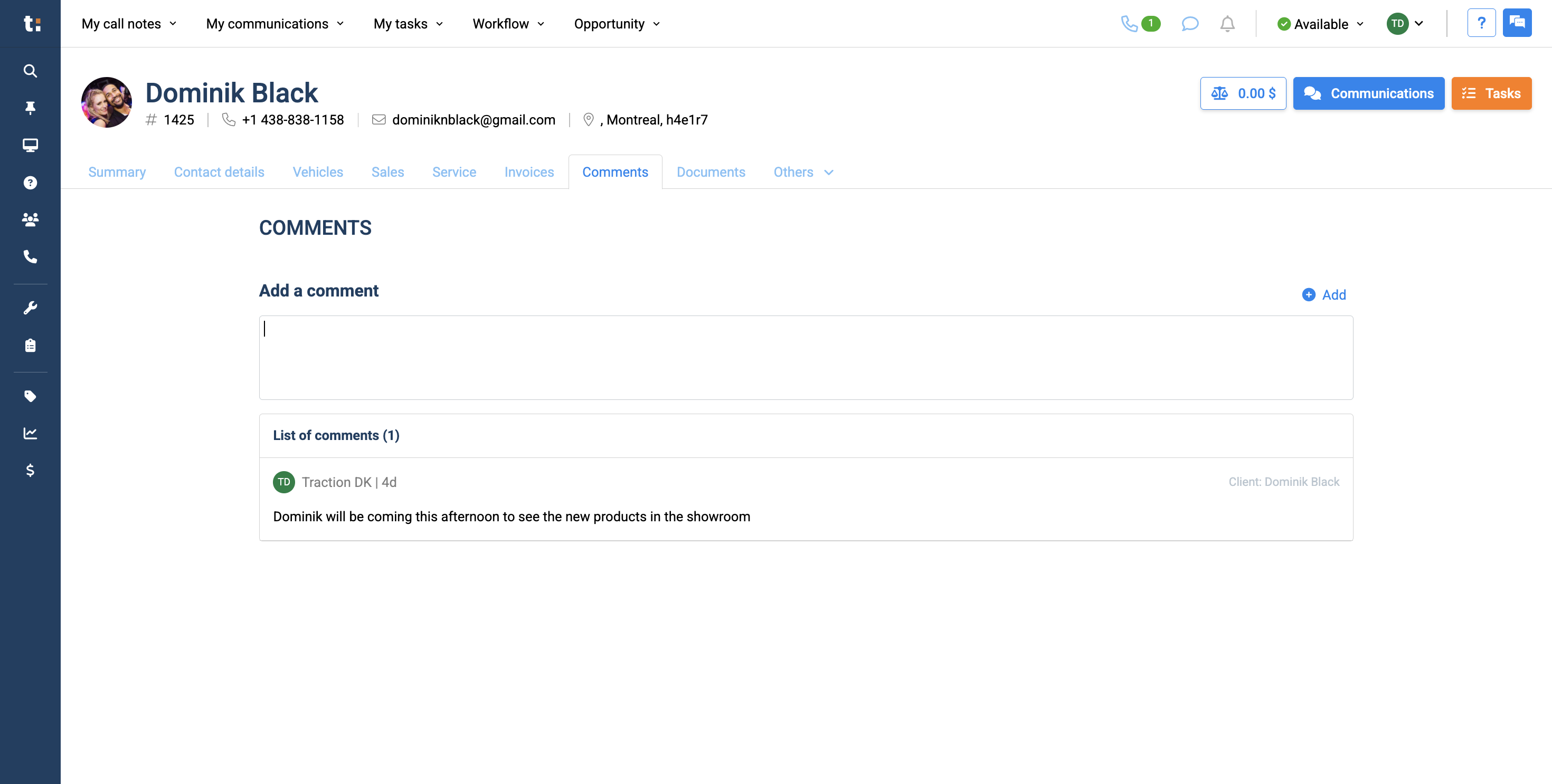
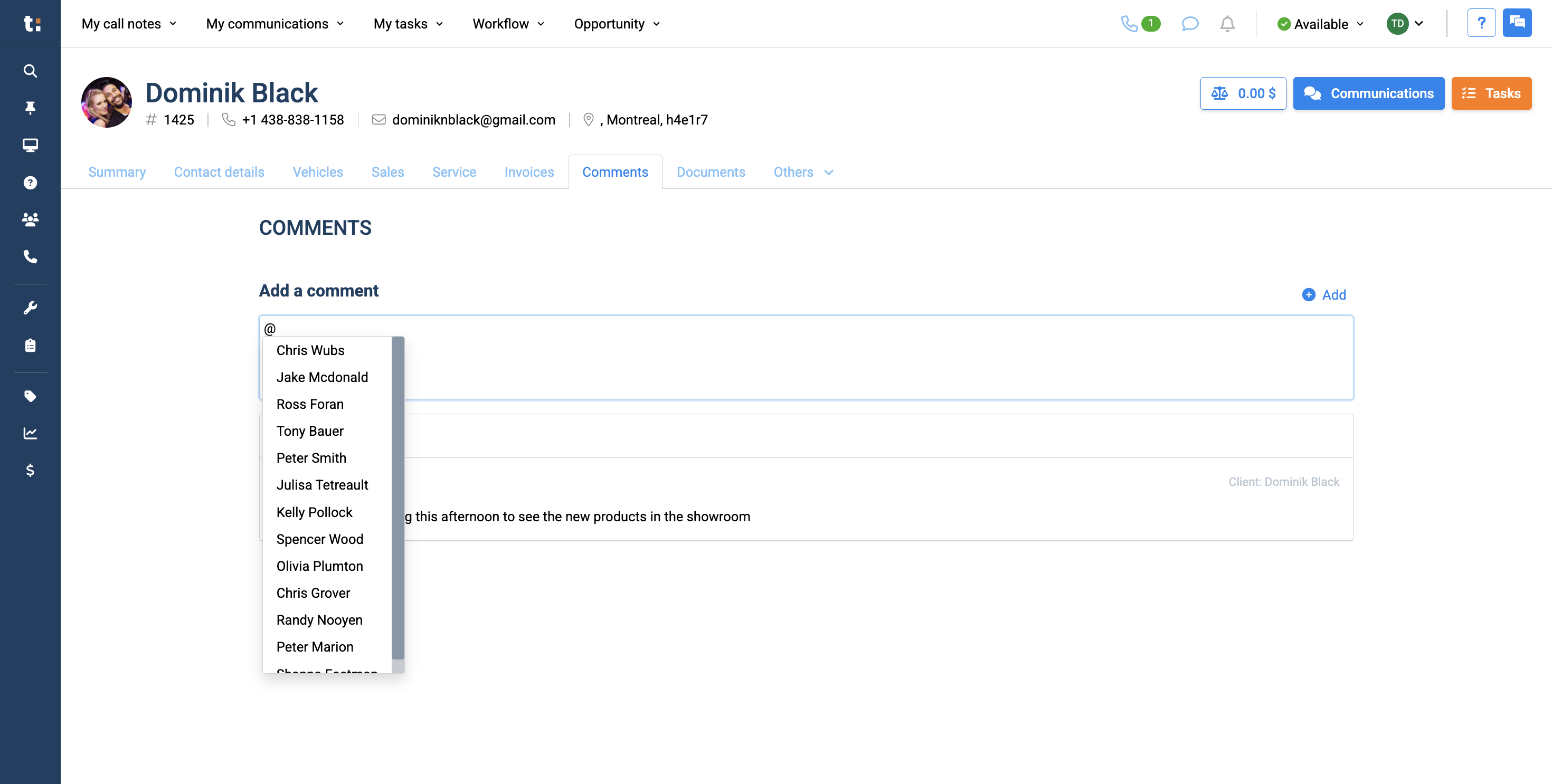
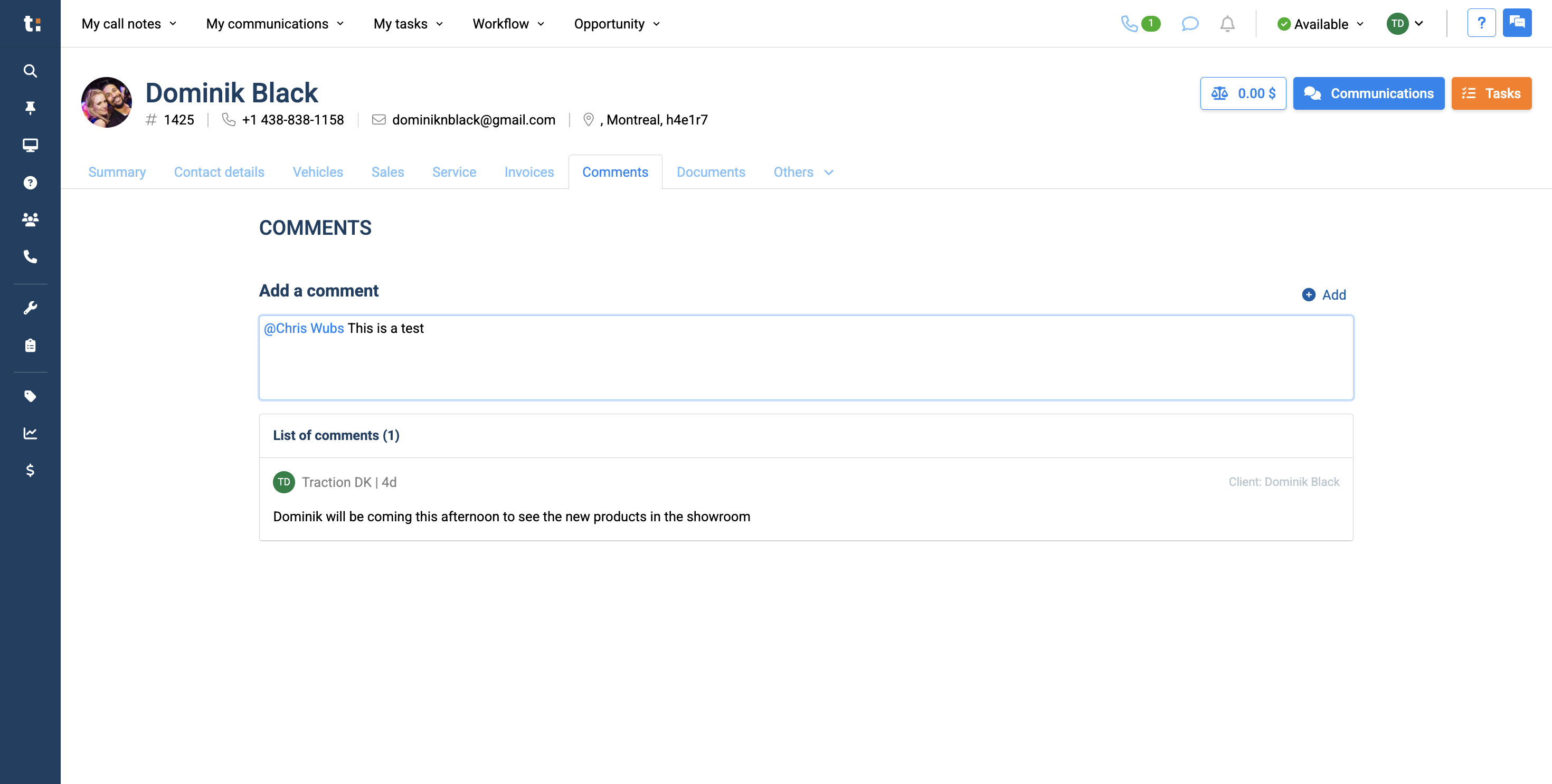
You can add an @ mention for any user in your dealership to the comment...
4
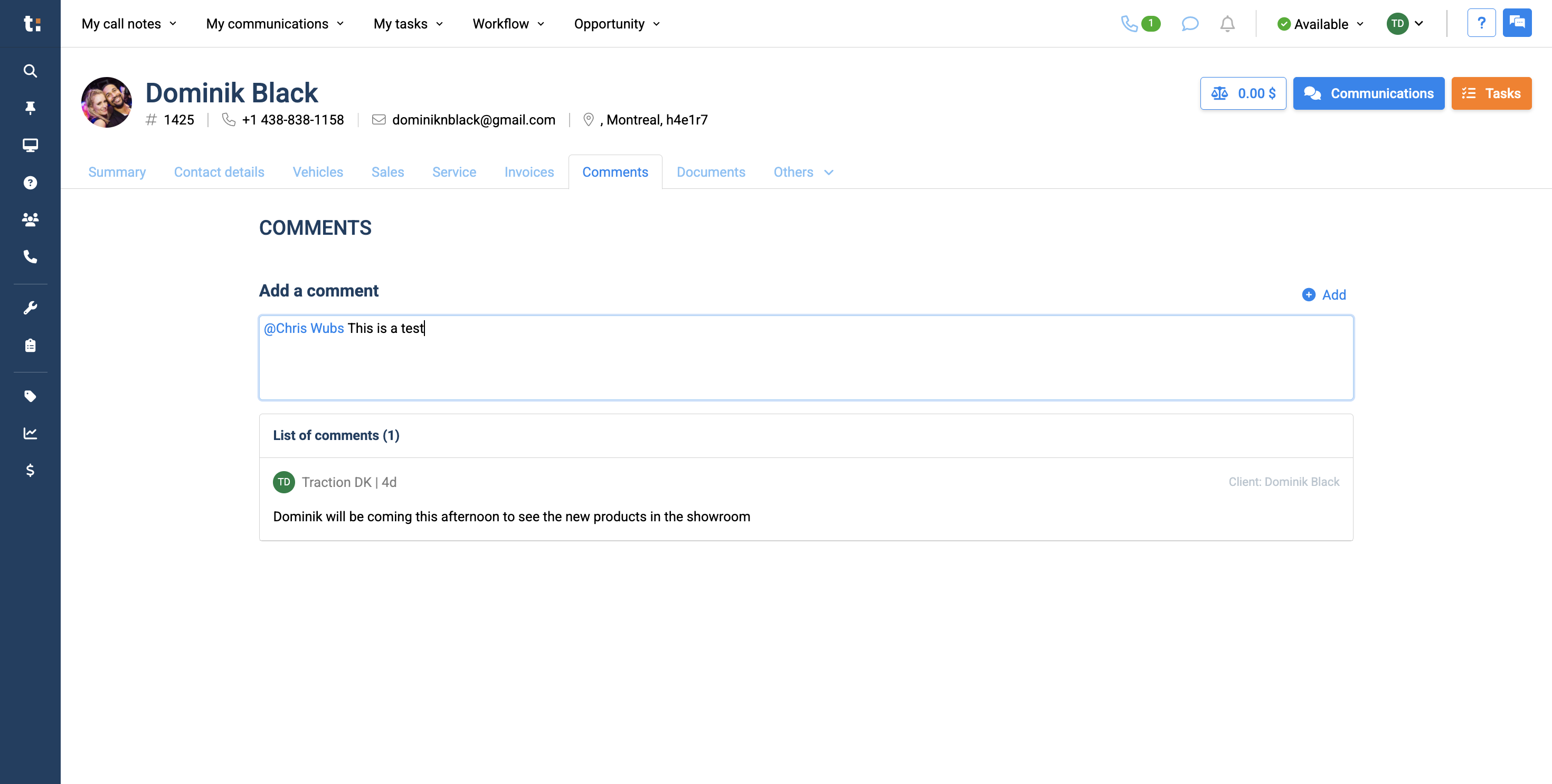
...and write your message.
5
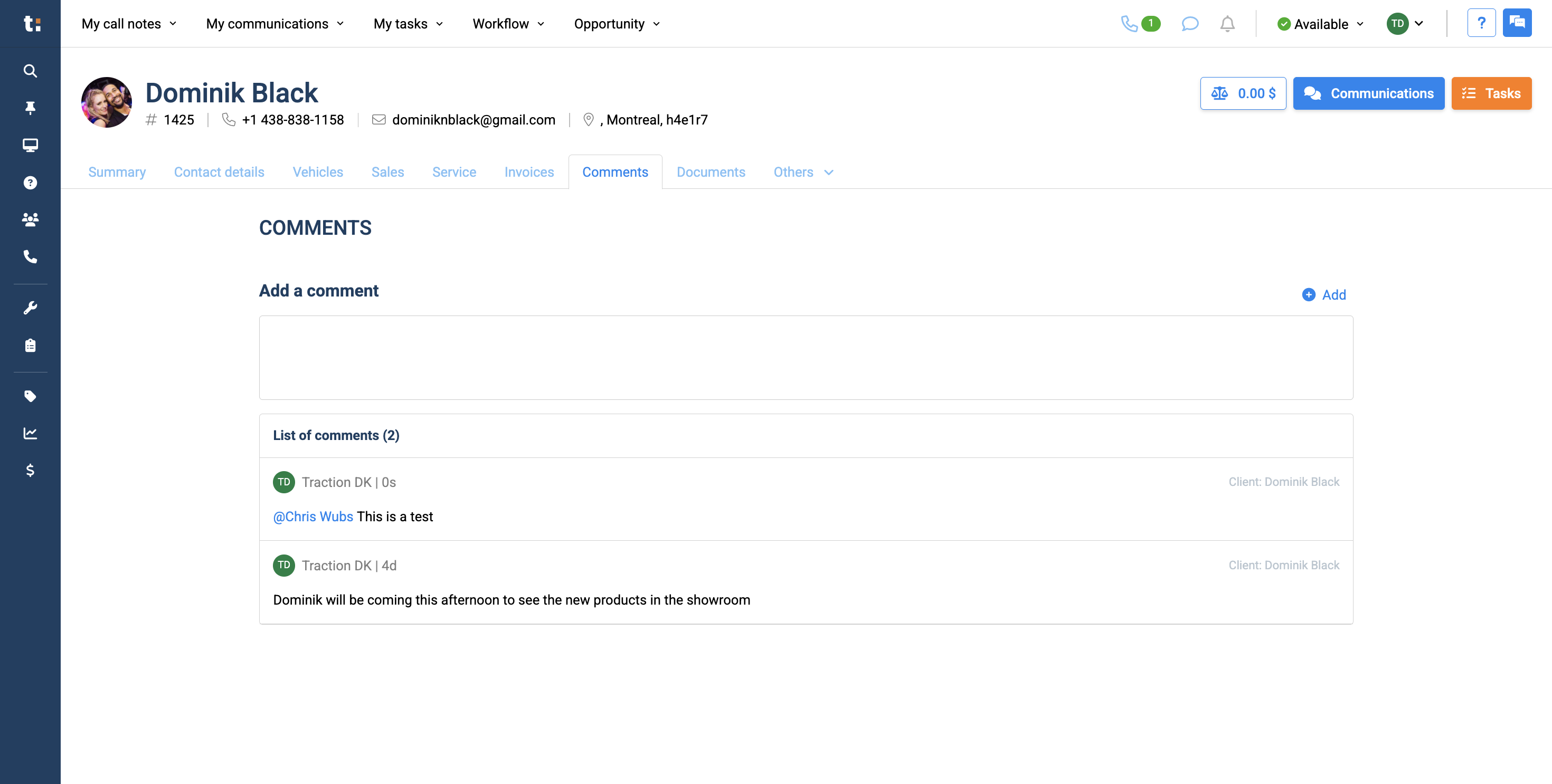
Once this is done, click the Add button to submit your comment.
The user you mentioned in your comment will receive a notification at the top of their notifications, indicated by the bell icon.
6
Click here
If you still have questions after consulting this article, please feel free to contact our support team at: support@tractiondk.zohodesk.com