How to Use the Communications List in Traction

Learn how to access, filter, and manage your dealership's communications in Traction. This guide covers viewing, filtering, and organizing messages for better workflow.

By Dominik Black

In this guide, we'll learn how to navigate and use the communications list in Traction. This includes finding the list, applying filters to view specific messages, and managing message status.

You will also see how to select multiple messages and perform actions like marking them as read or important.

Let's get started

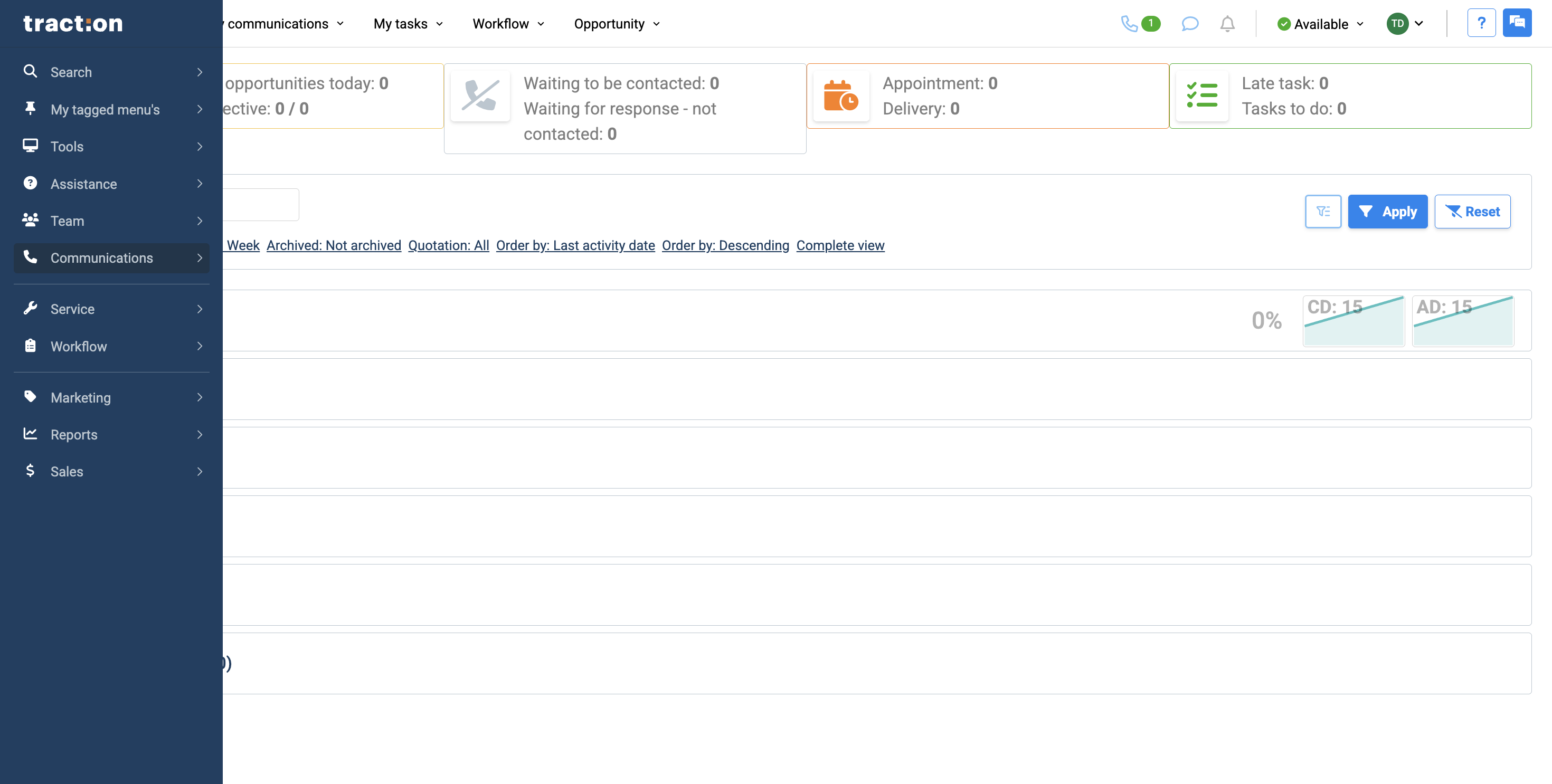
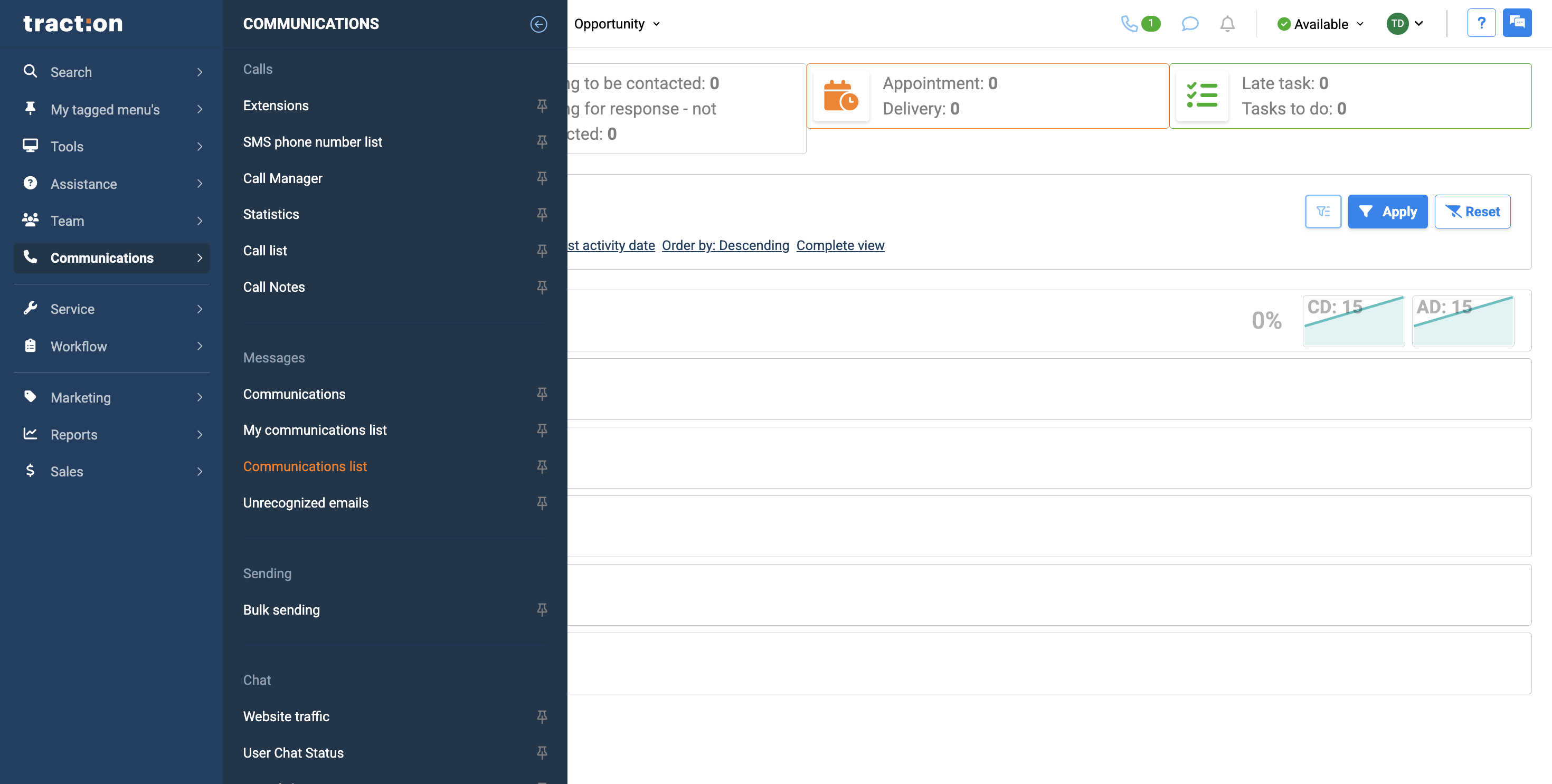
In this article, we will review the communications list in Traction. To find the communications list, open your menu. Select Communications, then click on Communications List.
1
Click Communications
Step #1: Click Communications
2
Click Communications list
Step #2: Click Communications list

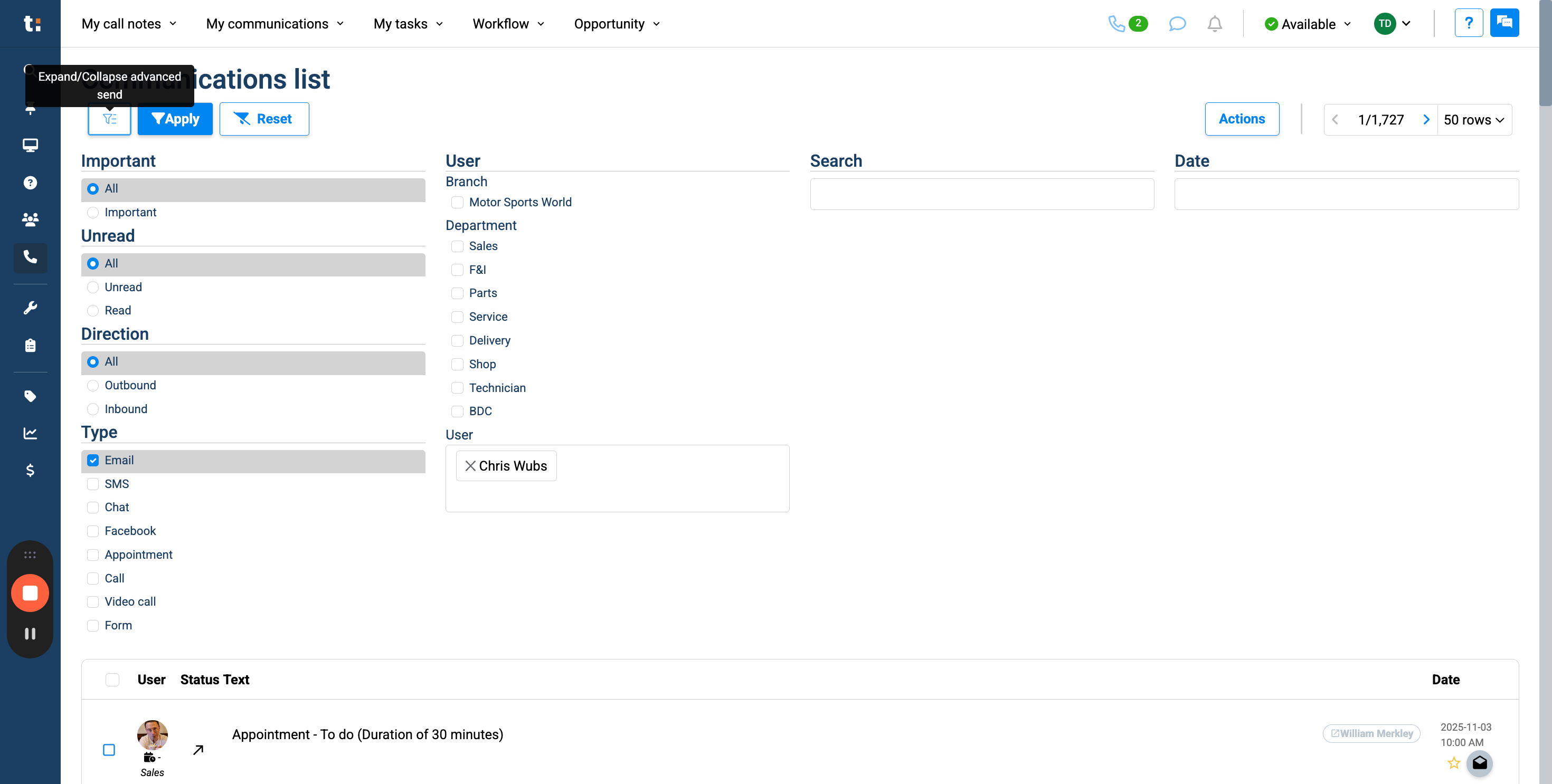
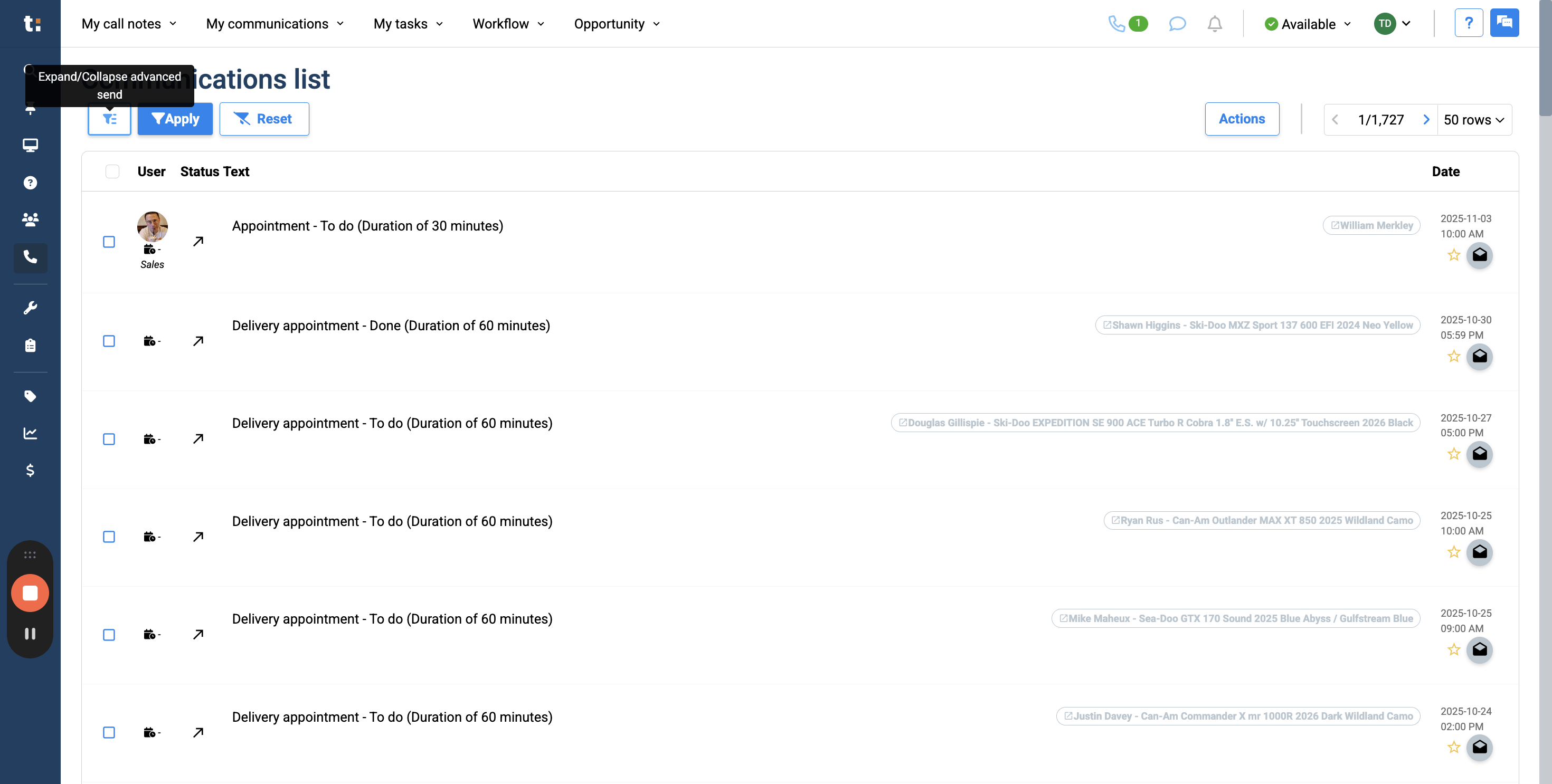
This will provide a complete list of all communications within your dealership. If you want, click this button to expand the available filters.
3
Click on "Expand / Collapse button"
Step #3: Click on "Expand / Collapse button"

4
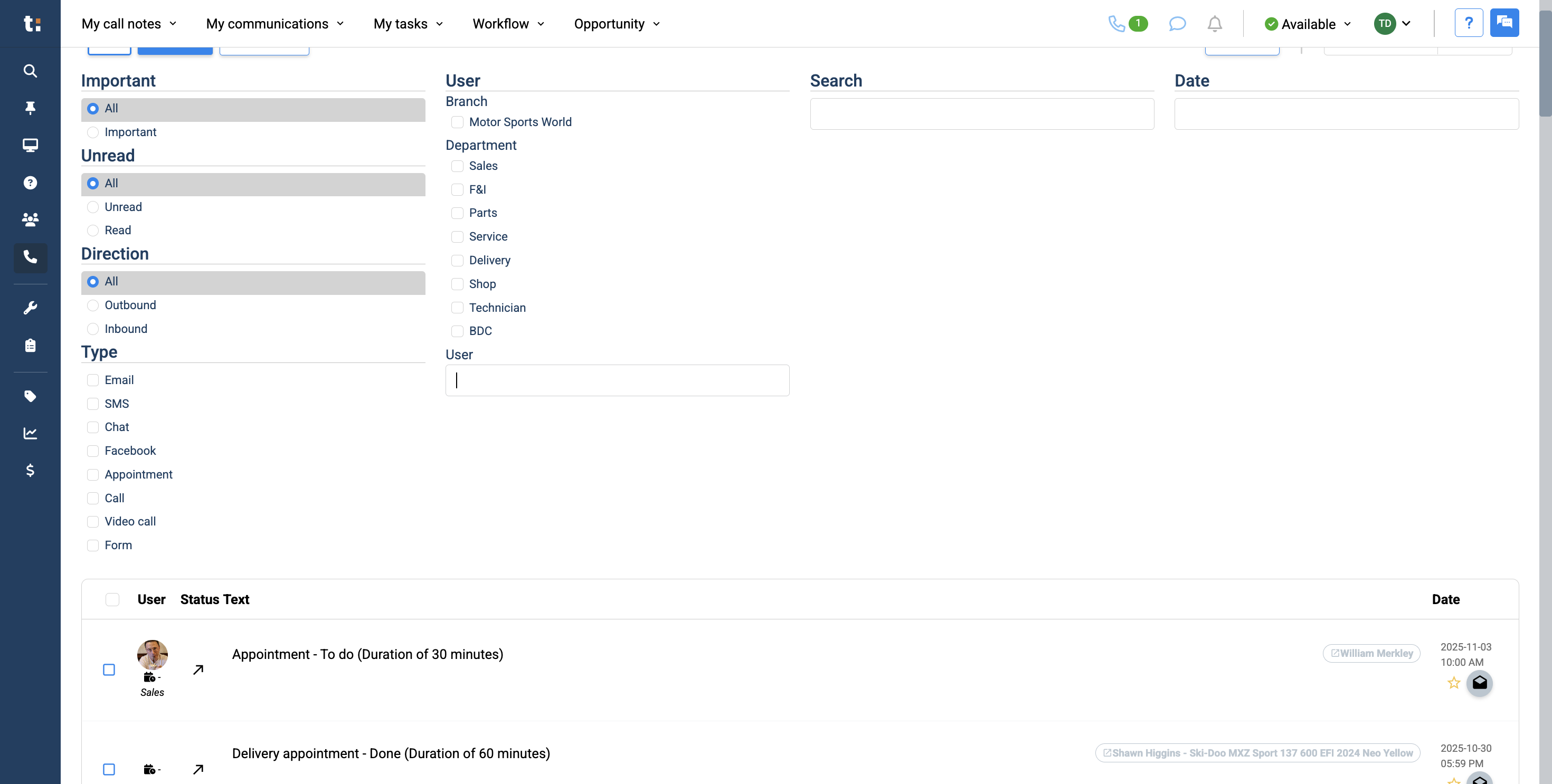
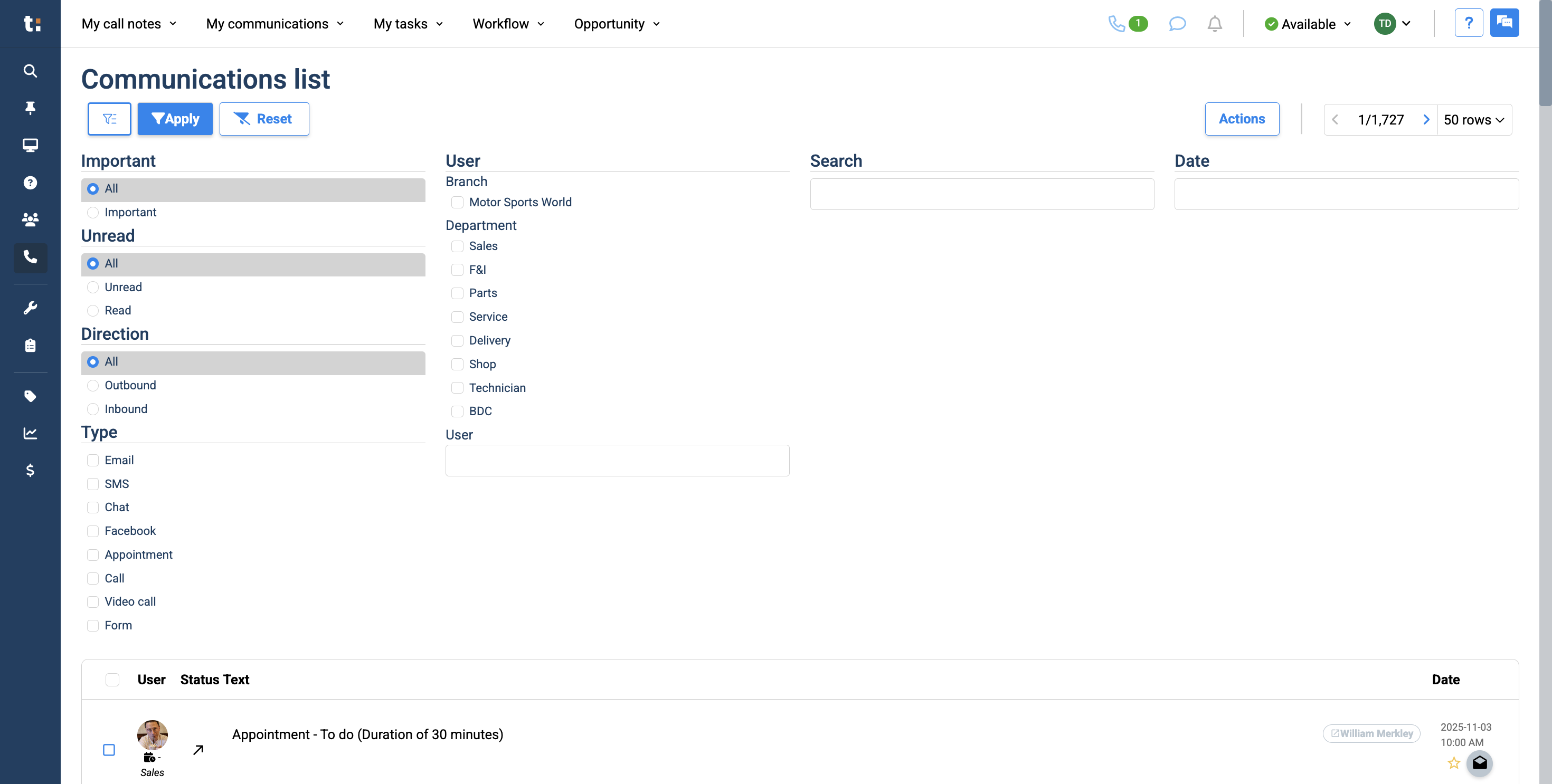
You can view messages marked as important, as well as read or unread messages. You can also see outbound or inbound messages.
Step #4: You can view messages marked as important, as well as read or unread messages. You can also see outbound or inbound messages.

5
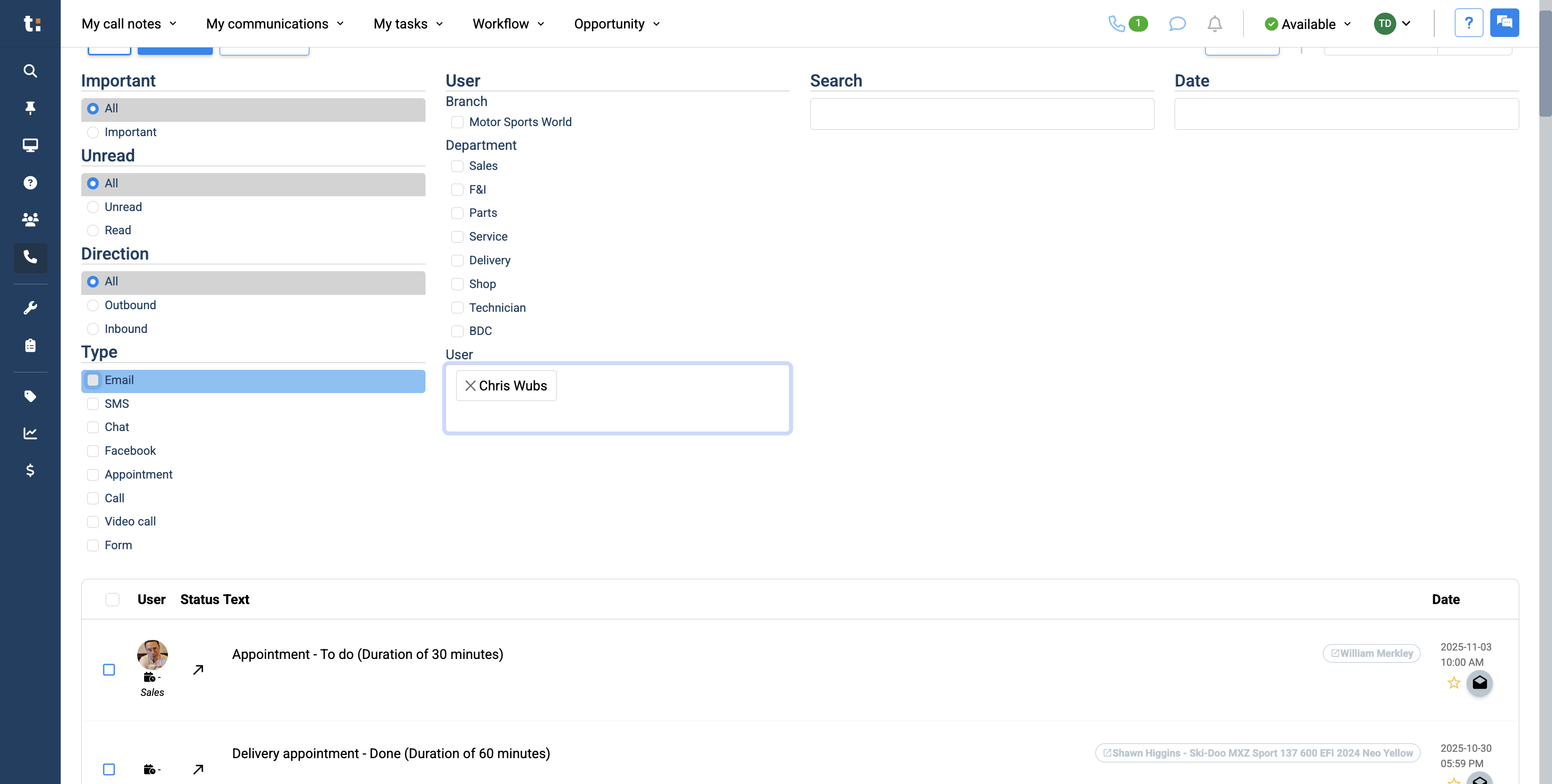
You can also select a department to view its messages, or choose a specific user.
Step #5: You can also select a department to view its messages, or choose a specific user.

6
You can also choose which type of communication you want to view. For example, you can select emails.
Step #6: You can also choose which type of communication you want to view. For example, you can select emails.

7
After applying your filters, click Apply. To reset your filters, click Reset.
Step #7: After applying your filters, click Apply. To reset your filters, click Reset.

8
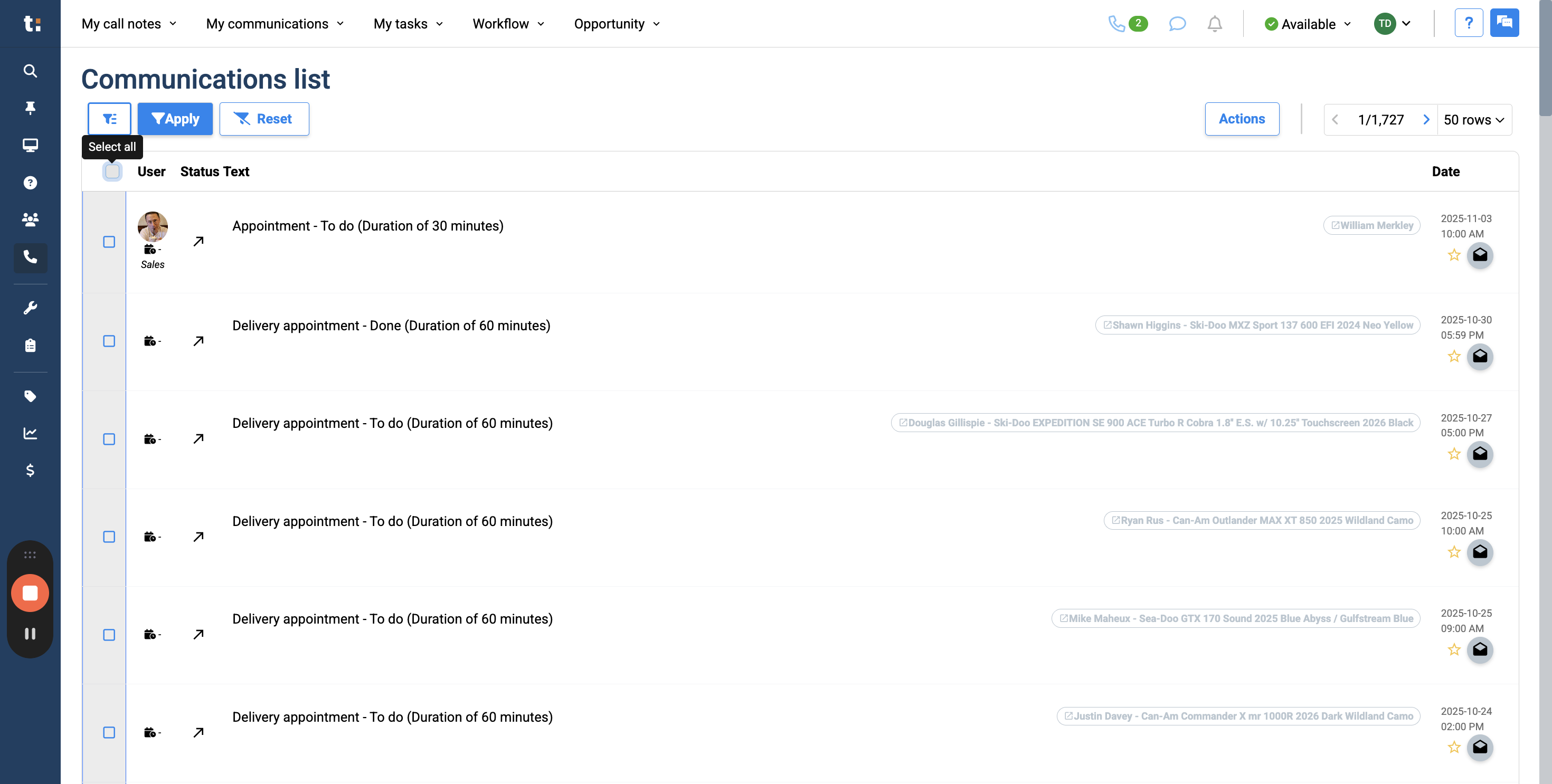
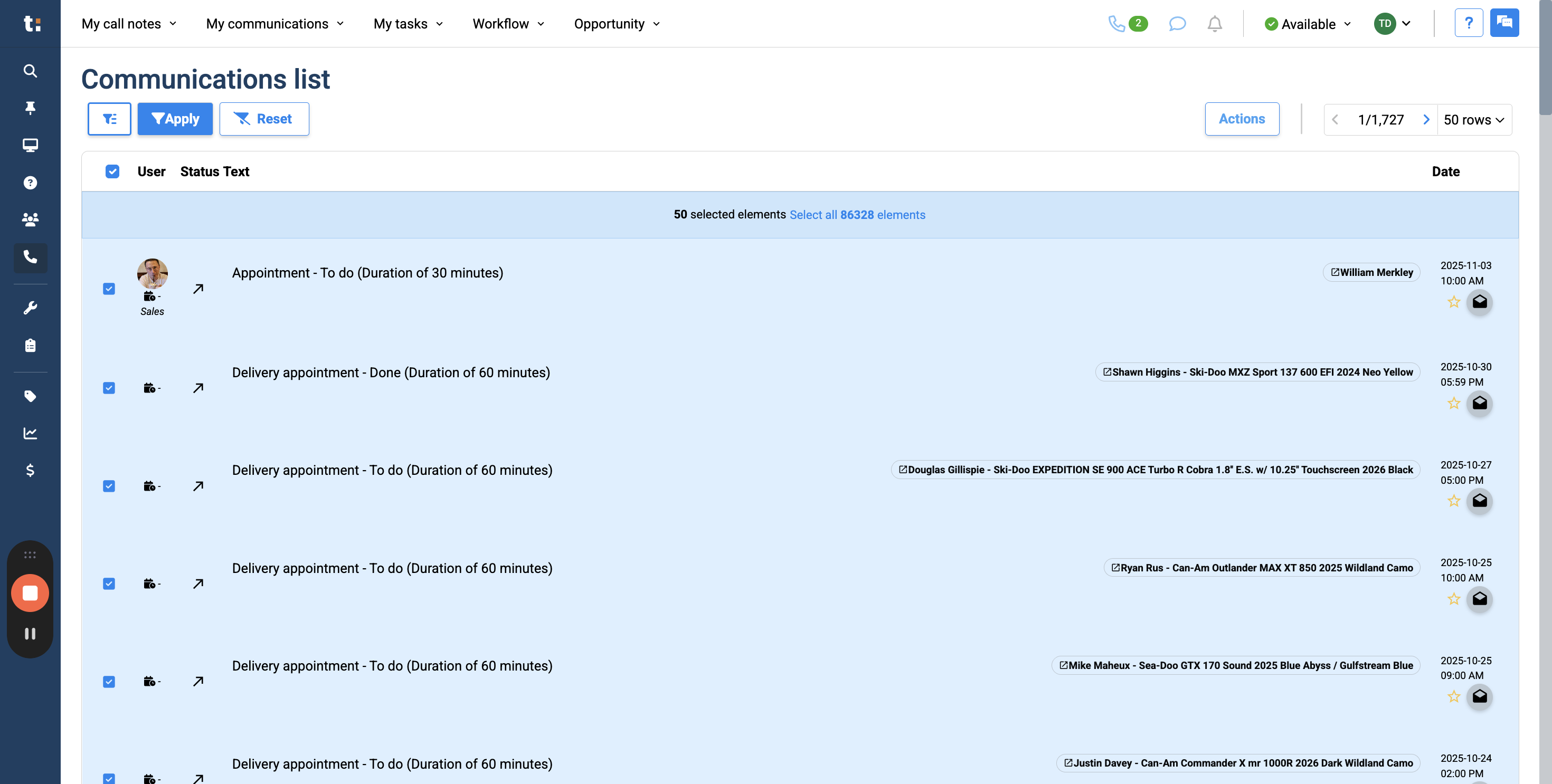
Once you've finished creating your filters, you can also select all your messages and perform actions on them.
Step #8: Once you've finished creating your filters, you can also select all your messages and perform actions on them.
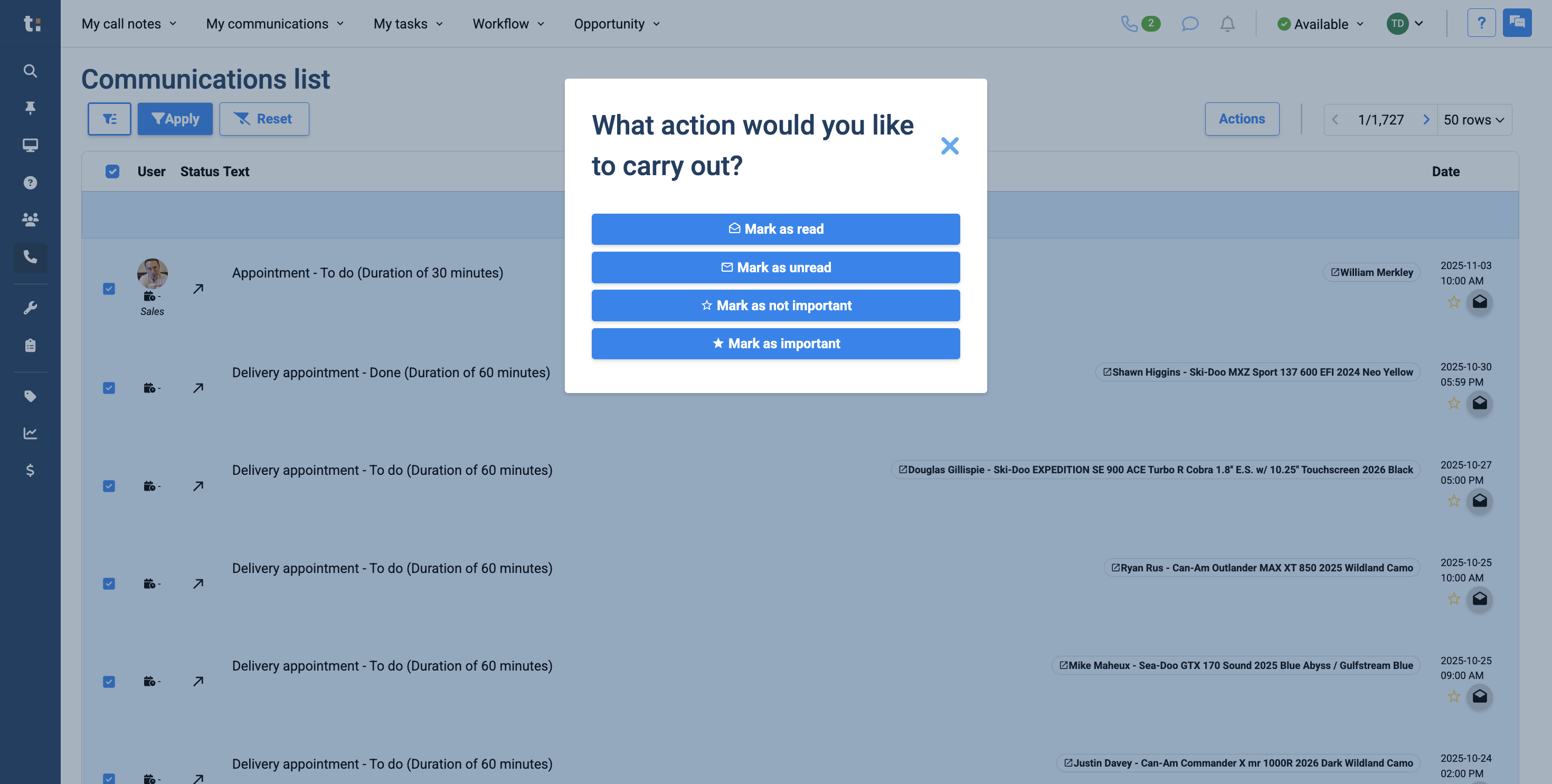
9
ClickAct
Step #9: ClickAct

10
You can mark them all as read or unread. Equally, you can mark them as important or not important.
Step #10:    You can mark them all as read or unread. Equally, you can mark them as important or not important.

If you still have questions after consulting this article, please feel free to contact our support team at: support@tractiondk.zohodesk.com

How to Use the Communications List in Traction