
How to Use the Documents Tab in the Customer Profile
Learn how to access, organize, download, and add files in the Documents tab of your customer profile. Manage attachments, PDFs, photos, and more with ease.
By Dominik Black
In this guide, we'll learn how to use the Documents tab within a customer profile. This feature helps you view, organize, and manage all files and attachments shared in your communications. You will also see how to download or add documents as needed.
Let's get started
1
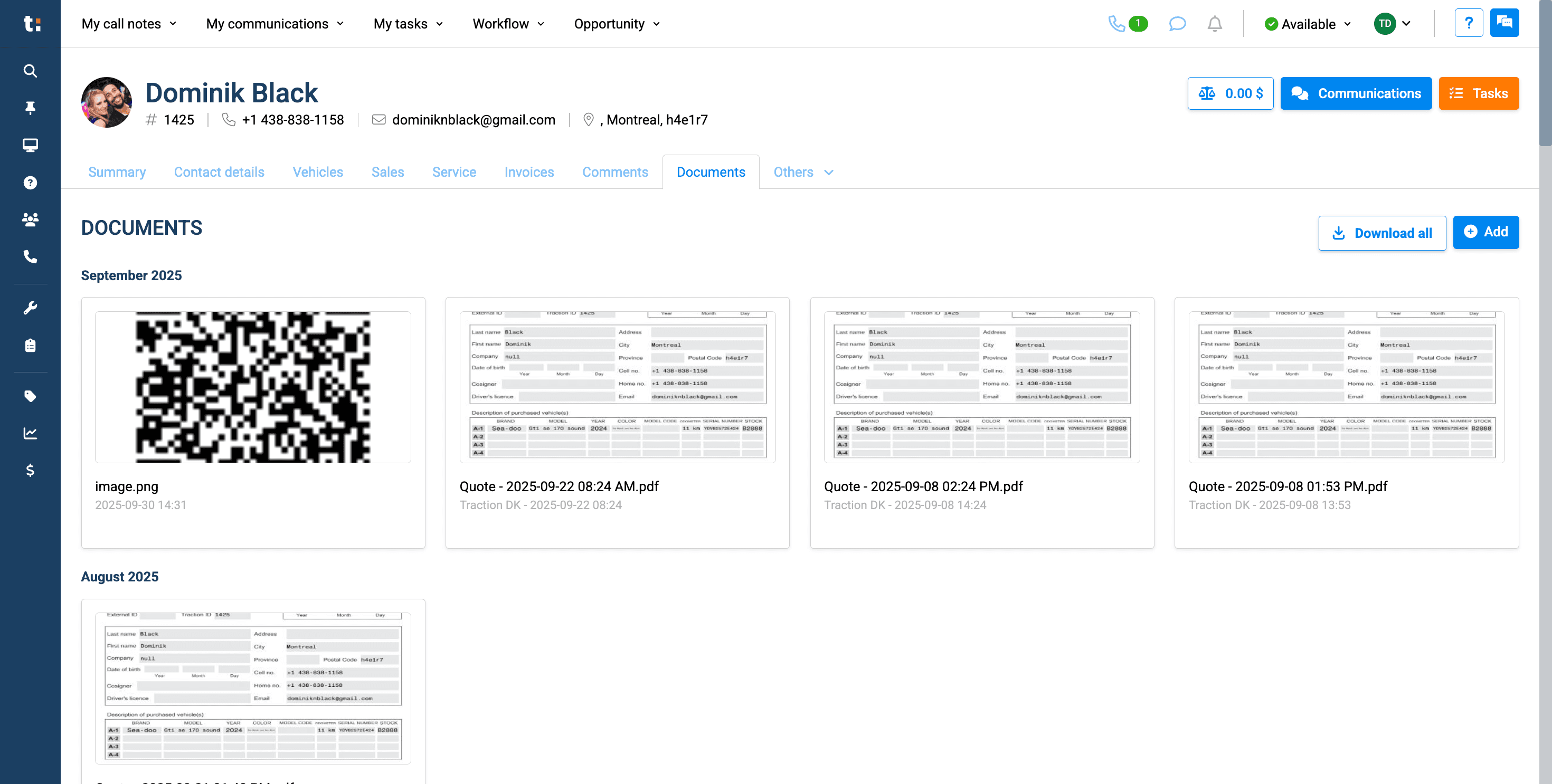
This article covers the Documents tab in the customer profile. To access this tab, click on Documents.
2
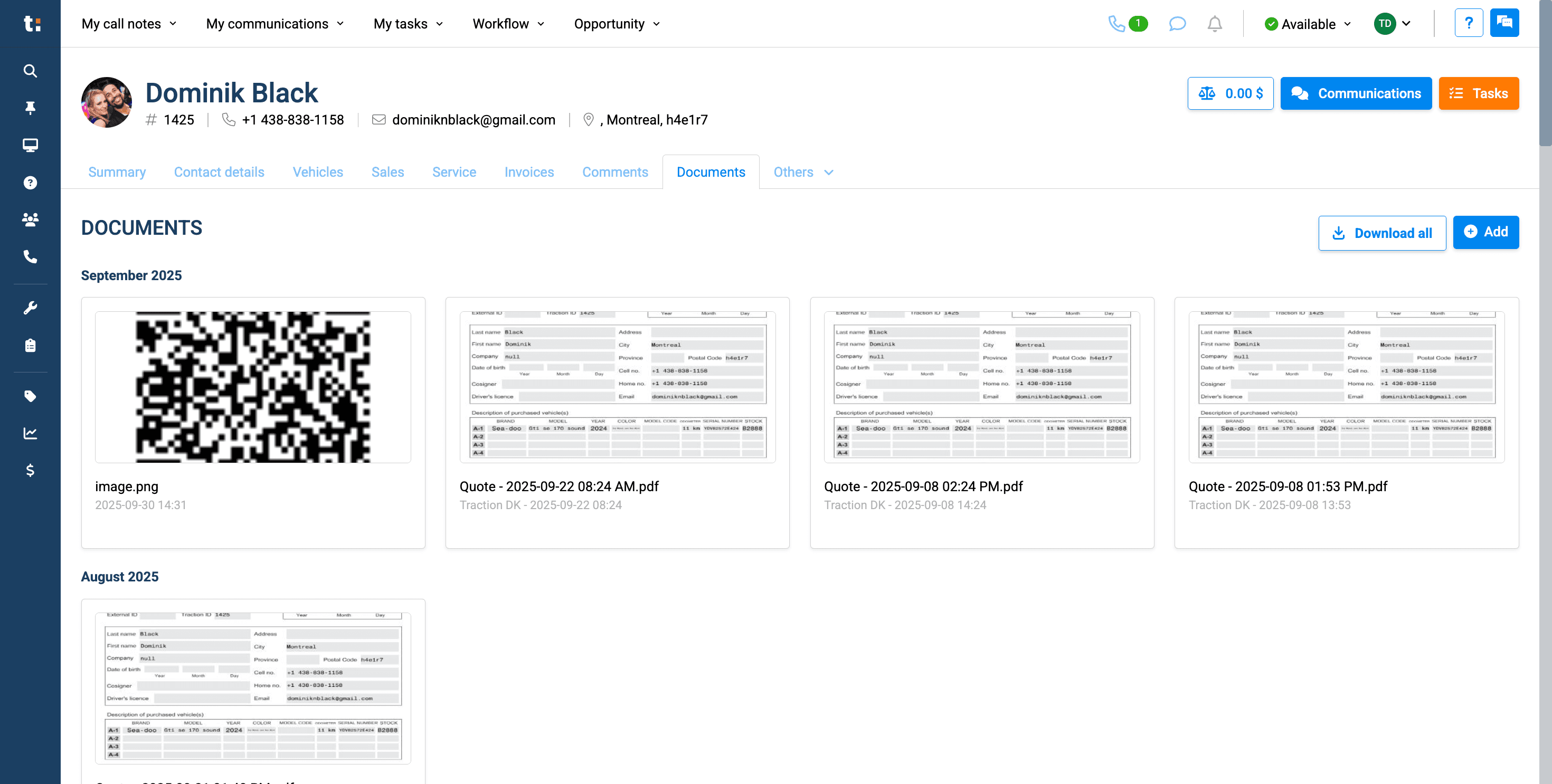
Here, we will provide a complete list of all attachments, PDF files, photos, and any other documents that have been shared in your communications with the customer. They are automatically saved in this folder within Documents. As you scroll down, you'll see they are organized by month.
3
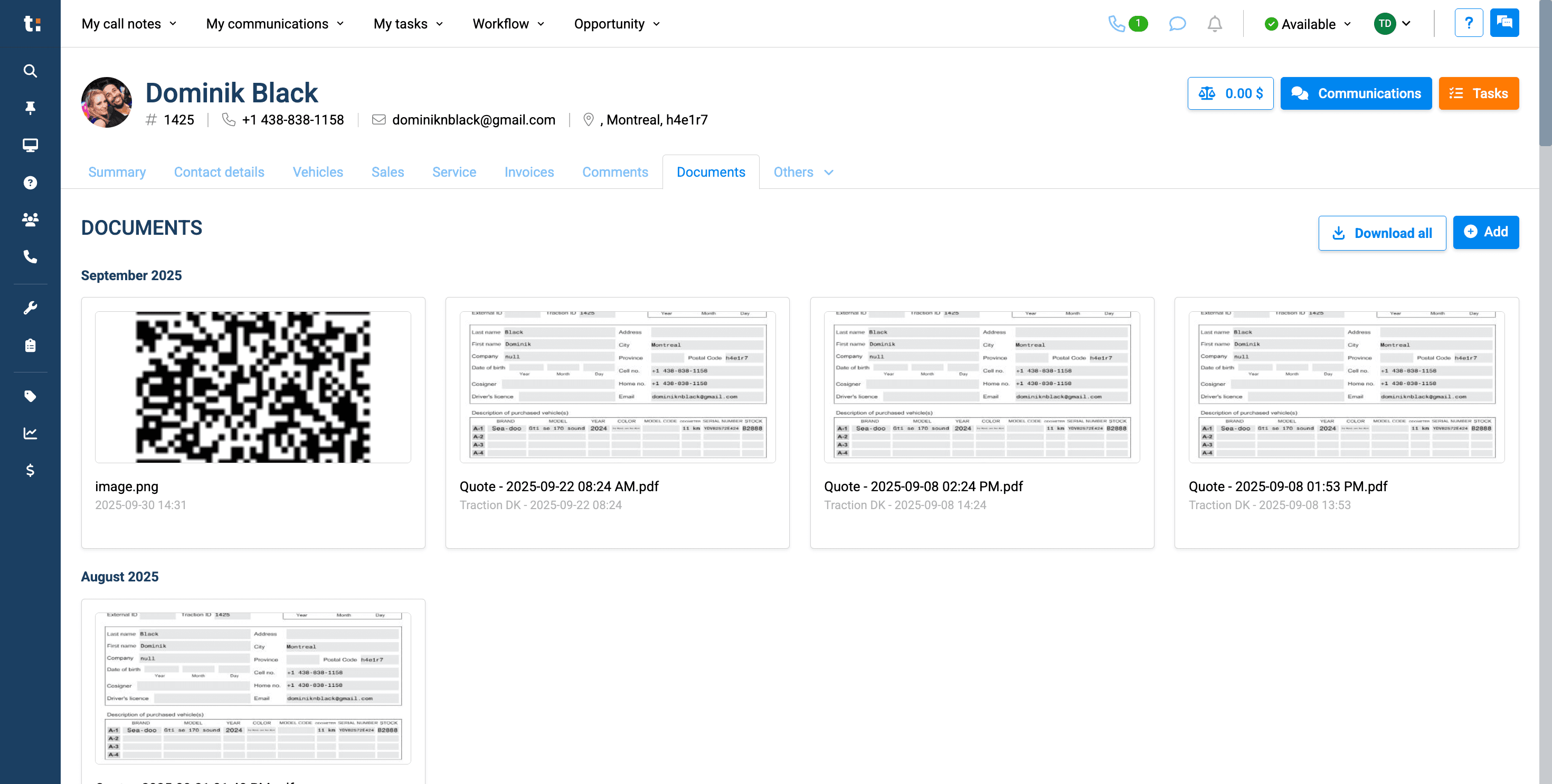
If you want, you can use the Download All button to save everything to your computer or device.
4
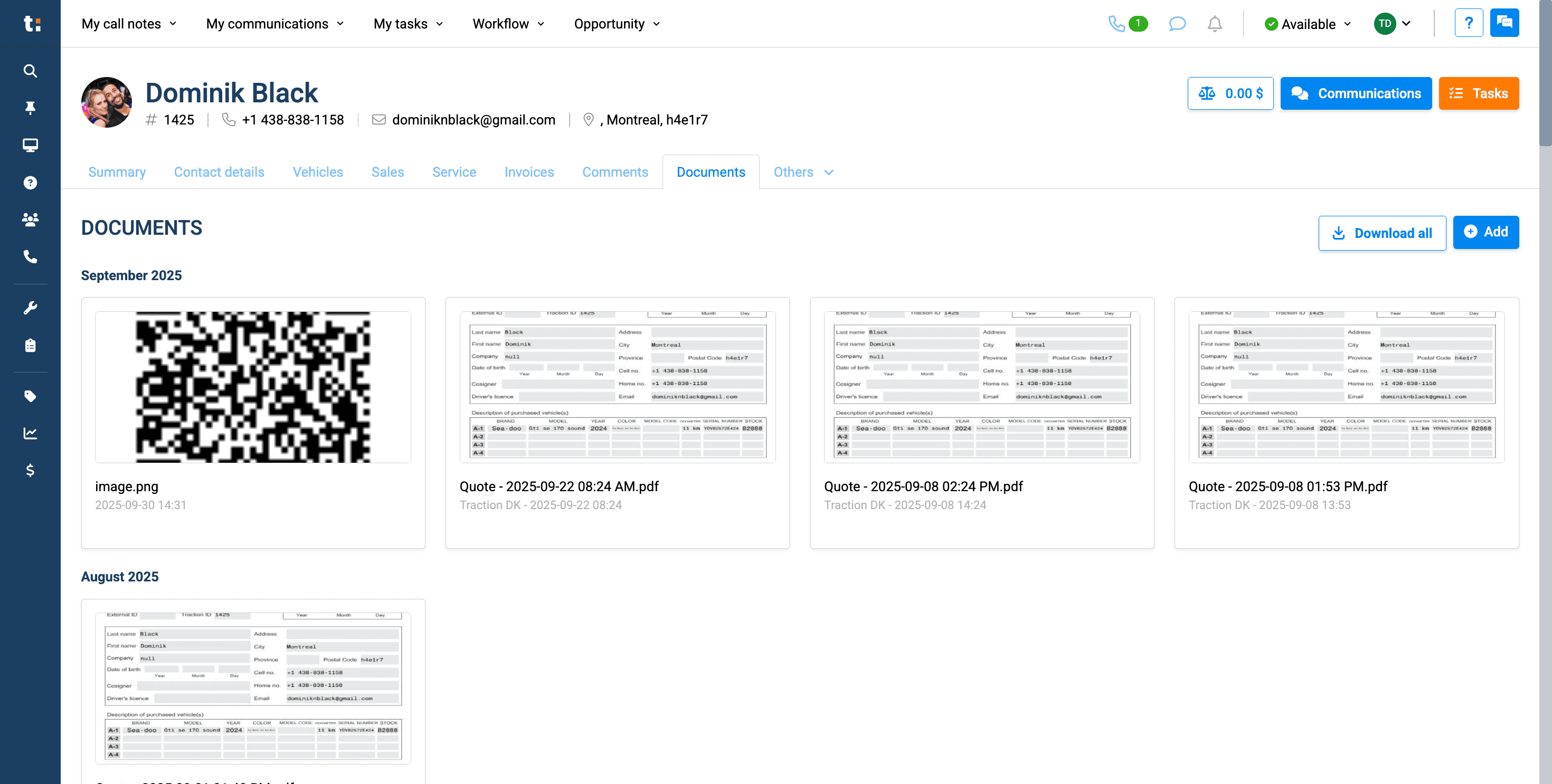
If you want to add documents, click the Add button.
If you still have questions after consulting this article, please feel free to contact our support team at: support@tractiondk.zohodesk.com