
How to Use the Editor Tool
Learn how to use the editor tool in Metabase to filter, summarize, sort, and visualize your data. This tutorial covers all the essential features, including data selection, filtering, summarizing, sorting, row limits, and viewing SQL statements.
In this guide, we'll learn how to use the editor tool in Metabase to explore and analyze your data. We'll cover how to select and filter columns, summarize information, sort results, and limit the number of rows you see. You'll also learn how to preview your data and view the SQL behind your queries.
Let's get started
In this tutorial, we'll cover everything you need to know about the editor tool in Metabase.
To find the editor tool, go to your database and open a table. For example, select "All Attributes by Building." Then, click the editor in the top right corner.
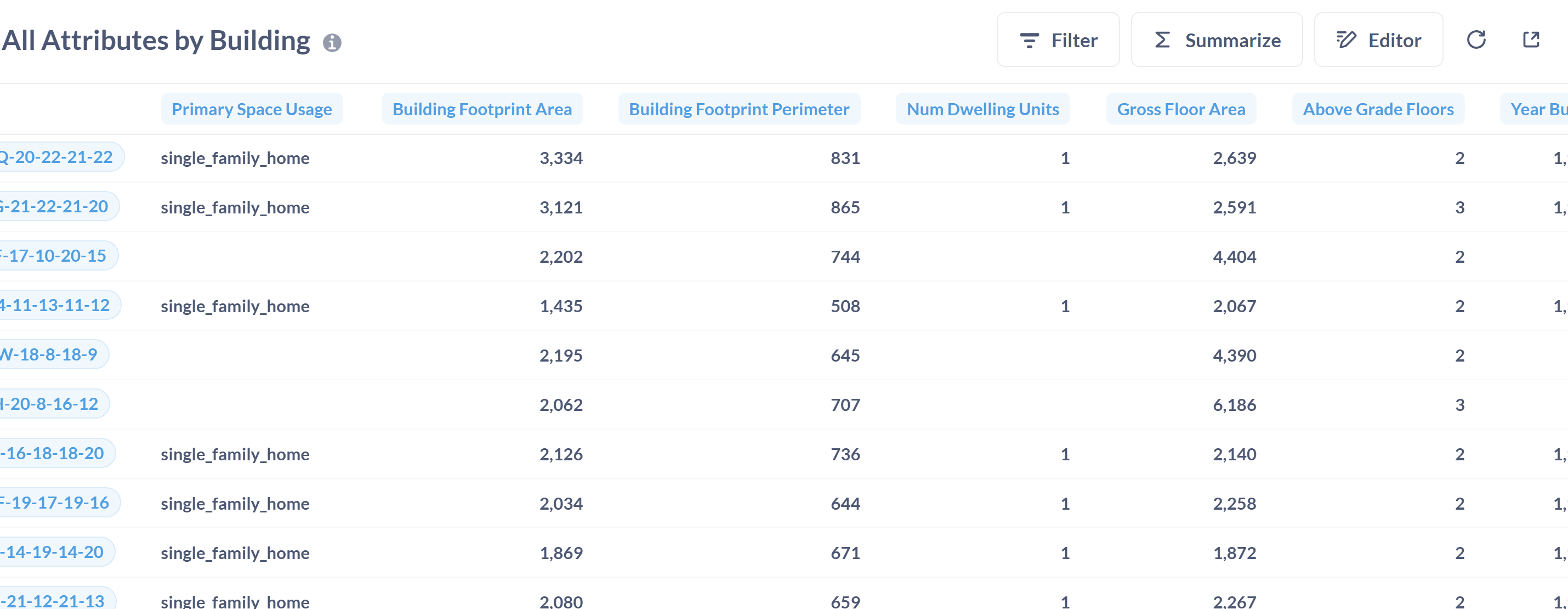
The editor tool offers you several options. First is the Data subheading. The data comes from the selected table. In this case, "All Attributes by Building."
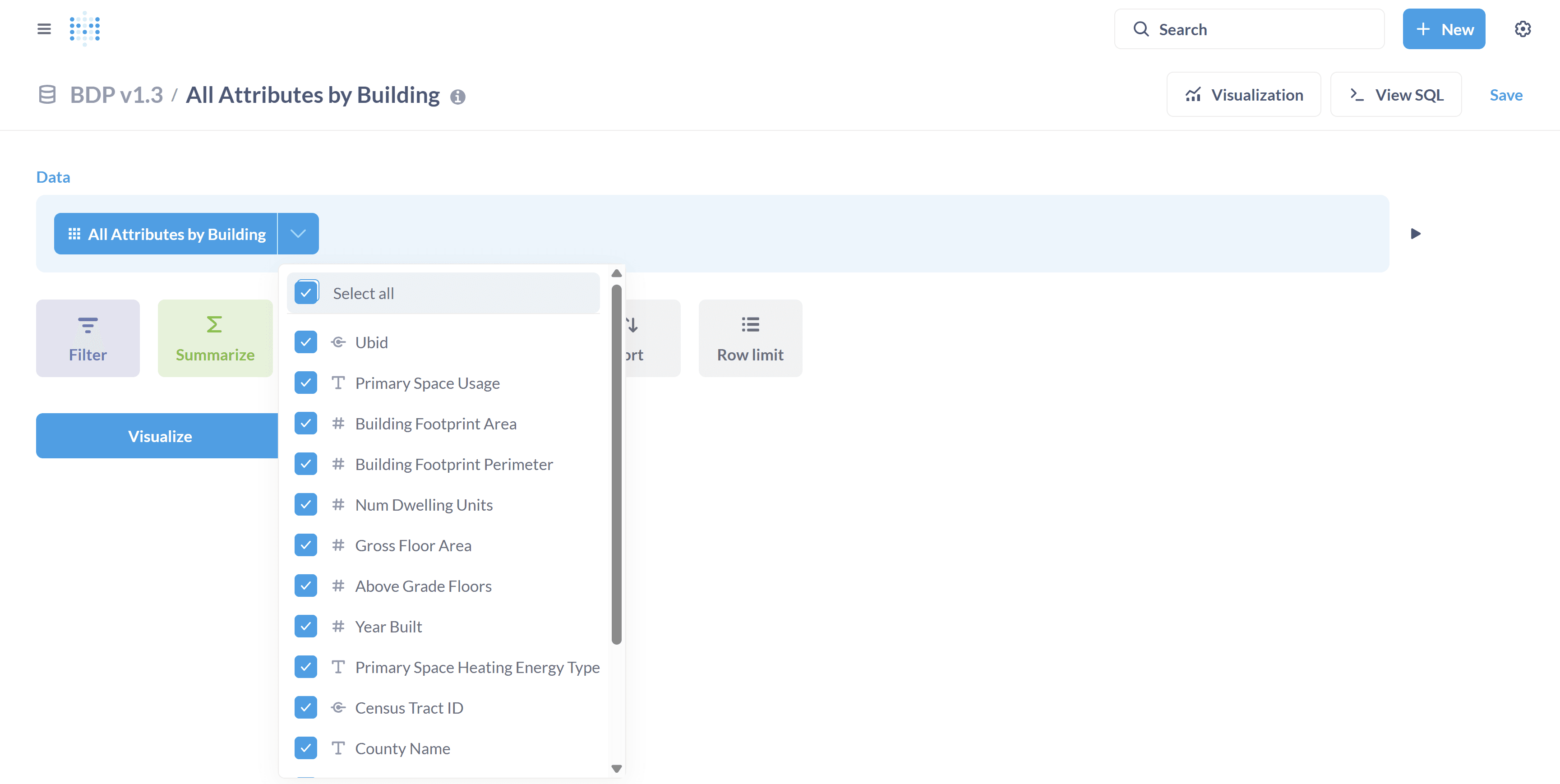
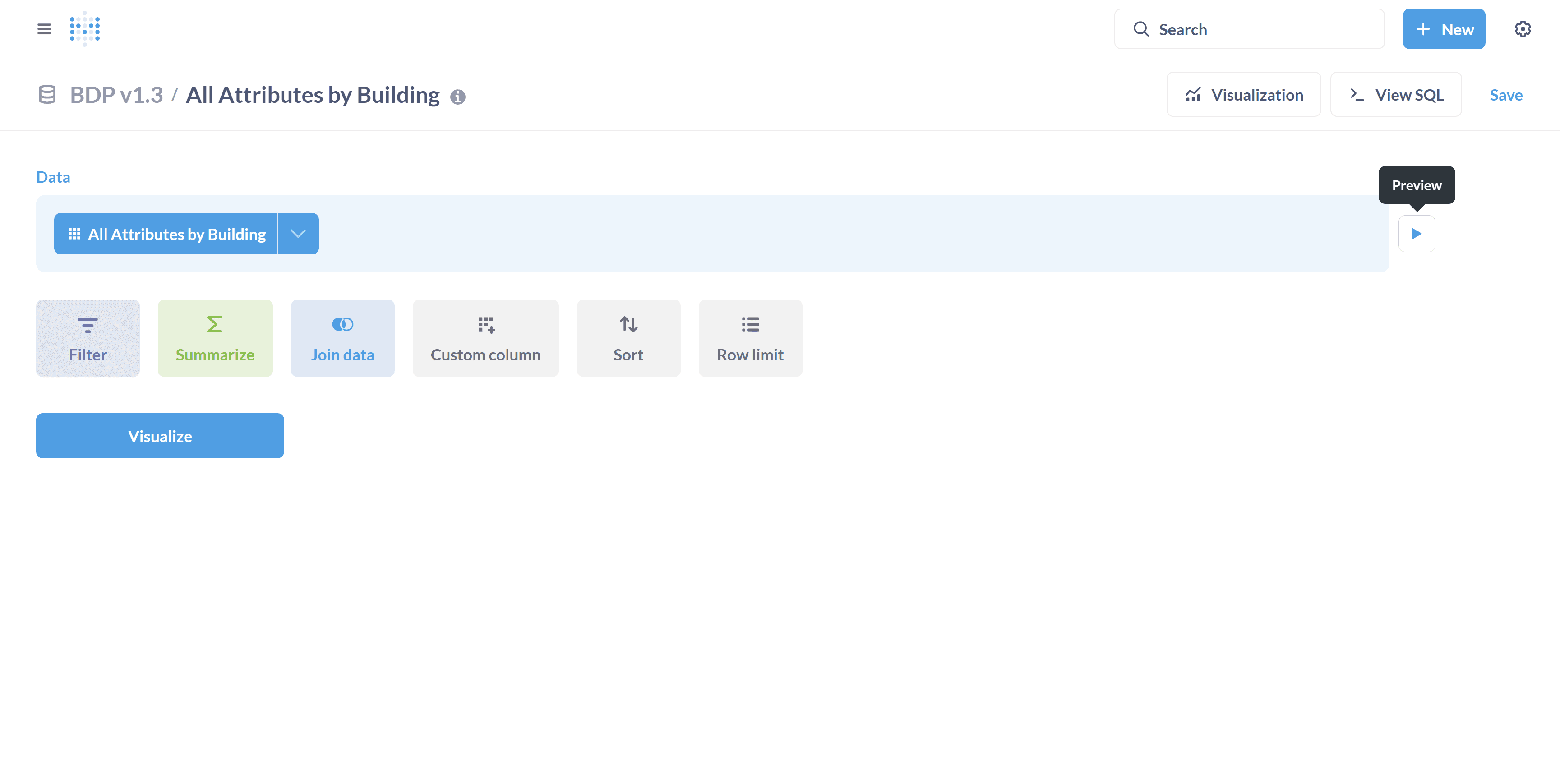
Exit the preview.
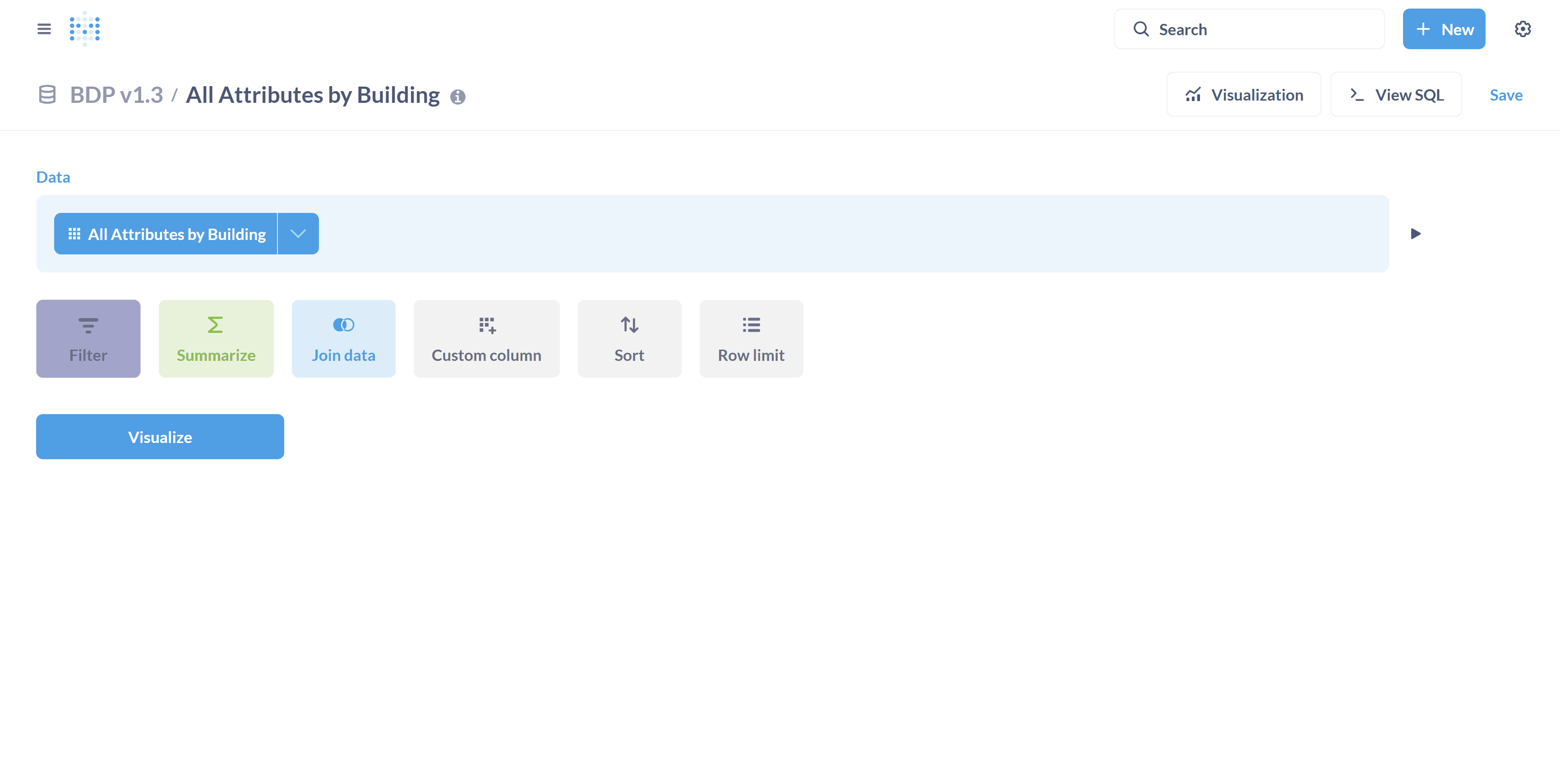
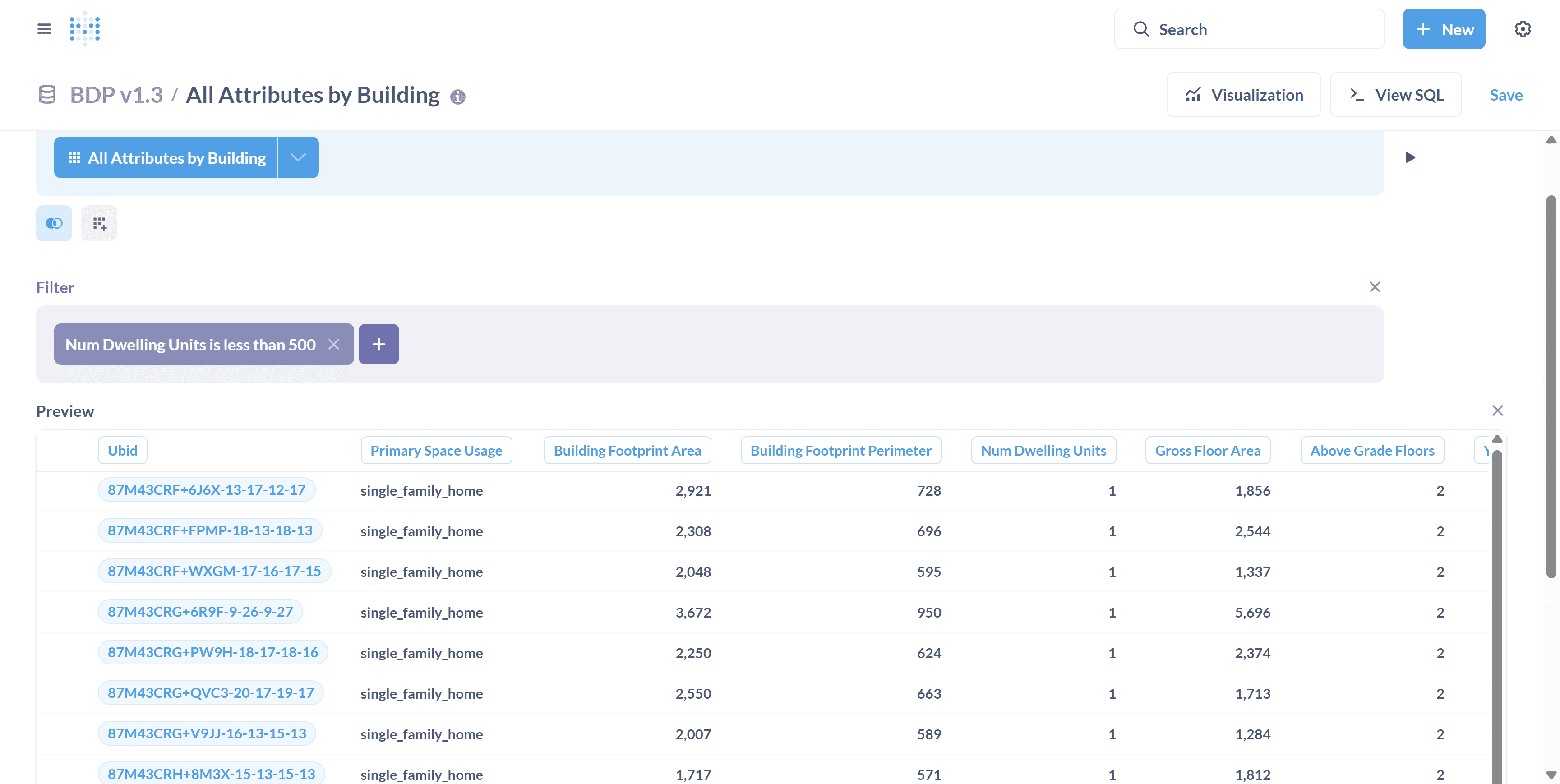
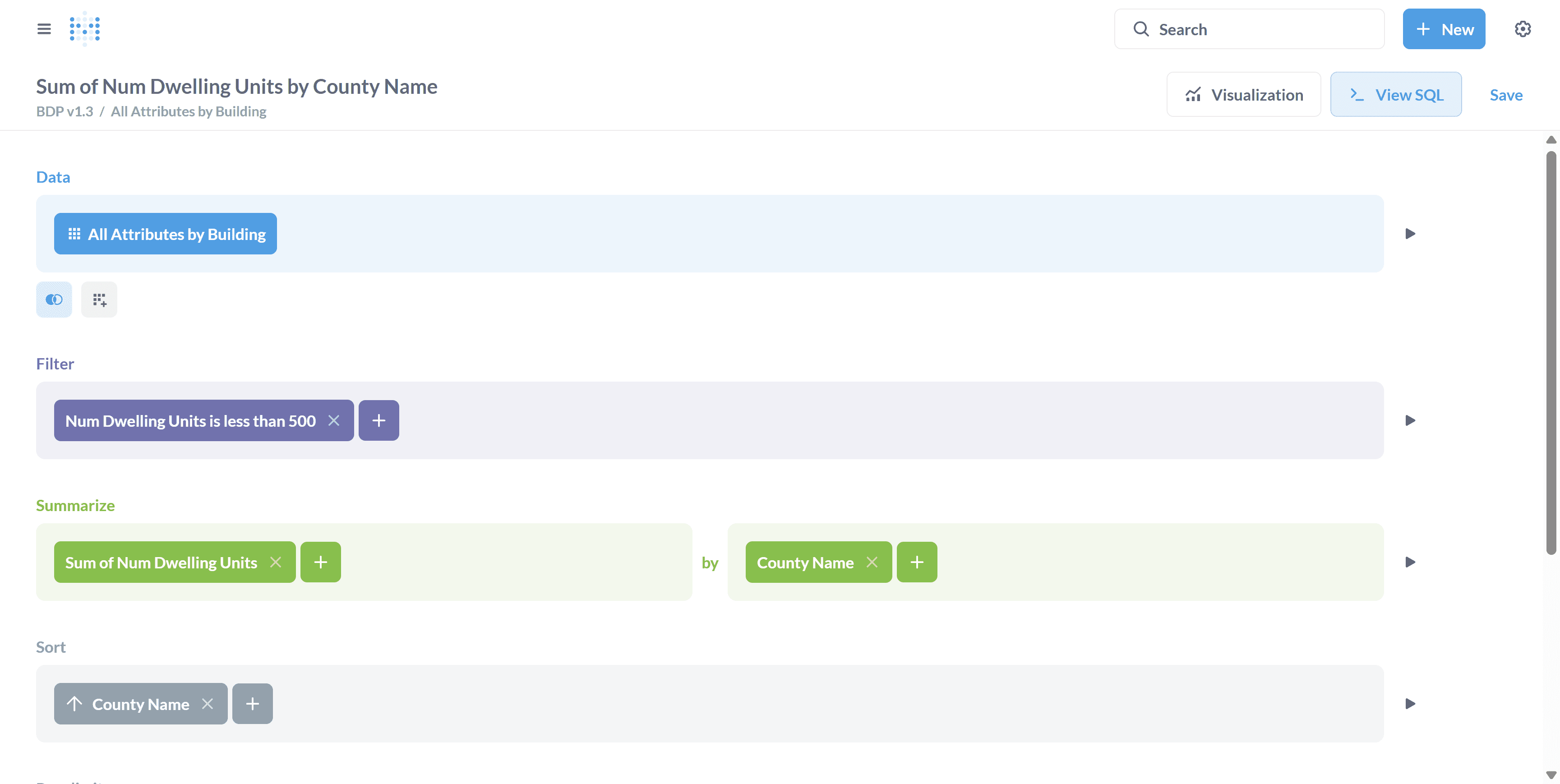
In this example, we'll filter by the number of dwelling units.
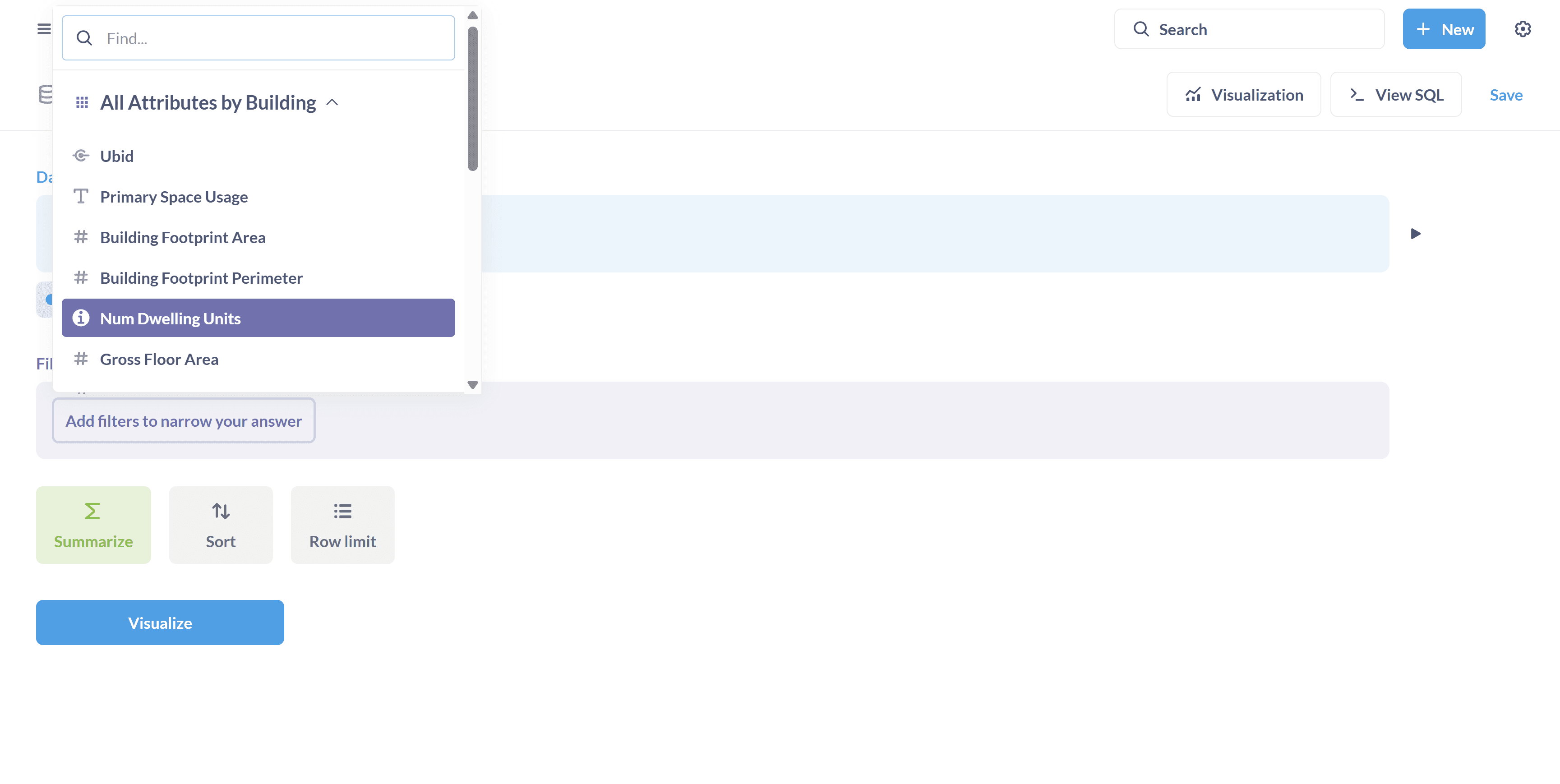
Let's focus on buildings that have 500 or fewer dwelling units.
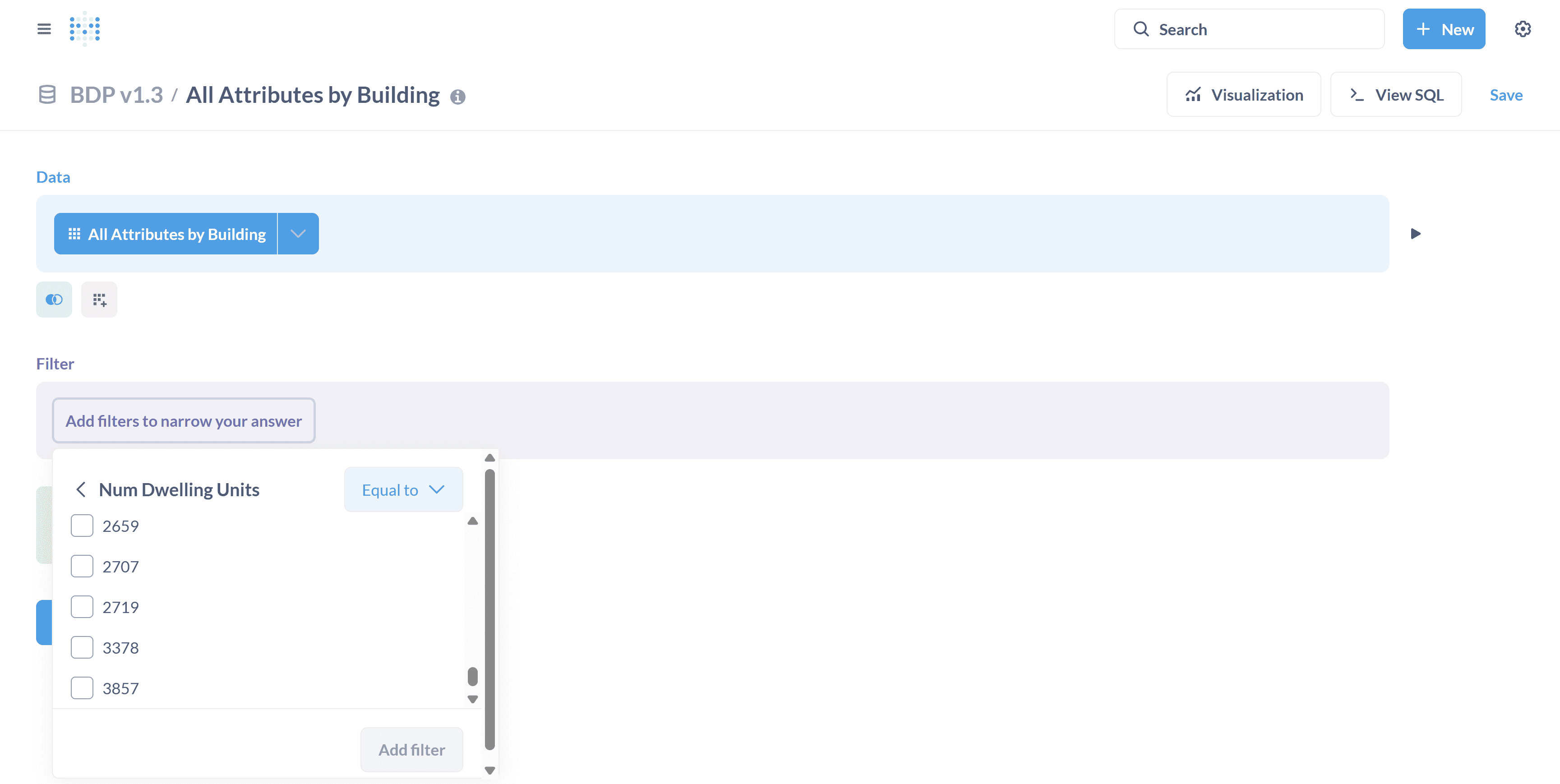
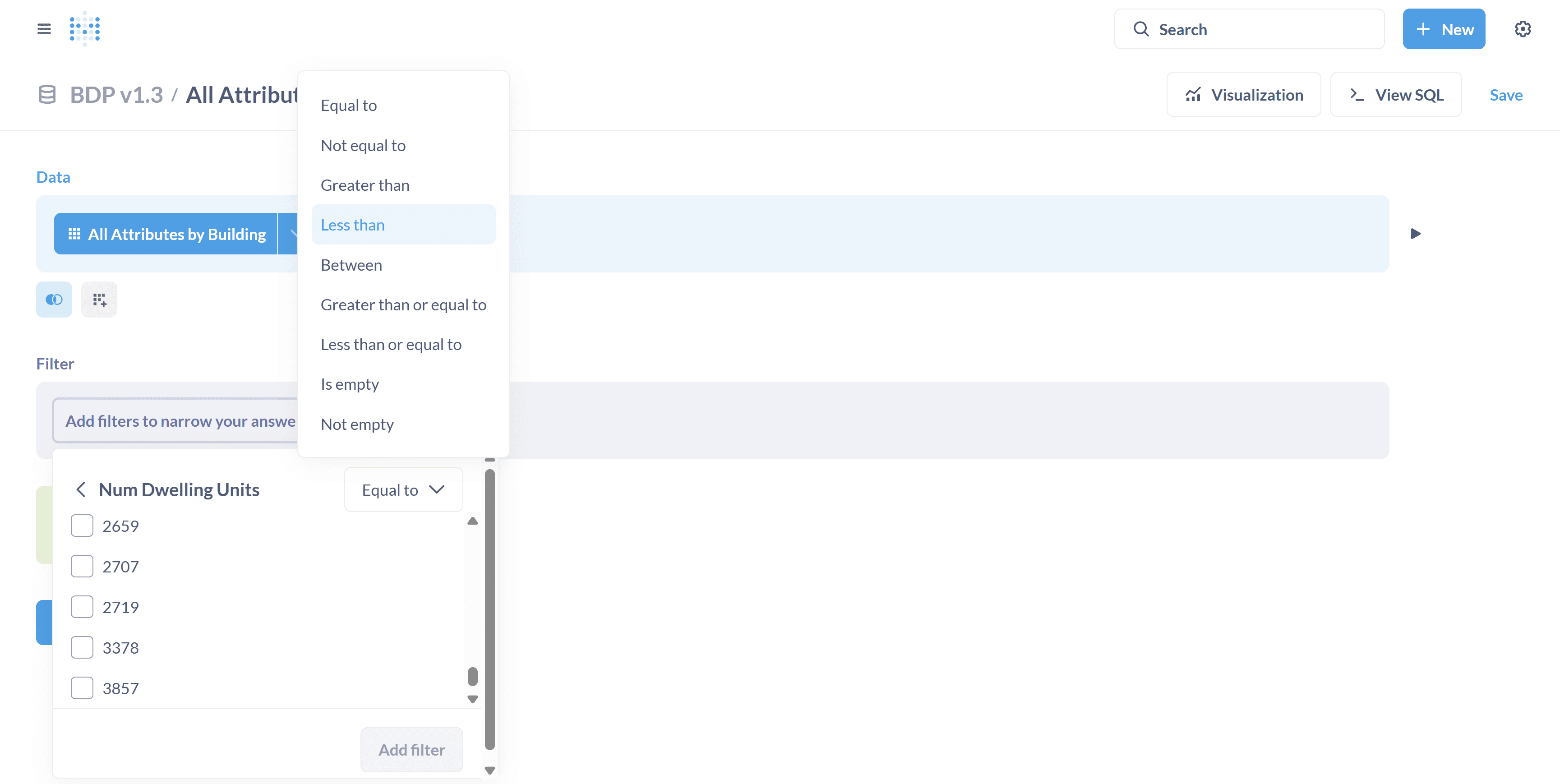
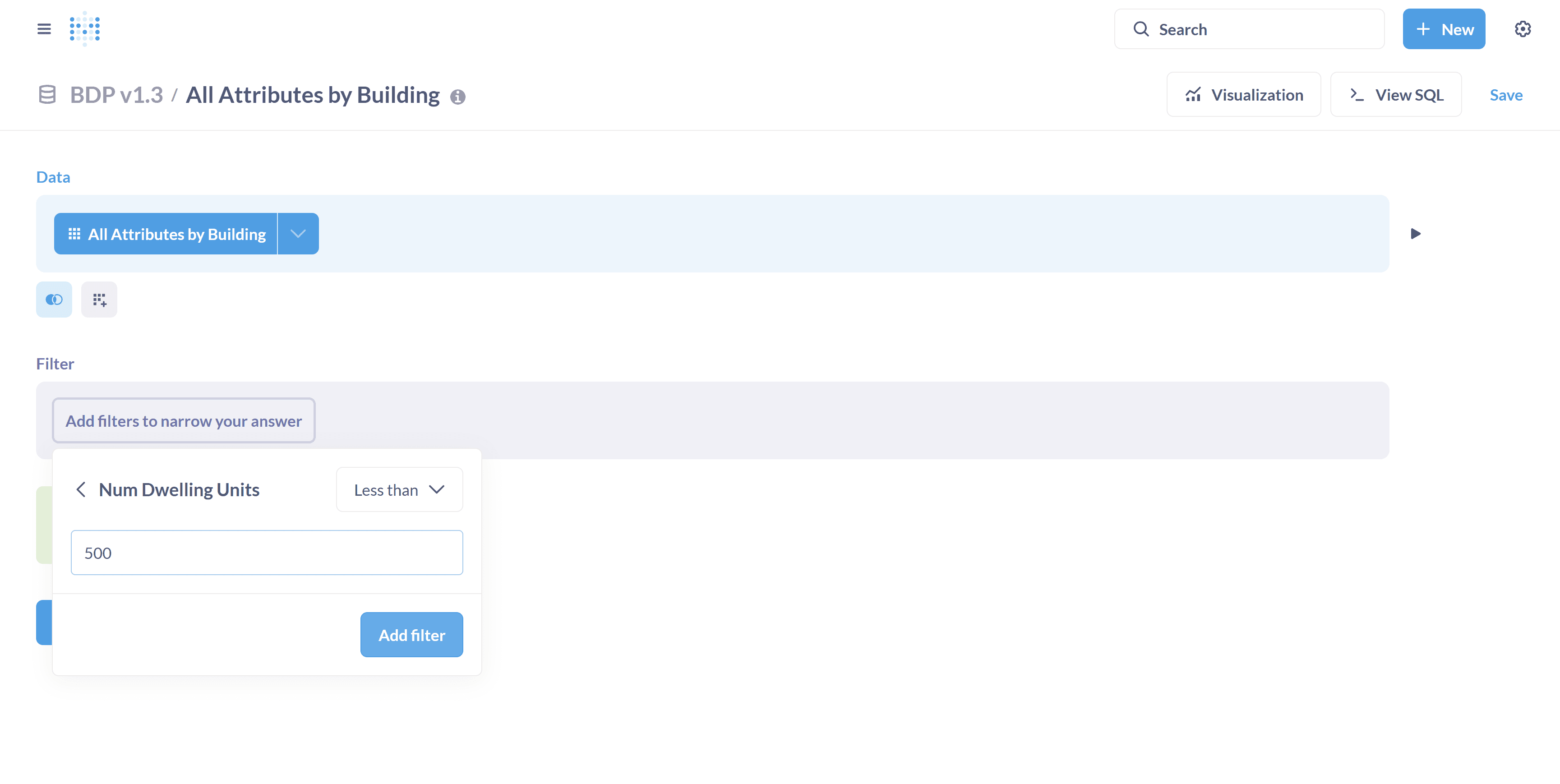
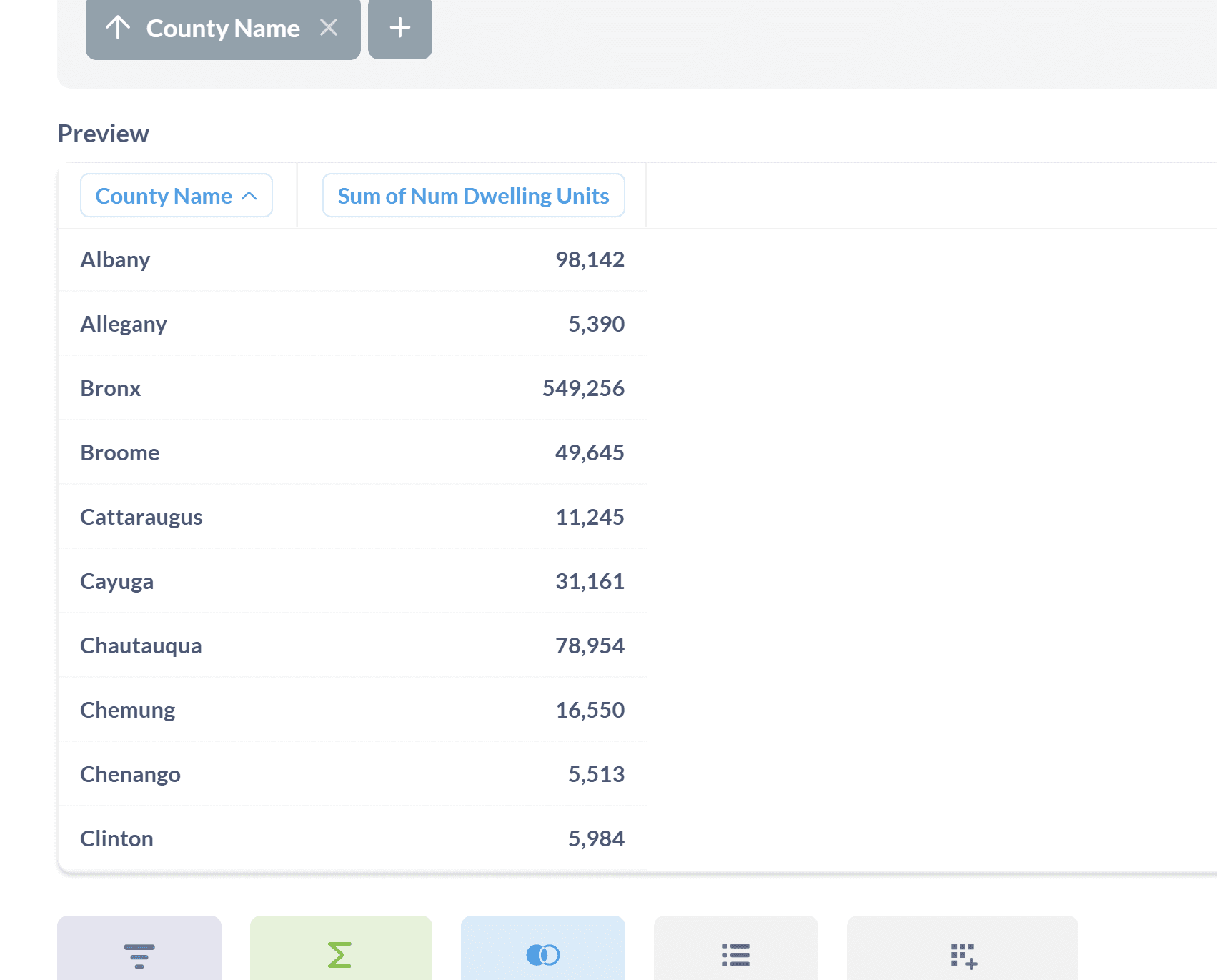
The table will now show only the buildings with fewer than 500 dwelling units. You can click on preview to view the changes.
Now, let's look at the summarize function.
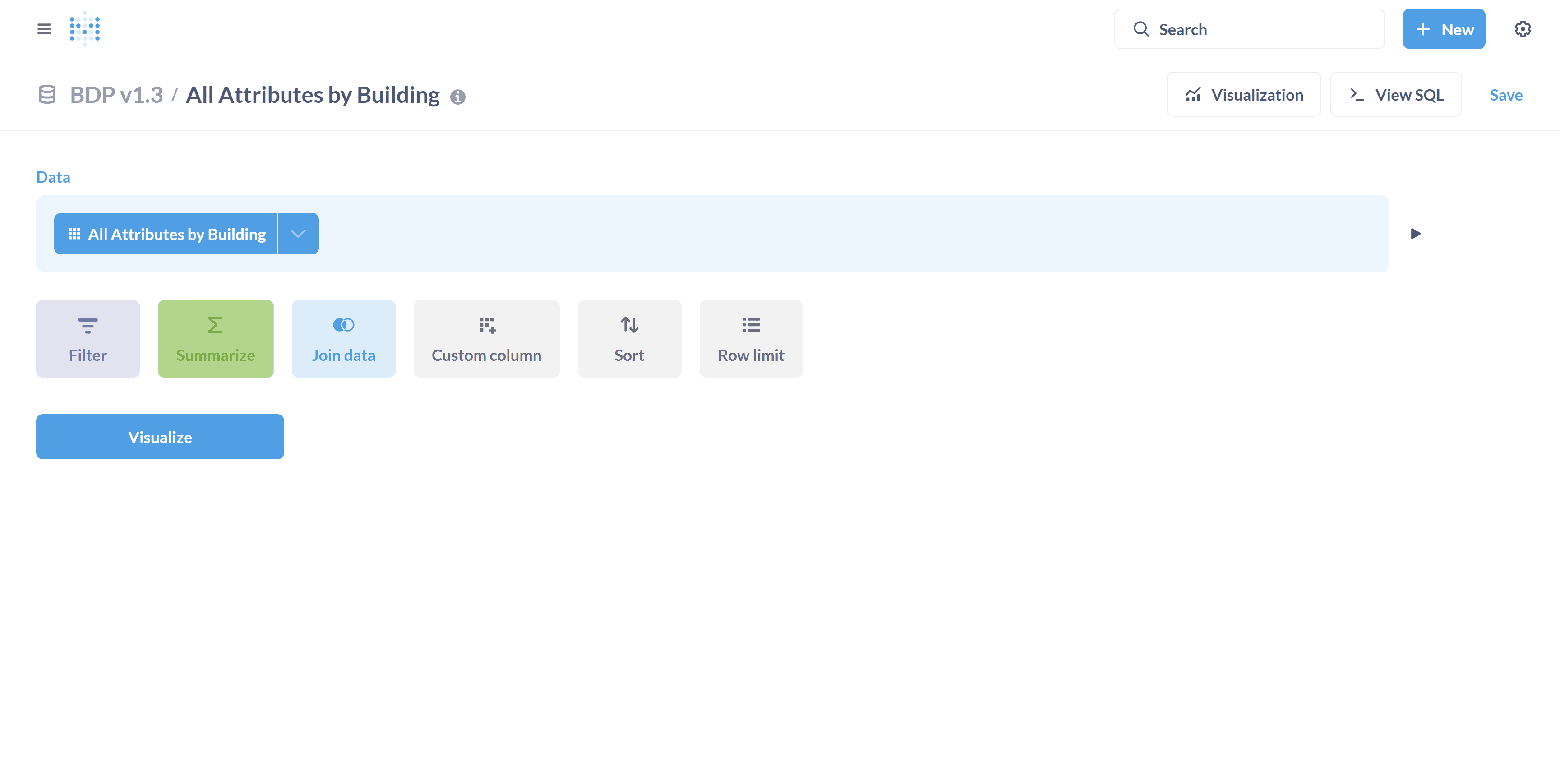
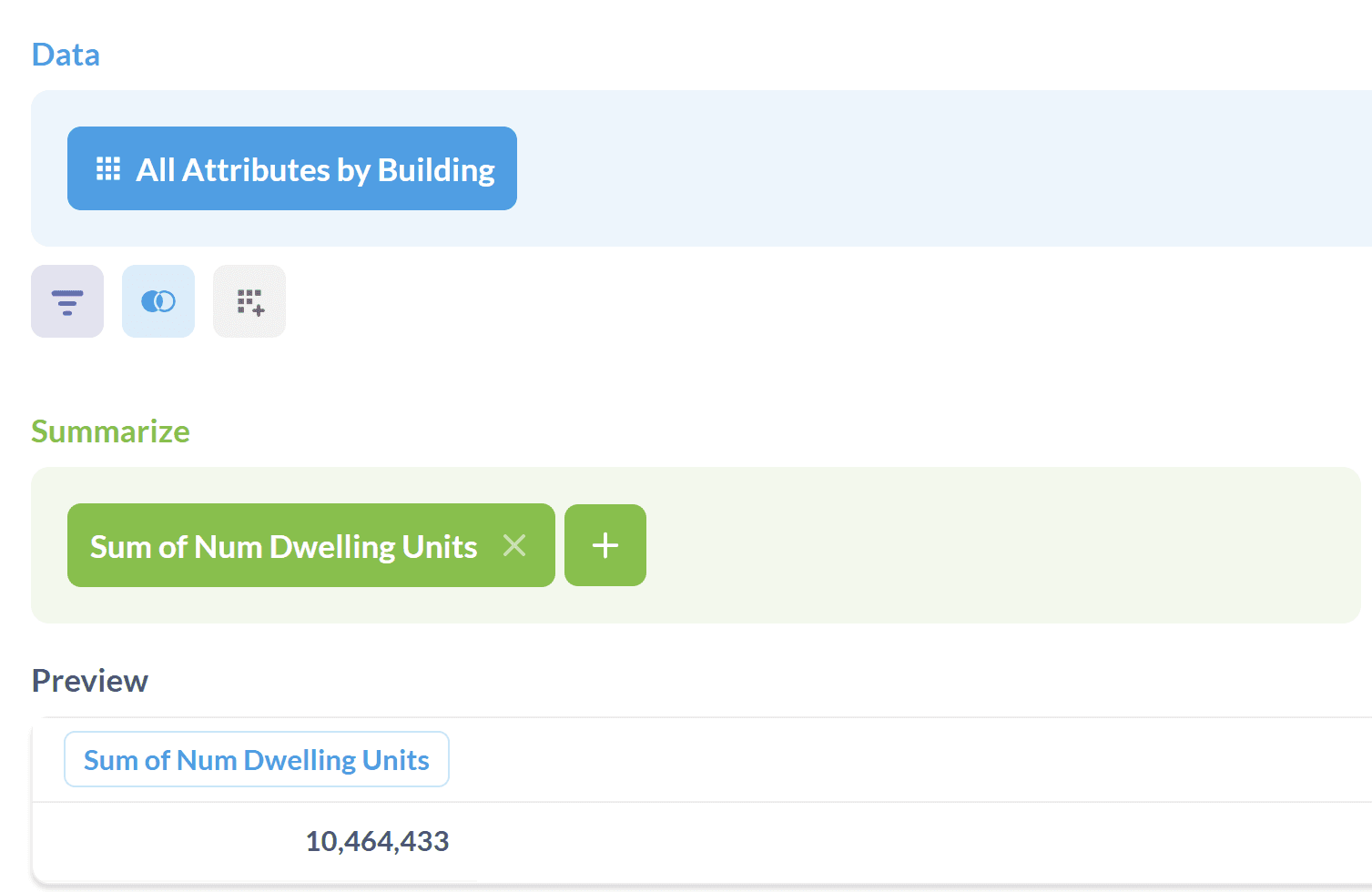
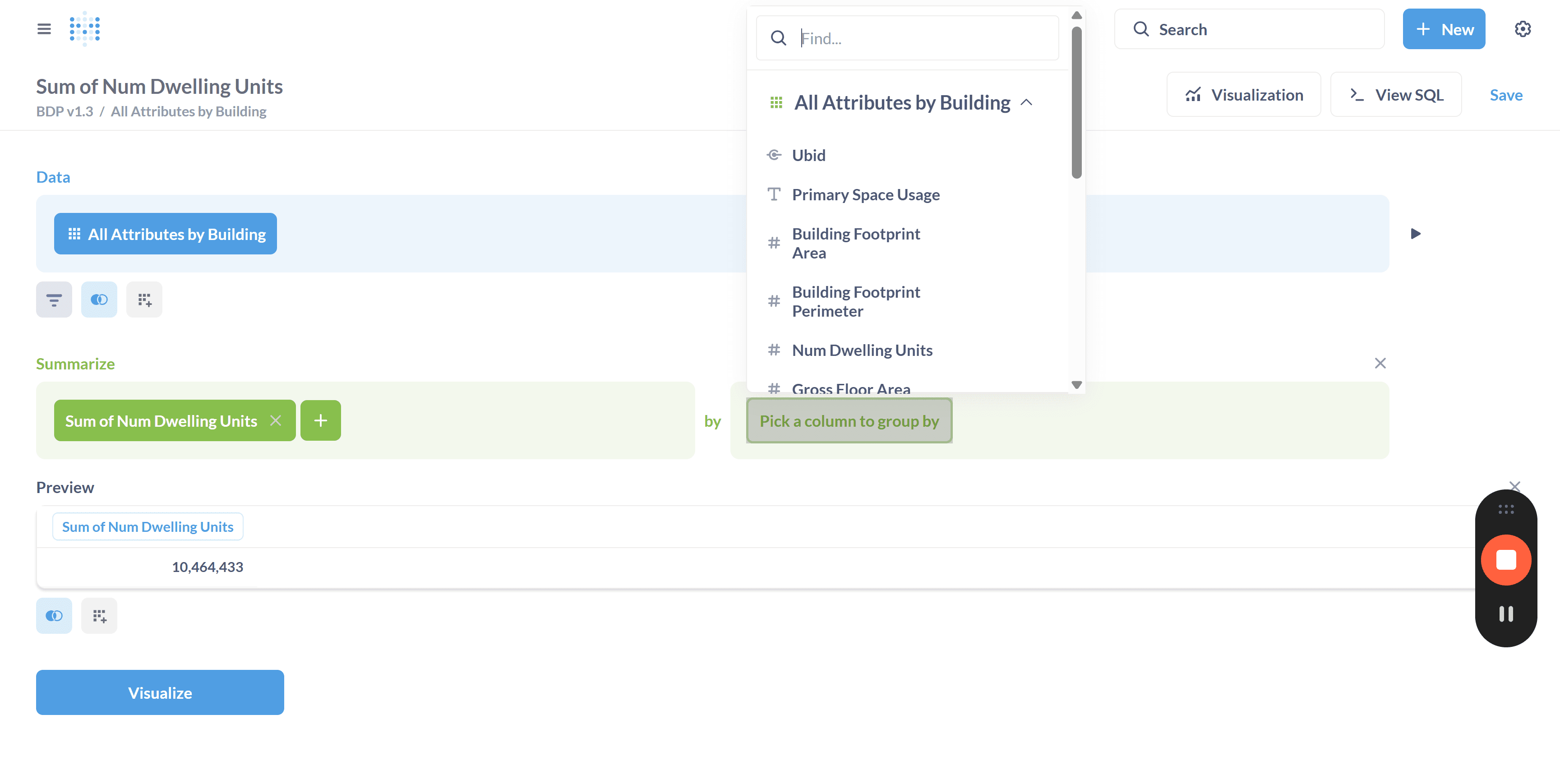
The summarize function lets you create a summary of the data in your table. Let's summarize the total number of dwelling units.
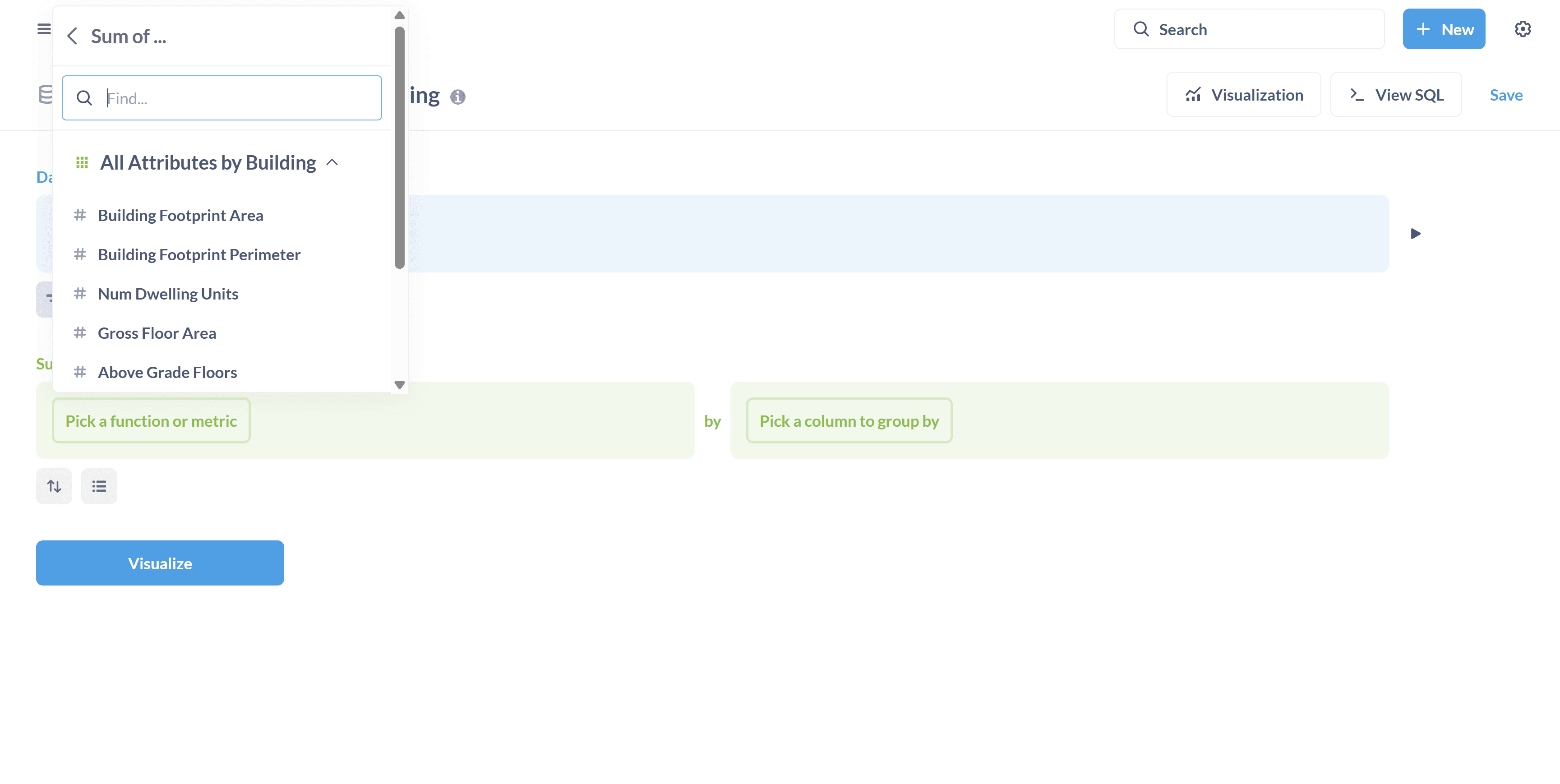
You can also group the data by columns.
Let's move on to the sort function. With the sort function, you can sort by the attribute you are interested in.
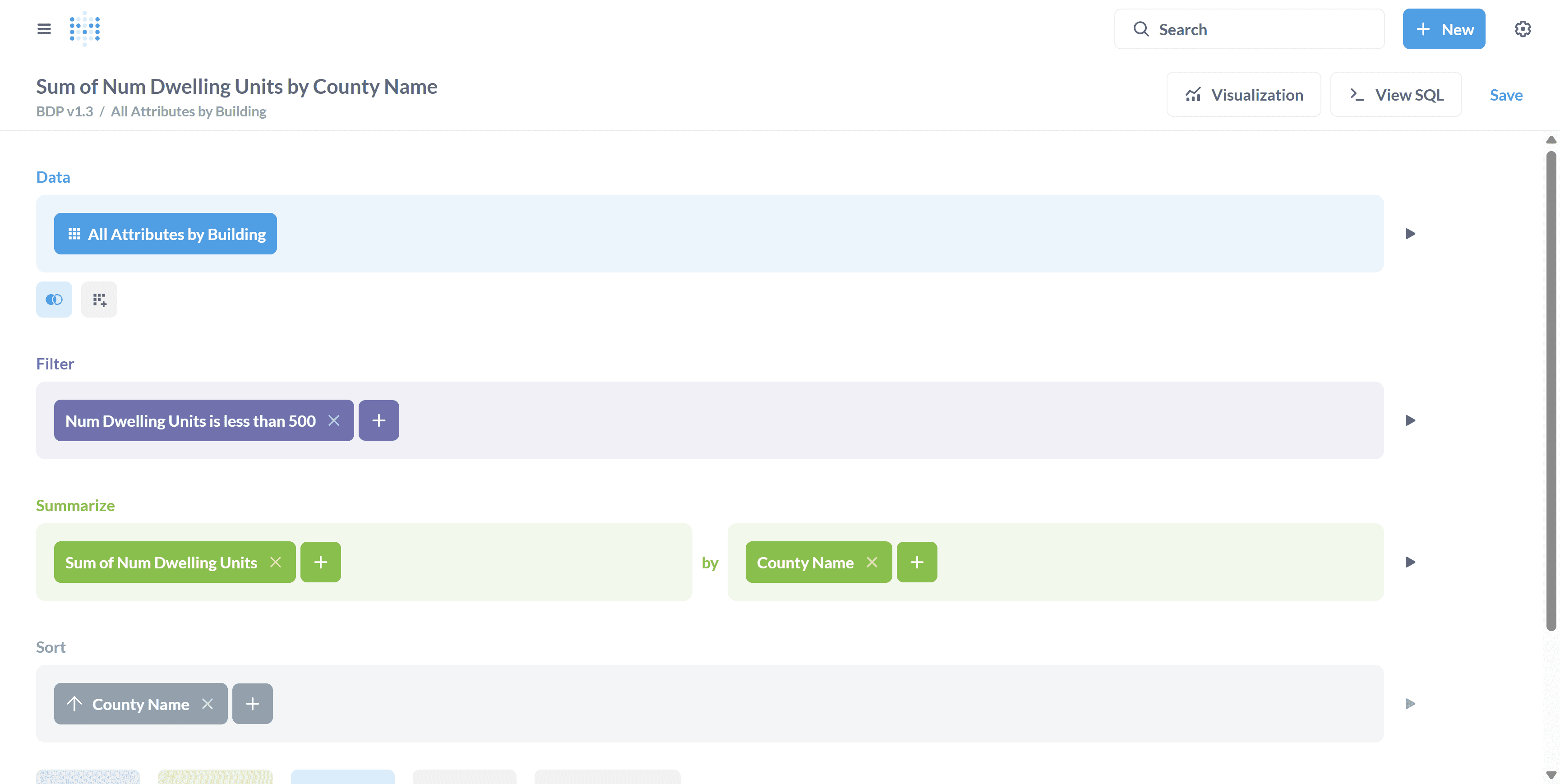
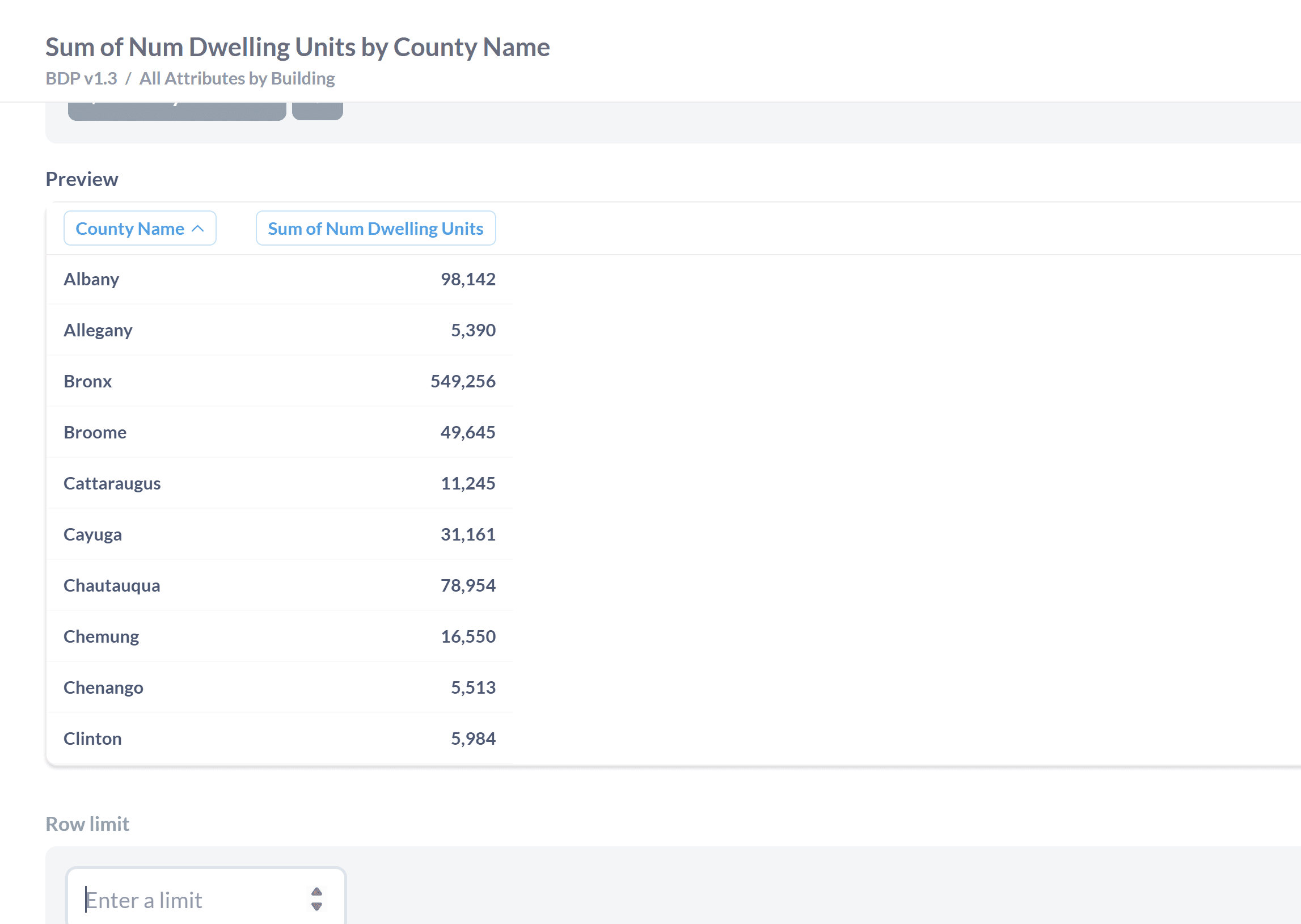
It is sorted by county name.
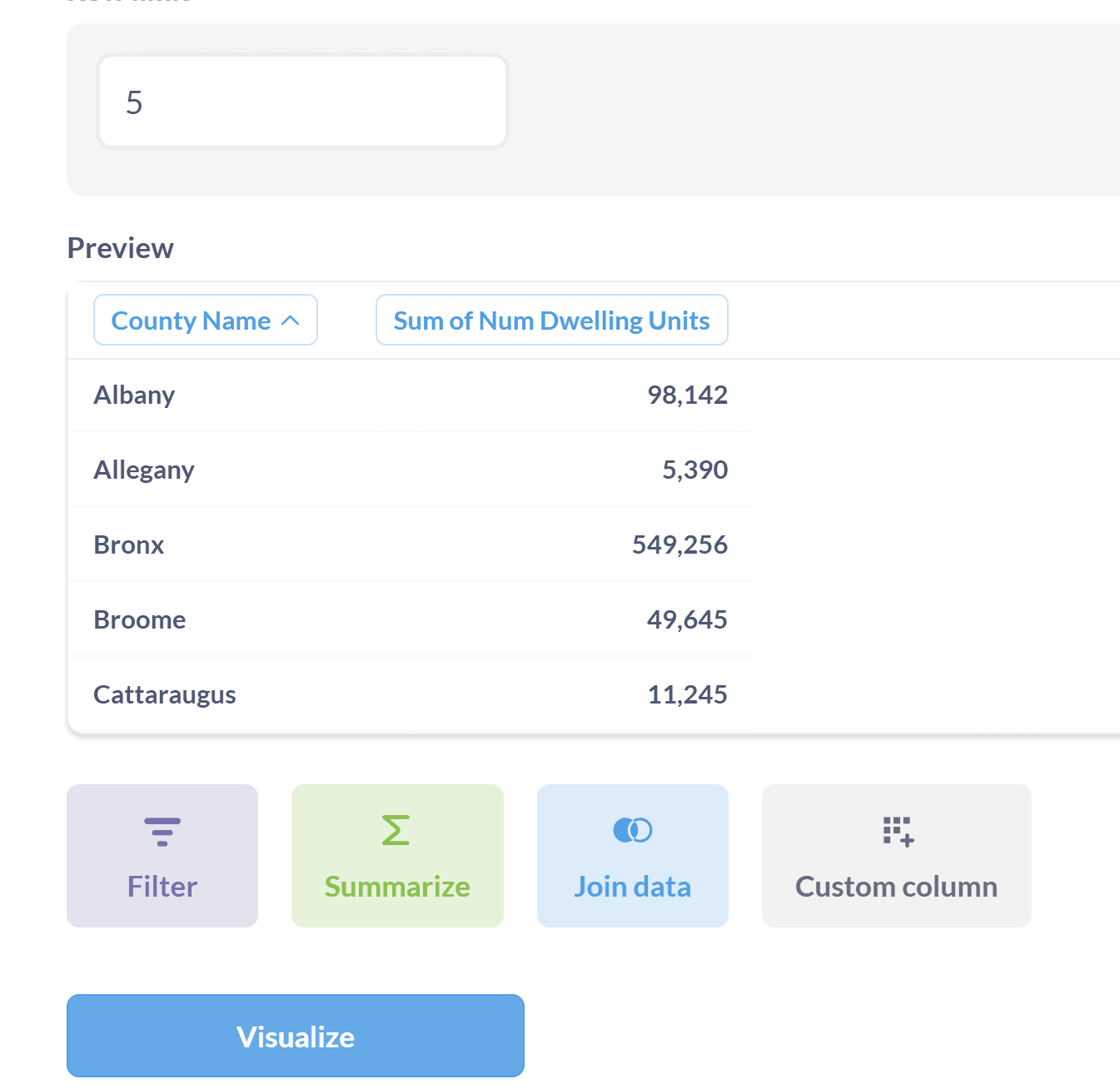
You can also limit the number of rows shown in the visualization.
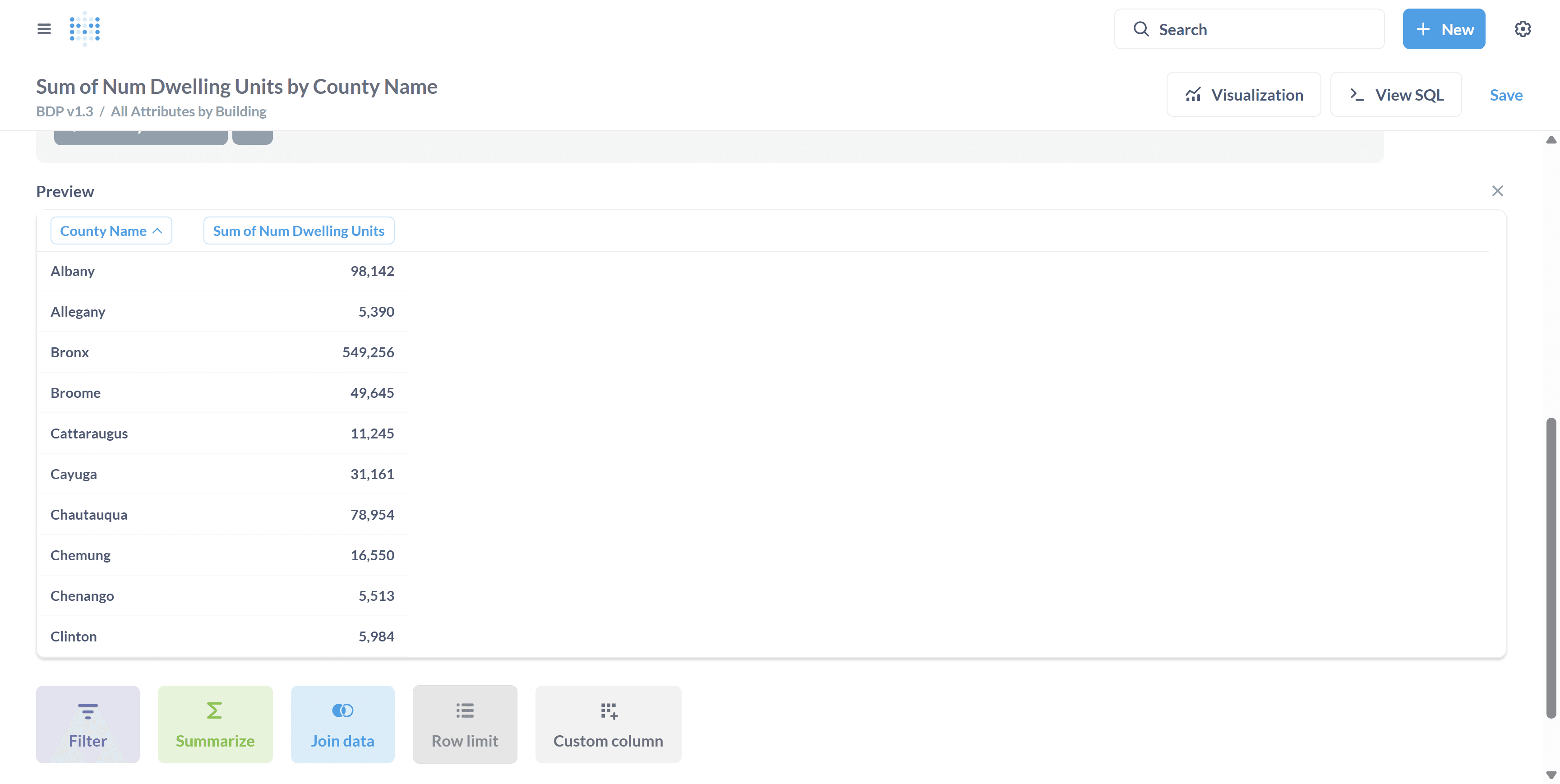
In Metabase, you can also view any relevant SQL code for the question you're asking. We'll do that next.
And that's it! Those are the basic functions of using the Metabase Editor tool!