Icon

BC UK&I - Hypercare BC 14 Kanban (To-do) Board: Step-by-Step Guide

Learn how to effectively use the Hypercare BC 14 kanban board in Teams for reporting and following up bugs and issues.

By Máté Egri

In this guide, we'll learn how to use the Hypercare BC 14 Kanban board in Microsoft Teams to create and manage tasks, log issues, and ask questions. This process helps track the progress of each task from creation to completion, making it easier to collaborate and resolve problems efficiently.

STEPS IN SHORT (Detailed steps below)

When to create a task

If you have an issue, question, or request.

Where

Teams → BC UK&I ChannelHypercare BC14 Tab.

How

  • - Click Add Task under “Detected Bug/Issue”.

  • - Always add a clear title → Extra details in Notes part

  • - Assign yourself (you’ll get notifications).

  • - Add Attachments (screenshots, docs) if needed.

Communication

  • - Use Comments for follow-up.

  • - You’ll get email notifications for comments.

Workflow

  • - Support team moves tasks through buckets as they progress in work:

    • - Detected Bug/Issue → Bugfixing in Progress → Ready for Testing → Fixed.

  • - End users can track progress and respond to comments.

Extra tips

  • - Use Filters to find tasks.

  • - Try different views: Grid, Schedule, Charts.

STEP BY STEP (The above steps detailed)

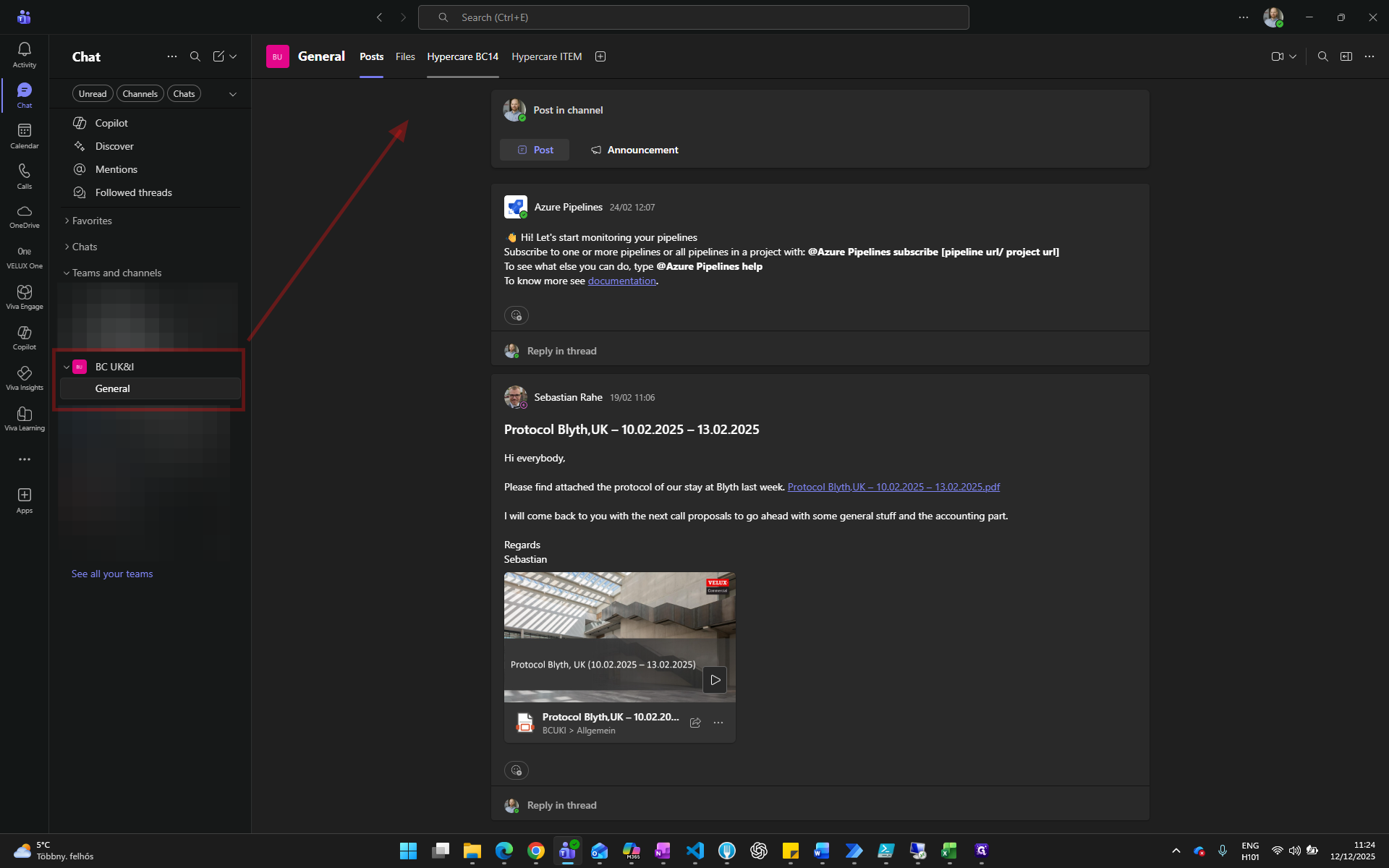
Under "Teams and Channels," select "BC UK&I", then "General." Click on "Hypercare BC14".
1
Click on "Hypercare BC14"
Step #1: Click on "Hypercare BC14"
2
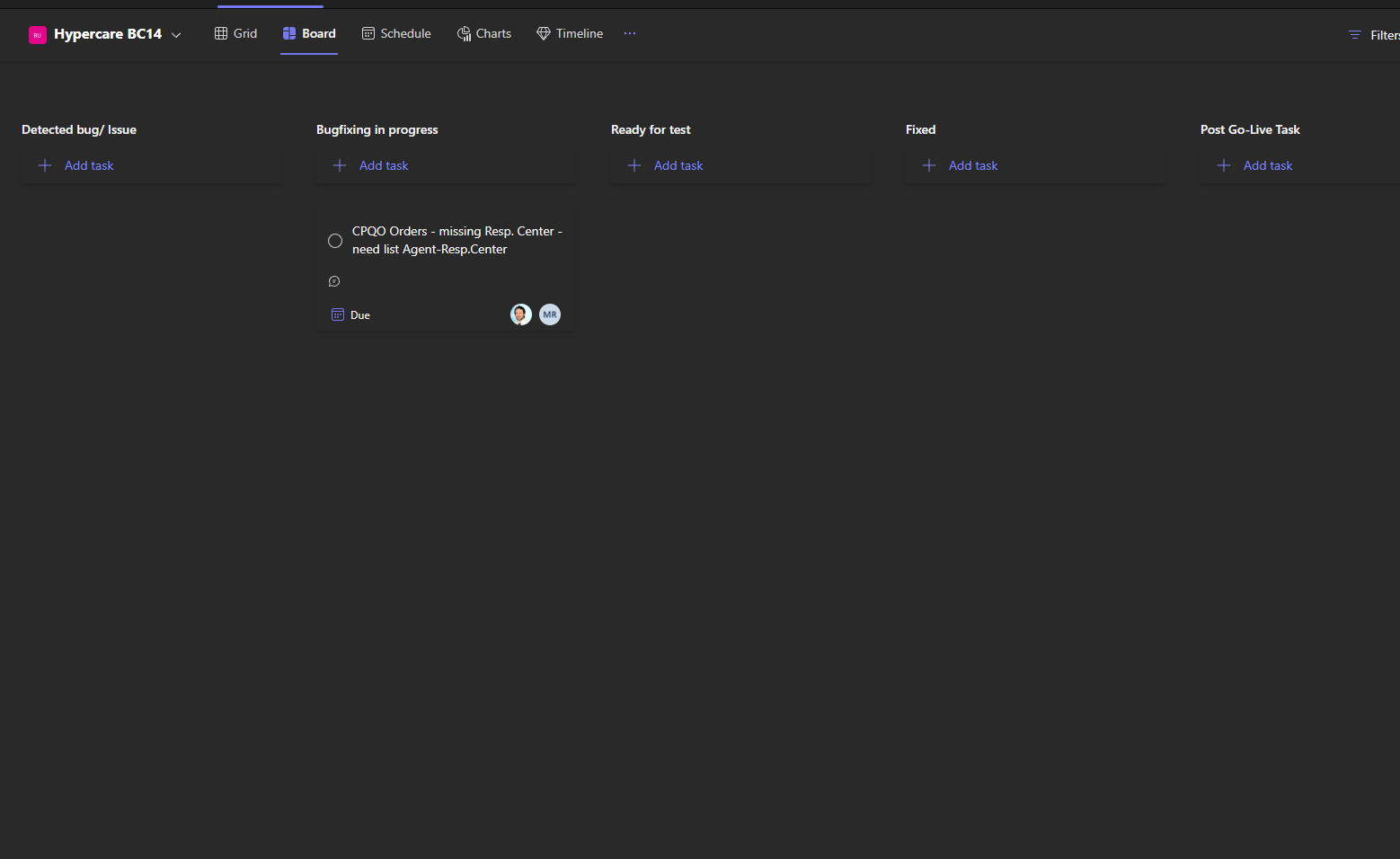
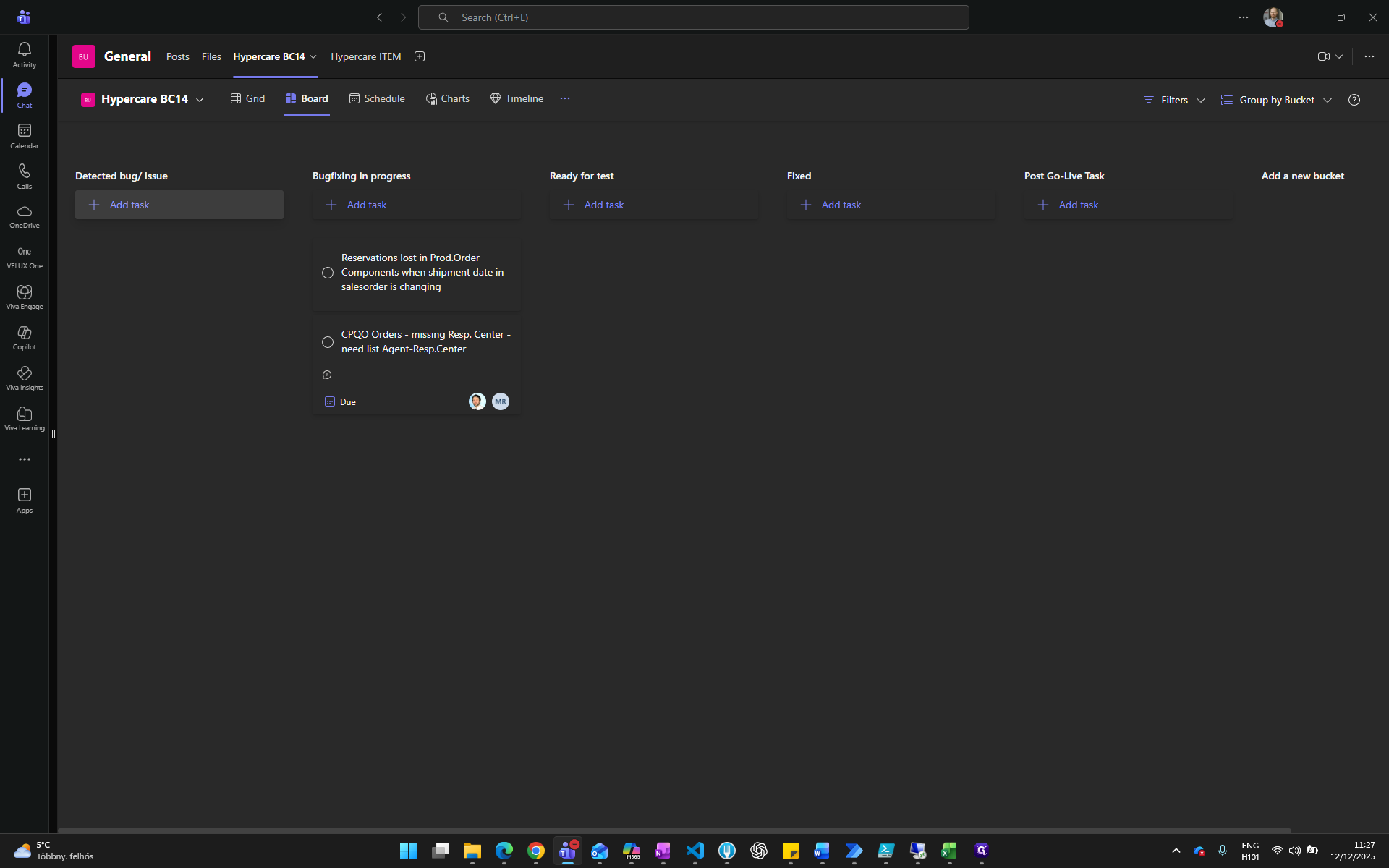
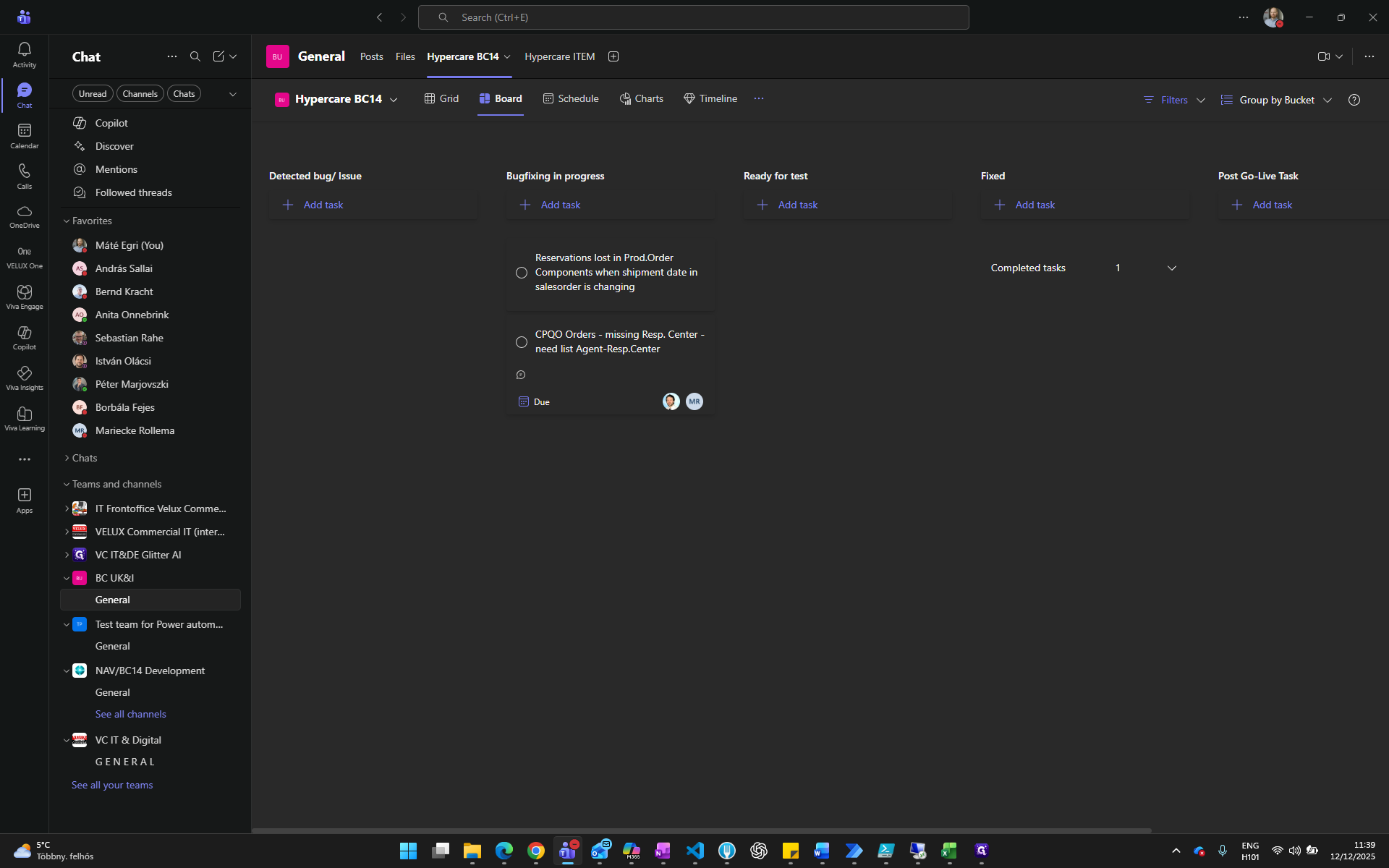
This is a Kanban to-do list dashboard. Here we see different steps in the process as Detected bug/Issues, Bugfixing in progress, Ready for testing, Fixed, and Post- Go-Live Tasks.
Step #2: This is a Kanban to-do list dashboard. Here we see different steps in the process as Detected bug/Issues, Bugfixing in progress, Ready for testing, Fixed, and Post- Go-Live Tasks.

Detected bug/Issue: Add task
3
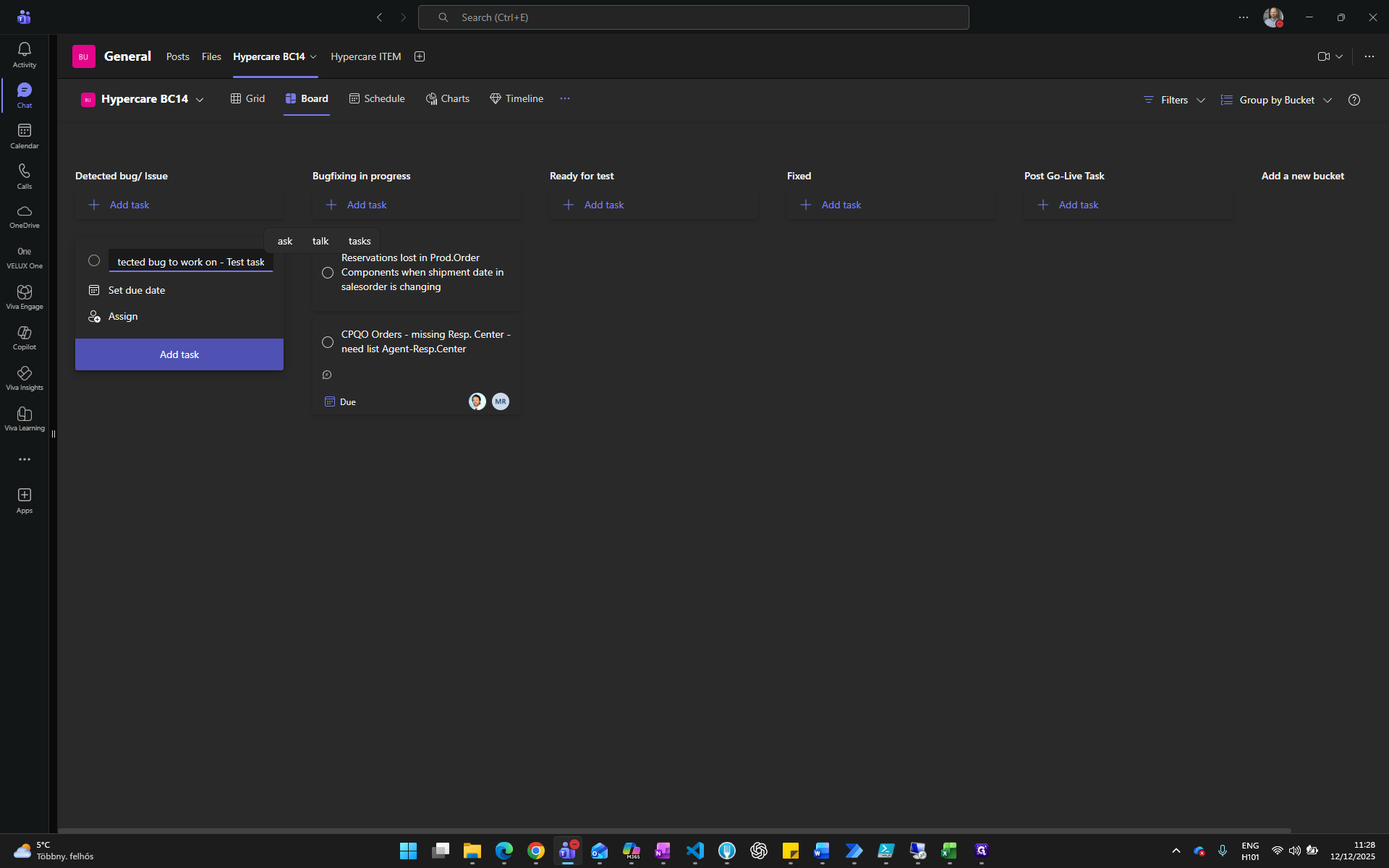
If a new issue arises, create a new task for it here
Step #3: If a new issue arises, create a new task for it here
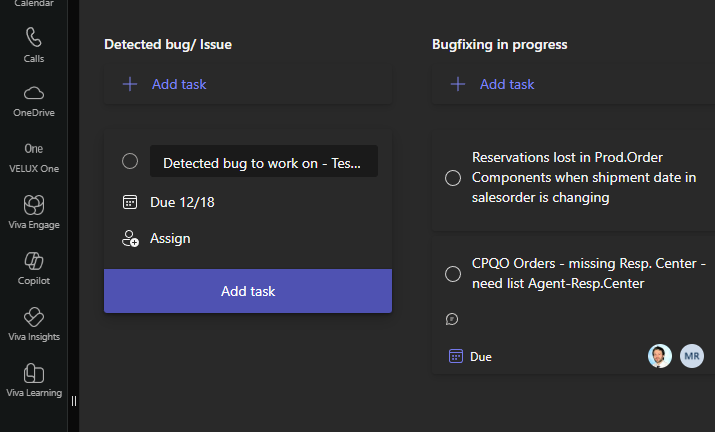
4
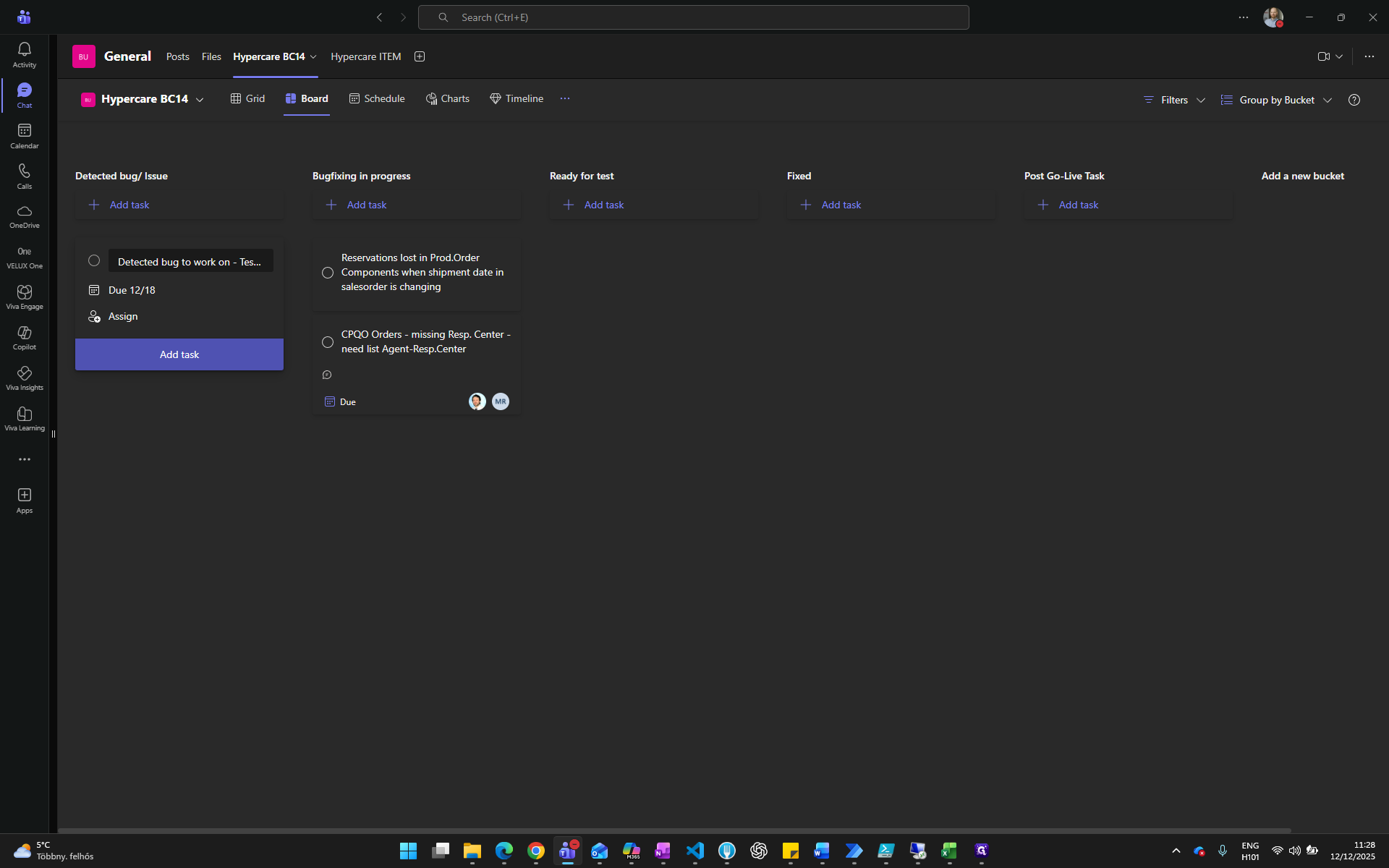
Click on "Set due date"
Step #4: Click on "Set due date"
5
Assign the task to yourself as a creator
Step #5:  Assign the task to yourself as a creator
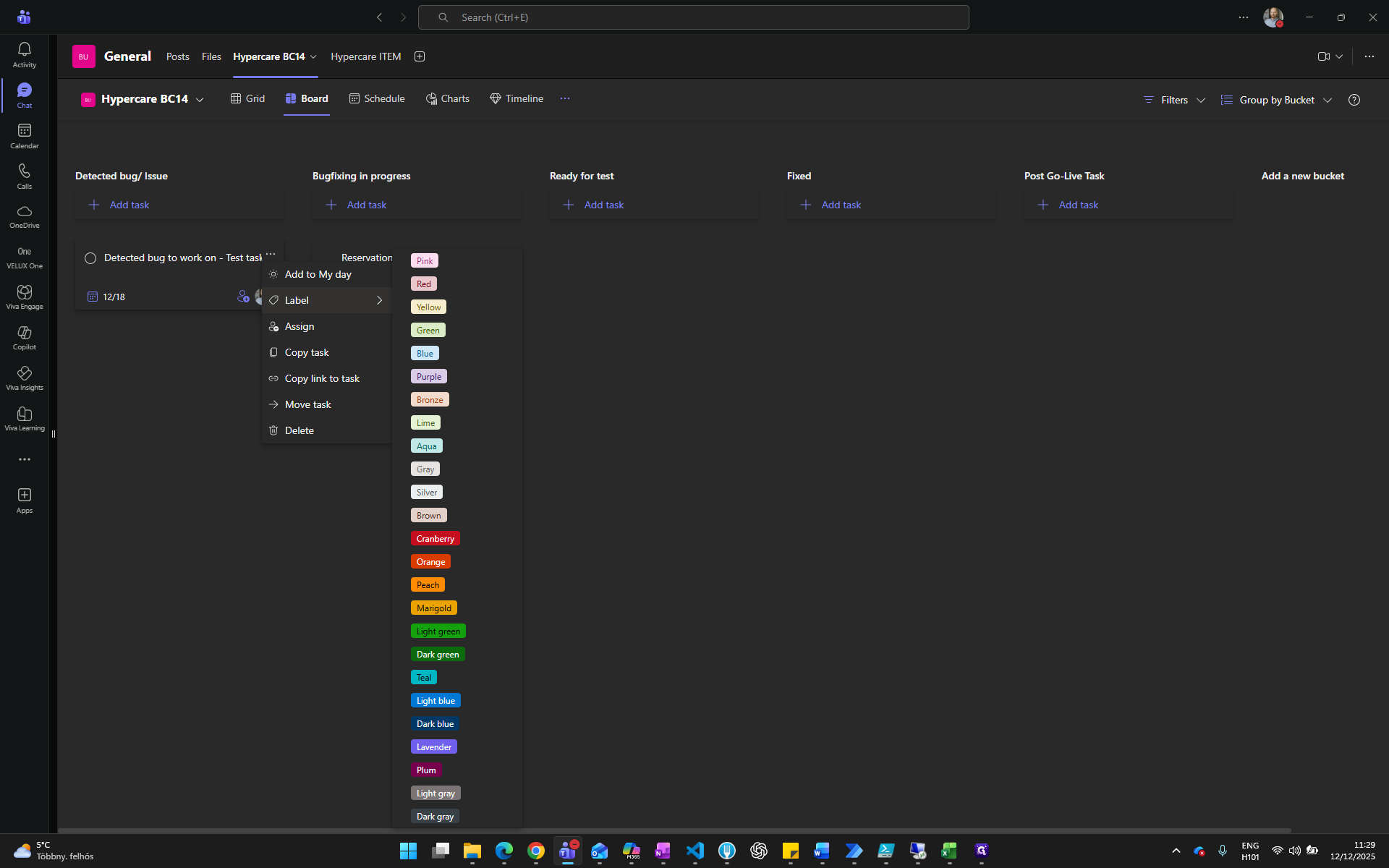
6
Click on the three dots for additional features if needed
Step #6:  Click on the three dots for additional features if needed
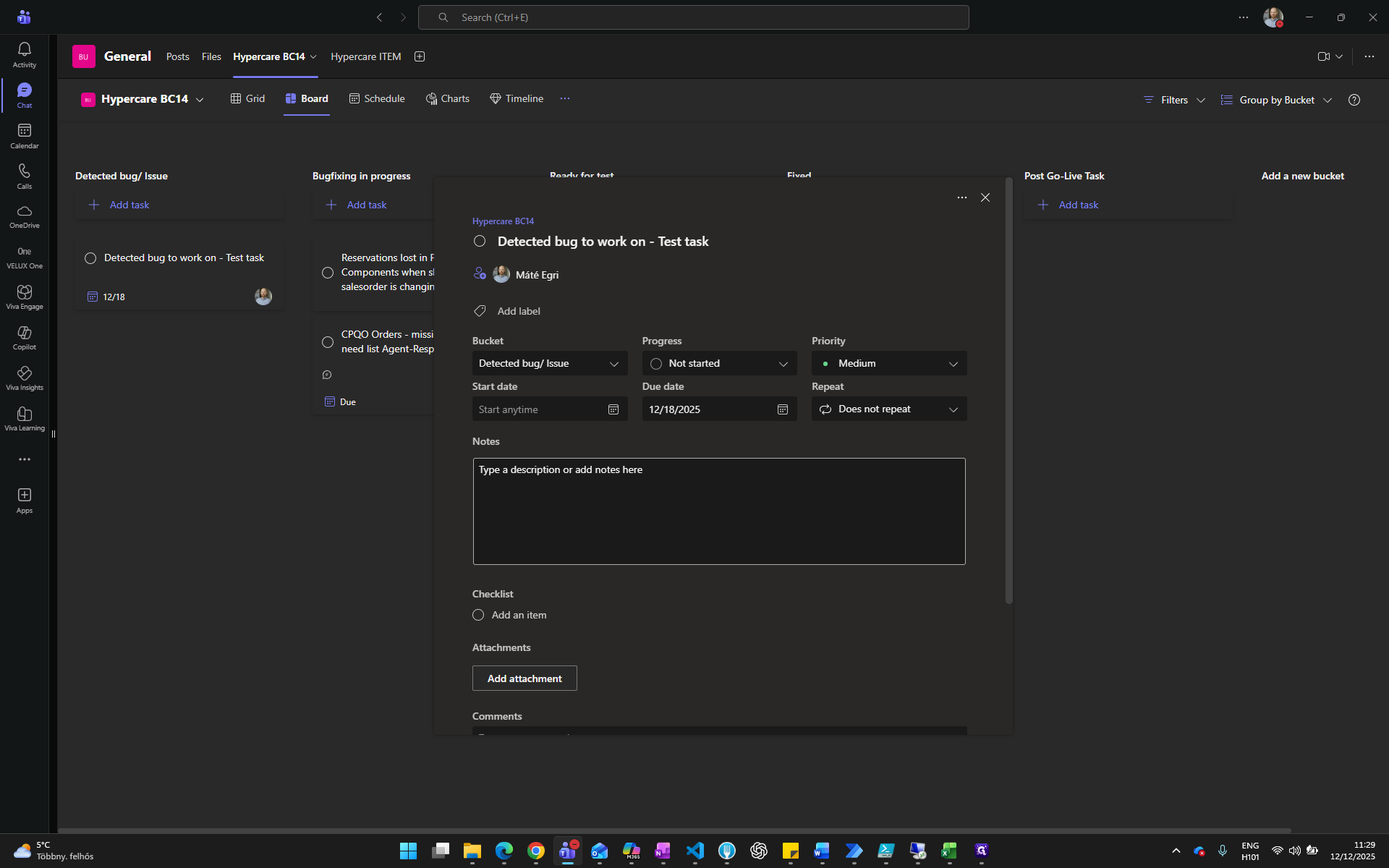
7
Click on the Task itself to add more details
Step #7: Click on the Task itself to add more details
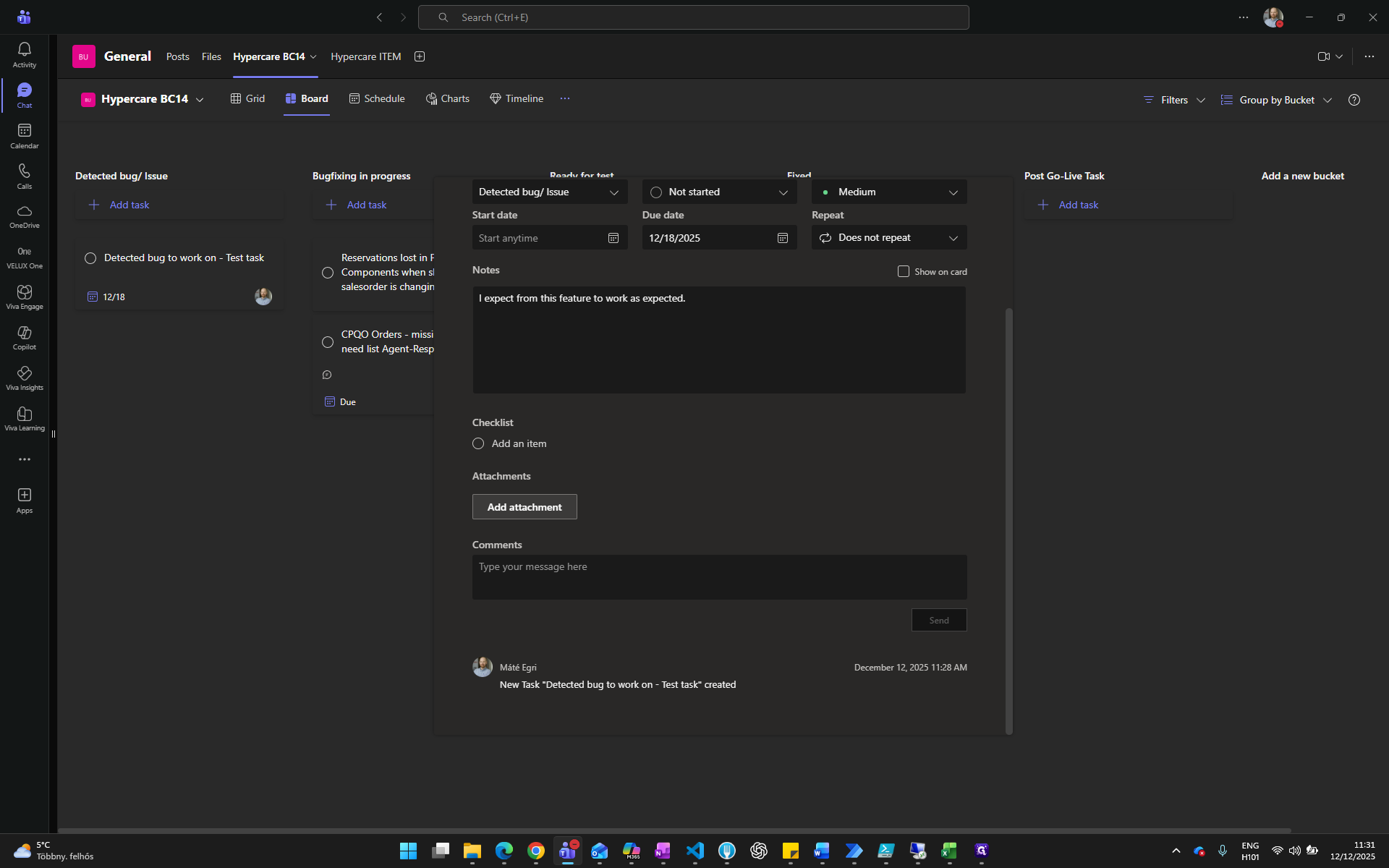
8
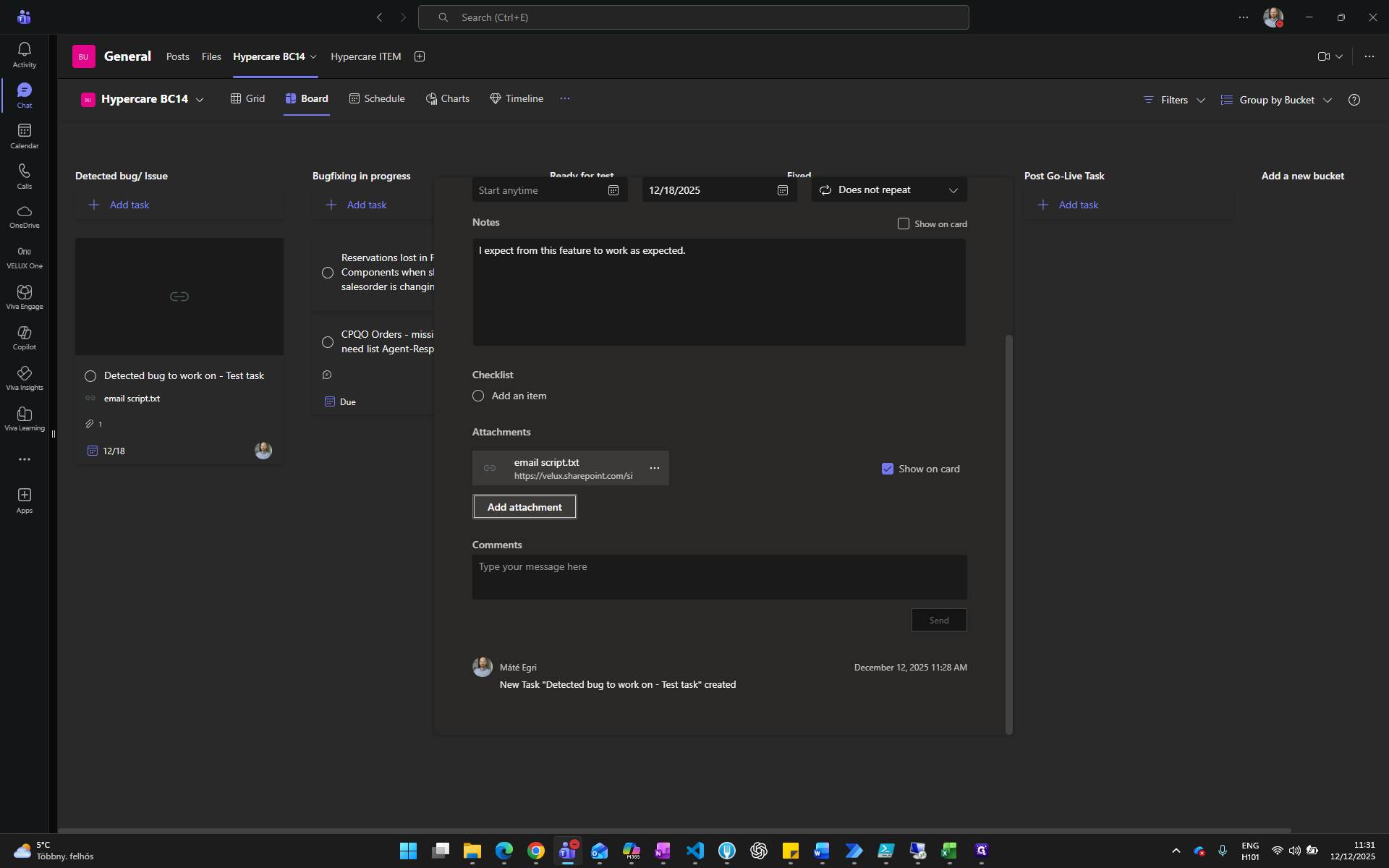
Add long description notes: explain in more detail what we expect from the resolution of this task.
Step #8:  Add long description notes: explain in more detail what we expect from the resolution of this task.
9
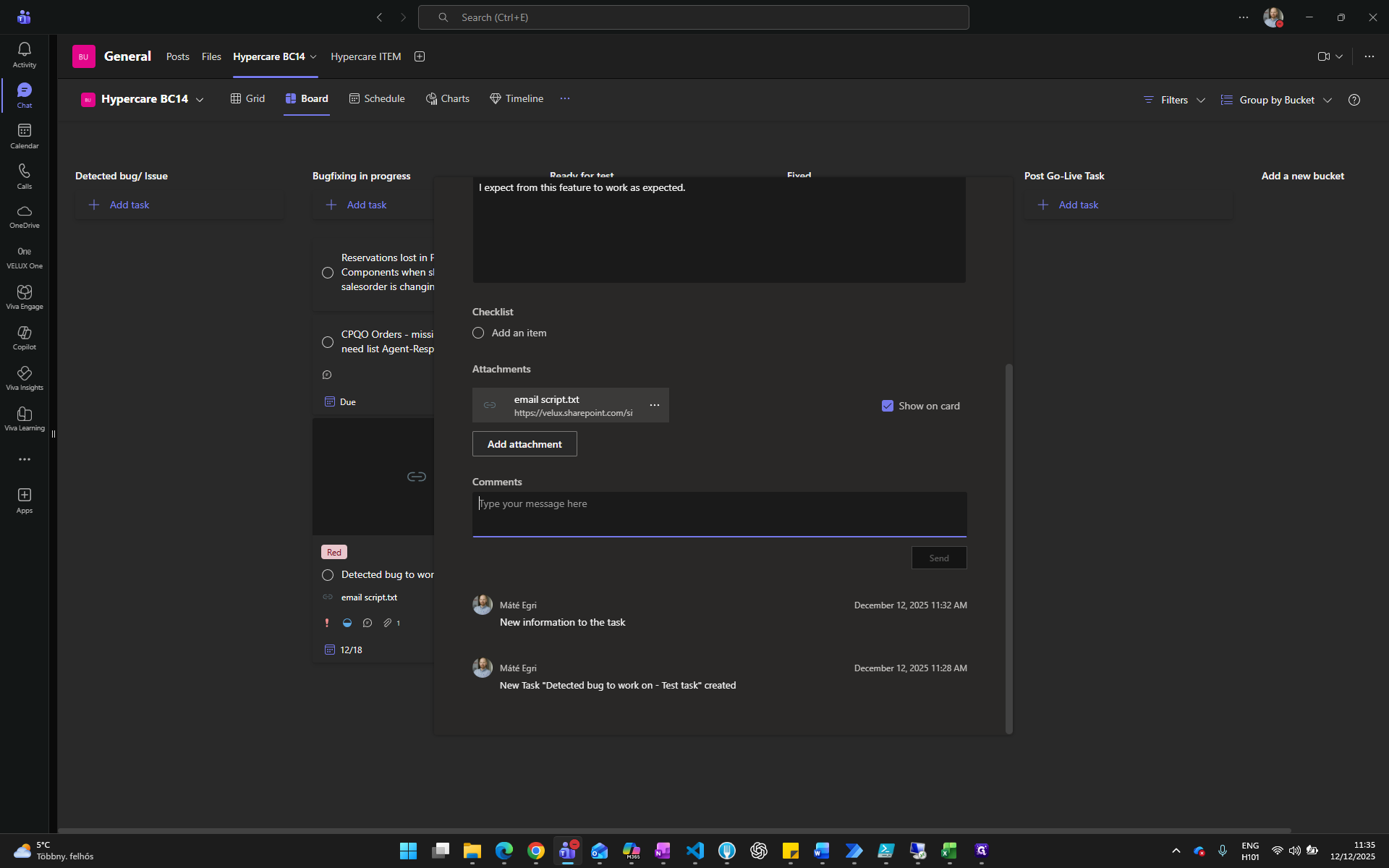
Add attachments, such as screenshots or documents
Step #9: Add attachments, such as screenshots or documents
10
Add extra comments if needed, or later as a follow-up action. When the support person starts to work on the task or has a question, they can add their comments here too.
Step #10: Add extra comments if needed, or later as a follow-up action. When the support person starts to work on the task or has a question, they can add their comments here too.

Once we finish, we can close it. The task will then be created.
11
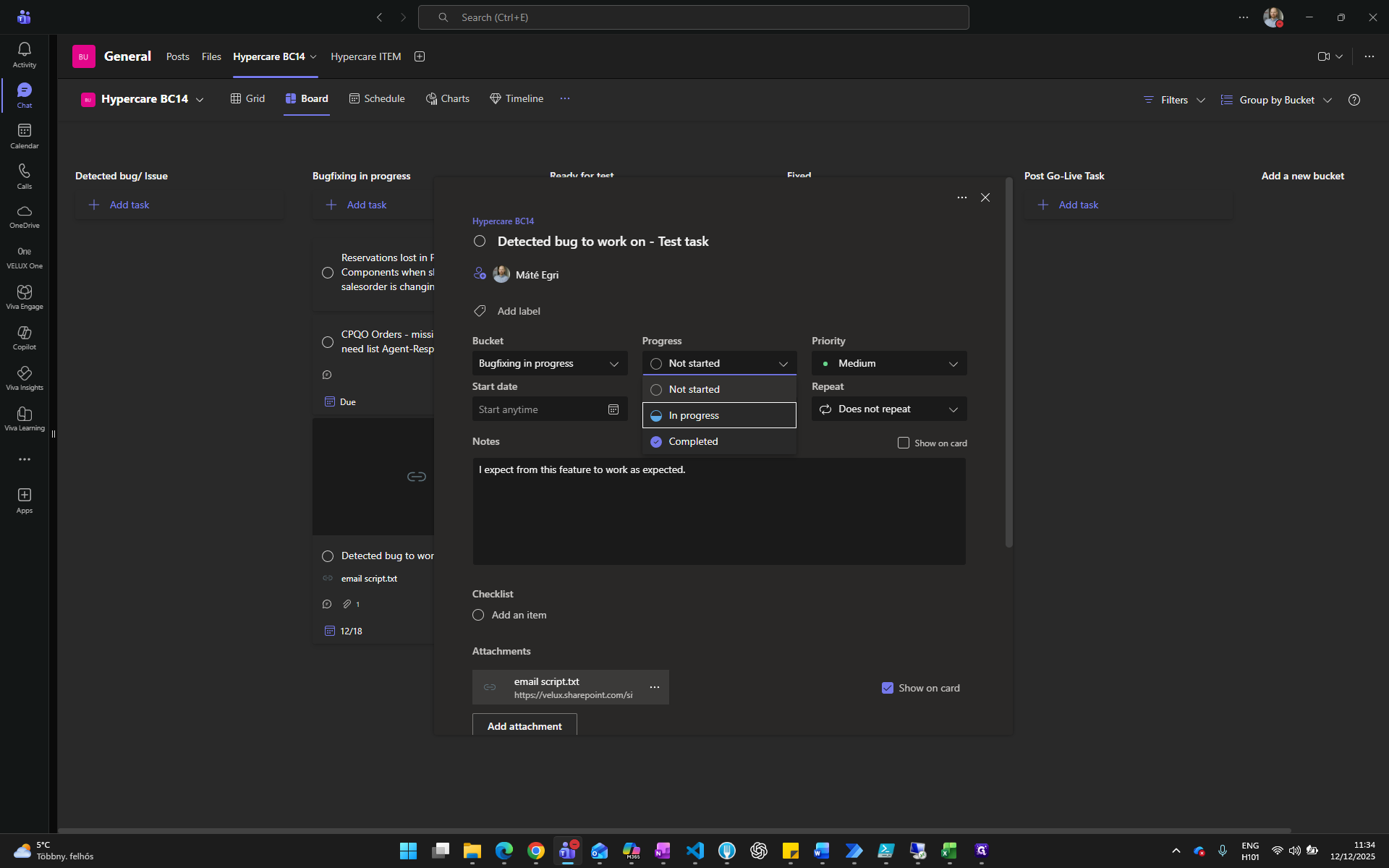
Once a person starts to work on the issue, they will add themselves as additional Assignees, move the card to the next Bucket, and update the Progress status
Step #11:  Once a person starts to work on the issue, they will add themselves as additional Assignees, move the card to the next Bucket, and update the Progress status
12
End user and support persons can communicate via task comments, to keep all the necessary details with the task itself.
Step #12: End user and support persons can communicate via task comments, to keep all the necessary details with the task itself.
13
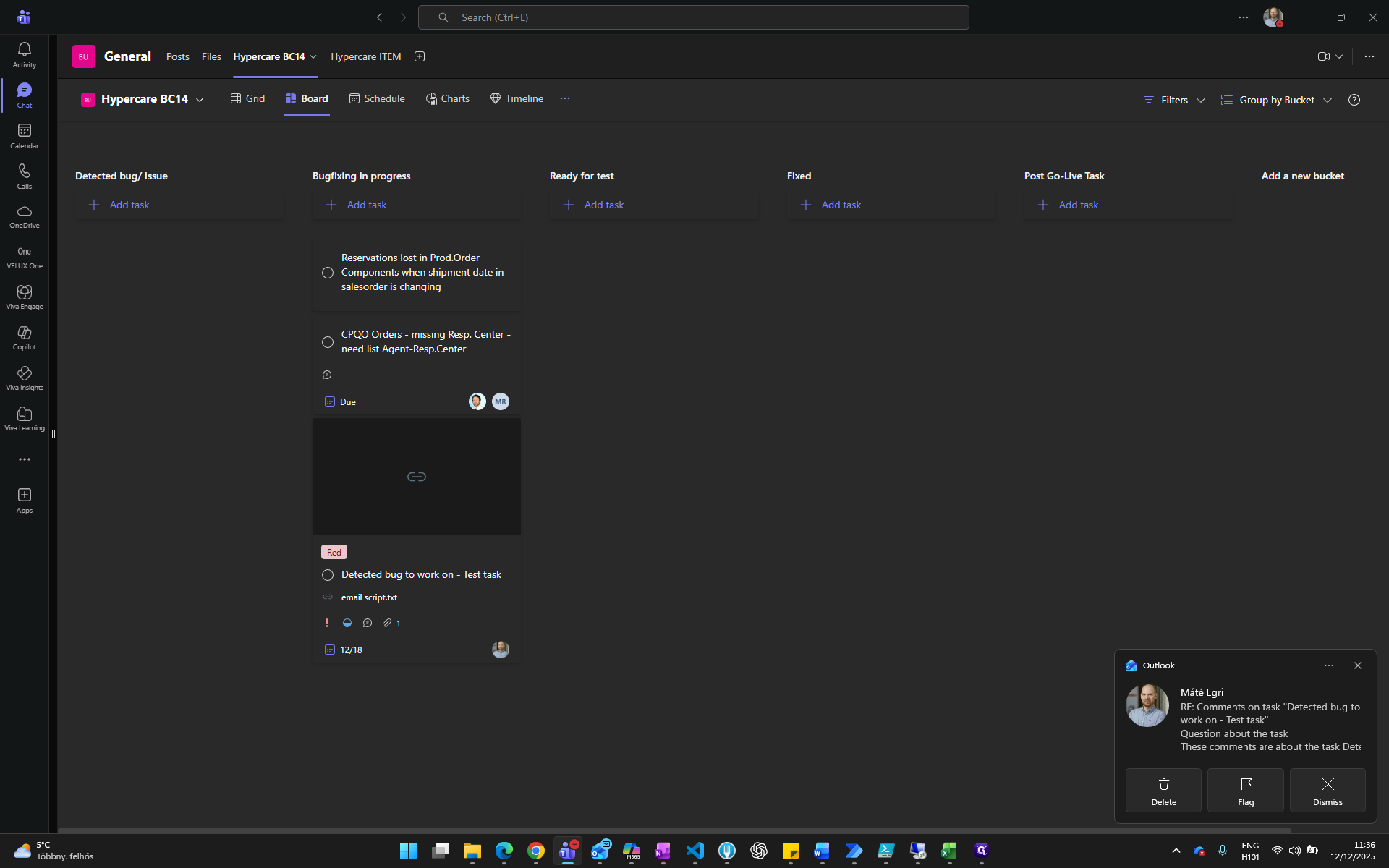
Email notification is received with the comments
Step #13: Email notification is received with the comments
14
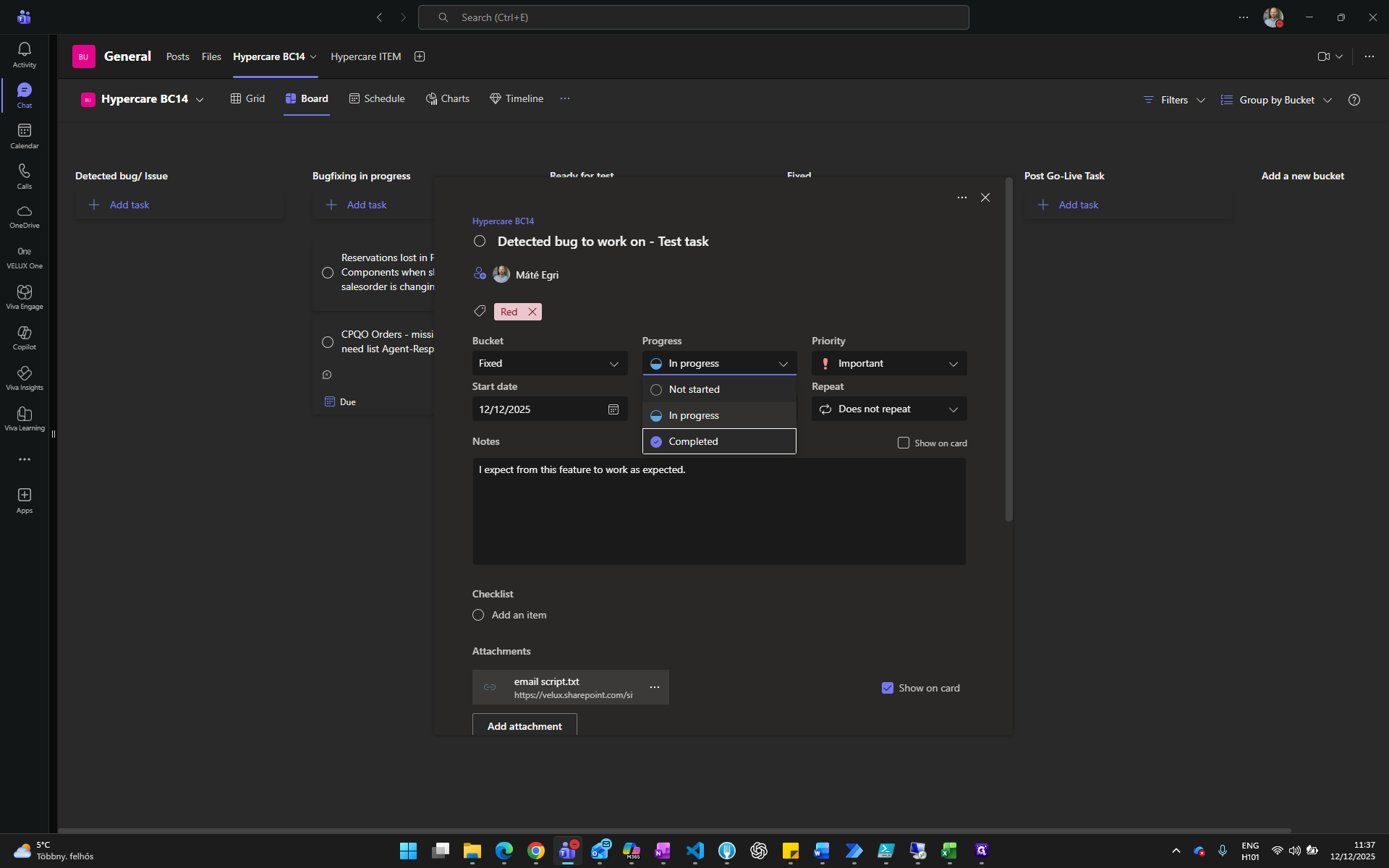
Once the bug is fixed and the tests are passed, the task can be moved to Fixed bucket and marked as completed.
Step #14:  Once the bug is fixed and the tests are passed, the task can be moved to Fixed bucket and marked as completed.
15
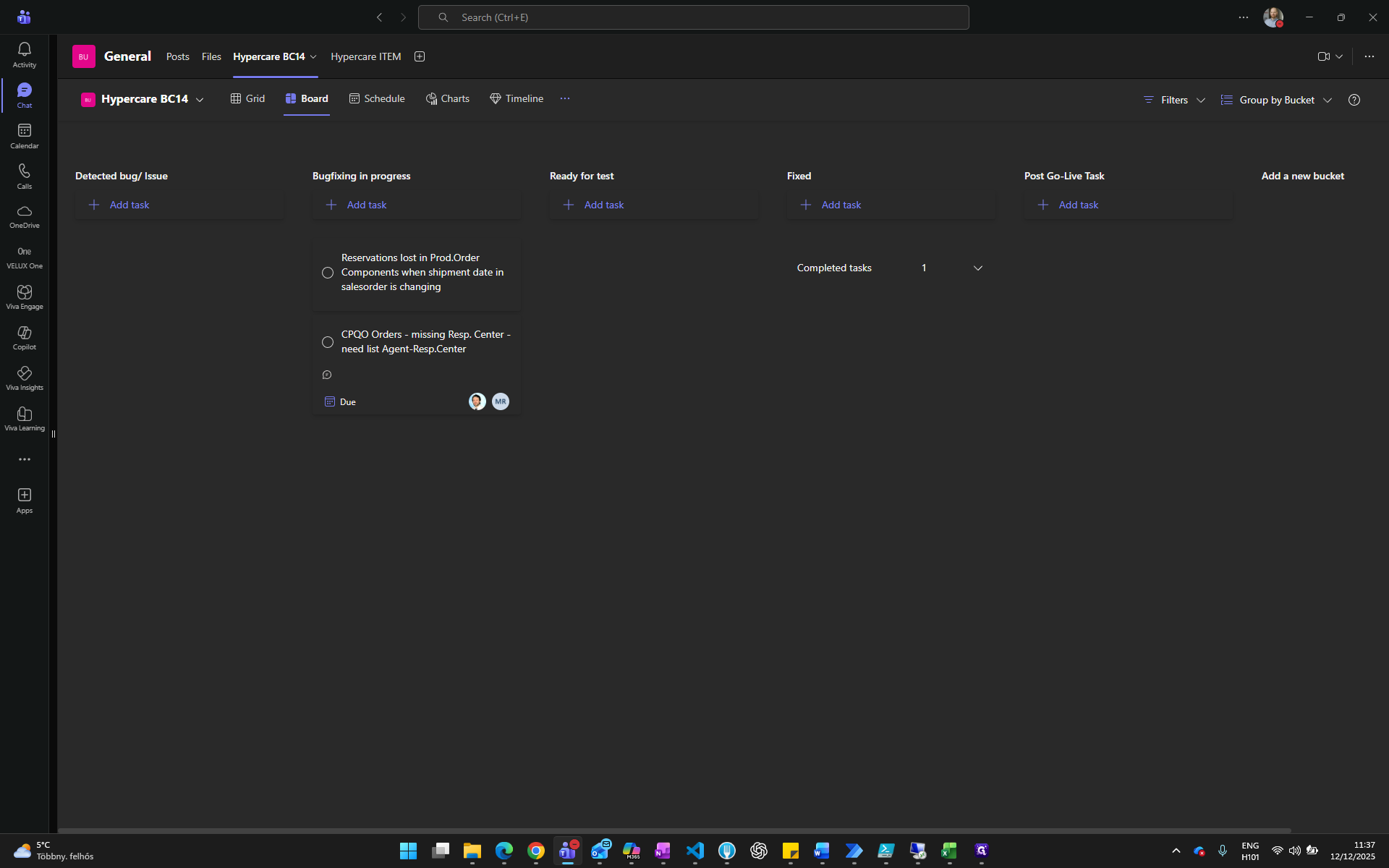
Find under the completed tasks.
Step #15: Find under the completed tasks.
16
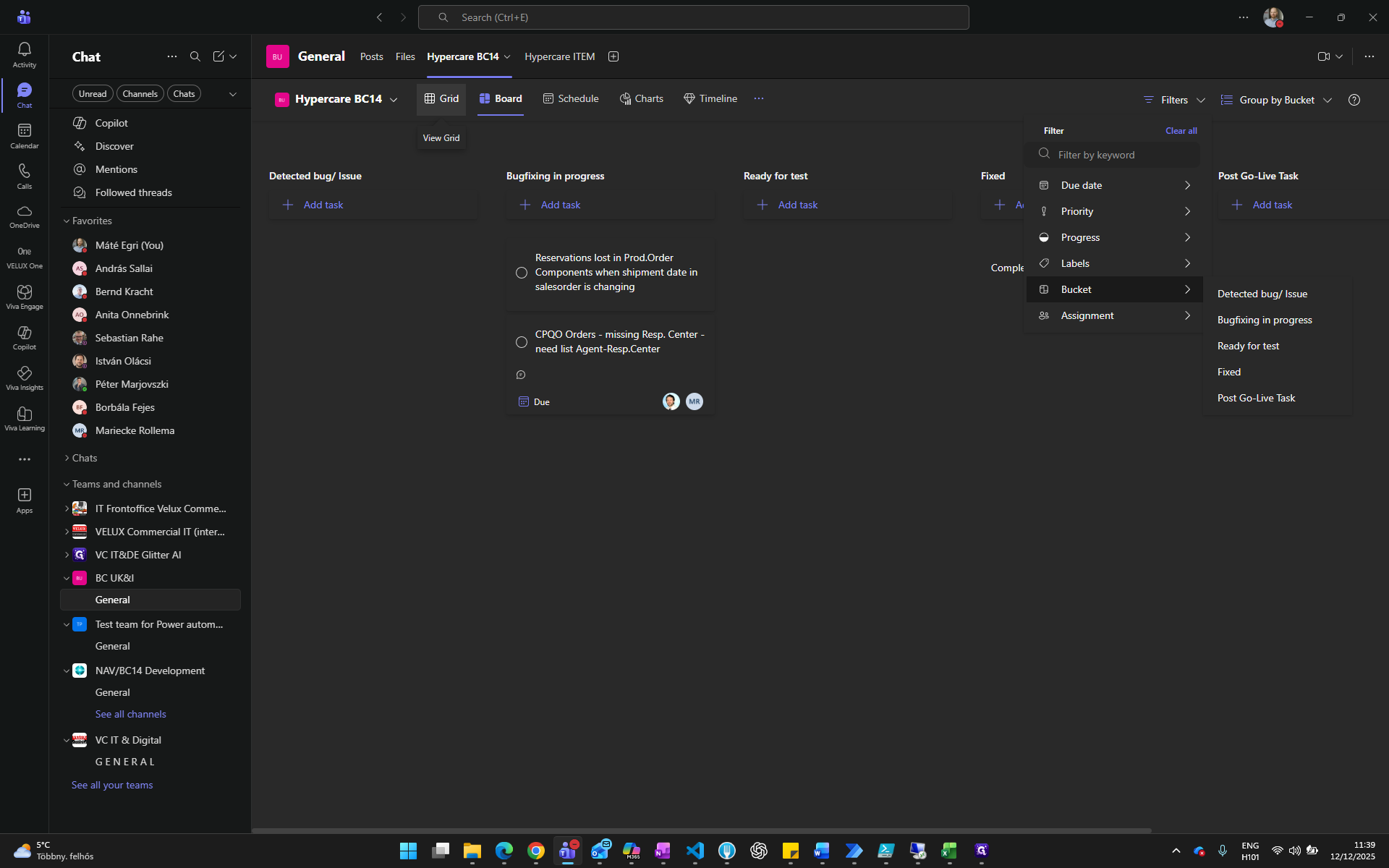
Use "Filters" to find tasks more easily
Step #16: Use "Filters" to find tasks more easily
17
Choose from different views as grid, schedule, charts
Step #17: Choose from different views as grid, schedule, charts
18
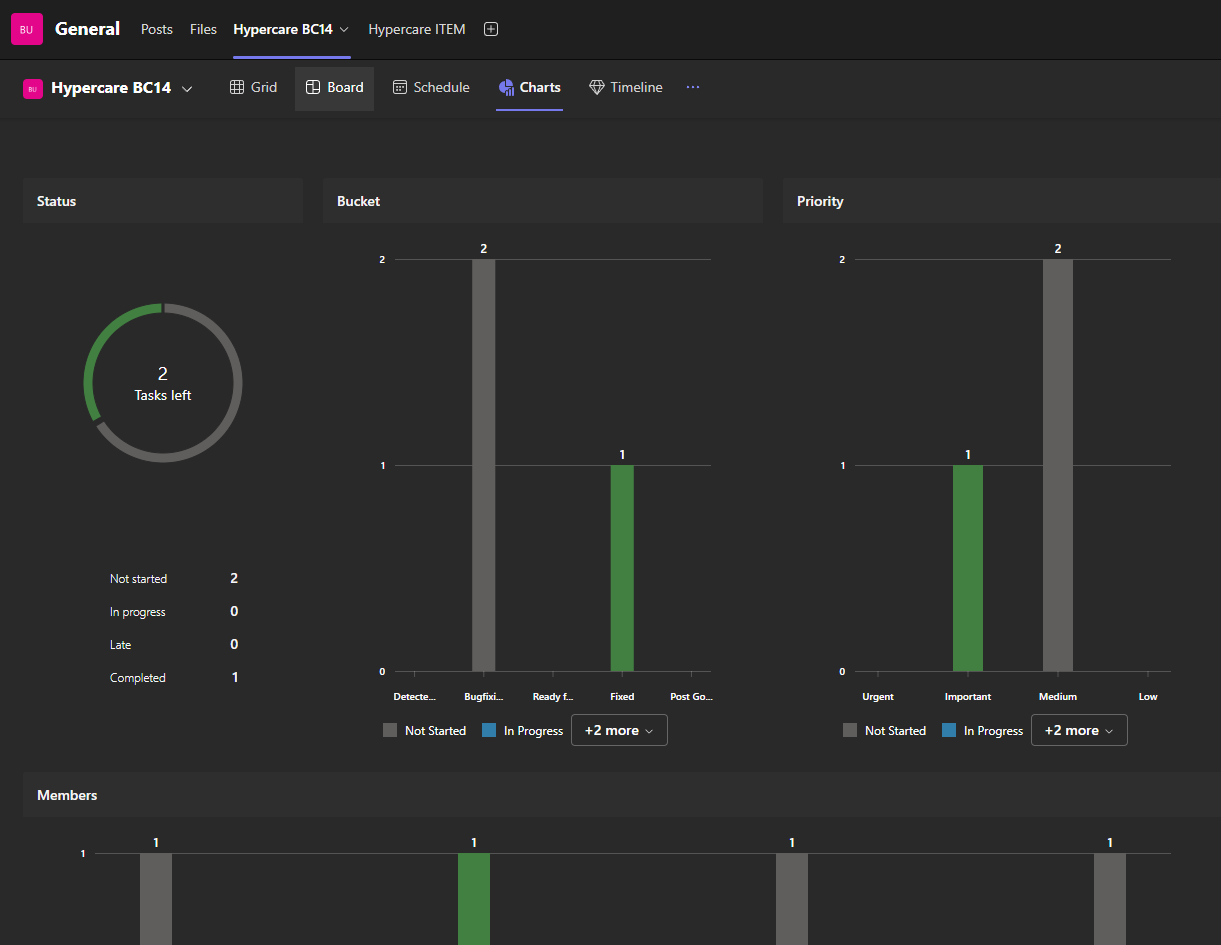
See Charts
Step #18: See Charts

Summary

  1. Create new task, log issue, ask question

  2. Assign to yourself

  3. Add clear description

  4. Add notes for extra info (optional)

  5. Add attachments (optional)

  6. Add comments for follow-up

  7. Technical persons start to work on it, add themselves as assigned persons, changing the progress status, , add comments or contacts the requestor if extra information is needed.

  8. Testing

  9. Fixed, if all tests are passed