How to Use the Invoices Tab in the Customer Profile
Learn how to access, view, and manage invoices in the customer profile, including payment requests, invoice details, parts reservation, and exporting invoices to Excel.
By Dominik Black
In this guide, we'll learn how to navigate and use the Invoices tab within a customer profile. We will look at how to access invoice details, request payments, and review important information such as invoice status, department, and payment history.
We will also cover how to export invoices to Excel and customize your invoice list view to fit your needs.
Let's get started
1
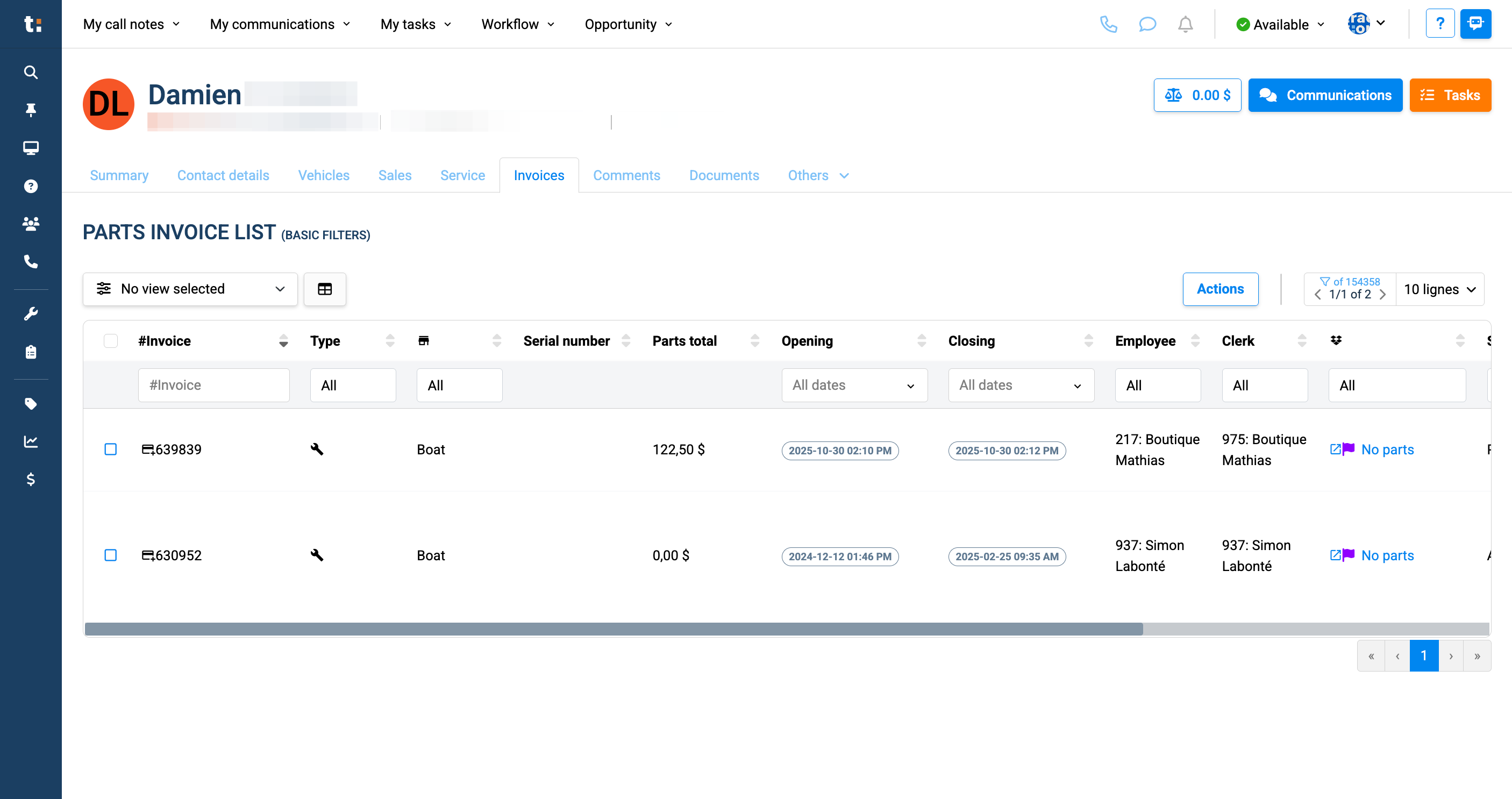
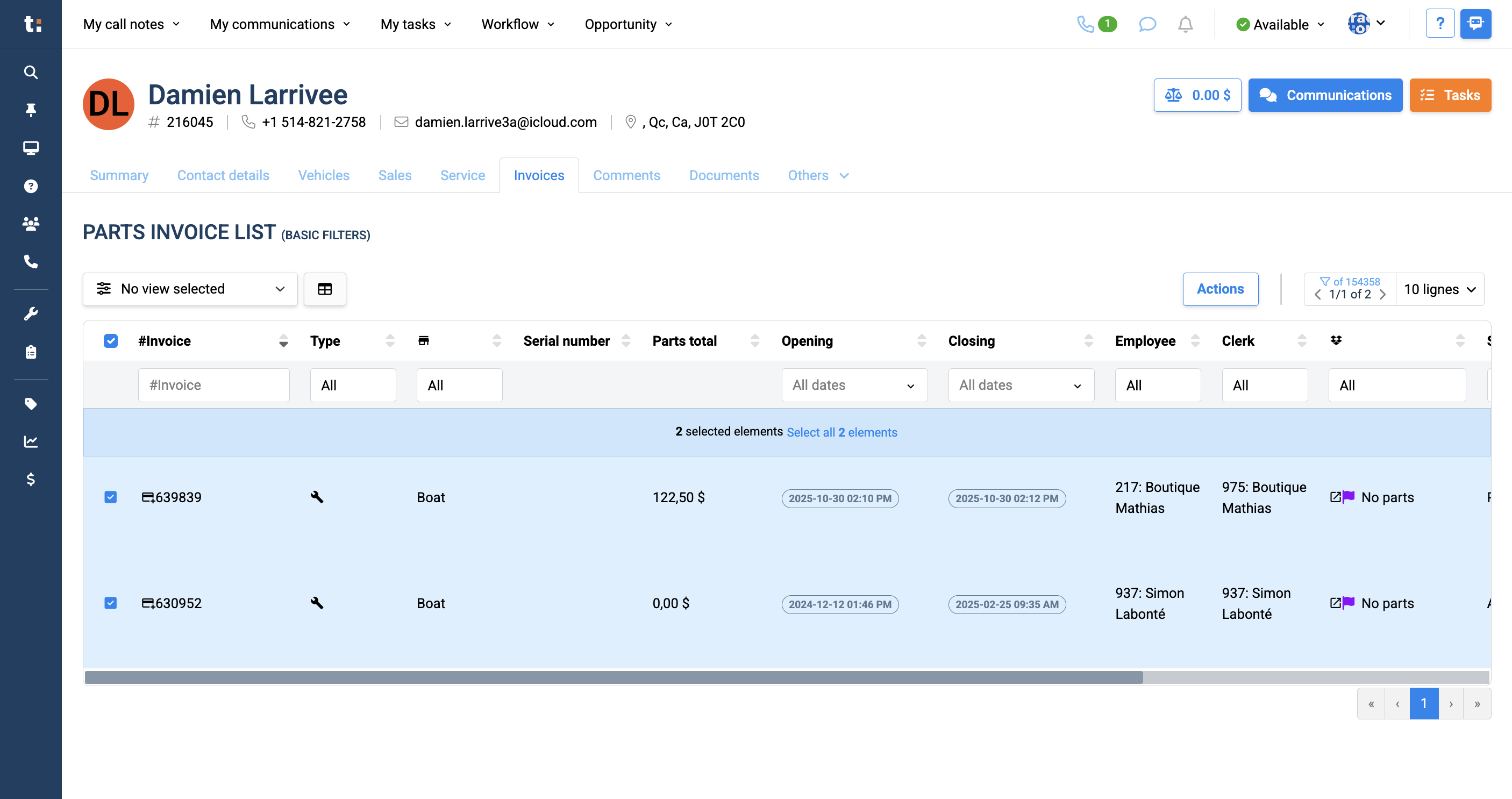
This article covers the Invoices tab in the customer profile. To access invoices, click on "Invoices."
2
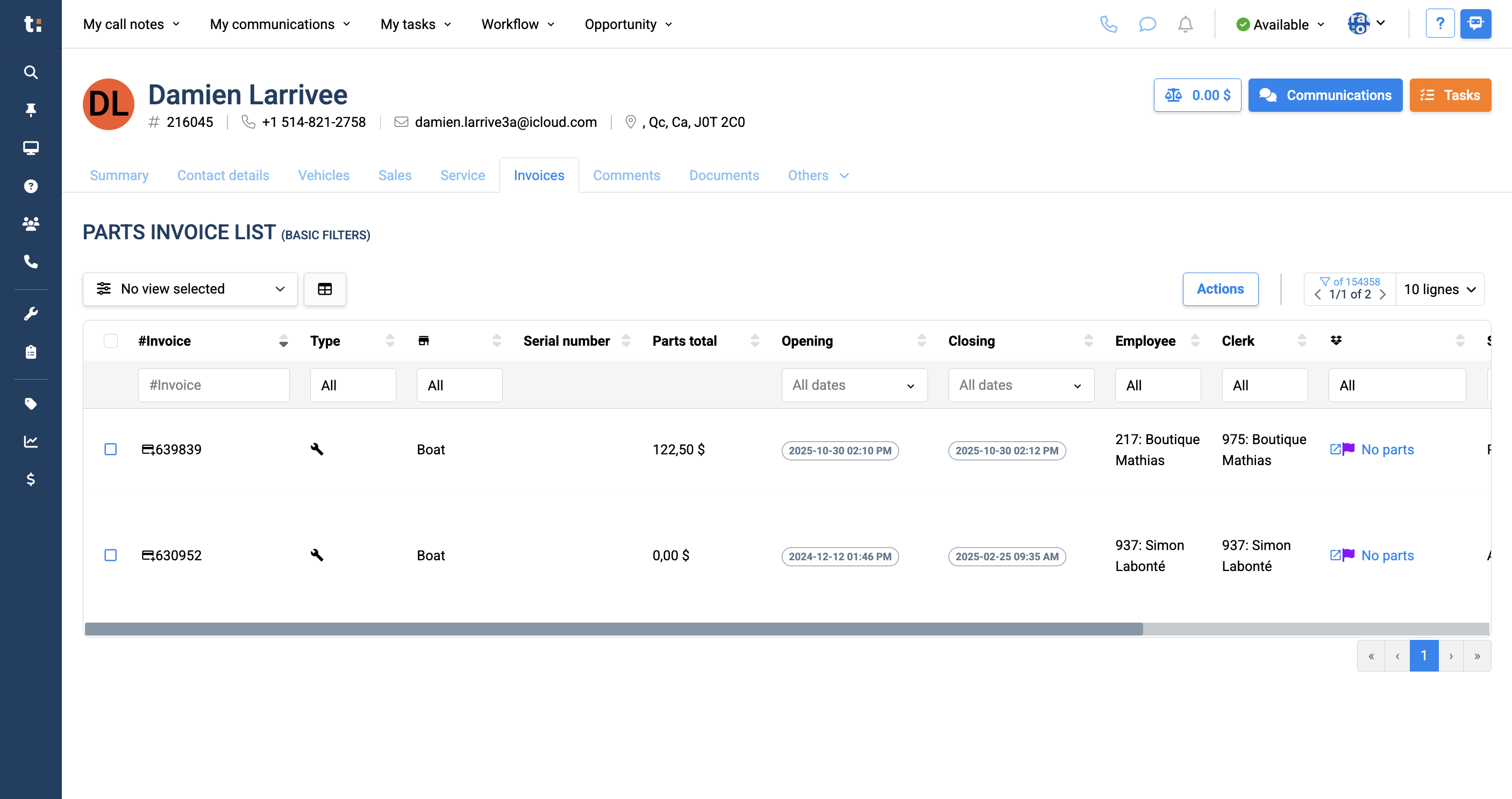
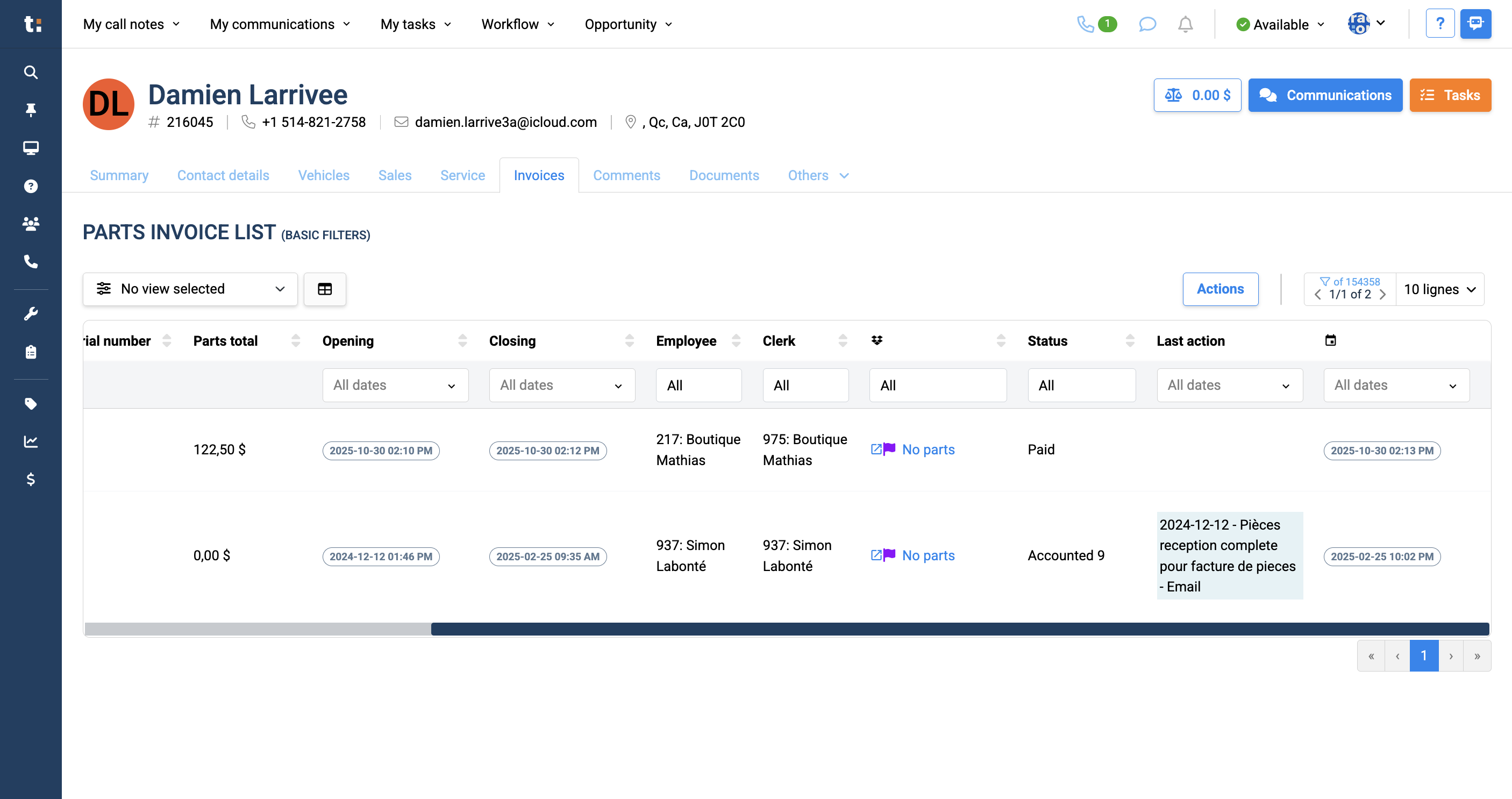
This will provide the complete parts invoice list directly related to the customer. In this list, you can view the invoice number. To request a payment, click on the invoice number.
3
You will see the type of invoice.
4
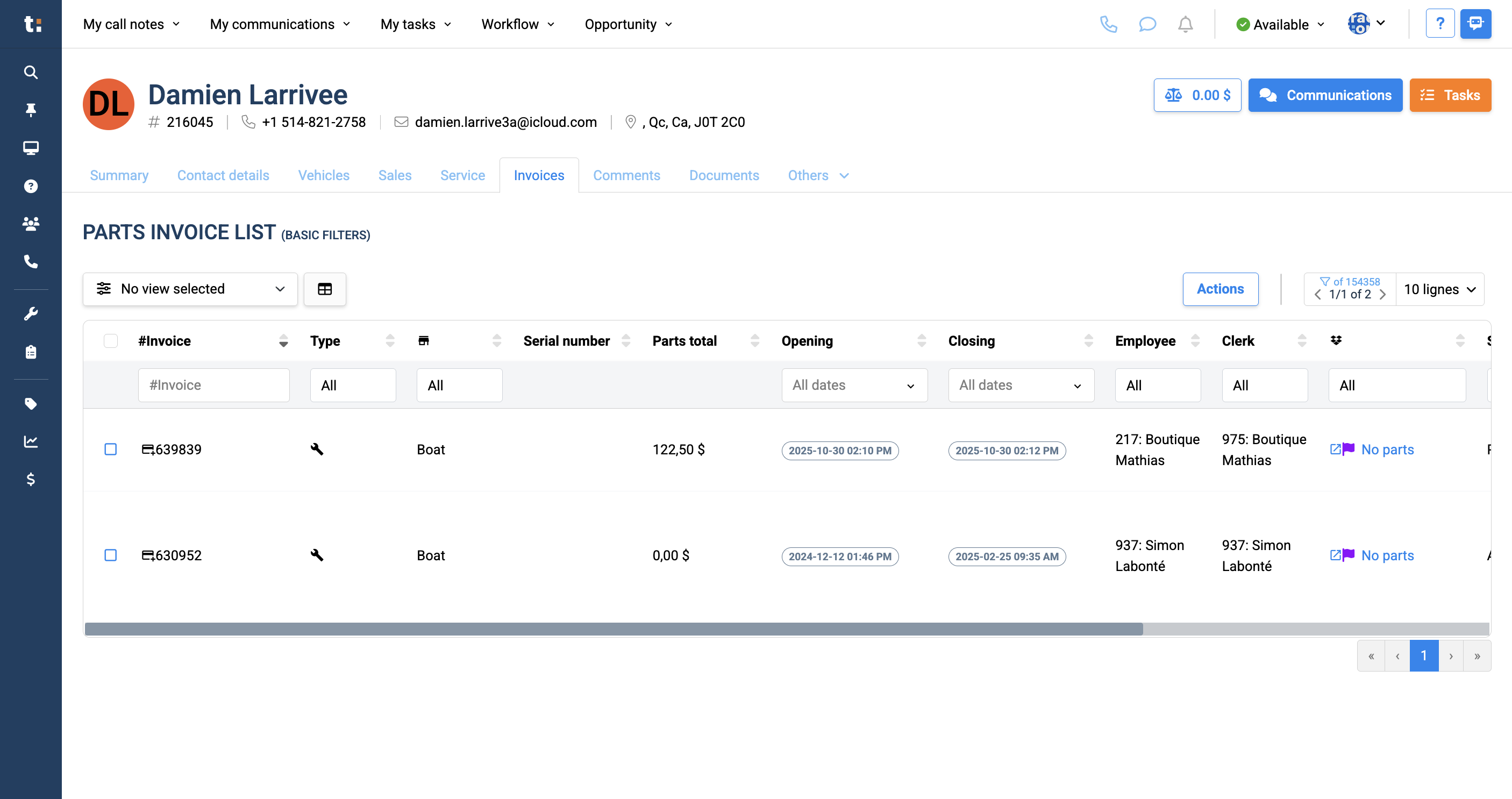
You can see which department requested this payment.
5
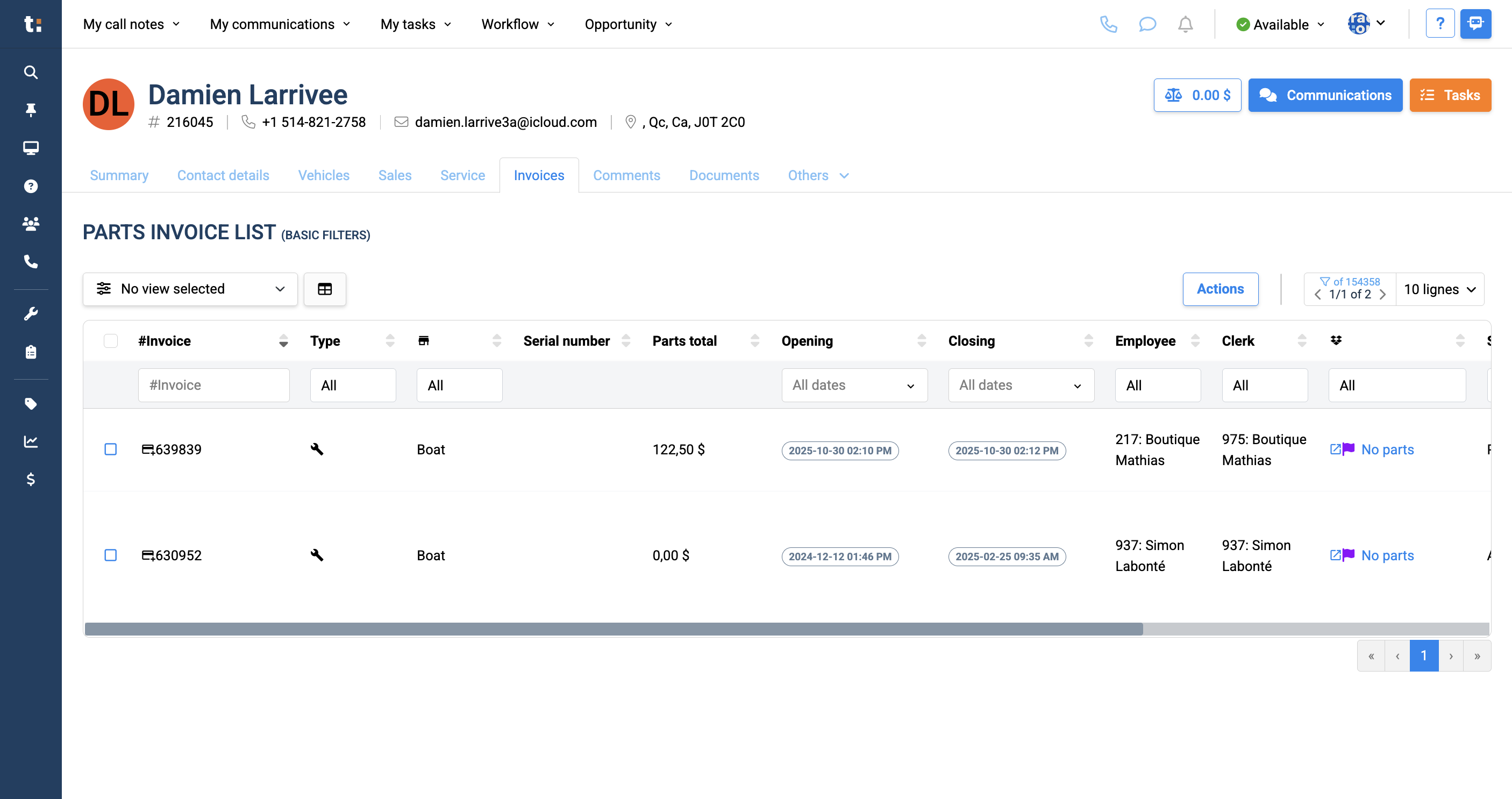
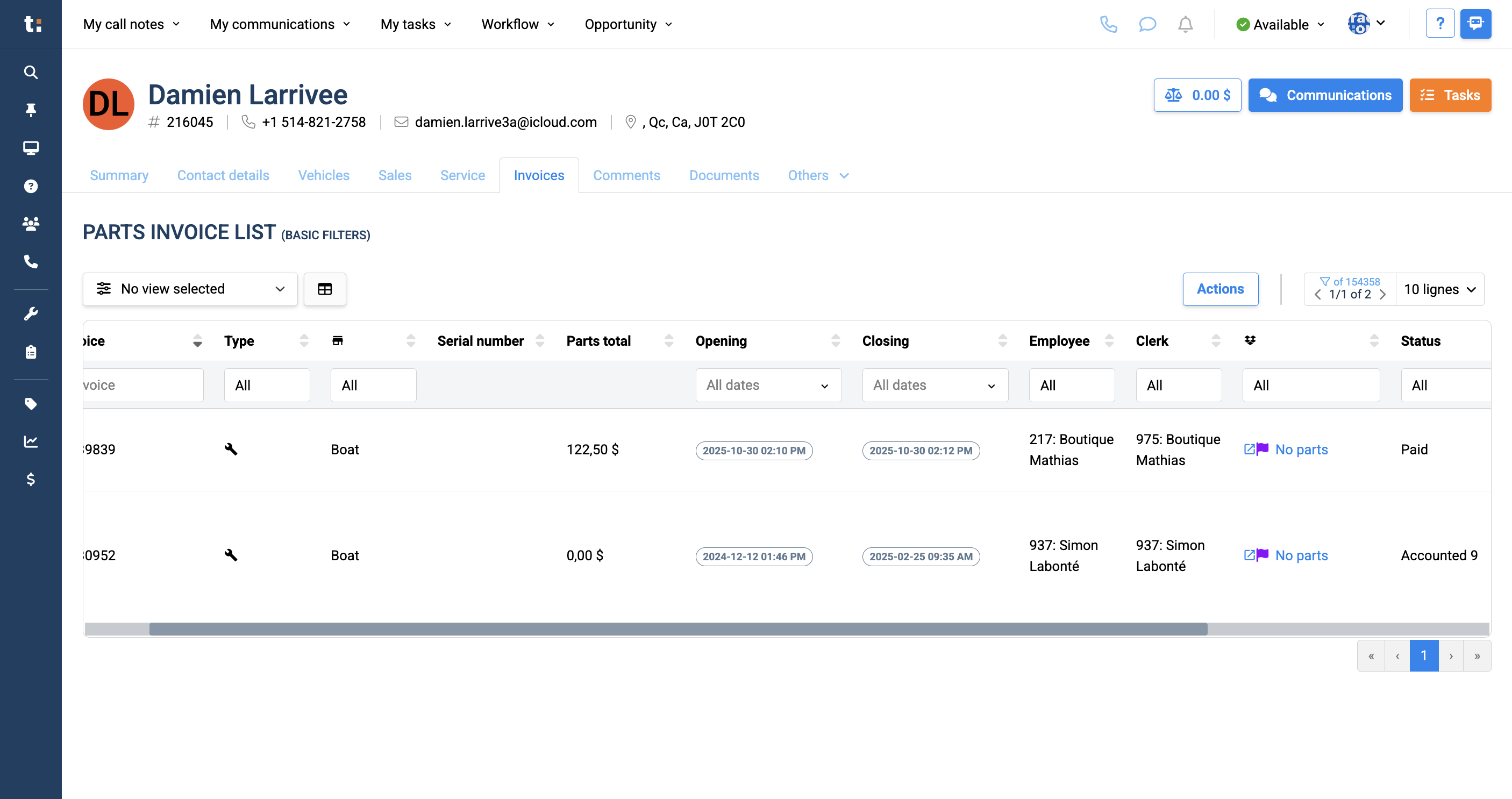
You will also have information like the serial number and the total requested for the parts.
6
You can see when the invoice was opened and when it was closed.
7
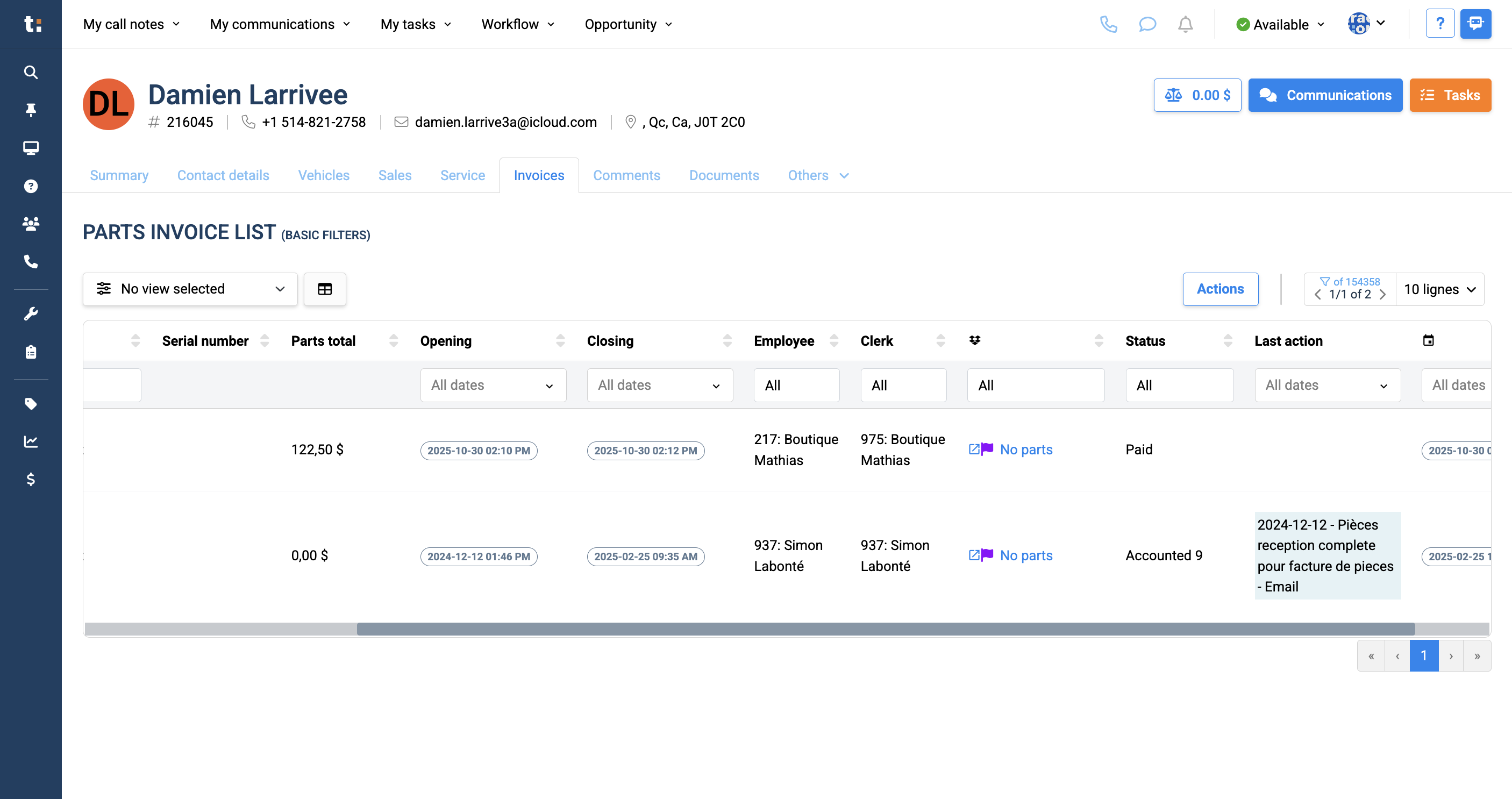
You will see who requested the invoice and who sent it.
8
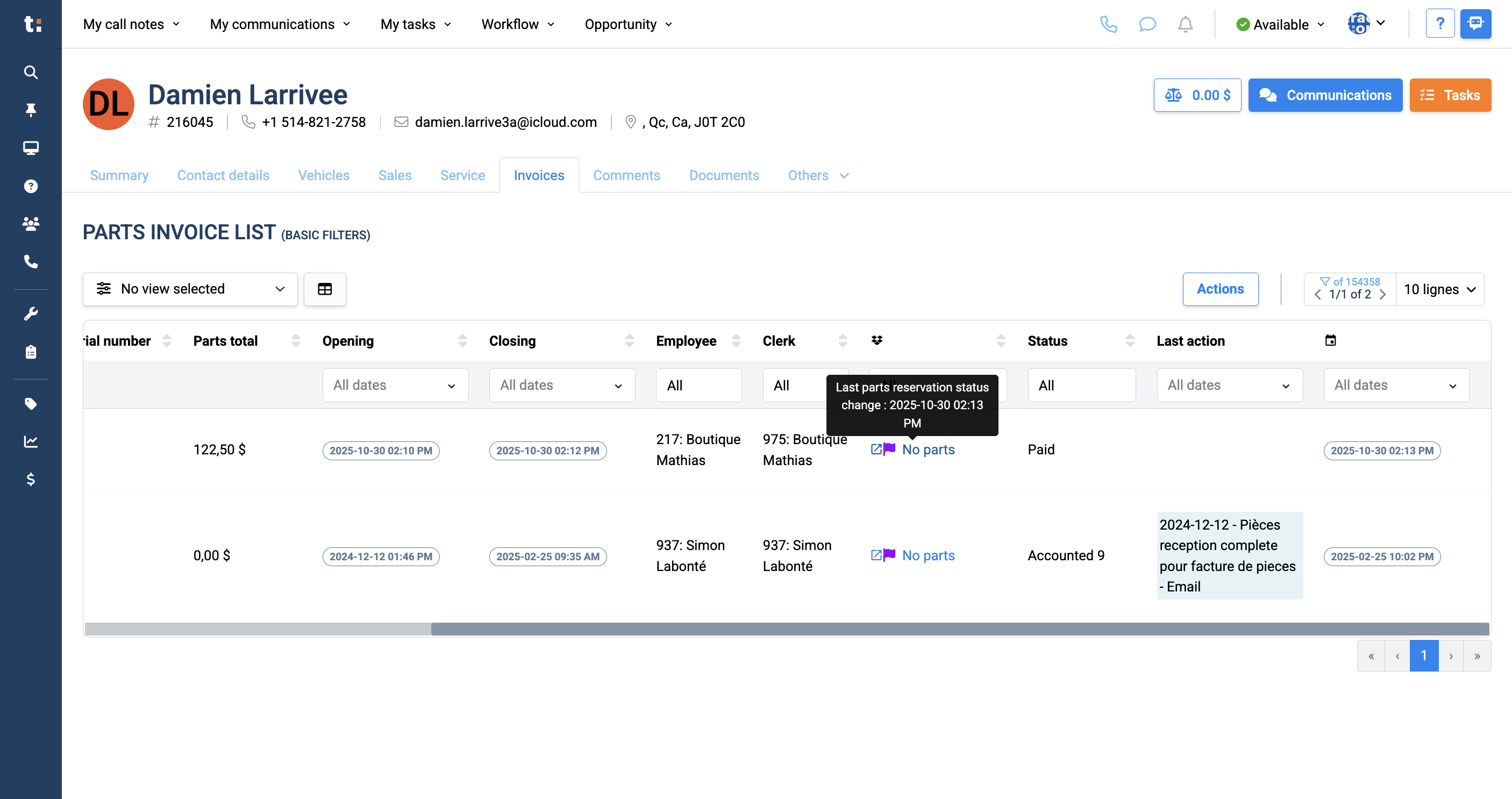
You can view the reservation status of the part.
9
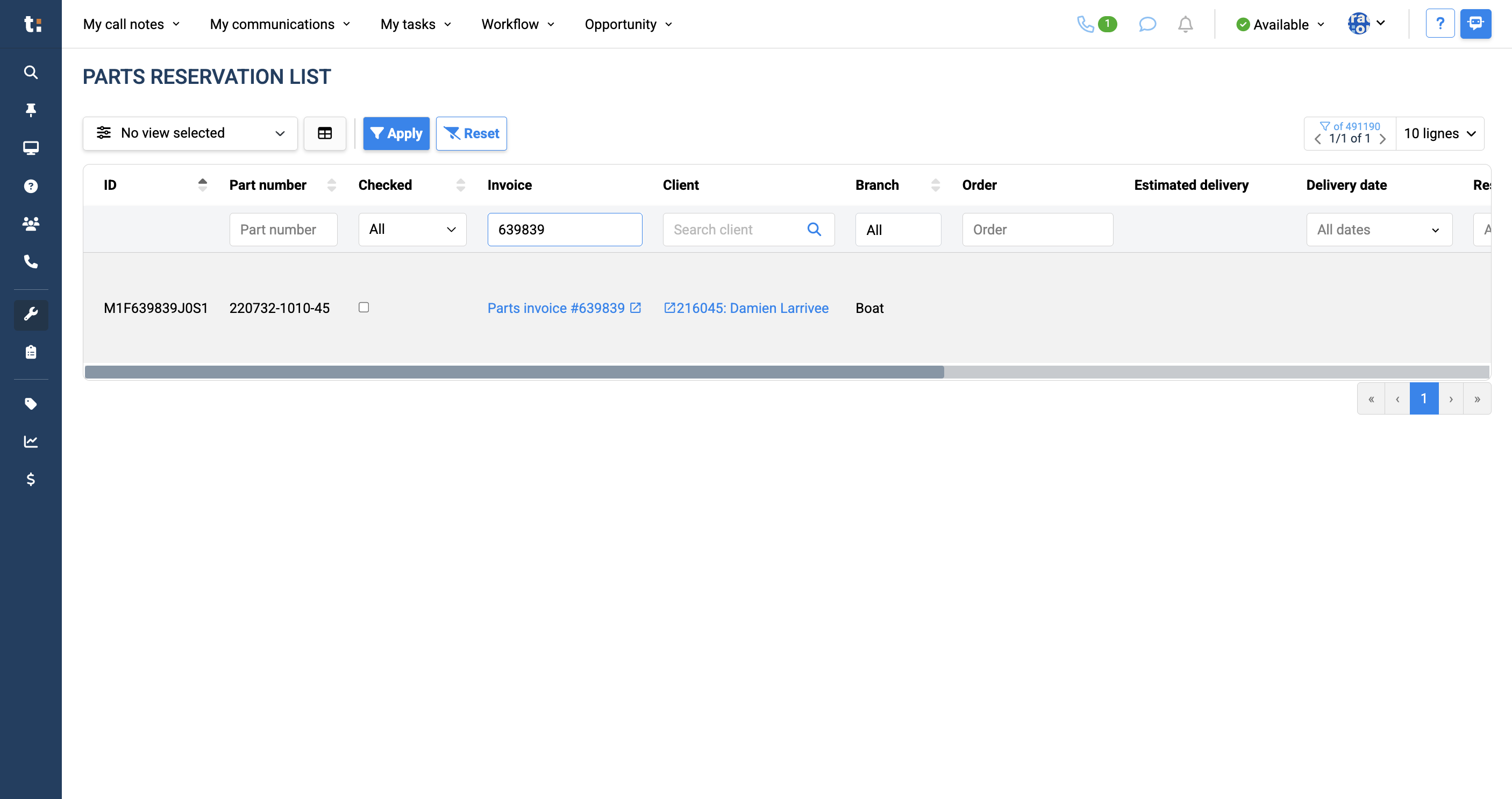
Clicking this will take you directly to the parts reservation list.
10
This will give you more insight into the invoice parts.
11
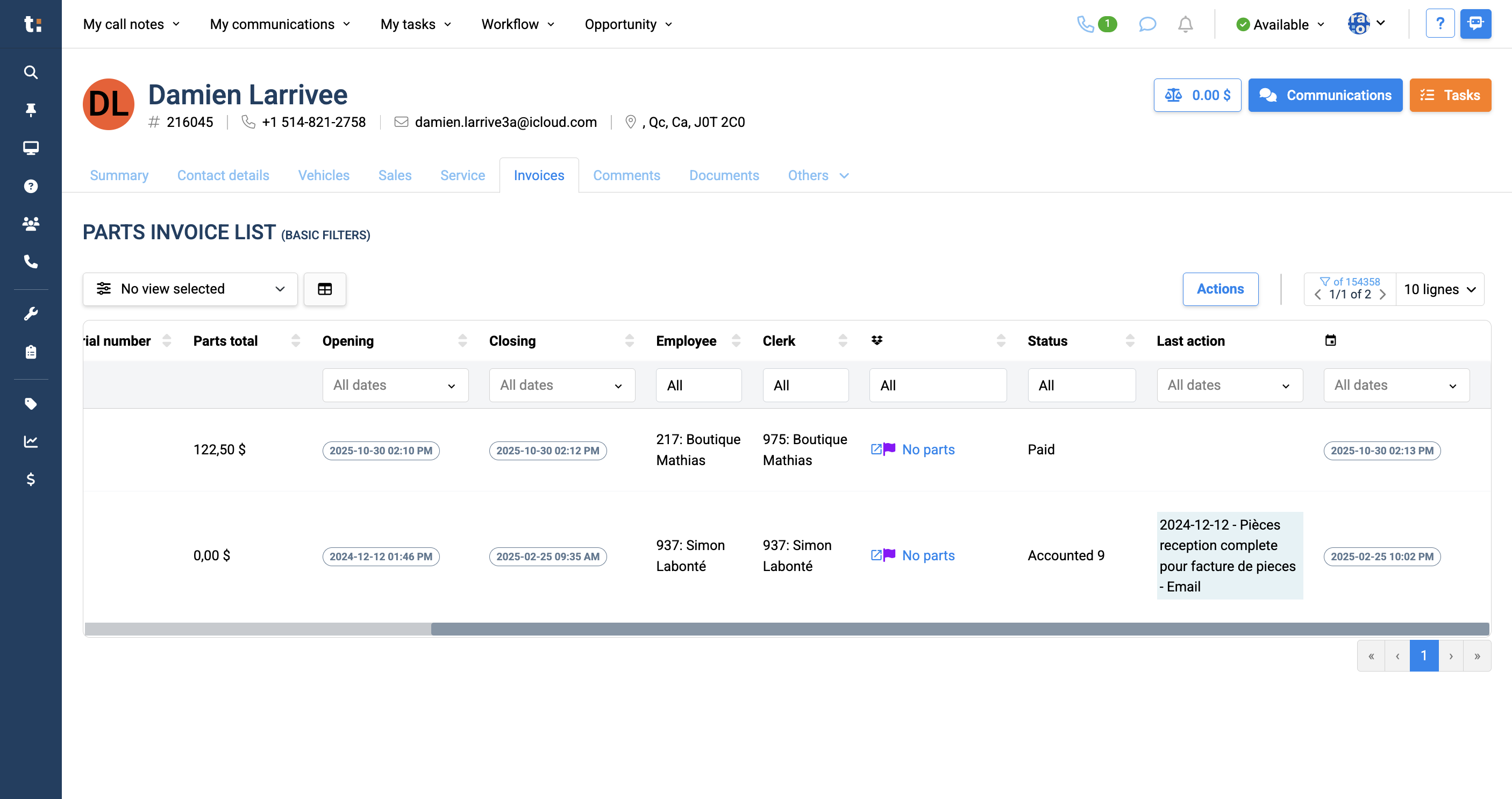
You will also see the status of the payment request—whether it was paid, accounted, or is still pending.
12
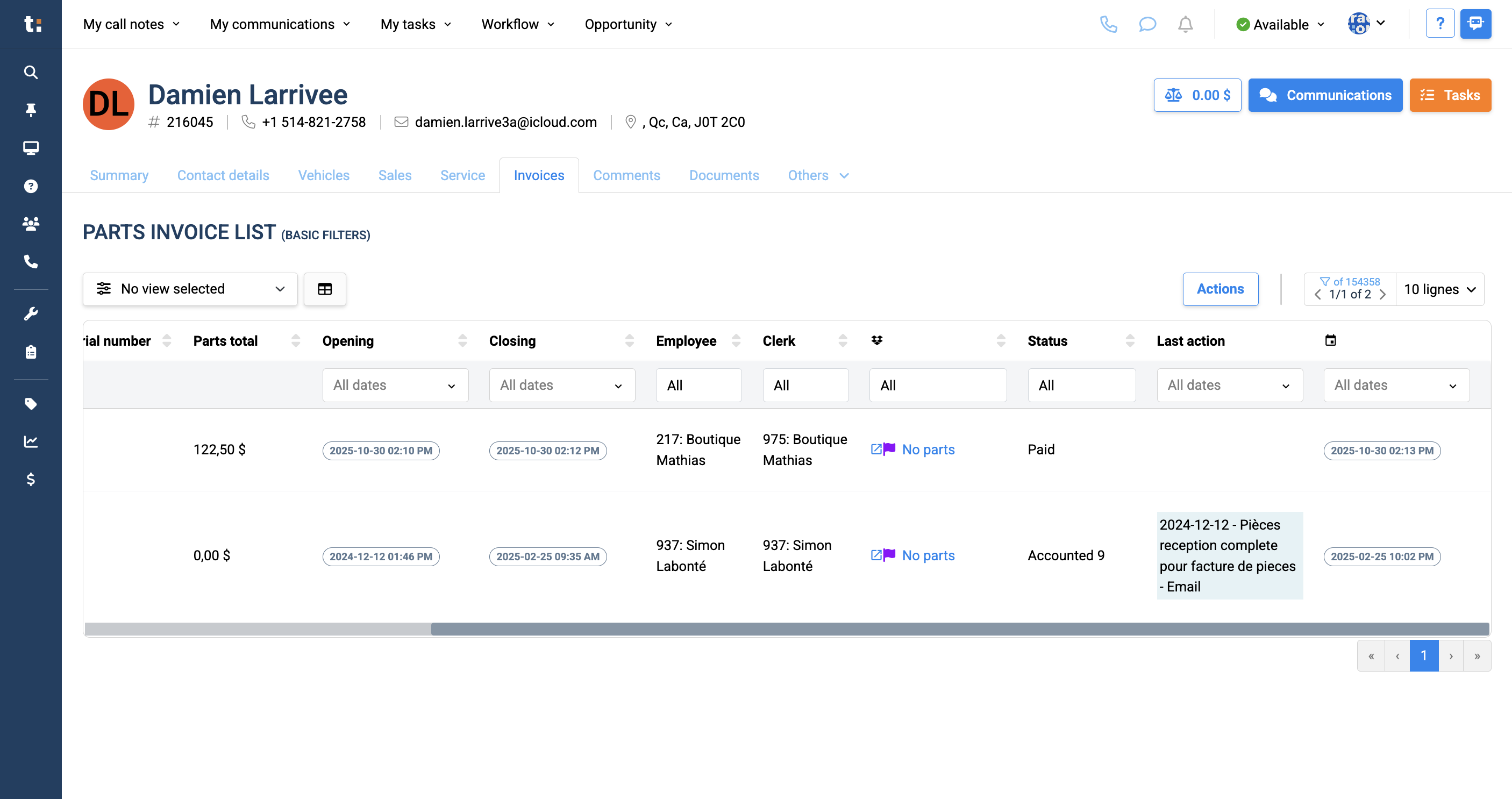
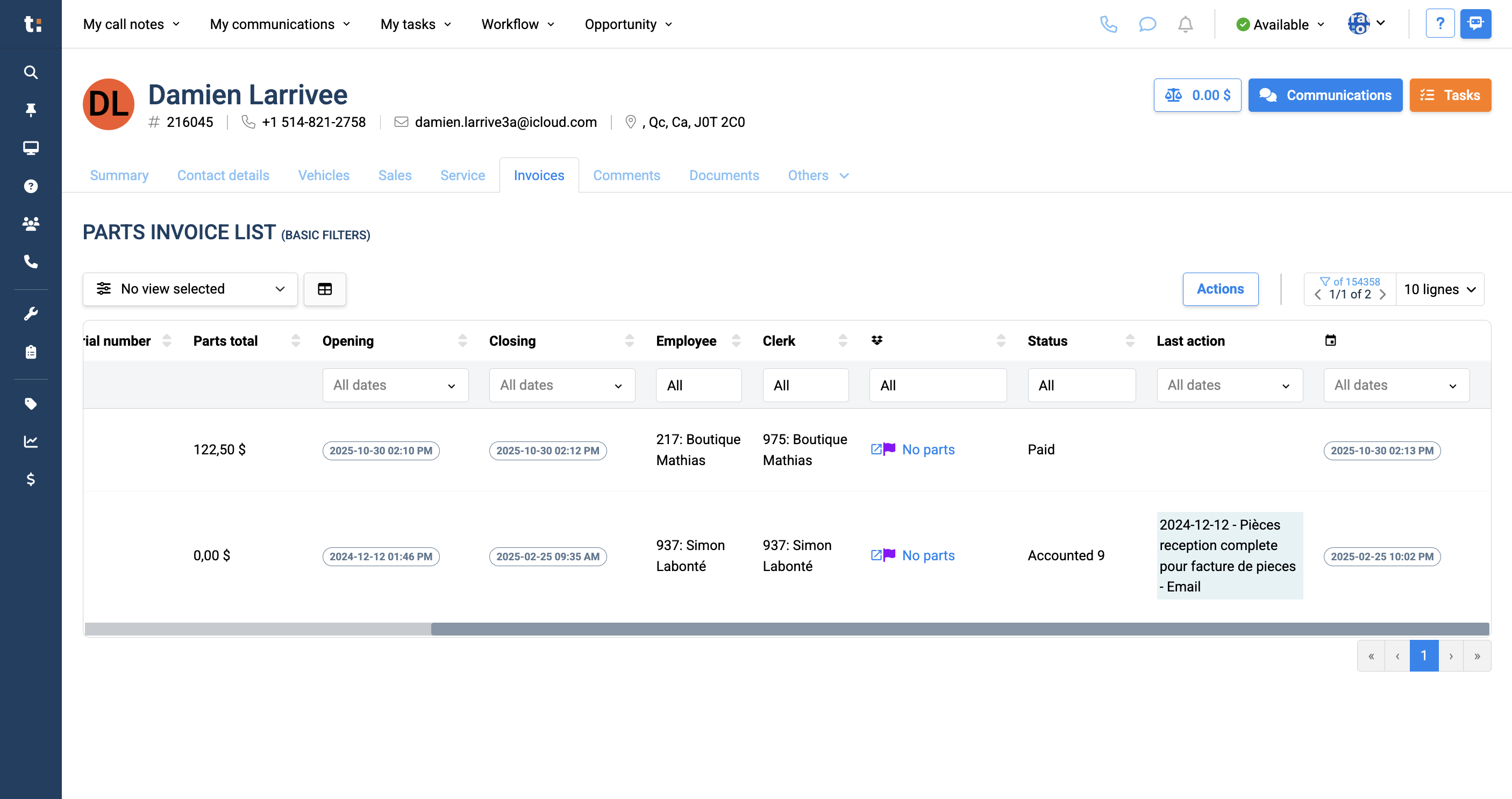
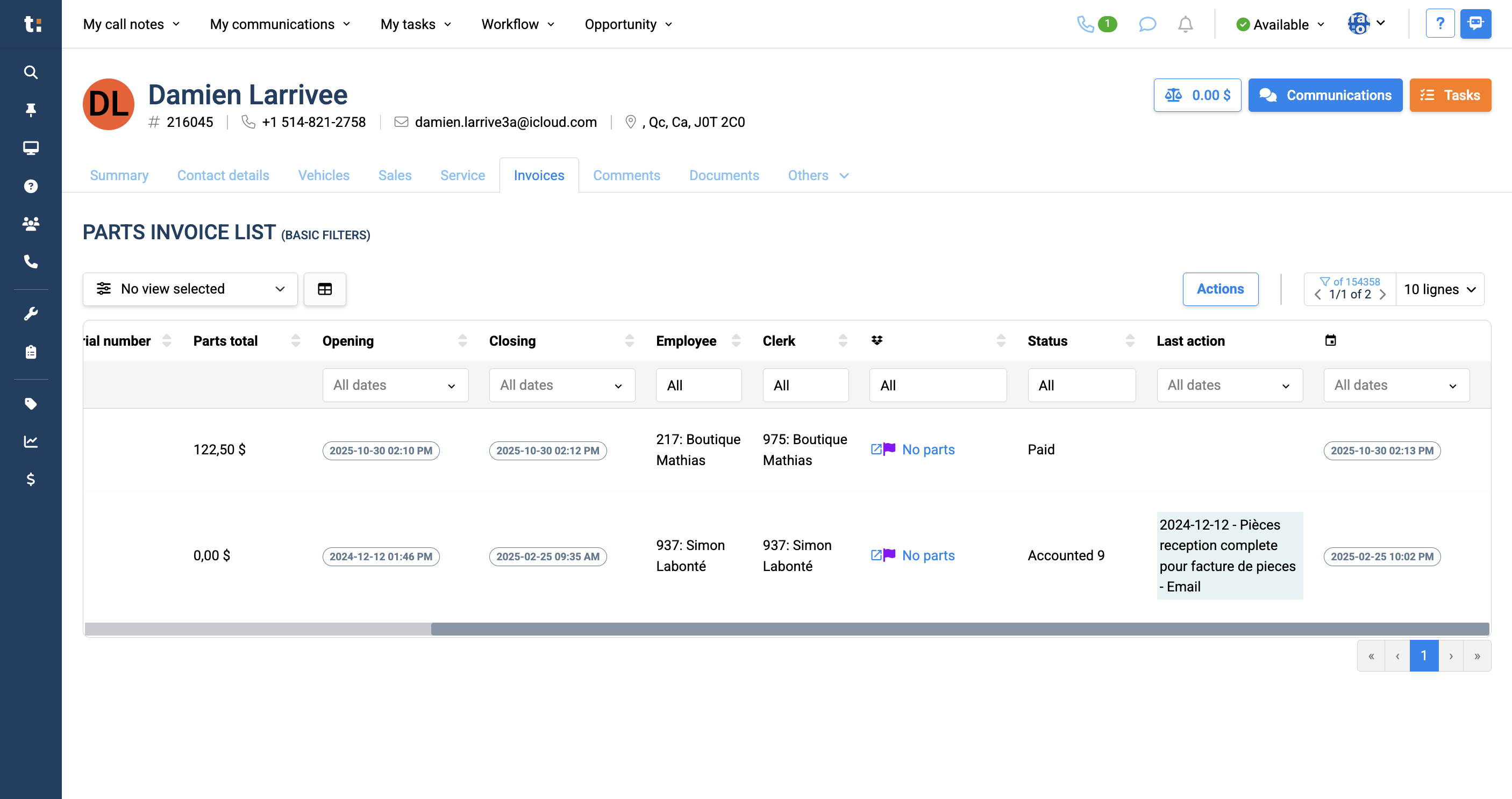
You can see the most recent action displayed here.
13
Lastly, you will see the date when this part status was last modified.
14
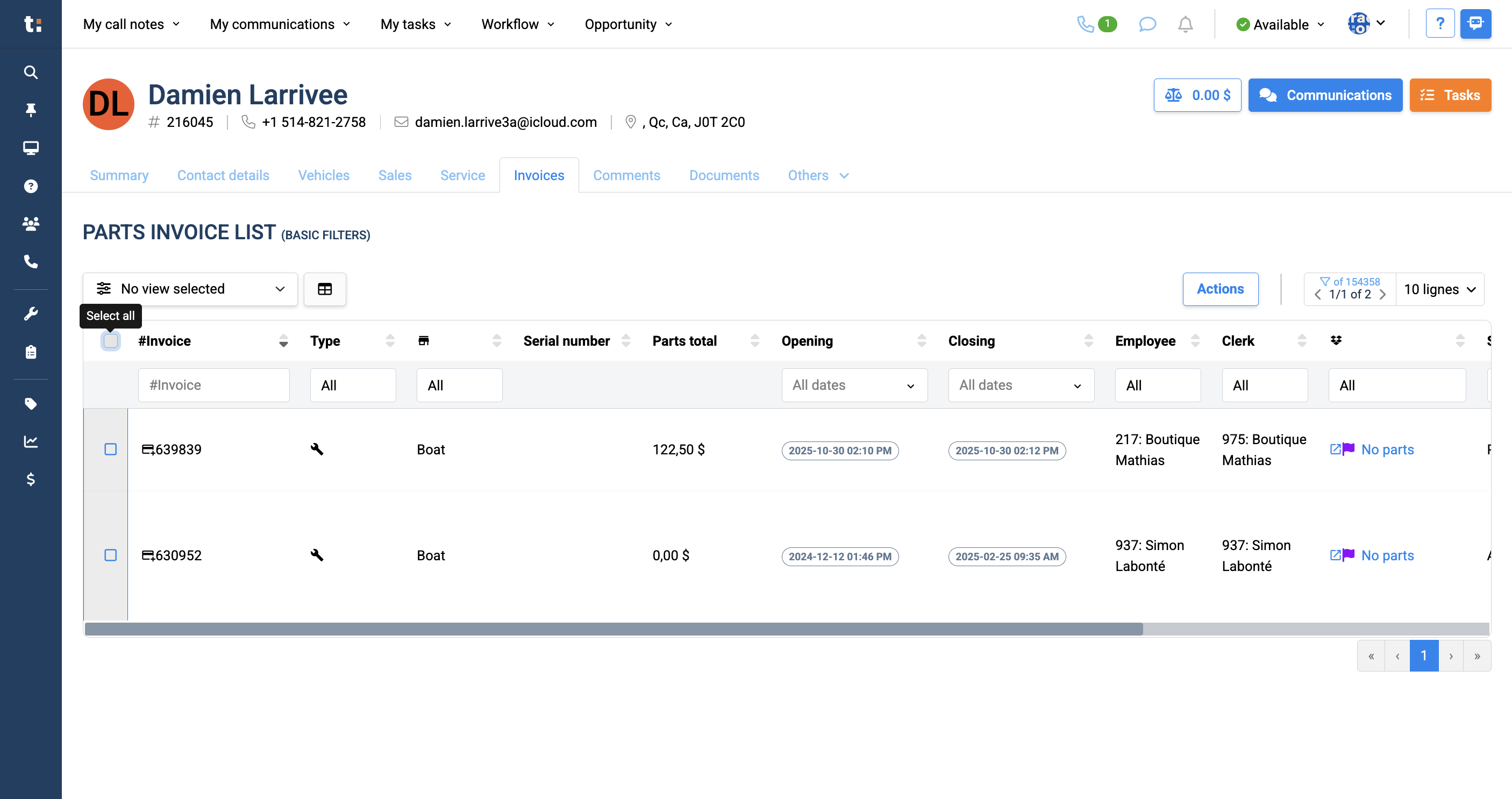
You can select any invoice by clicking the checkbox,
15
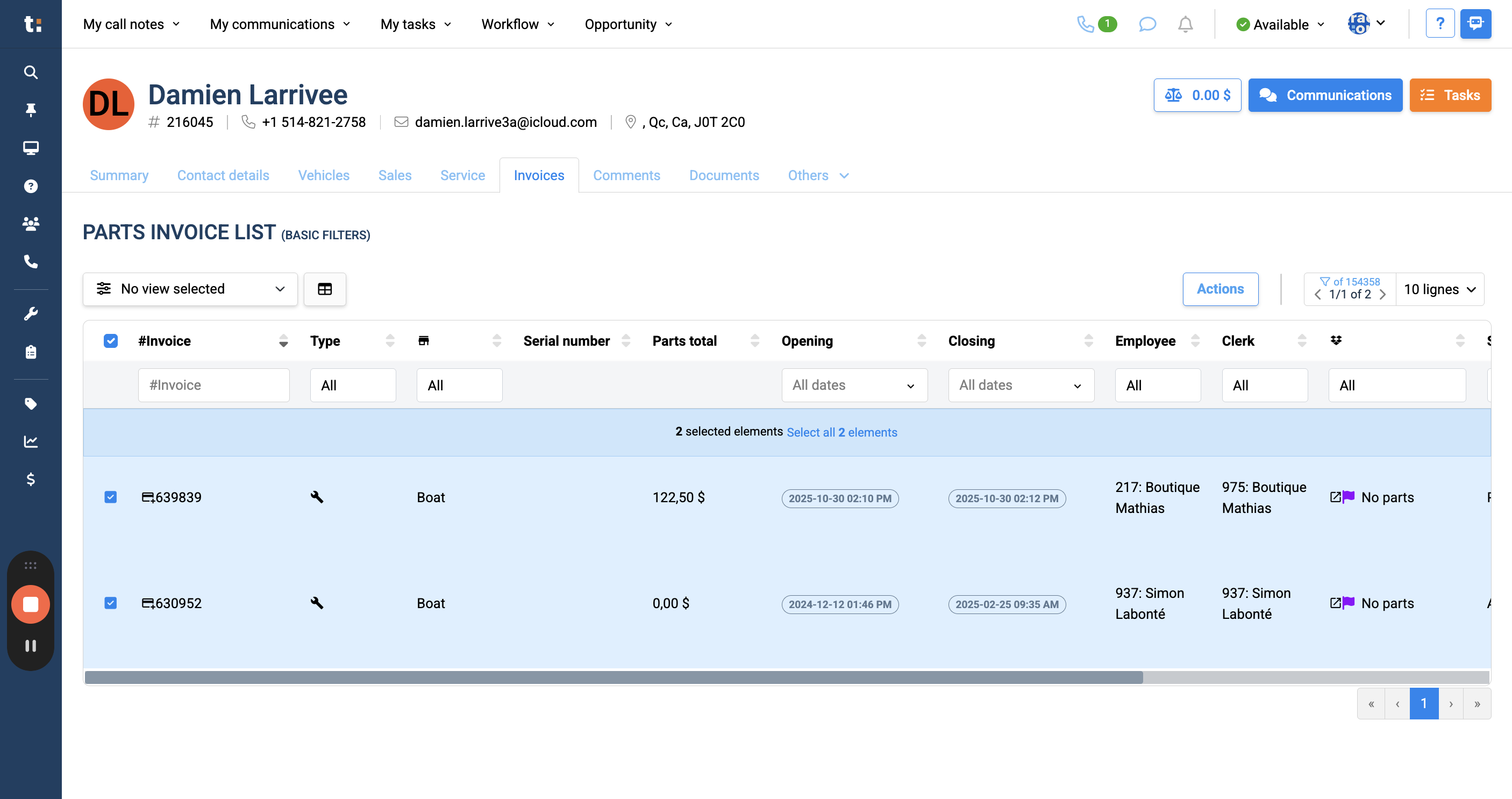
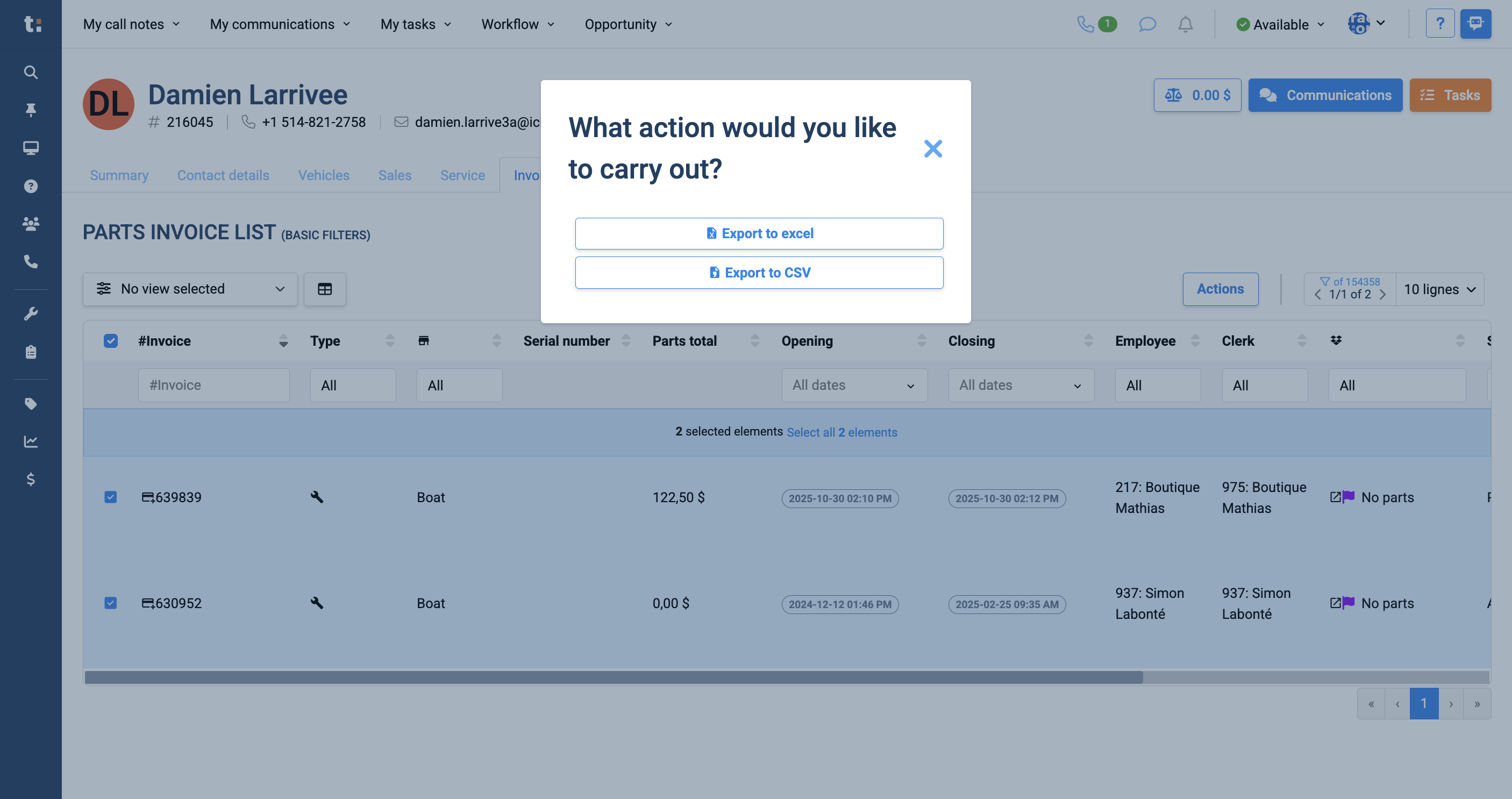
then click Actions and export the selected invoices to Excel.
16
17
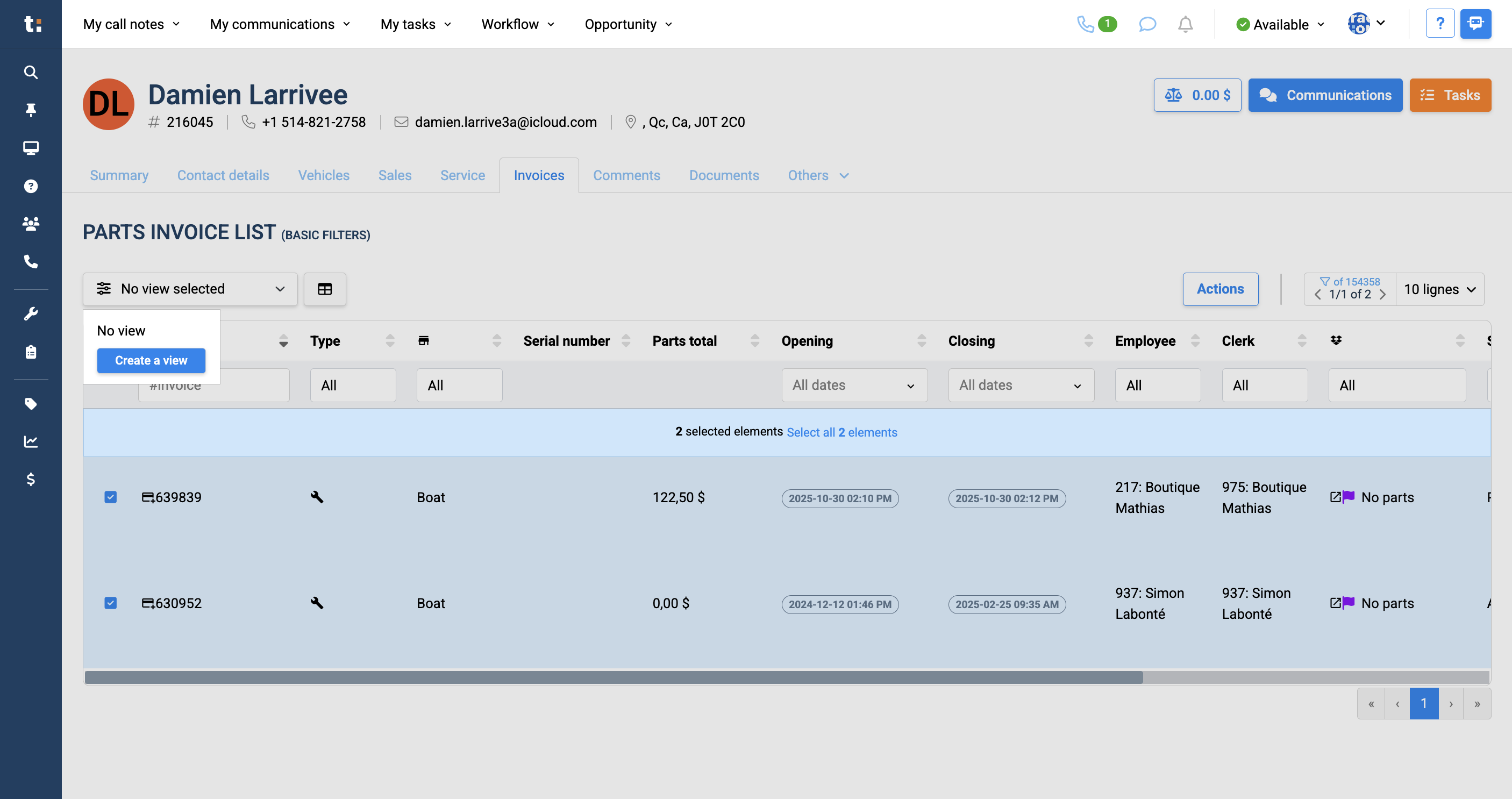
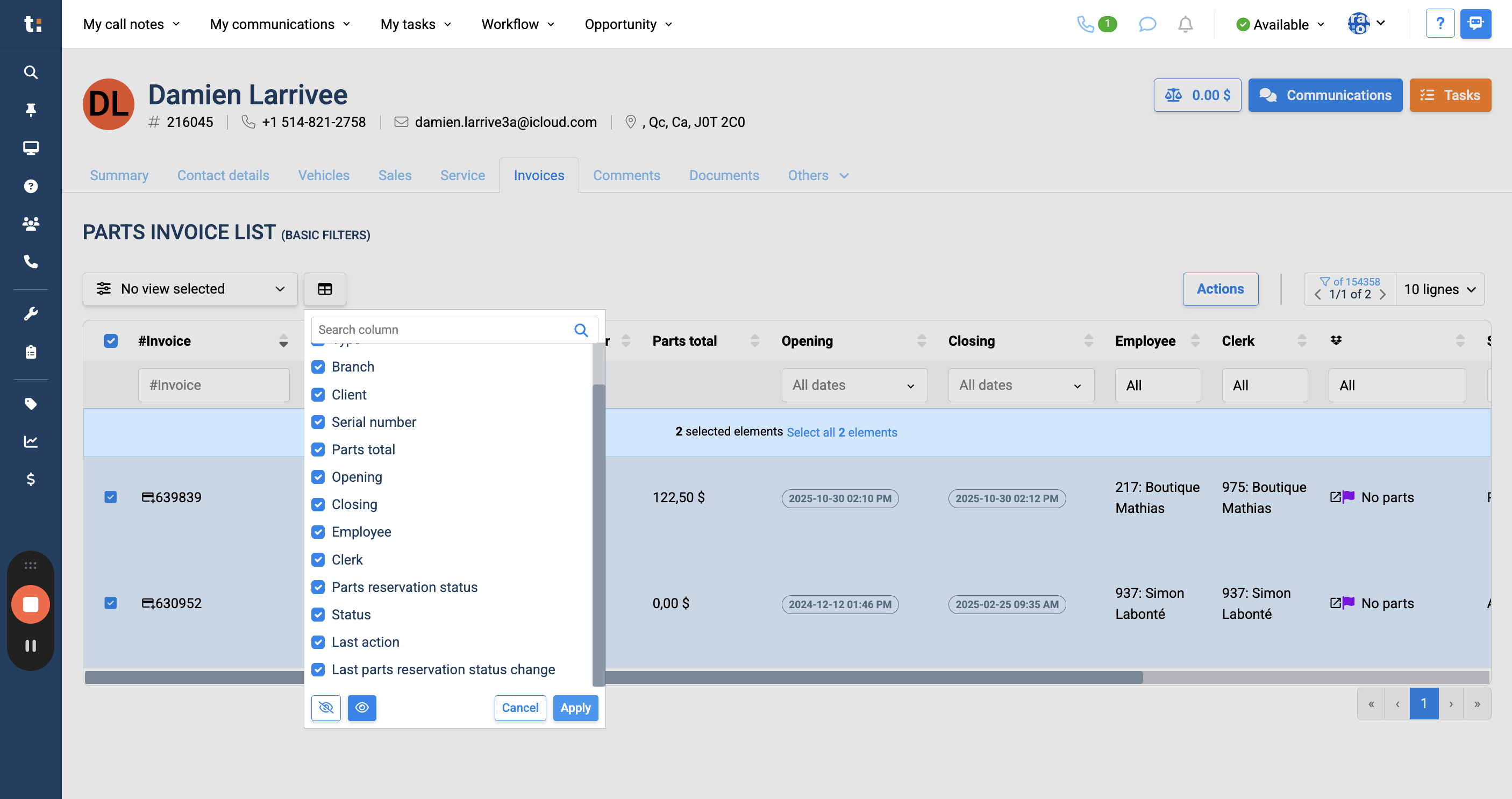
To modify your parts invoice list view, click on "View" to create a new view.
18
Click on "Create a view"
19
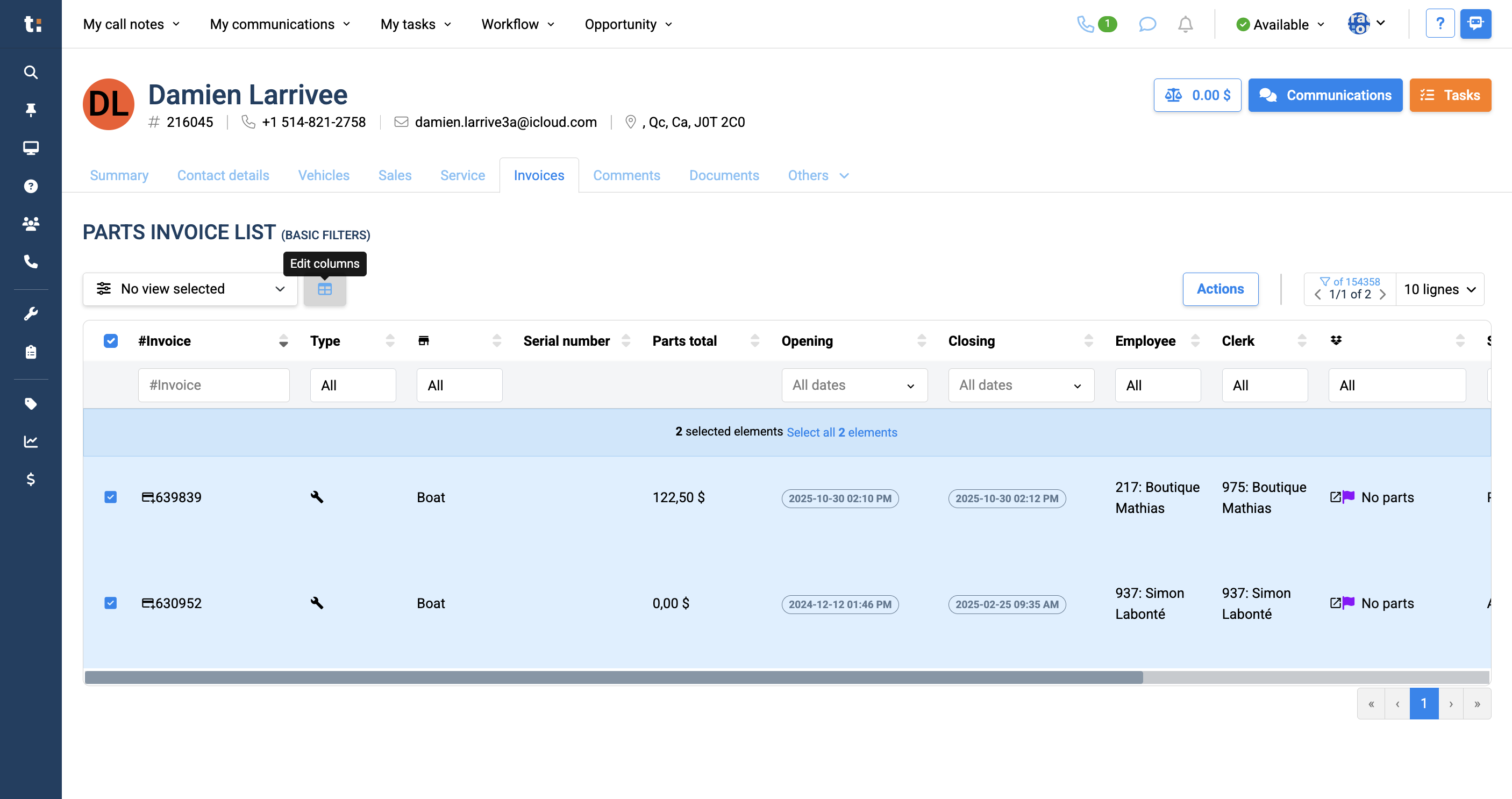
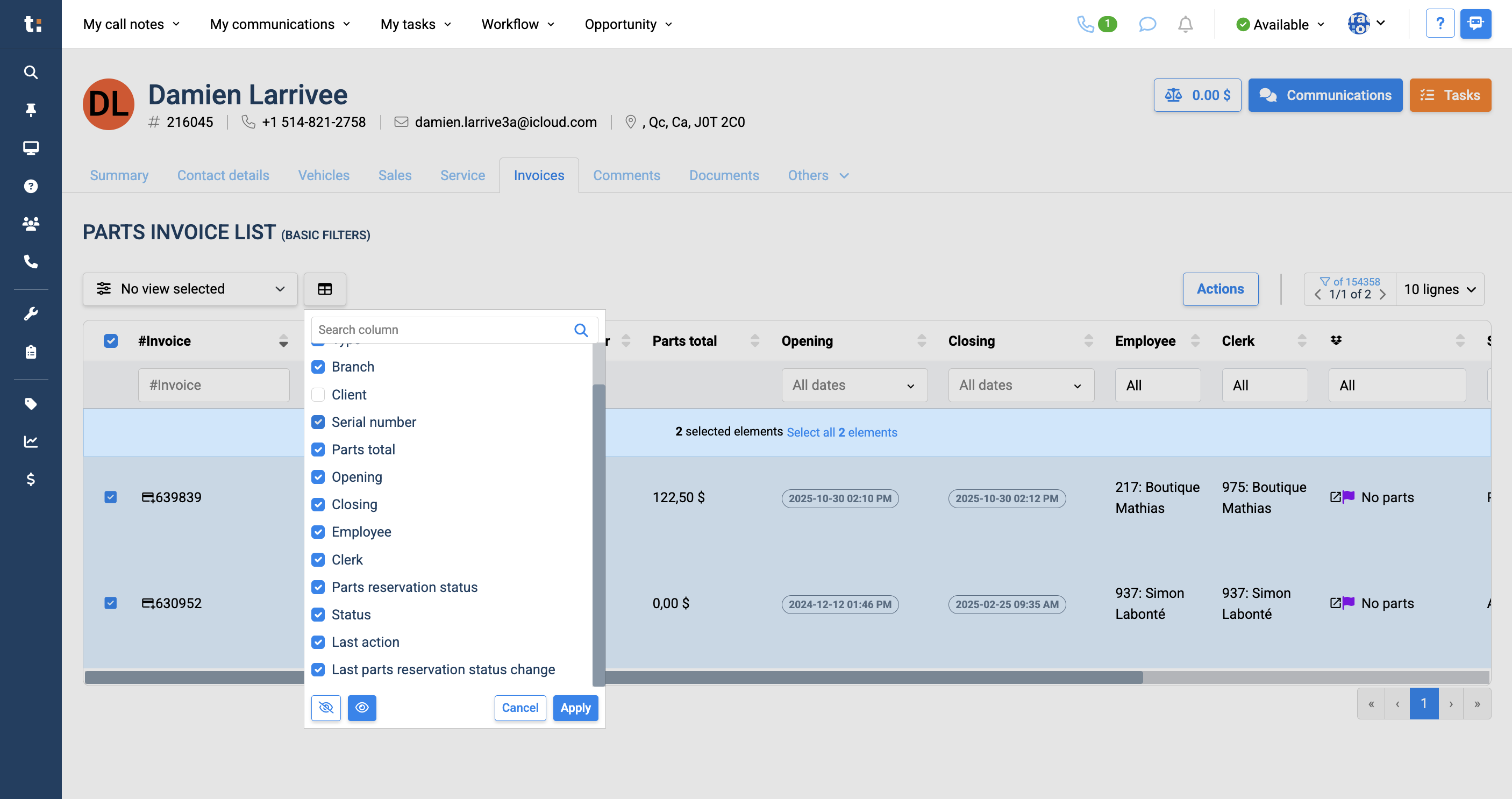
You can add or remove columns by clicking this box, selecting the columns you want to view, and applying your changes.
20
Click here
21
Click on "Apply"
If you still have questions after consulting this article, please feel free to contact our support team at: support@tractiondk.zohodesk.com