Icon

How to: My Analytics Dashboard

Learn how to navigate the Toucan Sales My Analytics dashboard to review KPIs, analyse customer profiles, track orders, and configure your own custom reports.

By Josh

This guide demonstrates how to navigate the My Analytics dashboard to analyse key performance metrics, review customer profiles, and track sales orders. This section will become your central hub for managing your work and tracking your customer data.

This guide applies to sales managers, account executives, and business analysts who need to monitor sales performance and customer trends.

The My Analytics dashboard provides several reporting modules to help you monitor and analyse your sales operations.

Here is an overview of the main reporting tabs available in the dashboard:

Reporting Tab

Primary Function

KPIs

View interactive metrics, cumulative sales charts, and top-level performance summaries.

Customer Profiles

Analyse sales metrics and historical trends segmented by customer categories.

Outstanding Orders

Track the value and timeline of outstanding and future orders using detailed bar charts.

Sales Orders

Browse, sort, and review specific sales orders within a tabular data grid.

Invoice History

Search, filter, and sort past invoice records by customer, document number, or channel.

Advanced Reporting

Drill into more tailored reporting by constructing a personalised report.

Reviewing Key Performance Indicators (KPIs)

Navigate to the KPIs section to get a high-level view of your cumulative sales performance and historical trends.
1
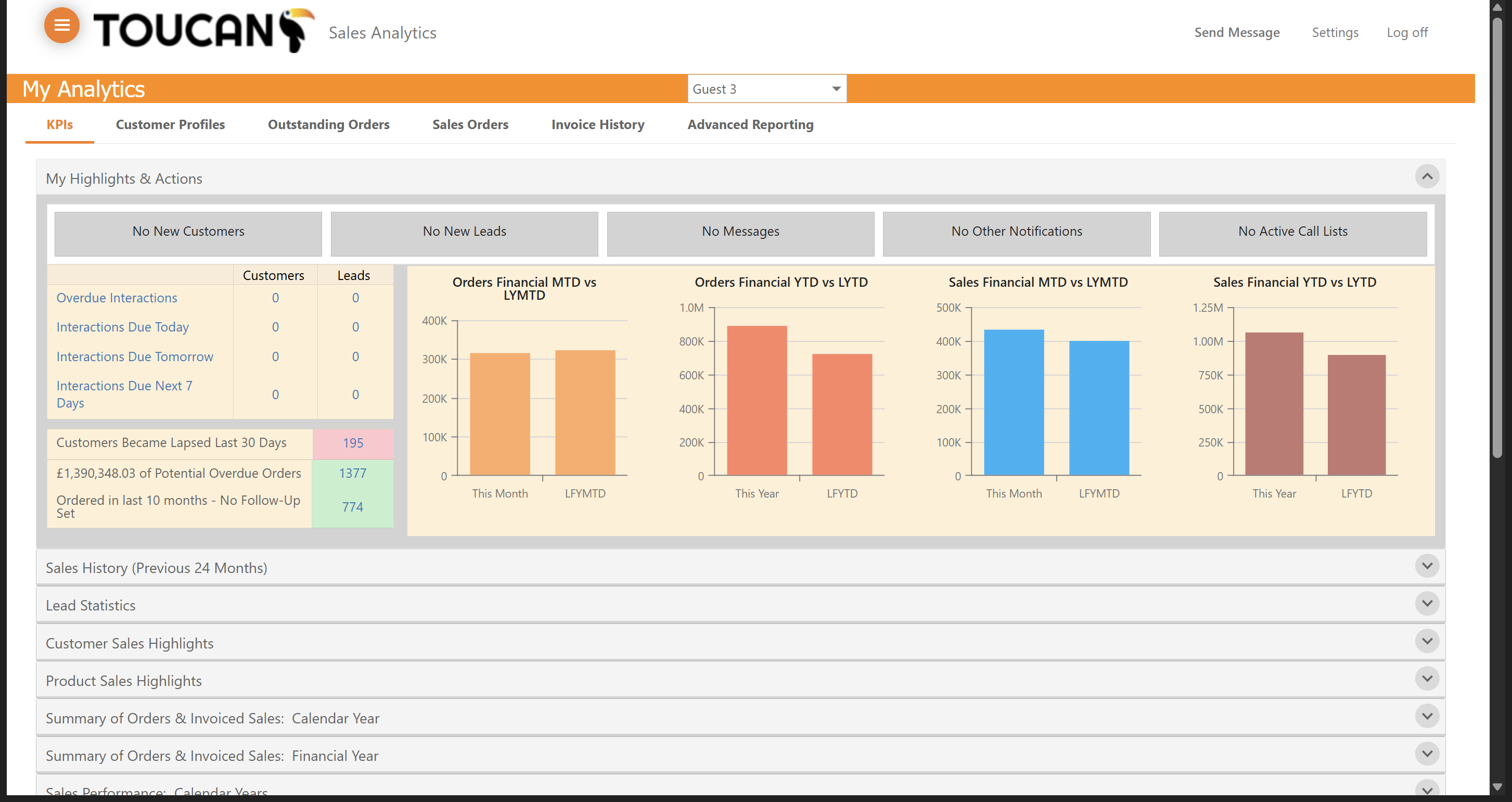
The My Highlights & Actions section will show you the actions to start your day with such as new customers to tend to, new leads, new messages, notifications and more.
Step #1: The My Highlights & Actions section will show you the actions to start your day with such as new customers to tend to, new leads, new messages, notifications and more.
2
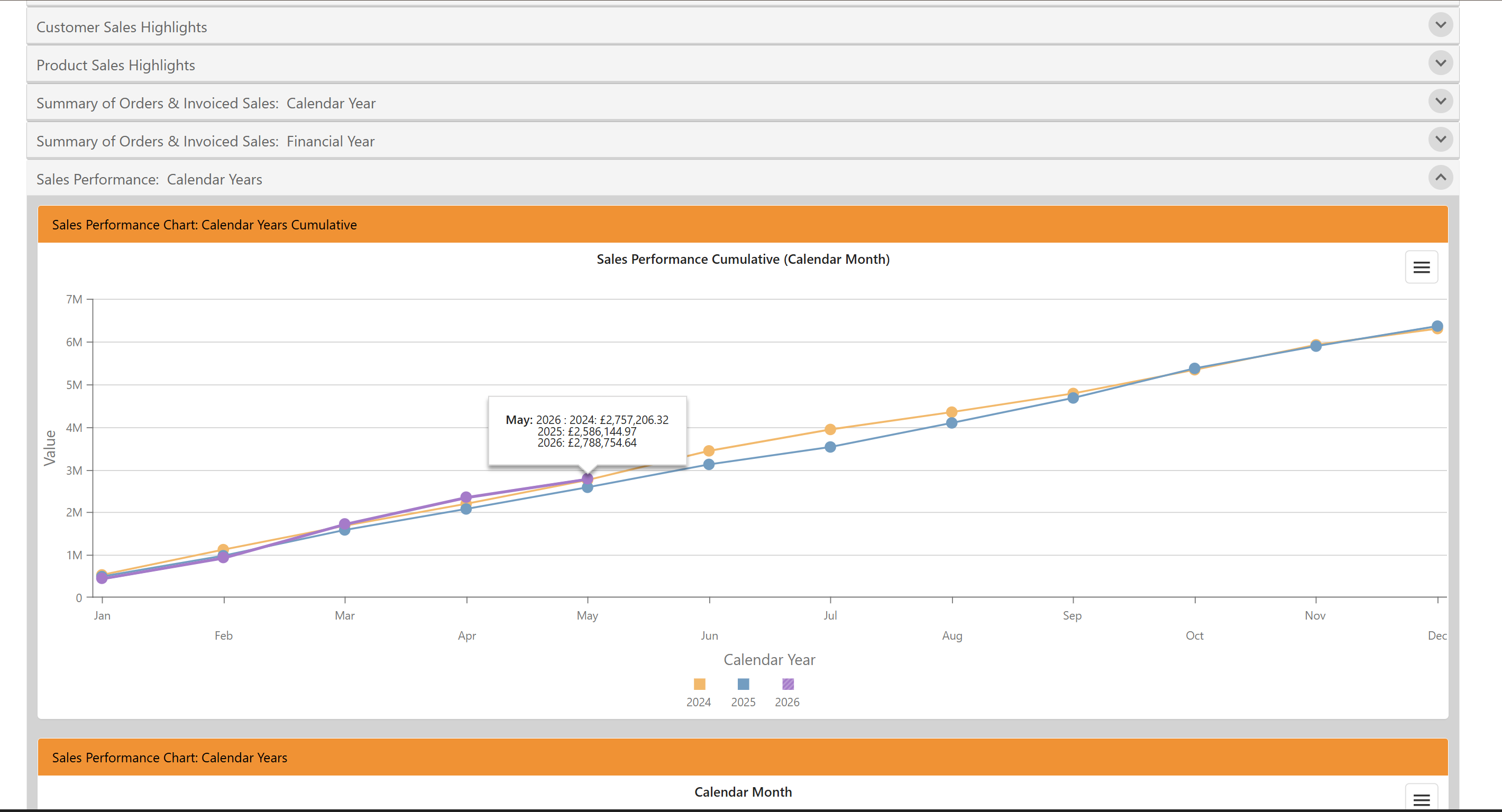
Selecting either of the dropdown tabs will expand the report within an interactive window to explore the data in depth.
Step #2: Selecting either of the dropdown tabs will expand the report within an interactive window to explore the data in depth.
3
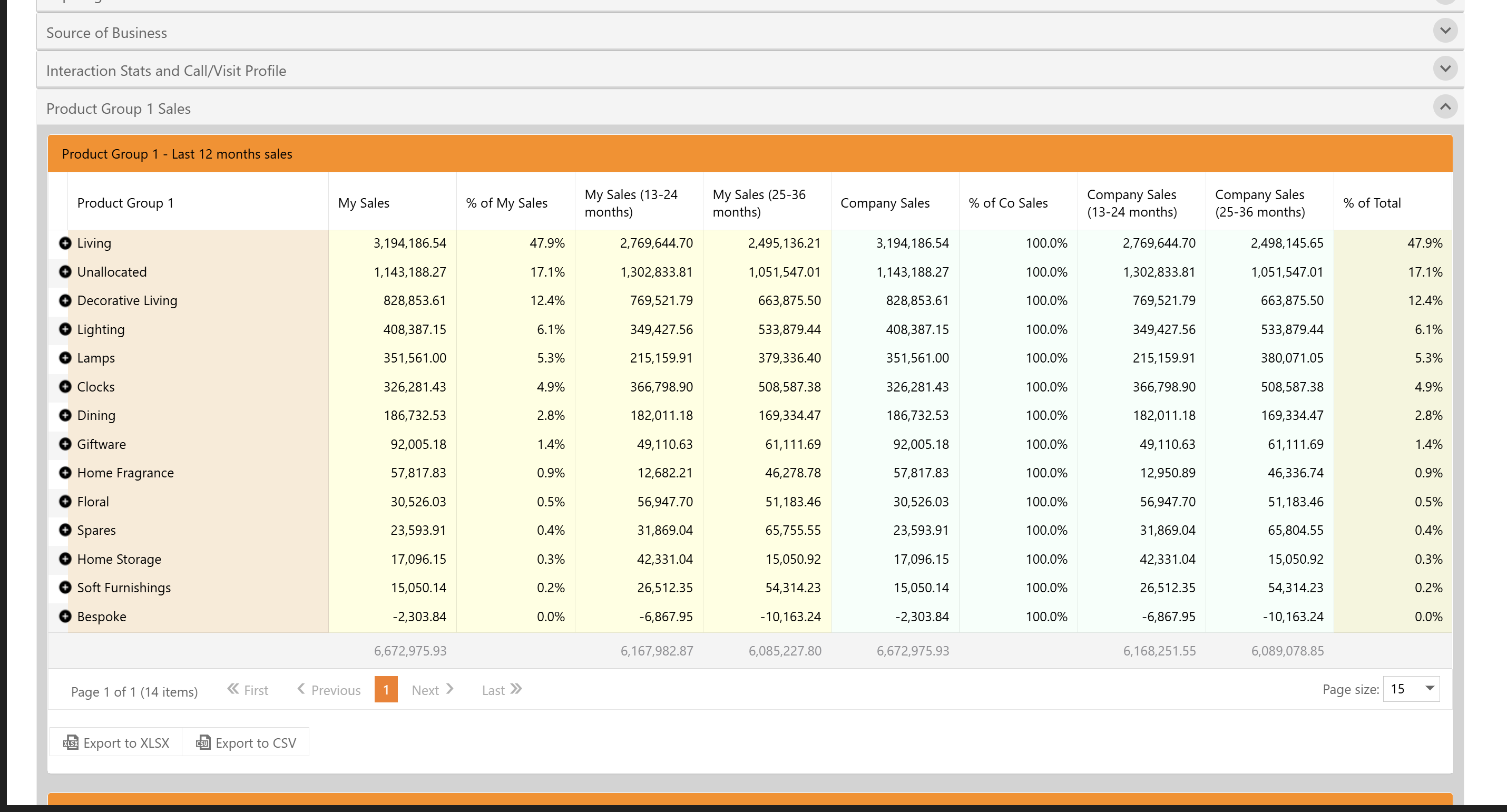
With reports such as the Product Group Sales, they will display interactive tables to drill down into more granular detail.
Step #3: With reports such as the Product Group Sales, they will display interactive tables to drill down into more granular detail.

Analying Customer Profiles

Use the Customer Profiles section to drill down into specific customer segments and assess their financial impact.
4
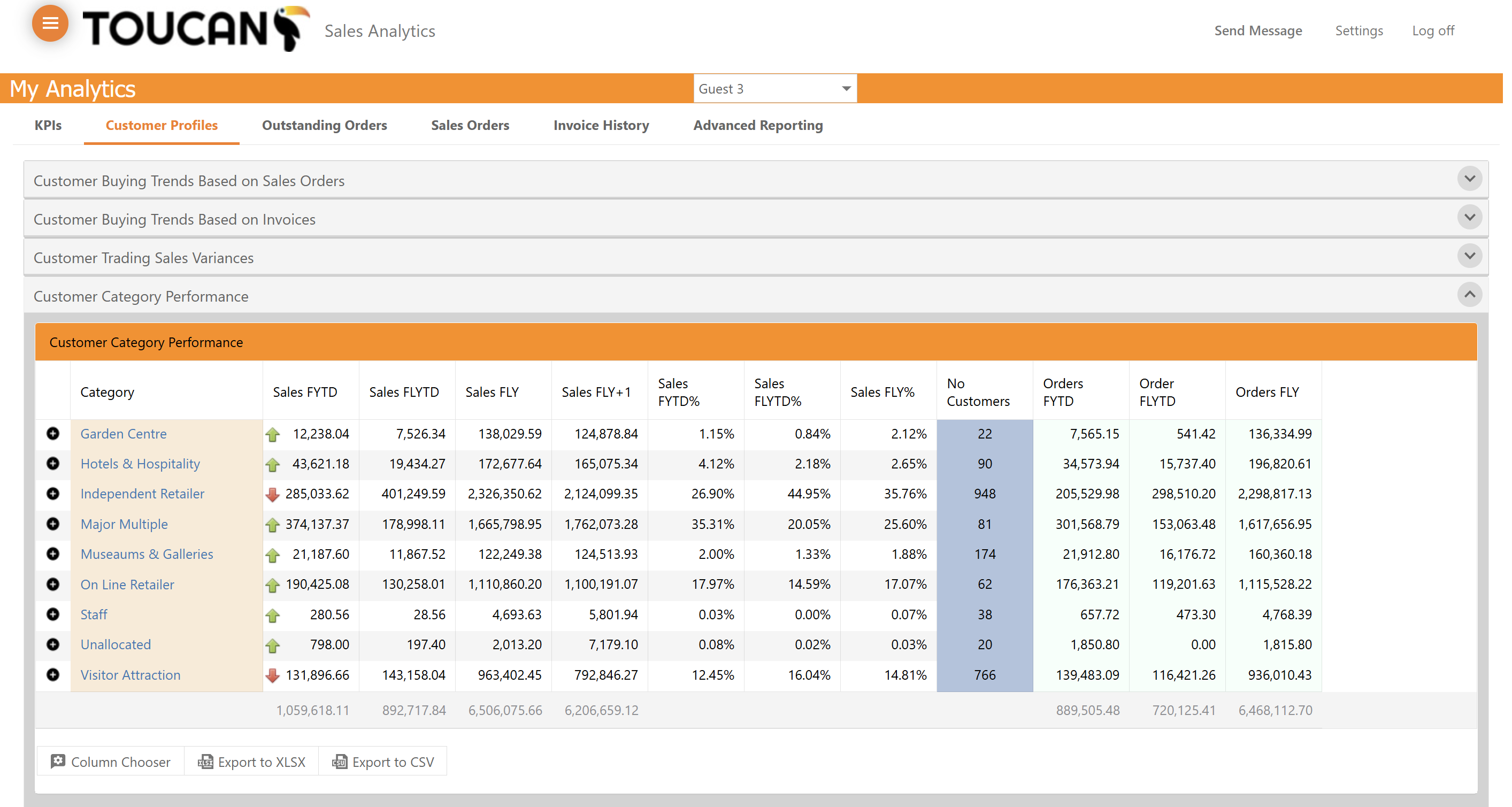
From the Customer Profiles section you can expand reports on category performance, buying trends, sales variances, GAP analysis and more. If you choose a report with a table view with "+" symbols by the company name, selecting this will display granular data pertaining to that customer record.
Step #4: From the Customer Profiles section you can expand reports on category performance, buying trends, sales variances, GAP analysis and more. If you choose a report with a table view with "+" symbols by the company name, selecting this will display granular data pertaining to that customer record.

Tracking Outstanding and Future Orders

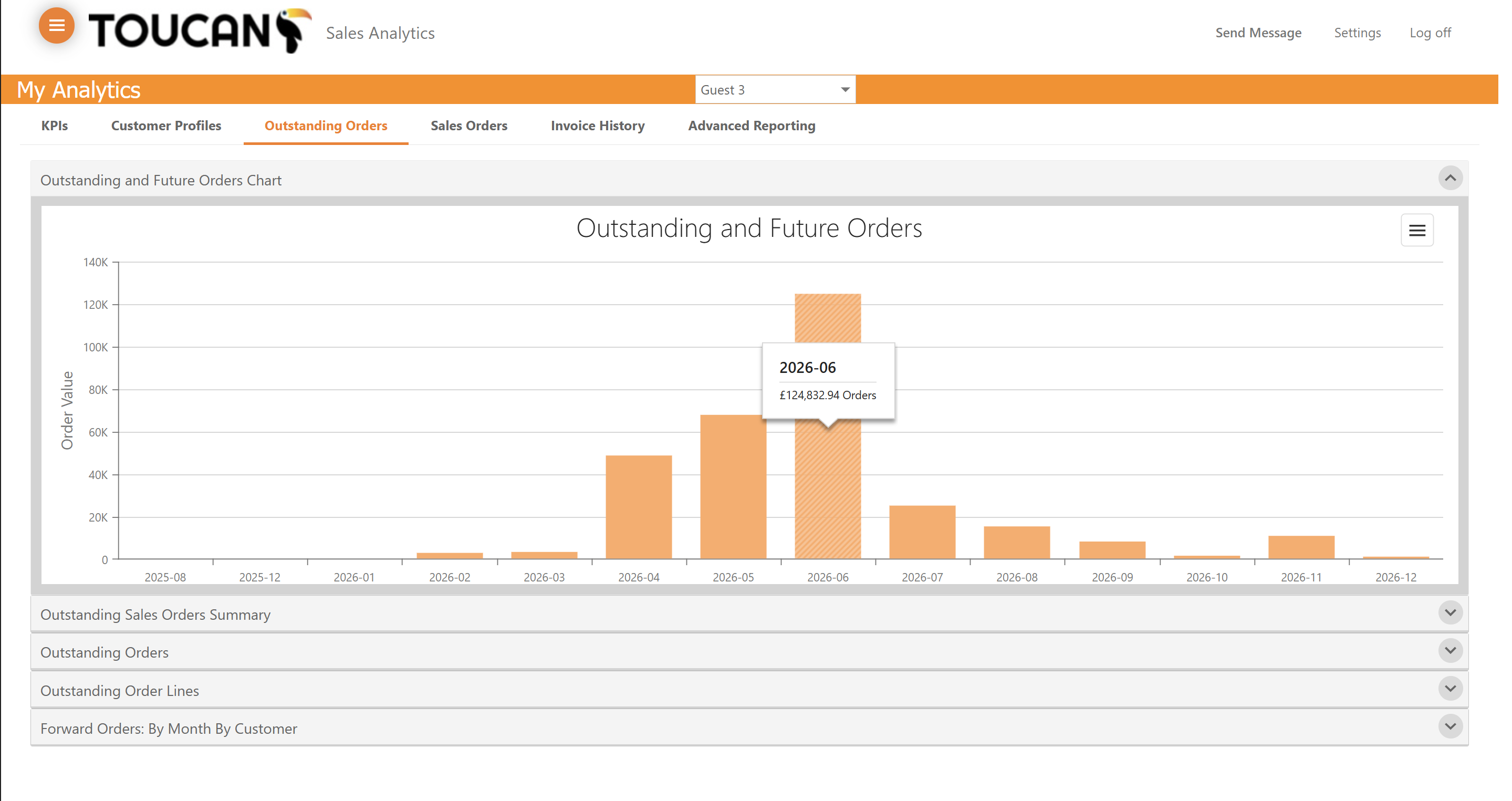
Monitor your pipeline by reviewing orders that have not yet been fulfilled to identify who you need to speak with and which customer requires an order update.
5
Click Outstanding Orders in the navigation menu. Hover over the bars in the Outstanding and Future Orders chart to view exact order values and their corresponding dates. By selecting the
Step #5: Click Outstanding Orders in the navigation menu. Hover over the bars in the Outstanding and Future Orders chart to view exact order values and their corresponding dates. By selecting the

Managing Sales Orders and Invoices

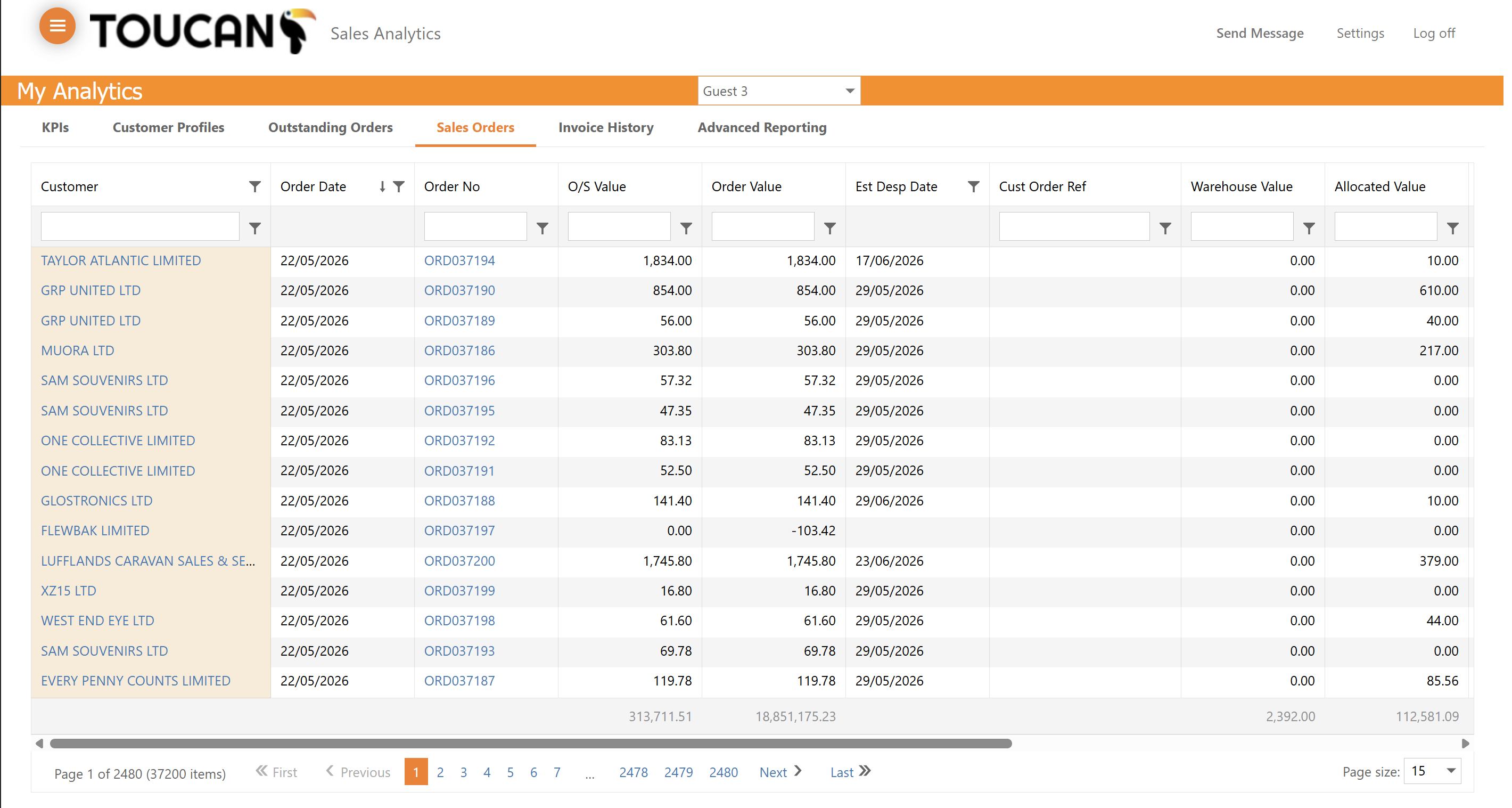
Locate specific transactions, filter by customer, and sort through your historical invoice data.
6
Click the Sales Orders tab to view detailed tabular data of your recorded orders. Click the Order No column header to sort the grid of sales orders alphanumerically.
Step #6: Click the Sales Orders tab to view detailed tabular data of your recorded orders. Click the Order No column header to sort the grid of sales orders alphanumerically.

Sourcing Historical Customer Invoices

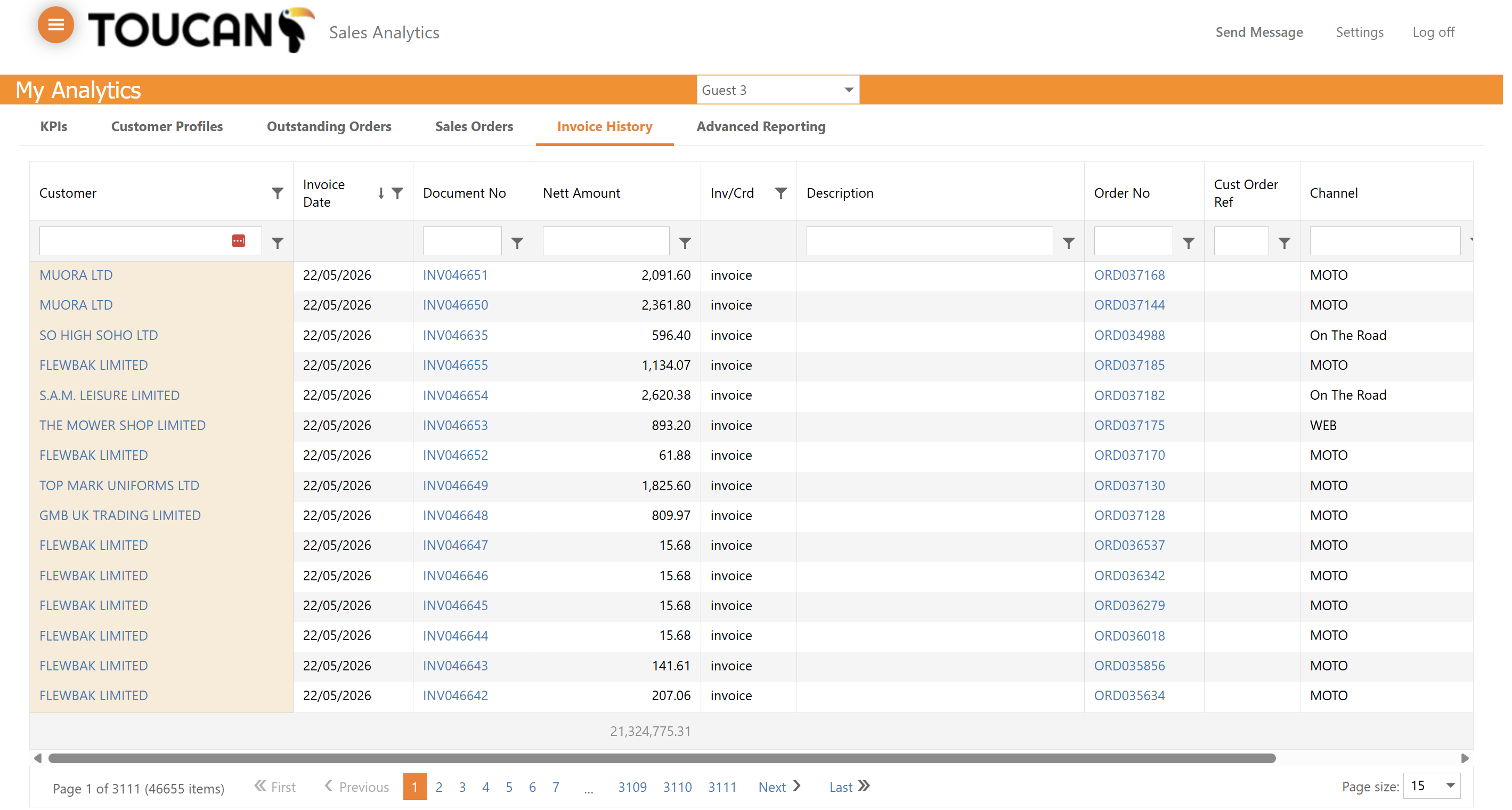
If a customer or colleague has requested data on a specific recent sales invoice, you can source it within the Invoice History tab.
7
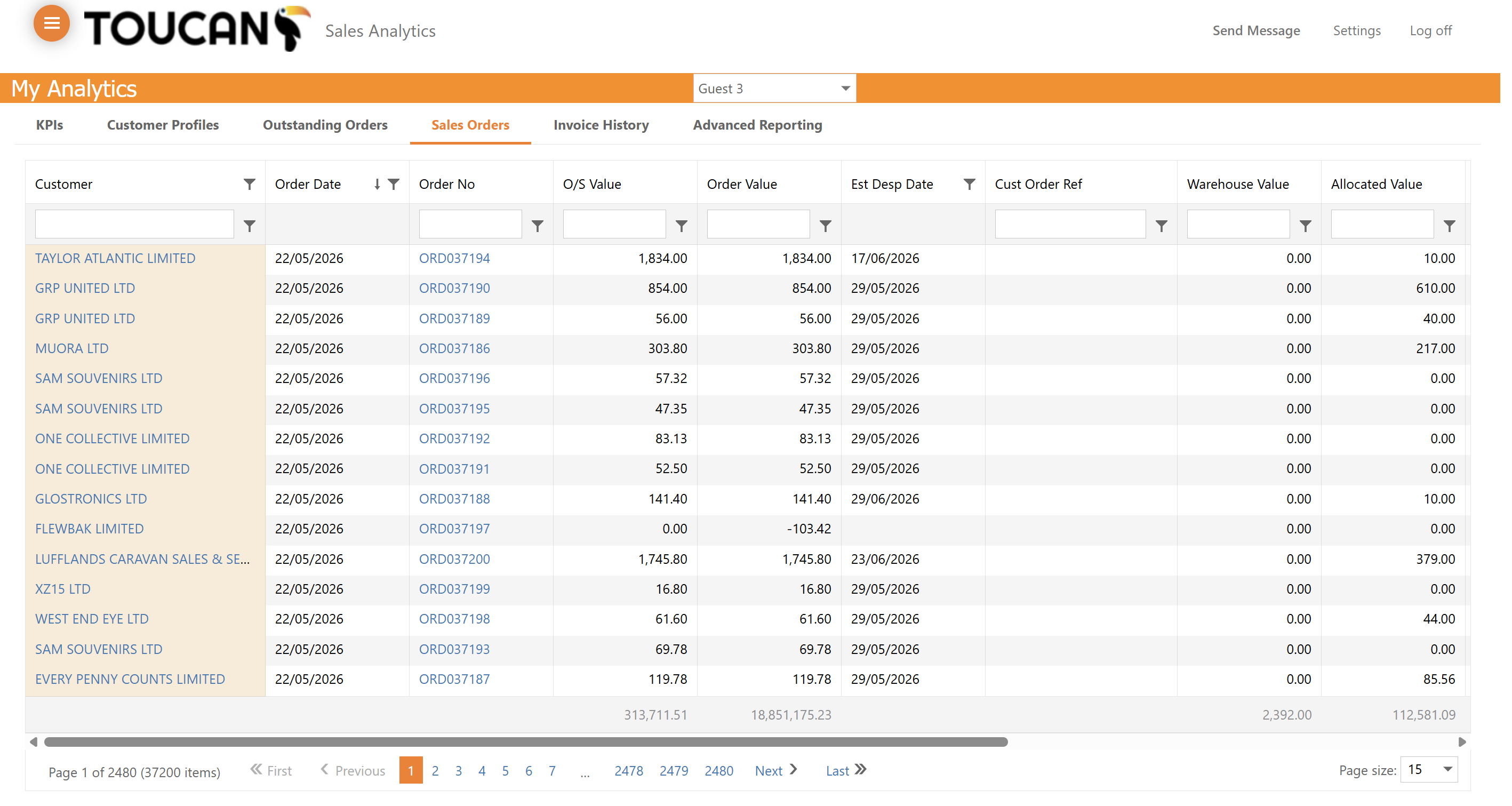
Click Invoice History in the navigation menu to switch to the invoice records view.
Step #7: Click Invoice History in the navigation menu to switch to the invoice records view.
8
Use the Customer text entry field to type the specific customer name or filter by either one of the column headings to narrow down your list of invoices.
Step #8: Use the Customer text entry field to type the specific customer name or filter by either one of the column headings to narrow down your list of invoices.

Advanced Reporting and Pivot Grids

For complex, multi-dimensional analysis, navigate to the Advanced Reporting tools.
9
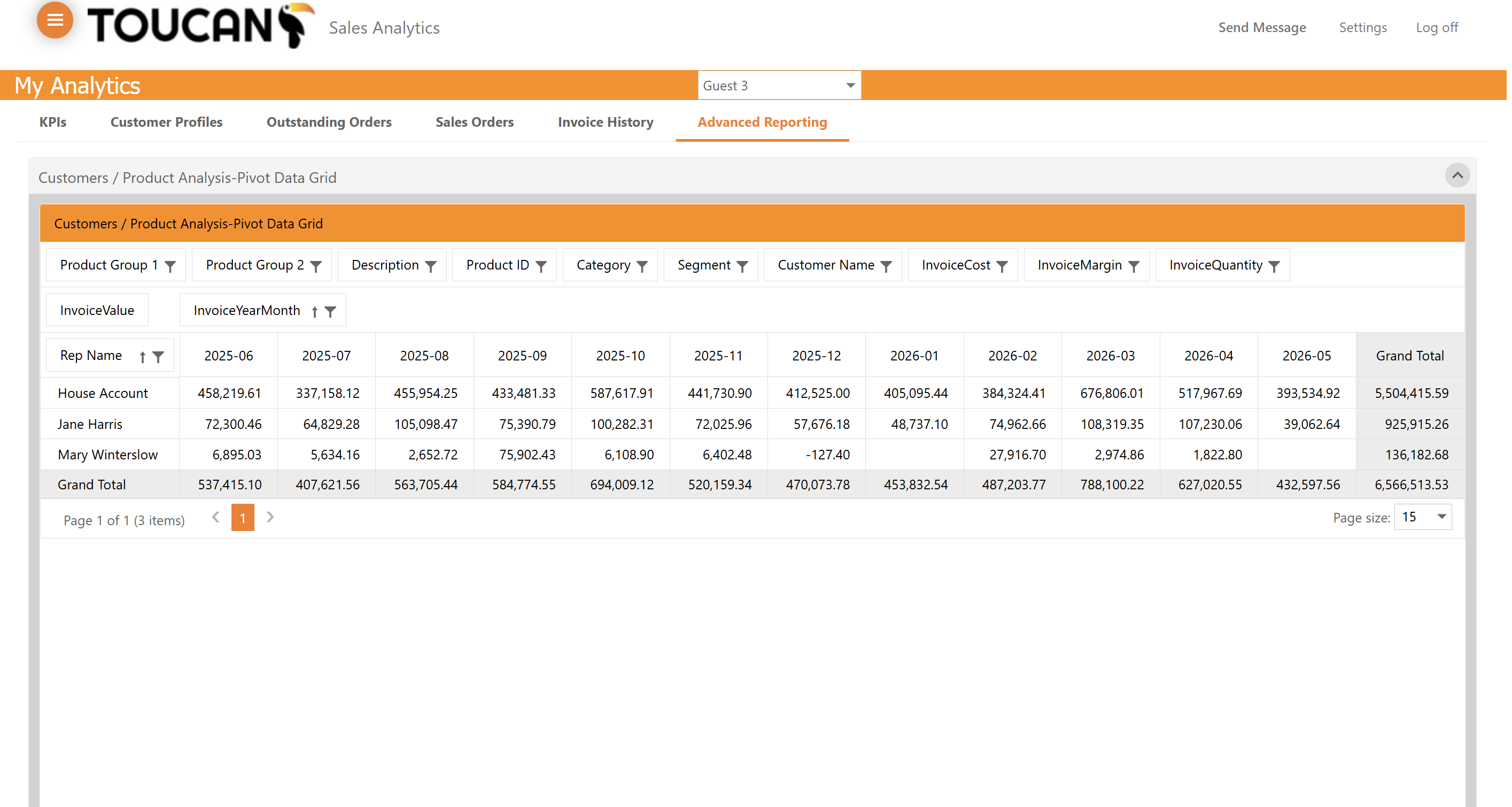
Interact with the pivot data grid by exploring column headers, such as InvoiceYearMonth, to organise and analyse financial data by sales representative and time period. To use the filters, click the dark filter icon to expand the dropdown menu for each filter to toggle you options. Each report can be exported as either CSV or XLSX.
Step #9: Interact with the pivot data grid by exploring column headers, such as InvoiceYearMonth, to organise and analyse financial data by sales representative and time period. To use the filters, click the dark filter icon to expand the dropdown menu for each filter to toggle you options. Each report can be exported as either CSV or XLSX.

Questions and Answers

Q: How do I export tabular data from the dashboard?

A: You can export data tables by clicking either the Export to XLSX or Export to CSV buttons located at the bottom left of the respective data grids.

Term

Definition

KPI

Key Performance Indicator, a quantifiable measure used to evaluate the success of an organisation or activity.

CSV

Comma-Separated Values, a common plain-text file format used for exporting and storing tabular data.

XLSX

The default file format for Microsoft Excel spreadsheets, used to export and analyse tabular data.

Pivot Grid

An interactive data table that allows users to reorganise, group, and summarise complex datasets.