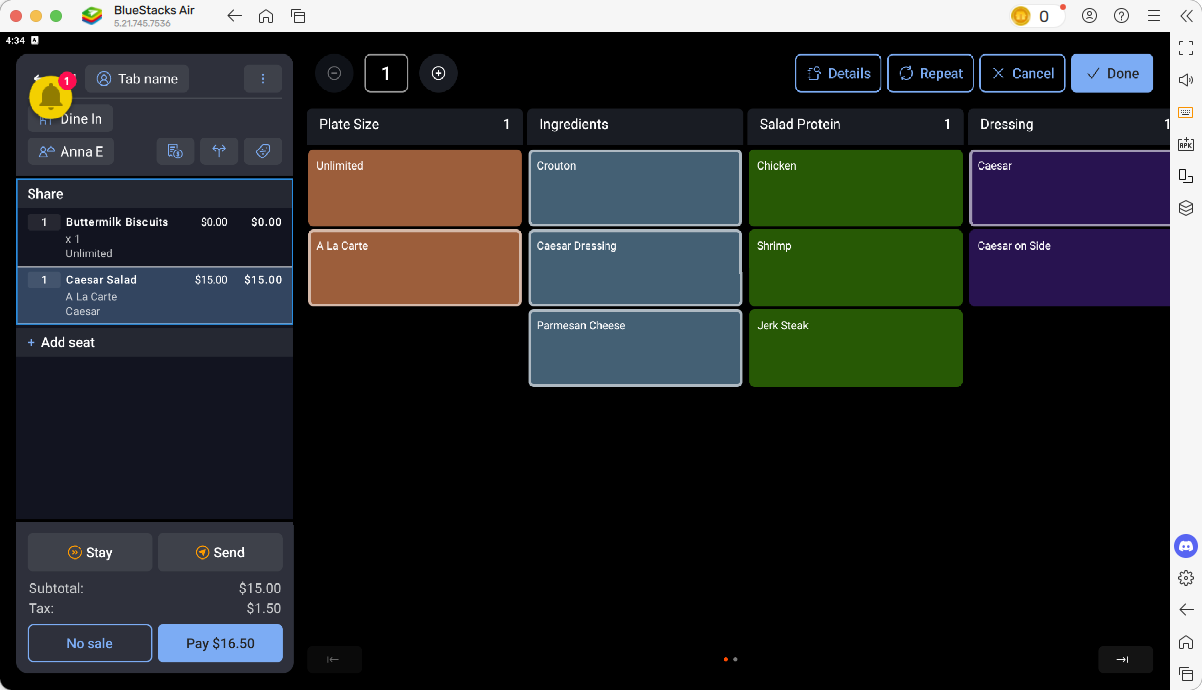
*How to Use the New Brunch Plate Modifier*
Learn how to use the new brunch plate modifier for both the Bottomless Brunch and A La Carte brunch menus. Follow these simple steps to select plate sizes and guest counts, ensuring your choices are visible to the kitchen.
By Anna Edwards
In this guide, we'll learn how to use the New Brunch Plate modifier for both Bottomless and A La Carte Brunch menus. You will see how to select the correct plate size and guest count so that the kitchen receives the right information.
Let's get started
Hello! Today, I'll show you how to use the new brunch plate modifier.
1
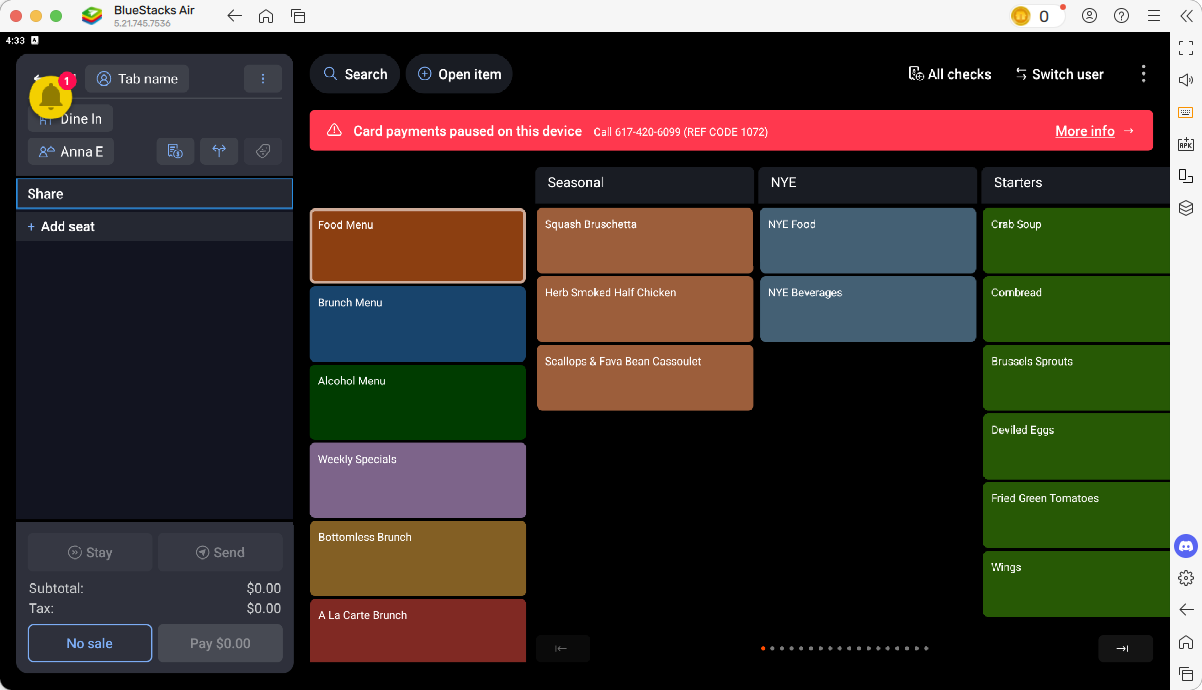
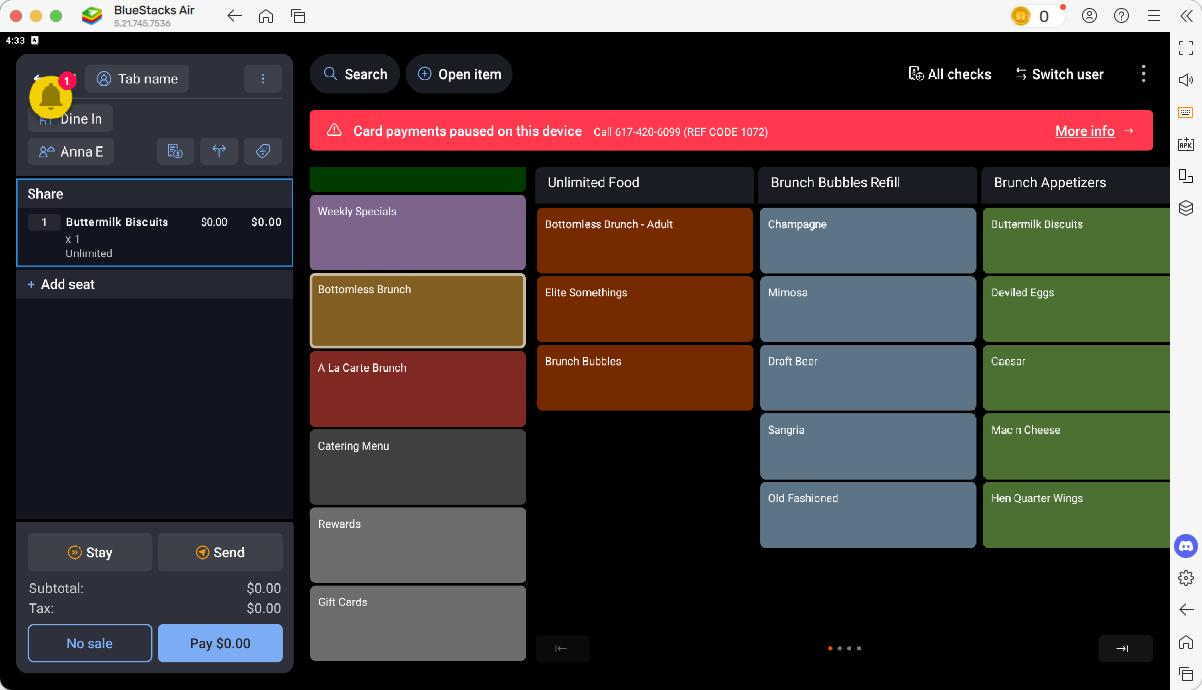
First, select the "Bottomless Brunch" menu.
2
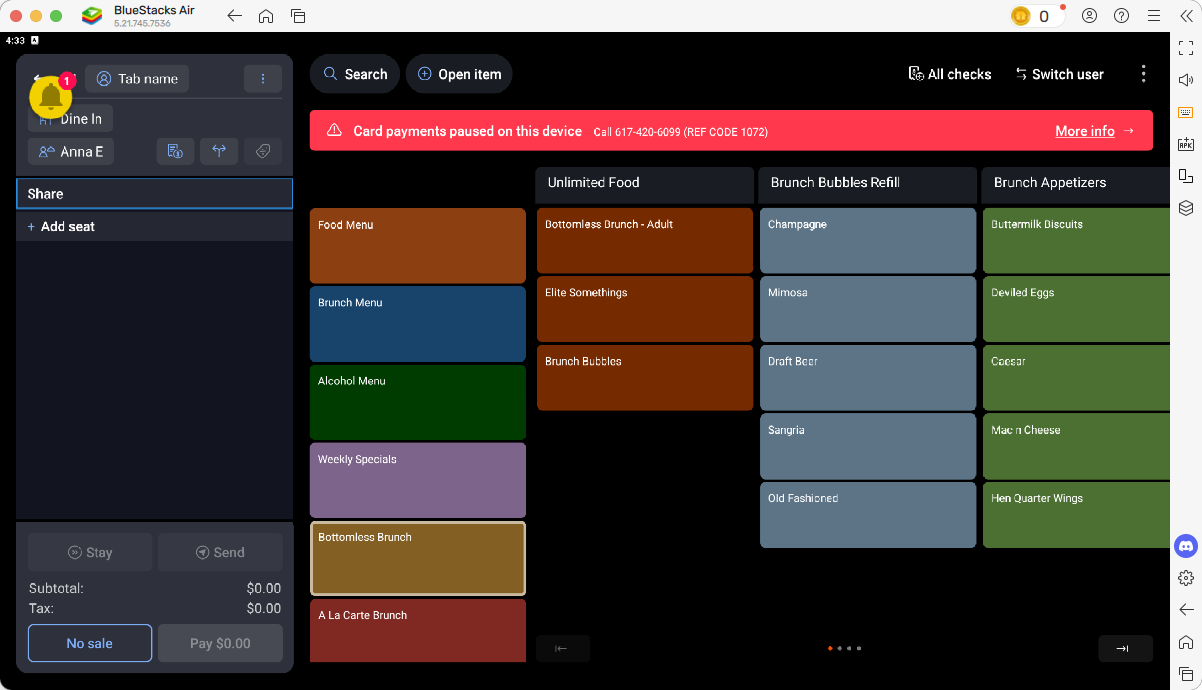
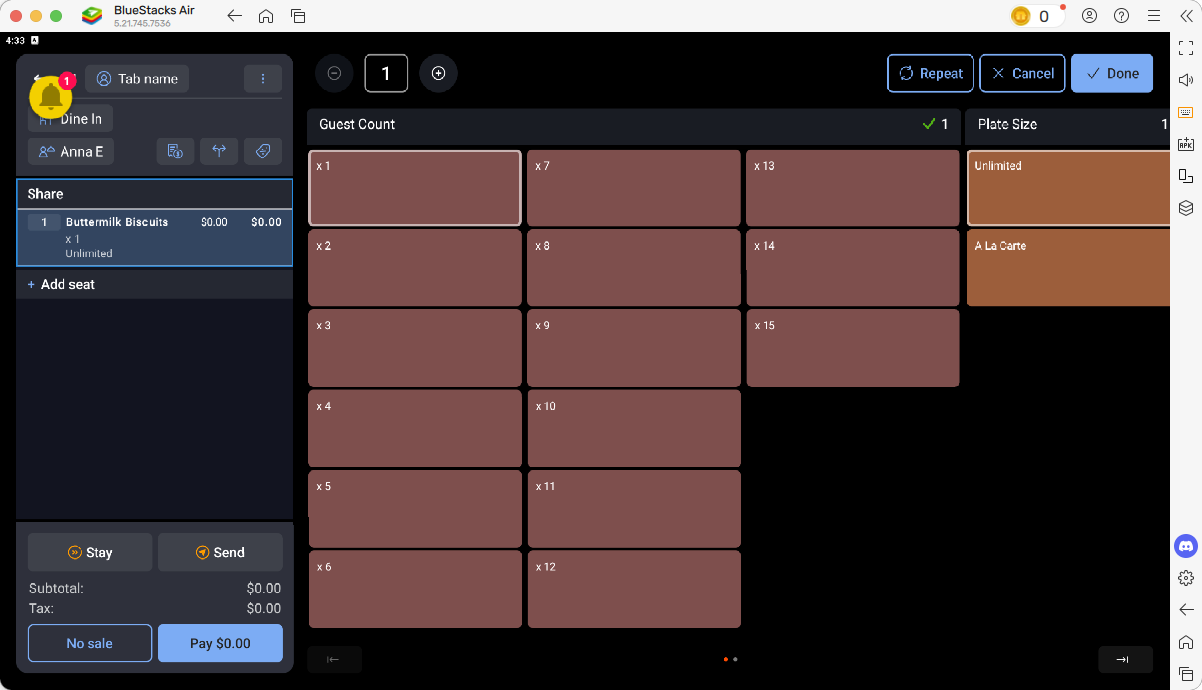
Then choose any item from the menu, and the plate size modifier will be displayed. It will automatically be set to unlimited.
3
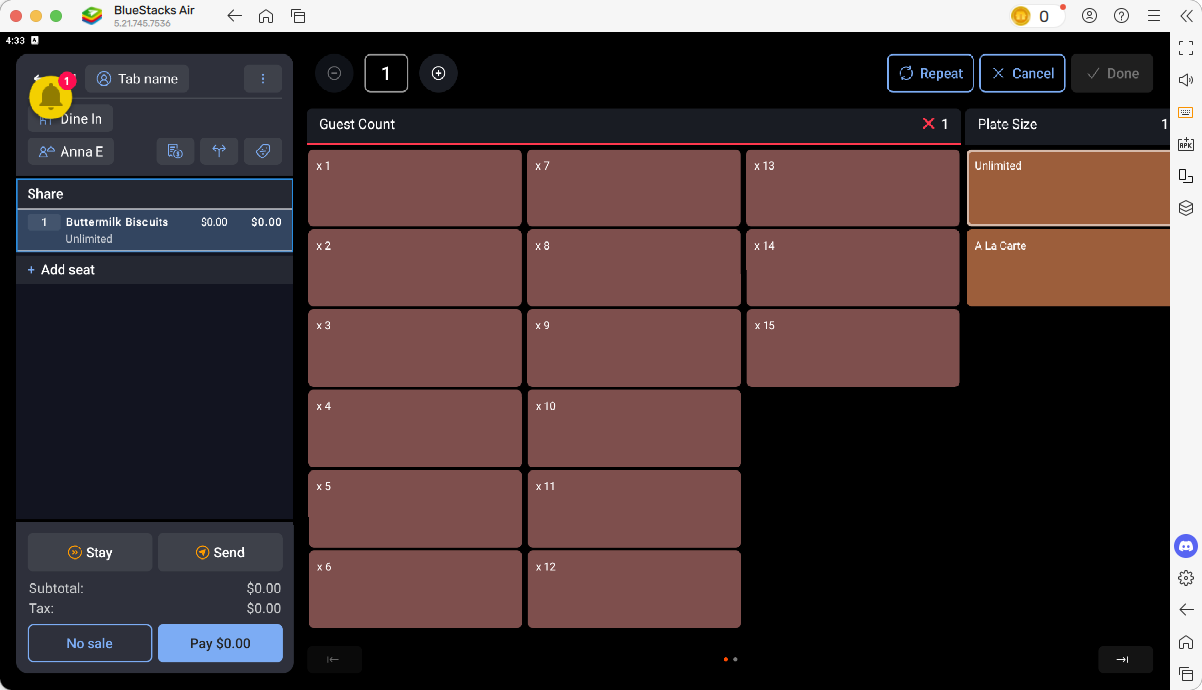
Please select a guest count. This information will then be visible to the kitchen.
4
Click on "✓ Done"
For the A La Carte Brunch menu, it's a bit different.
5
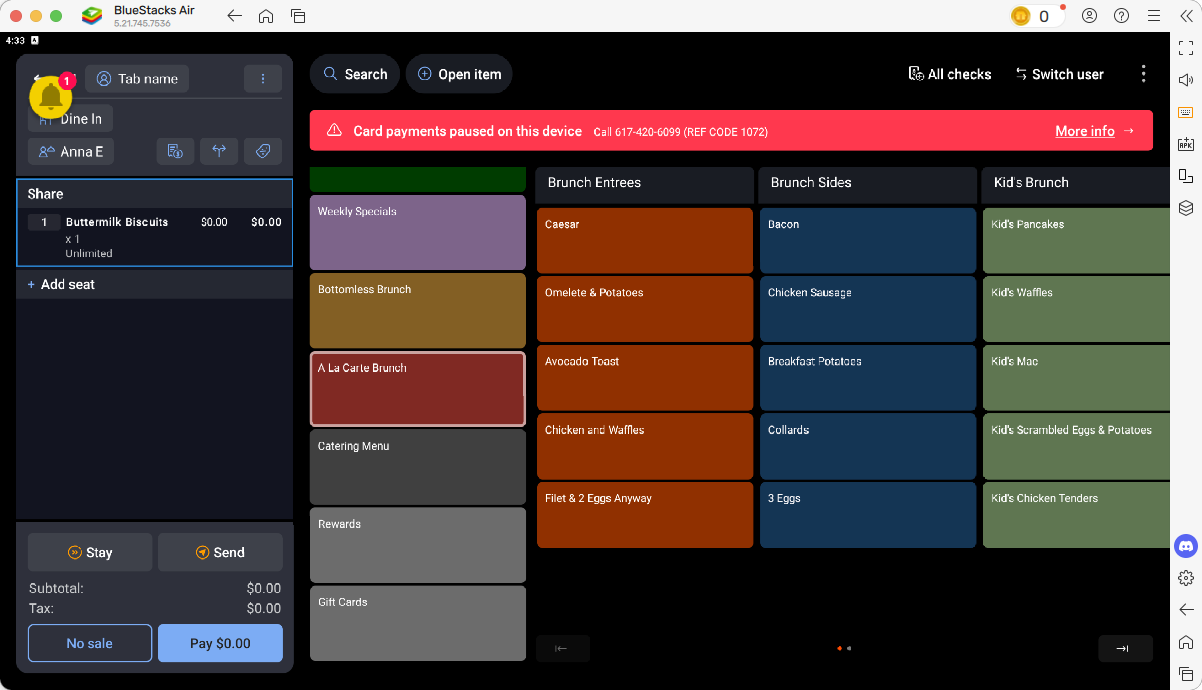
Select the A La Carte Brunch menu.
6
Select any item.
7
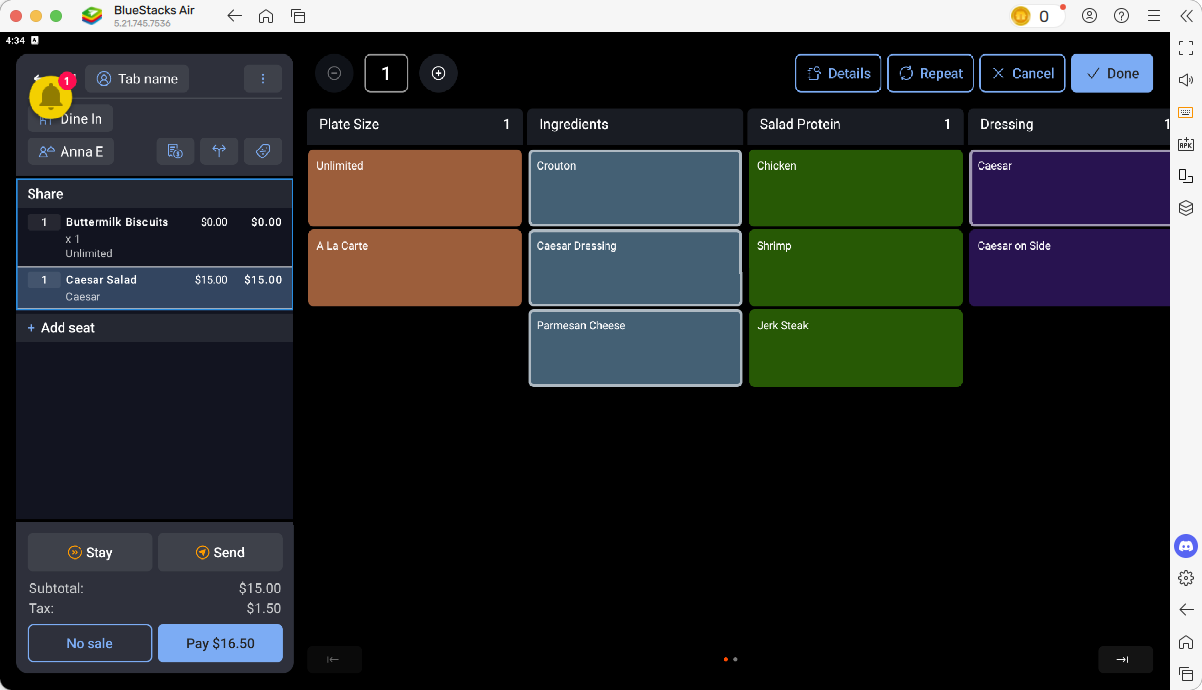
The Plate Size modifier will appear. Please be sure to select the "A La Carte" option. This will NOT be automatically selected.
8
Click on "✓ Done"