How to Use the New Homework Feature on TutorBird: Step-by-Step Guide
Learn how to use TutorBird's new homework feature to assign, submit, and manage student homework efficiently. This guide covers adding assignments, attaching files, providing feedback, and tracking submissions.
In this guide, we'll learn how to use the new homework feature on TutorBird. This feature allows tutors to assign homework, set deadlines, and provide feedback to students or parents. We'll also see how students can submit their completed work and how tutors can review and manage these submissions.
Let's get started
This guide explains the new homework feature on TutorBird. First, this is for submitting homework that has been completed or assigned for students to complete themselves. You can add a name, a title, the expected duration, and the date. That's about it. First, find your student.
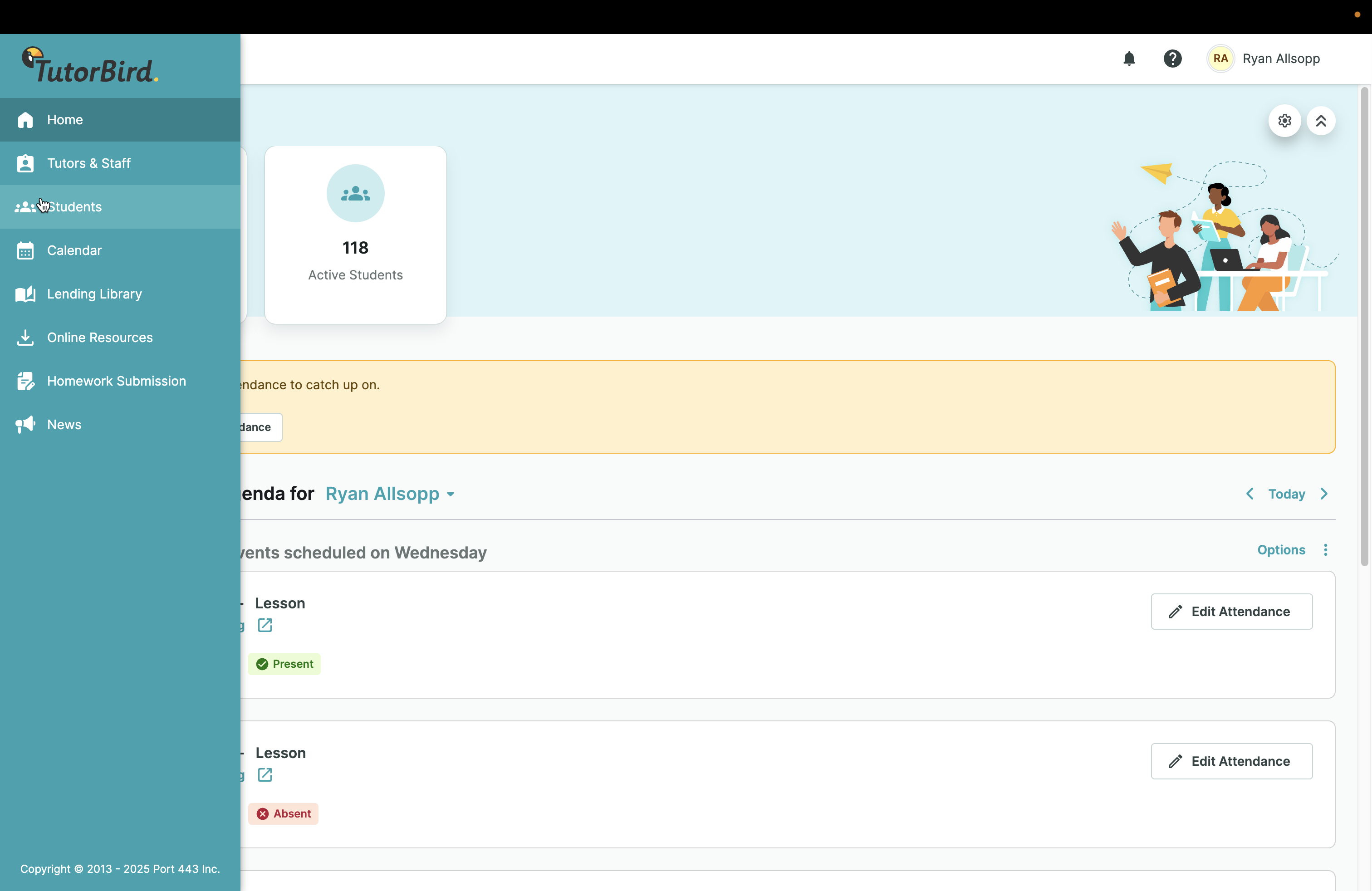
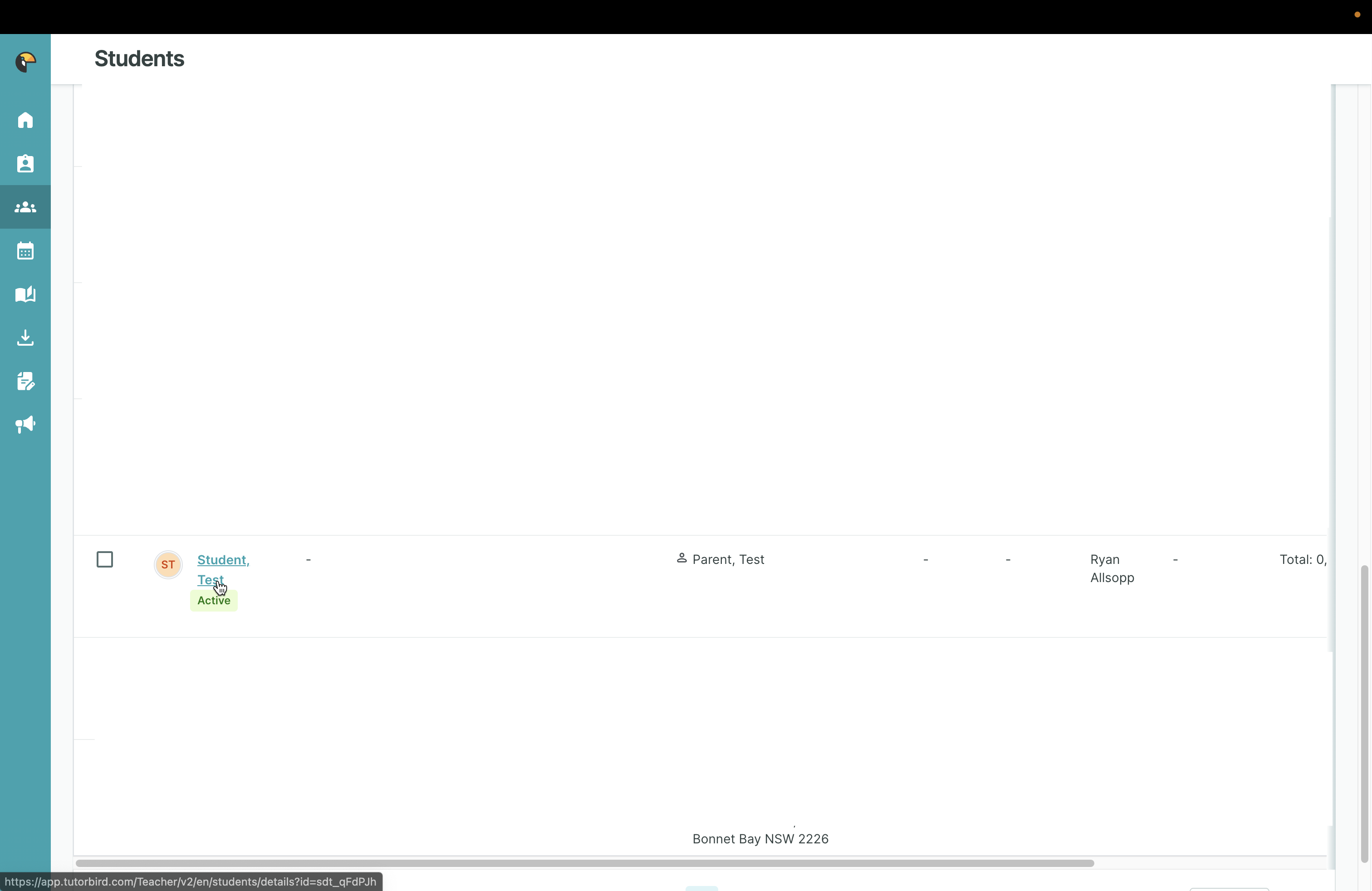
For this case,
I have a test student with a homework submission. Submit the homework.
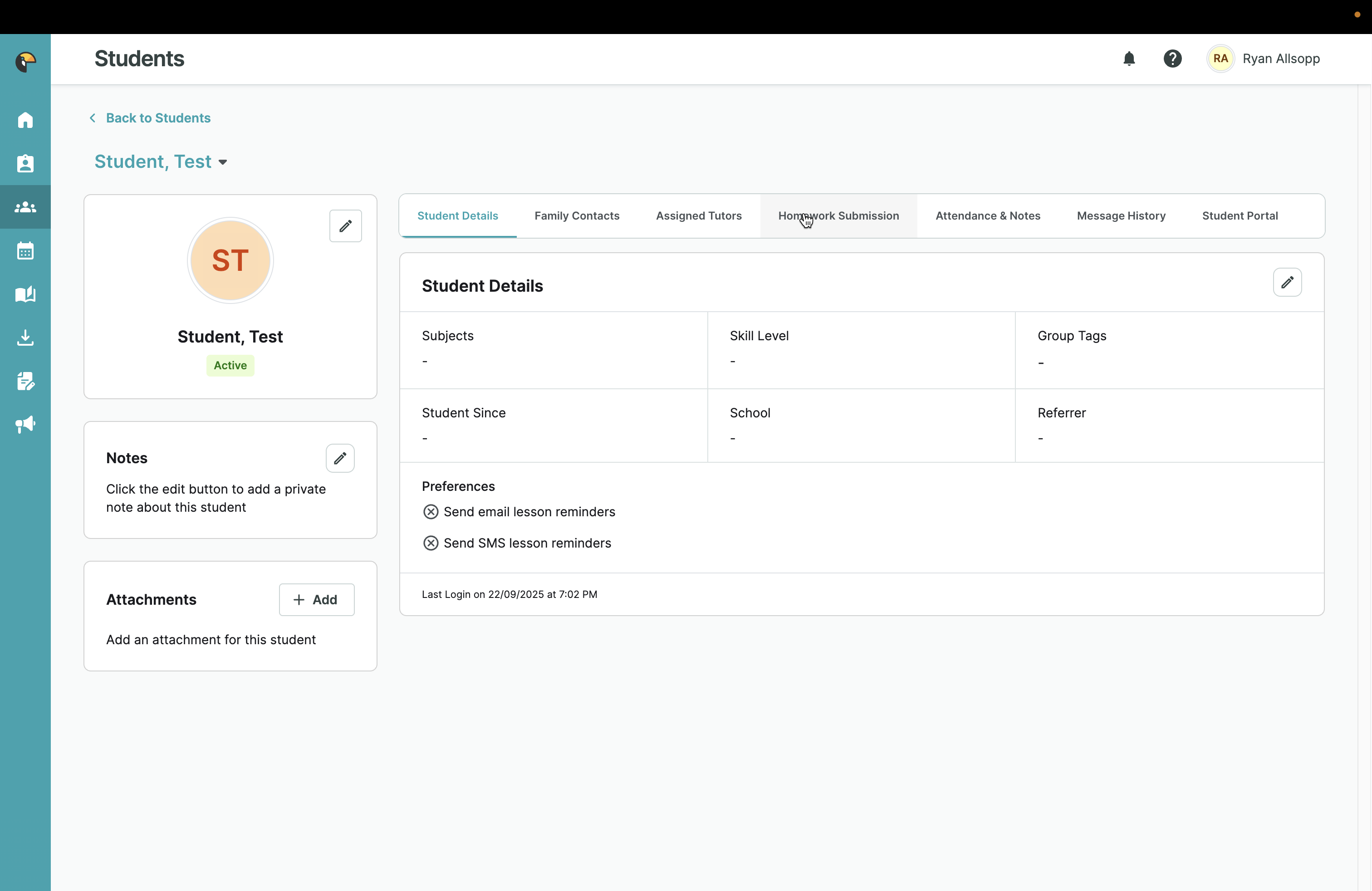
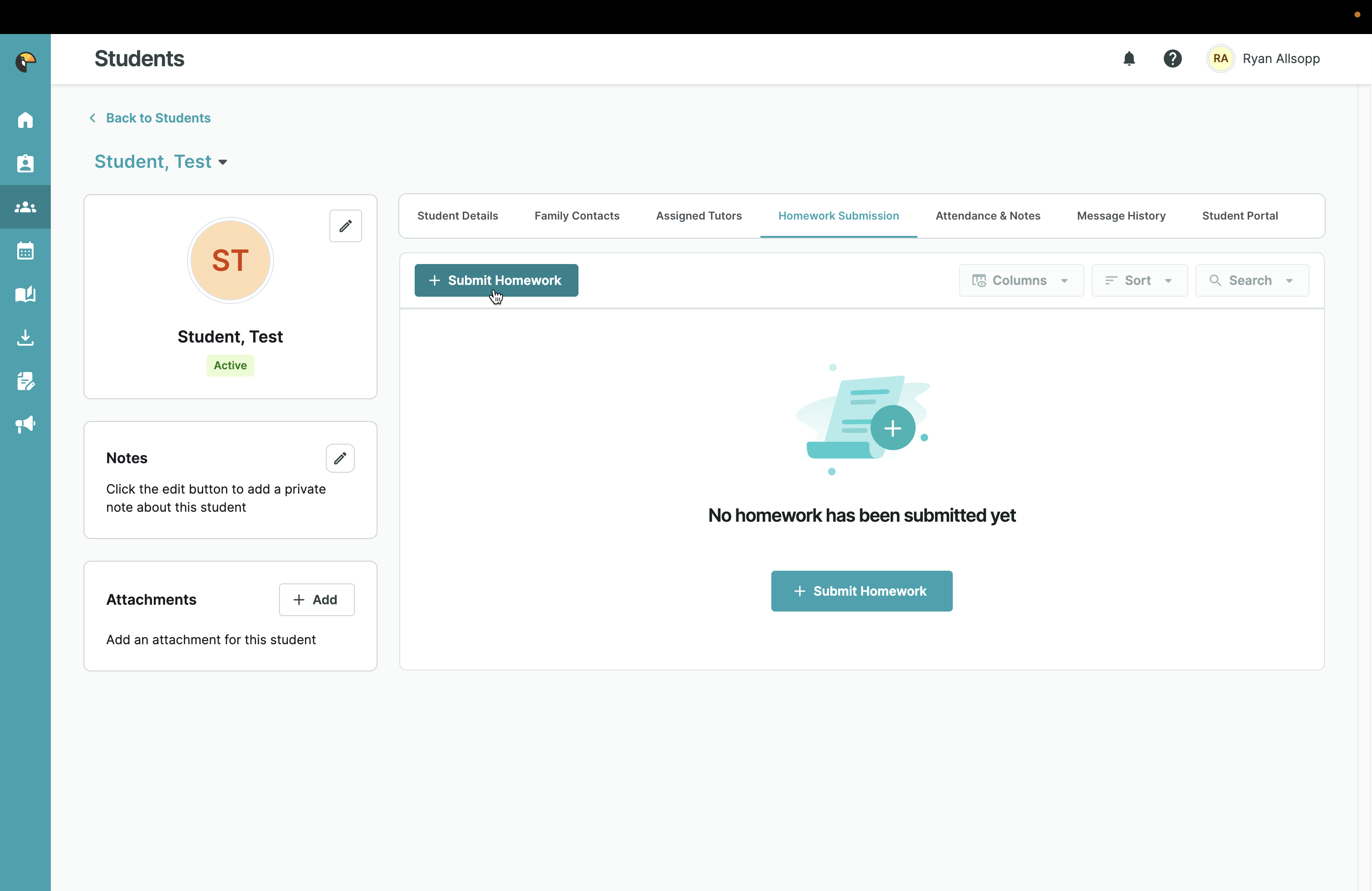
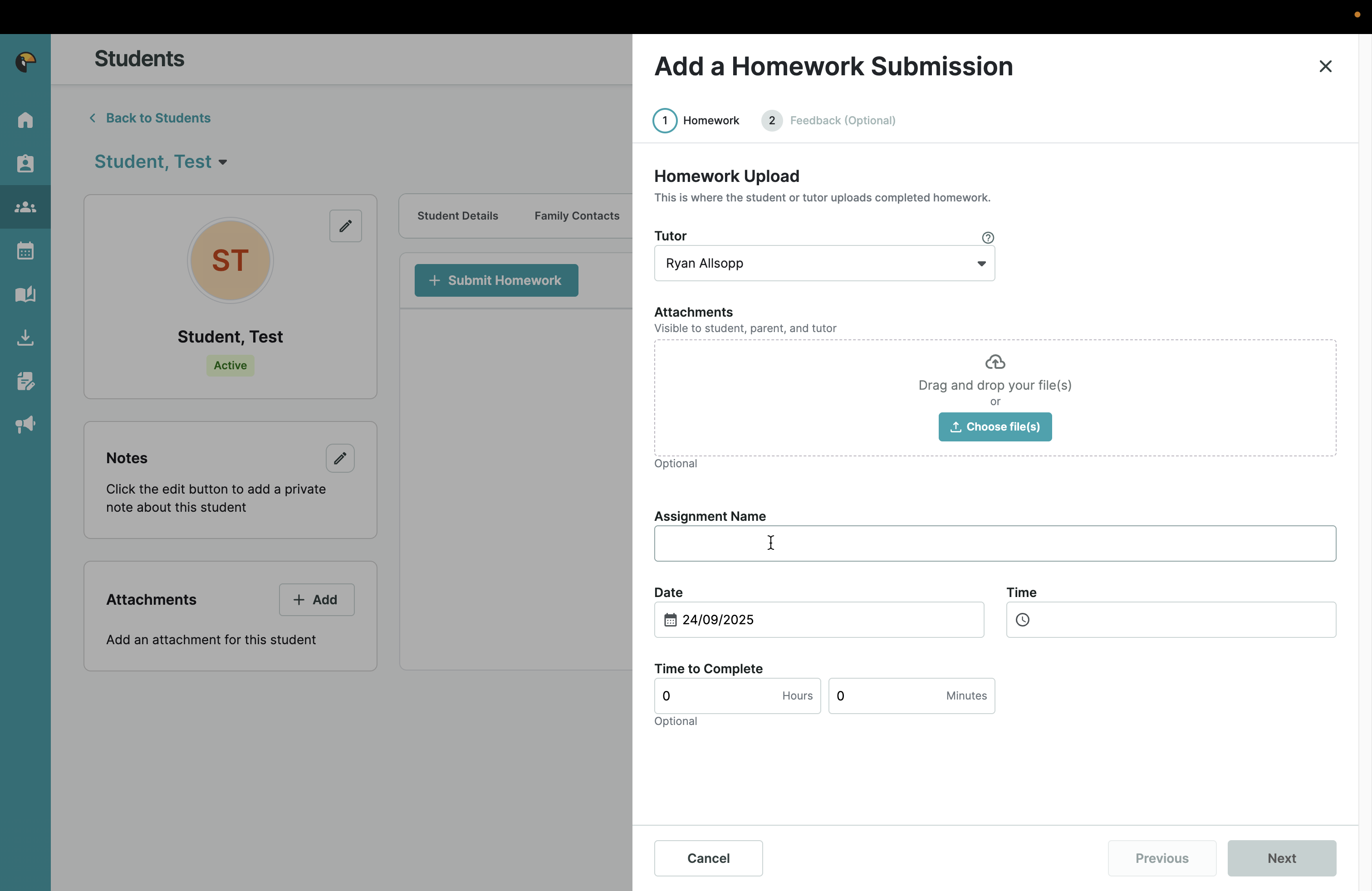
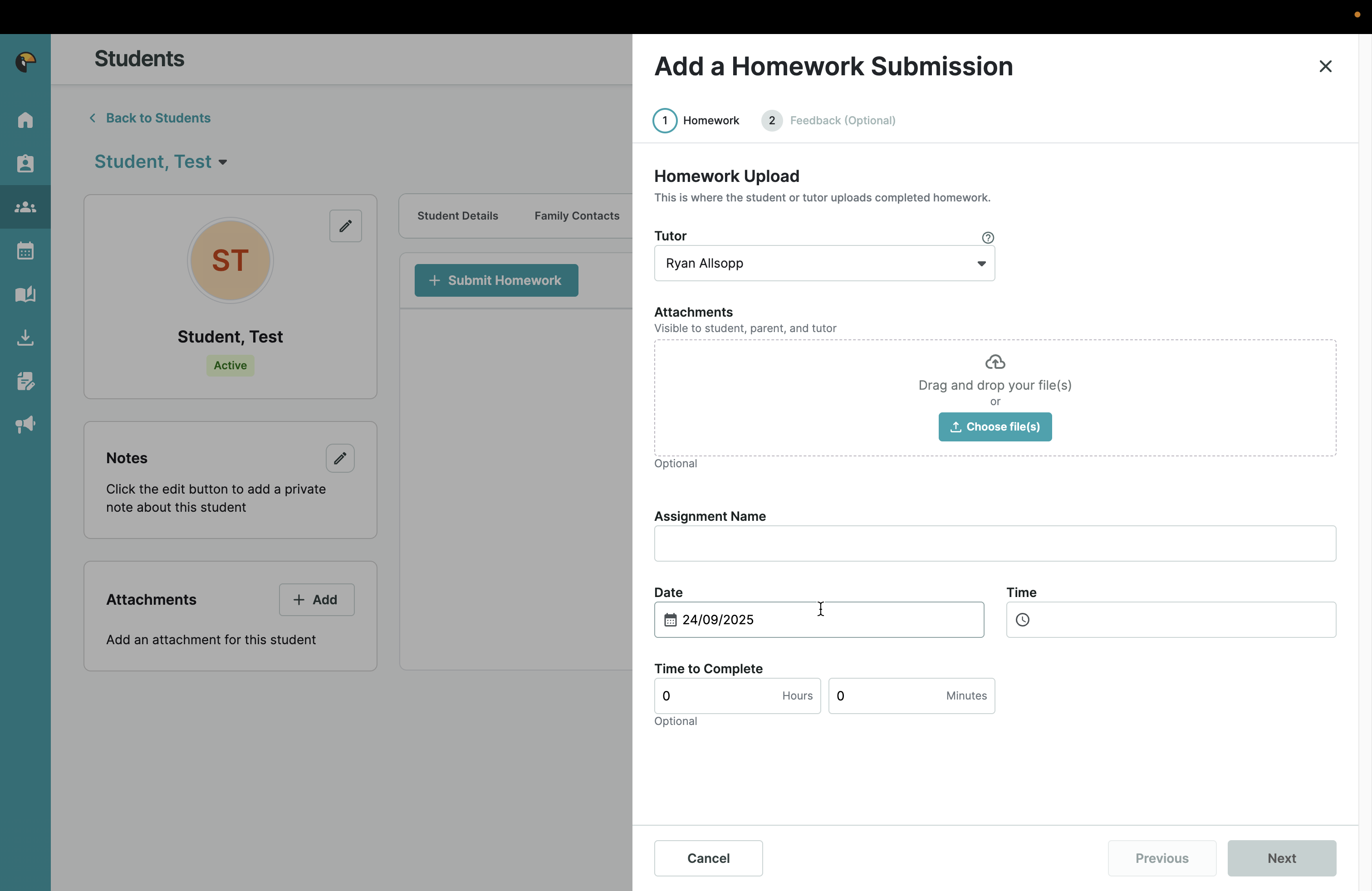
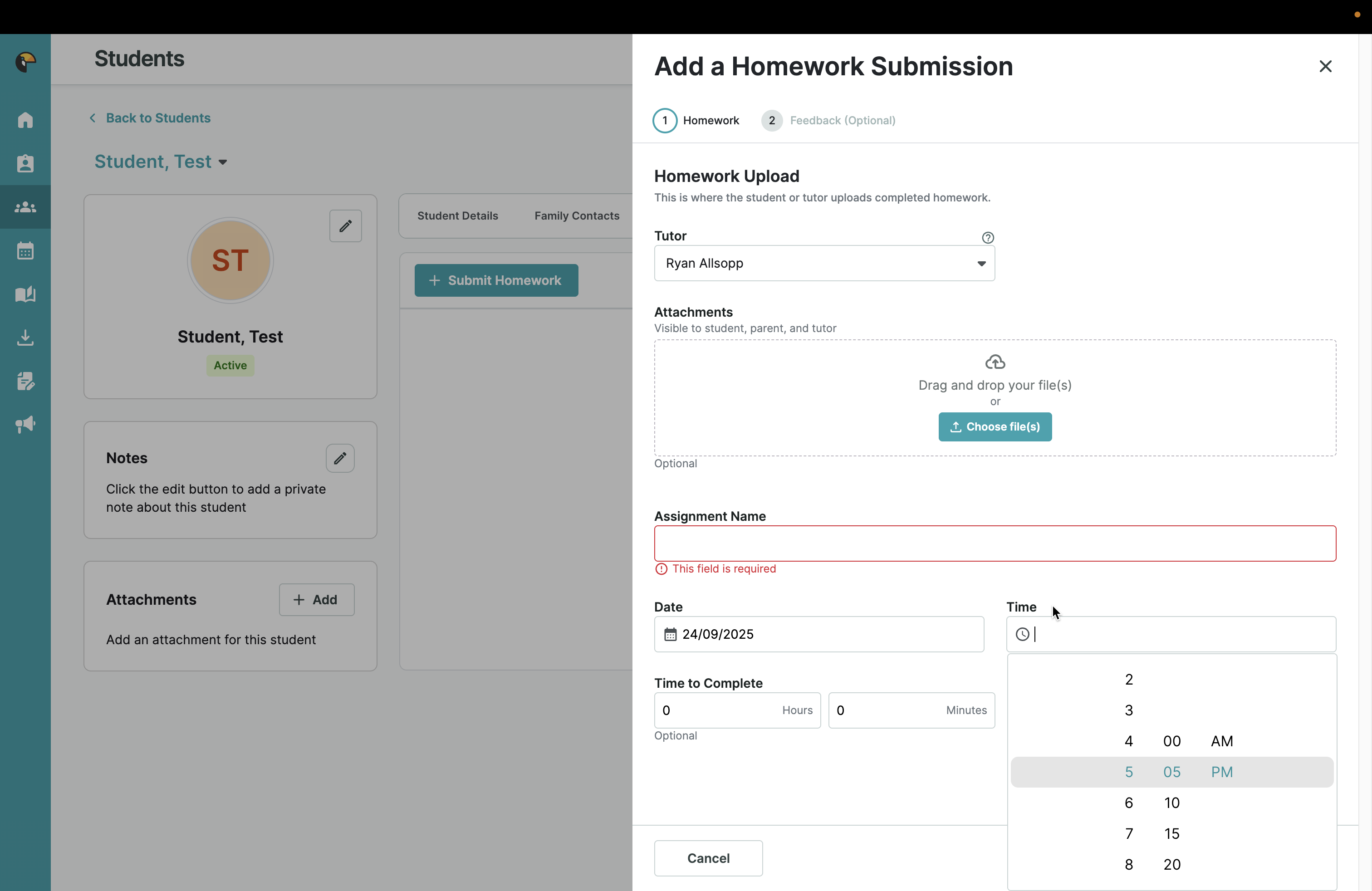
Here, you select the tutor, attach a file or photo, and provide any work you want to assign. Enter the assignment name/description, today's date, the current time, and the expected duration for the task.
Each homework submission can be sent with notes to the student and parent, parent only and tutor (yourself i.e. notes about the session, marks...). You do not have to send any notes and you can send the same one to multiple you will just have to copy & paste.
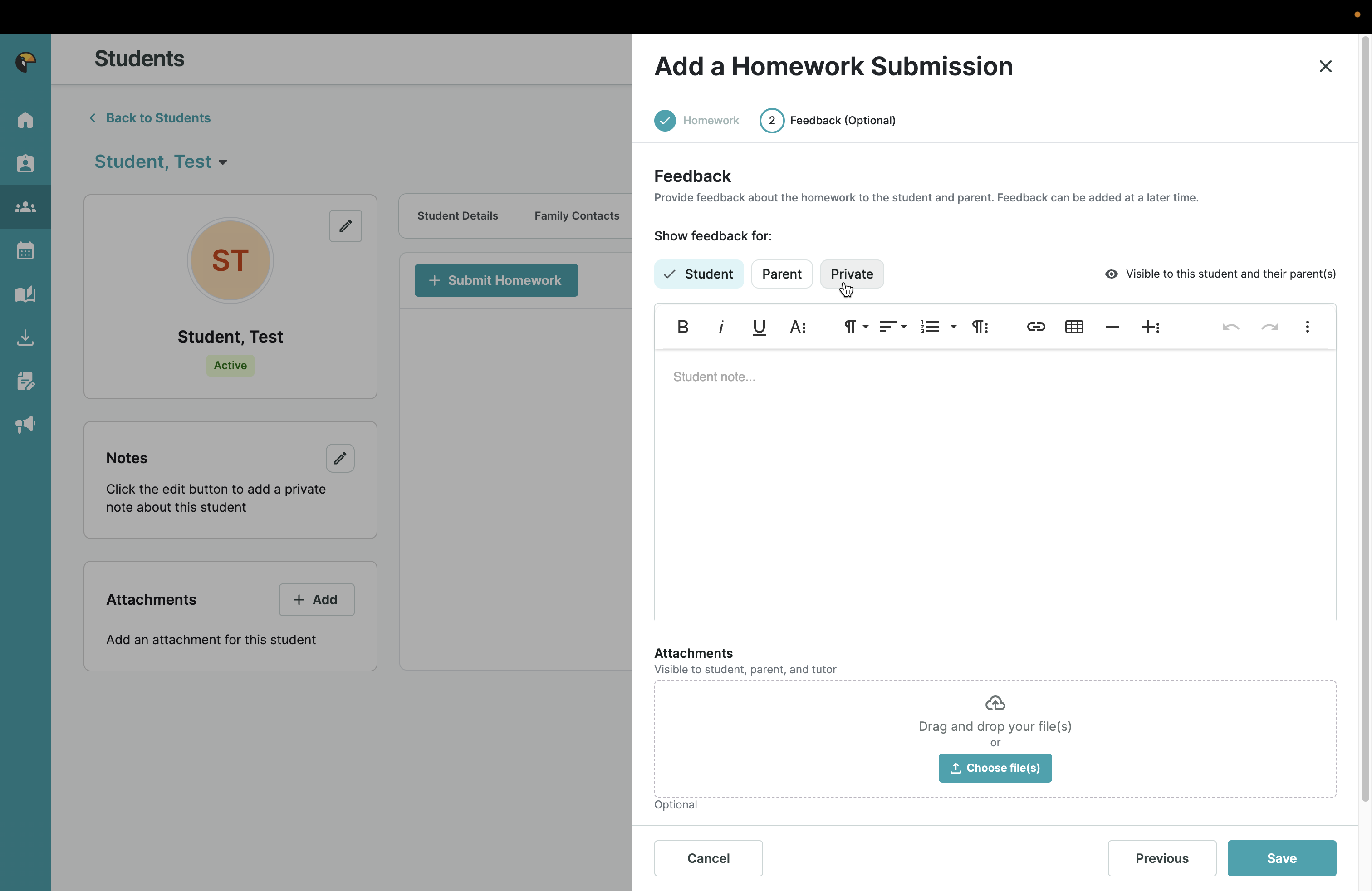
You can add extra files which is optional. Which are visible to all.
You can also check the general homework guide, which lists assignments for all your students or for a specific student.
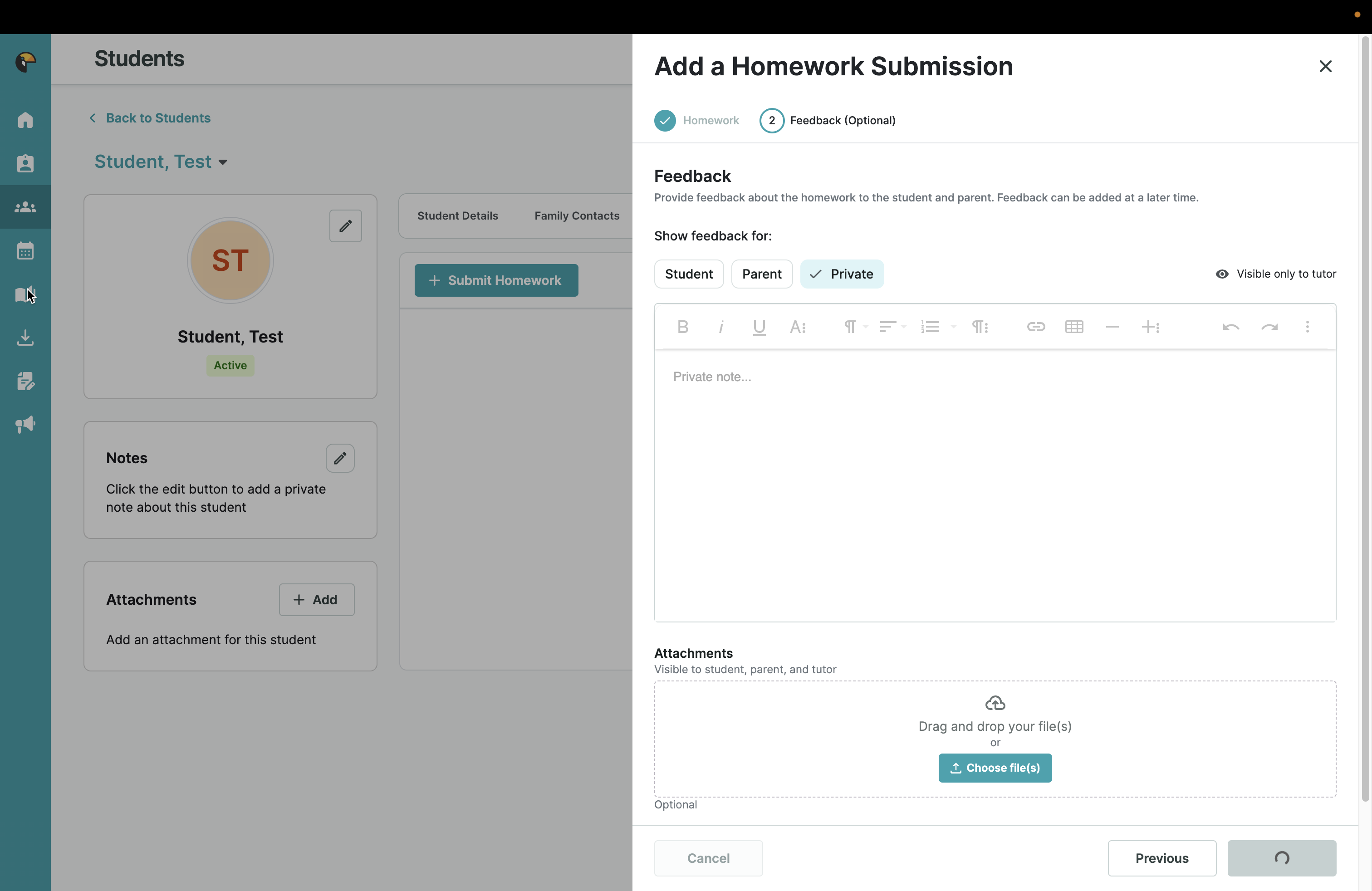
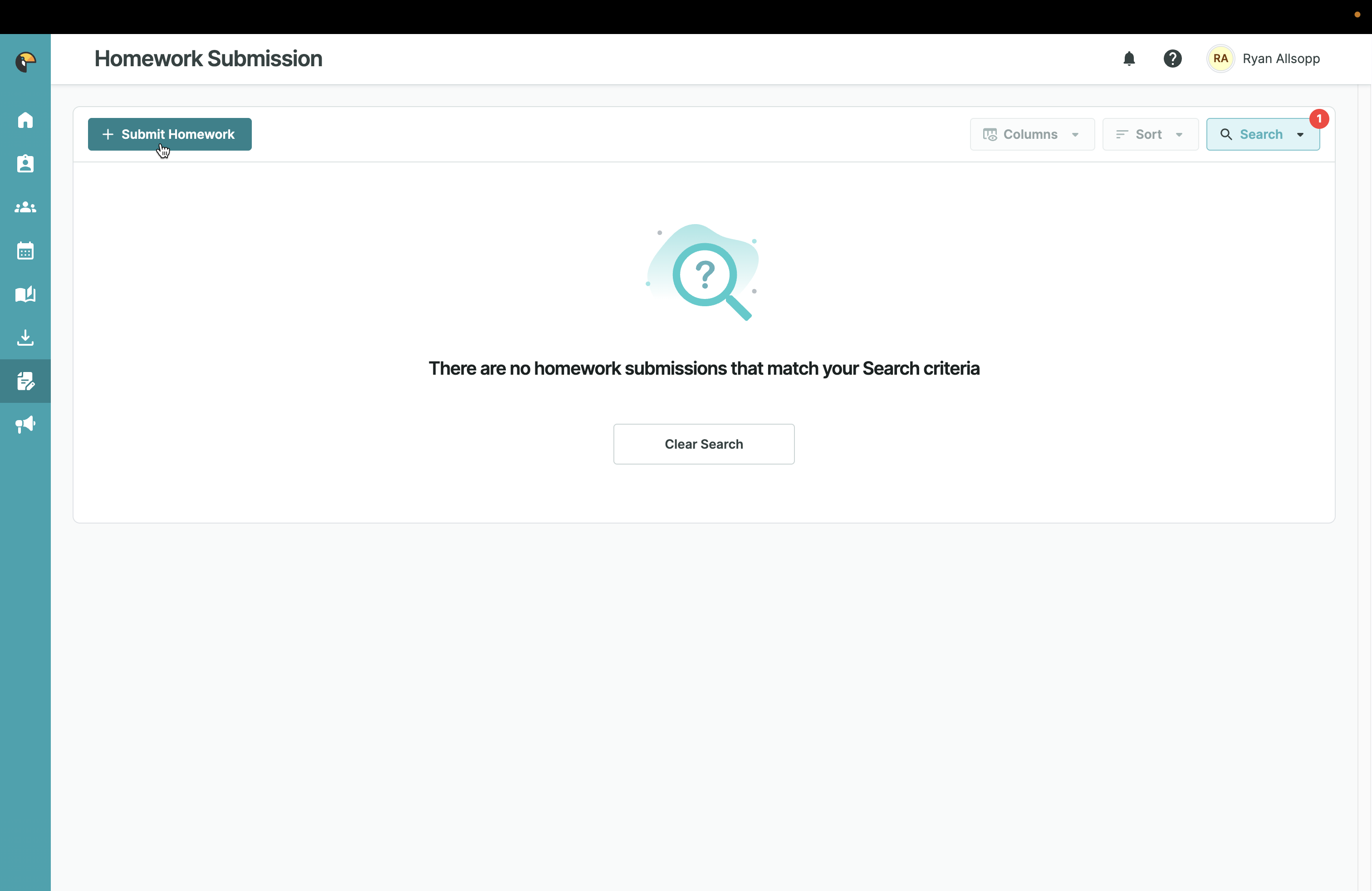
You can submit homework for any student and follow the same steps to see the results.
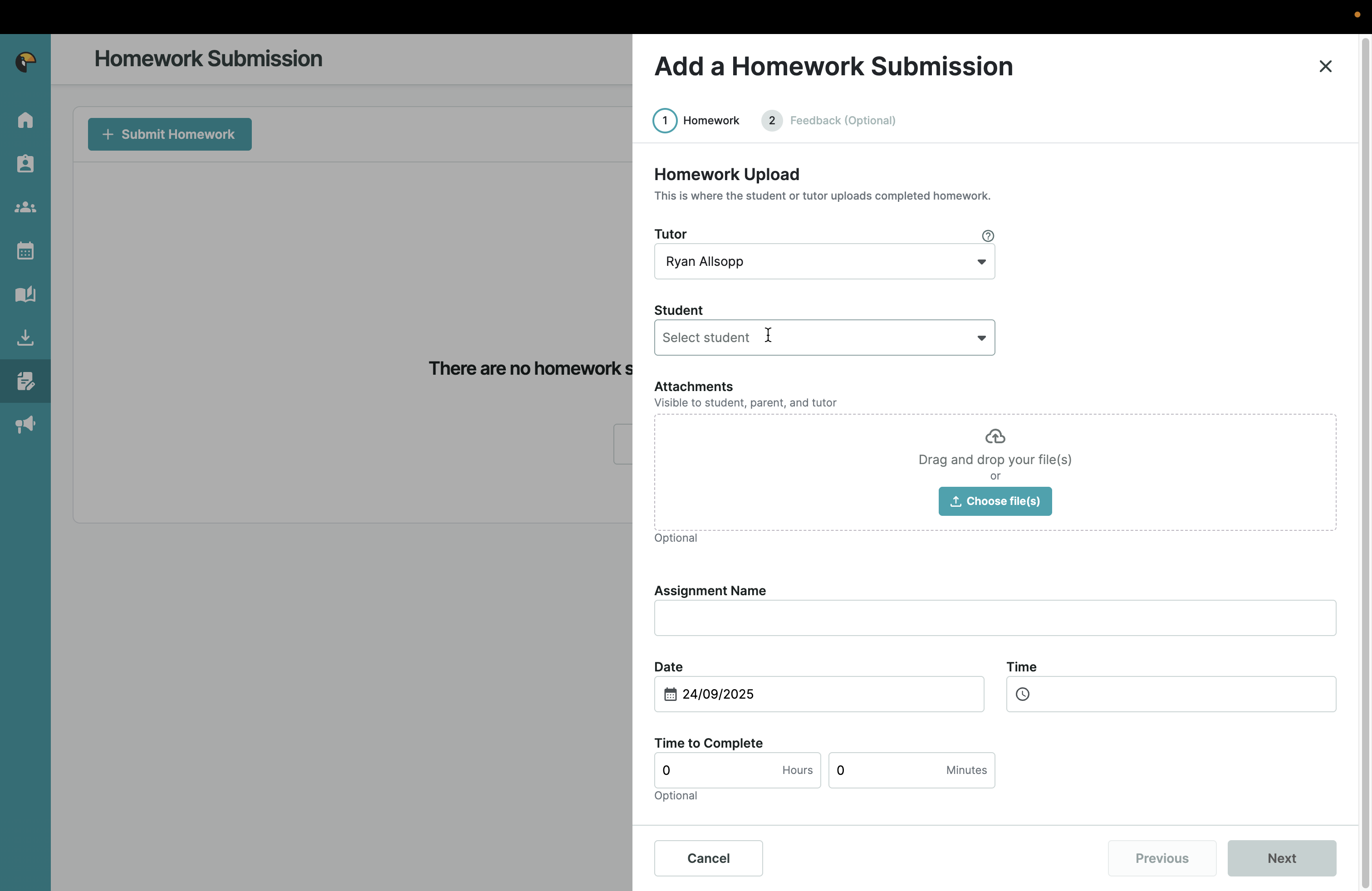
You can see the date, the name you've given it, when it is scheduled, who it is for, any attachments, and notes for the tutor.
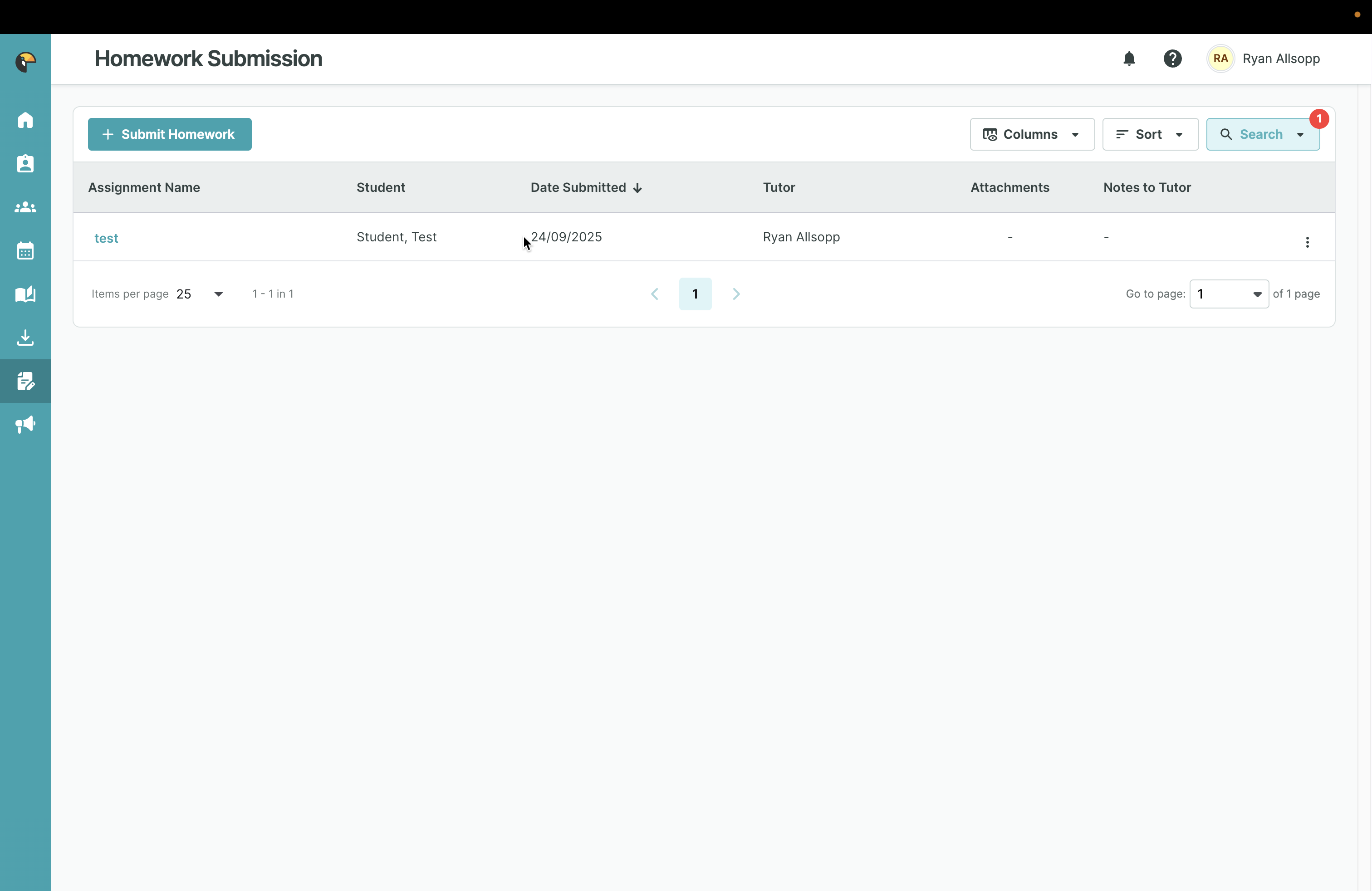
The student can send you a new file of the completed work, including notes for you to use in your next session.
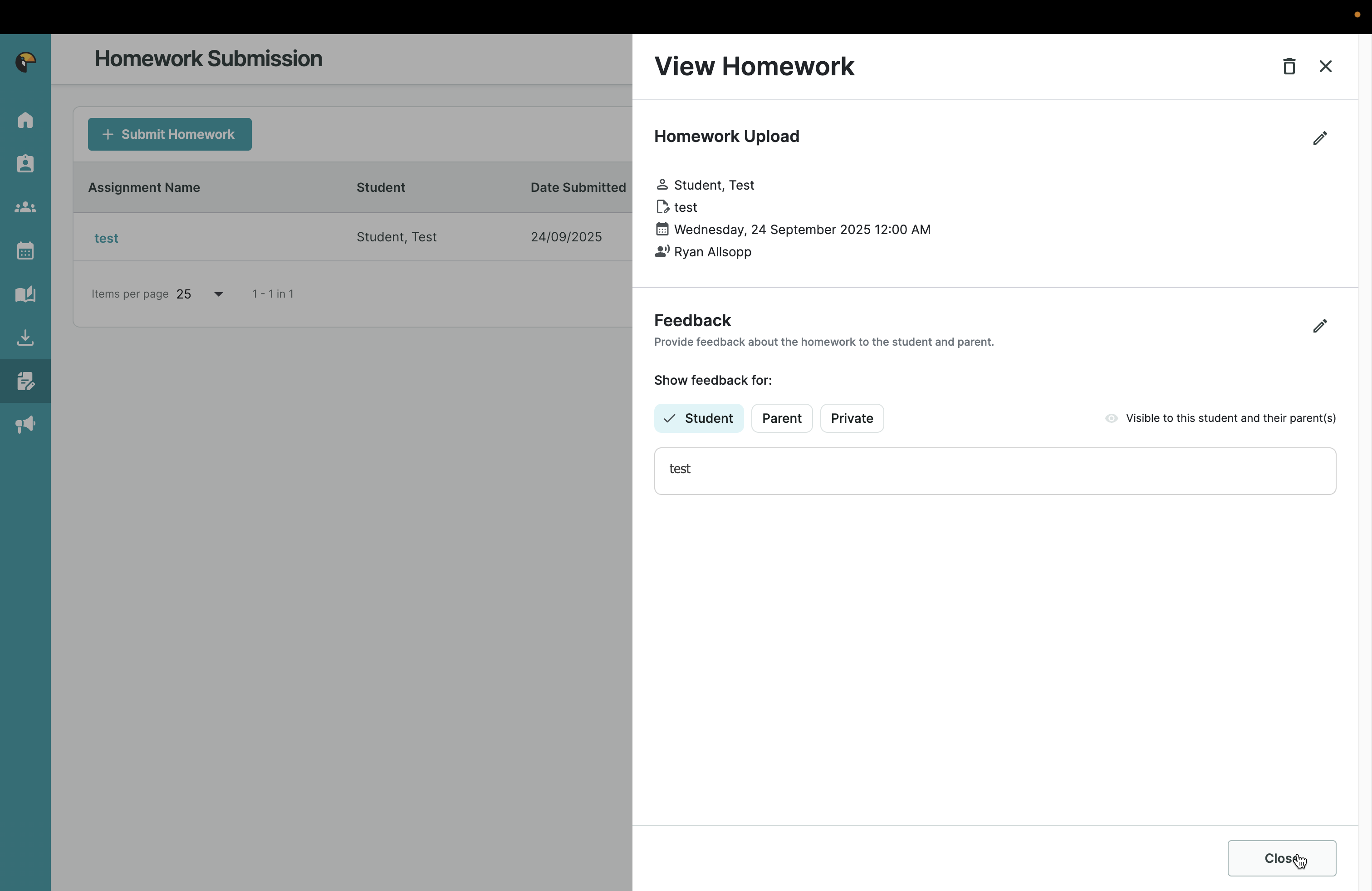
You can give feedback to a student, a parent, or privately on the returned homework and view your own comments. You can also submit homework in the same menu when you record an individual students' attendance .