
How to Use the OPEX Model in Adaptive Planning: A Step-by-Step Guide
Learn how to navigate and utilize the OPEX (Operating Expense) Model in Adaptive Planning. This guide covers accessing the model, selecting the correct version, entering data, and understanding CAPEX vs OPEX classification for effective budgeting.
In this guide, we'll learn how to use the OPEX Model in Adaptive Planning to record and manage operating and capital expenses. We'll cover how to select the correct version and planning level, choose the right time period, and enter data for general ledger accounts, projects, suppliers, and amounts. This process helps ensure expenses are accurately categorized and reflected in your financial reports.
Let's get started
In this session, I will introduce the operating cost model used in Adaptive. To find the operating cost model, click on the three lines, also known as the hamburger menu.
![Step #1: Click on [=]](https://di8mn0rali2ic.cloudfront.net/uploads/0fc96eb2-aa54-415c-8b40-e47e892e8c34/d85f54fc-458b-4bf9-ade4-56e80cbc997f.png)
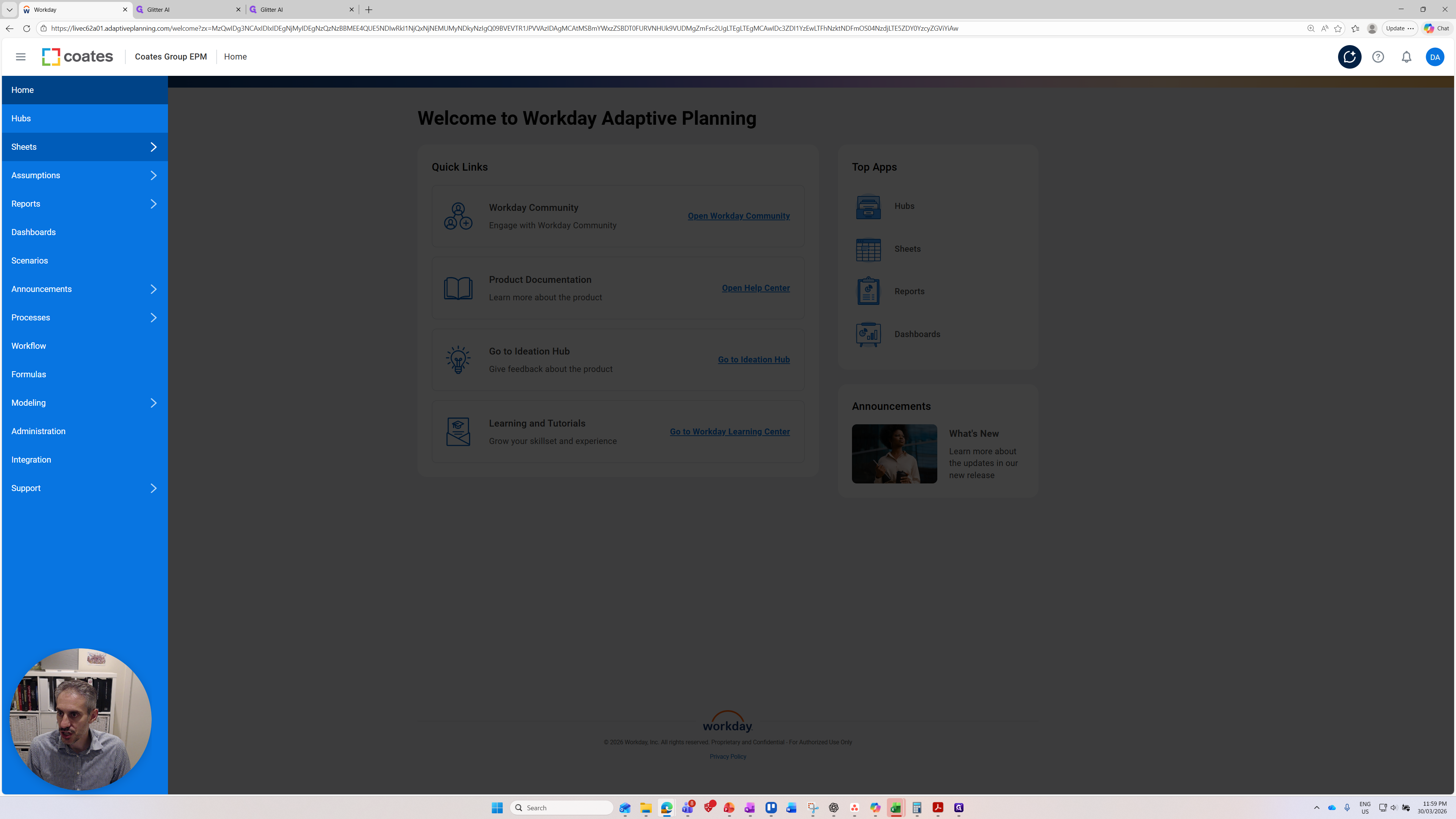
Understanding operating expenses will be removed later, so we want to focus on using the OPEX Model.
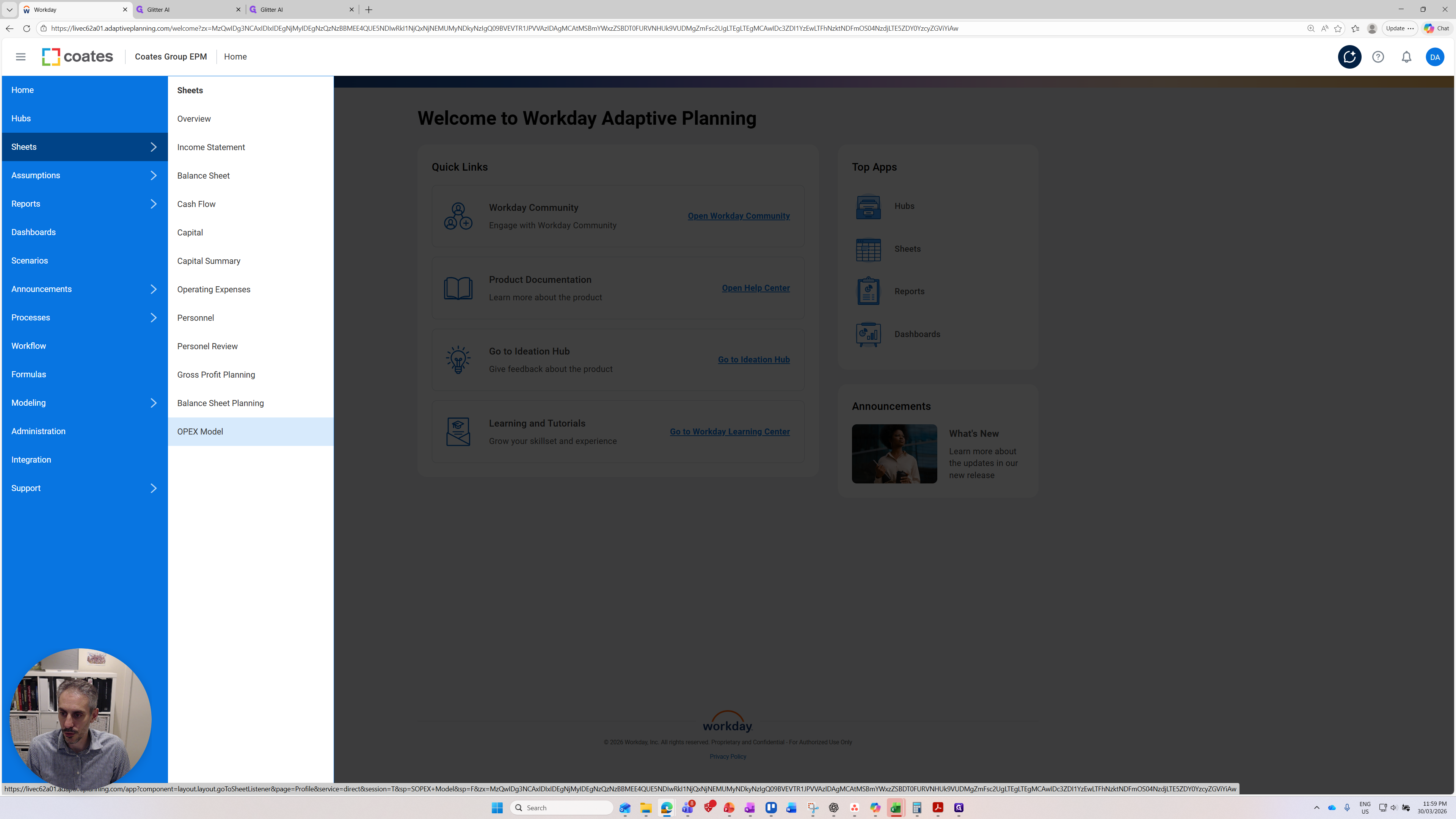
One key point to note is that if you do not see the OPEX Model option or any sheet, make sure you are in the correct version. Because the version you are using will determine the types of sheets you can see. If that sheet is not used for that model, it will not appear. This is the OPEX Model. It is also used for CAPEX. Any invoices that need to be capitalized should go through here. I will explain how that works later.
We should select the correct version, which is the current budget. We should select the correct level at which we want to plan.
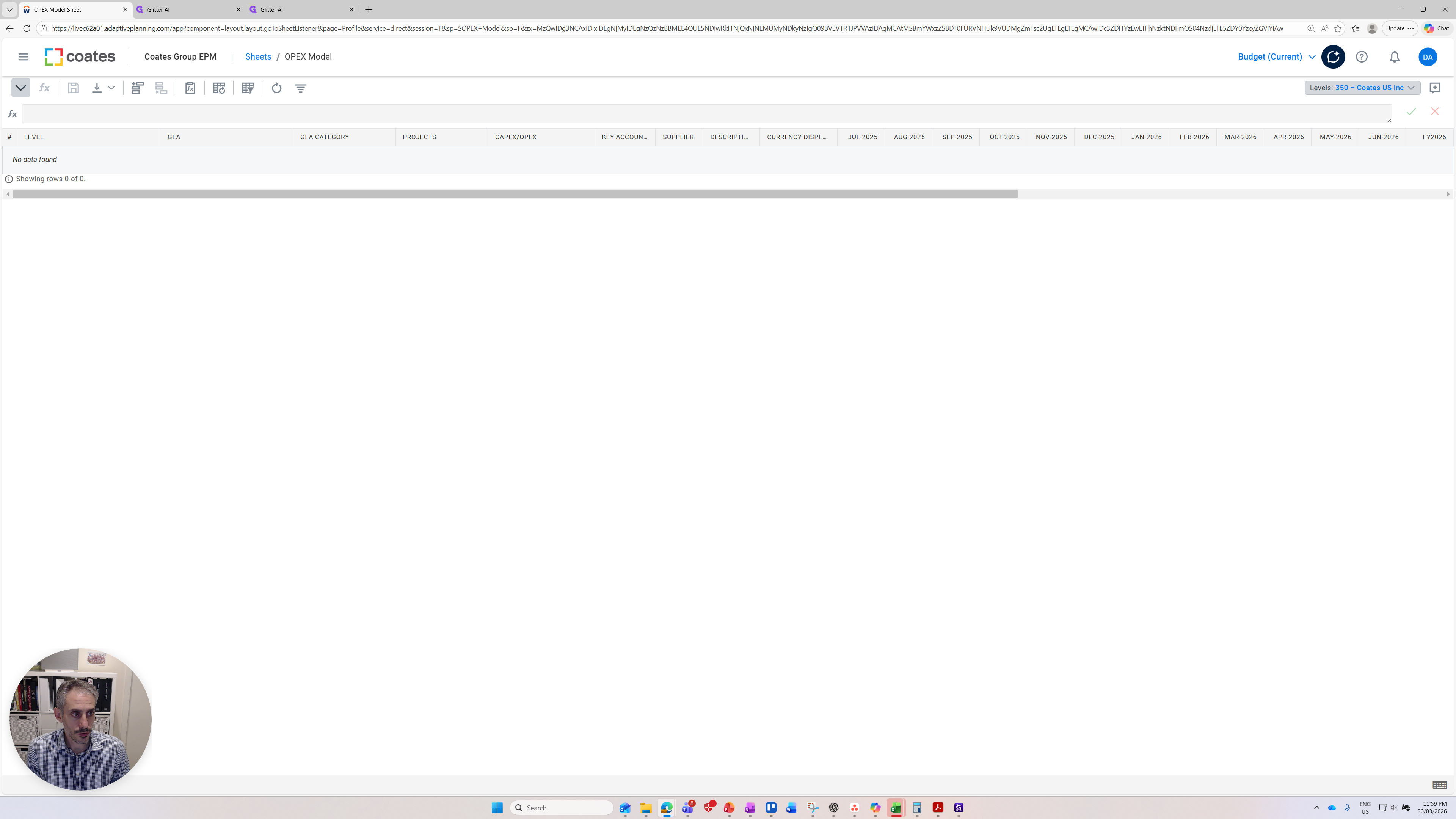
I'll pick a proxy, just a dummy one.
I'm not too worried about it right now.
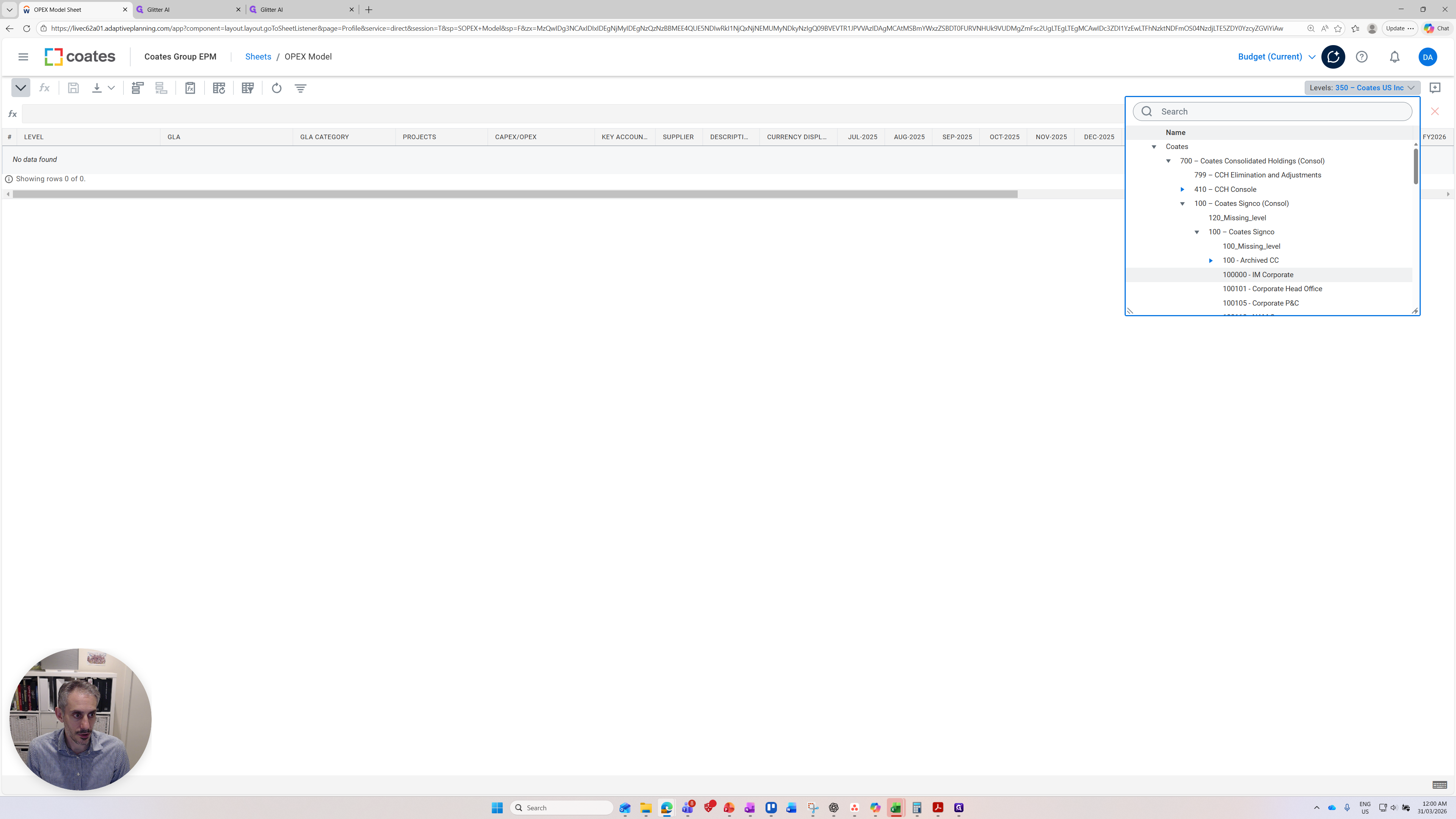
Okay, I have the time period set from July through FY27.
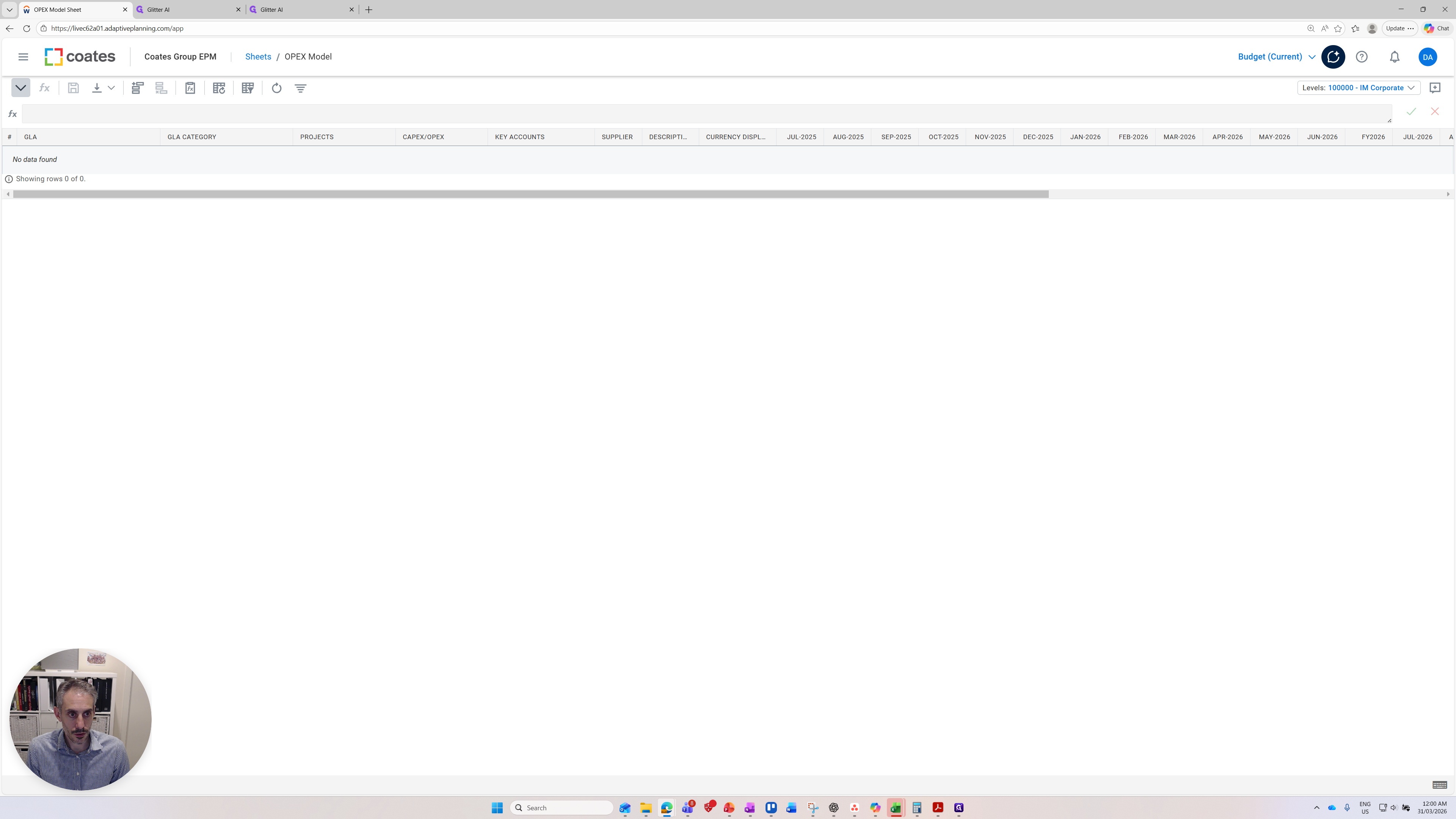
It's a bit longer than I wanted. I will remove that and show only FY27, then proceed.
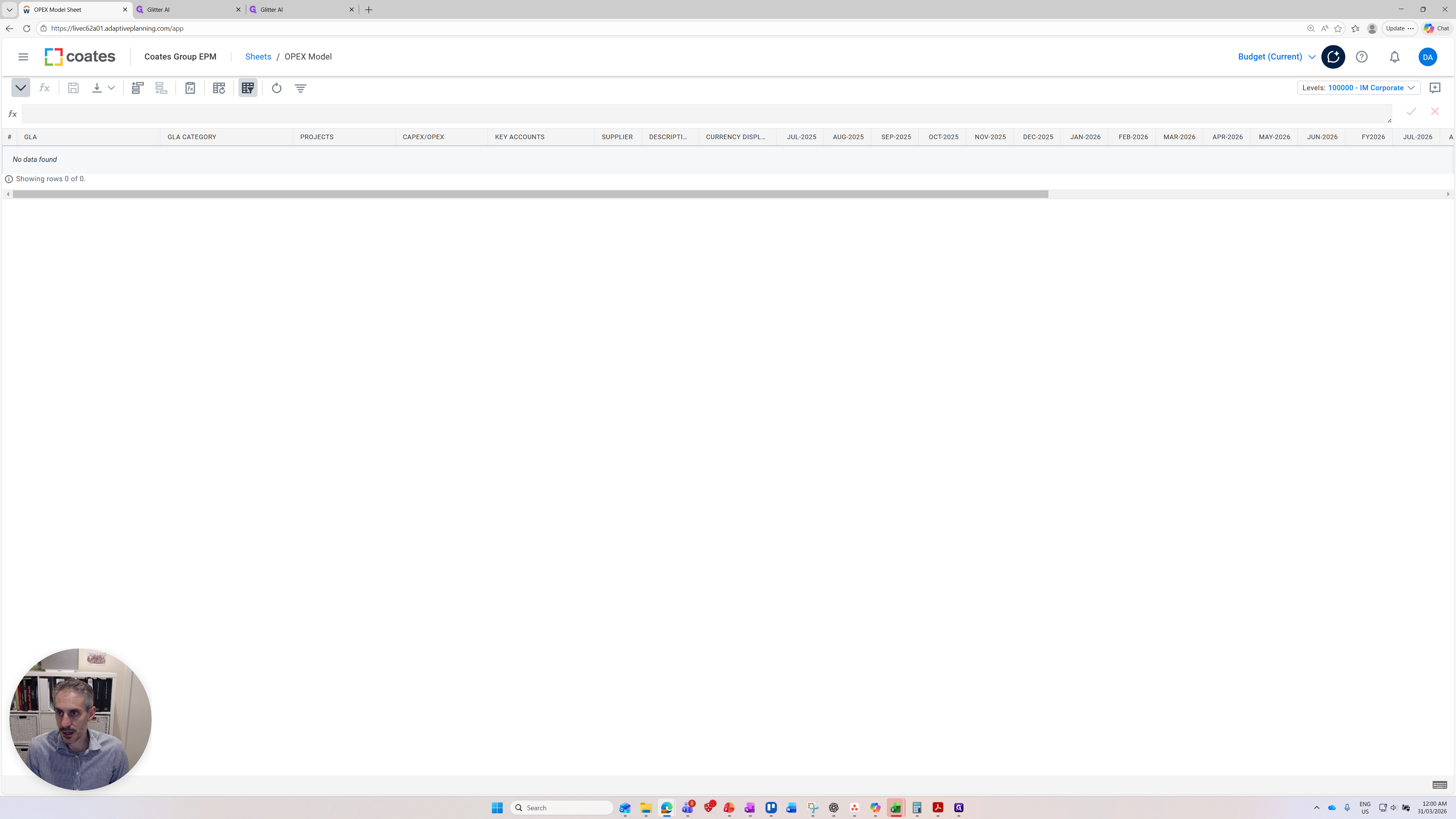
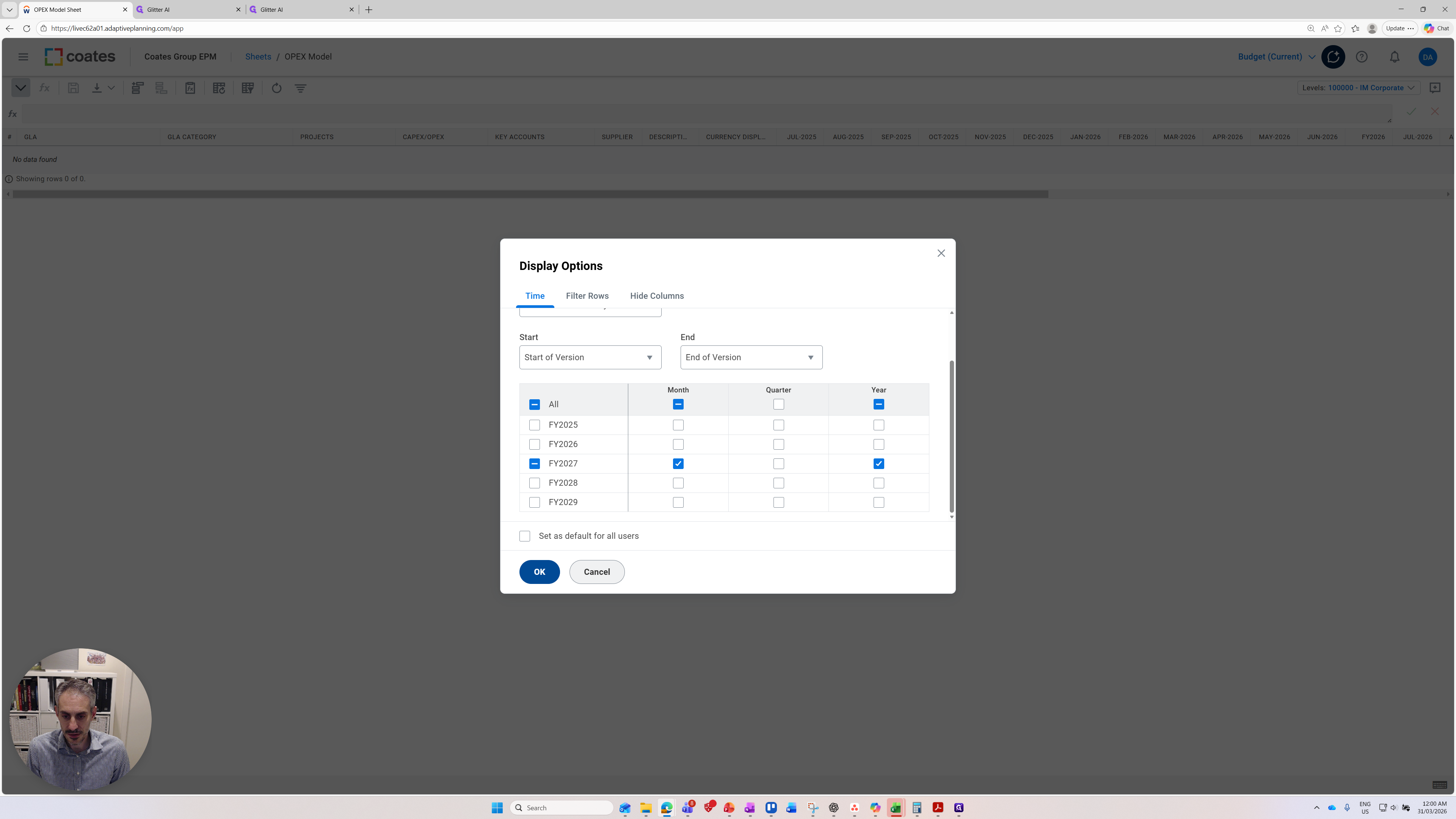
You'll see here that it has been shortened. Now I want to add a row for a record of data. You can see all the values that need to be populated.
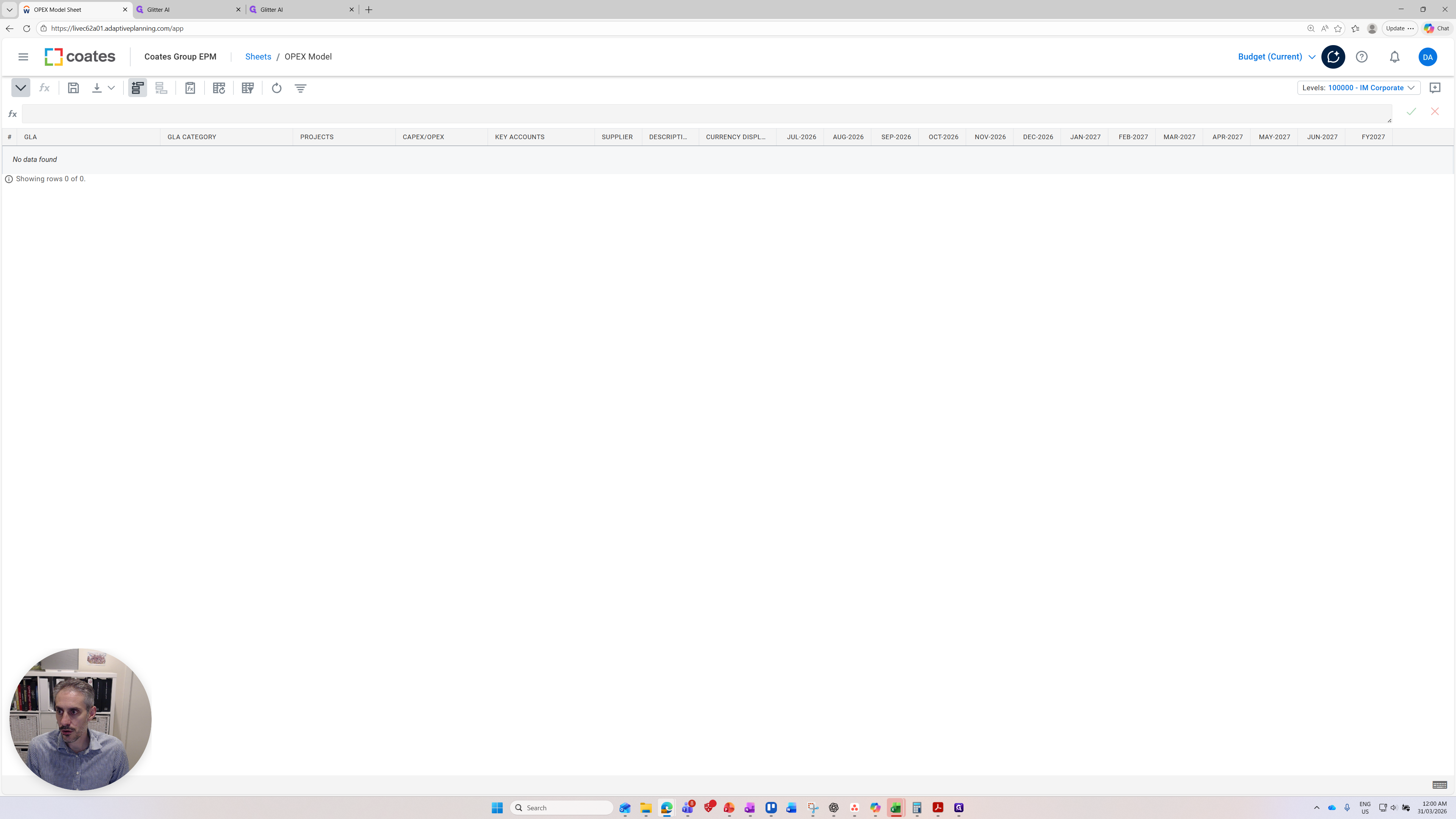
GLA stands for general ledger account. I select the general ledger account I want to plan to.
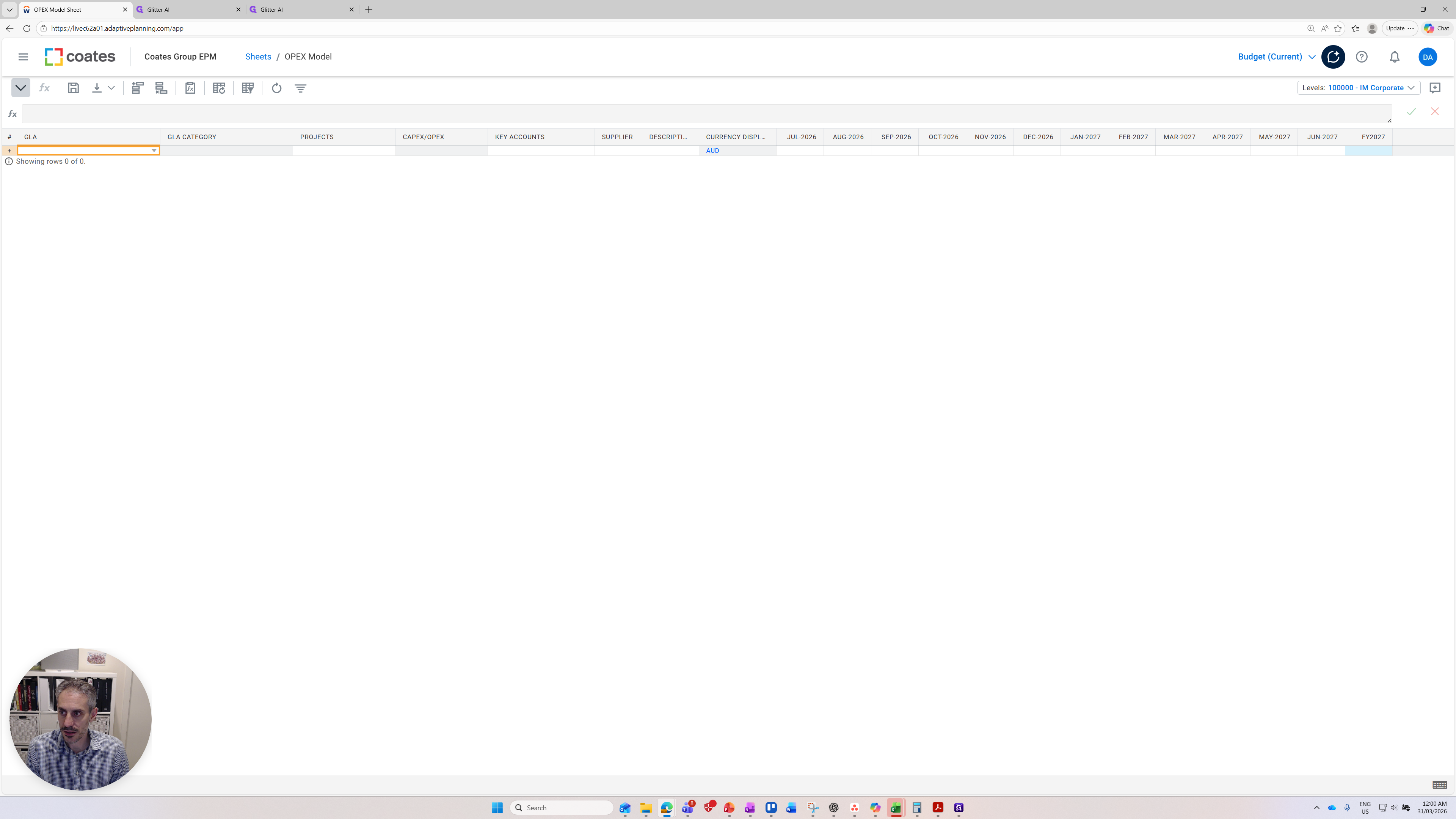
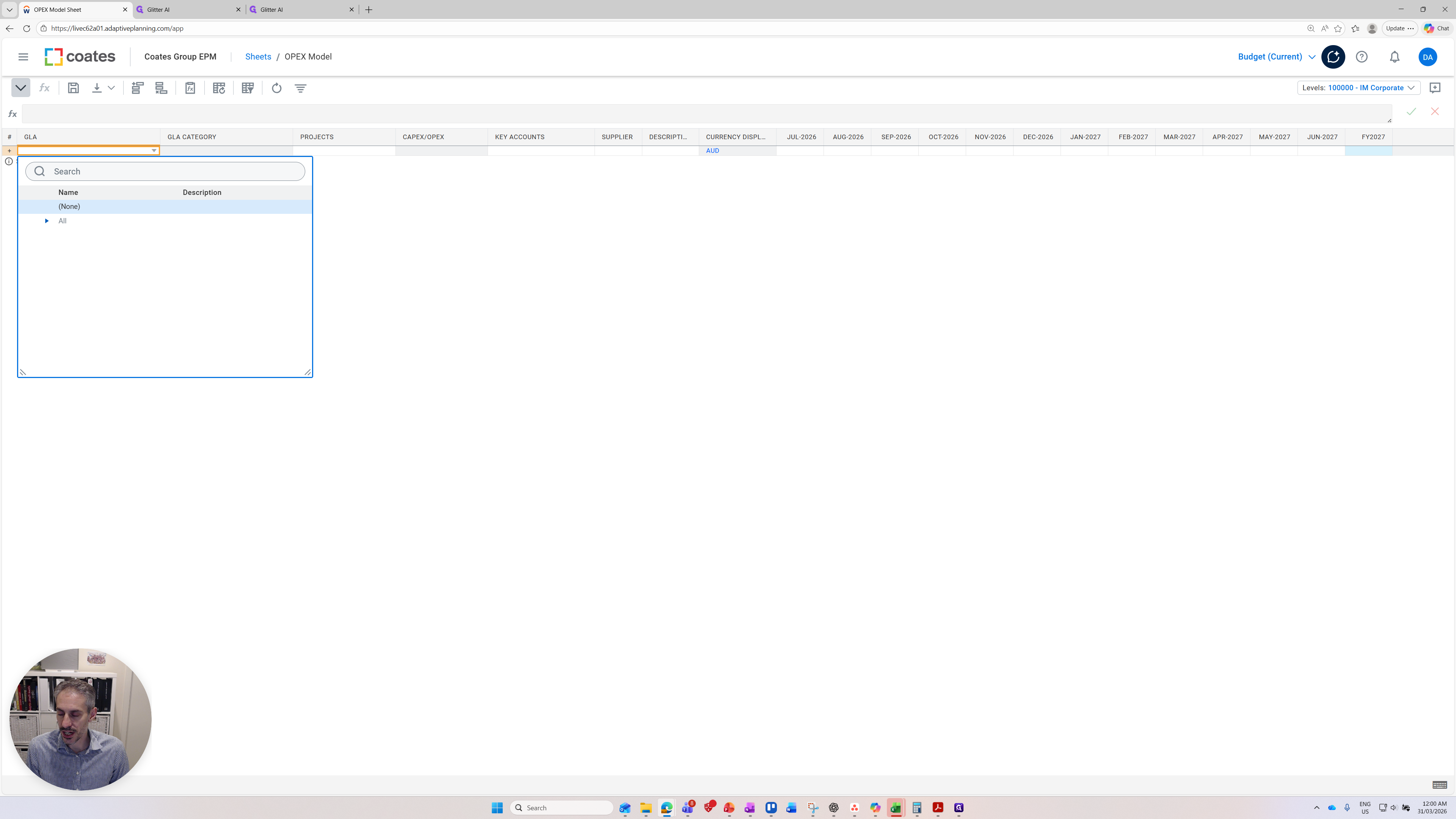
This is the code we should use to record transactions. There are many codes here.
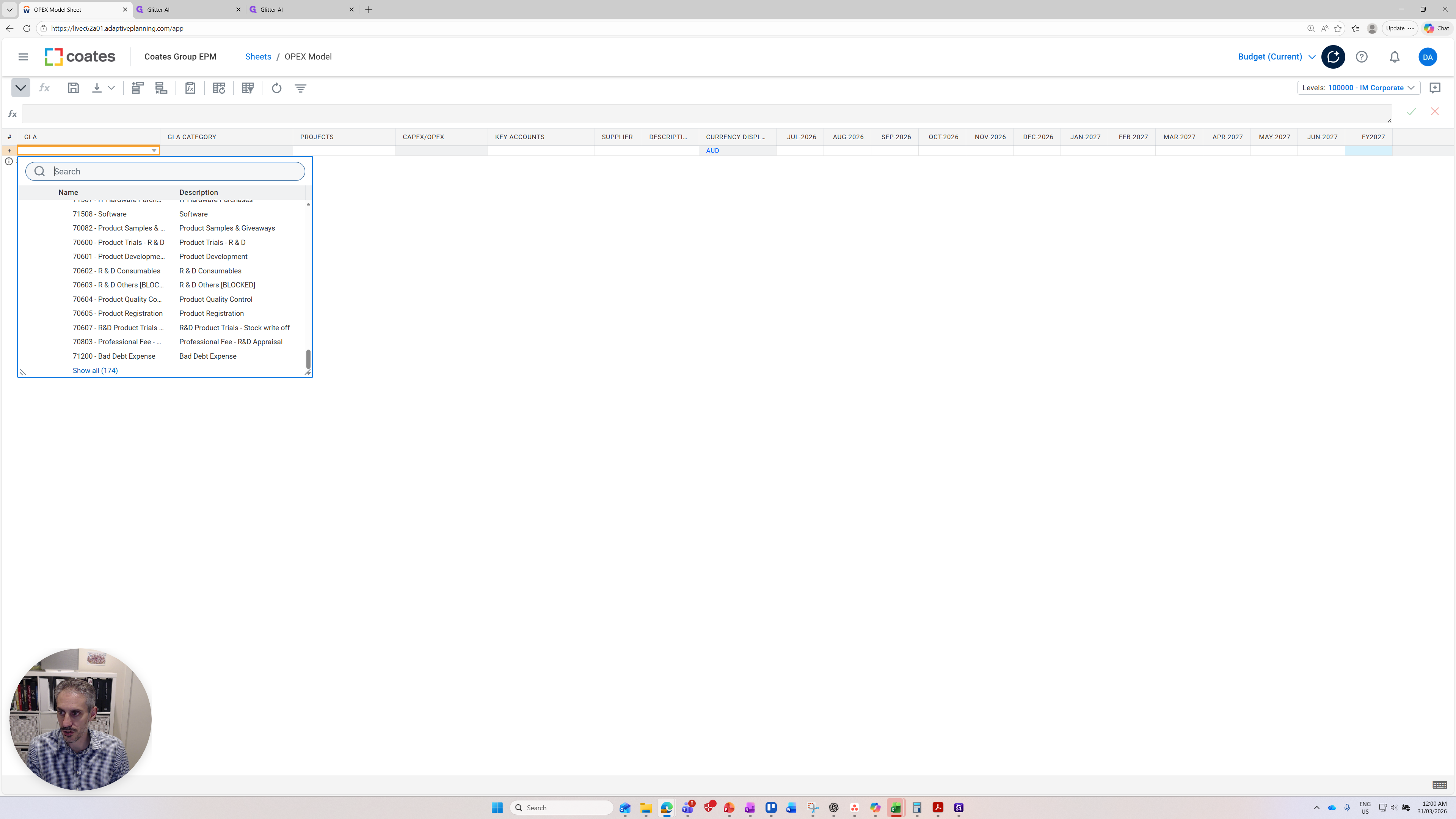
This is our general ledger accounts. I can go in here, select software.
Software—there we go, that's the 71508 software.
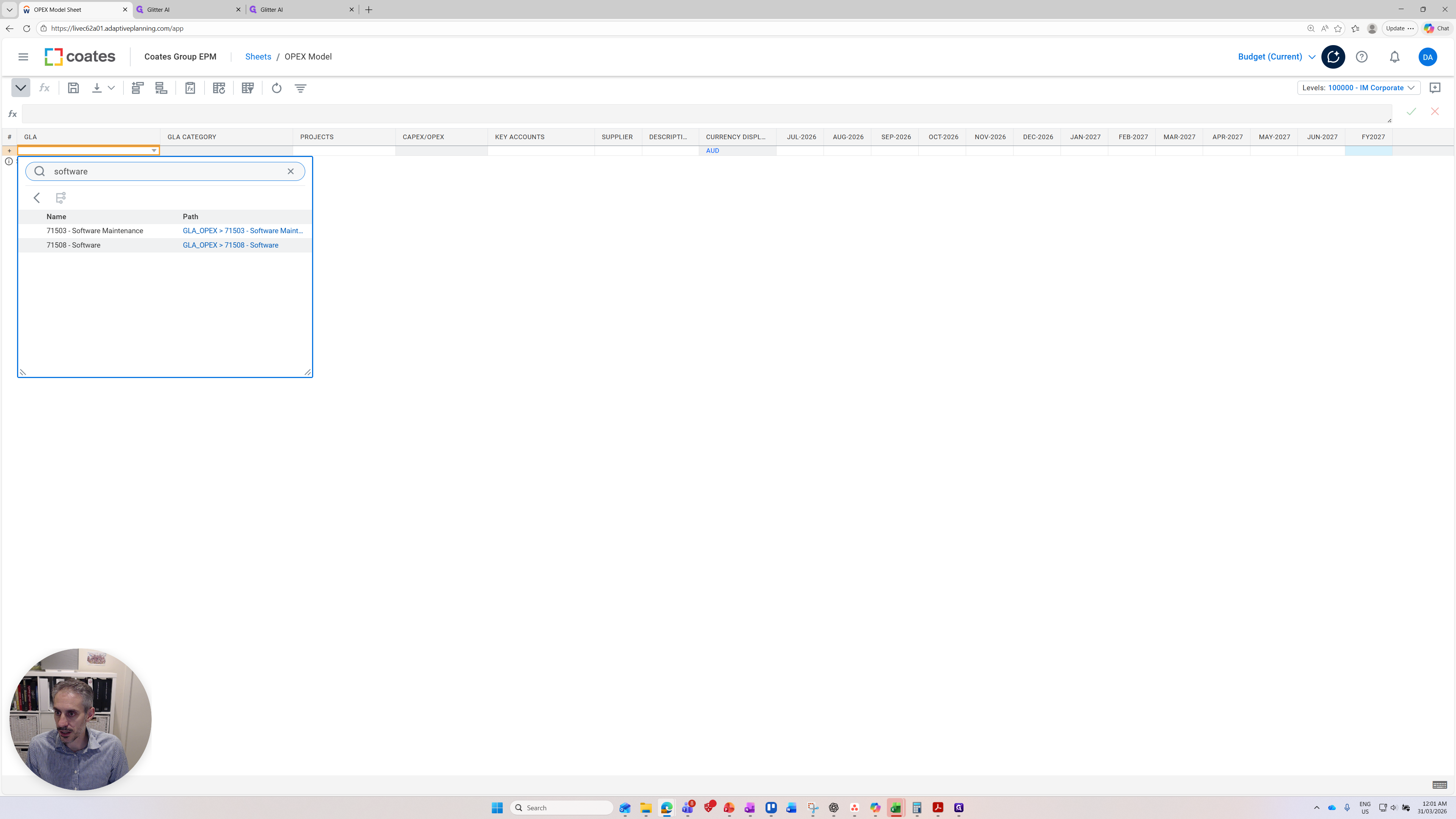
It is coded to the category, which is the cost category that appears in our profit and loss statement to make it more meaningful. That's IT costs. I can then find a project.
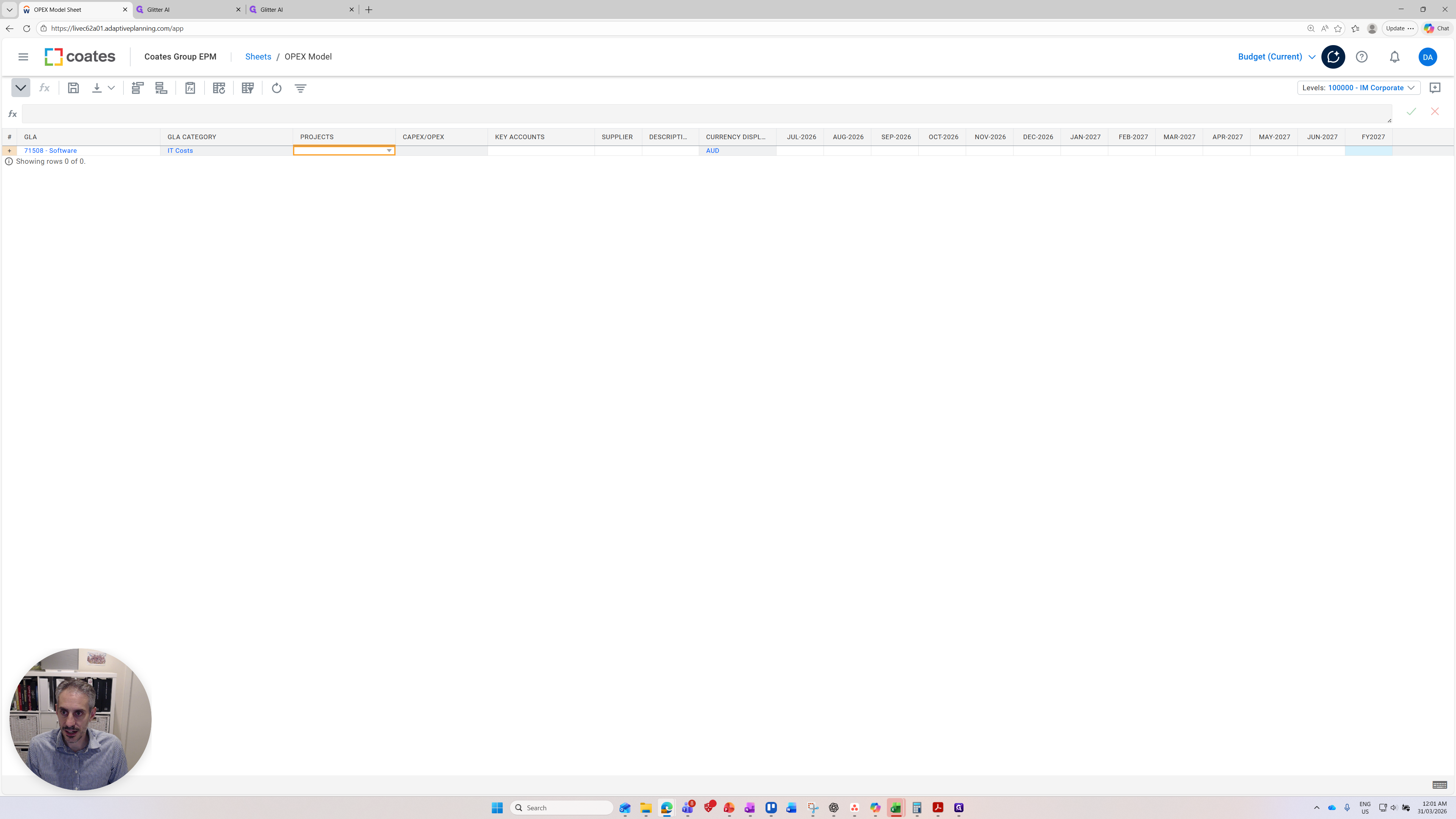
The projects can be found manually, or I can search for a project.
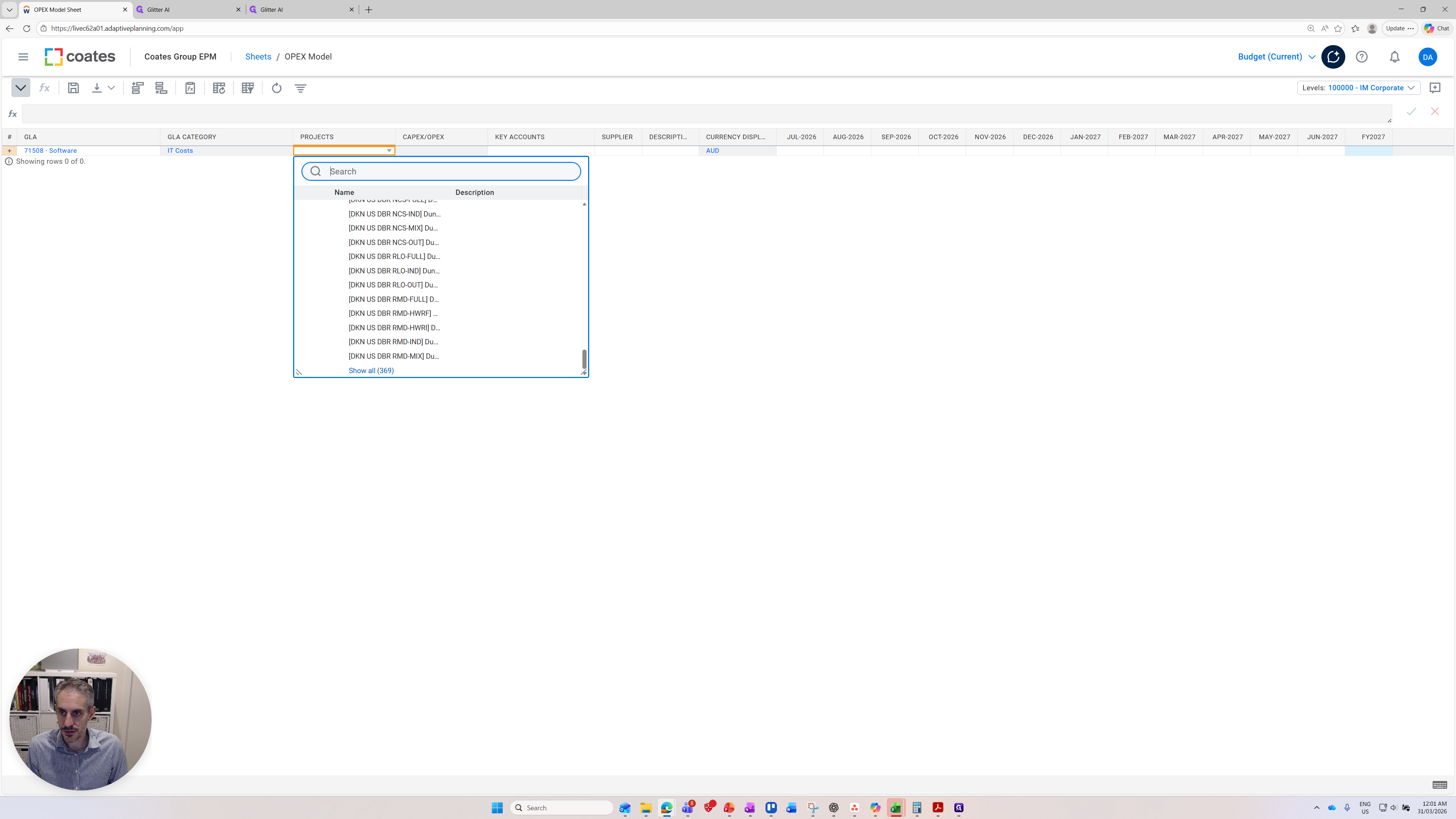
I'm thinking of one that is Global Demo four.
Here is one coming through.
You can see this project has a CAPEX in the read-only value.
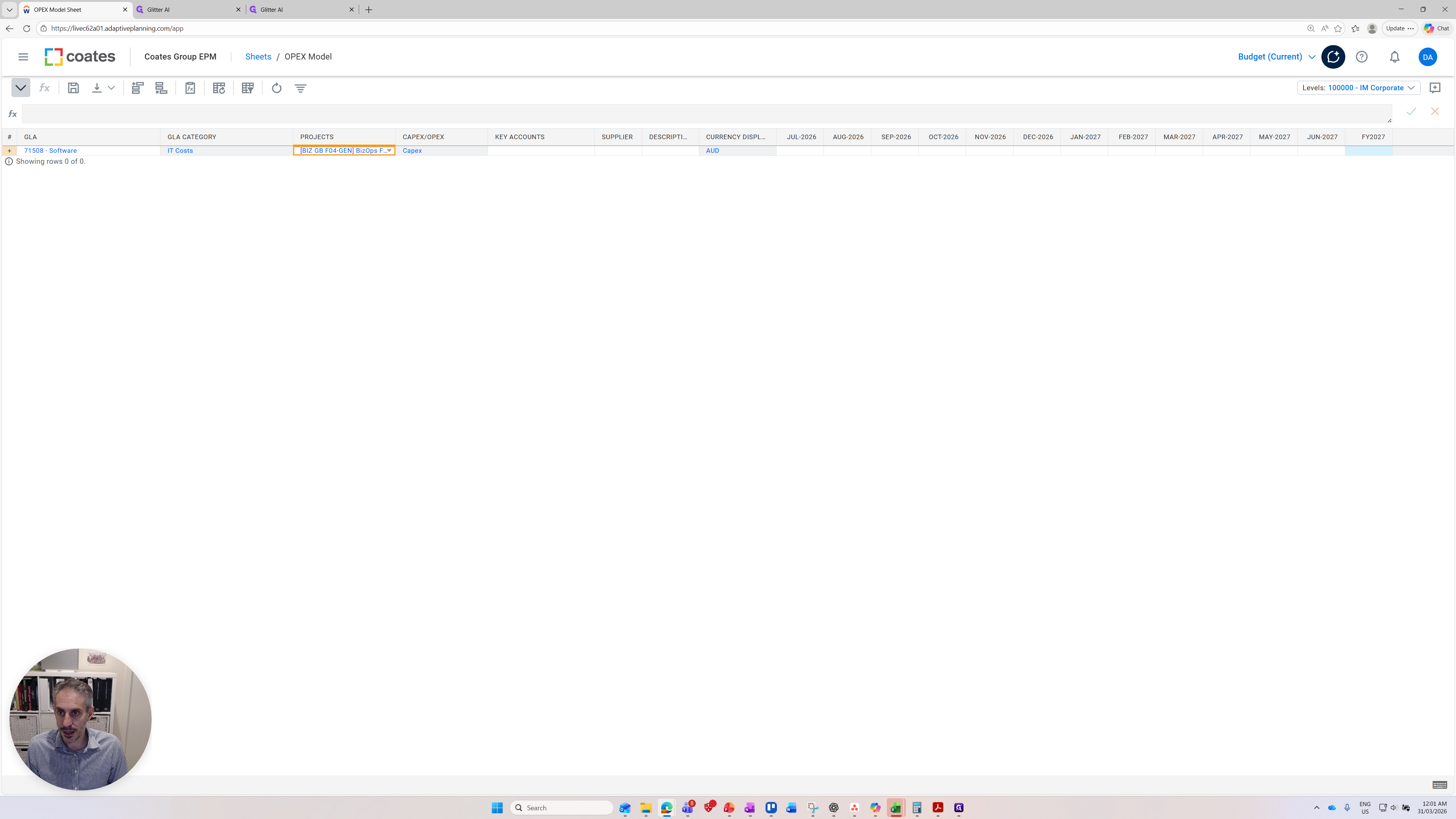
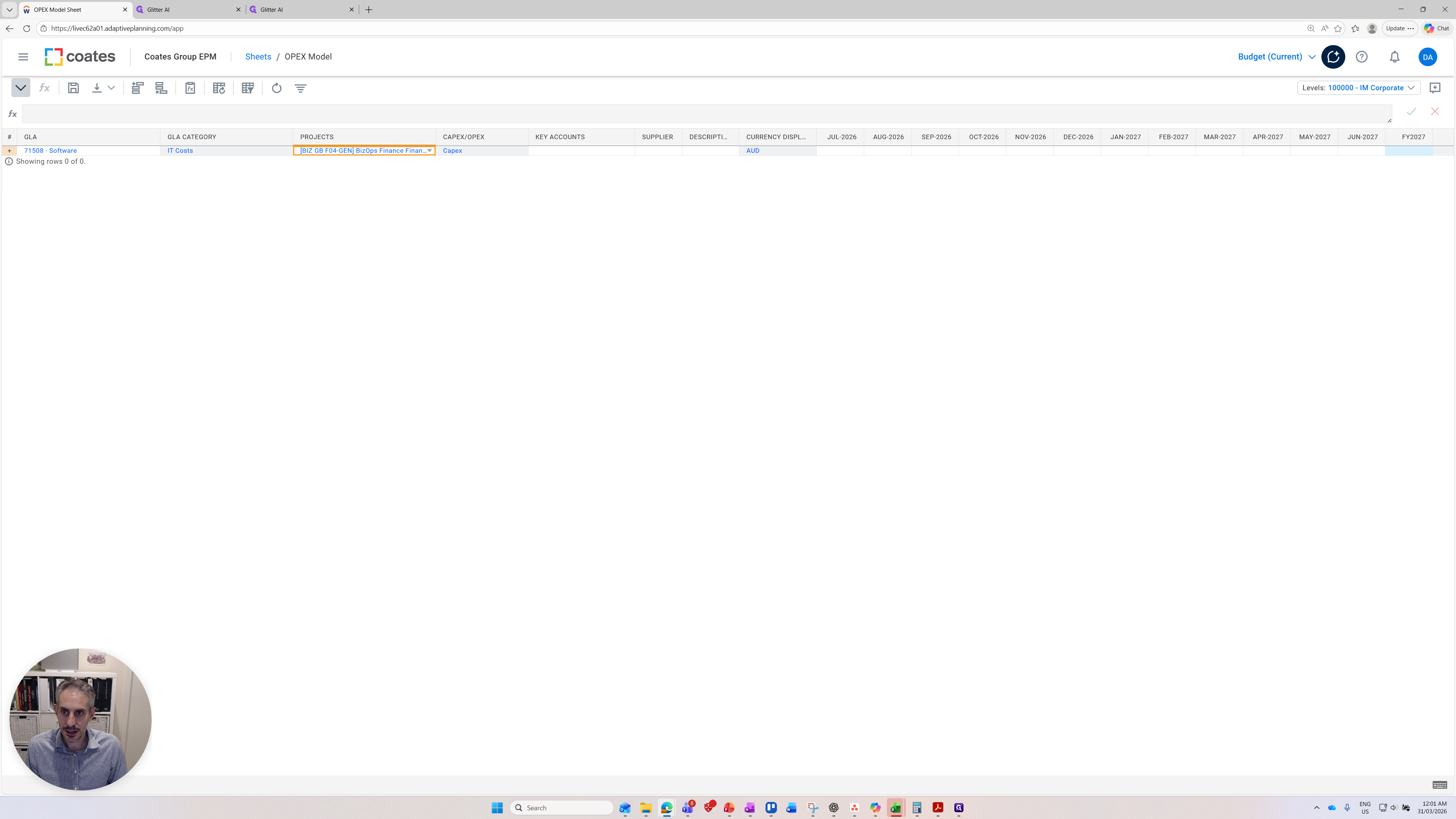
If I choose a standard option, it becomes OPEX.
![Step #18: Click on "BDV IM TSG - AU ]"](https://di8mn0rali2ic.cloudfront.net/uploads/0fc96eb2-aa54-415c-8b40-e47e892e8c34/a171558e-b711-4881-89b3-7228f15f9f4e.png)
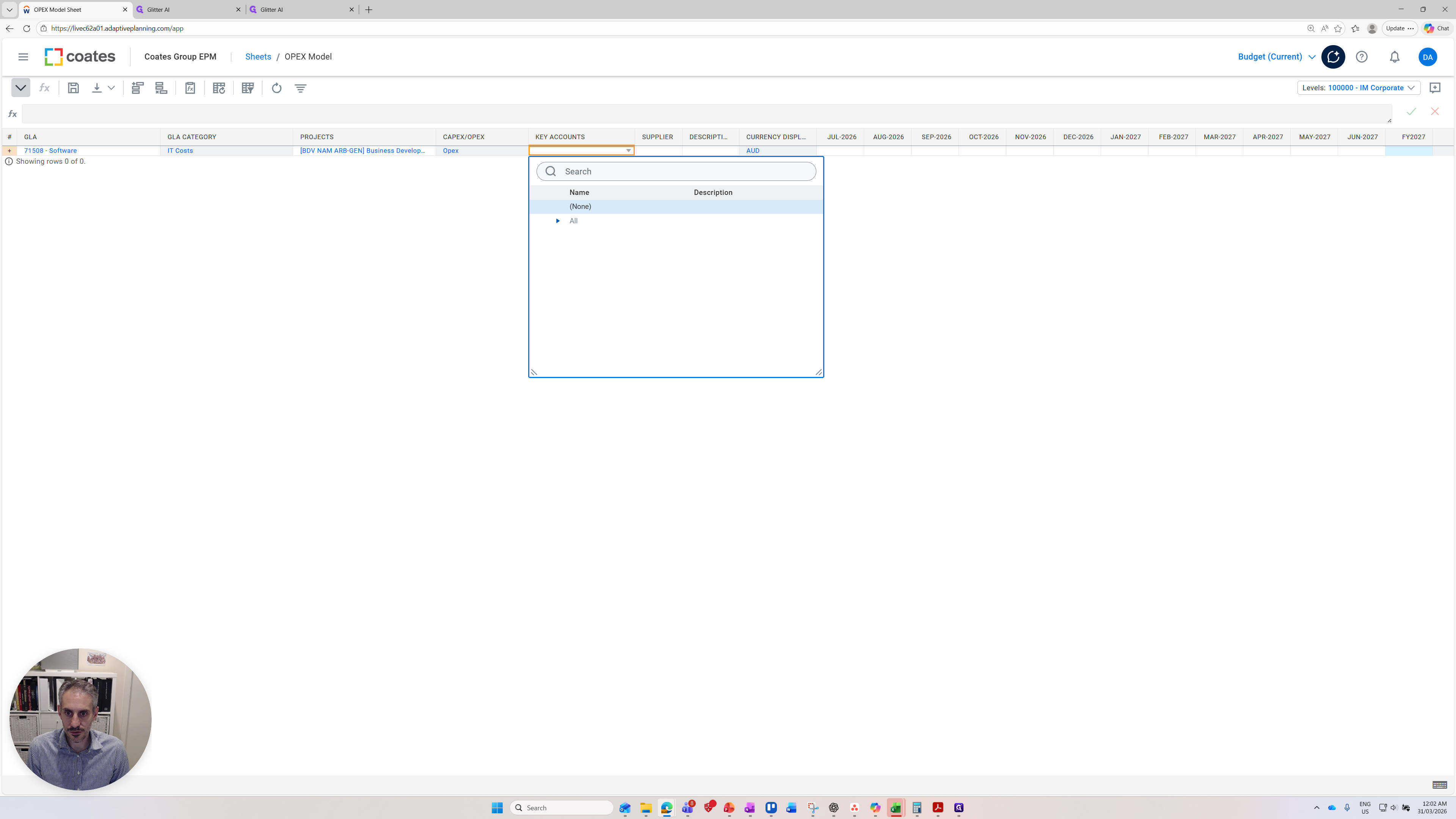
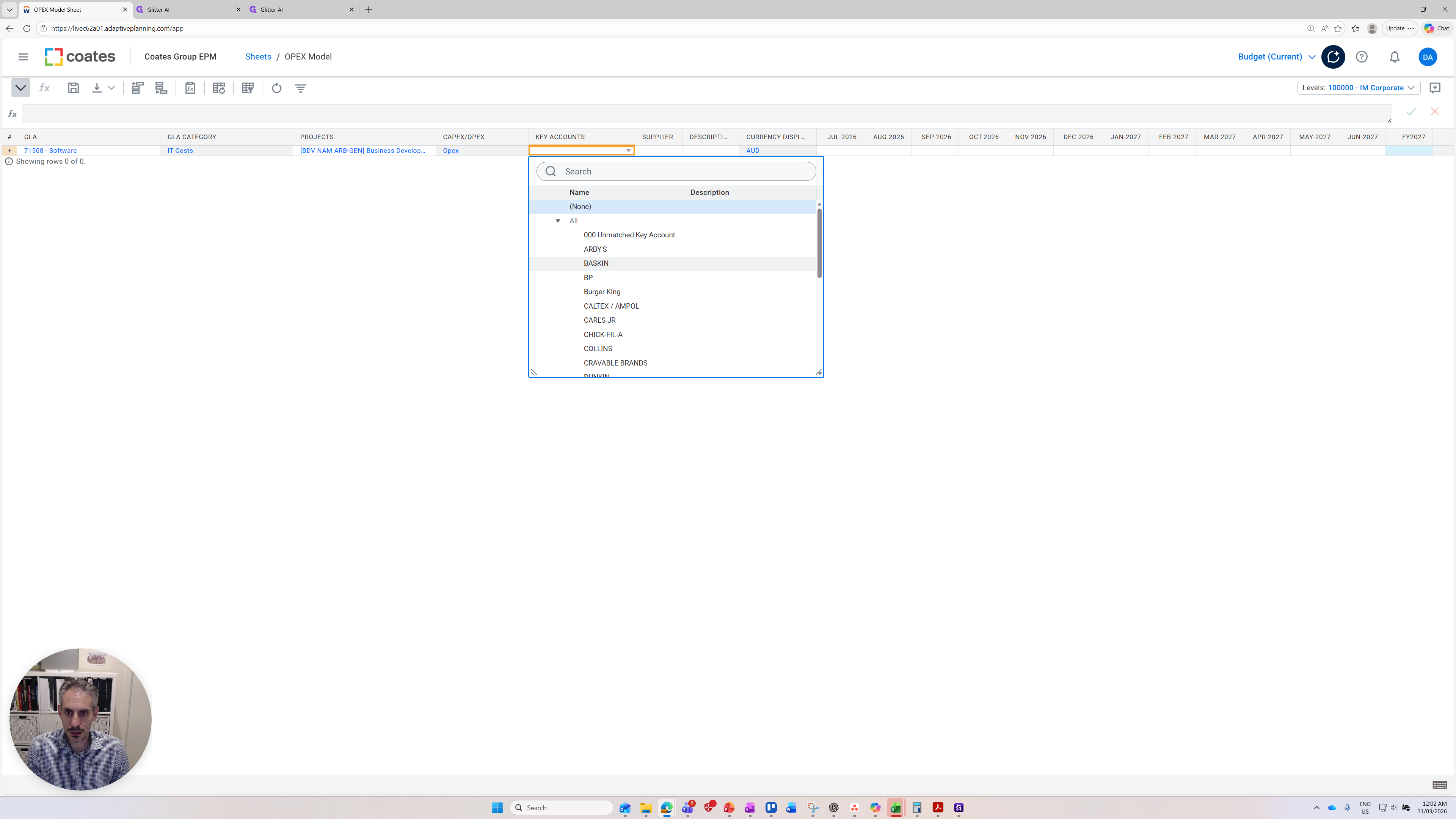
That's the driver. Selecting the project determines whether it is classified as CAPEX or OPEX. This classification helps us decide how to budget the amount, whether it should be capitalized or recorded through the P&L. It comes down to project selection. When selecting projects, if you have new projects coming on board, there is a process for setting them up. You can change the tagging of each project to OPEX or CAPEX, which affects how it is processed in the Adaptive planning model. We also have key accounts.
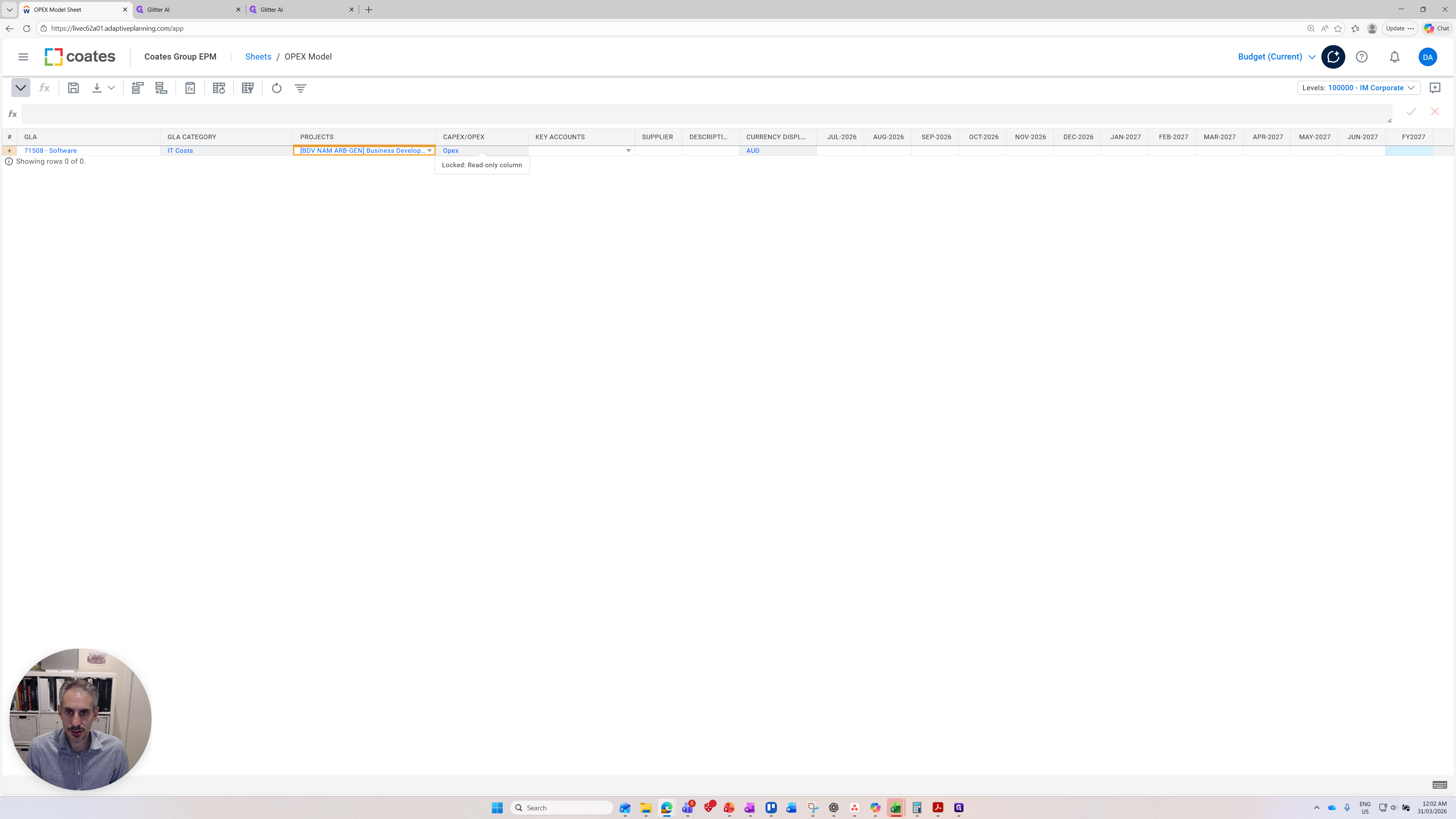
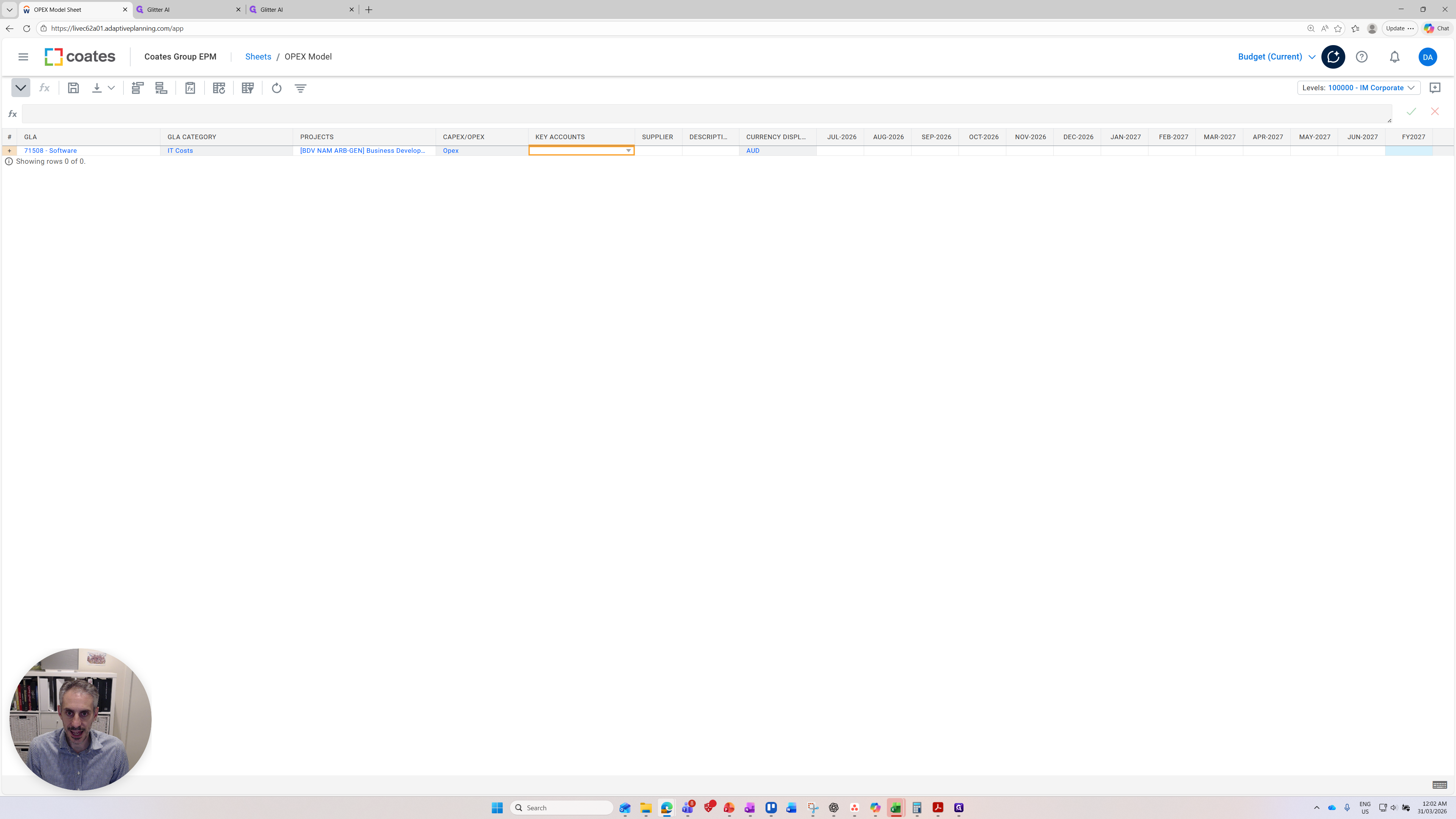
It's an optional field.
We have suppliers. Write the supplier's name here, for example, "test supplier."
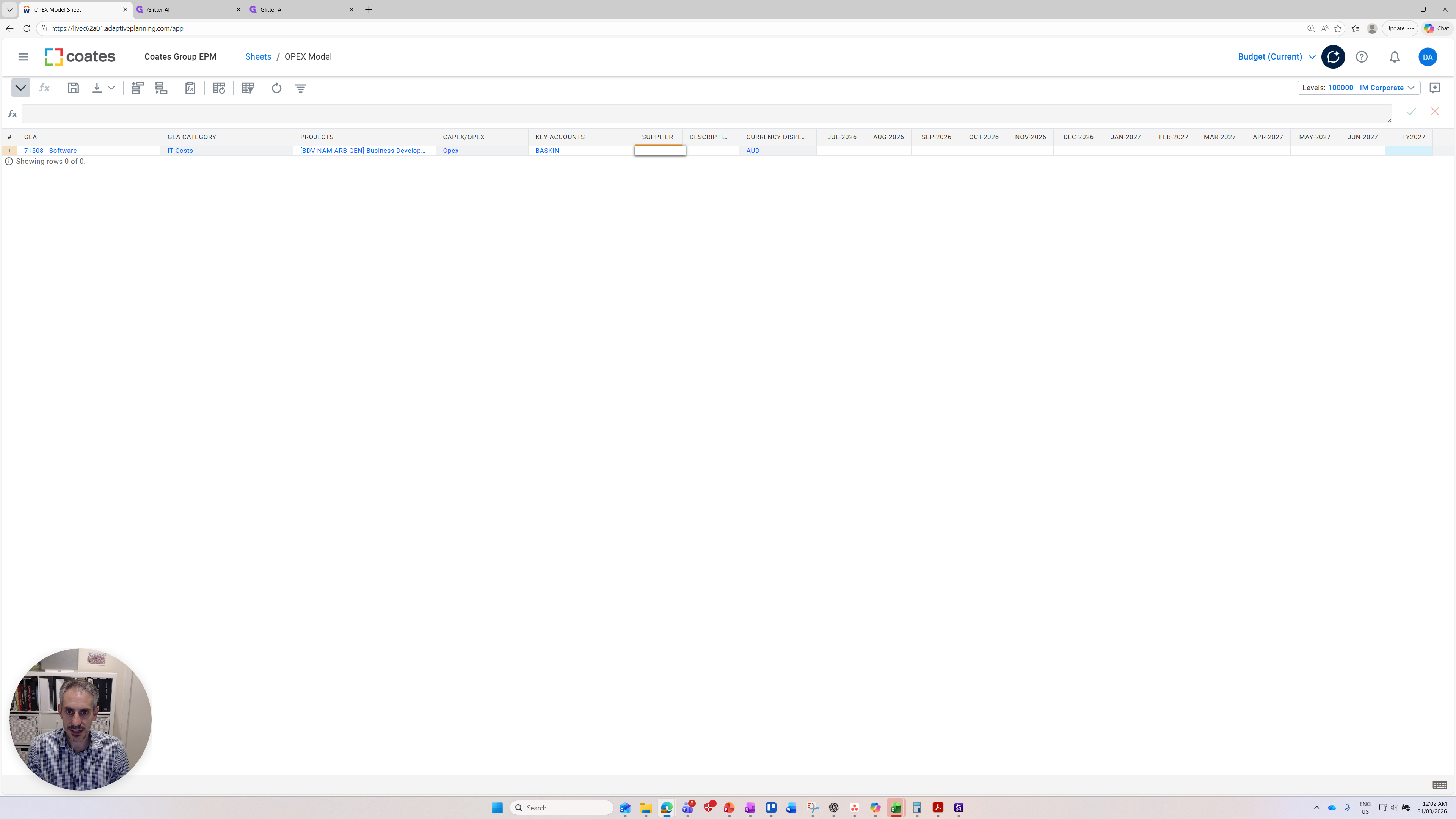
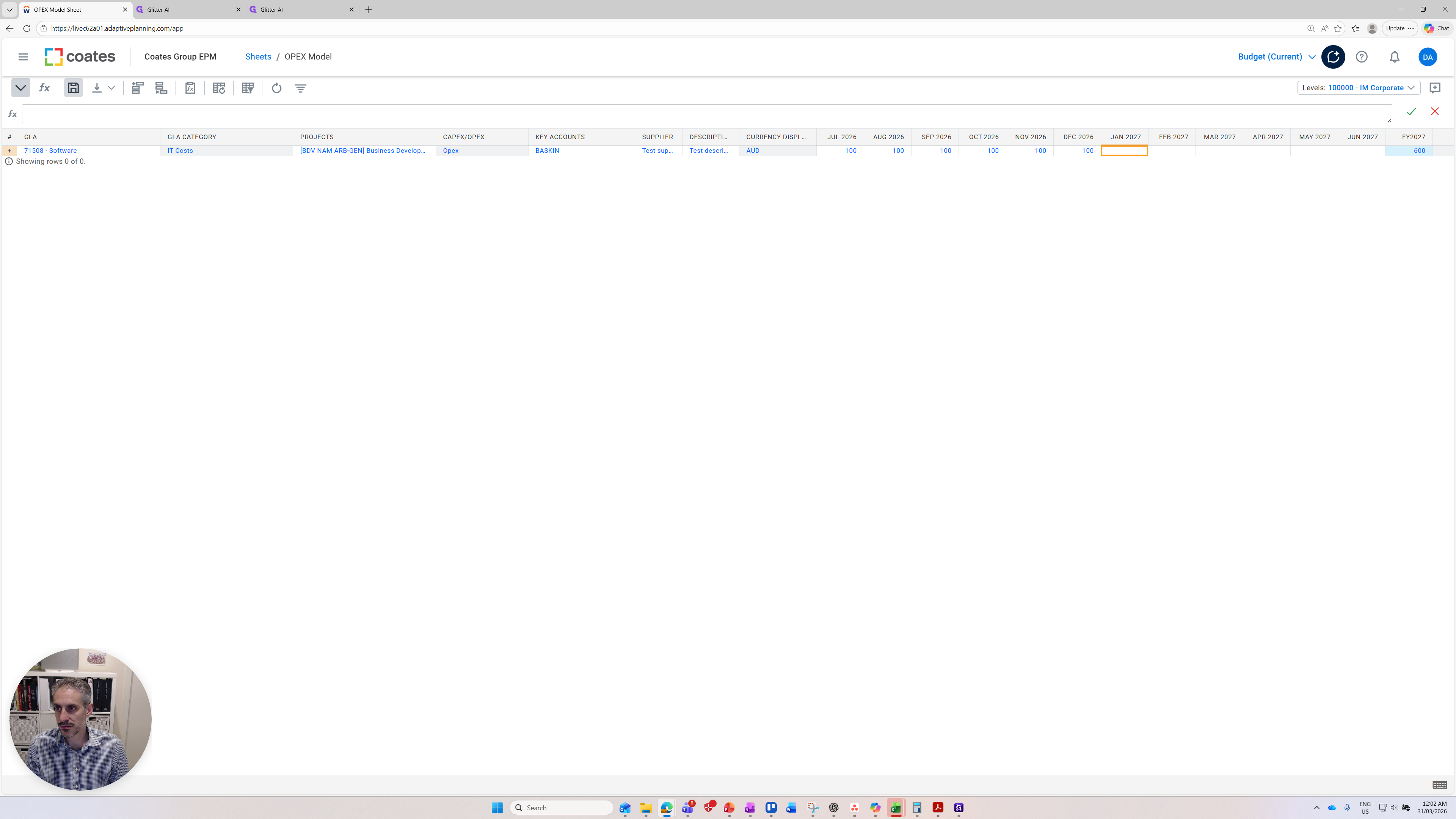
We have a description field that you can use for any purpose, such as a test description. Next, write the amounts for each month. Now that we've entered the data, press save.
Enter in the dollars to the right.
That completes our quick overview of the OPEX model in Adaptive Planning.