How to Use the Round Robin Module
Learn how to set up and manage the round robin module in your sales system. This guide covers adding sales users, managing user status, resetting the round robin, and creating new rotations.
By Dominik Black
In this guide, we'll learn how to set up and manage the round robin feature in your sales module. This process helps you organize your sales team, assign user statuses, and create new rotations as needed.
You'll also see how to monitor staff availability and make changes to your team lineup.
Let's get started
1
In this article, we will cover the round robin module. To access the round robin, click the Sales module.
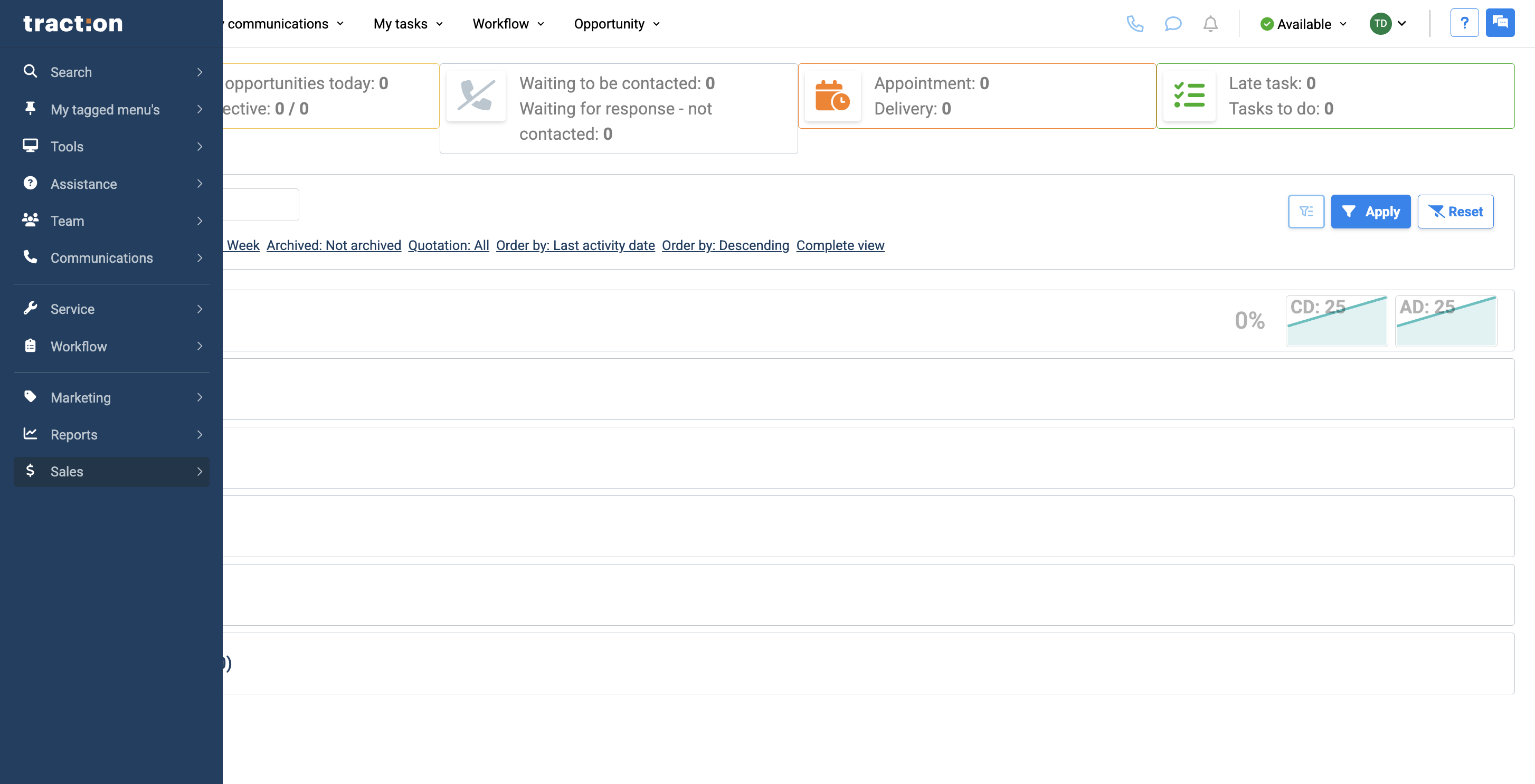
2
Then select Round Robin.
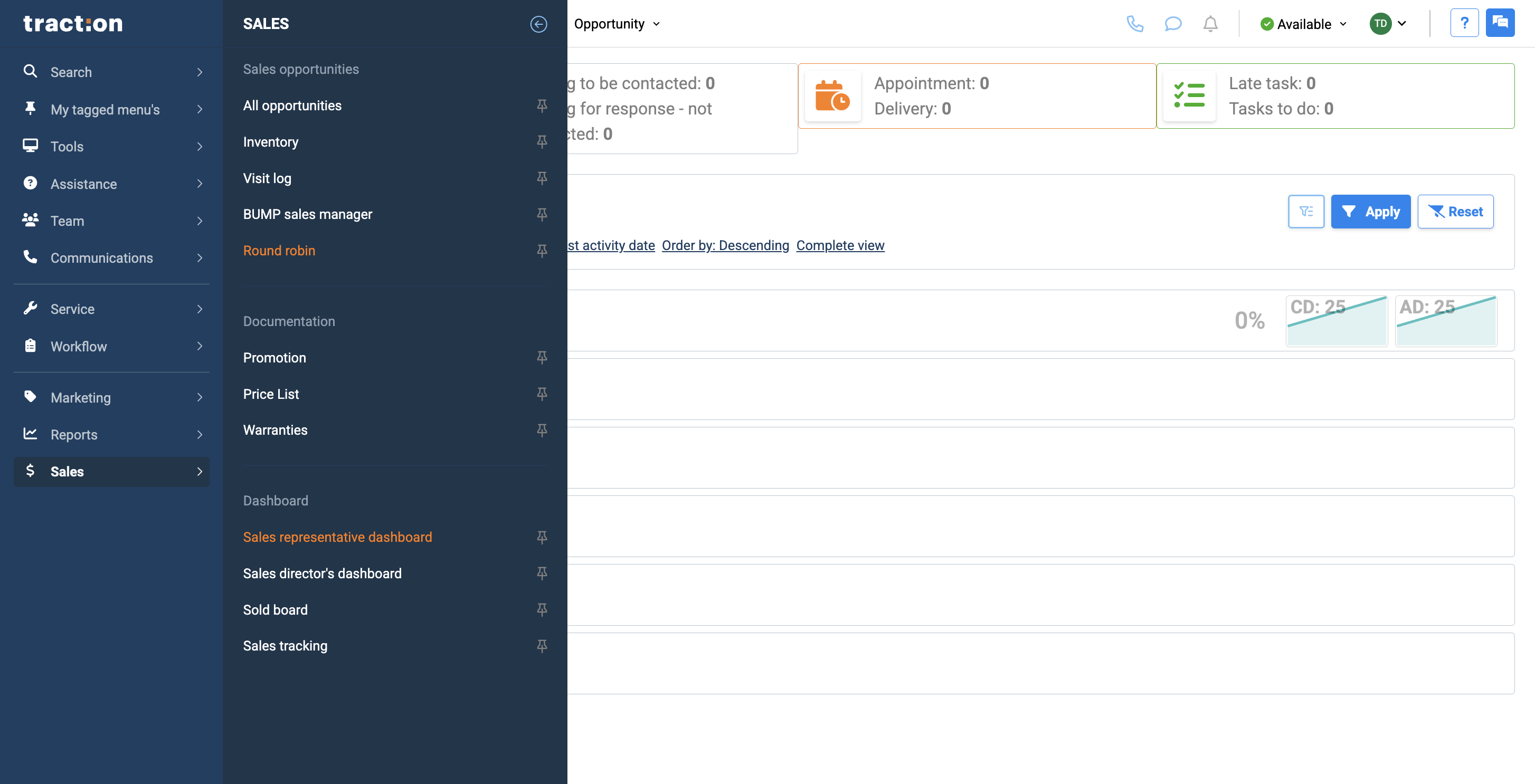
3
Here, you can name your round robin as you like.
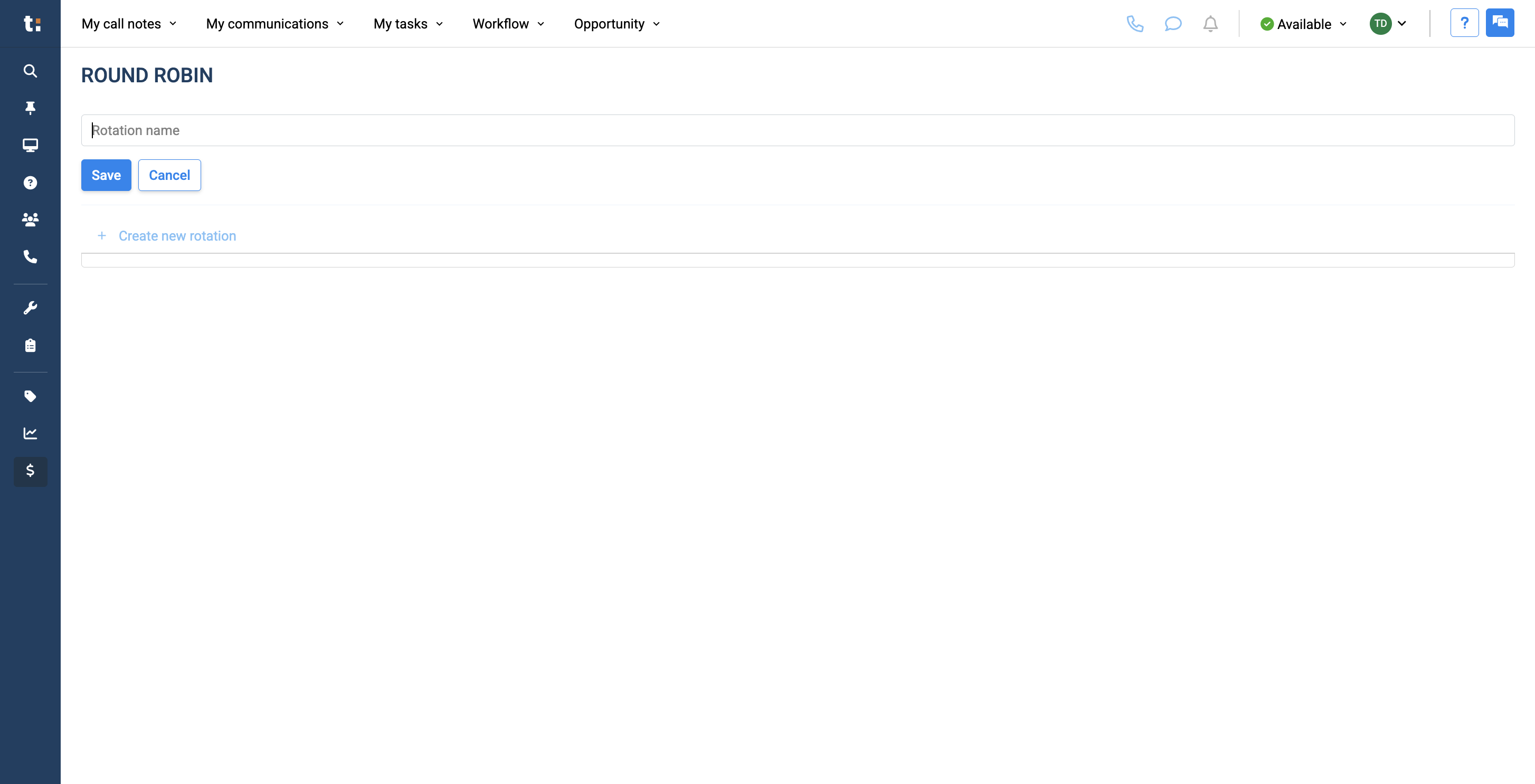
4
Click Save.
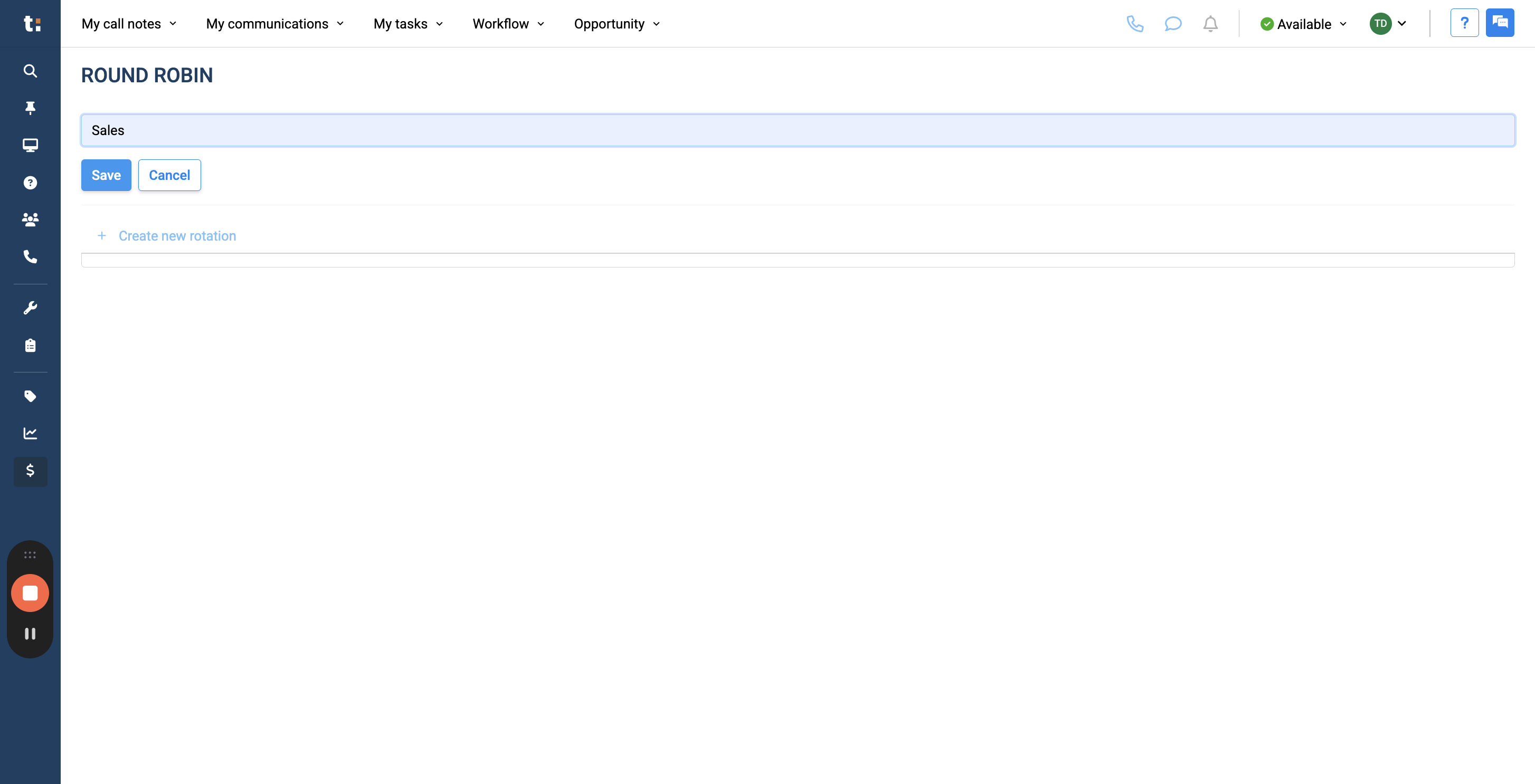
5
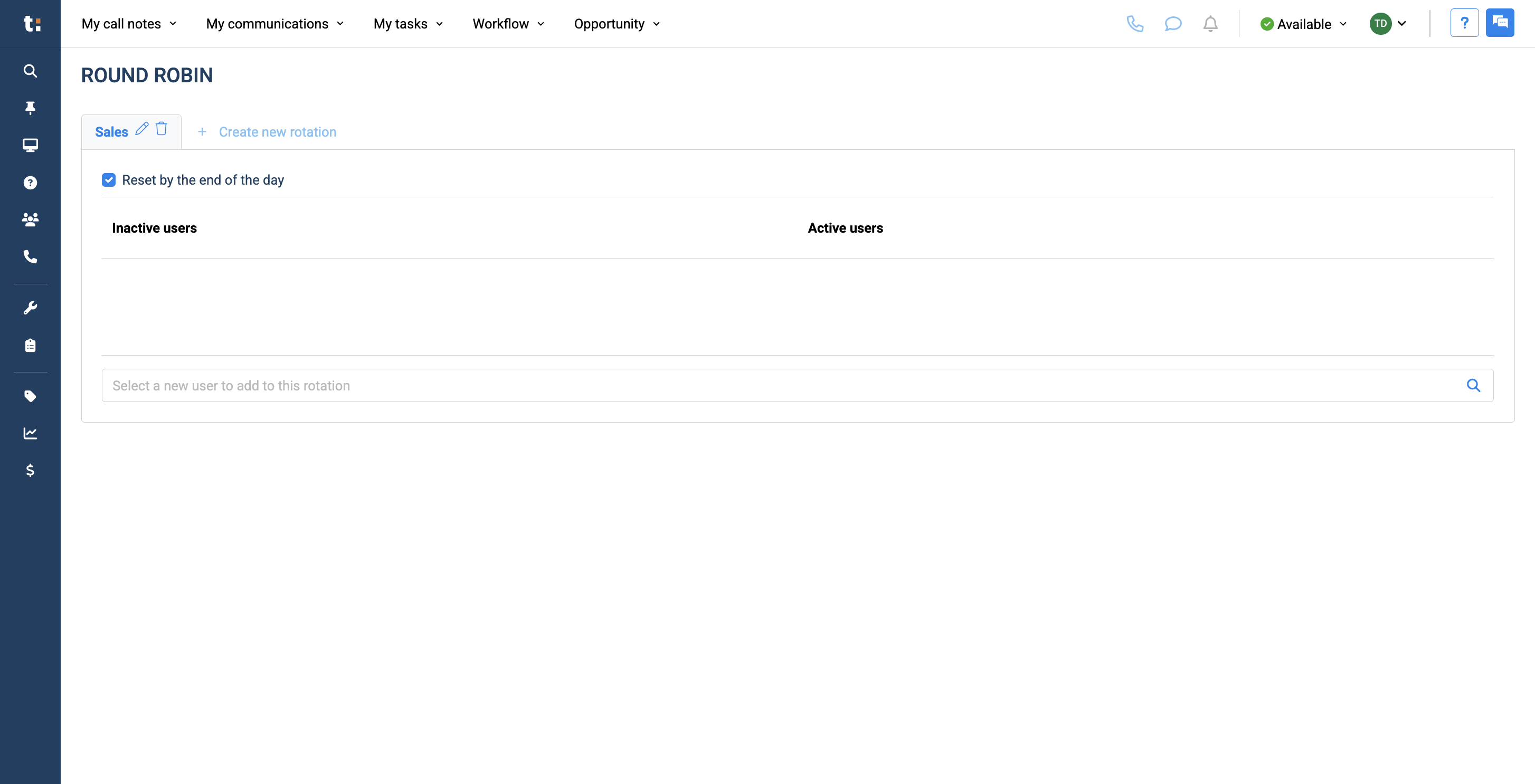
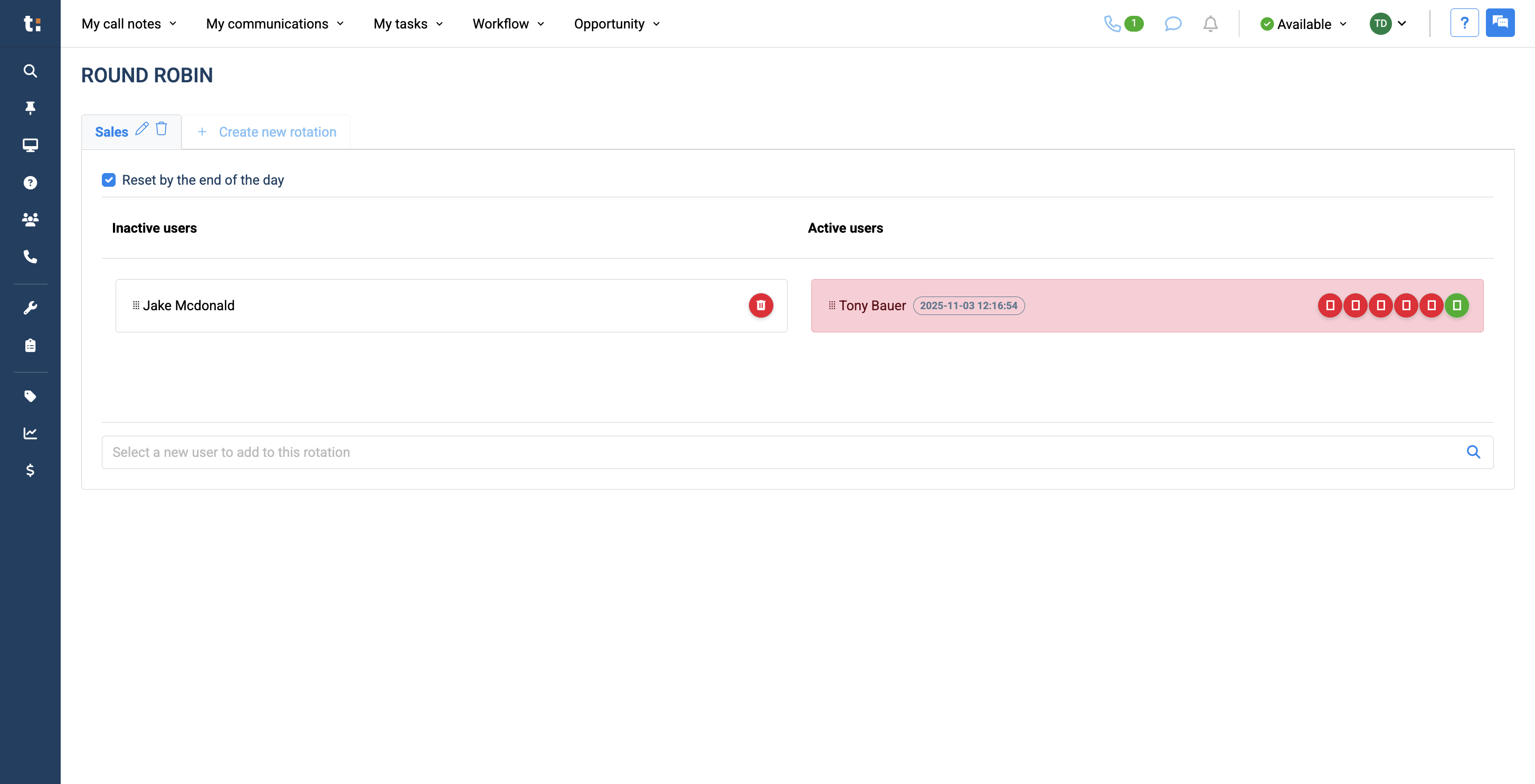
Afterward, you can ensure the round robin resets by the end of the day by clicking the button.
6
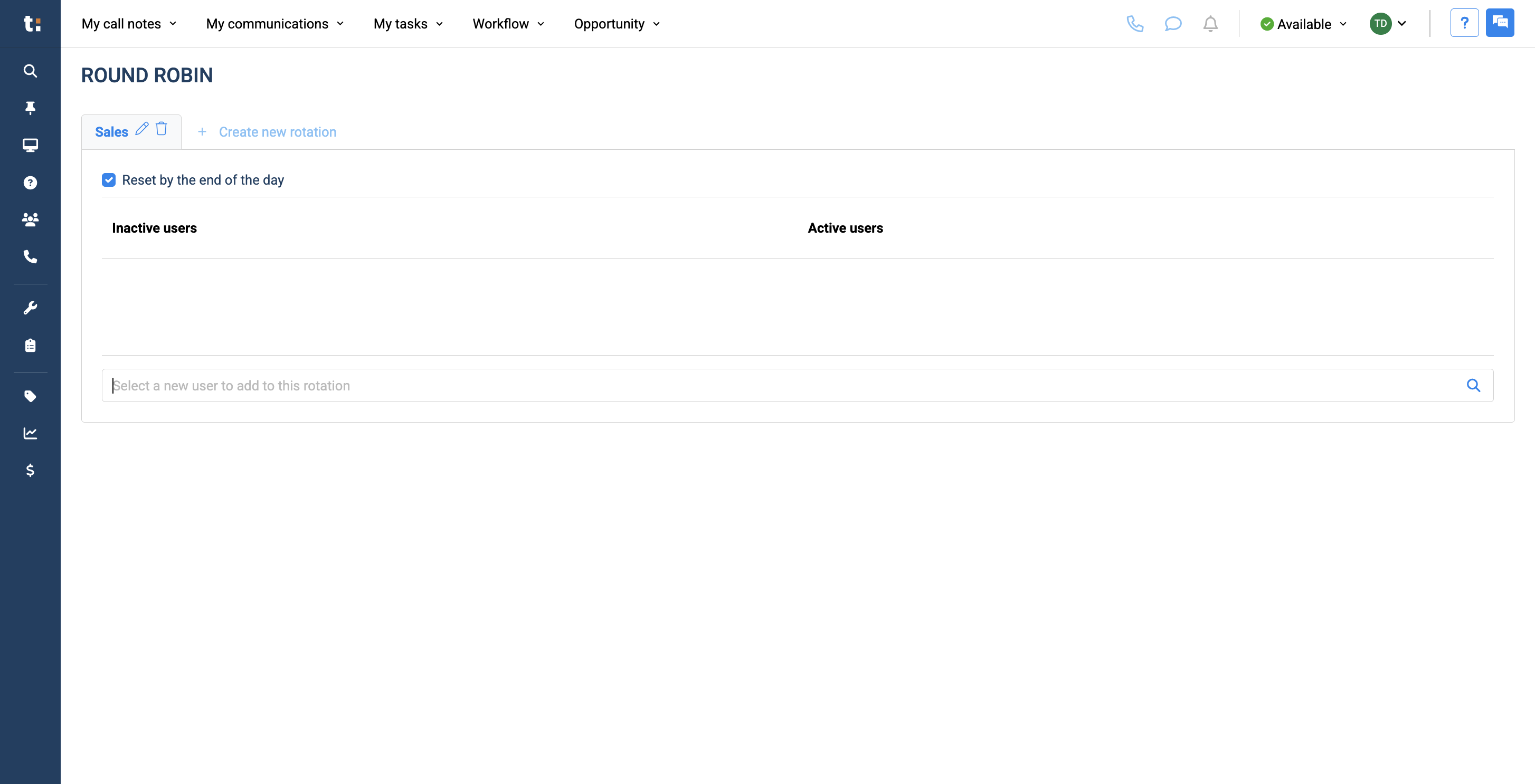
Add your sales users in this field.
7
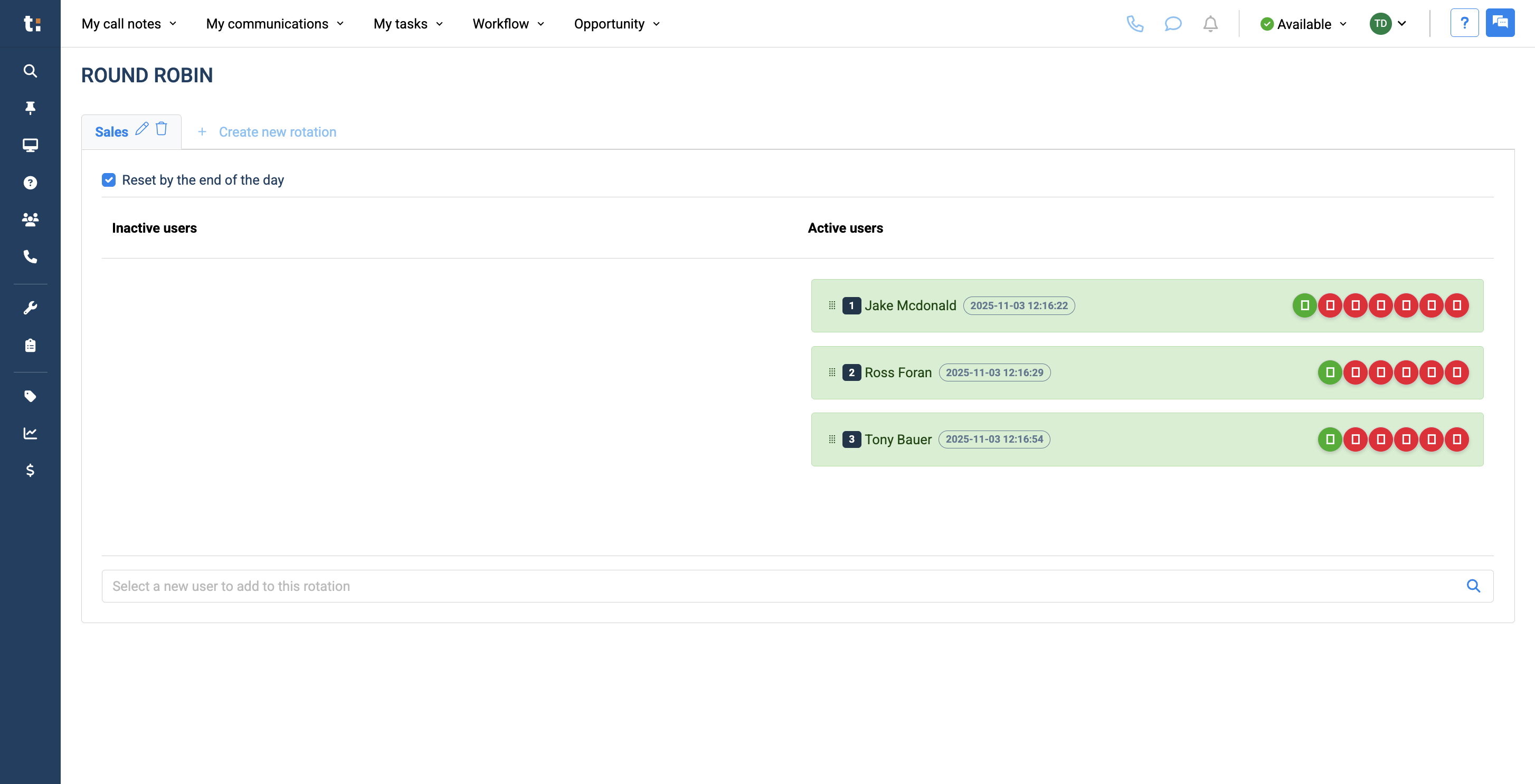
When you add sales users, they are automatically set to active status.
8
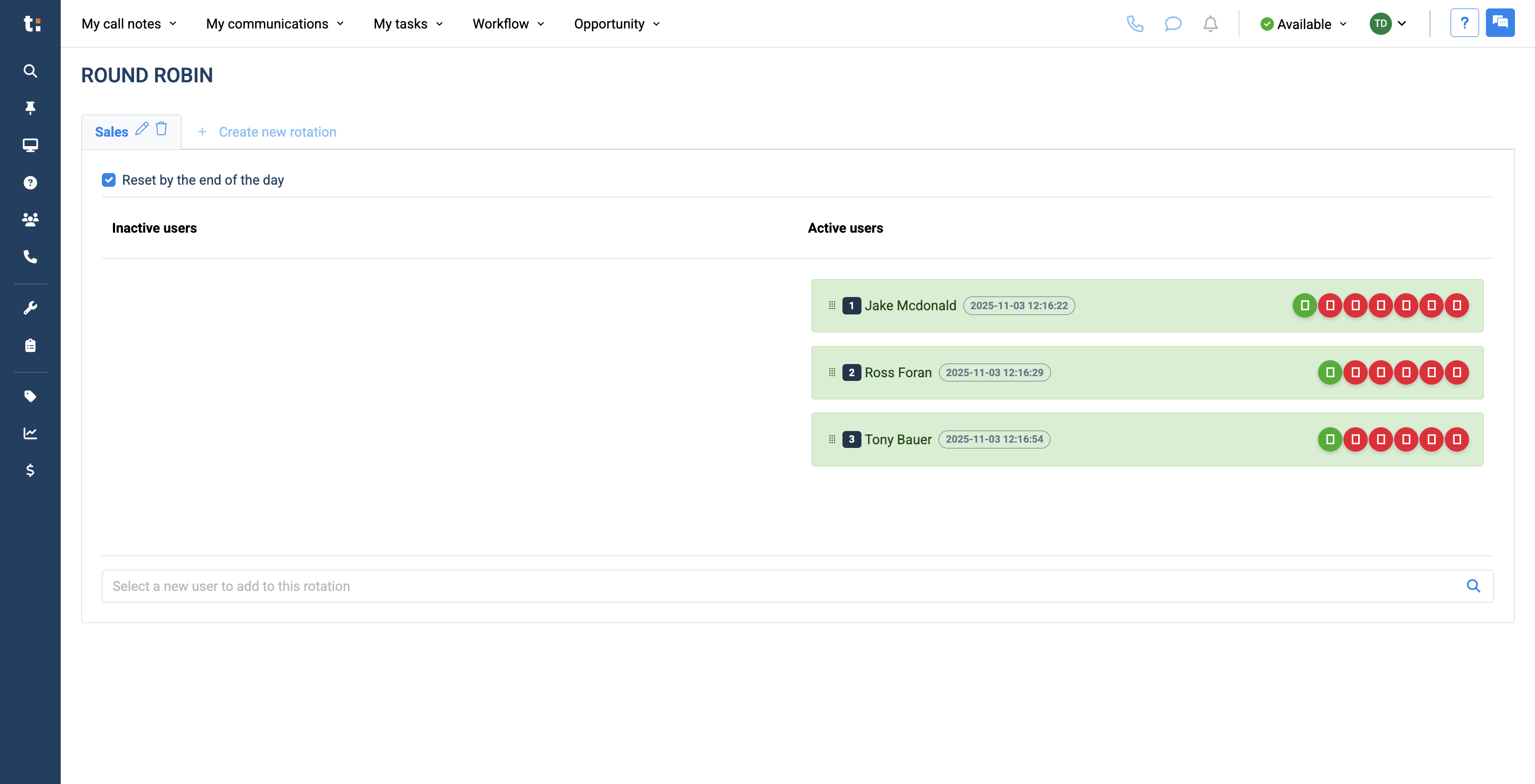
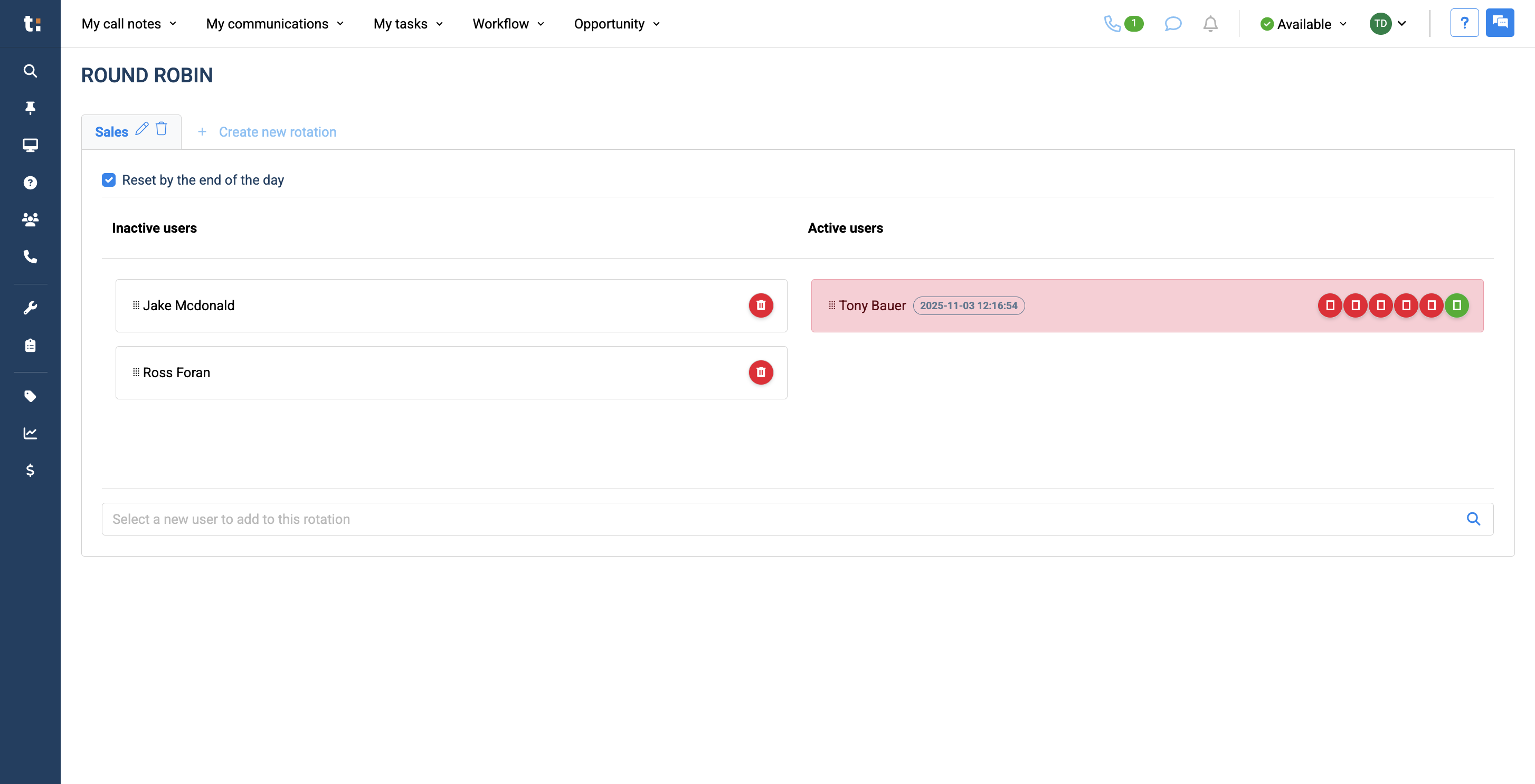
You can move them to inactive user status by clicking and dragging them over.
9
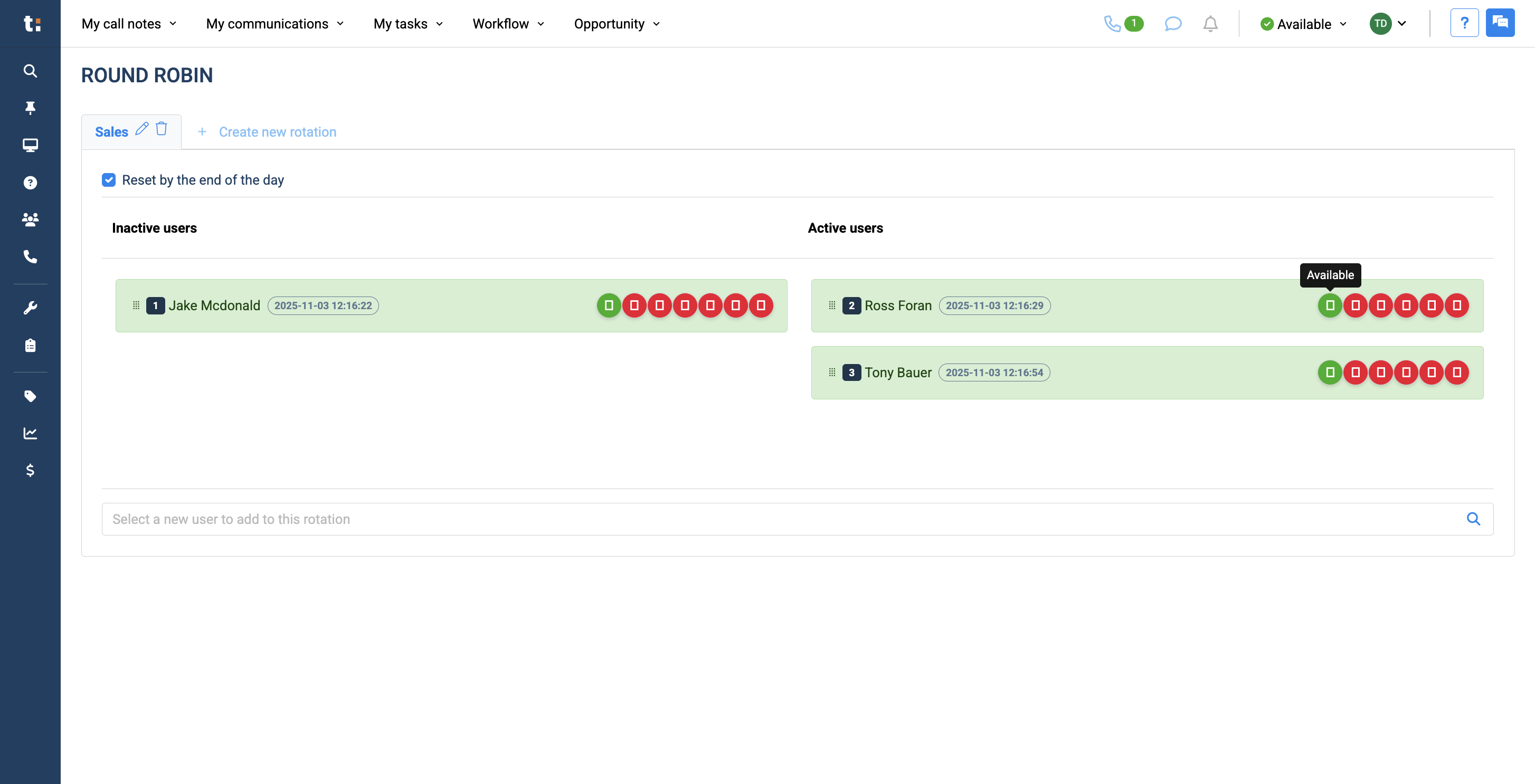
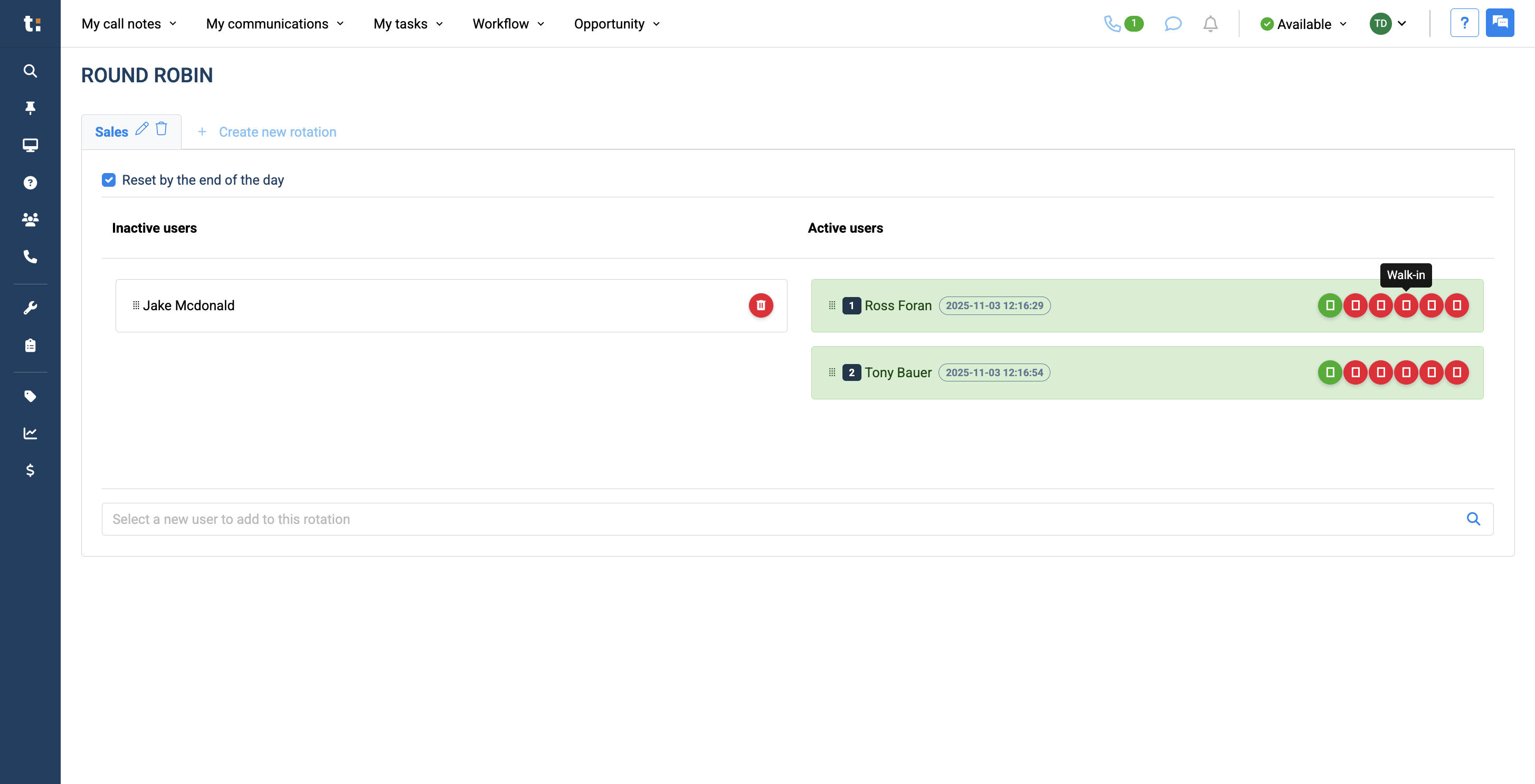
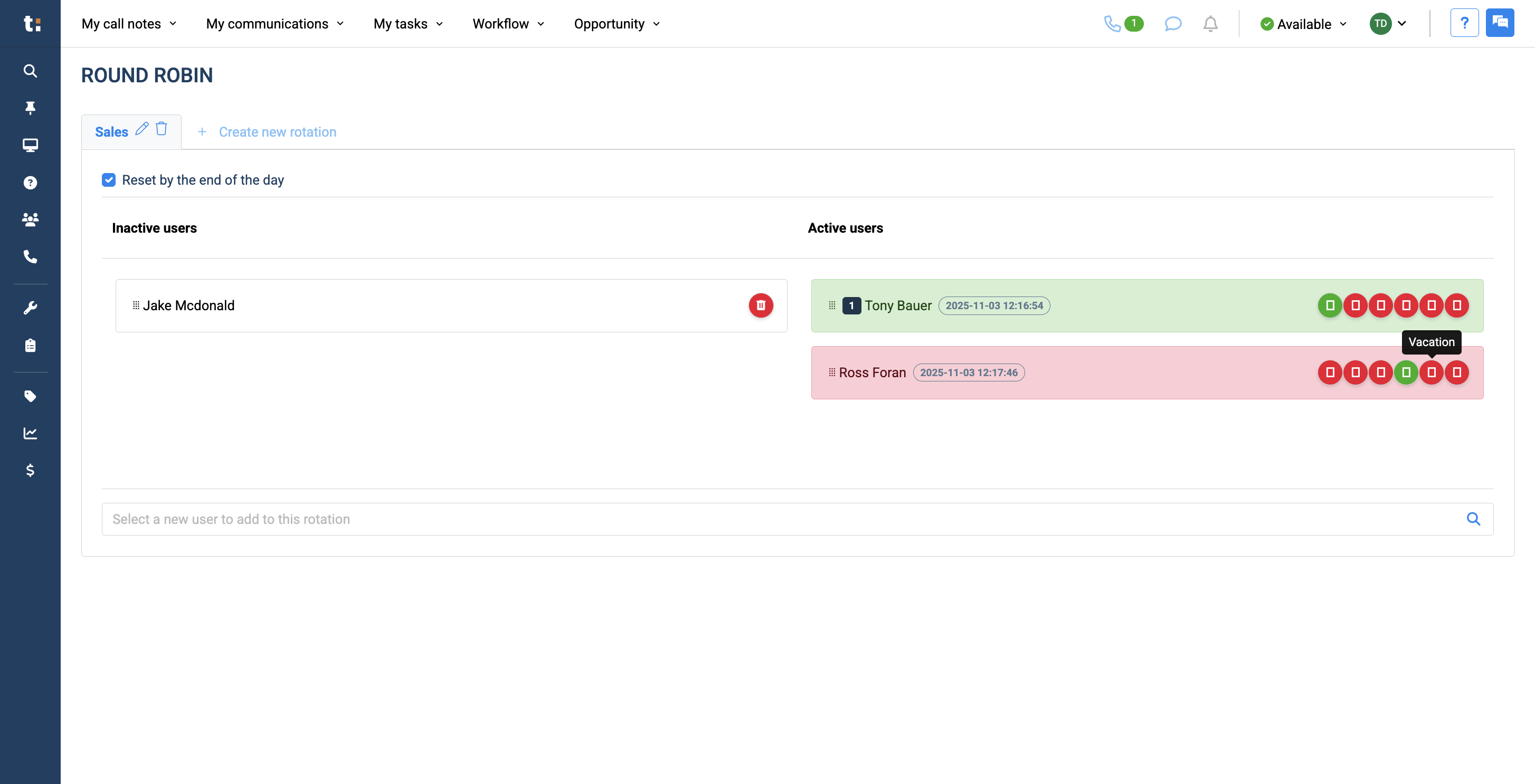
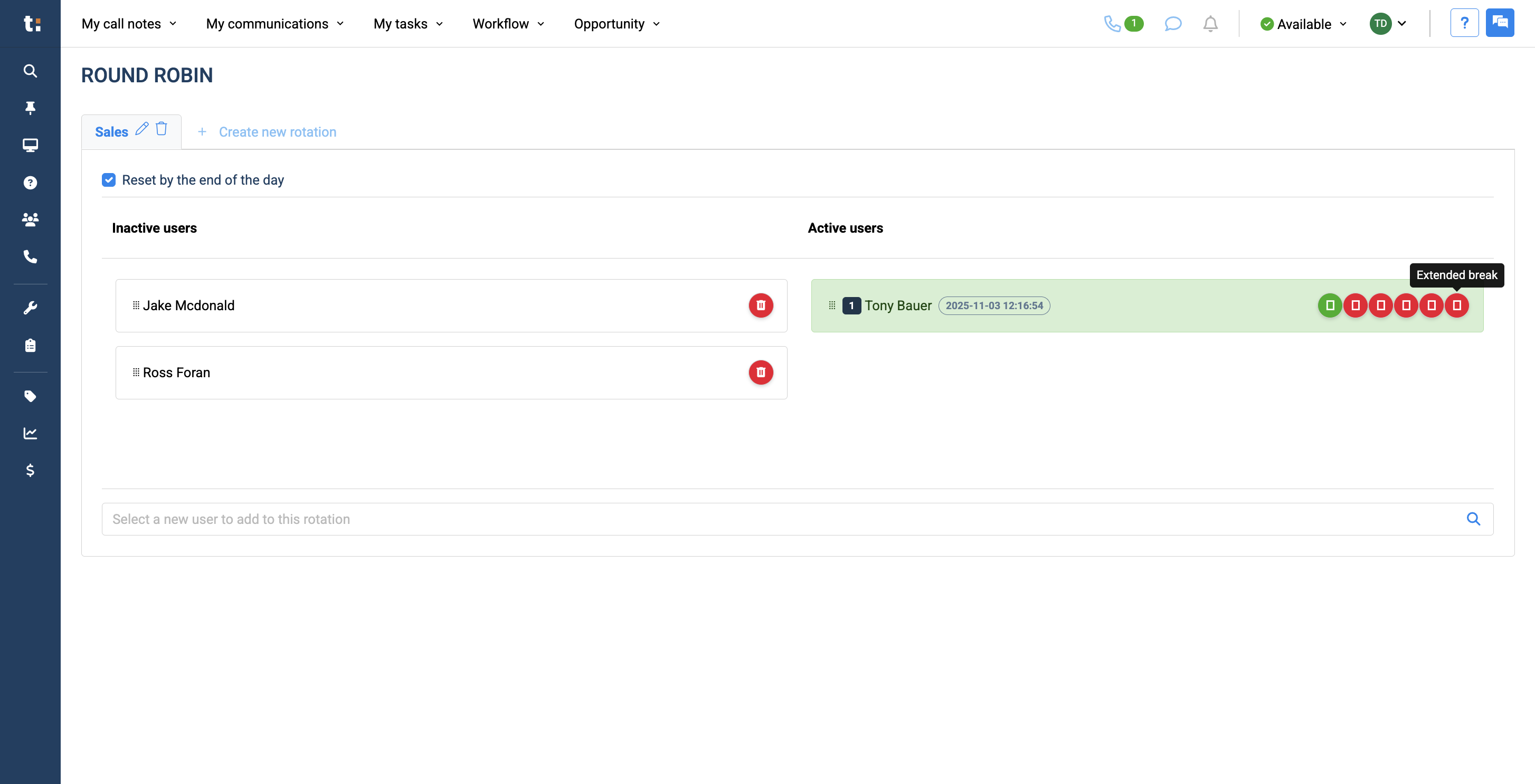
To the right, you can see whether your sales staff are available. You can check the status by hovering your cursor over the icon.
10
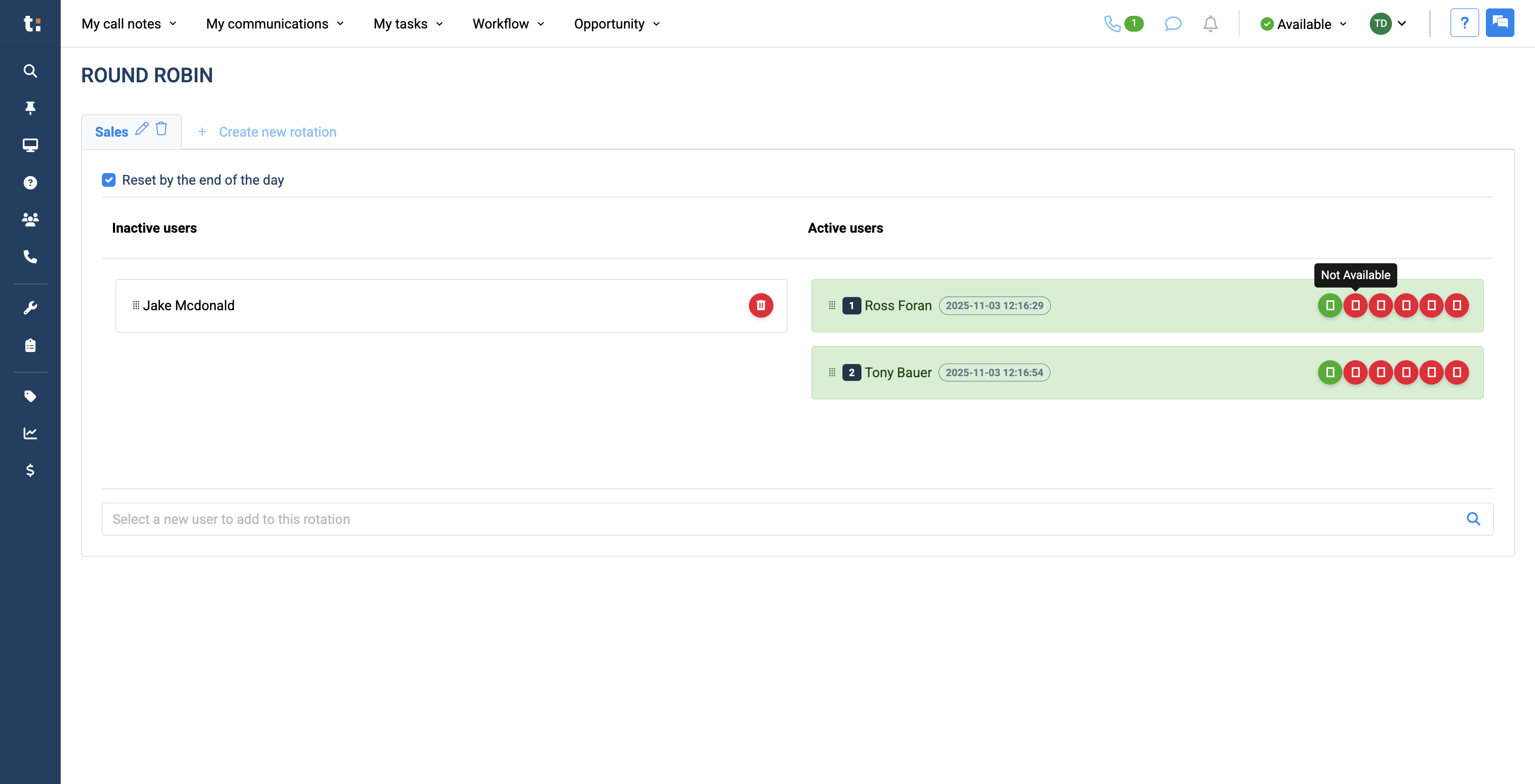
This means they are available, unavailable....
11
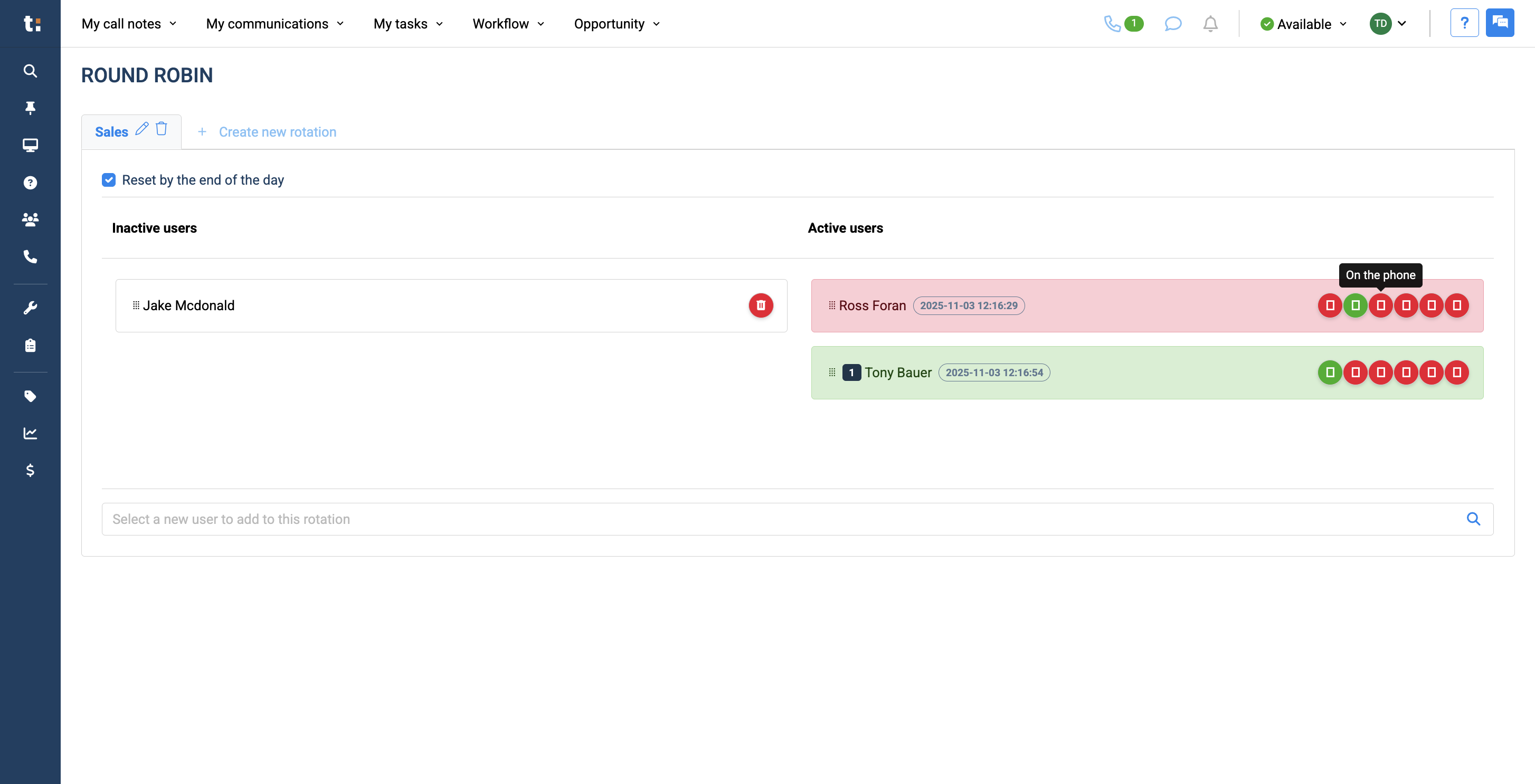
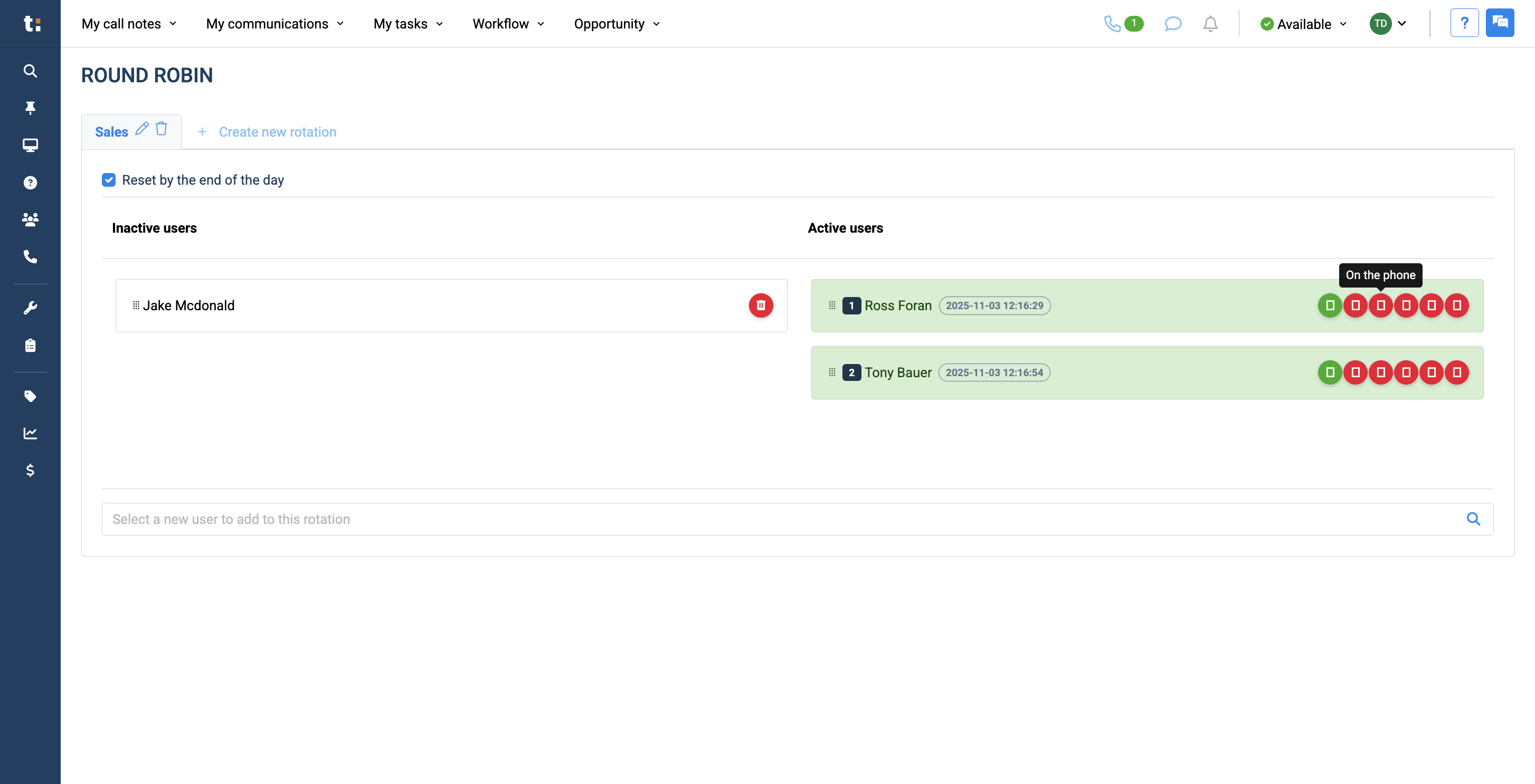
on the phone....
12
Click here
13
with a walk-in.....
14
on vacation.....
15
or on an extended break.
16
To remove a sales user from your round robin, click the trash can button.
17
To create a new rotation, click the "Create New Rotation" button.
If you still have questions after consulting this article, please feel free to contact our support team at: support@tractiondk.zohodesk.com