How to Use the Service Tab in the Customer Profile
Learn how to navigate the service tab in the customer profile, create new service opportunities, manage vehicle labels, and access service details efficiently.
By Dominik Black
In this guide, we'll learn how to use the service tab in the customer profile. We will look at how to view existing service opportunities, create new ones, and understand the labels legend. You will also see how to print a PDF or request payment for a service opportunity.
Let's get started
1
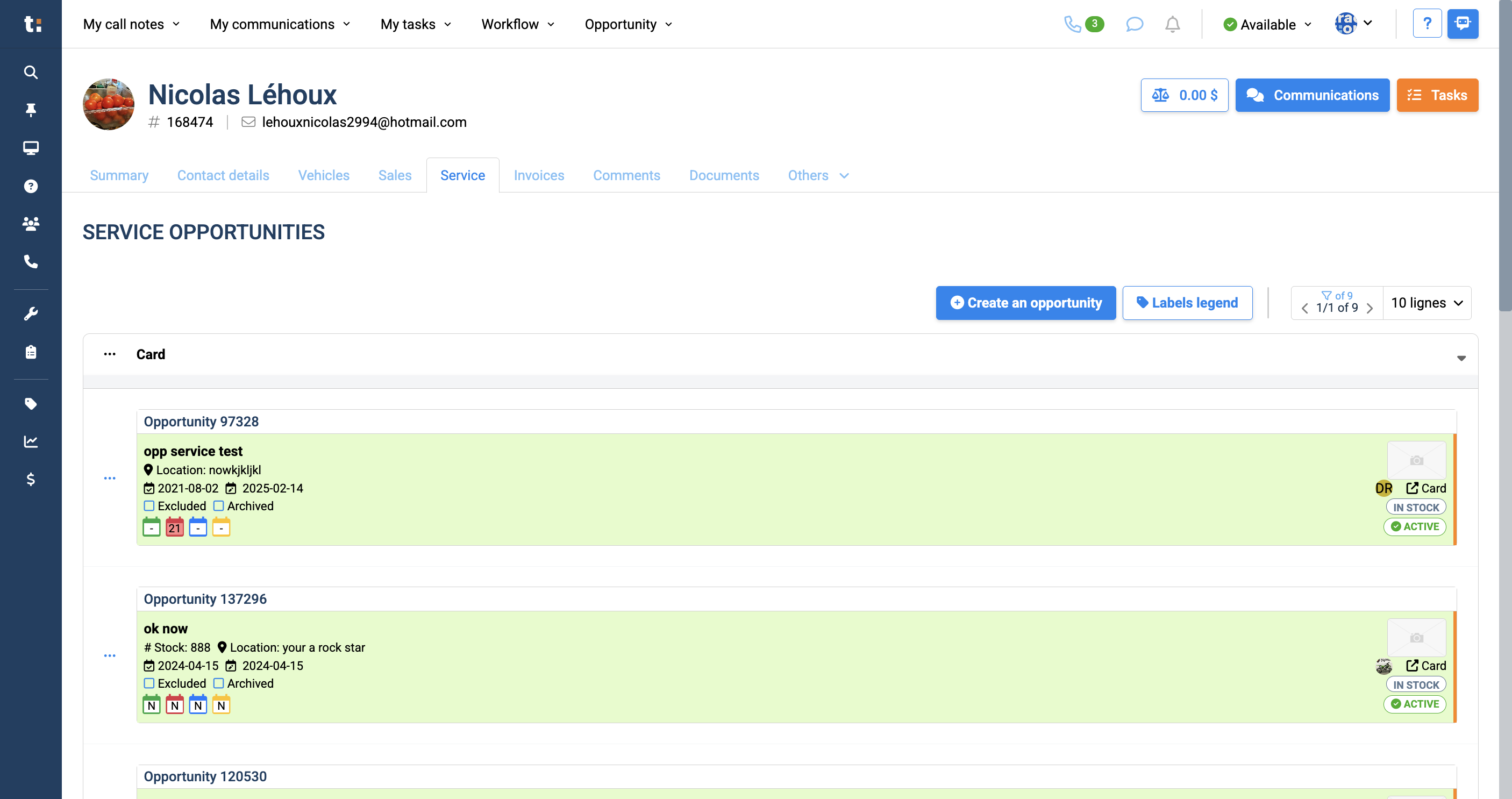
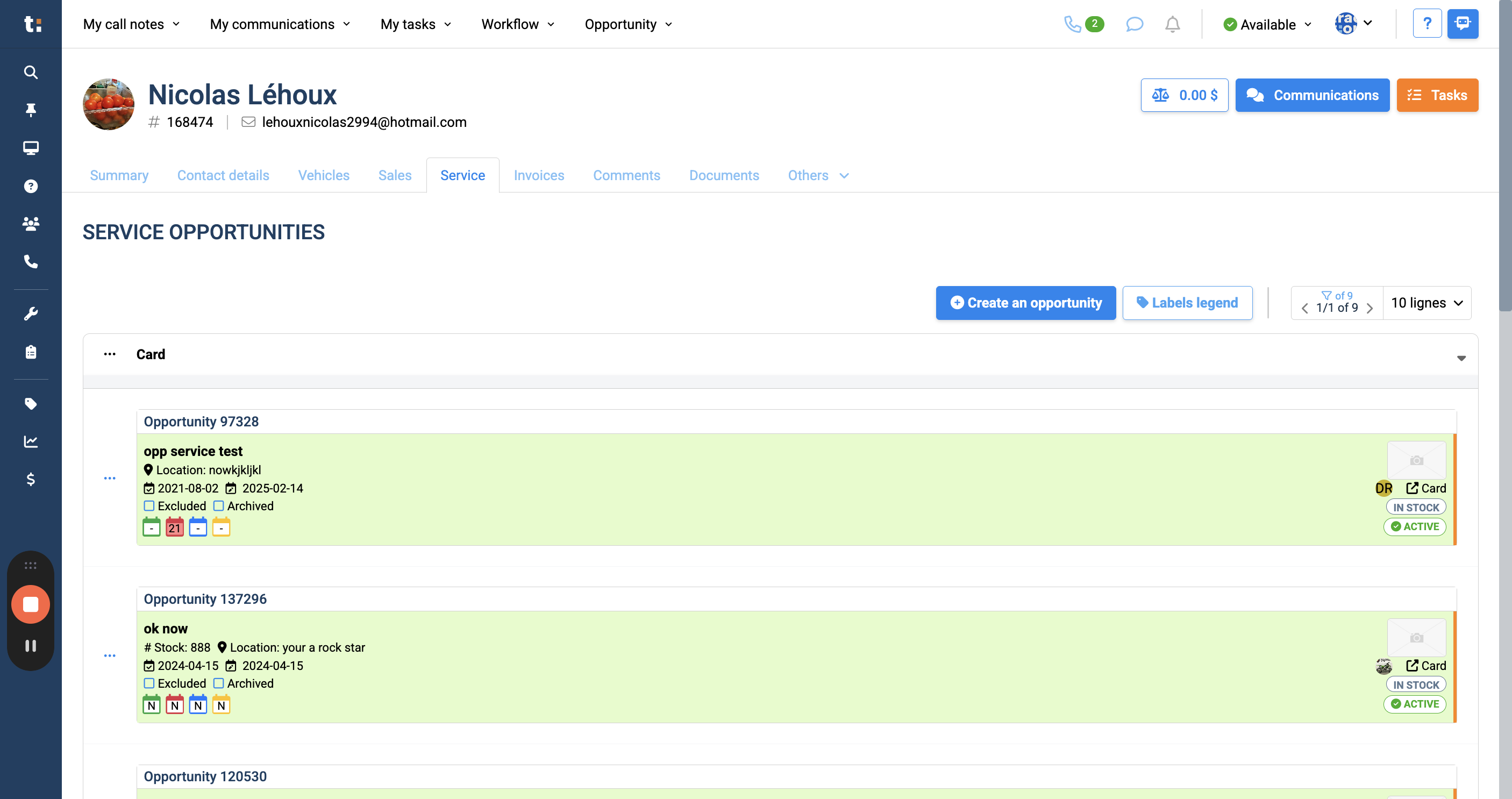
This article covers the service tab in the customer profile. To access the service tab, click Service.
2
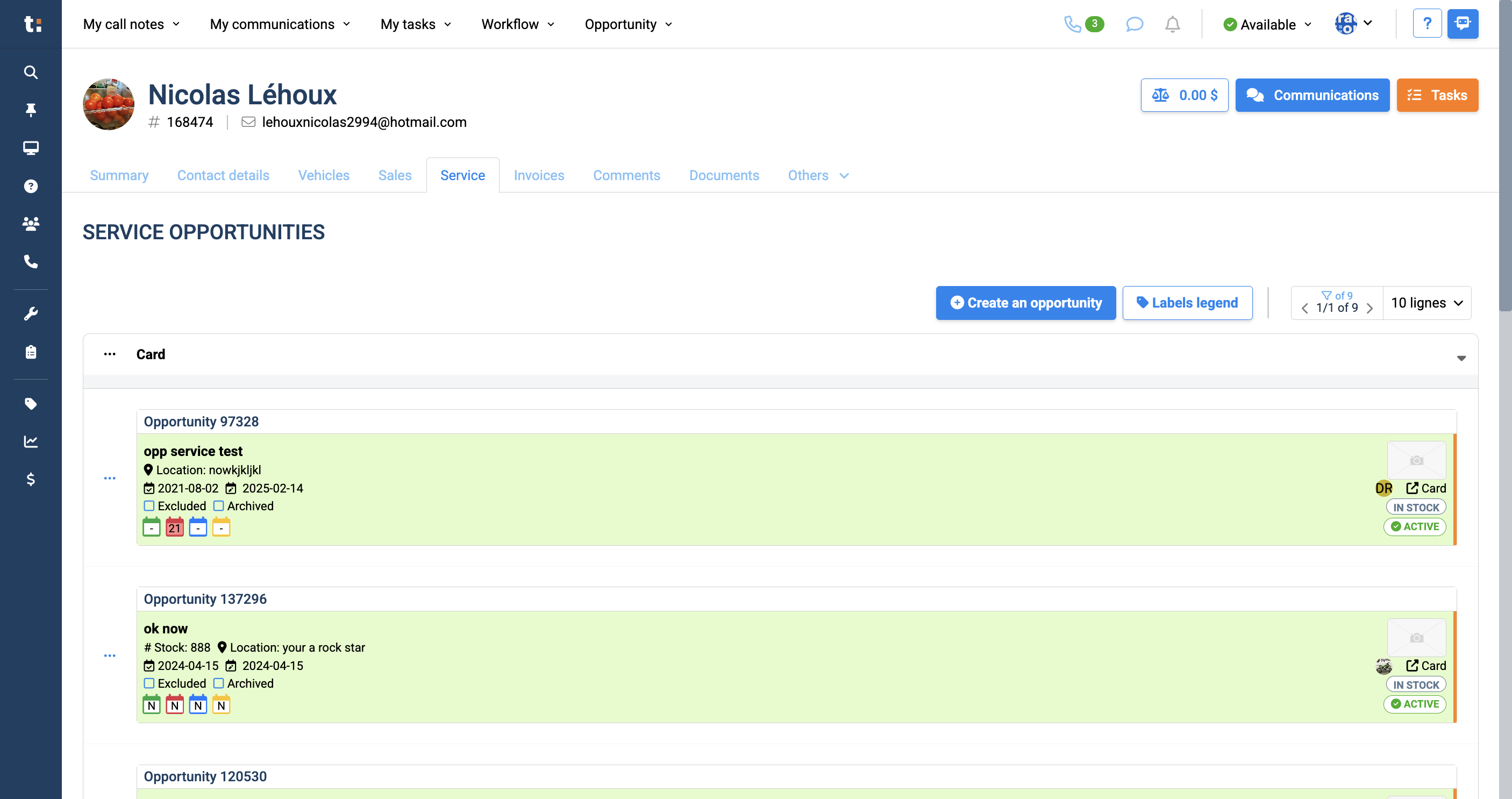
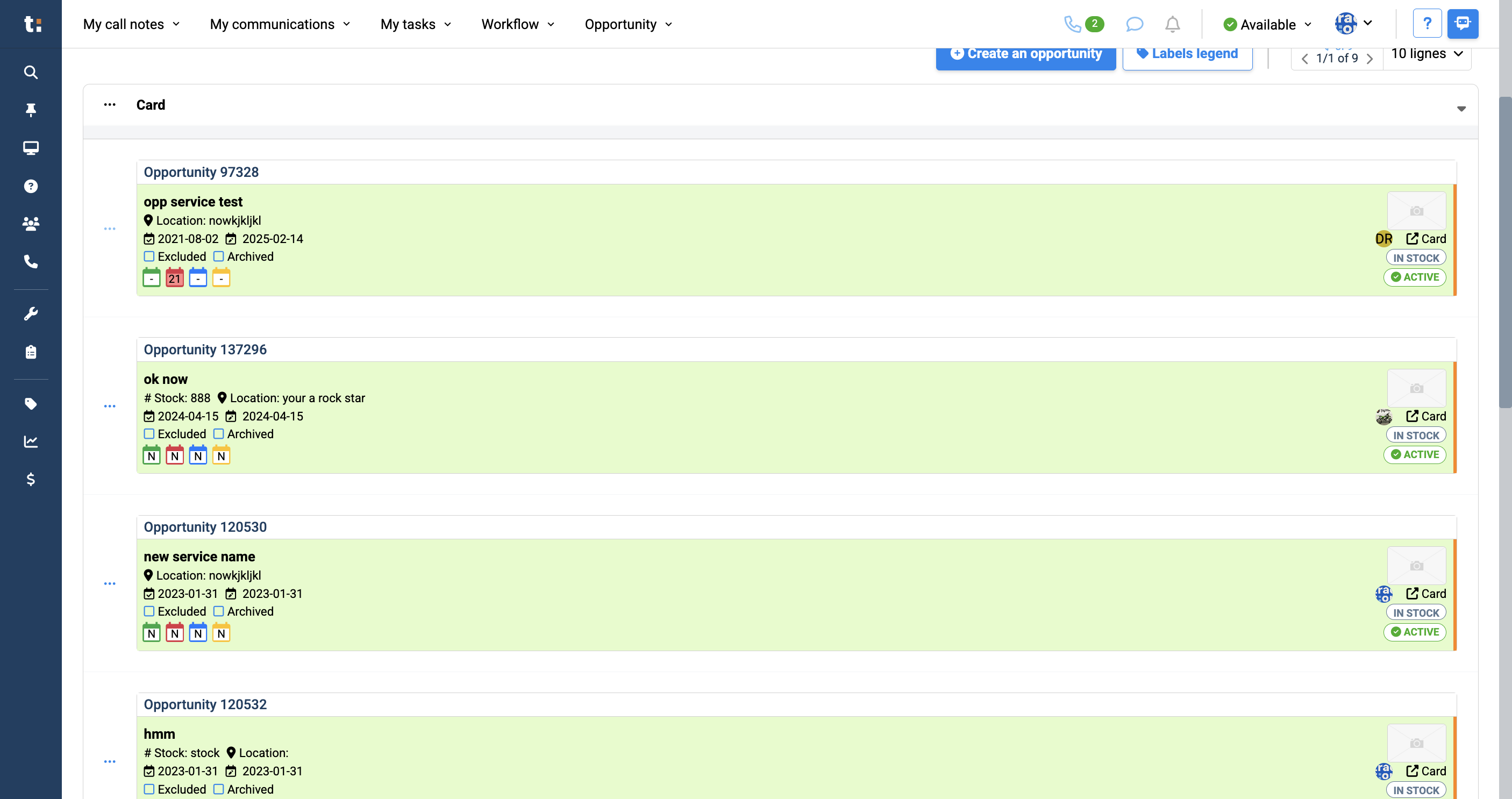
Here you will see a complete list of available service opportunities.
3
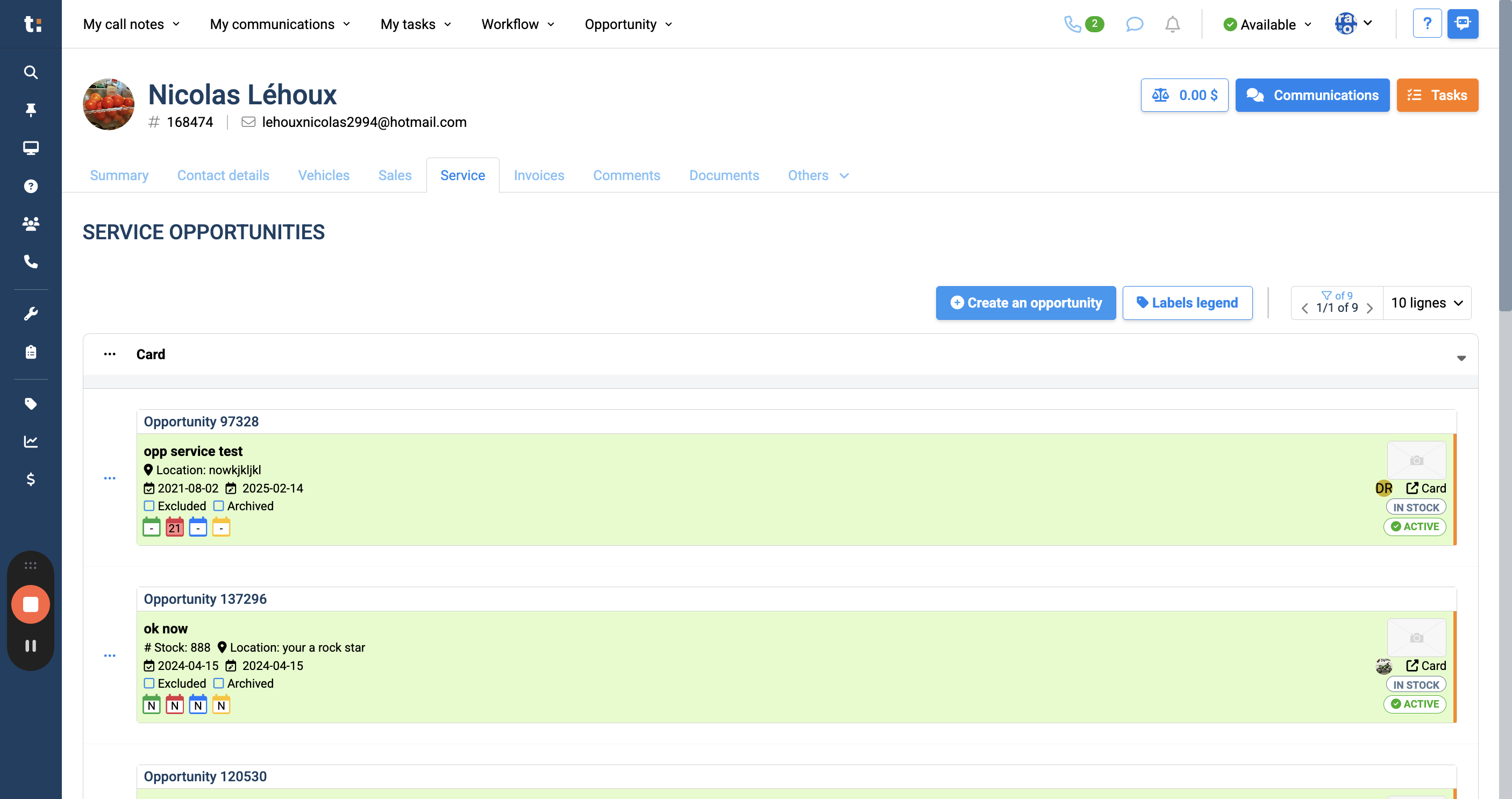
To create a new opportunity, click the "Create an Opportunity" button.
4
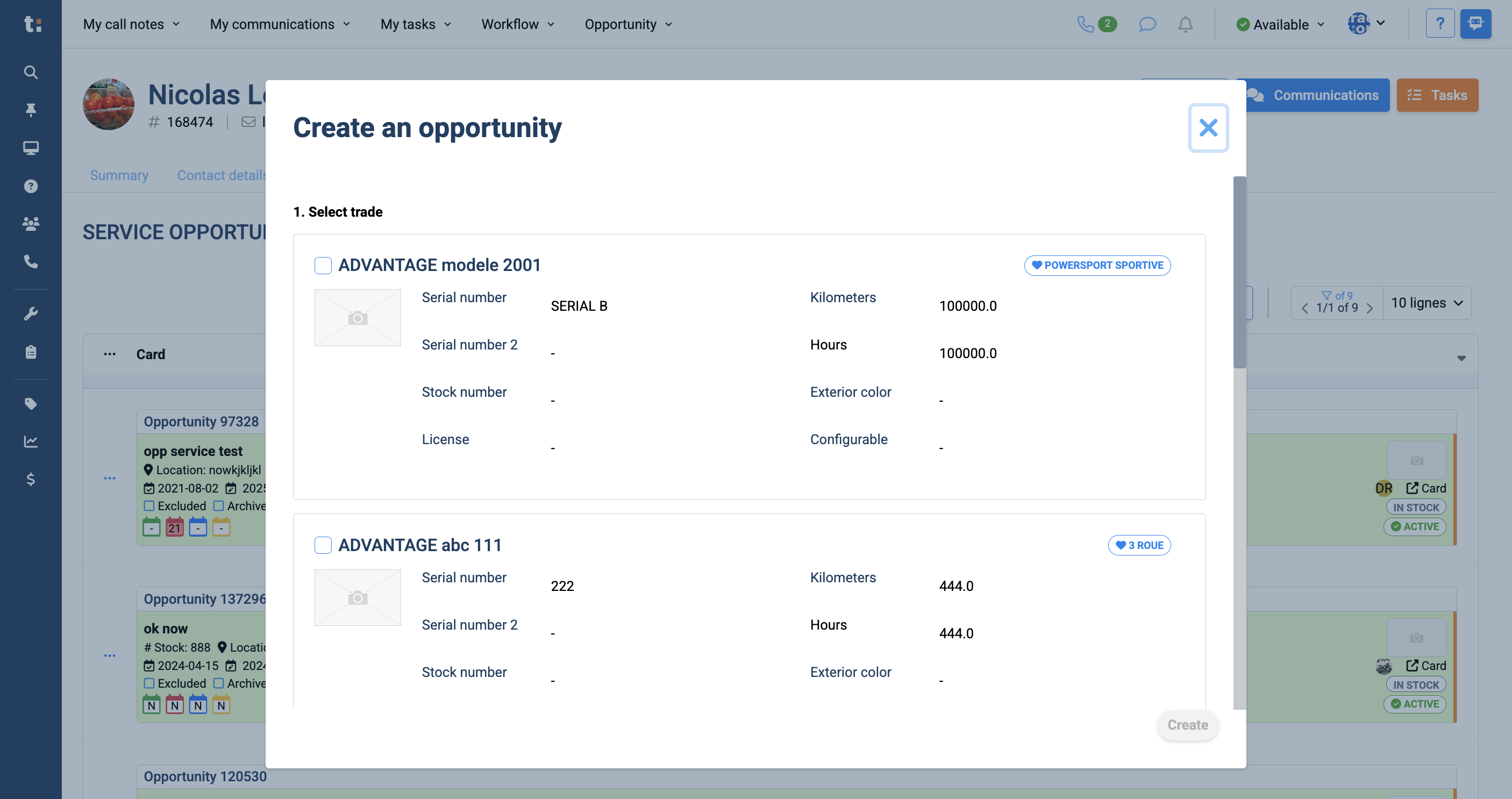
It will show a list of vehicles you already own to choose from. Then, you can create.
5
The labels legend shows every label that can be attached to your vehicle.
6
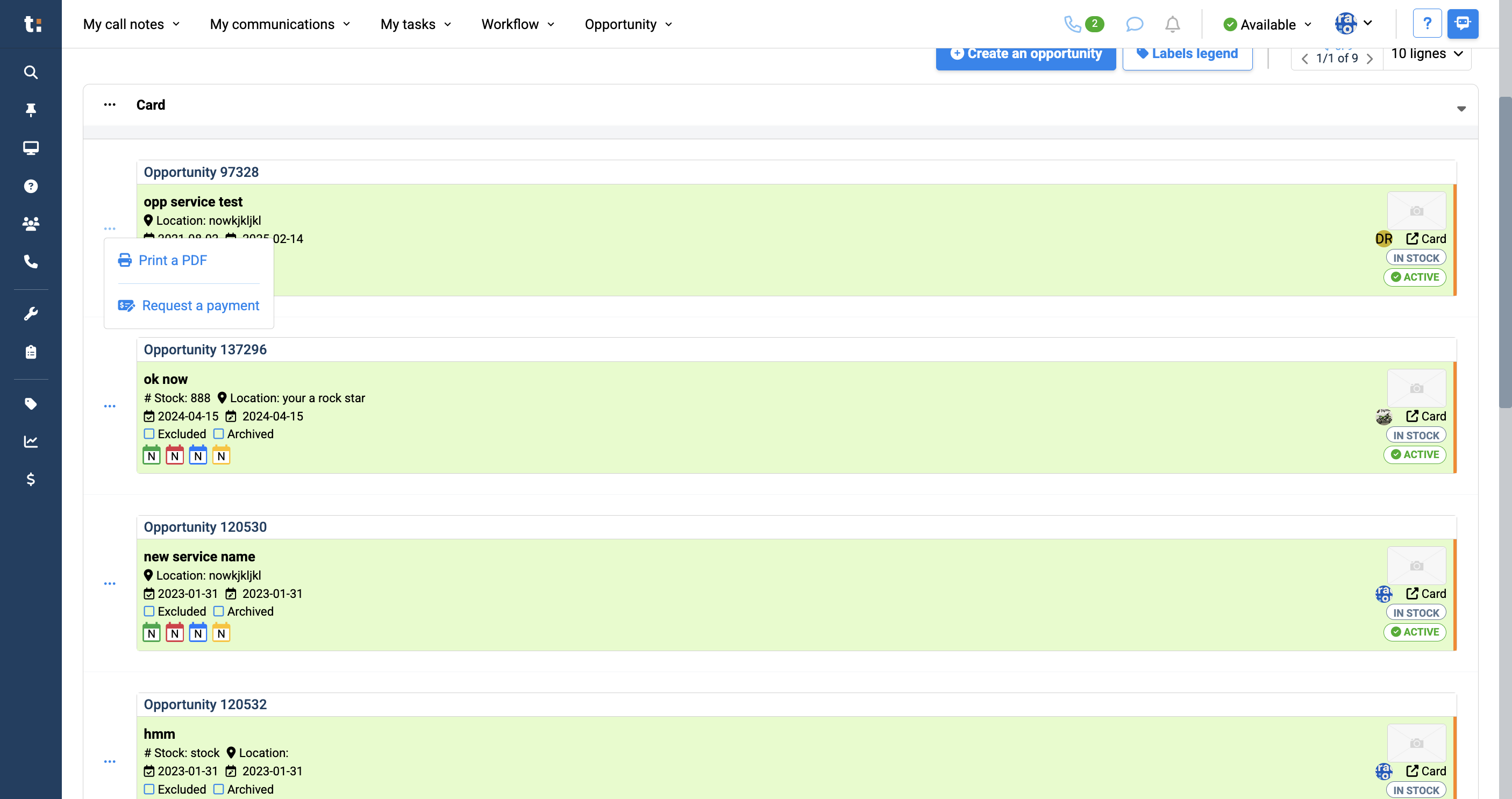
To the left of each service opportunity card, there are three dots. Clicking on it gives you the option to print a PDF version or request payment for the service.
7
8
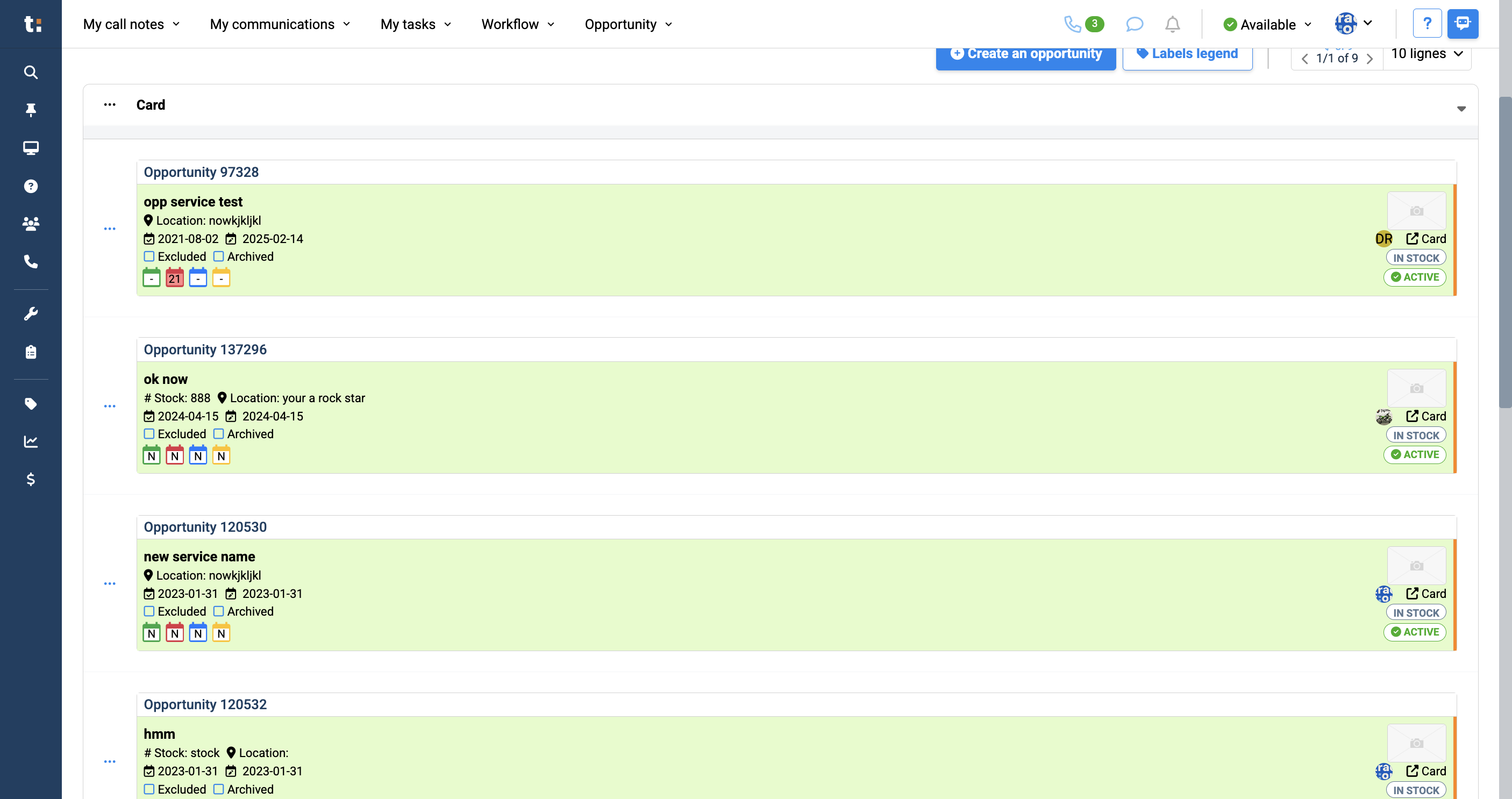
Clicking any service card takes you directly to the service opportunity. In the service opportunity, all the information you need will appear on this card.
If you still have questions after consulting this article, please feel free to contact our support team at: support@tractiondk.zohodesk.com