How to Use the Task Calendar
Learn how to access, filter, and customize your task calendar to efficiently manage tasks at your dealership. Discover tips for viewing, filtering, and printing your calendar.
In this guide, we'll learn how to access and use the task calendar to manage and organize tasks within your dealership. We will cover how to navigate to the calendar, apply filters to view specific tasks, and adjust the calendar view to suit your needs.
Let's get started
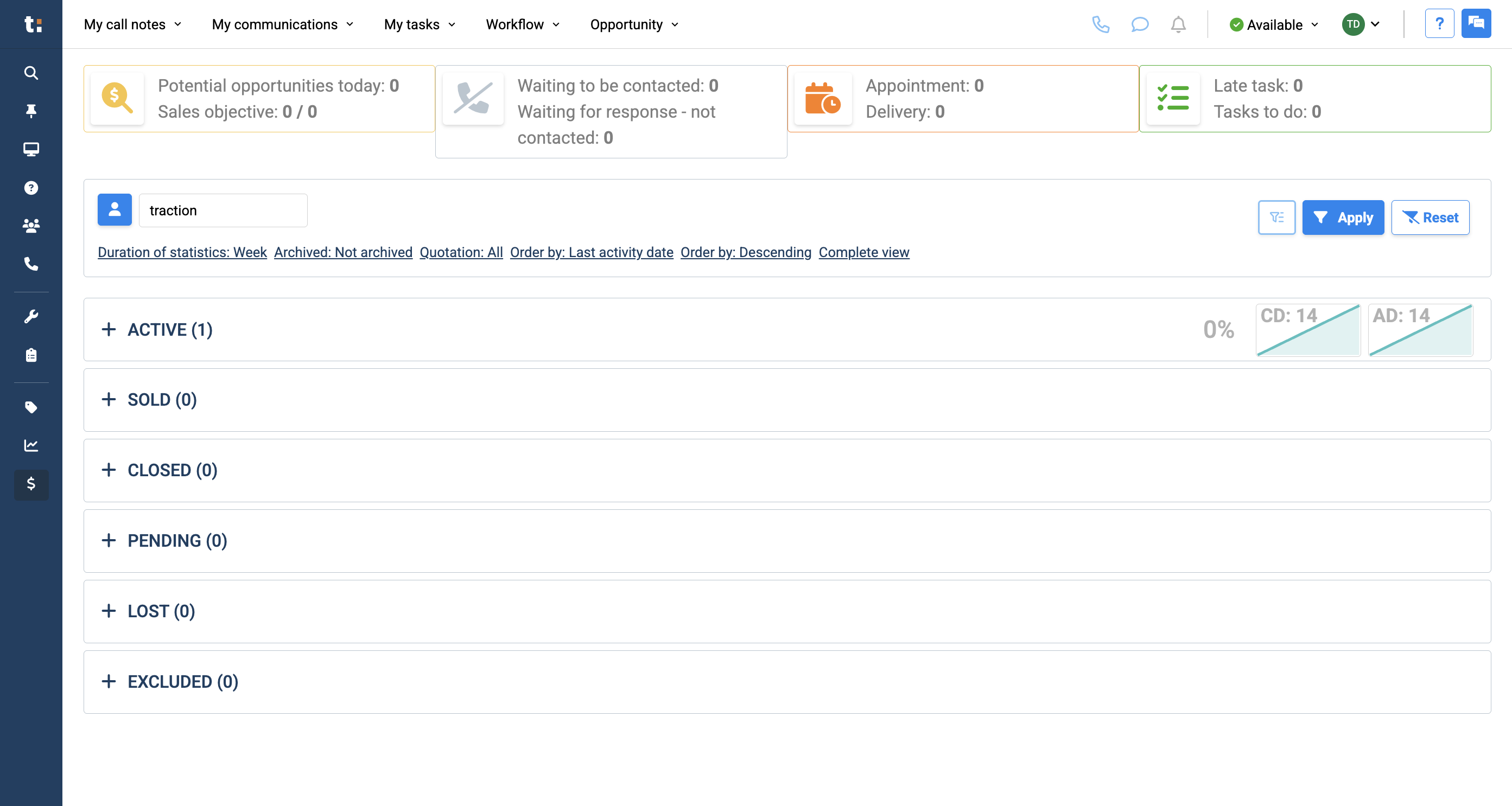
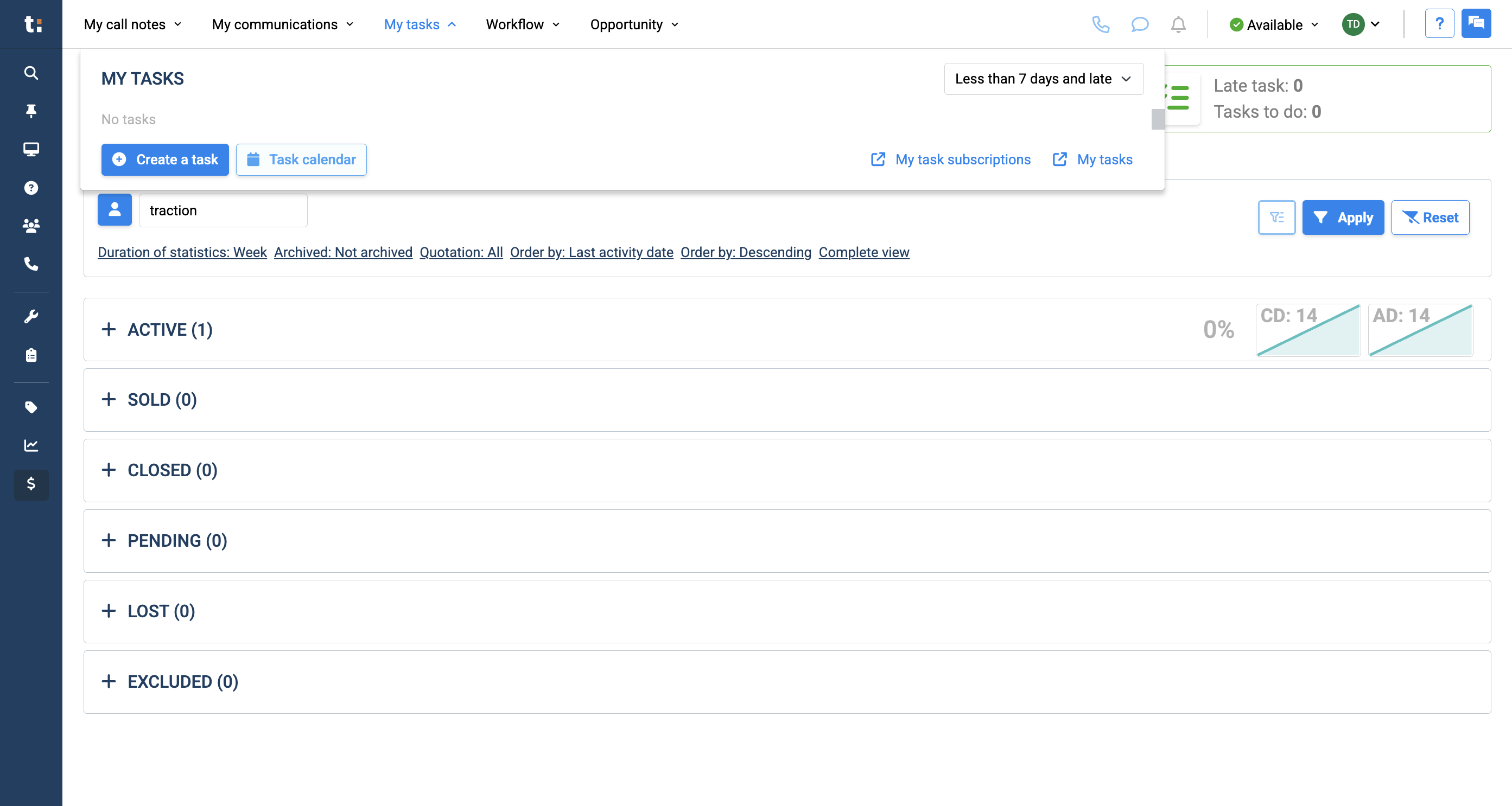
In this article, we will review the task calendar. To access your task calendar, you can go to one of two places. Click the My Tasks tab at the top of your page. Then, select the Task Calendar button.
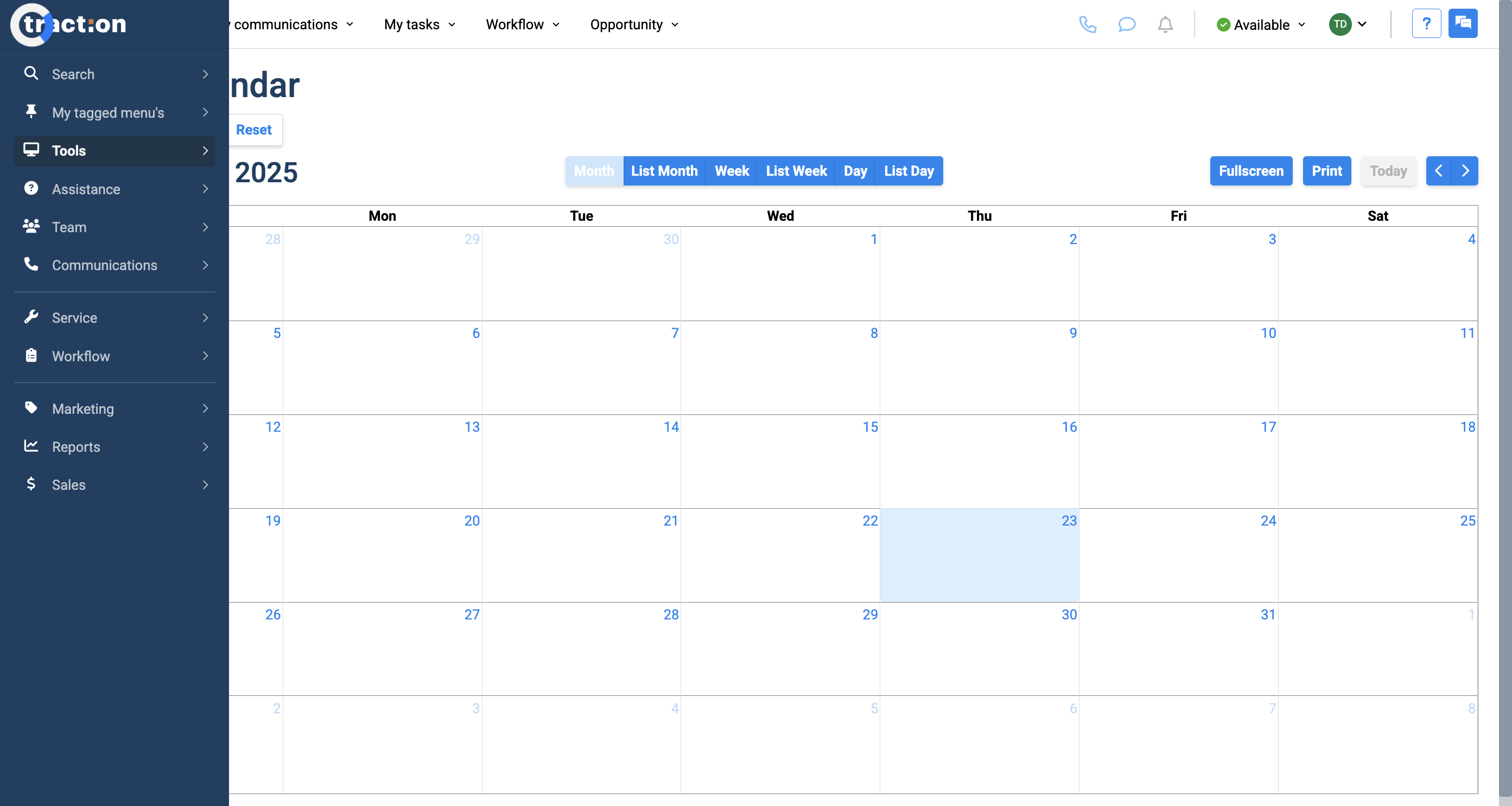
Another way to access your task calendar is to go to Tools in the menu bar and select Task Calendar.

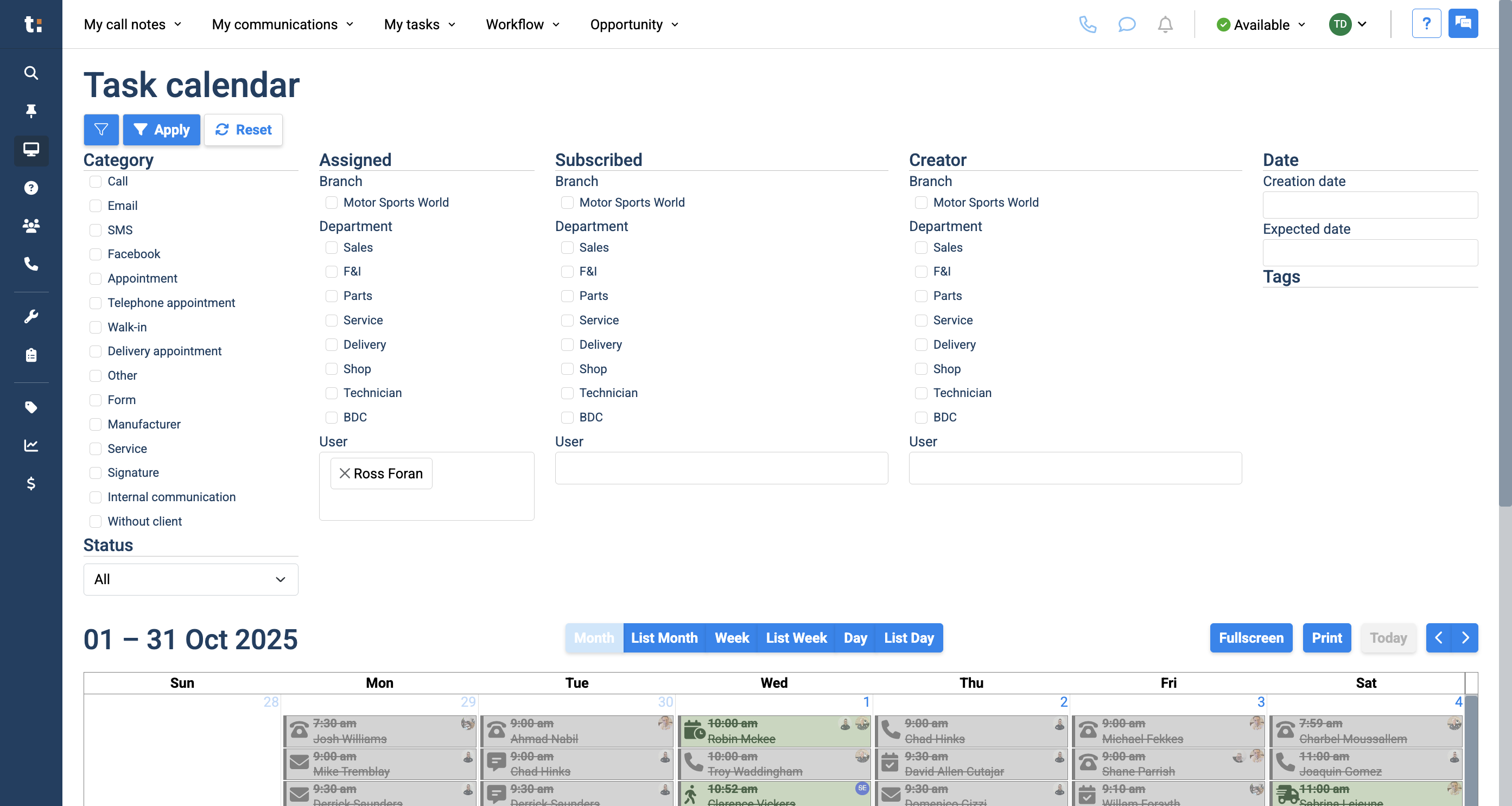
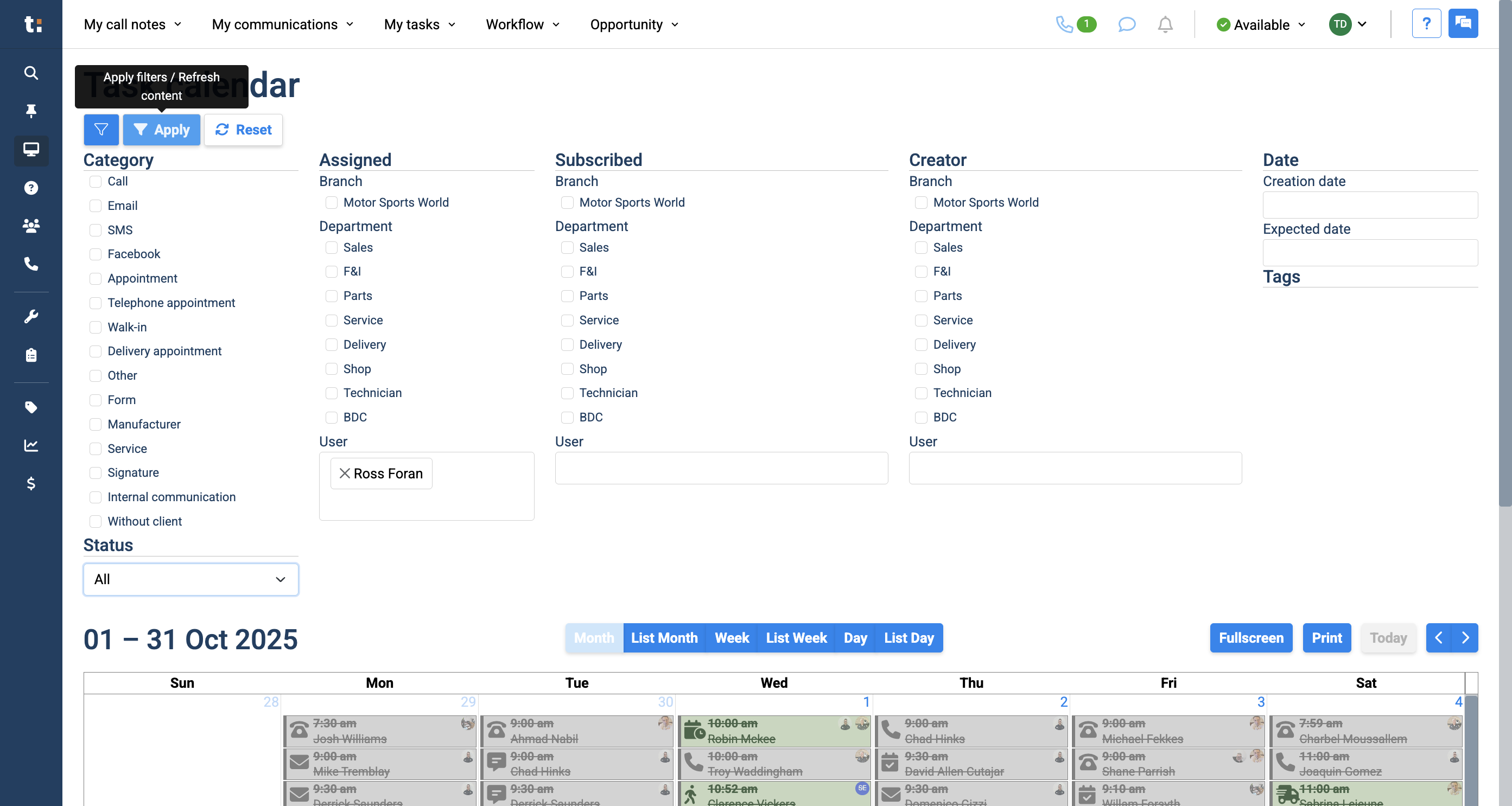
When you open the task calendar, it will show everyone's tasks at your dealership by default. This can become overwhelming. In this case, we add filters. Add filters by clicking the blue filter button in the top left corner.
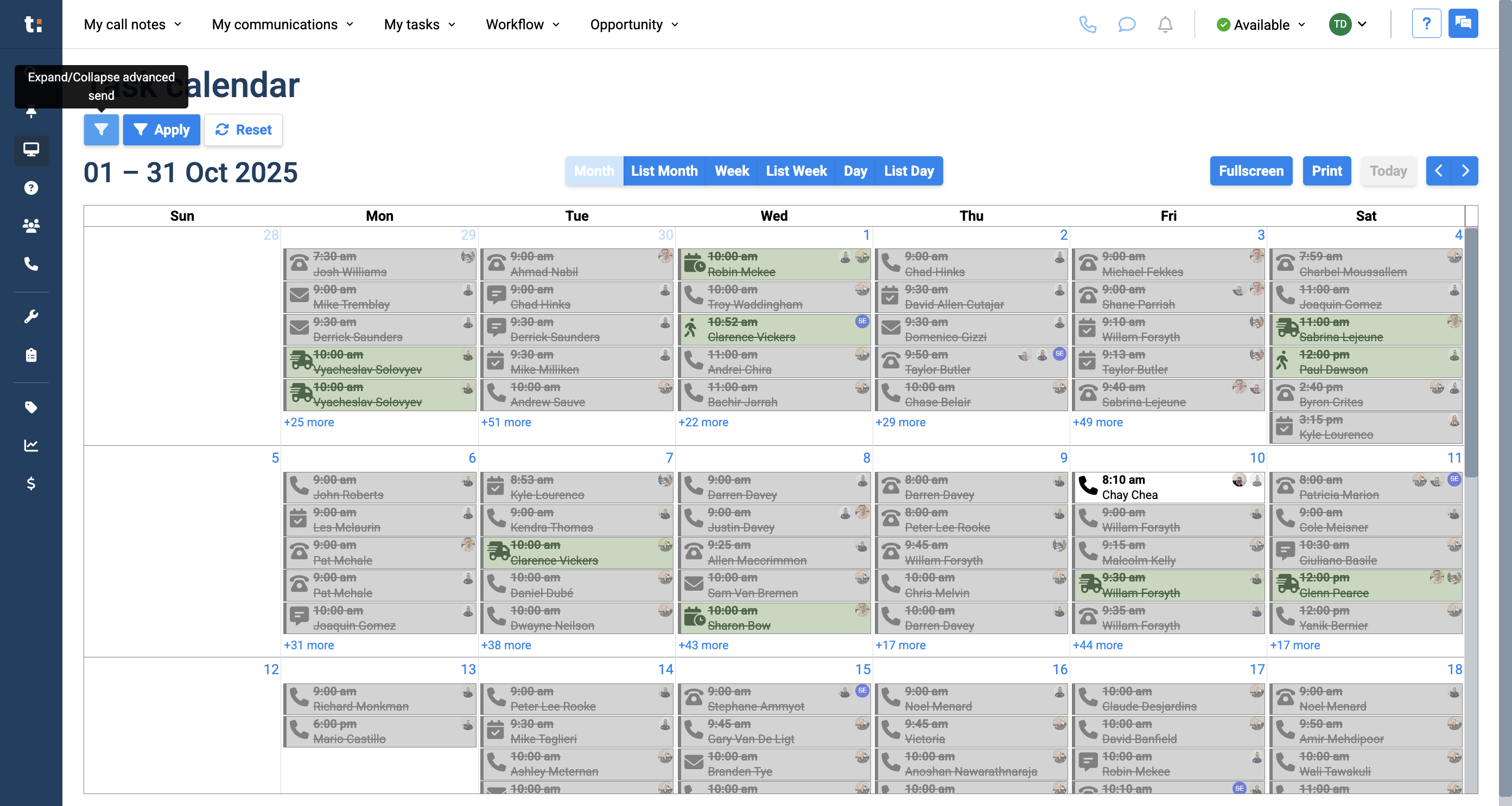
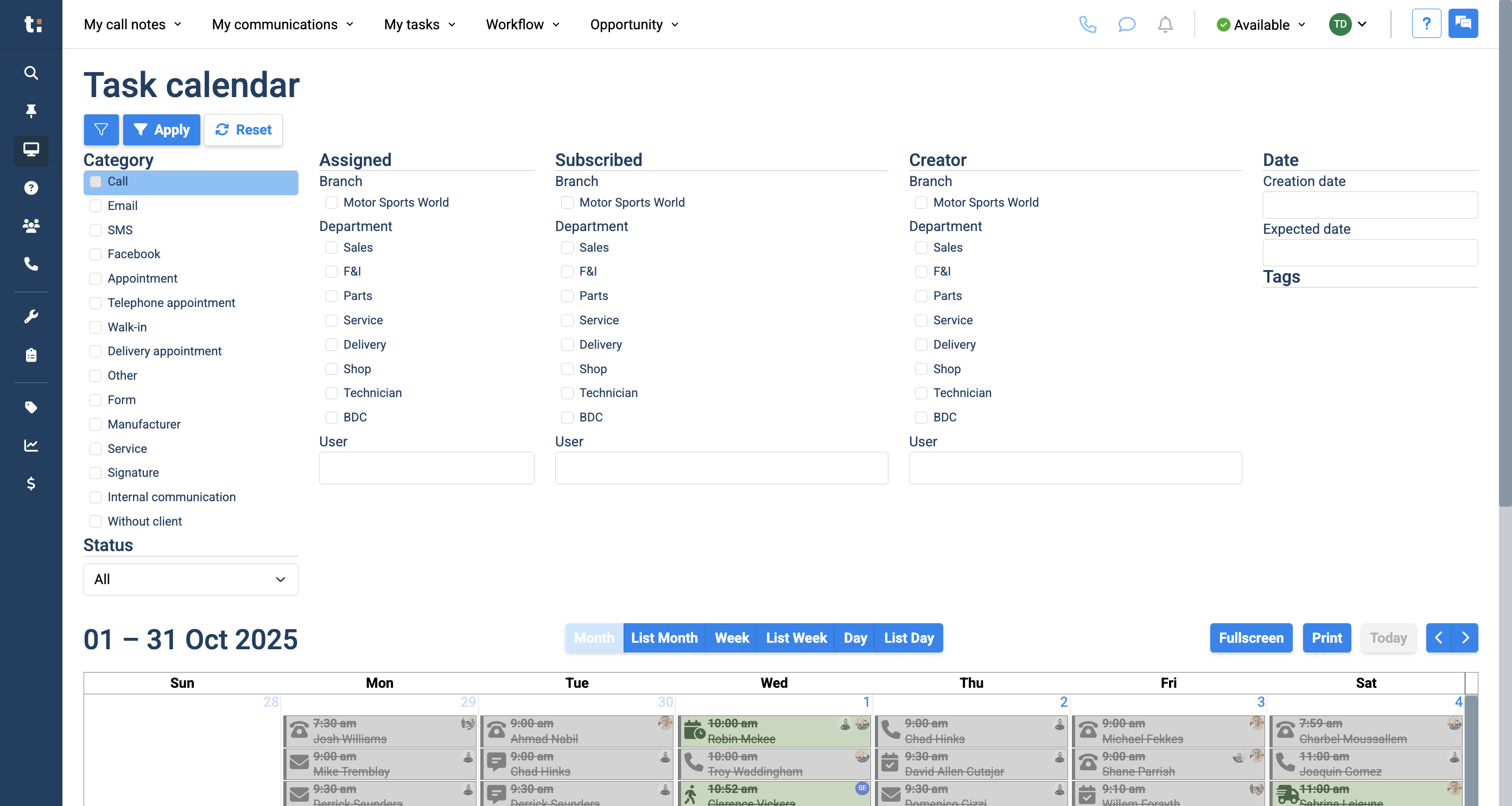
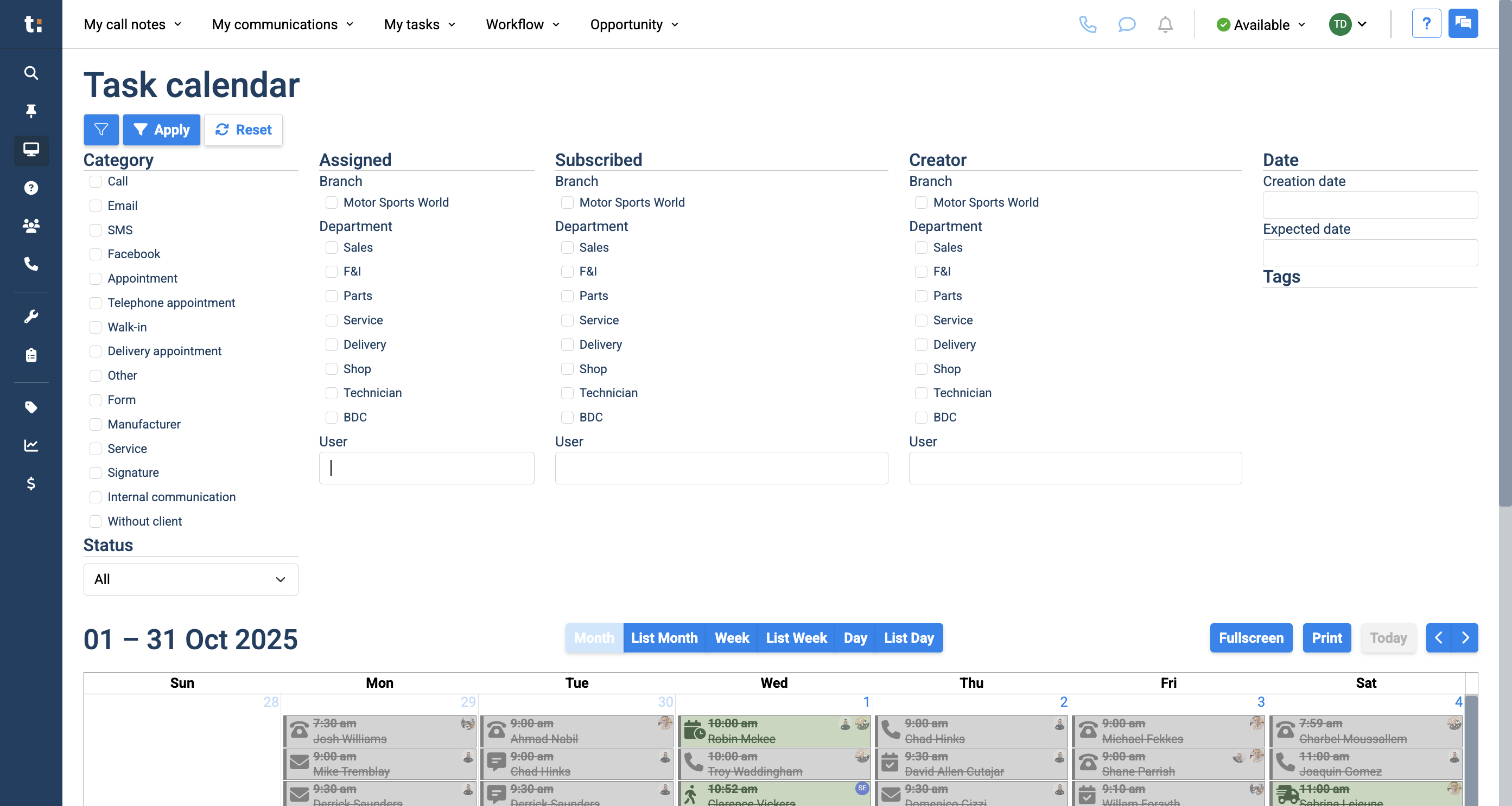
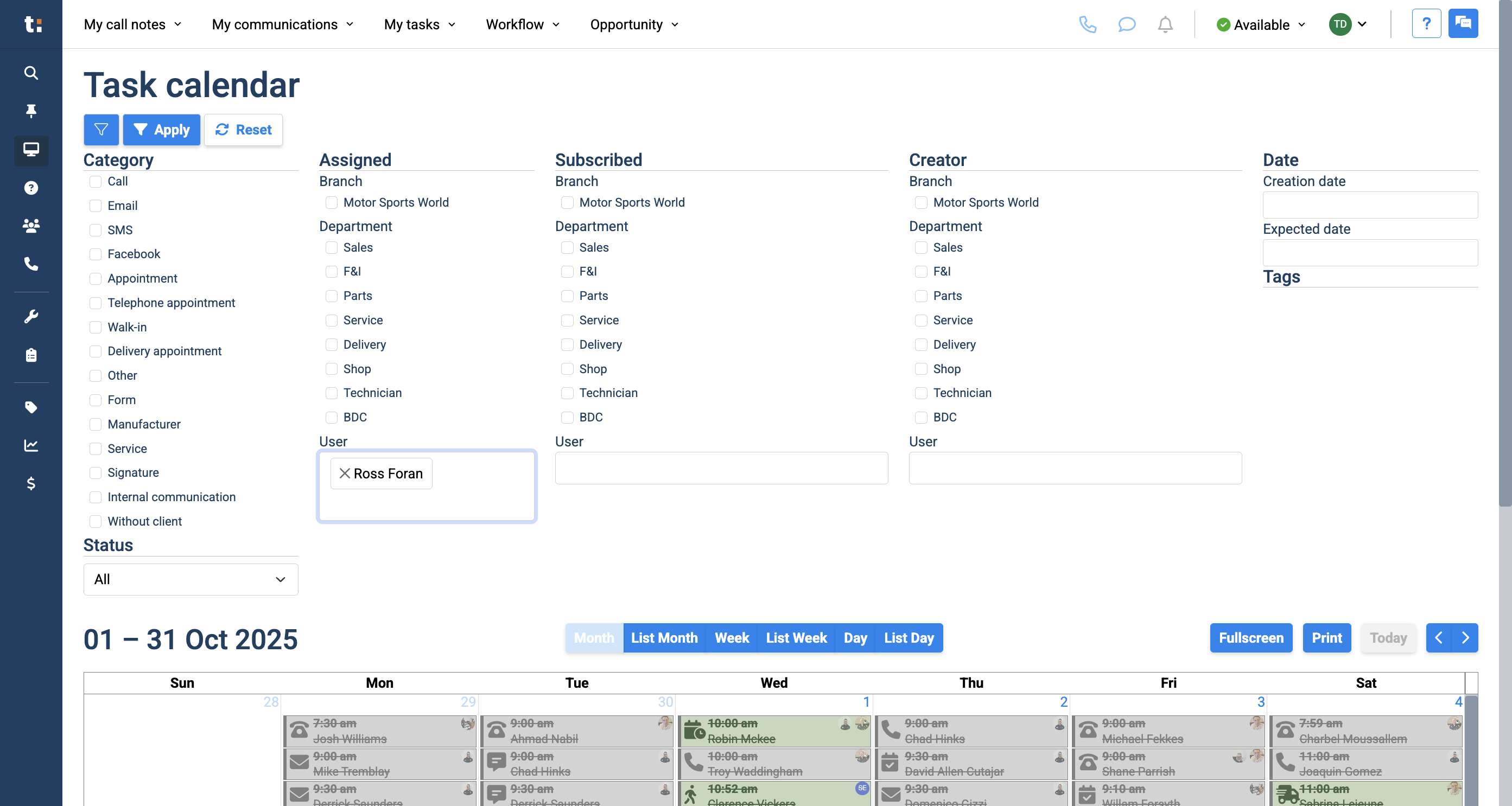
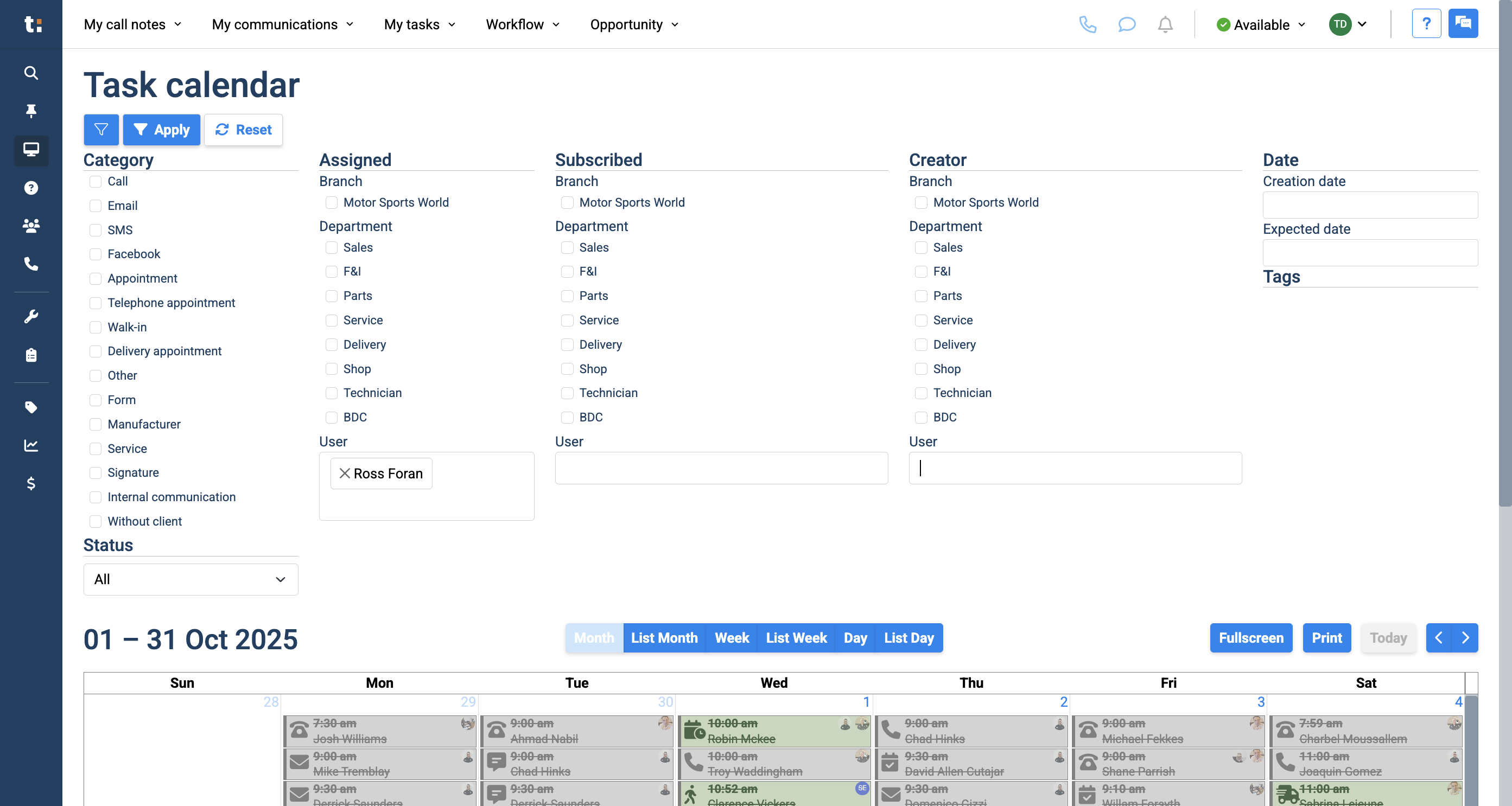
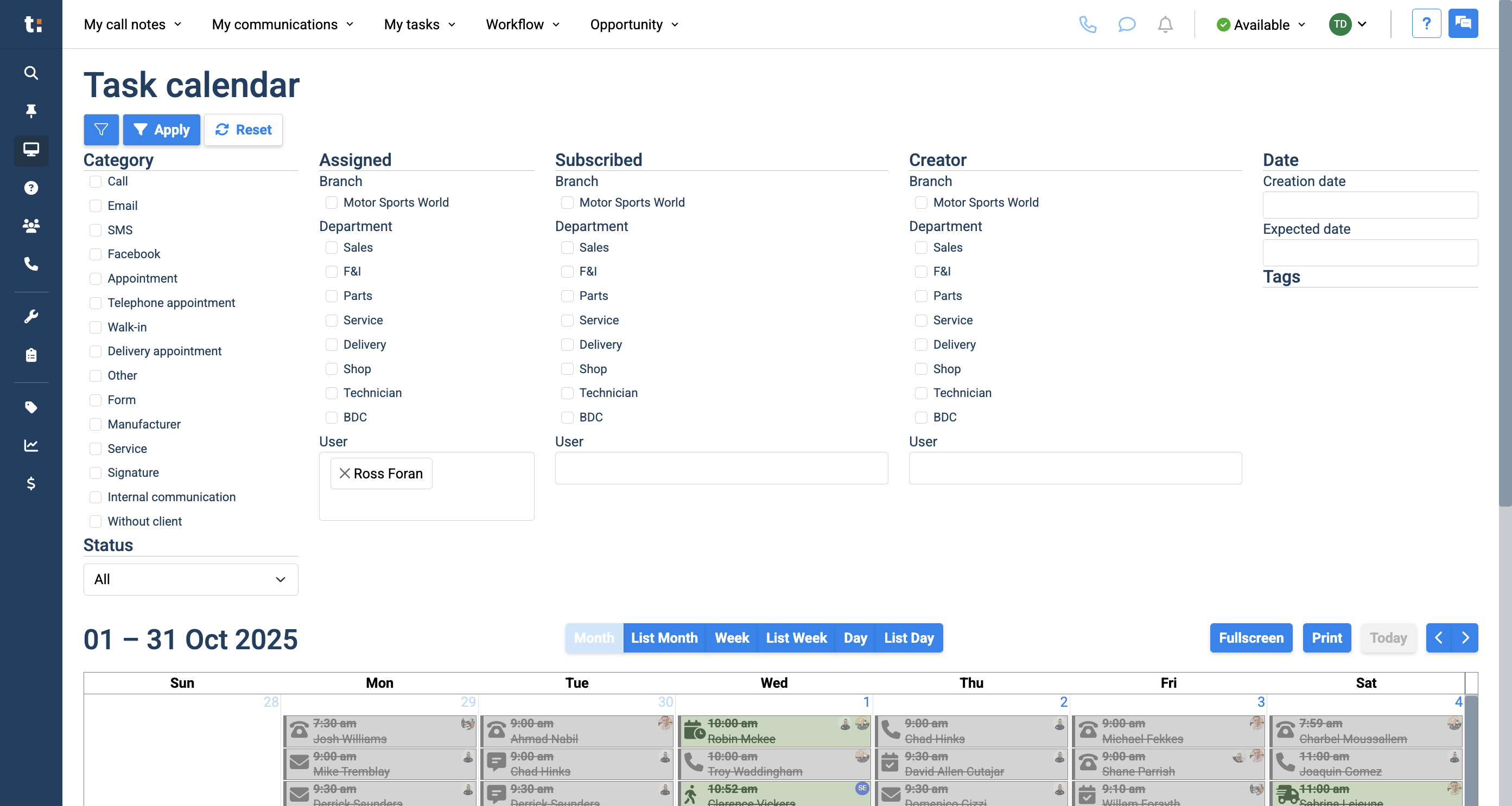
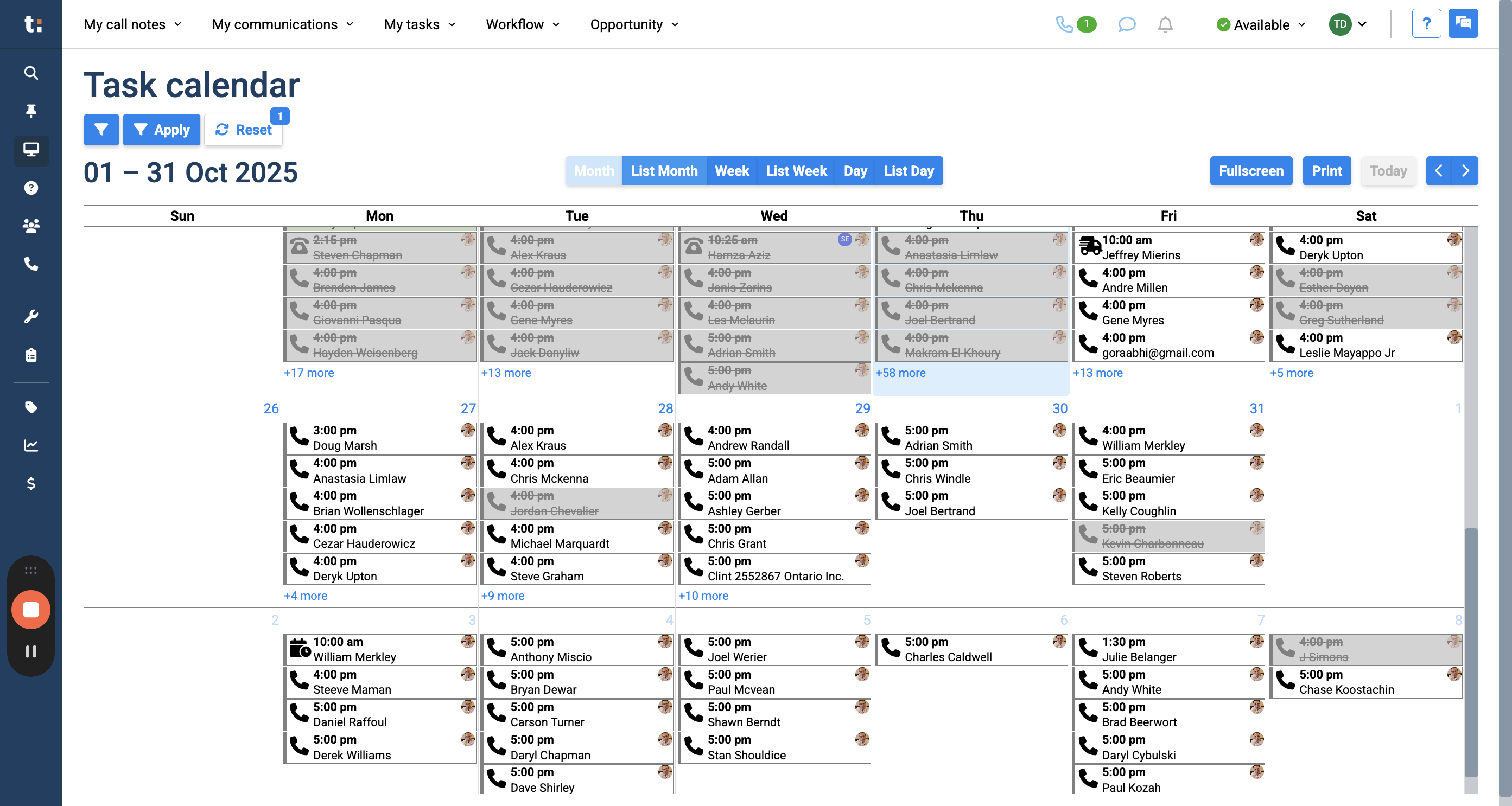
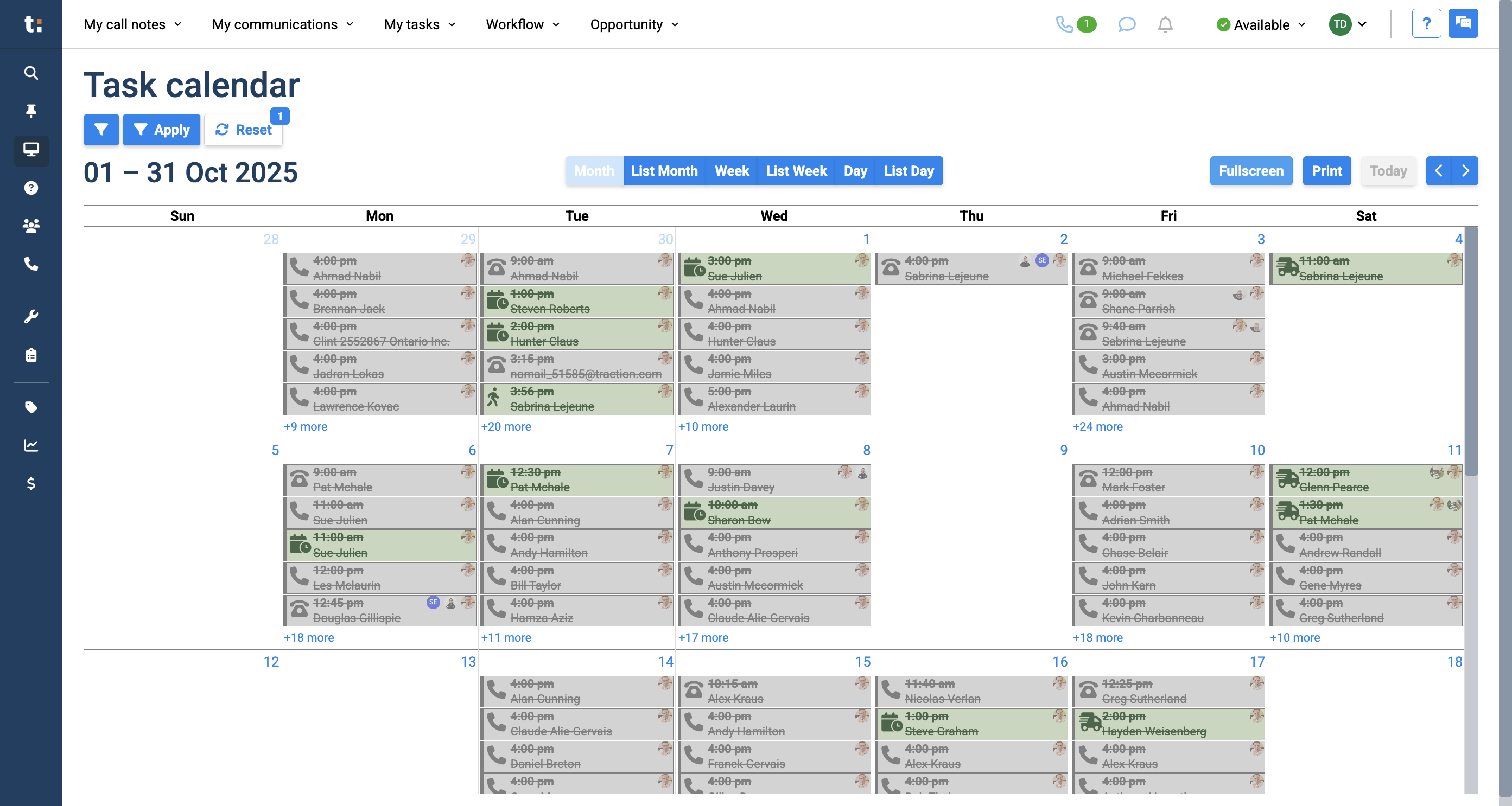
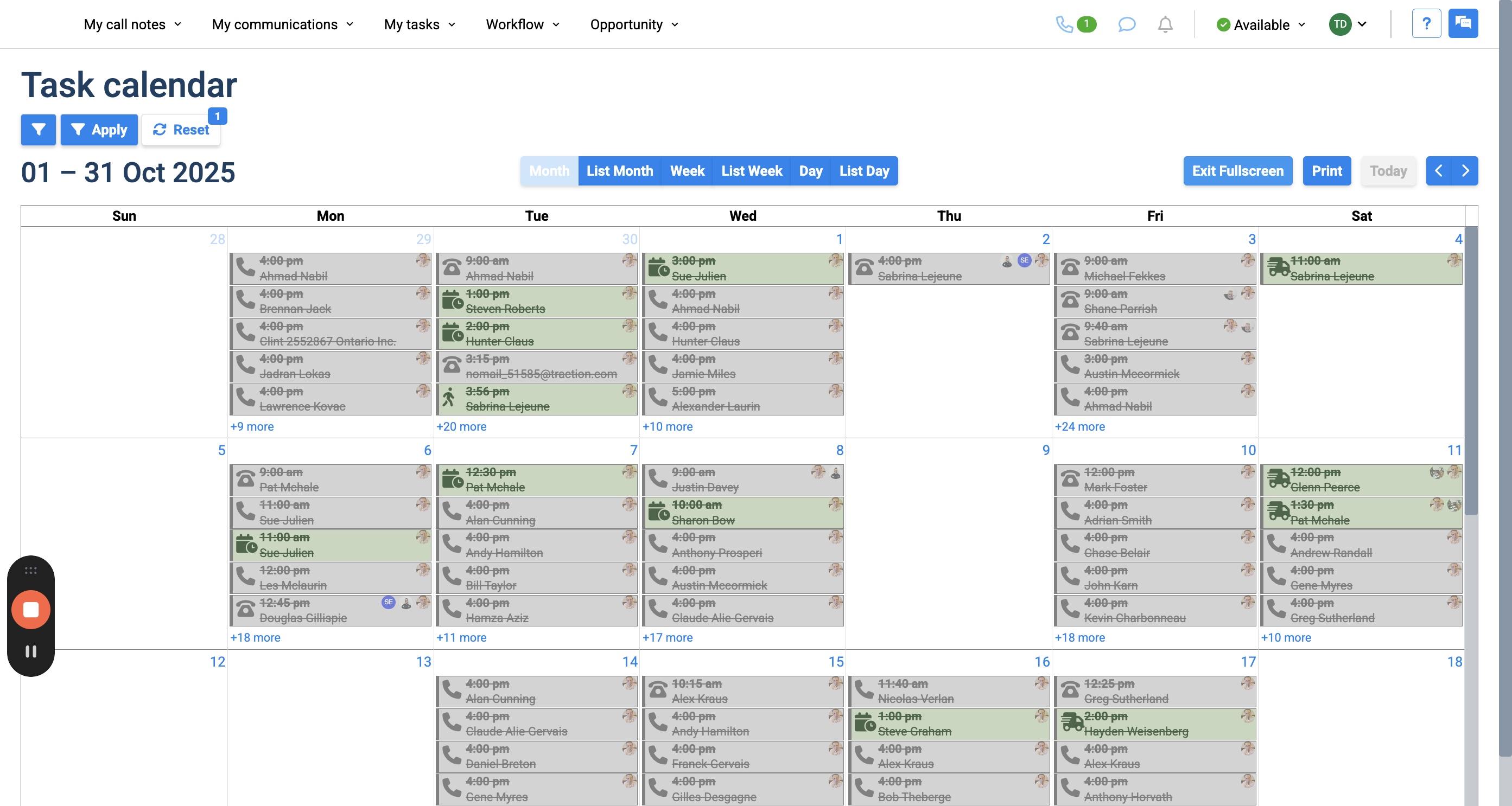
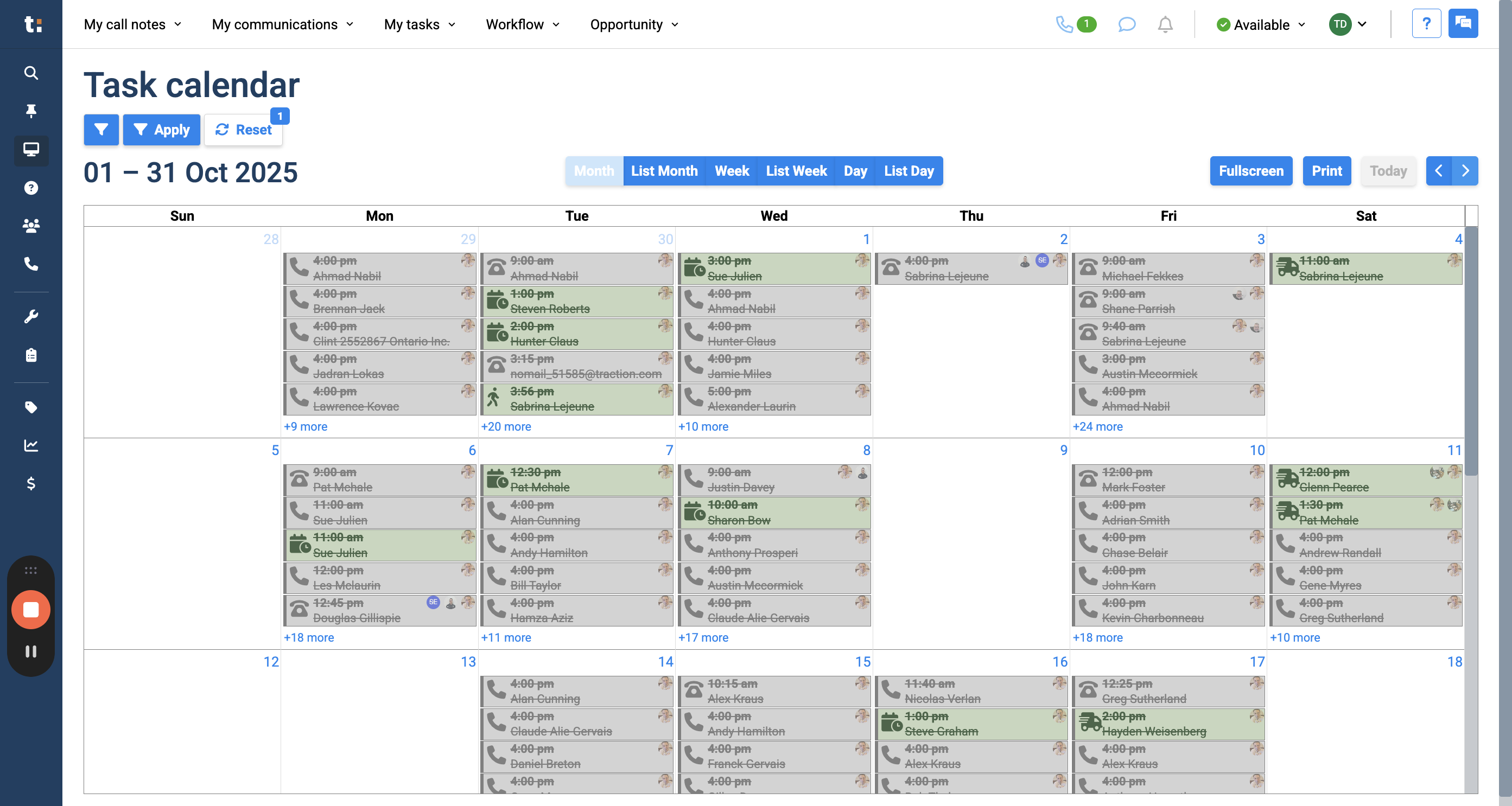
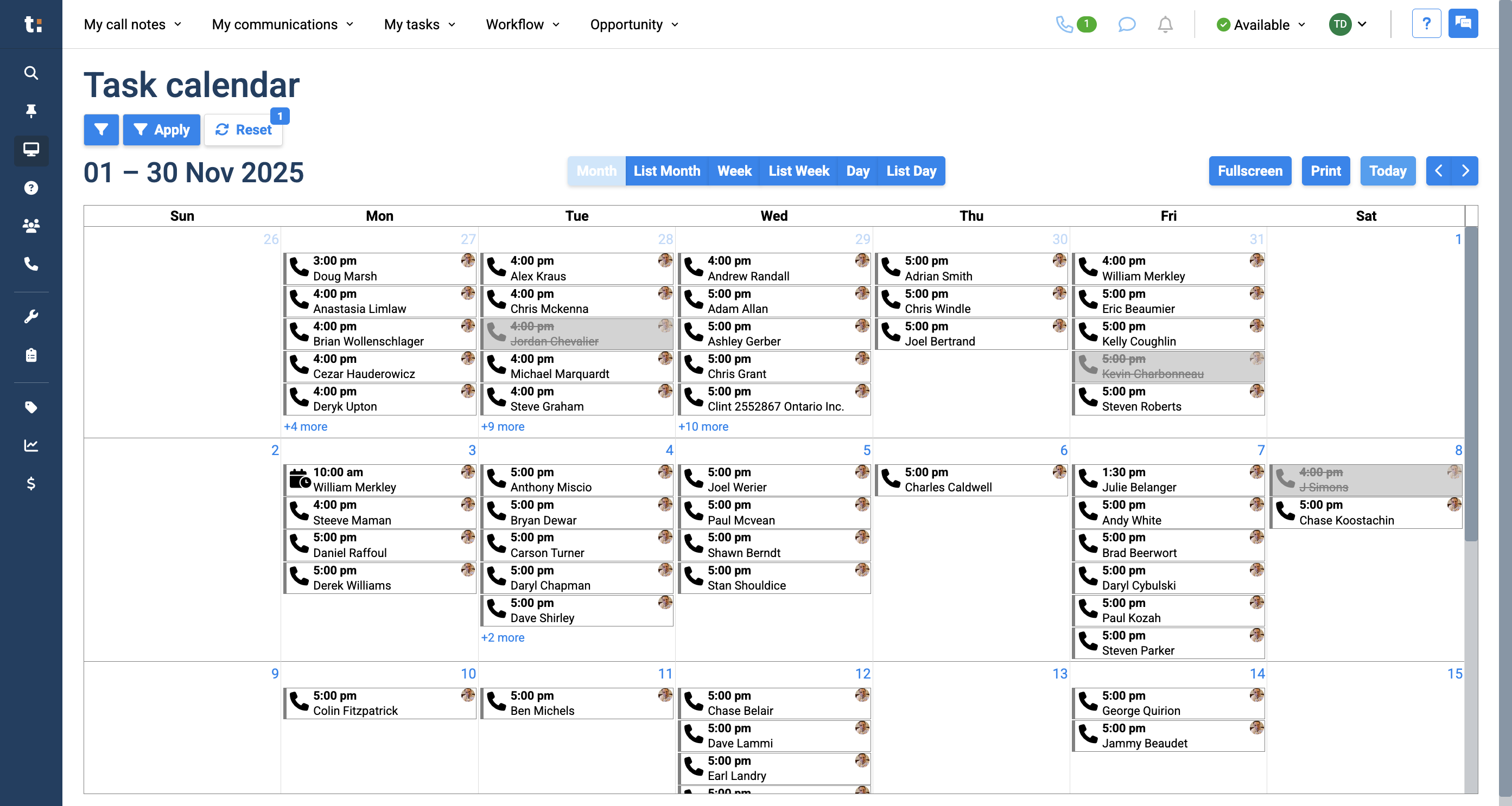
We are now viewing a monthly calendar of all tasks. Gray tasks with a strikethrough are completed. All other tasks still need to be done. You can change your calendar to a list view for the month, week, or day, as well as standard month, week, or day views.
If you still have questions after consulting this article, please feel free to contact our support team at: support@tractiondk.zohodesk.com