How to Use the Download Sample CSV Buttons
Learn how to use the 'Upload CSV' and 'Download Sample CSV' buttons to easily manage file formats. Discover what happens when you interact with these features.
By Aasma Technology Solutions
In this guide, we'll learn how to use the upload CSV feature and how to download a sample CSV file. This helps you understand the correct format before uploading your own file. We will also explain what happens when you close the sample download option.
Let's get started
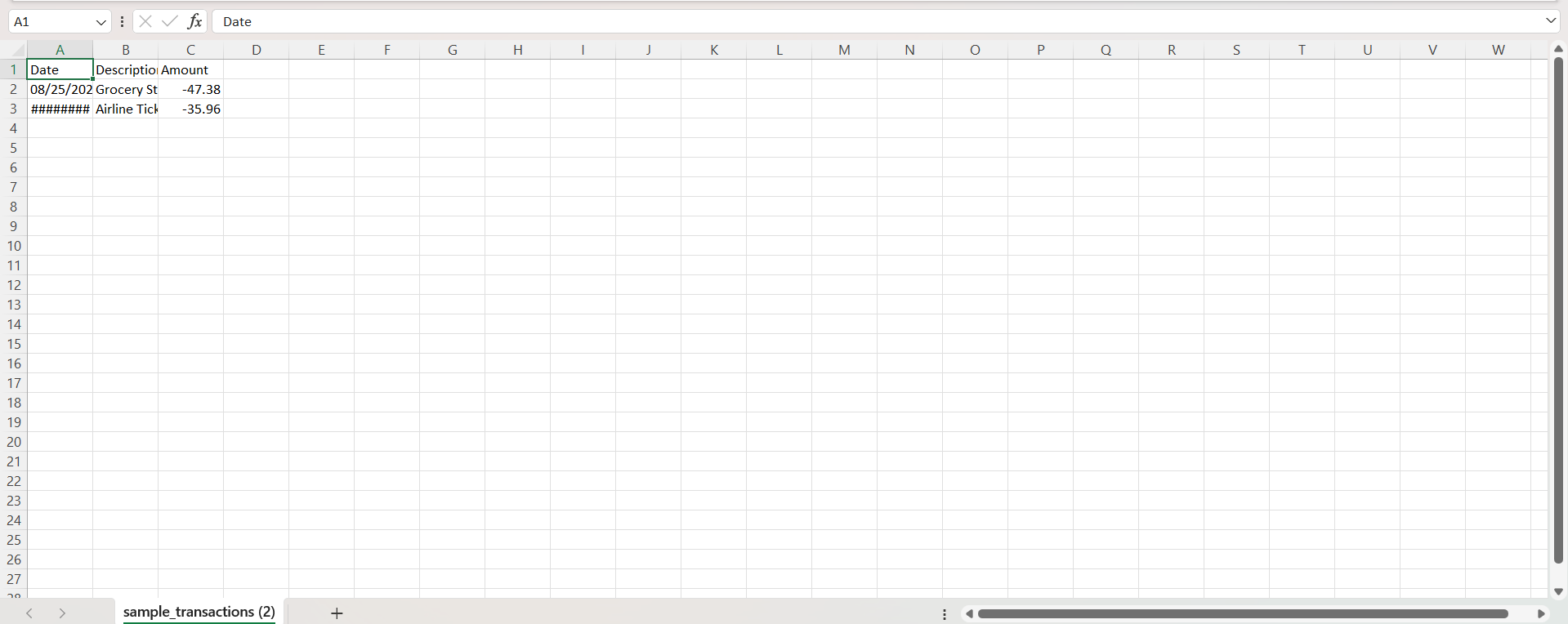
After clicking the Upload CSV button, the modal displays a Download Sample CSV option. This allows the sample file format to be downloaded and saved locally.
1
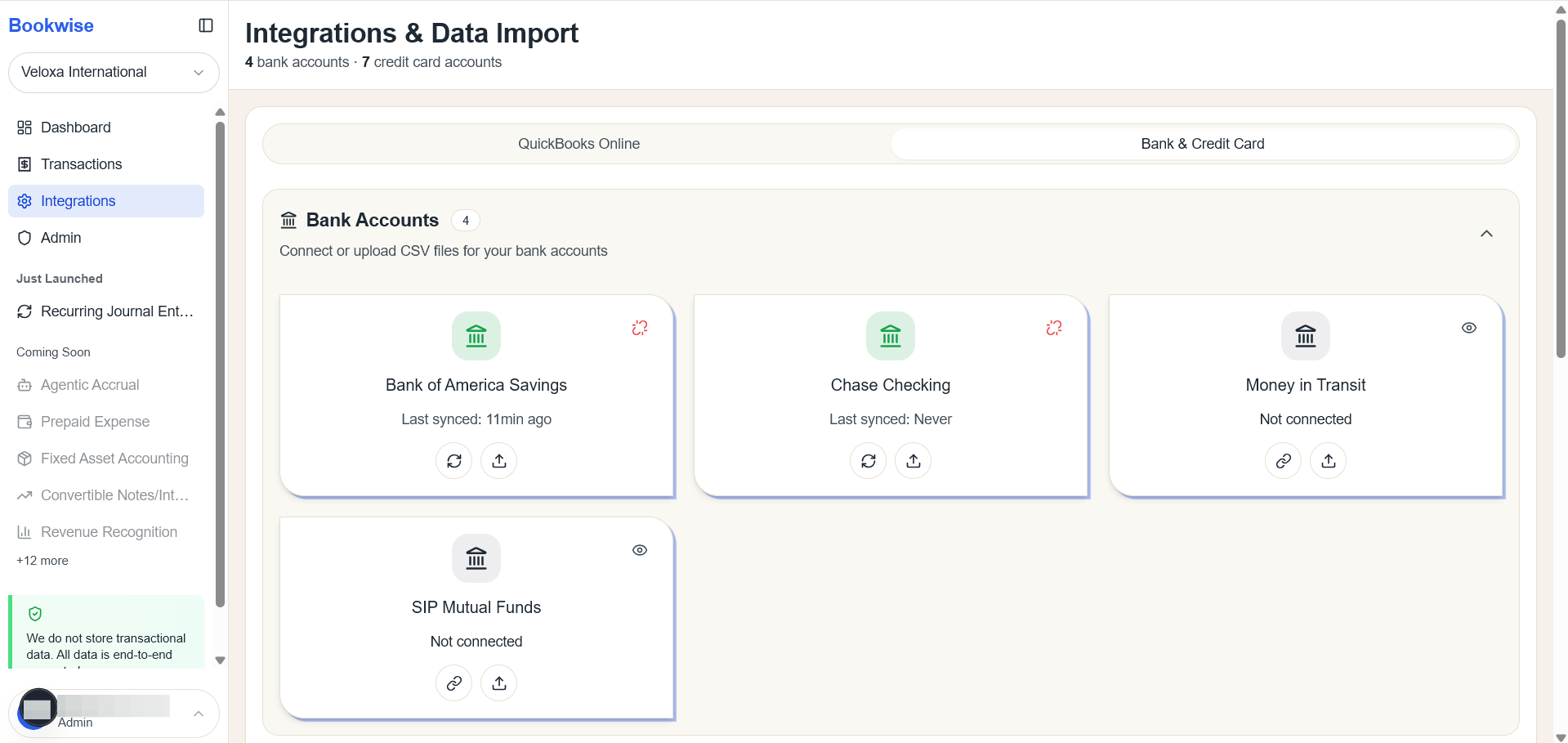
Go to Integrations page's Bank and Credit card tab and Click on Upload CSV button
2
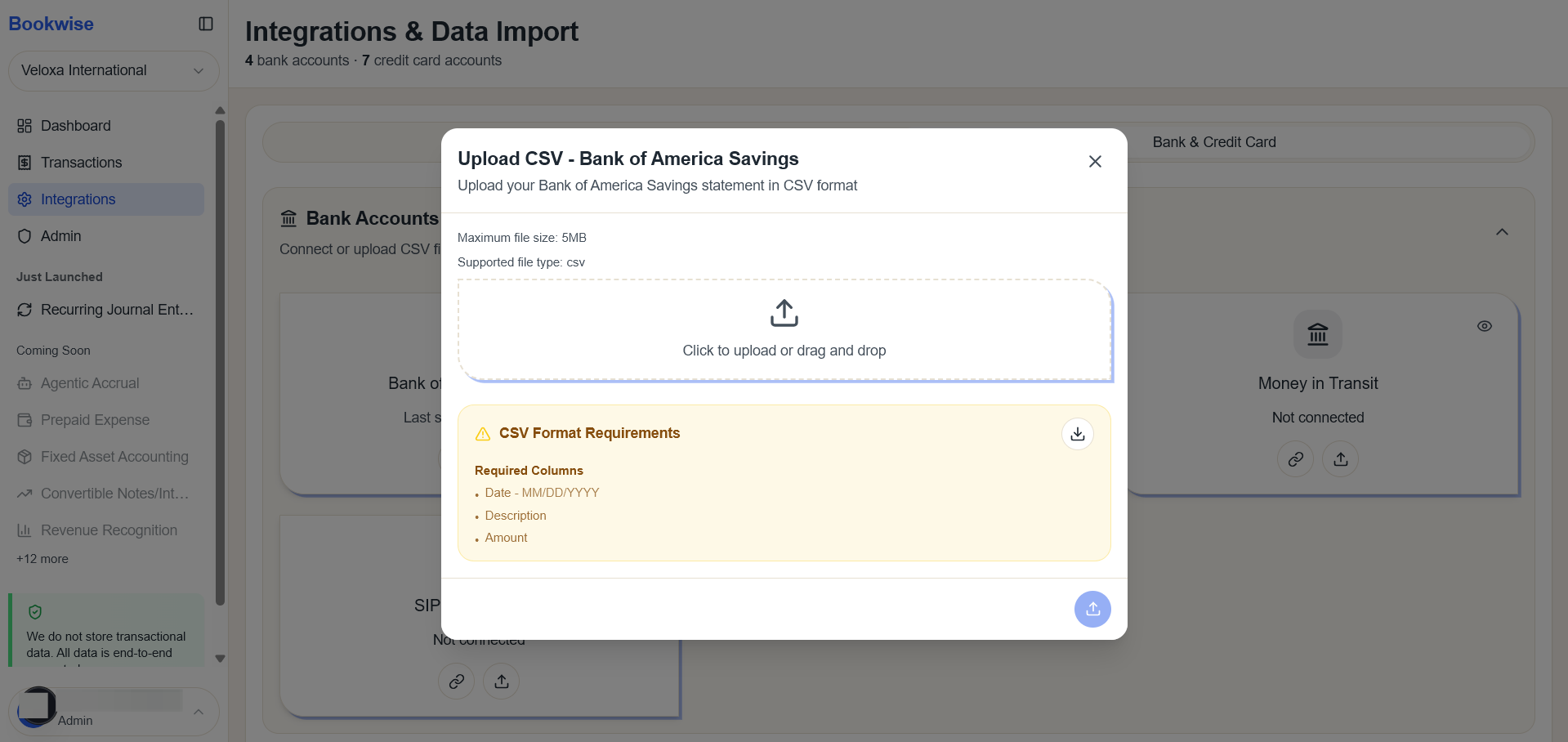
Click on the Download Sample CSV button to download the sample transactions file.
3
An Excel file will be downloaded and then can refer for adding transactions