
How to Use the Vehicles Tab in the Customer Profile
Learn how to navigate the Vehicles tab in the customer profile, view vehicle details, manage specifications, track sales opportunities, and access service history within Traction.
By Dominik Black
In this guide, we'll learn how to navigate and use the Vehicles tab in a customer profile. This includes viewing vehicle details, checking status, accessing related information, and using available tools like comments, evaluations, and work orders.
We will also look at how to find specifications, accessories, service records, sales opportunities, pricing, marketing materials, documents, and the full history of each vehicle.
Let's get started
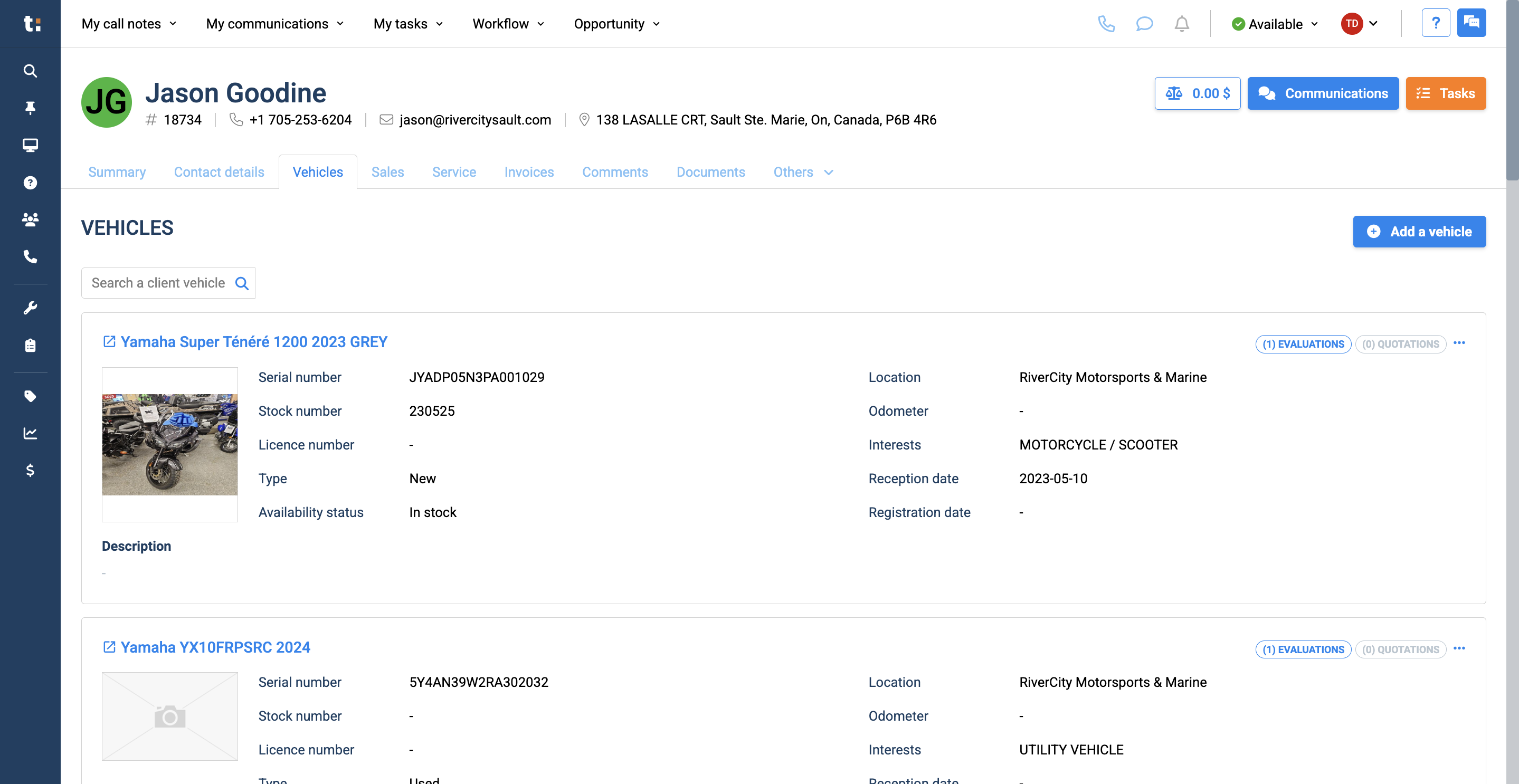
This article covers the Vehicles tab in the customer profile. Select Vehicles in the customer profile to see a drop-down list of all vehicles associated with the customer.
1
Click on Vehicles
2
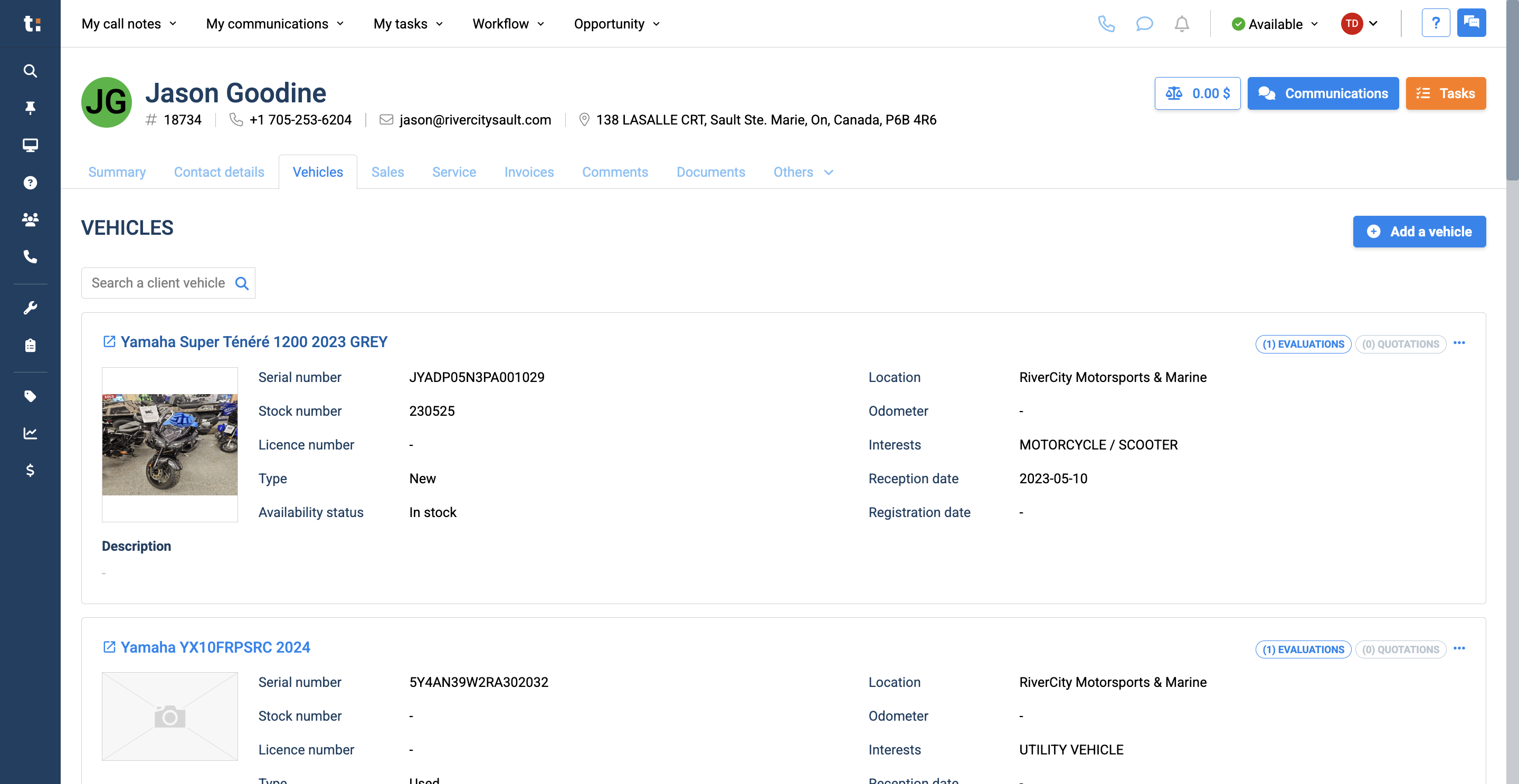
To access a vehicle file, click the vehicle's title.
3
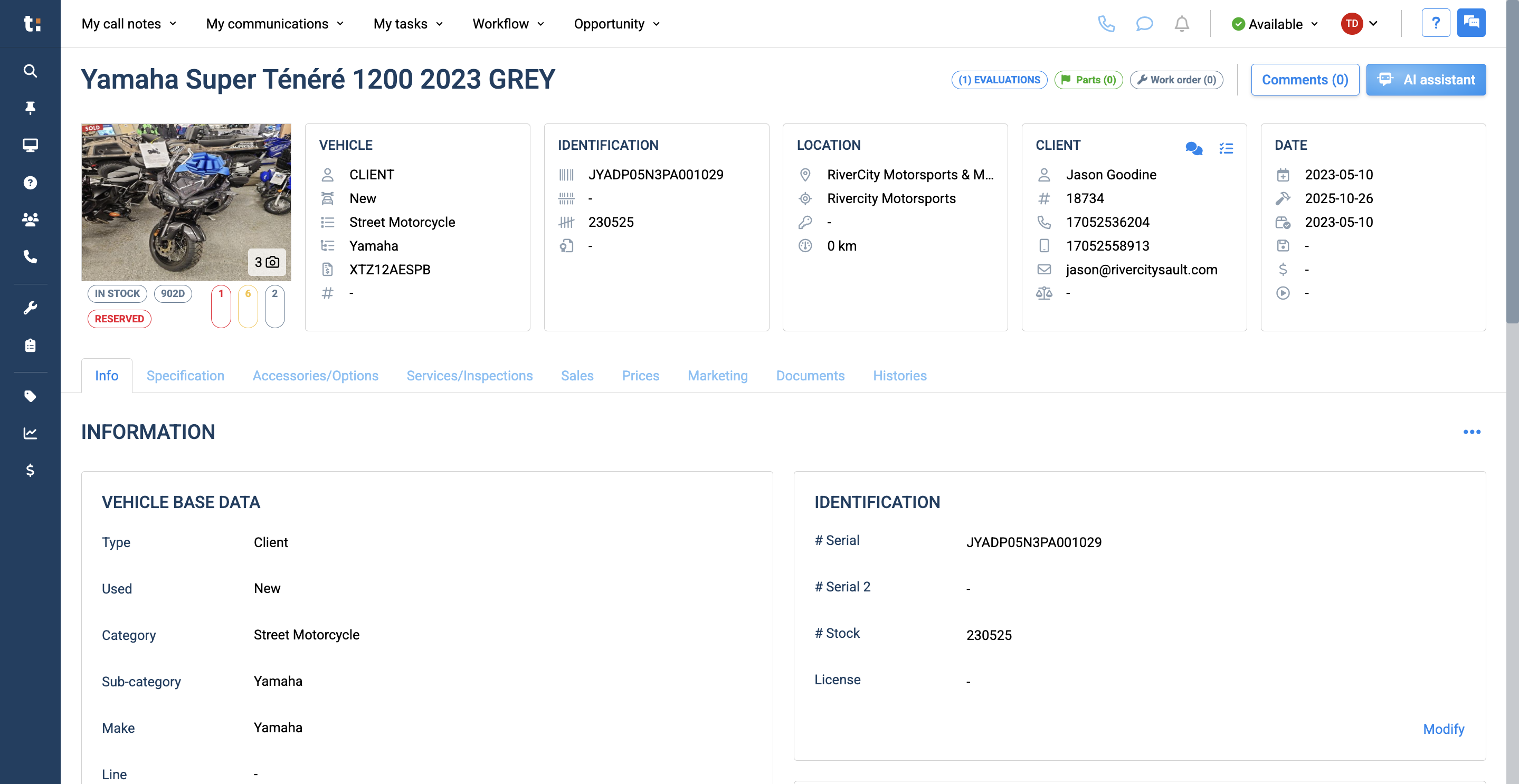
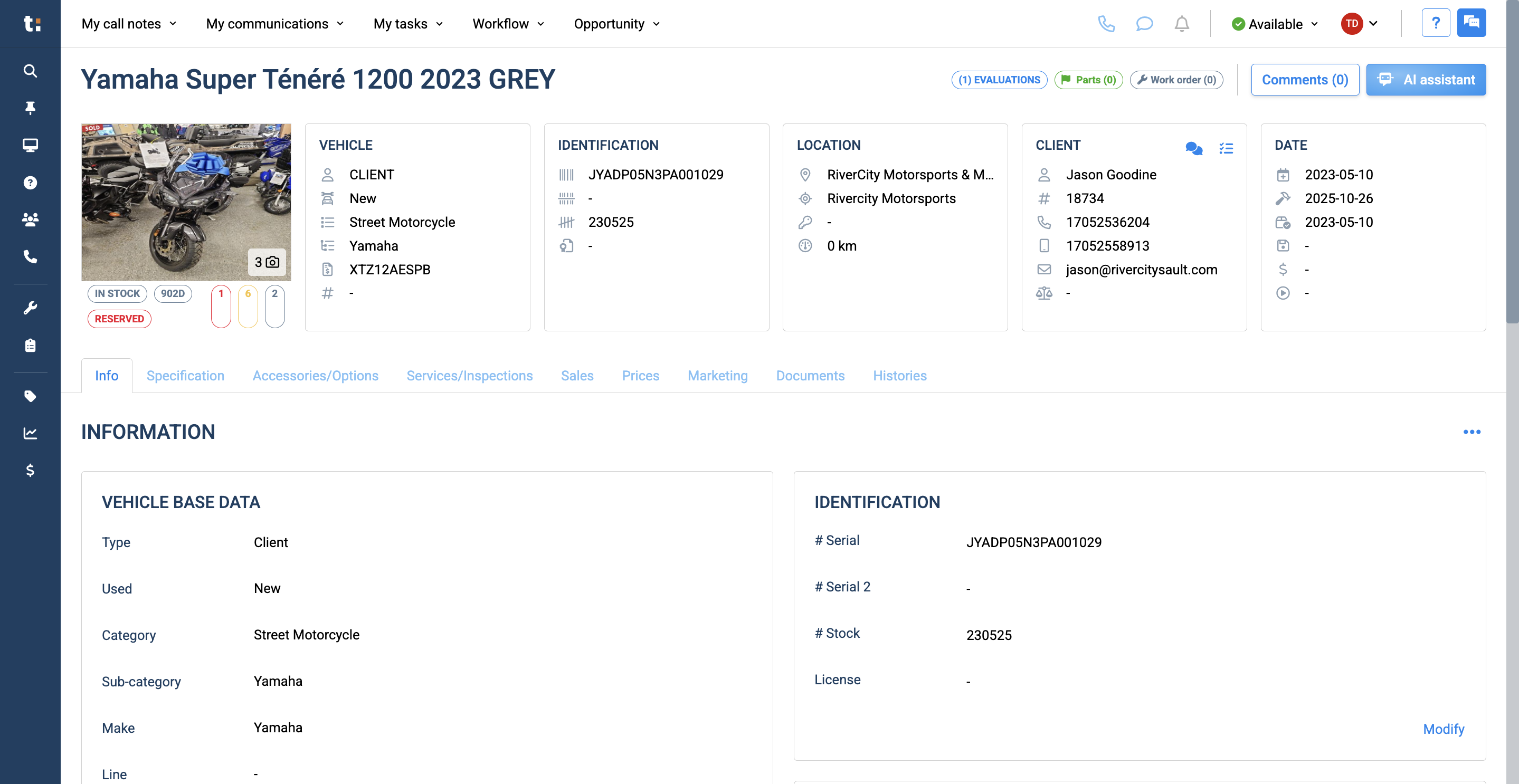
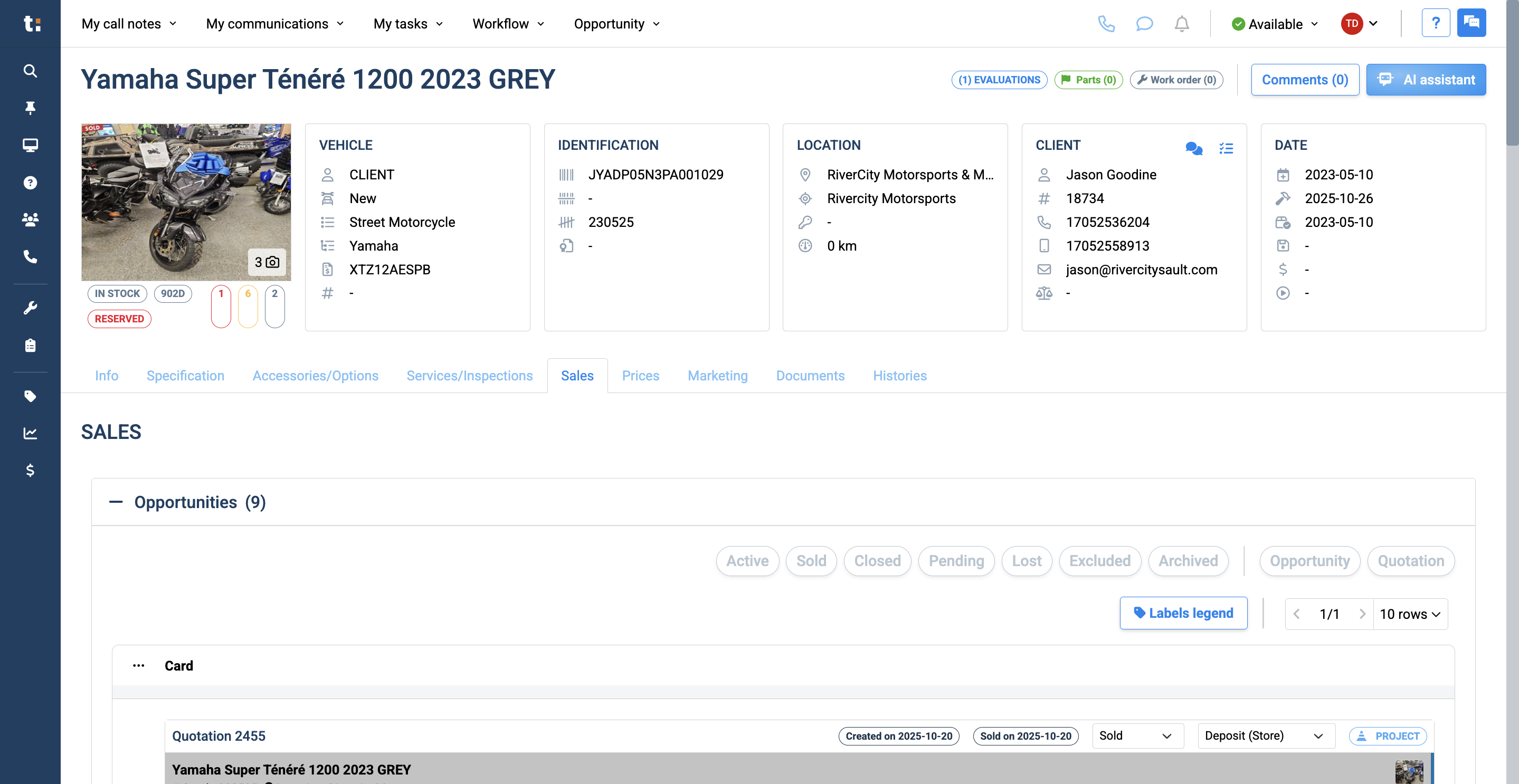
A new page will open, displaying a quick overview of the vehicle's details, identification, location, client information, and key dates. Below, several tabs provide additional information about the vehicle.
4
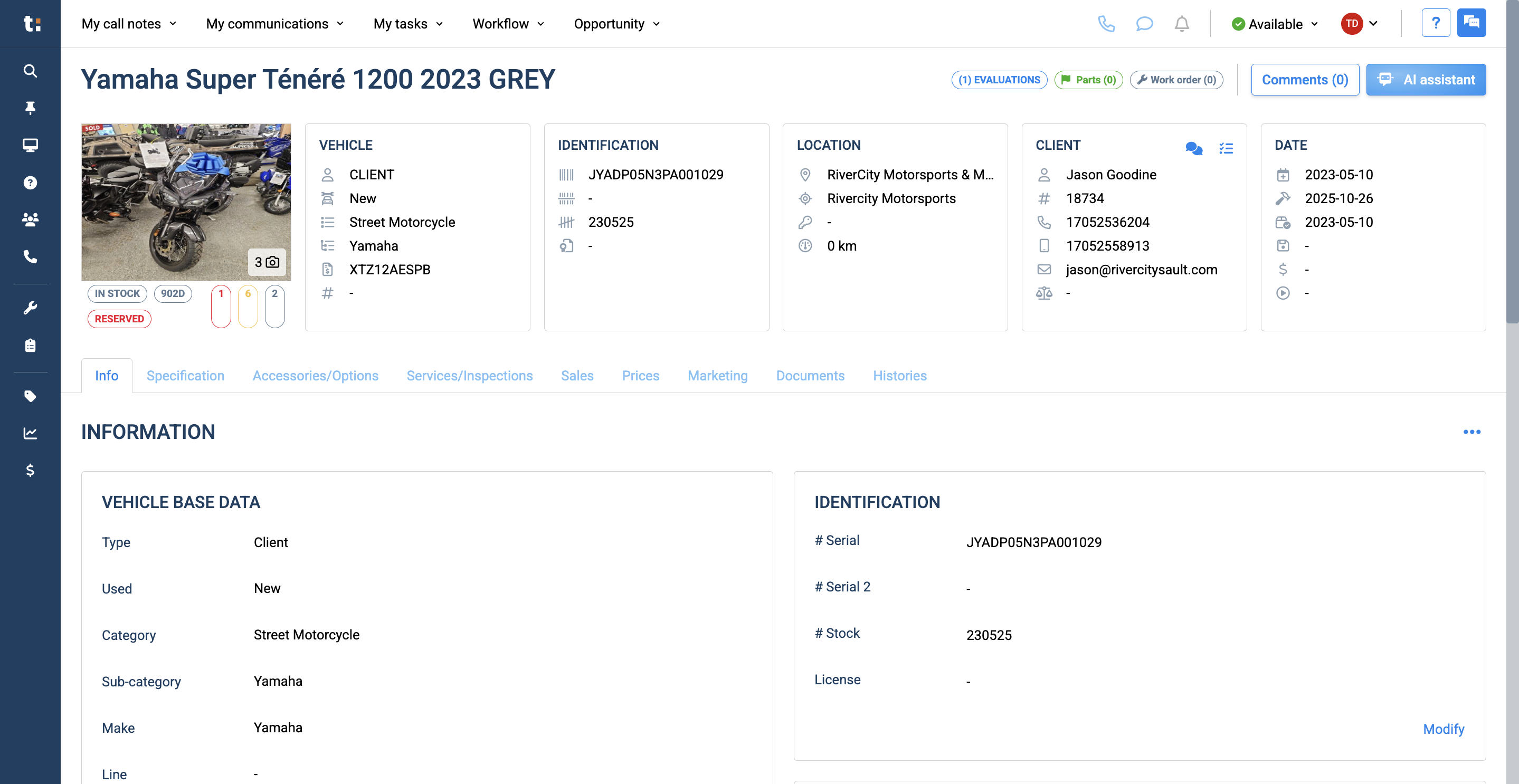
Below the picture of the unit, you will see its status, including whether it is in stock, available, or reserved.
5
The three numbers in red, yellow, and gray show how many opportunities have been sold with this product, how many are currently active, how many customers are interested, and how many opportunities with this product have been canceled.
6
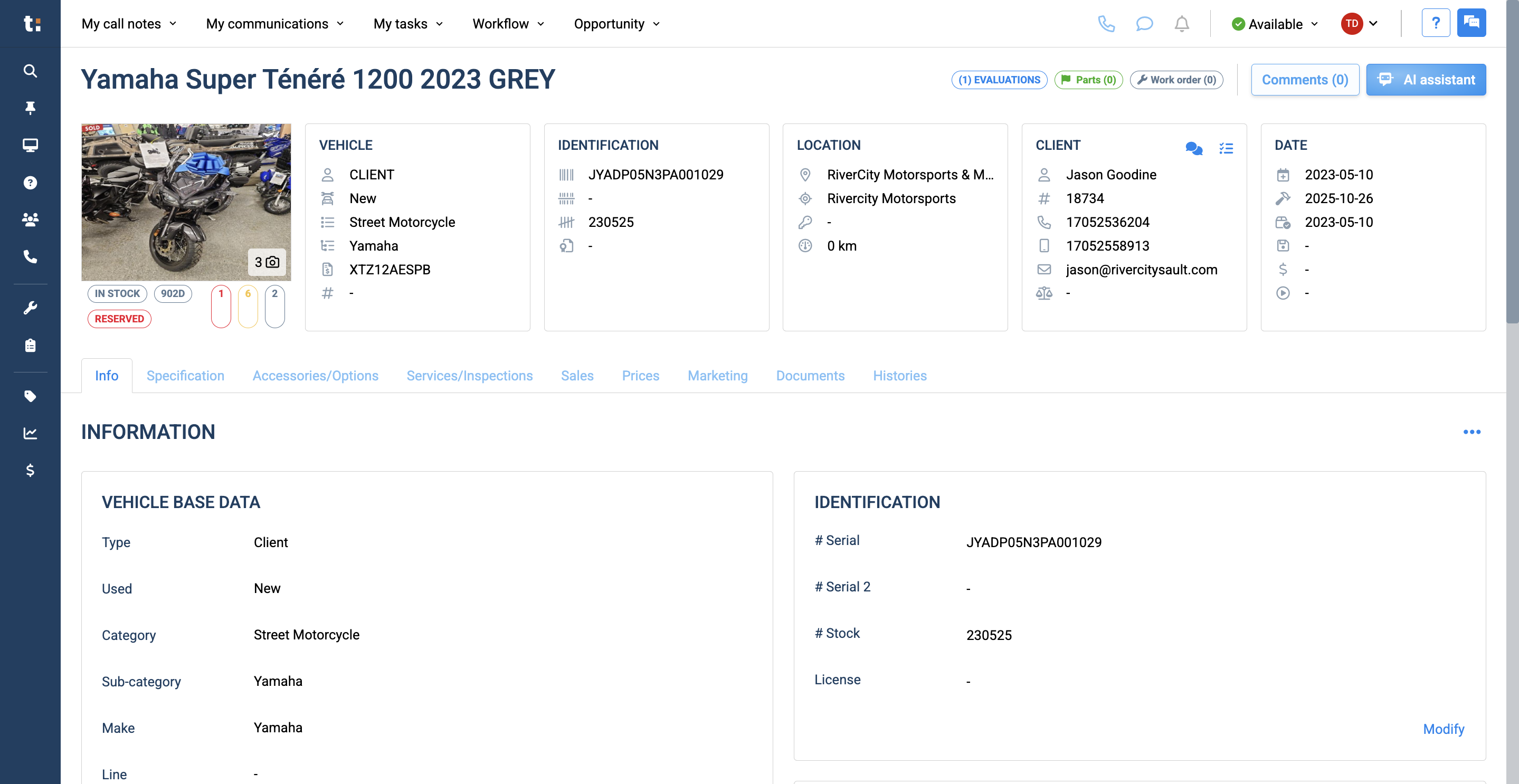
In the corner, there is a comment section where you can leave feedback about the vehicle.
7
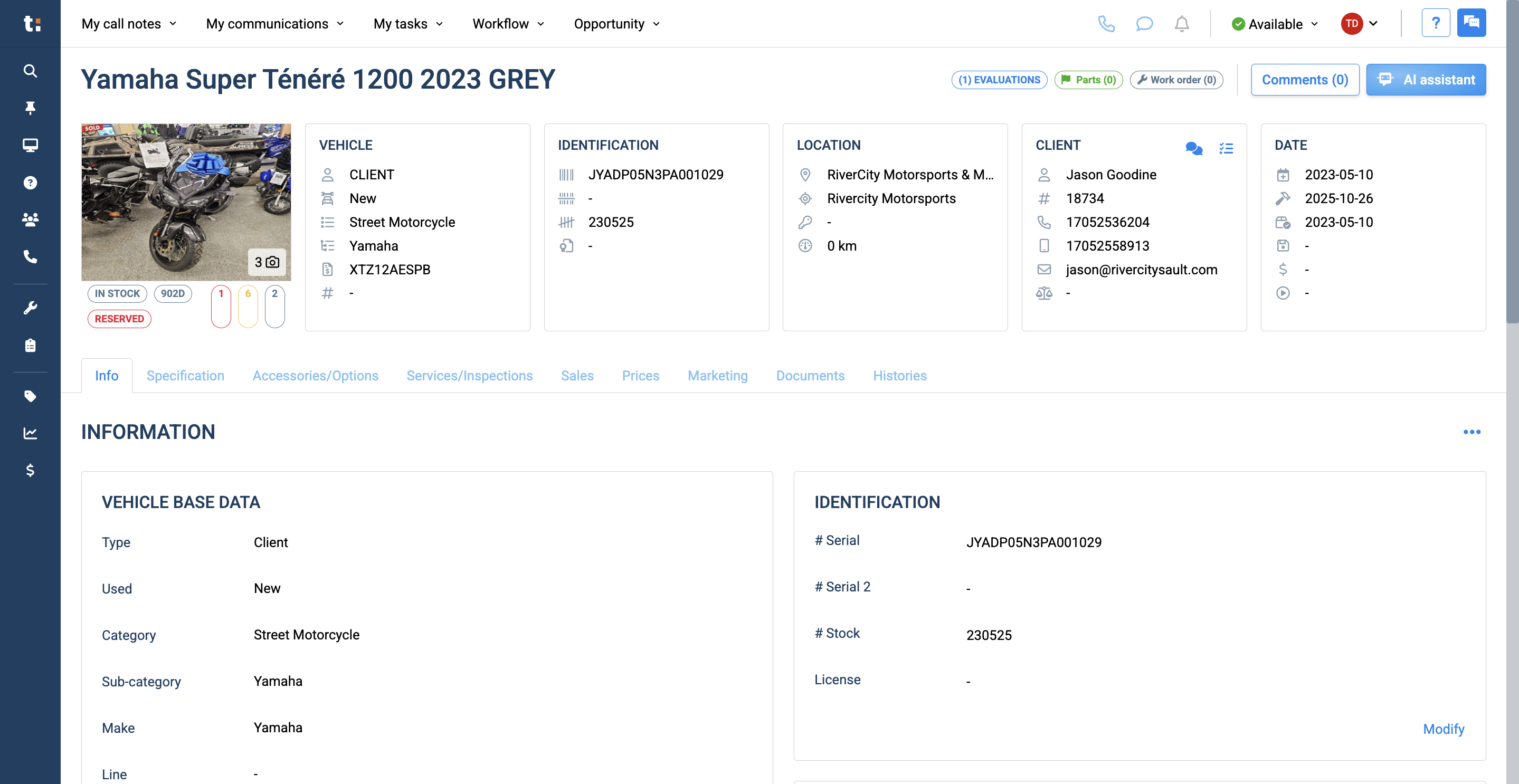
You also have a button for evaluations, parts, and work orders associated with it.
8
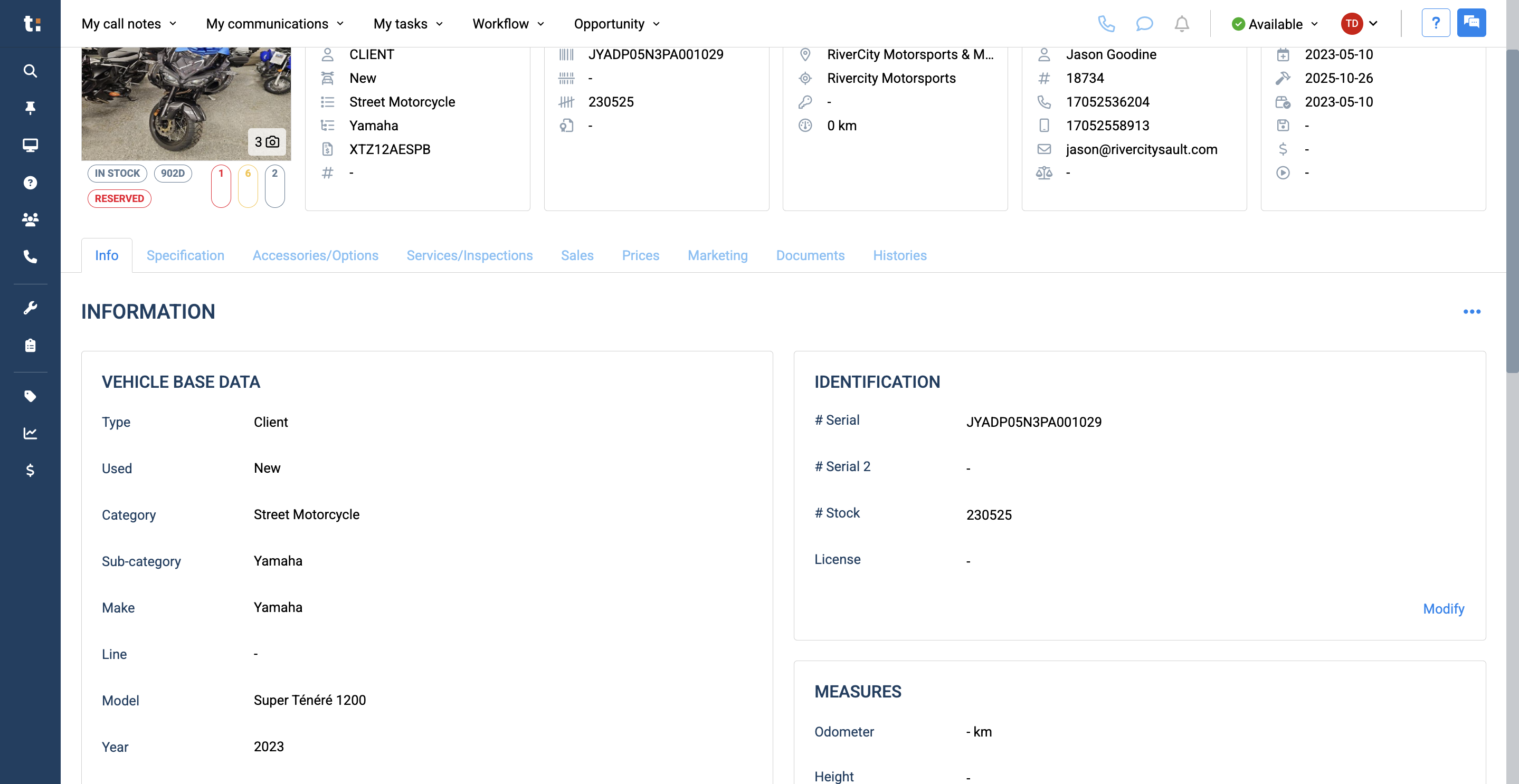
The tabs below display basic information about the unit, including the vehicle database, identification, measurements, appearance, associated clients, location, and relevant dates.
9
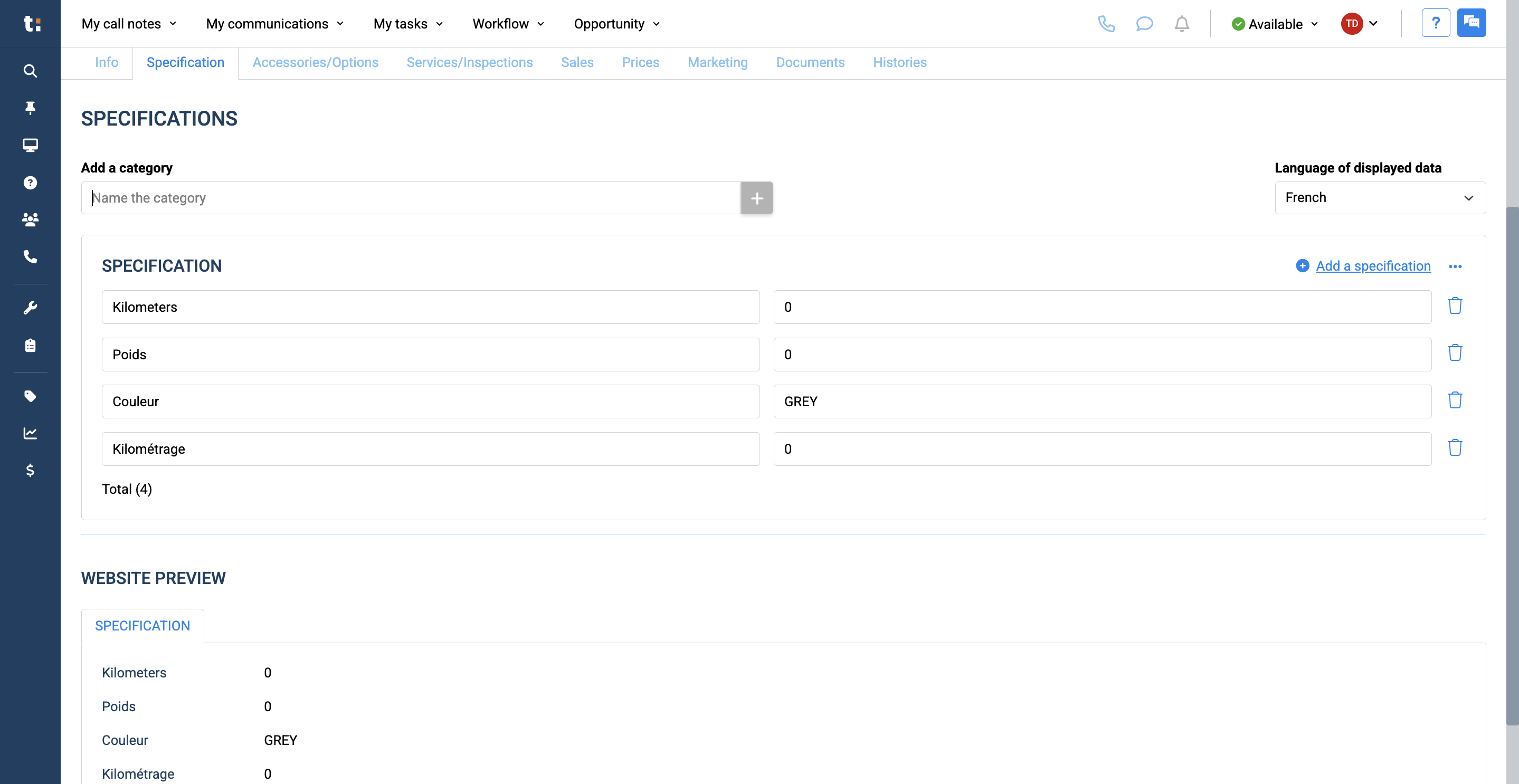
Next, there is a tab for specifications. From here, you can add any specifications you want.
10
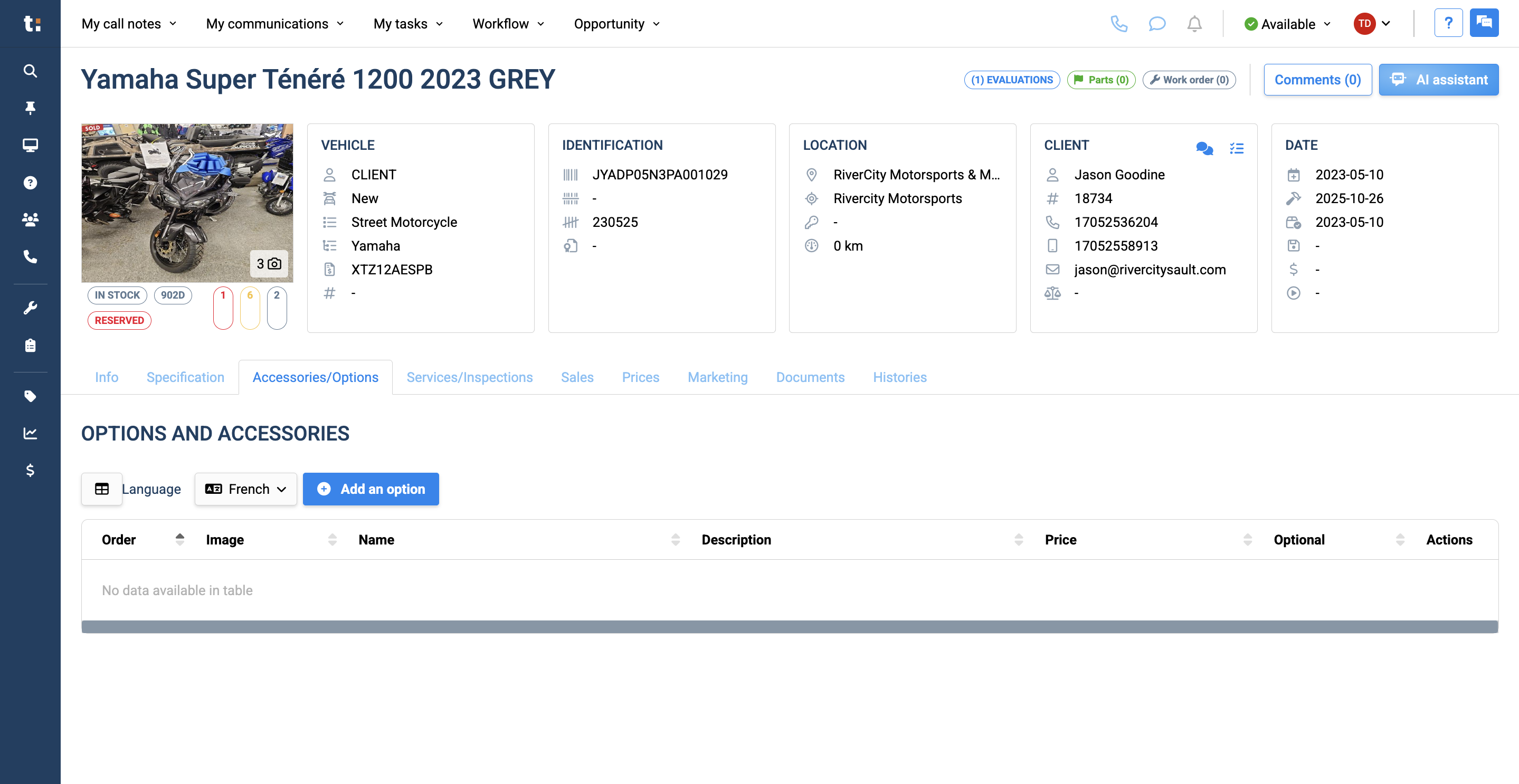
You have an Accessories and Options tab. This lets you add any options or accessories related to this unit.
11
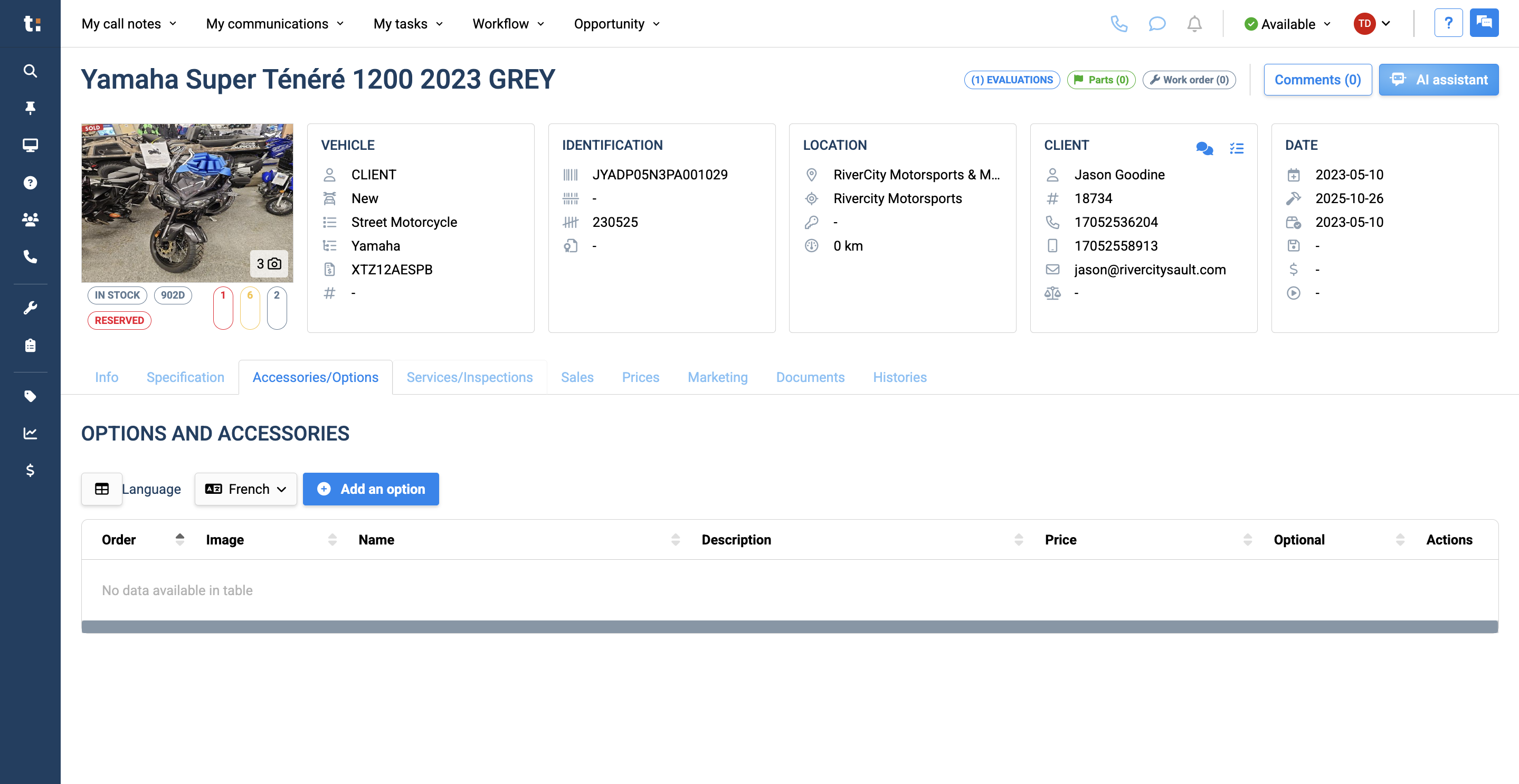
There is a tab that displays all service inspections performed on this unit.
12
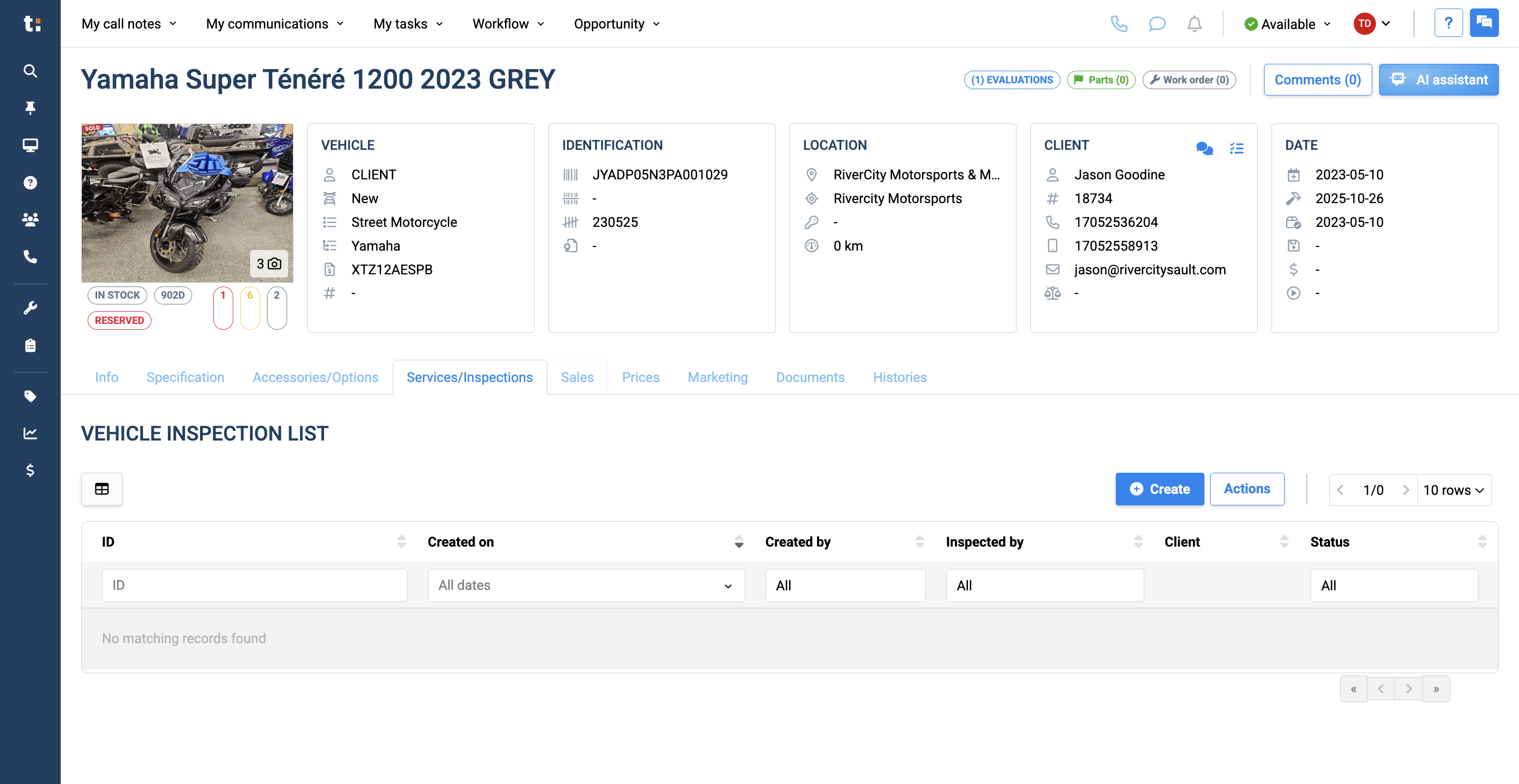
The sales tab displays all opportunities created with this unit.
13
You have a Prices tab that displays all the different types of prices and costs for the unit.
14
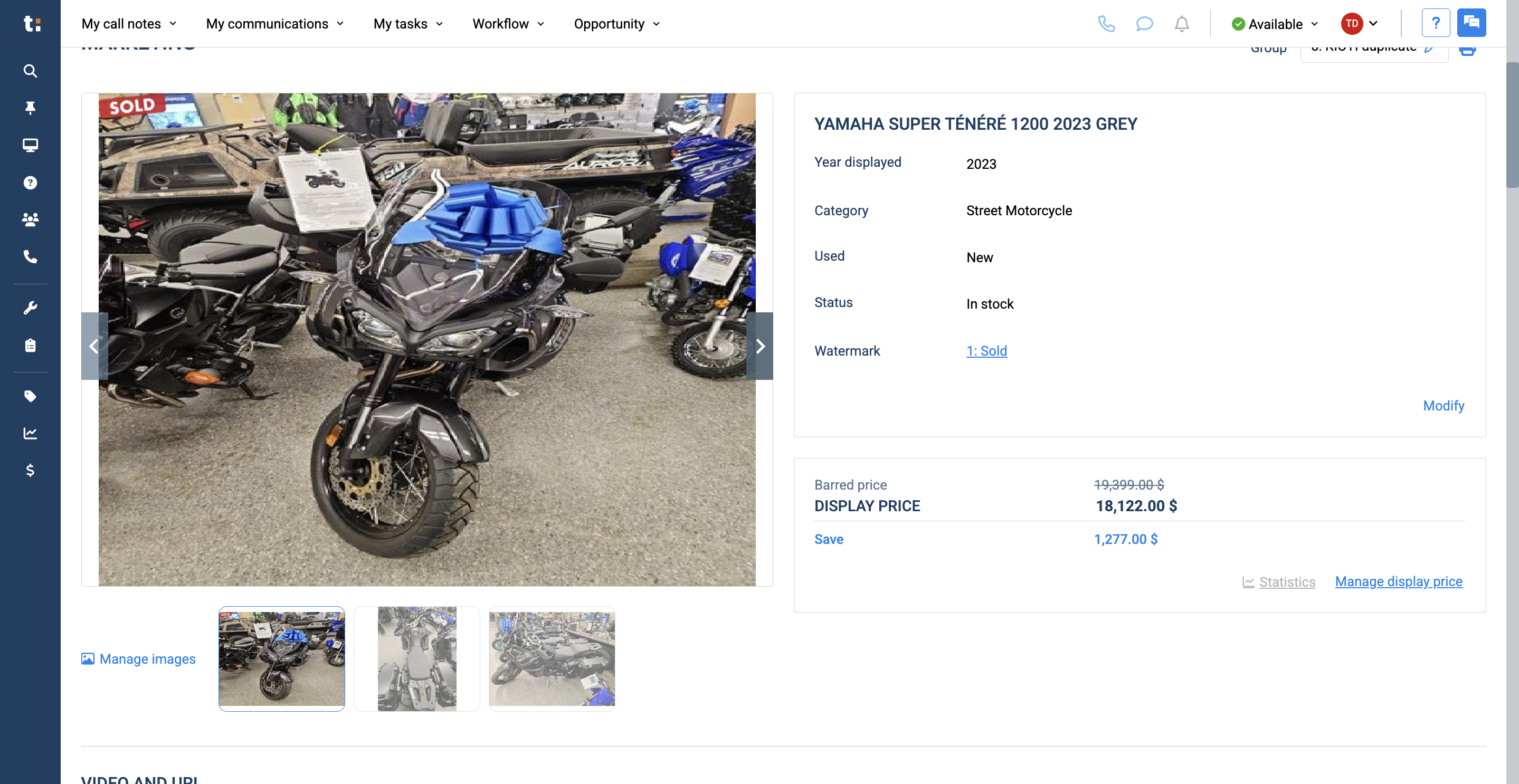
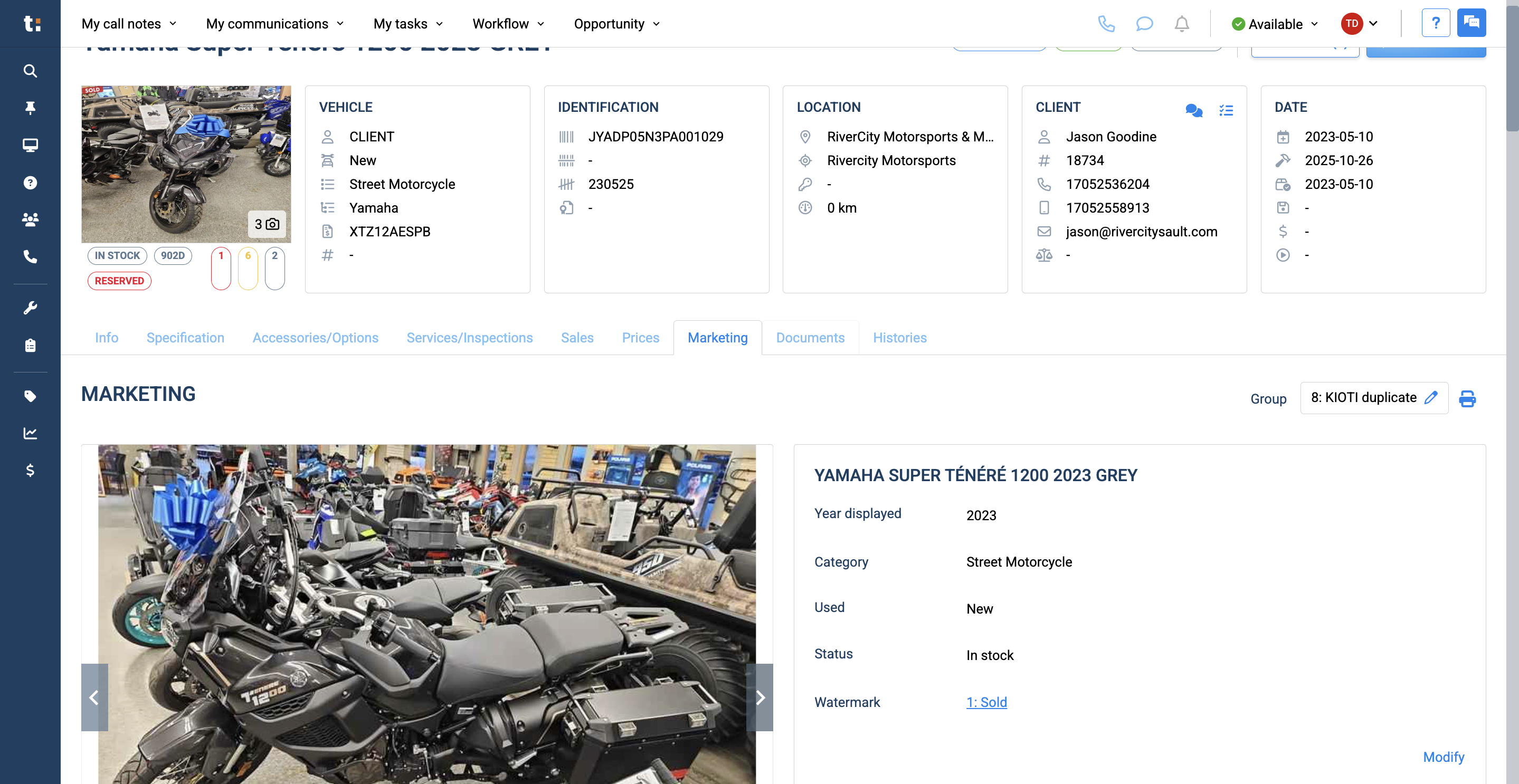
The marketing tab displays the pictures added for this unit. It also shows the current online display price.
15
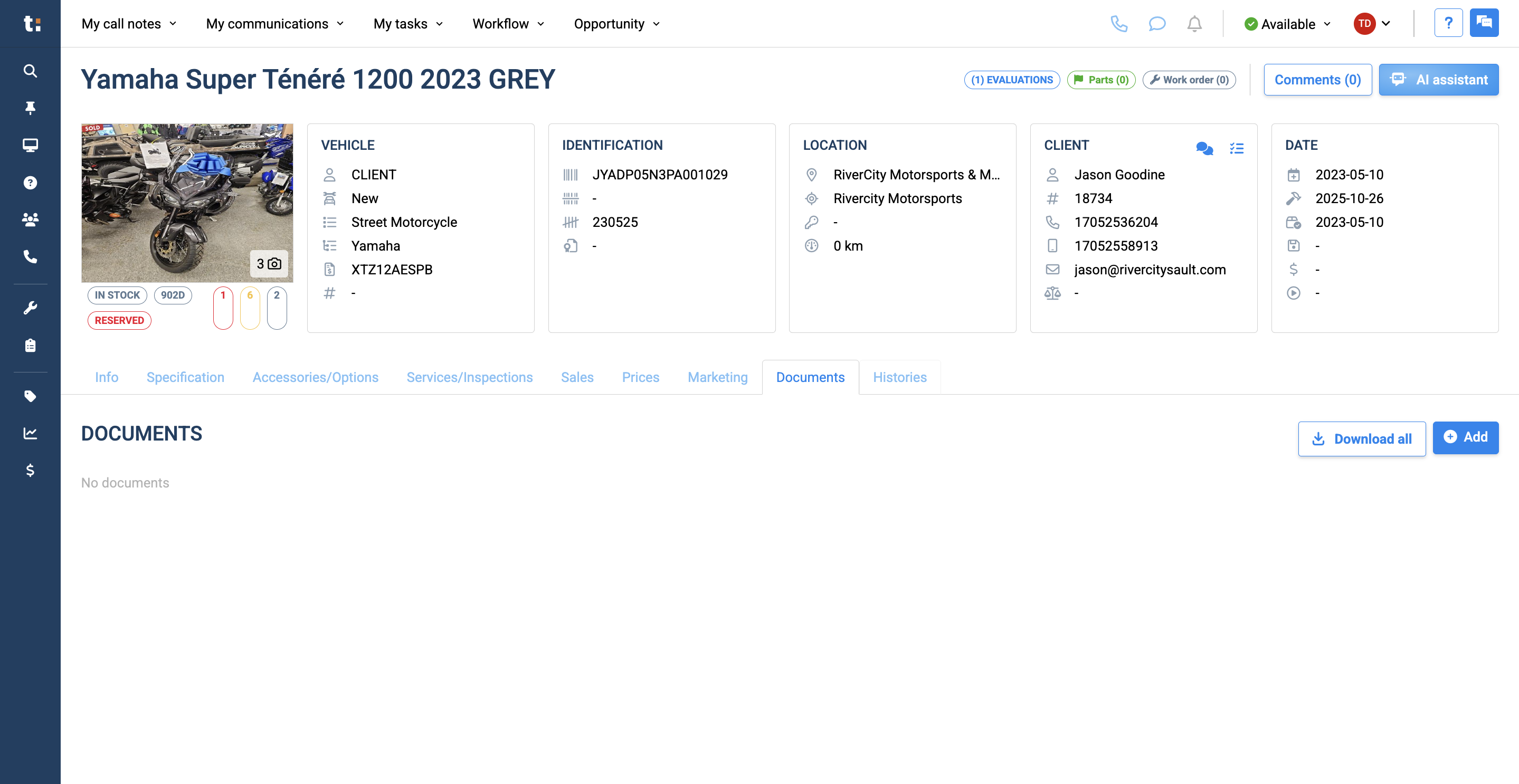
You have a section for any other documents related to this unit.
16
Lastly, there is a tab that displays all the history for the unit within Traction.
If you still have questions after consulting this article, please feel free to contact our support team at: support@tractiondk.zohodesk.com