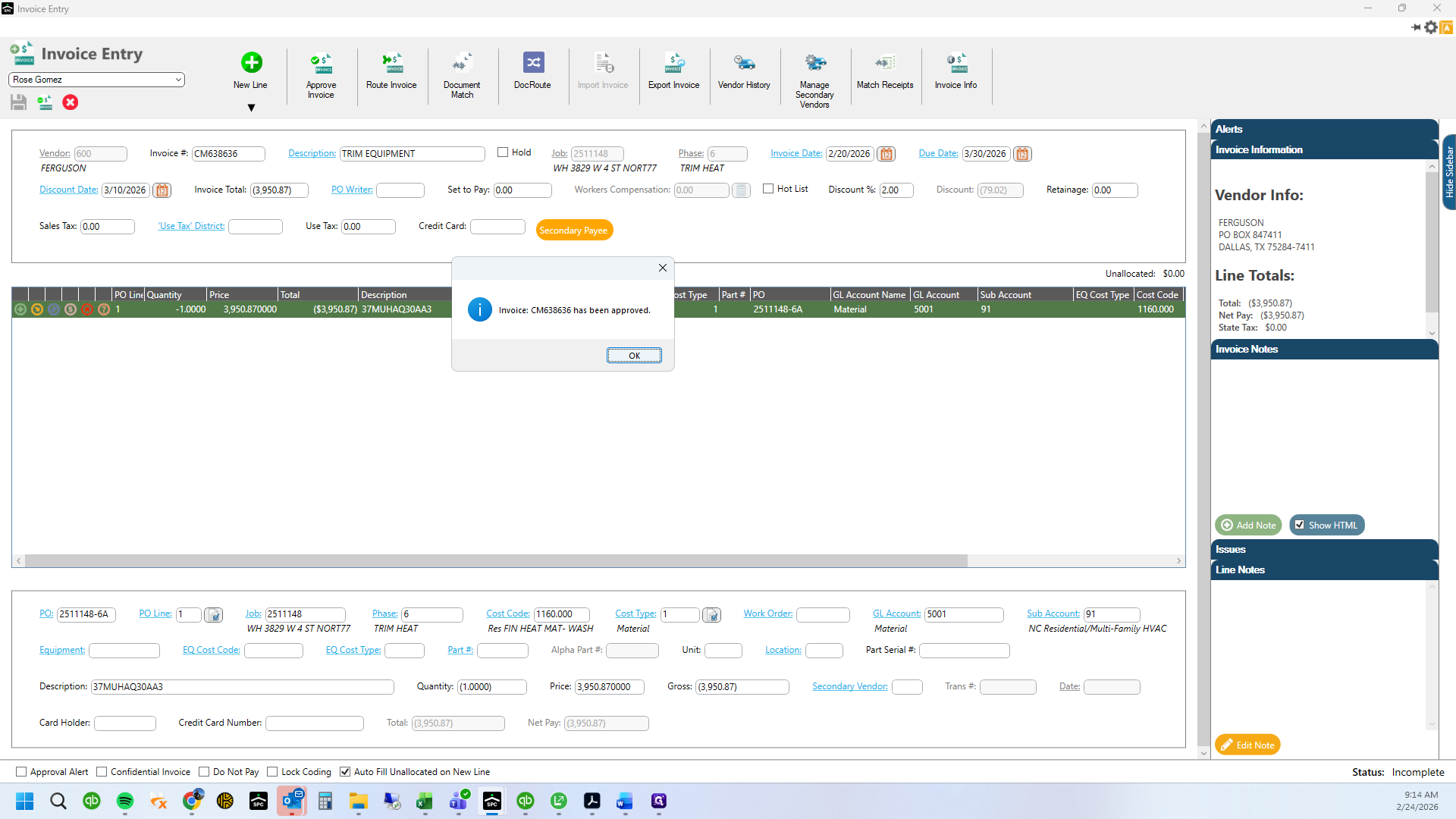
Credit Received for over priced invoice
Learn how to check, verify, and enter a rebill invoice, confirm the correct price, and use a PO number for email verification. Ensure accuracy in invoice processing.
By Rose Gomez
In this guide, we'll learn how to verify if an invoice has been fully entered and matches the correct amount. We will also look at how to check related emails and purchase order numbers to confirm the invoice details. This process helps ensure that credits and original amounts are accurate.
Let's get started
1
Double-click here
2
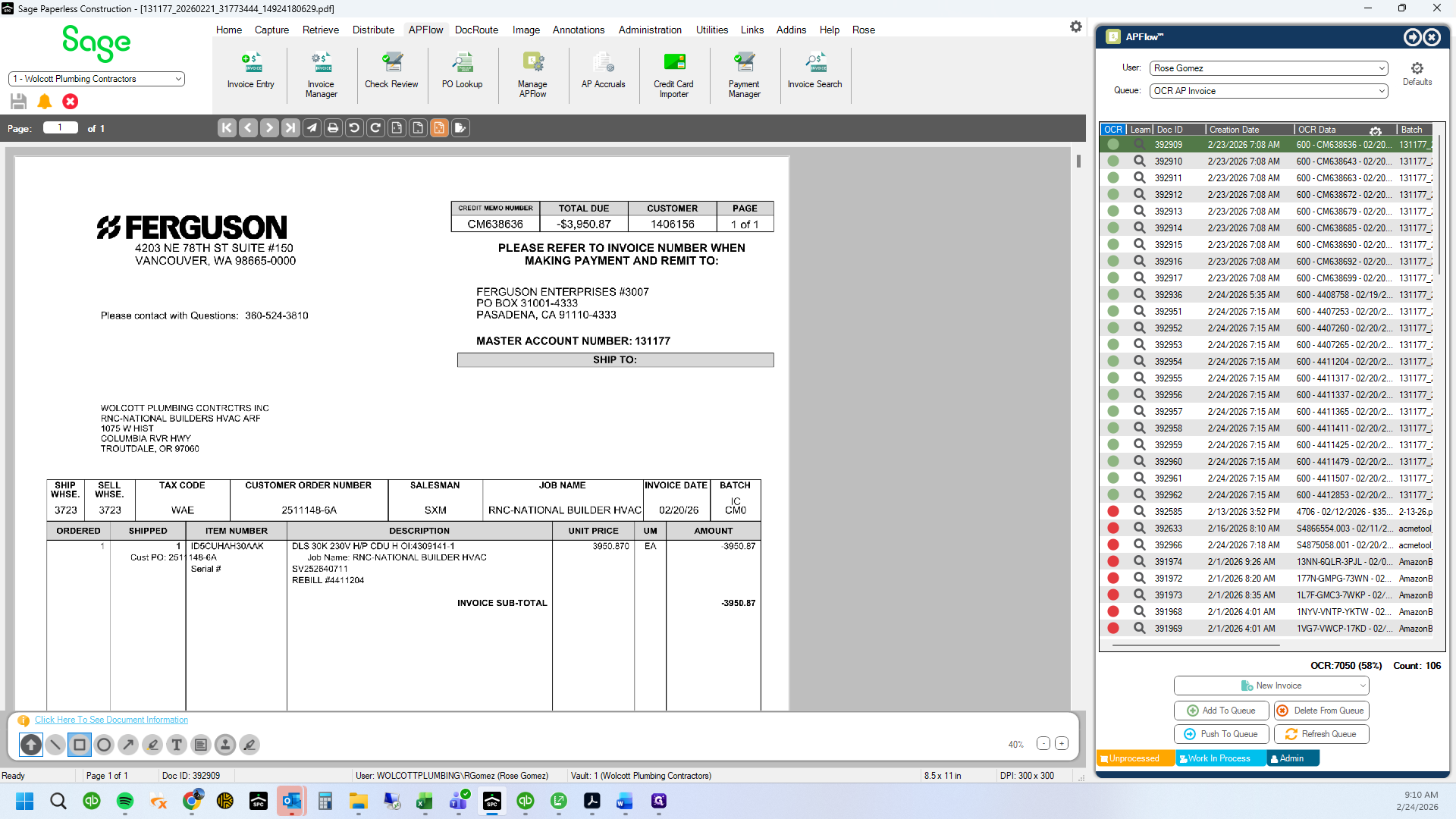
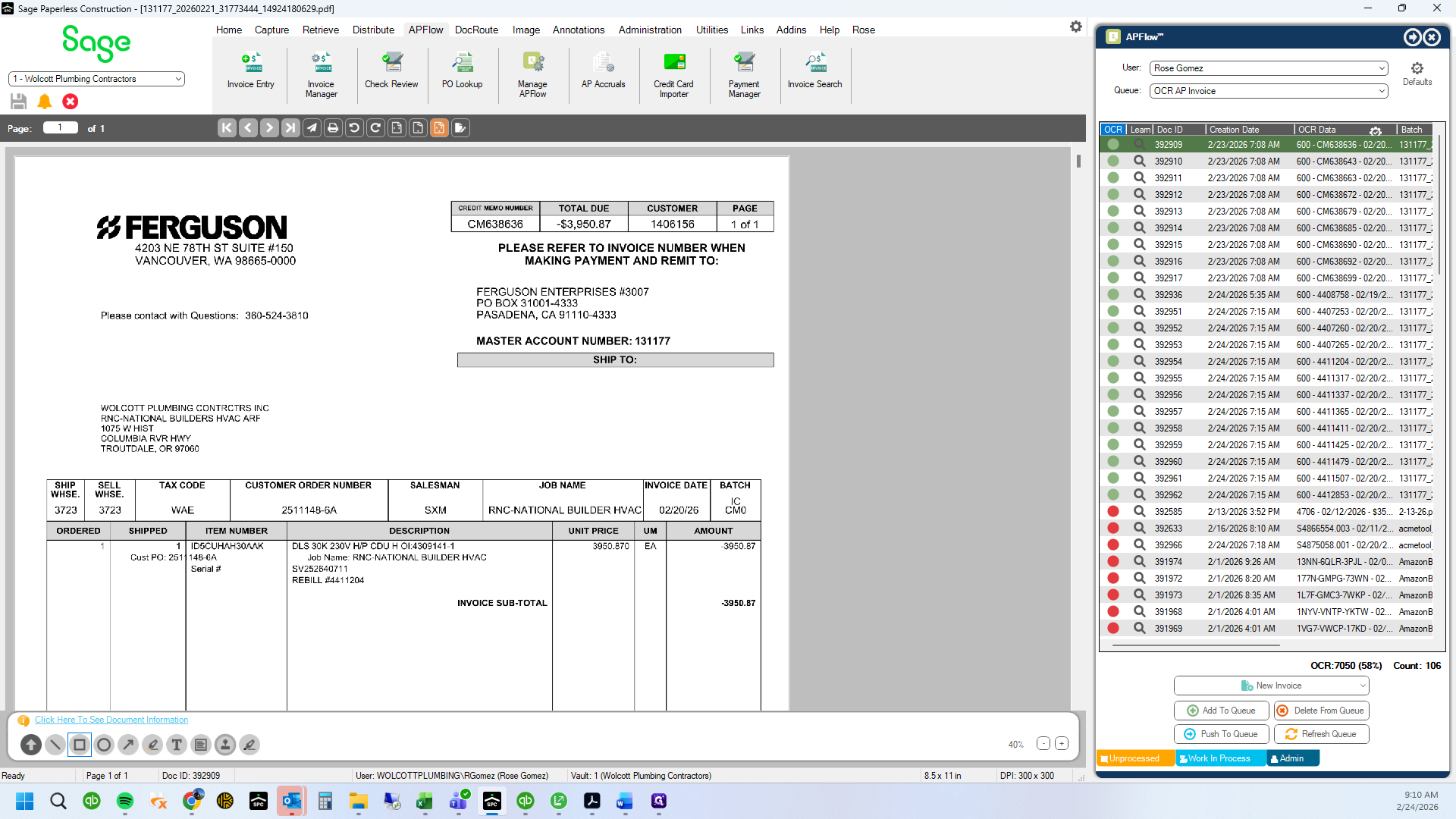
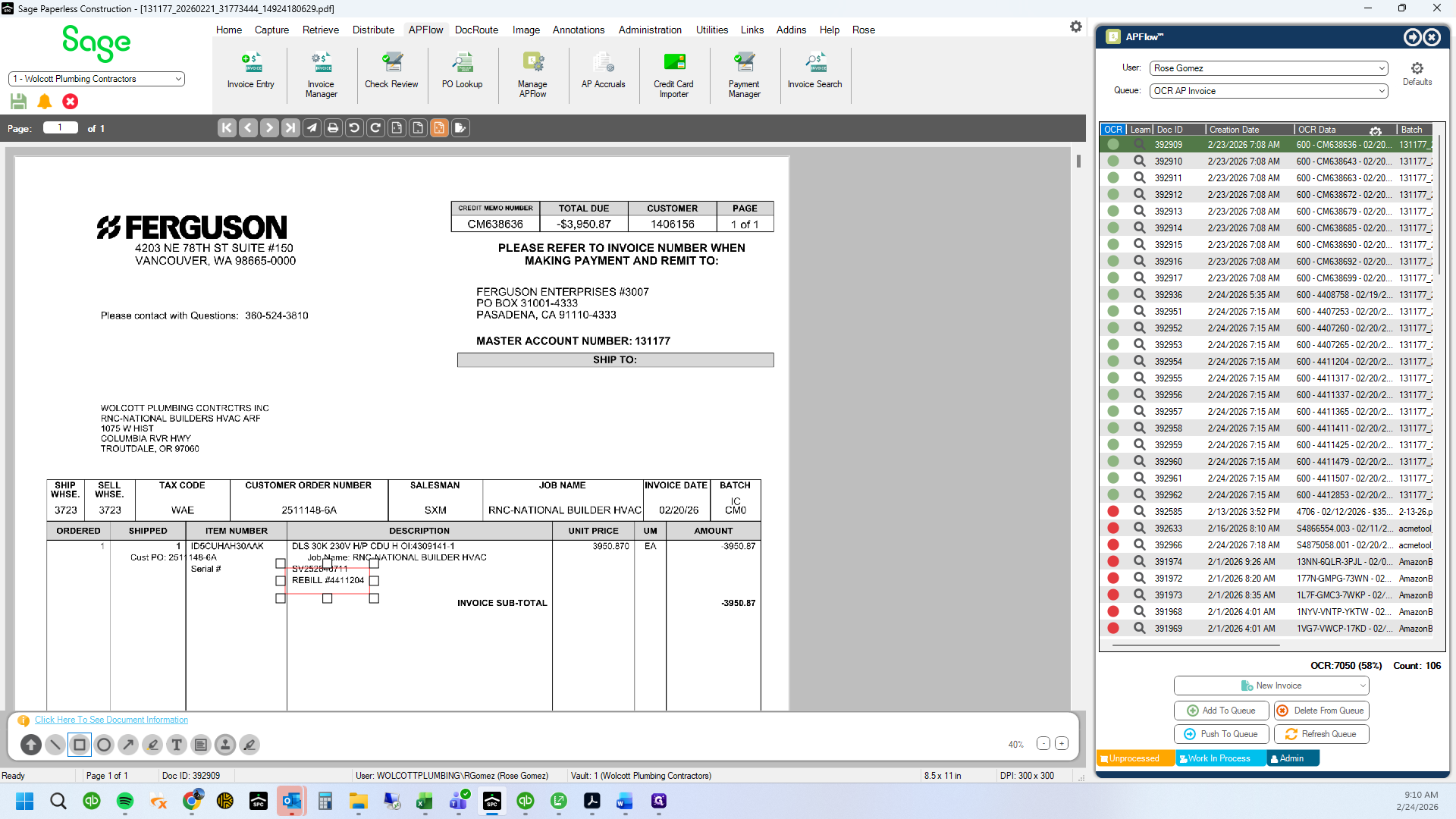
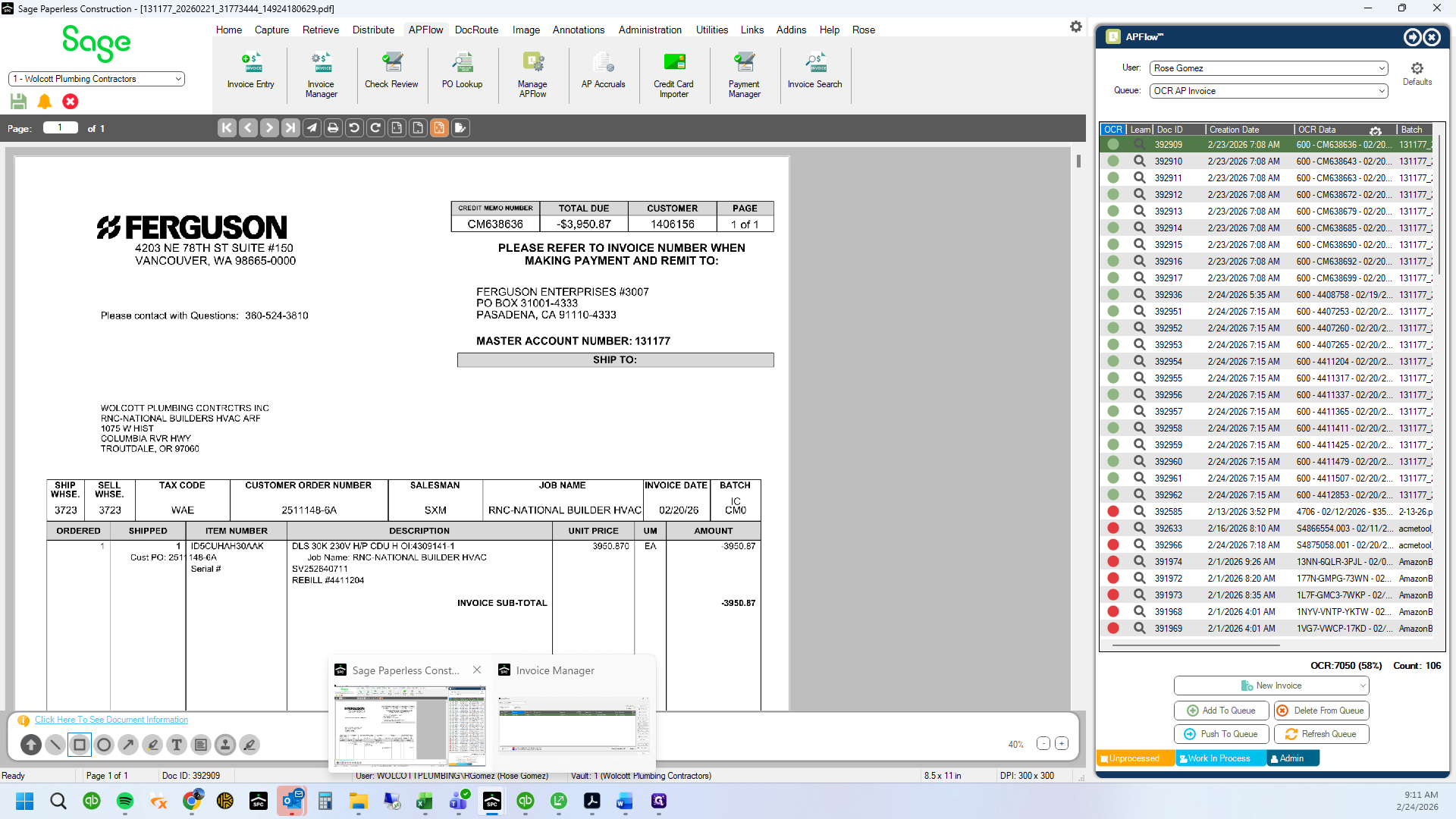
Drag "REBILL # 4411204"
3
You can see that this is related to a rebill. This means that there was an incorrect price billed on a previous invoice.
4
Search for the invoice in Sage 100 "4-2 Payable Invoices / Credits"
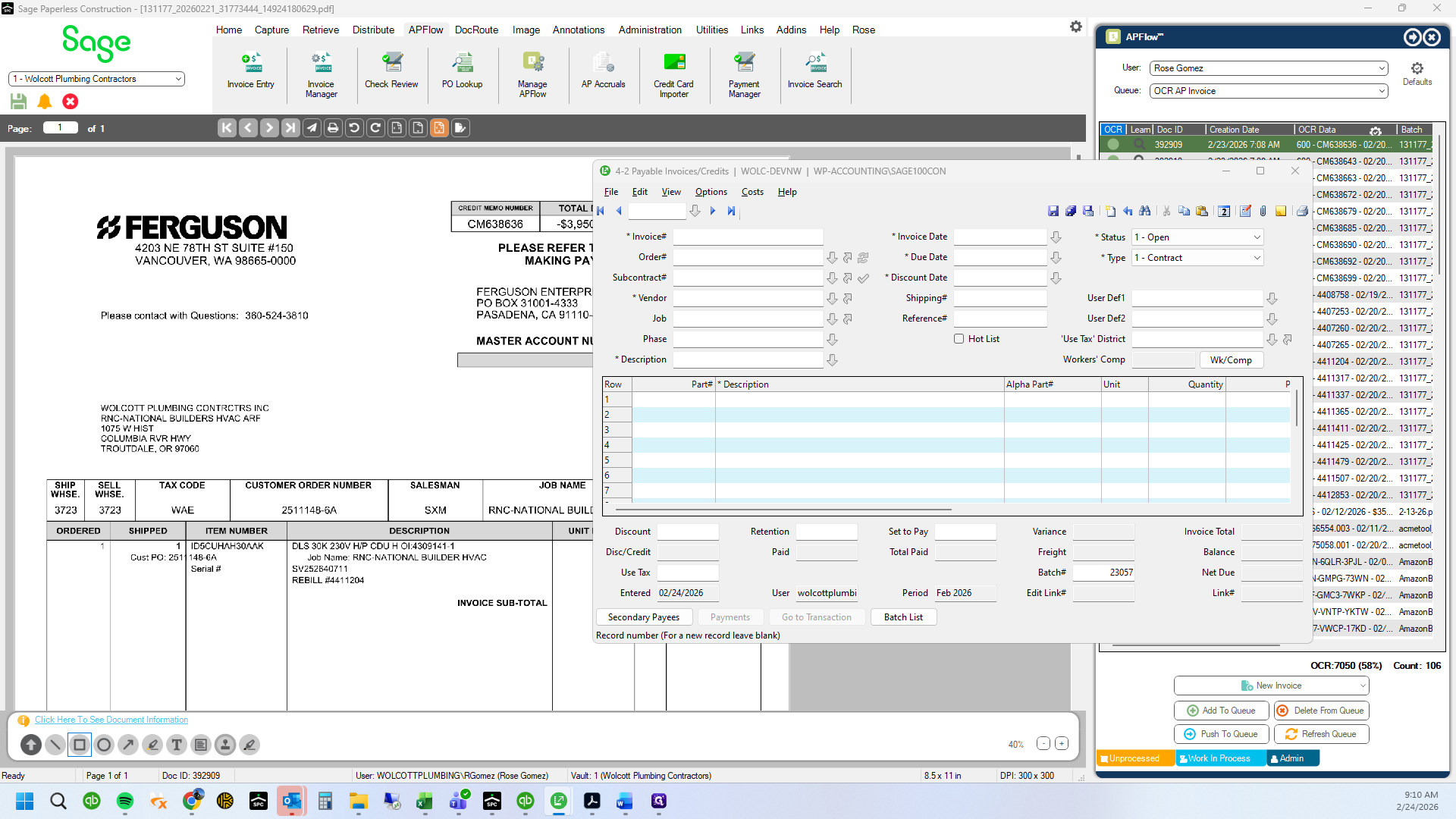
5
Drag here
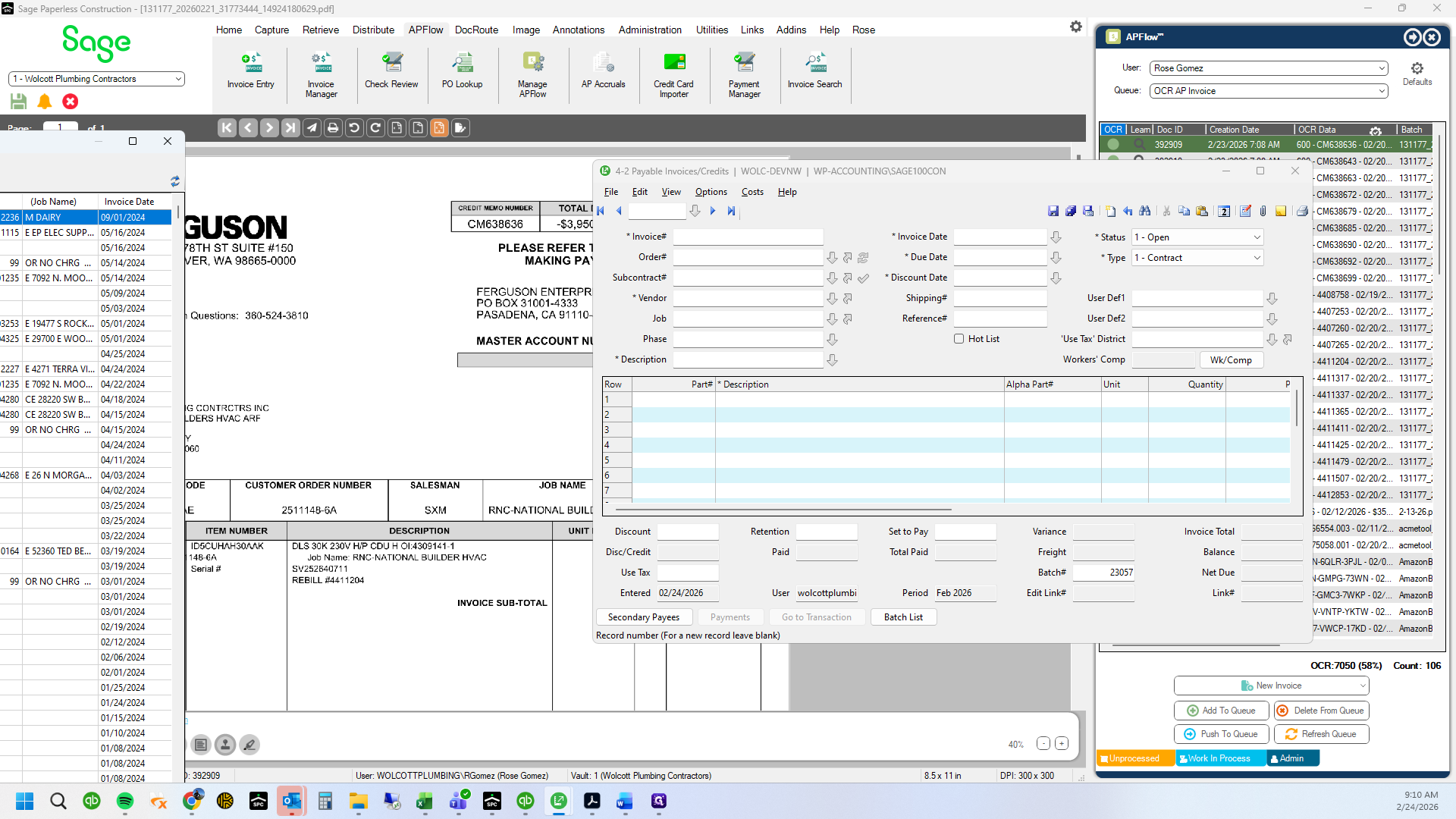
6
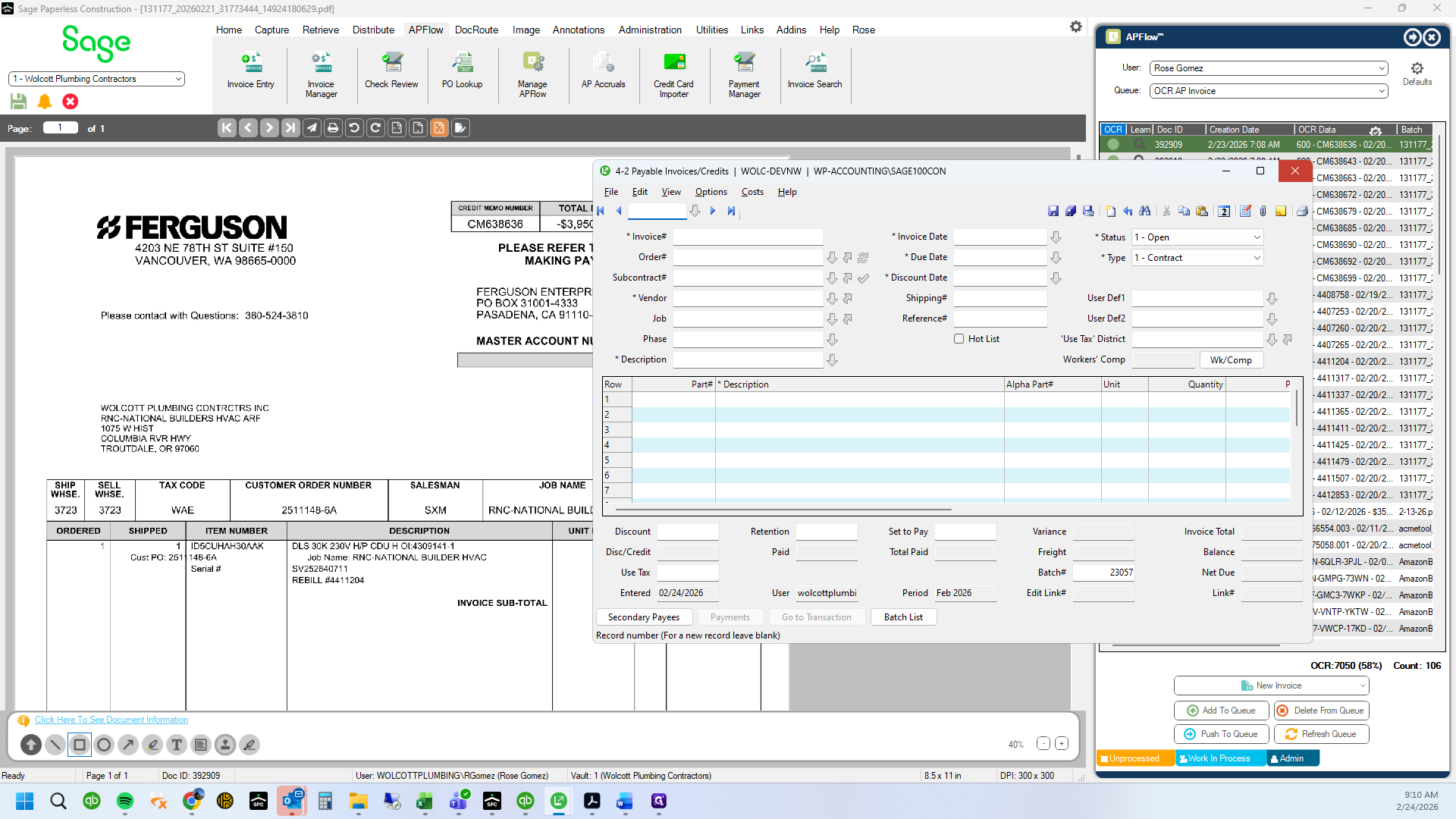
We are going to see where the original invoice is entered or if it is entered at all.
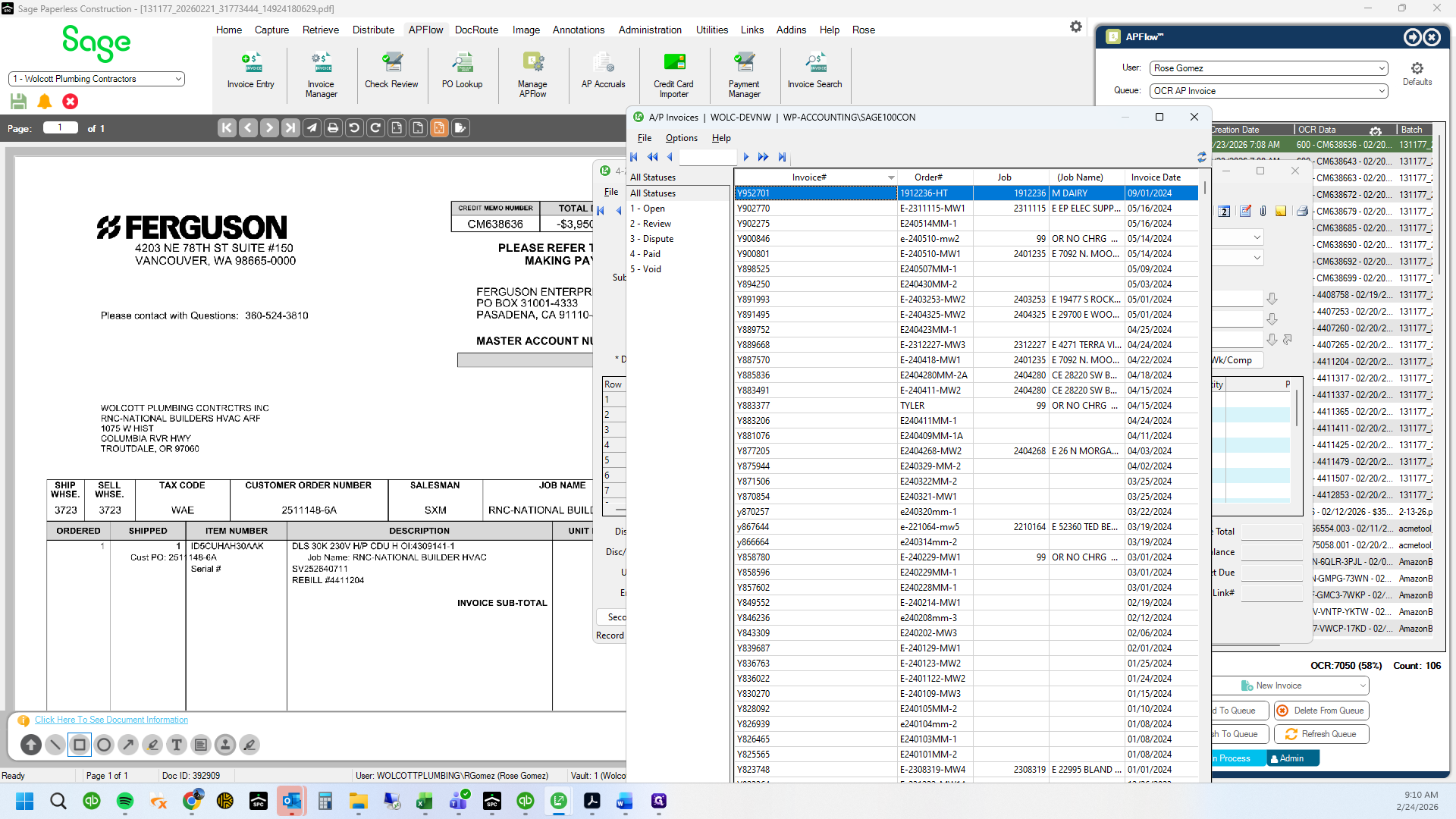
7
Type "4309141-1"
8
It is not in Sage 100
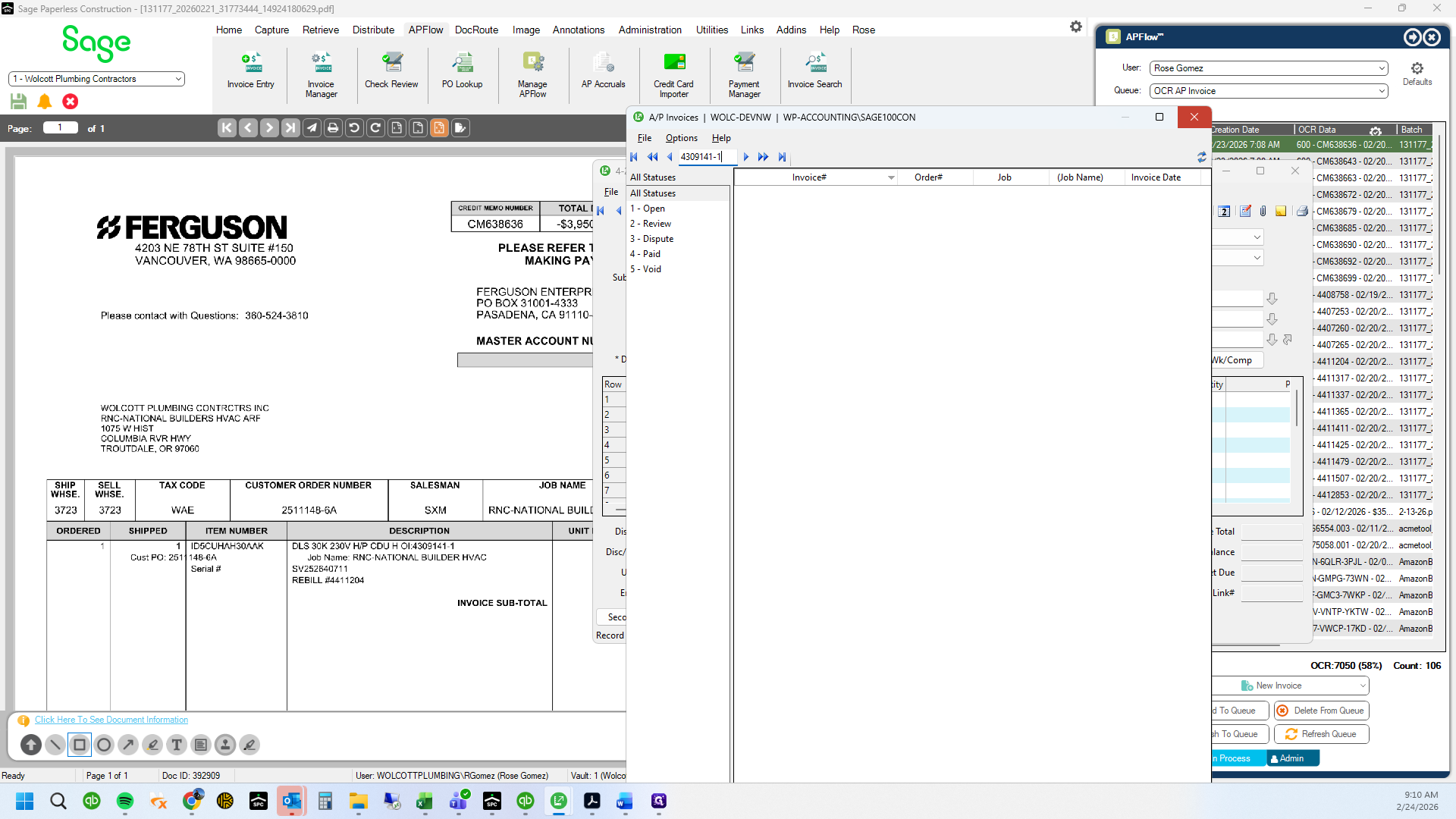
9
Click on "Х"
10
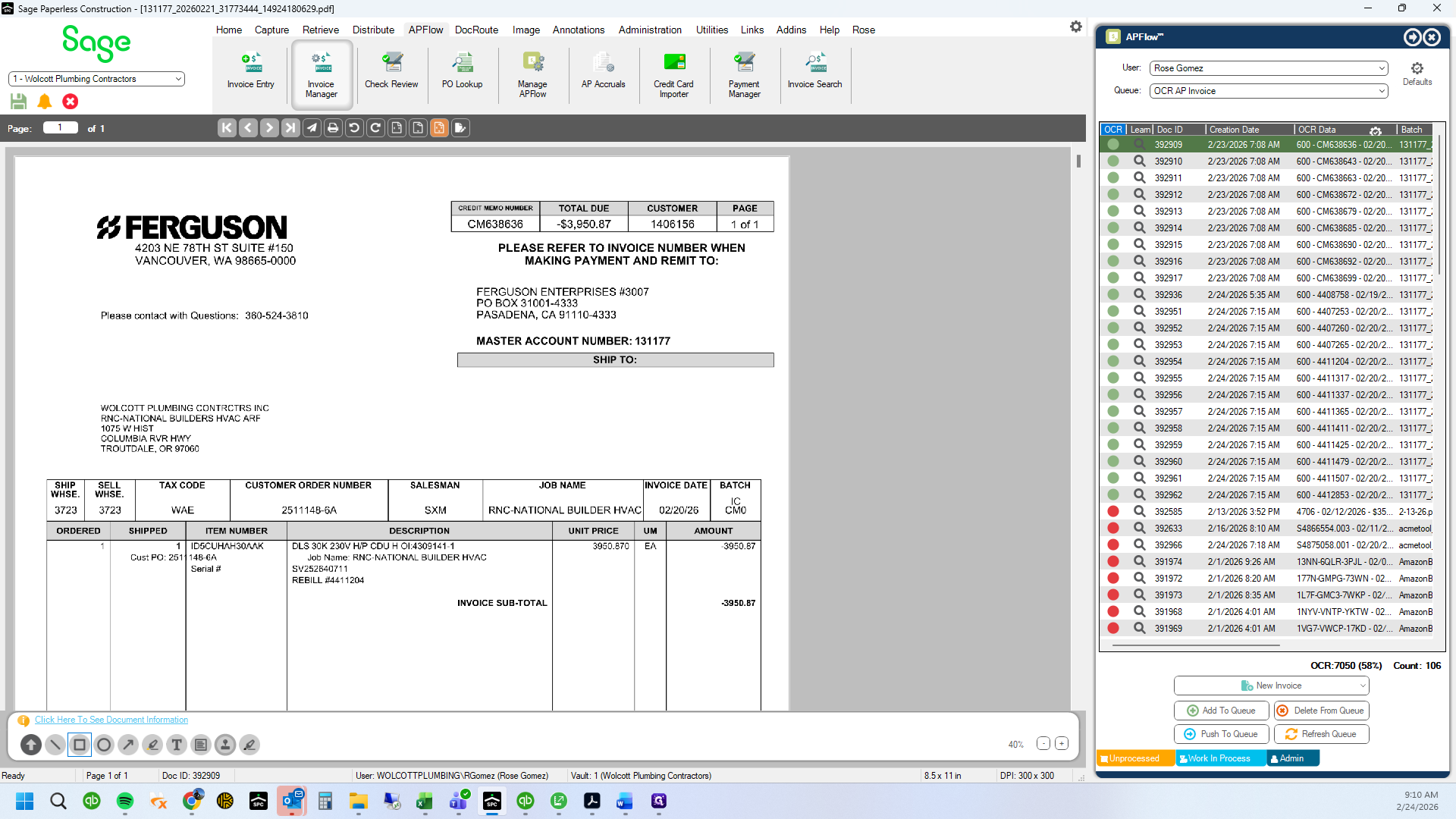
See if it is in Sage Paperless
11
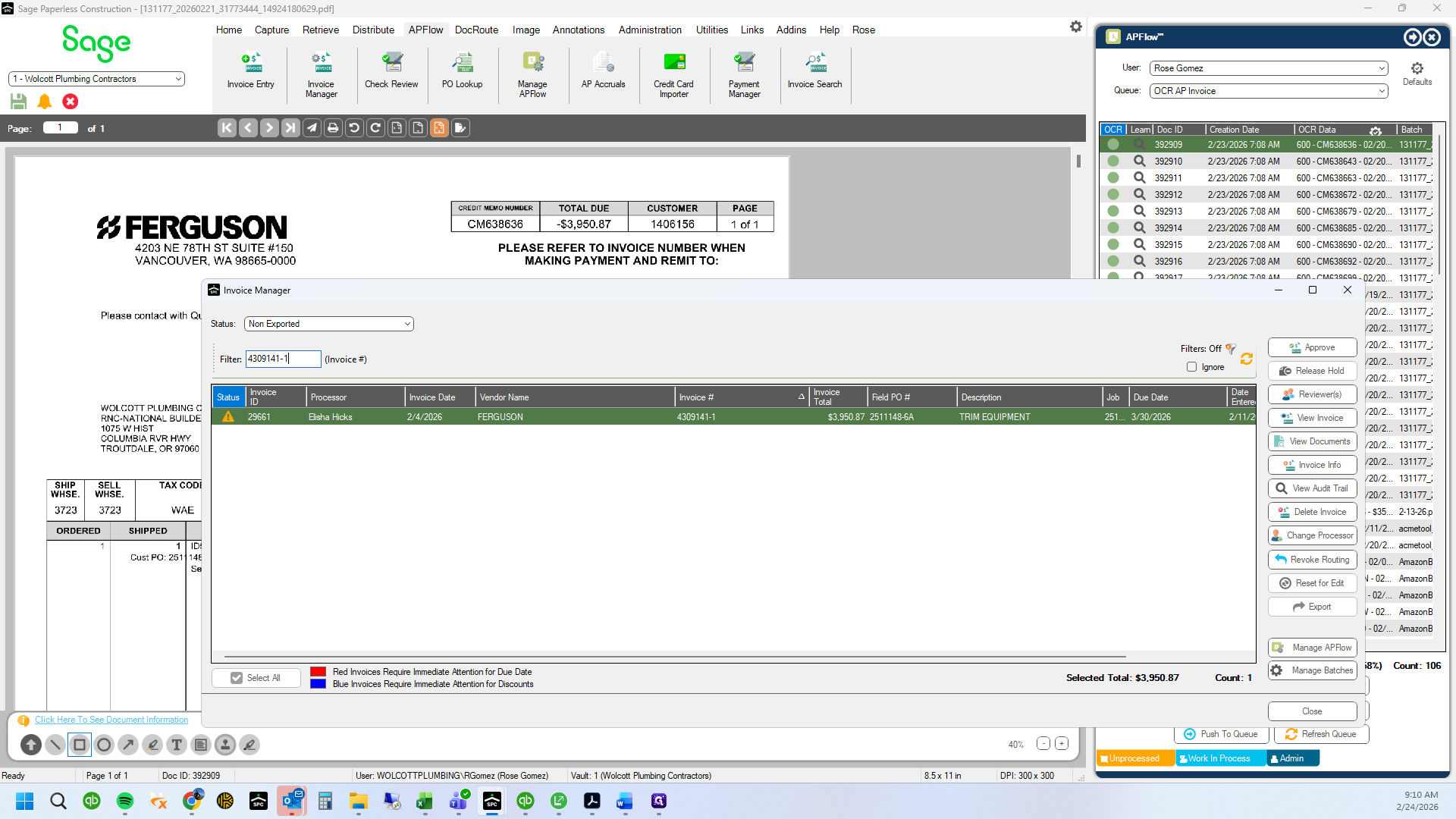
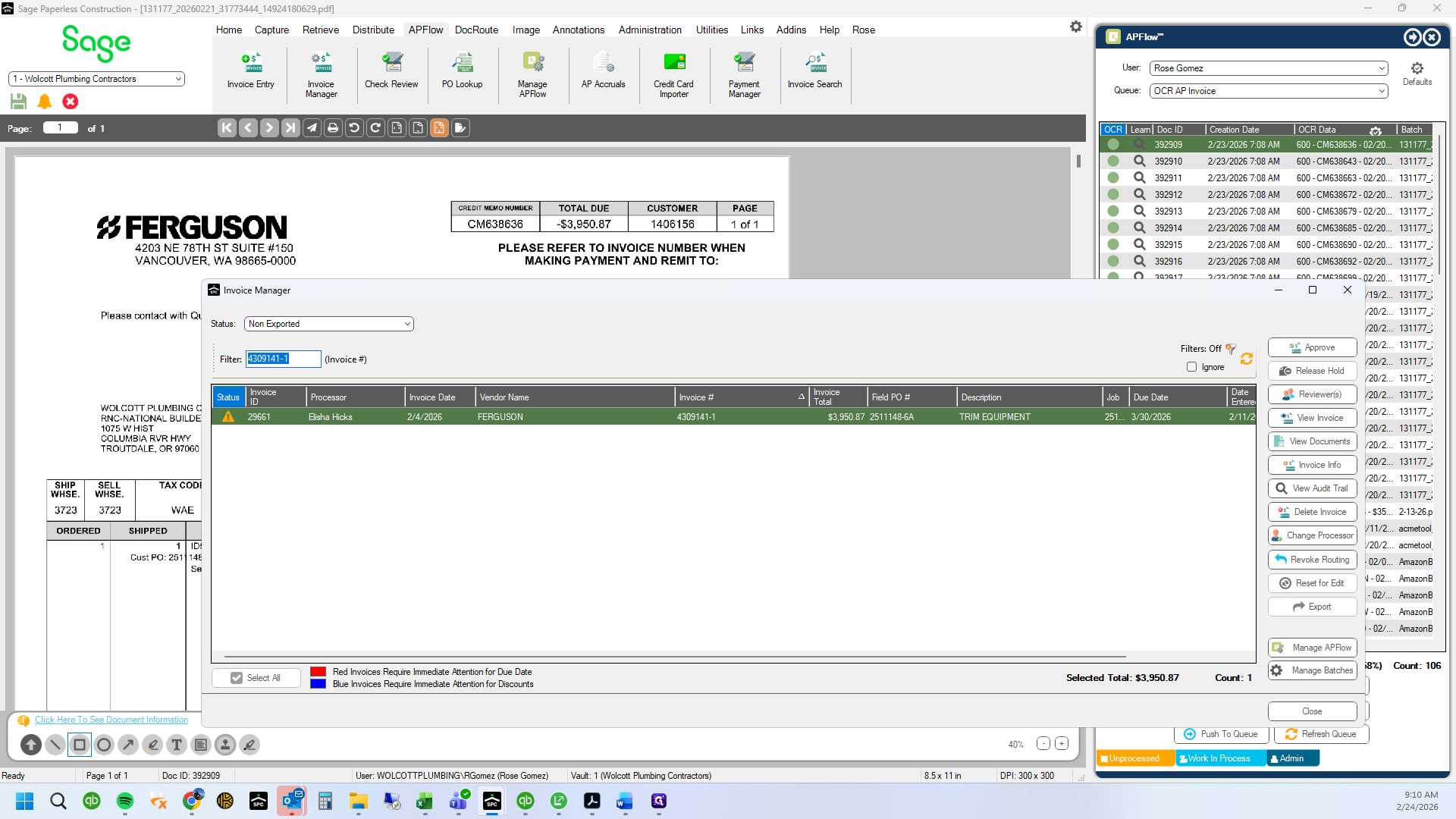
Check "Non-Exported" invoices by invoice number
12
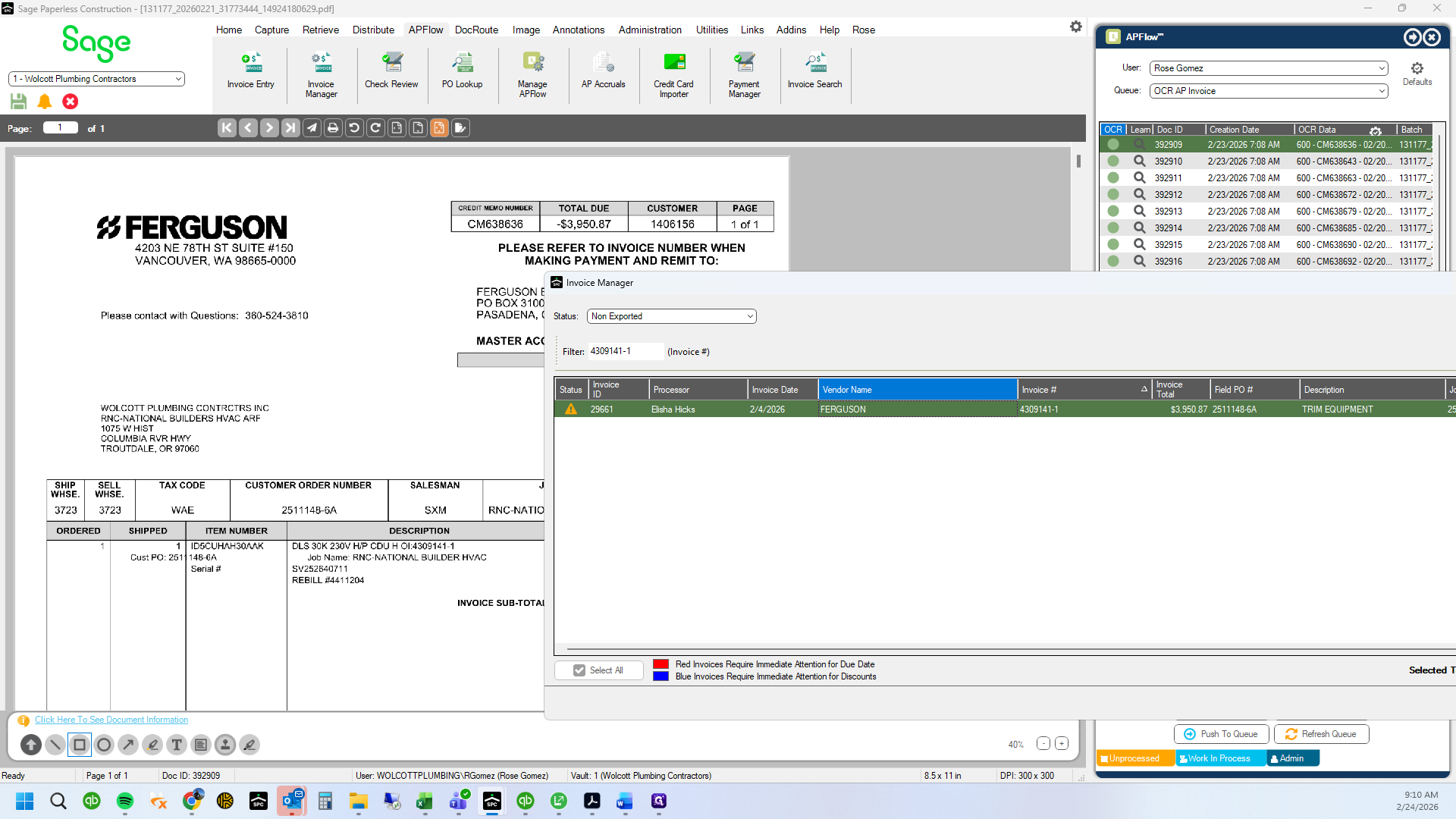
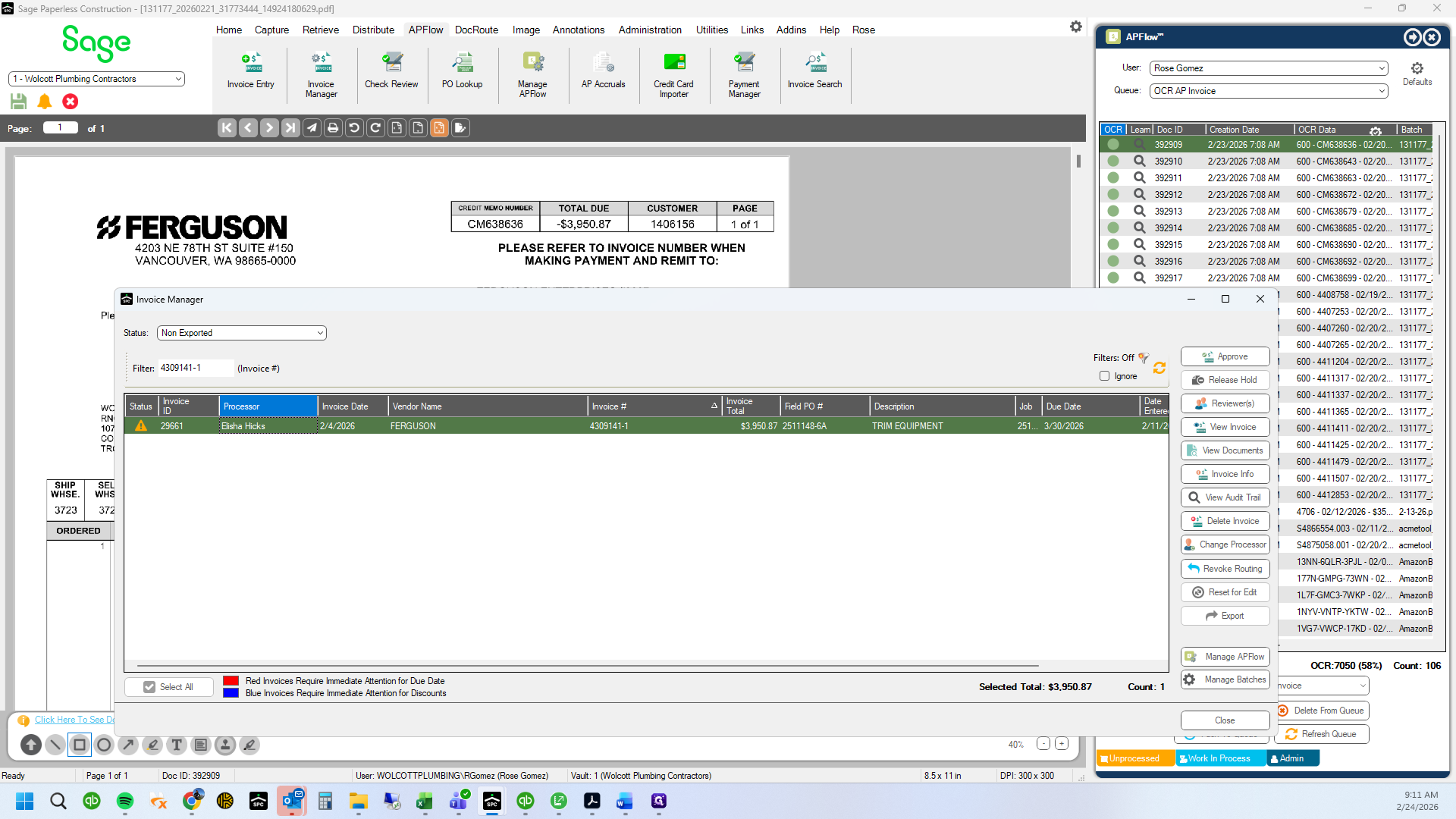
This is in WIP due to incorrect pricing
13
Double-click on "FERGUSON"
14
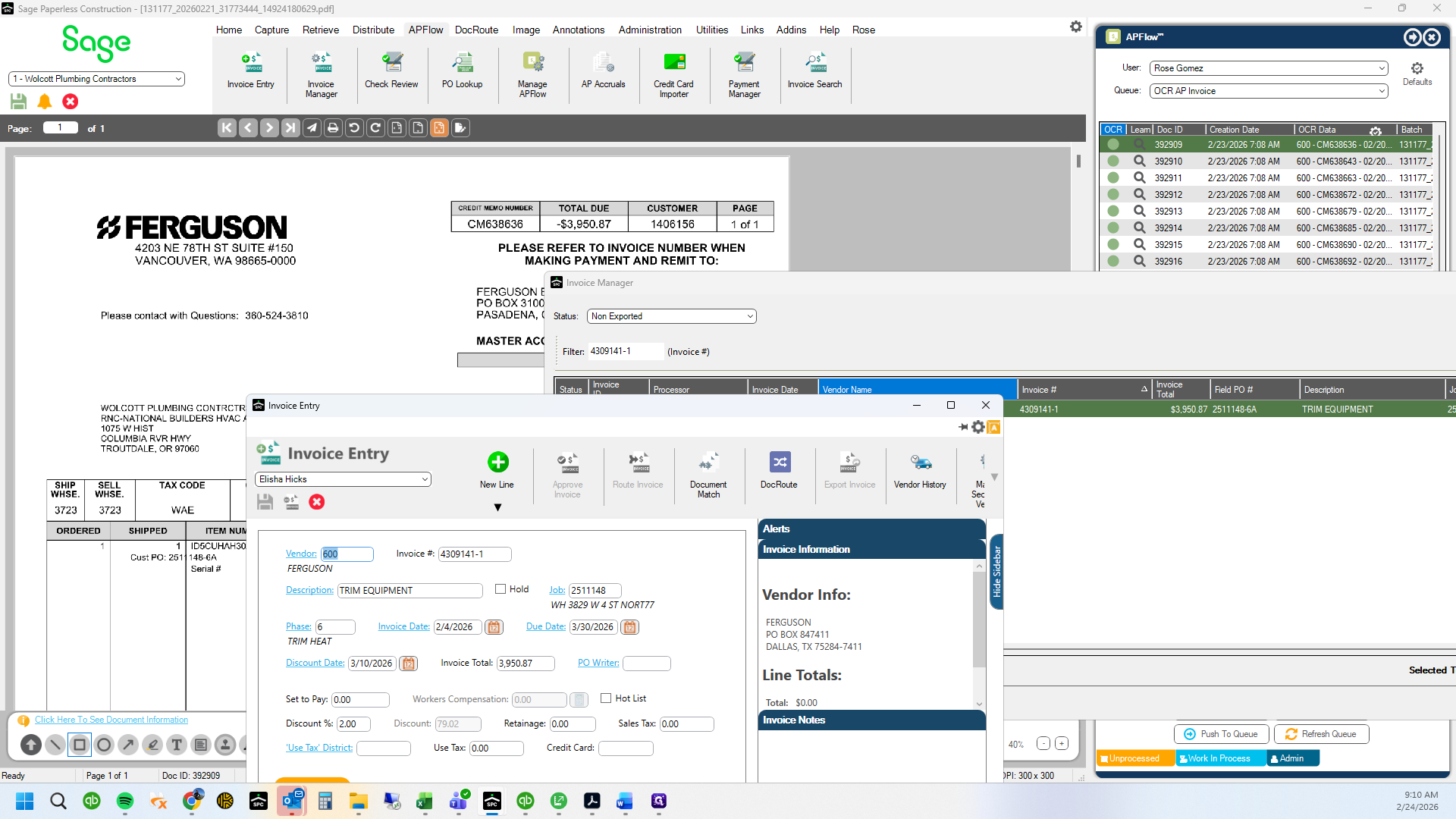
Drag here
15
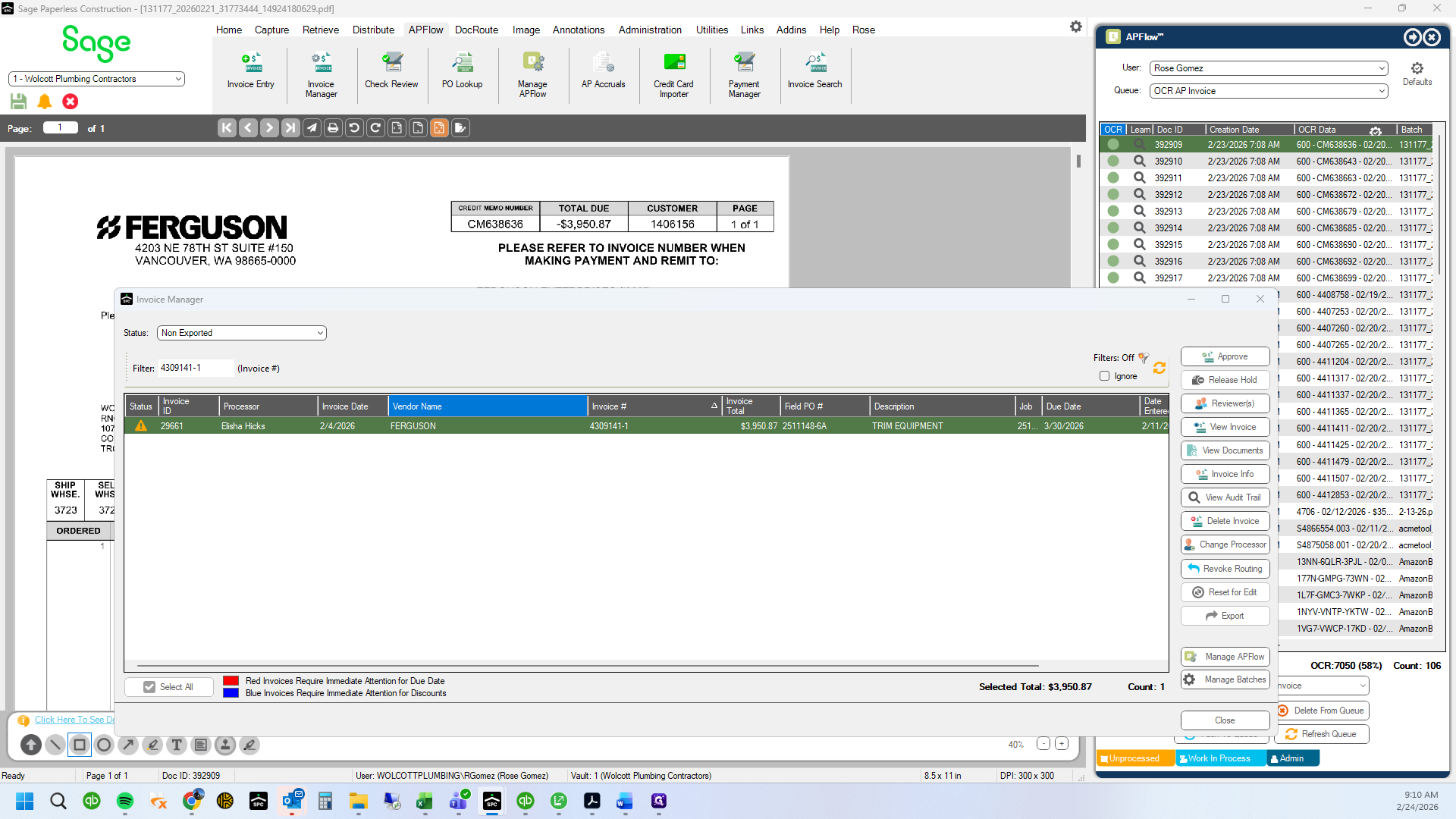
Click here
16
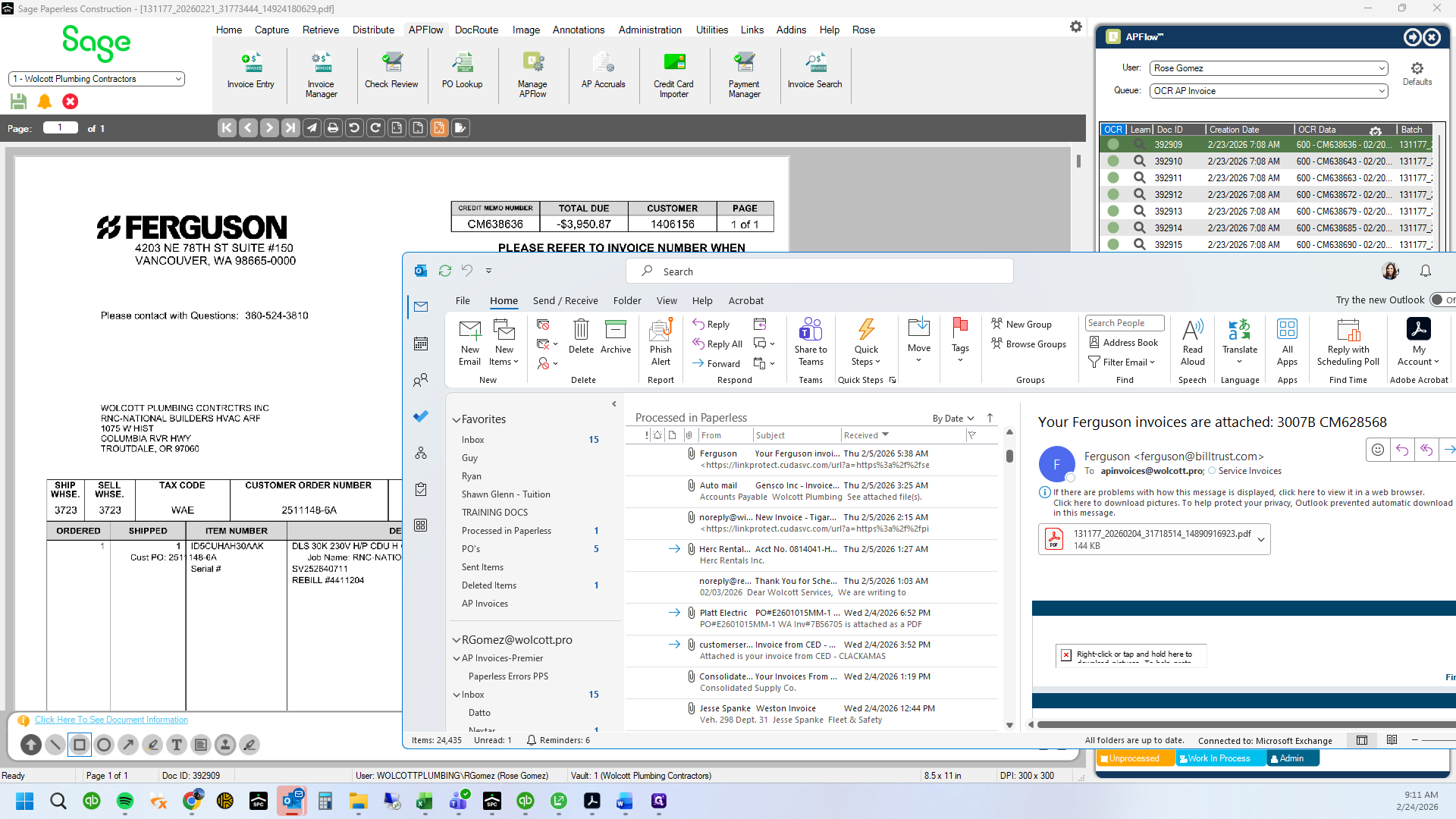
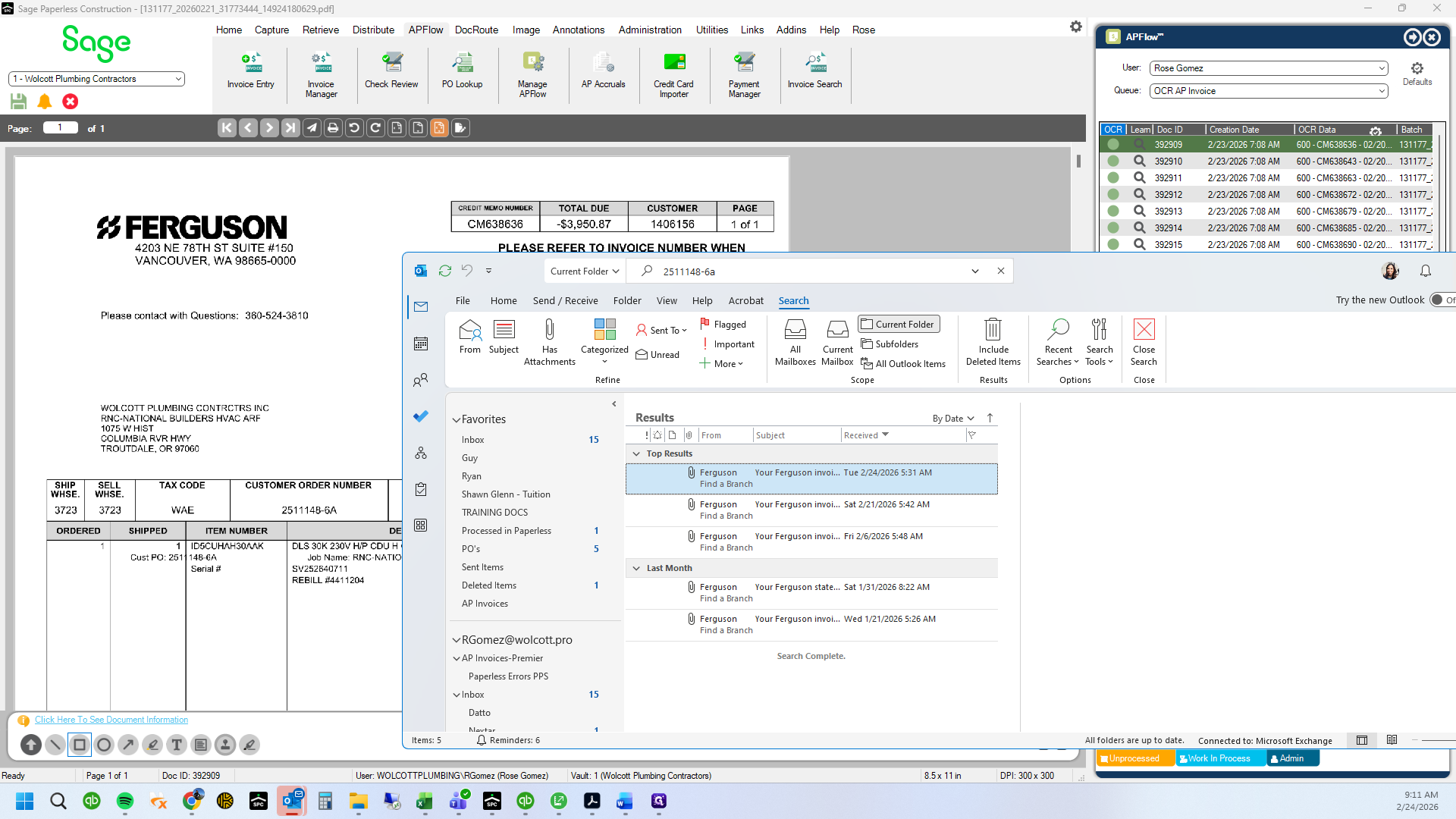
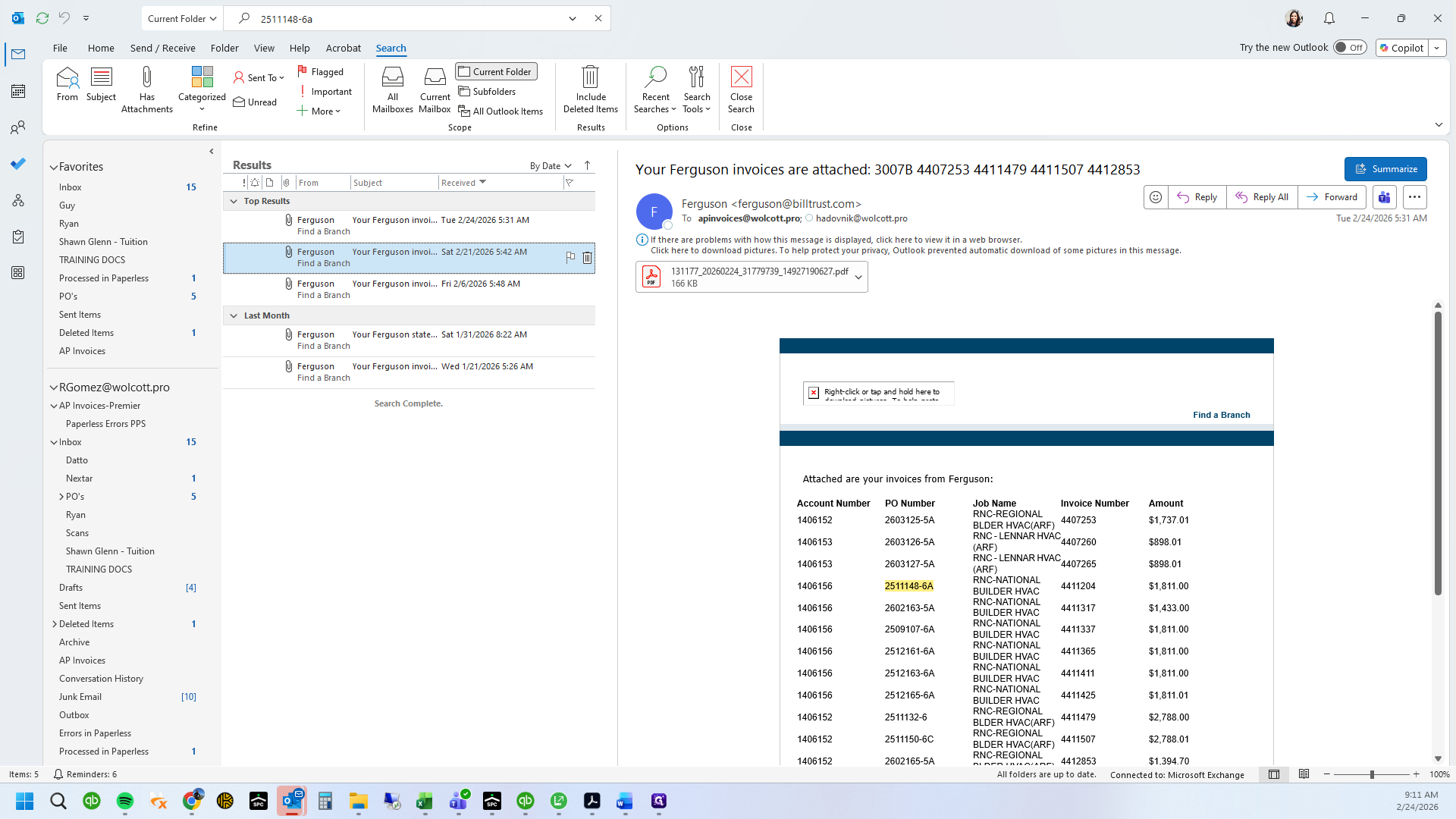
You can also search the AP Invoices email to view all invoices related to the PO
17
Type "2511148-6a + Enter"
18
Drag here
19
Drag "Items"
20
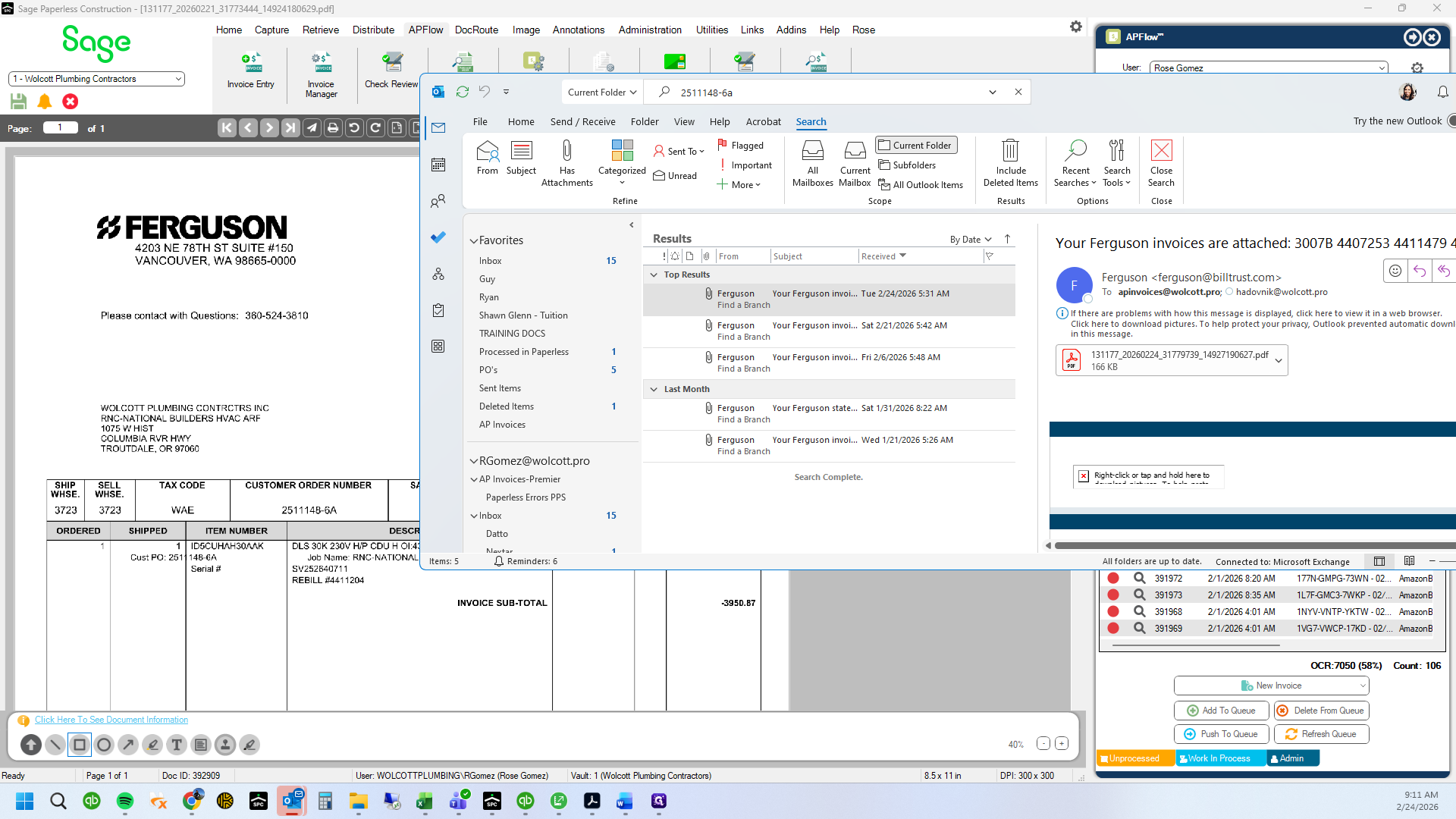
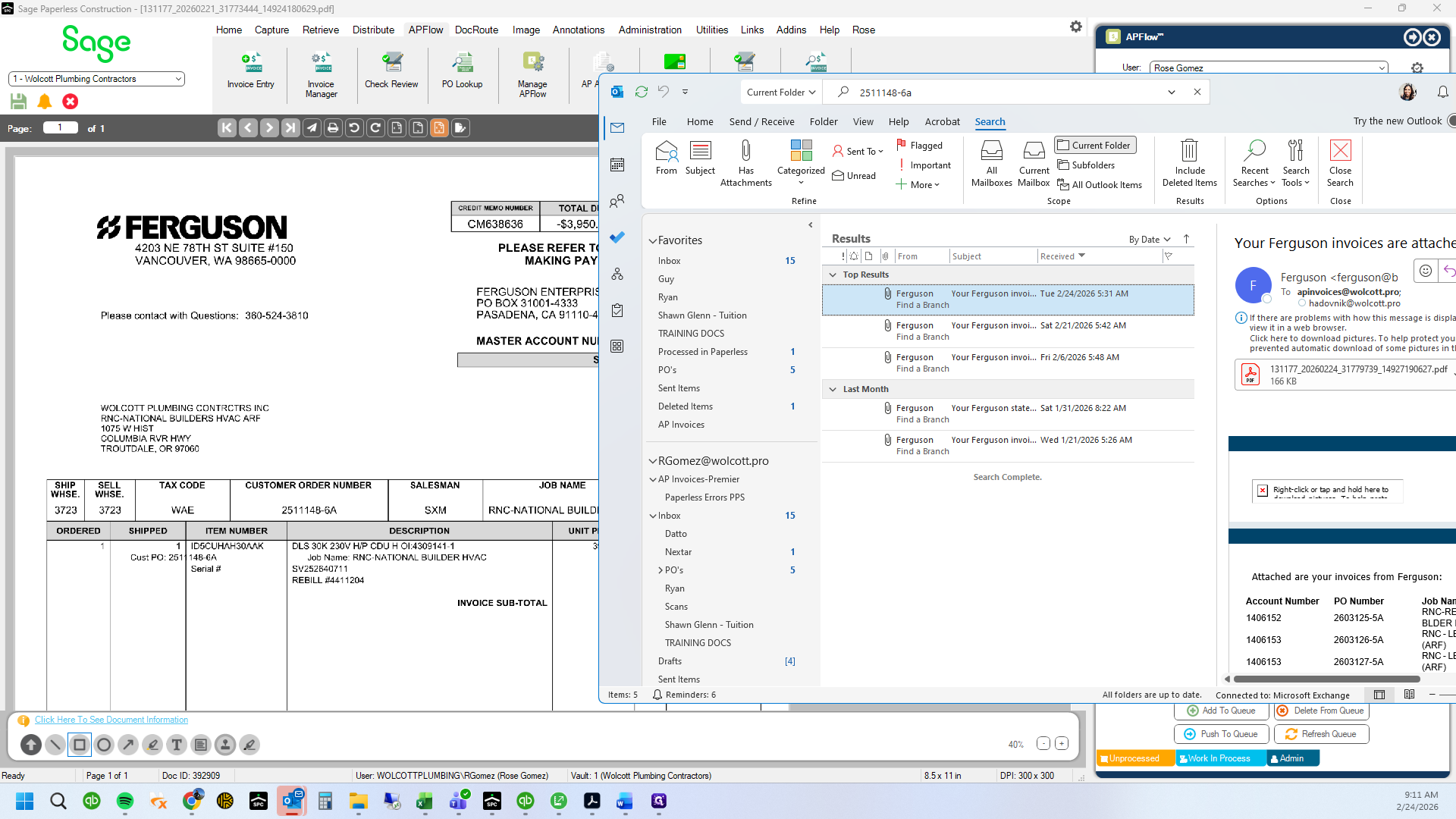
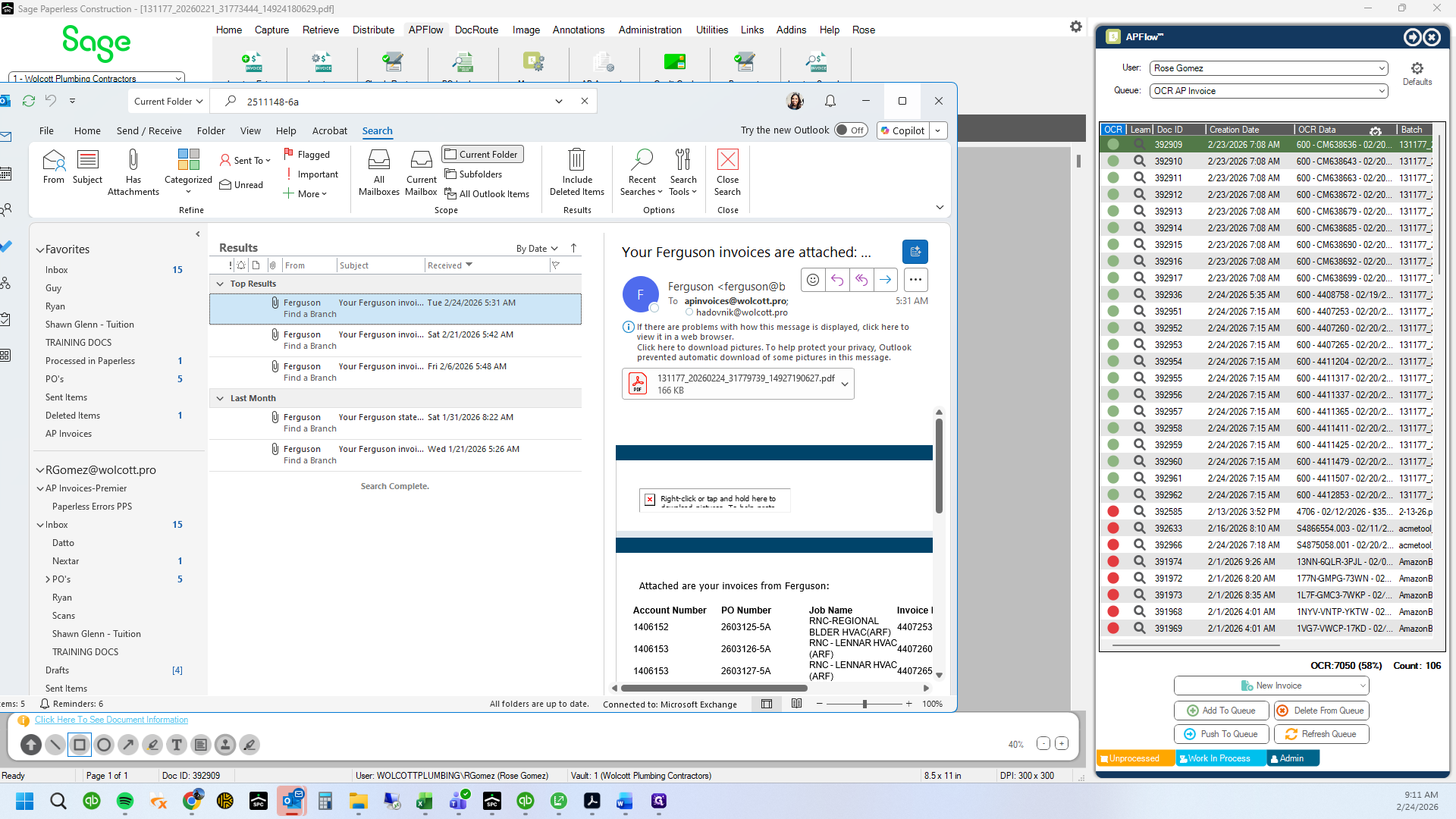
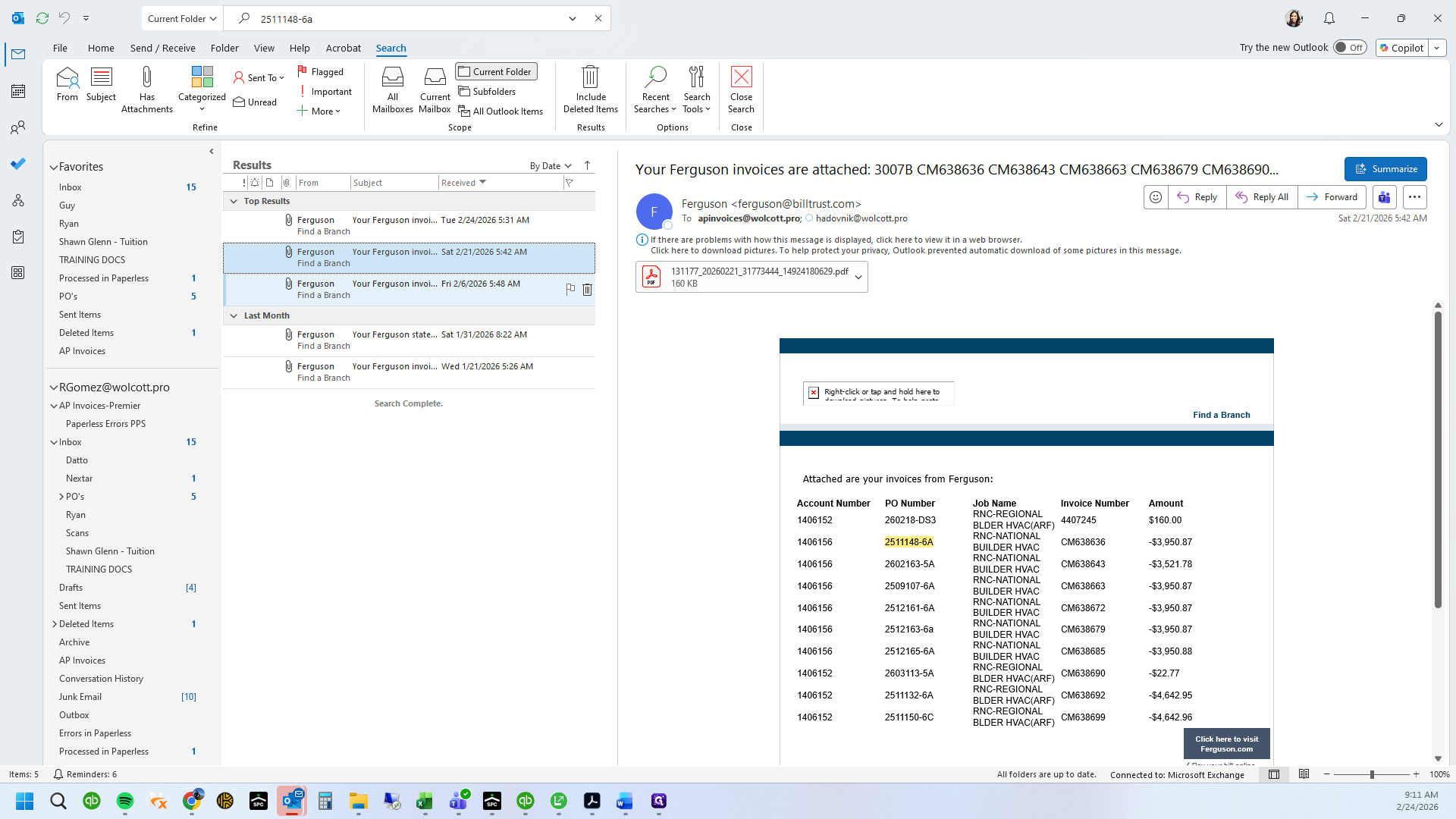
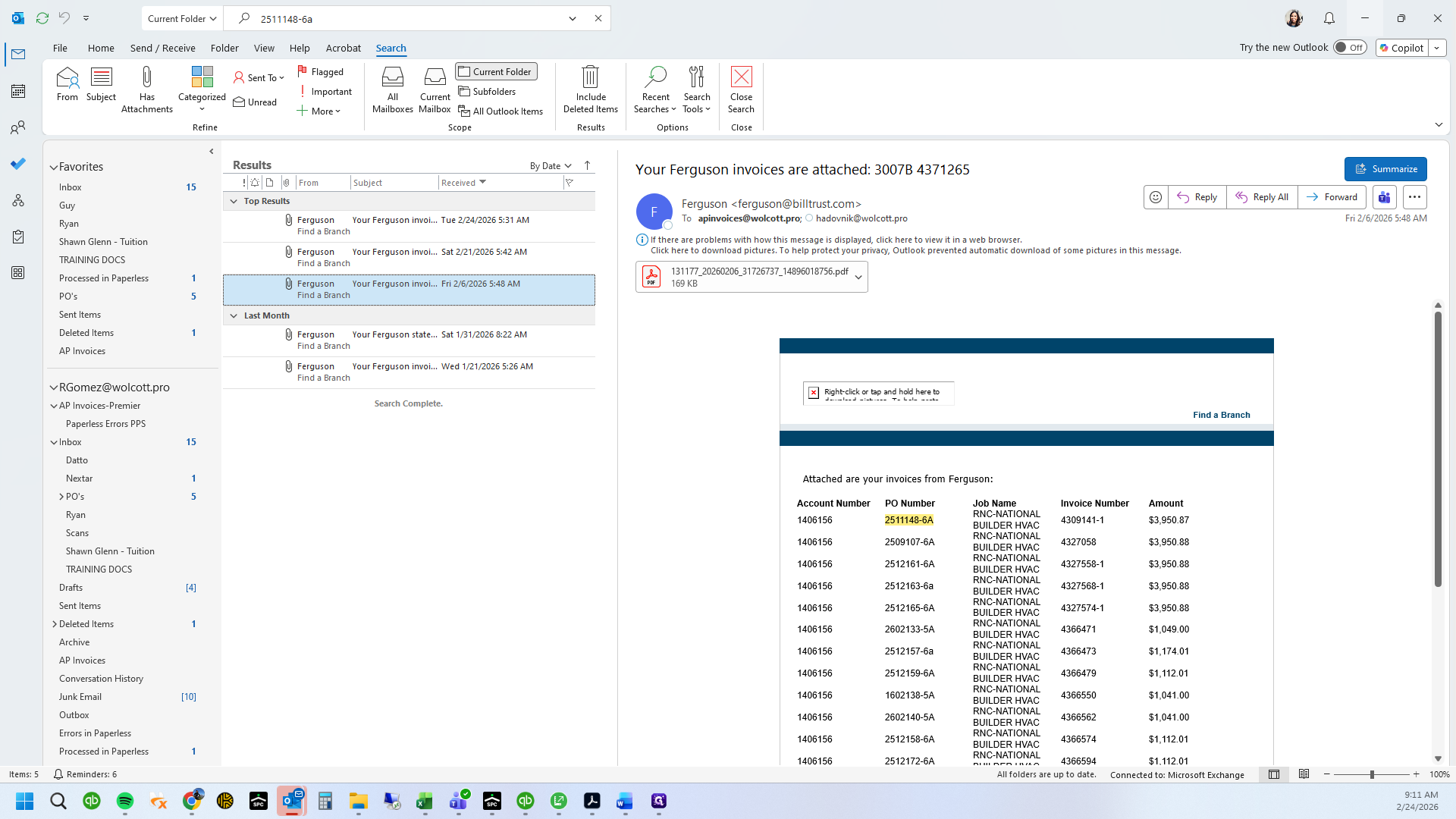
The original over charged invoice, the credit, and the rebill all show up using the PO search results
21
Click here
22
View each email containing the PO number
23
Click here
24
Click here
25
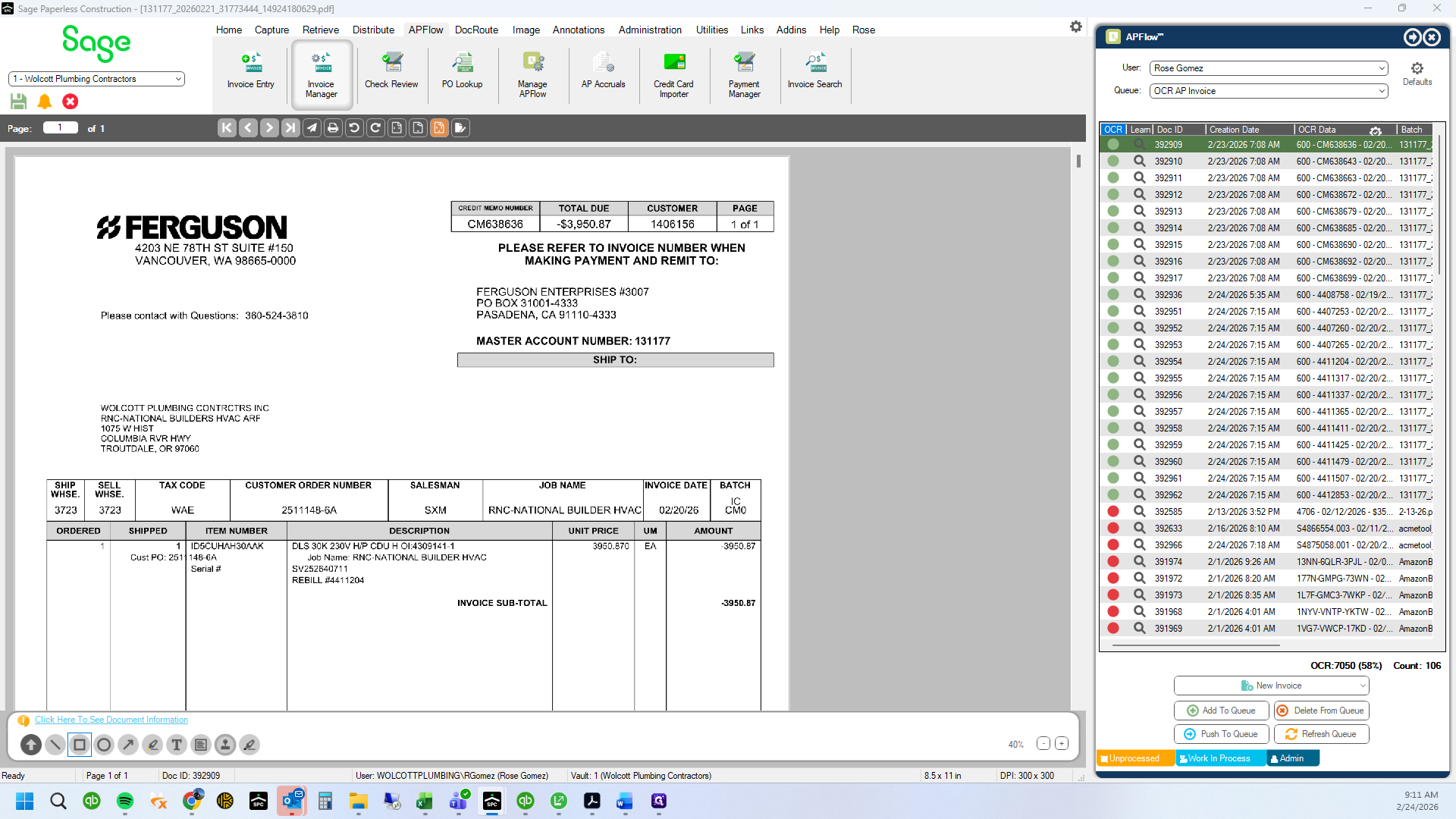
We are going to enter the incorrect priced invoice and the credit to create a net zero transaction.
26
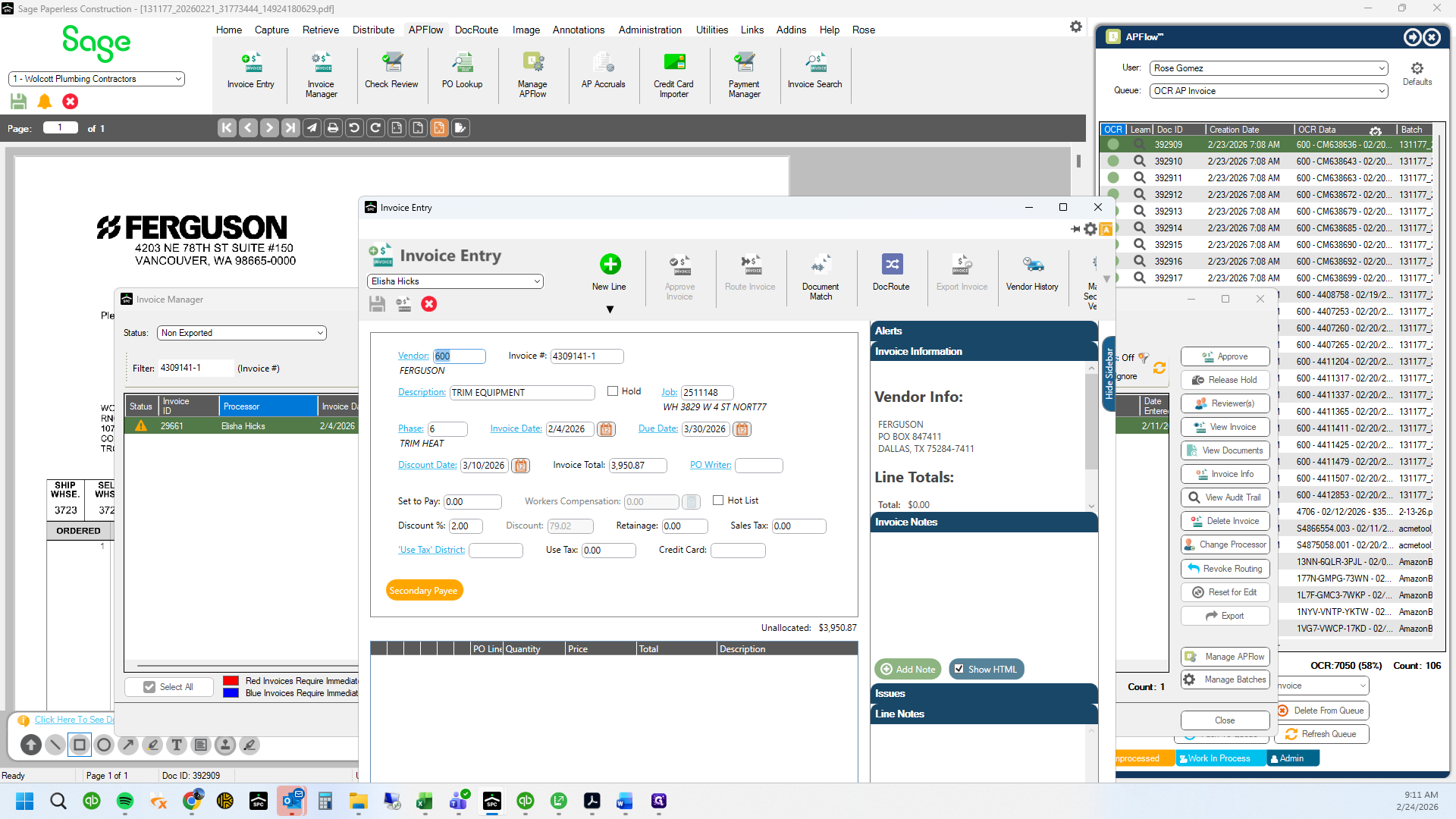
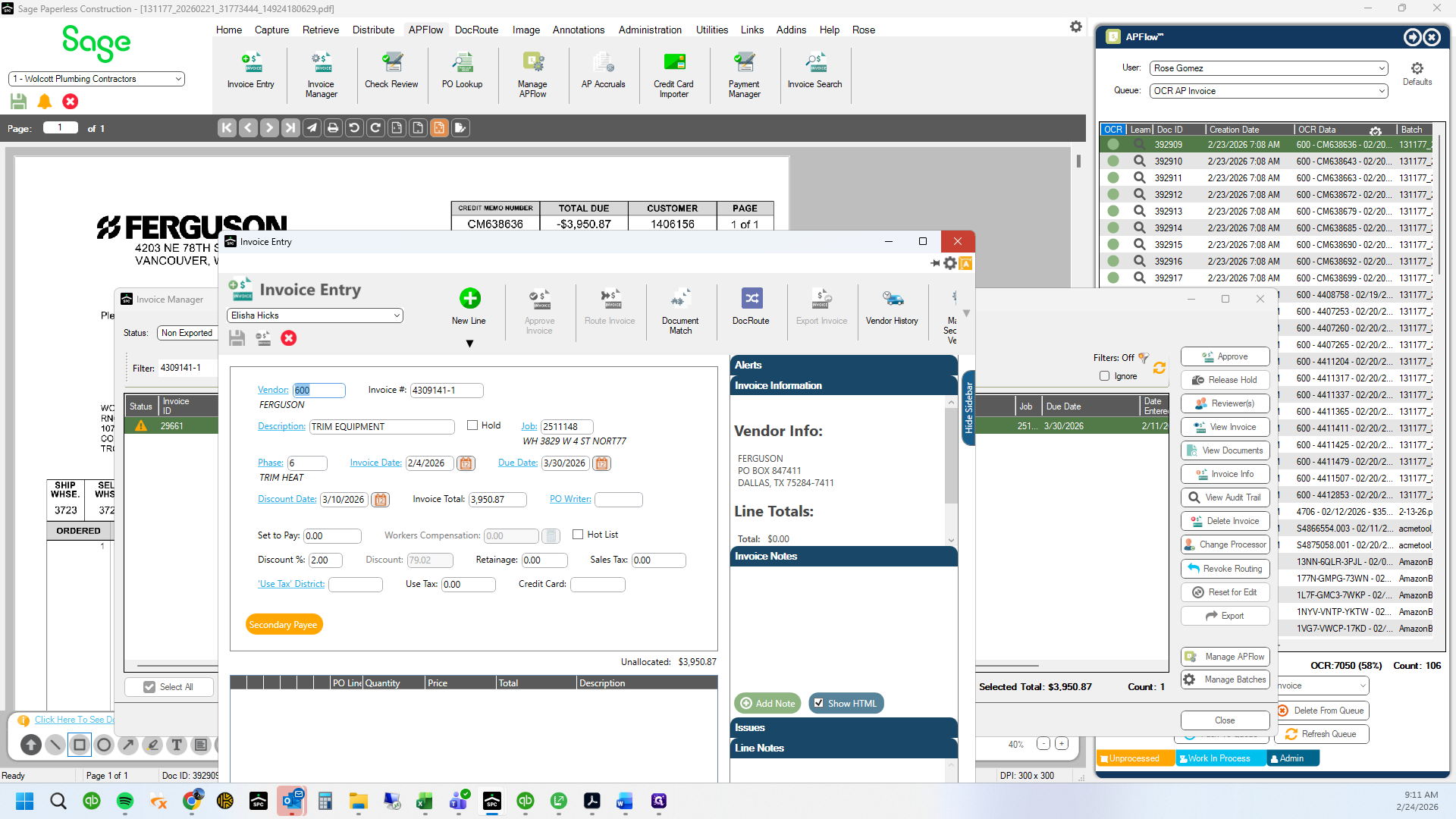
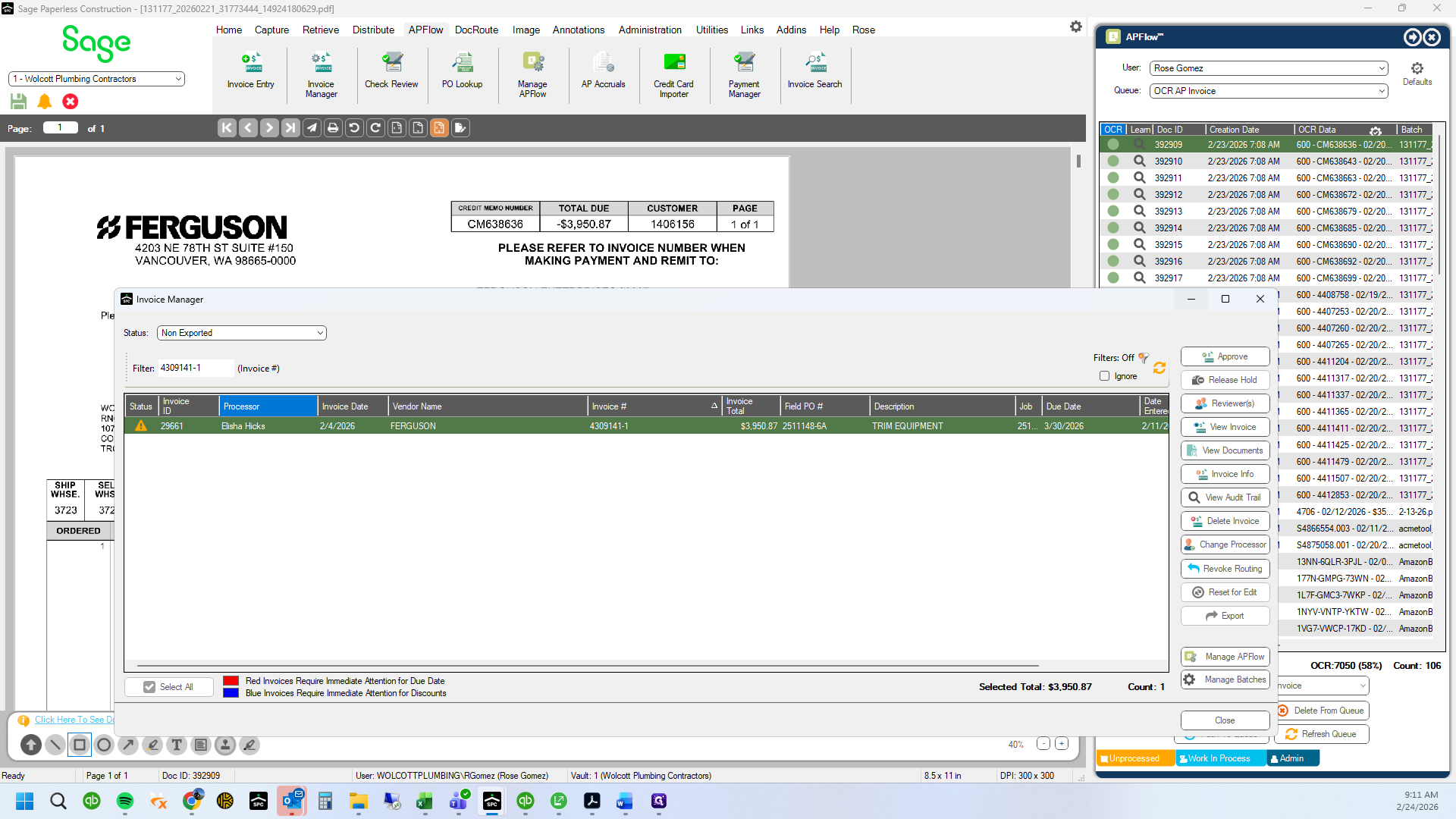
Open the WIP invoice referenced on the Credit Memo
27
Drag here
28
Click on "Х"
29
Click here
30
Click here
31
Click here
32
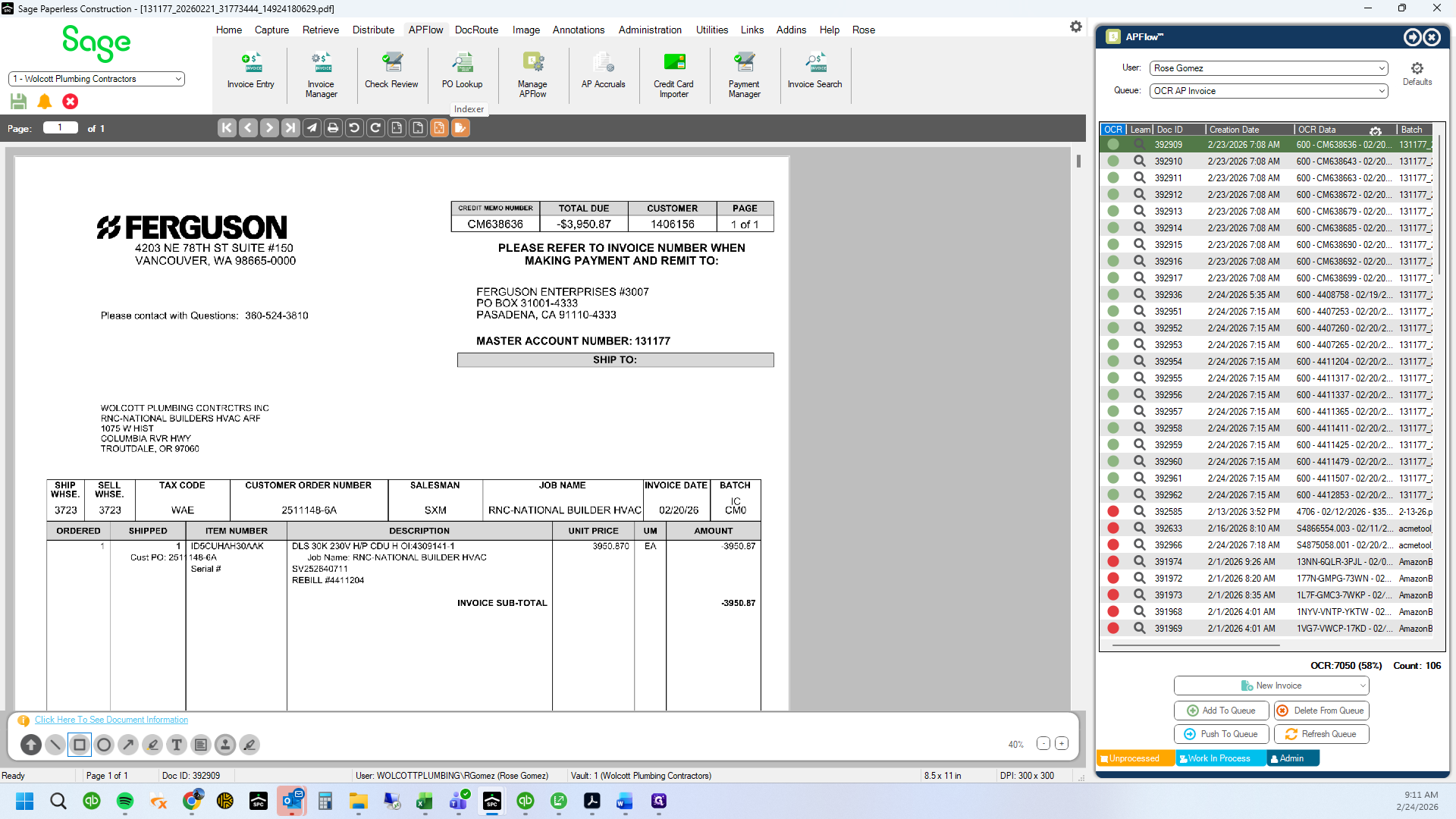
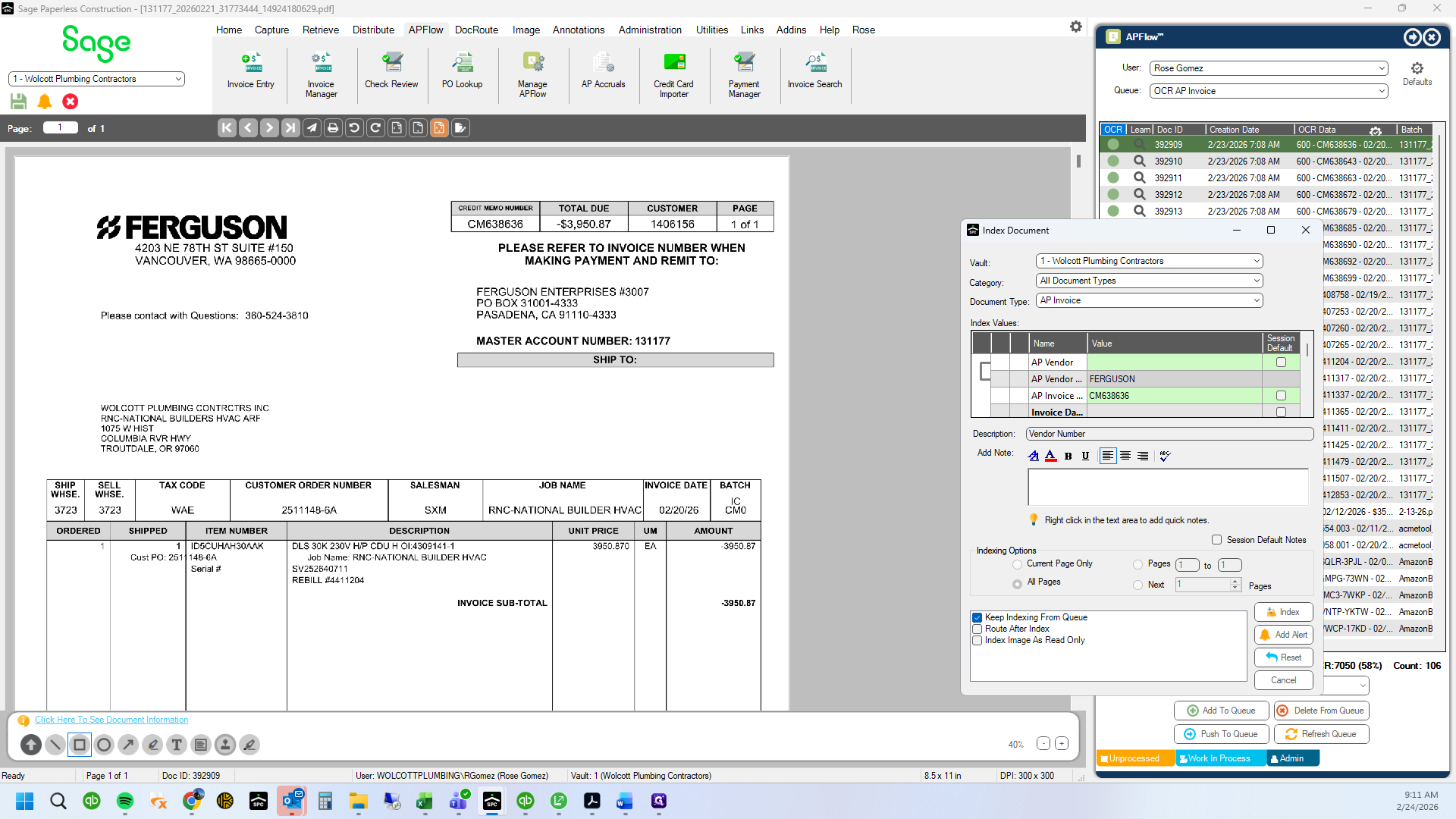
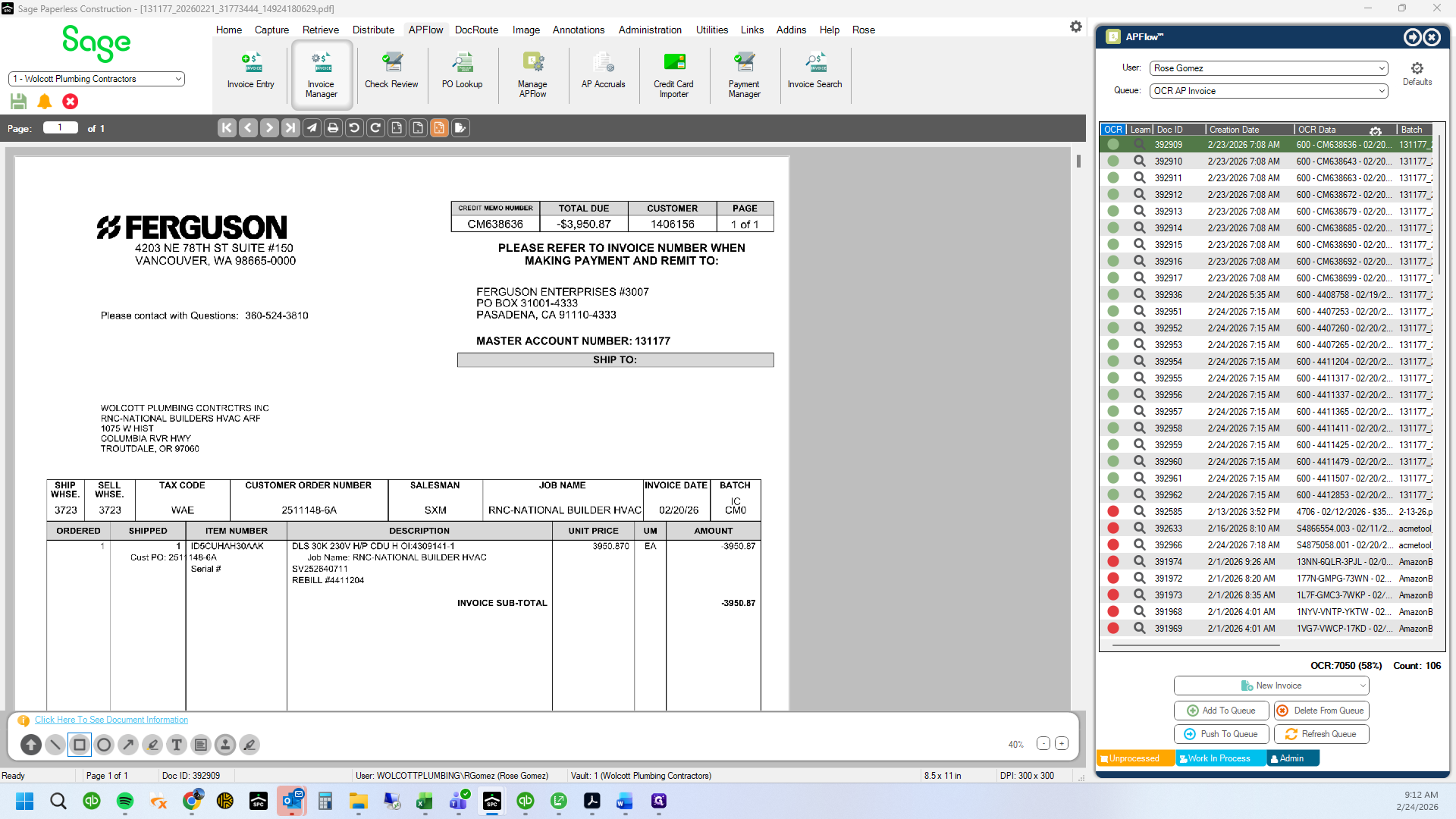
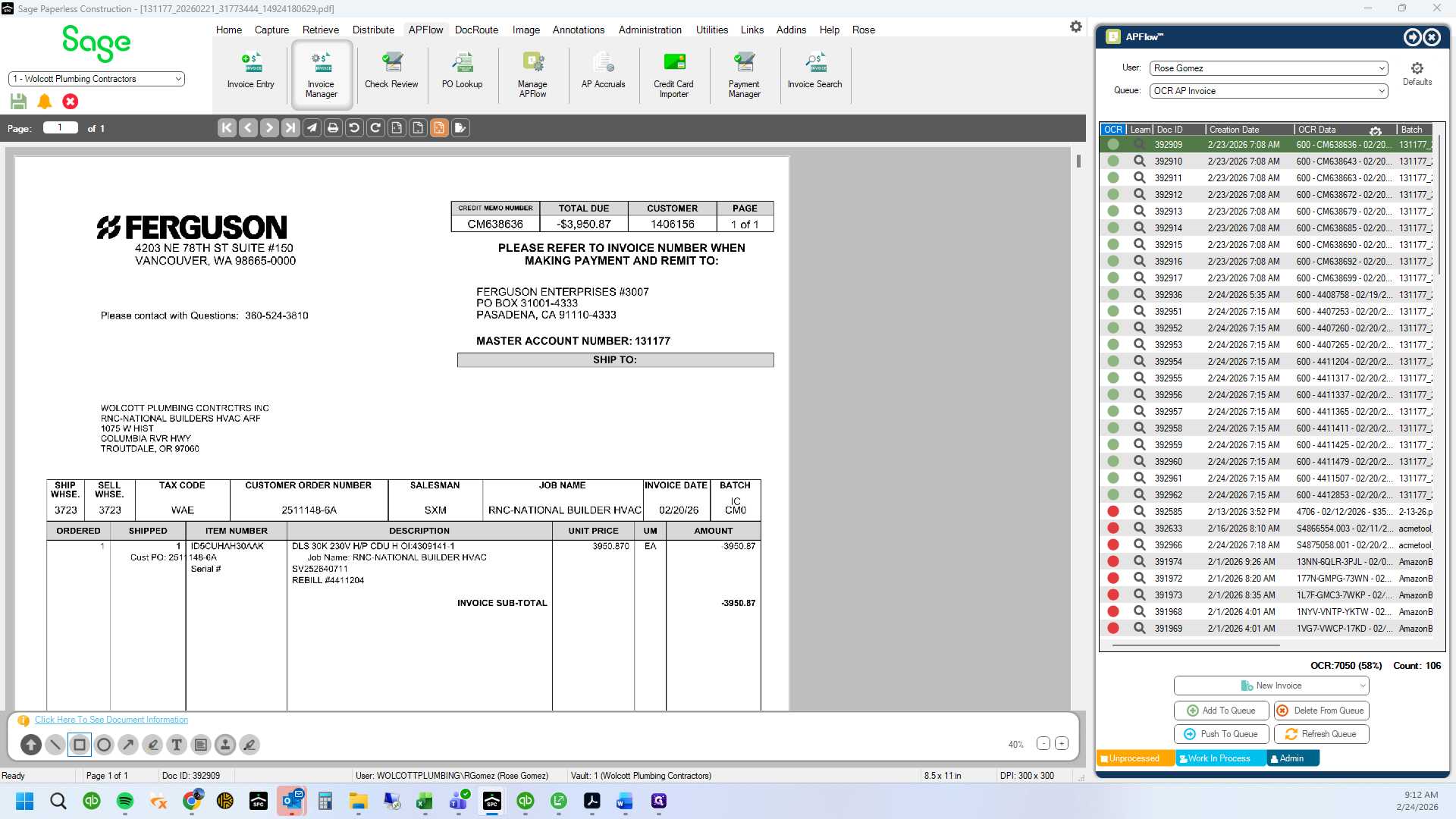
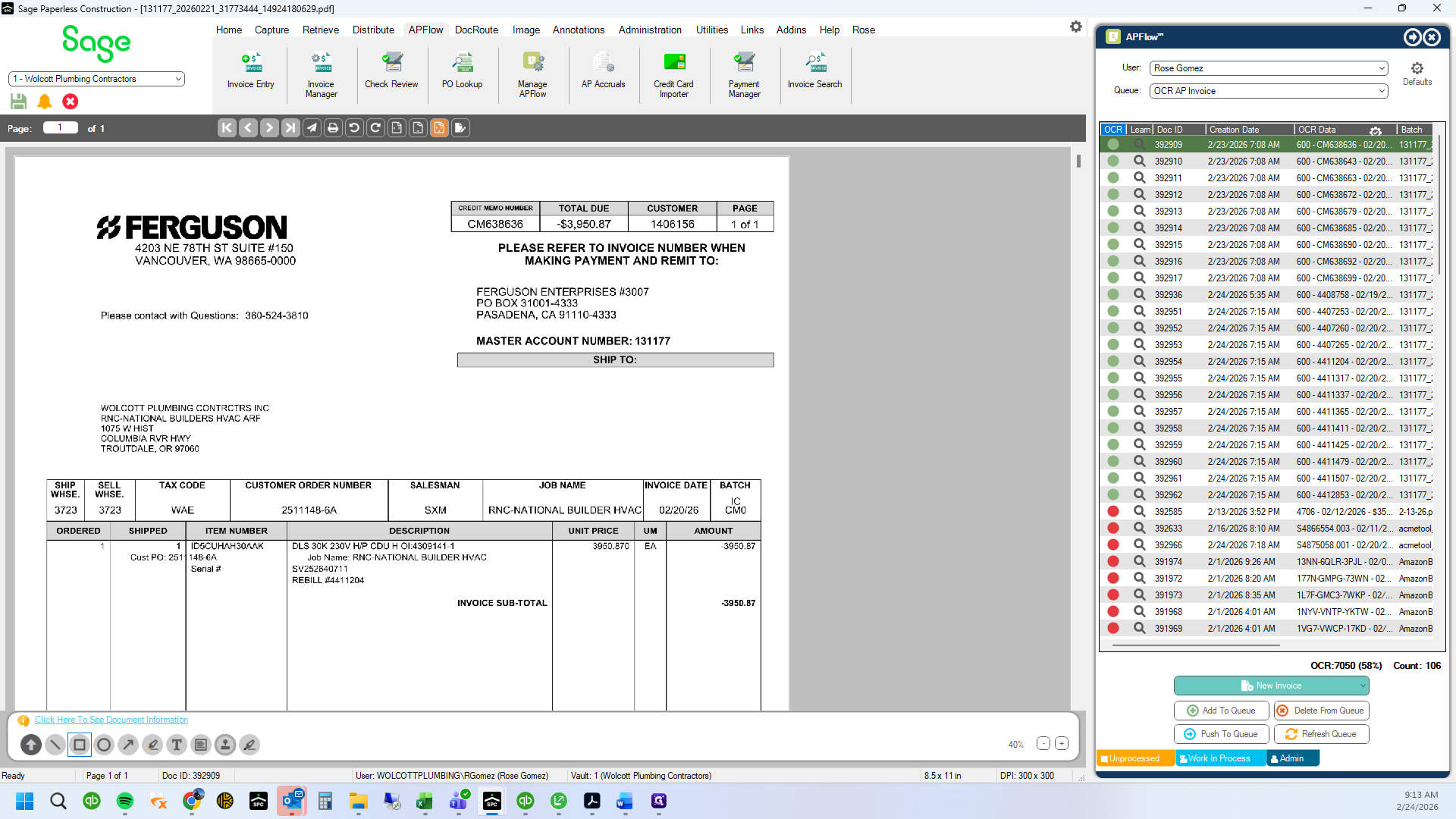
Note on the PDF that "CM638636 issued"
33
Type "Ctrl + C"
34
Click on "Invoice"
35
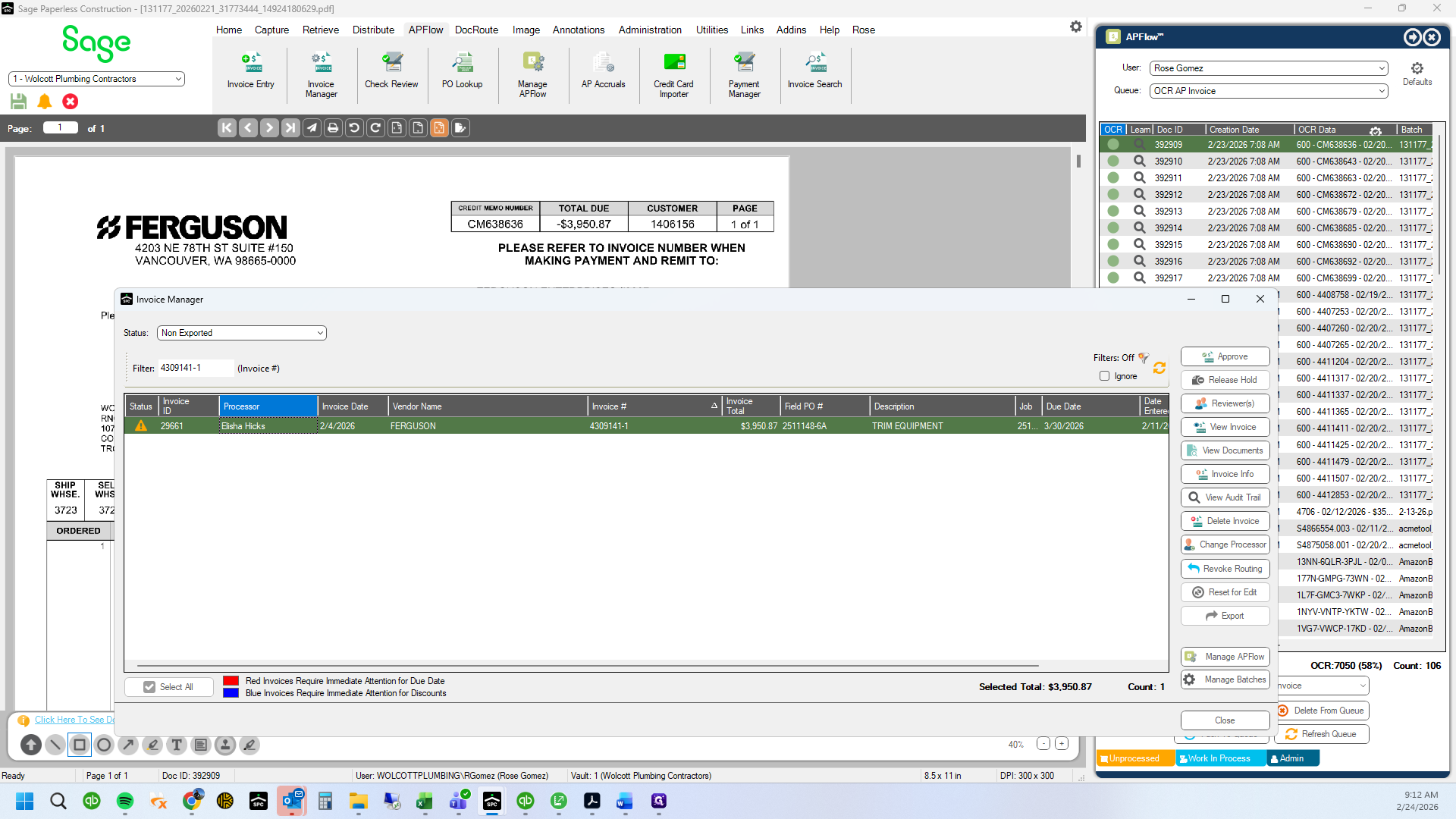
Double-click on "Hicks"
36
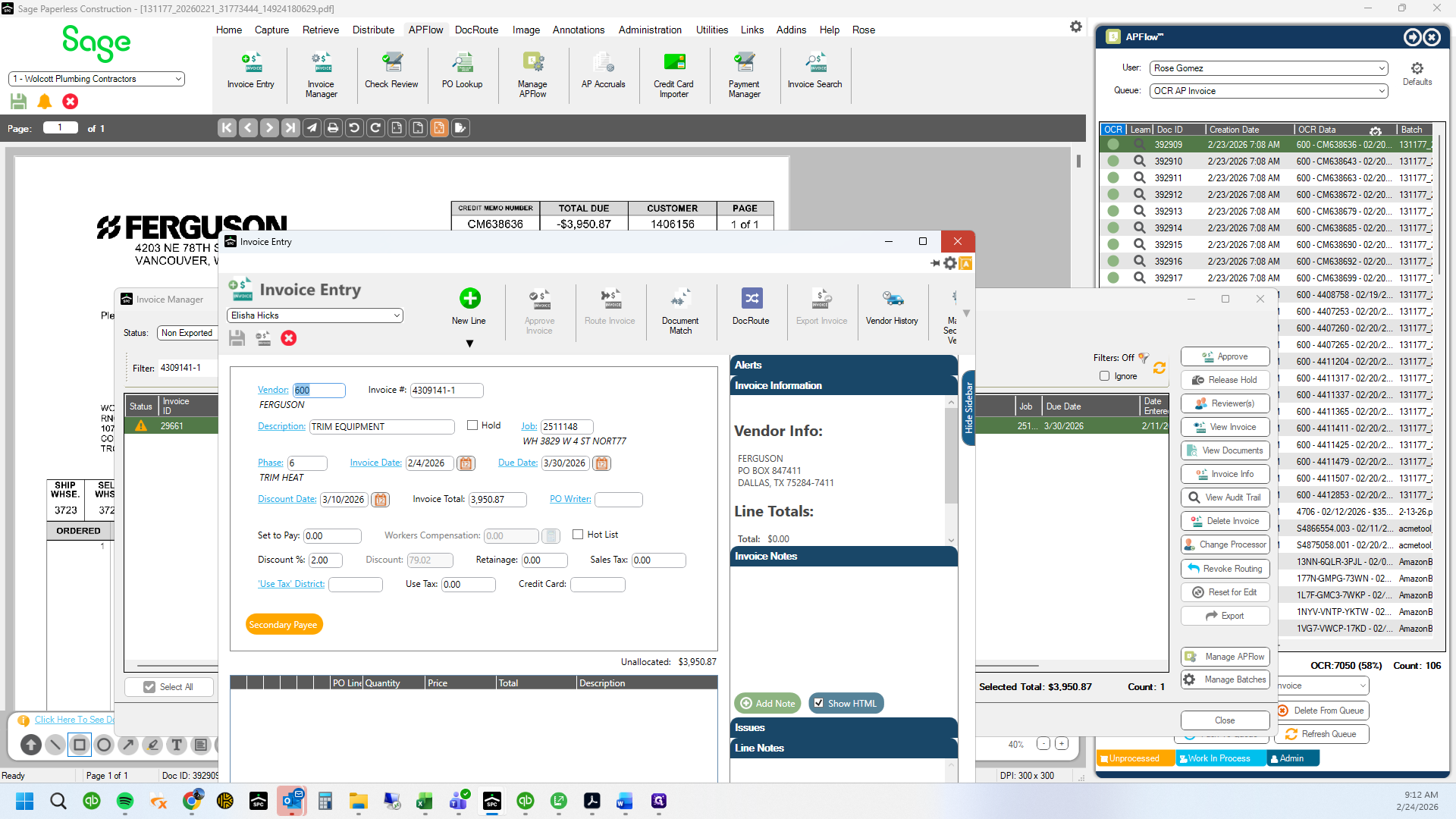
Click here
37
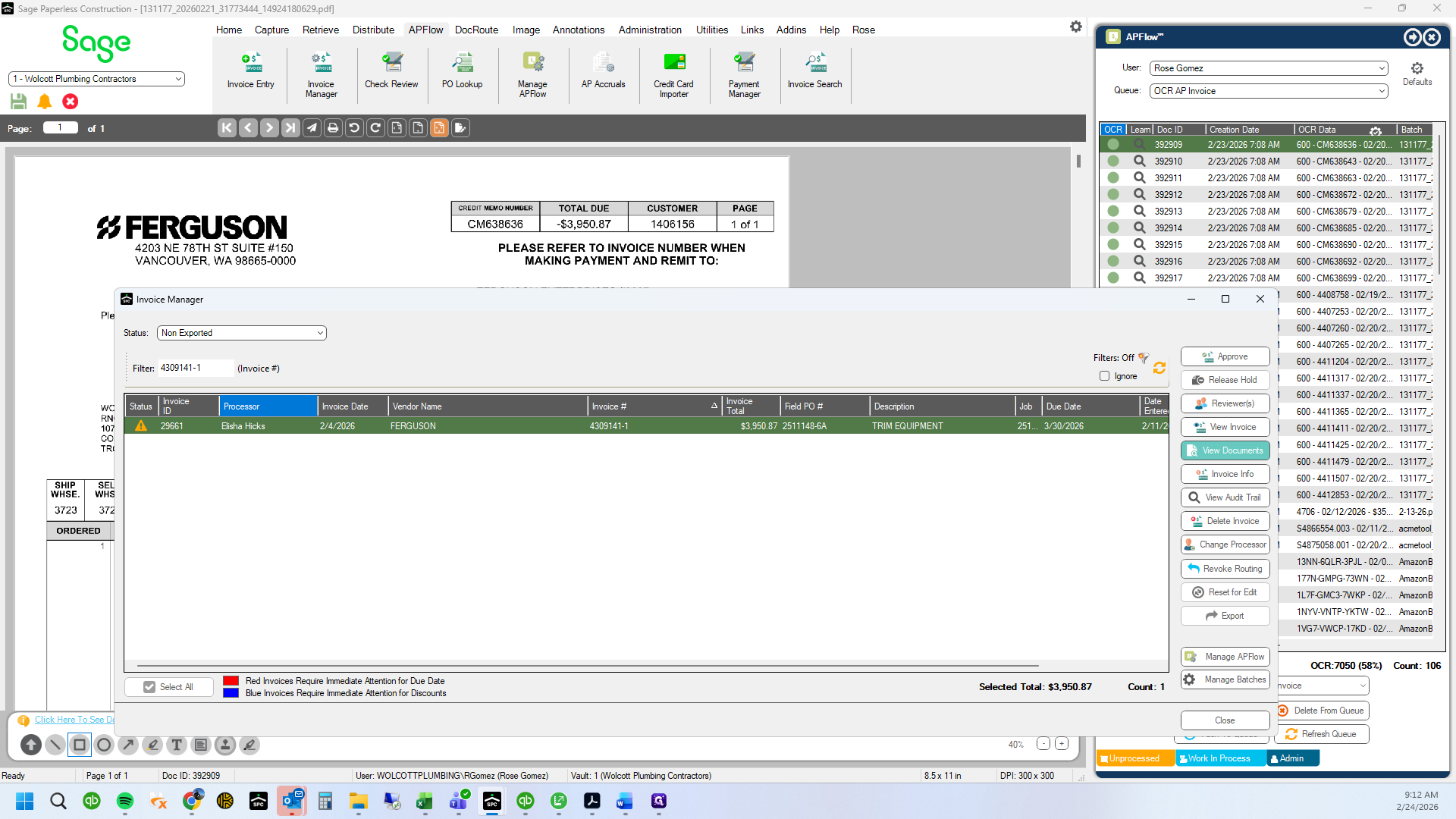
Click on "View Documents"
38
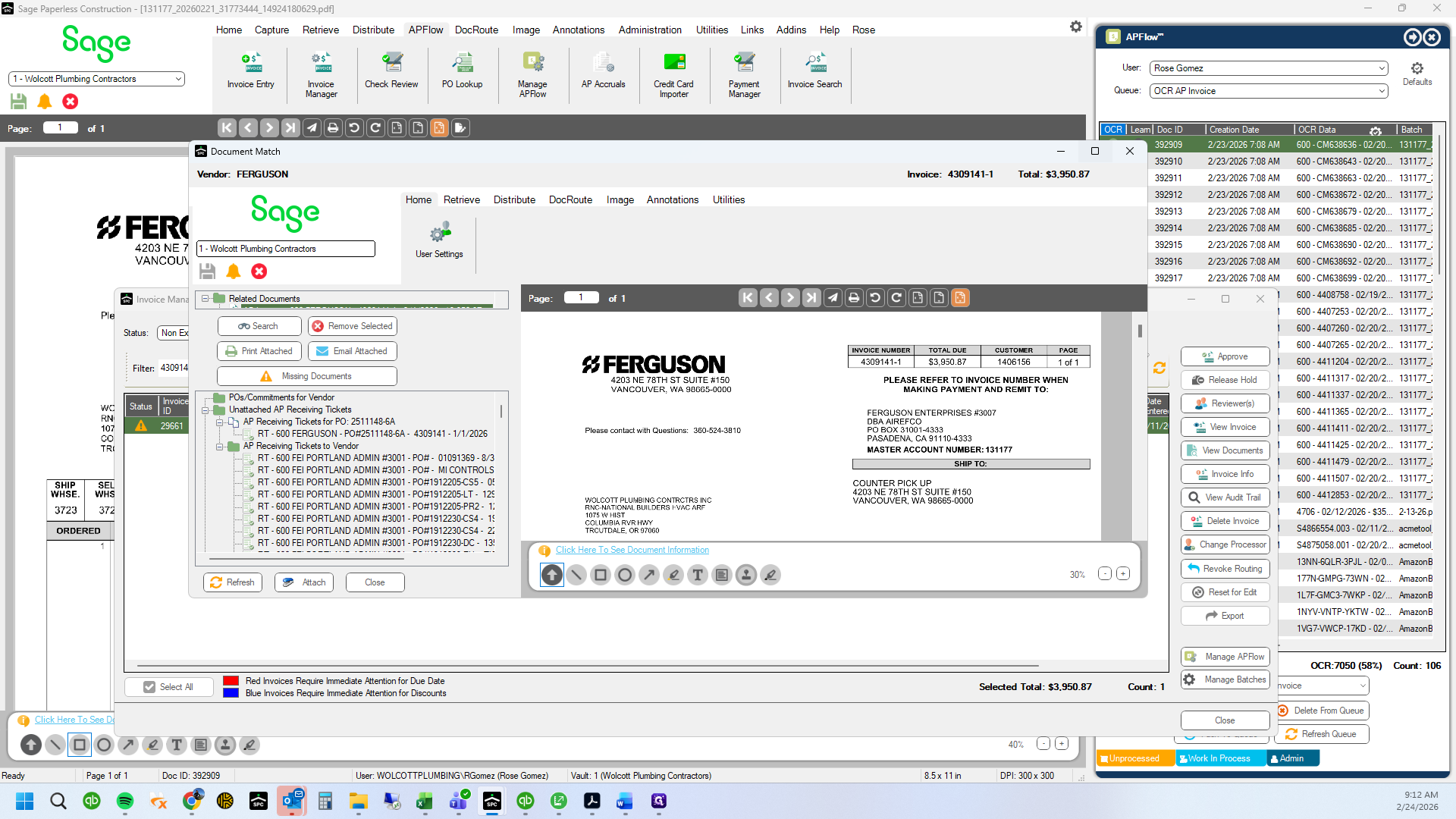
Click on "☐"
39
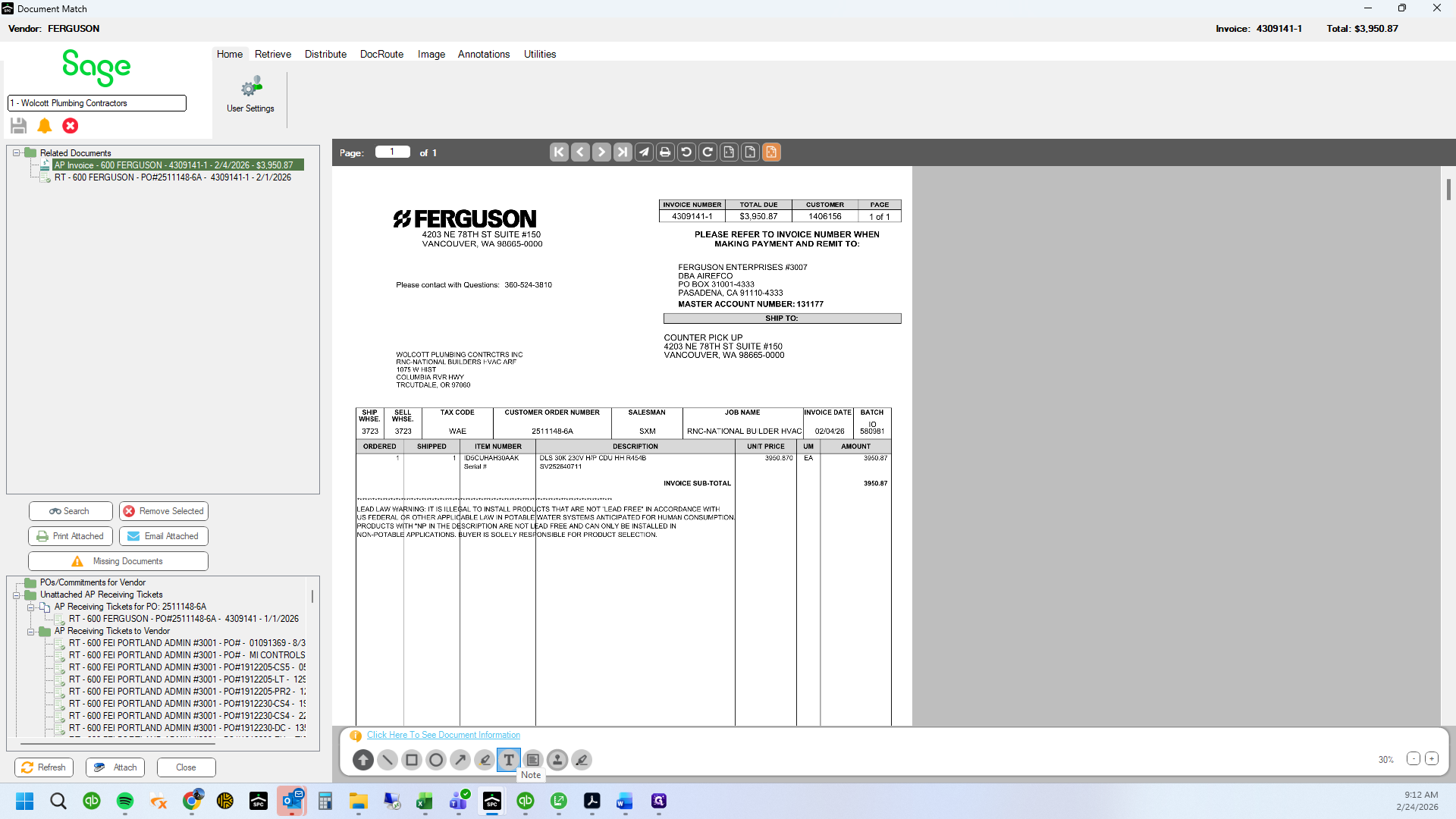
Double-click on "TO"
40
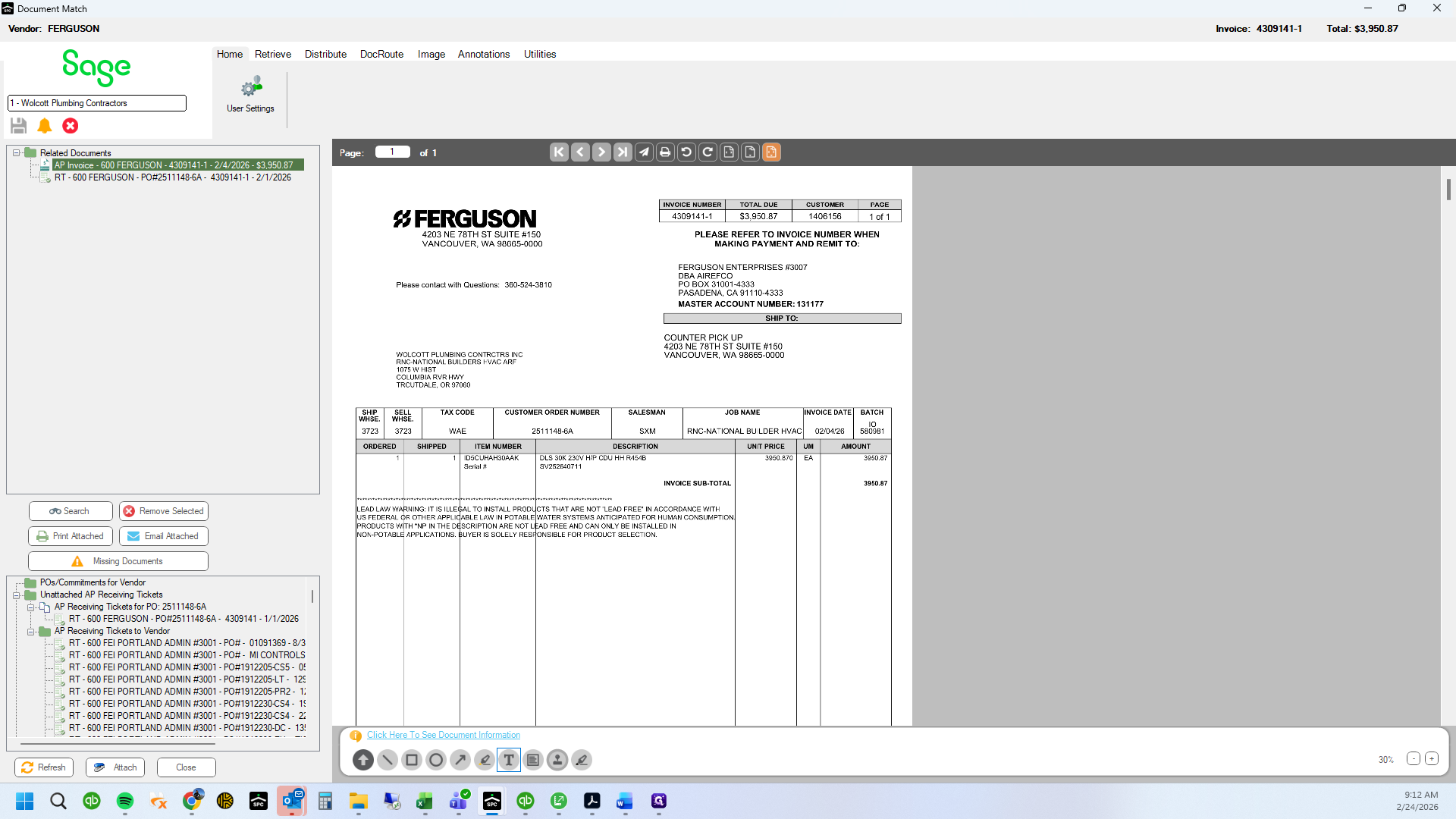
Drag here
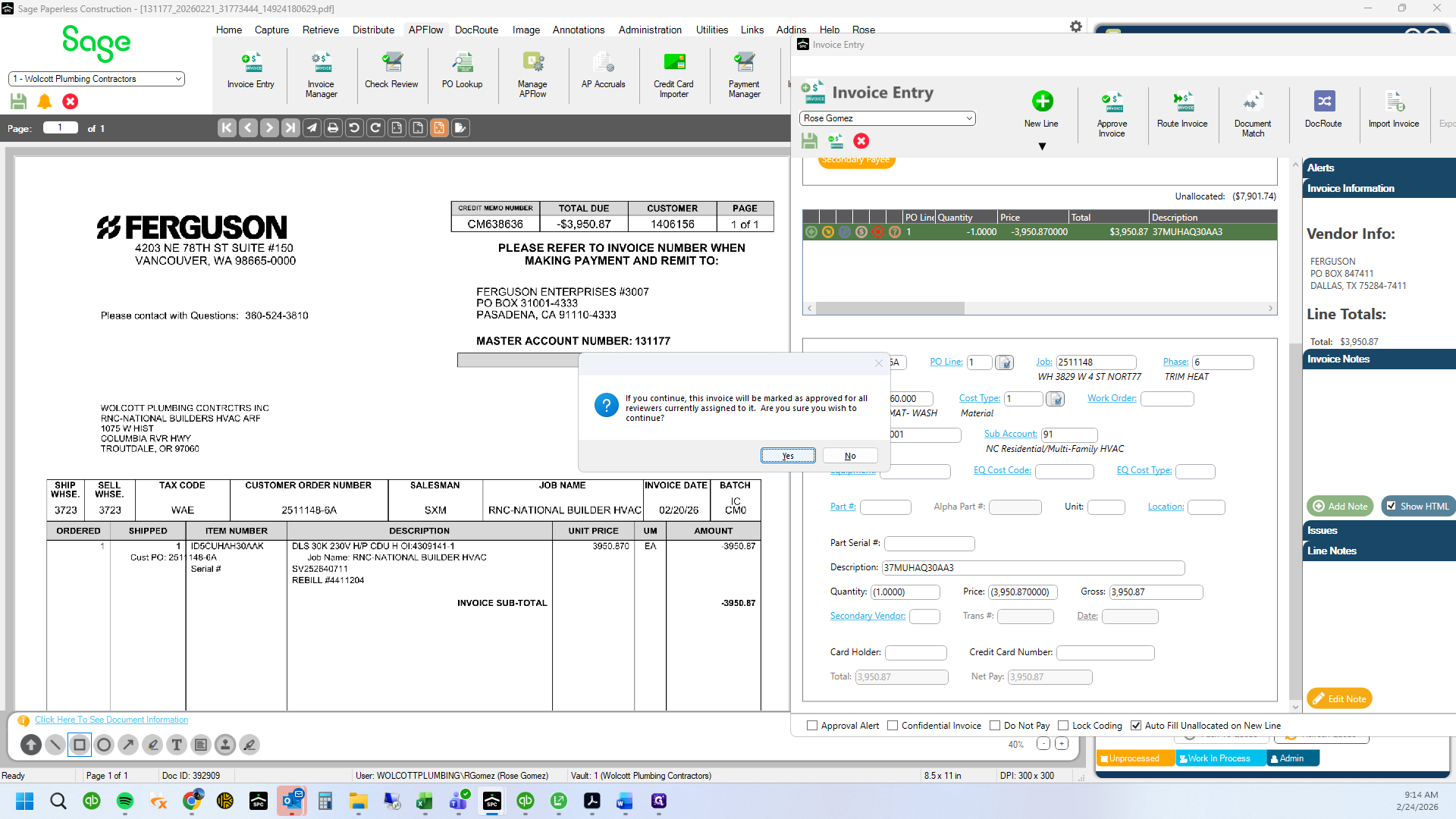
41
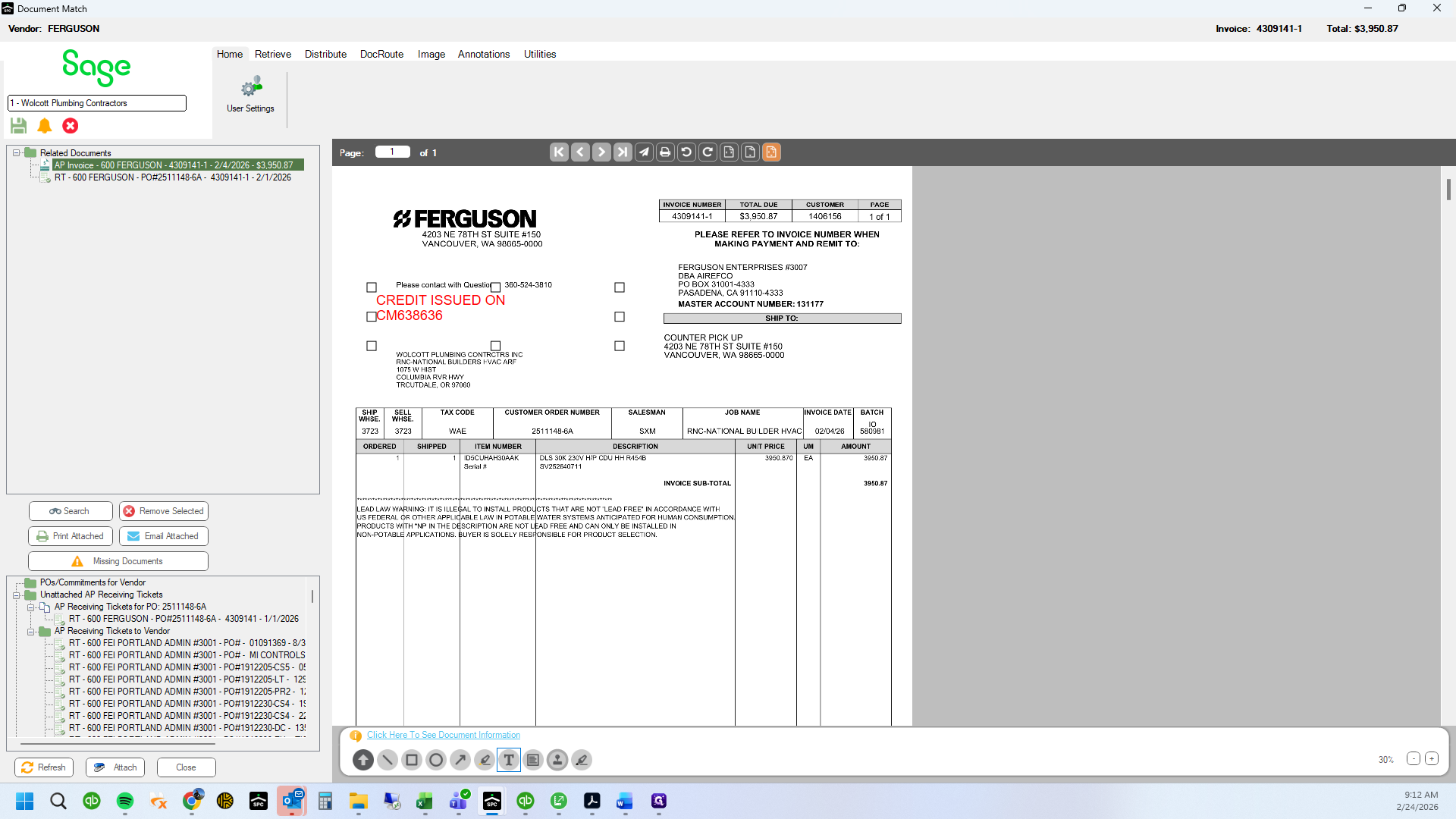
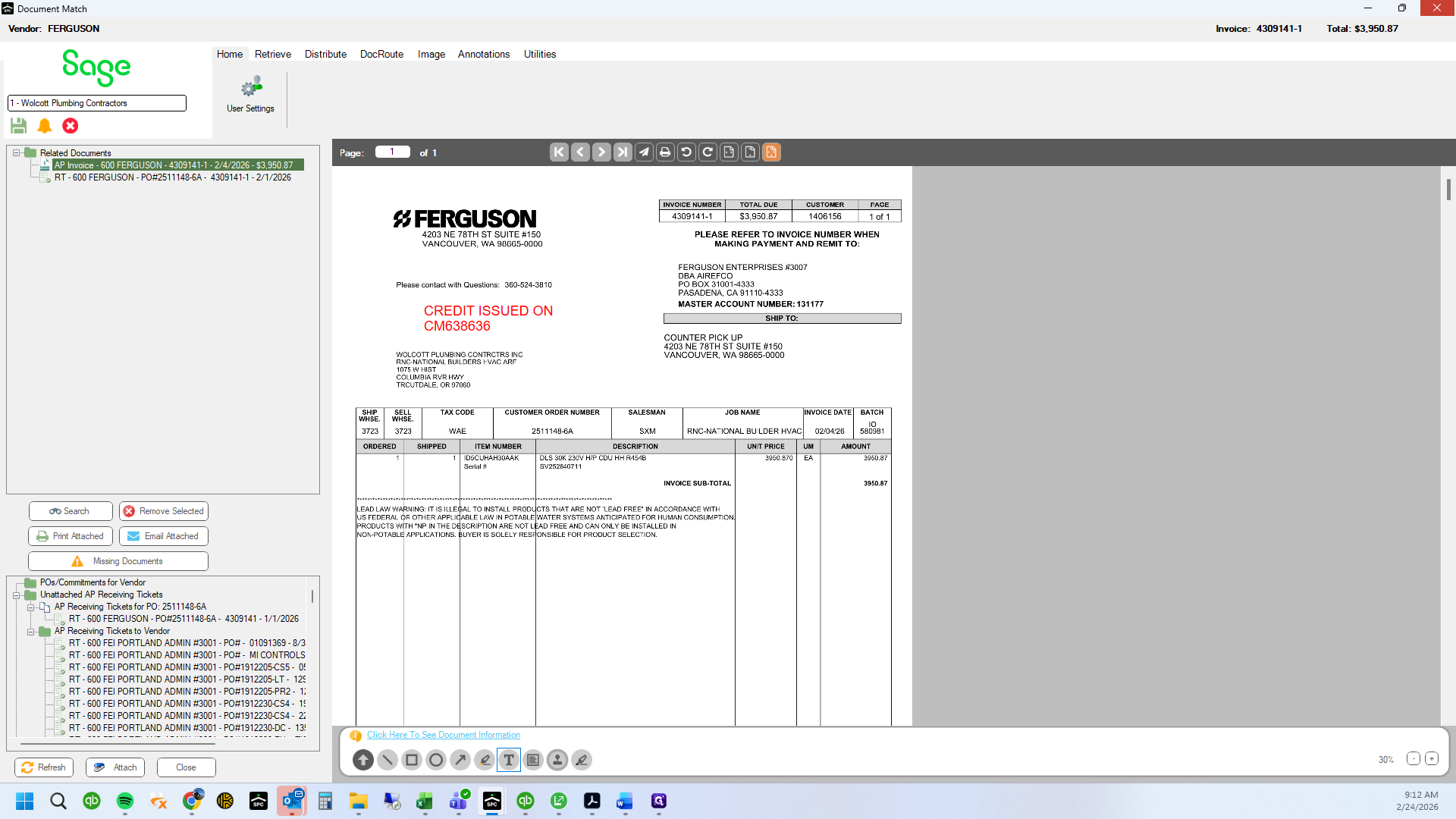
Type "CREDIT ISSUED ON "
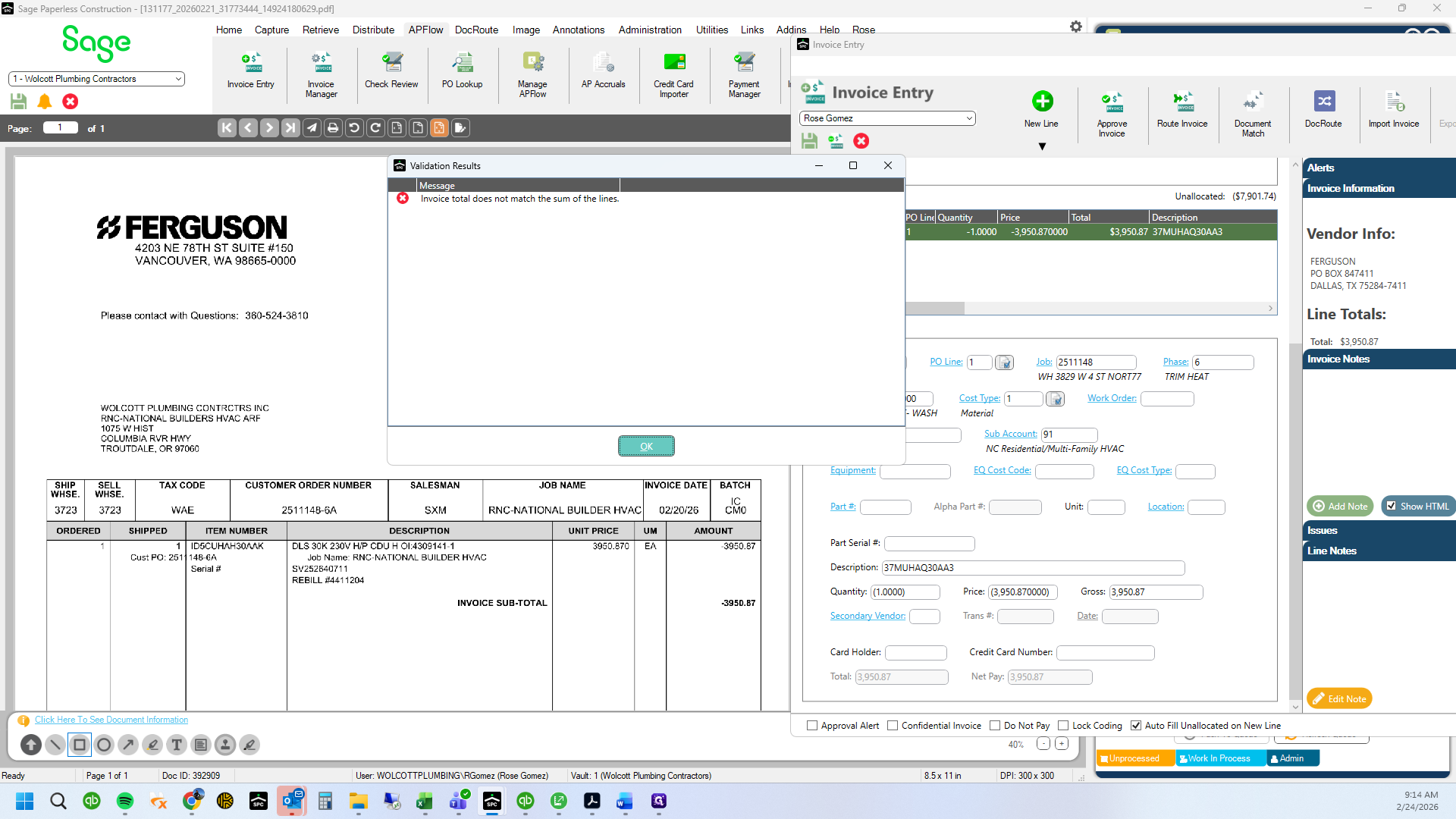
42
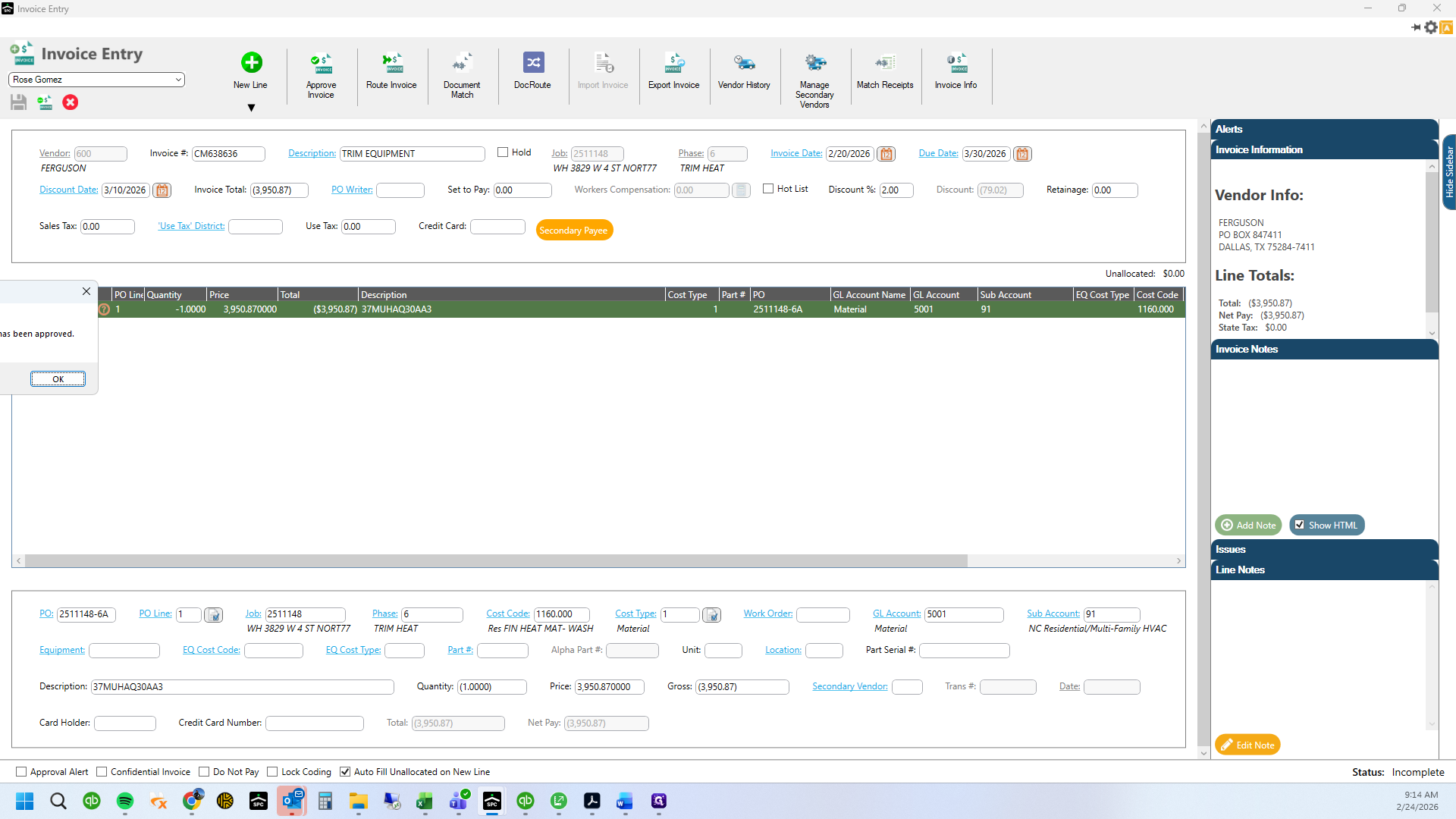
Type "Ctrl + Enter"
43
Type "Ctrl + B"
44
Type "Ctrl + V"
45
Type "Enter"
46
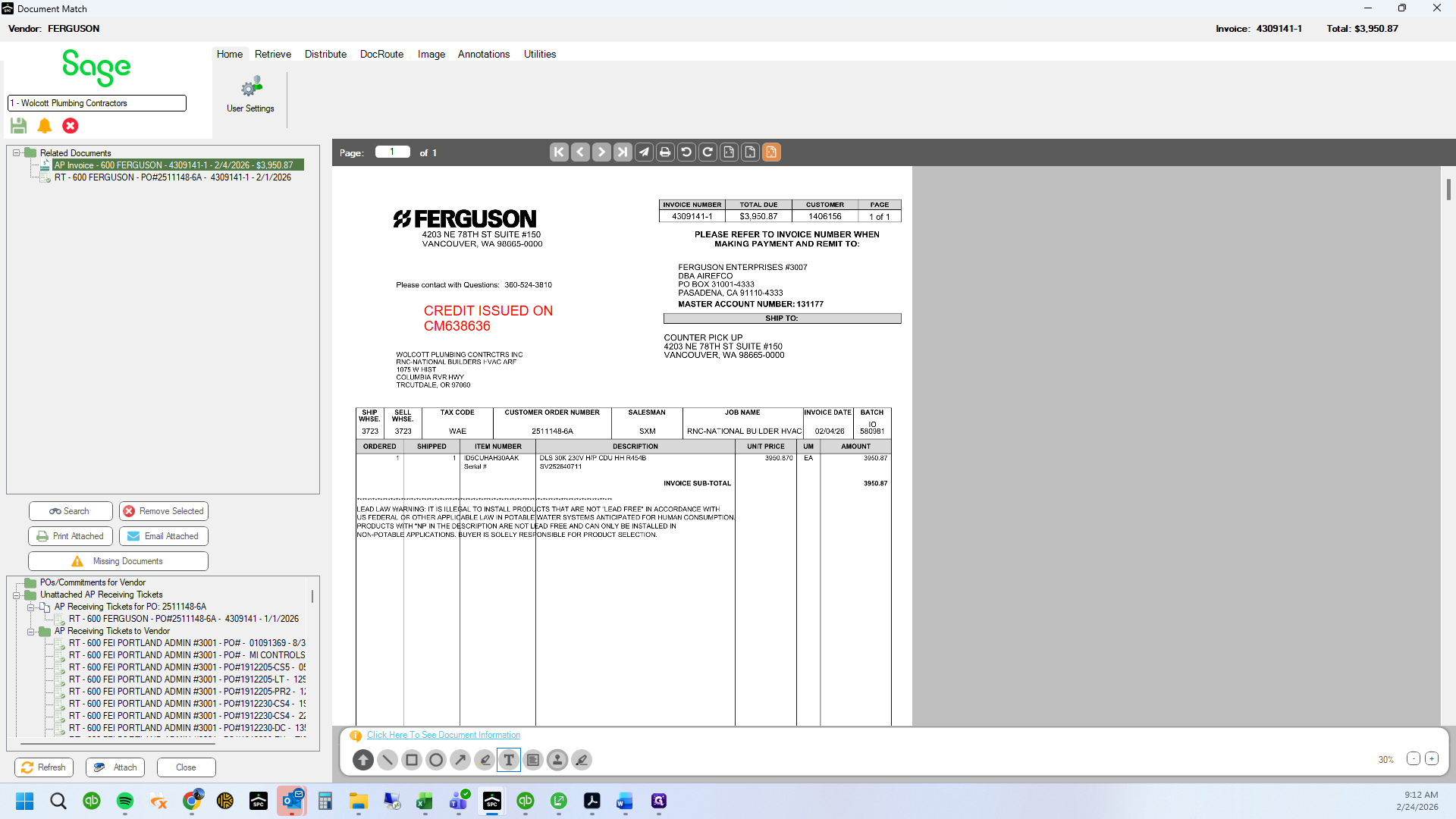
Drag "CREDIT ISSUED ON"
47
Click on "WA 98665-0000"
48
Click here
49
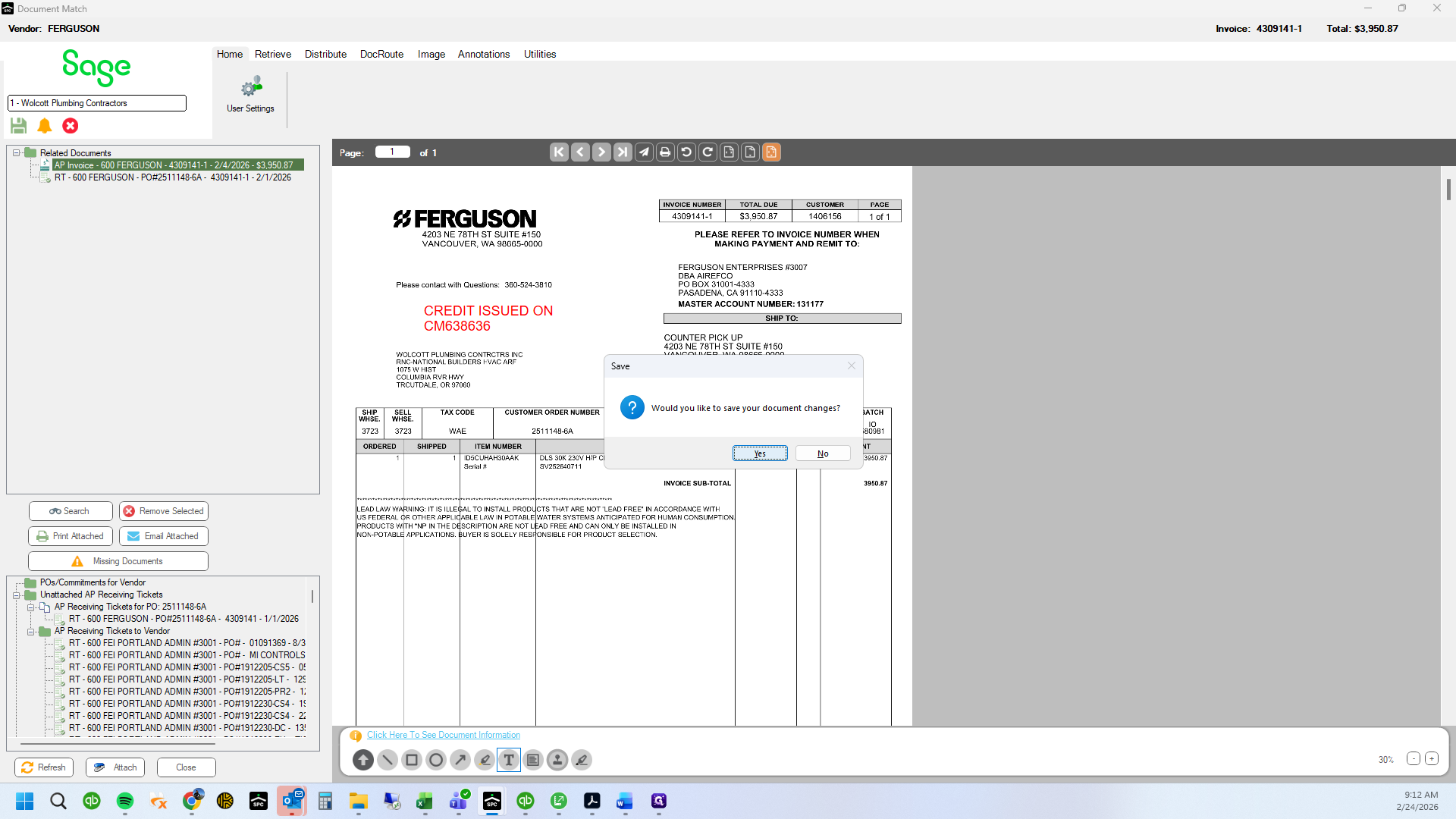
Click on "Yes"
50
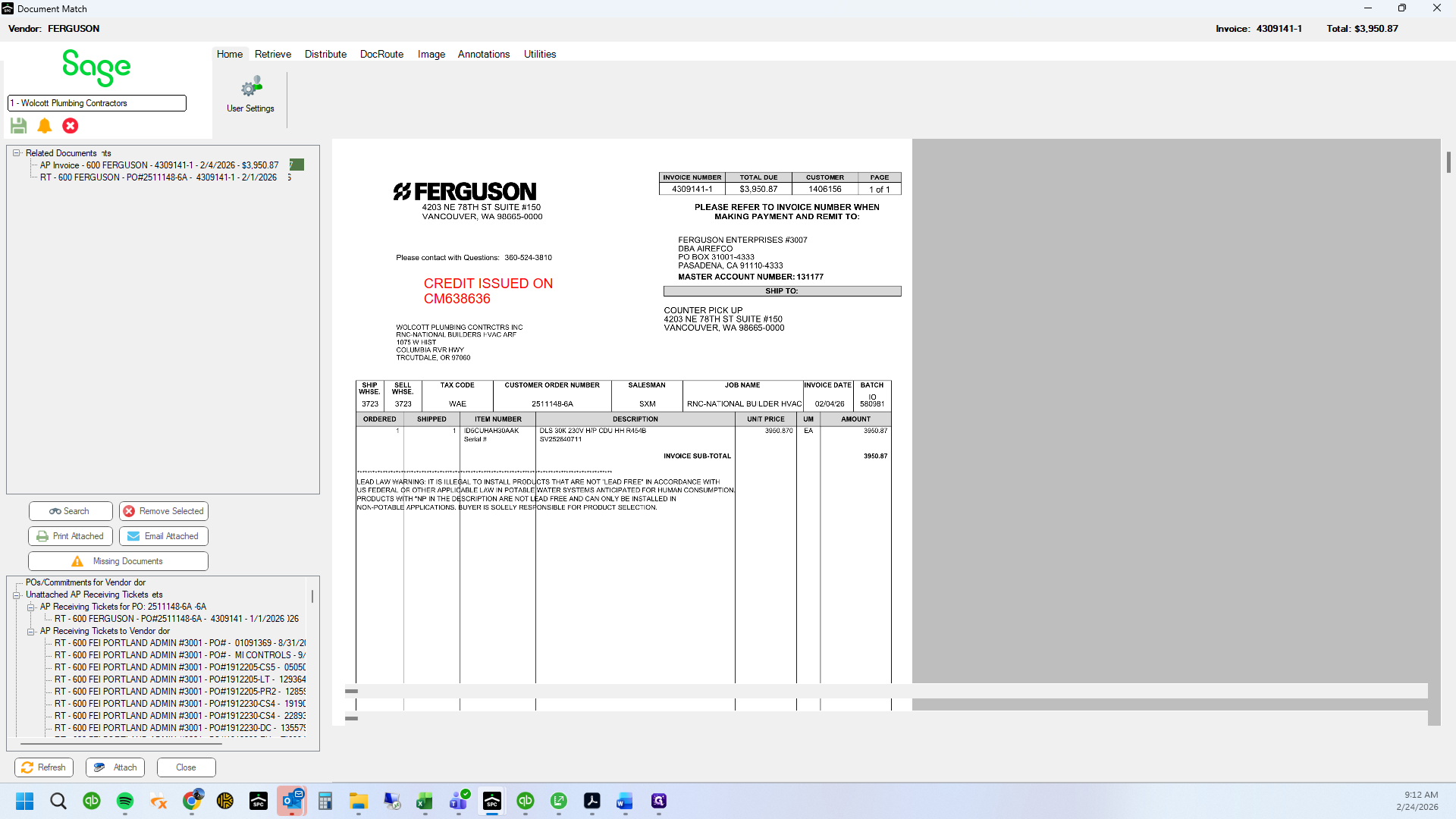
Click here
51
Click on "Invoice"
52
Double-click on "FERGUSON"
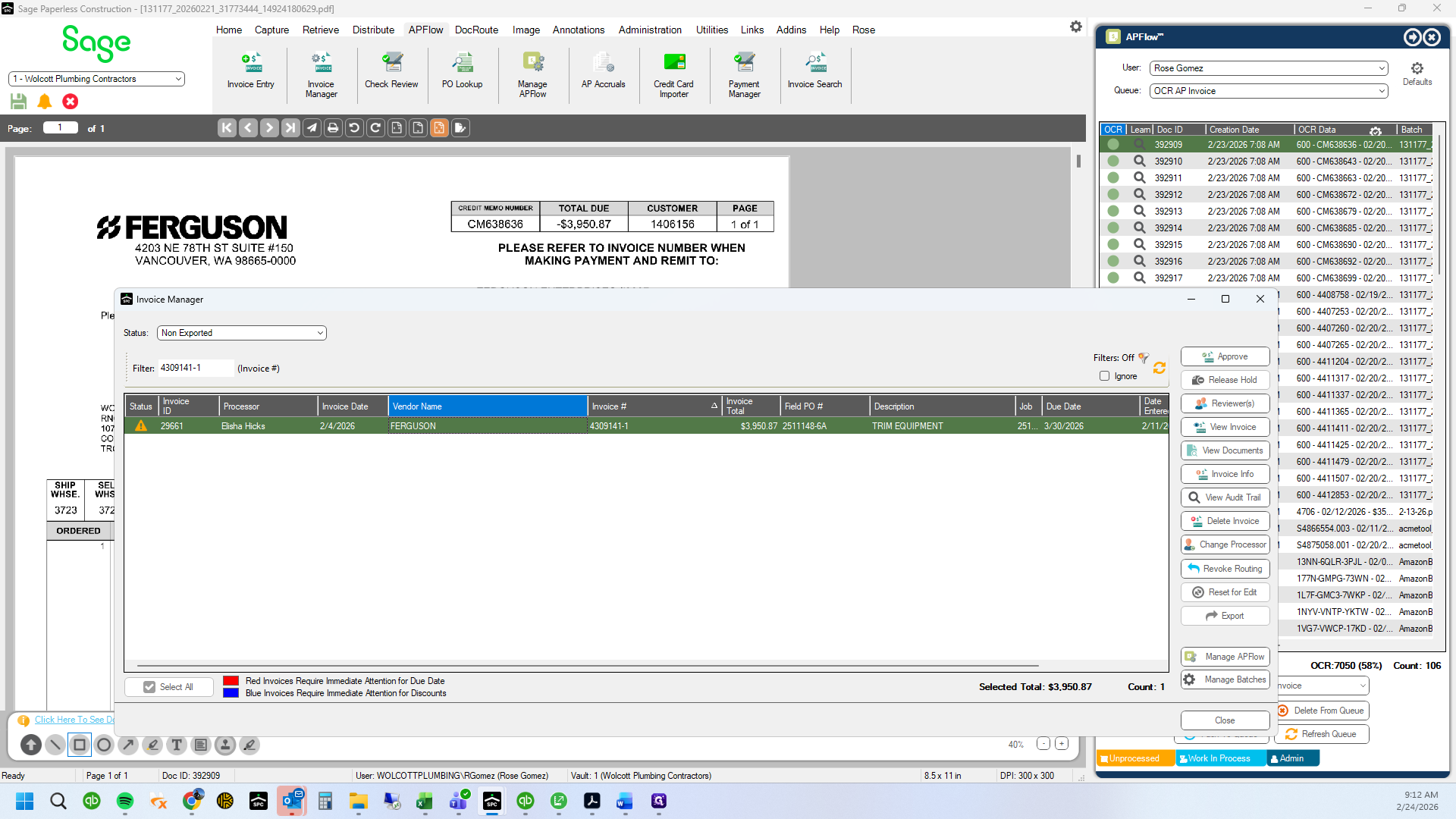
53
Click on "☐"
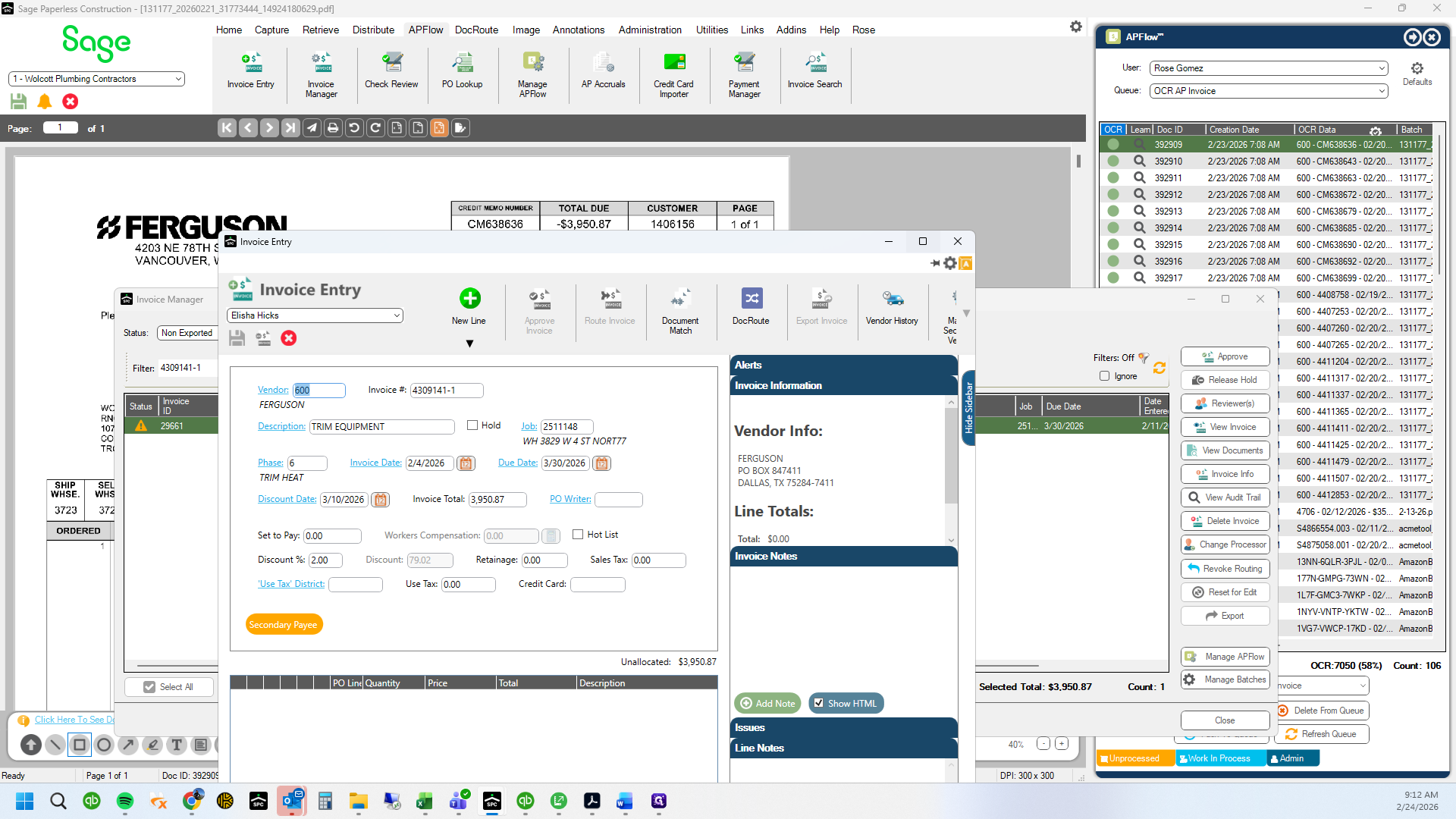
54
Click here
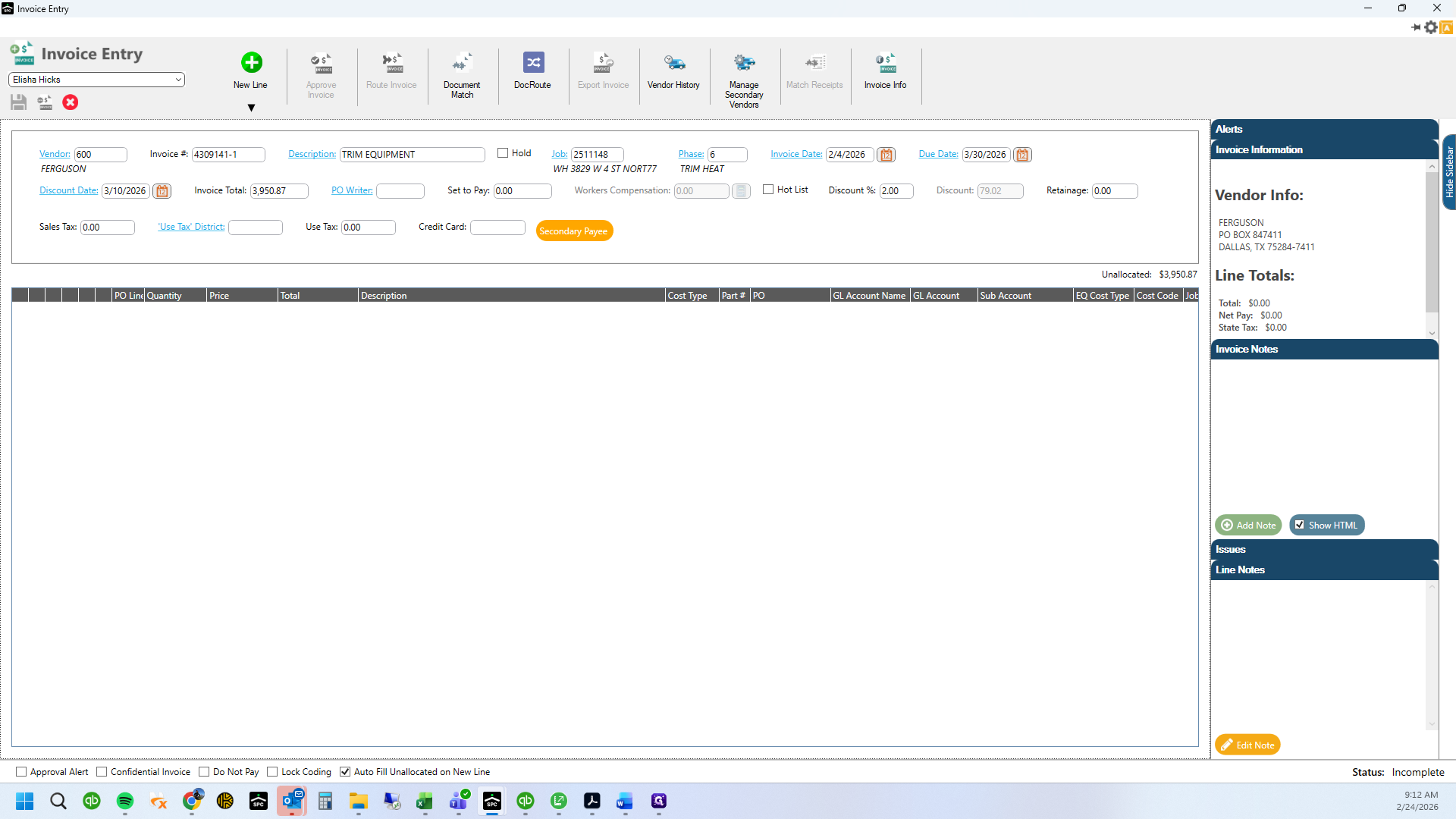
55
Drag here
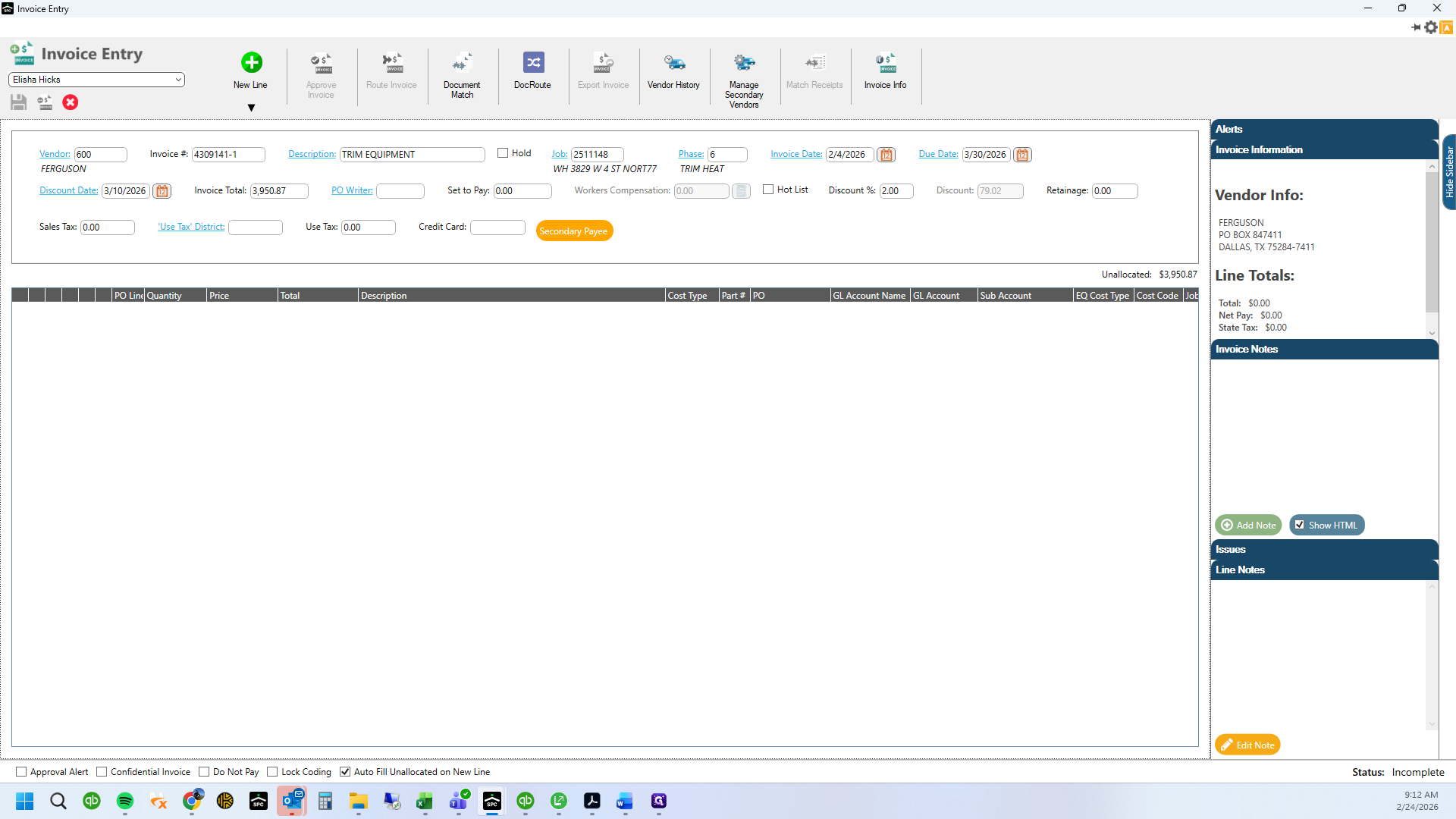
56
Click here
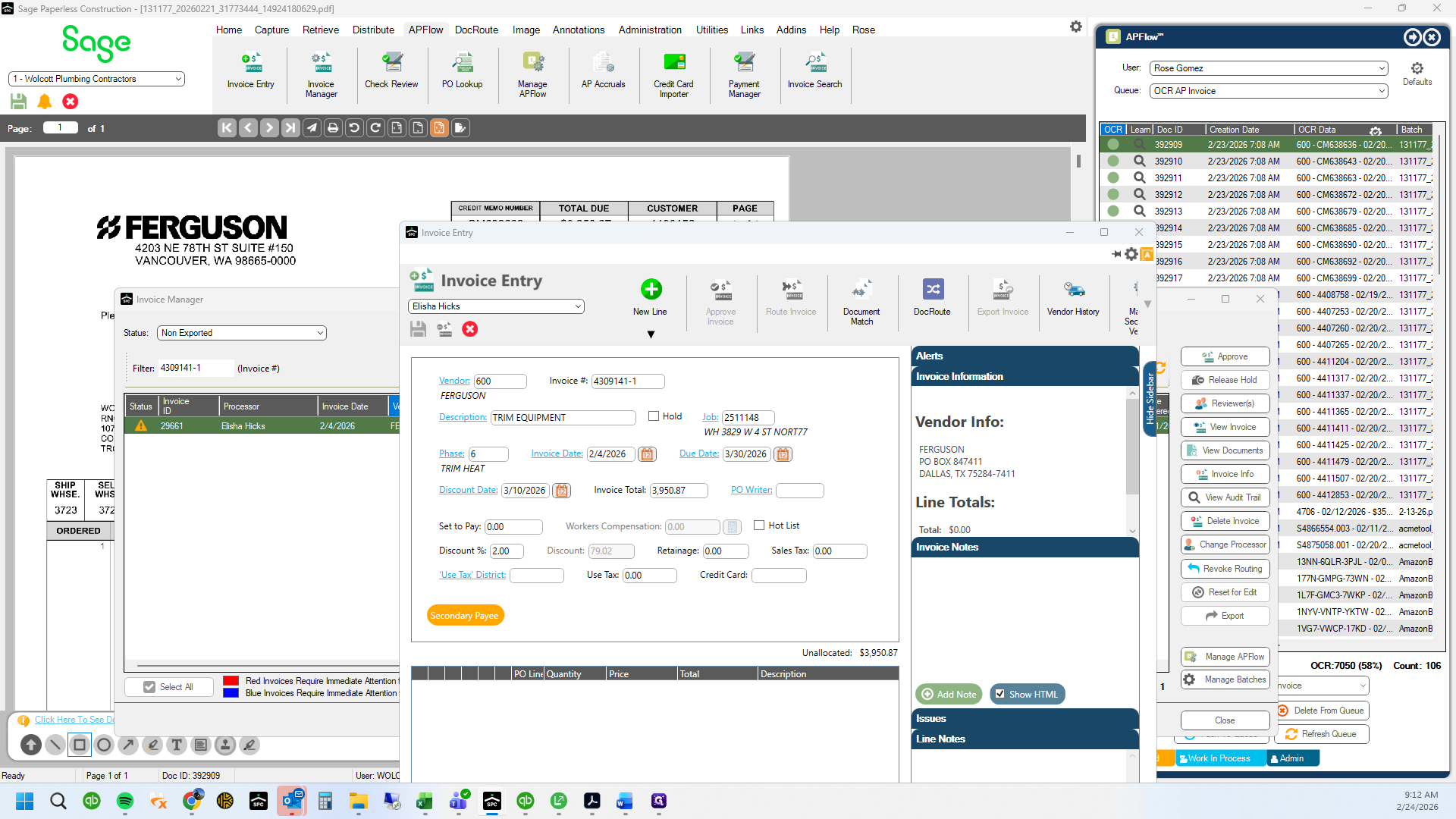
57
Drag here
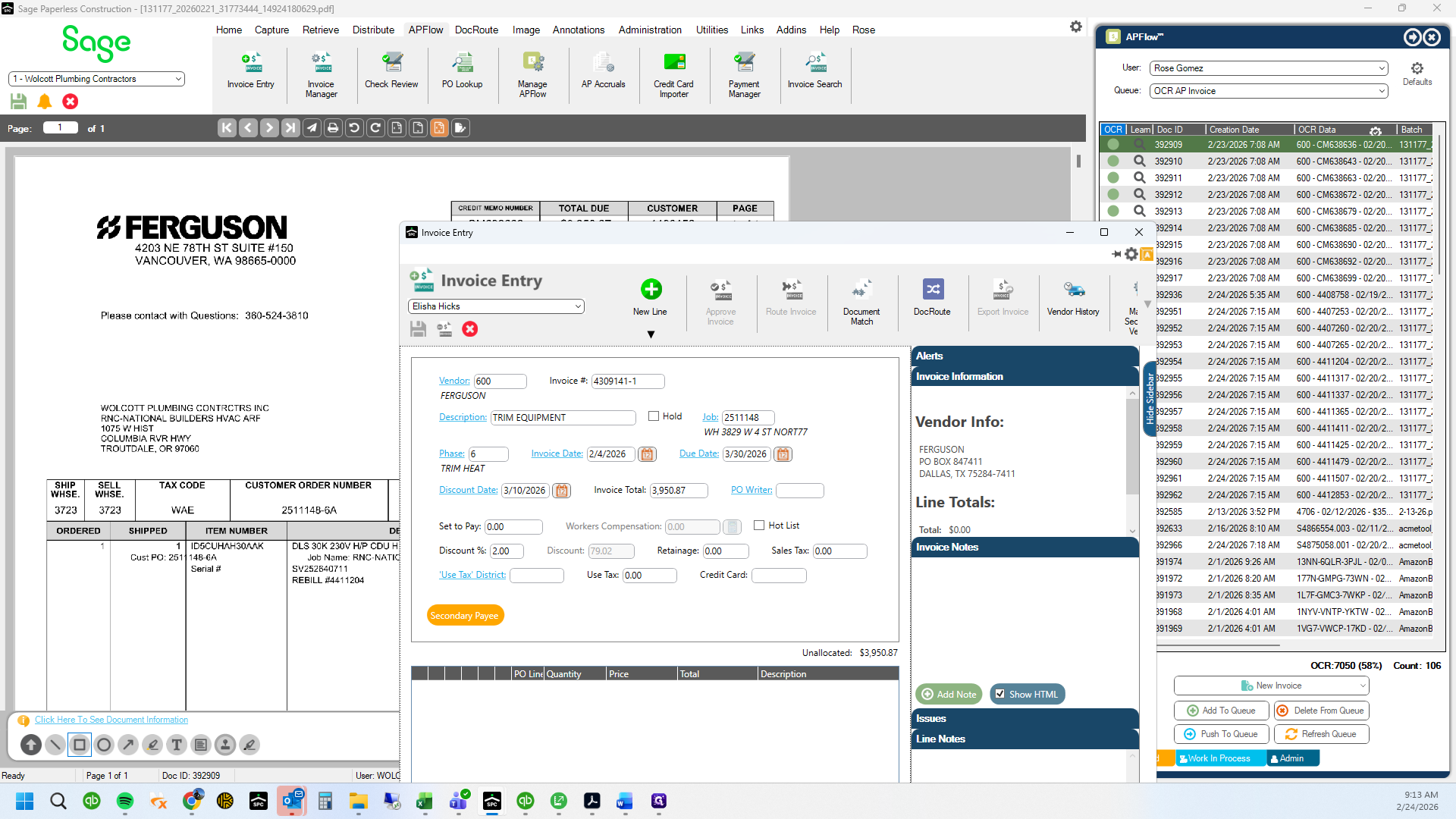
58
Click here
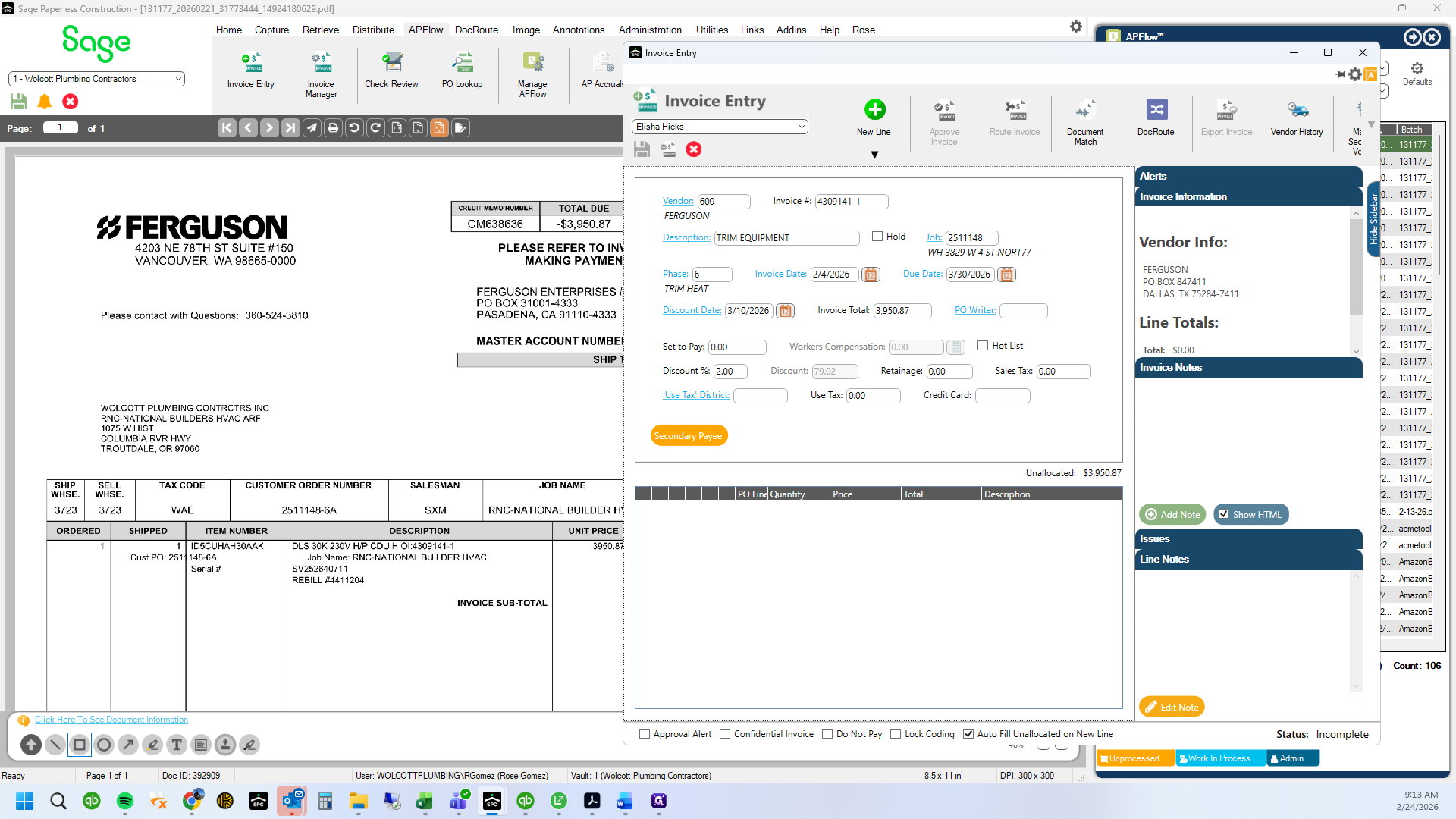
59
Drag here
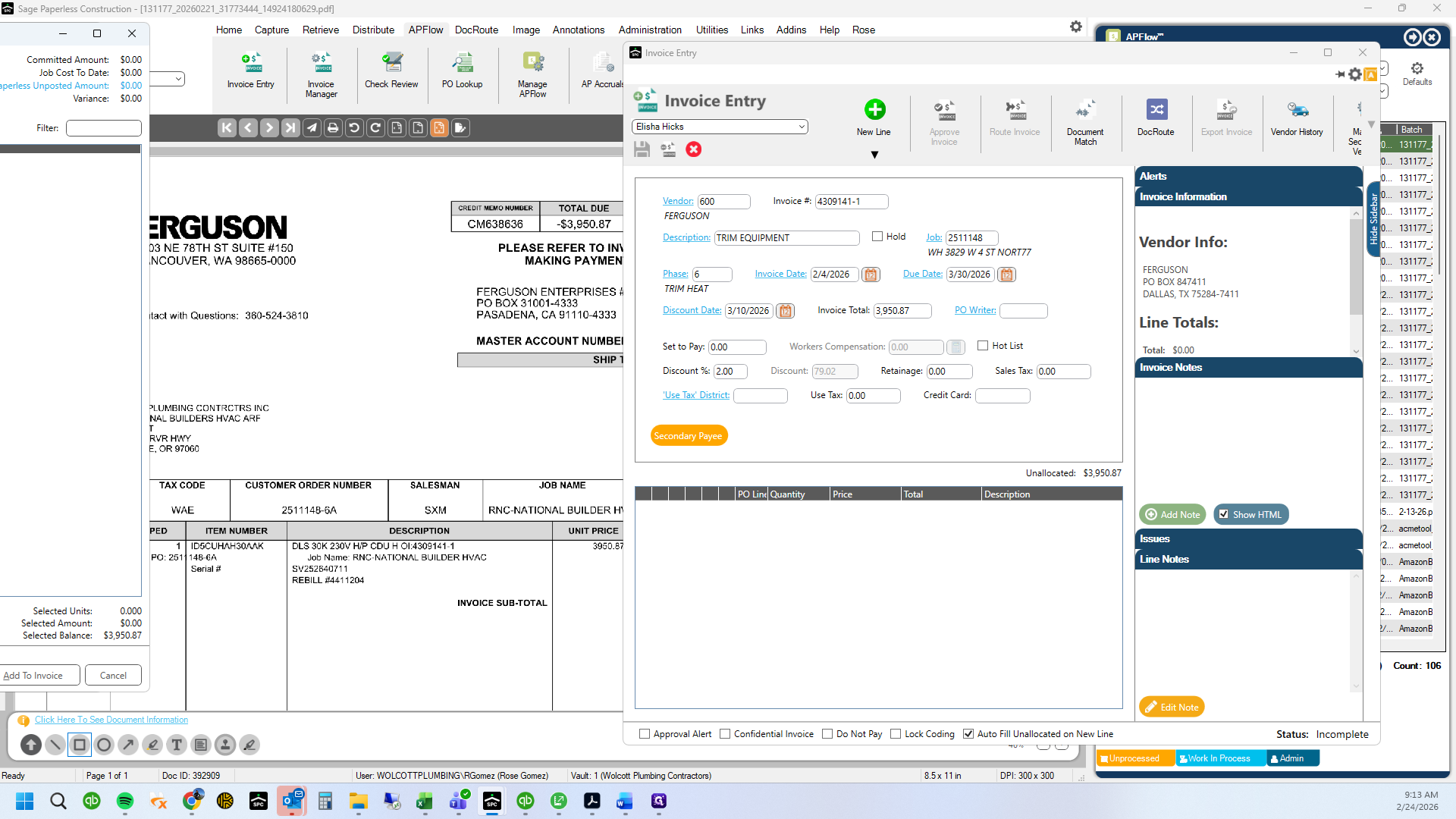
60
Type "2511148-6A + Tab"
61
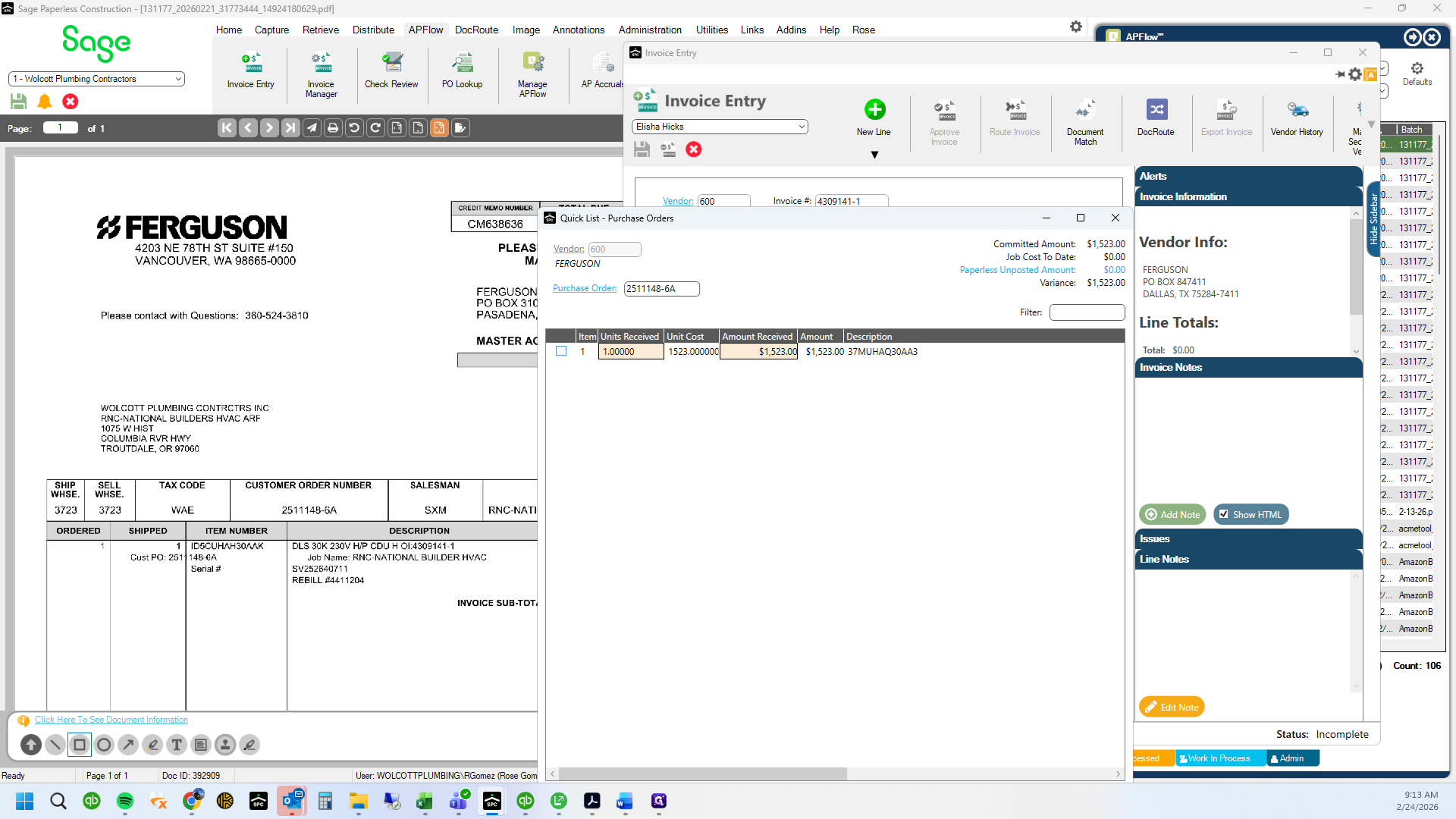
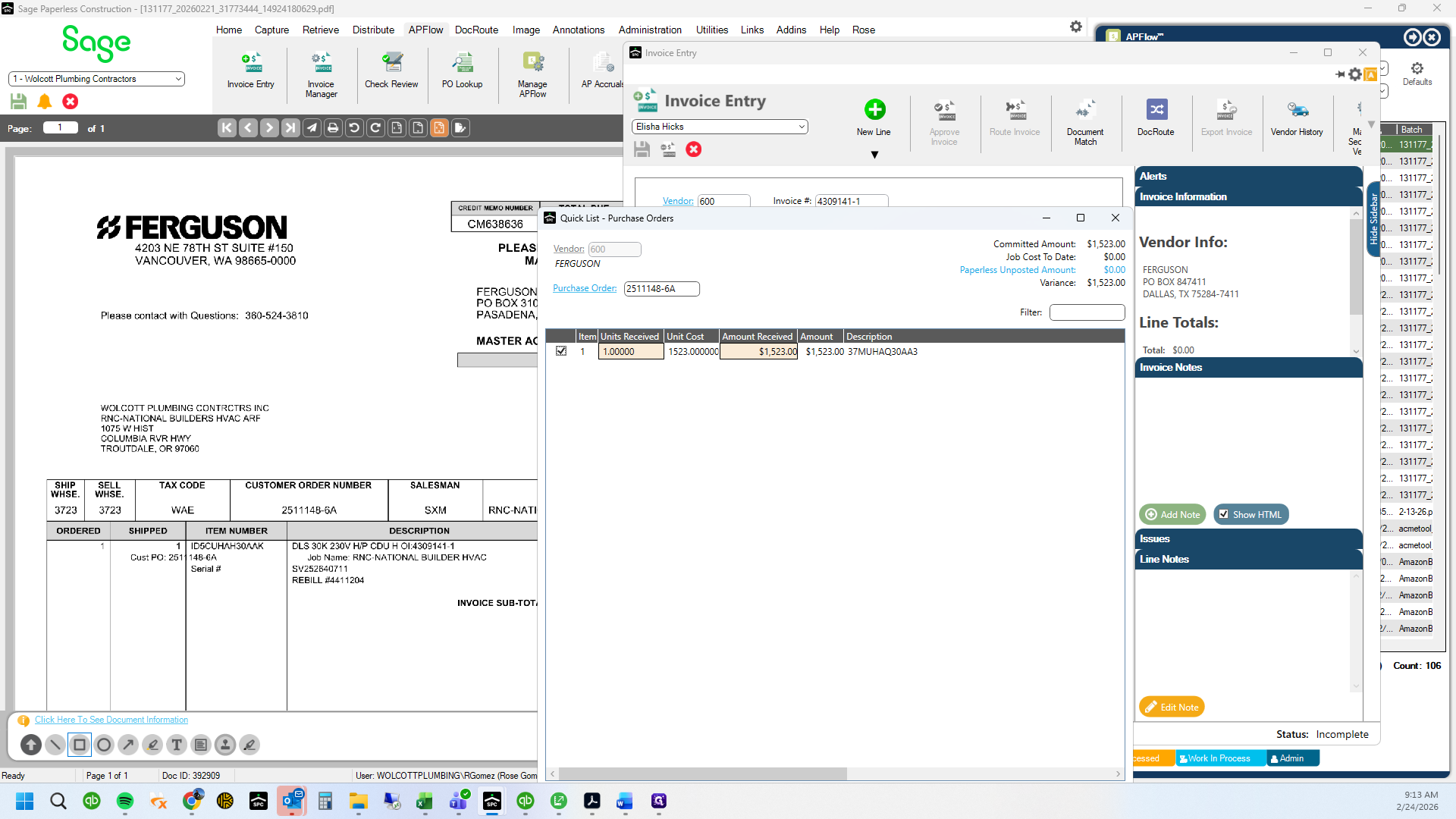
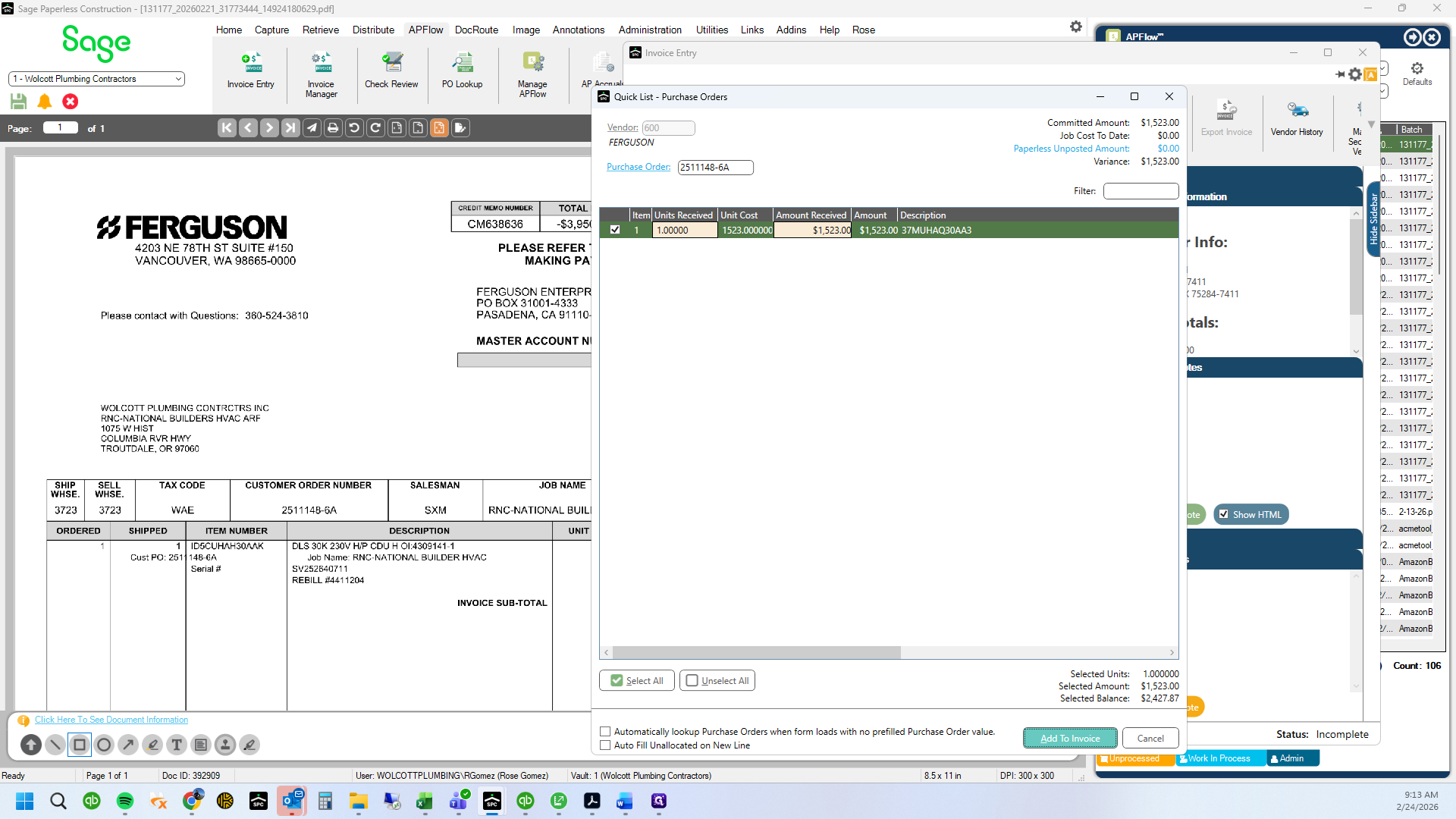
Add the line at the PO price
62
Drag here
63
Click on "Add To Invoice"
64
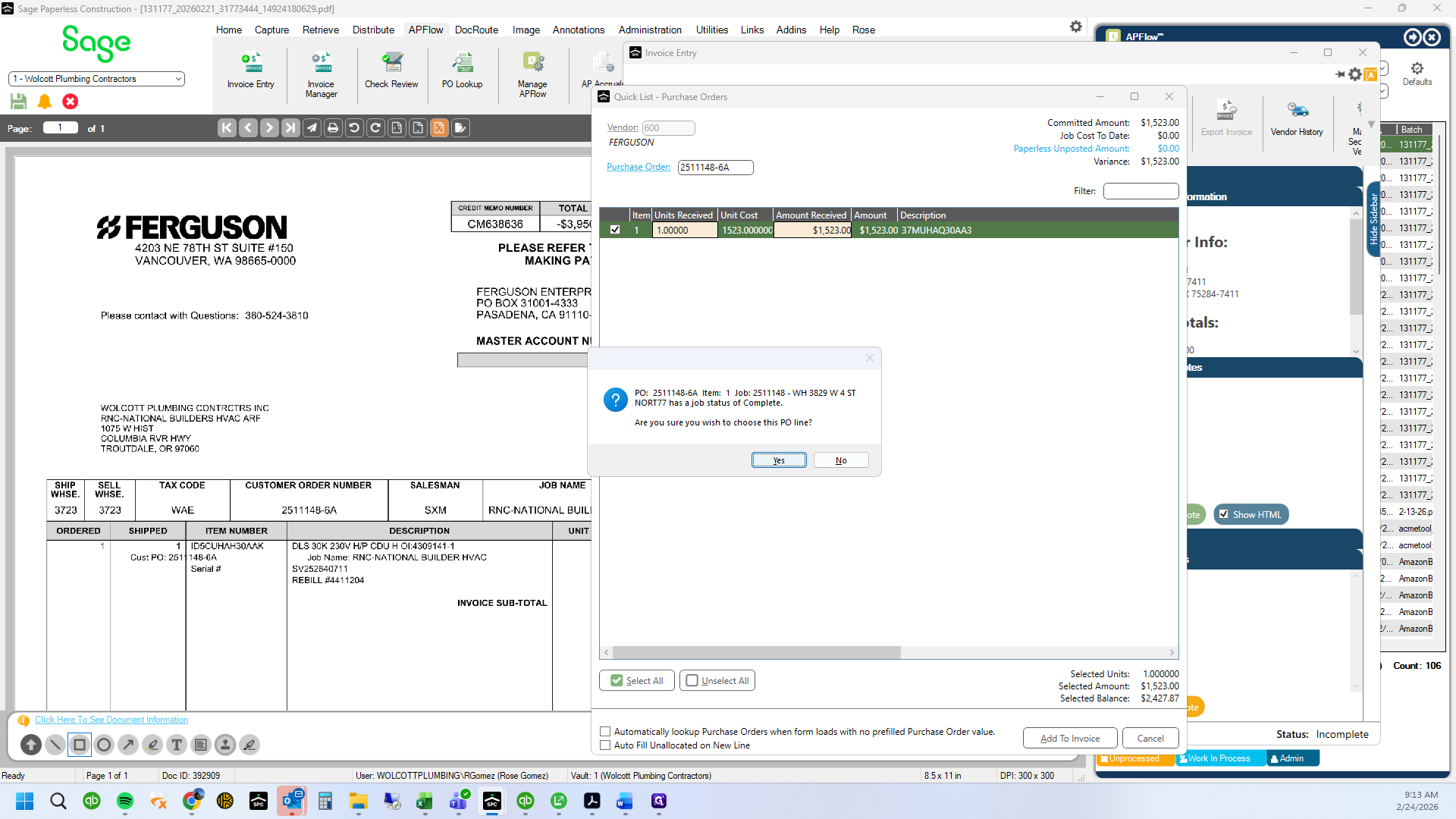
Click on "Yes"
65
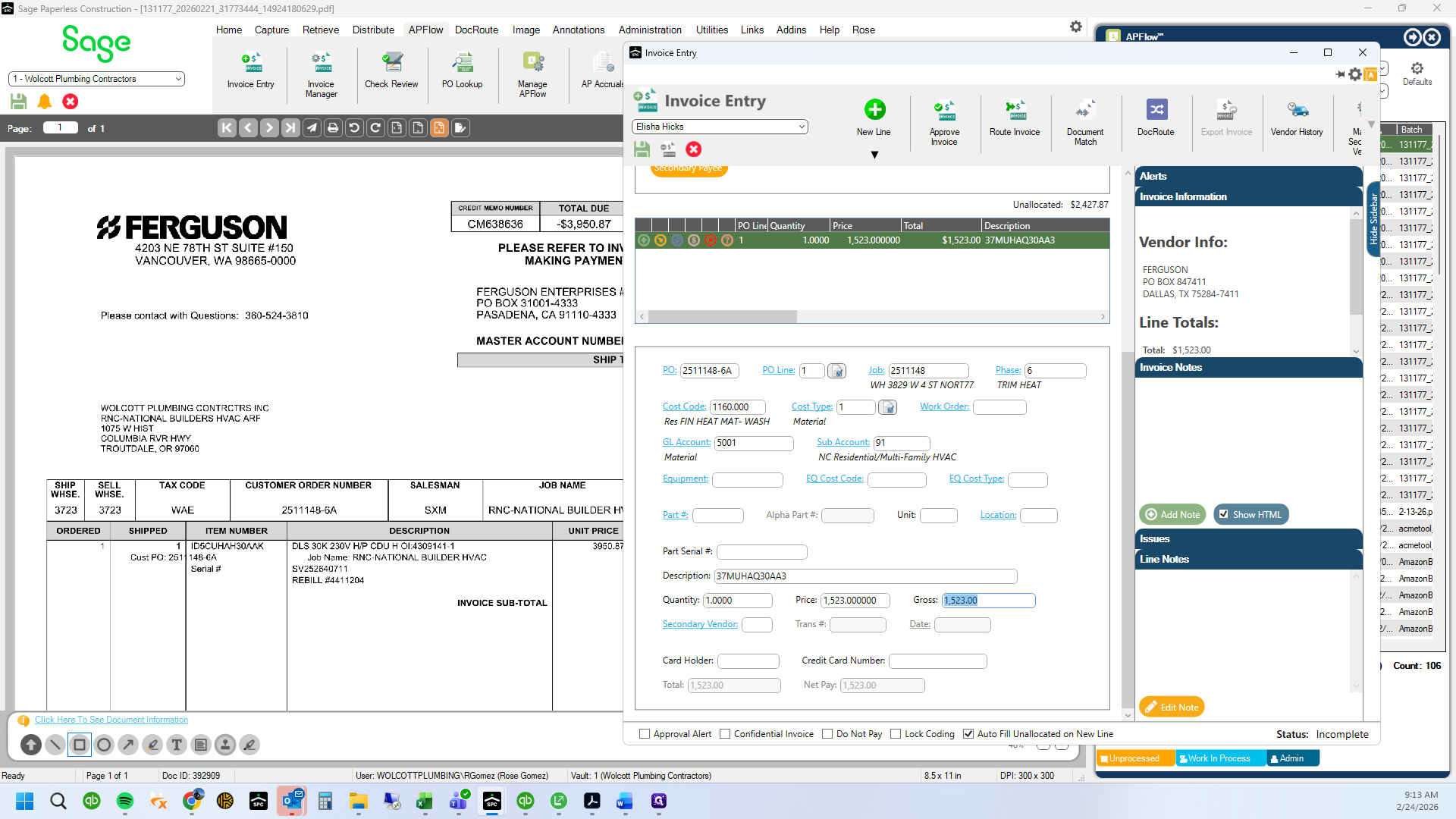
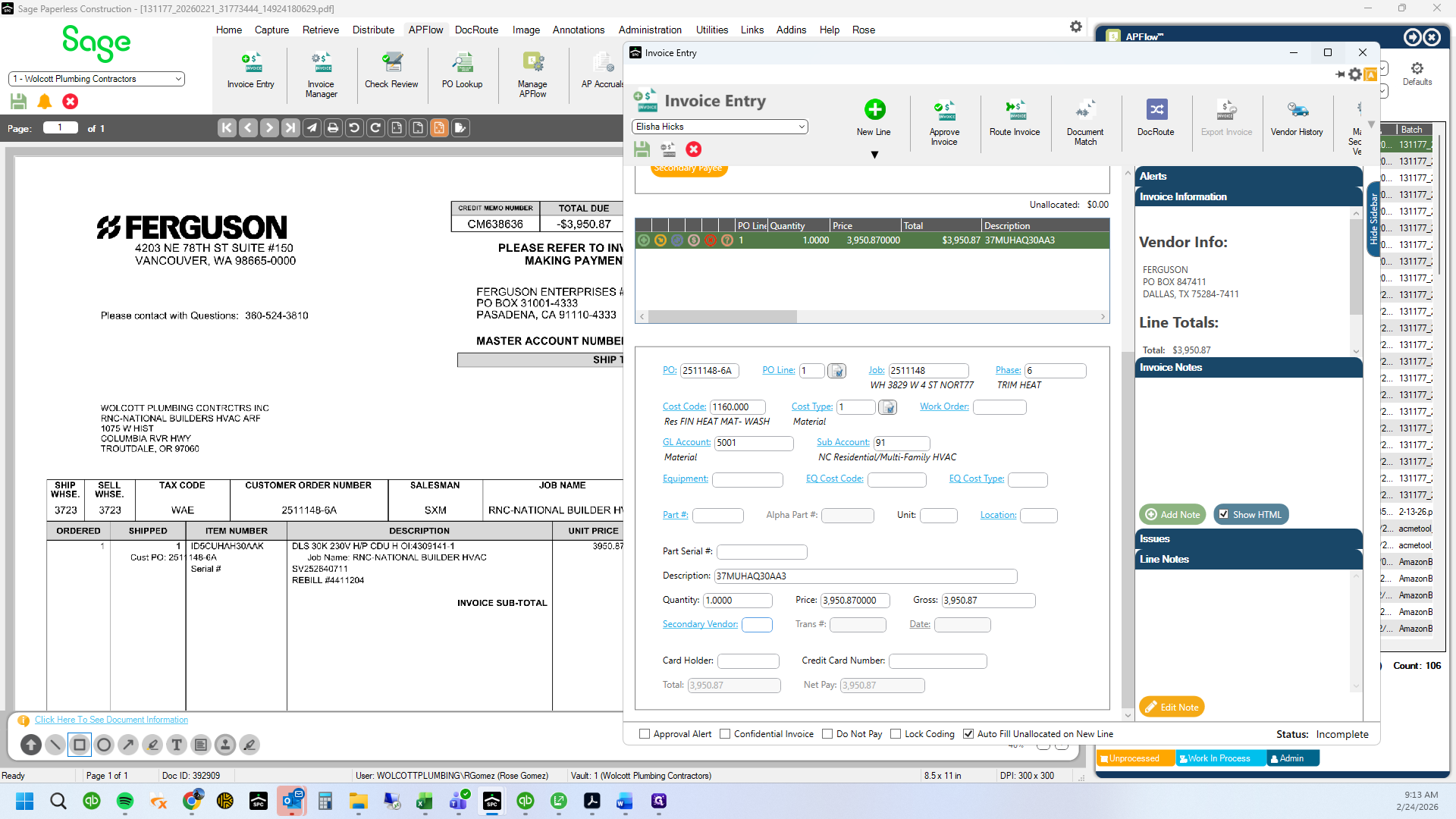
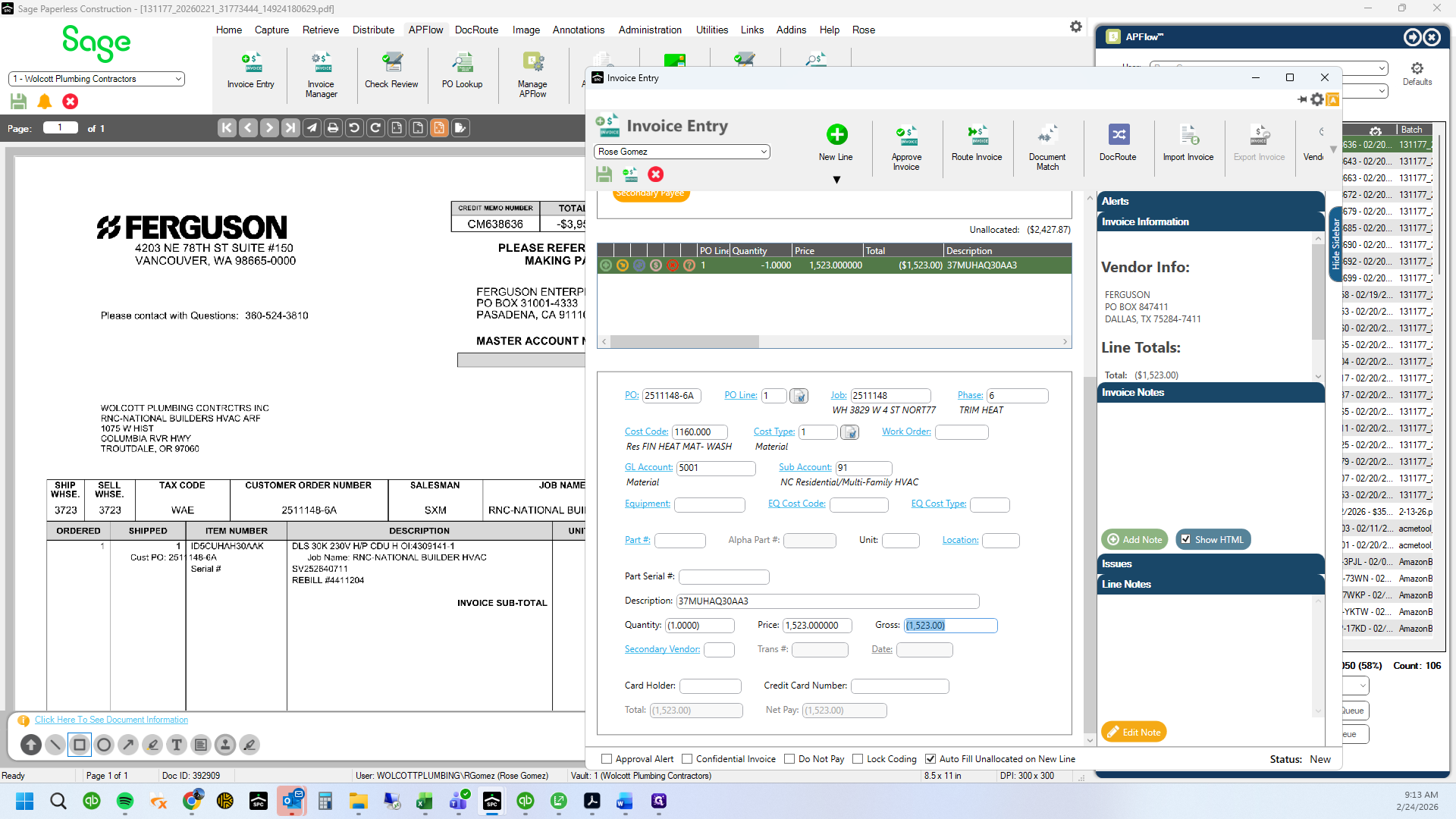
Change the price to match the incorrect invoice. We ONLY do this when we are also entering the credit, creating a NET ZERO transaction. Otherwise, we never increase the price of a line item.
66
Type "3950.87 + Tab"
67
Click on "☐"
68
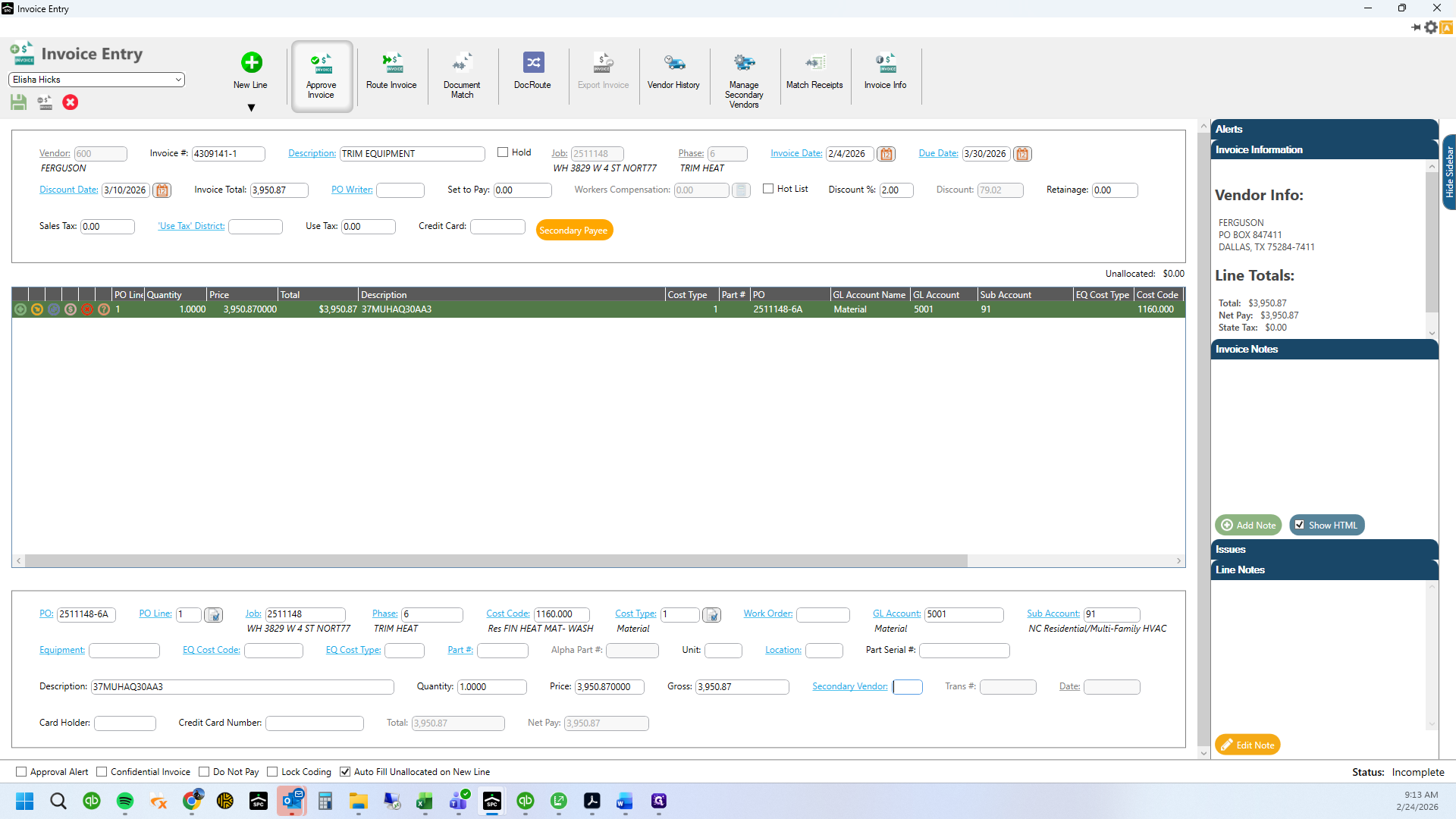
Click here
69
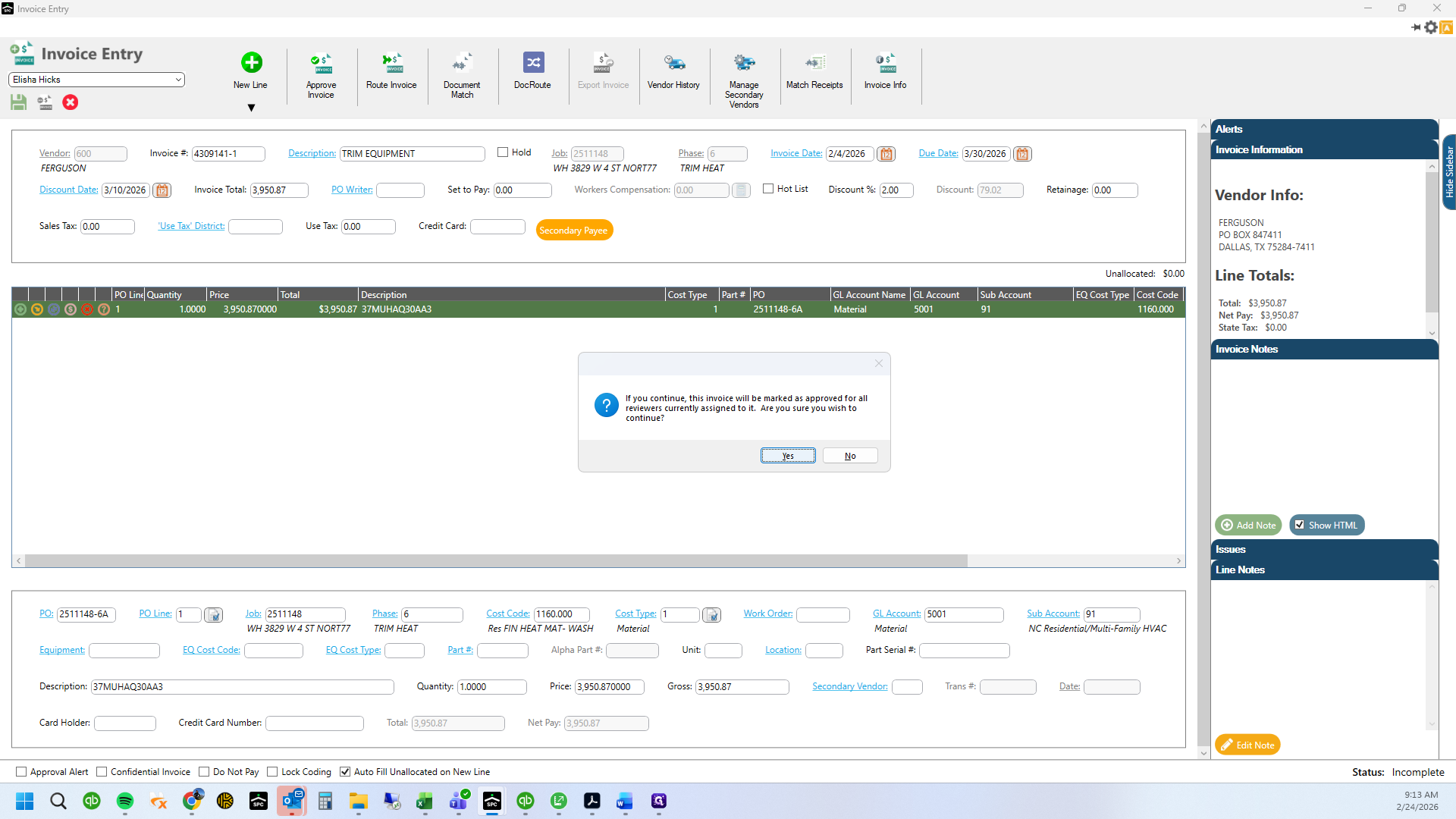
Double-click on "Yes"
70
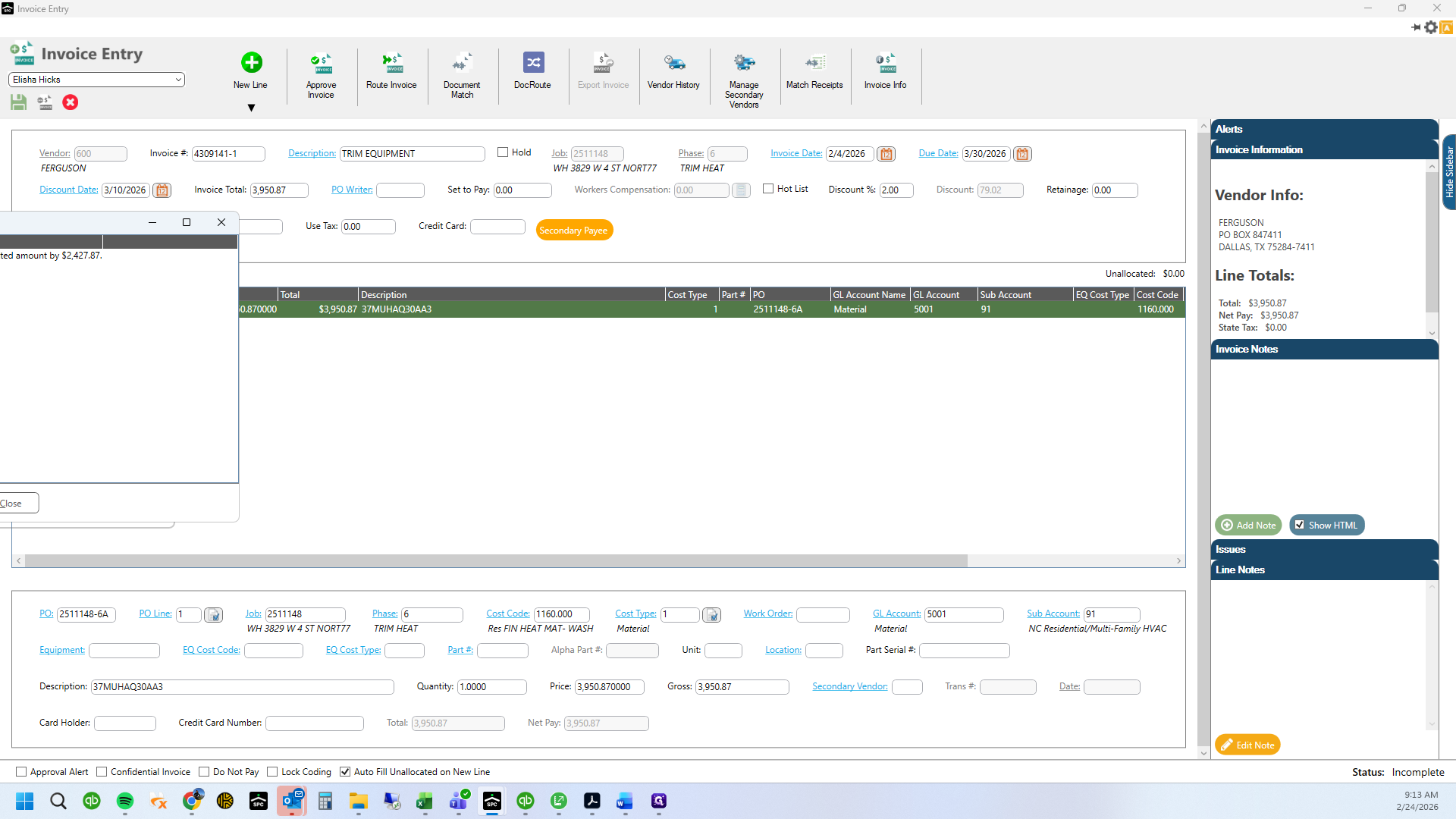
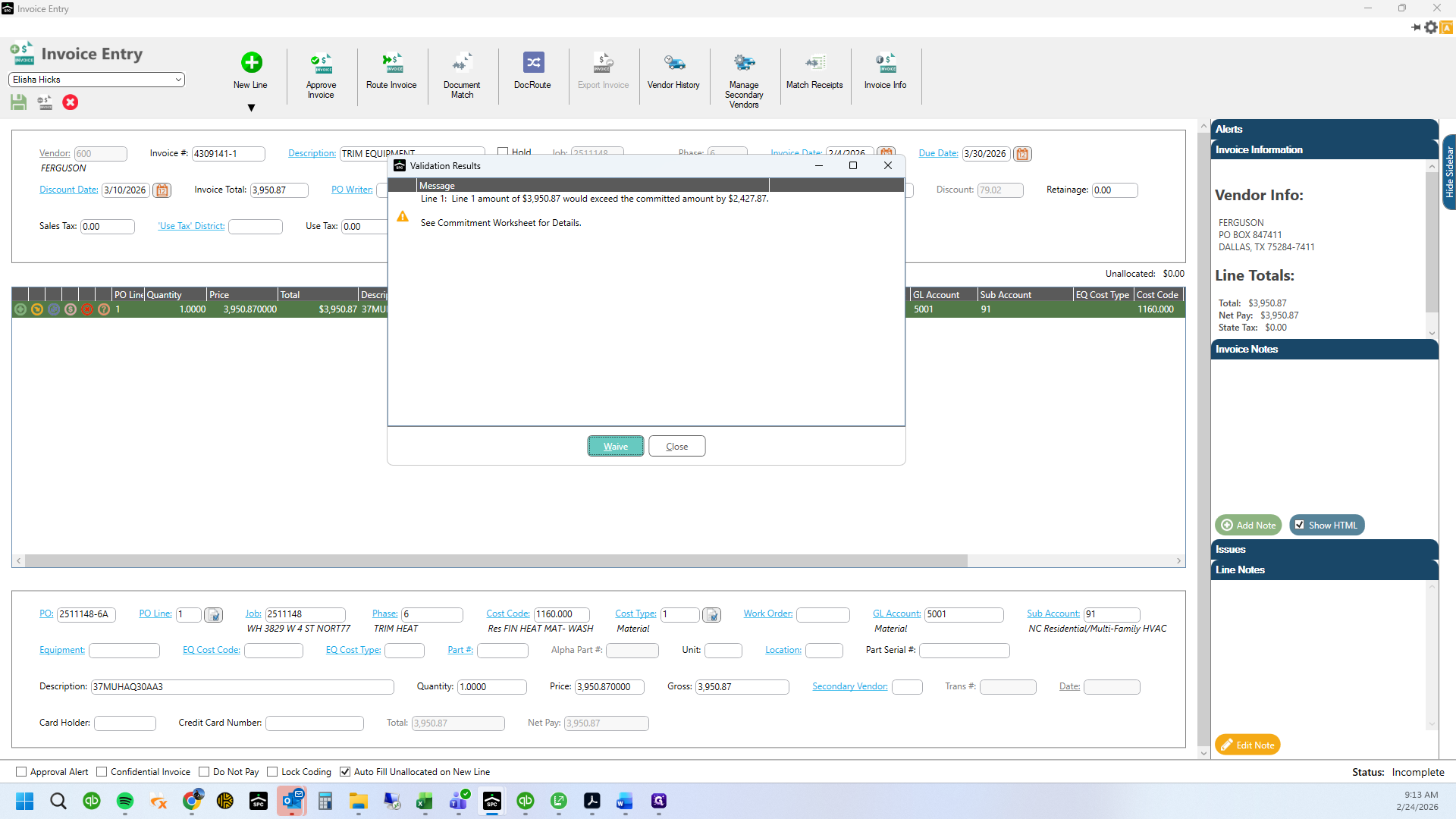
Agree to the cost warning.
71
Click on "Waive"
72
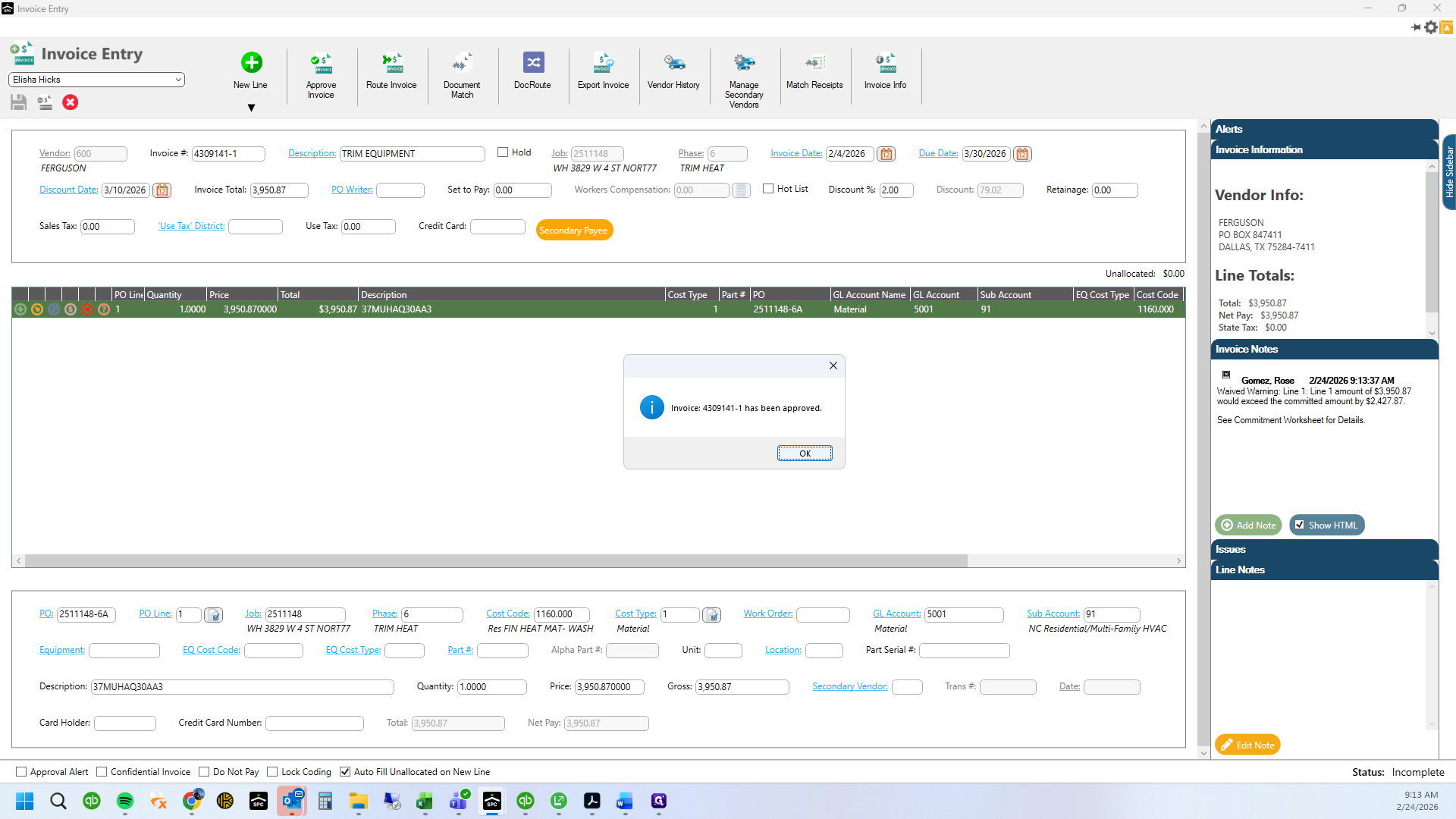
Click on "OK"
73
Now, enter the credit.
74
Drag here
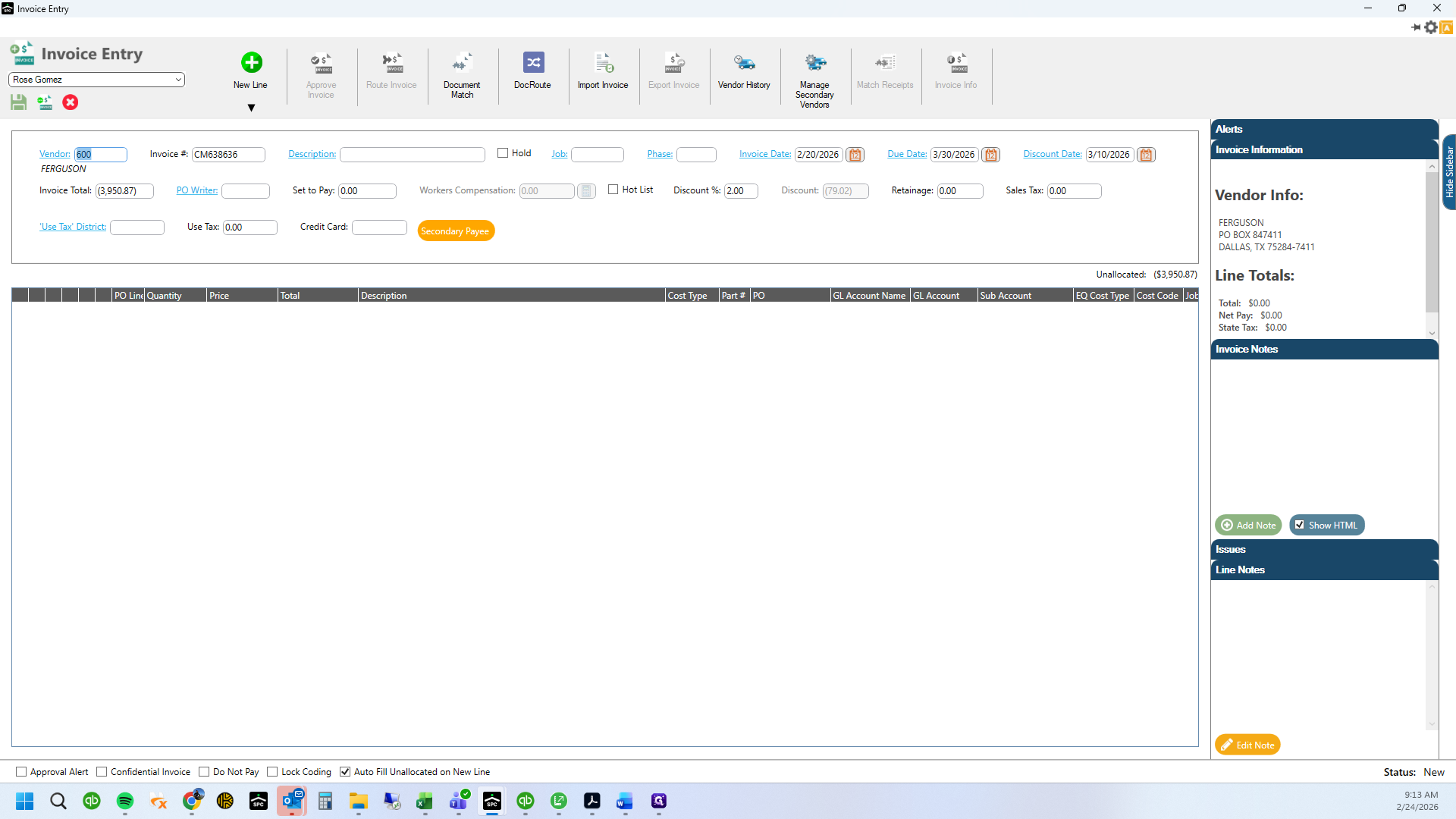
75
Click here
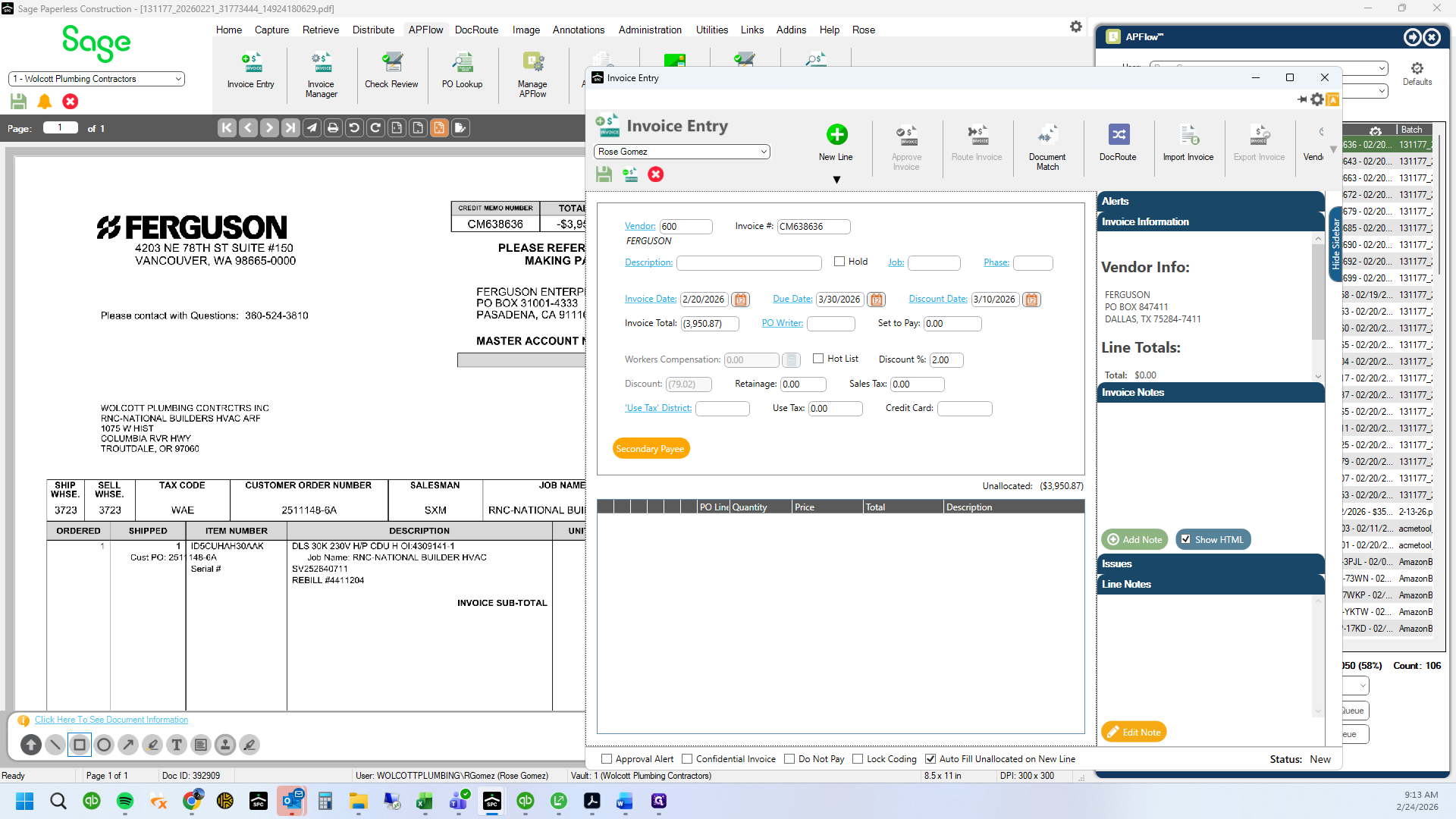
76
Type "2511148-6A + Tab"
77
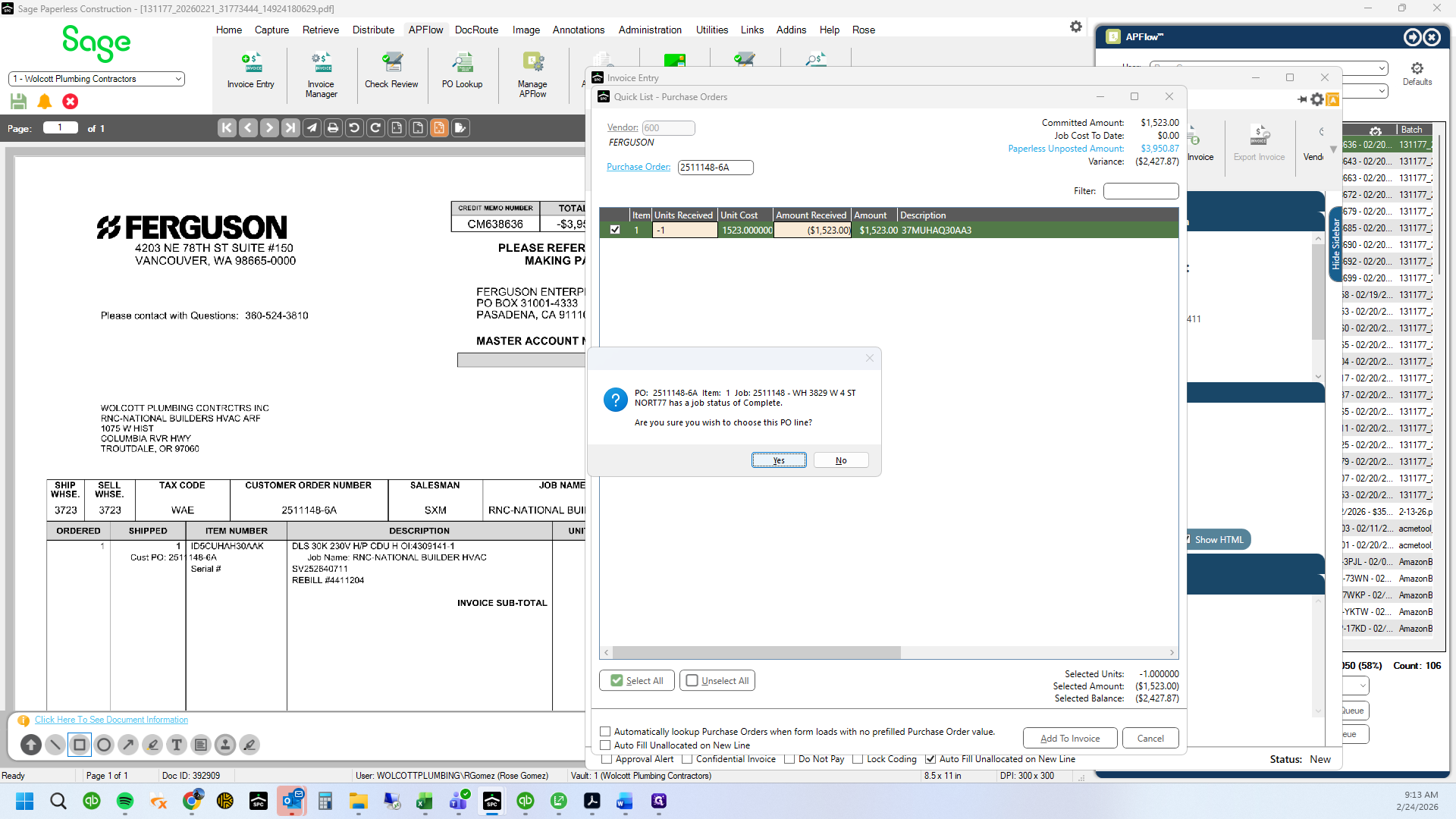
Enter a "-1" on the PO line item
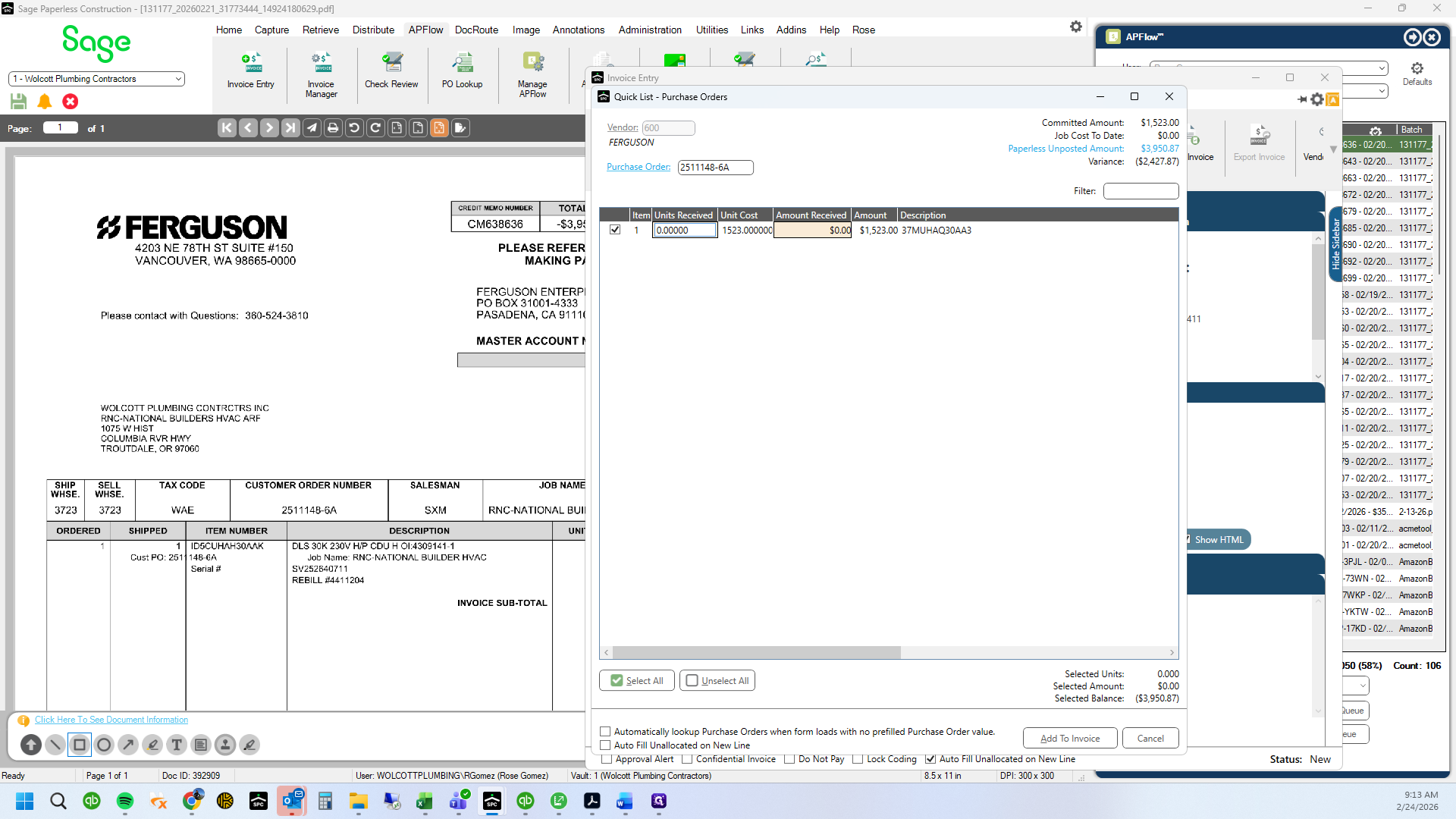
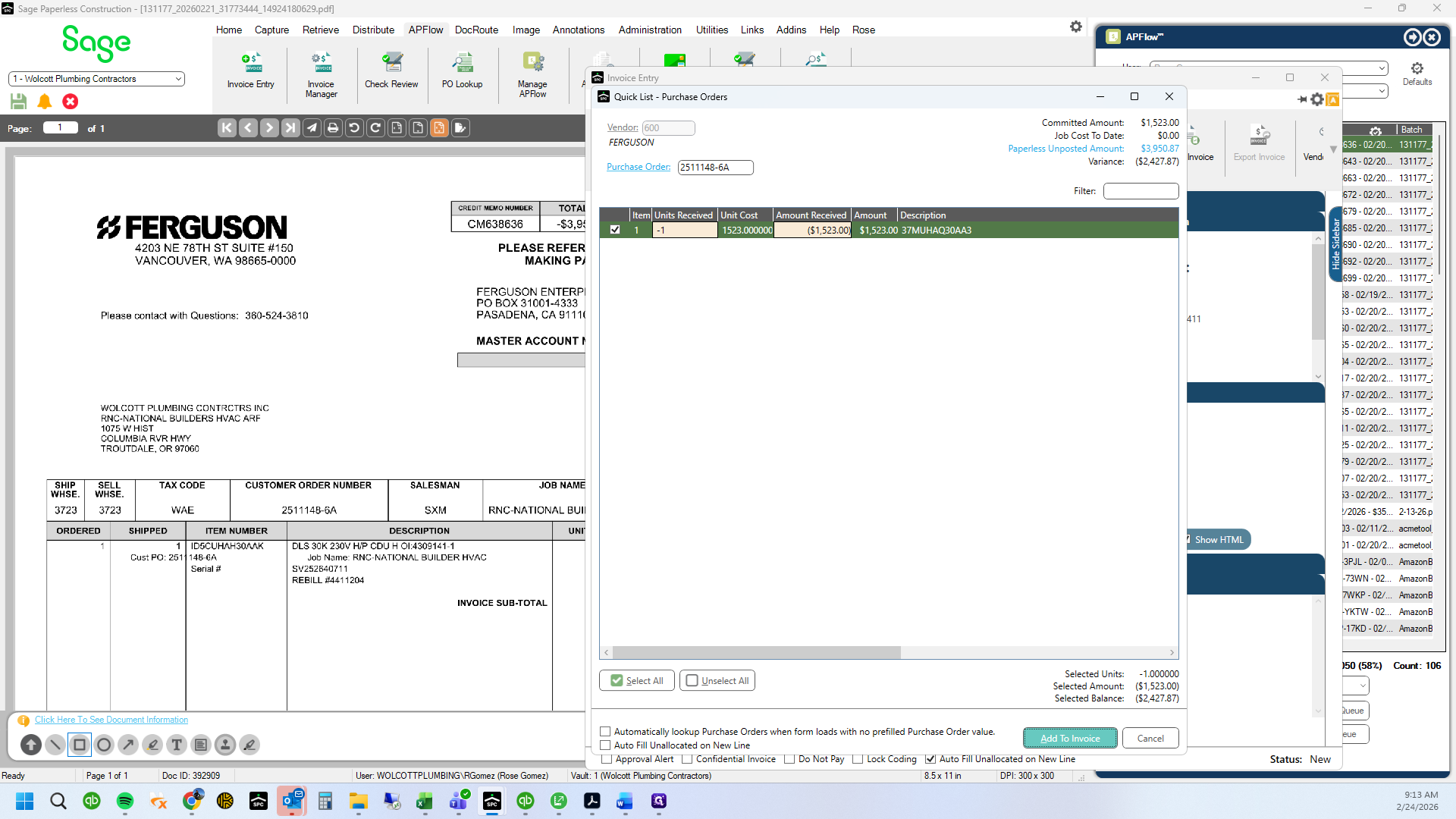
78
Type "-1 + Enter"
79
Click on "Add To Invoice"
80
Click on "Yes"
81
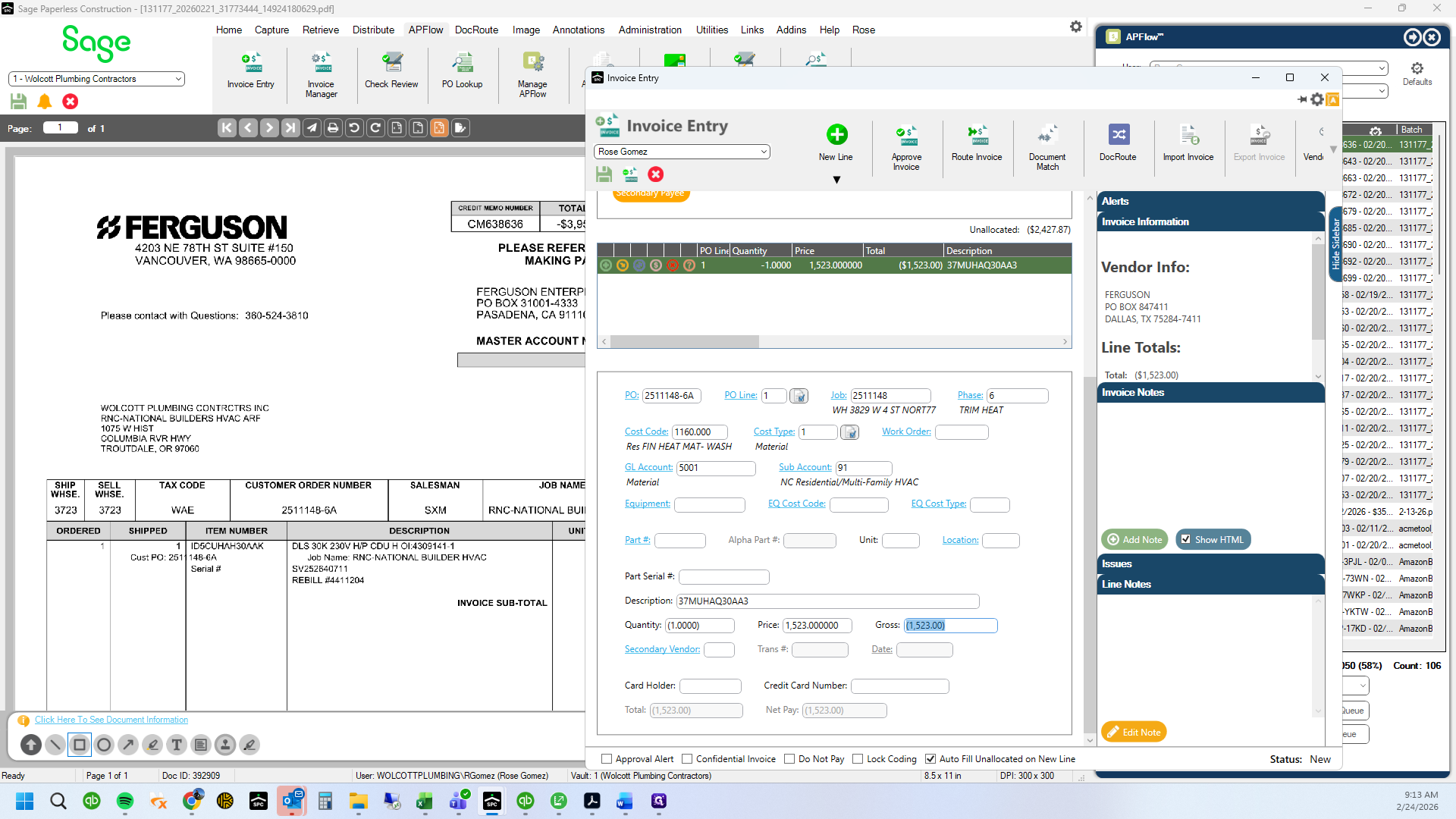
Change the price to match the credit amount
82
Drag here
83
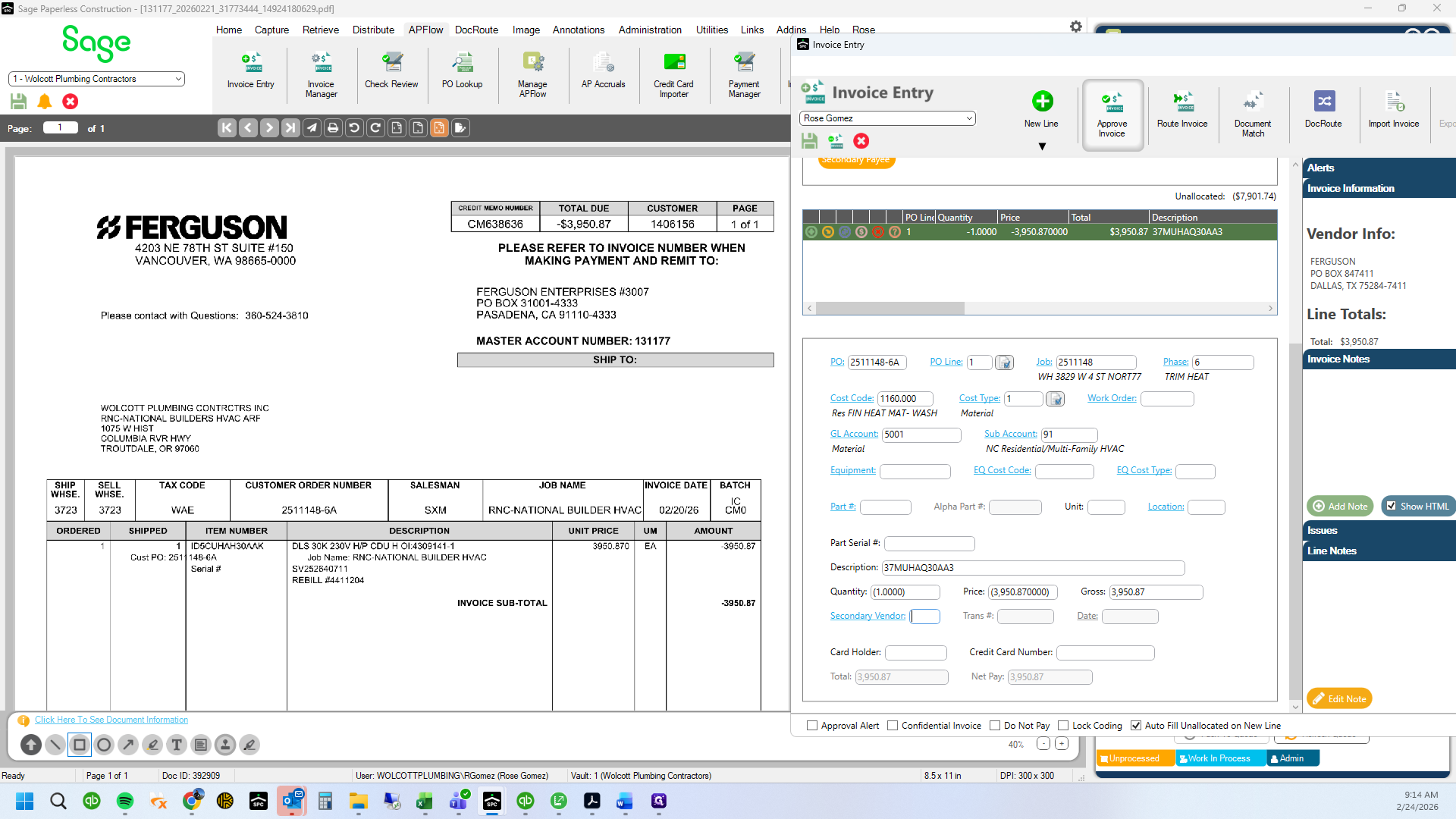
Type "3950.87 + Tab"
84
Click here
85
Click here
86
Click on "OK"
87
Drag here
88
You have successfully entered a net zero transaction for an incorrect priced item. The invoice and Credit Memo are complete.