How to View and Export Rental Tax Reports on Reservety

Learn how to filter, view, and export tax reports by country, tax group, date, and order status. Step-by-step guide for exporting tax data as CSV, Excel, PDF, or print.

By Reservety

In this guide, we'll learn how to generate and filter tax reports based on specific dates, countries, and order statuses.

This process helps you find the tax information you need, such as taxes collected since a certain date or in a particular country.

You will also see how to export or print these reports for your records.

Let's get started
1
First, go to your rental dashboard, then click Reports.
2
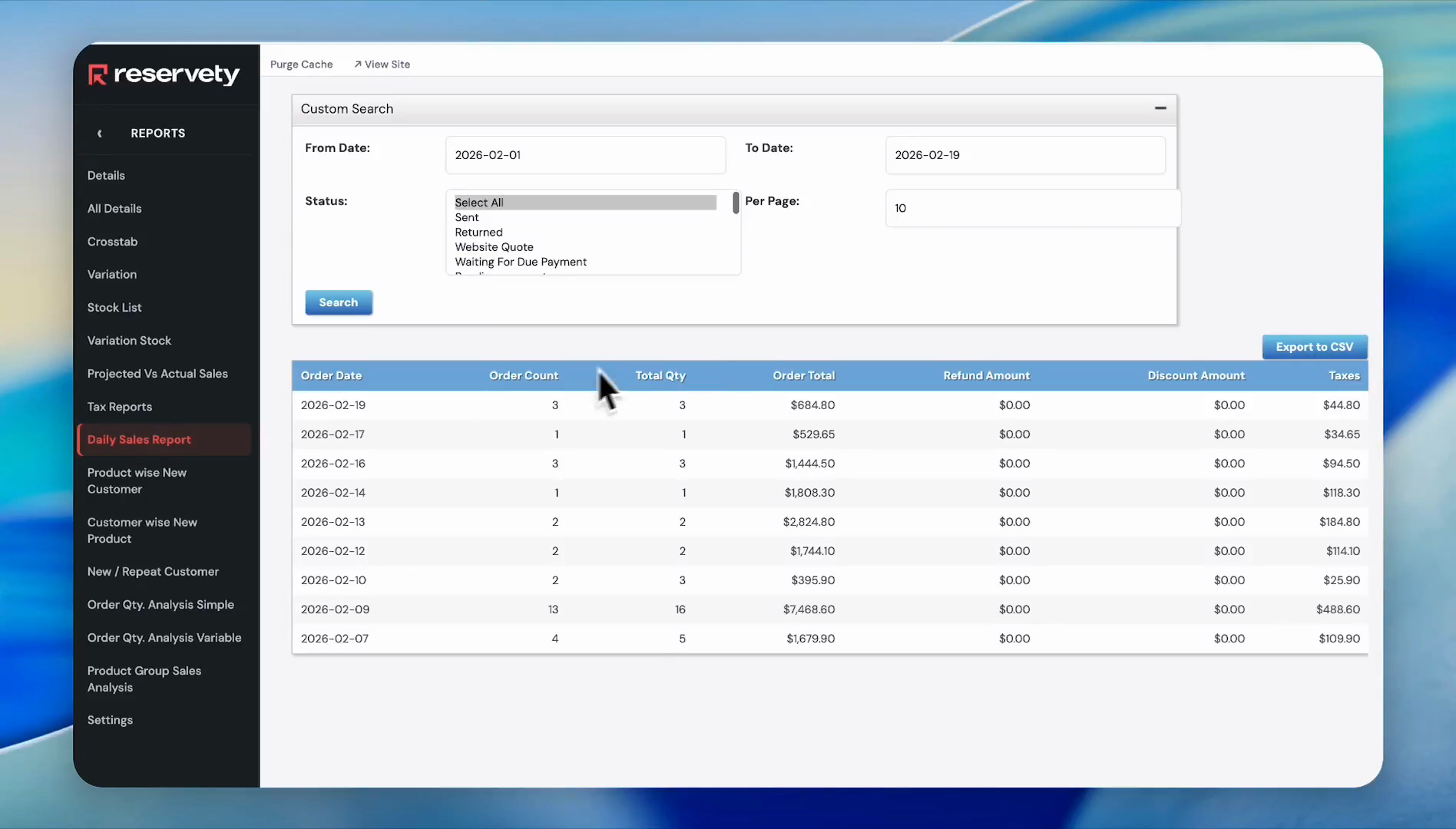
Click on the Tax Reports.
Step #2: Click on the Tax Reports.

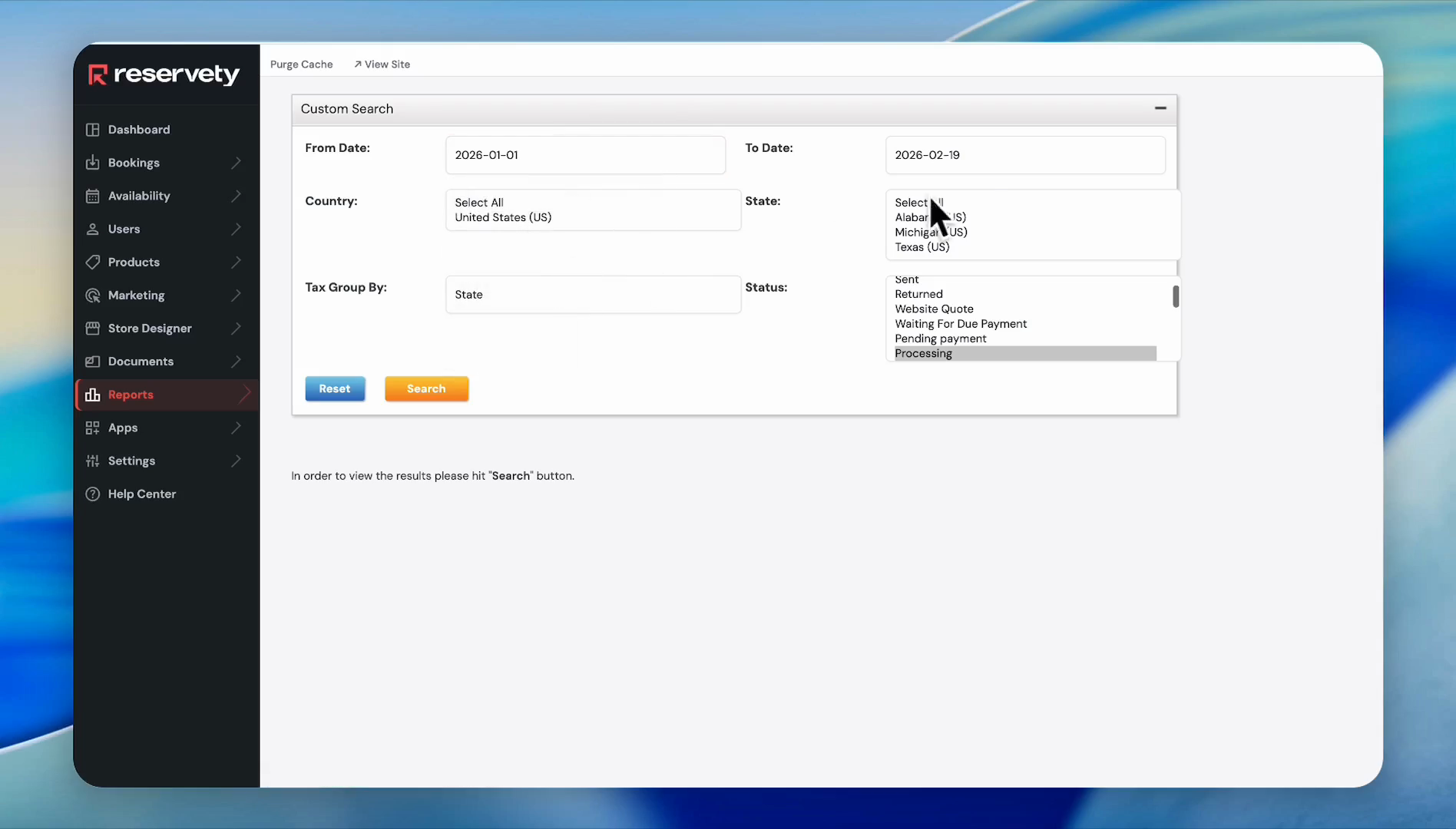
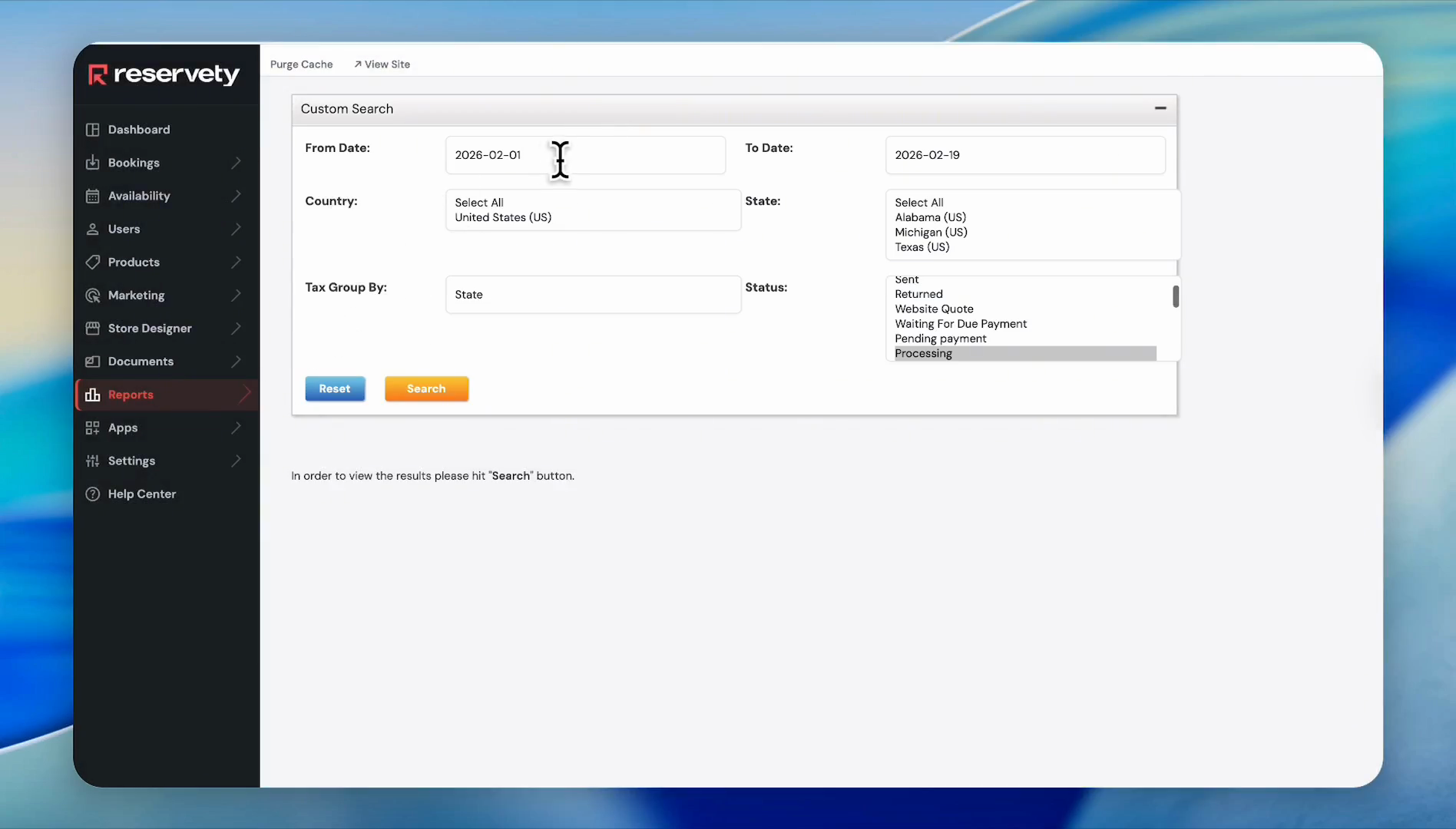
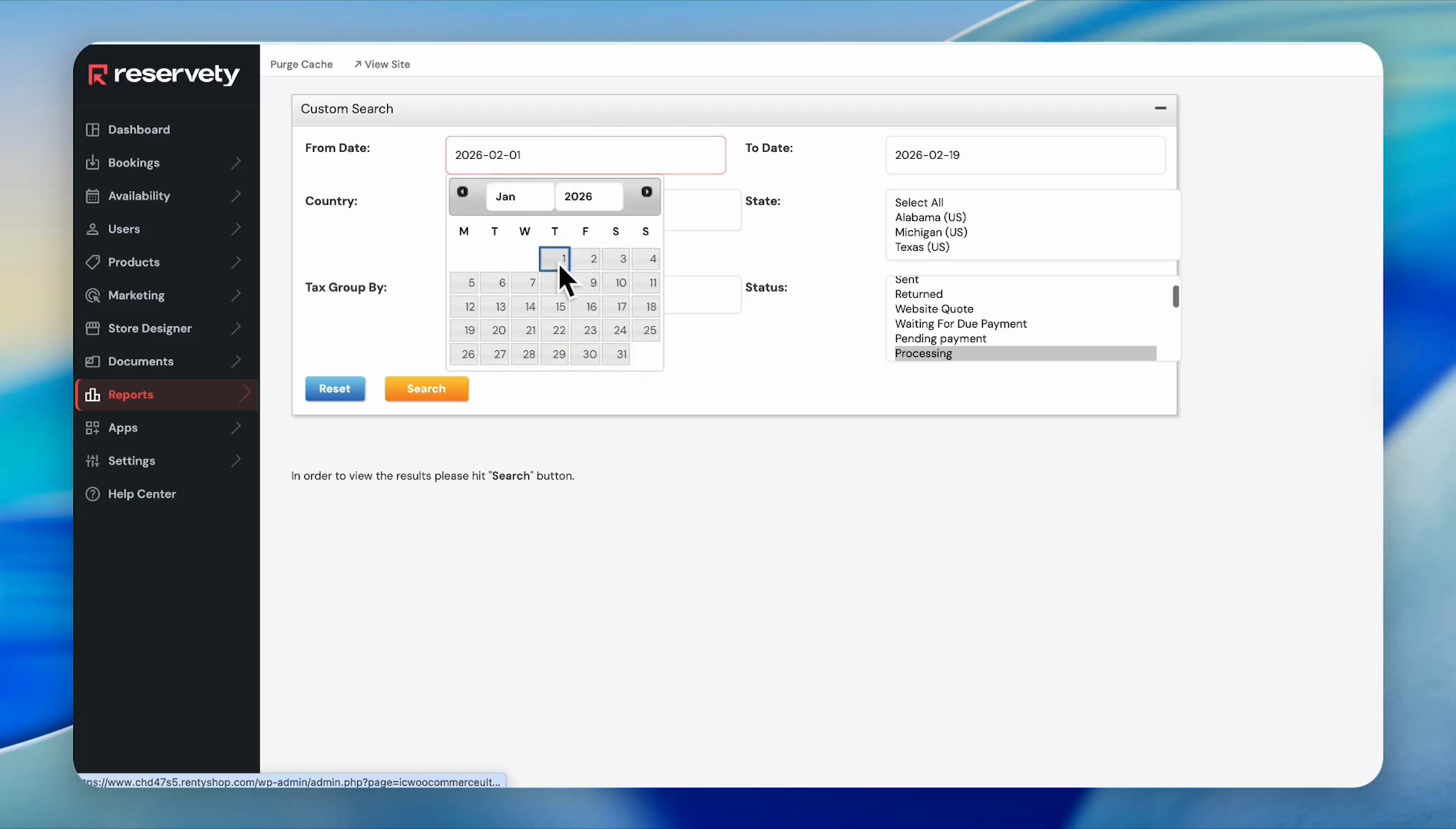
There is a custom search that lets you filter by countries, tax groups, and dates. For example, we want to view the taxes collected since January 1st of this year. Click on January 1st through today, which is the 19th.
3
Click the 'From Date' field to select a start date.
Step #3: Click the 'From Date' field to select a start date.
4
Click on the 1st to select January 1st.
Step #4: Click on the 1st to select January 1st.
5
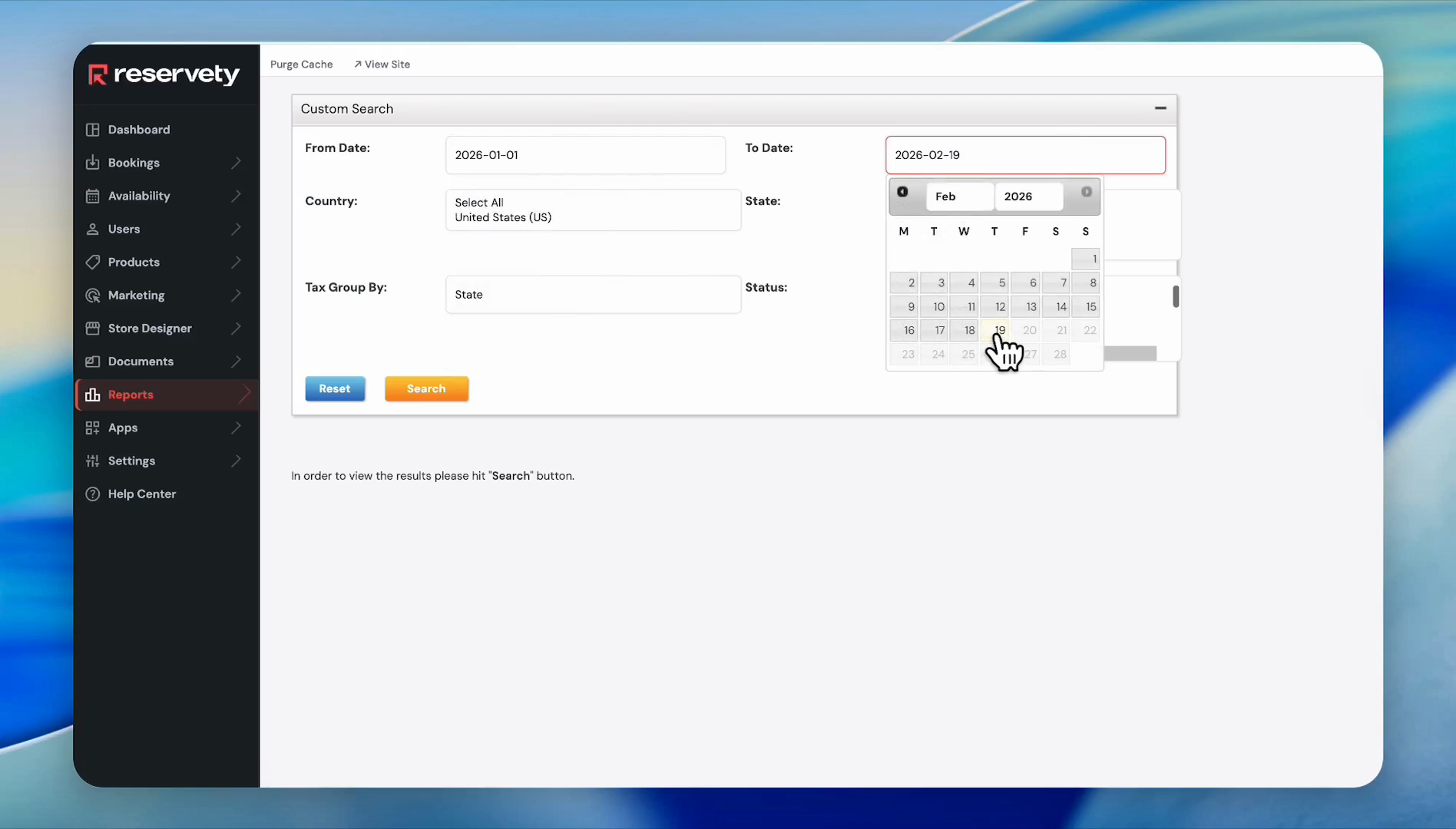
Click the 'To Date' field to select an end date.
Step #5: Click the 'To Date' field to select an end date.
6
Click on the current date or select any other date.
Step #6: Click on the current date or select any other date.
7
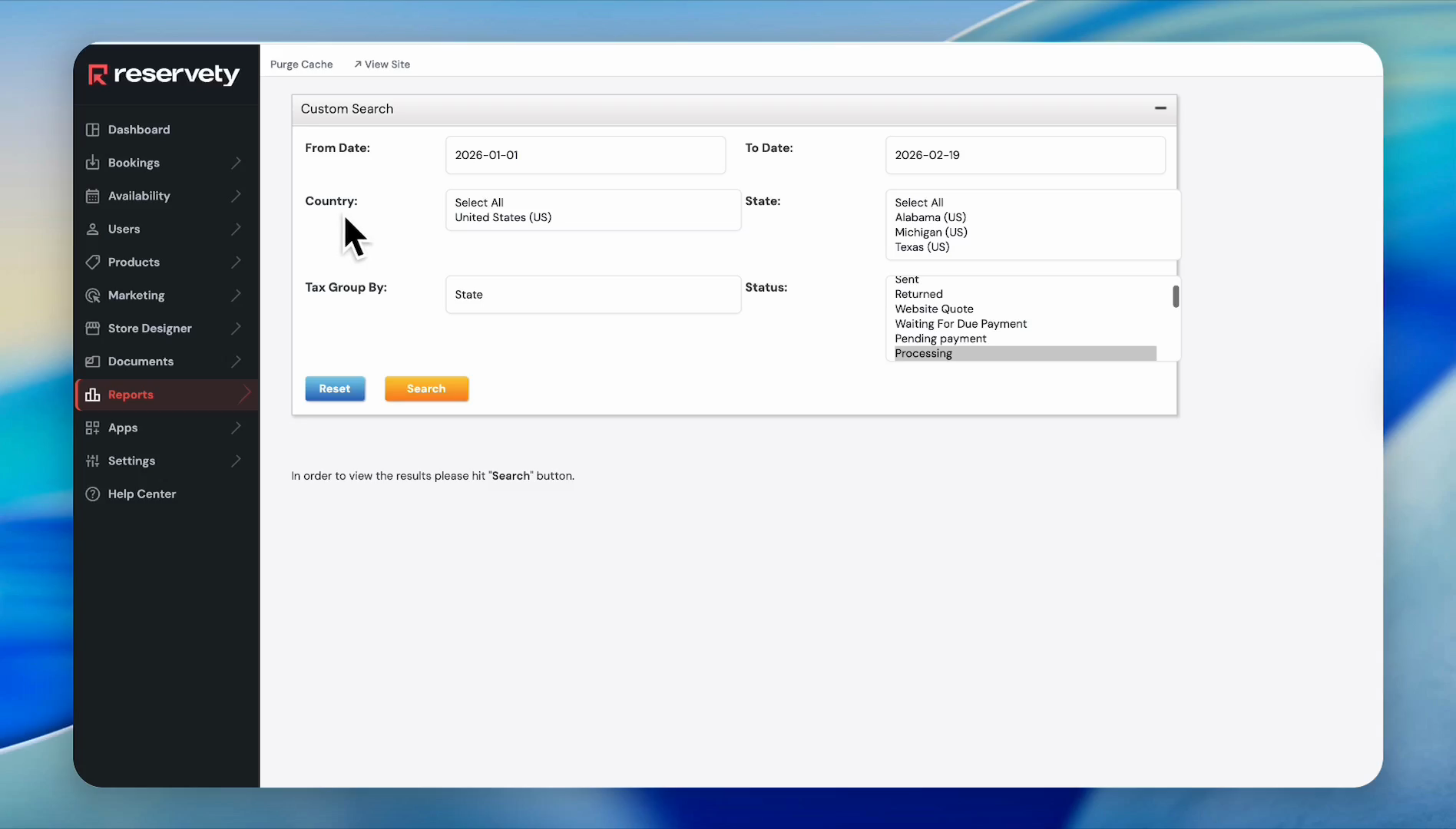
Click on the Country dropdown menu.
Step #7: Click on the Country dropdown menu.

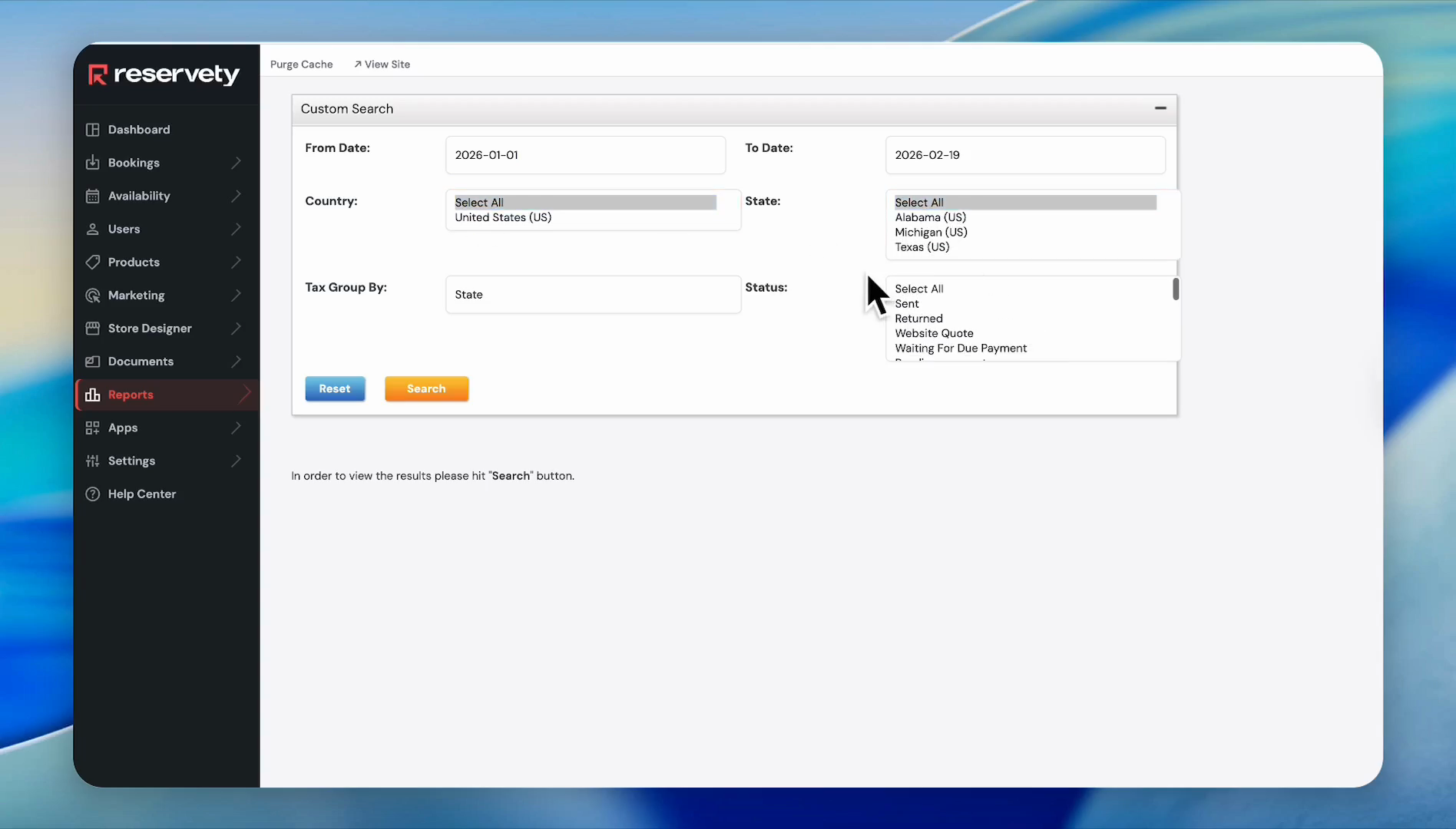
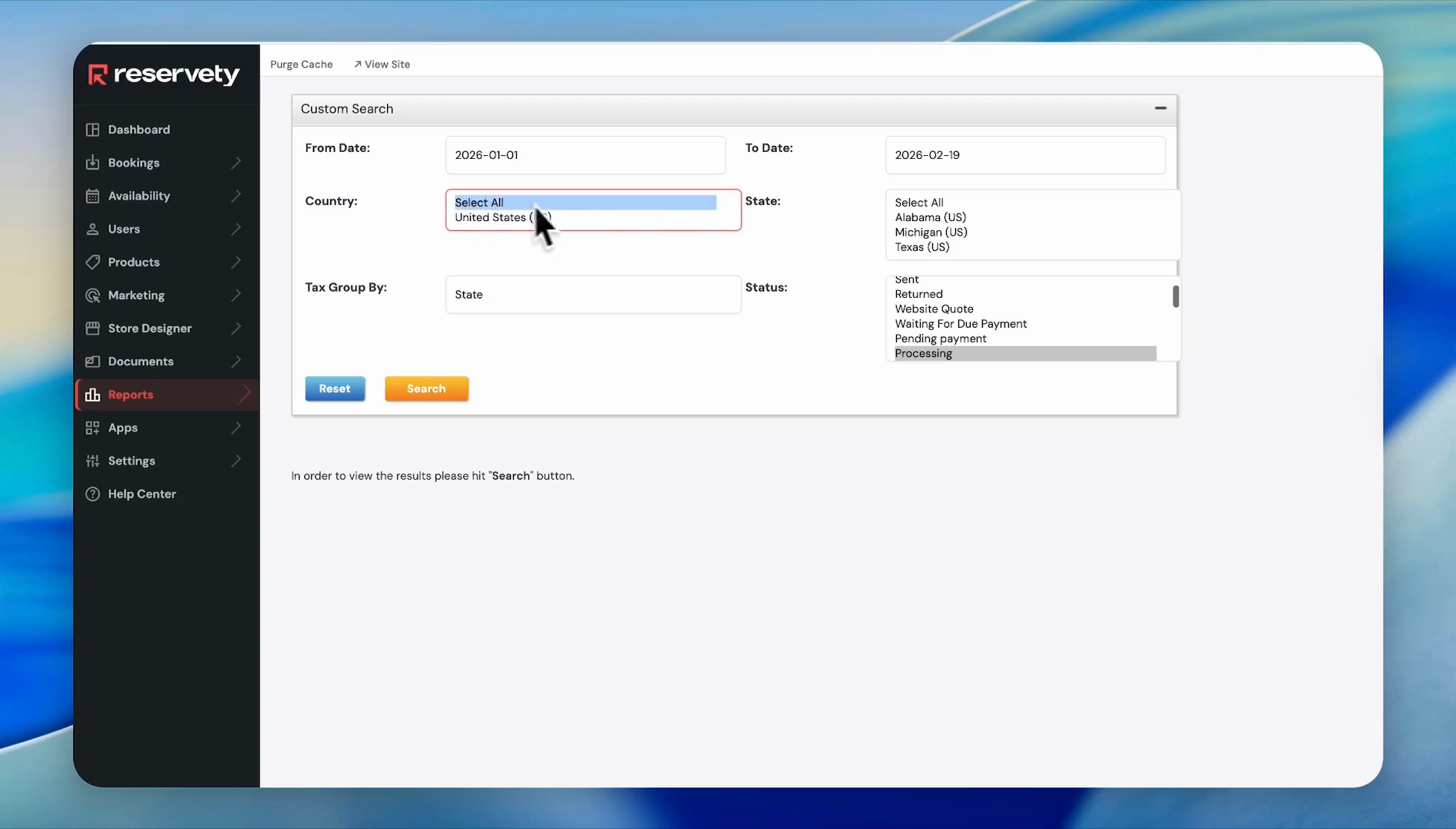
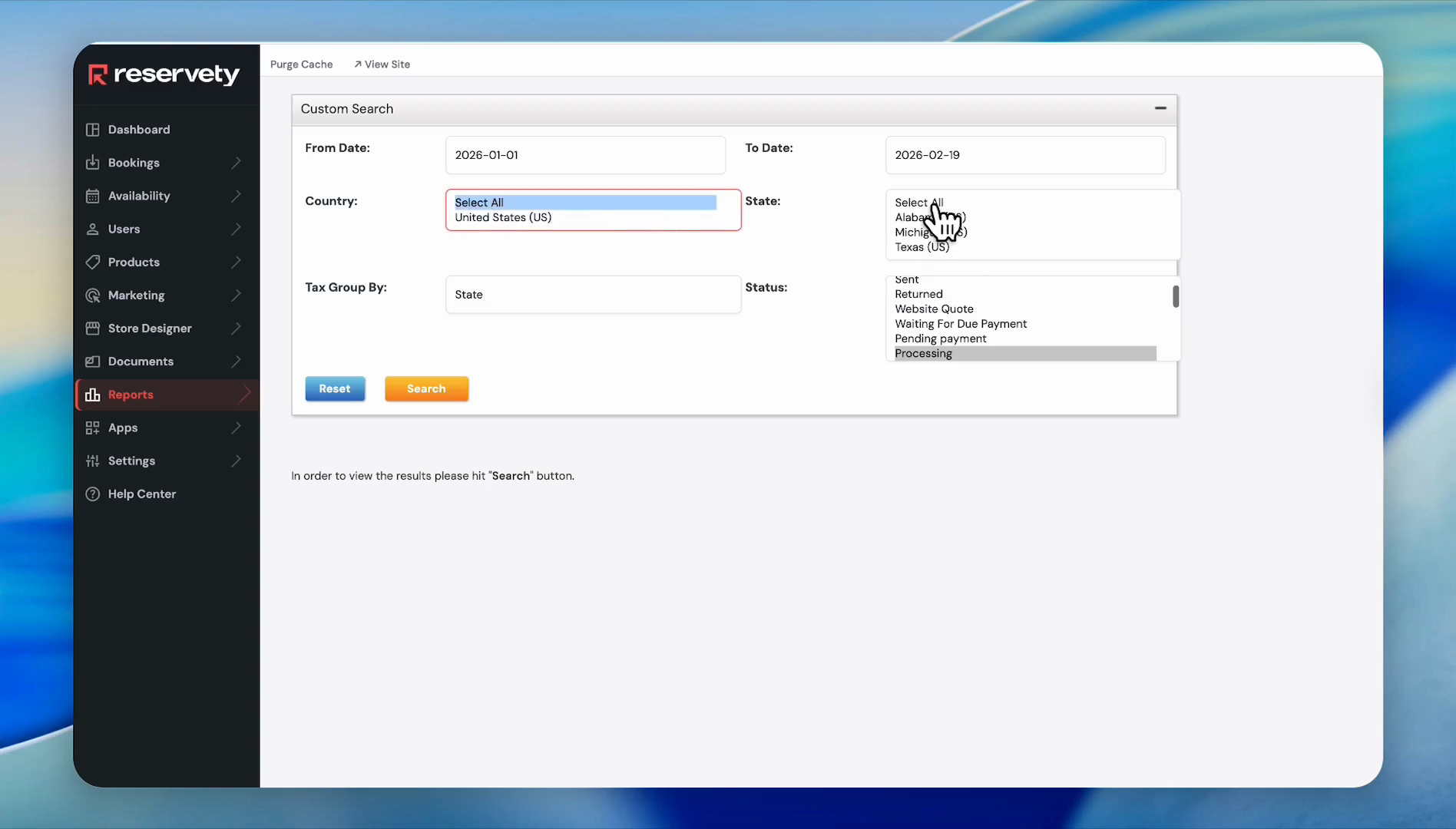
Since most of our customers are from the United States, there will not be other countries. We'll click "Select all" for both "Country" and "State."
8
Click Select All in the country dropdown.
Step #8: Click Select All in the country dropdown.
9
Click the State dropdown and click on Select All
Step #9: Click the State dropdown and click on Select All
10
Click the Status dropdown.
Step #10: Click the Status dropdown.

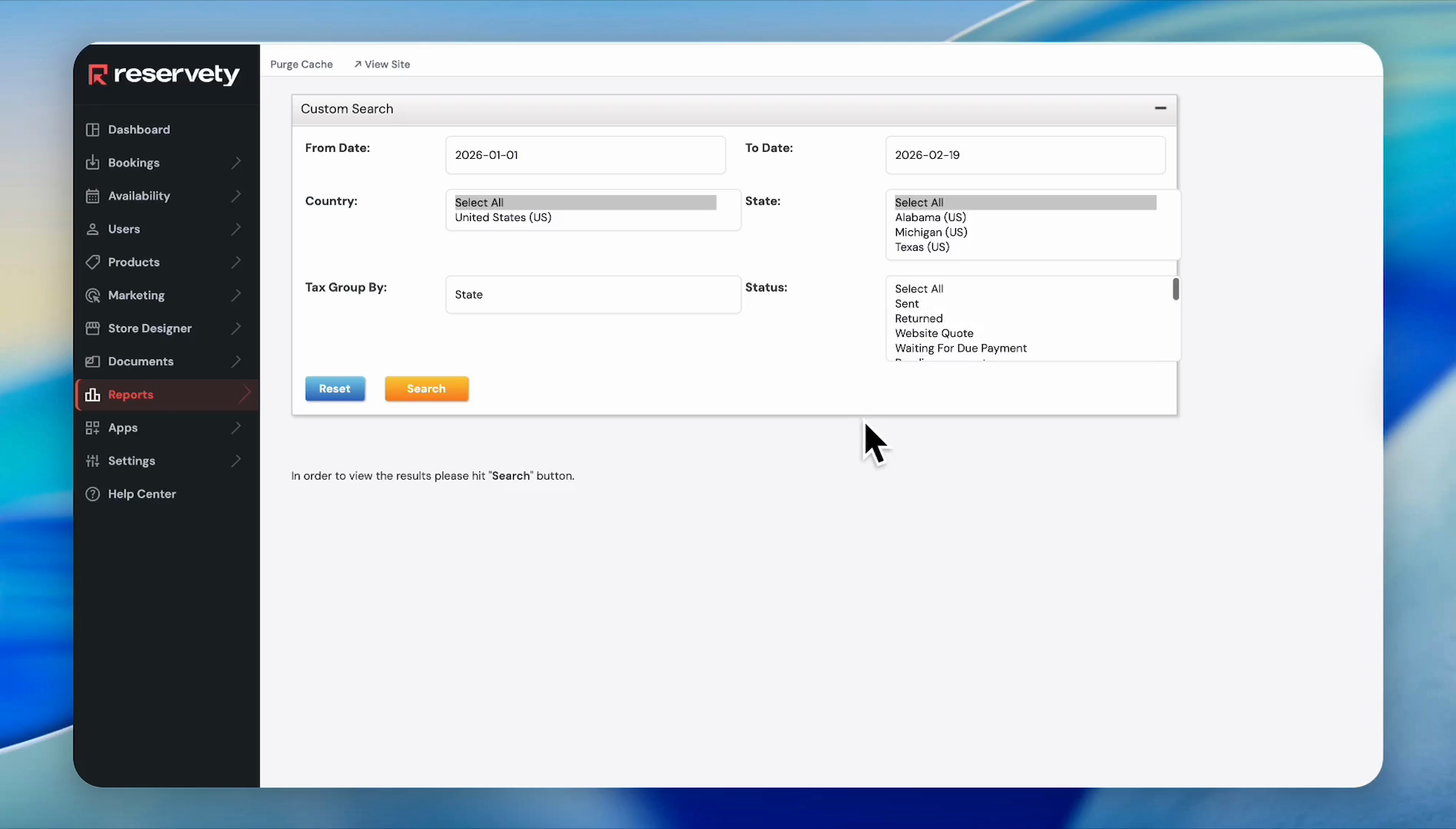
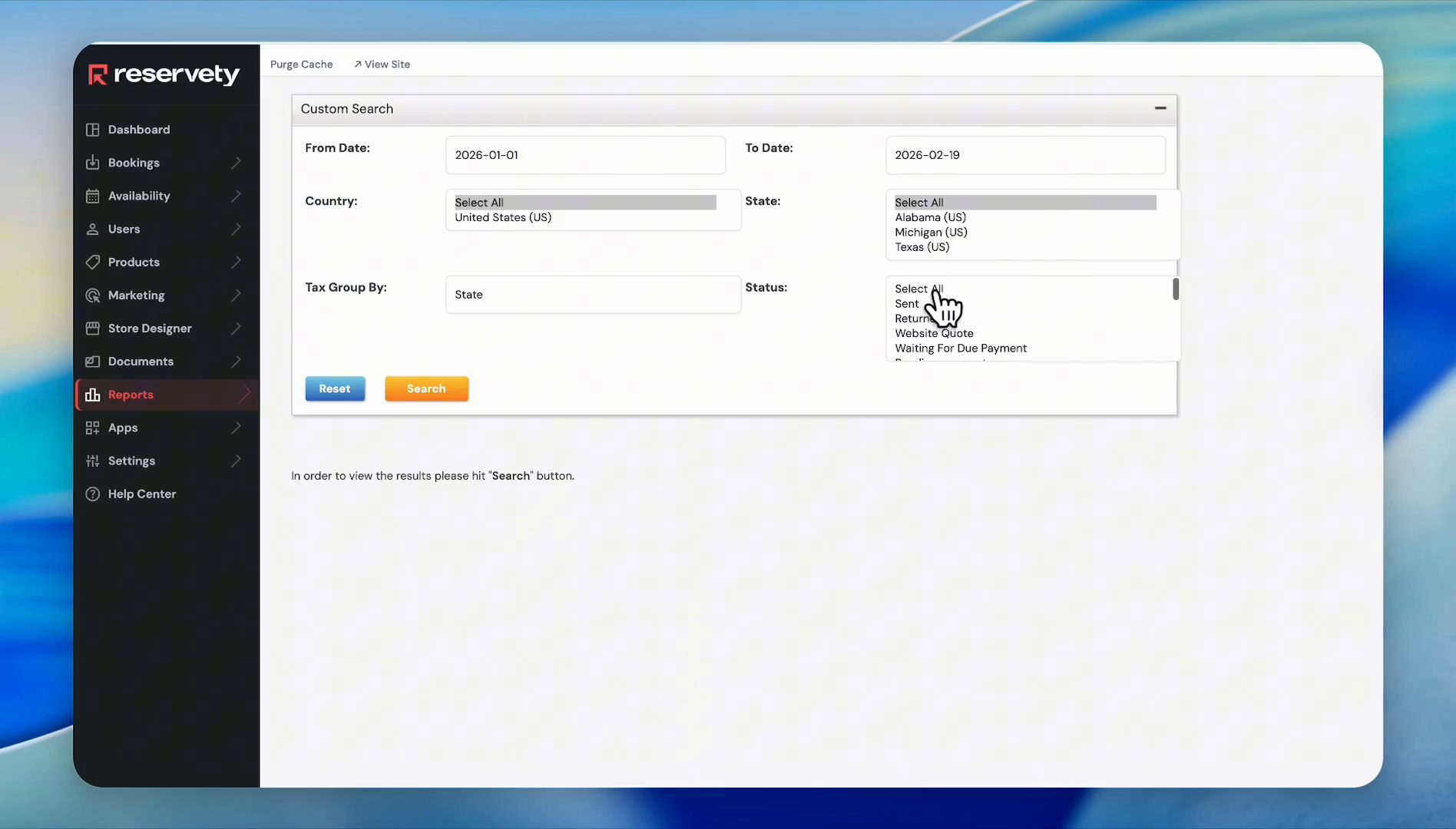
For example, you can view the tax details for sent items, returned items, or orders with various statuses. For this purpose, we will click on "Select all".
11
Click Select All.
Step #11: Click Select All.
12
Click the Search button.
Step #12: Click the Search button.
13
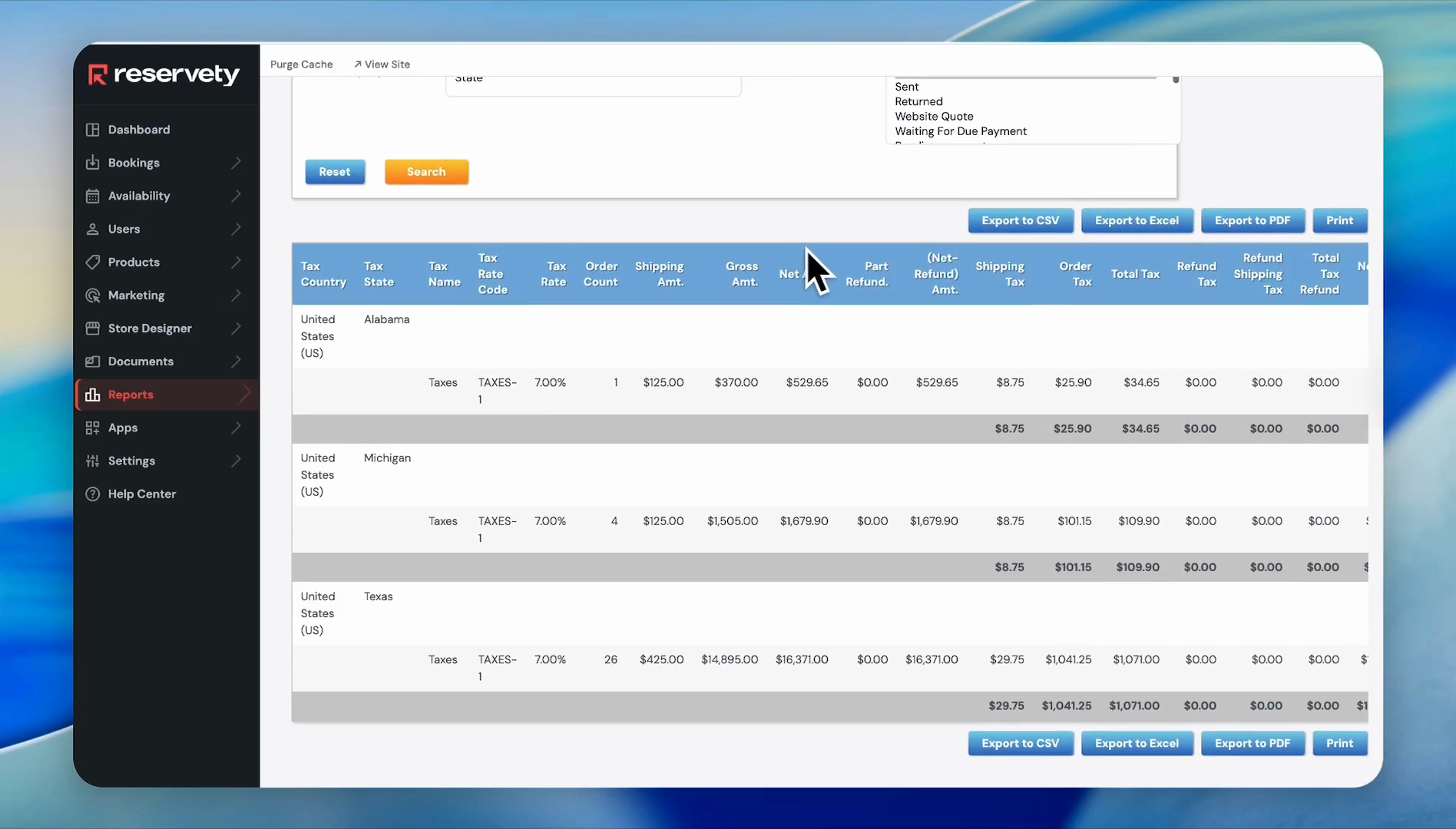
This report shows all taxes collected since January 1st. Click Export to CSV to download the report.
Step #13: This report shows all taxes collected since January 1st. Click Export to CSV to download the report.
14
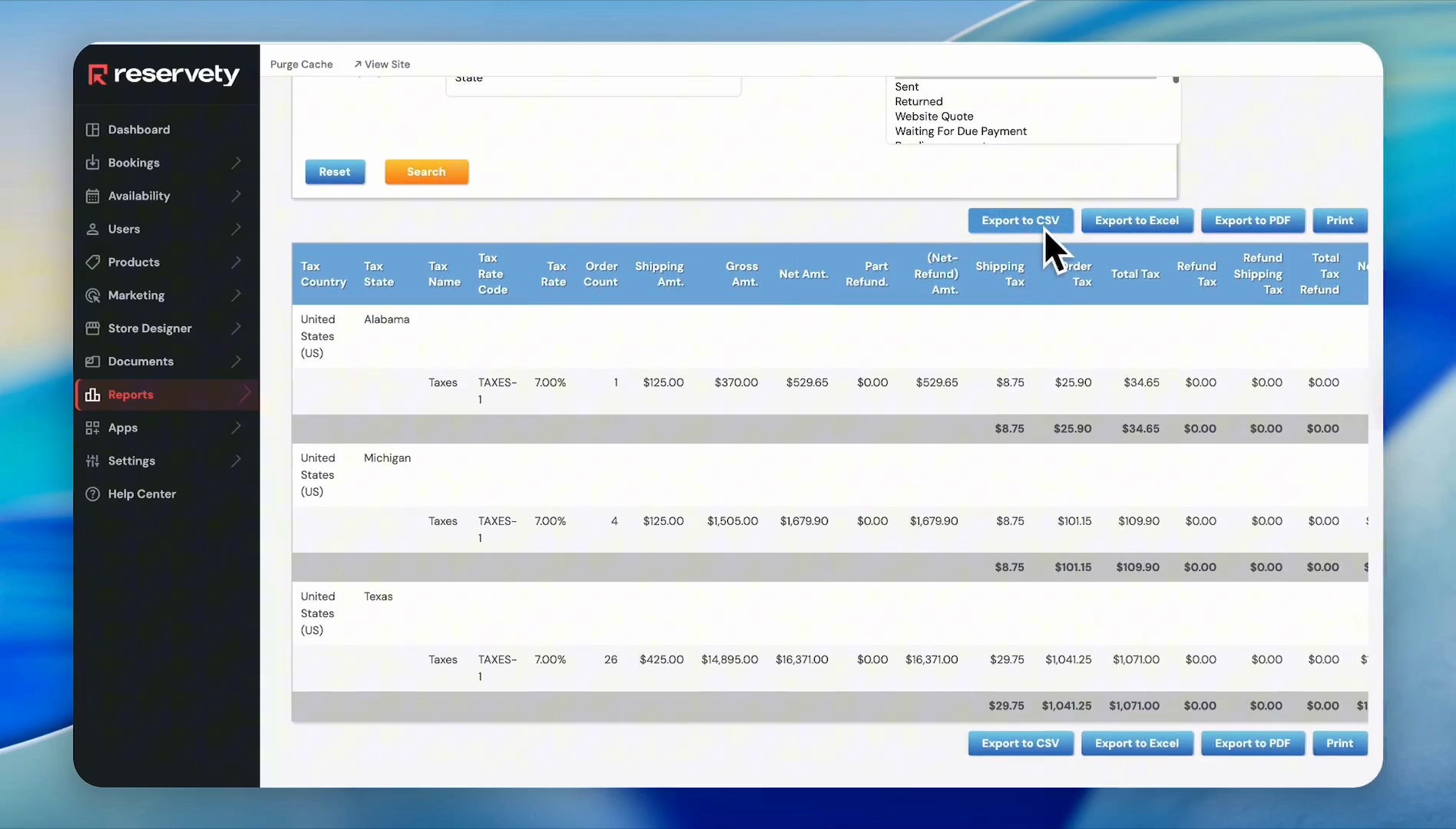
You can export the .CSV file, convert it to an Excel file, export it as a PDF, or print it out and keep it in your file cabinet.
Step #14: You can export the .CSV file, convert it to an Excel file, export it as a PDF, or print it out and keep it in your file cabinet.