How to View and Save Scholarship Applications as PDF
Learn step-by-step how to access, view, and save scholarship applications as PDF files using the WorkForms Submission Viewer. Find out how to manage and export application data efficiently.
By Robin Dickinson
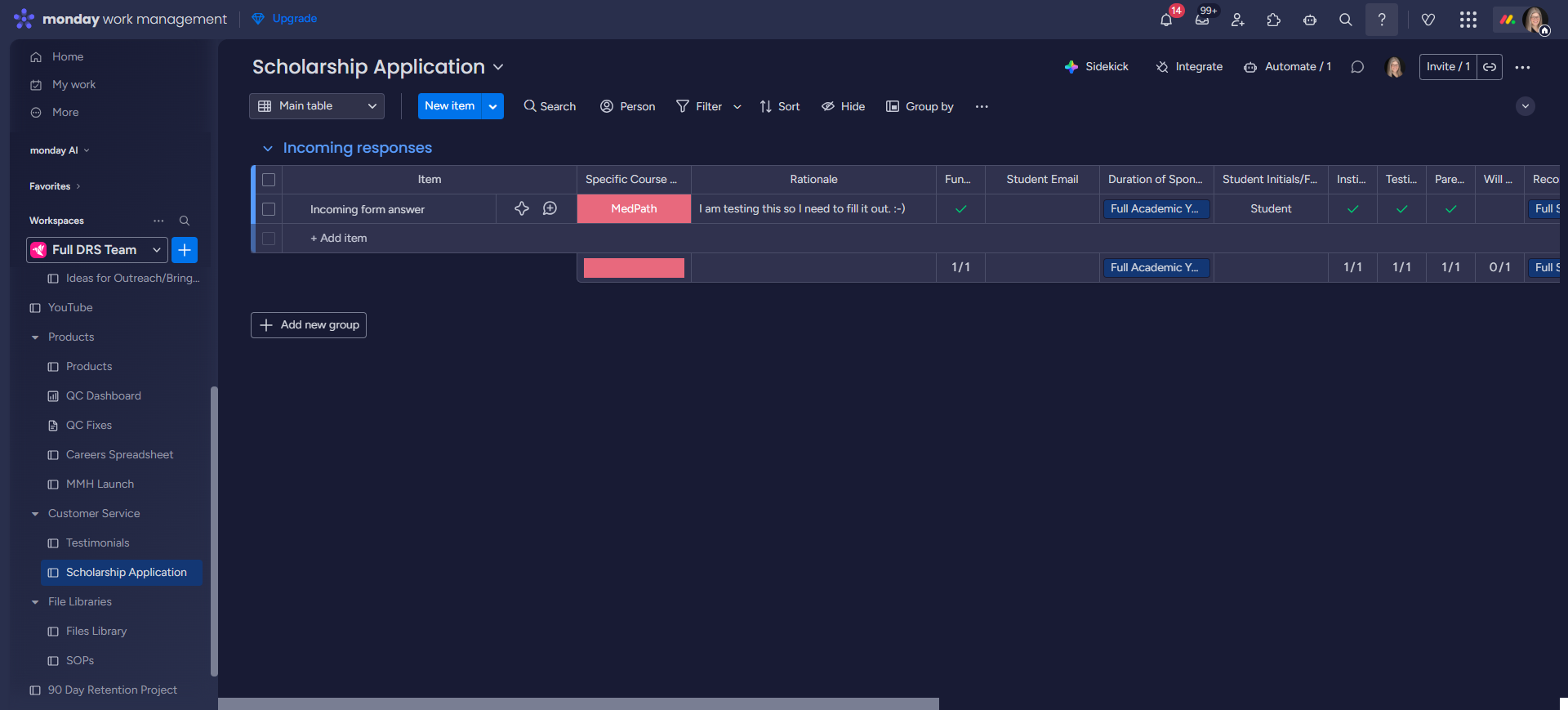
In this guide, we'll learn how to view and save scholarship application submissions using the Main Table and WorkForms Submission Viewer. We will also cover how to export applications as PDF files for record-keeping or sharing. This process helps you access both individual submissions and the full list of applications.
Let's get started
1
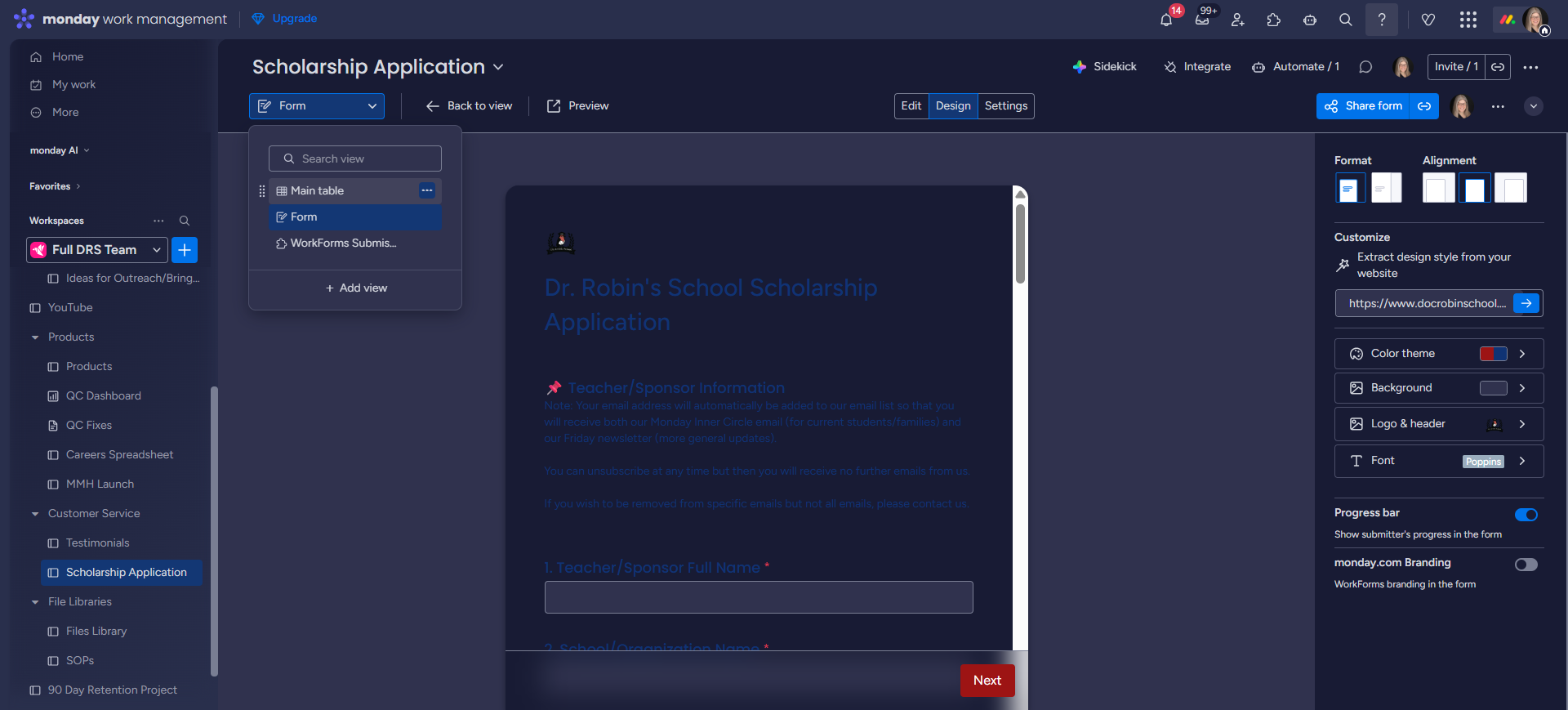
The main table shows you all the applications. To see a specific application, click where it says "Main Table"
2
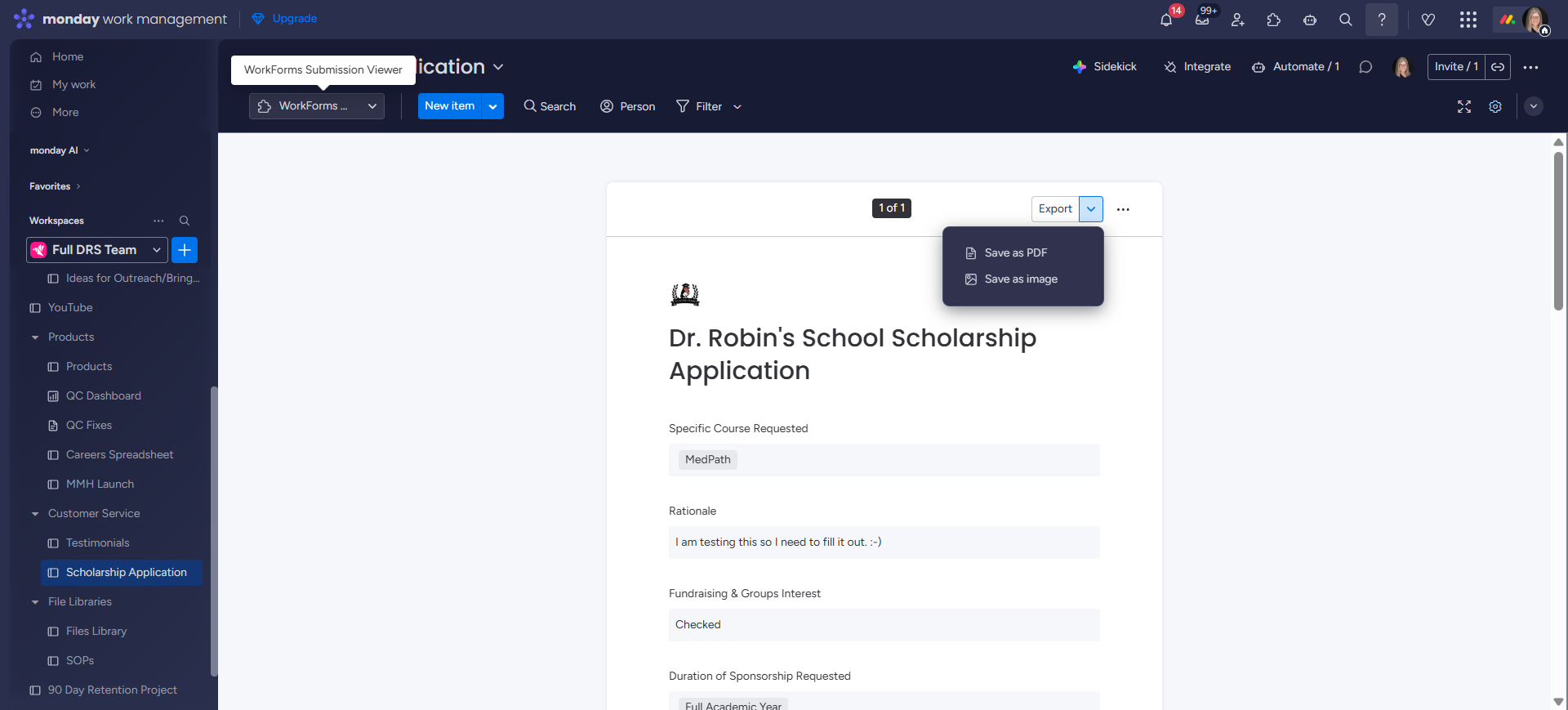
Then select WorkForms Submission Viewer.
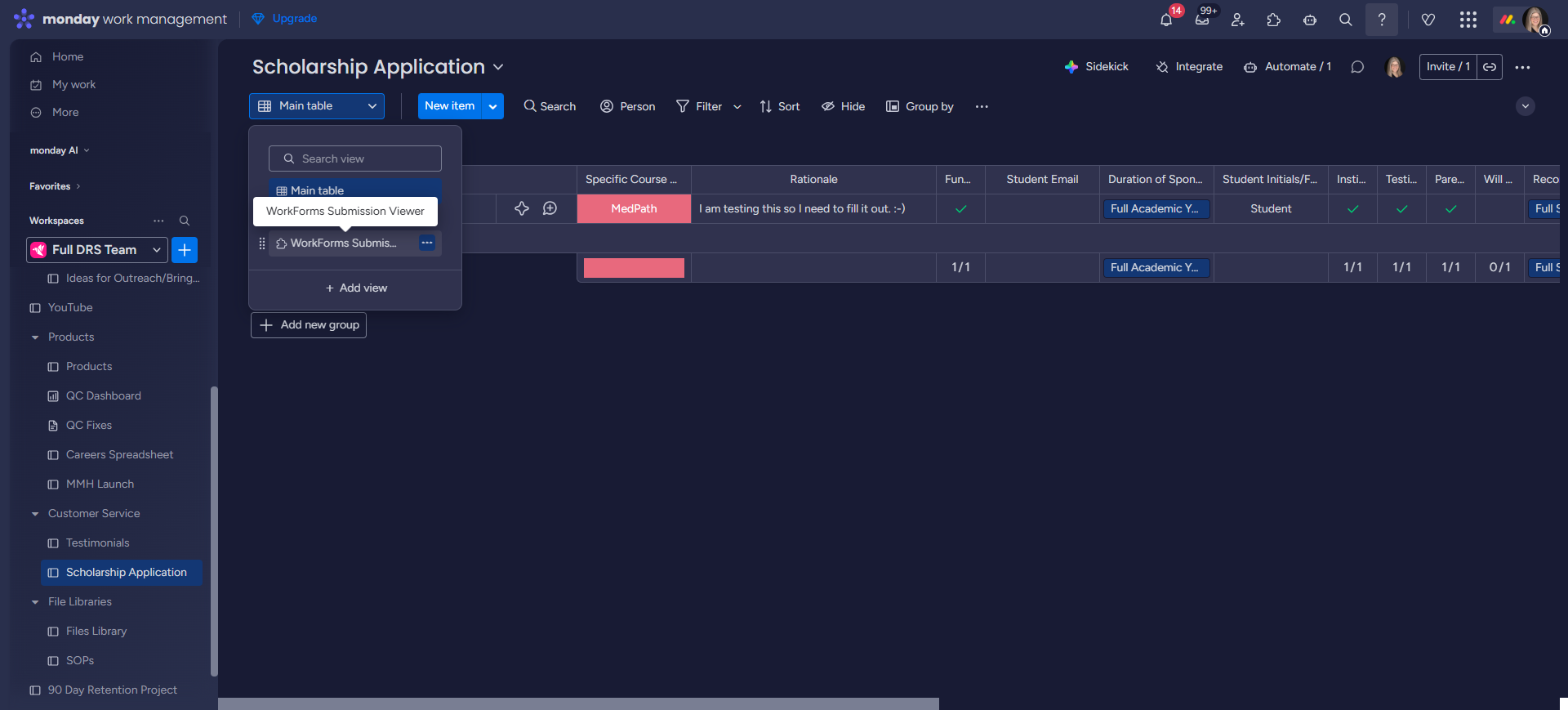
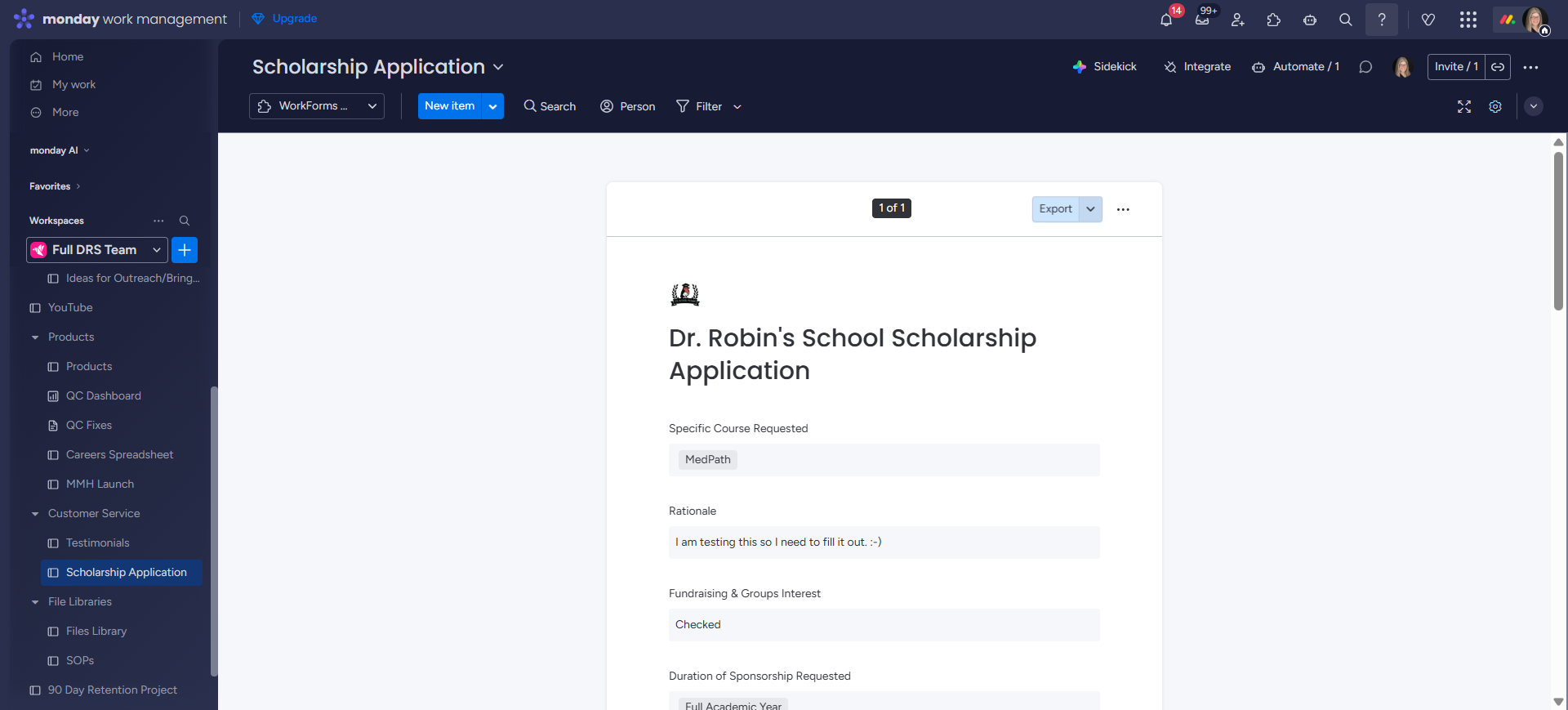
Here you will see all the actual submissions. You can view the completed form.
3
Next to Export, click the little arrow
4
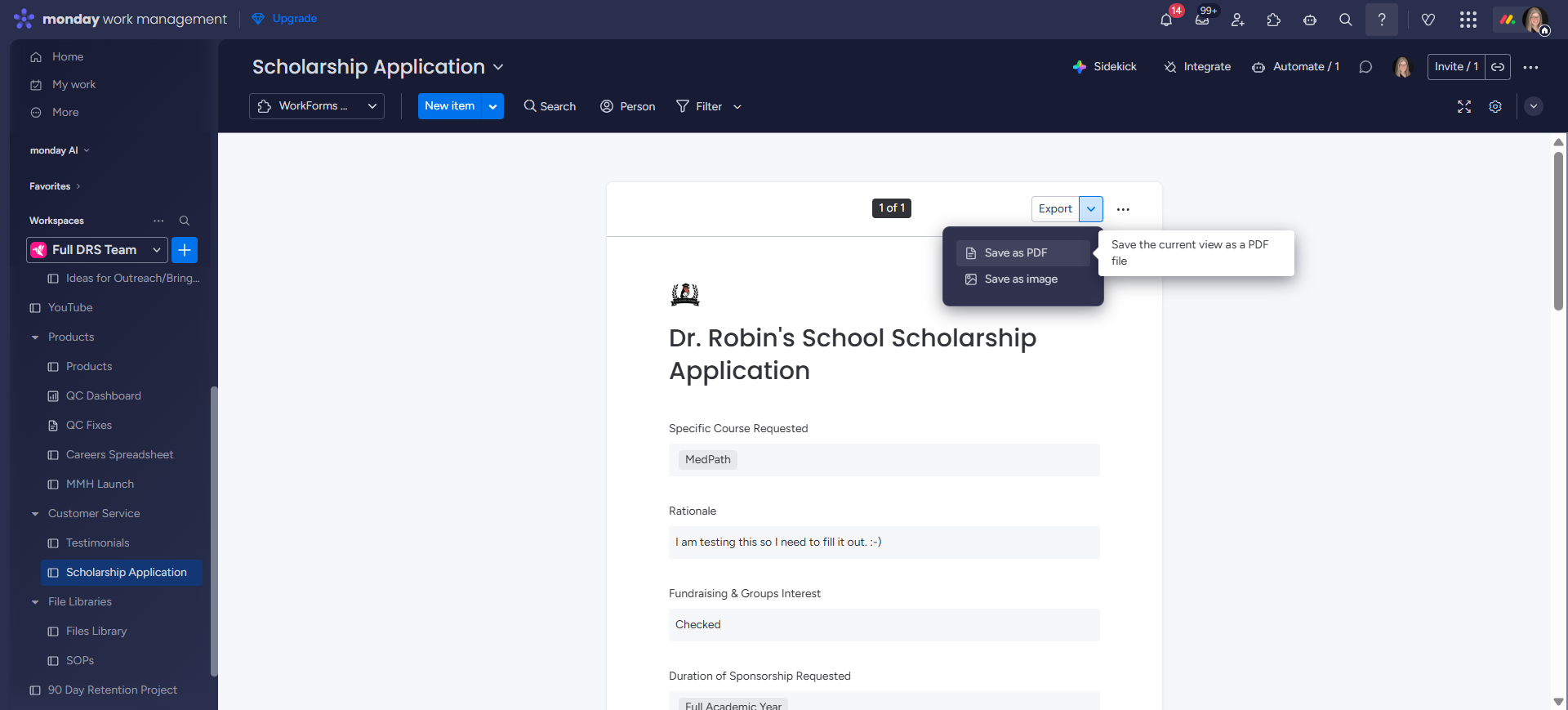
Click on "Save as PDF".
5
To get back to the table view, click on "WorkForms Submission Viewer"
6
Click on "Main table" to see a list of all the applications.
And that's it!