
How to View and Understand the Audit Trail for Transactions
Learn how to view the audit trail for transactions, including how to identify categorized, uncategorized, and posted transactions, and how to track their history from CSV uploads or Plaid integrations.
In this guide, we’ll learn how to review and understand the audit trail for your transactions. The audit trail helps you see the full history of each transaction through color-coded indicators—green for categorized, red for uncategorized, and blue for posted. You will also learn how to track important details such as when a transaction was created, imported, updated, or synced through platforms like Plaid and posted to Quickbooks.
Let's get started
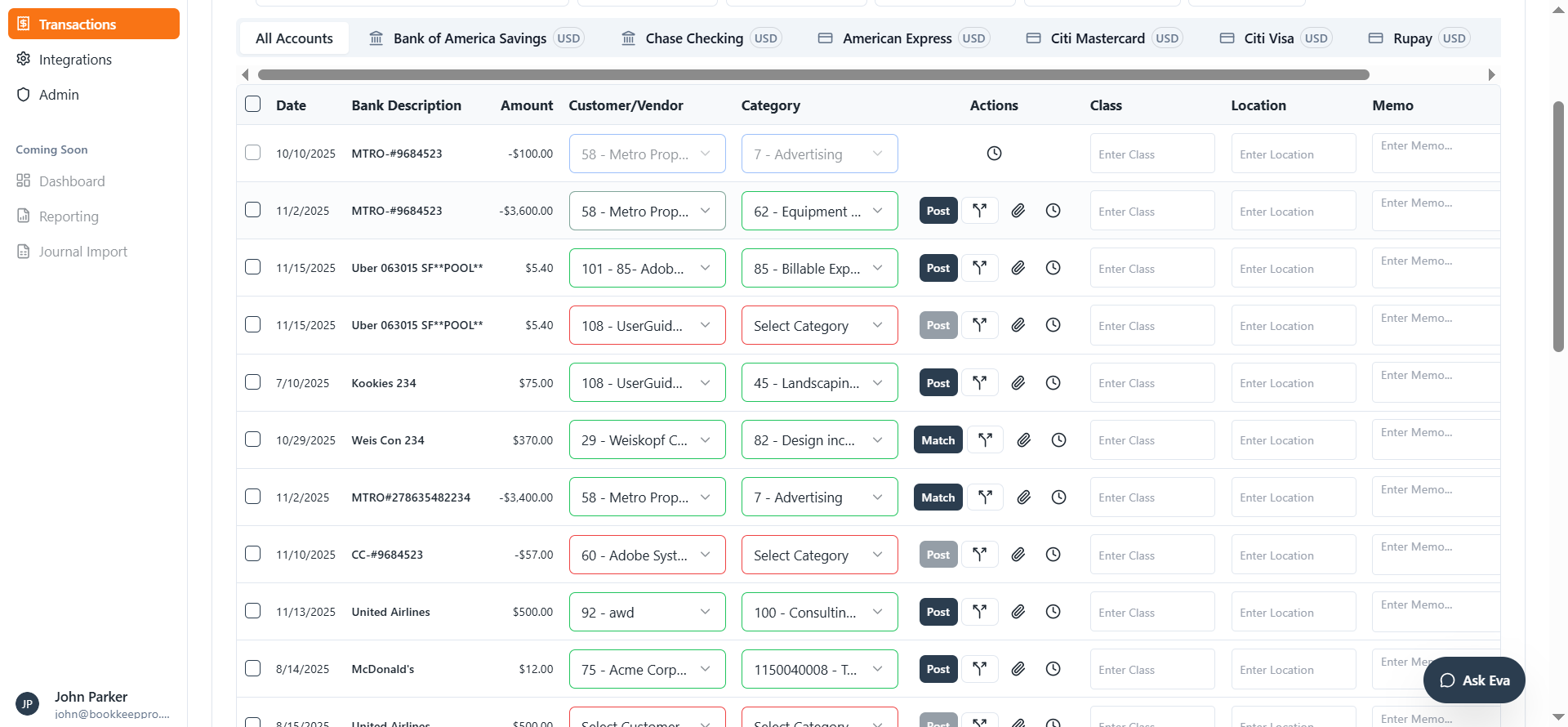
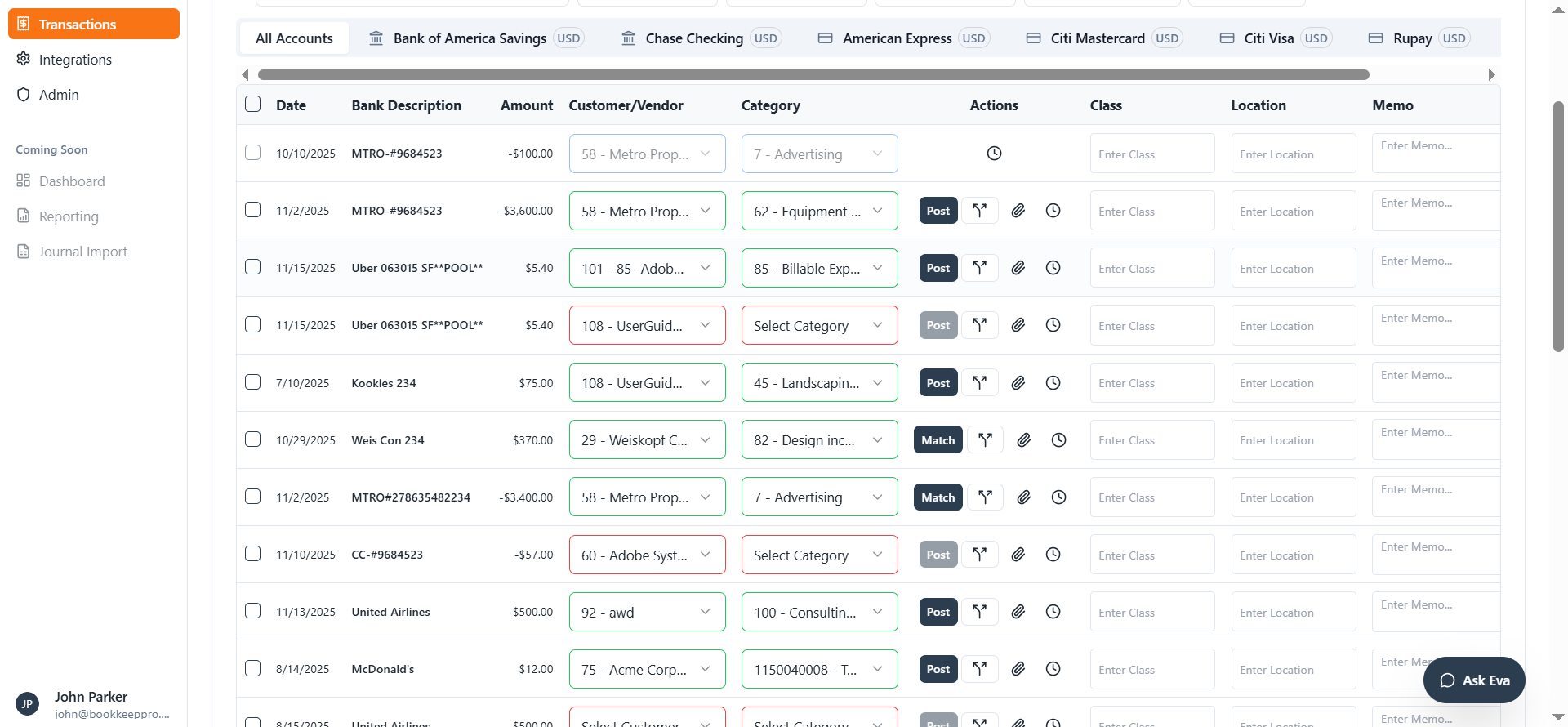
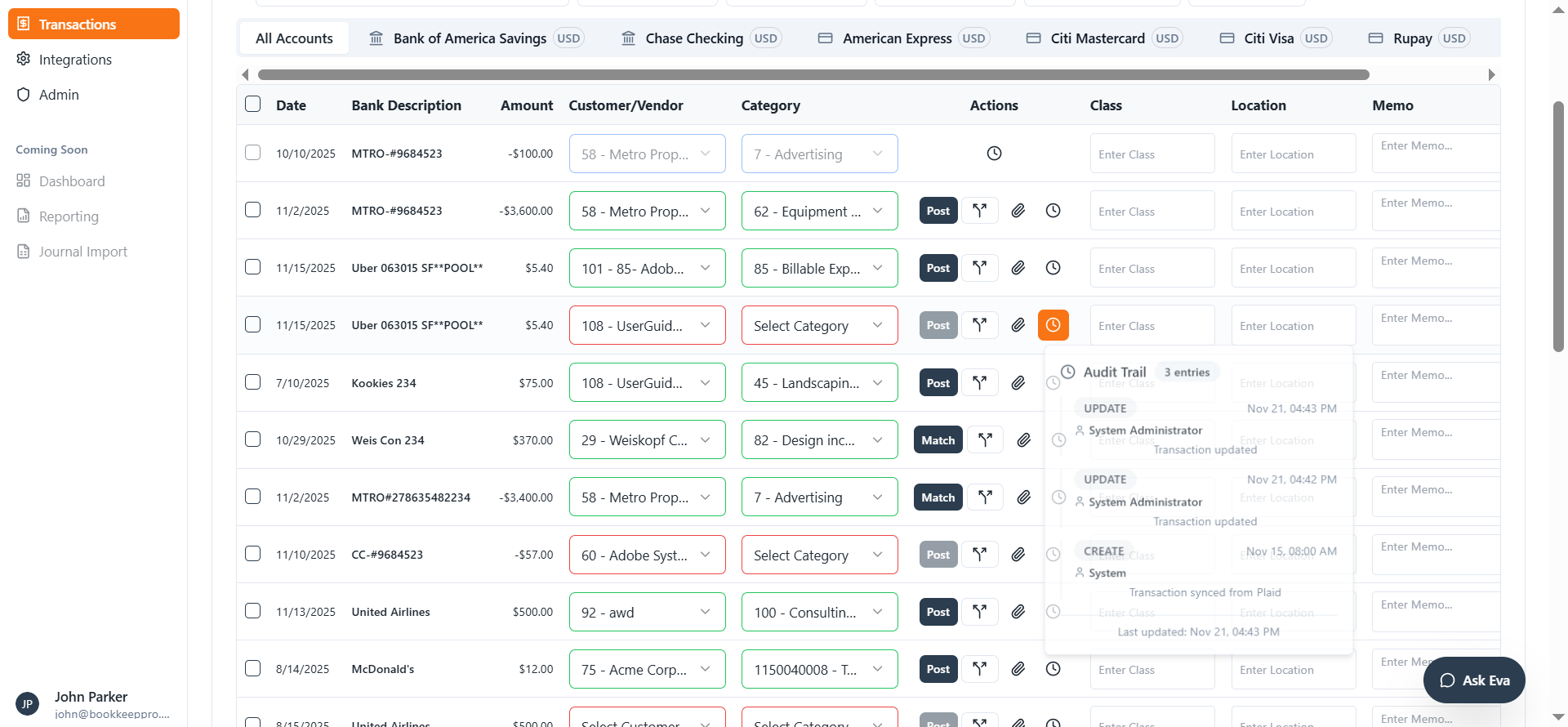
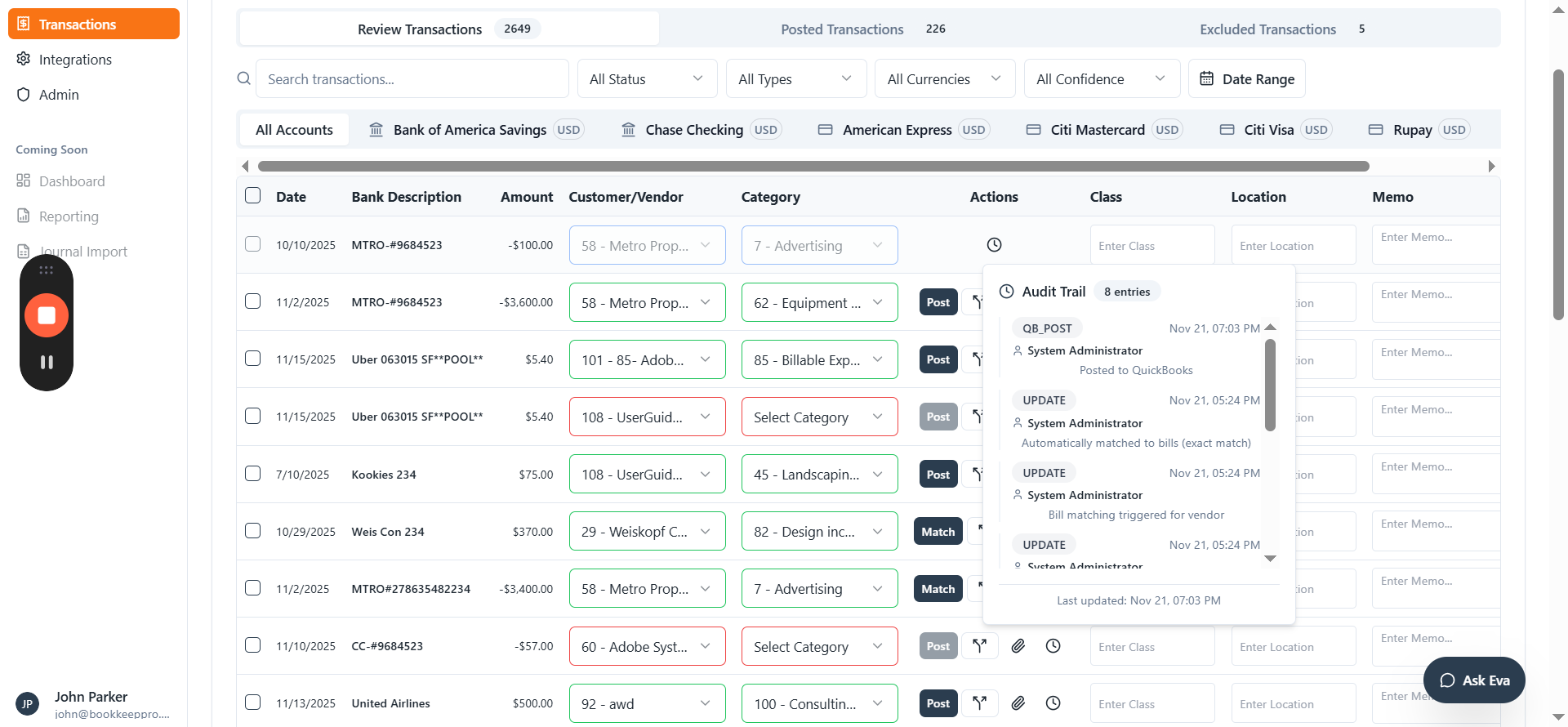
This guide showed you how to easily track the full lifecycle of any transaction. You learned how to identify the status of a transaction using color indicators, review where it came from (CSV upload or Plaid), and understand every change through the audit trail. You also saw how posted transactions appear in a blue box and how to check their QuickBooks posting details.
Together, these tools help you monitor each transaction clearly and keep your bookkeeping accurate and up to date.