
How to View Building Details Using Building ID (UBID)
Learn how to view detailed information about a specific building using its unique building ID (UBID). This guide covers navigating tables, viewing building attributes, and tracking data sources across your database.
In this guide, we'll learn how to view detailed information about a specific building using its unique building ID, known as UBID. By starting from a table where each row represents a building, you can select a UBID to access more details and see related data across different tables in the database.
This process helps you find attributes like above grade floor details and understand where the data comes from for each building.
Let's get started
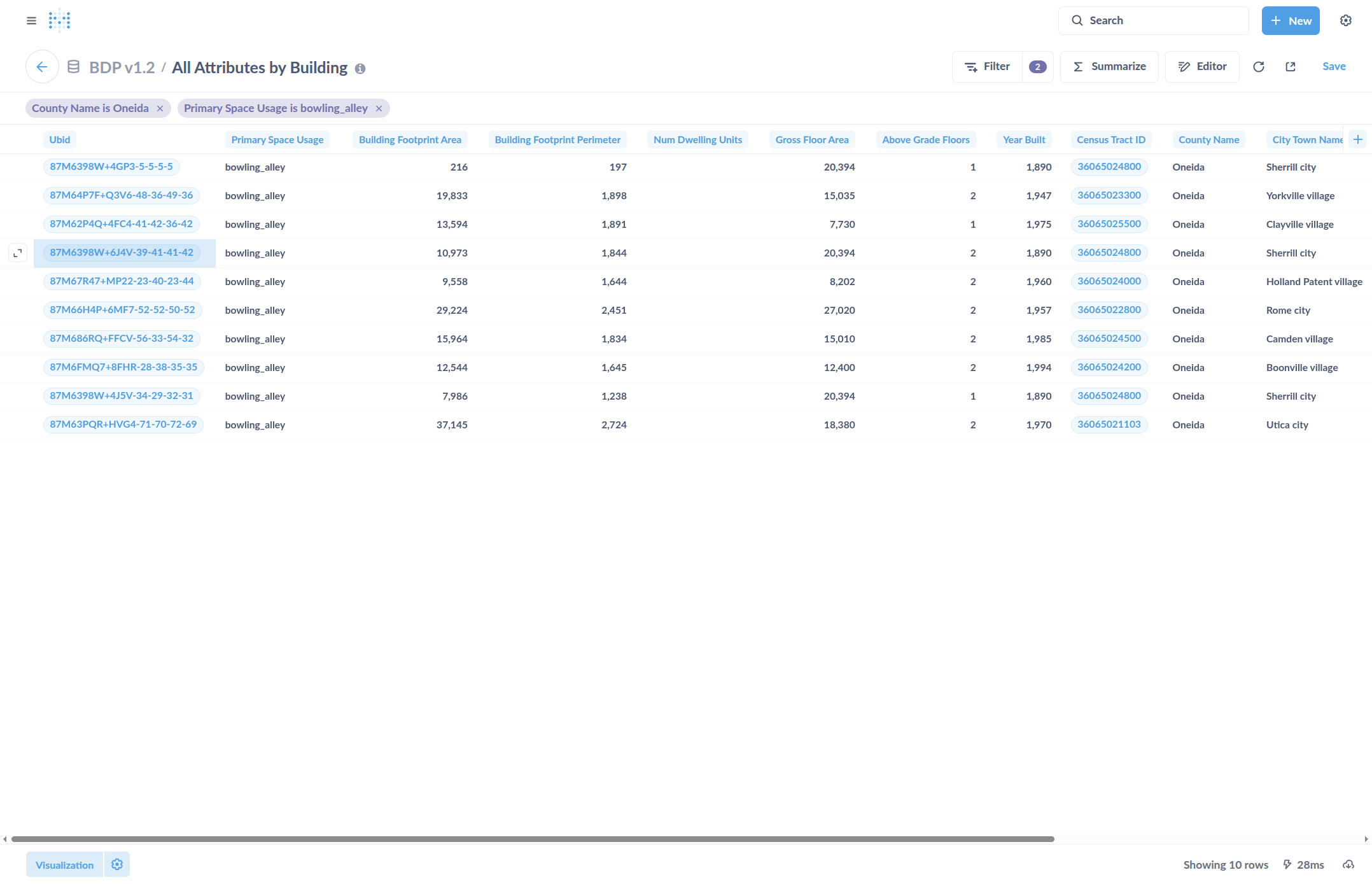
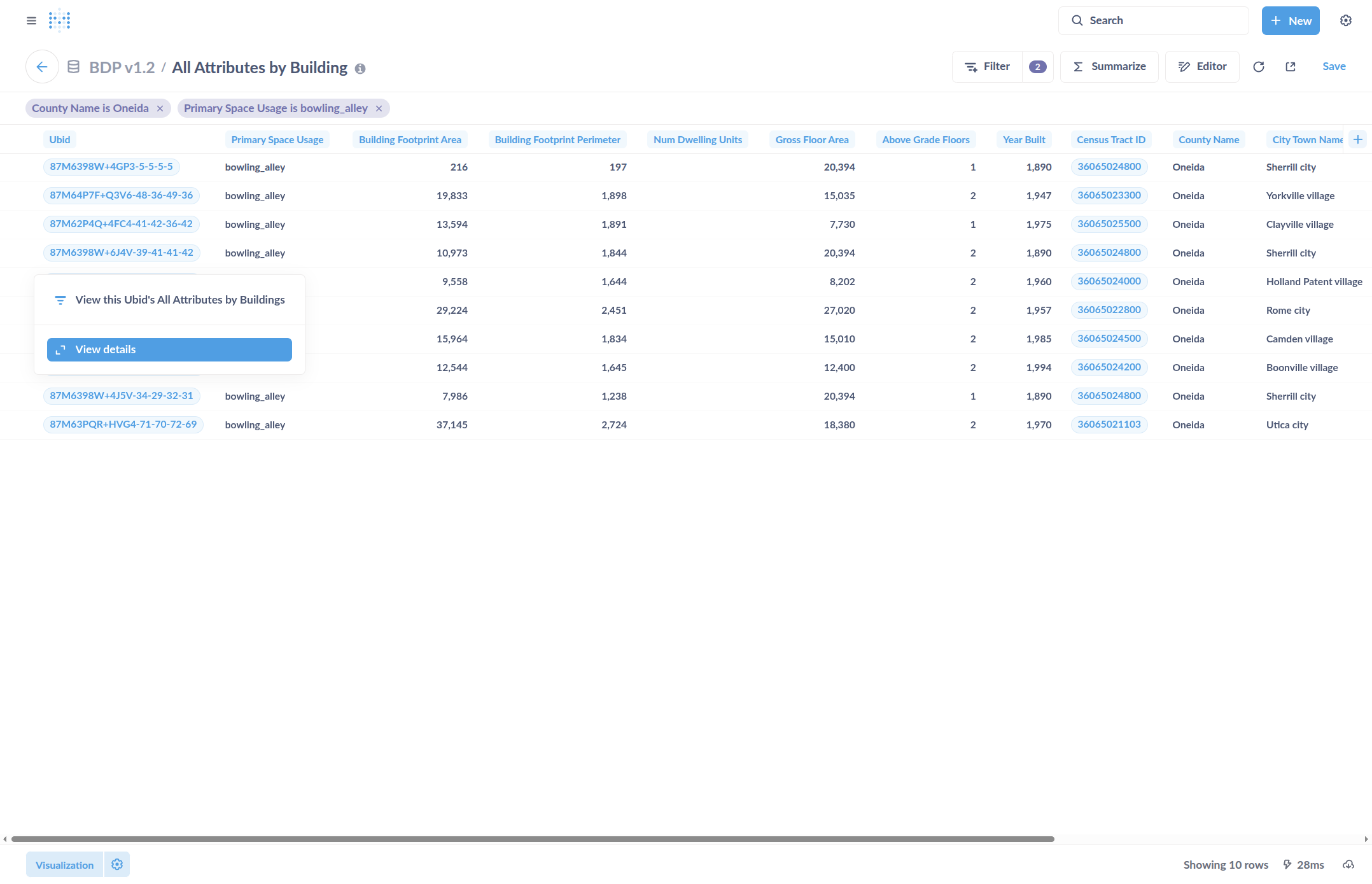
This guide explains how to view the details of a specific building using its primary key or building ID. We begin with a table where each row represents a building. There is a column called UBID, which serves as the unique ID for each building. Click on any of these to view more details about a specific building. This will also link to all other tables containing that building. I will click on one of these, then select View Details.
This opens a new window that shows where else in the database this building ID appears. You can use the links to navigate to those locations. For example, to view the details of the above grade floor attribute for this building, click on "Attribute Above Grade Floor."
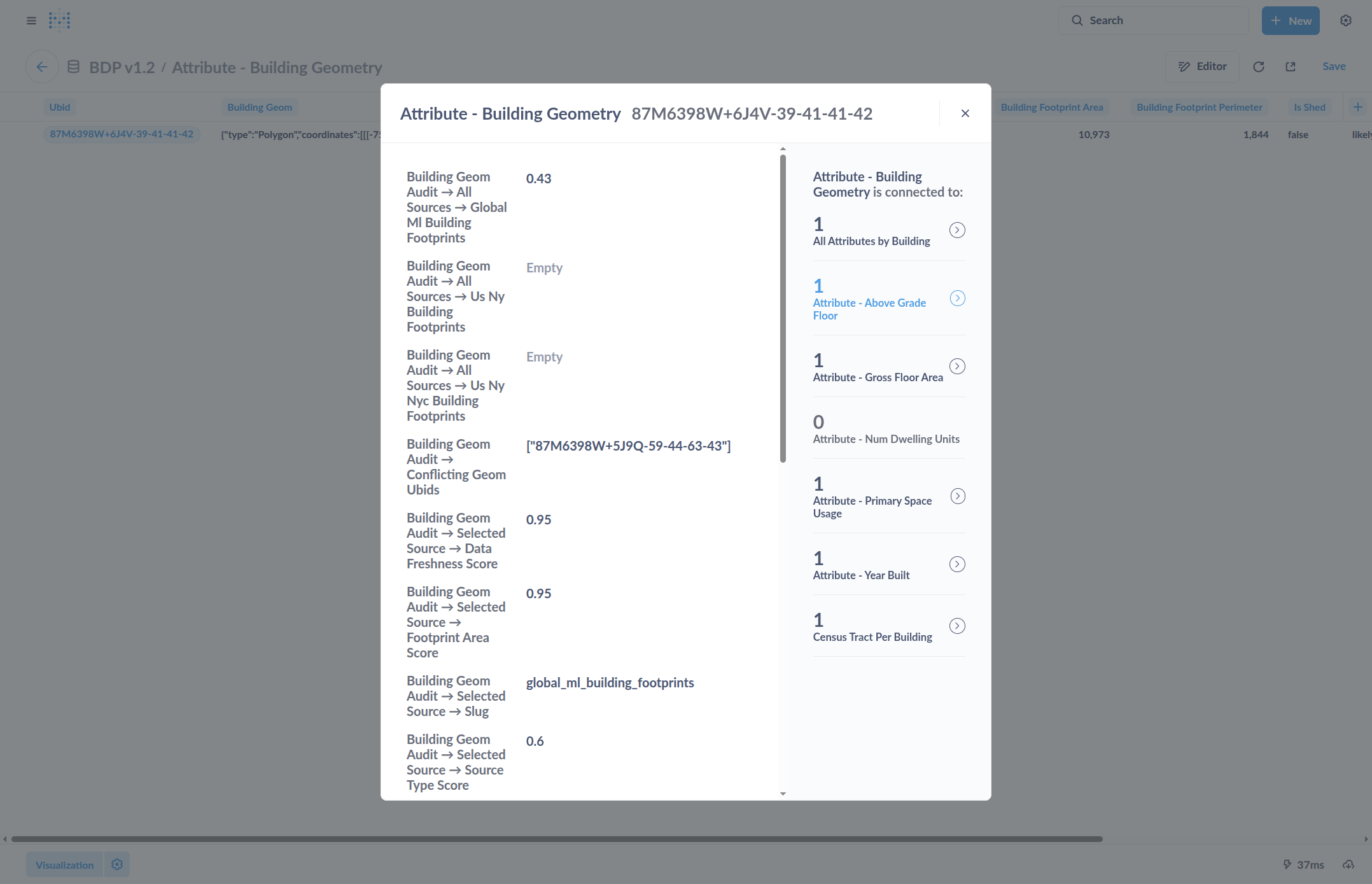
This will go to the row in the table with that building and show more details about the above-grade floors attribute for it, showing where the data came from and what other sources were found for that building.