How to View Student Accommodation Plans in Power Teacher
Learn how to access and review student accommodation plans in Power Teacher. Step-by-step instructions for teachers to identify and view plans for students in their classes.
By Cindy Warner-Dobrowski
In this guide, we'll learn how to use Power Teacher to find and review student accommodation plans. This process helps you identify which students in your classes have specific plans and how to access the details for each student.
You'll also learn how to navigate between different views to see all students or just those with accommodation plans.
Let's get started
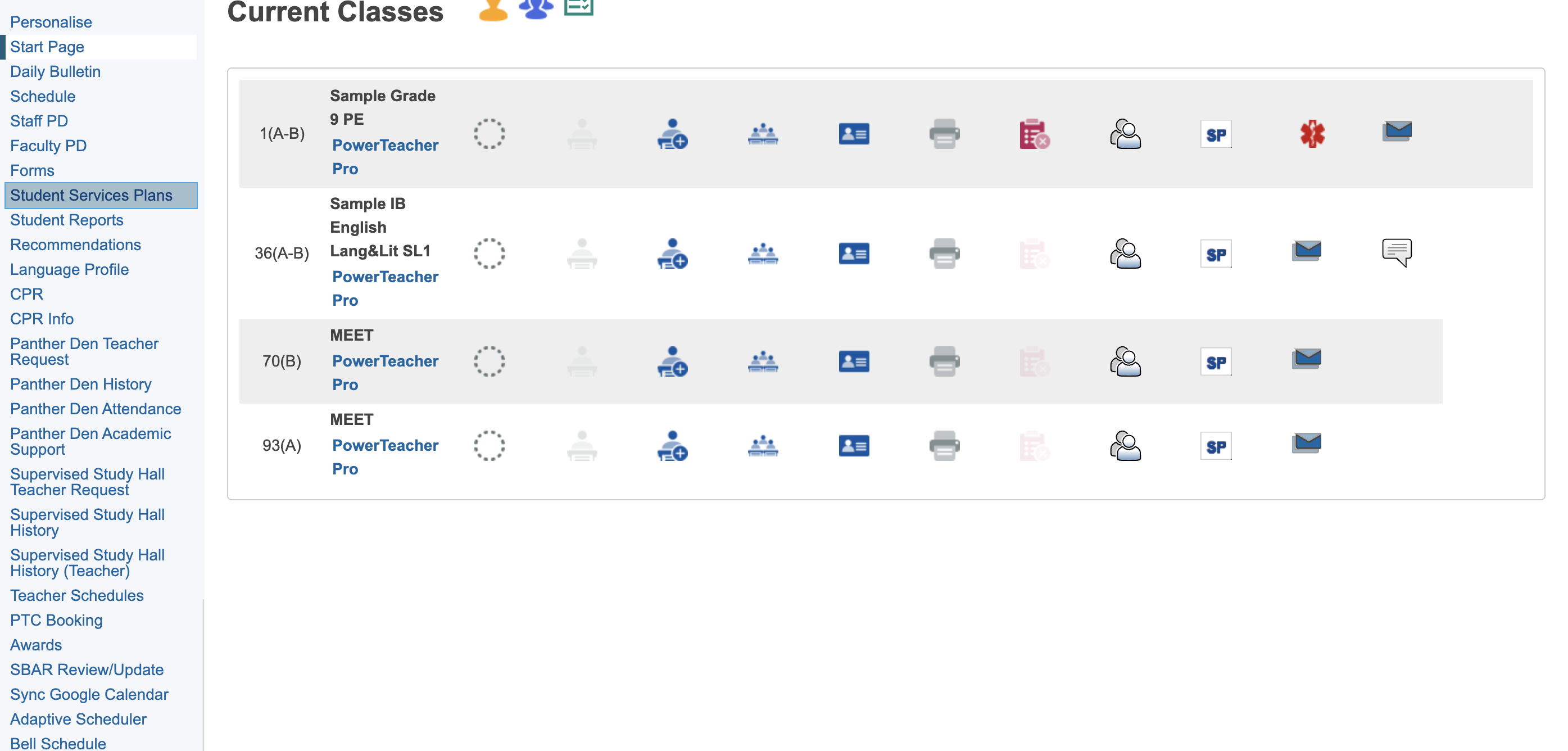
Go to Power Teacher and log in. Scroll down to Student Services Plans. You will see all the students you teach listed.
1
Go to PowerTeacher
2
Click on "Student Services Plans"
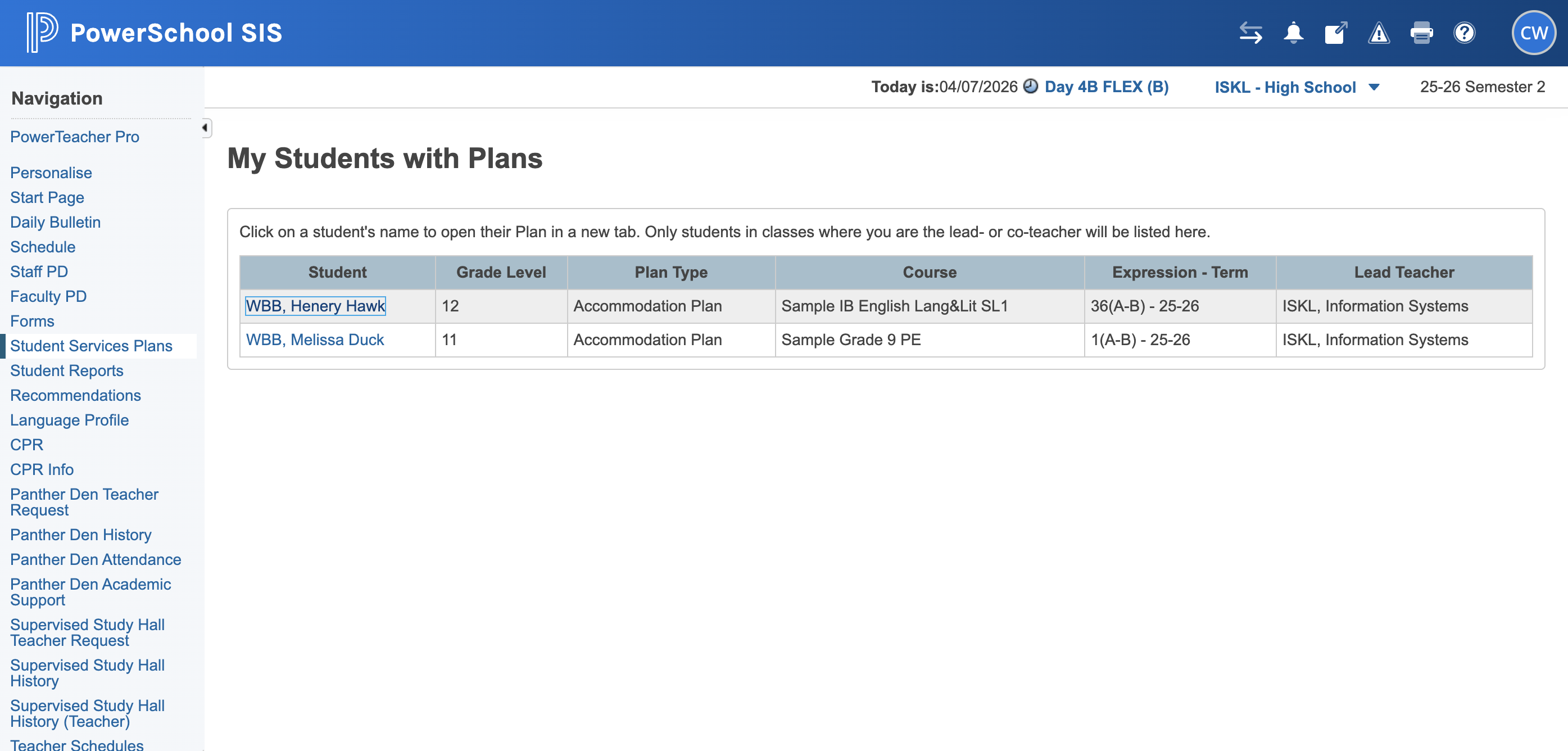
If you click on their name, you can review their accommodation plan.
3
Click on "Henery Hawk"
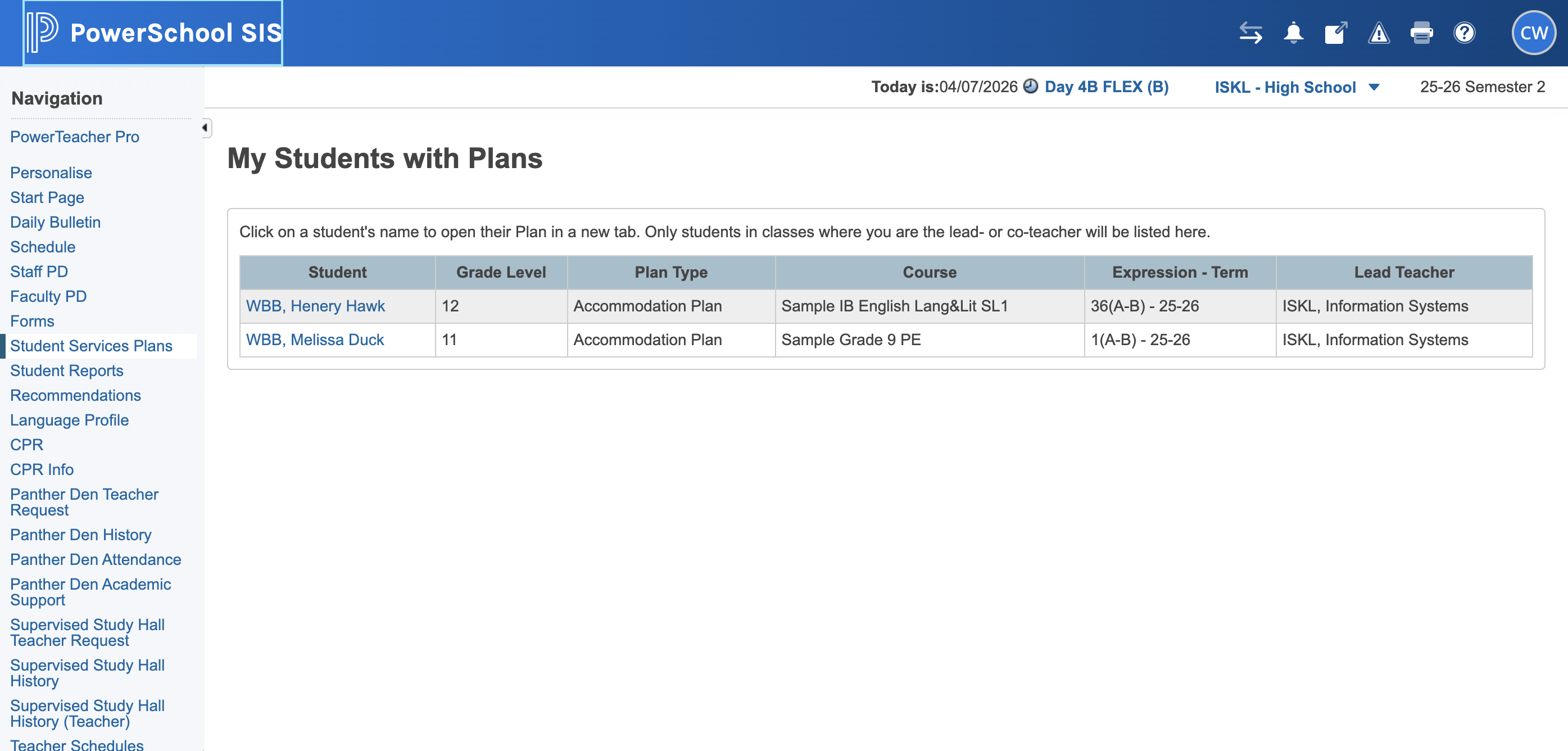
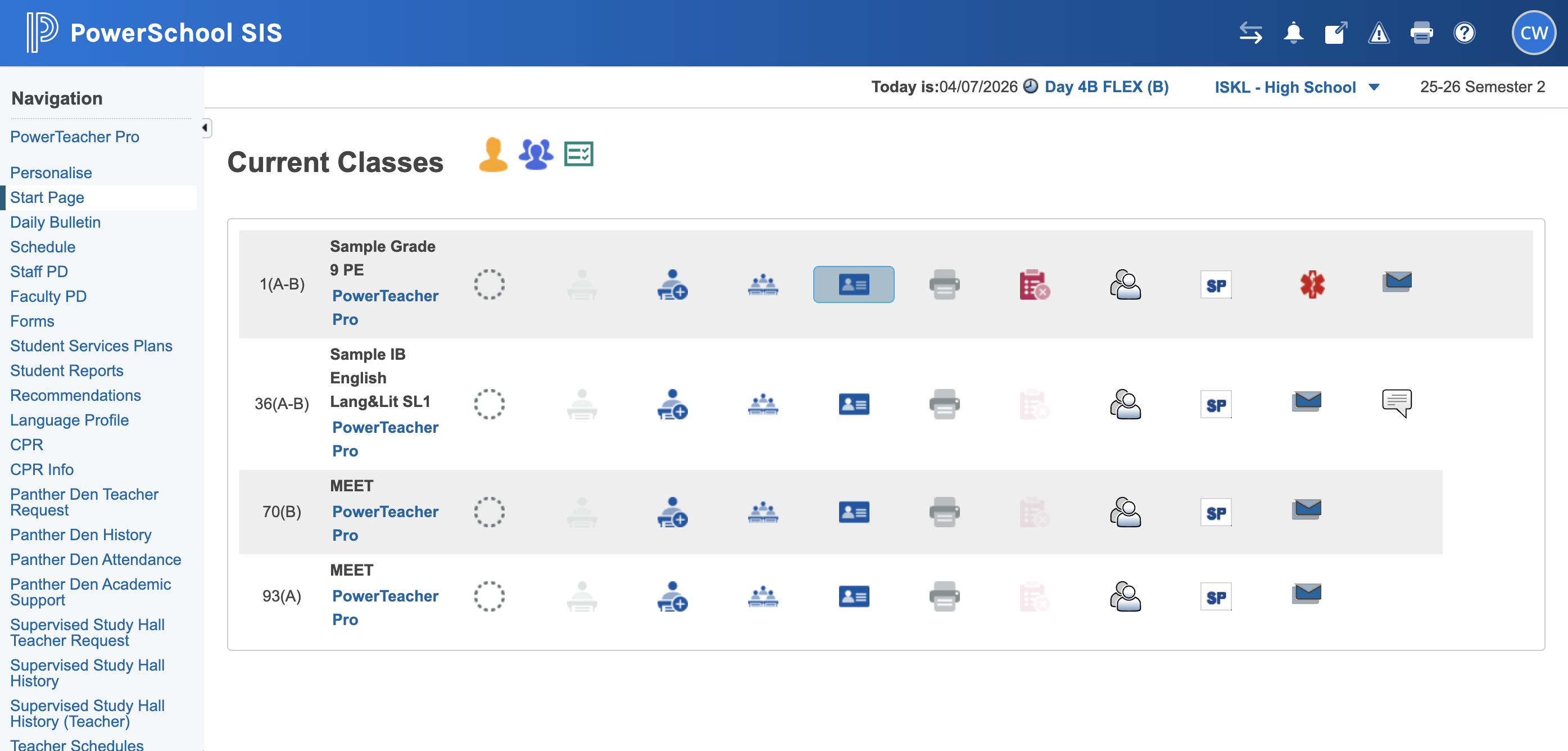
Another option is to go to Current Classes View and click on the ID card. You will see your students listed here.
4
Click on "PowerSchool SIS"
5
Click on the ID card.
6
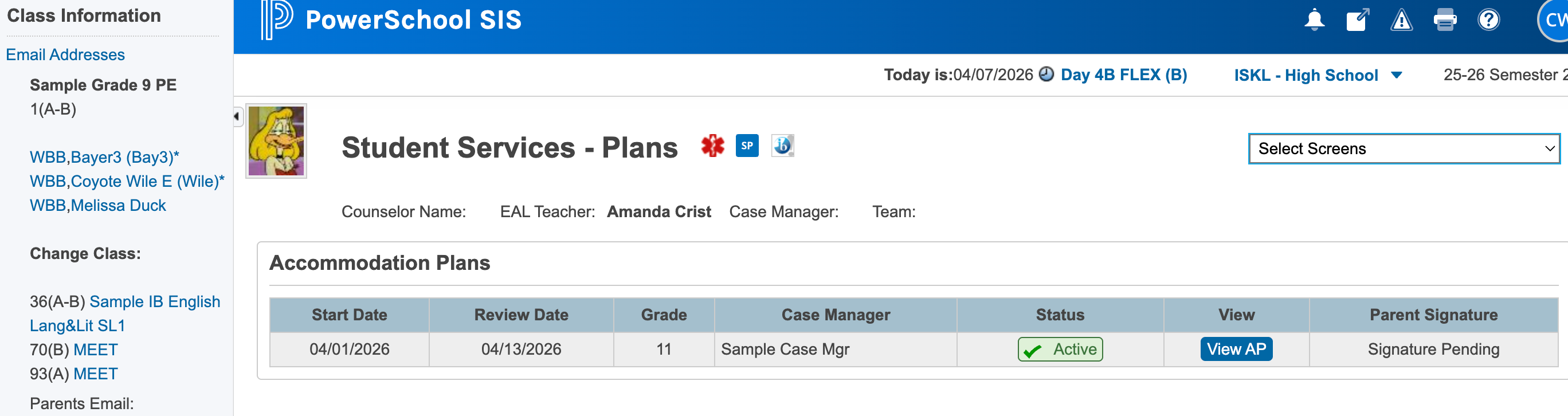
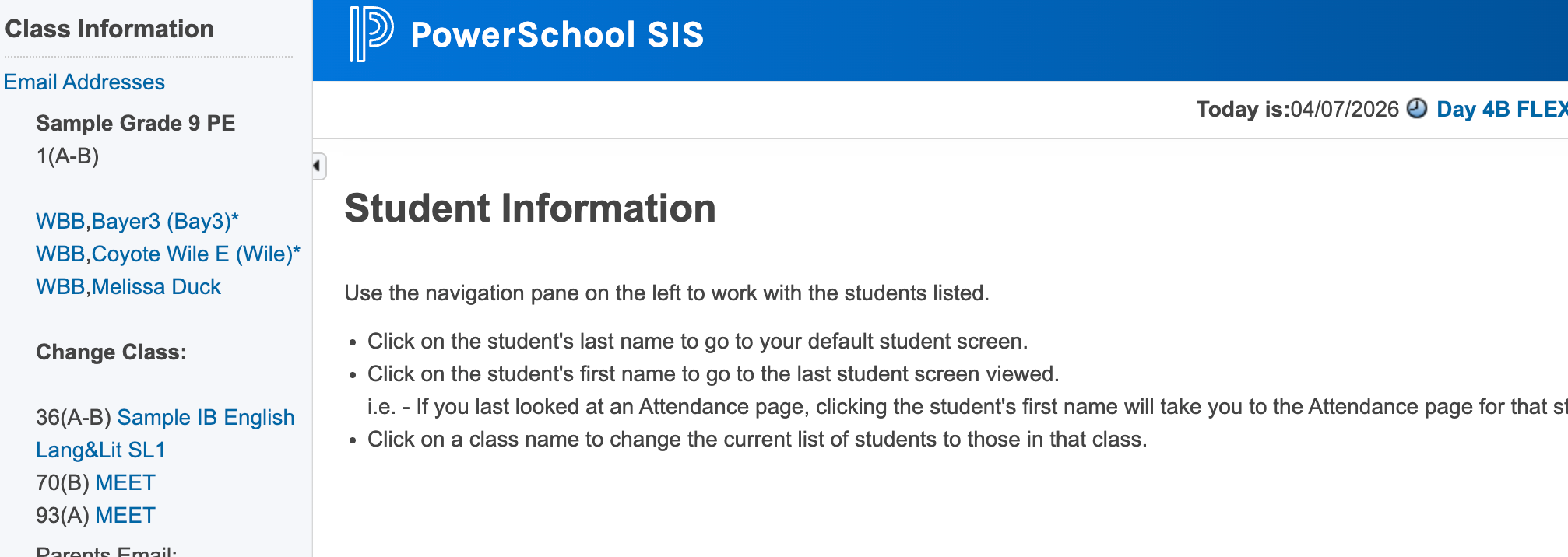
Click on their name, then select "View AP" to review their accommodation plan.
7