
How to Wrap Up an Intake Call and Add Notes to Salesforce2Jungo Using Blue.hq
Learn step-by-step how to efficiently wrap up an intake call, upload call recordings to Blue.hq, and add detailed intake notes to Salesforce2Jungo. This guide covers best practices for handling borrower and realtor interactions, personalizing follow-up emails, and ensuring accurate note-taking in your CRM.
In this guide, we'll learn how to wrap up an intake call and add intake notes using Blue.hq, with the goal of keeping records organized in Salesforce2Jungo. This process includes downloading the call recording, uploading it to Blue.hq, sending a follow-up email, and transferring notes to the correct place in Salesforce2Jungo.
You'll also see how to personalize communication and ensure notes are saved in the right record.
Let's get started
Okay. Here is how you wrap up an intake call and use Blue.hq to add intake notes to Salesforce2Jungo. This situation is a bit unusual because I spoke with a real estate broker instead of the borrower. However, the principles remain the same.
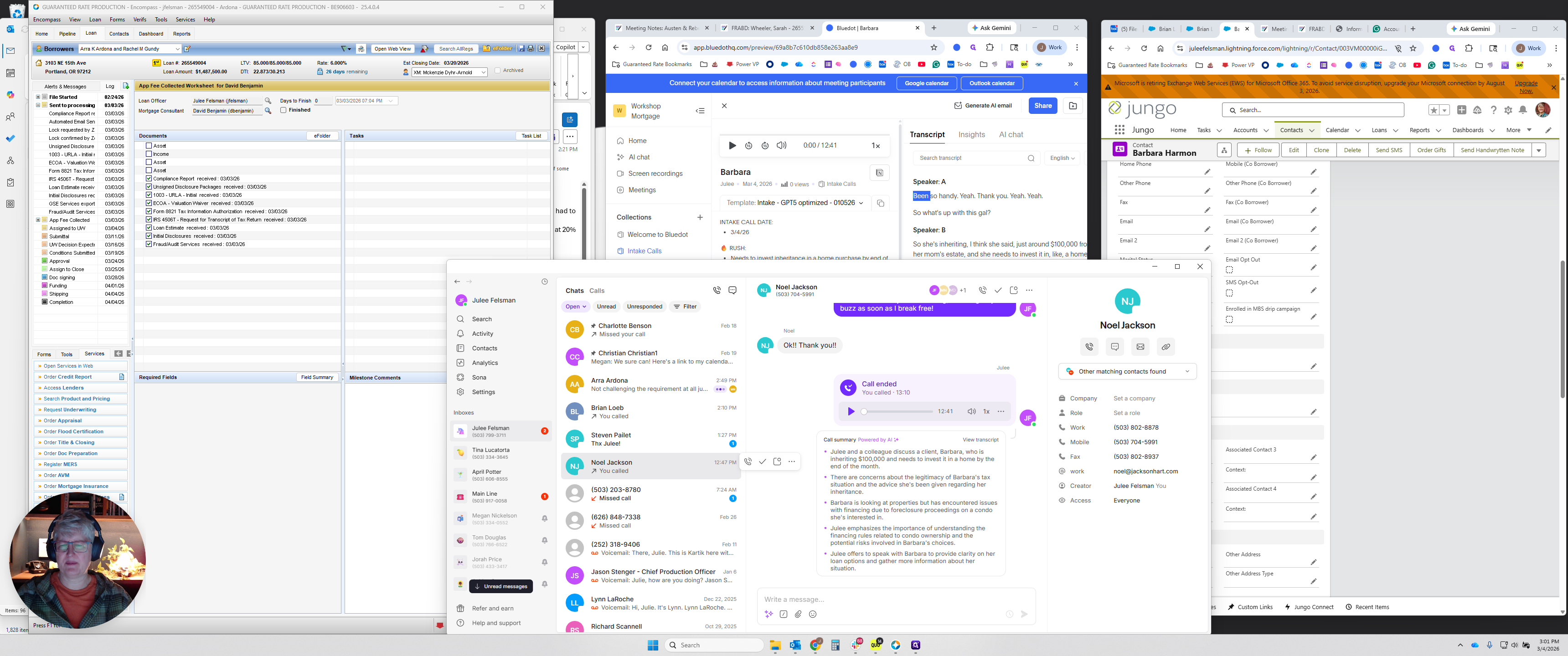
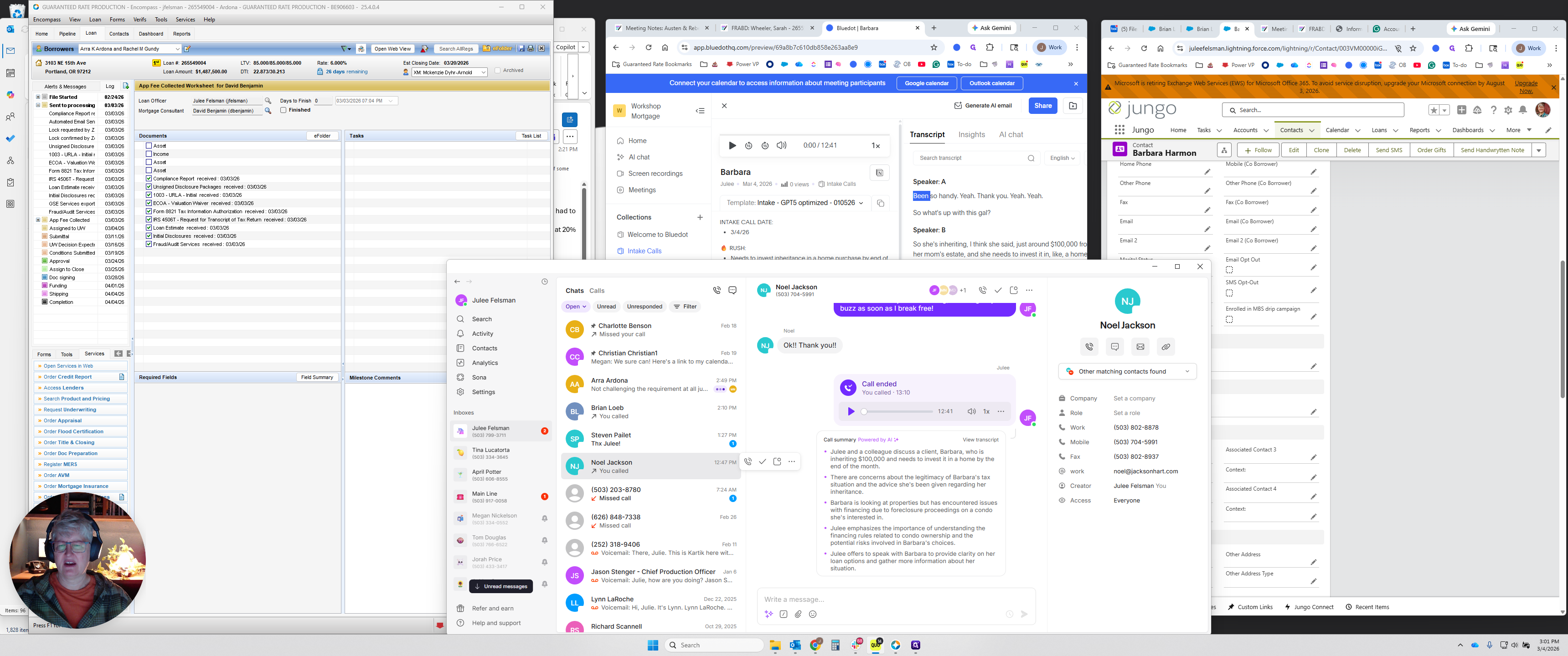
After you finish the call in Quo/OpenPhone, you'll see that the call has ended and the summary appears here. You do not want that. Go to the three dots to the right of the recording and click Download.
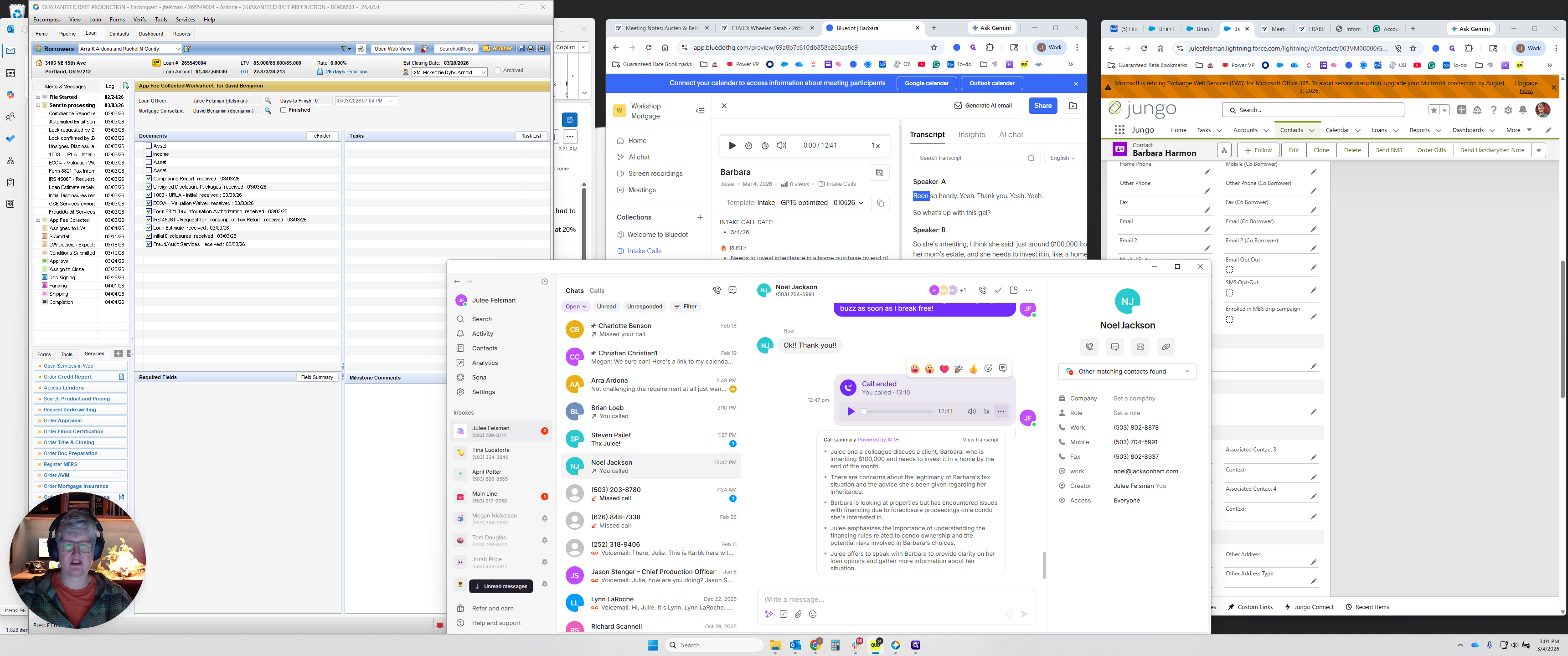
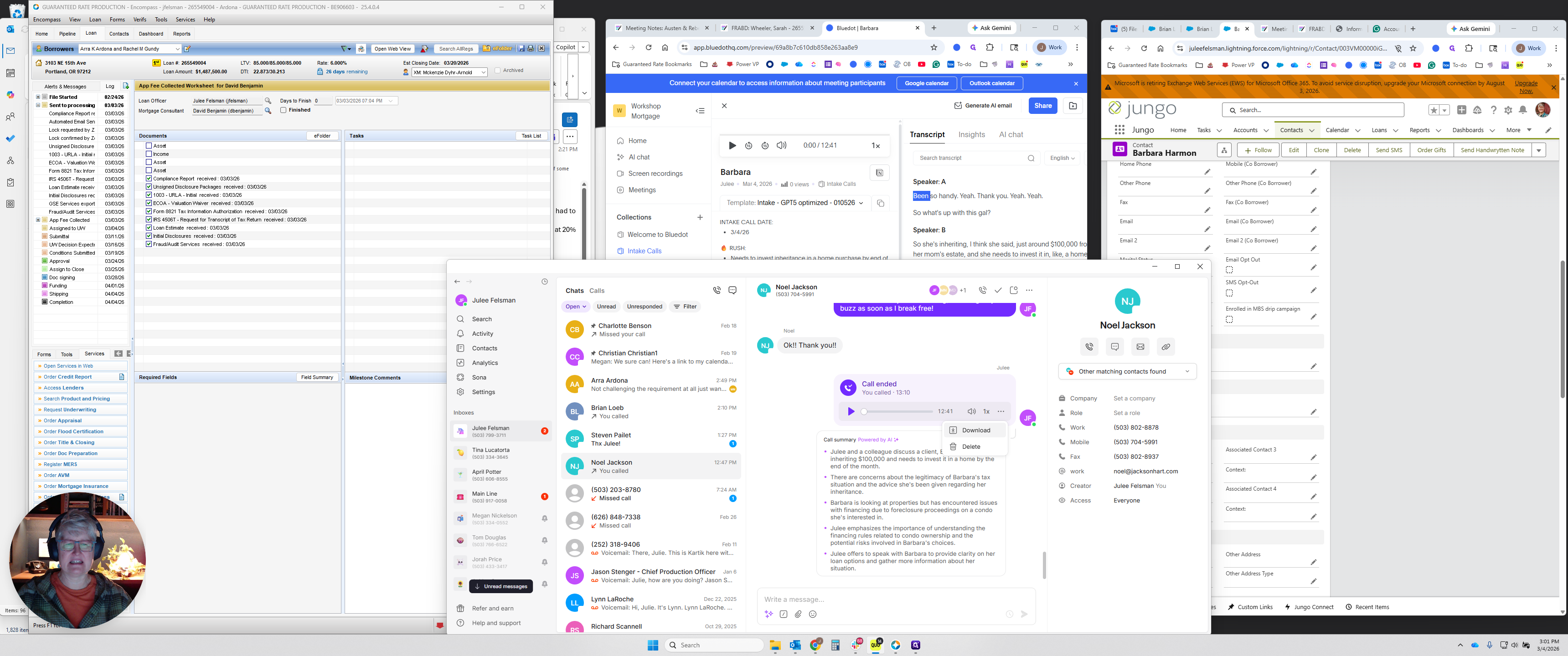
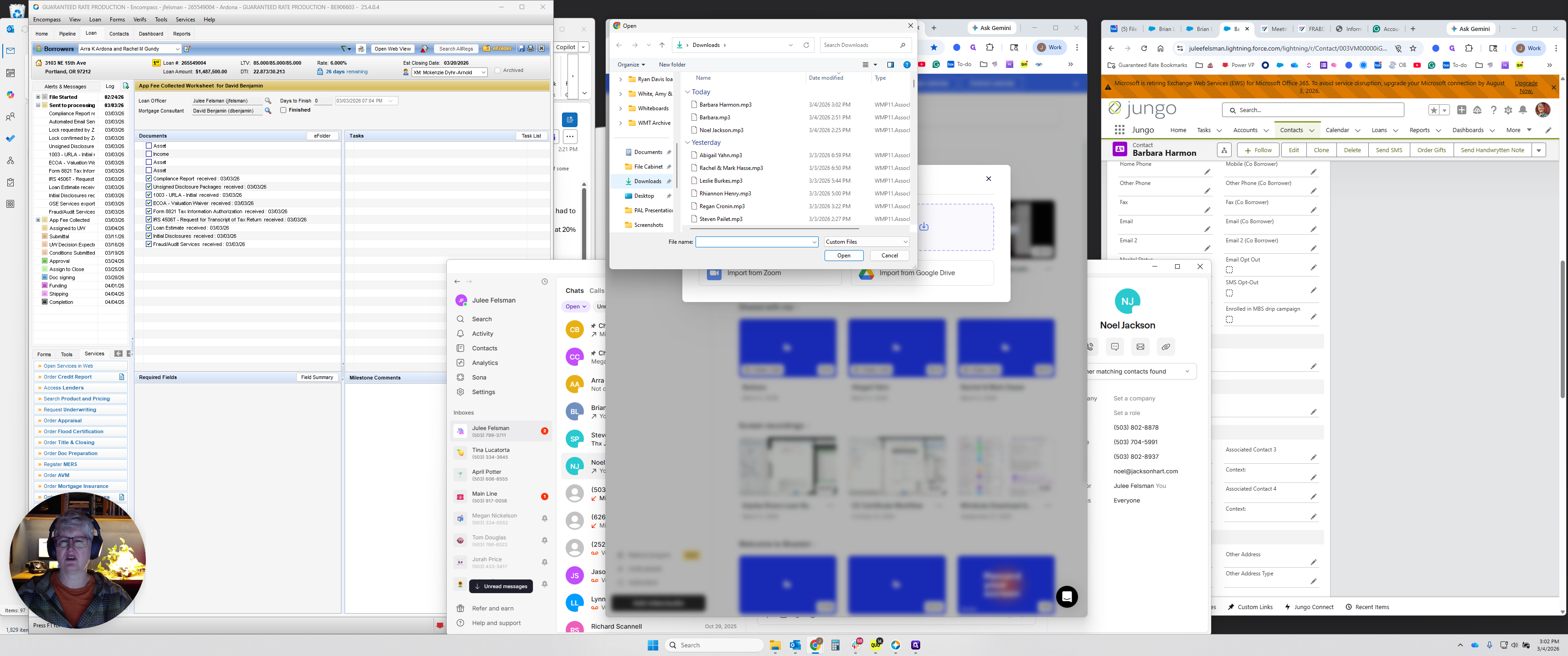
Once you've downloaded it, just save it. I always save it under the borrower’s or borrowers’ names. In this case, select Barbara Harmon, then go to Blue.hq.
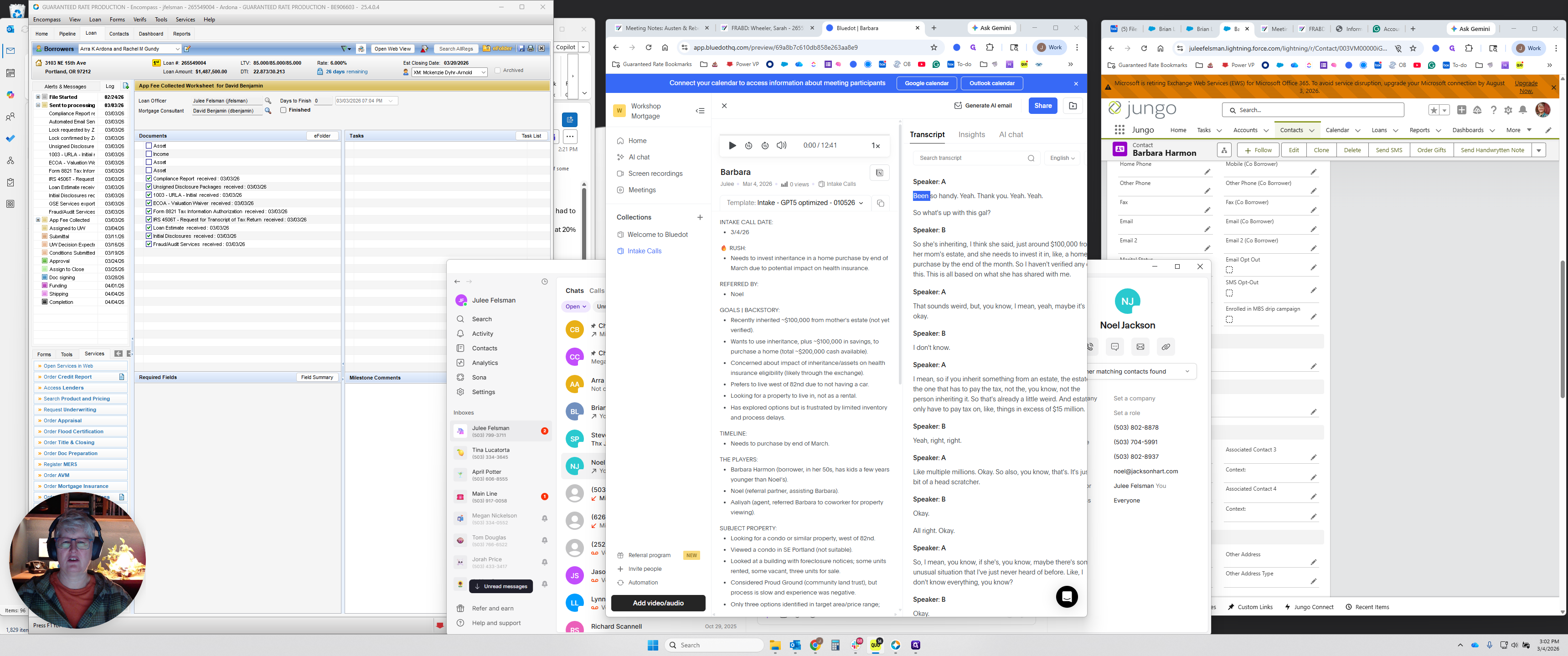
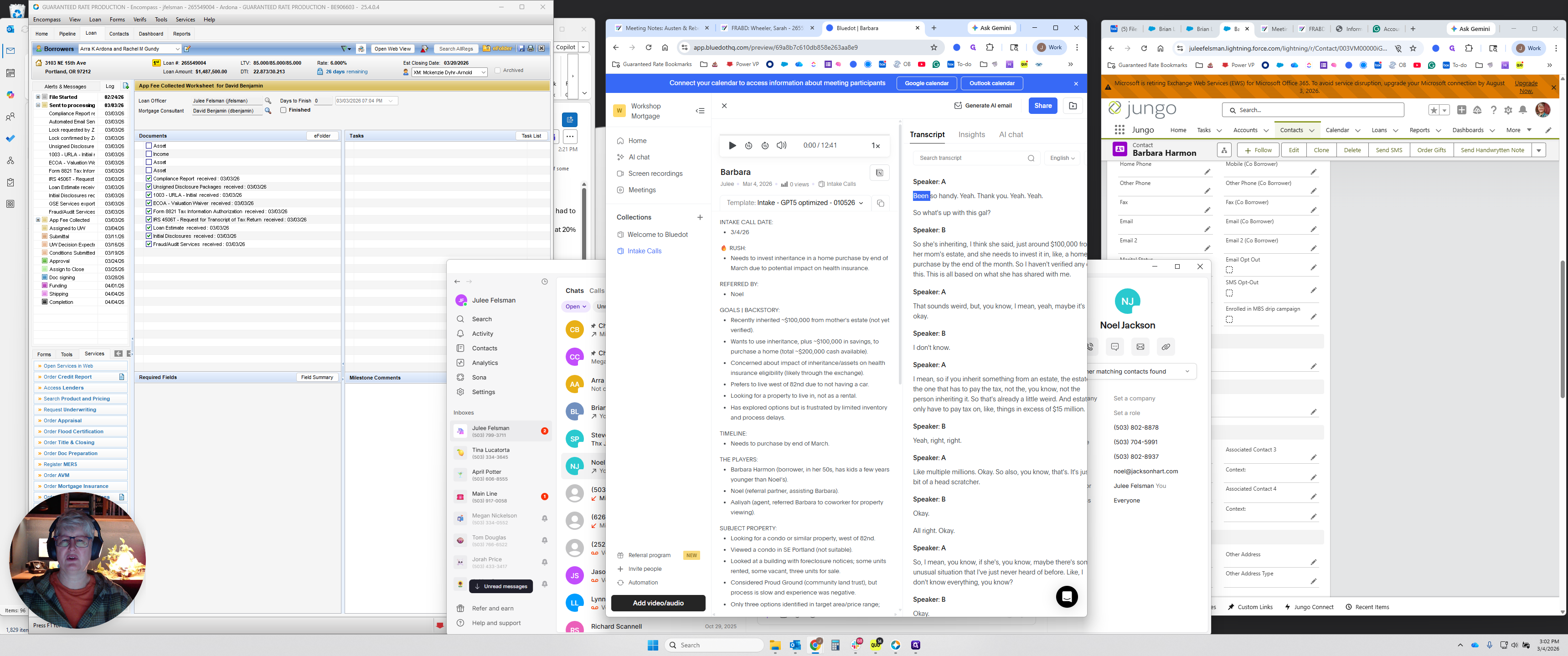
It's in the recording. The address is app.blue.hq.com.
Megan, Tom, Jora, and I all now have logins to this.
Once you log in, if all you see is this, go to the hamburger icon at the top. Click the hamburger to open the sidebar. Look for the button at the bottom that says "Add Video/Audio." Select it to upload a meeting.
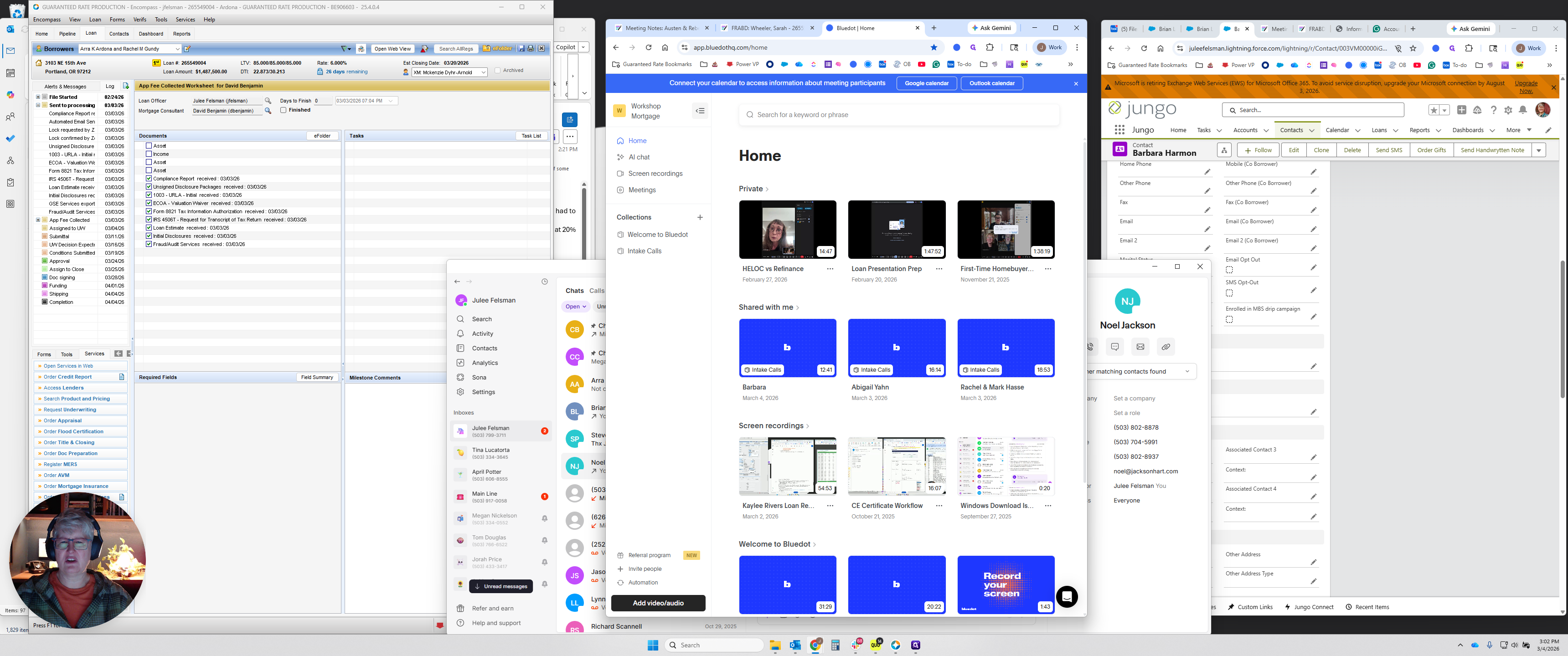
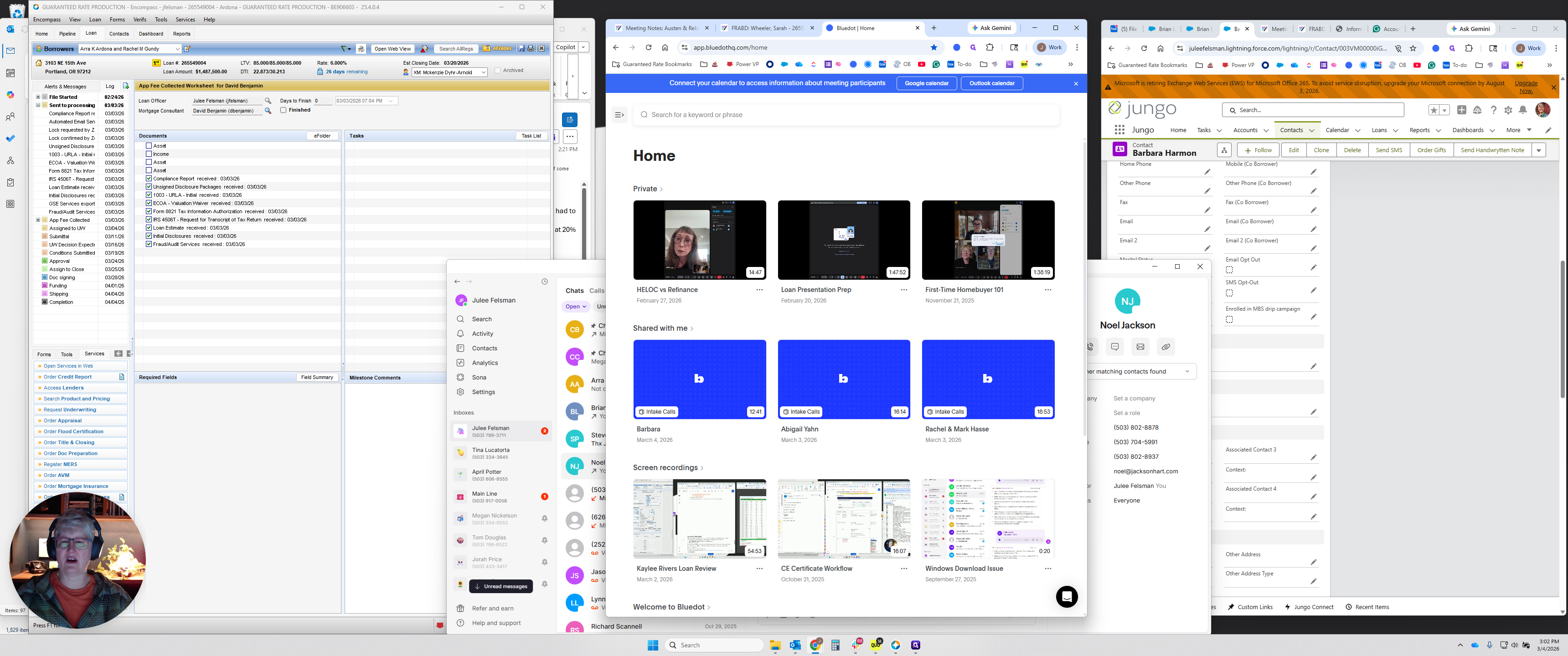
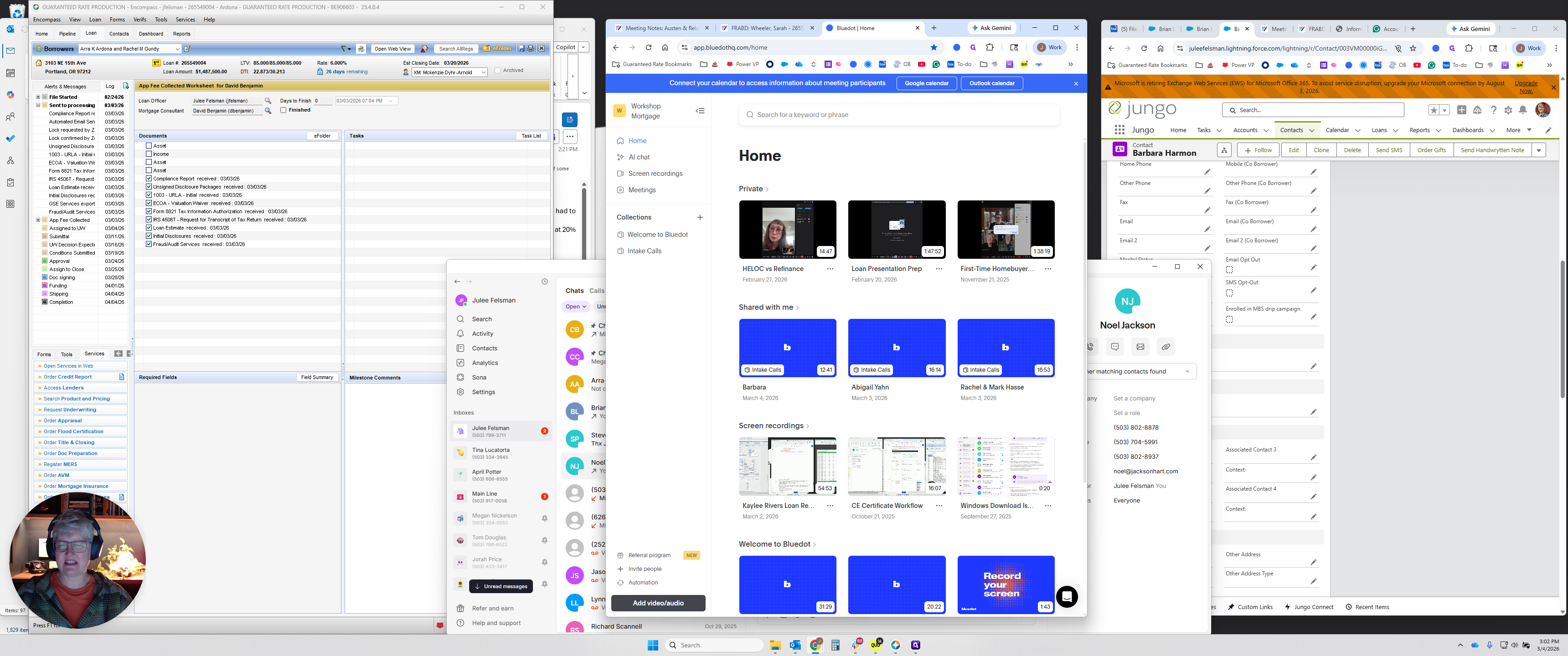
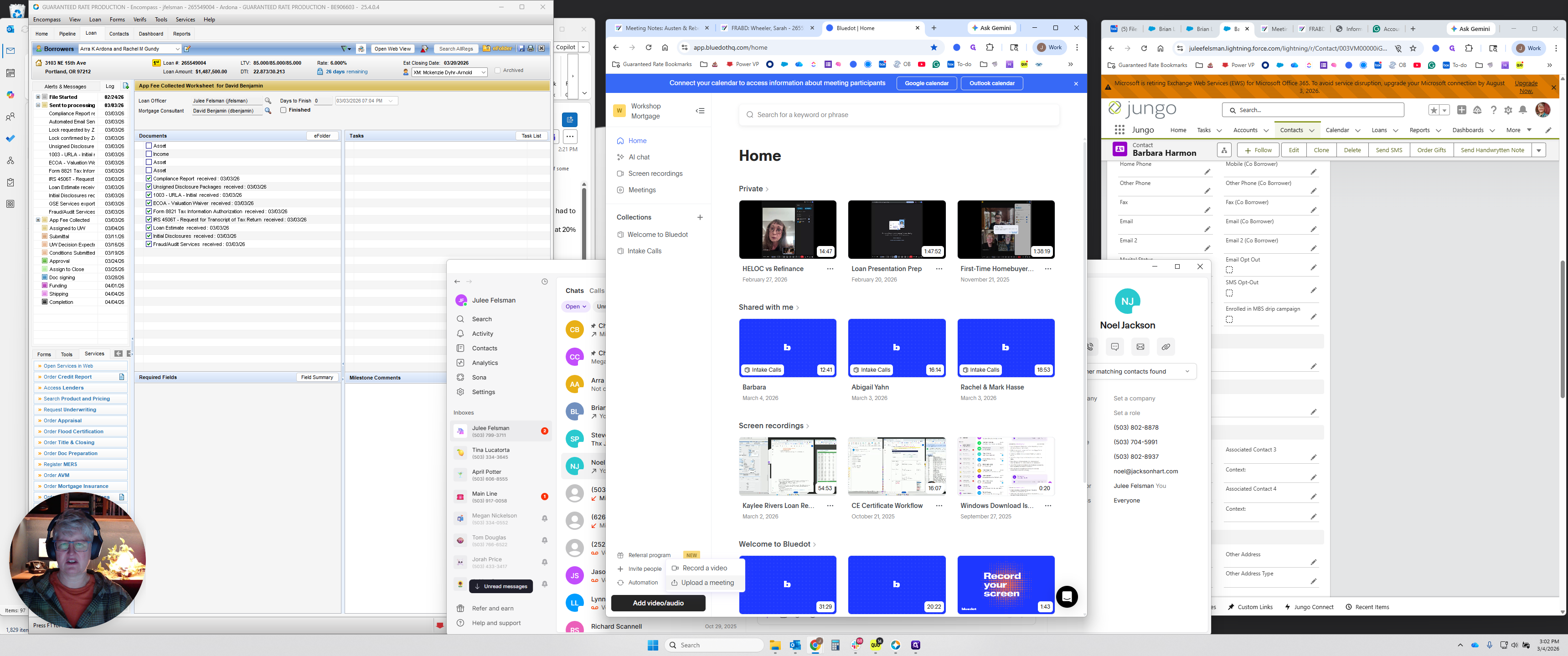
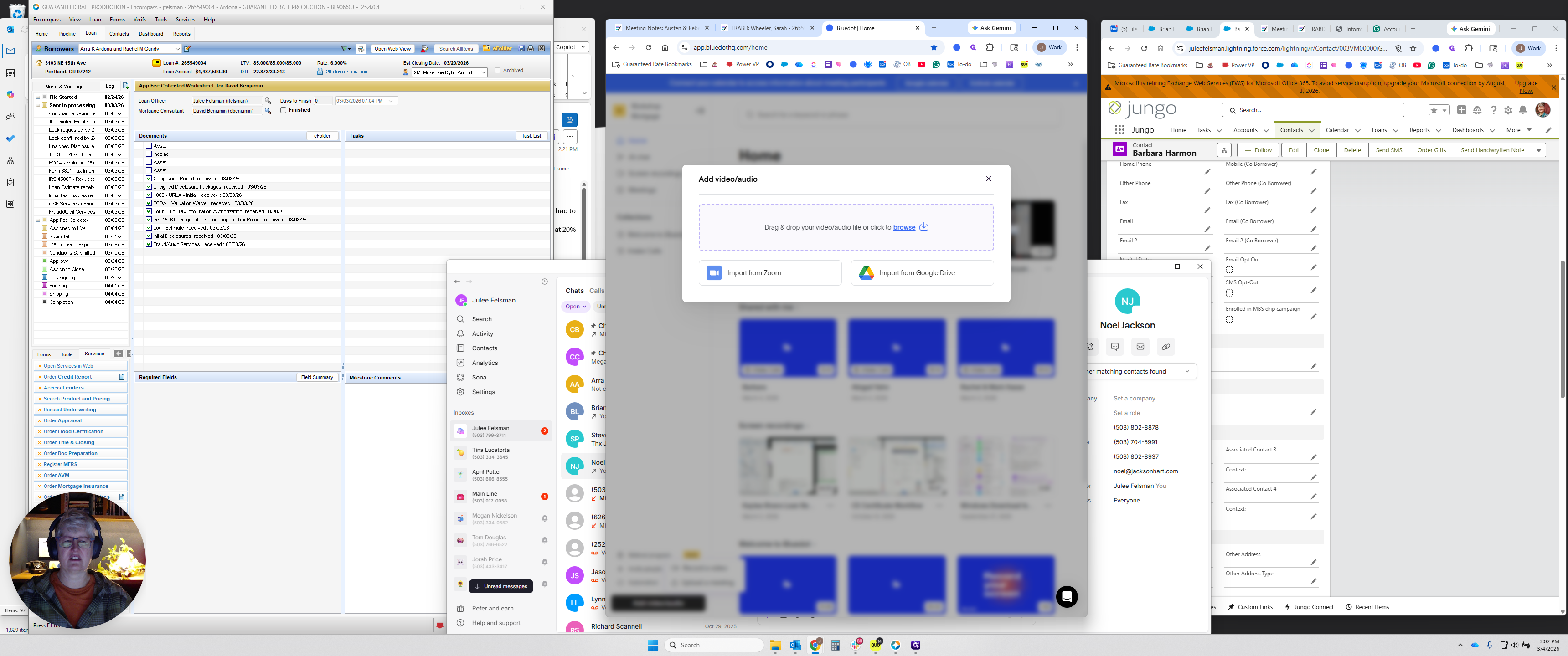
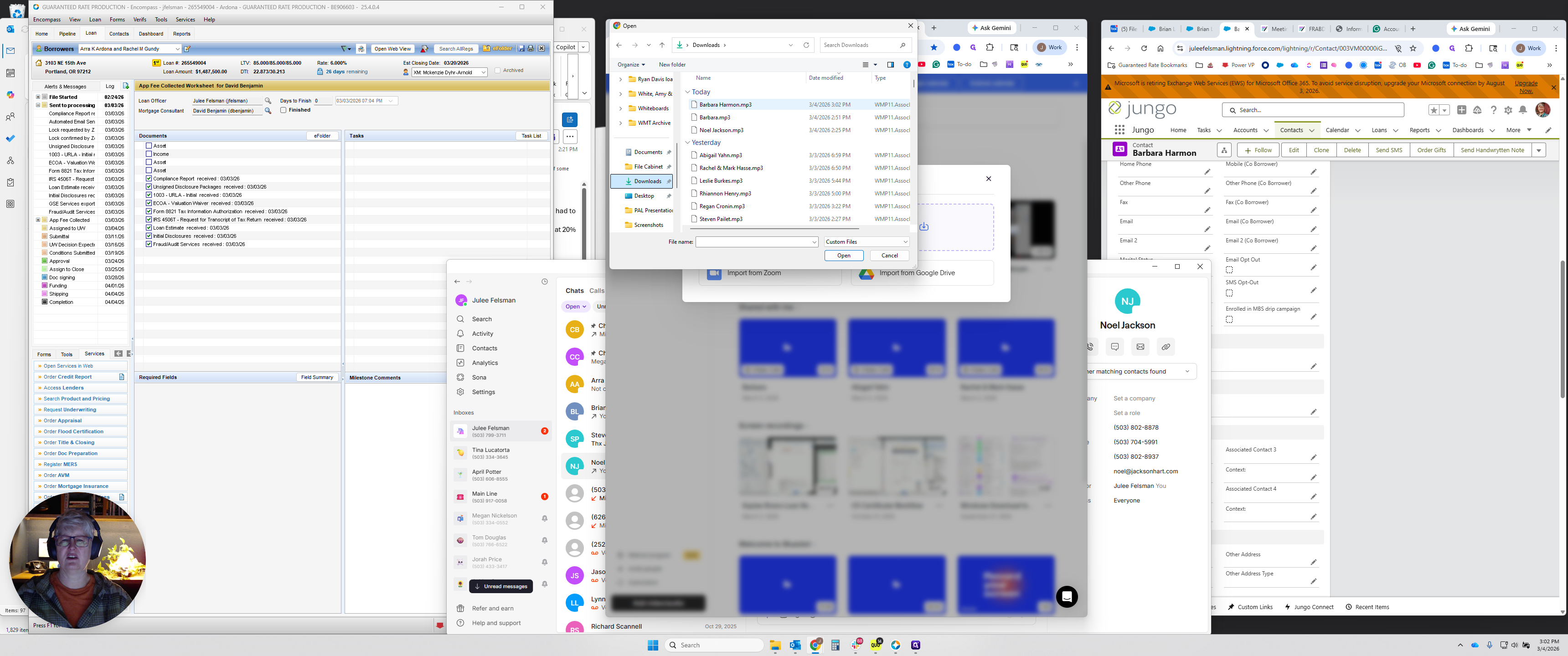
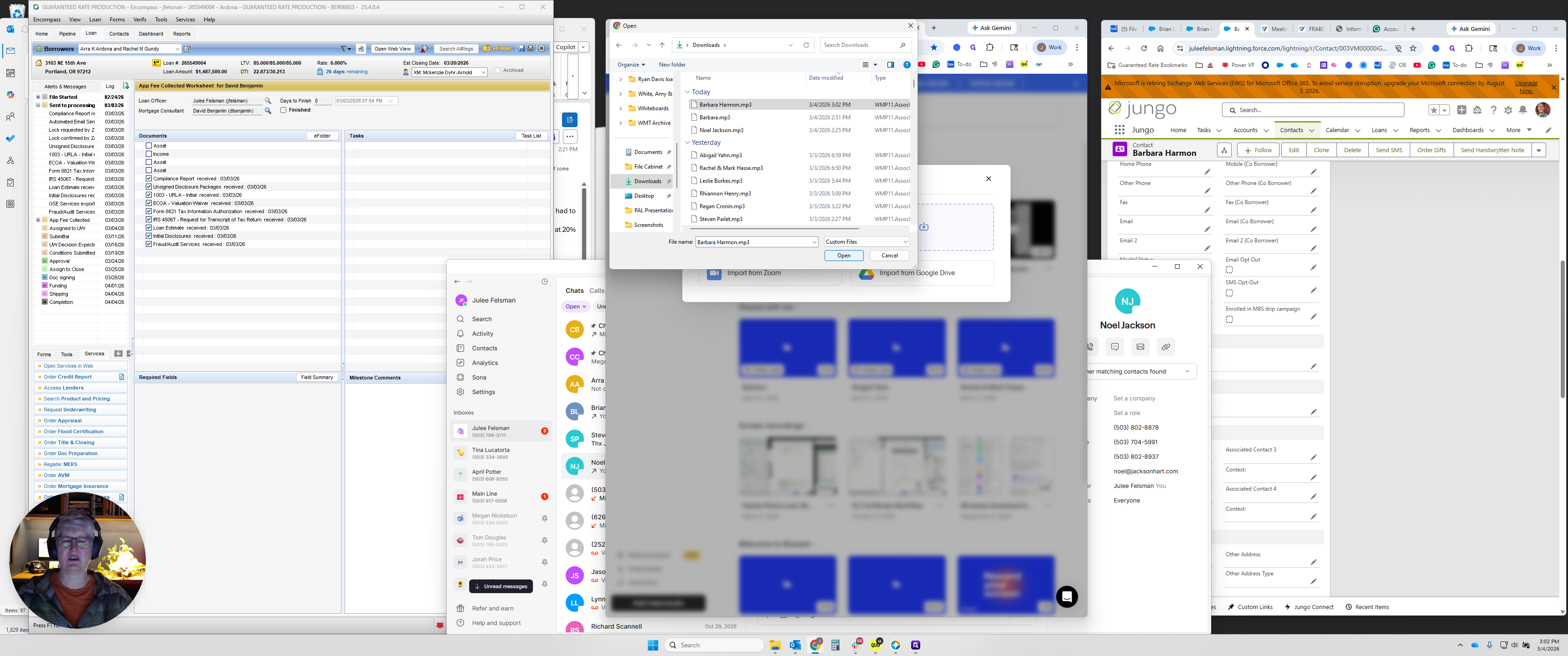
Click on Browse, go to your downloads, and select the MP3 you just created.
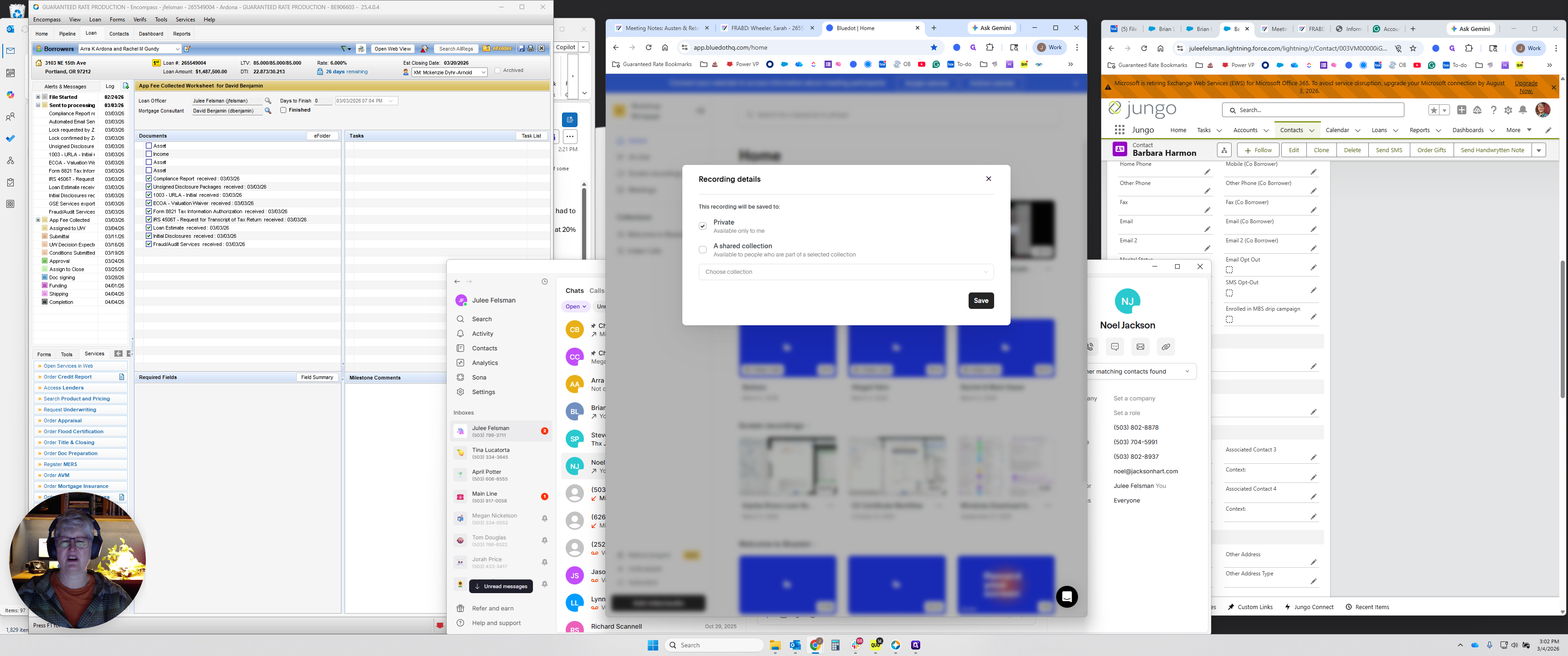
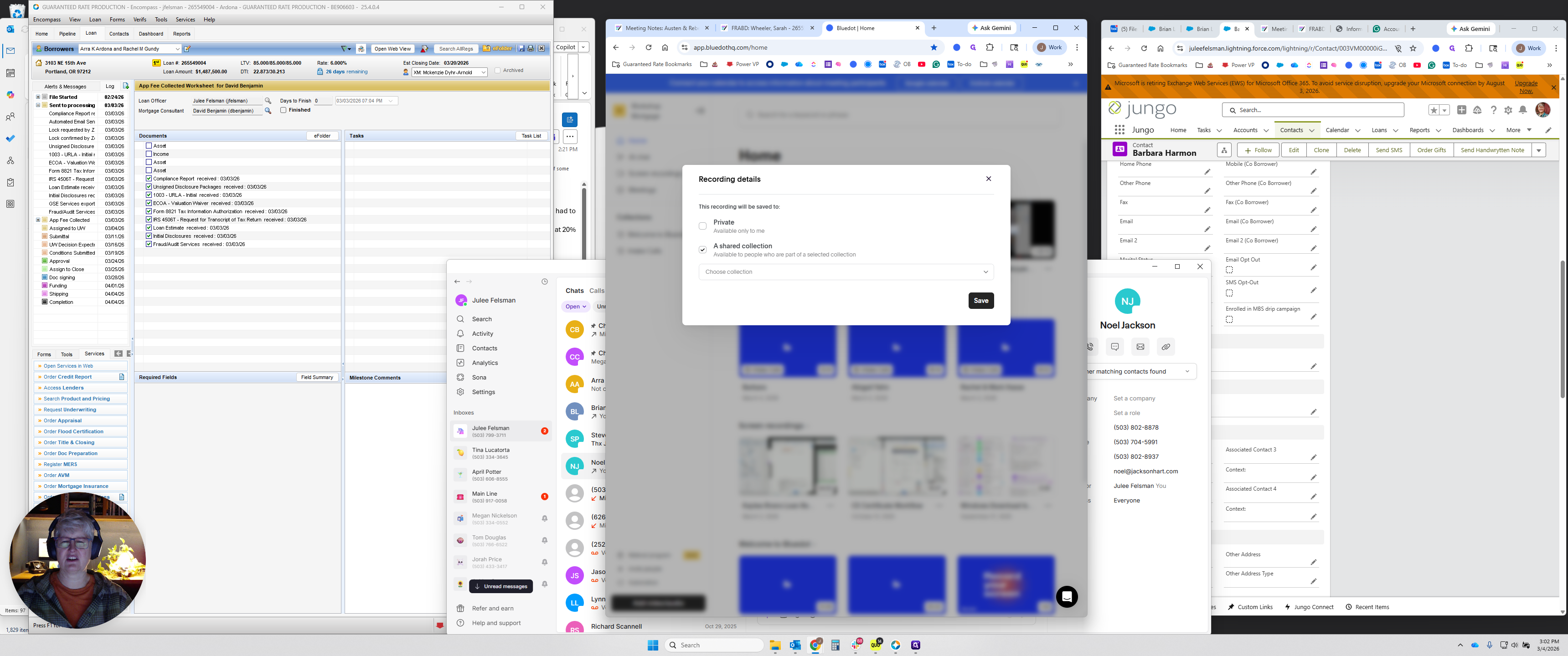
Click Shared Collection, select Intake Calls, then click Save.
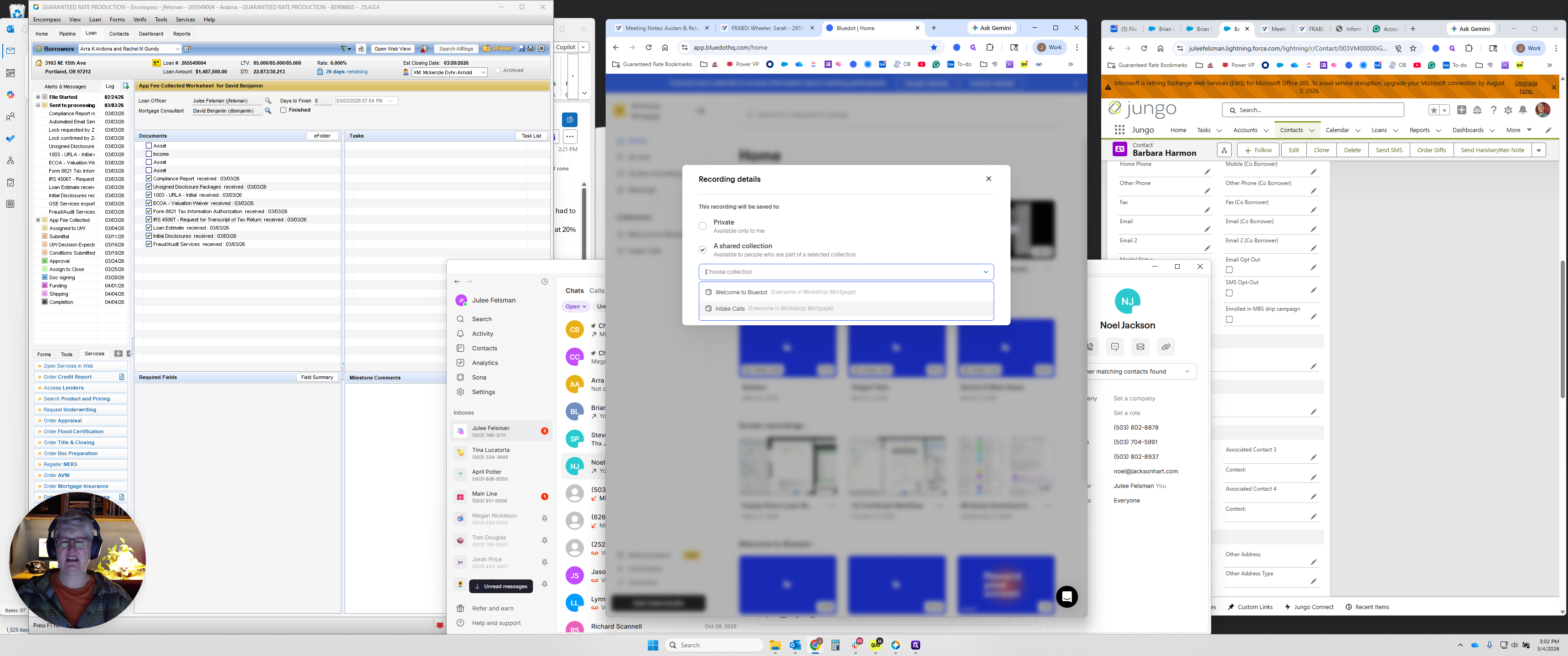
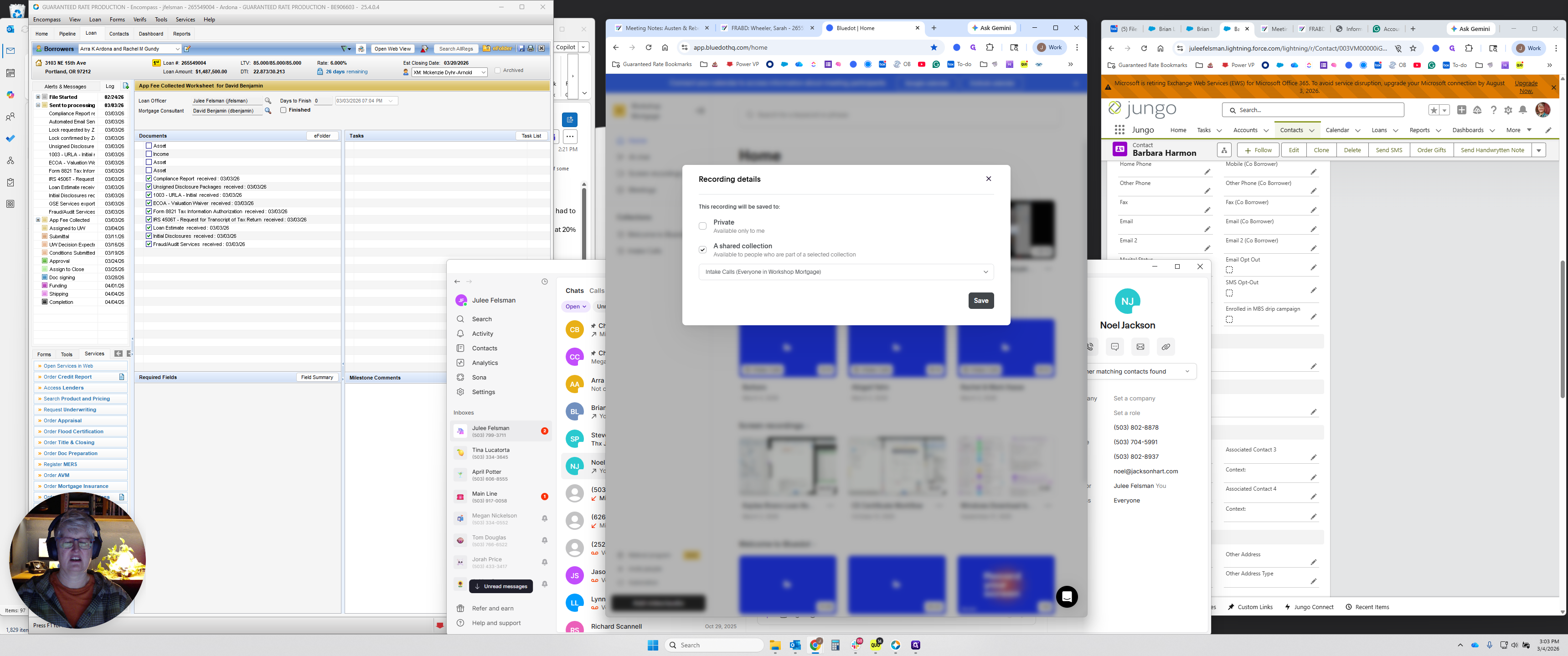
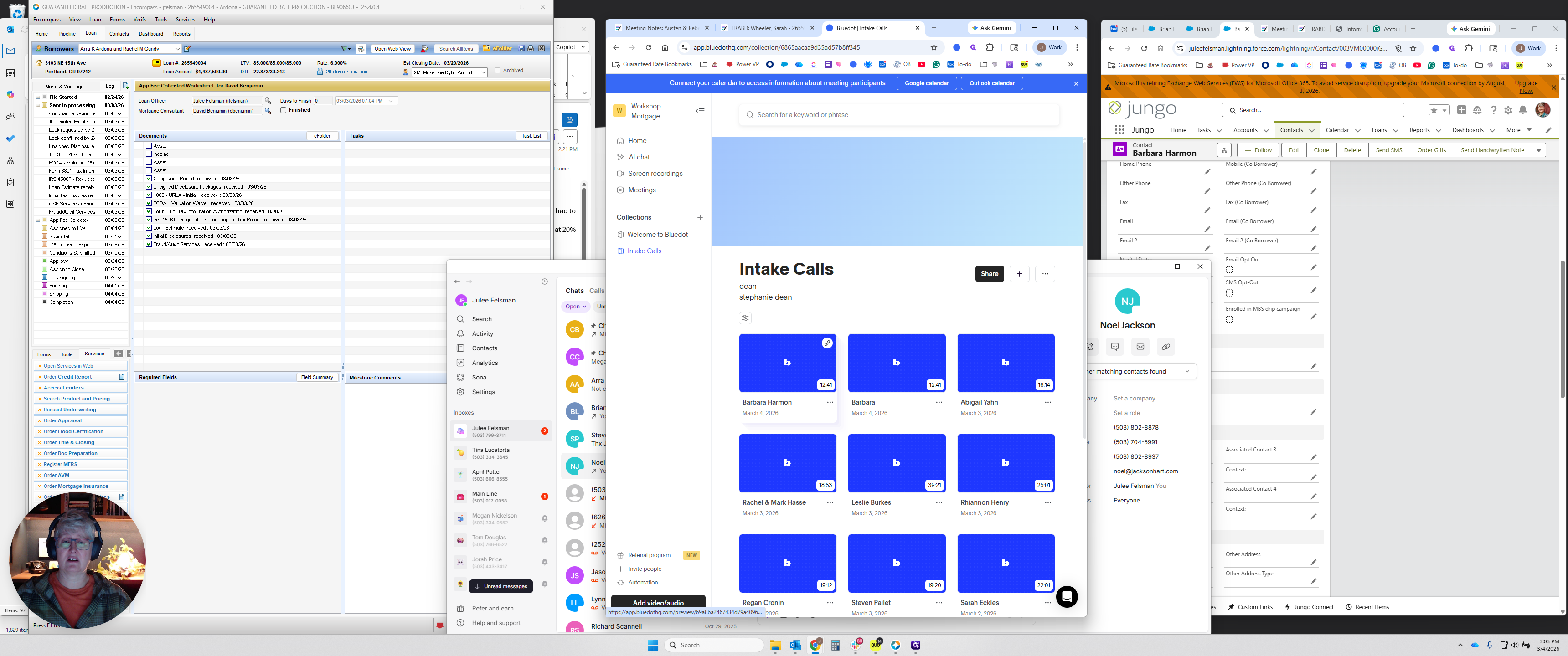
It will take a moment to upload. Once it finishes, you can click on it, but it will not be ready to use yet.
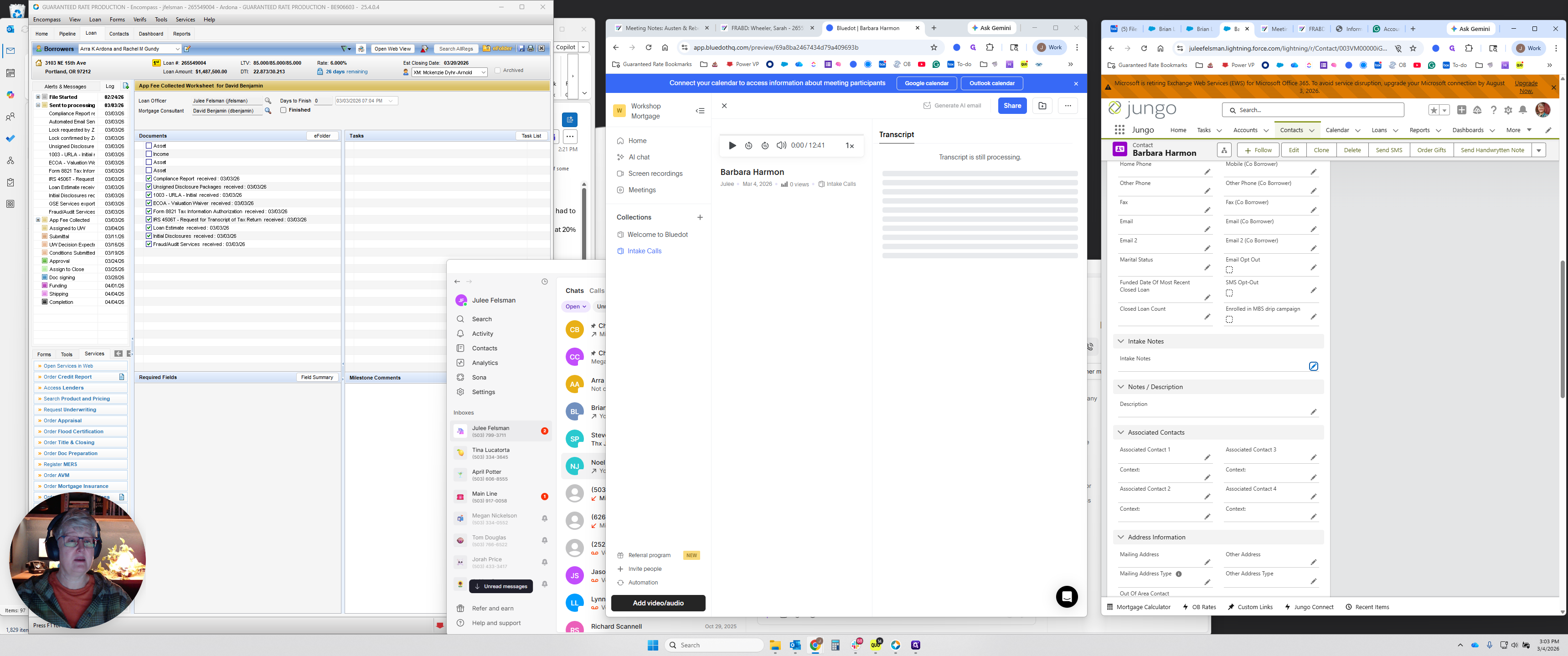
You’ll see it says the transcript is still processing. Typically, while that's happening, you will send an email to the borrower.
In this case, I spoke with the realtor. I do not have the borrower's email, so let's assume I do. Click on the borrower's email or copy and paste it. Open a new email and enter the borrower's email address. Type or paste your message.
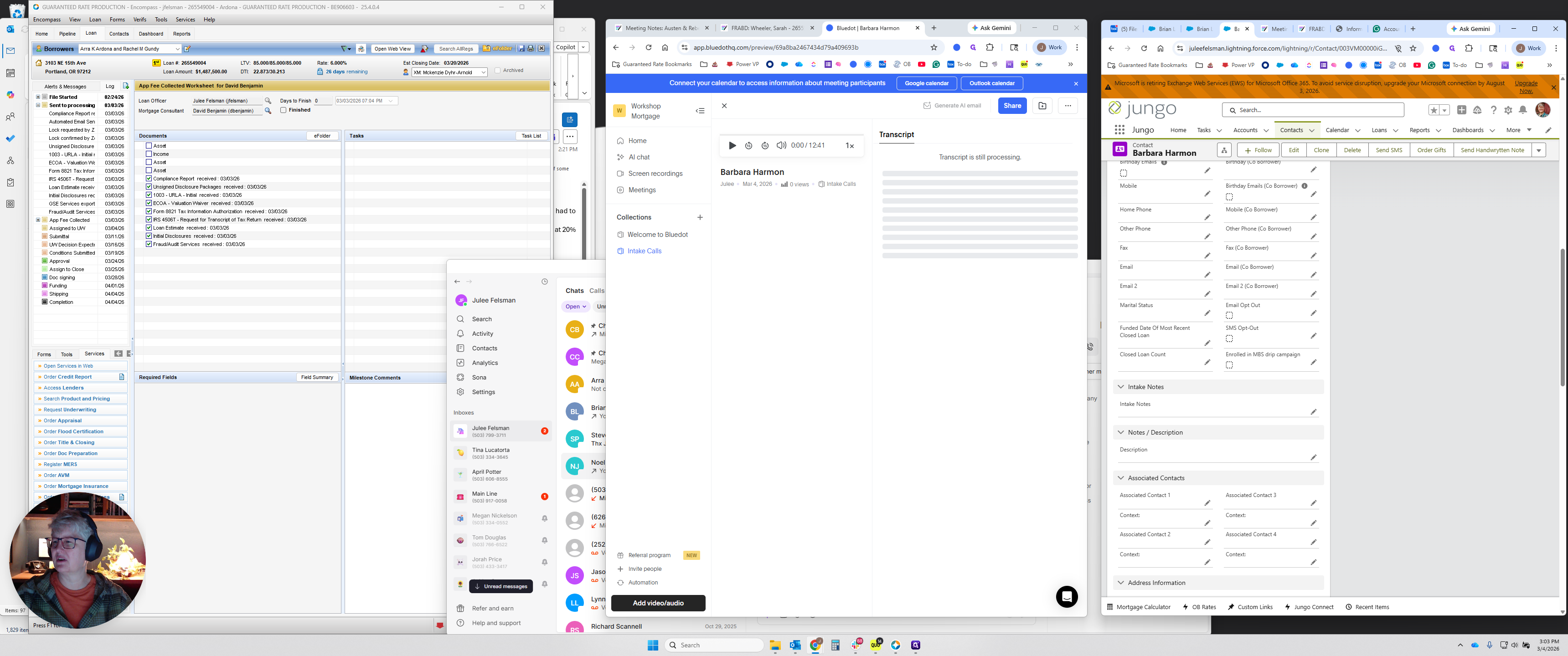
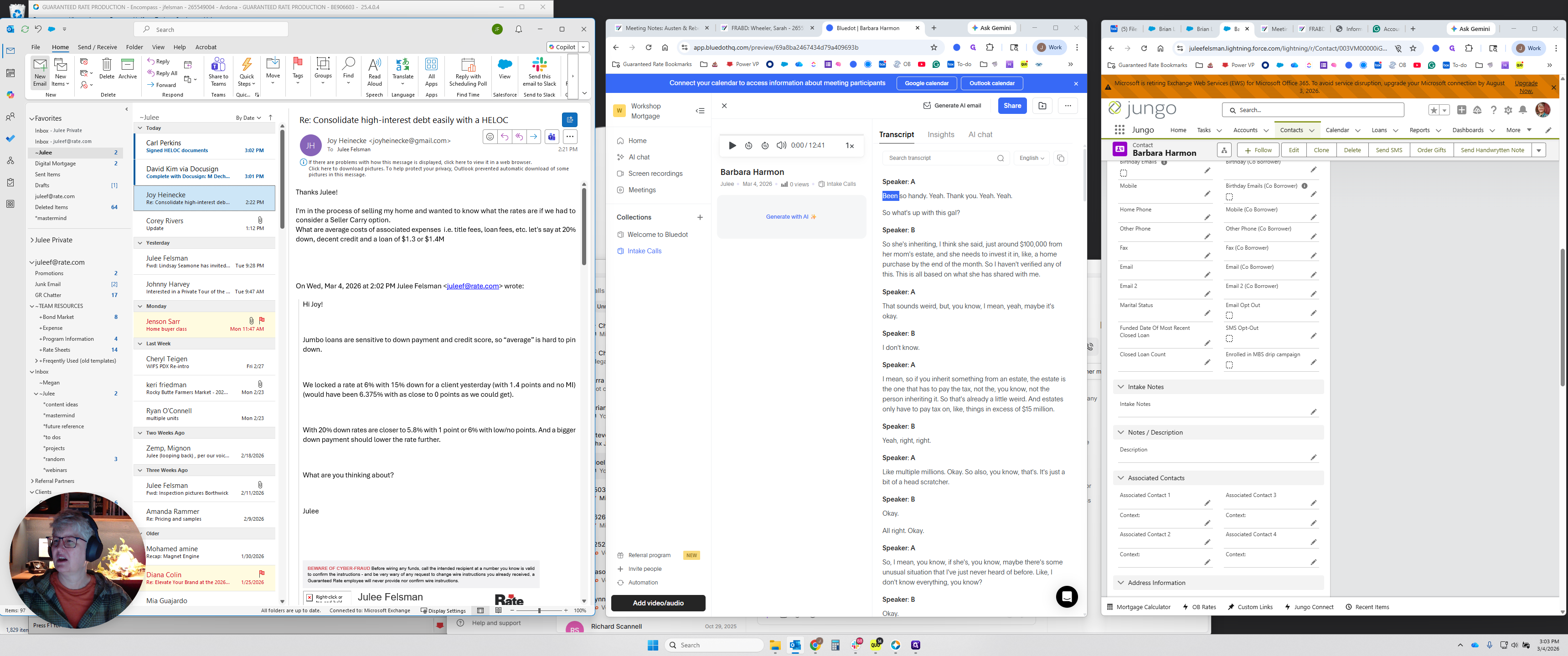
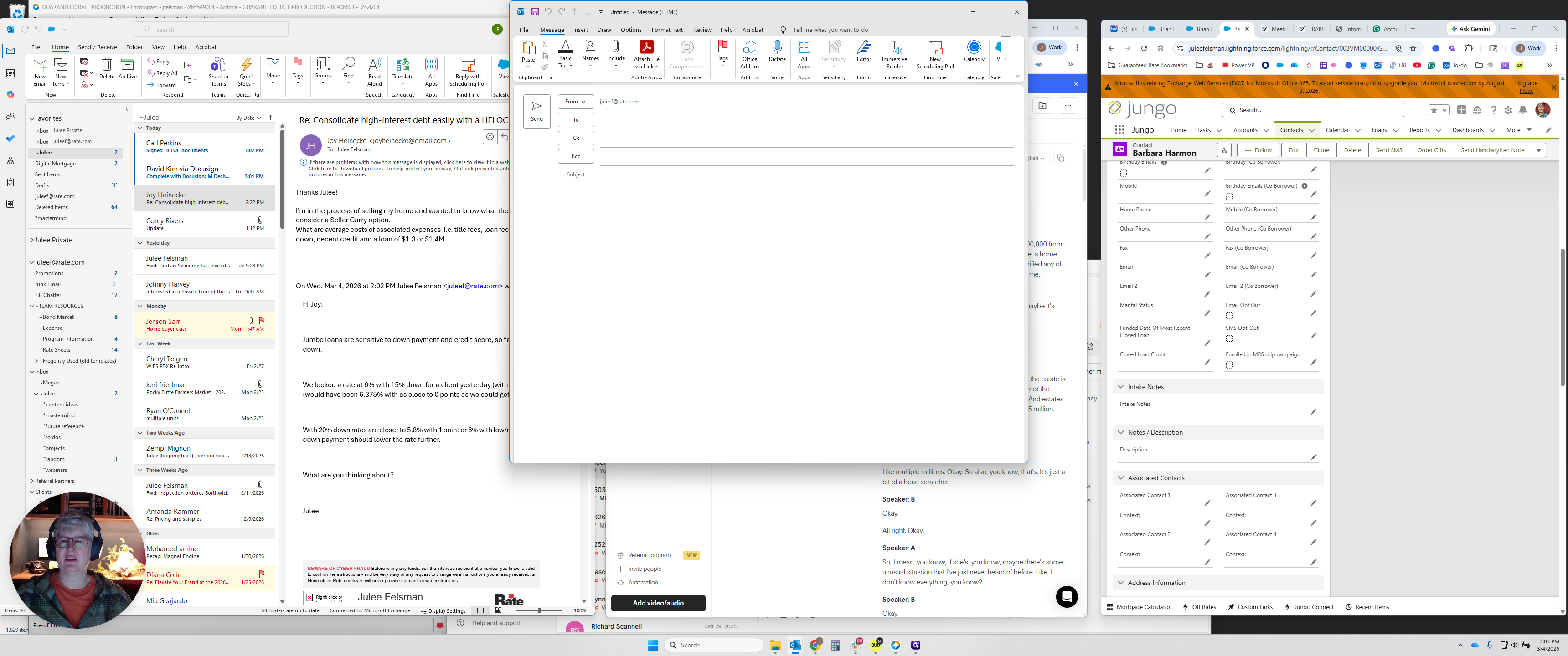
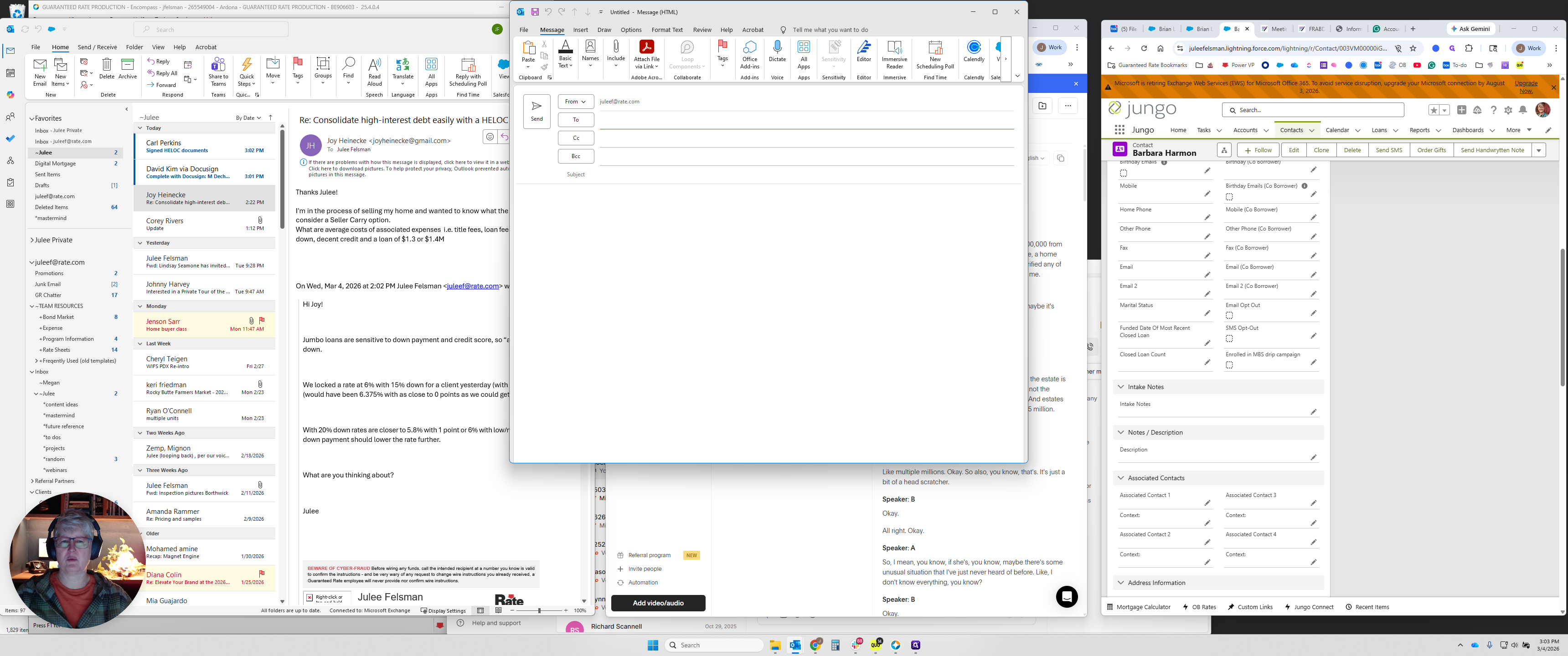
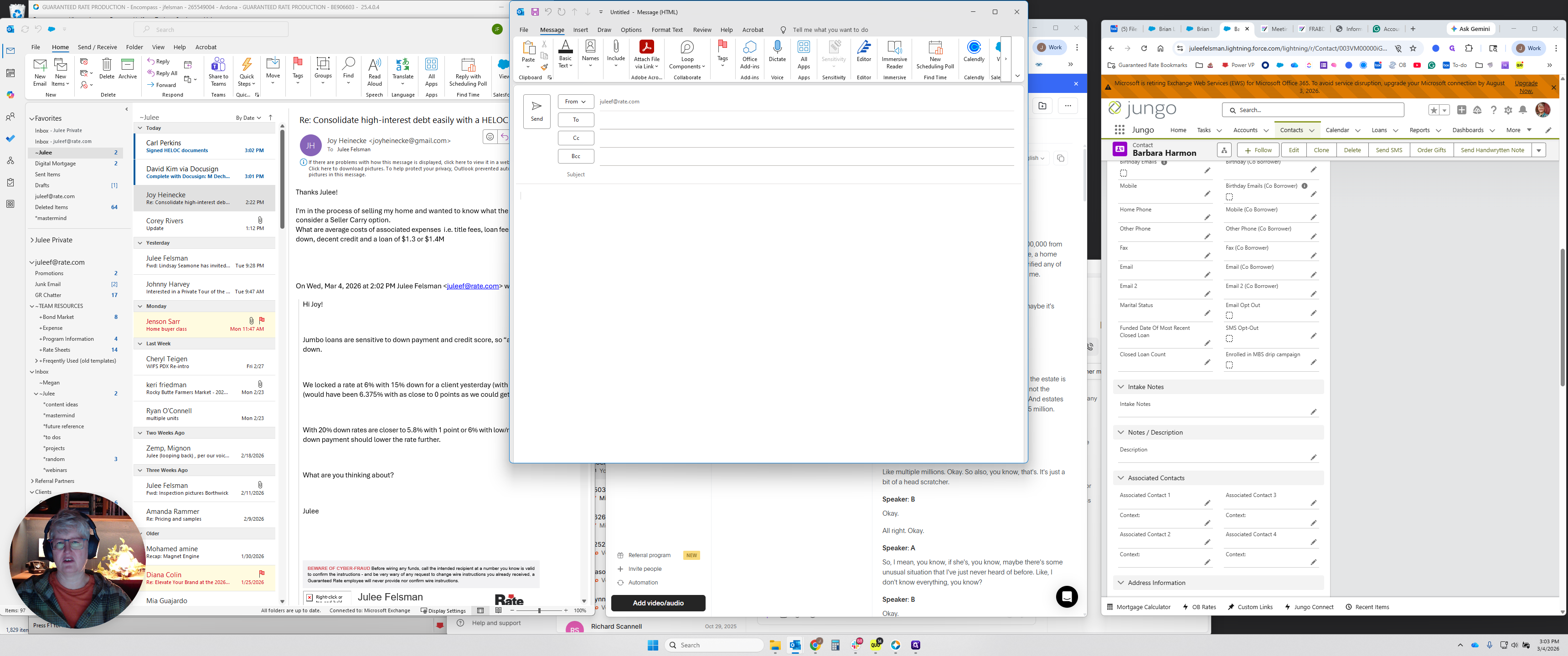
Then go in here and type a backslash. I just changed the name of this.
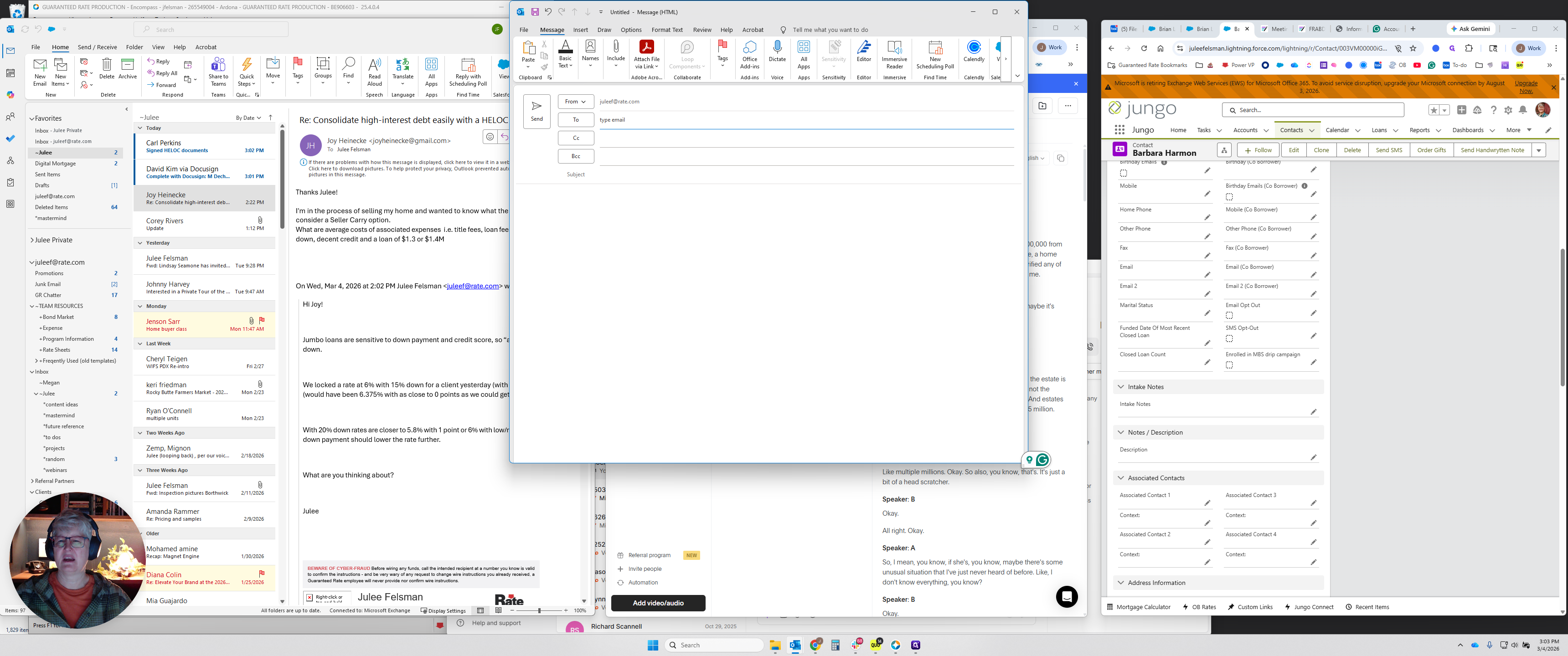
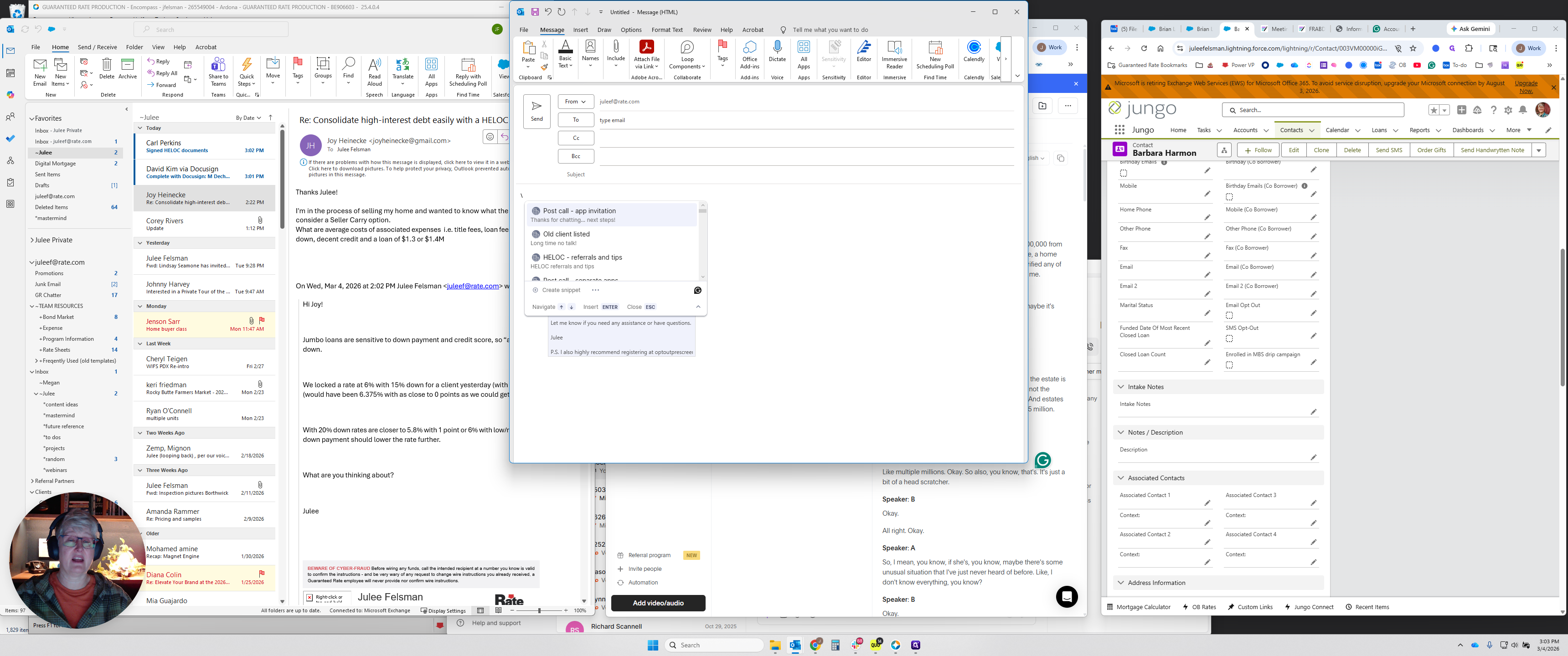
It used to be a post-call mashup. I got rid of my old setup because I was experimenting for a while, so you can ignore that.
Click "Post-Call App Invitation." This will open your template.
Click here and drag the first line up to the subject line.
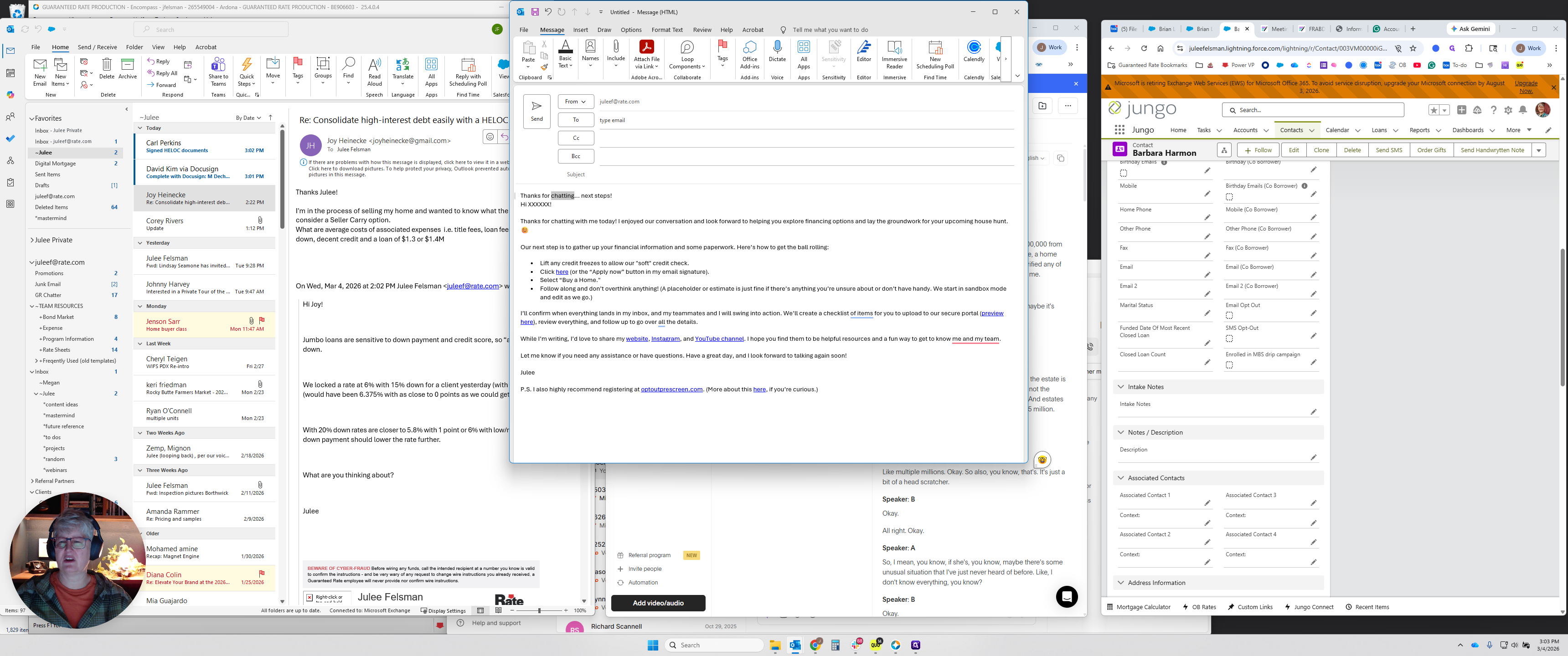
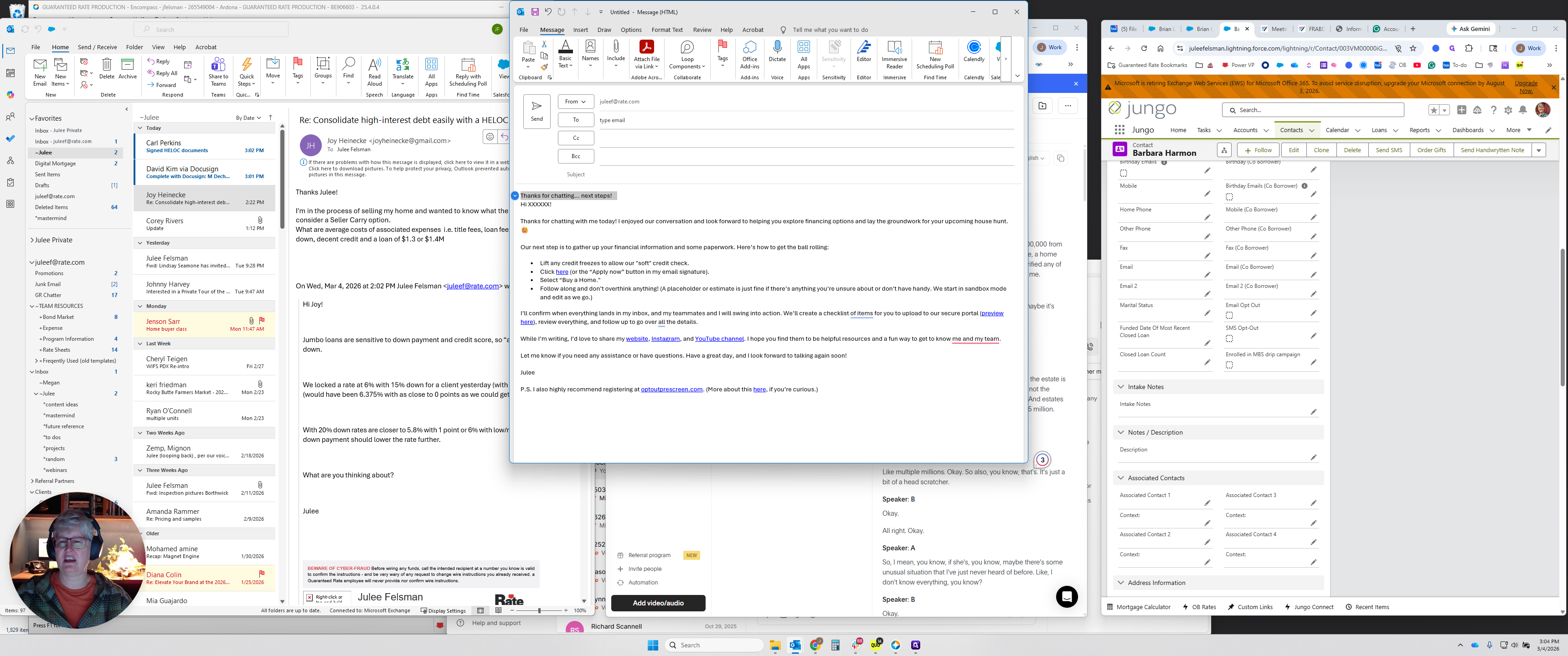
Thank you for chatting. Here are the next steps. You can edit that if you want. Then you would say, "Hi, Barbara," or the name of the borrower.
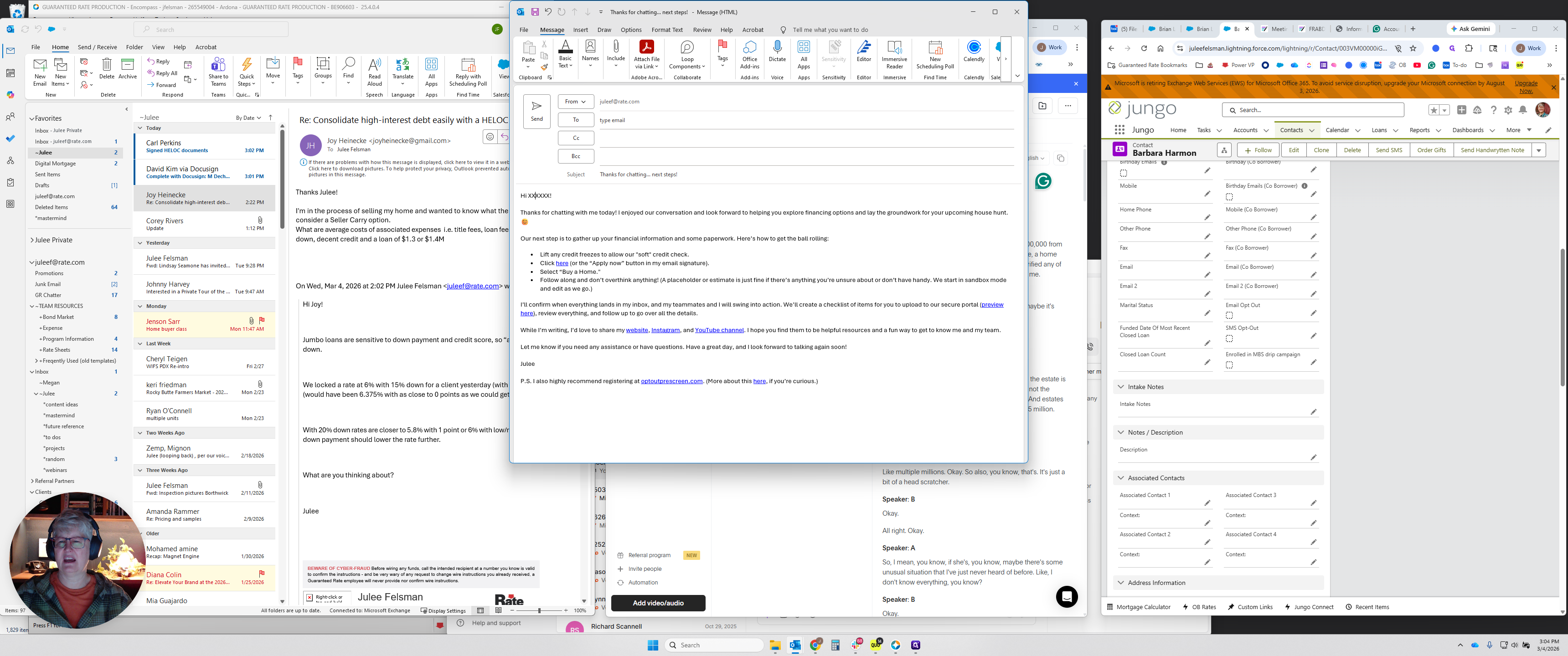
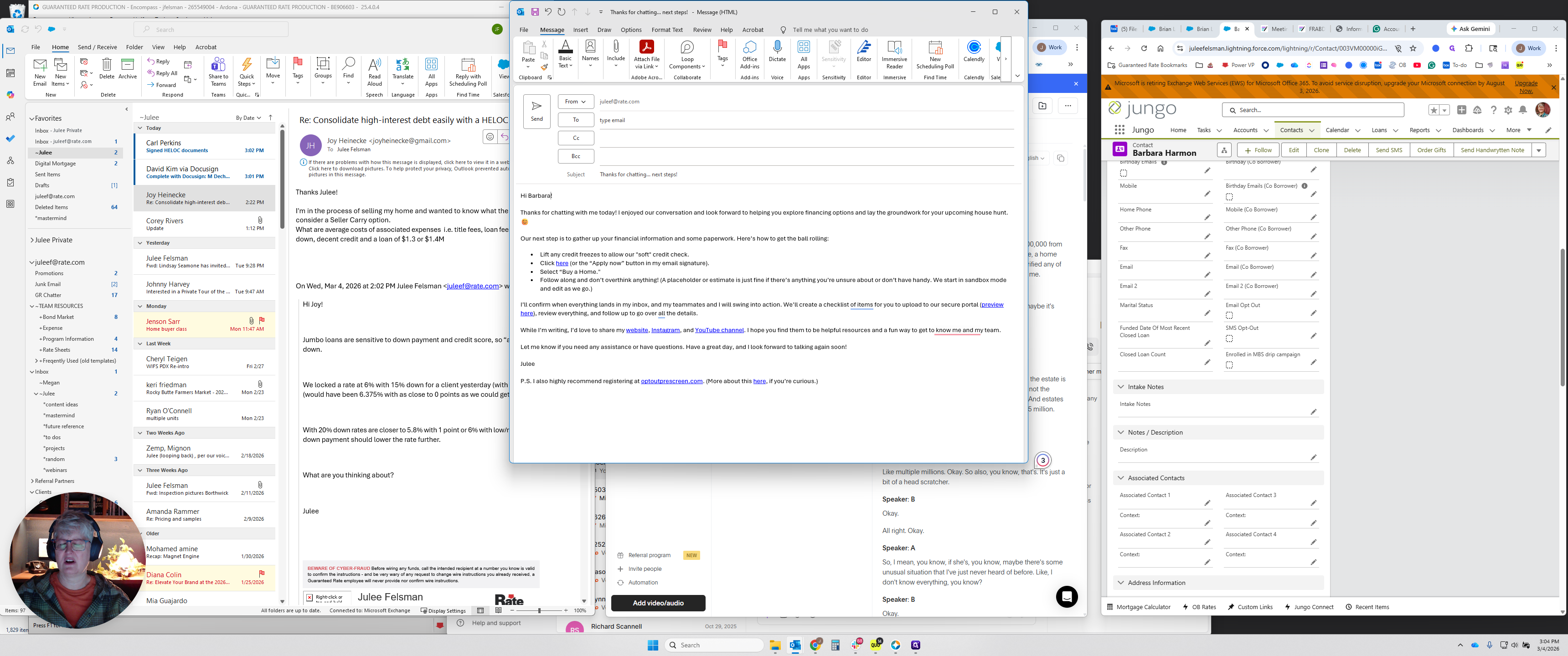
Thank you for chatting. I enjoyed our conversation. I usually edit this a little, as you wish.
It's fine for many general situations, but I usually try to personalize things so they don't sound like a template. Explore financing options that are appropriate. You can edit any of this as needed. I want to mention something. If you have a co-signer applying, or if two people are living separately and will not apply together, select "Buy a Home." Then hit Return, type "SEP, Post-Call Separate Apps," and this will insert a helpful note for people applying separately.
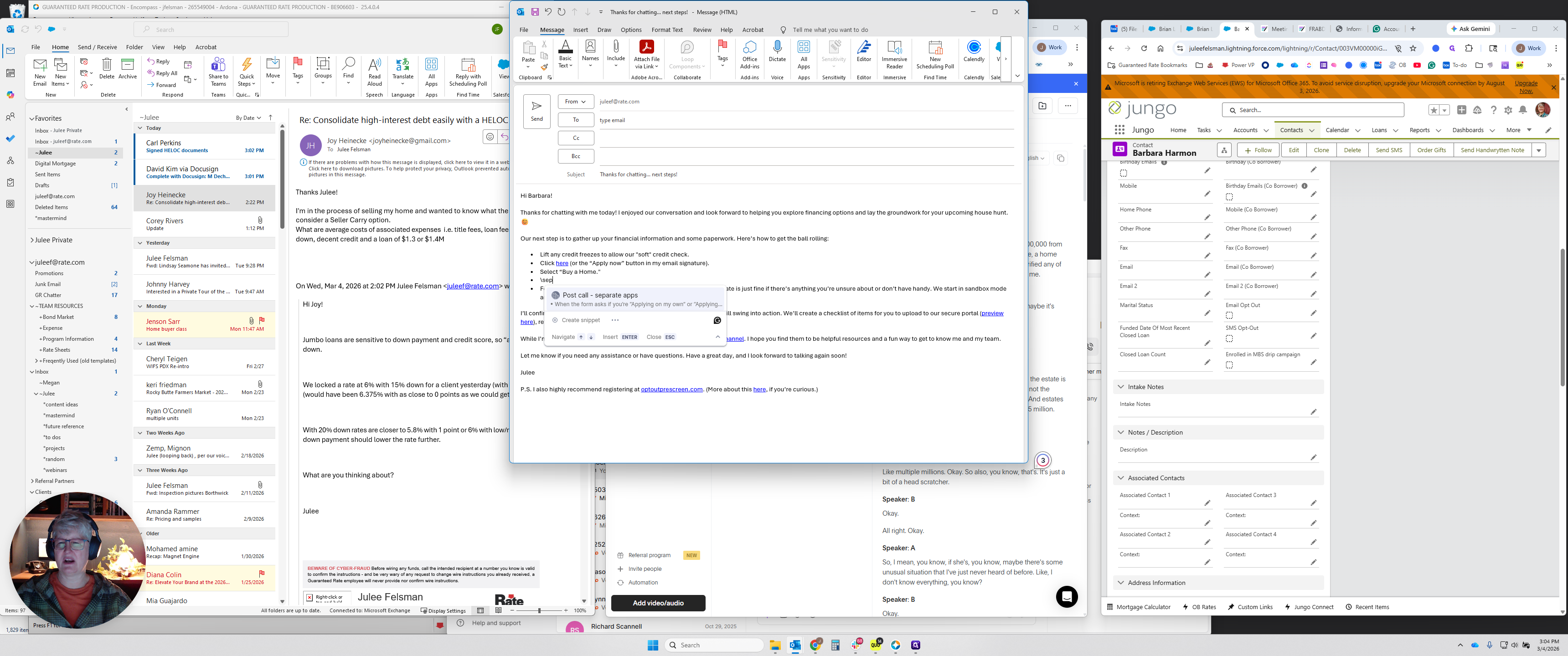
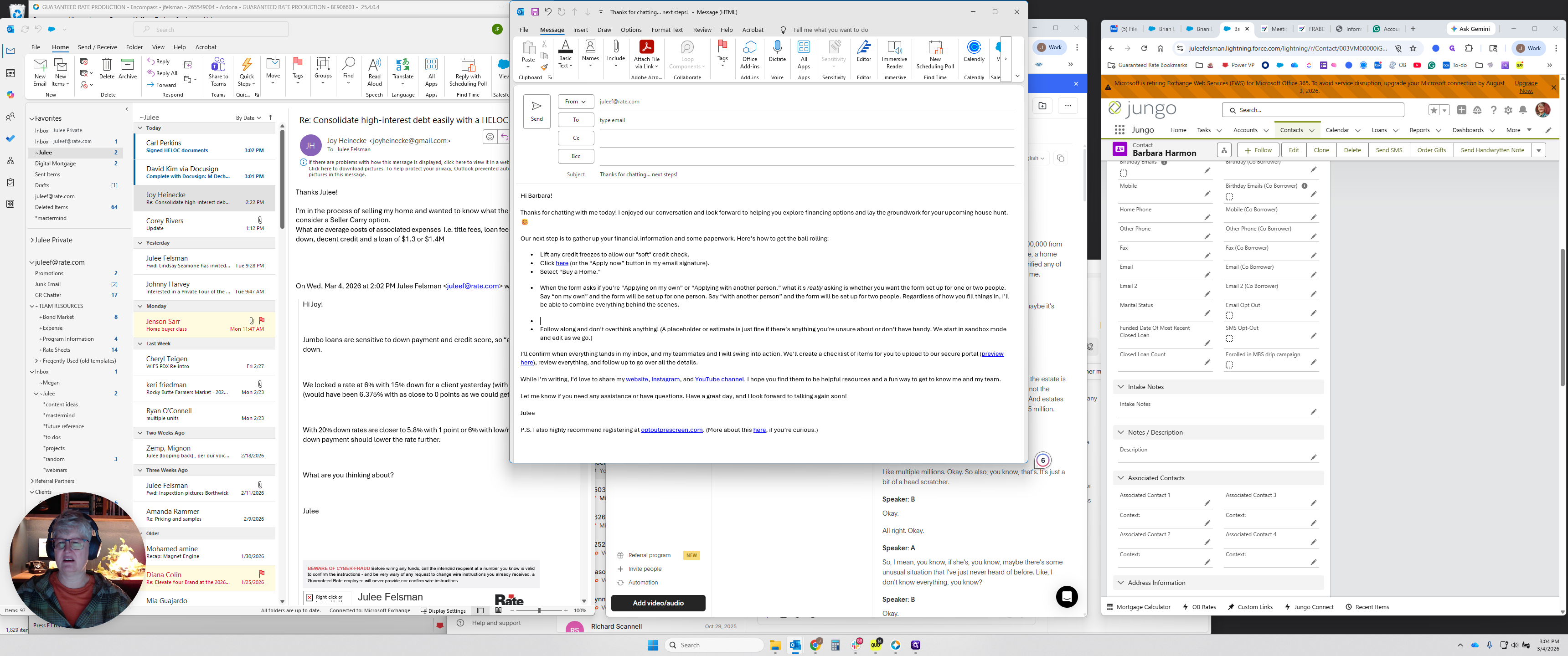
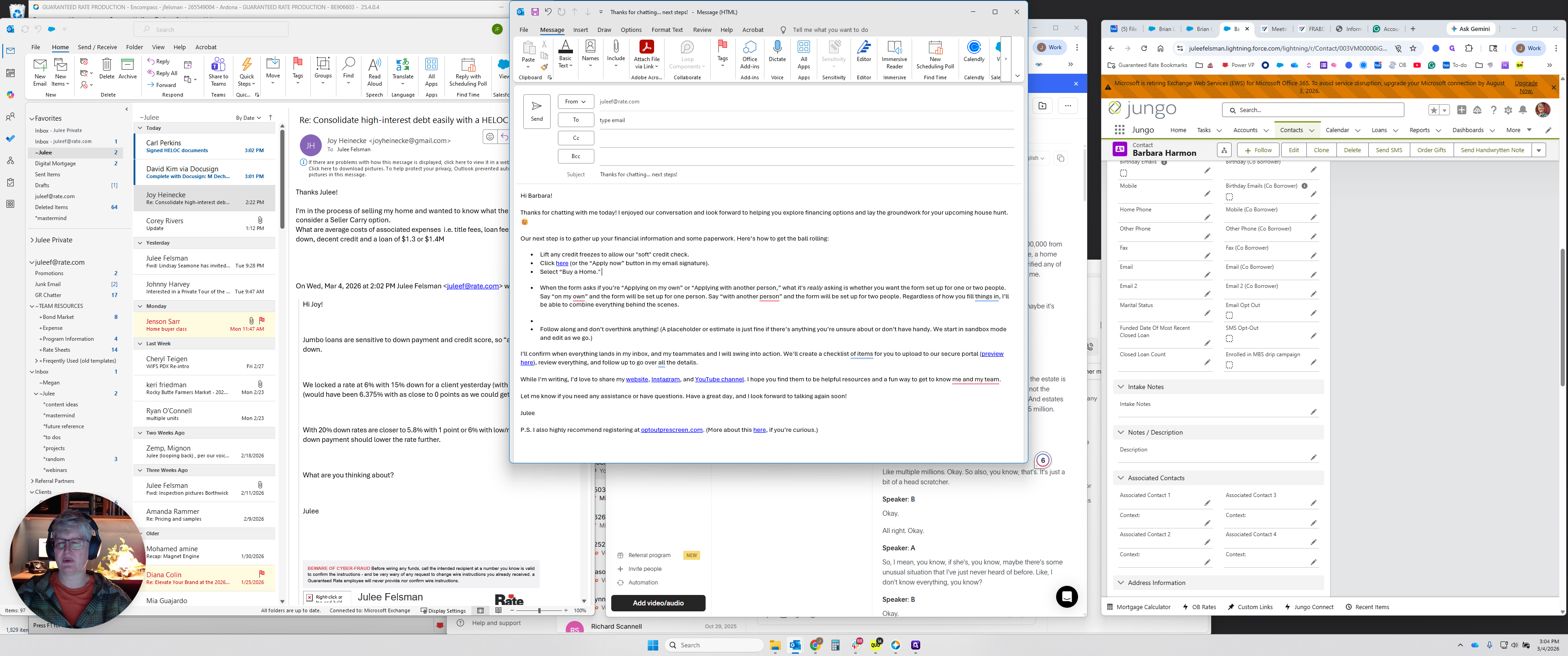
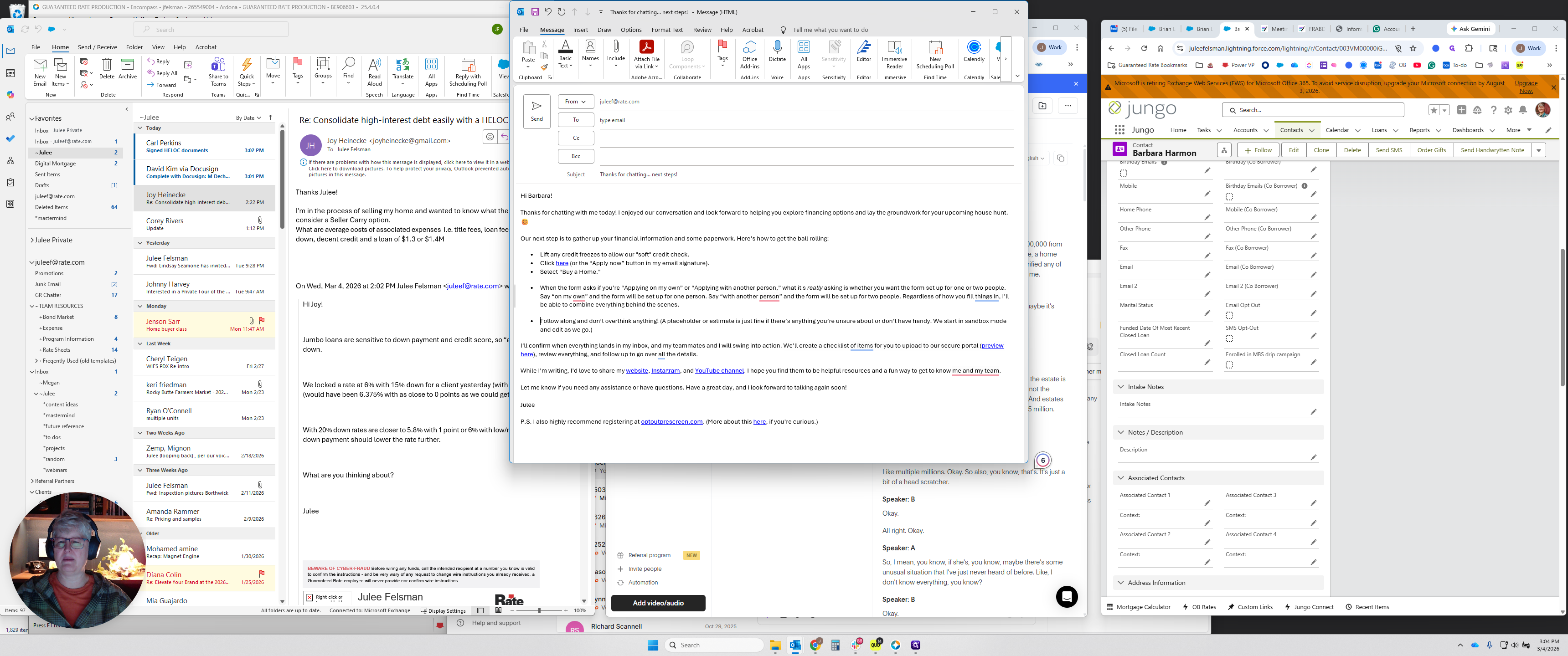
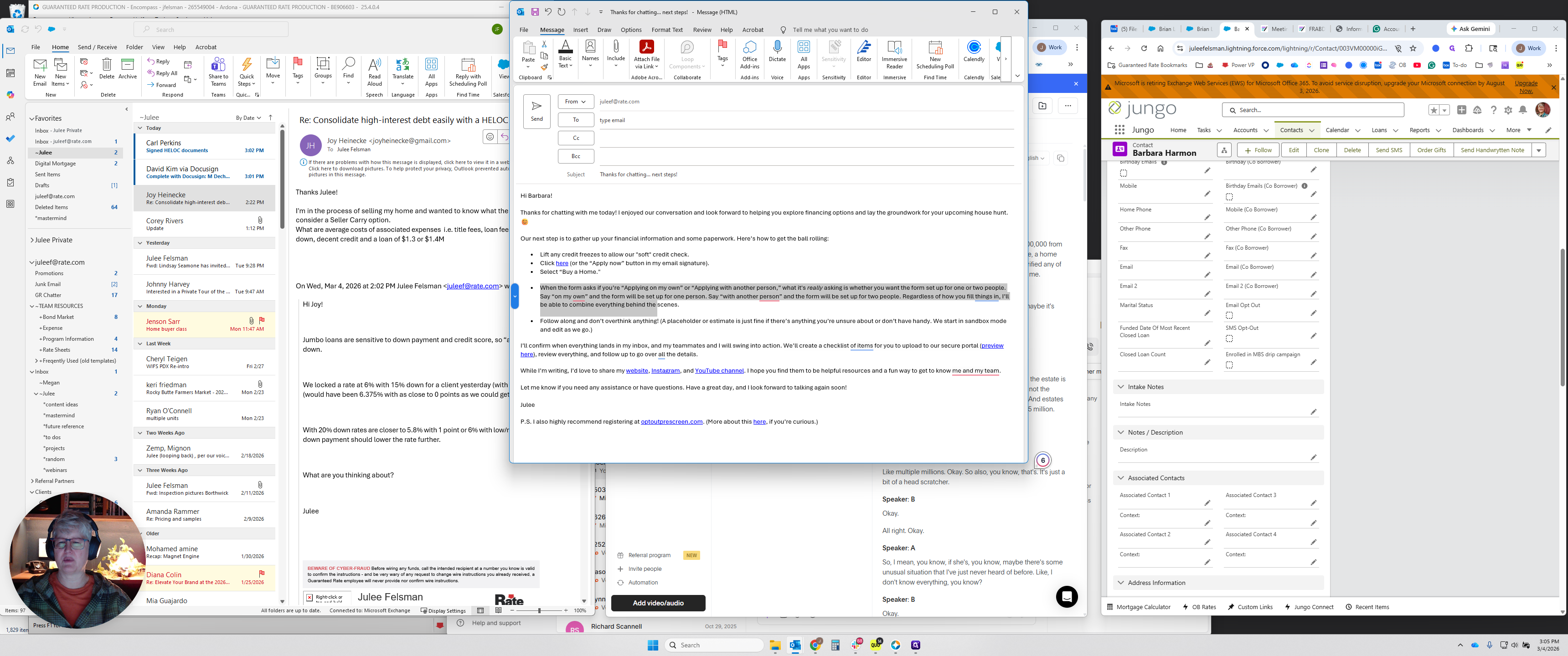
If the bullets look odd, select all the text and click the bullets button to fix them.
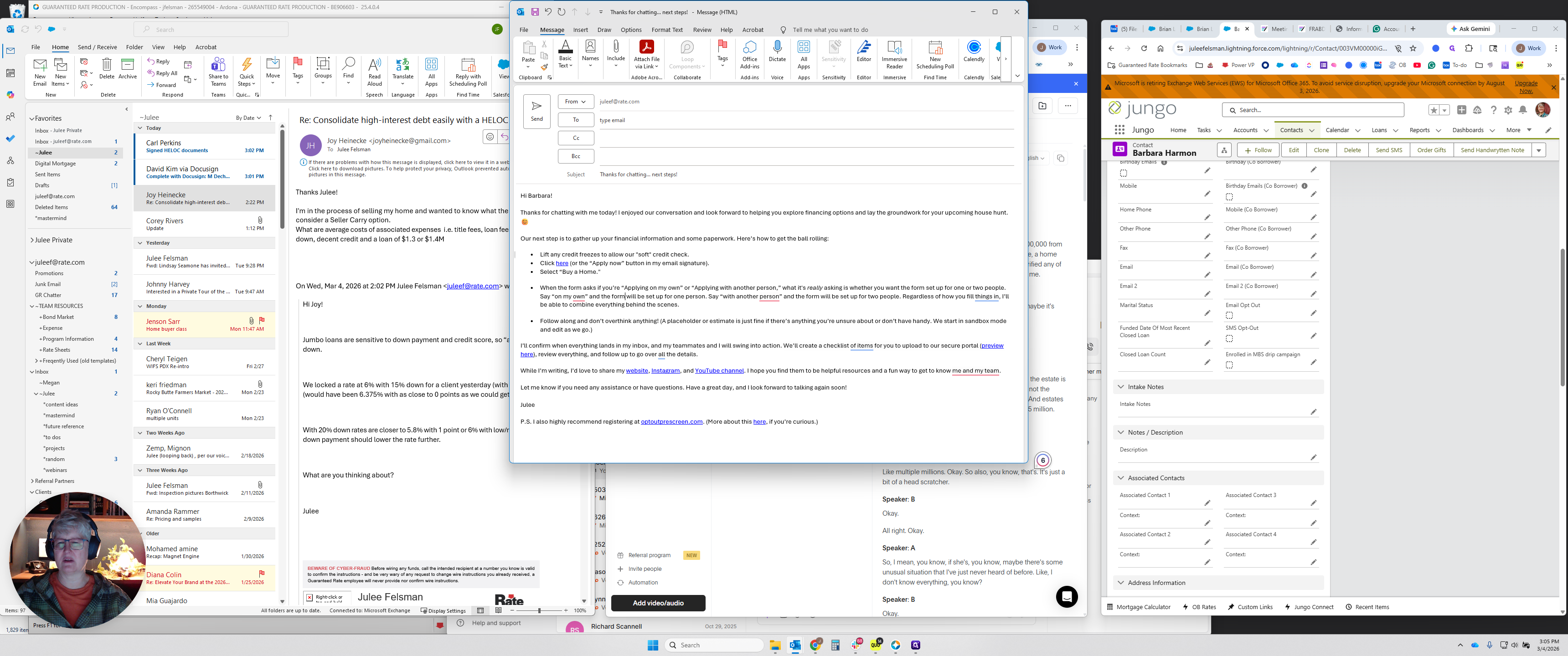
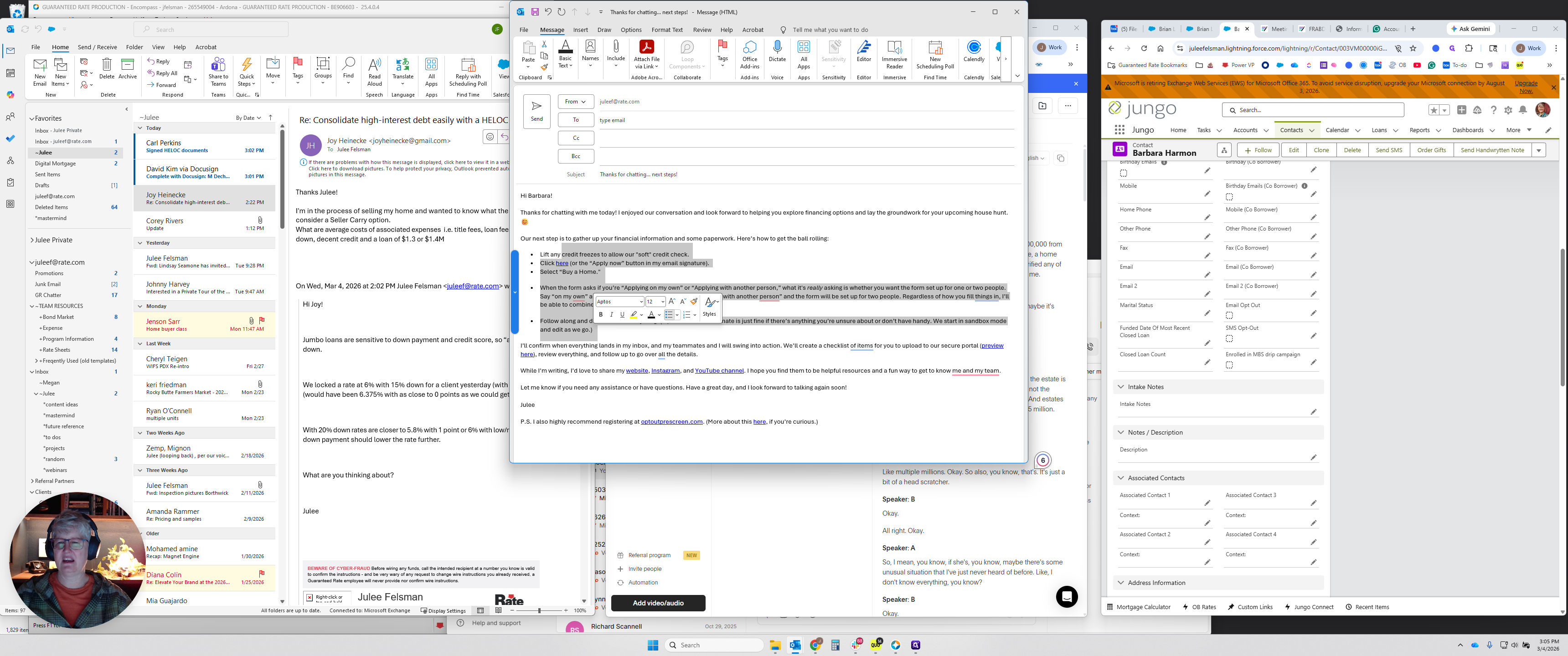
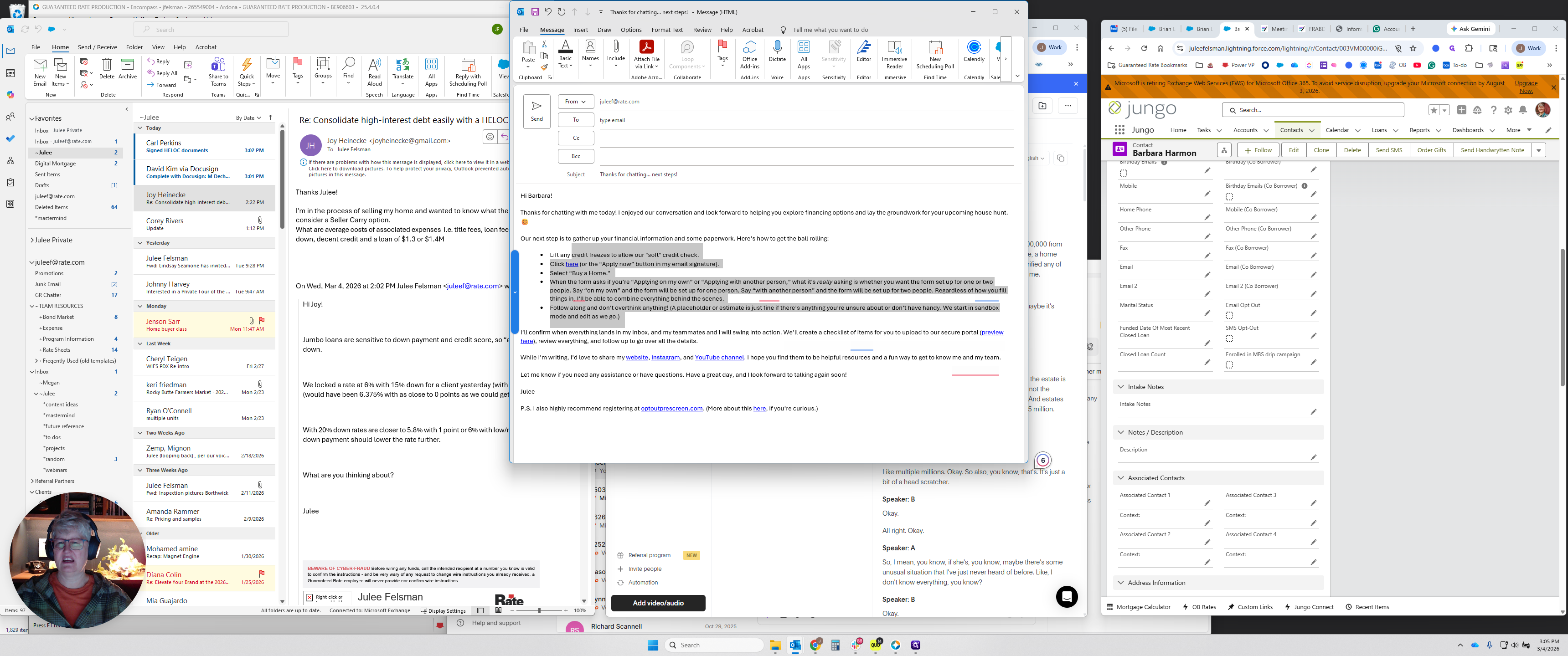
I don't know why it dumps that way, but that's what it does. We have an extra note that says, "When the form asks, 'Are you applying on your own?'" You may want to edit that. I'll usually add names or make changes as needed, but you have some language to start with.
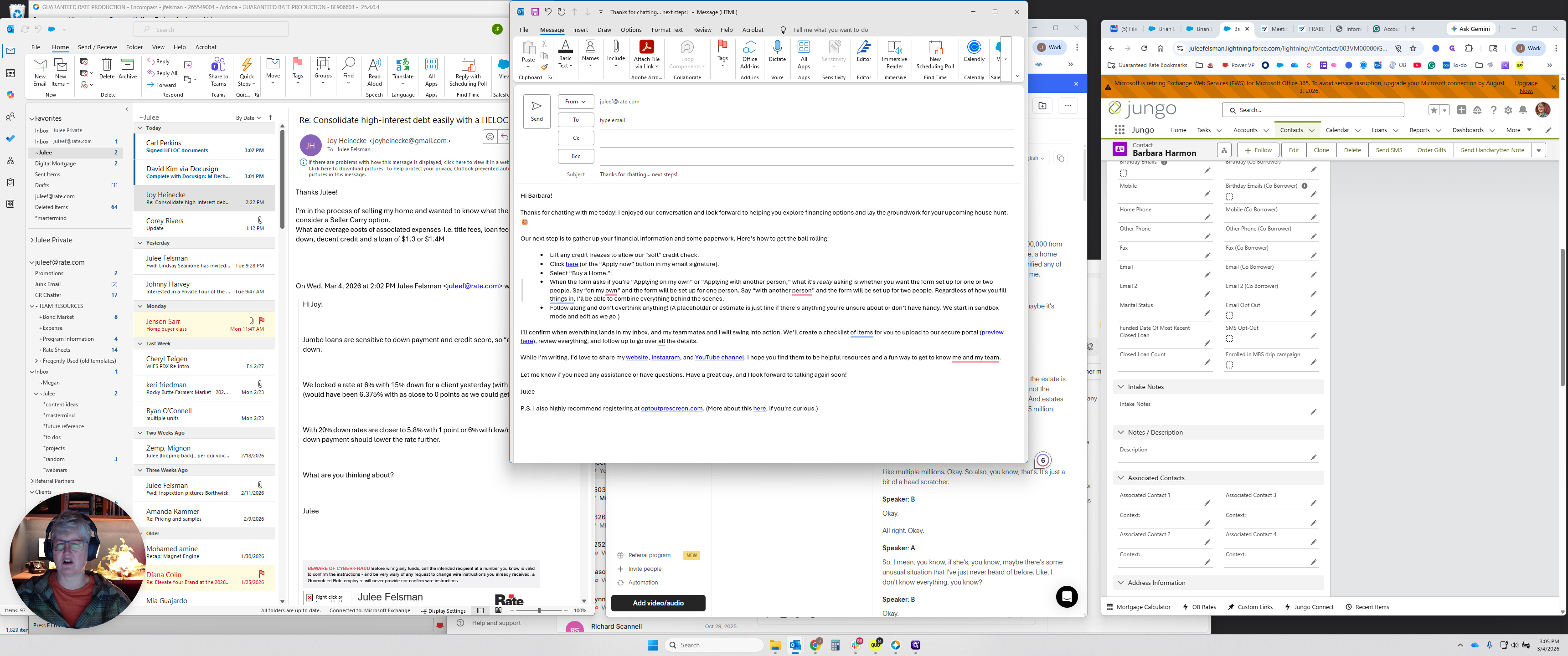
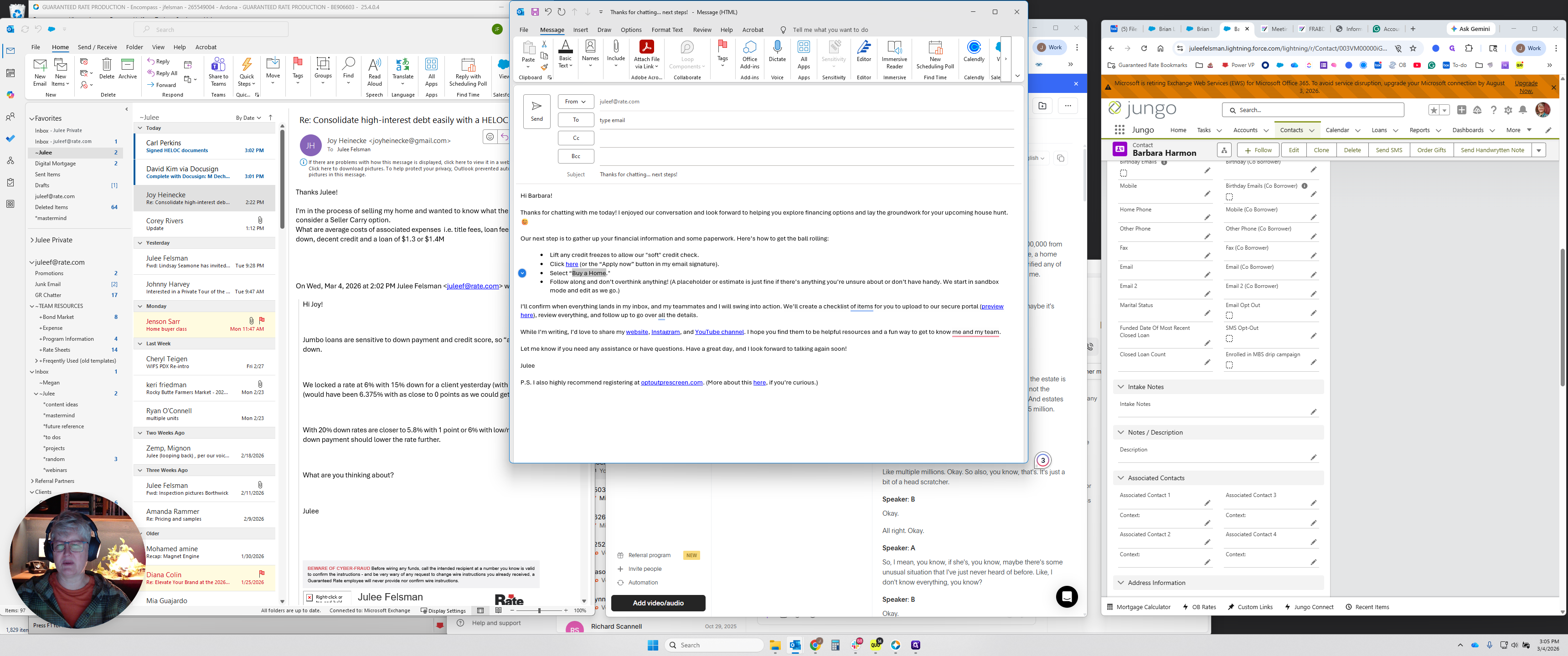
In most cases, you won't need that; you'll just have this. If it's a refinance, remember to select Refinance instead of Buy a Home.
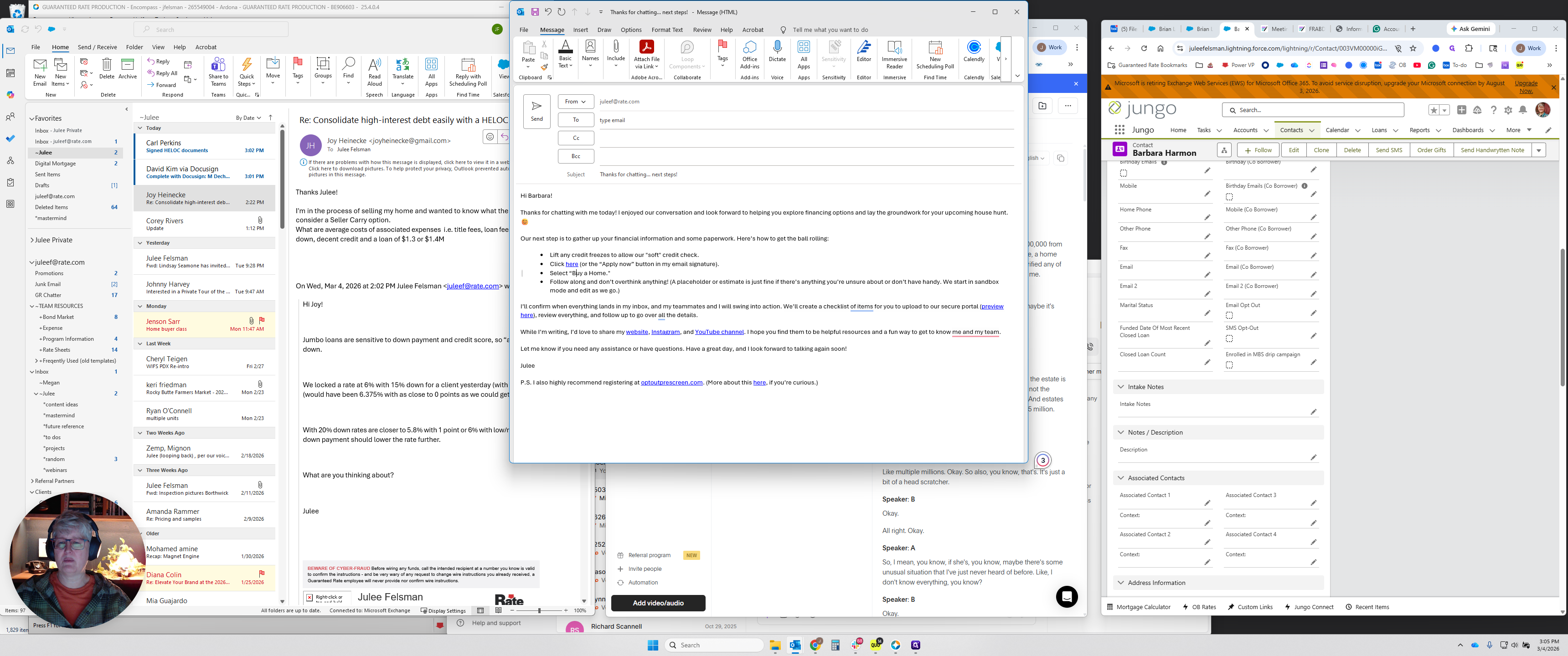
Most people will understand that, but it's a little confusing.
And then, there's language here that's fine. However, if we've been trading emails, they already have this. While I'm writing, I'd love to share mine, so delete that.
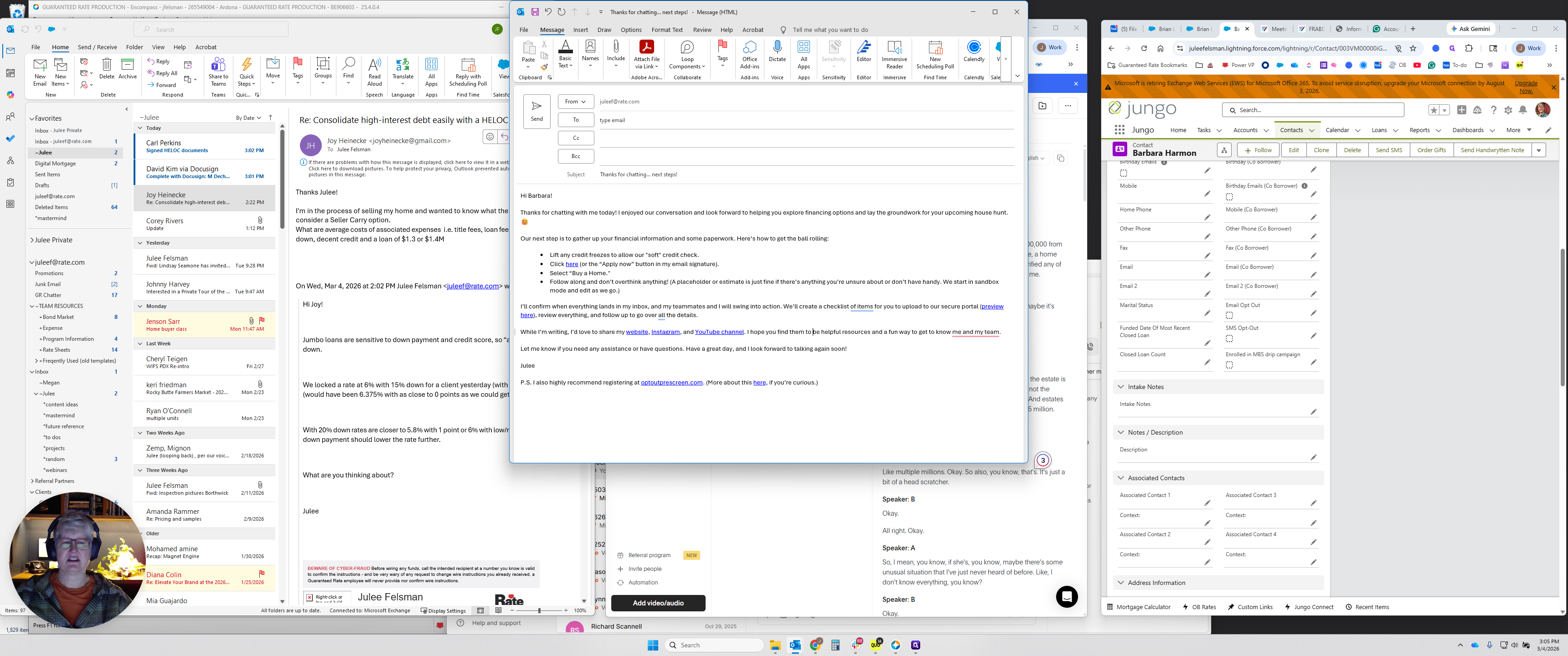
Don't send it to them again.
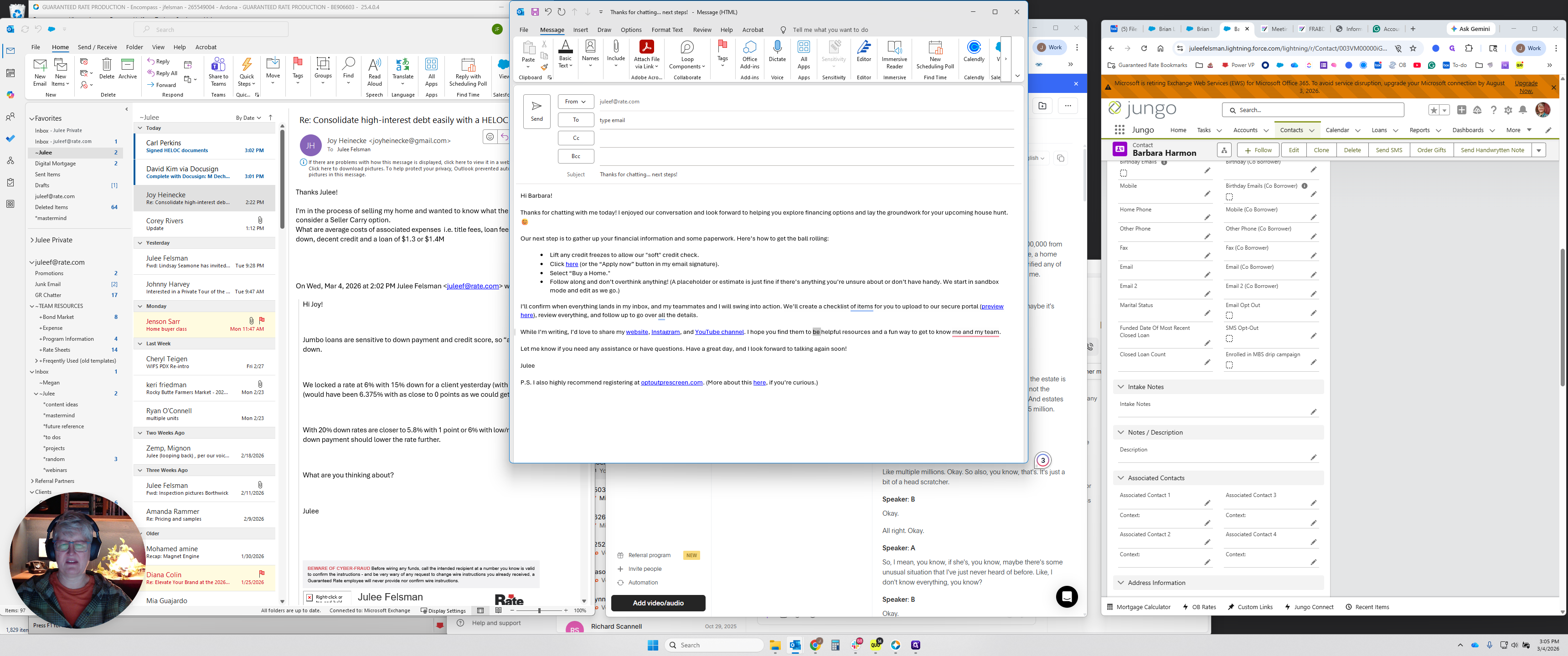
That's the exact same language they would have received in another email. Again, it makes it look like a template. But if you promise them something, you can keep the "While I'm Writing" and say, "Here's a link to that resource we talked about," or you can simply delete that whole line.
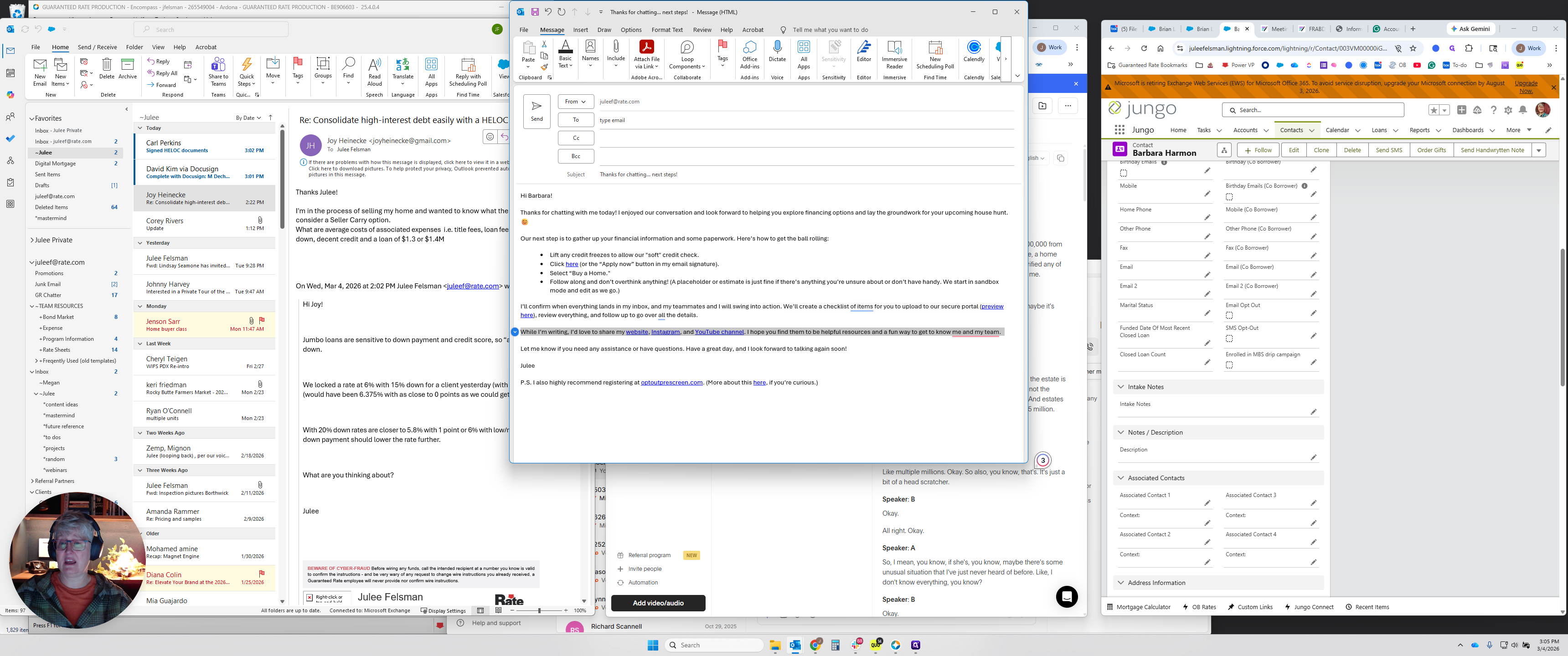
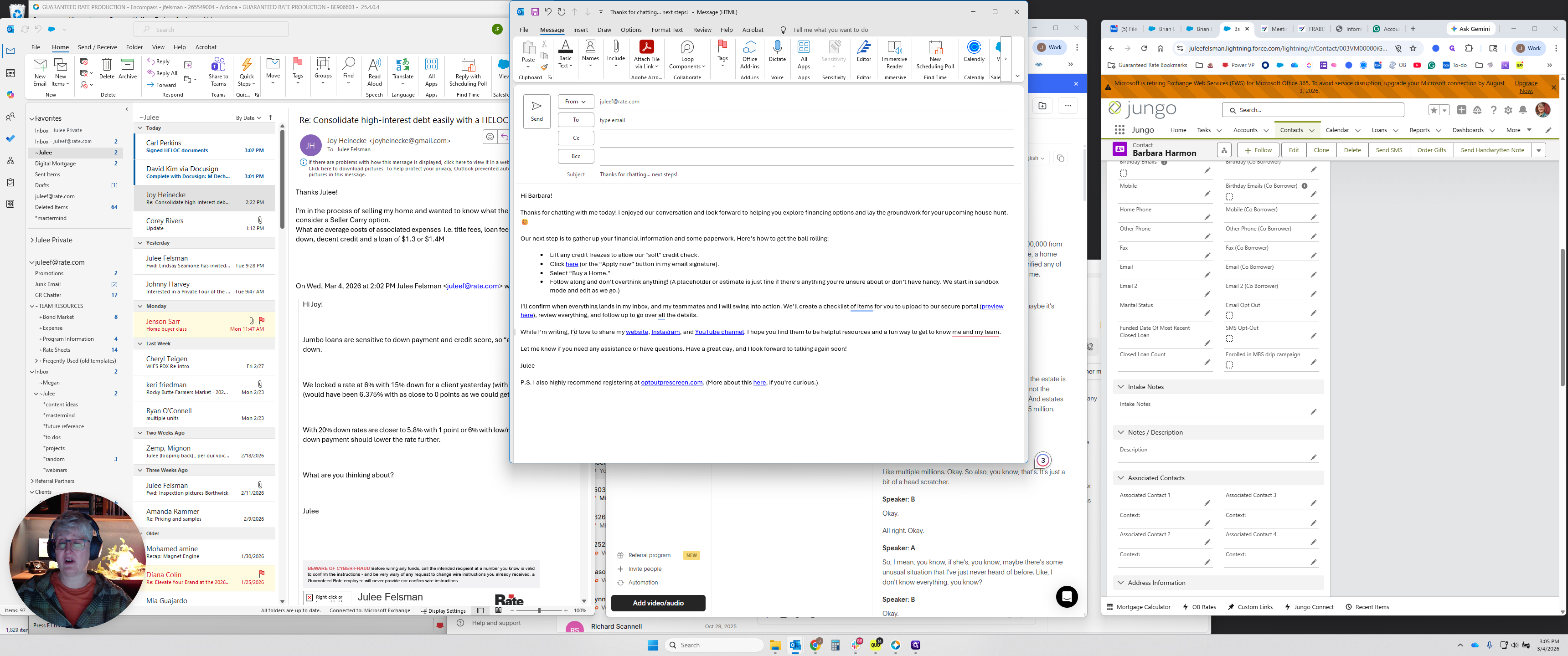
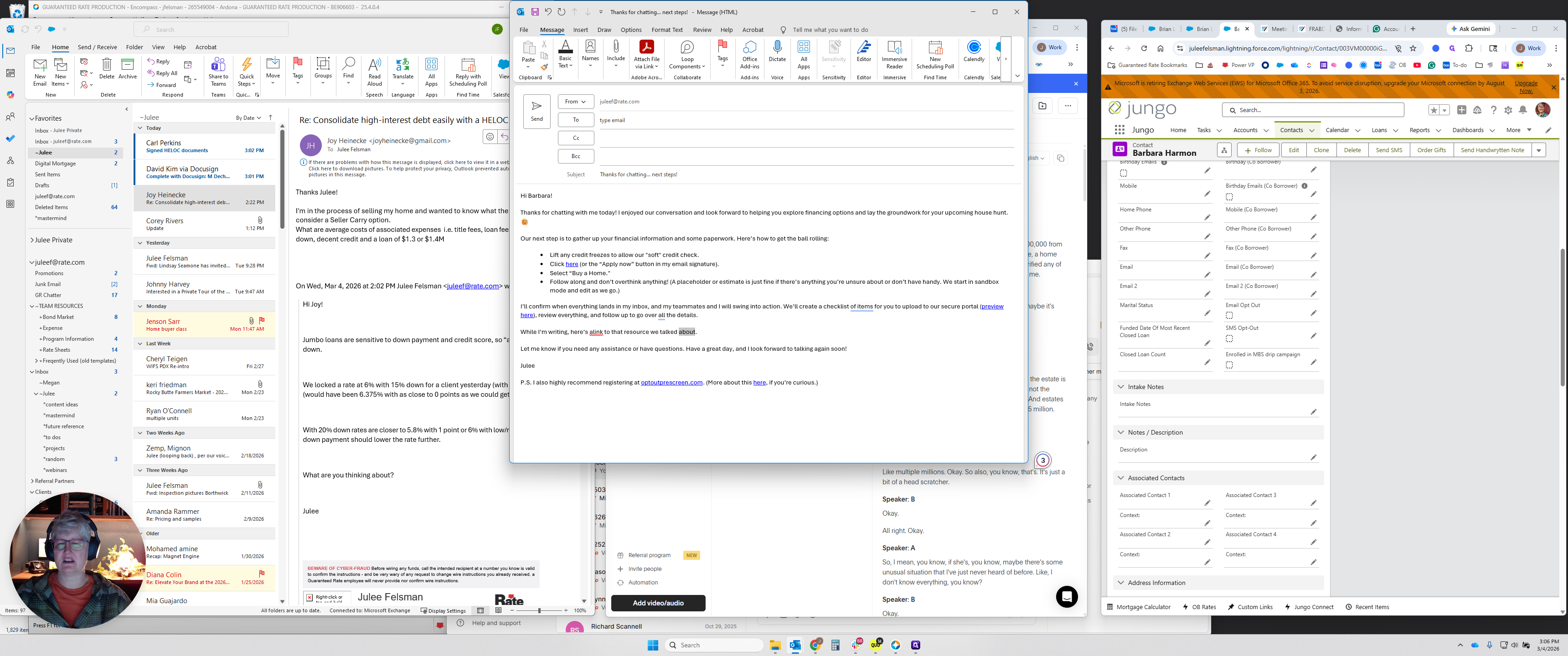
The last bit of personalization I usually add is saying, "Have a great afternoon," or evening, weekend, holiday, or whatever is appropriate.
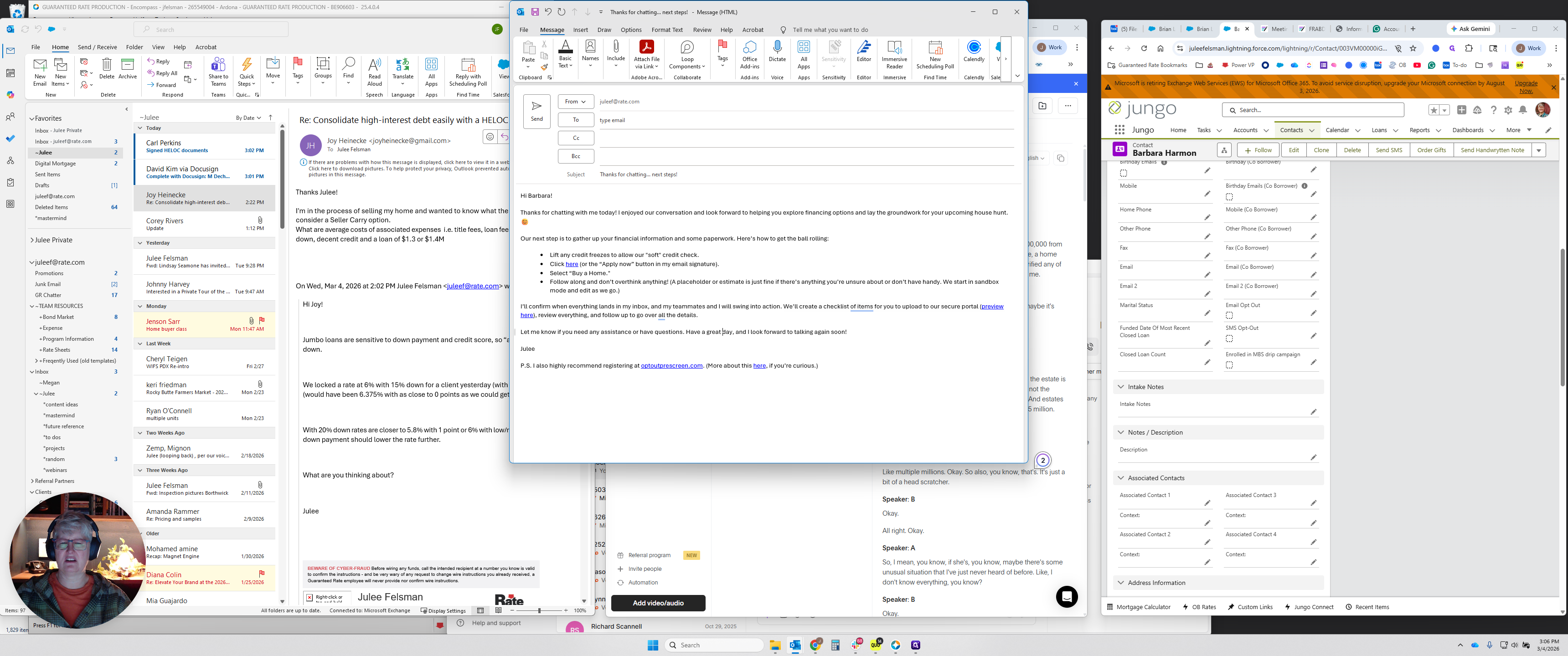
I can't help myself; I always select all, turn it black, and then hit Send.
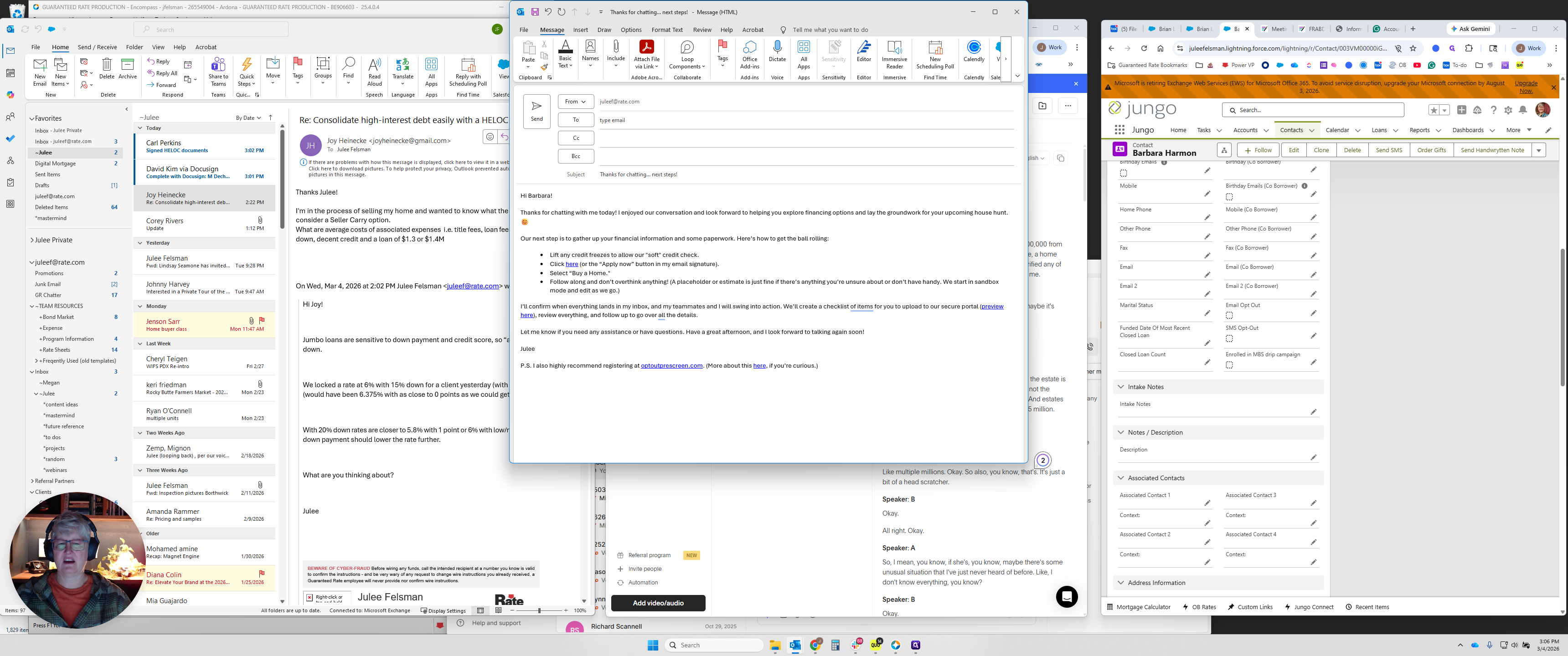
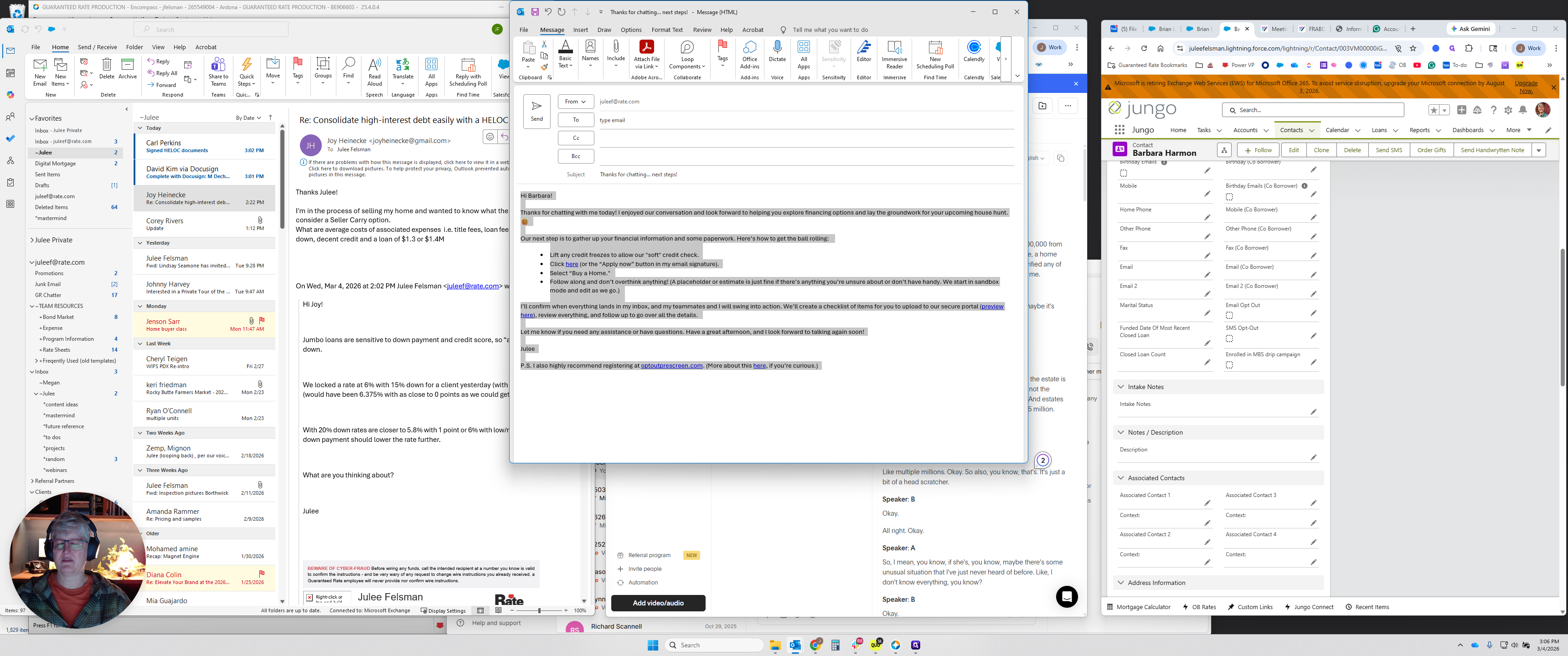
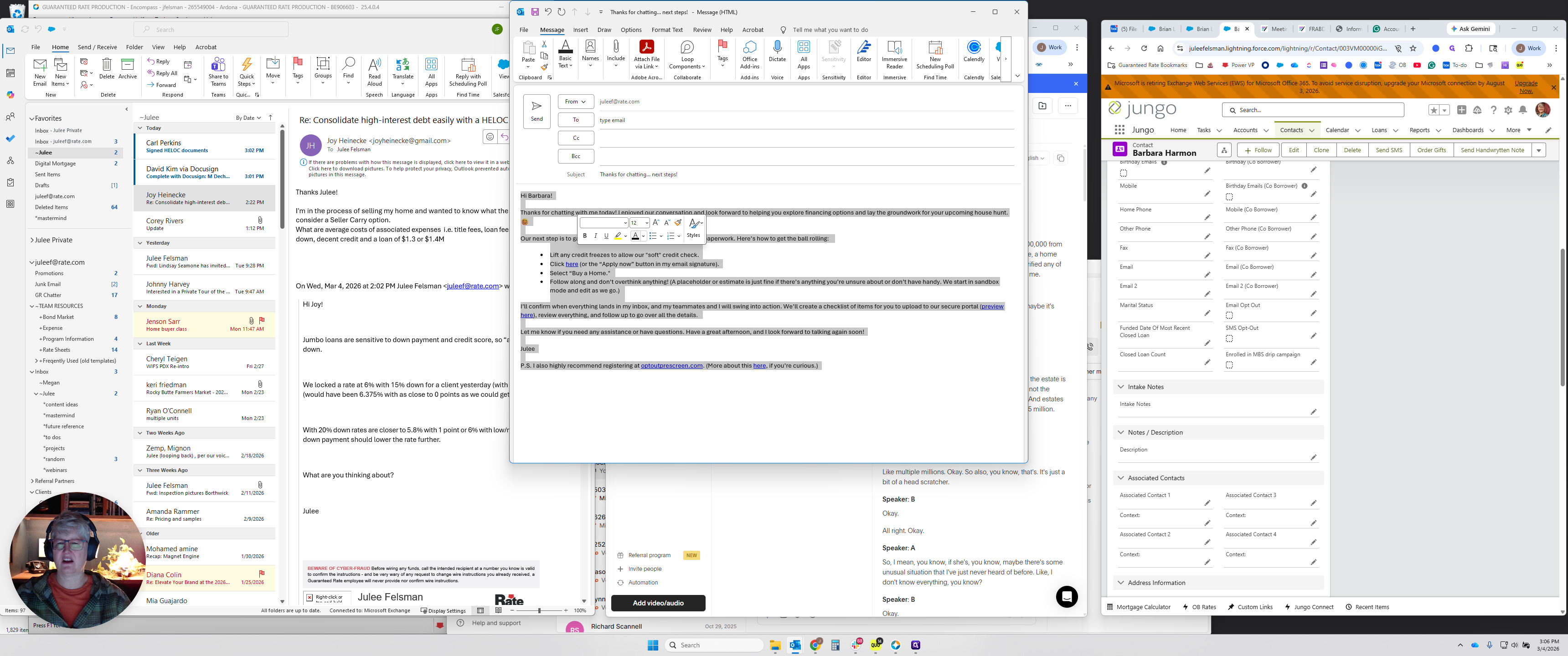
By the time I finish that, I can come back here and select Intake_GPT-5_Optimized.
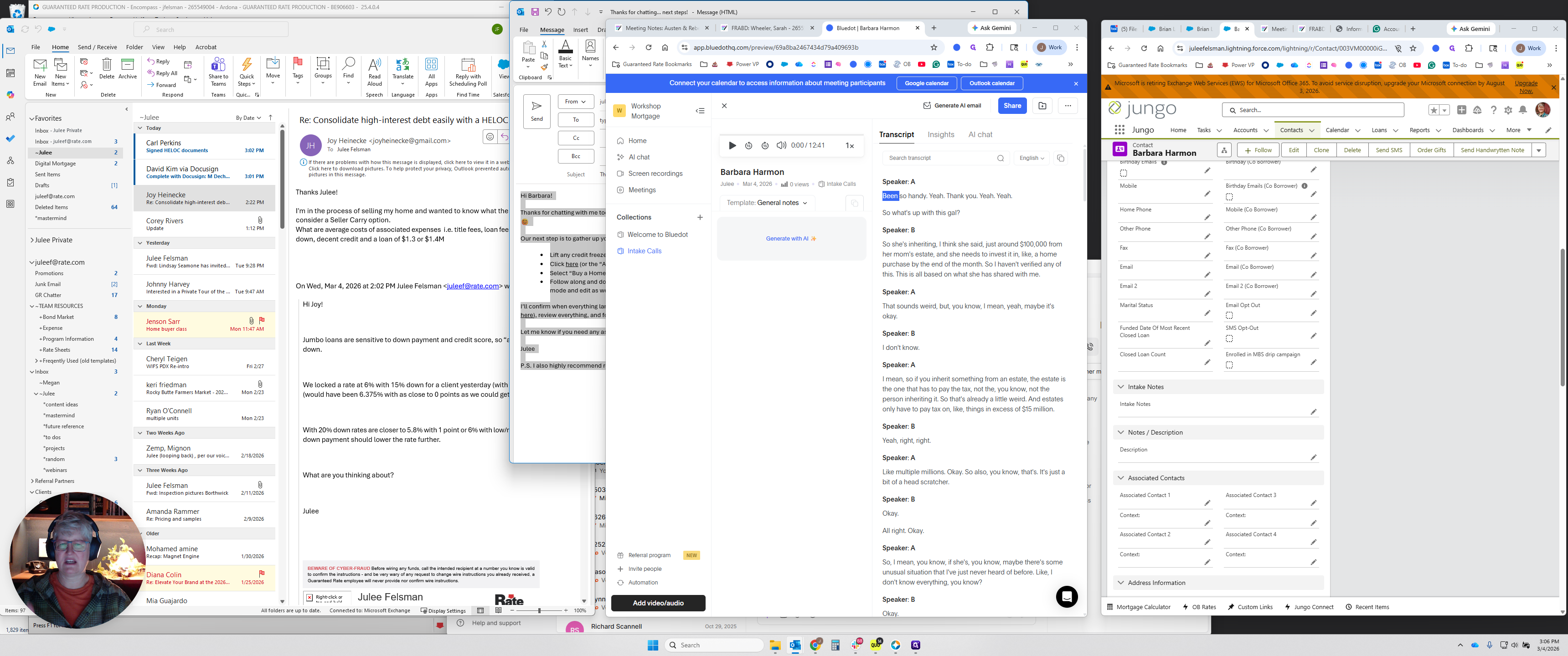
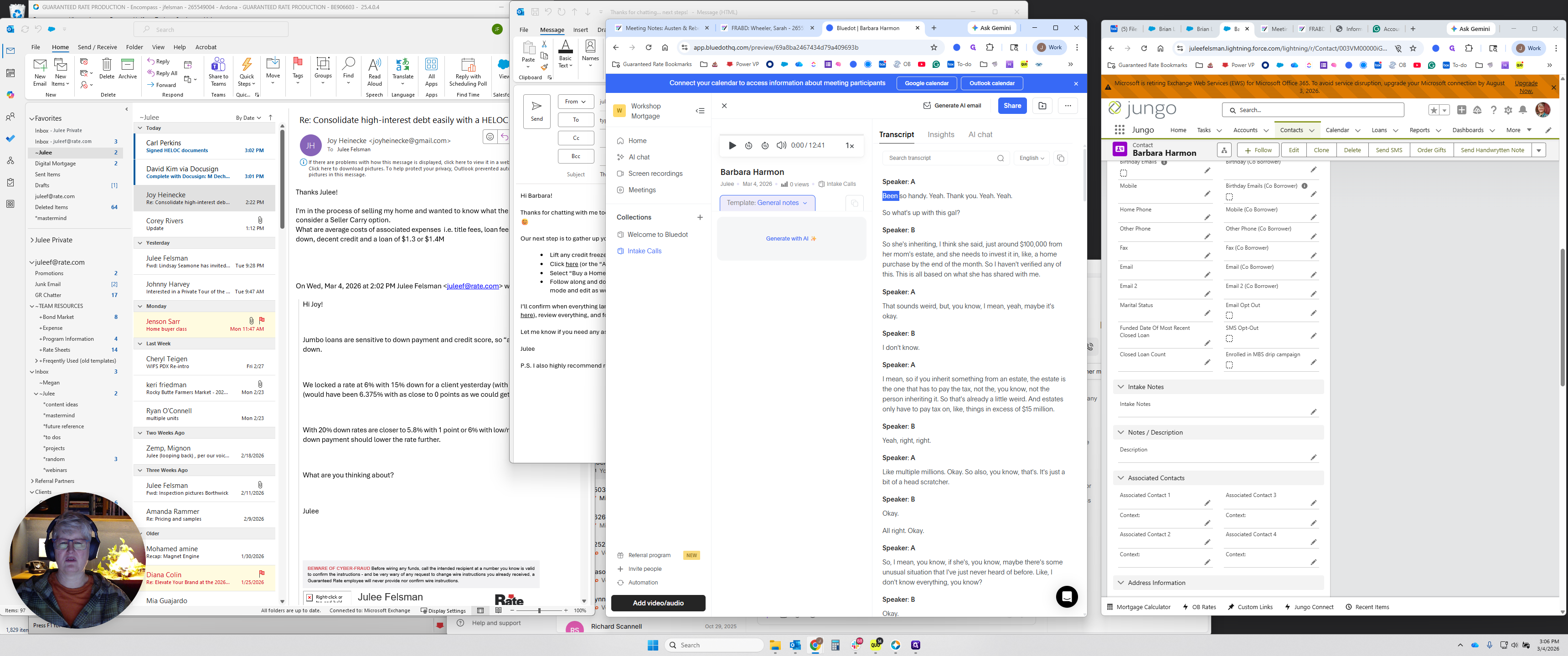
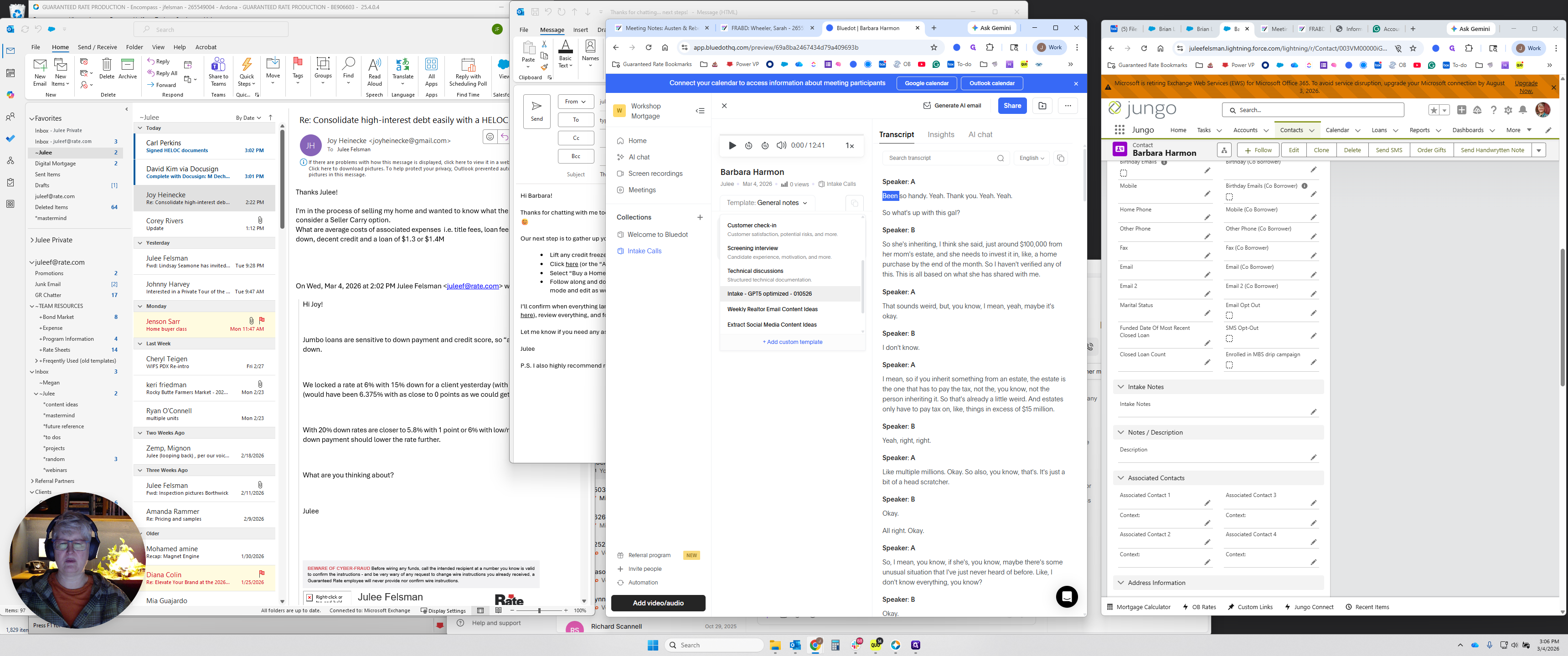
That is the prompt I have worked out for this project. I'm going to make a change to the prompt quickly. I'll do that after I'm done here. Once the prompt has run, you will see Template_GPT_Optimized. Here, you can choose another template if you want.
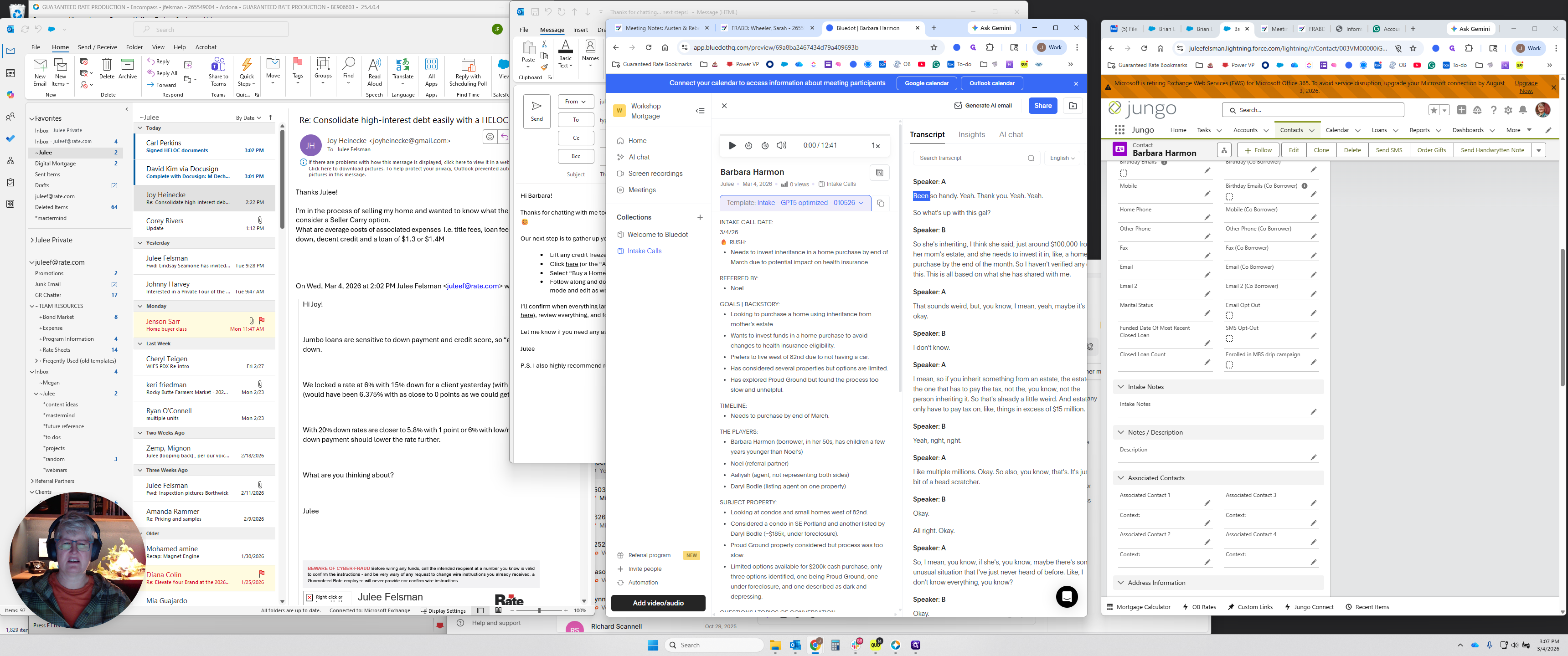
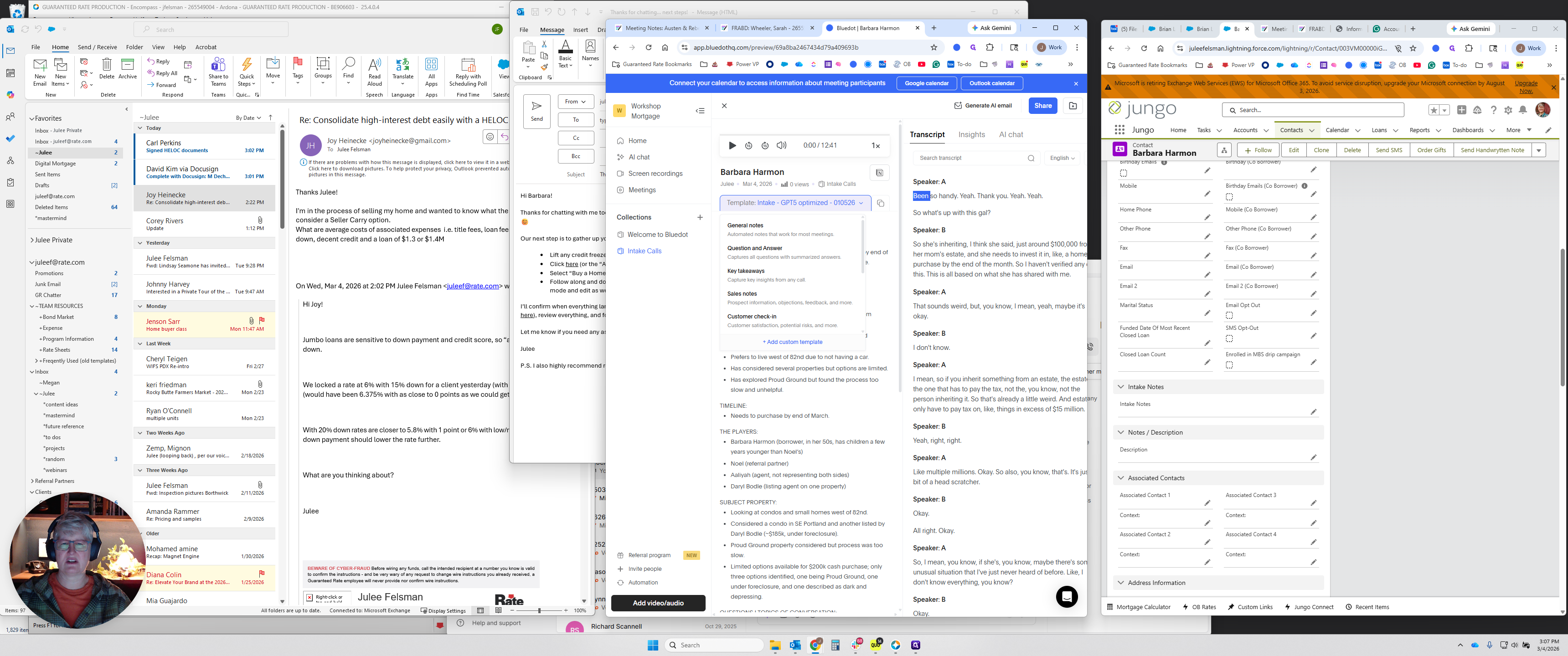
To the right, you'll see "Copy Notes." Click "Copy Notes," then go to the borrower's record.
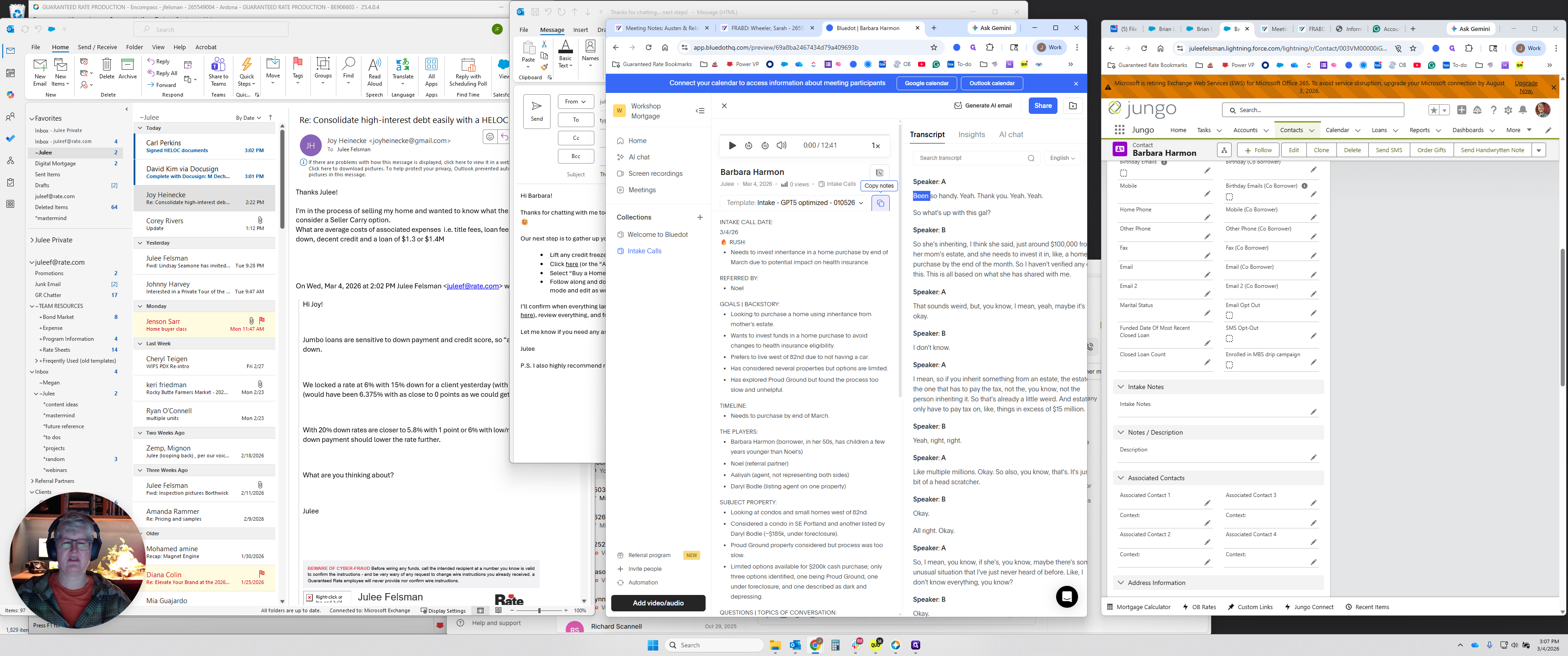
You need to make a choice here. If there is no app, enter it in the contact record intake notes. Remember, if you have an app, go to the loan app, click the loan ID, and enter these notes in the intake notes for the loan, not for the contact. Otherwise, you may overwrite existing information on the loan. Remember, if there's a loan, include it in the loan section; you don't need to add it to the contact. It will automatically copy over.
If there is no loan, the only place to record it is in the intake note.
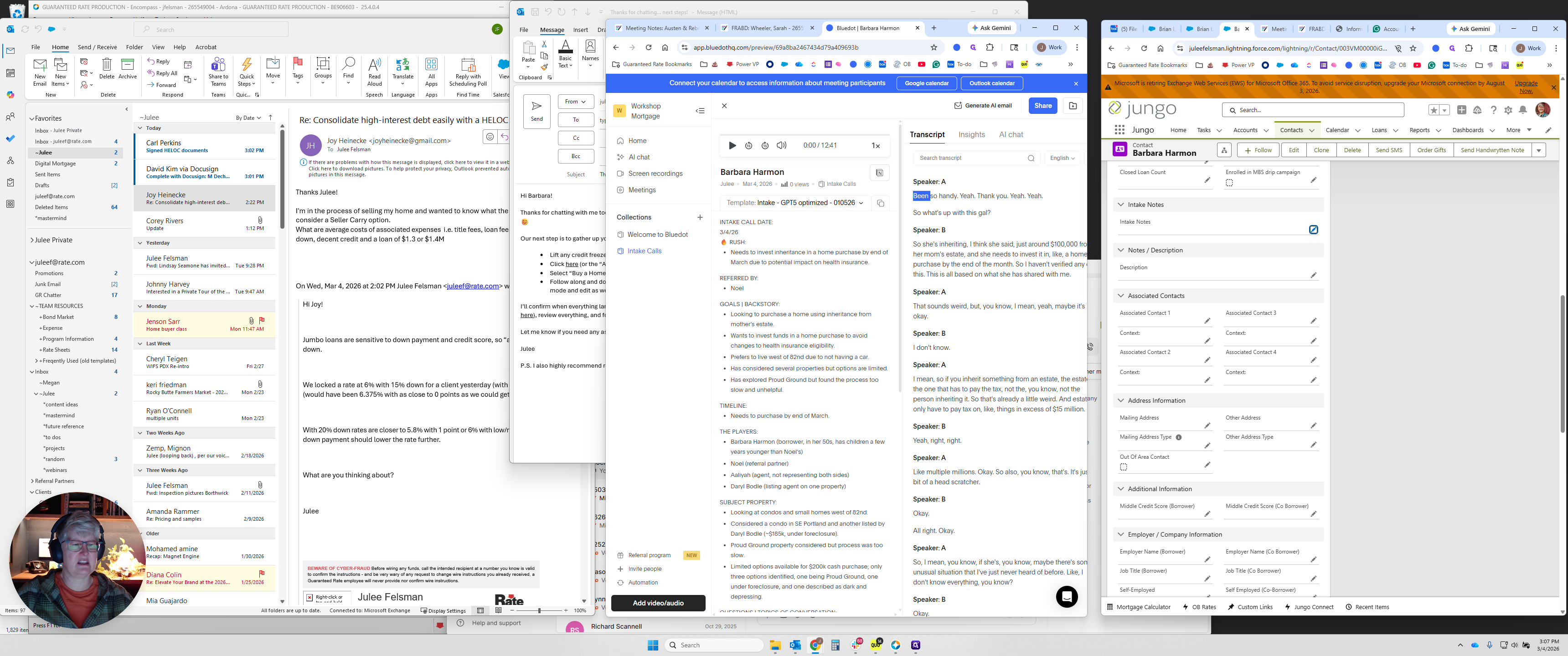
In this case, you can simply paste it here.
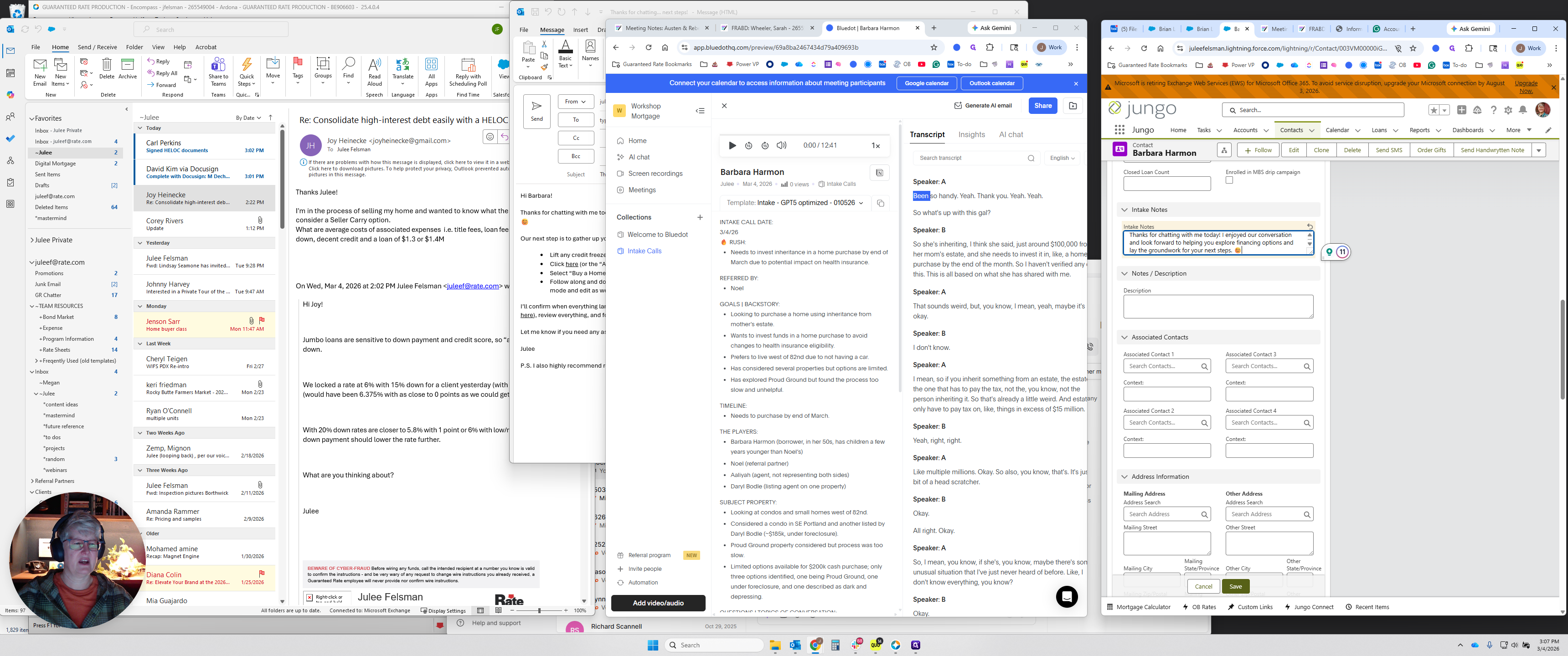
I’ve expanded it a bit. I always review it to see if there’s anything I want to add. Was there something I thought but didn't say? Is there something worth adding or editing? The AI often attributes statements you or I make to the borrower. This is less important if you're handling your own intake call, but it matters more if someone else will review the call later.
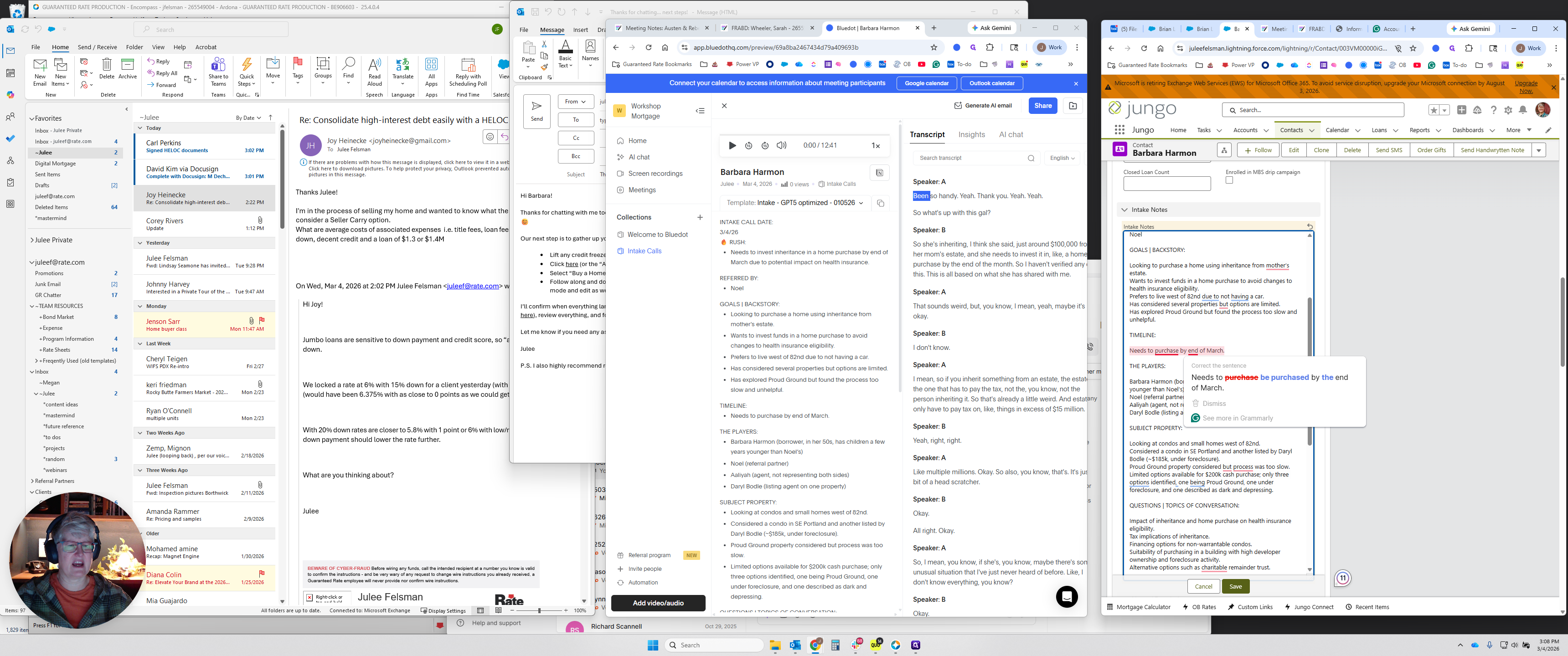
In this case, we will paste that in and click Save.
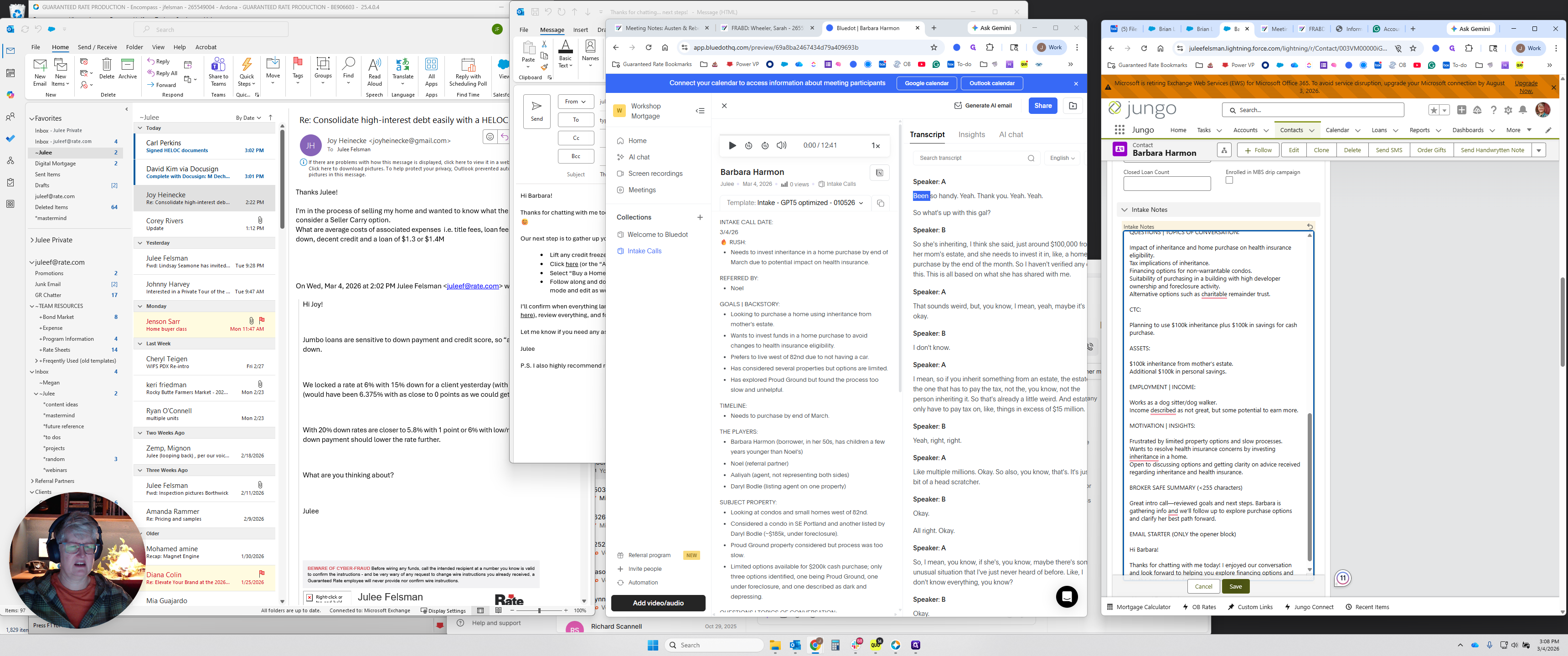
I'm not going to worry about editing it too much. I'll do that off camera. You're done. That's it. There you go. That's how you use Blue.hq. Hopefully, that's helpful.