How to Use Keyboard Shortcuts in the Date Selection Calendar
Learn how to use keyboard shortcuts to quickly select dates and navigate through the Date Selection Calendar.
By Aasma Technology Solutions
This guide explains how to use keyboard shortcuts within the Date Selection Calendar. These shortcuts allow users to navigate between dates, select a date, and close the calendar without relying entirely on the mouse.
1
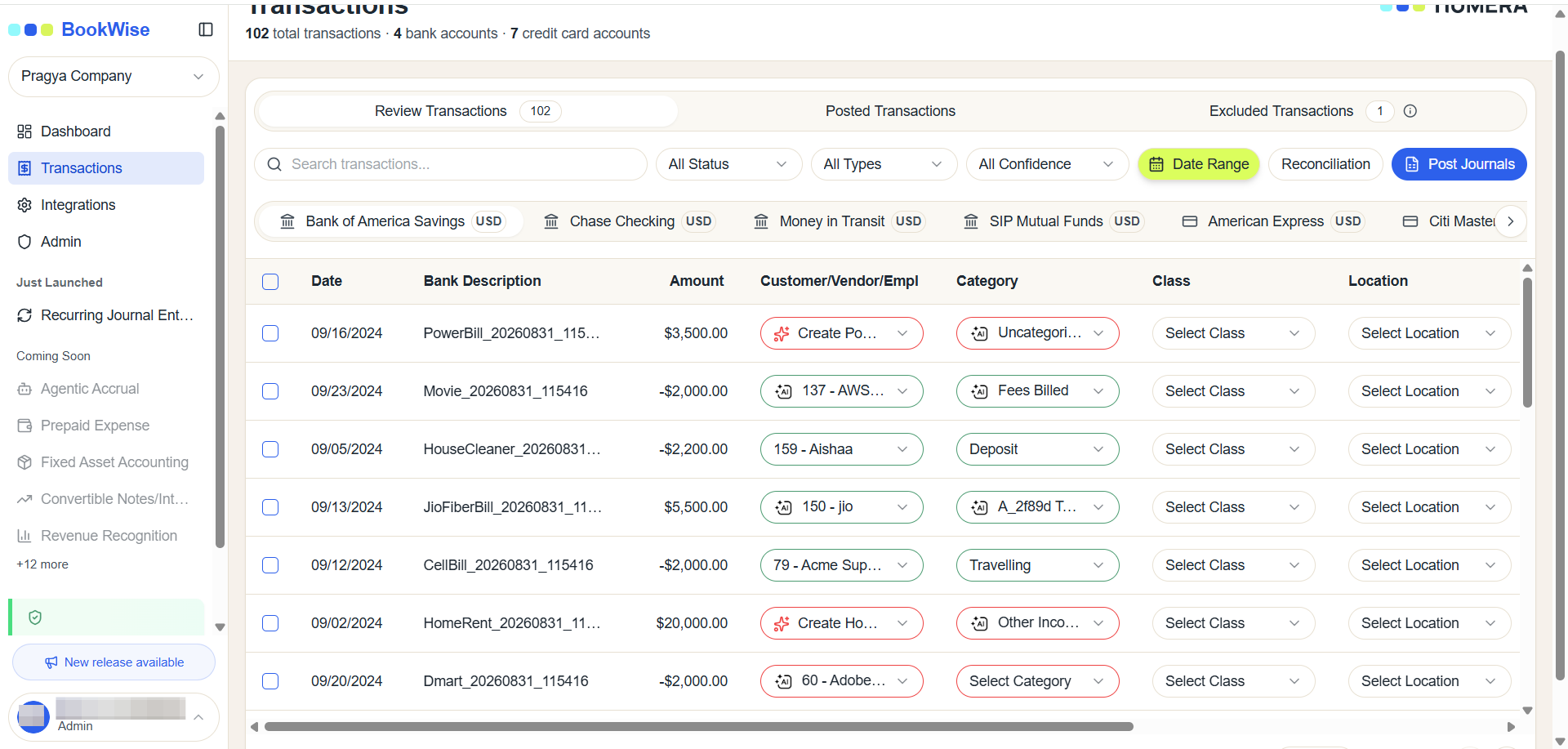
Go to Review Transactions of Transactions tab, Click the Date Range button on top right corner
2
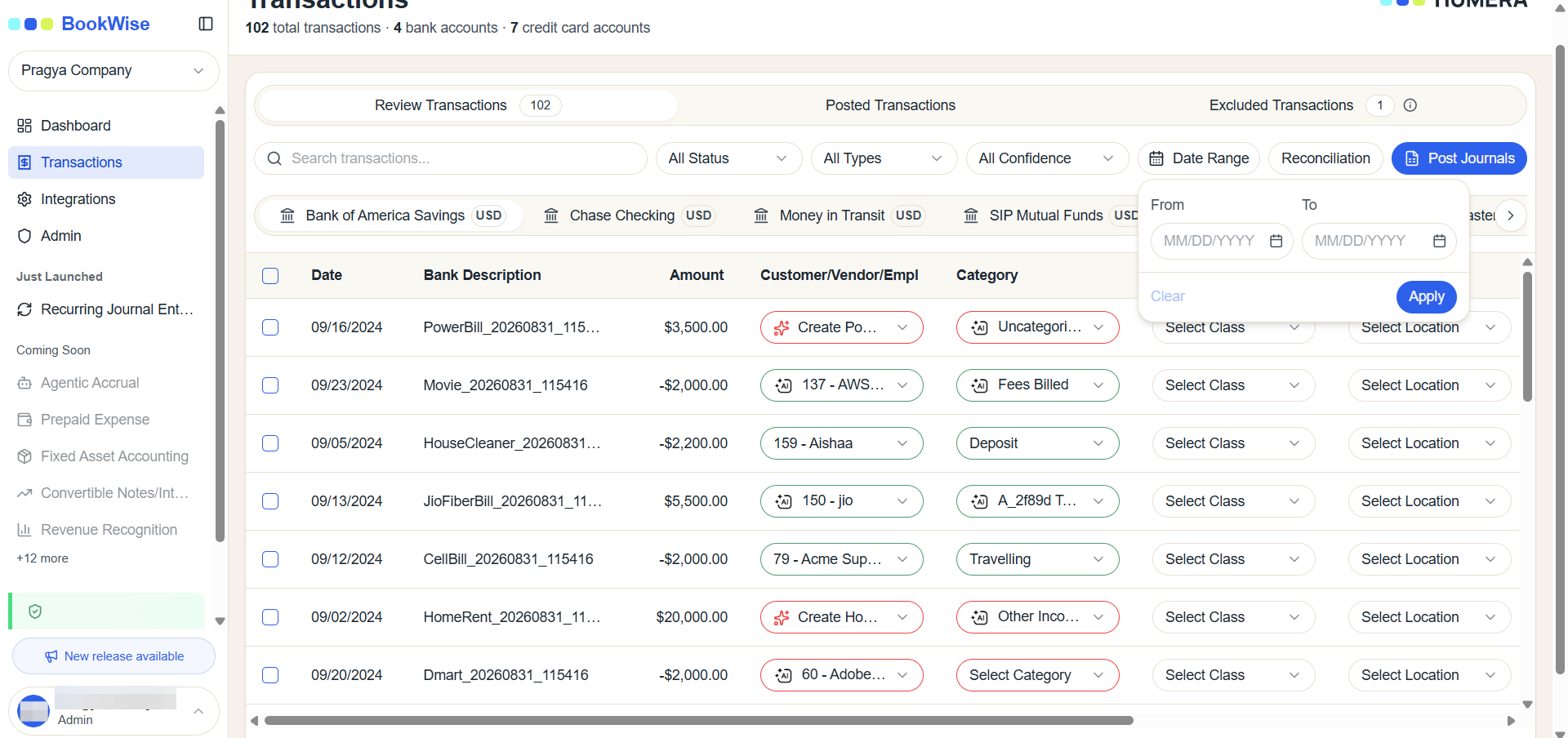
Click the Date Range input field to open the date picker overlay.
3
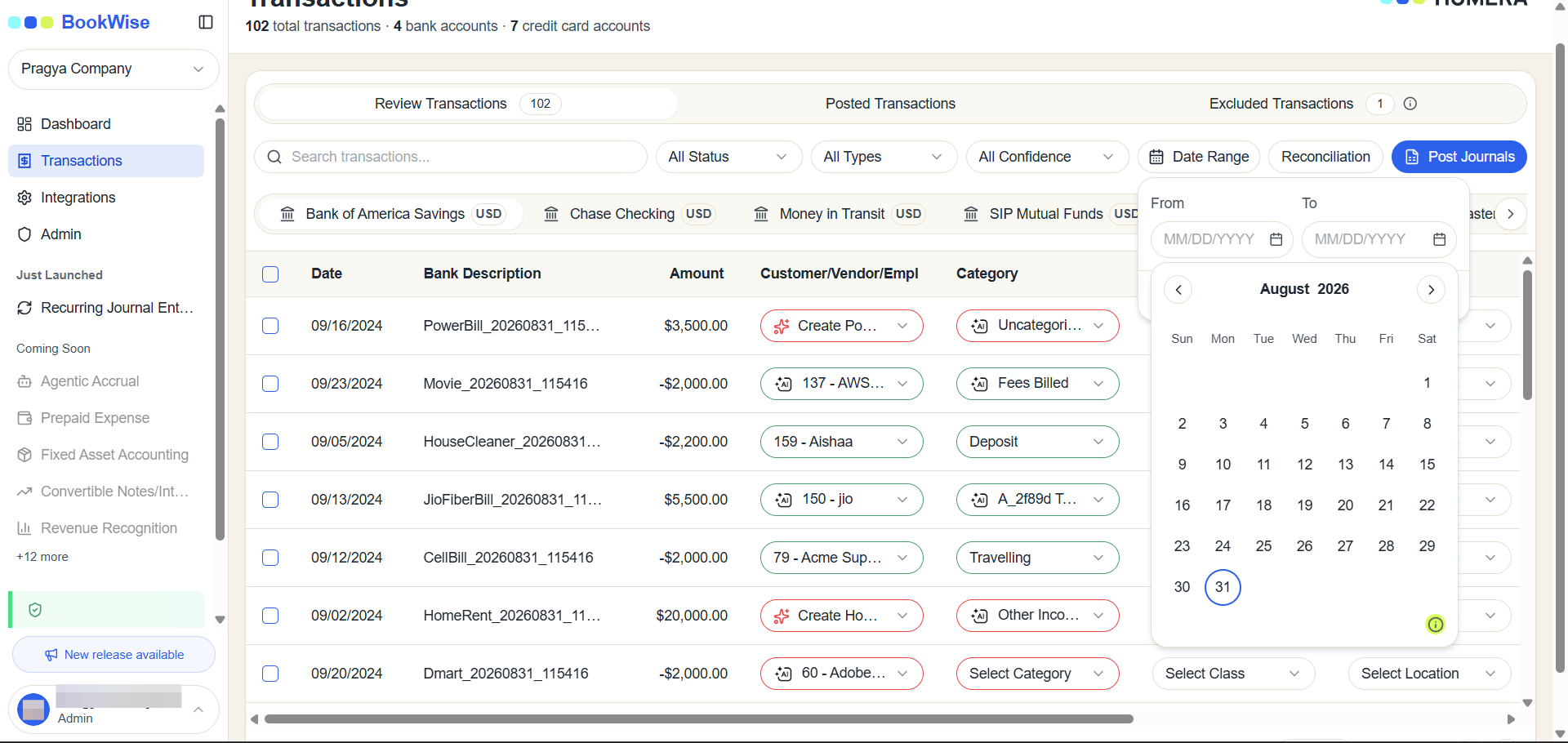
Click on the Info icon on the bottom of date range input feild
4
Click the Information icon in the bottom-right corner of the calendar modal to open the Keyboard Shortcuts menu.
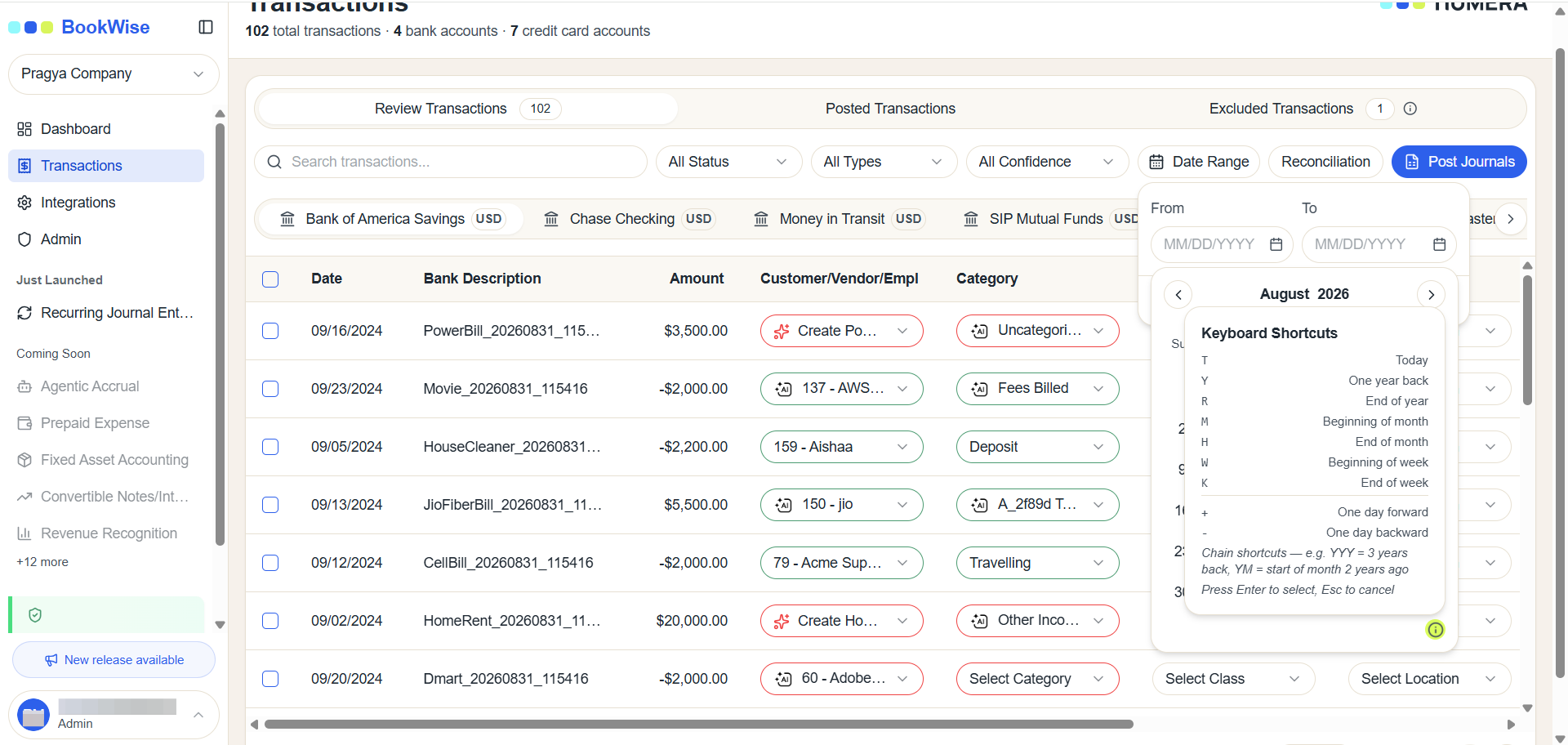
Using keyboard shortcuts makes date selection faster and provides a more accessible way to navigate and interact with the calendar.