
How to Reply to Tickets in HubSpot Help Desk
Learn how to manage, format, and respond to customer support tickets using the HubSpot Help Desk, image uploads, and ticket assignment.
This guide shows how to compose and format responses to customer support tickets in the HubSpot Help Desk. By mastering these tools, you can resolve customer inquiries faster and deliver higher-quality support.
This guide is for customer support representatives and service managers using HubSpot. It is particularly useful during the daily workflow of reading, assigning, and replying to incoming customer requests.
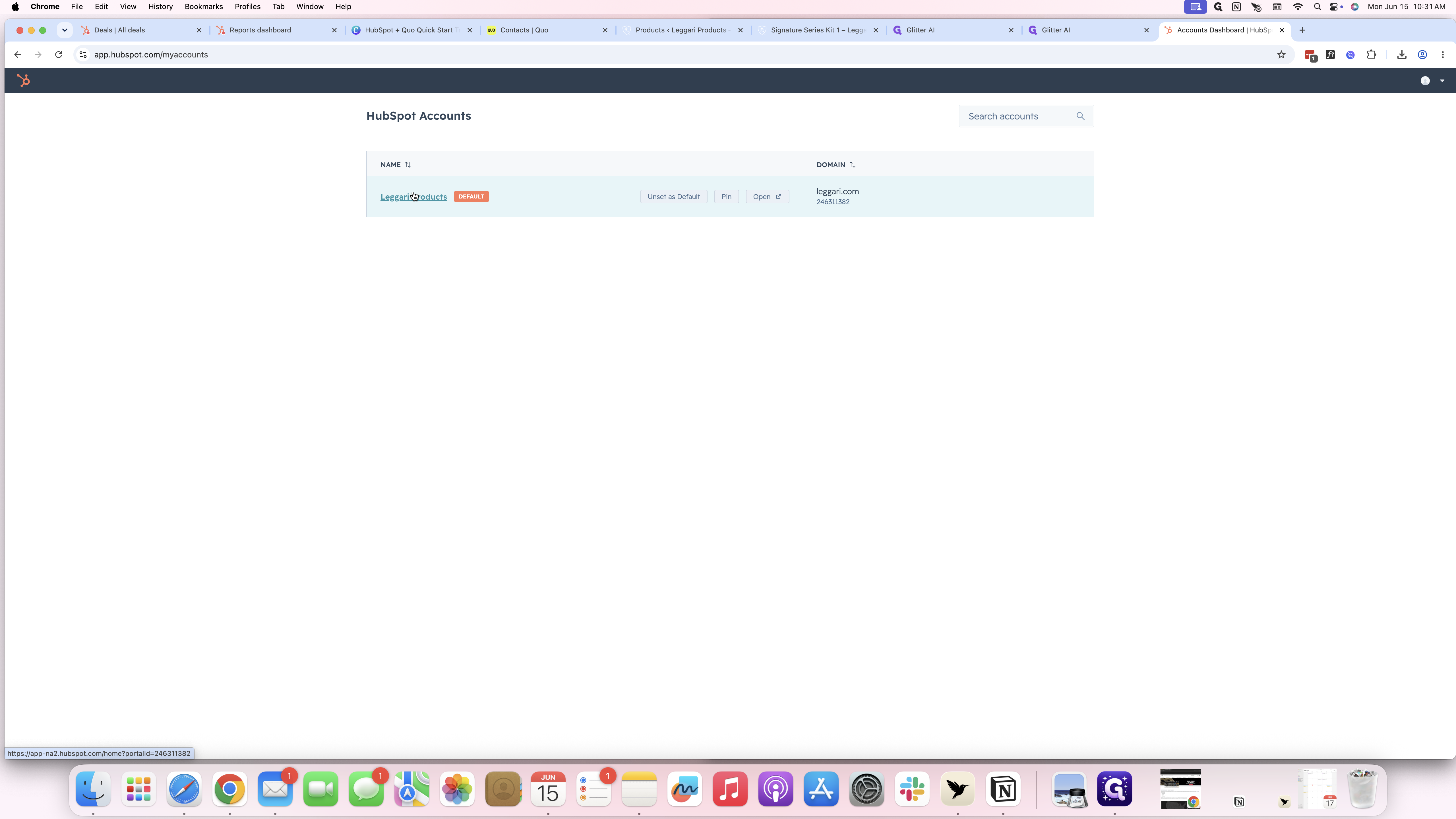
Accessing the Help Desk

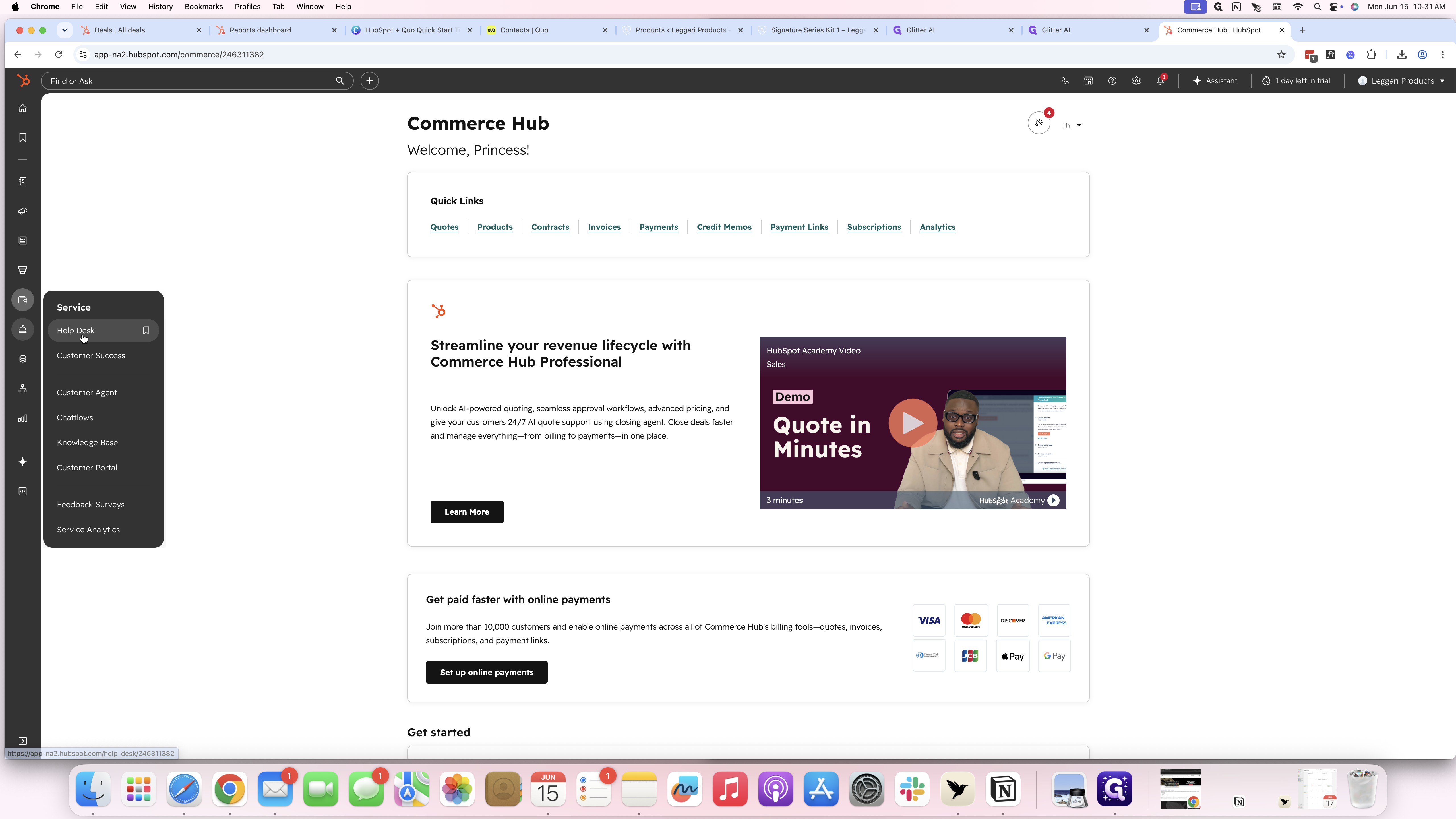
Replying to a Ticket
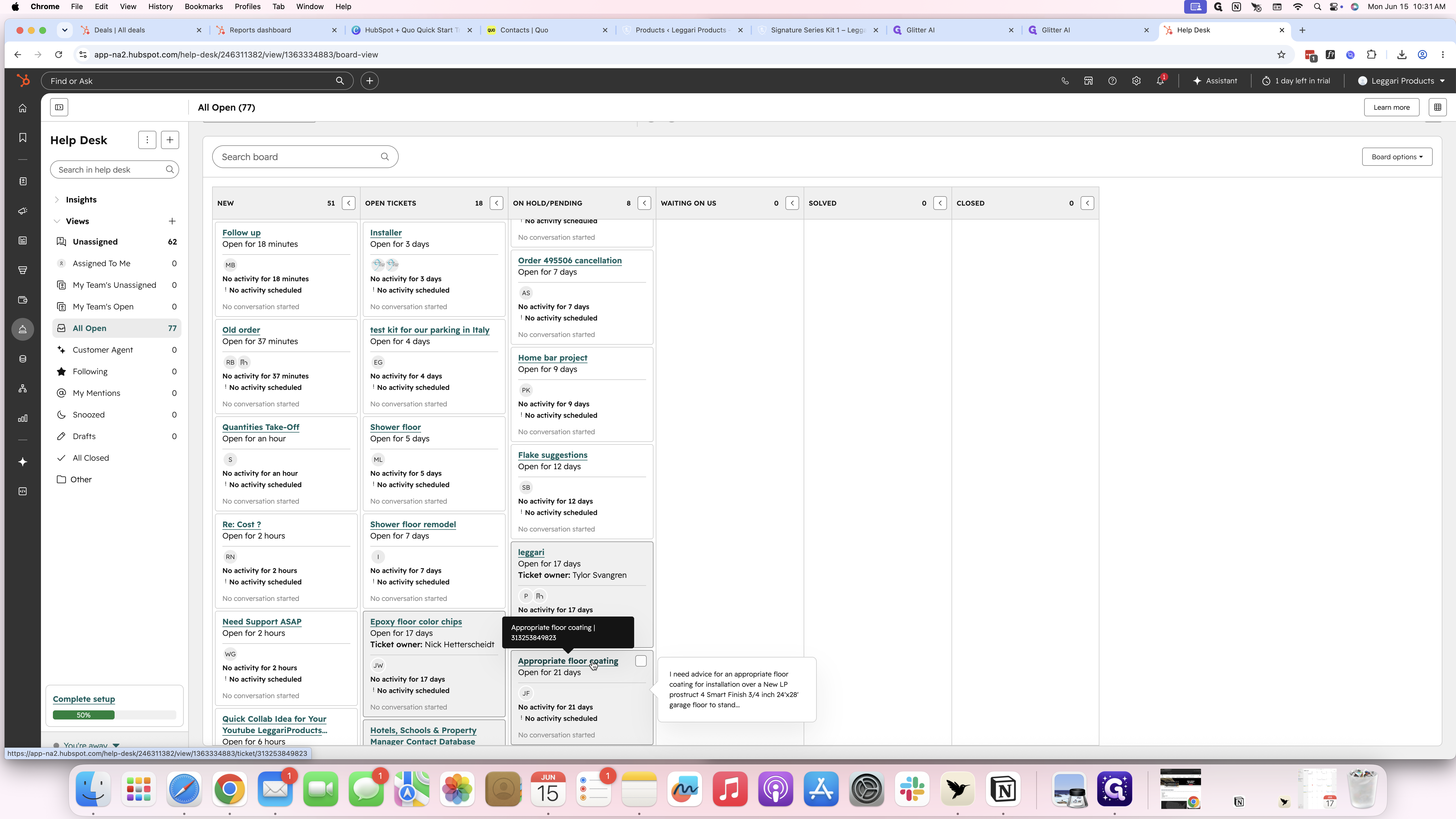
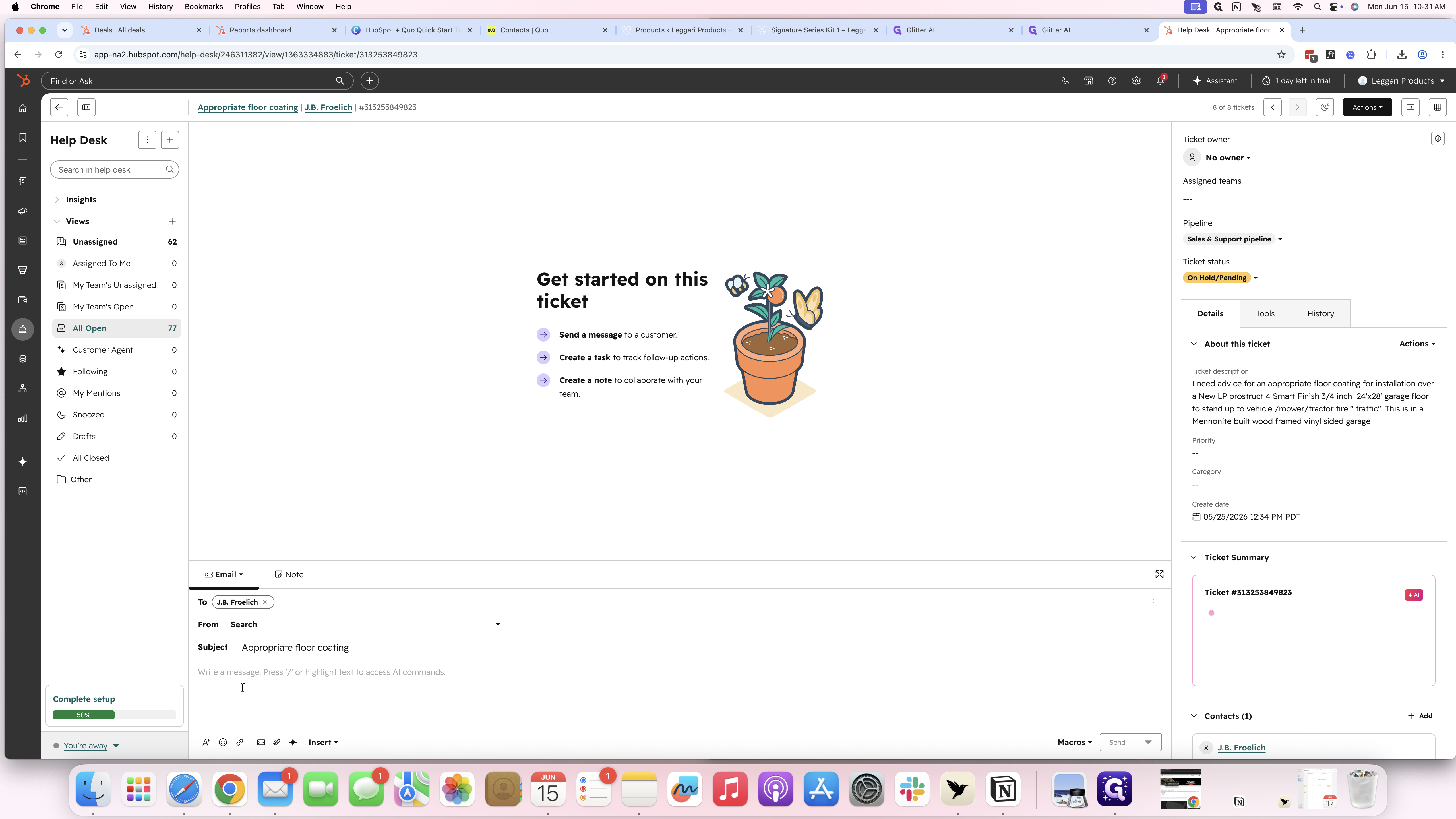
Formatting Your Reply
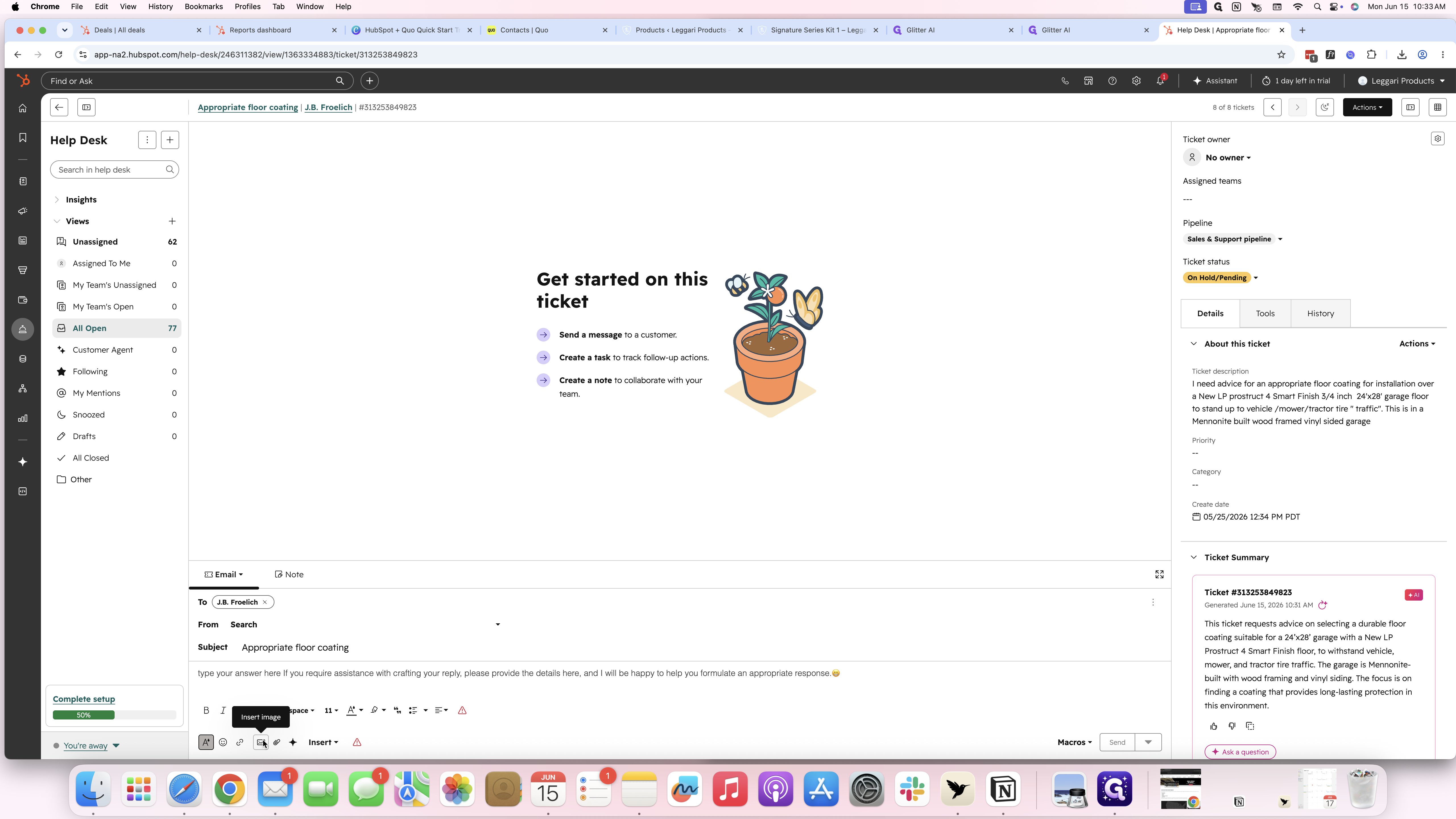
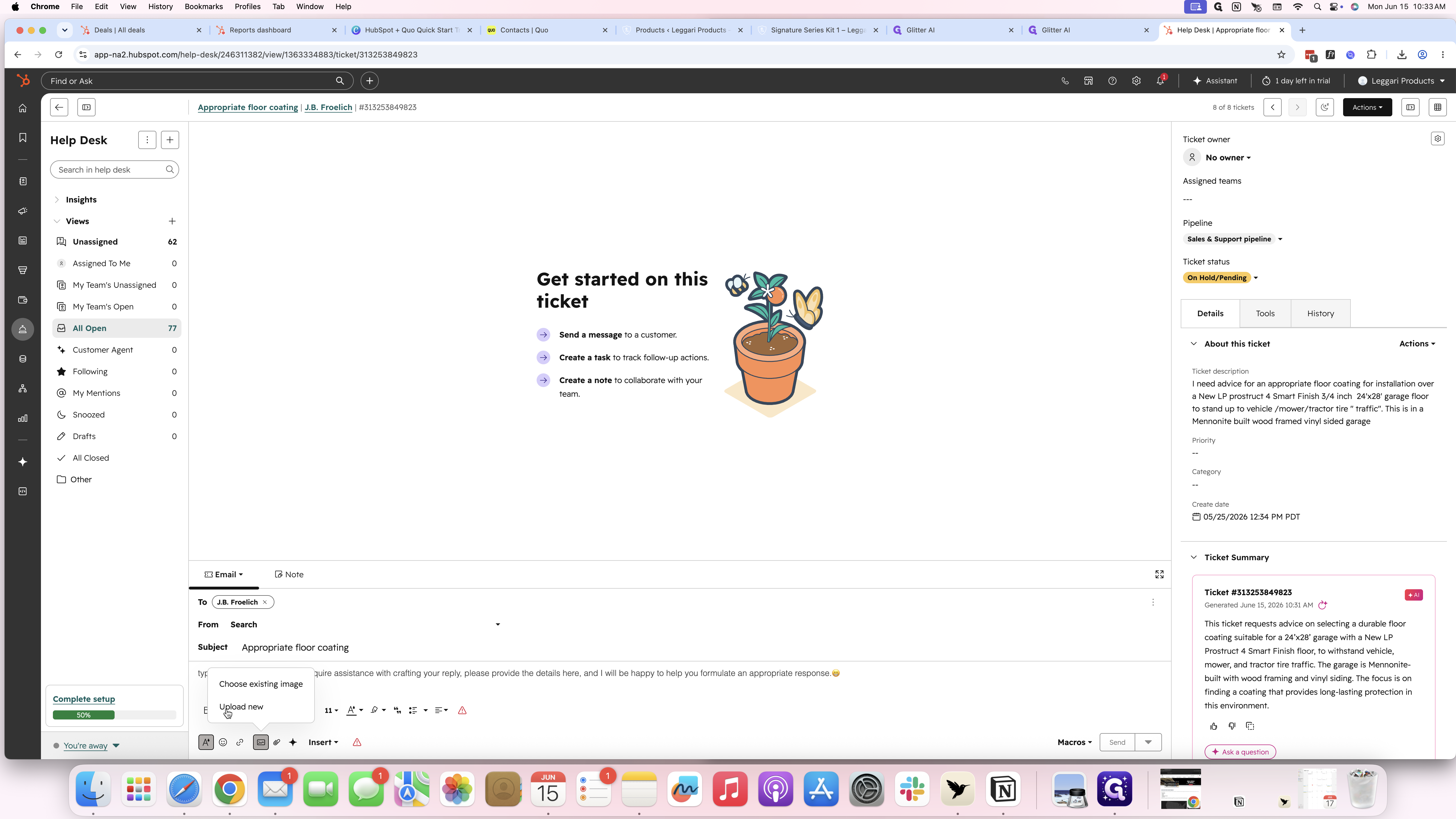
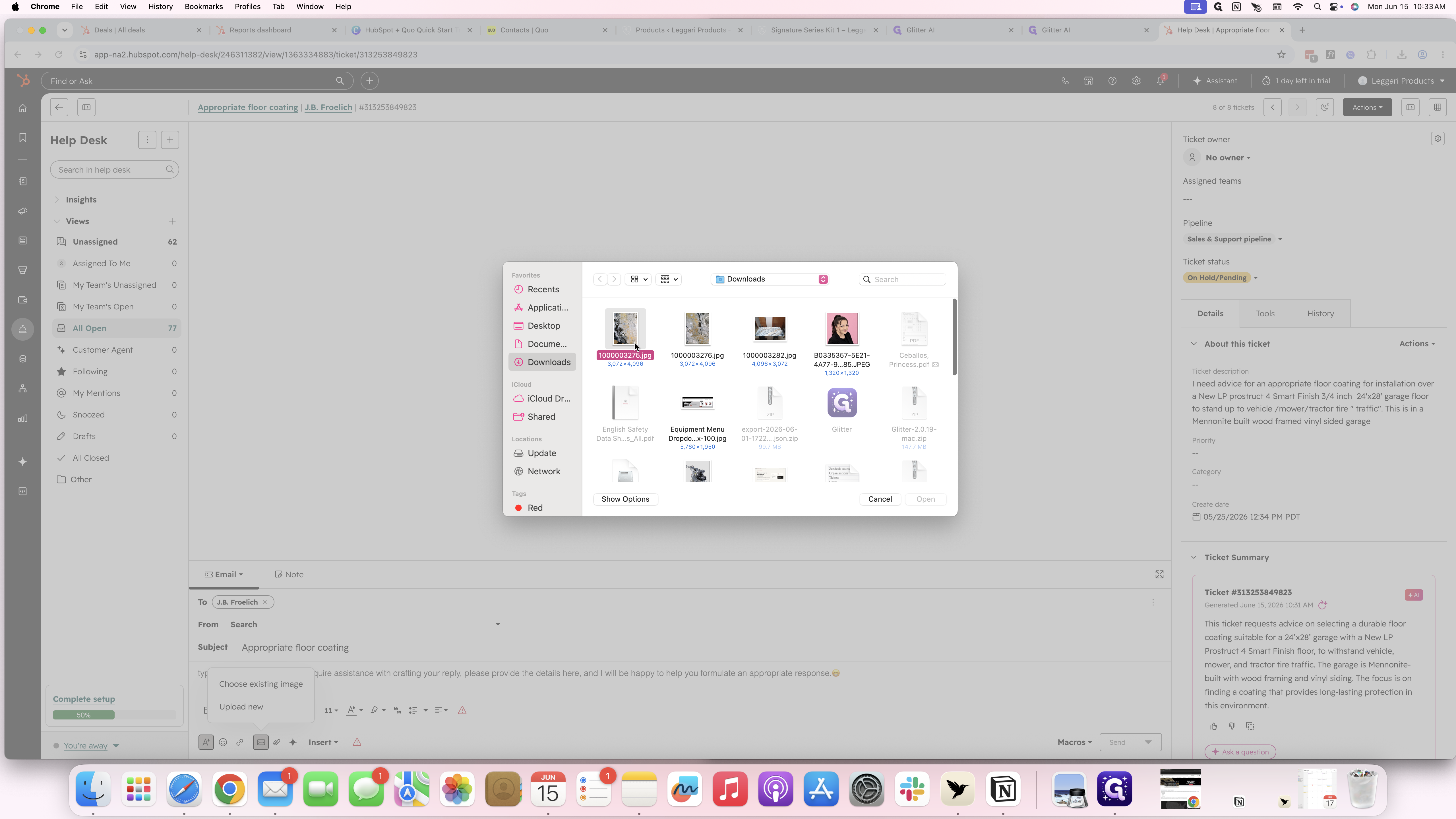
Adding Images
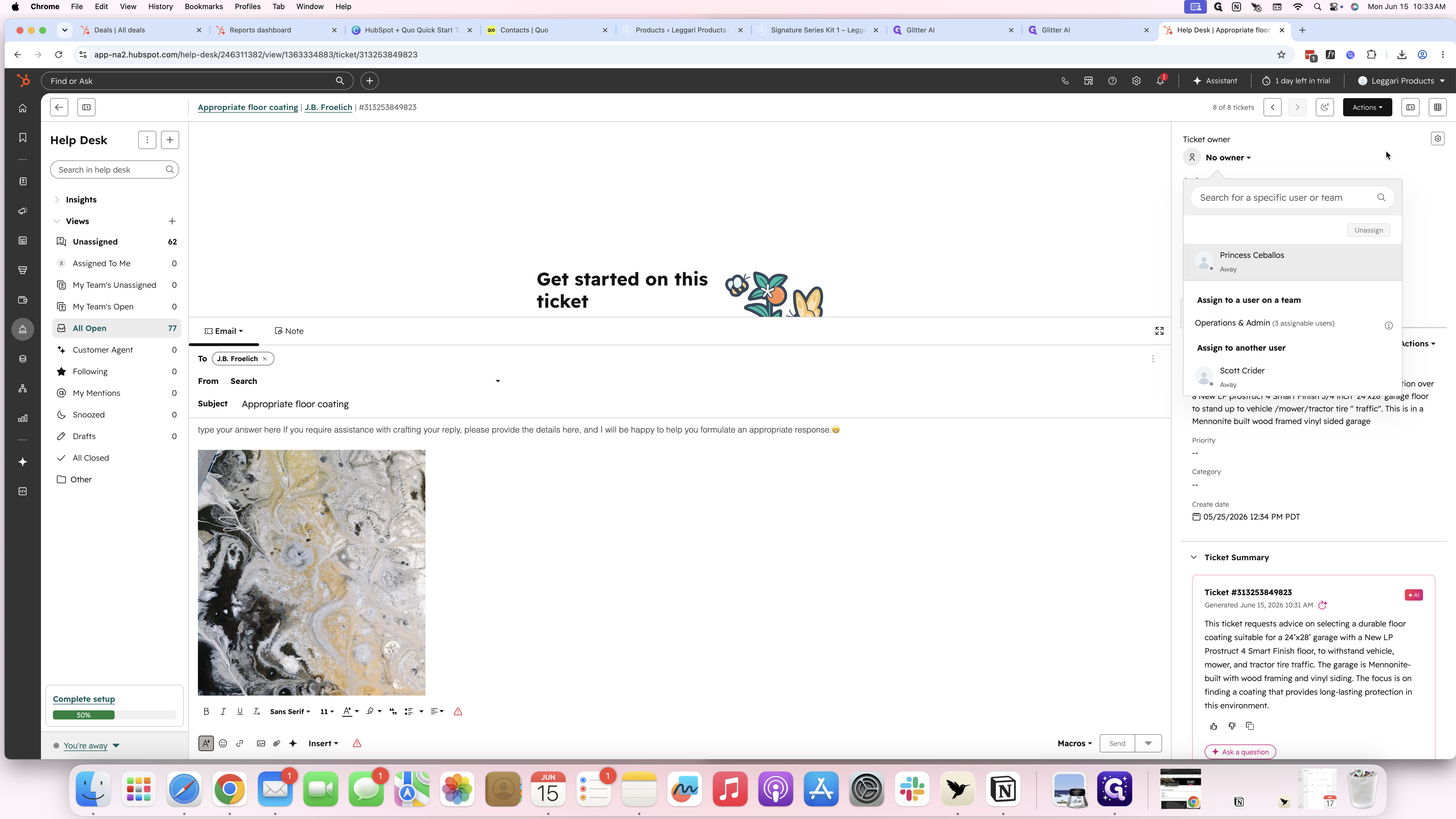
Assigning the Ticket
Q: Can I use AI to help draft a reply to a customer?
A: Yes. You can click the AI Assistant icon in the email toolbar and select "Write for me" to automatically generate text based on your prompt.
Q: How do I change the font style of my email response?
A: Click the formatting options icon in the toolbar, click the font dropdown (which defaults to your current font, like Sans Serif), and select a new font family like Monospace.
Q: Can I insert images directly into the ticket reply?
A: Yes. Click the image icon in the toolbar to either select an existing image from your HubSpot file manager or upload a new one directly from your computer.
Term | Definition |
|---|---|
Help Desk | A centralized workspace within HubSpot Service Hub used to manage, track, and reply to customer support tickets. |
Kanban Board | A visual layout in HubSpot that displays support tickets as interactive cards organized in columns by their current status. |
AI Assistant | A built-in artificial intelligence tool in the HubSpot editor that helps generate, format, and refine drafted text. |
Ticket Owner | The specific team member or user assigned to handle and ultimately resolve a customer support ticket. |