Install and Use the MailStore Outlook Add-in

Learn how to install the MailStore Outlook add-in, log into your server, and navigate your email archive to find, view, or export saved messages.

By RYAN CHEUNG

This guide explains how to install the MailStore Outlook Add-in and use it to access your archived emails directly from Microsoft Outlook. By completing these steps, you will be able to seamlessly log in to your MailStore server, browse saved searches, and export or view archived messages.

This guide applies to employees and IT personnel who need to access archived company emails without leaving their primary email client. It is used during the initial setup of a new workstation or when an individual needs to retrieve historical email records for reference or compliance.

Install the MailStore Add-in
1
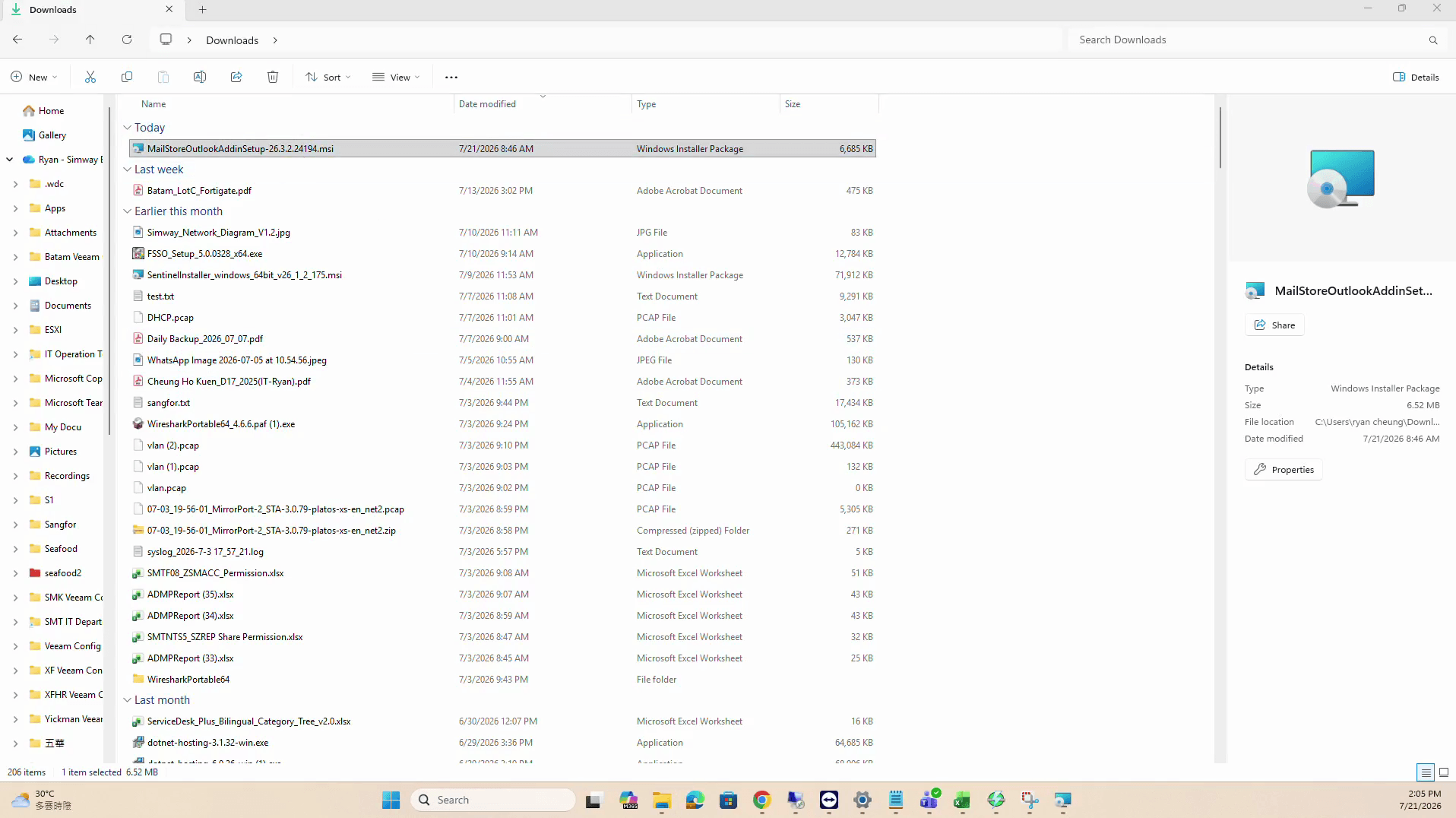
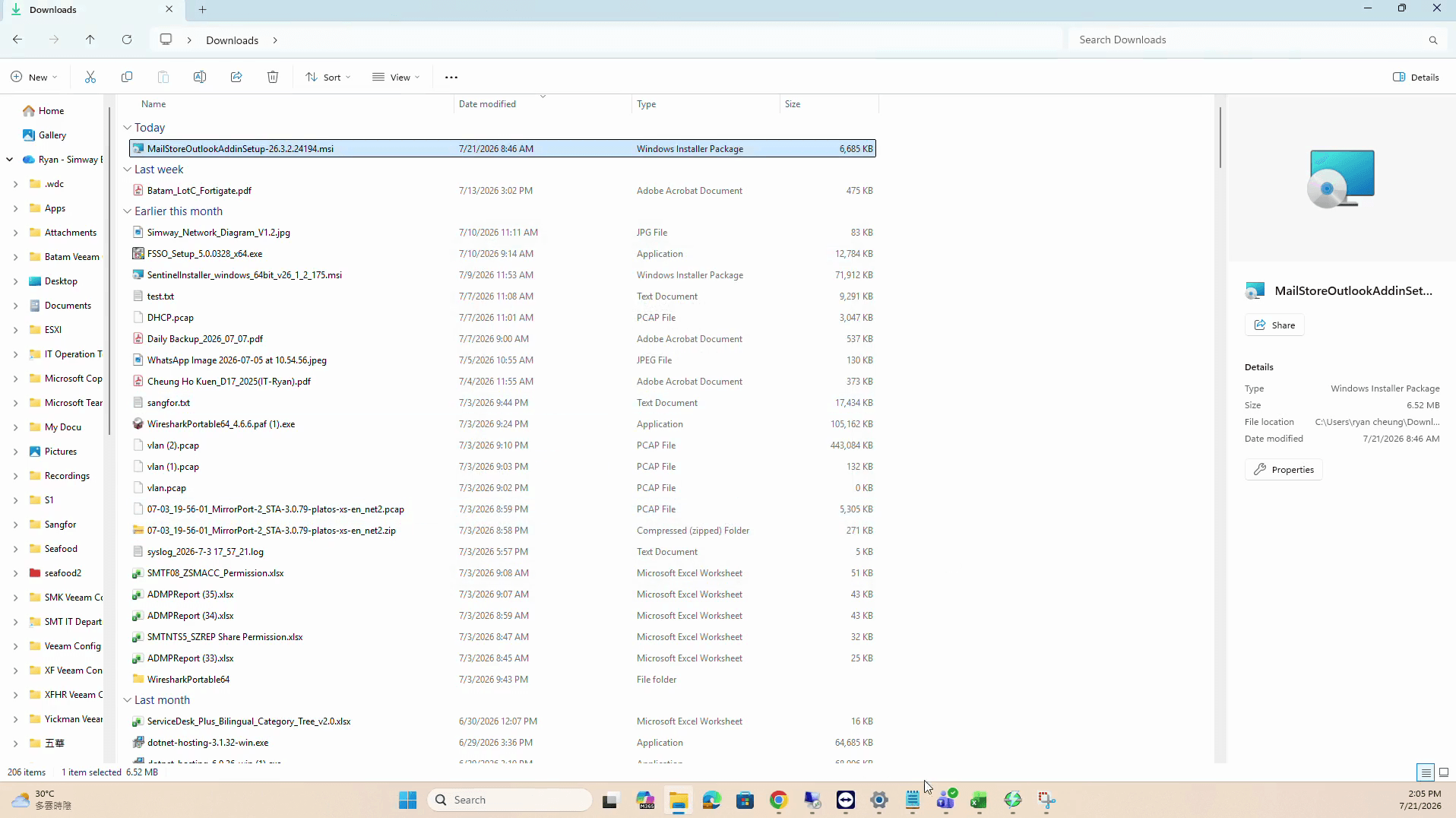
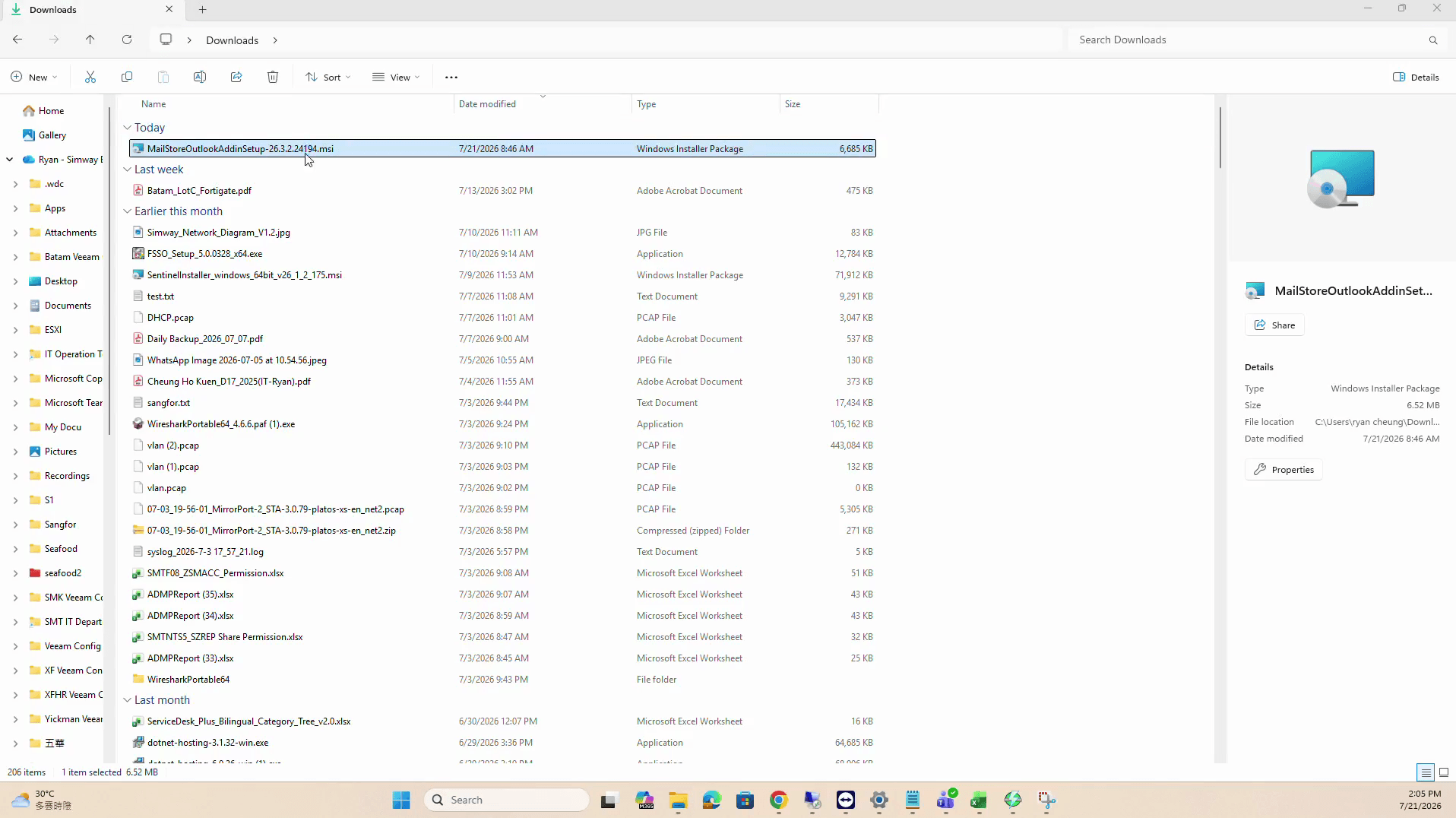
Double-click the MailStoreOutlookAddinSetup file in your Downloads folder to begin.
Step #1: Double-click the MailStoreOutlookAddinSetup file in your Downloads folder to begin.
2
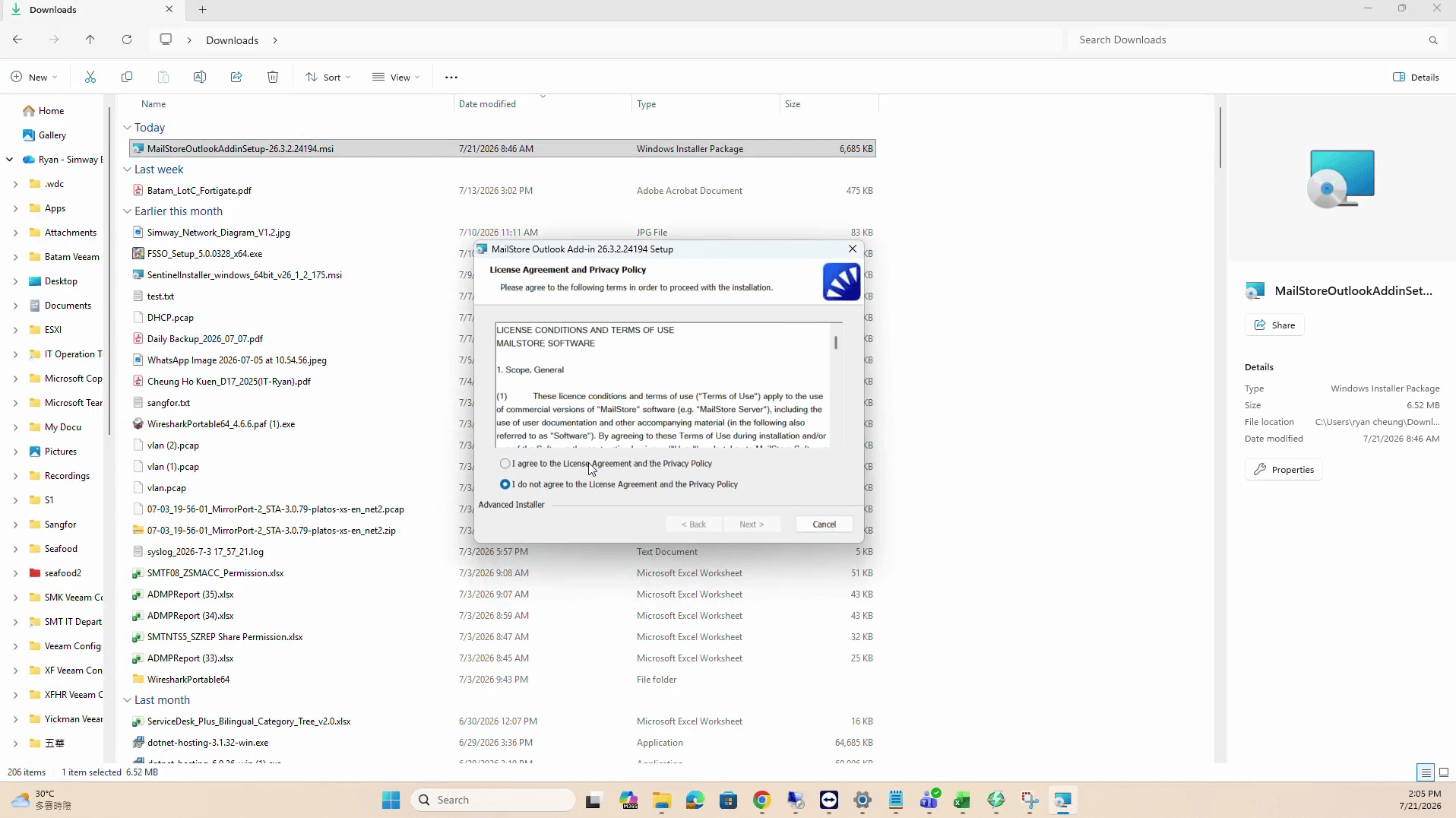
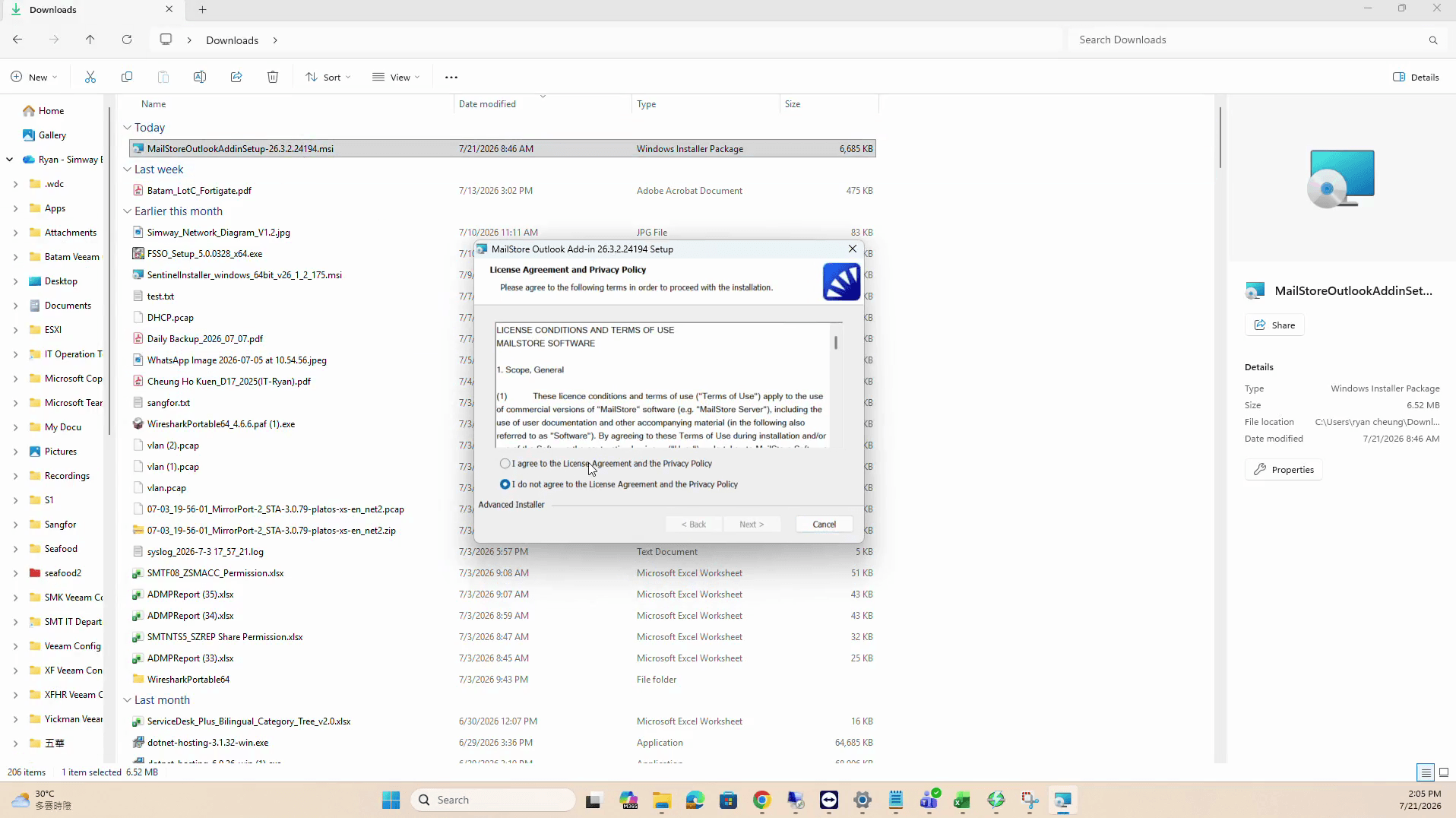
Check the I agree to the License Agreement and the Privacy Policy radio button.
Step #2: Check the I agree to the License Agreement and the Privacy Policy radio button.
3
Click Next.
Step #3: Click Next.
4
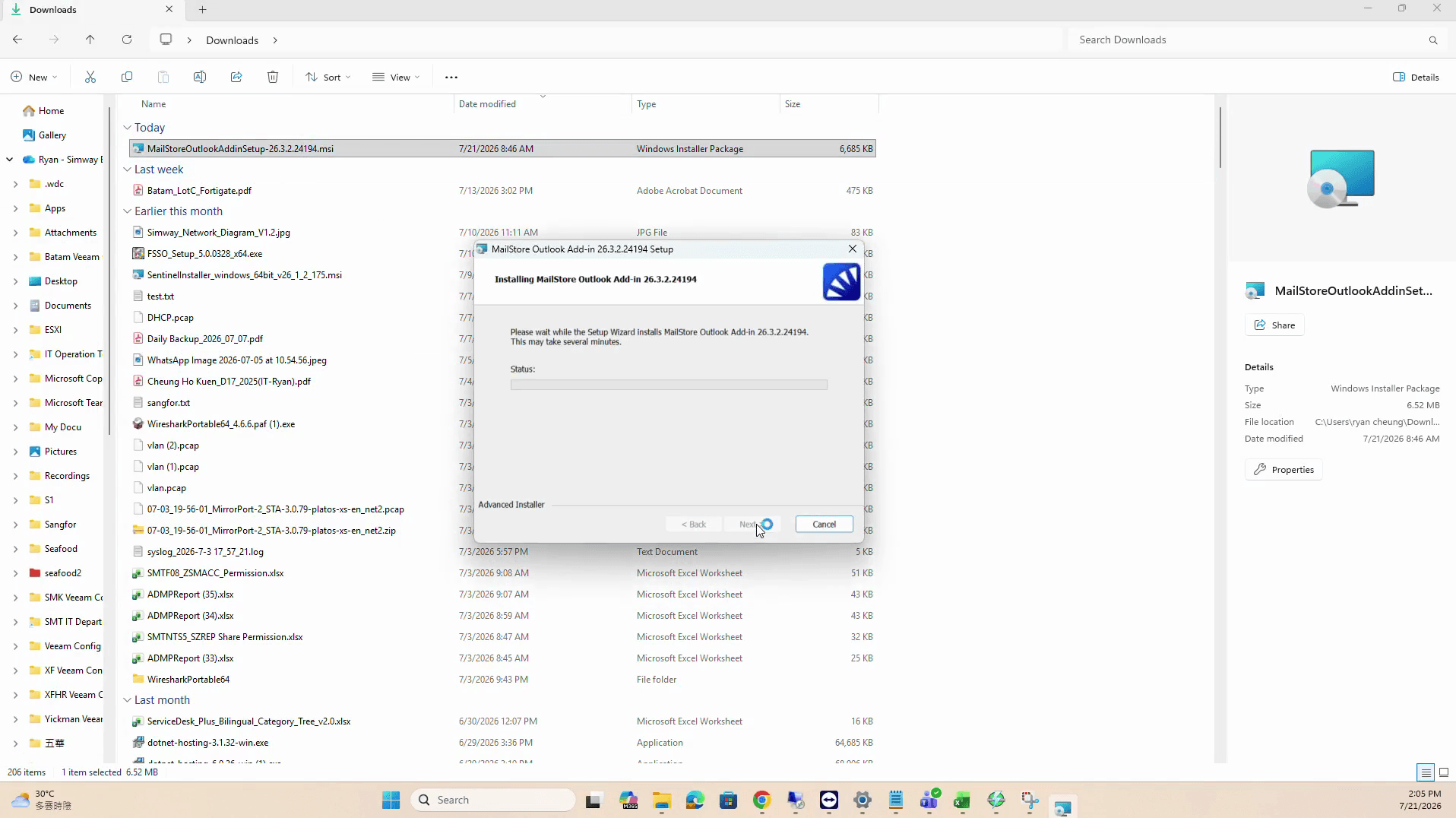
Click Install to proceed with the setup.
Step #4: Click Install to proceed with the setup.
5
Click Yes when asked to allow the app to make changes.
Step #5: Click Yes when asked to allow the app to make changes.
6
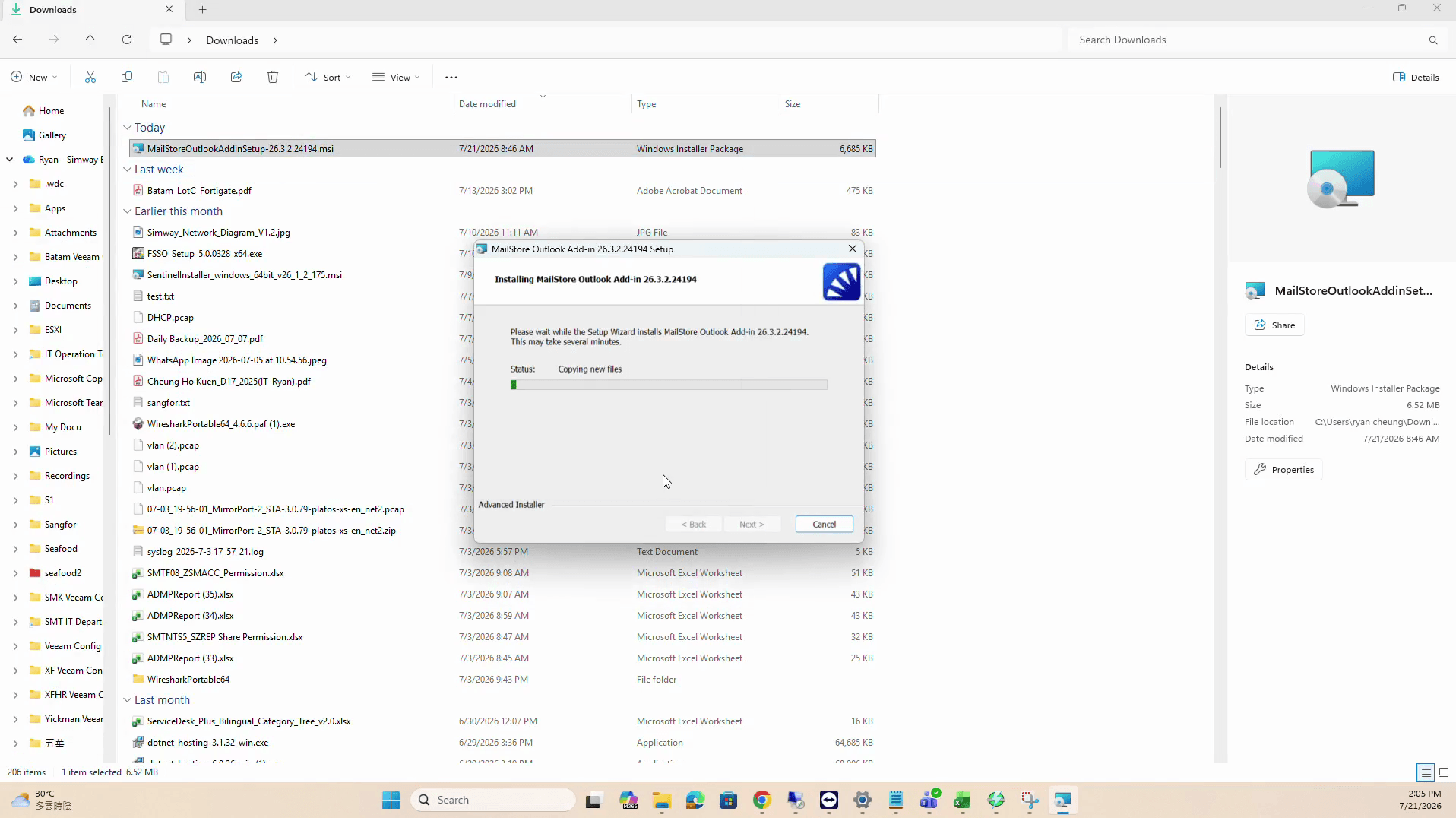
Click Finish once the installation progress bar completes.
Step #6: Click Finish once the installation progress bar completes.

Access the MailStore Archive
7
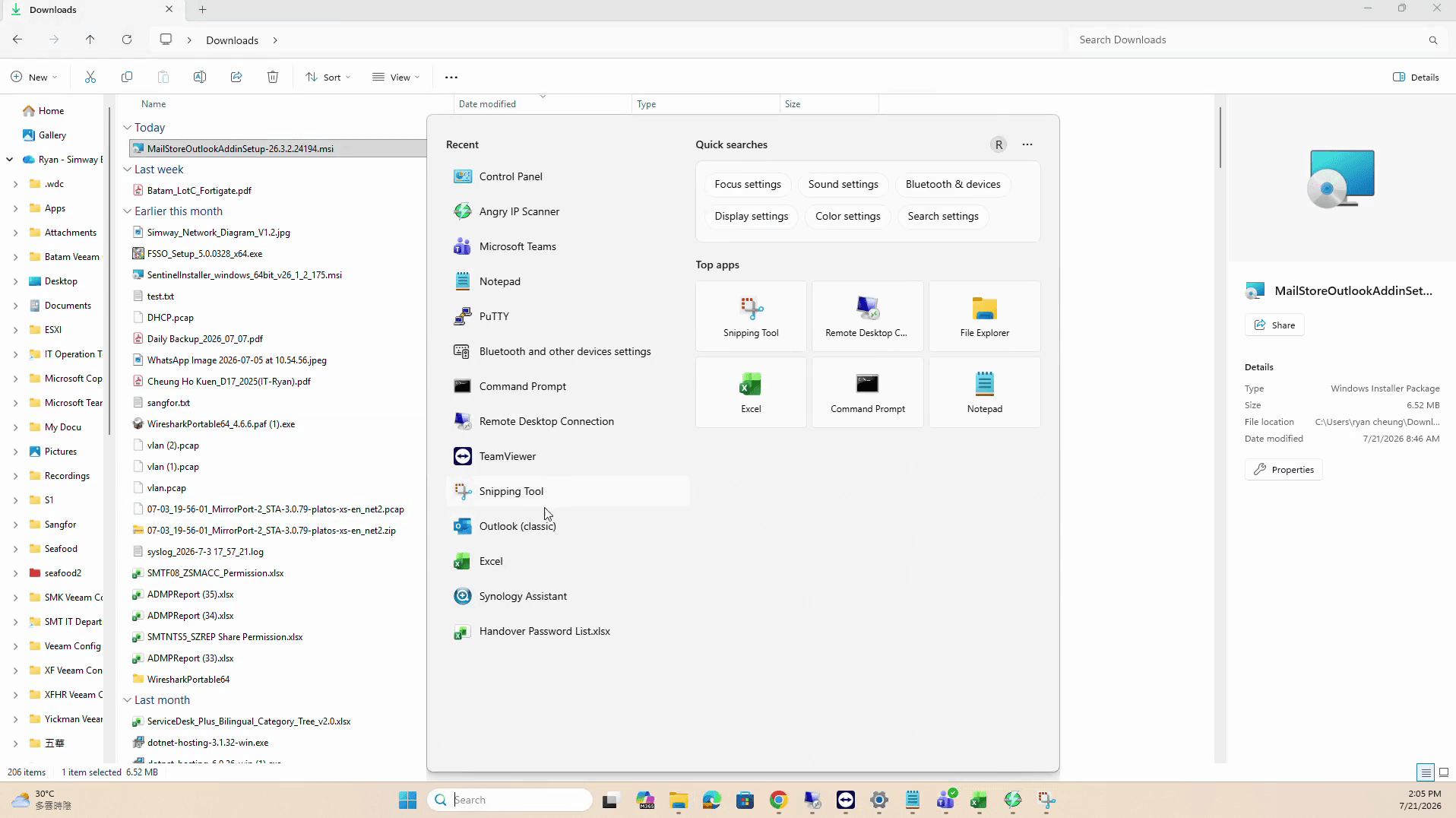
Click the Windows Start button.
Step #7: Click the Windows Start button.
8
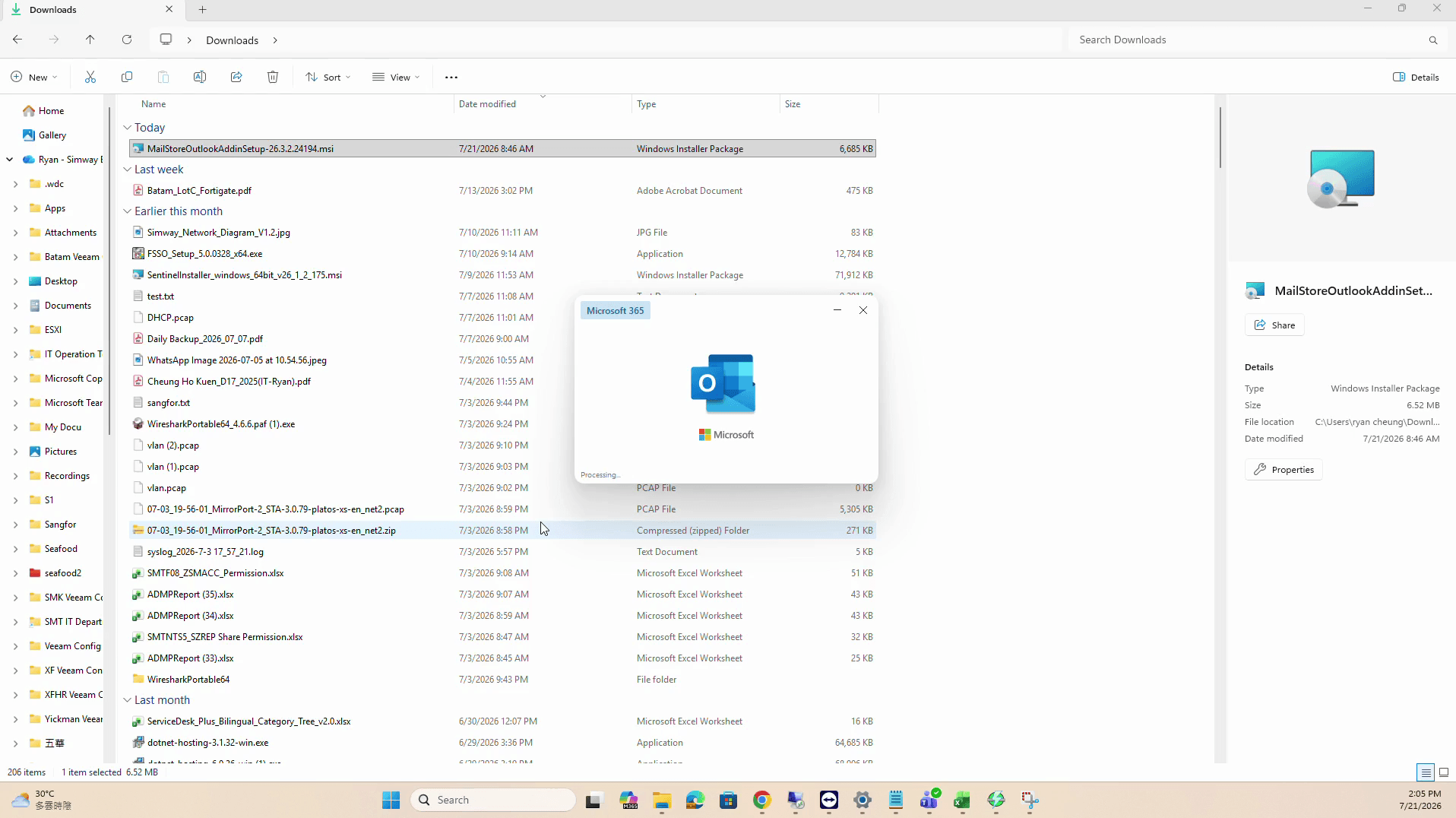
Open Outlook.
Step #8: Open Outlook.
9
Click on the MailStore tab in the Outlook ribbon.
Step #9: Click on the MailStore tab in the Outlook ribbon.
10
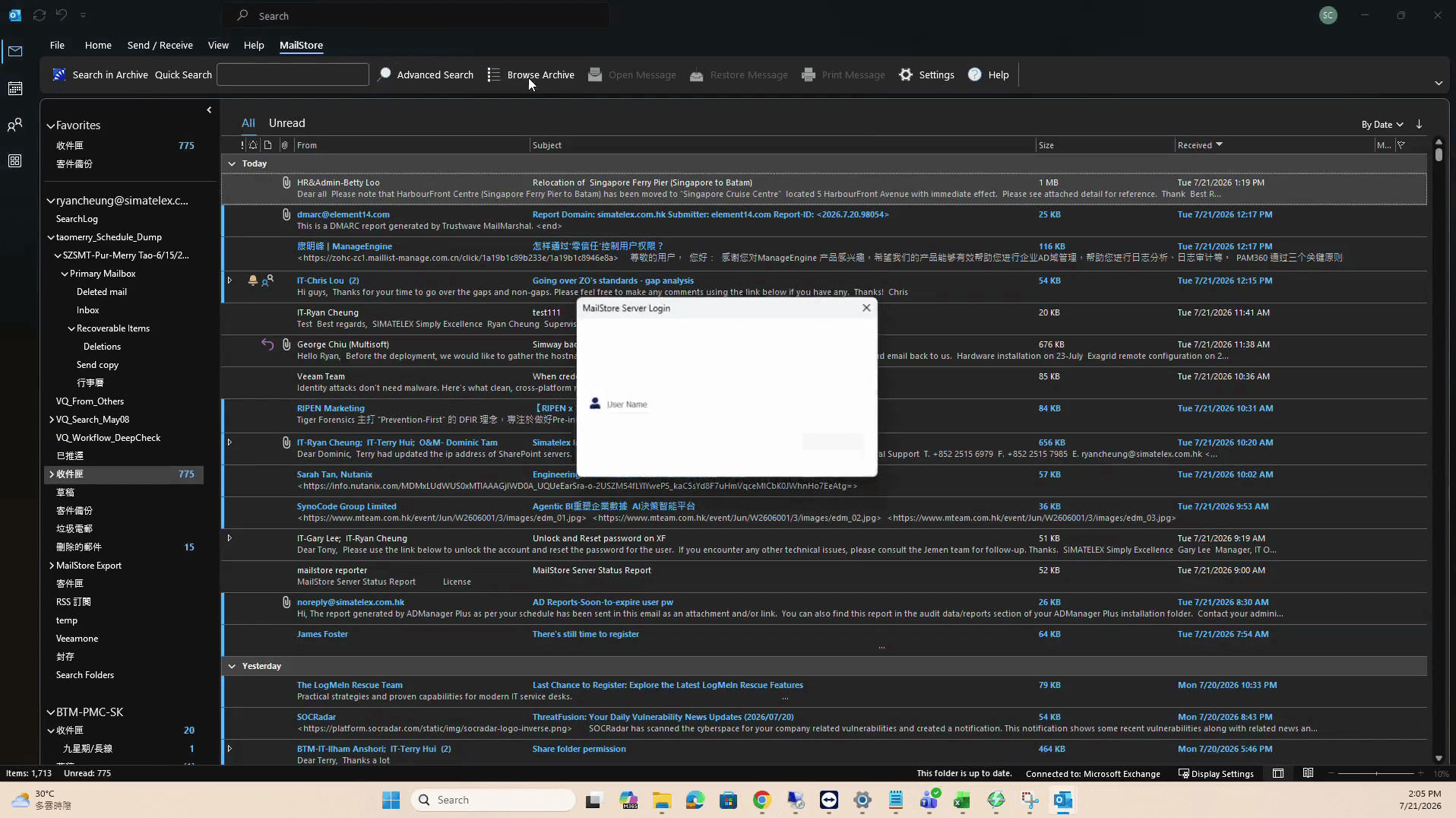
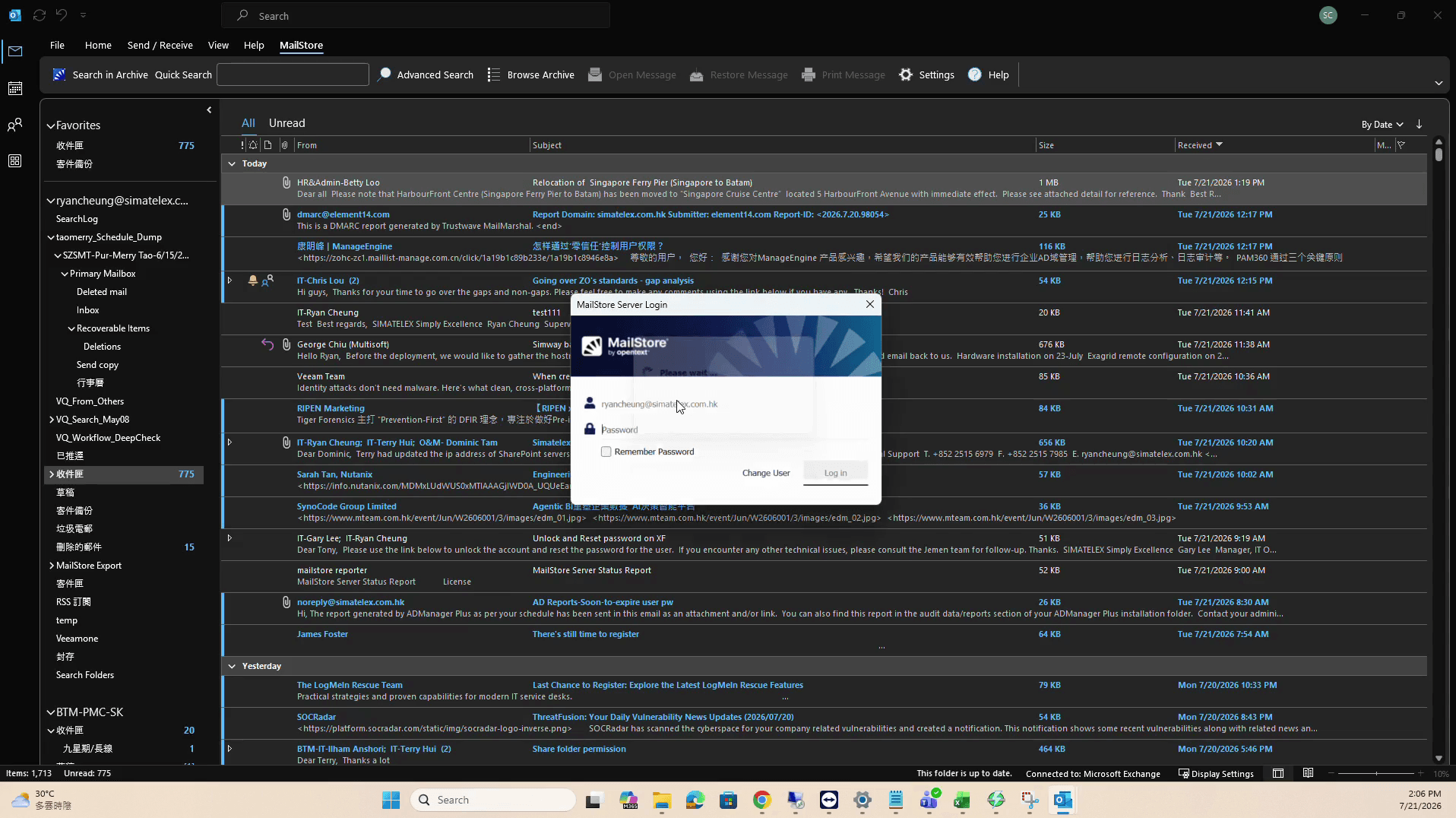
Click Browse Archive in the top ribbon menu to open the MailStore Server Login dialog.
Step #10: Click Browse Archive in the top ribbon menu to open the MailStore Server Login dialog.
11
When logging in for the first time, you need to enter the server name and port:mailstore.simatelex.com.hk:8462
12
Enter your AD account username (your email address) and password in the entry field and log in.
Step #12: Enter your AD account username (your email address) and password in the entry field and log in.

Find and see Archived Emails

13
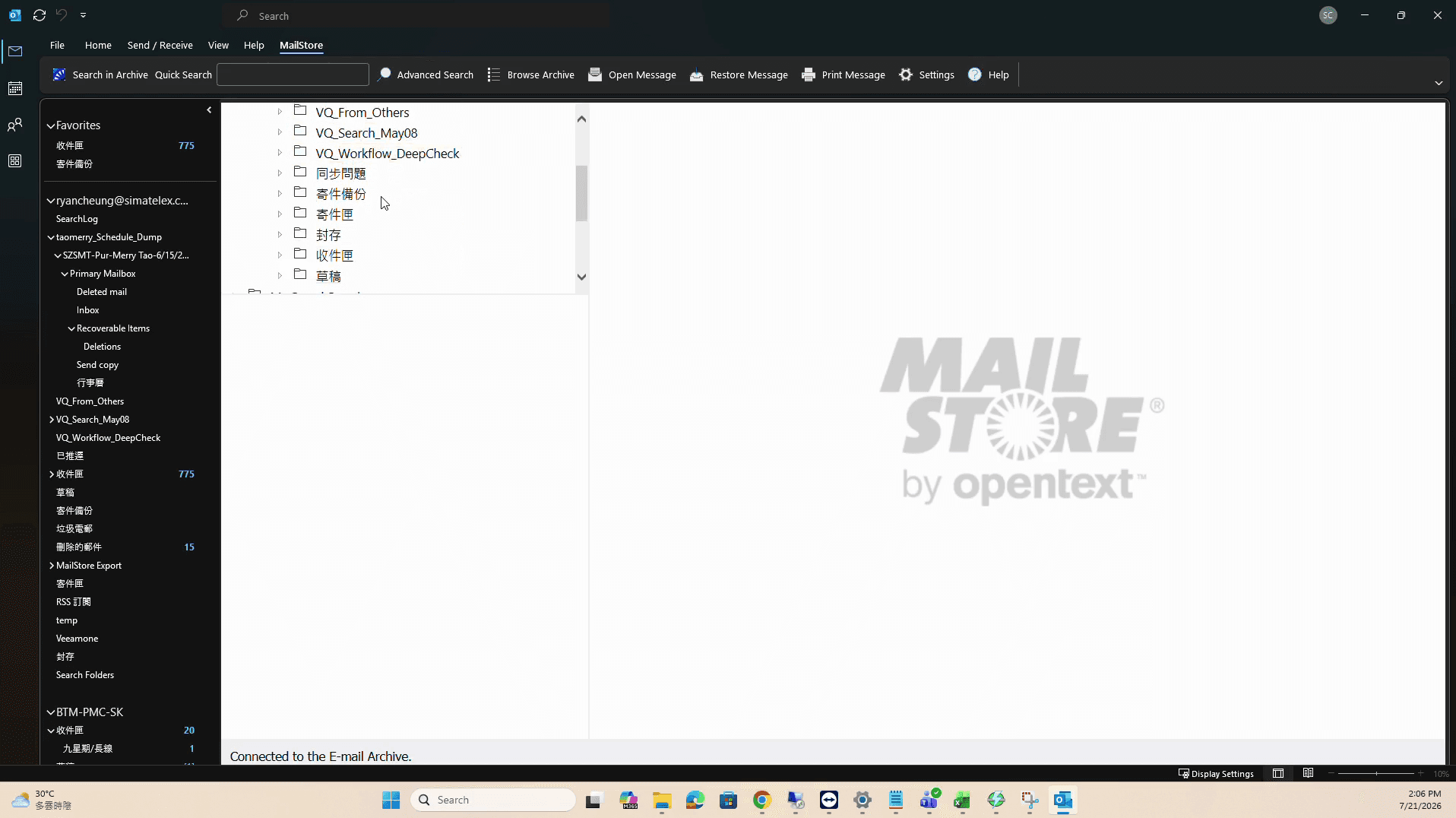
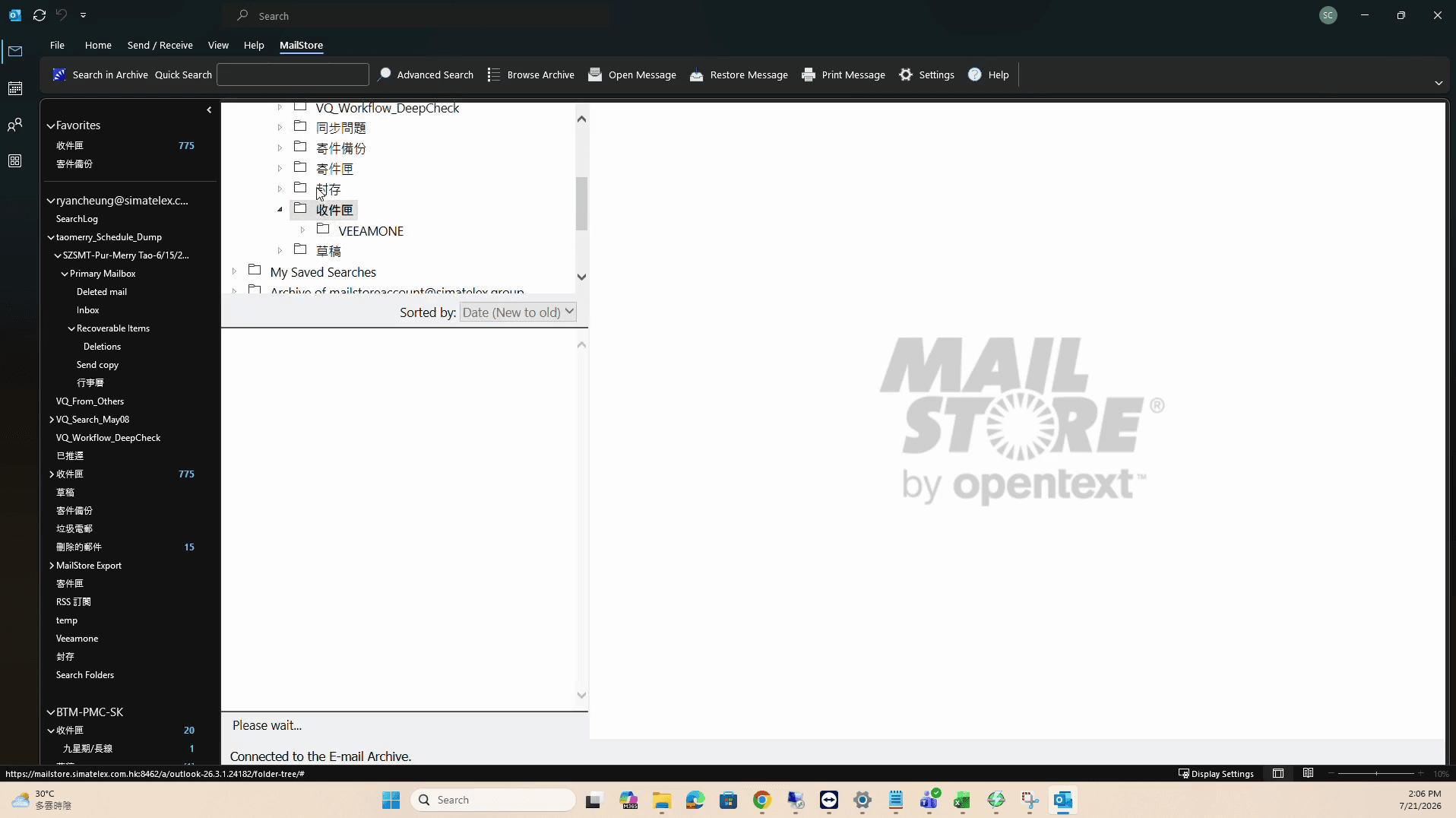
Under My Archive, you will see your emails.
Step #13: Under My Archive, you will see your emails.
14
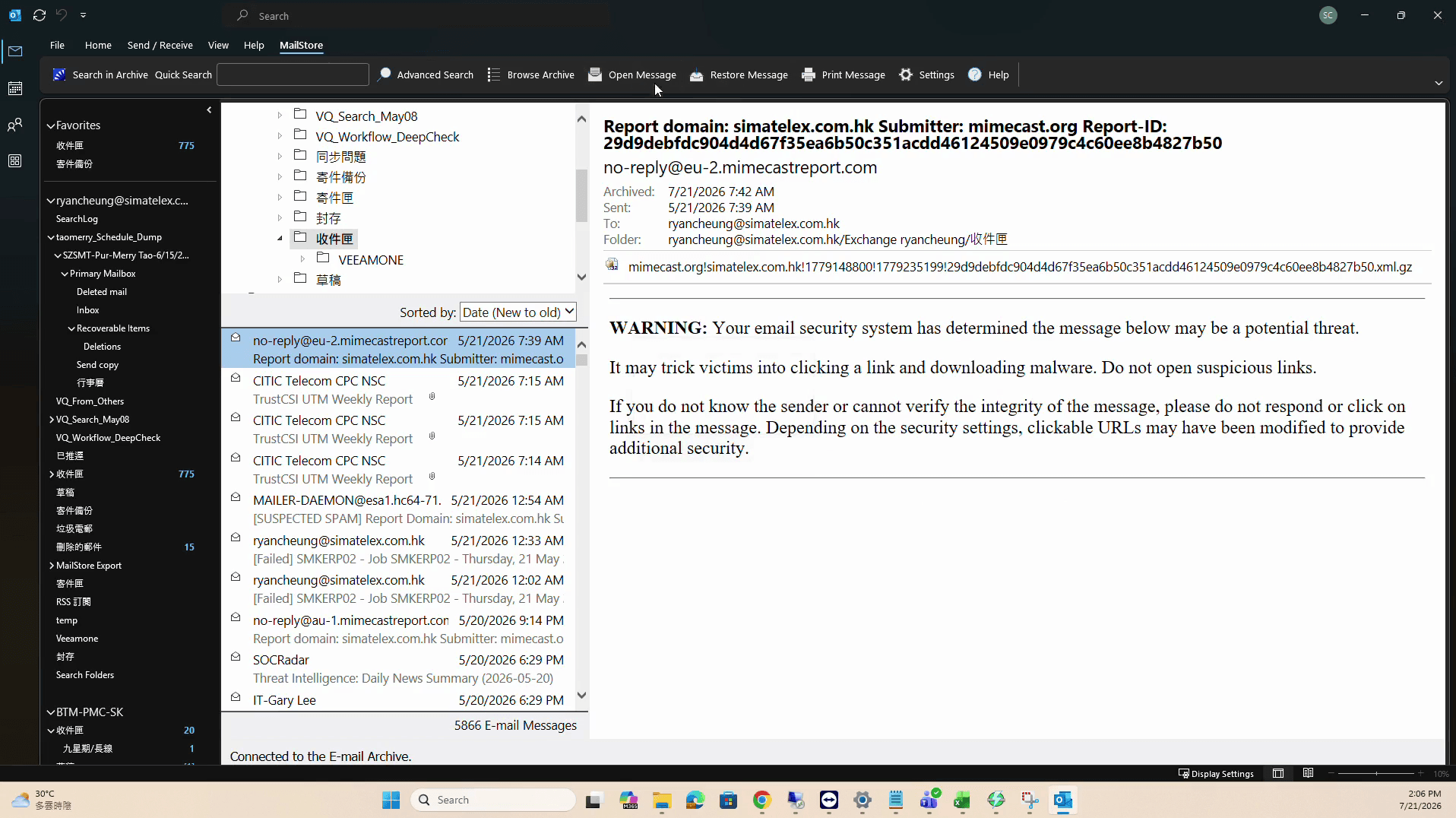
Select the email you want to view or export from the central list.
Step #14: Select the email you want to view or export from the central list.
15
Double-click the email item in the list to open it directly in a reading window.
Step #15:  Double-click the email item in the list to open it directly in a reading window.
16
You can forward the email if necessary.
Step #16: You can forward the email if necessary.

Term

Definition

MailStore

An email archiving software solution that stores and manages historical email records securely.

Outlook Add-in

A software plugin that integrates directly into Microsoft Outlook to extend its functionality.

Windows Installer Package (.msi)

A file format used by Windows to install, update, and configure software applications.

Install and Use the MailStore Outlook Add-in