Instantly Project Briefs Using Loom
Learn how to use the AI-assisted brief generator to instantly extract project details from a Loom video and create a fully populated design brief.
This guide shows you how to use the AI-assisted brief generator to automatically extract project requirements from a Loom video. By simply dictating your ideas and walking through visual examples out loud, you can instantly populate a detailed design brief without typing out lengthy requirements manually.
This workflow is ideal for project managers, marketers, and account coordinators kicking off new design requests. It is especially useful when you need to share complex visual examples or want to save time dictating a project instead of drafting a written document.
Record Your Project Brief
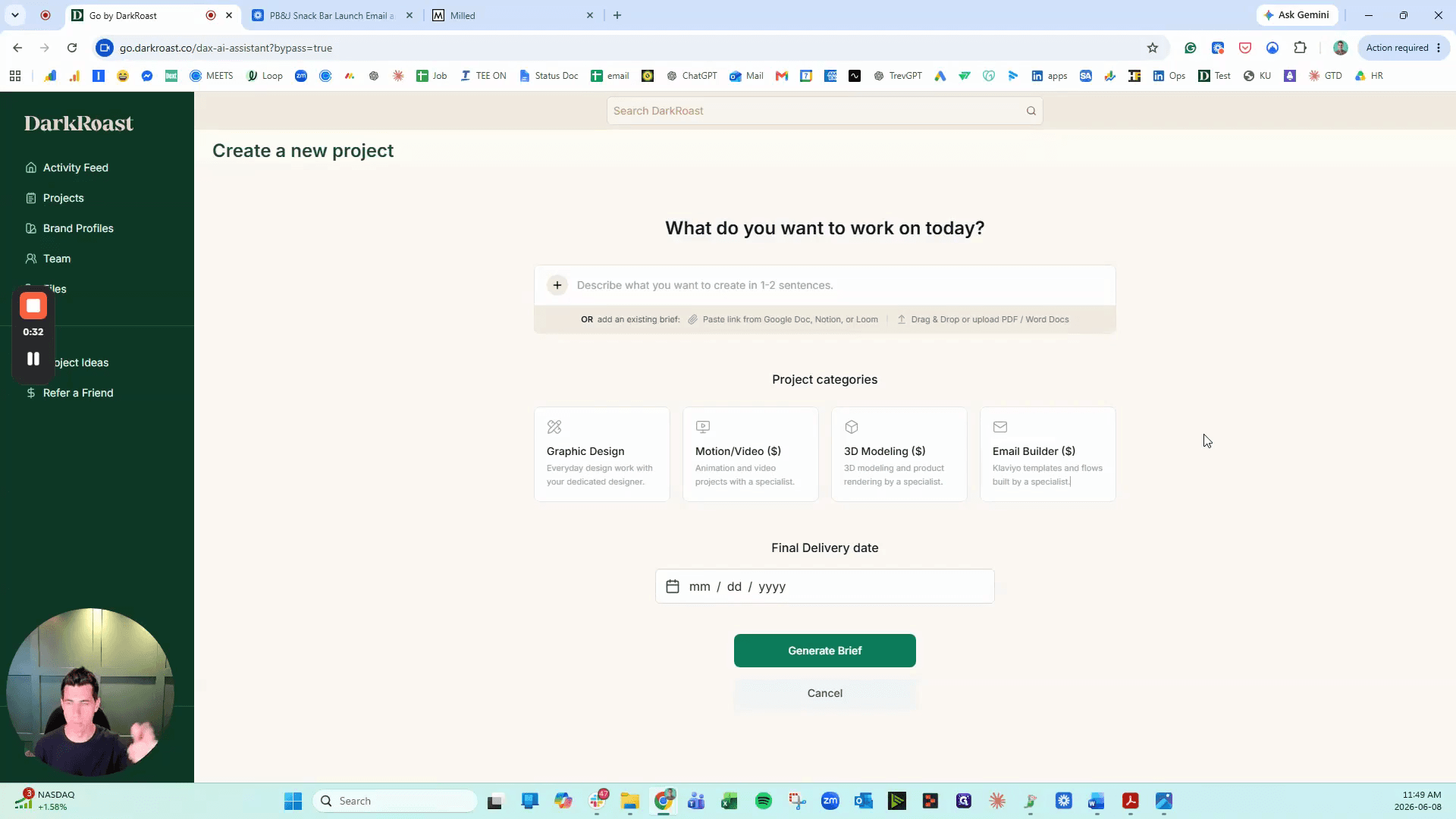
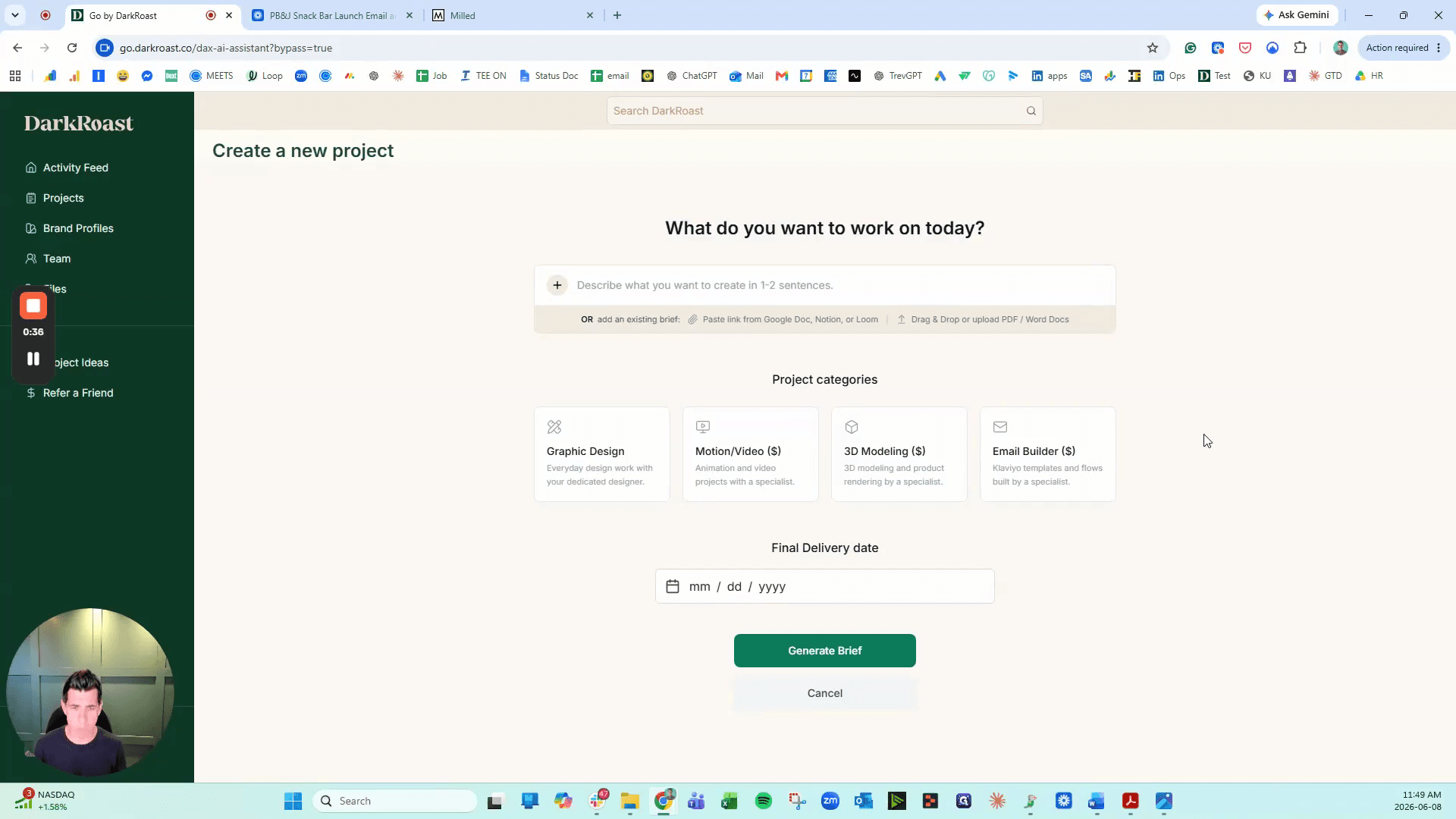
Start by recording a quick video outlining the creative direction and requirements for your project.
Generate the AI Brief
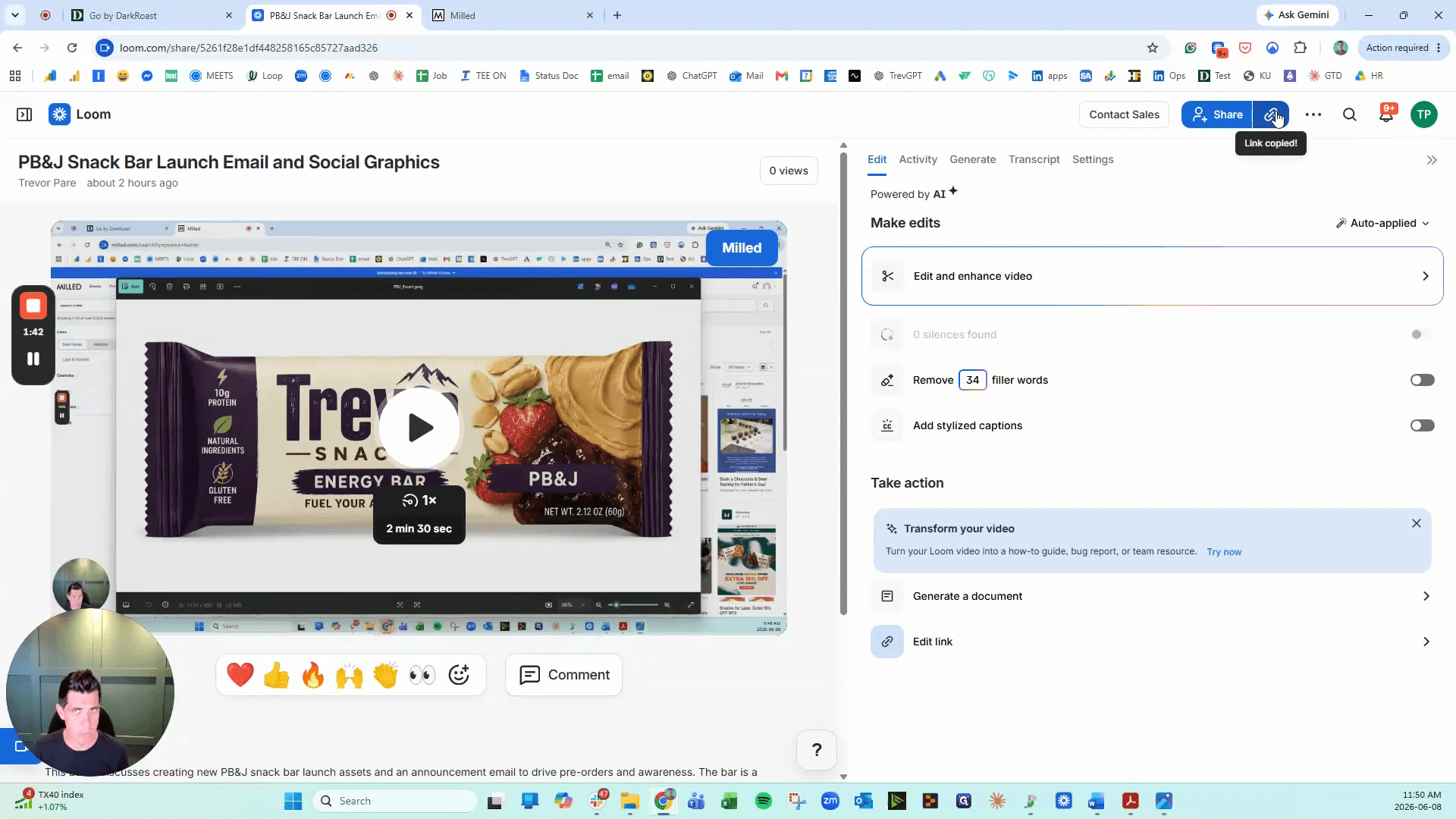
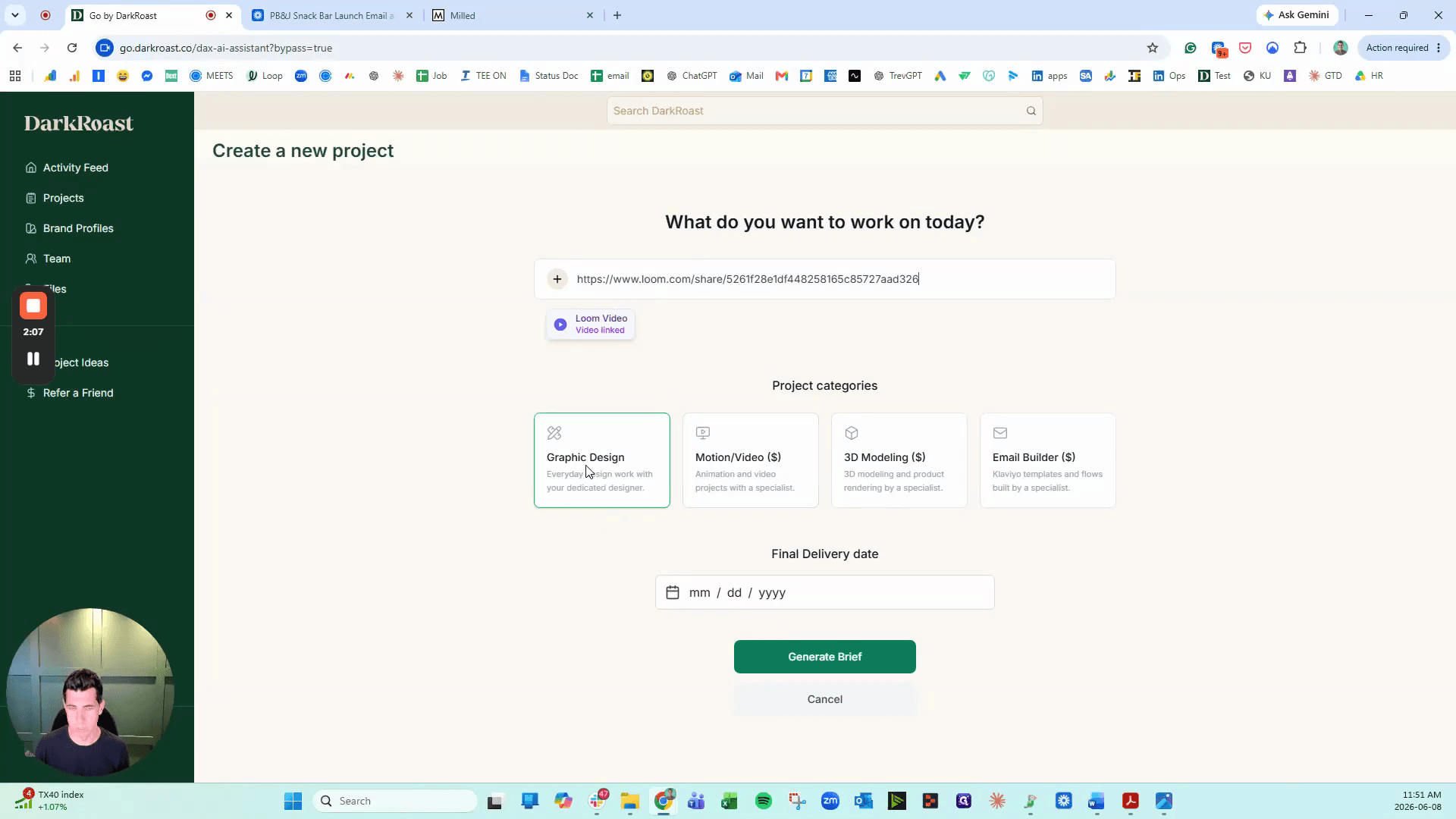
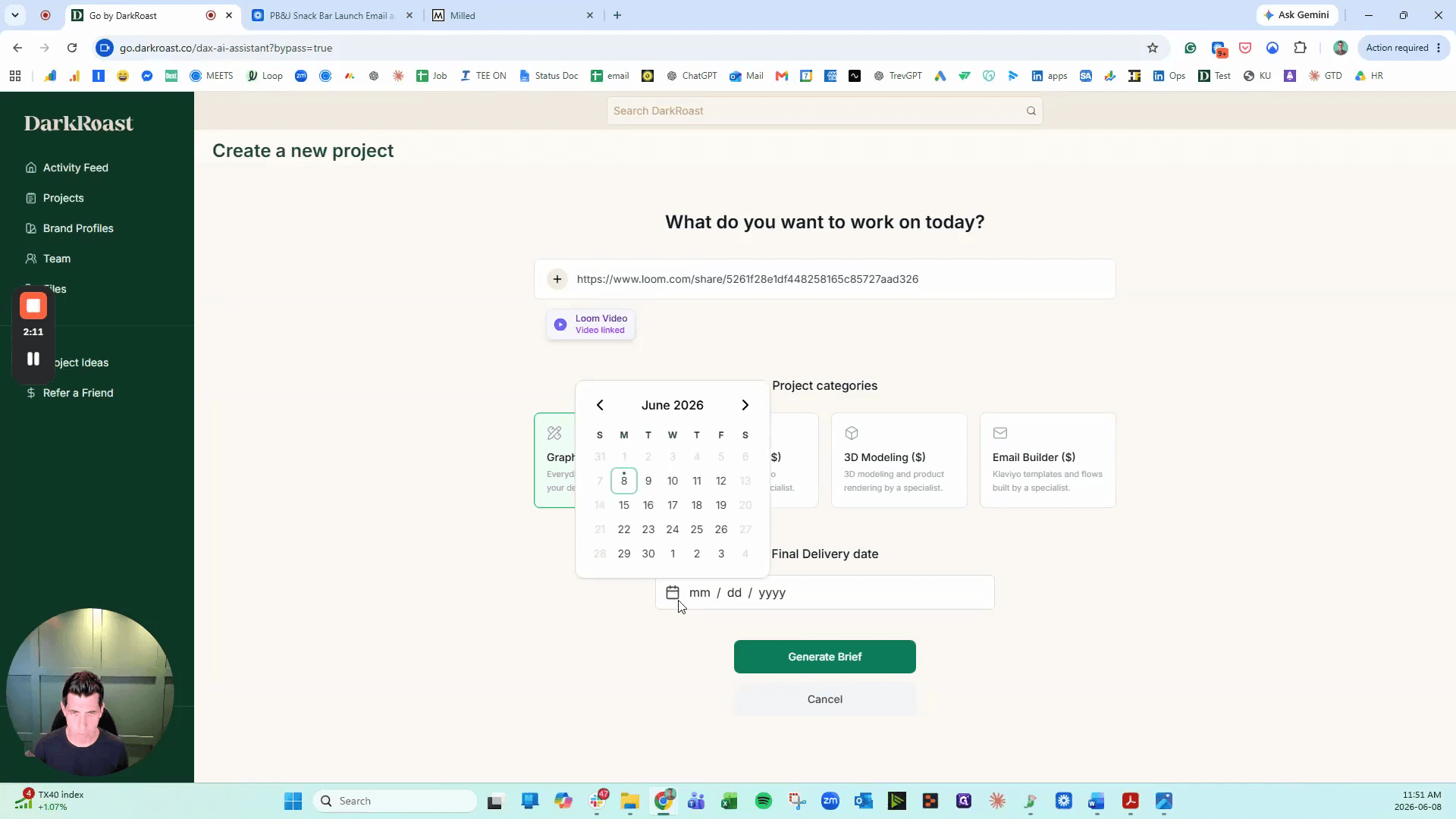
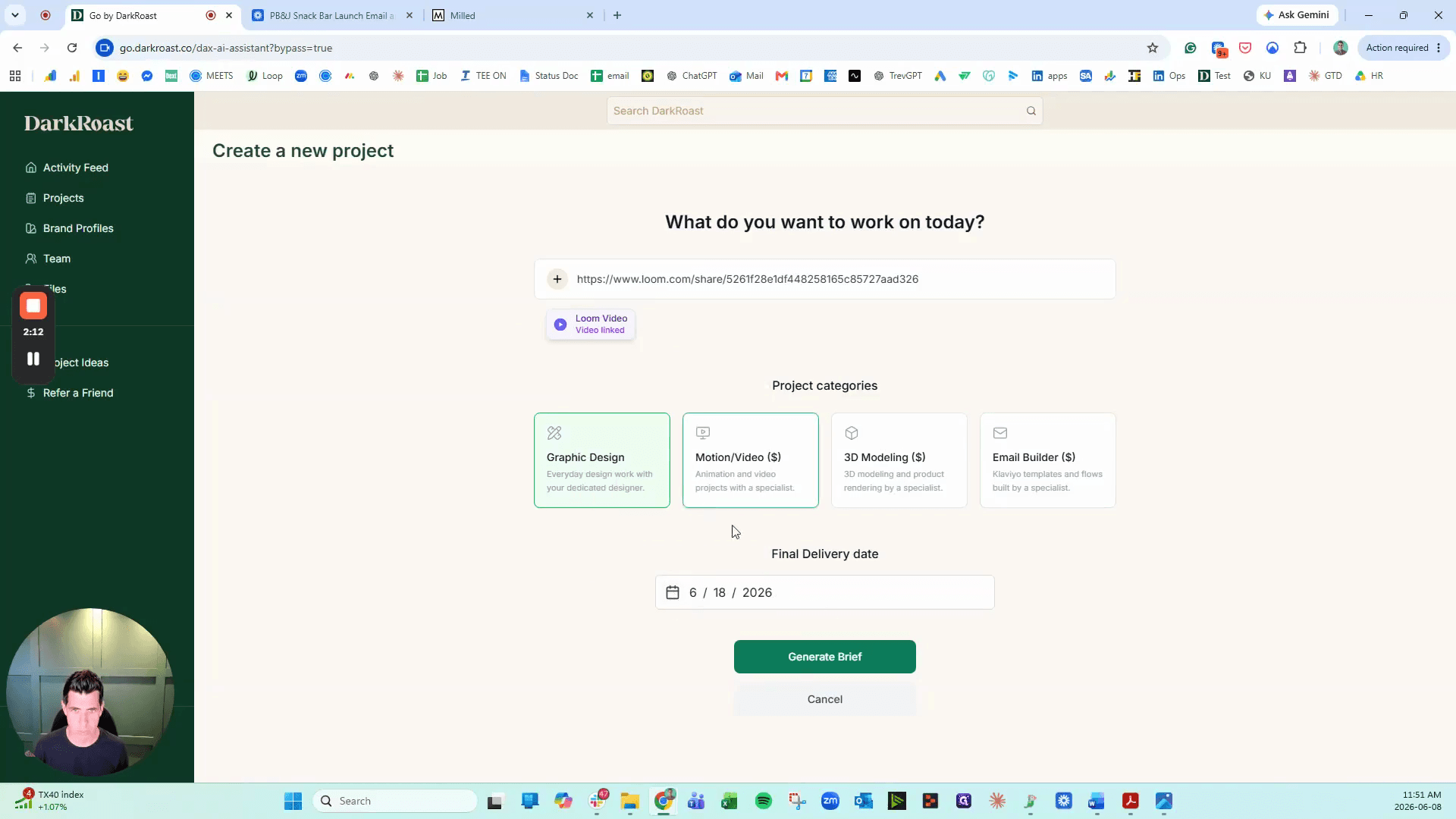
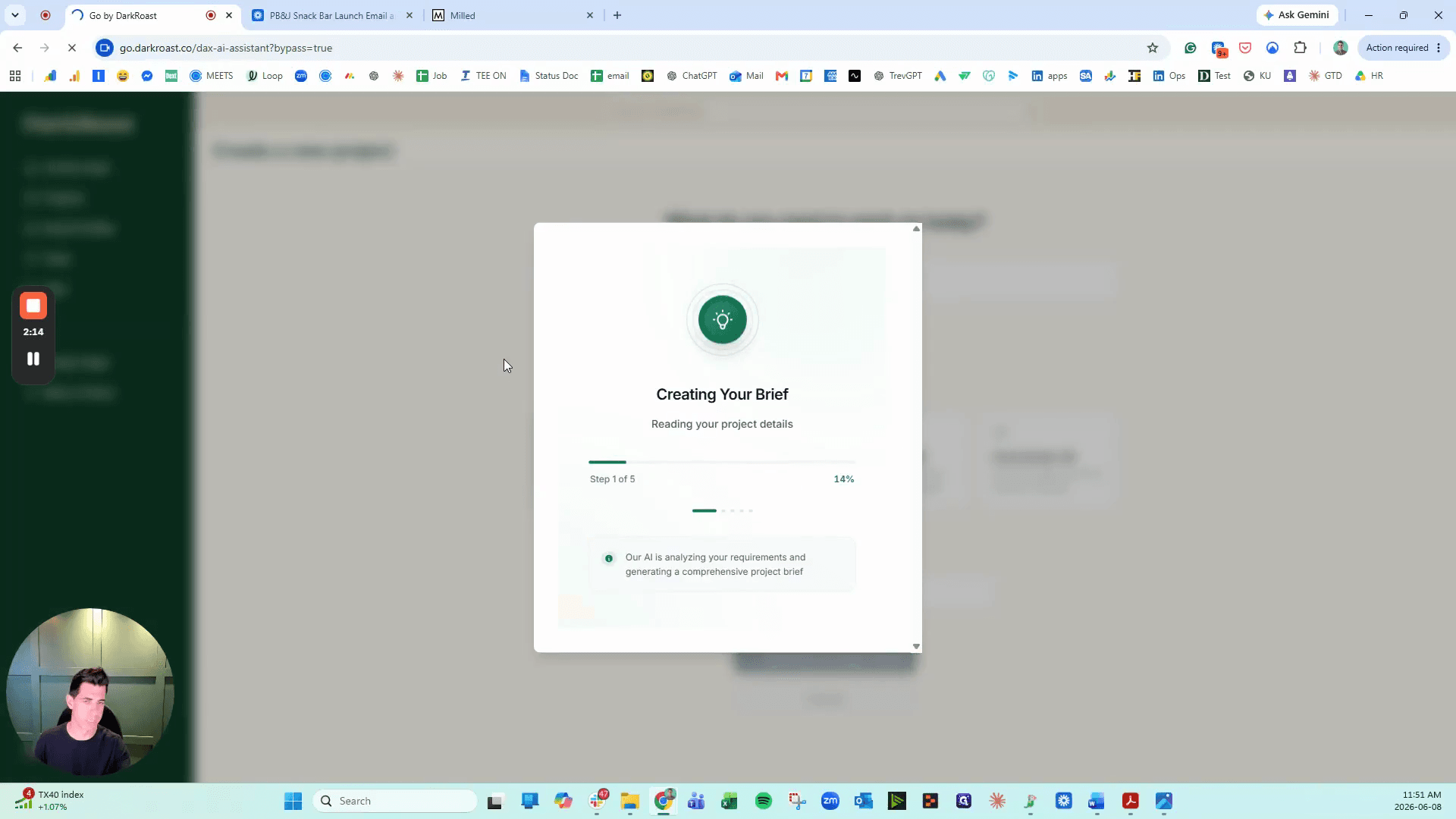
Take the URL of your finished recording and let the AI extract the necessary instructions.
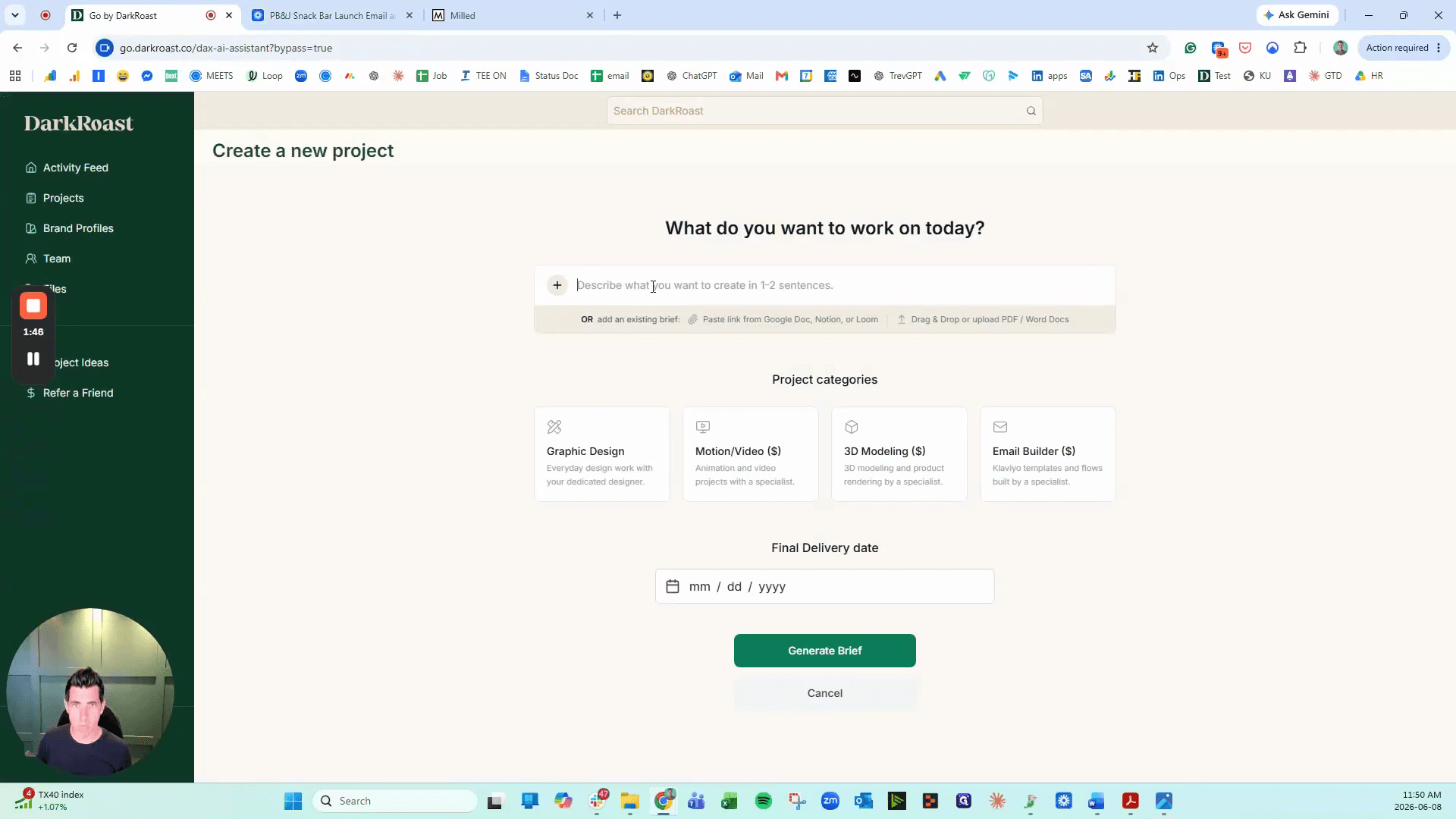
The platform supports several different design project paths depending on your needs. Select the appropriate category based on the table below:
Project Type | Description |
|---|---|
Graphic Design | Standard visual assets, branding, and layout creation. |
Motion / Video | Animated assets, video editing, and motion graphics. |
3D Modeling | Three-dimensional object creation and rendering. |
Email Builder | Campaign templates and HTML email design. |
Review and Submit
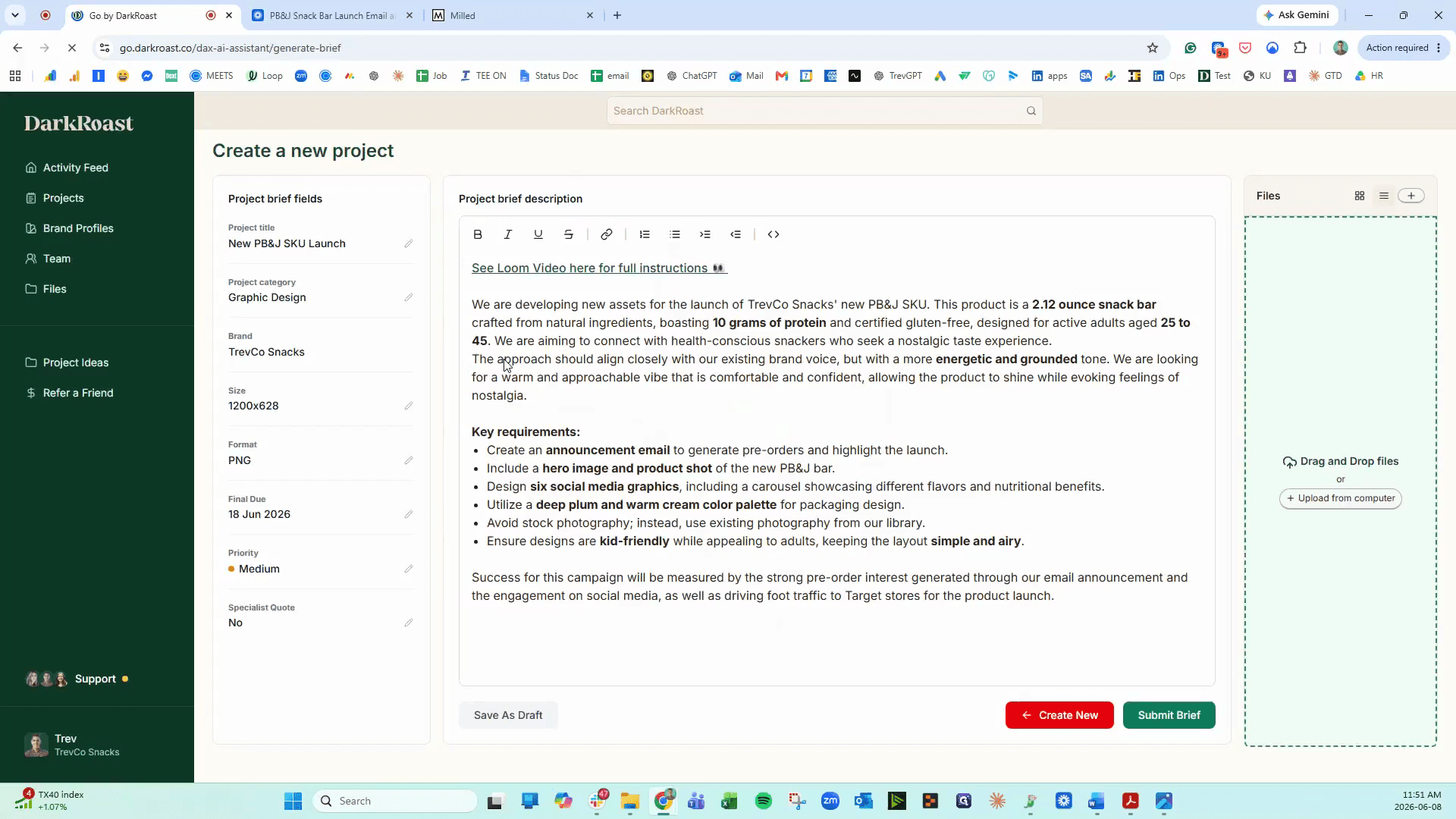
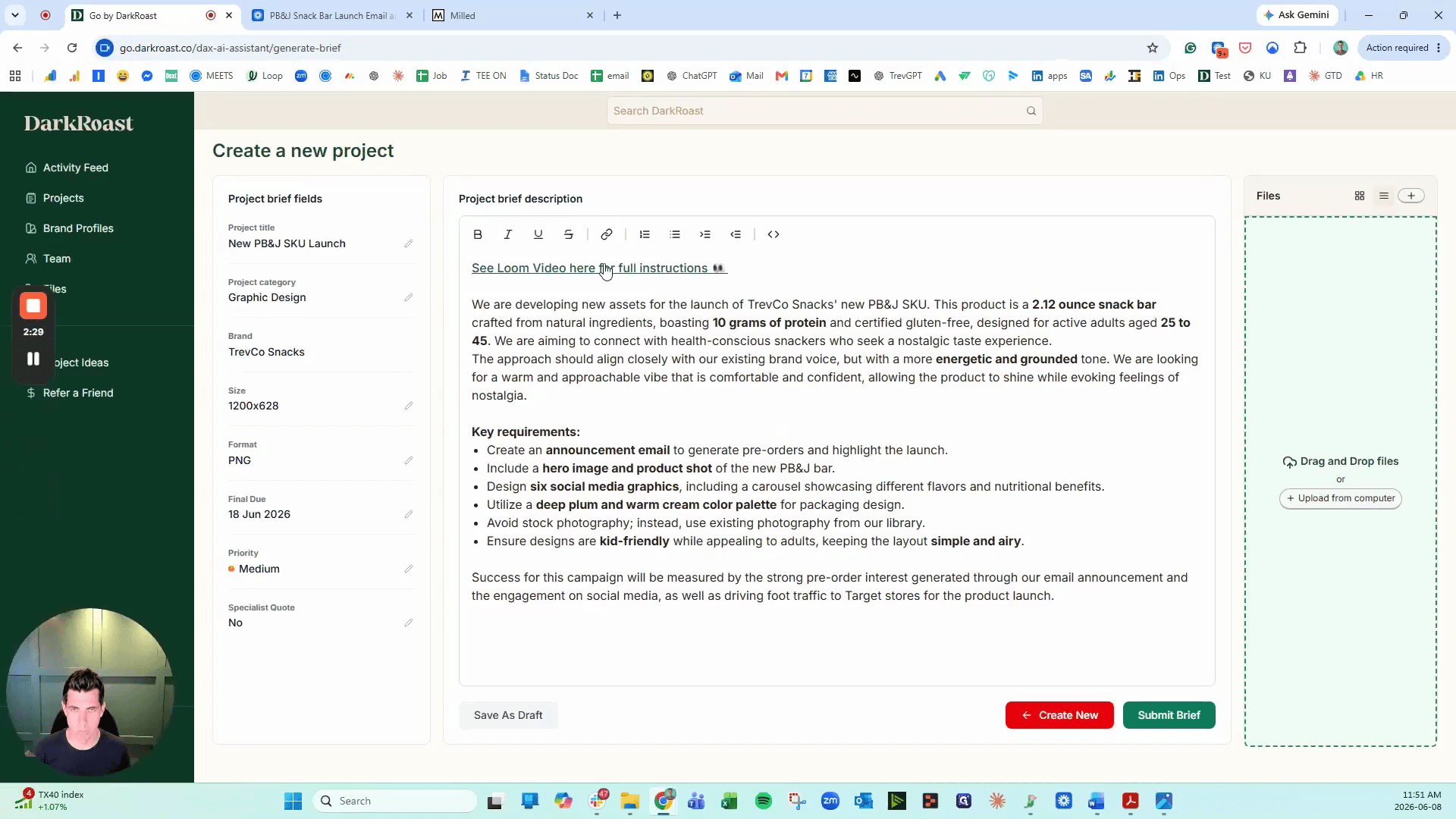
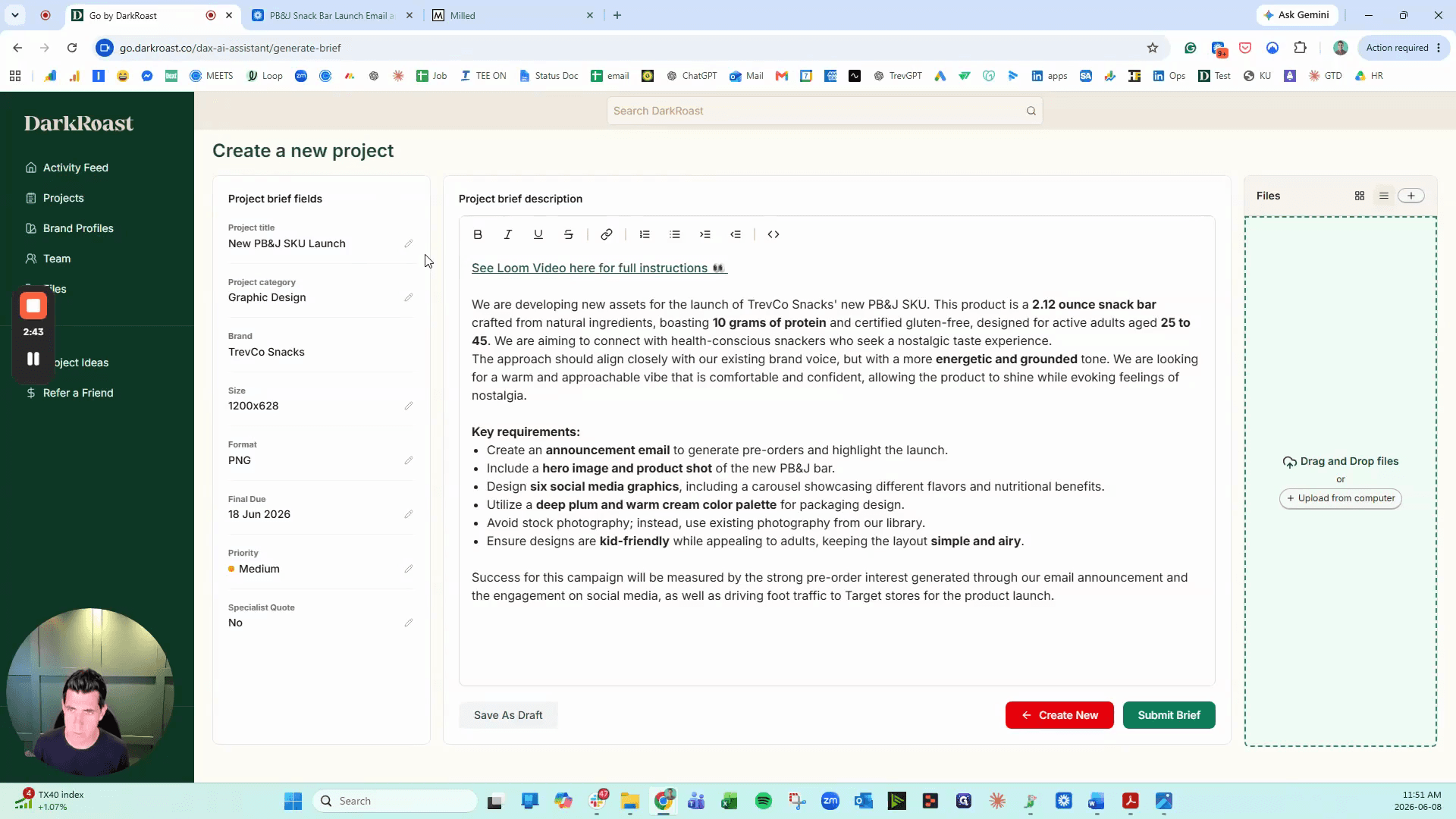
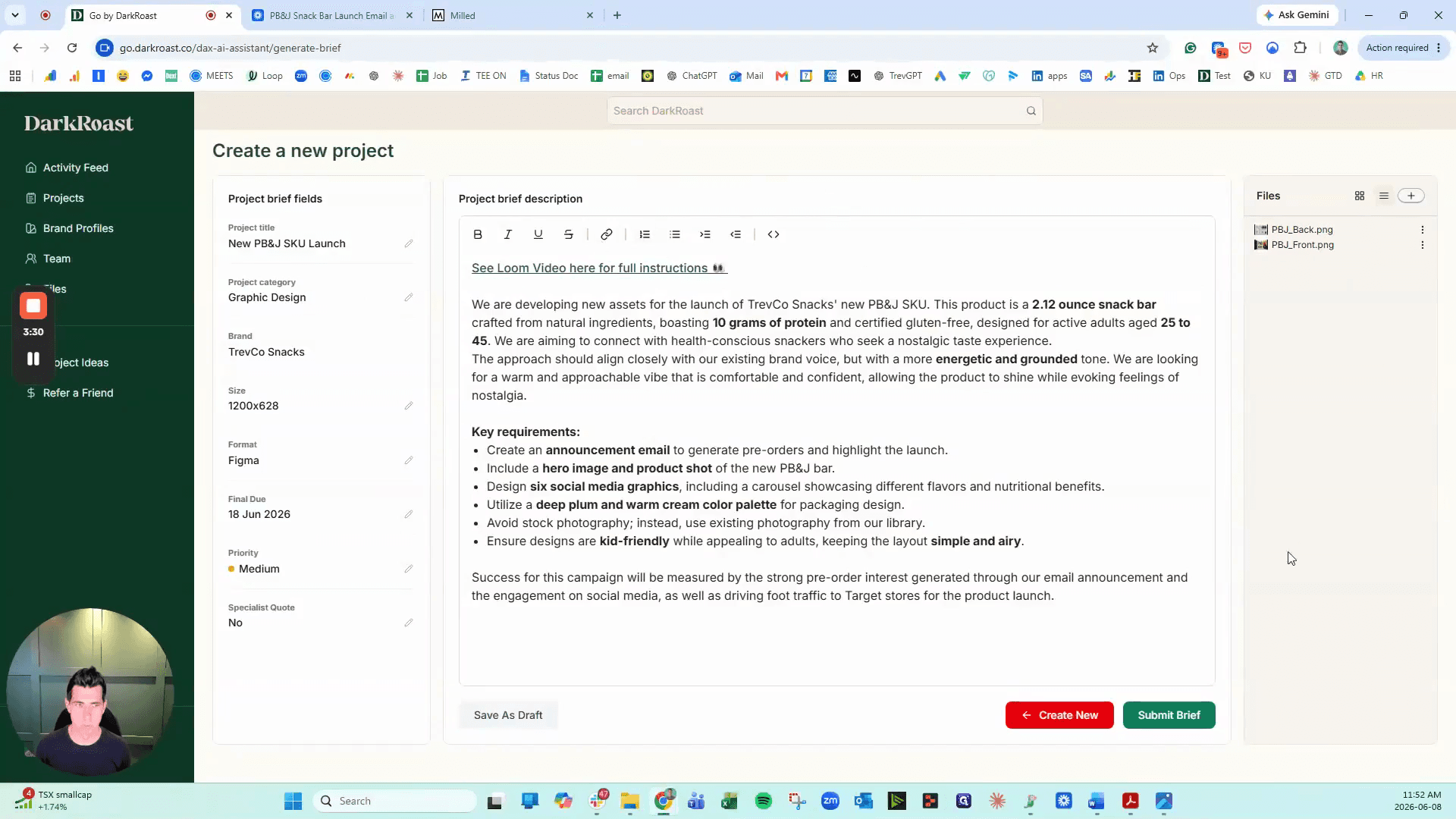
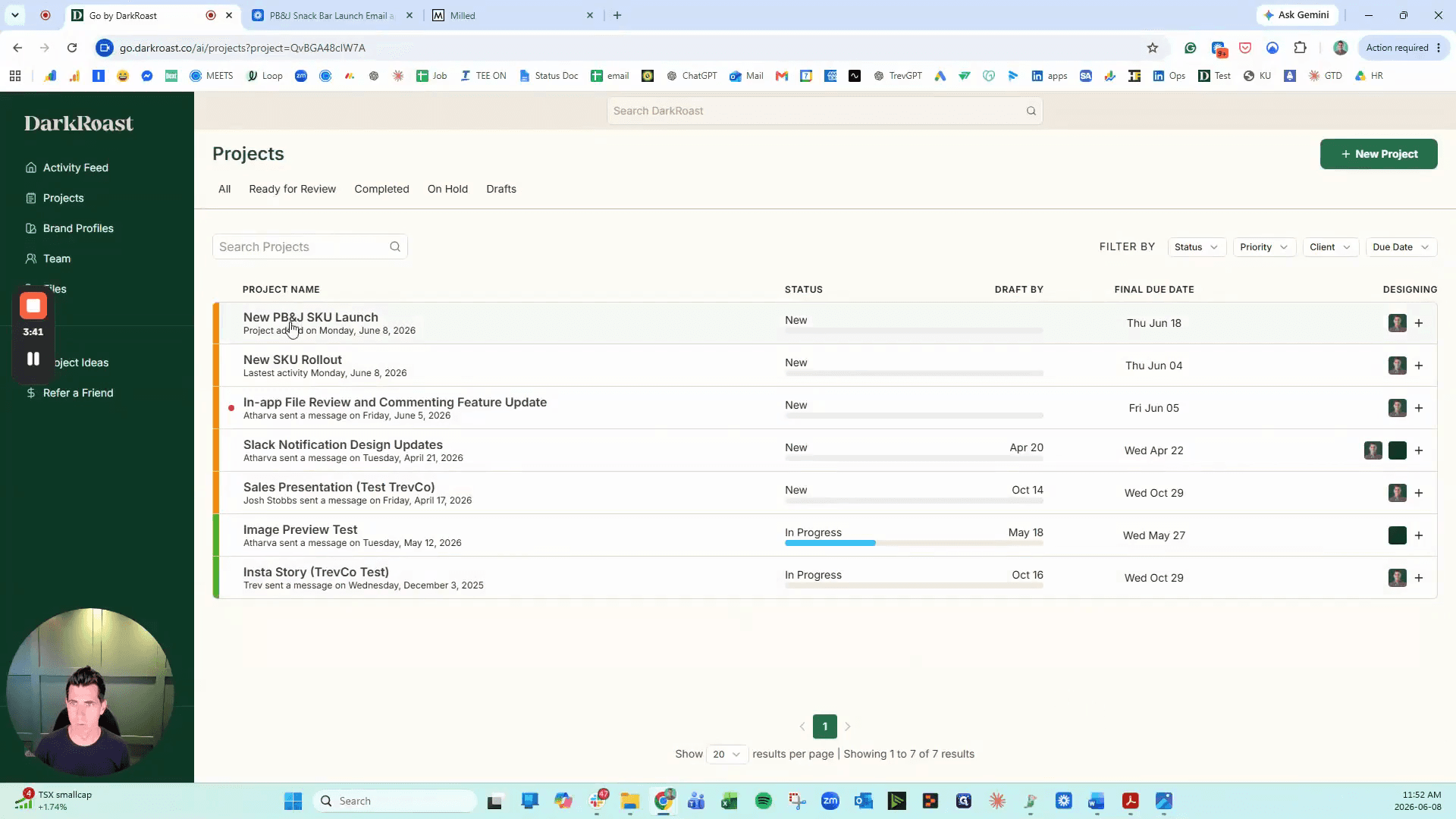
The AI automatically compiles your dictation into structured brief fields. Review these details before sending the project to your designer.
Q: What happens to the original video after the AI analyzes it?
A: The AI automatically includes a link to the primary Loom video in the brief description. This ensures your designers can still watch the original recording for full visual context.
Q: Do I still need to manually enter project details like sizes and formats?
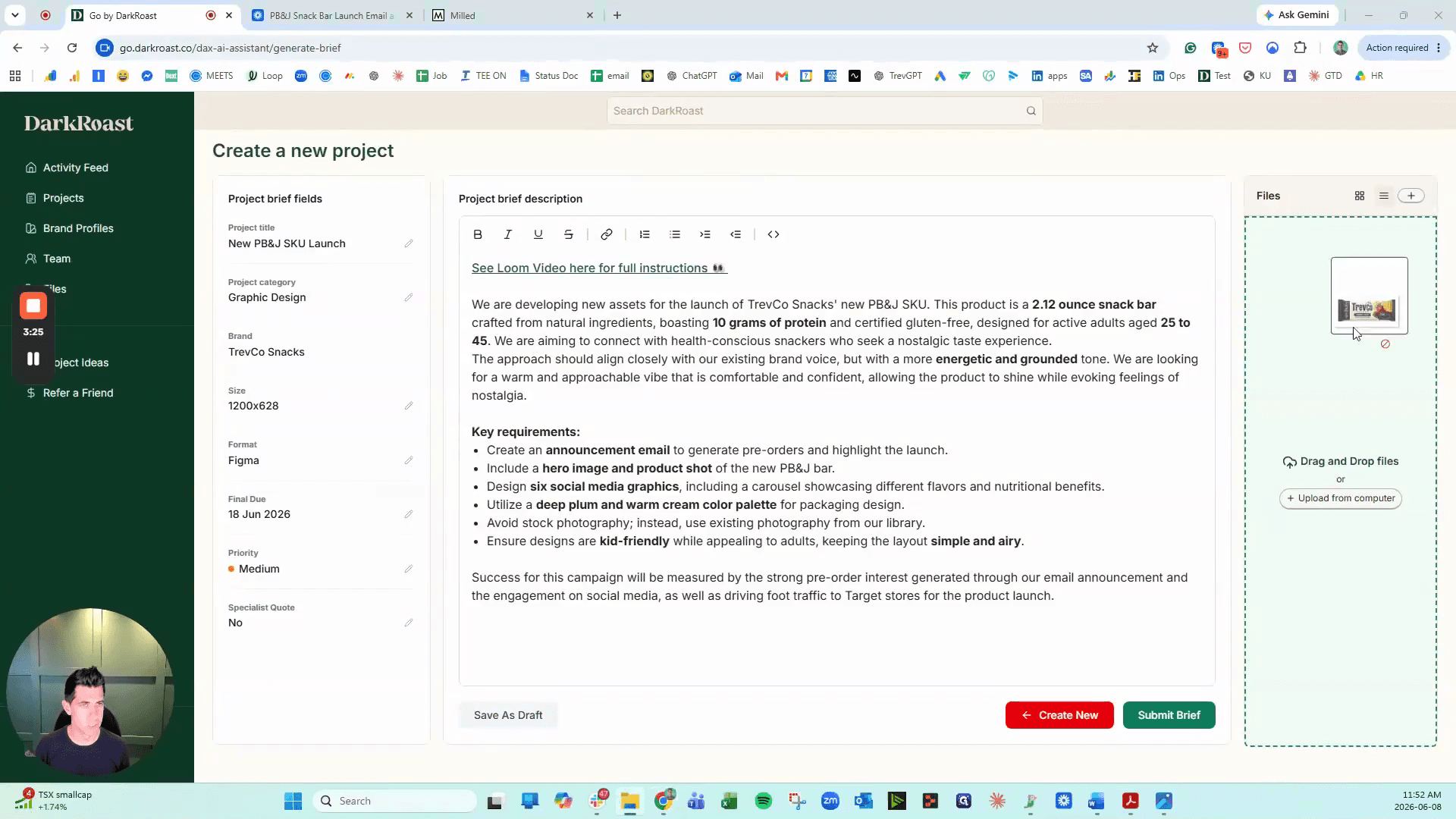
A: No, the AI extracts key details like the brand, project categories, and format specifications directly from your dictation. However, you should review these fields and manually edit them if the AI missed anything.
Q: What if I have additional supporting images that weren't captured in the video?
A: You can easily drag and drop extra files or reference images into the "Files" section during the brief review stage before submitting.
Term | Definition |
|---|---|
Loom | A screen and video recording tool used to capture visual walkthroughs and dictate project instructions. |
AI-Assisted Brief Generator | A system that analyzes the transcript and visuals of a video to automatically extract requirements and populate design request forms. |
Design Brief | A structured document that outlines the scope, creative direction, specifications, and deliverables for a new project. |