Icon

Integrate Google Calendar with Google Sheets for Budget Scheduling

Learn how to connect a dedicated Google Calendar to your Google Sheets budget planner using Apps Script to automatically schedule debt payment reminders.

By TheArtistXP

This guide demonstrates how to connect a dedicated Google Calendar to your budget spreadsheet. By completing this setup, you can automatically schedule debt payment reminders and manage your finances seamlessly without cluttering your main personal calendar.

This workflow is ideal for individuals or financial planners who use Google Sheets and Google Apps Script to track budgets. It is typically performed once during the initial setup of a financial tracking spreadsheet.

Create a Dedicated Budget Calendar

To begin, you will need a separate Google Calendar specifically for your budget tracking.
1
Open a separate tab and go to calendar.google.com.
2
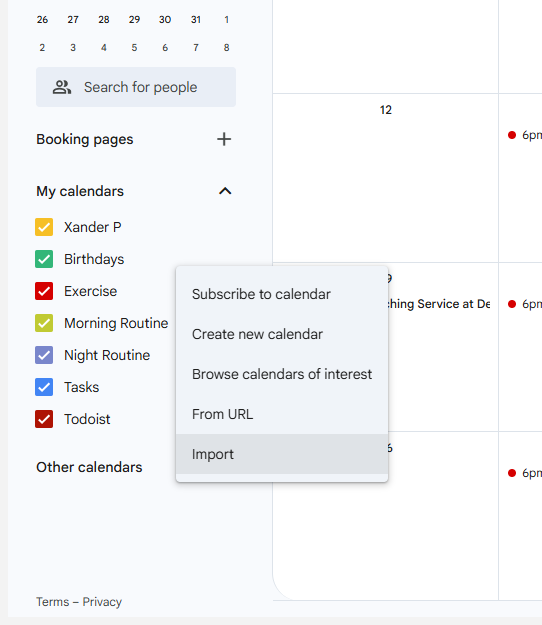
In Google Calendar, click the + icon next to "Other calendars" and select Create new calendar.
Step #2: In Google Calendar, click the + icon next to "Other calendars" and select Create new calendar.
3
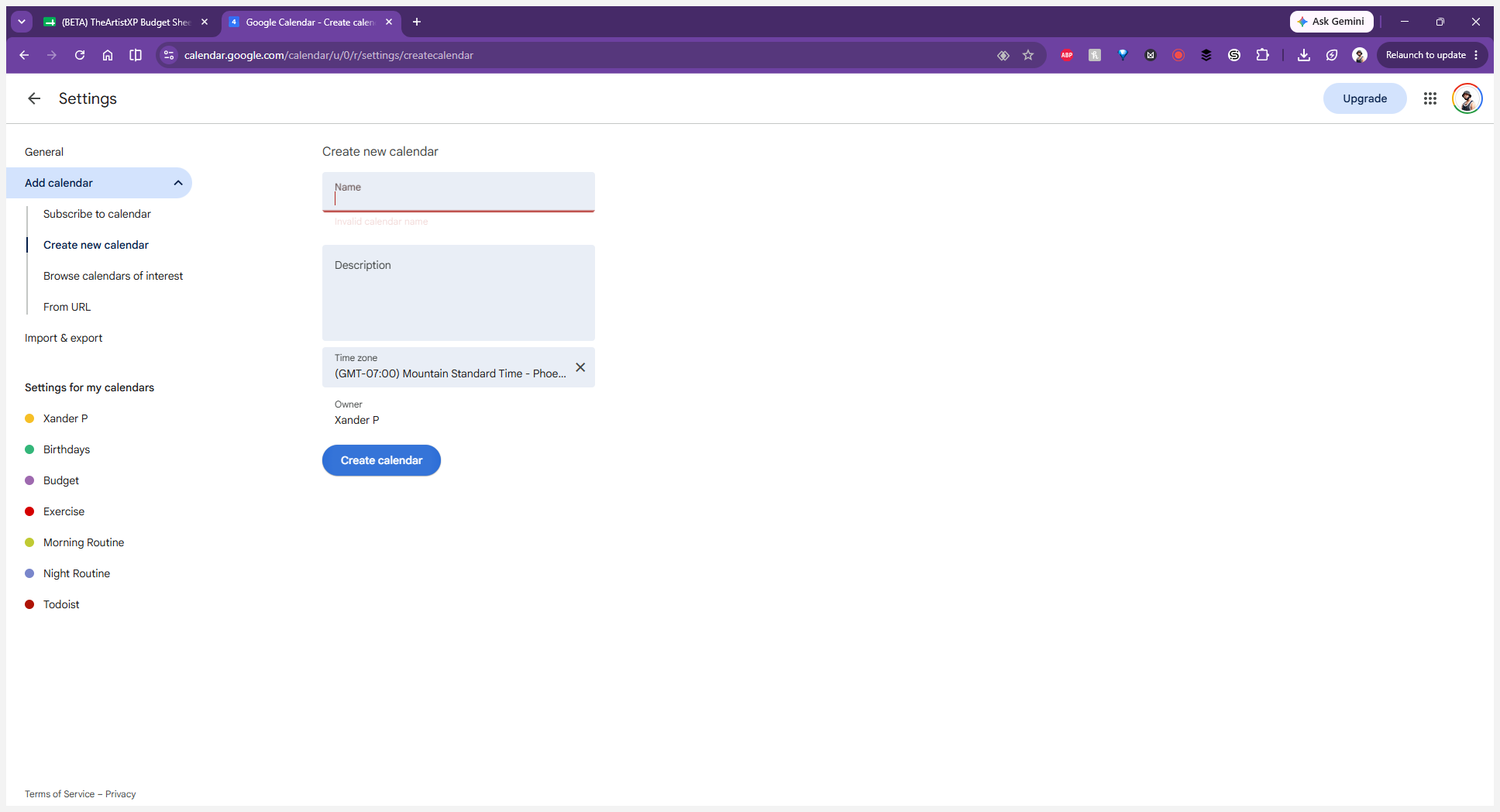
Enter a name for your calendar, such as "Budget", and click Create calendar.
Step #3: Enter a name for your calendar, such as "Budget", and click Create calendar.
4
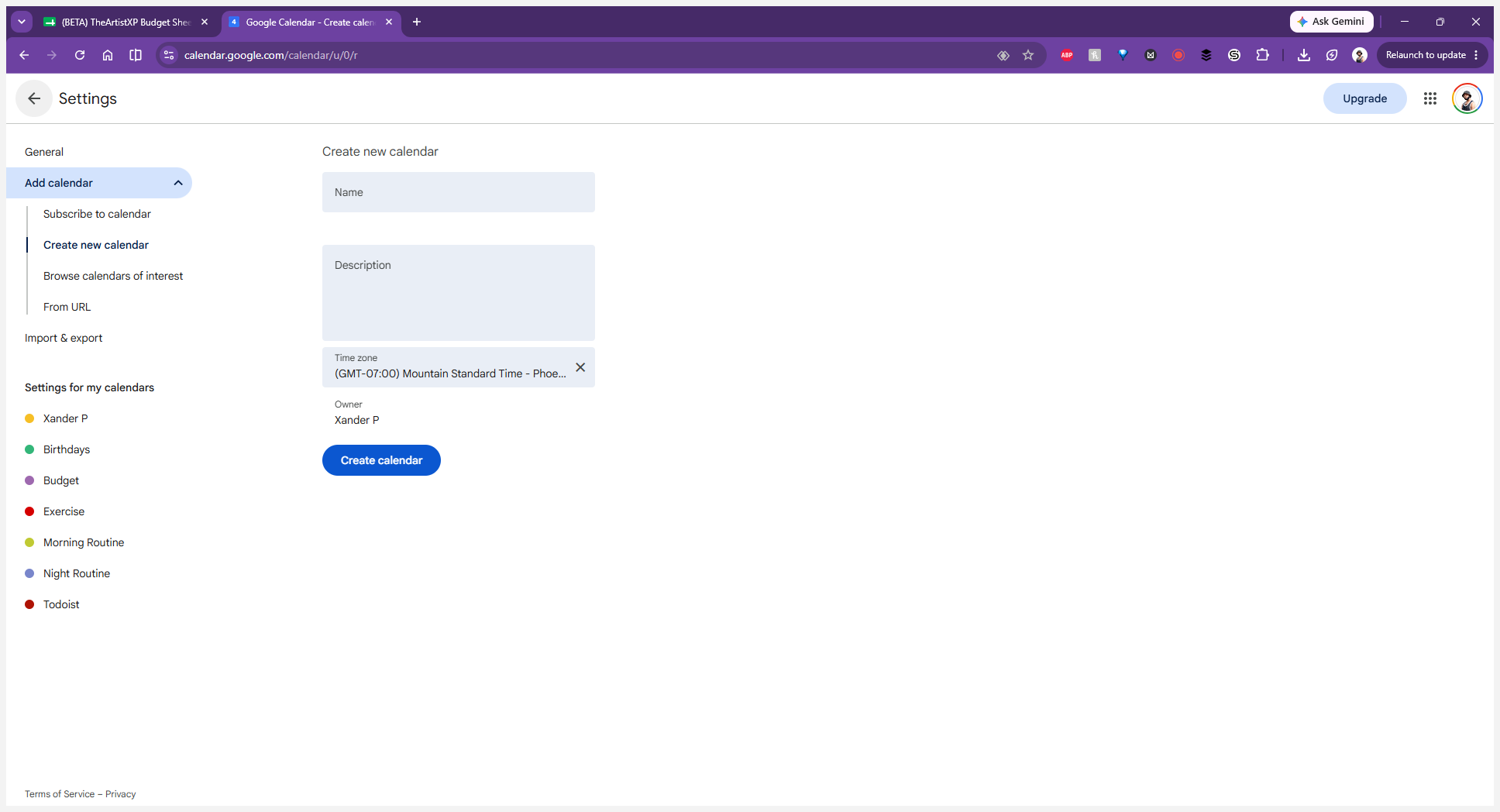
Click the ← (back) arrow to return to your main calendar view.
Step #4: Click the ← (back) arrow to return to your main calendar view.

Copy the Calendar ID

Next, grab the unique identifier for this new calendar so your spreadsheet can communicate with it.
5
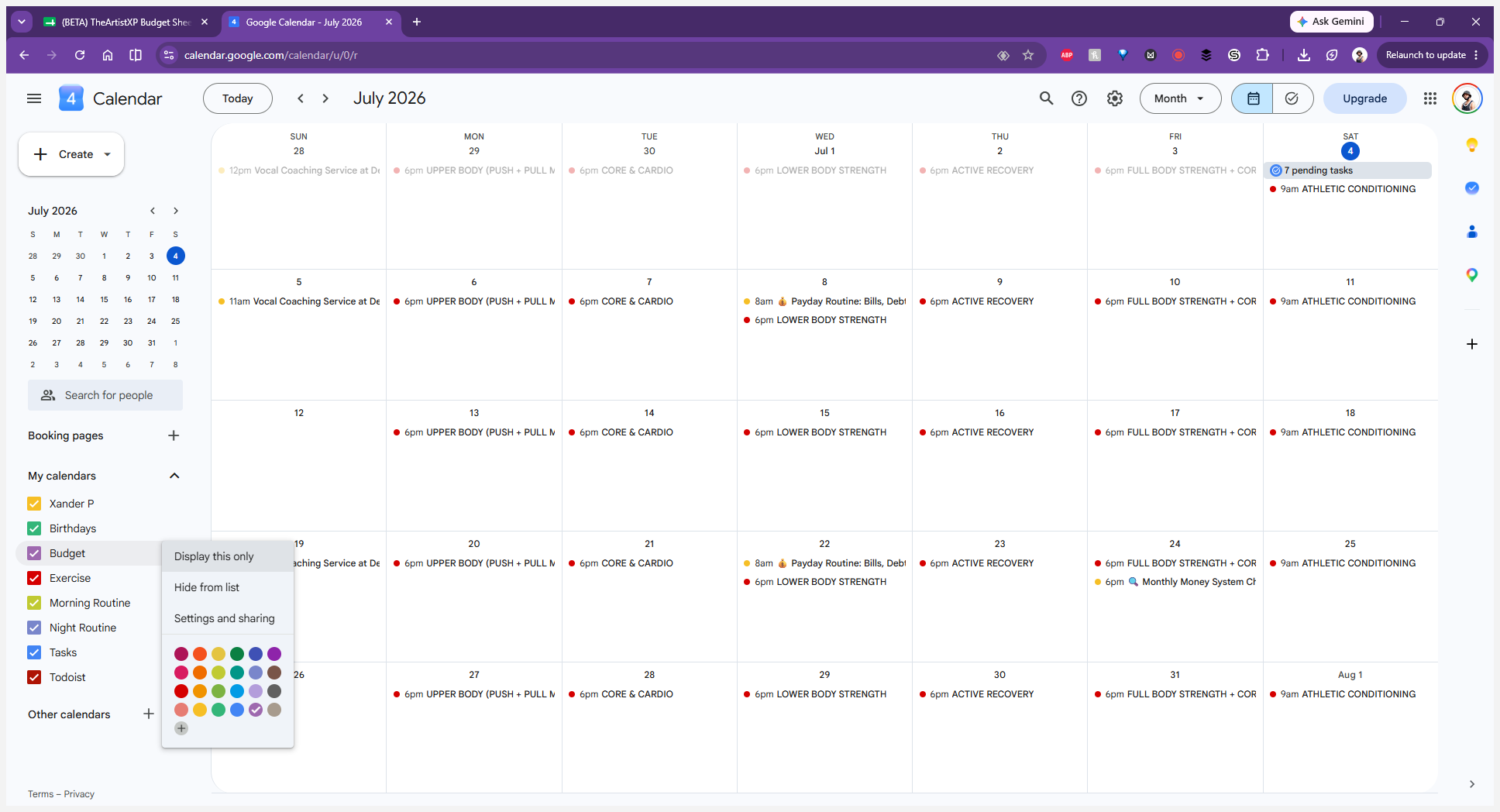
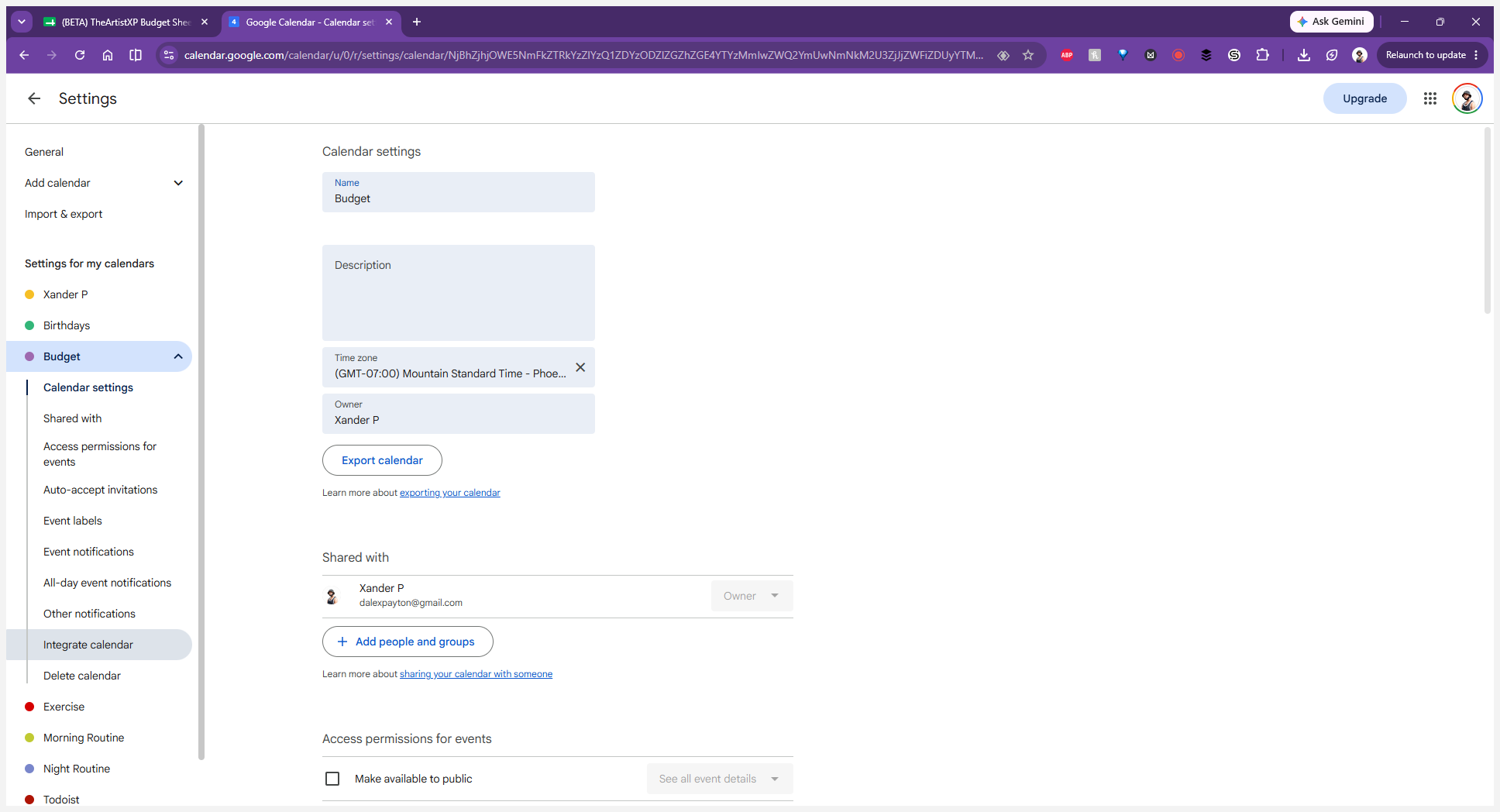
Hover over your new Budget calendar in the left sidebar, click the options menu (the three vertical dots), and select Settings and sharing.
Step #5: Hover over your new Budget calendar in the left sidebar, click the options menu (the three vertical dots), and select Settings and sharing.
6
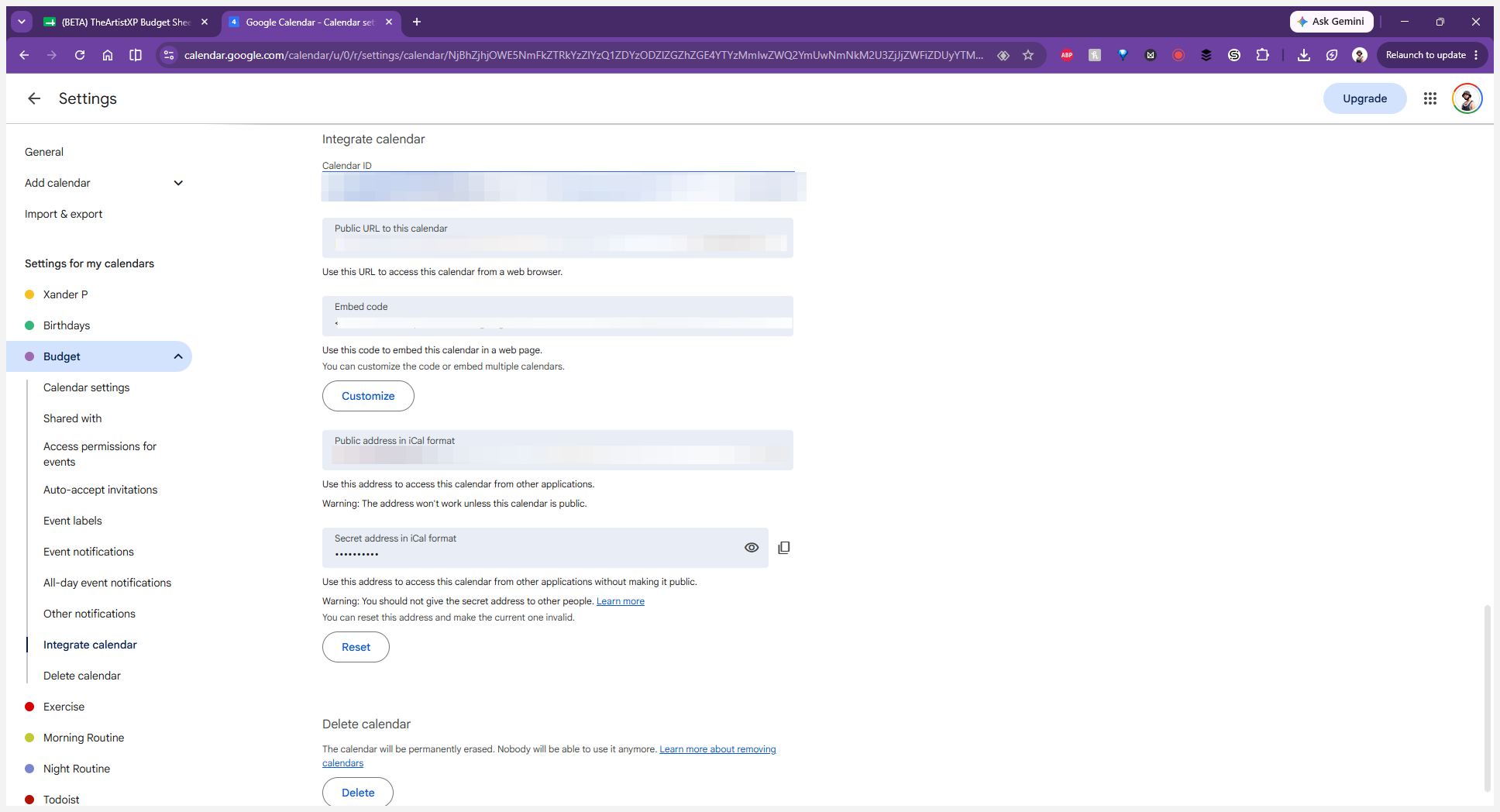
In the left-hand navigation sidebar, scroll down and click Integrate calendar.
Step #6: In the left-hand navigation sidebar, scroll down and click Integrate calendar.
7
Locate the Calendar ID field and copy the ID string to your clipboard.
Step #7: Locate the Calendar ID field and copy the ID string to your clipboard.

Link Your Spreadsheet to the Calendar

Now, paste the ID into your budget planner to establish the connection.
8
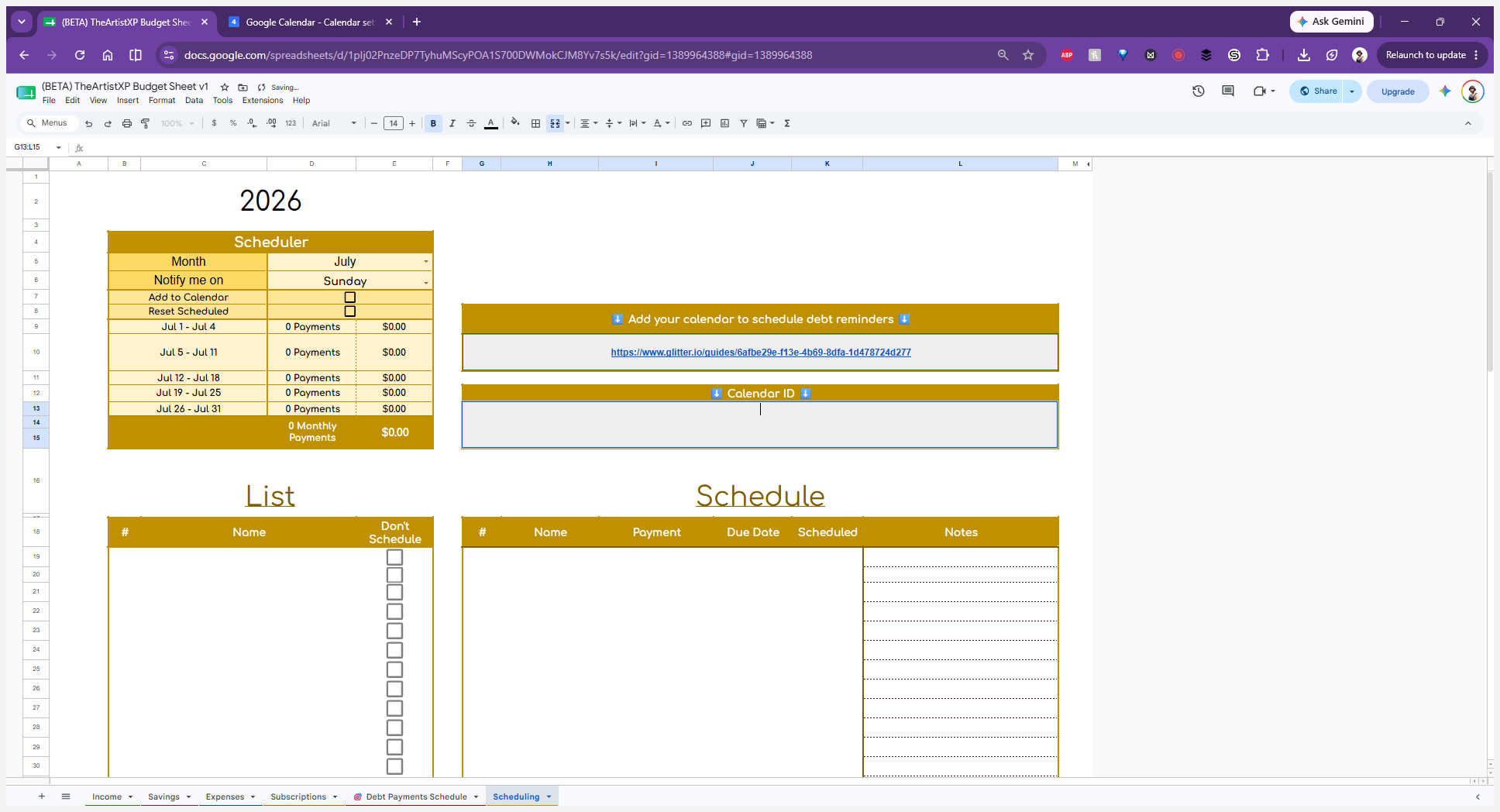
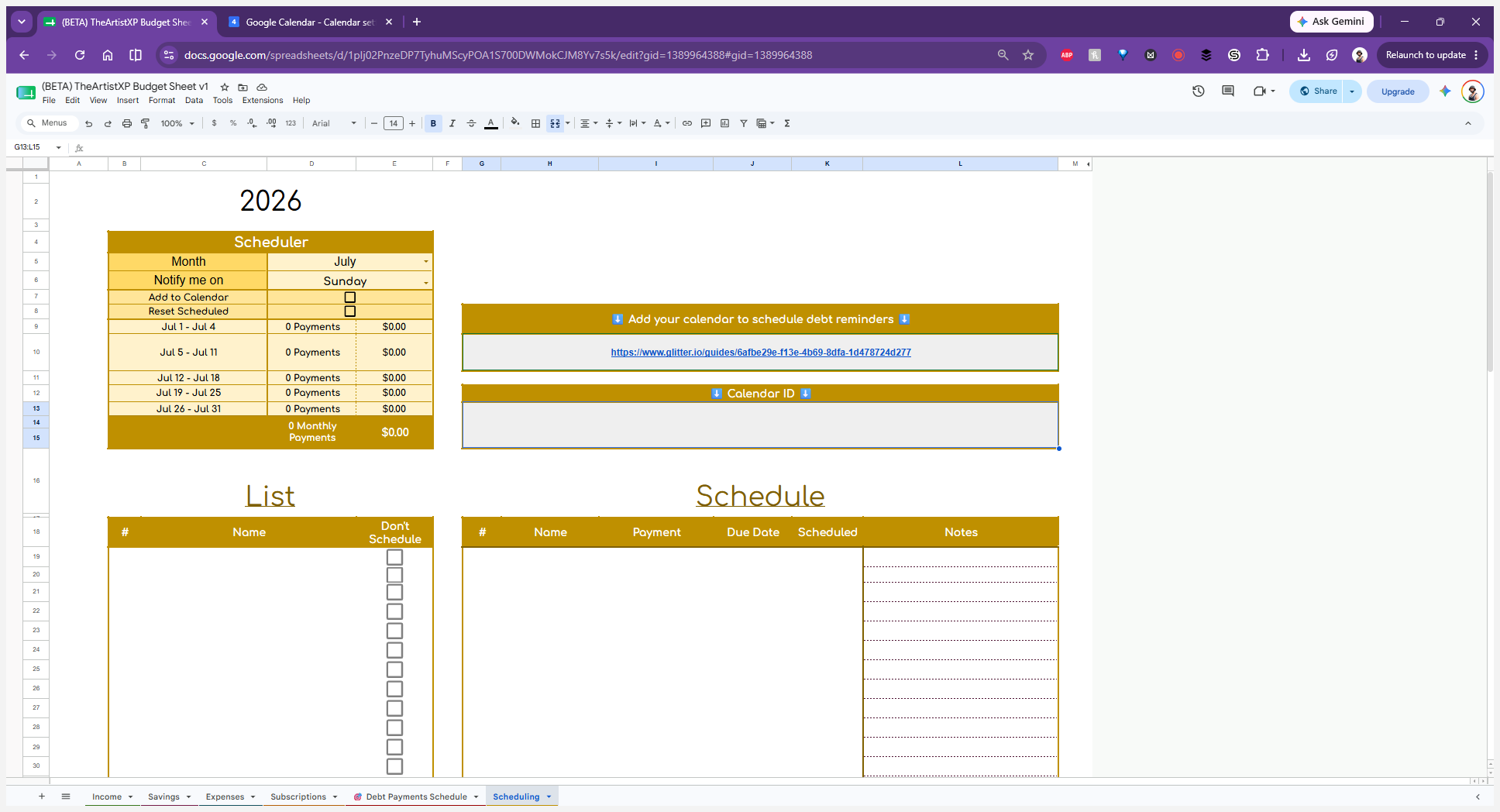
Open "TheArtistXP Budget Sheet" in Google Sheets and navigate to the Scheduling tab at the bottom of the workbook.
Step #8: Open "TheArtistXP Budget Sheet" in Google Sheets and navigate to the Scheduling tab at the bottom of the workbook.
9
Double-click the empty text field labeled Calendar ID.
Step #9: Double-click the empty text field labeled Calendar ID.
10
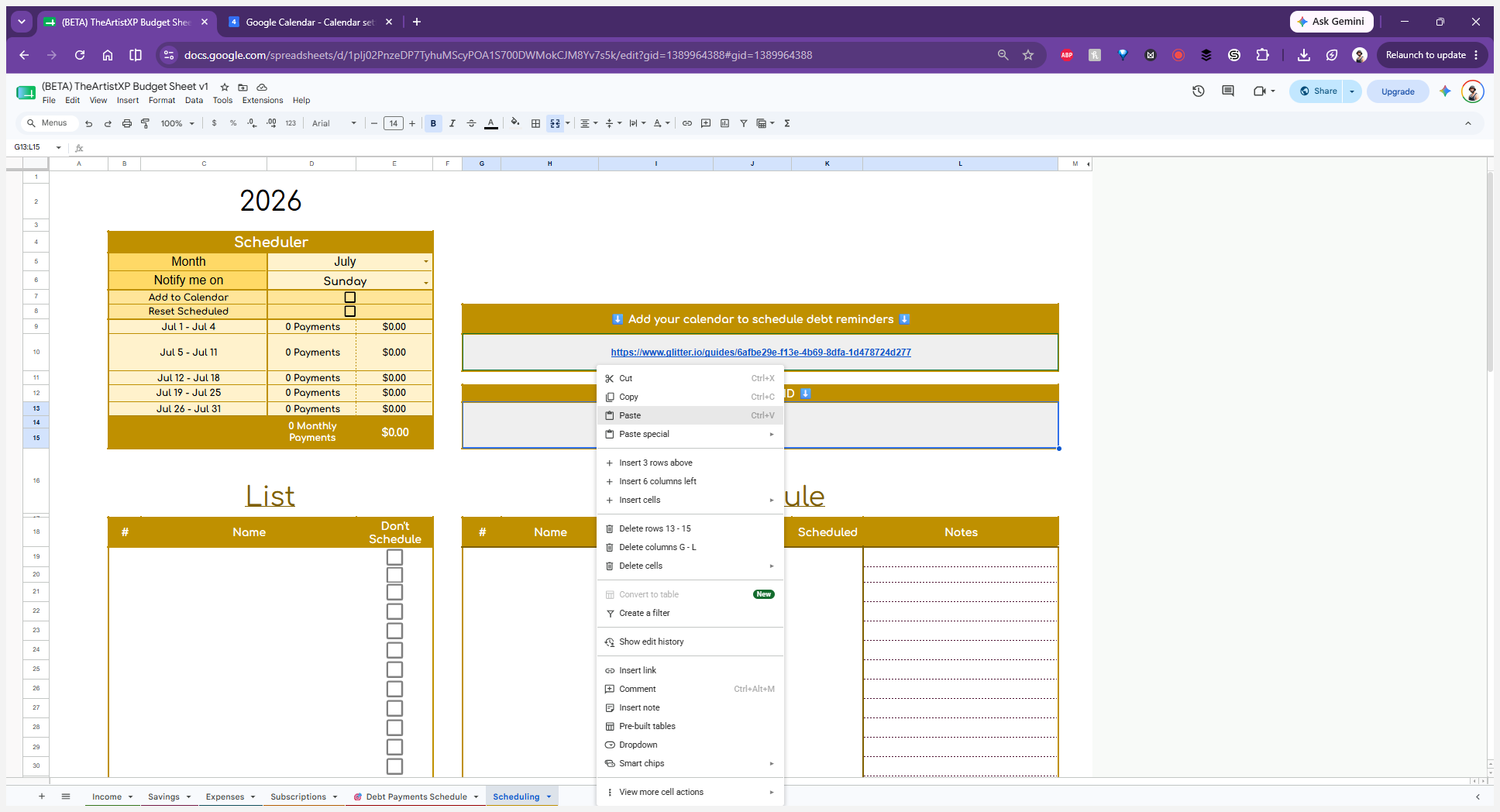
Right-click and select Paste to insert your Calendar ID.
Step #10: Right-click and select Paste to insert your Calendar ID.

Run the Scheduling Script

Finally, use Google Apps Script to automate your debt payment reminders.
11
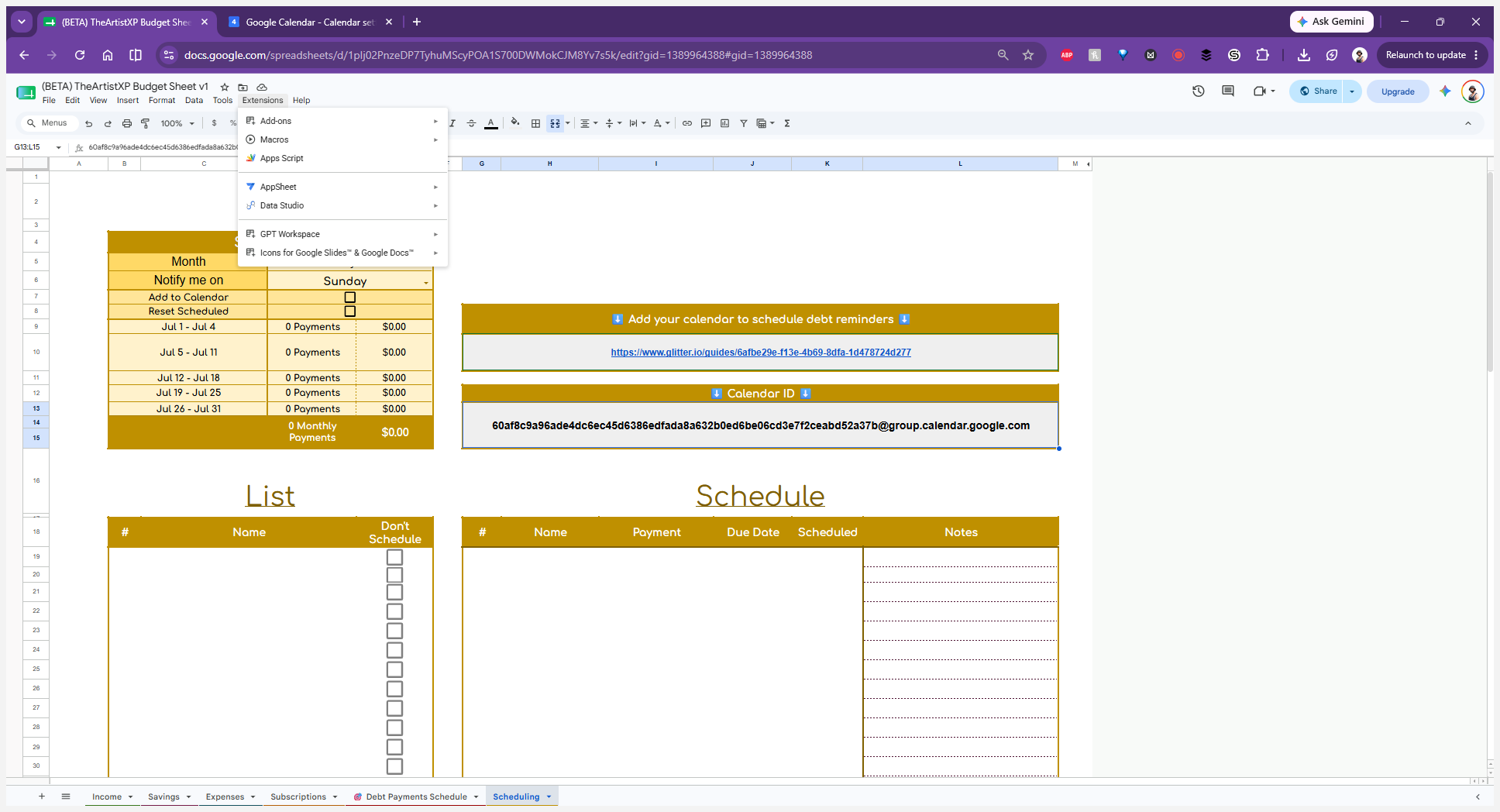
Click Extensions in the top navigation menu and select Apps Script.
Step #11: Click Extensions in the top navigation menu and select Apps Script.
12
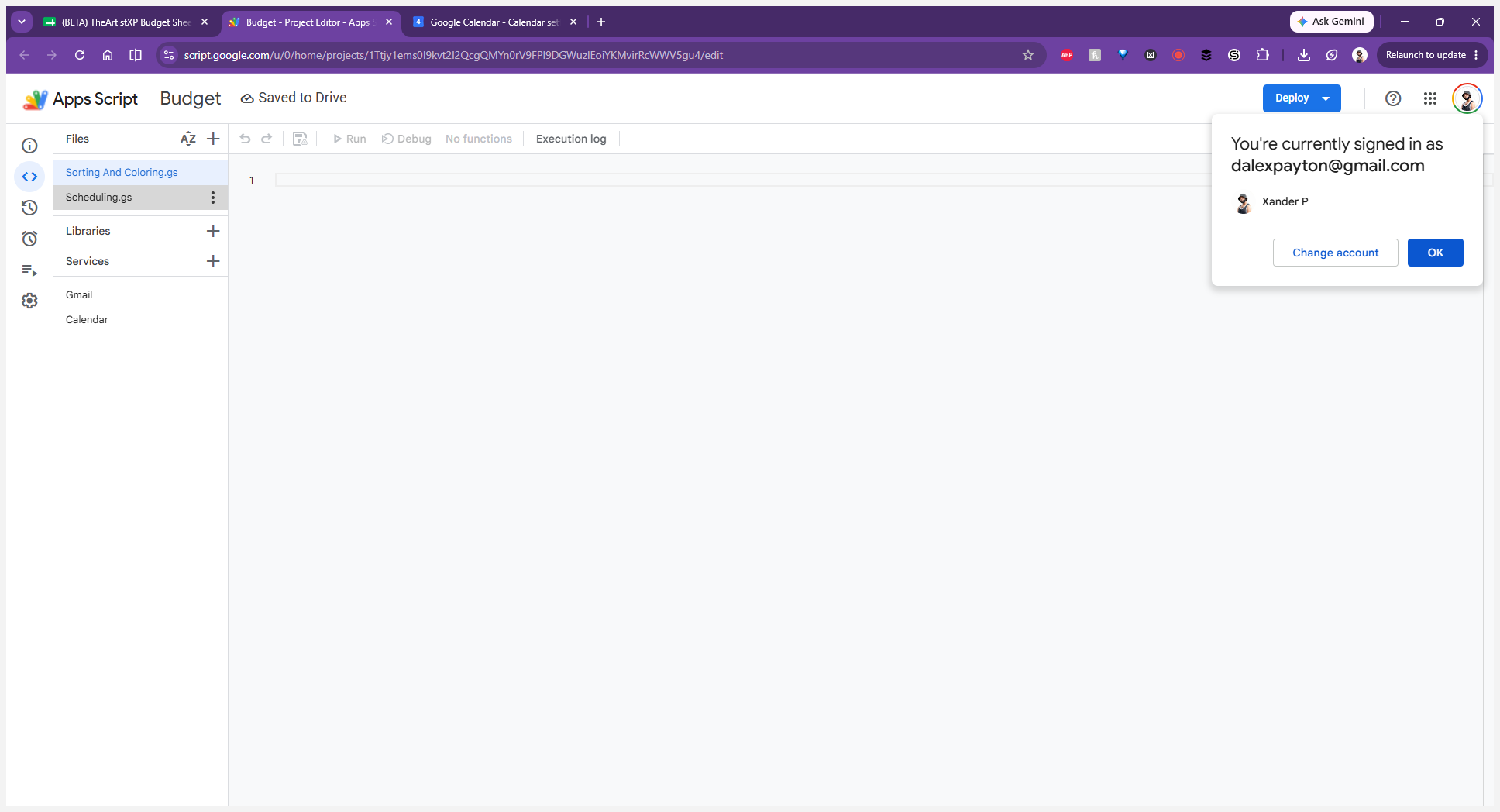
In the Apps Script editor, open the Scheduling.gs file from the left panel.
Step #12: In the Apps Script editor, open the Scheduling.gs file from the left panel.
13
Select the CalendarSection function from the top dropdown menu and click Run (or Debug).
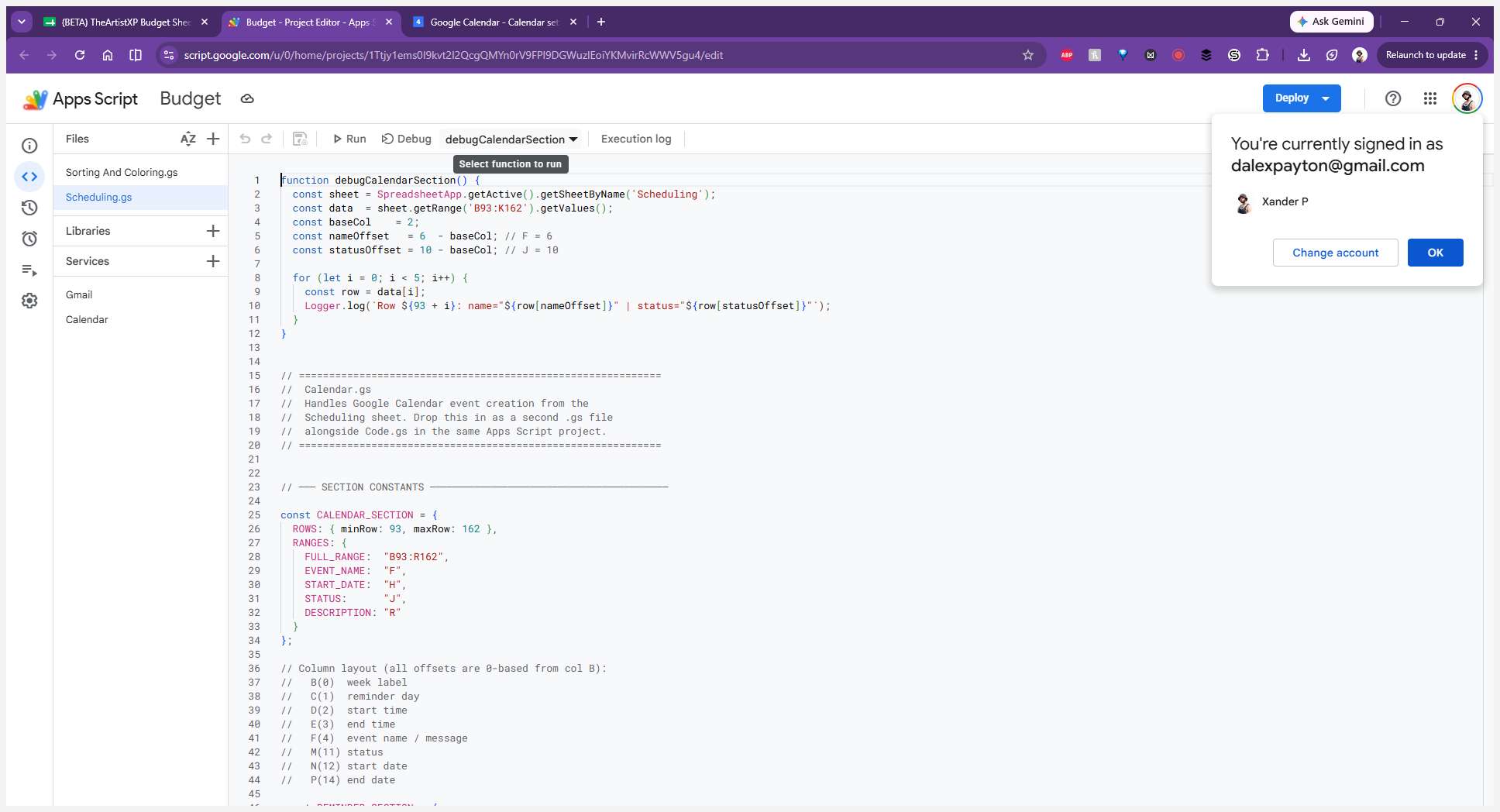
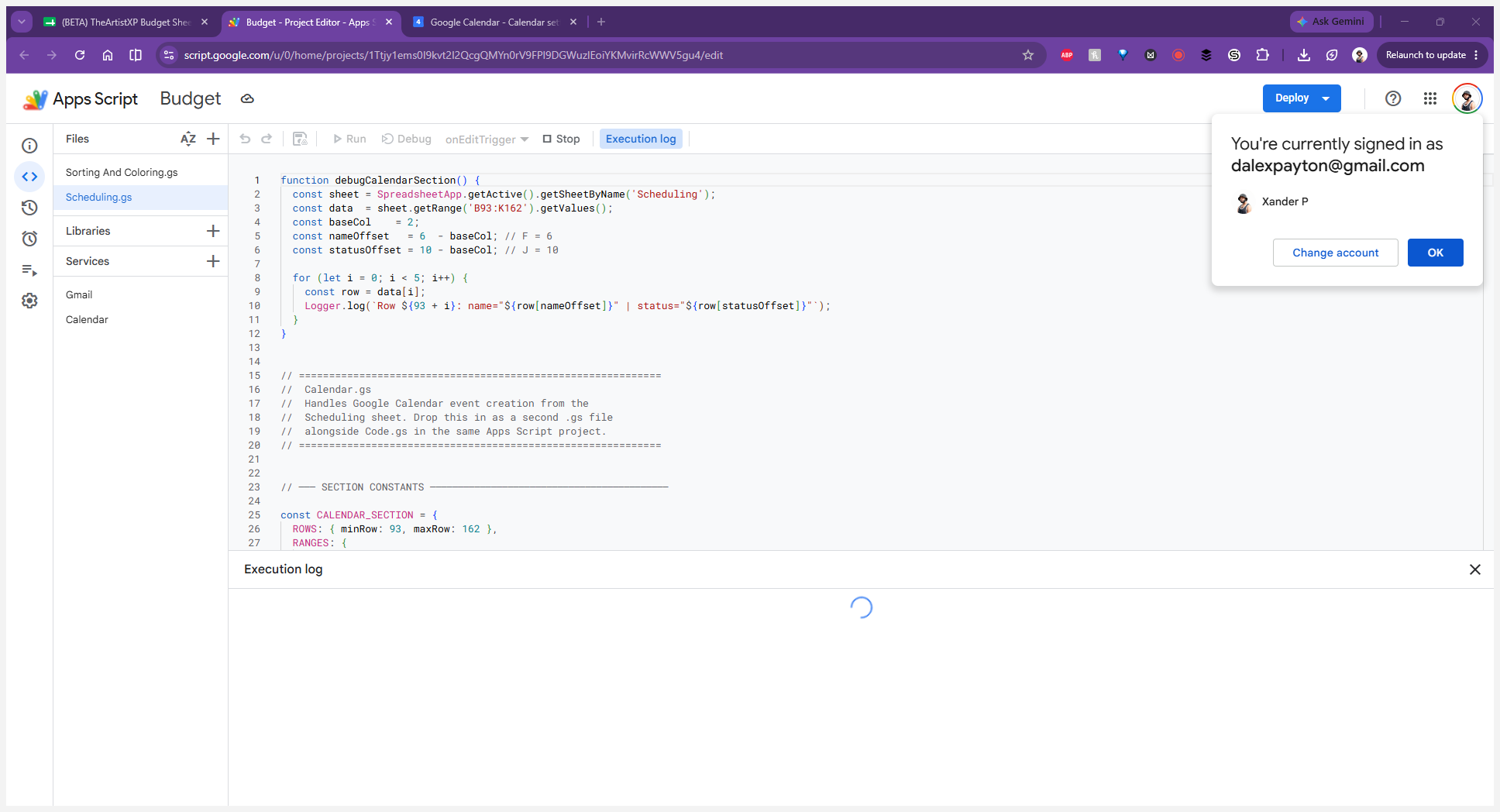
Step #13: Select the CalendarSection function from the top dropdown menu and click Run (or Debug).
14
If an authorization prompt appears, review the permissions and click OK to allow the script to manage your calendar.
Step #14: If an authorization prompt appears, review the permissions and click OK to allow the script to manage your calendar.
Integrate Google Calendar with Google Sheets for Budget Scheduling