Icon

Intro to assigning ISBNs to Spiral-Bound Books in Bowker and Using Project Tracker Spreadsheet

Learn how to register spiral-bound books in Bowker, assign them a unique ISBN, and track the publication pipeline.

By SellerPro Amazon Agency

This guide explains how to register new spiral-bound book listings in Bowker and assign them unique ISBNs. Completing this ensures your books are correctly cataloged with the proper publisher and attributes before listing them on Amazon.

This workflow applies to cataloging and listing teams responsible for product registration. Use it when setting up new spiral-bound variants of existing titles to replace generic listings.

Gathering Book Metadata

Before adding a new entry to Bowker, retrieve the accurate attributes from the existing paperback version of the book.
1
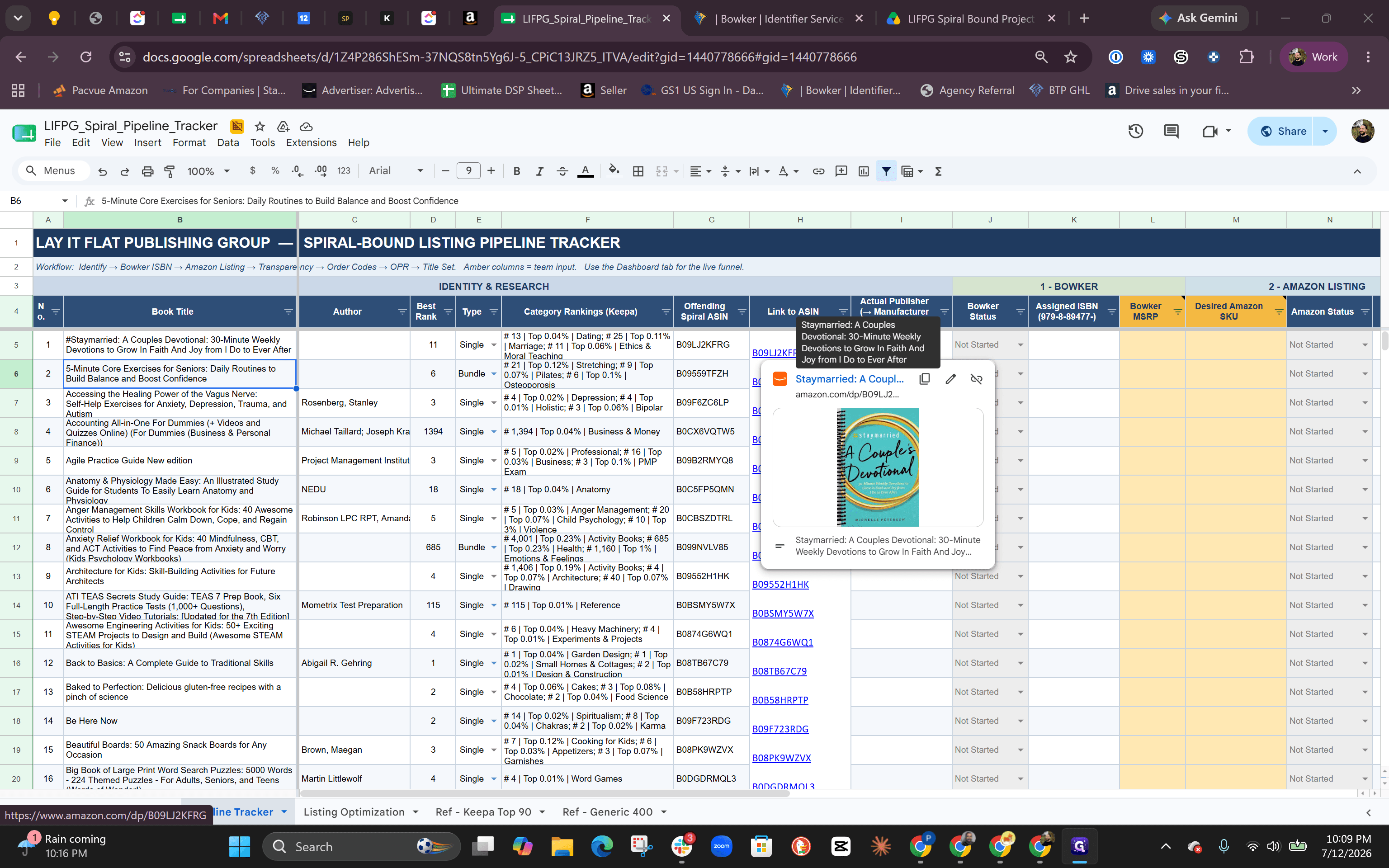
Click the ASIN link in the pipeline tracker to open the existing Amazon listing.
Step #1: Click the ASIN link in the pipeline tracker to open the existing Amazon listing.
2
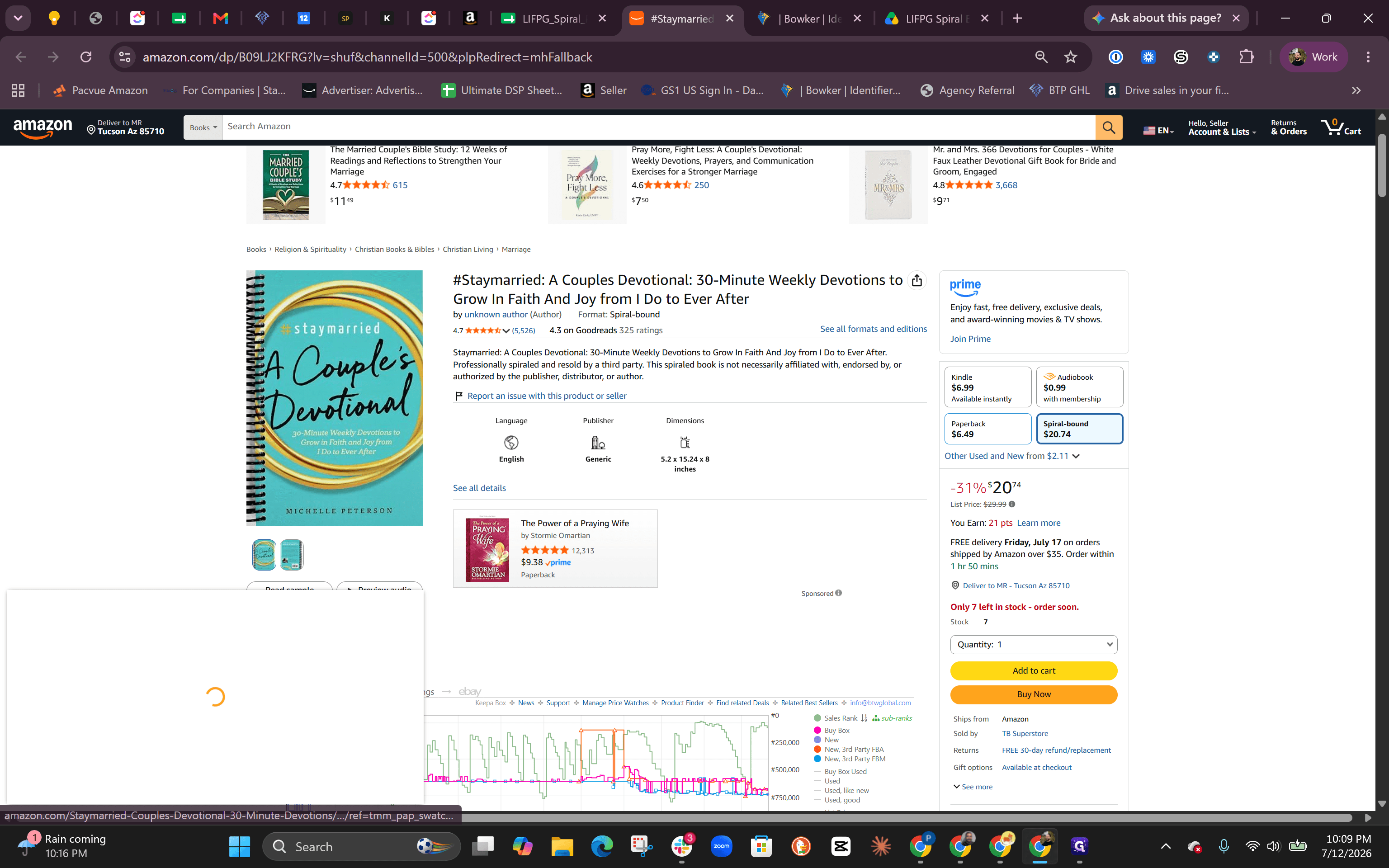
Click Paperback on the Amazon product page to view the correct dimensions, publisher, and page count.
Step #2: Click Paperback on the Amazon product page to view the correct dimensions, publisher, and page count.
3
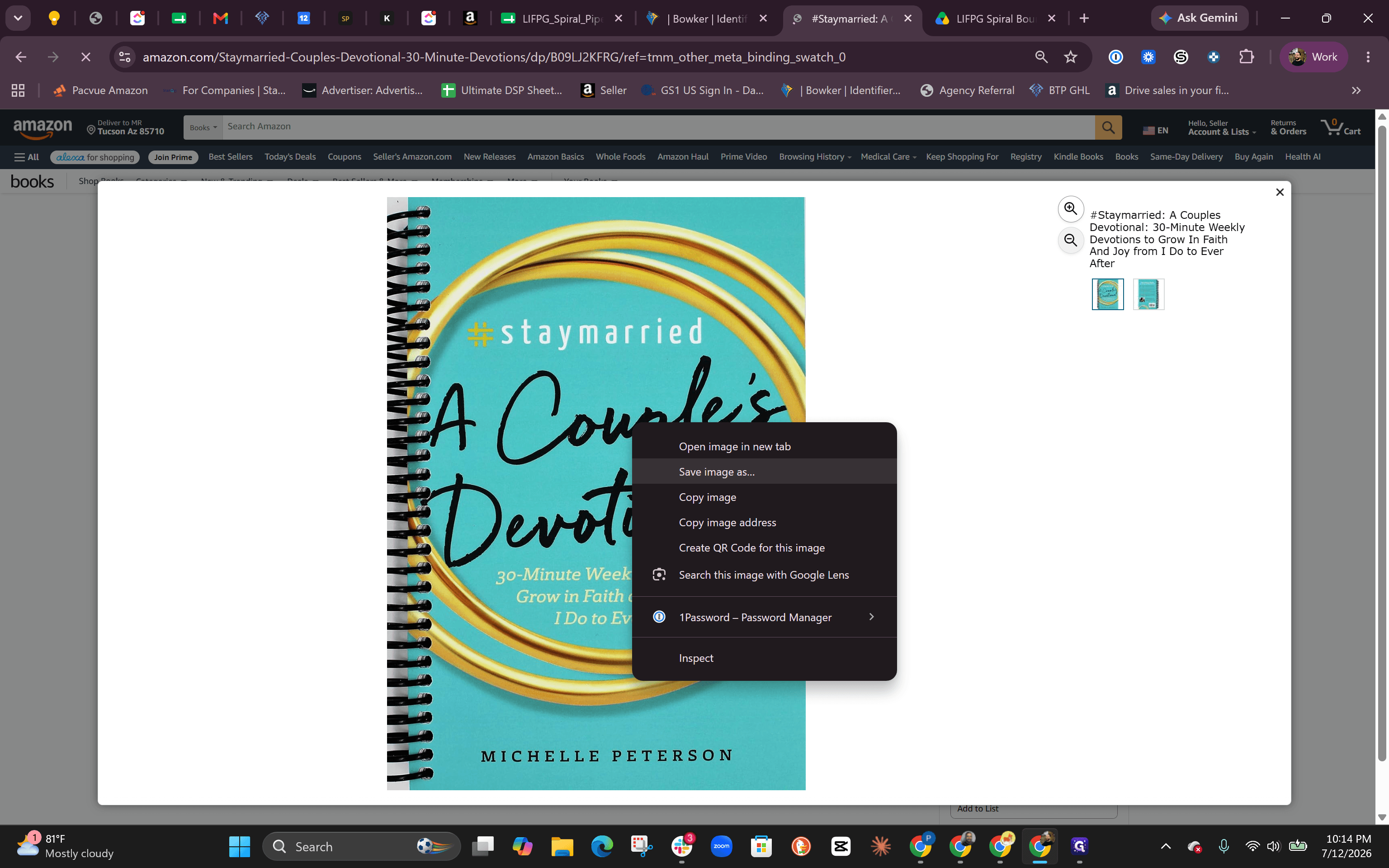
Right-click the book's cover image and save it to your computer.
Step #3: Right-click the book's cover image and save it to your computer.

Registering the Title in Bowker
4
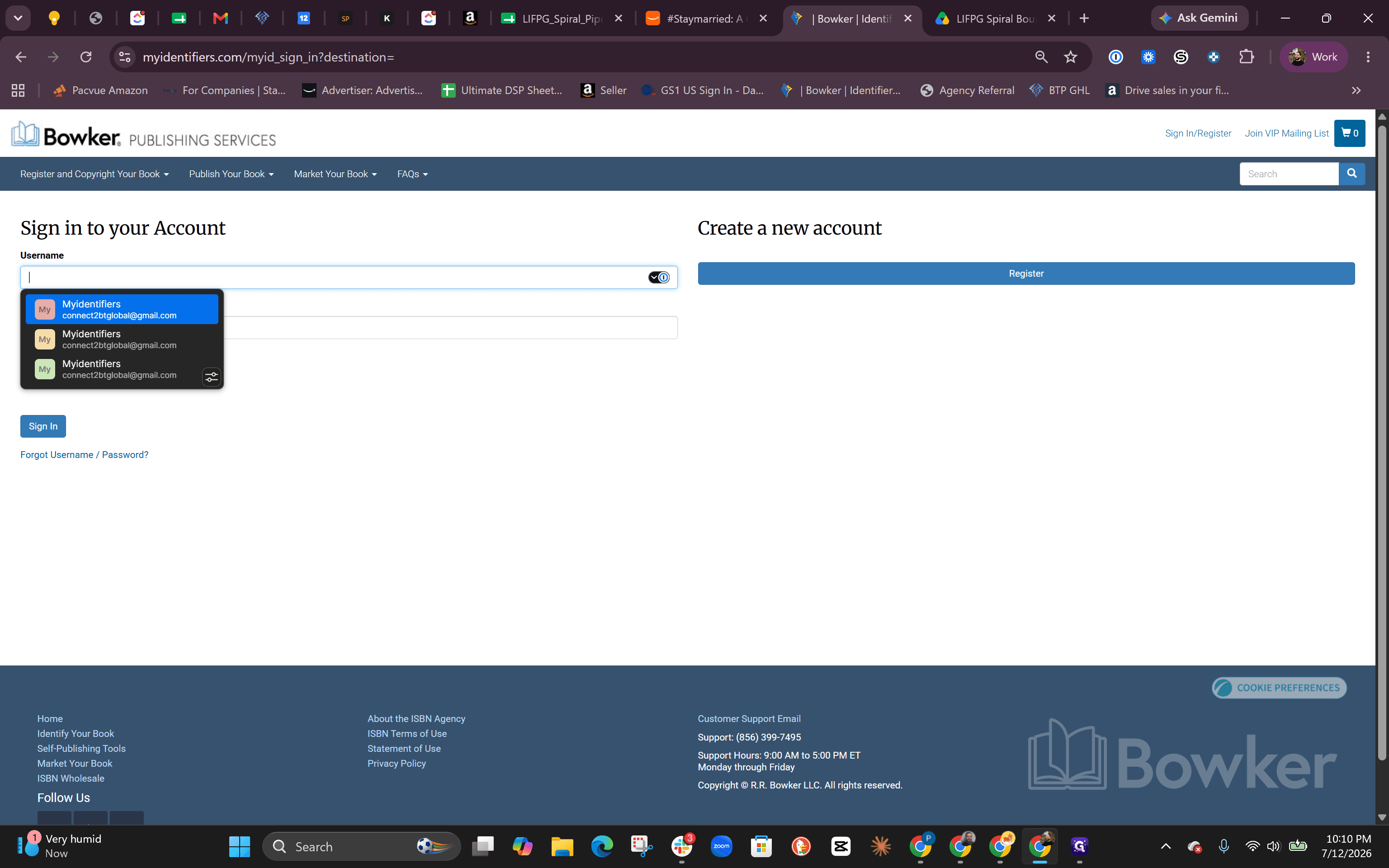
Log in to the Bowker Publishing Services website using your saved credentials.
Step #4: Log in to the Bowker Publishing Services website using your saved credentials.
5
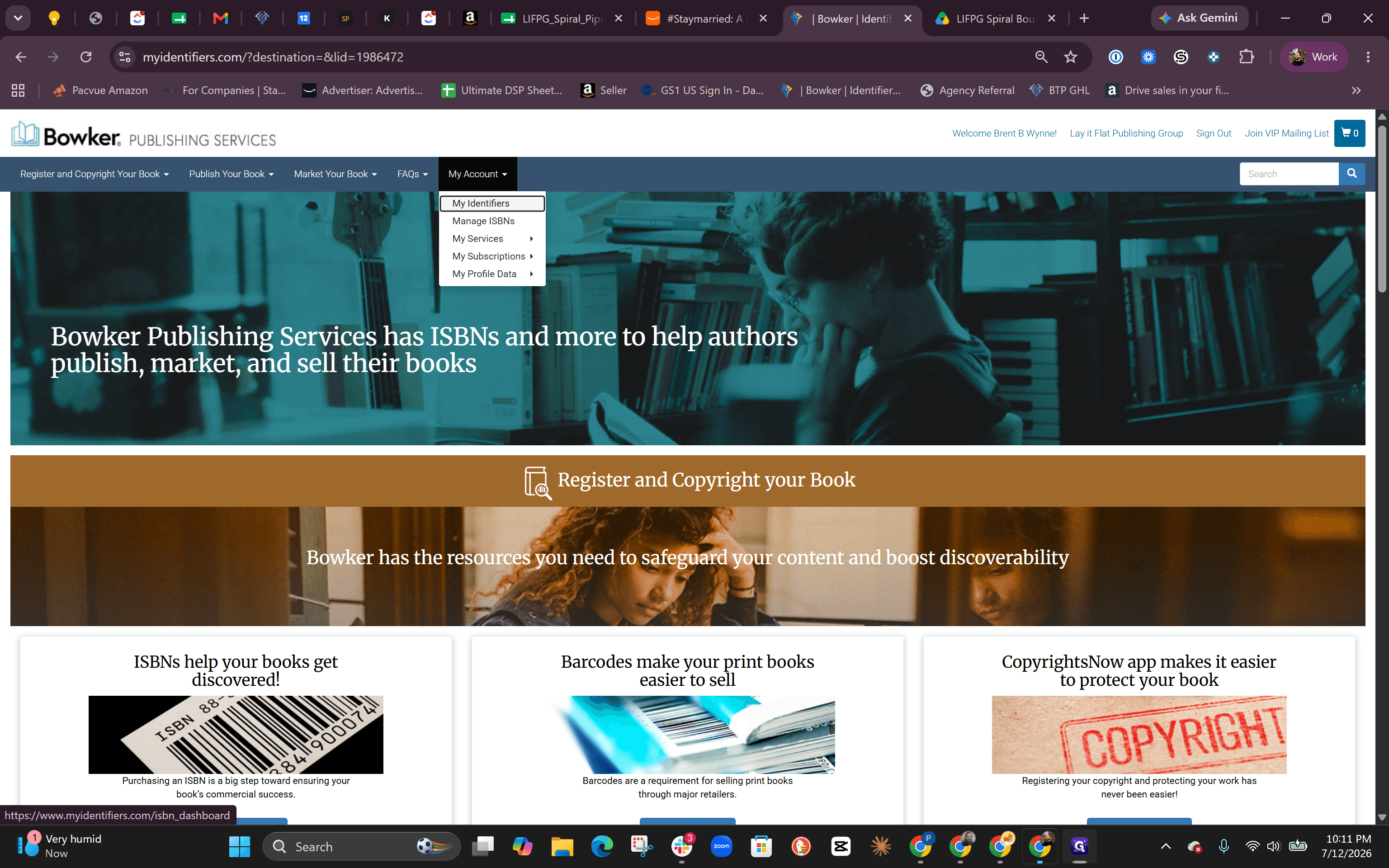
Click My Account and select My Identifiers from the dropdown menu.
Step #5: Click My Account and select My Identifiers from the dropdown menu.
6
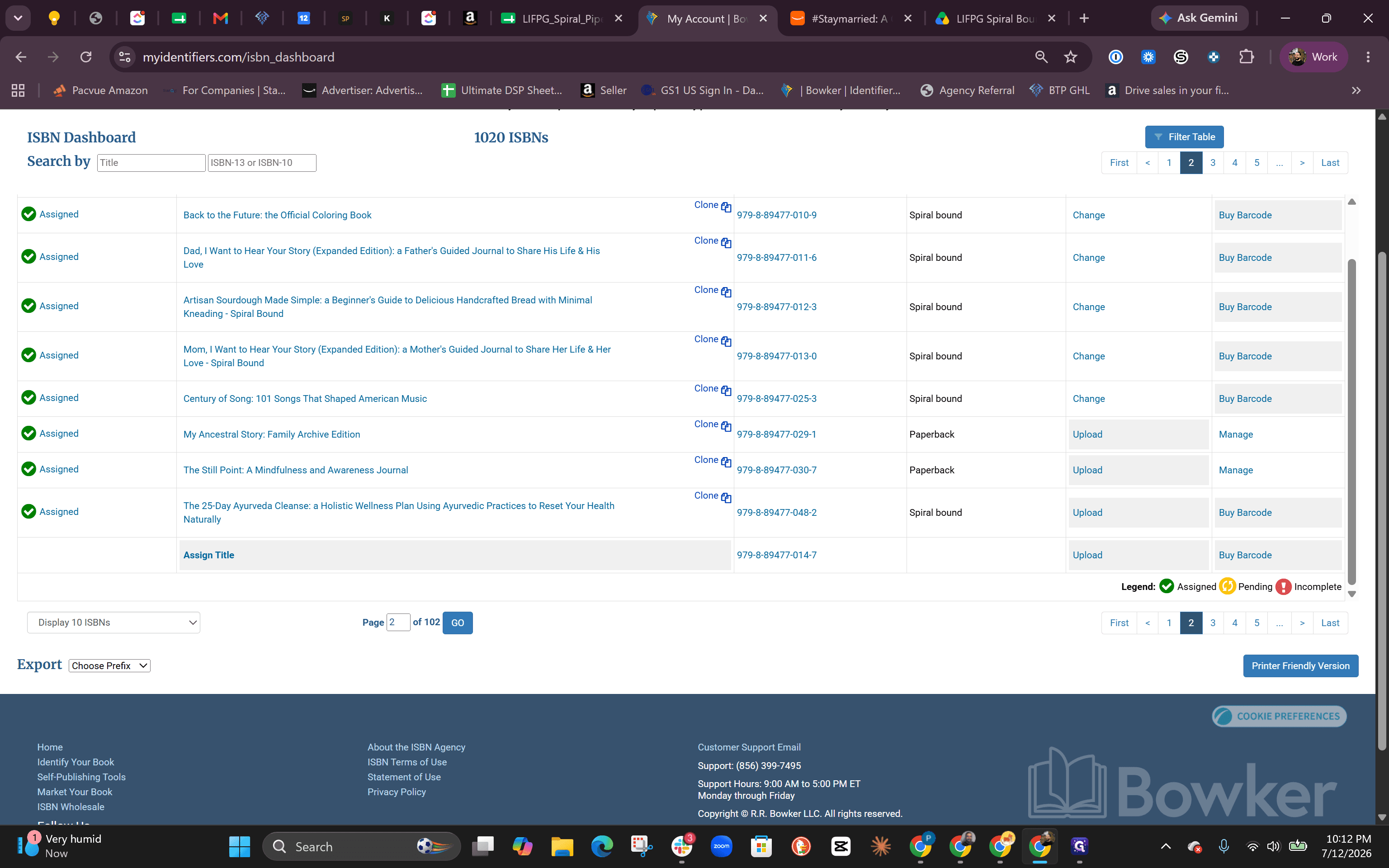
Locate an unassigned ISBN in your dashboard and click Assign Title.
Step #6: Locate an unassigned ISBN in your dashboard and click Assign Title.
7
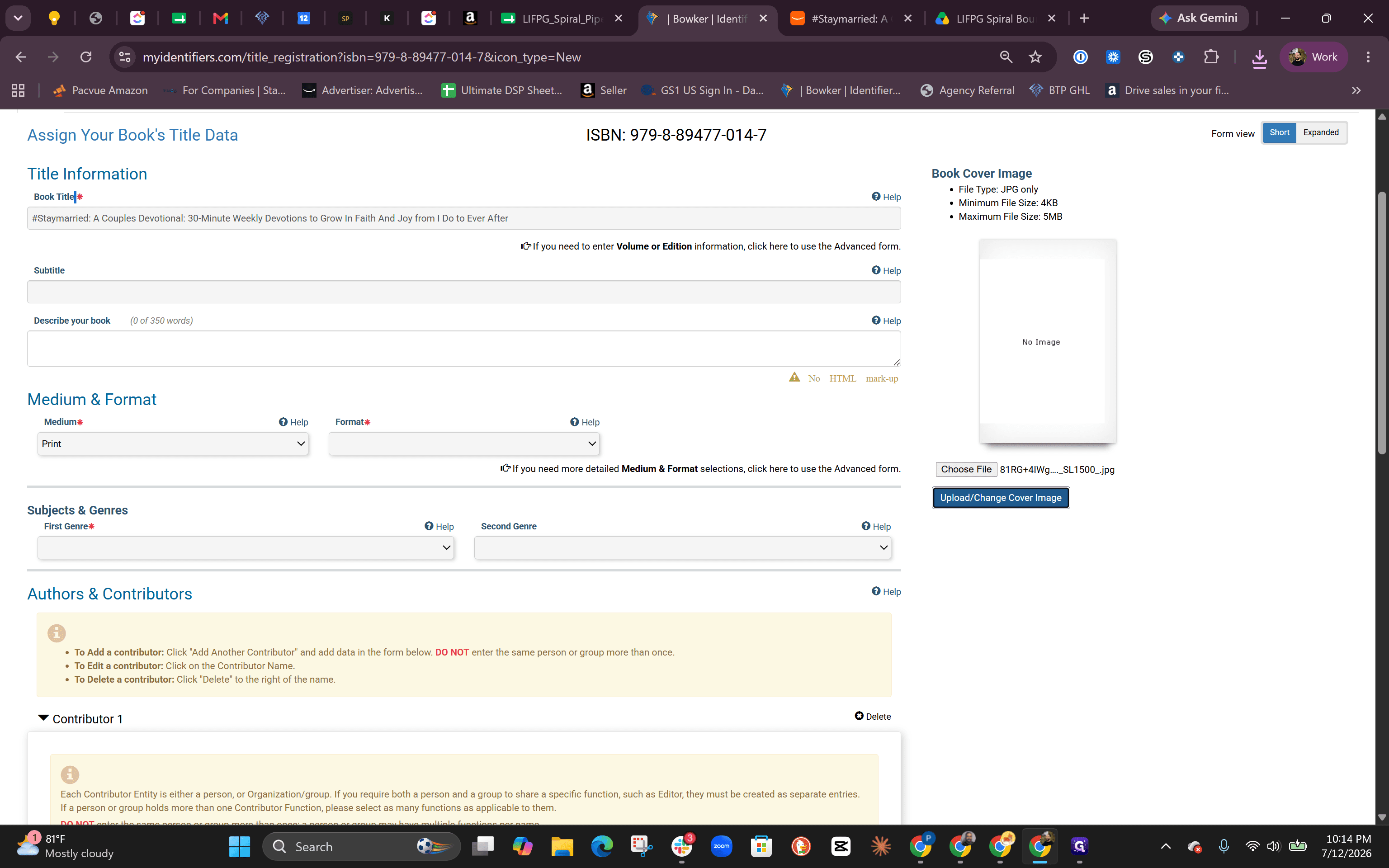
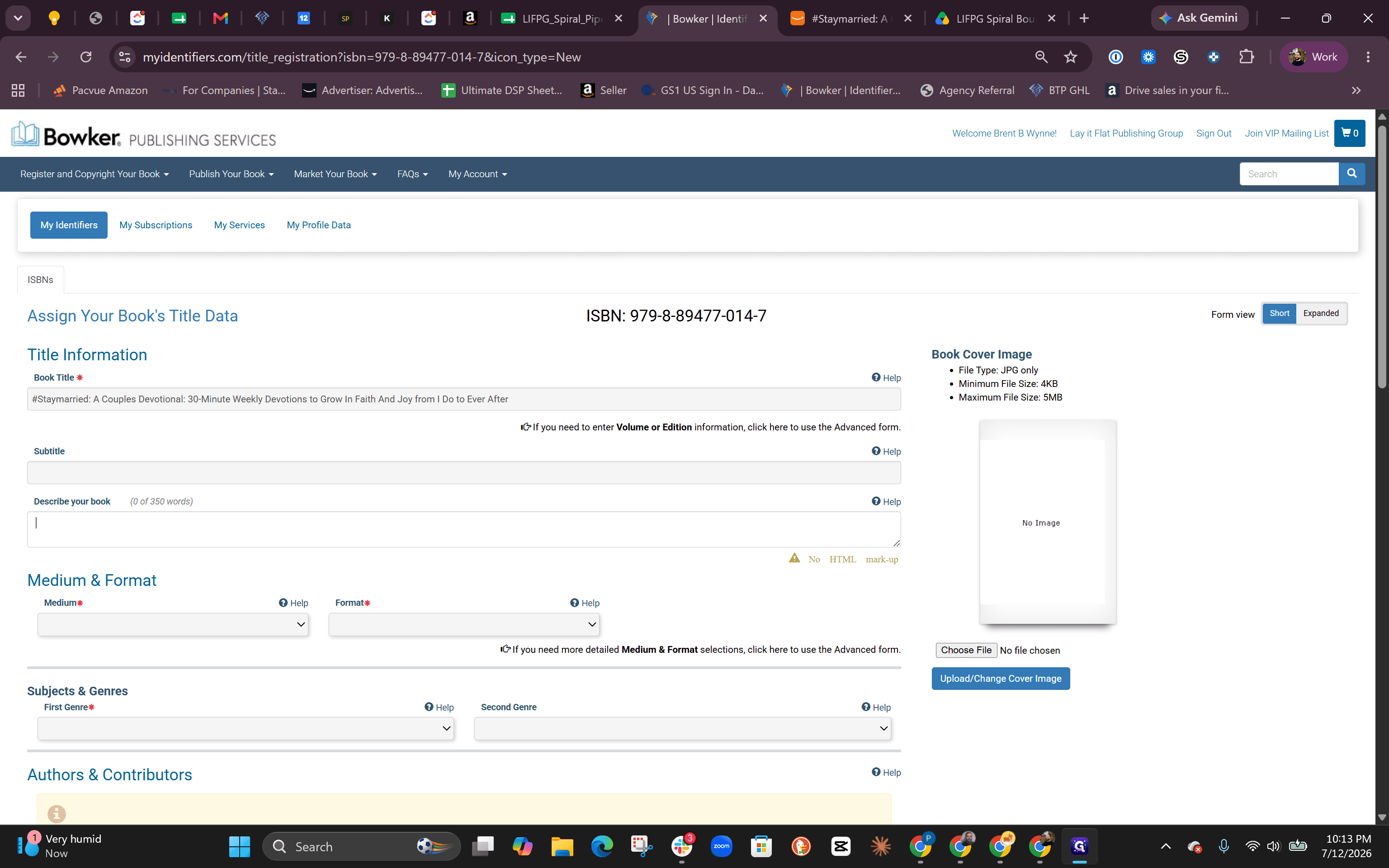
Fill in all required fields marked with an asterisk, including the book title, author, and publication date.
Step #7: Fill in all required fields marked with an asterisk, including the book title, author, and publication date.
8
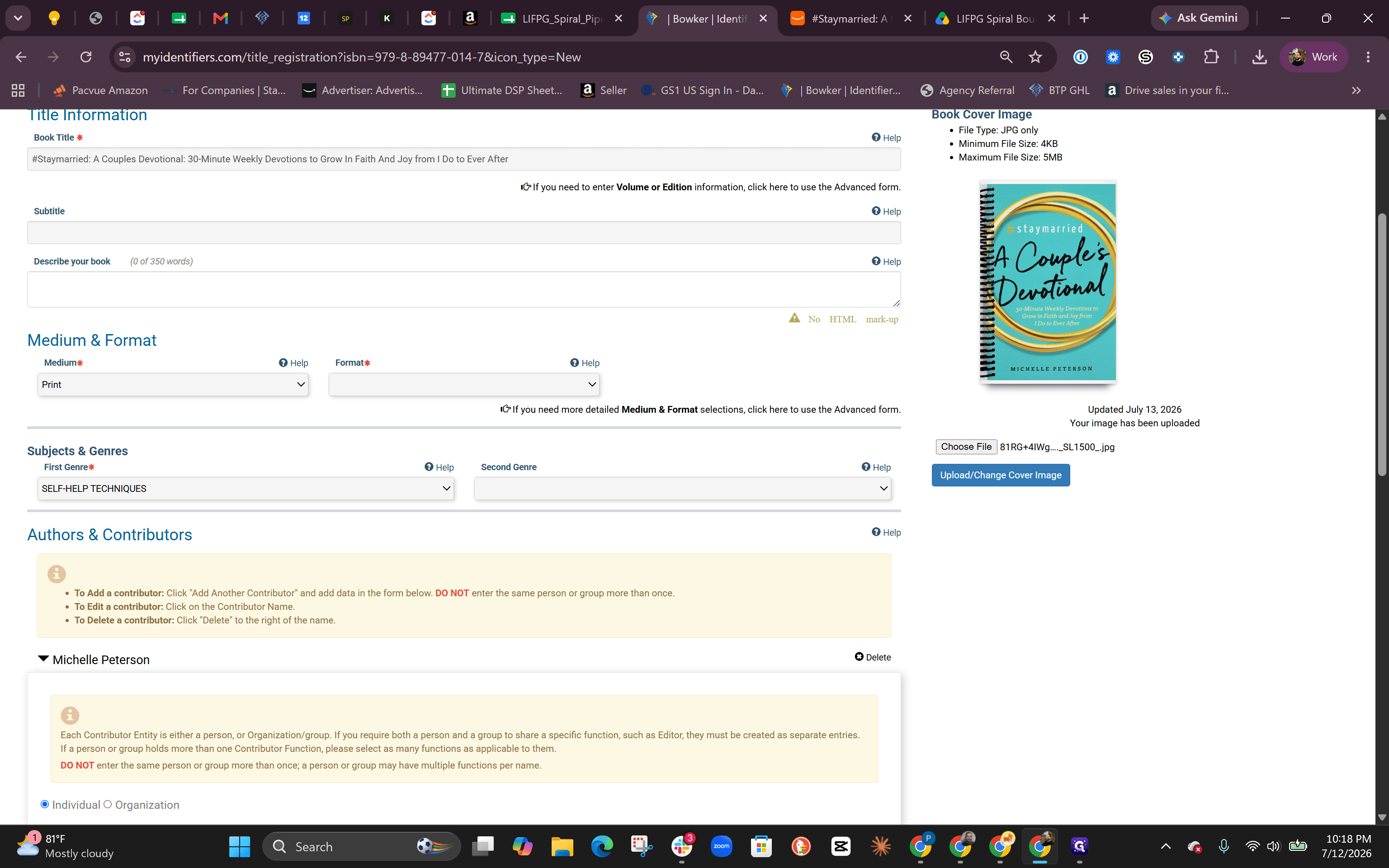
Choose the file you saved (first button) and then Upload / Change Cover Image to attach the file to the listing.
Step #8: Choose the file you saved (first button) and then Upload / Change Cover Image to attach the file to the listing.
9
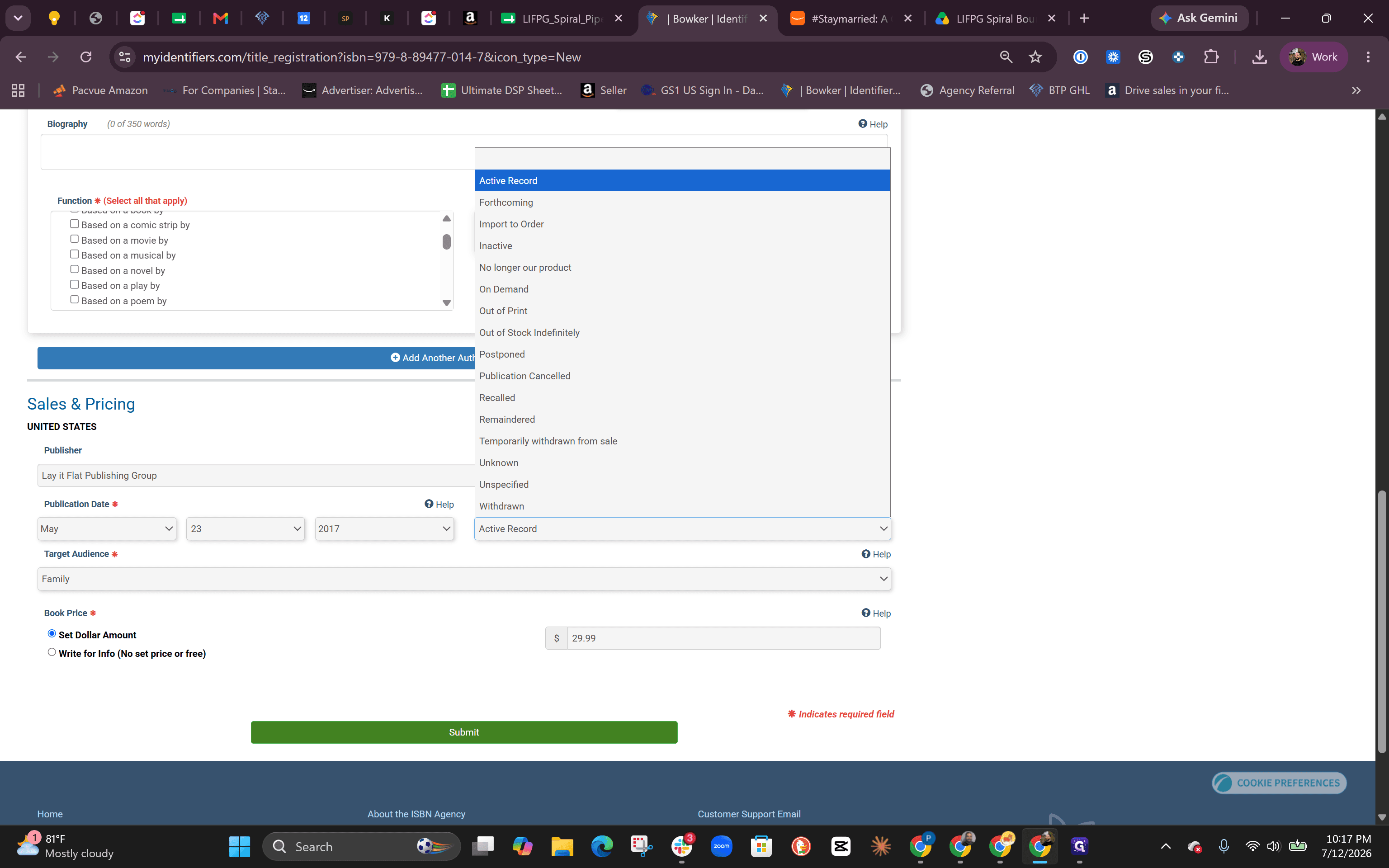
Set the Title Status to Active Record.
Step #9: Set the Title Status to Active Record.
10
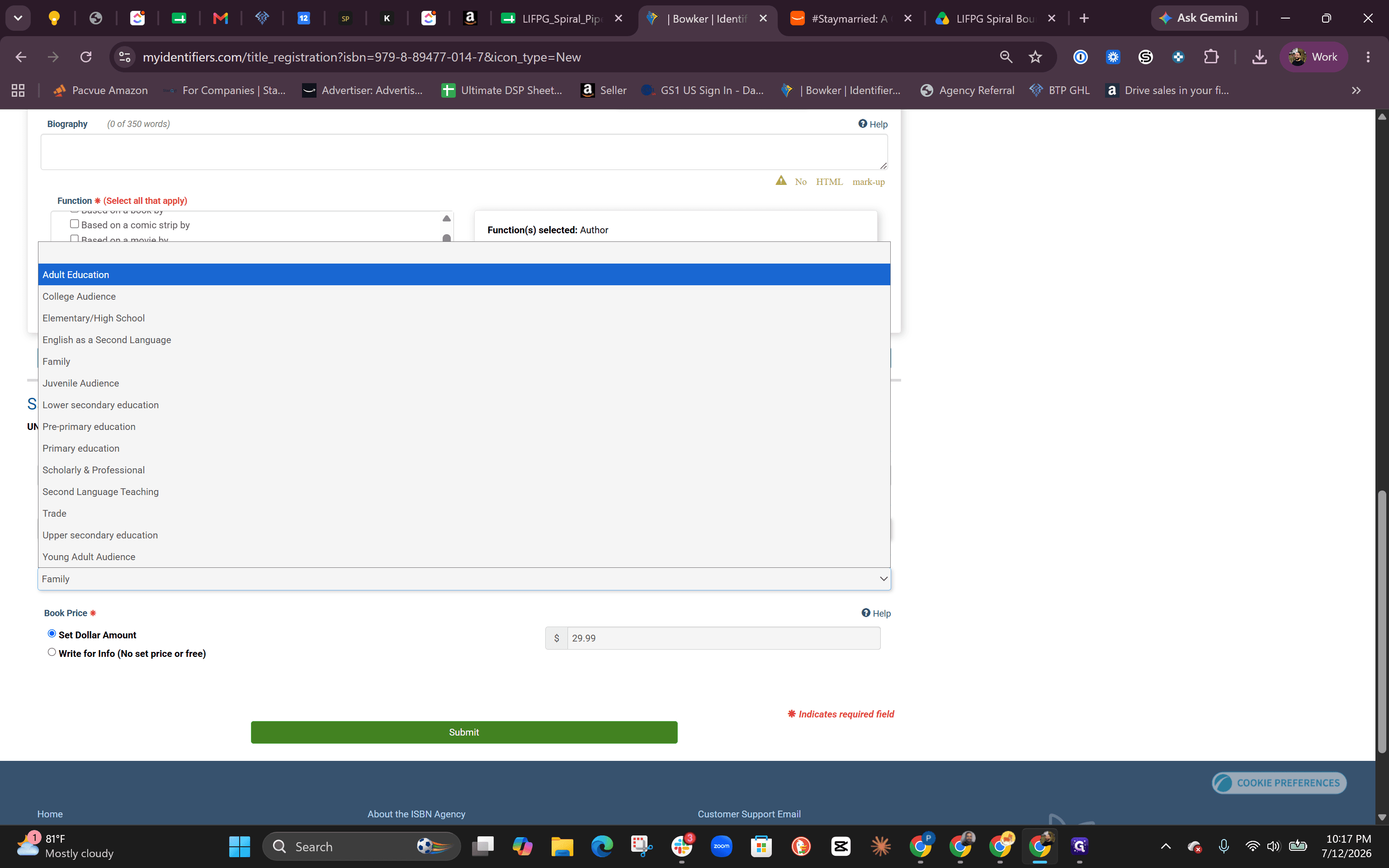
Select the appropriate Target Audience, such as Adult Education.
Step #10: Select the appropriate Target Audience, such as Adult Education.
11
Type the MSRP into the Book Price field (e.g., "29.99").
12
Click the prompt to use the Advanced form so you can specify the advanced formatting options. DO THIS FIELD LAST, DO ALL OTHER REQUIRED FIELDS FIRST!!
Step #12: Click the prompt to use the Advanced form so you can specify the advanced formatting options. DO THIS FIELD LAST, DO ALL OTHER REQUIRED FIELDS FIRST!!
13
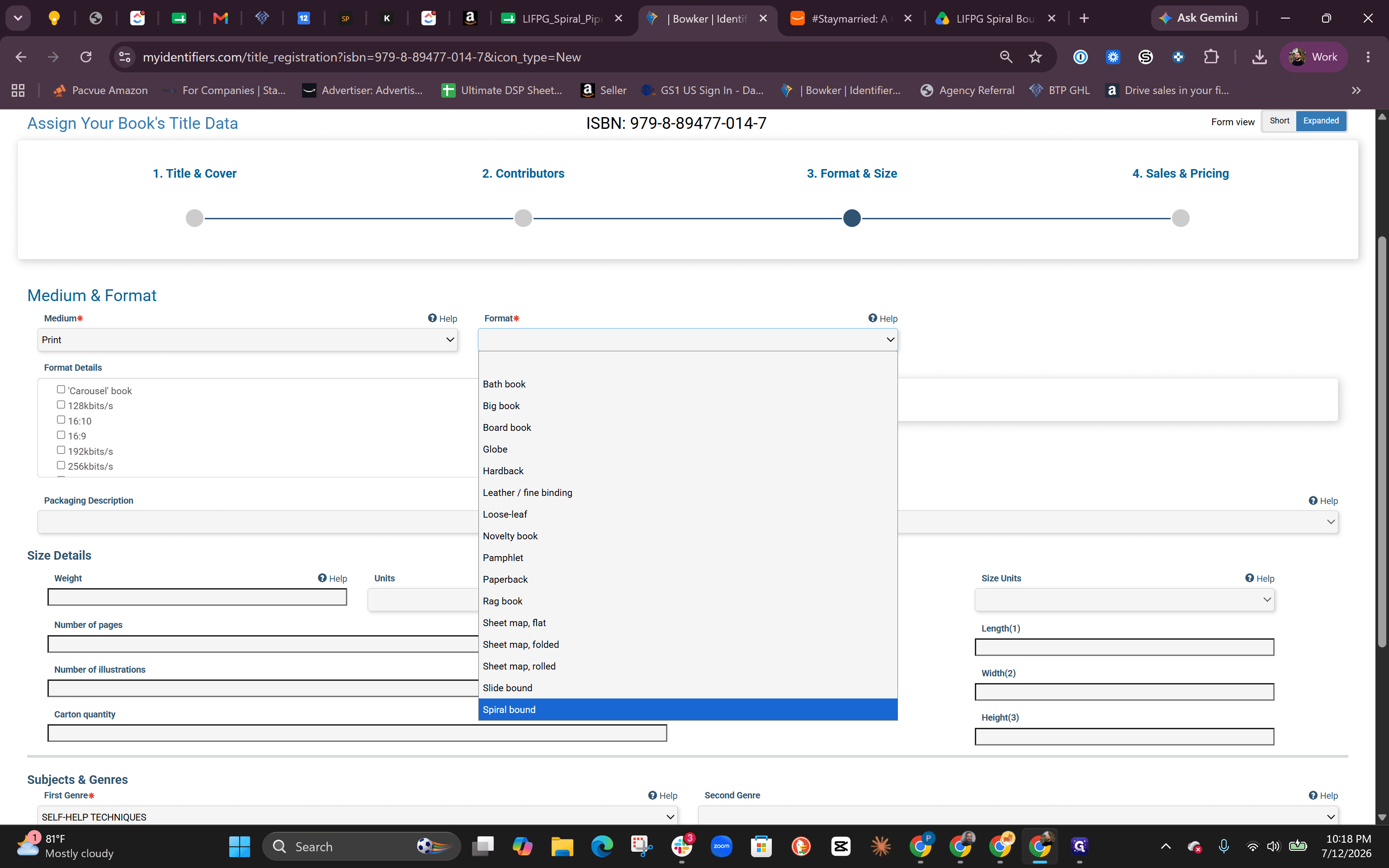
Select Spiral bound from the Format dropdown menu.
Step #13: Select Spiral bound from the Format dropdown menu.
14
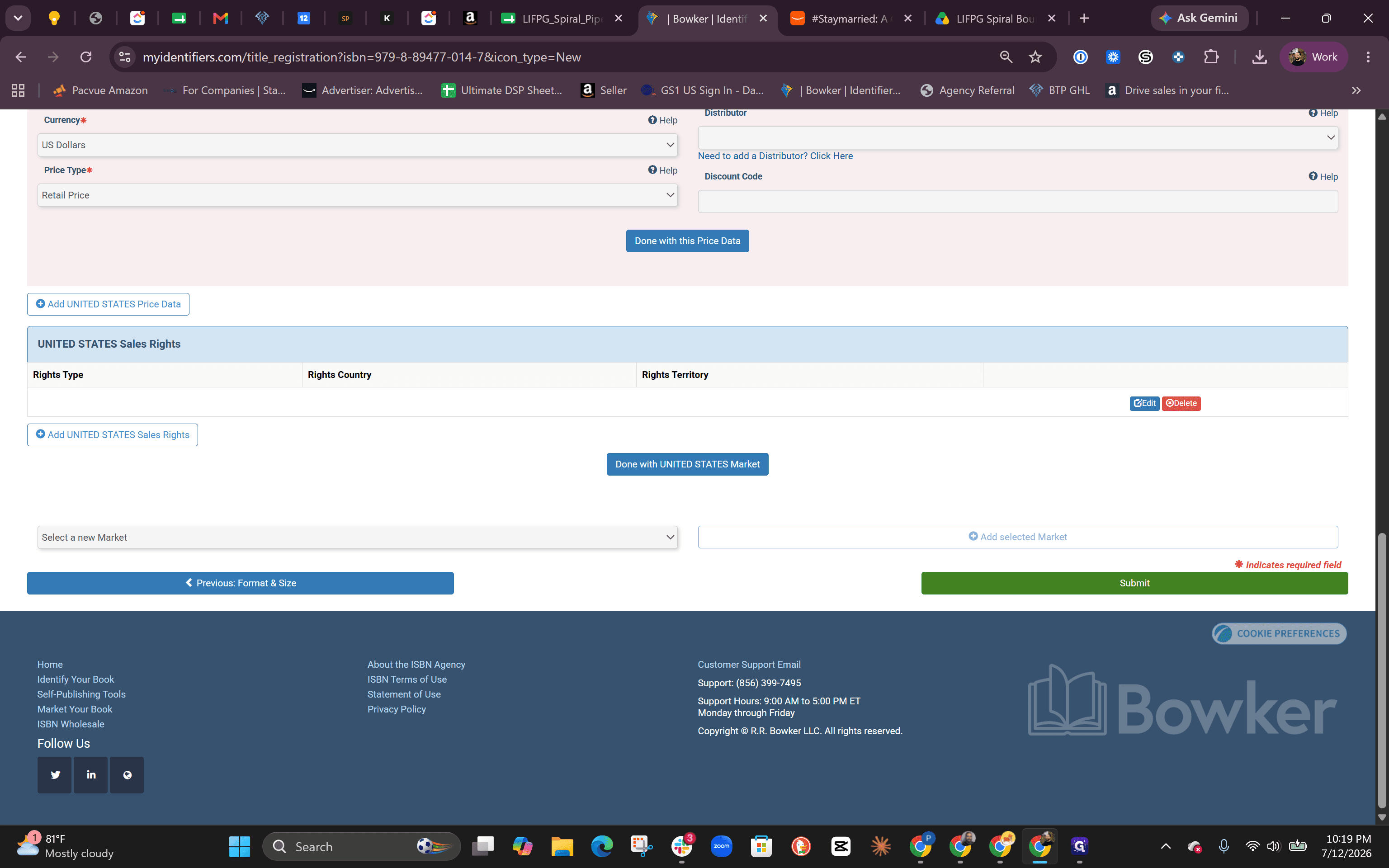
Click Submit to finalize the ISBN registration.
Step #14: Click Submit to finalize the ISBN registration.

Updating the Pipeline Tracker
15
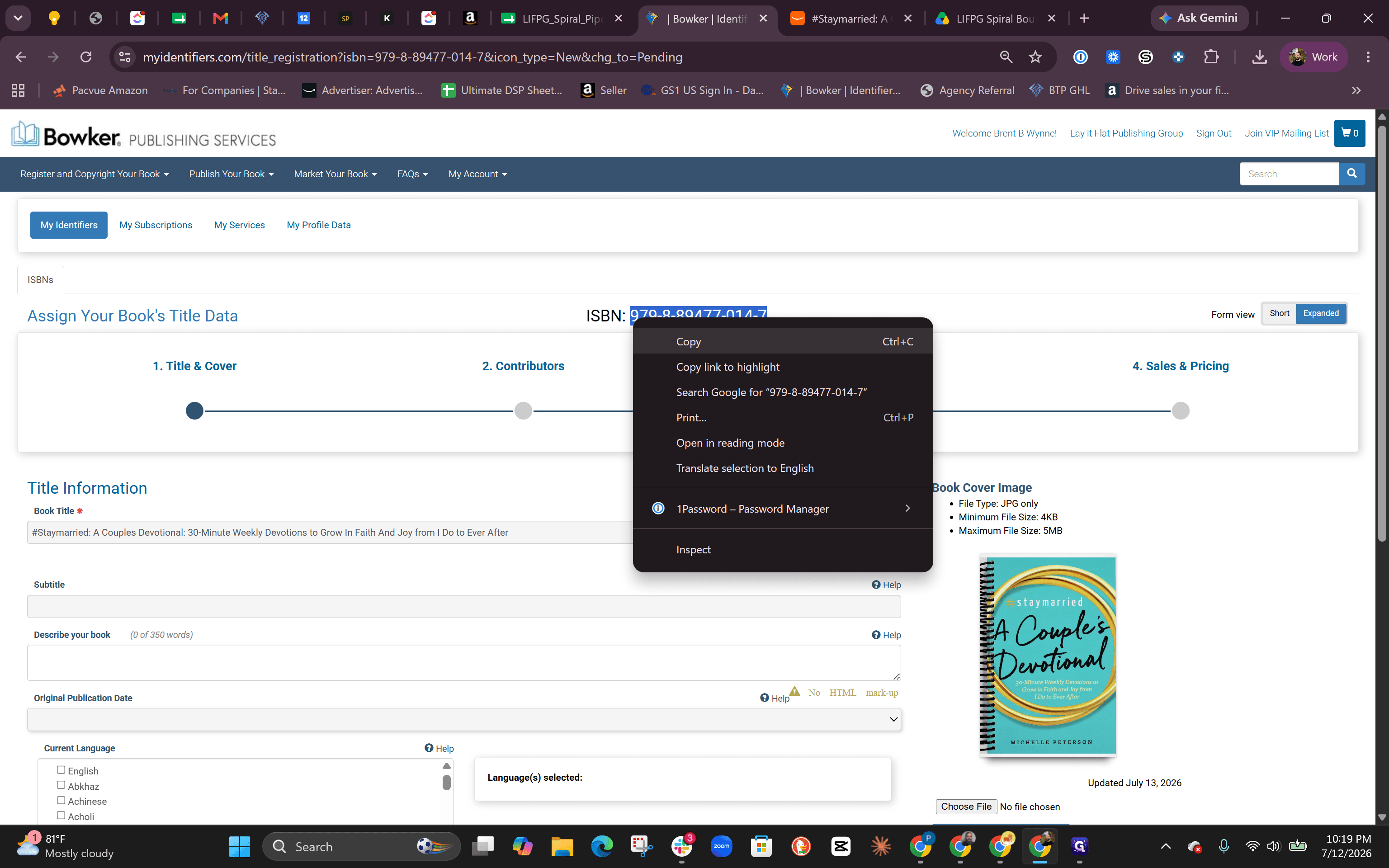
Highlight the newly assigned ISBN on the Bowker confirmation page and copy it.
Step #15: Highlight the newly assigned ISBN on the Bowker confirmation page and copy it.
16
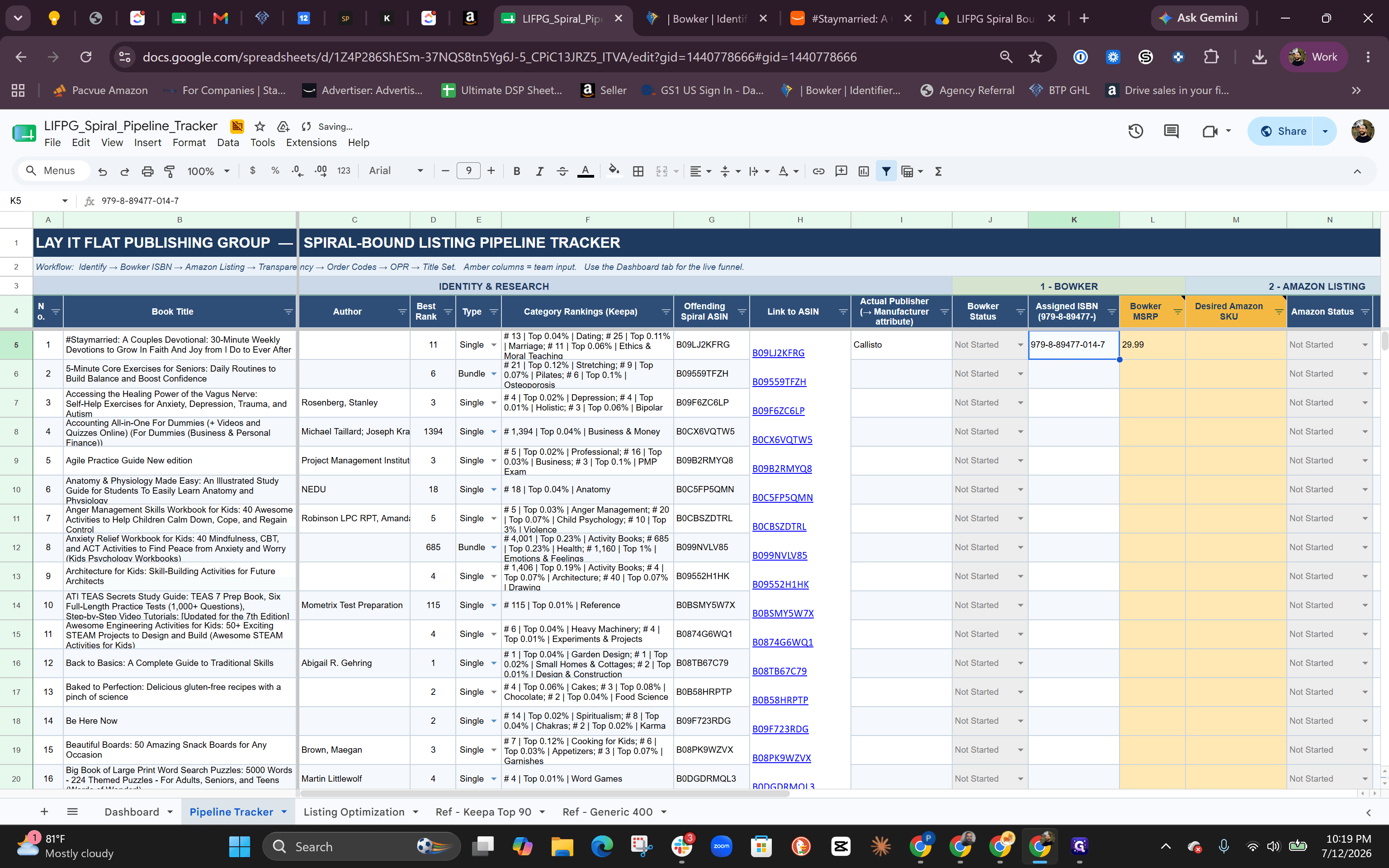
Return to the pipeline tracker spreadsheet and double-click the corresponding cell in the Assigned ISBN column.
Step #16: Return to the pipeline tracker spreadsheet and double-click the corresponding cell in the Assigned ISBN column.
17
Paste the ISBN into the spreadsheet cell.
18
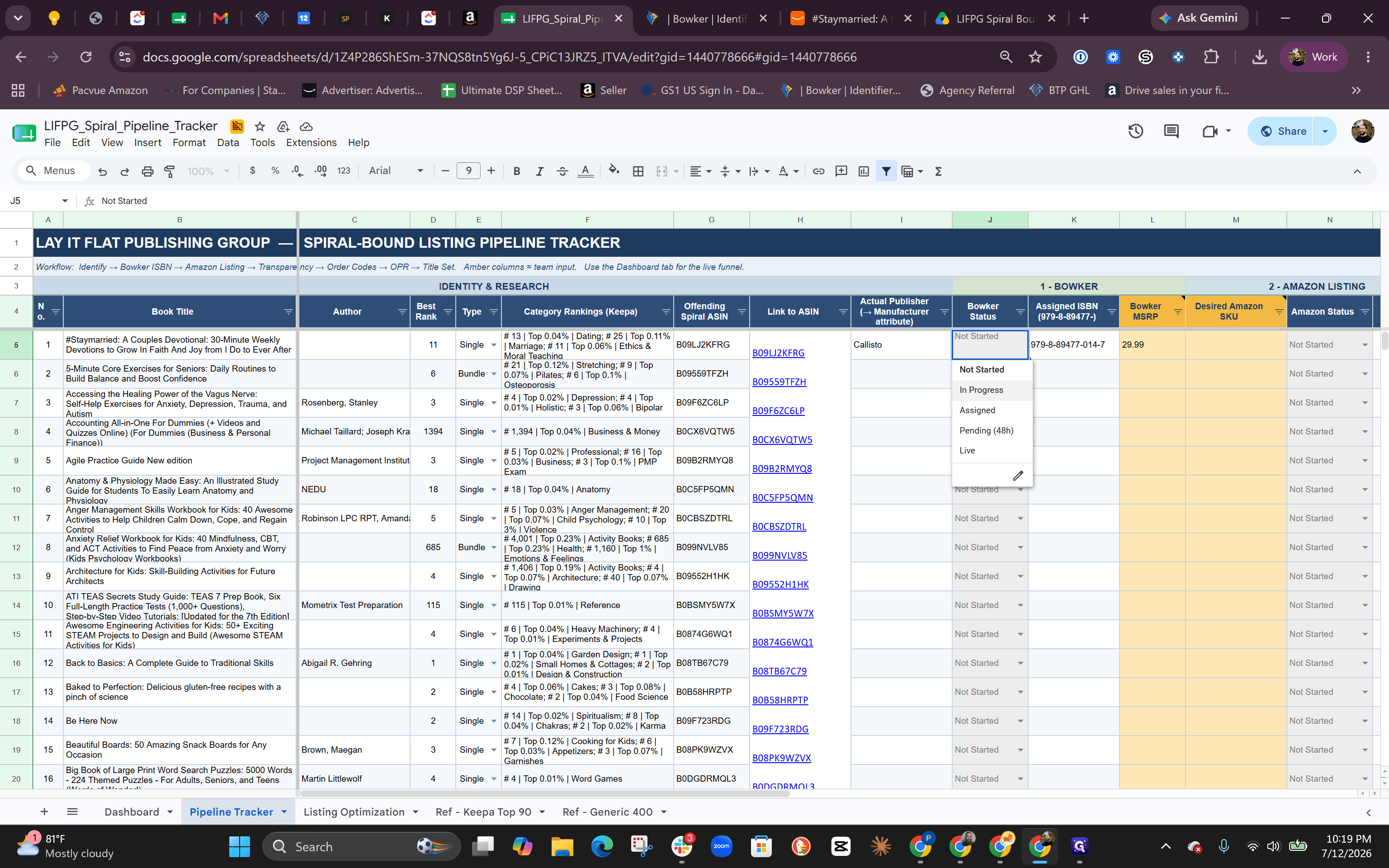
Click the dropdown menu in the Bowker Status column and select In Progress.
Step #18: Click the dropdown menu in the Bowker Status column and select In Progress.

Q: Why is the tracker status marked as "In Progress" instead of "Live" after submitting to Bowker?

A: Bowker takes 24 to 48 hours to process pending uploads. Once it is fully processed, you can finalize the upload to the Amazon catalog via Seller Central.

Q: Where can I find the correct publisher and dimension information for a new spiral-bound entry?

A: Search for the existing paperback version of the same title on Amazon. You can copy the publisher name, page count, and dimensions directly from that listing's details.

Term

Definition

Bowker

The official US agency responsible for assigning ISBNs and maintaining book metadata registries.

ISBN

International Standard Book Number, a unique identifier assigned to a specific edition and format of a book.

MSRP

Manufacturer's Suggested Retail Price, which acts as the default retail price entered during book registration.

Seller Central

The Amazon web portal used by merchants and brands to manage their product listings and inventory.