How to Issue a Refund in WooCommerce
Learn how to easily process full or partial customer refunds directly from the WooCommerce order dashboard using Stripe or manual return methods.
This guide explains how to issue a customer refund directly from the WooCommerce dashboard. By following these steps, you can quickly return funds to a customer for canceled or adjusted orders, ensuring accurate accounting and customer satisfaction.
This workflow is designed for store administrators and customer support representatives managing ecommerce transactions. You will use this process whenever a customer requests their money back, an order cannot be fulfilled, or a billing adjustment is required.
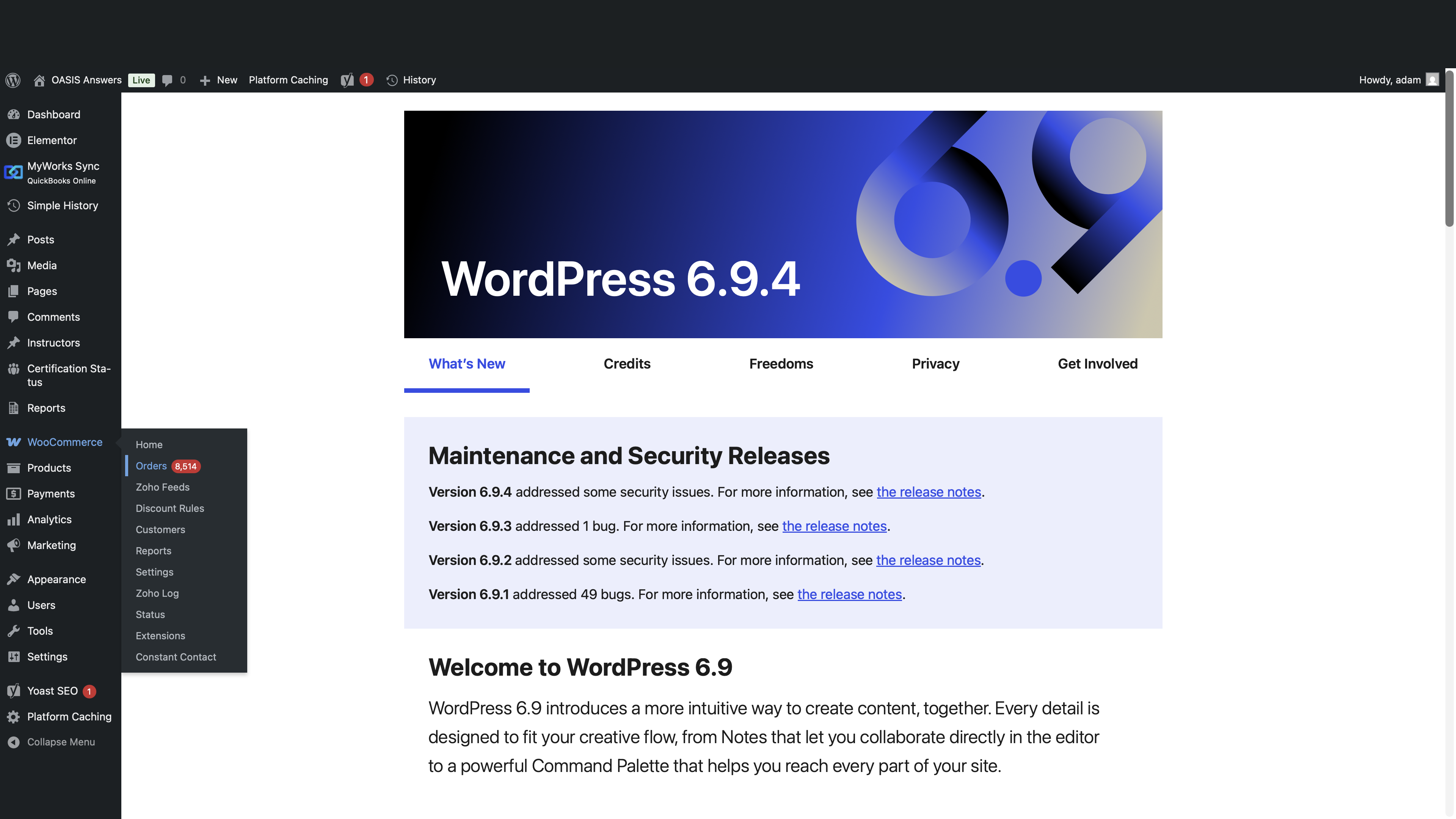
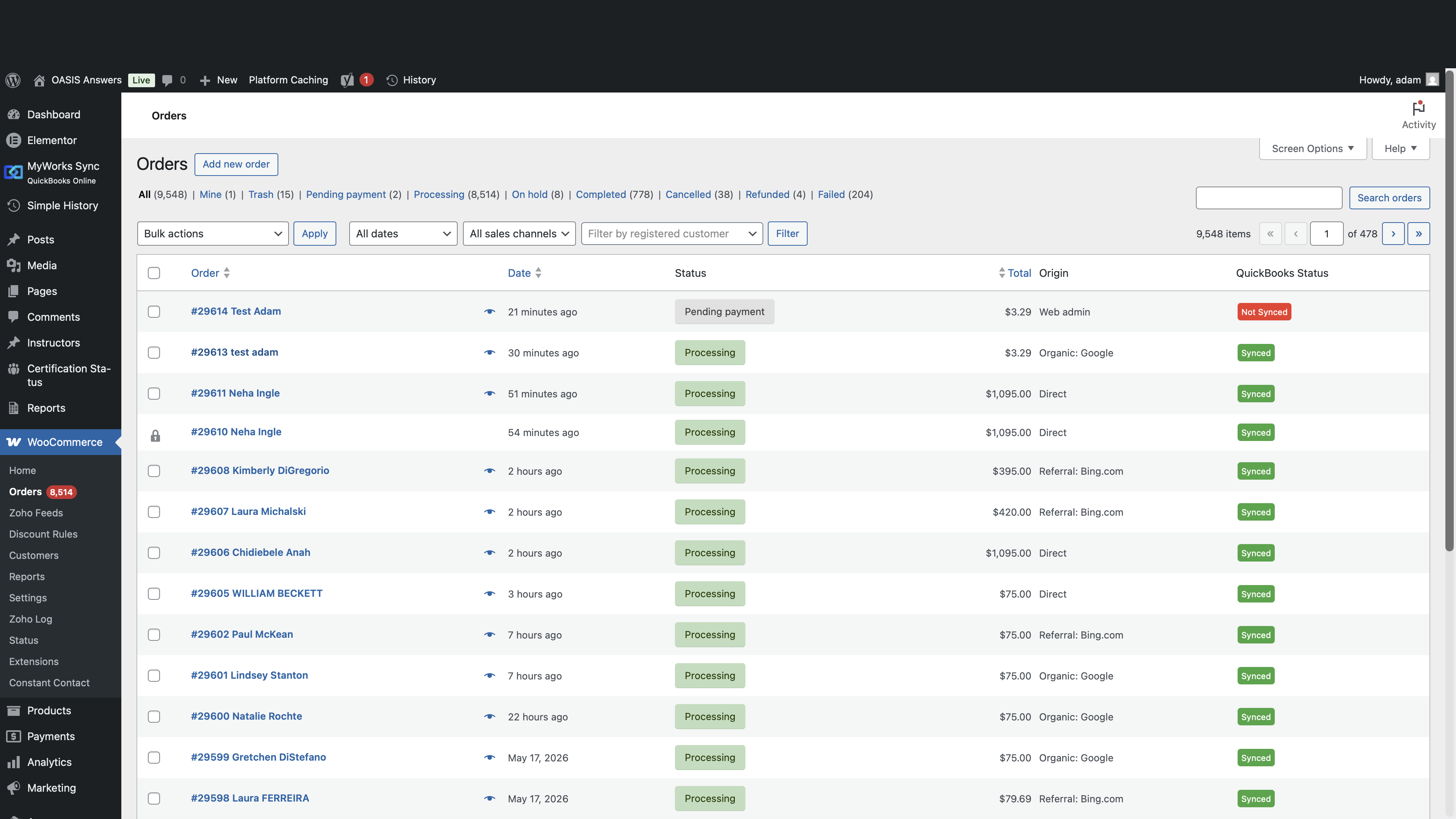
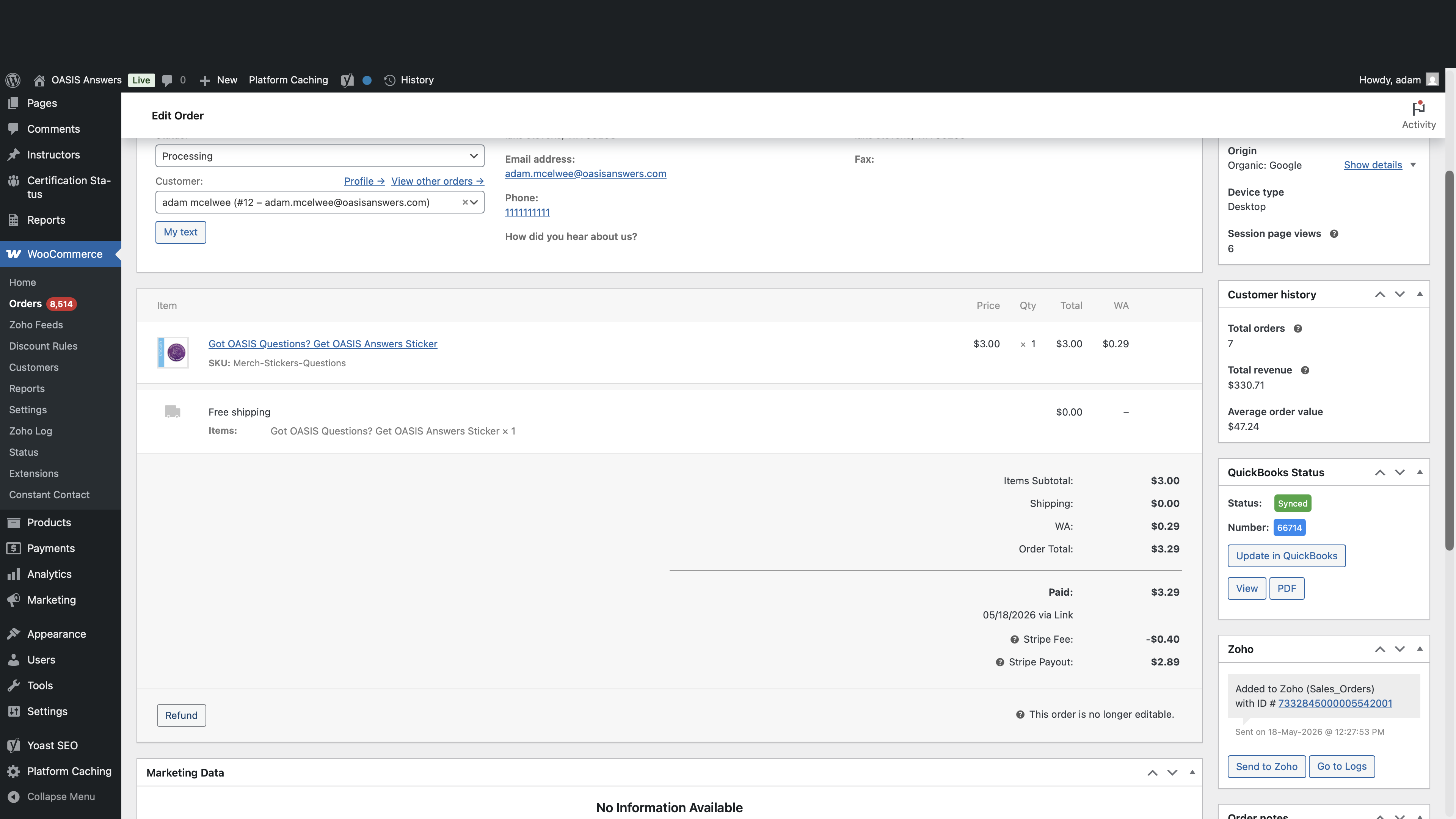
Navigating to the Order
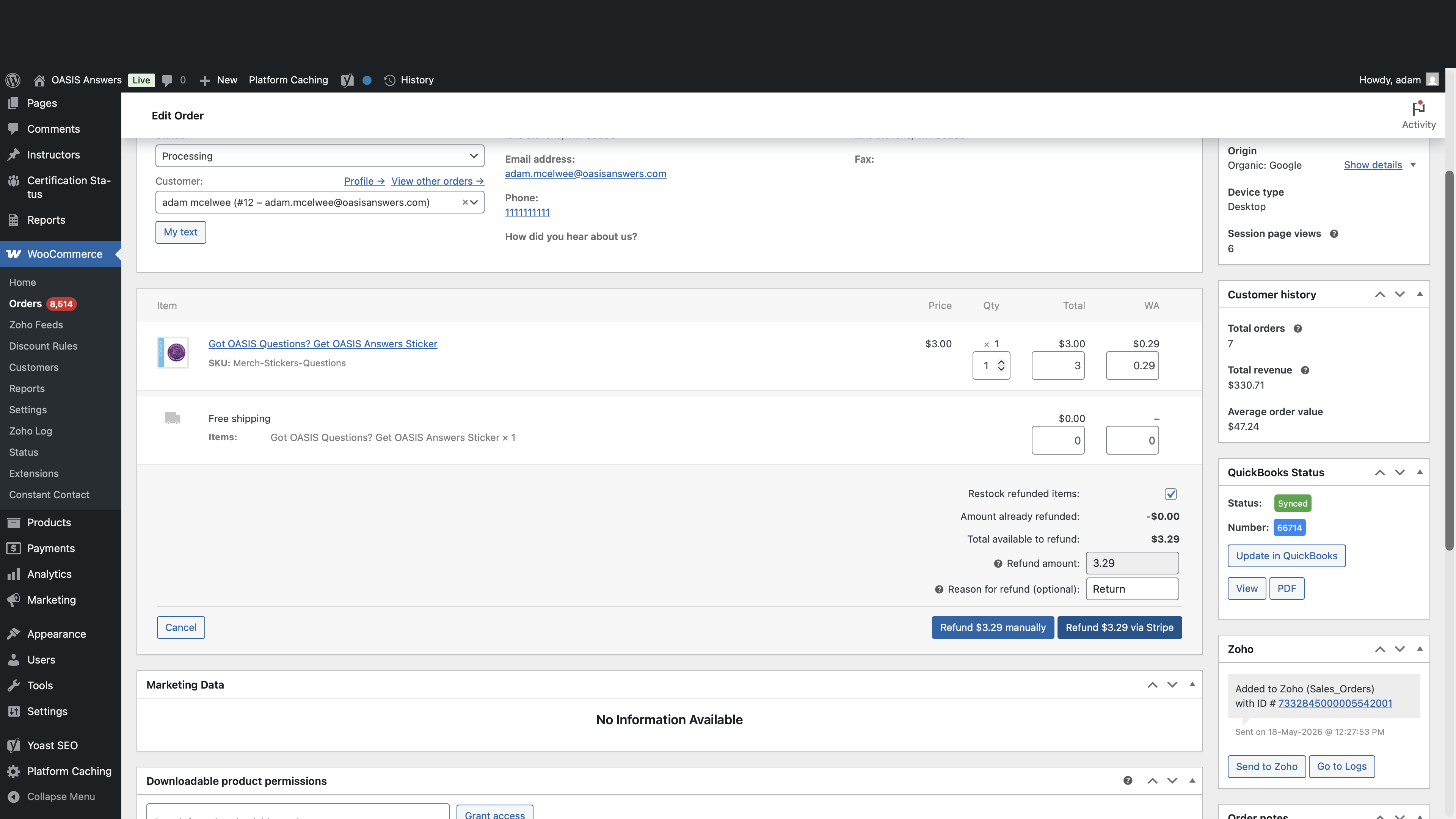
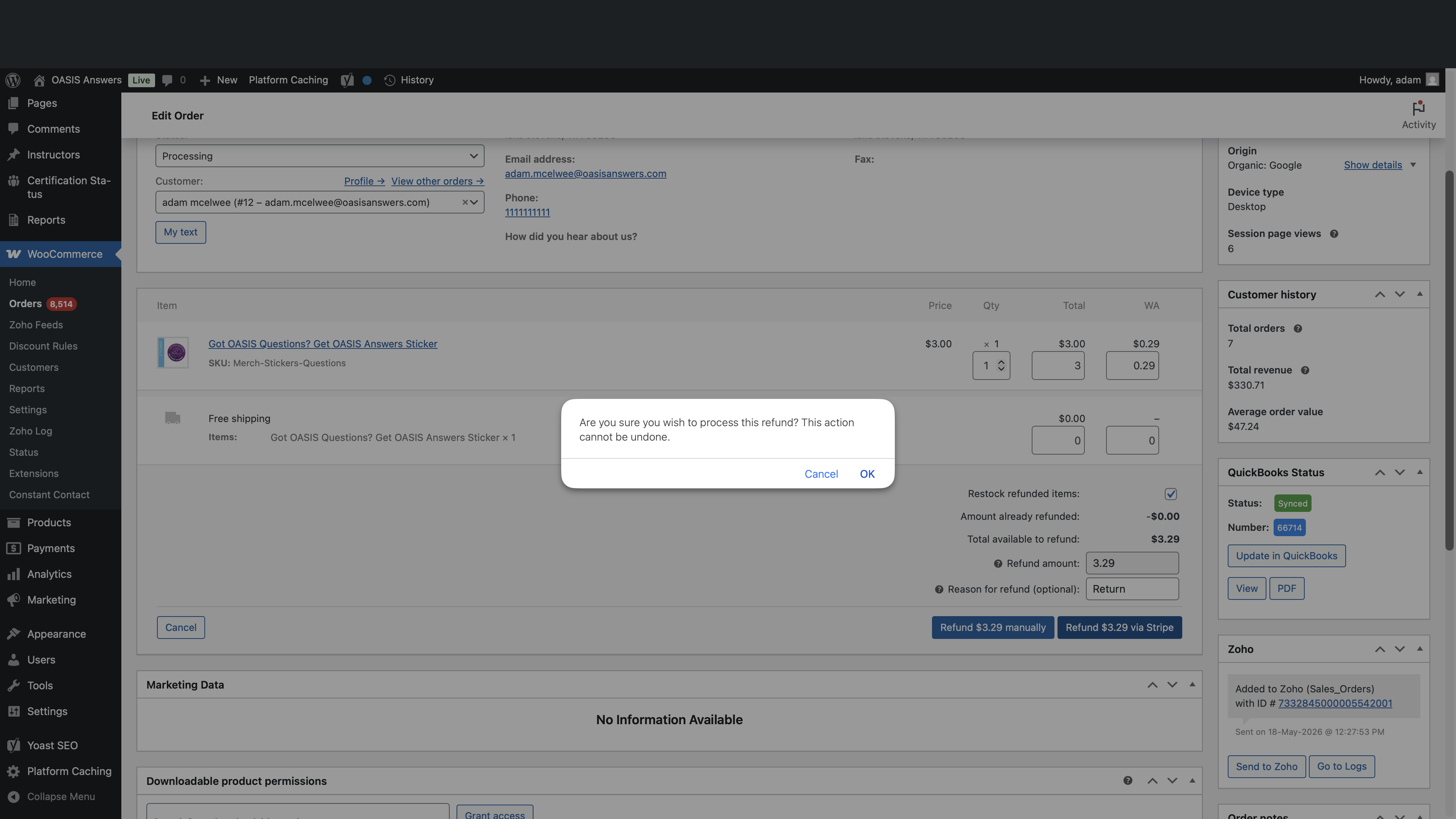
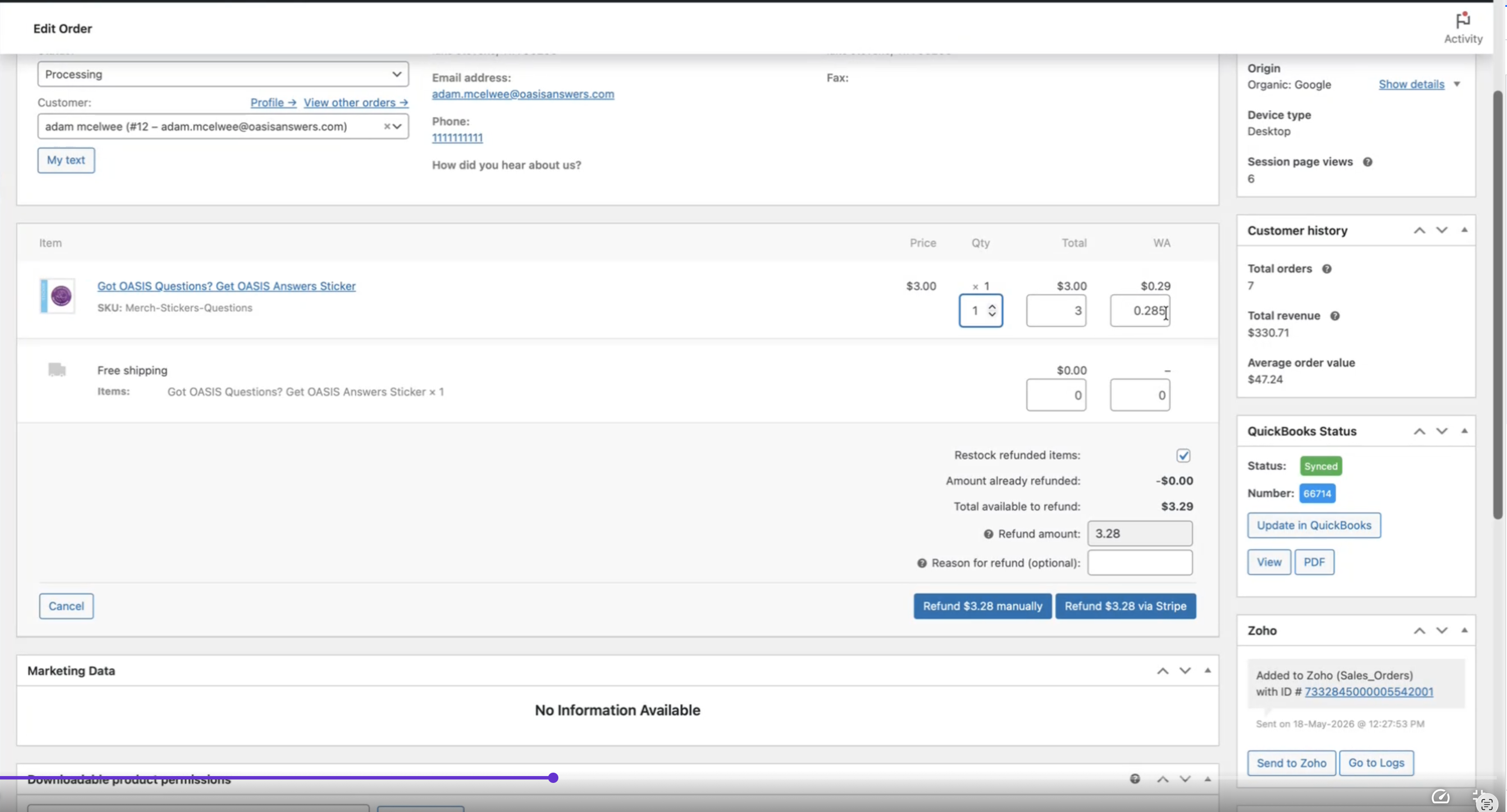
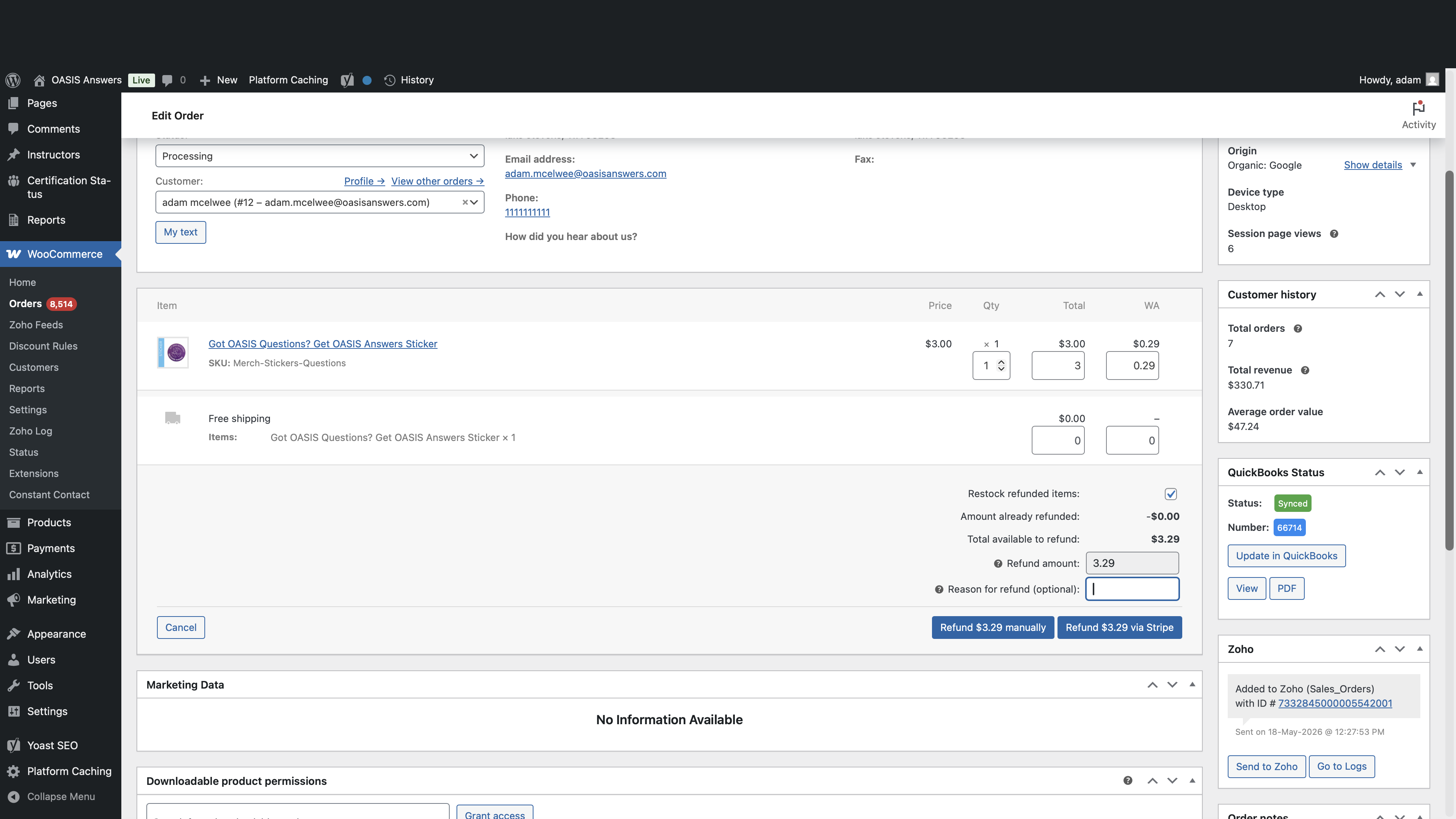
Processing the Refund
Selecting a Refund Method
Before finalizing, you must choose how to process the refund. WooCommerce typically offers two distinct methods depending on your payment gateway integration:
Refund Method | How it works | When to use |
|---|---|---|
Refund via Gateway (e.g., Stripe) | Automatically communicates with your payment processor to send funds back to the customer's original payment method. | Standard refunds where the initial transaction occurred through your integrated gateway. |
Refund Manually | Updates the WooCommerce order total to reflect the return internally, but does not move real money. | When you have already returned funds to the customer outside of WooCommerce (e.g., via cash, bank transfer, or directly from your processor's dashboard). |