
LibCal Tour: How to Manage Events, Registrations, and Attendance
Learn how to use LibCal for managing event calendars, viewing event details, registering attendees, printing class lists, canceling registrations, and tracking attendance statistics. Step-by-step guide for staff.
In this guide, we'll learn how to use LibCal to manage events from Staff Center. You will see how to view event details, register attendees, print class lists, cancel registrations, and record attendance statistics.
Let's get started
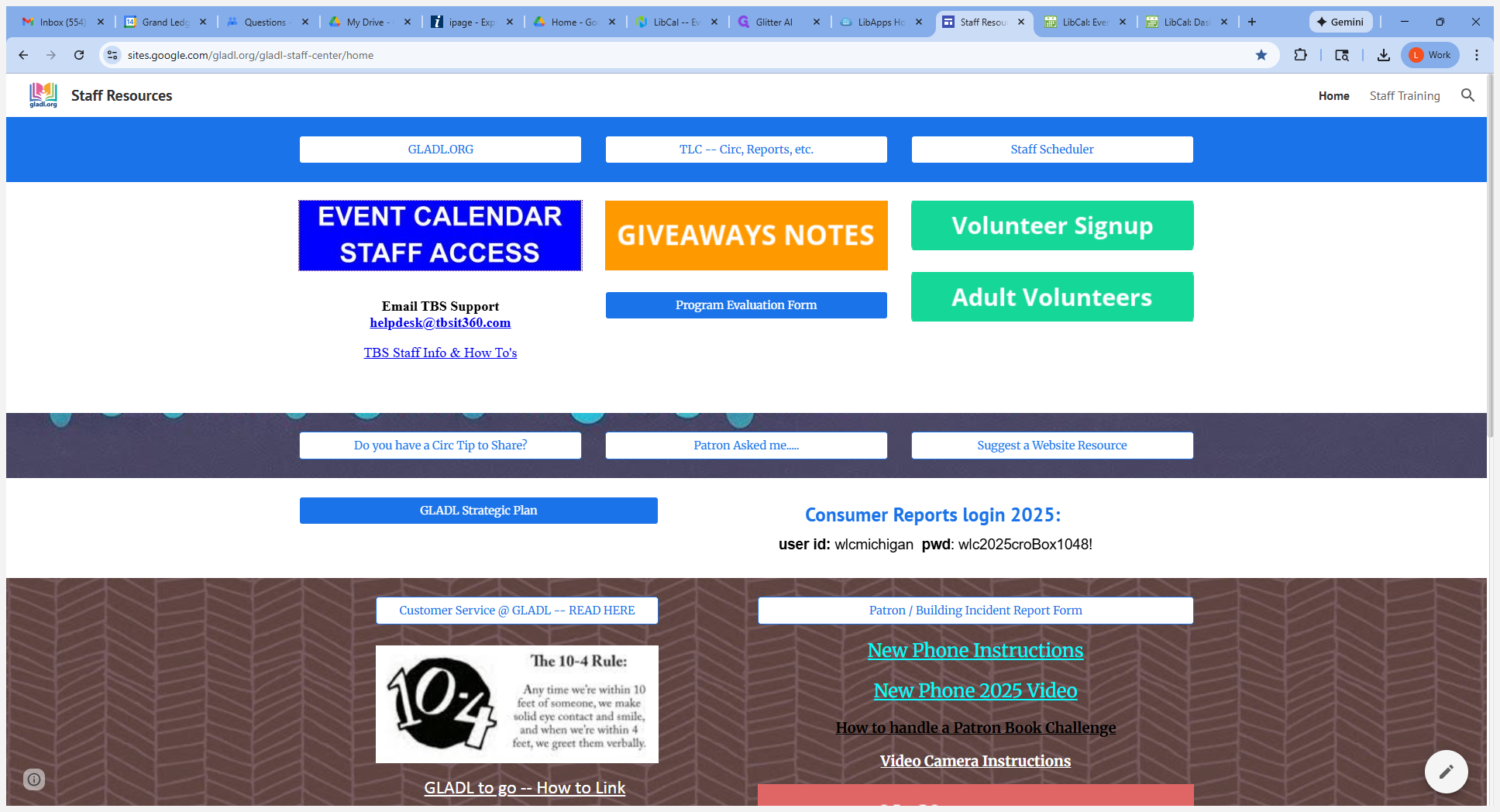
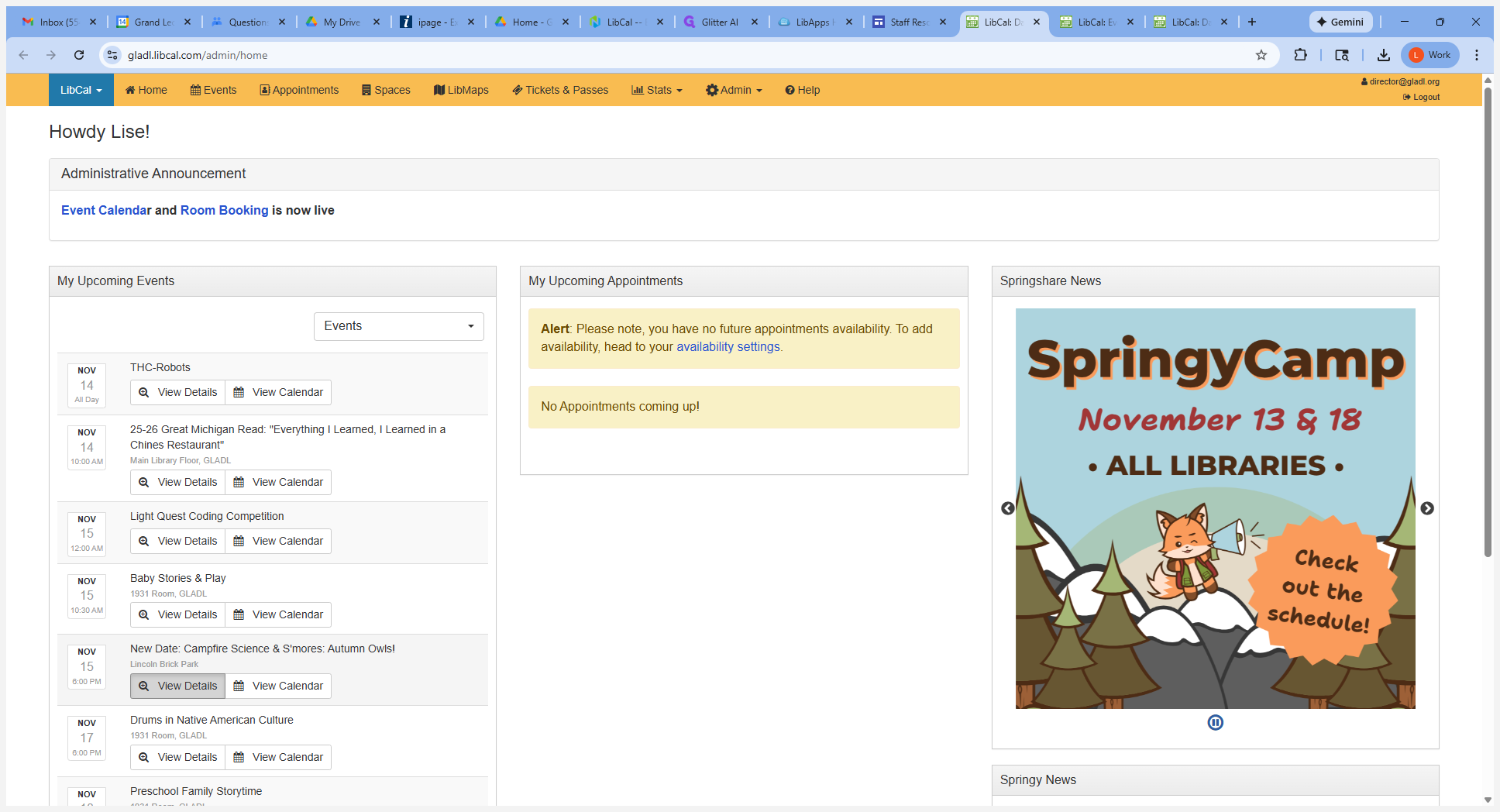
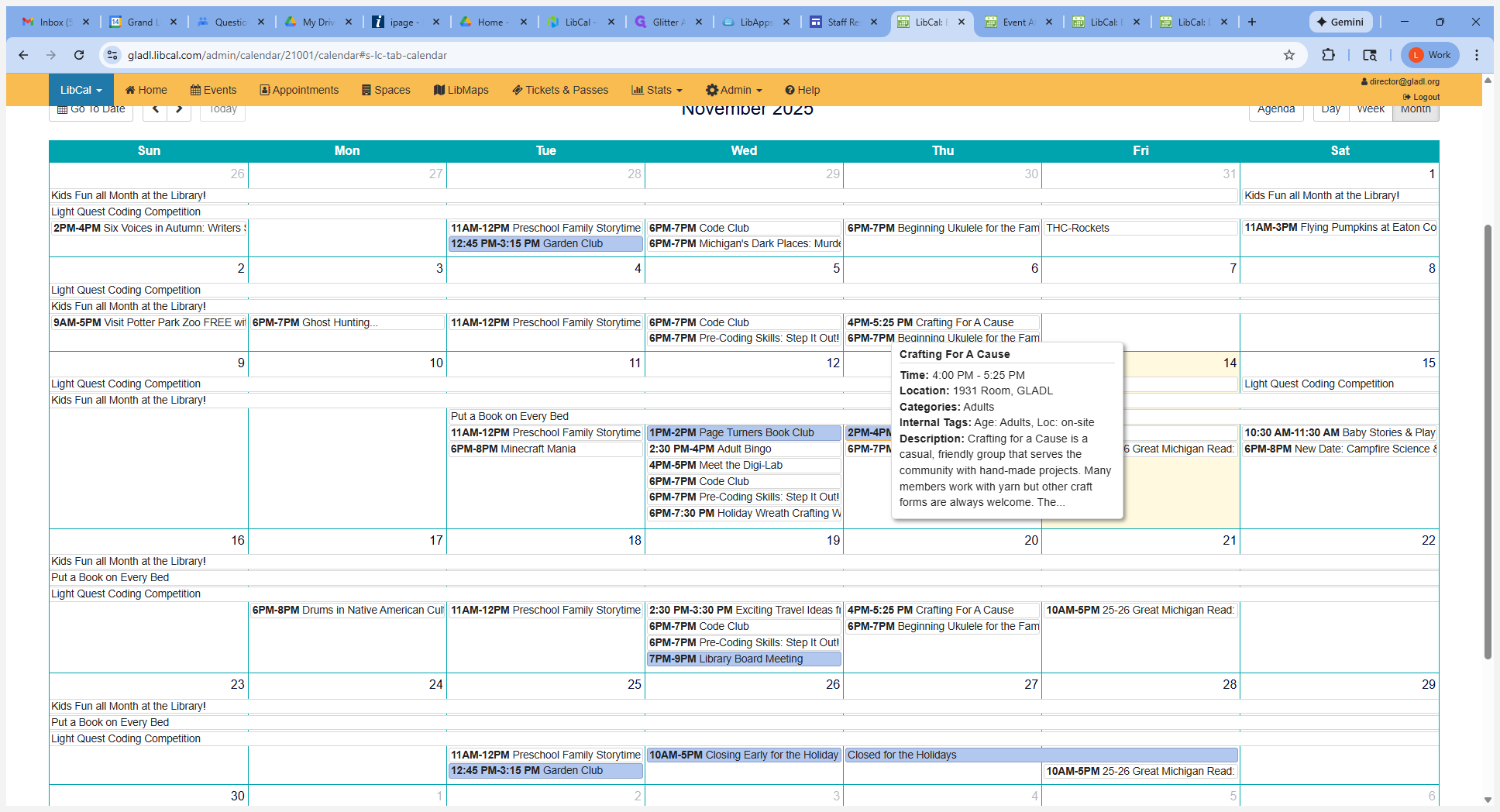
That opens LibCal. Upcoming events are on the left-hand side. Click on View Details for a specific event. A pop-up will appear, showing all the event details.
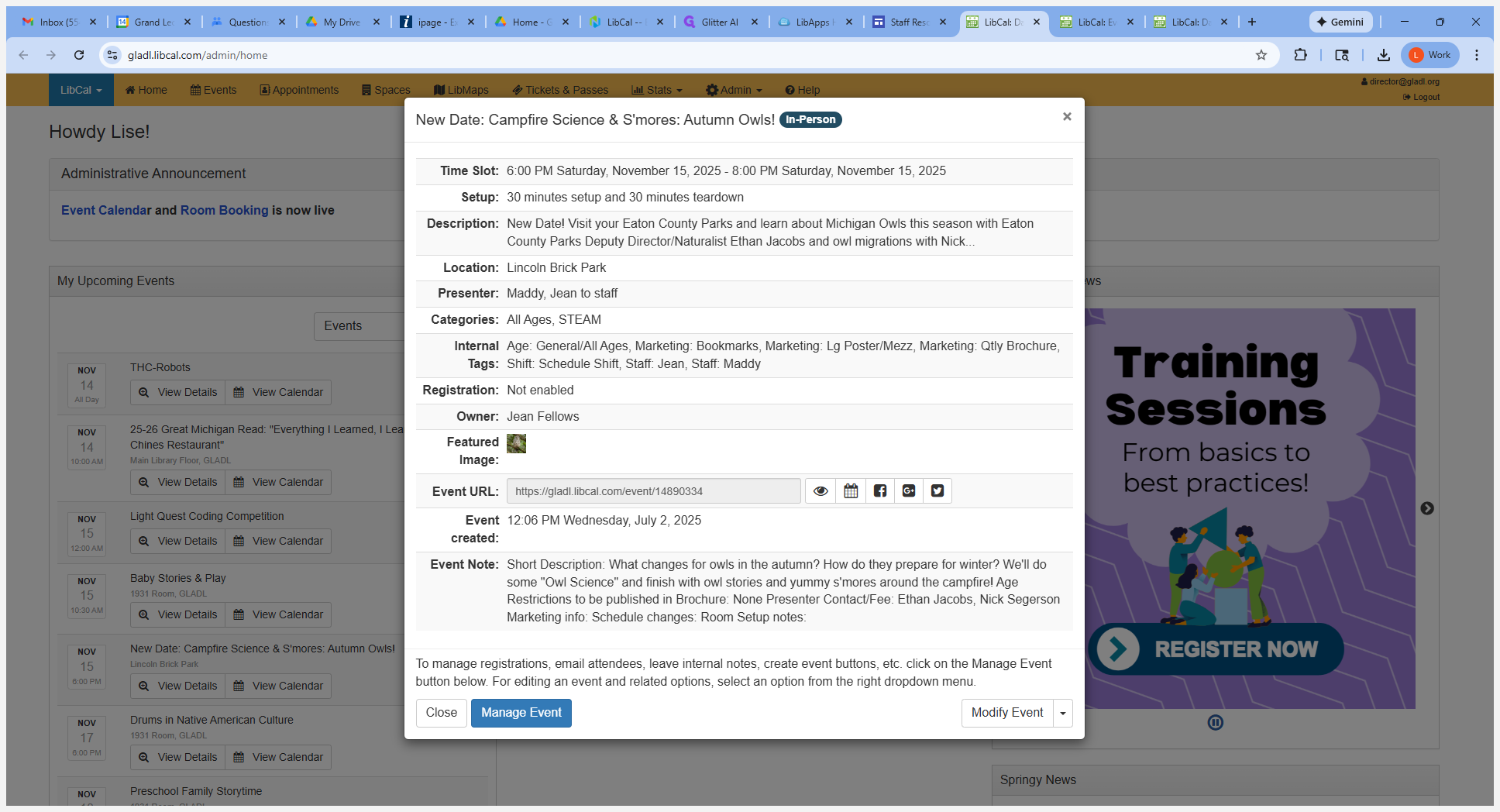
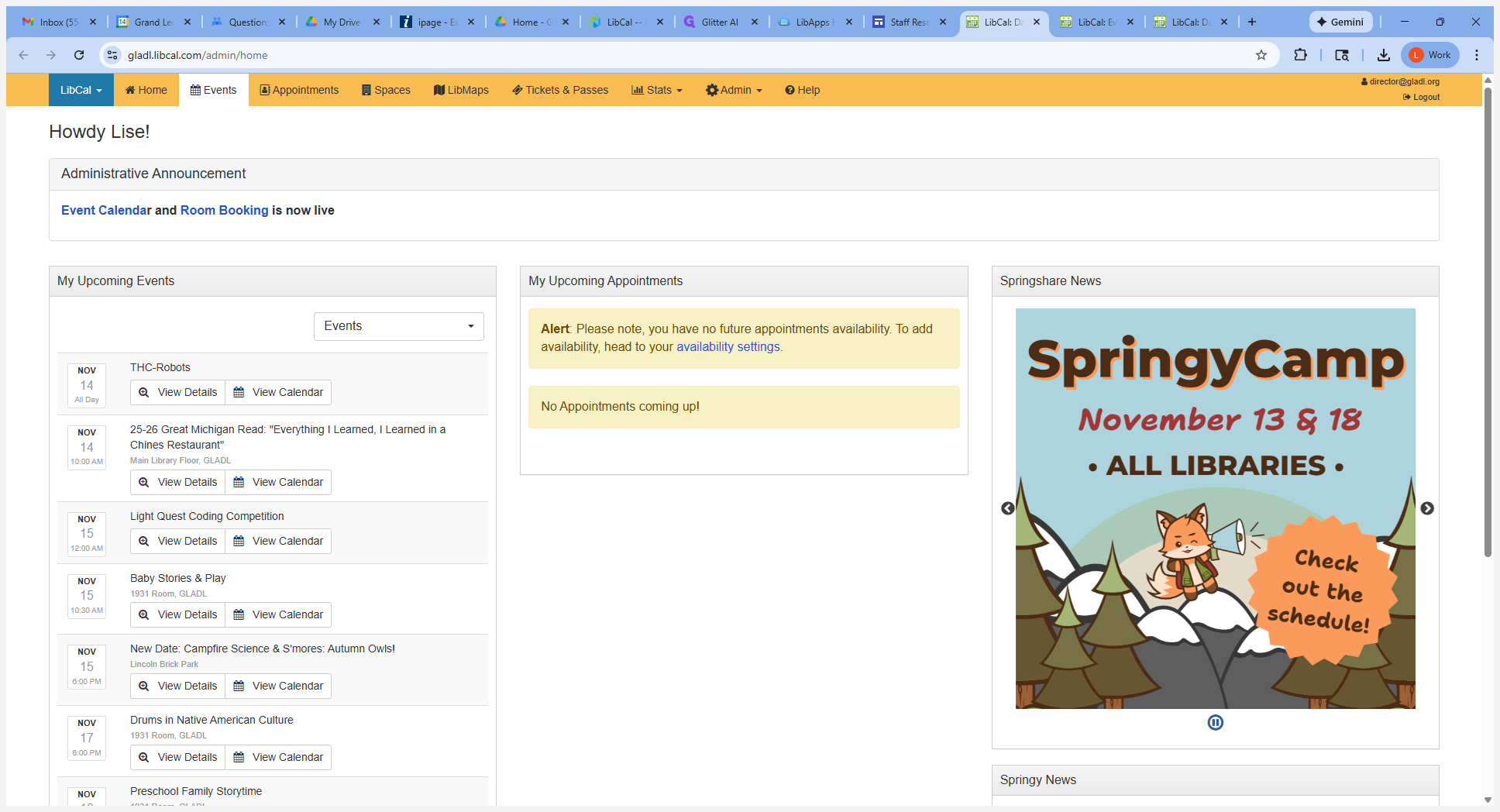
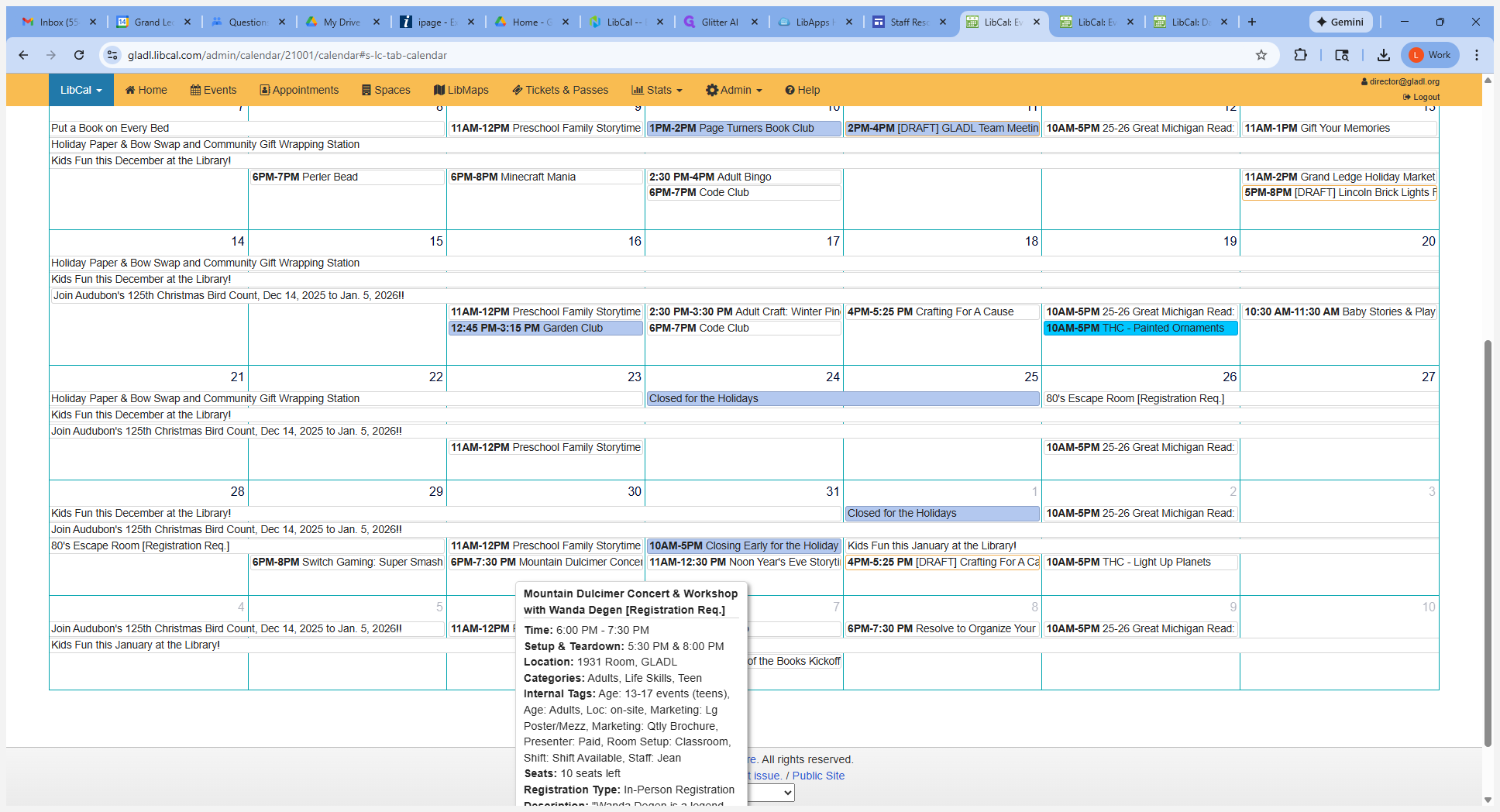
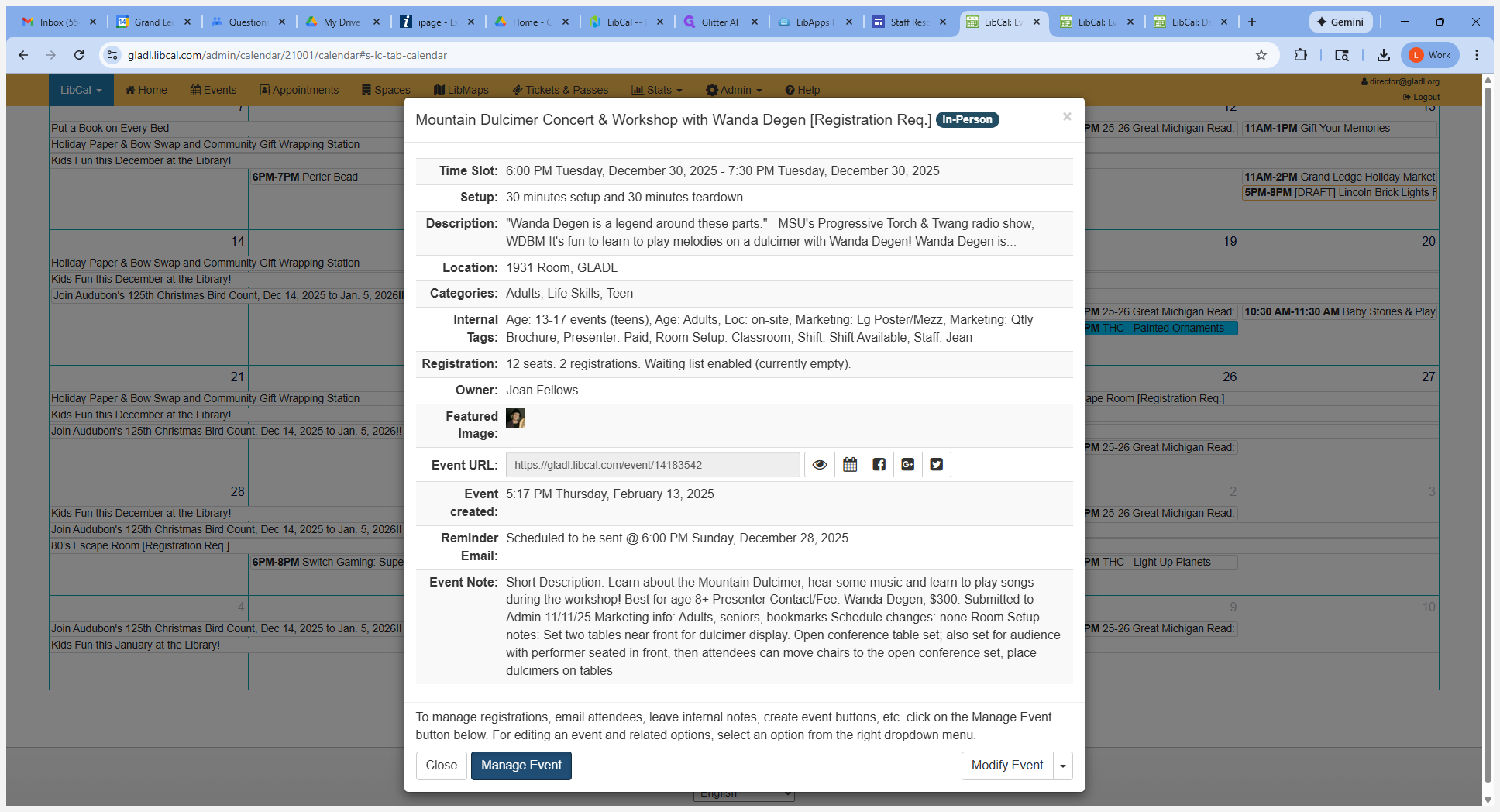
If someone calls to register for an event or you need to print a class list, go to "Events" on the calendar and select the date. When the event details appear, such as the "Mountain Dulcimers concert", choose Manage Event.
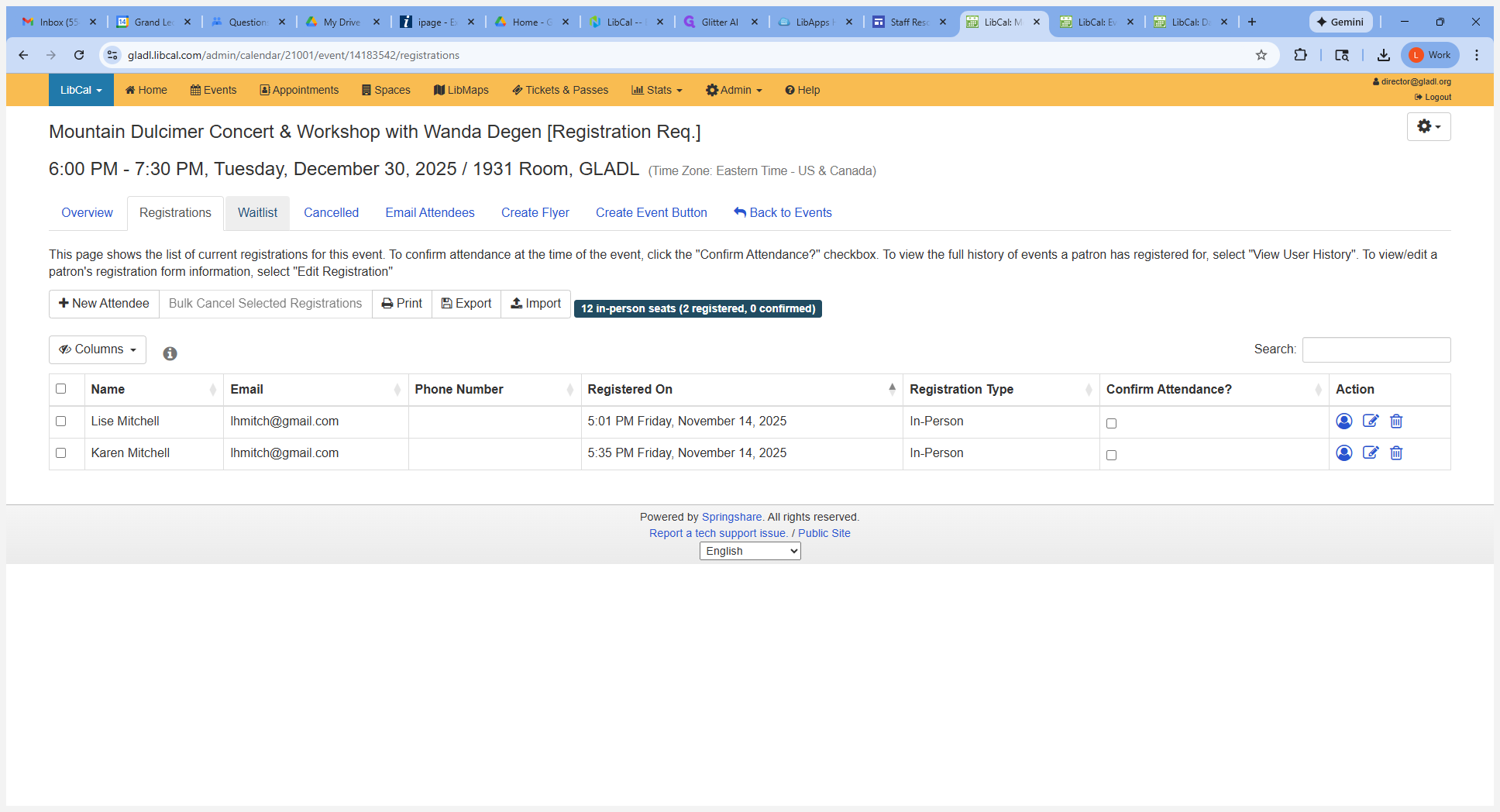
Now you can see who has registered for the event. If the class were full, you could see who was on the waitlist.
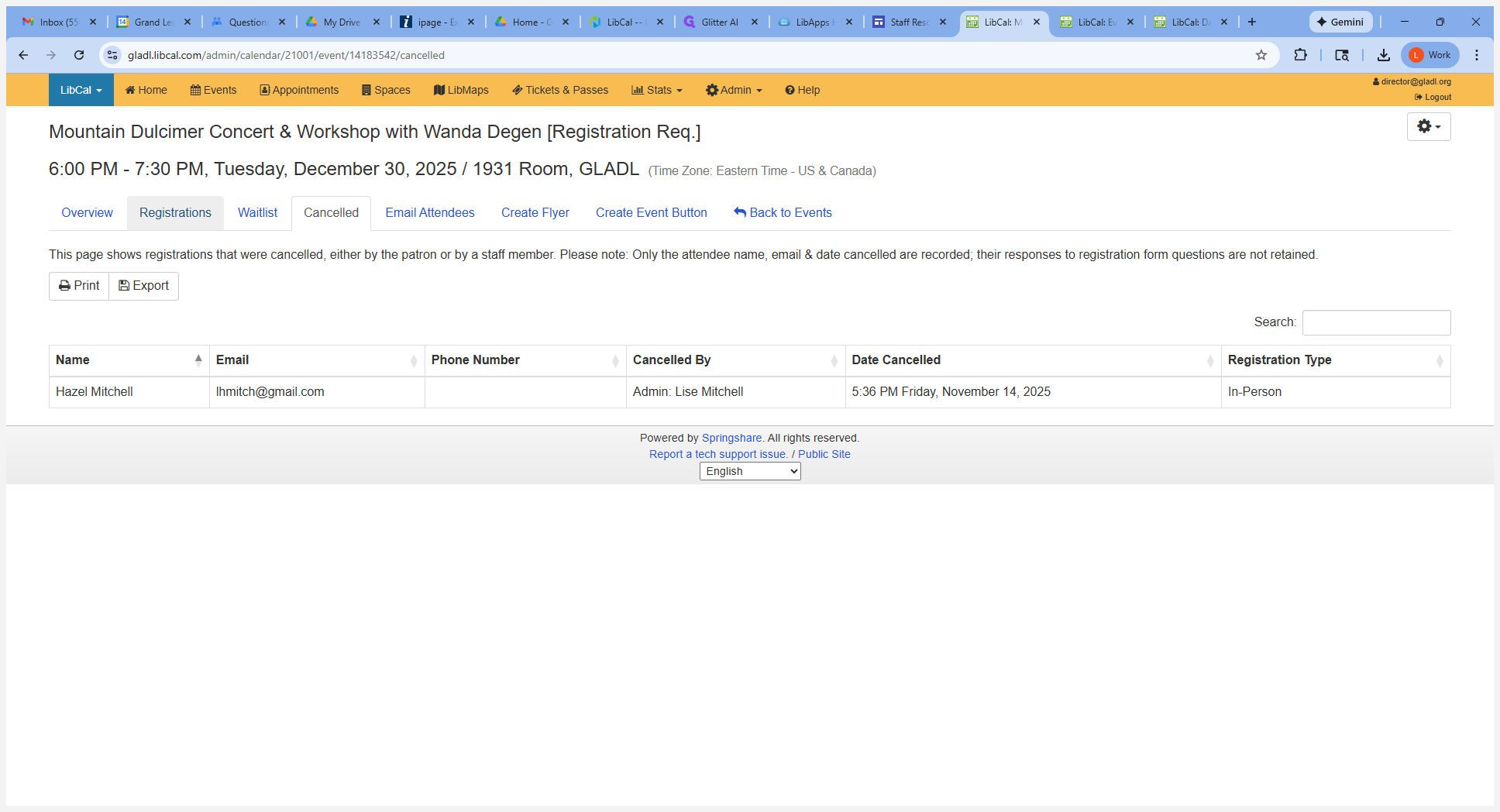
You can also see who has already canceled. For example, Hazel has canceled.
If someone wants to cancel, you can easily do so by clicking on the trash can to cancel their registration. They will receive an email confirmation.
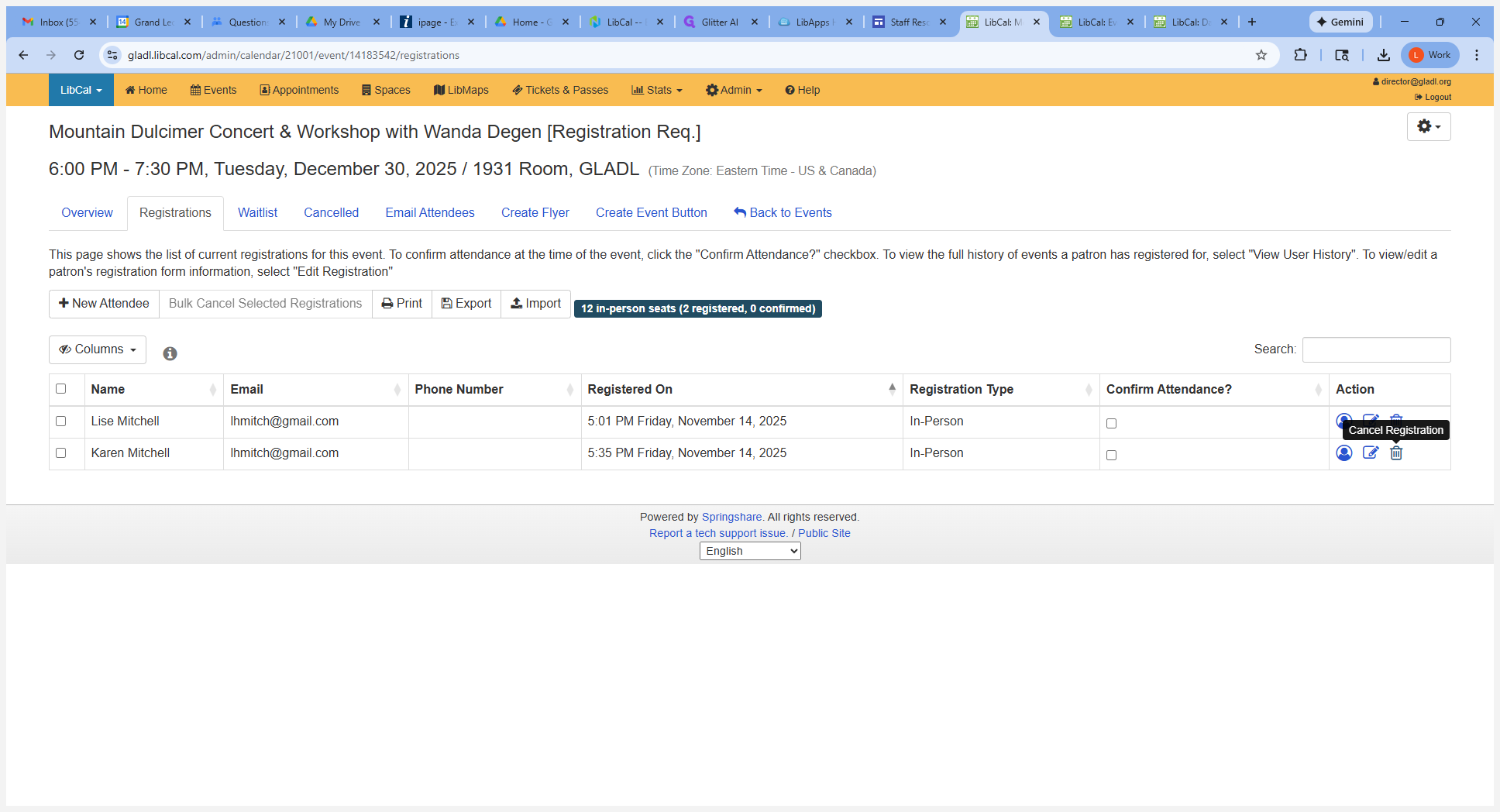
If someone wants to be added to the registration, click on "New Attendee." Enter their name and the email address they want to use.
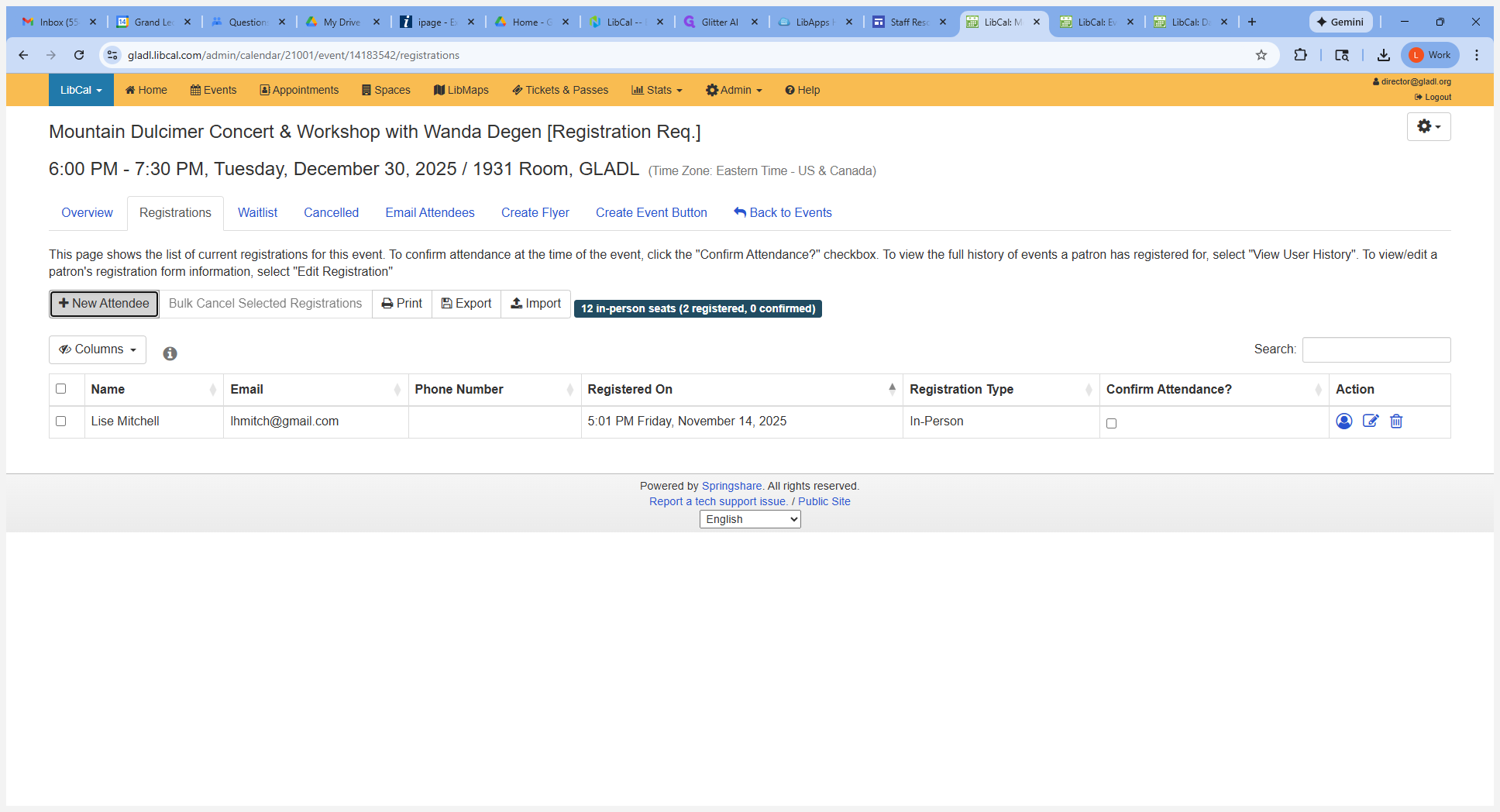
Make sure to click Save to register them for the event.
If the person does not have an email, you can use info@gladl.org to register them.
Please Note: It is better for a patron to use their own email so that they will get event reminders
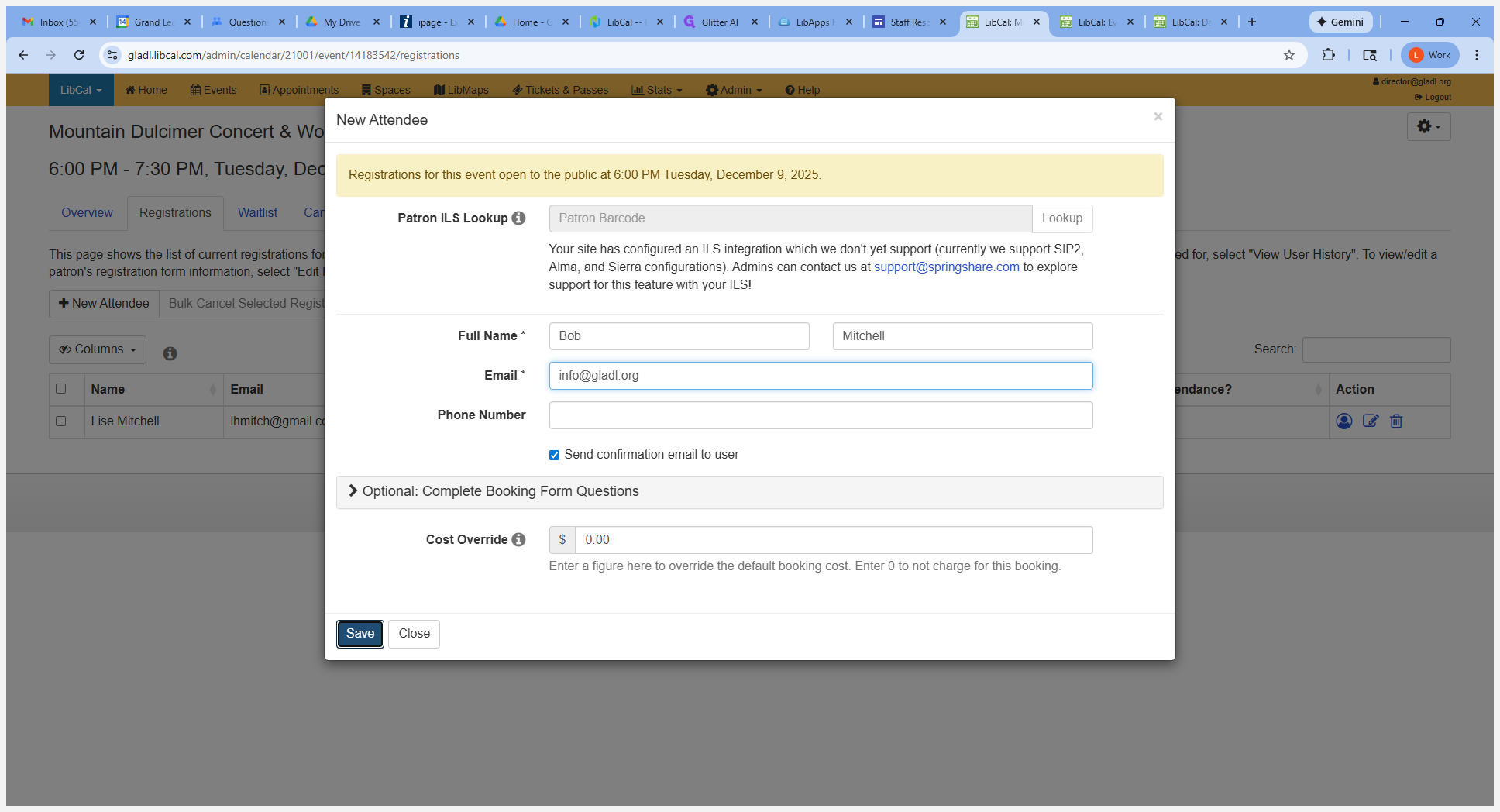
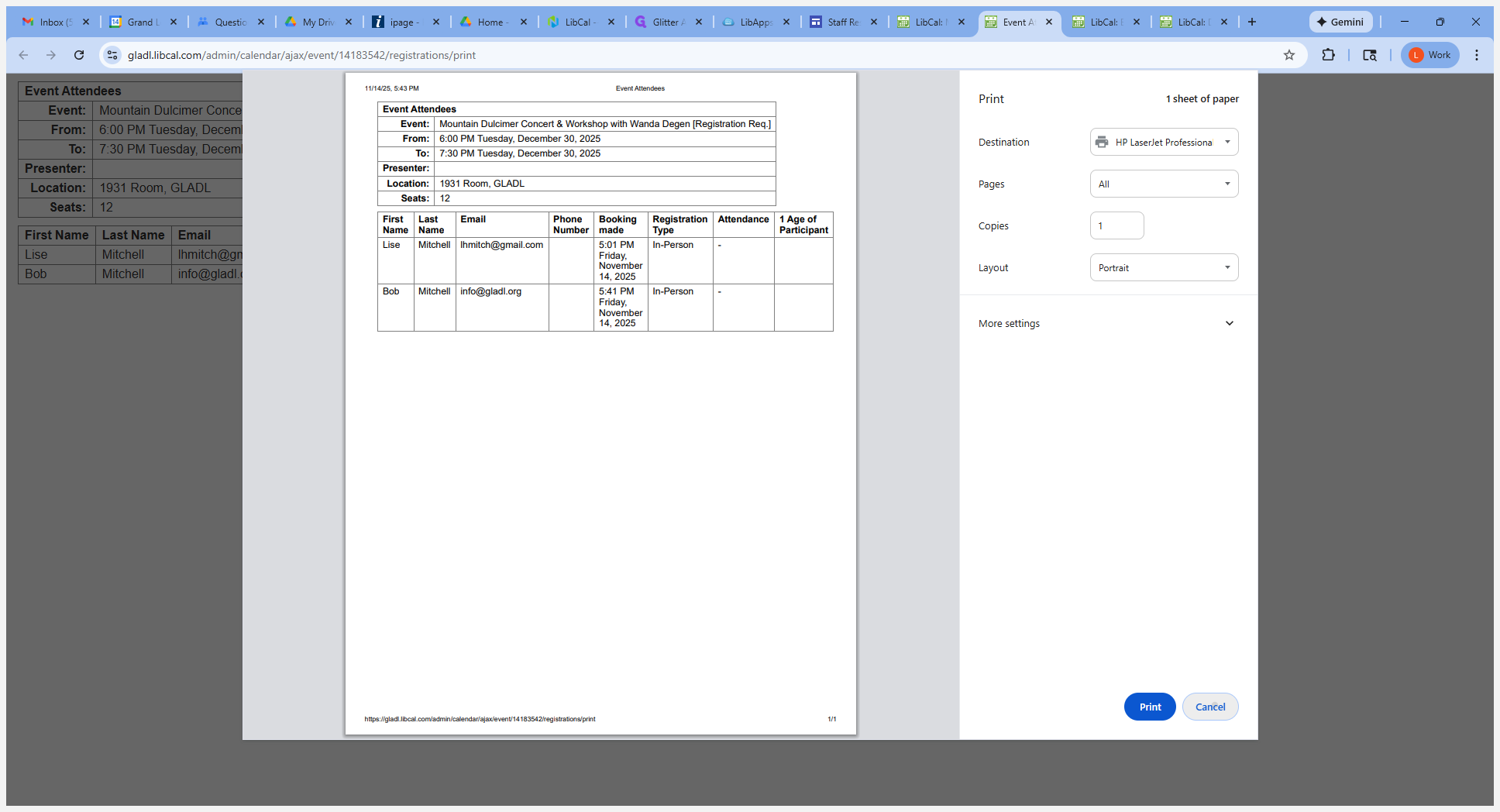
To print a class list, click Print.
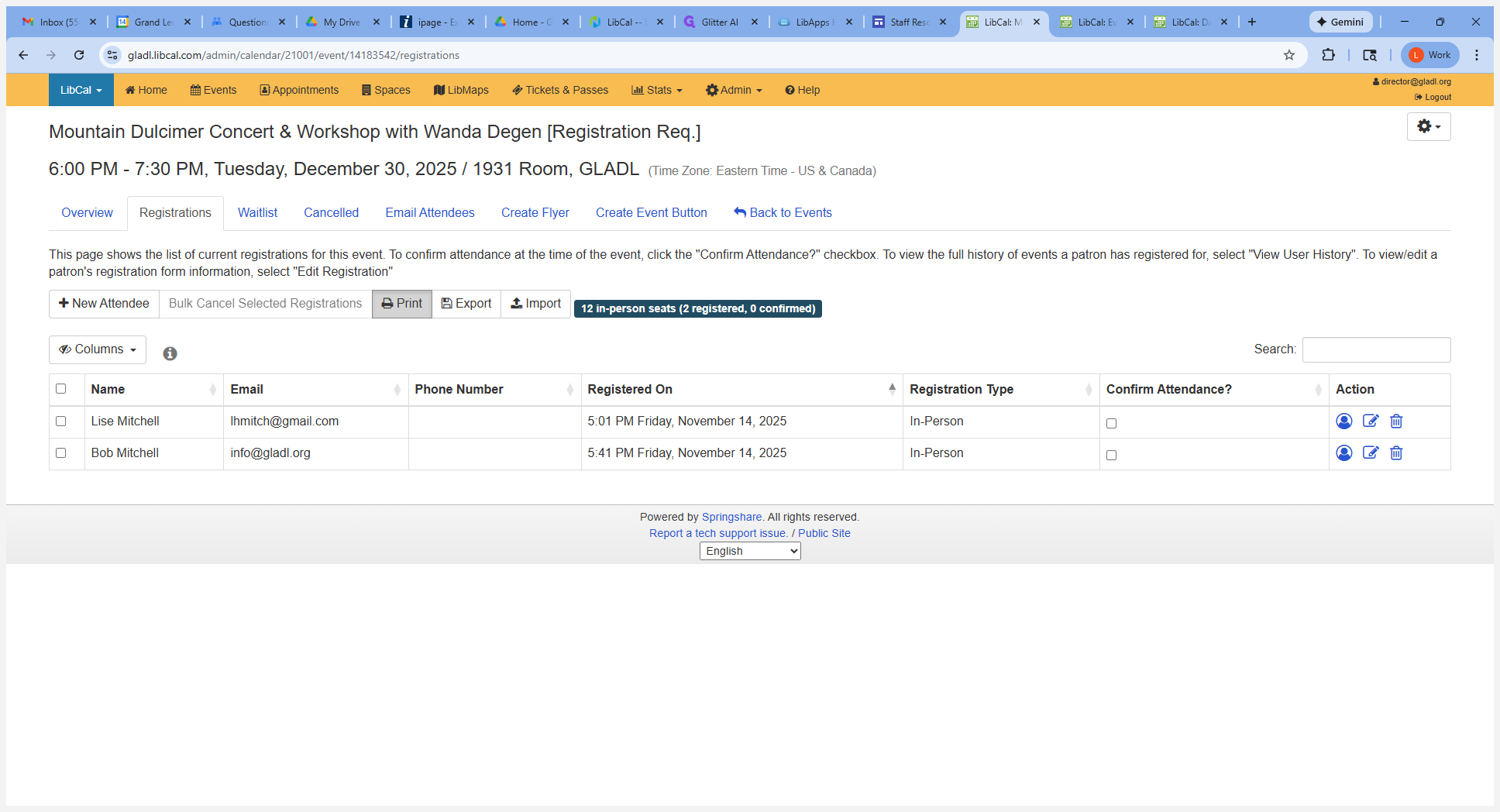
Produces a class list for the event
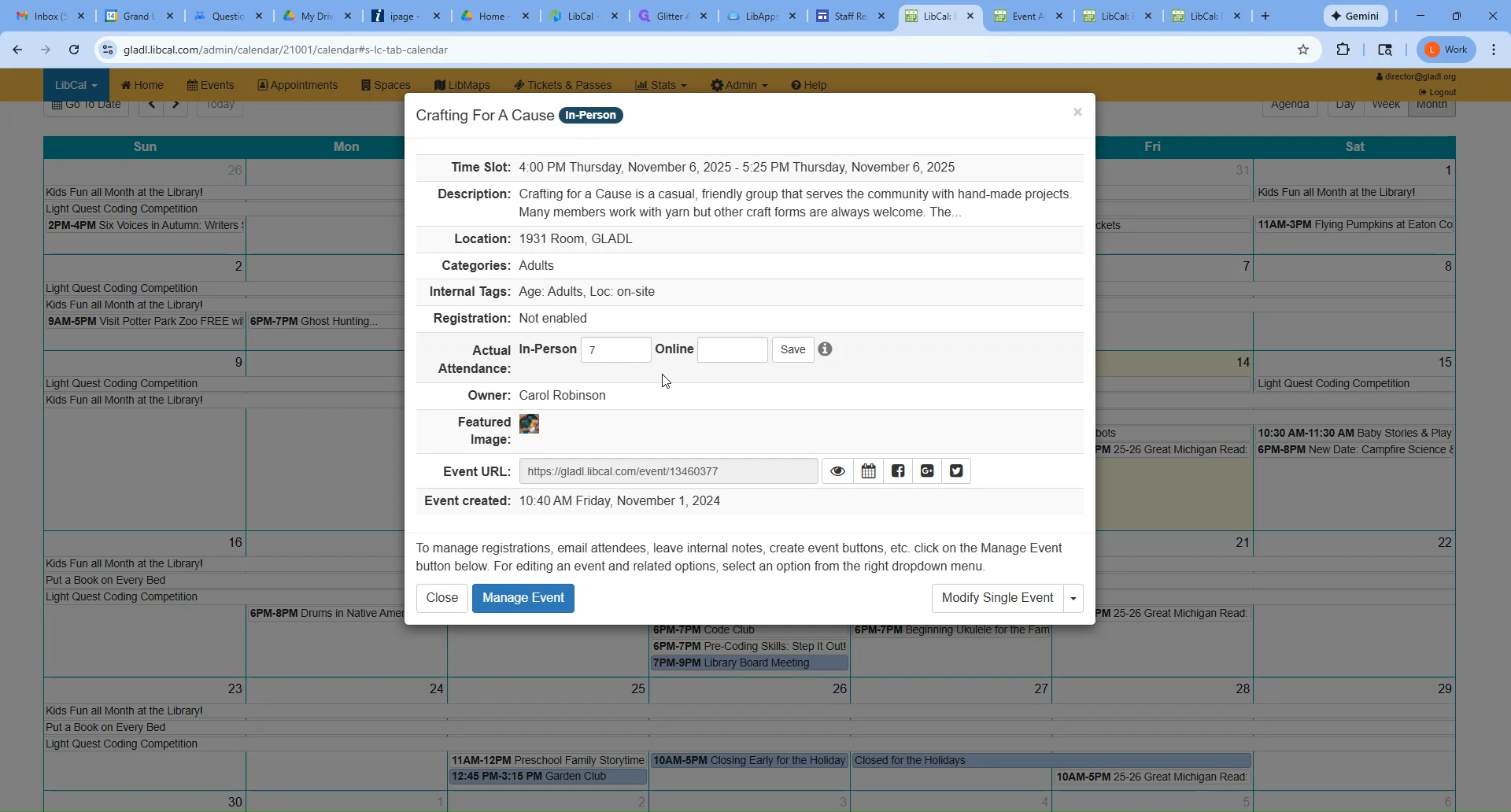
After the event, go to the Event Explorer page to view attendee activity. In the Manage Event section, you can enter actual attendance numbers. Be sure to click Save.
This guide explains how to view event details, add registration to an event, print a class list, cancel a registration, and add statistics to an event.
""