Icon

Link List-Only Members to Parent Organizations

Learn how to cross-reference list-only members to their parent organization's primary member in the member database to maintain accurate organizational records.

By Dale Wheeldon

This guide explains how to connect "list-only" members to their parent organization's primary member in the member database. Completing this ensures all subsidiary contacts are properly cross-referenced under the correct parent organization for accurate communication and reporting.

This workflow is intended for database administrators and membership coordinators managing portal records. You will use this process during routine database cleanup or when onboarding new contacts from member tracking spreadsheets.

To connect list-only members to their parent organization, you will cross-reference the "List Only Members With No Parent" spreadsheet to identify missing connections and the "Organizational Primary Members" spreadsheet to find the correct primary member to link them to.

Access the Member Profile
1
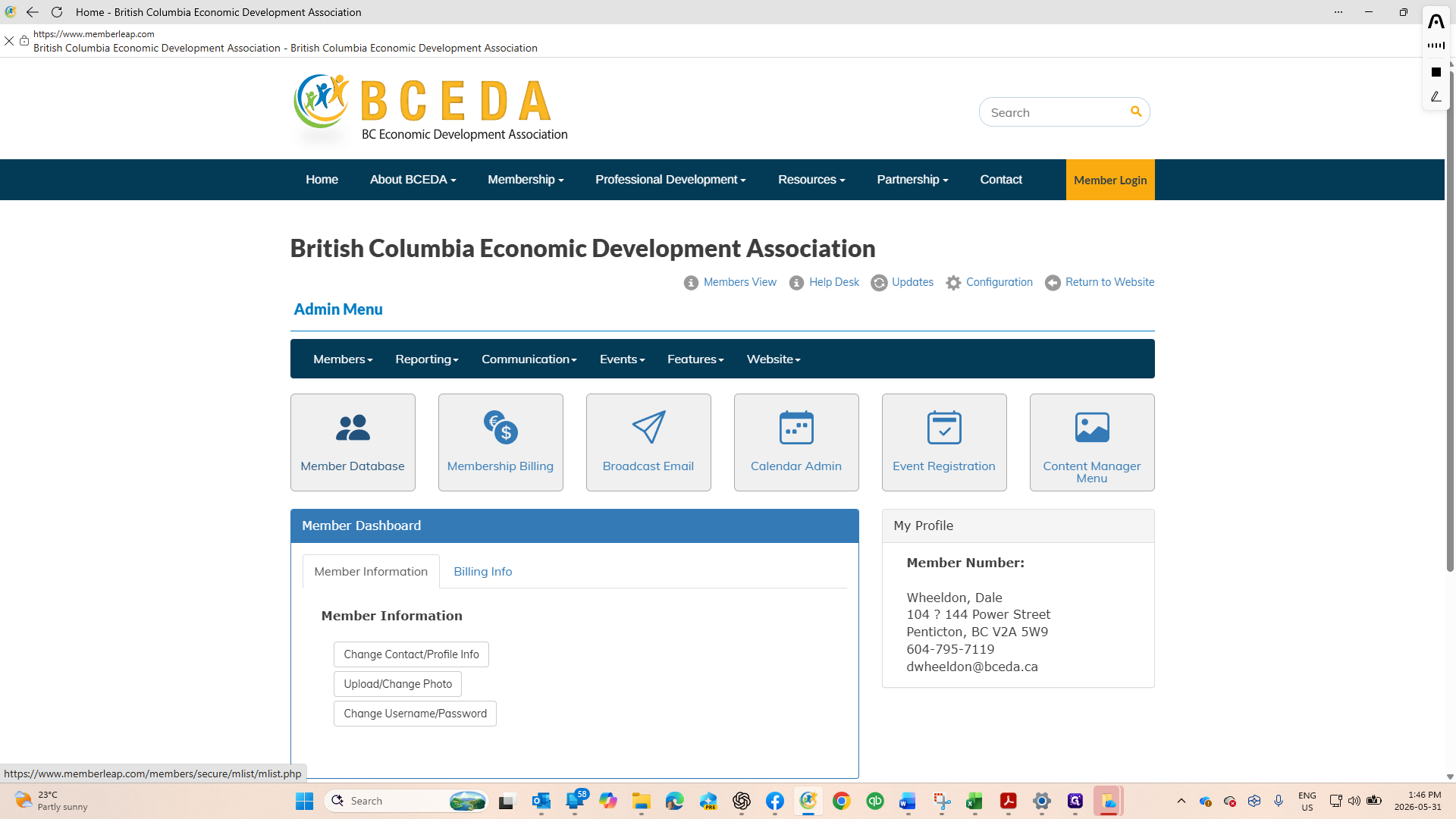
Click Main Menu.
Step #1: Click Main Menu.
2
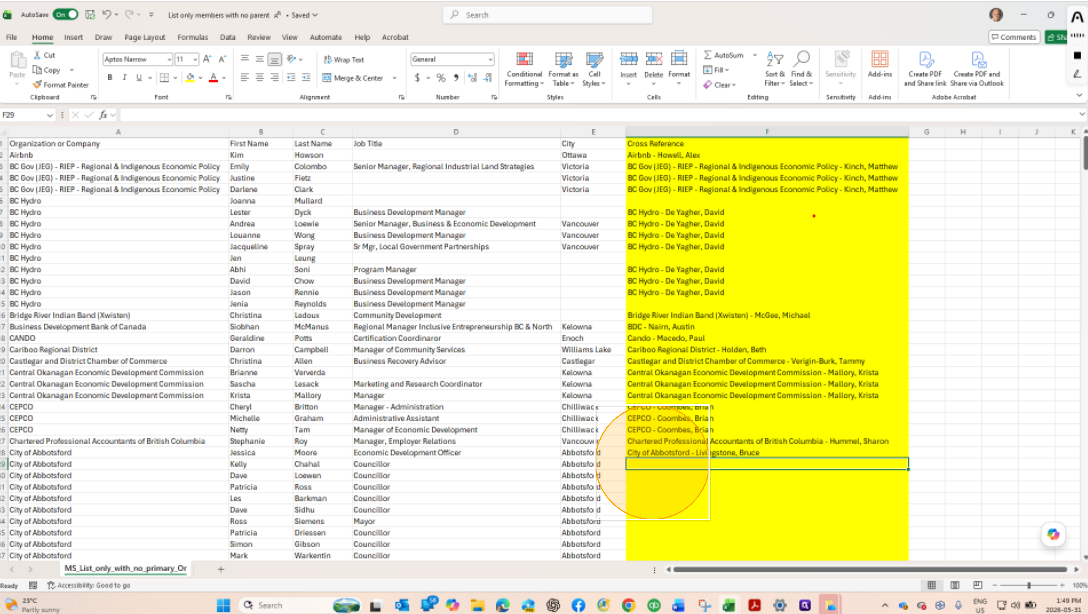
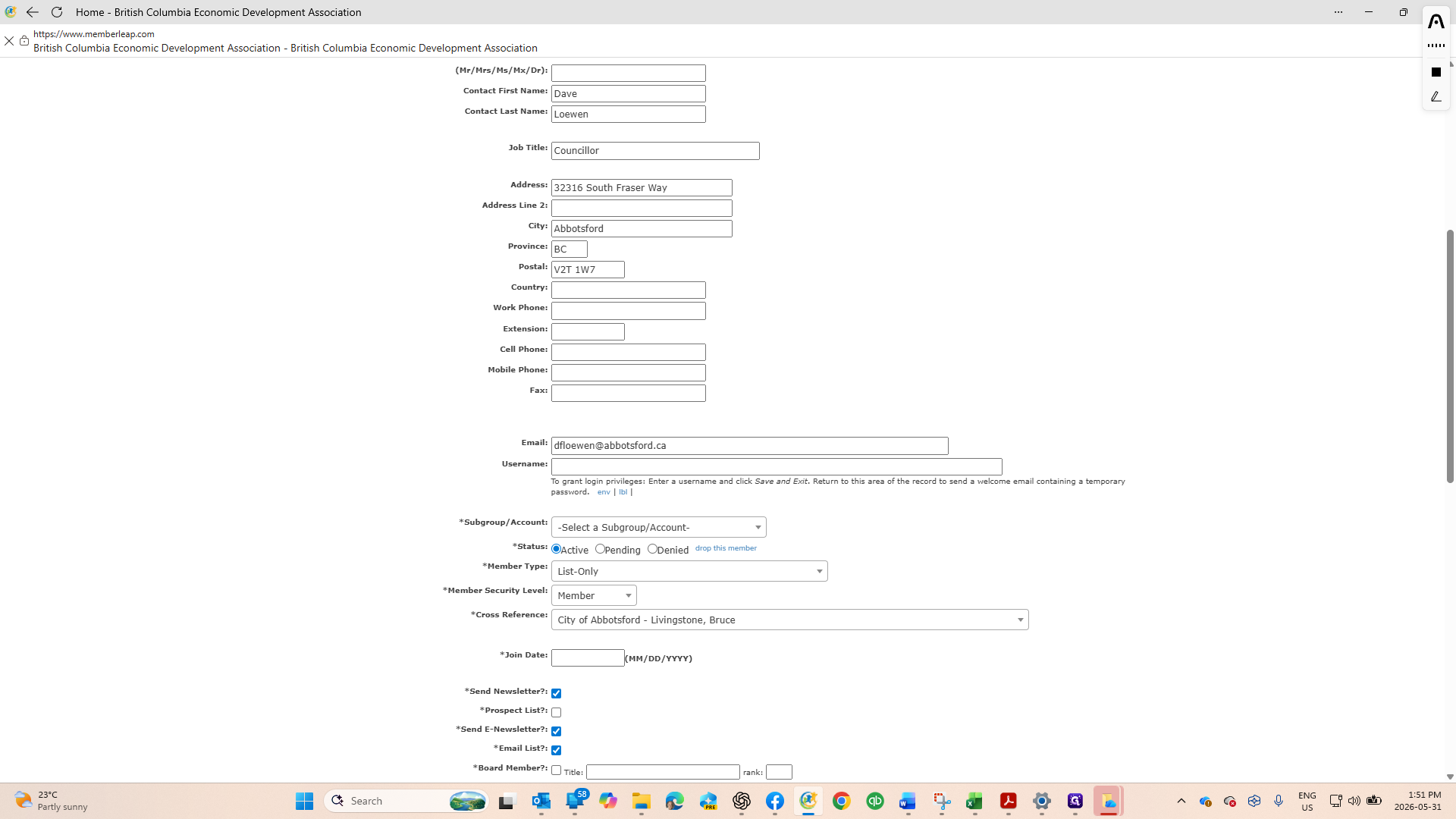
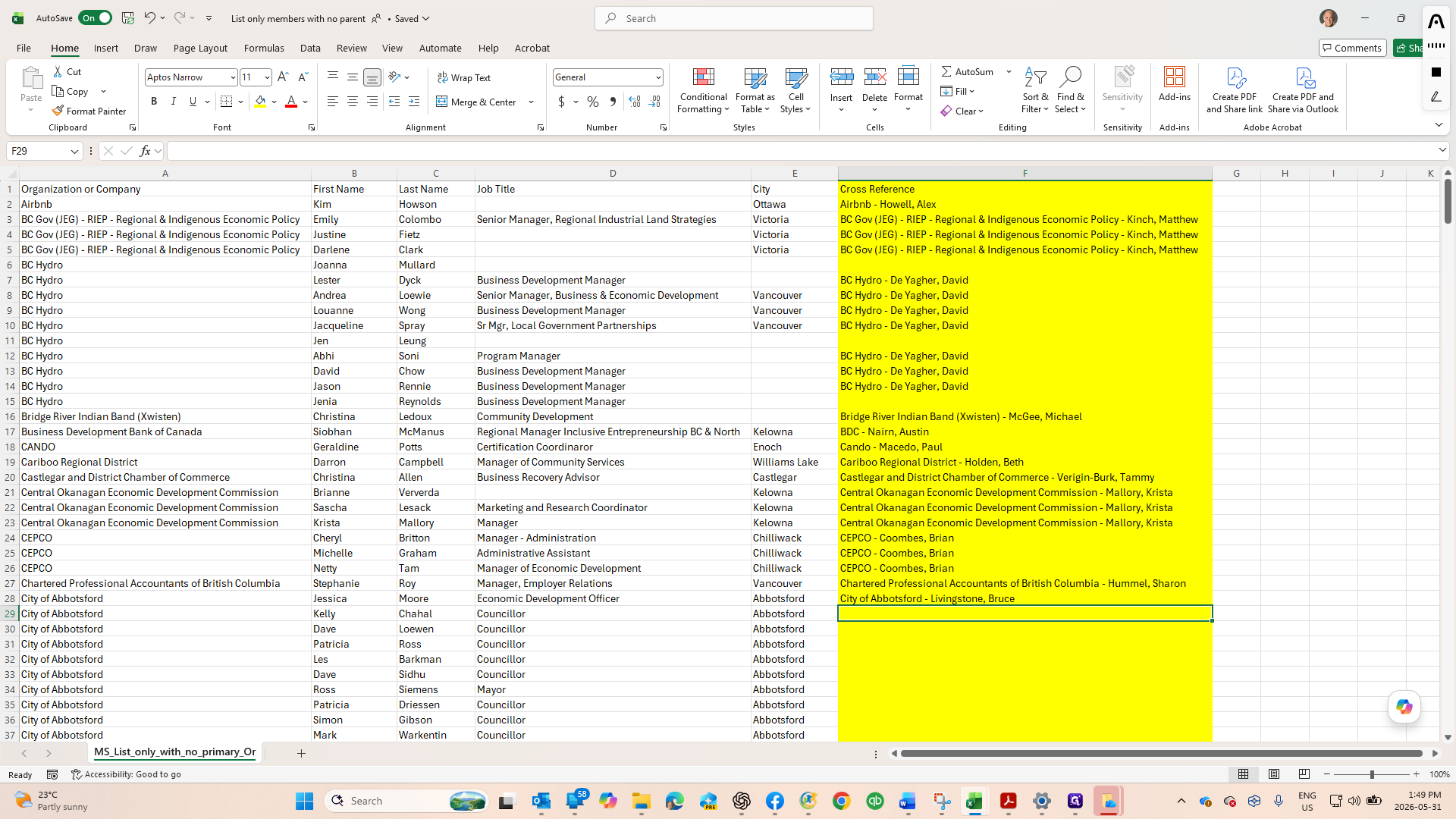
The spreadsheet called List only members with no parent is the one you mainly want to work off of. You will see the blanks. We will mainly focus on local governments for now, but once you get the handle of it, please fee free to update others that are blank. You will see in the screenshot that Kelly is under the City of Abbotsford. It should be connected to Bruce Livingstone, just like the one about Kelly is.
Step #2: The spreadsheet called List only members with no parent is the one you mainly want to work off of. You will see the blanks. We will mainly focus on local governments for now, but once you get the handle of it, please fee free to update others that are blank. You will see in the screenshot that Kelly is under the City of Abbotsford. It should be connected to Bruce Livingstone, just like the one about Kelly is.
3
Click Member Database.
Step #3: Click Member Database.
4
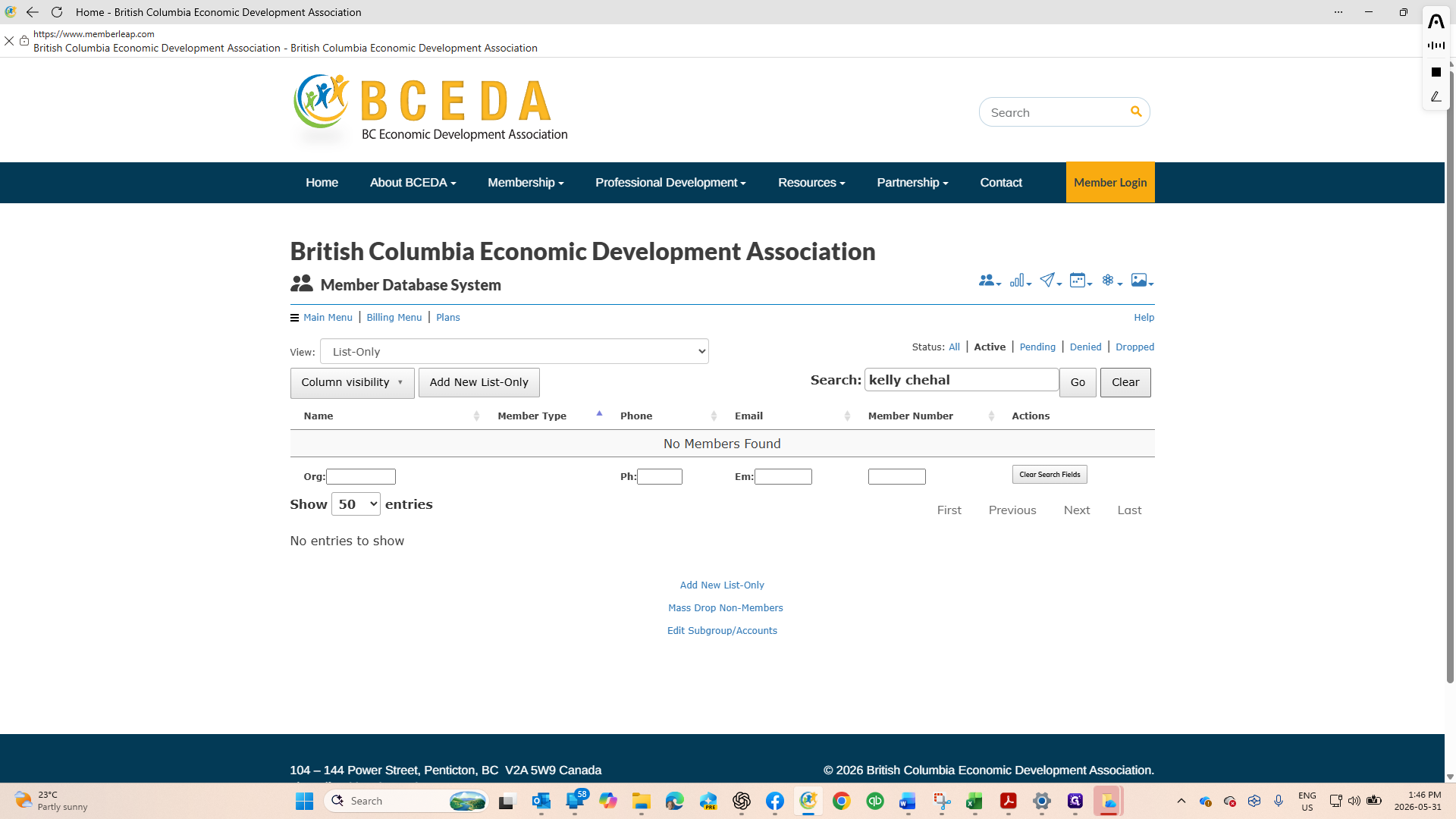
Click Clear to clear any existing filters.
Step #4: Click Clear to clear any existing filters.
5
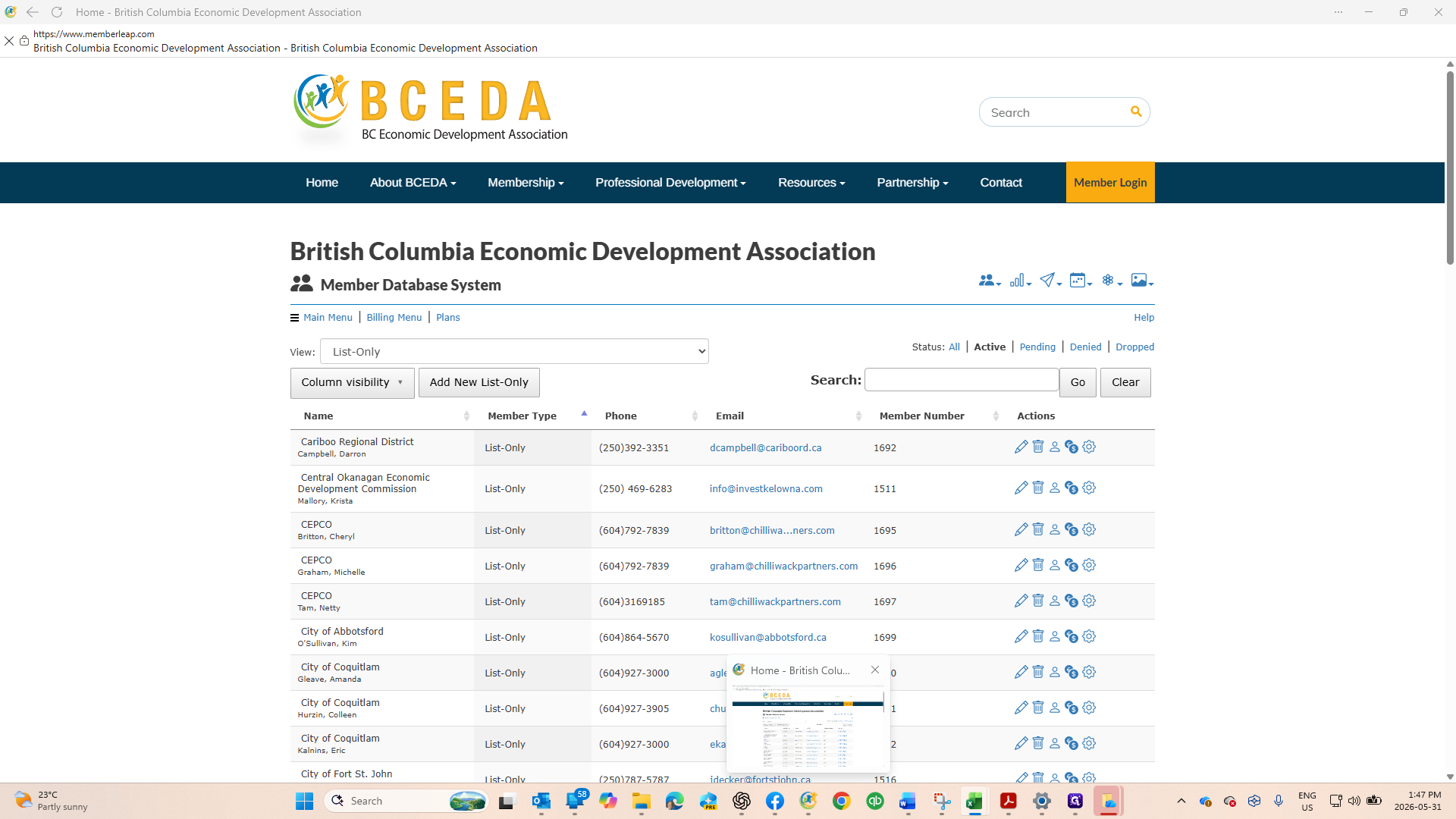
Filter the directory to view only the List Only members.
Step #5: Filter the directory to view only the List Only members.
6
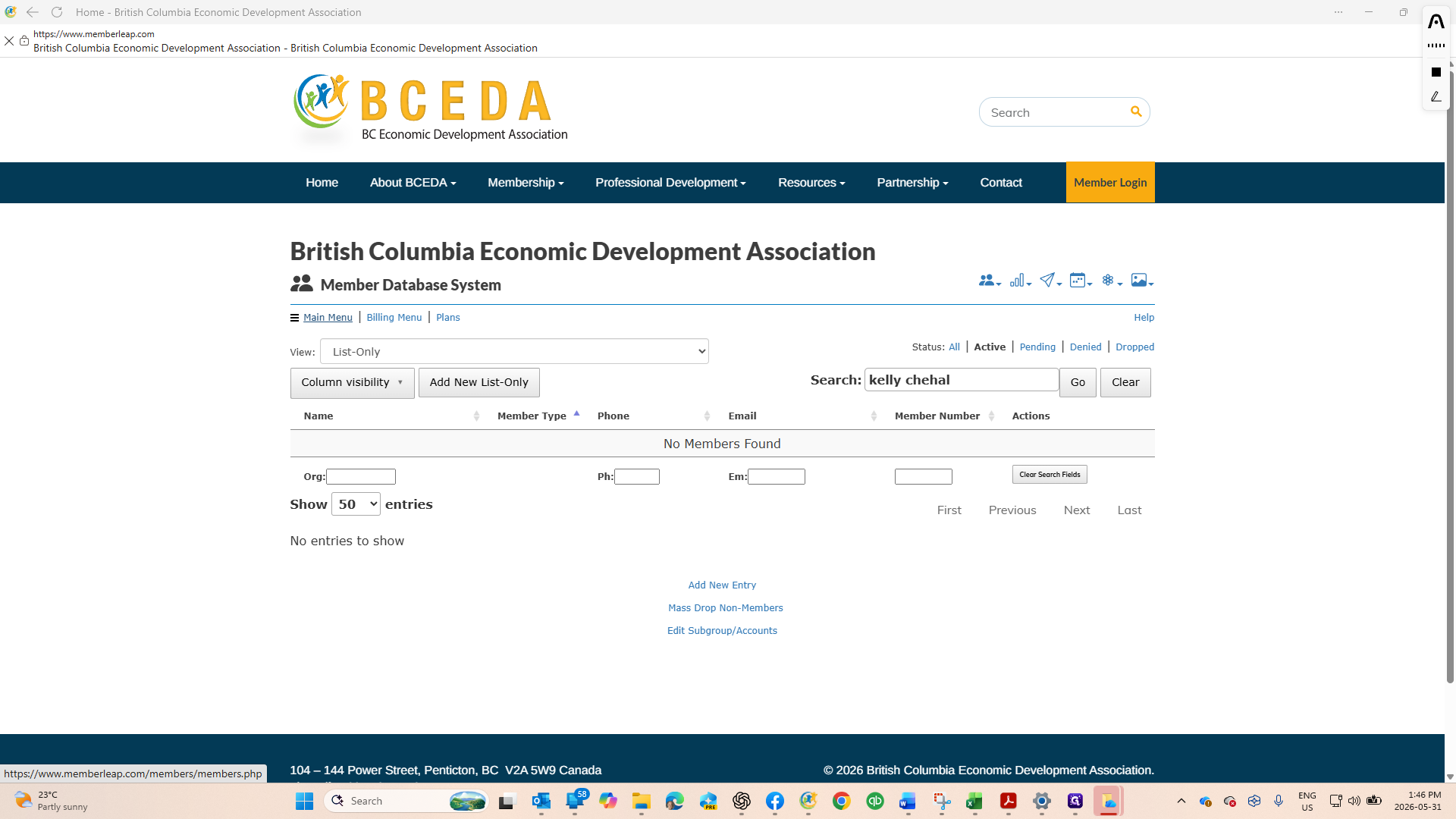
Type the organization name into the search bar and press Enter.
7
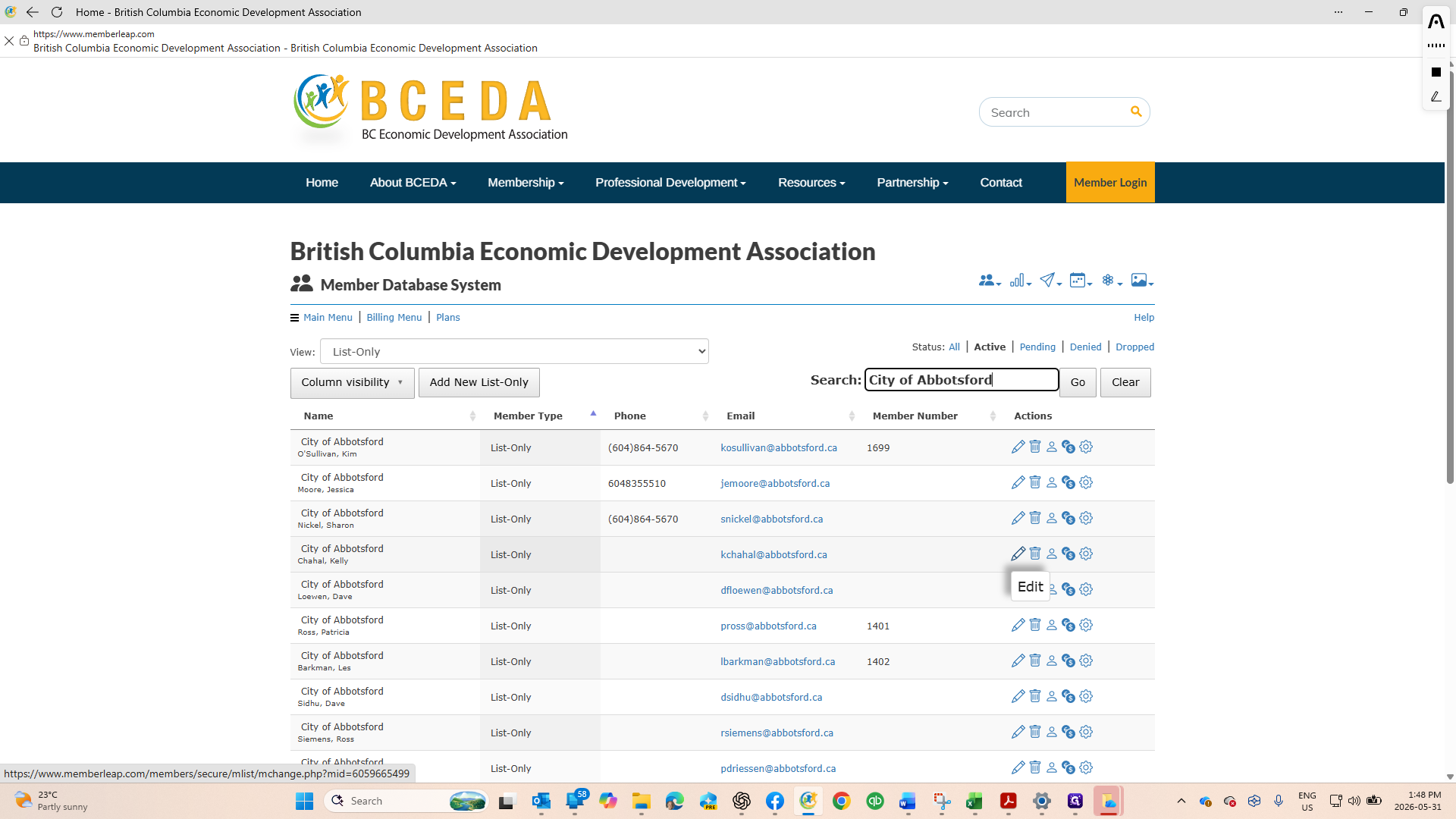
Click the Edit icon next to the list-only member's name.
Step #7: Click the Edit icon next to the list-only member's name.

Set the Cross-Reference

8
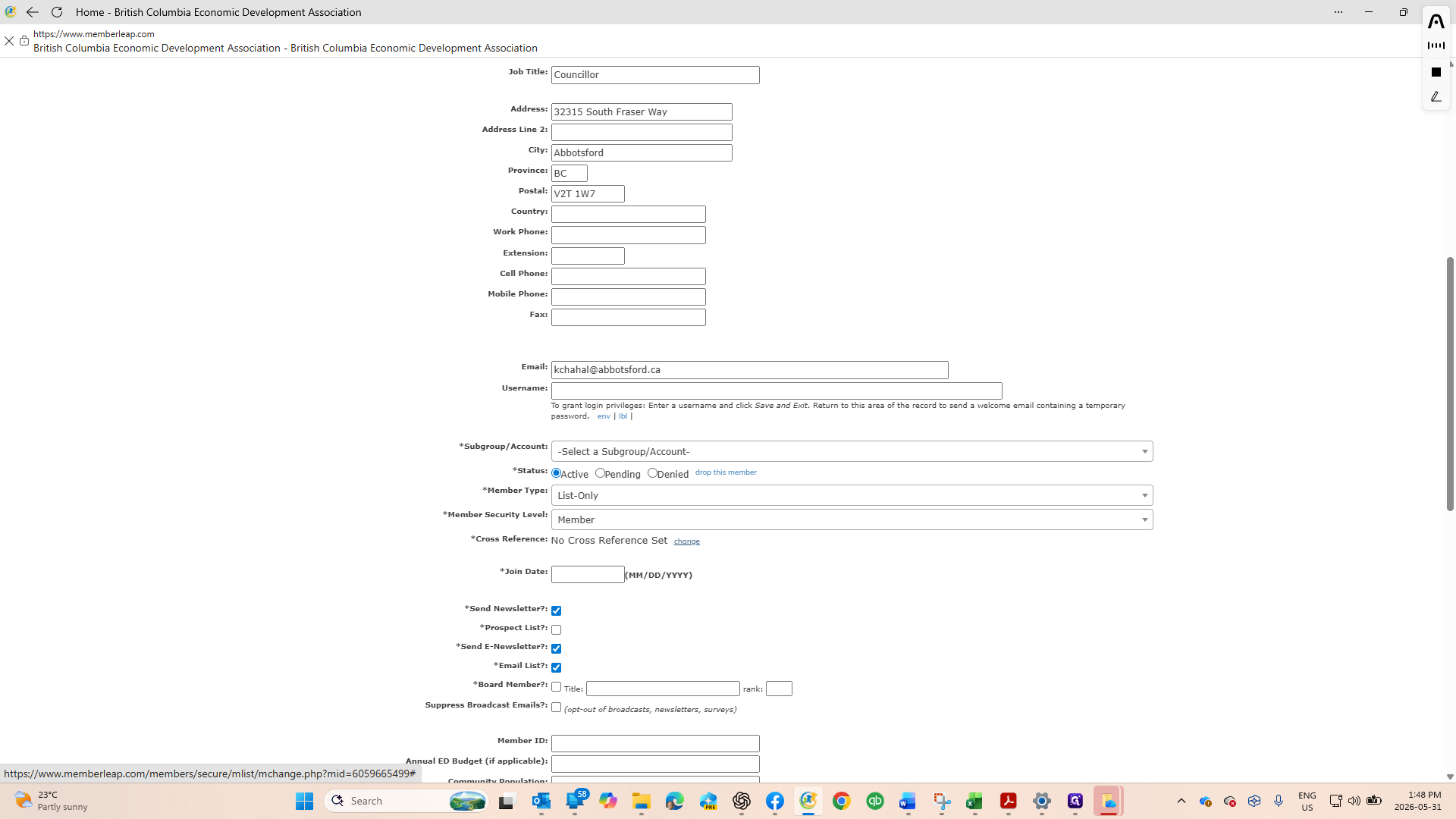
Scroll down to the Cross Reference section and click Change next to "No Cross Reference Set".
Step #8: Scroll down to the Cross Reference section and click Change next to "No Cross Reference Set".
9
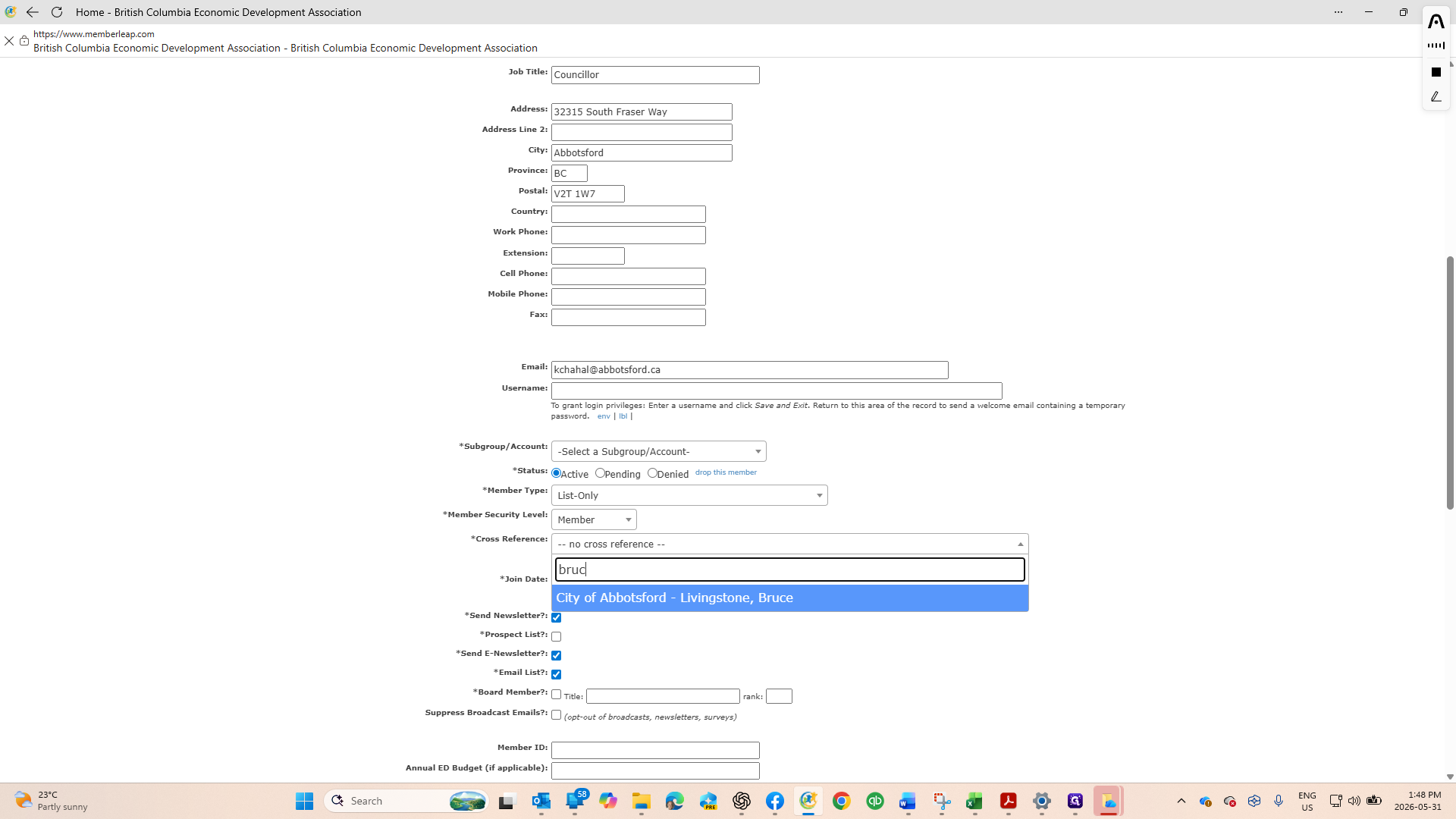
Type the primary member's name into the search field.
10
Select the primary member from the dropdown results.
Step #10: Select the primary member from the dropdown results.

Update Profile Details

11
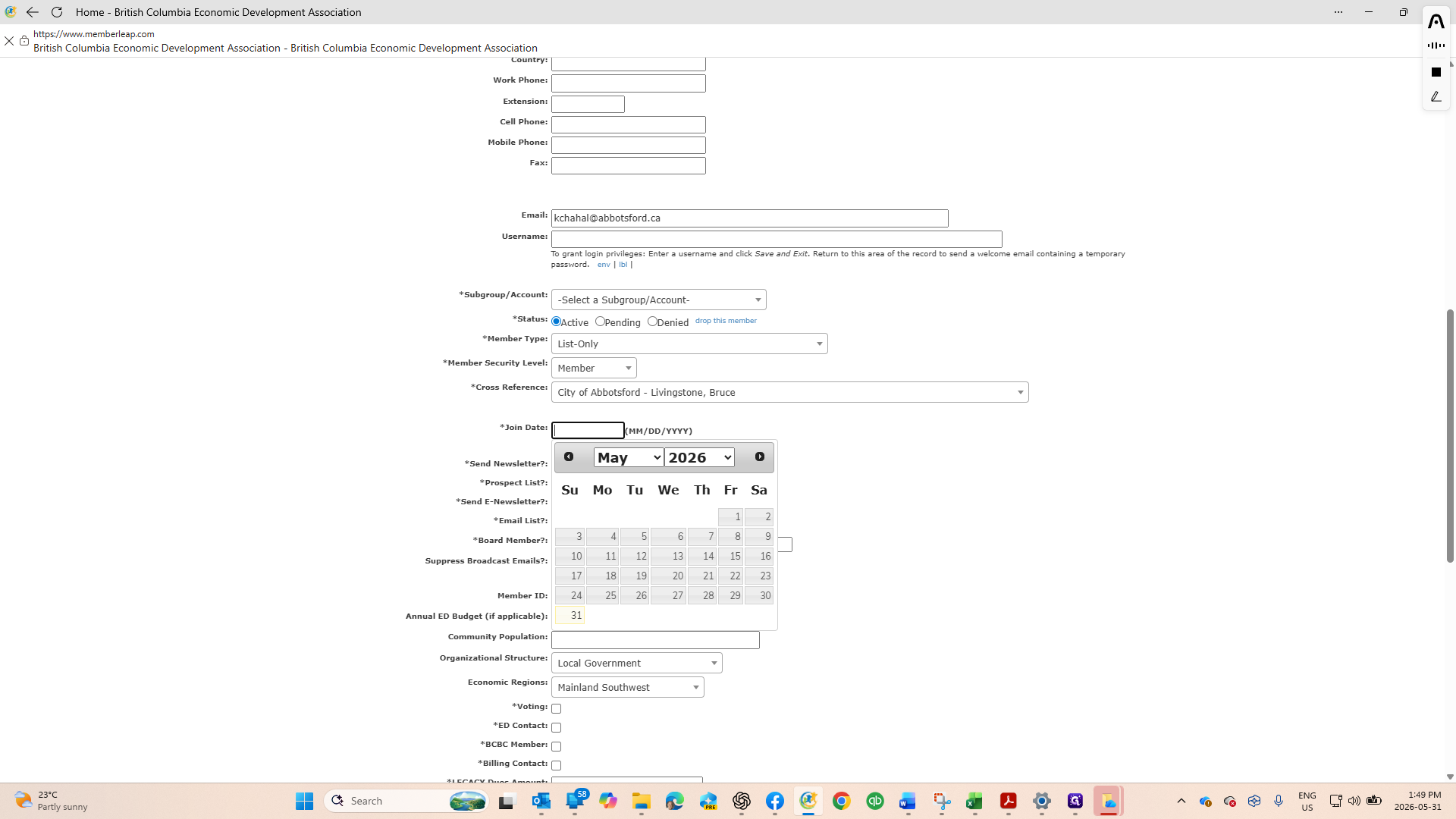
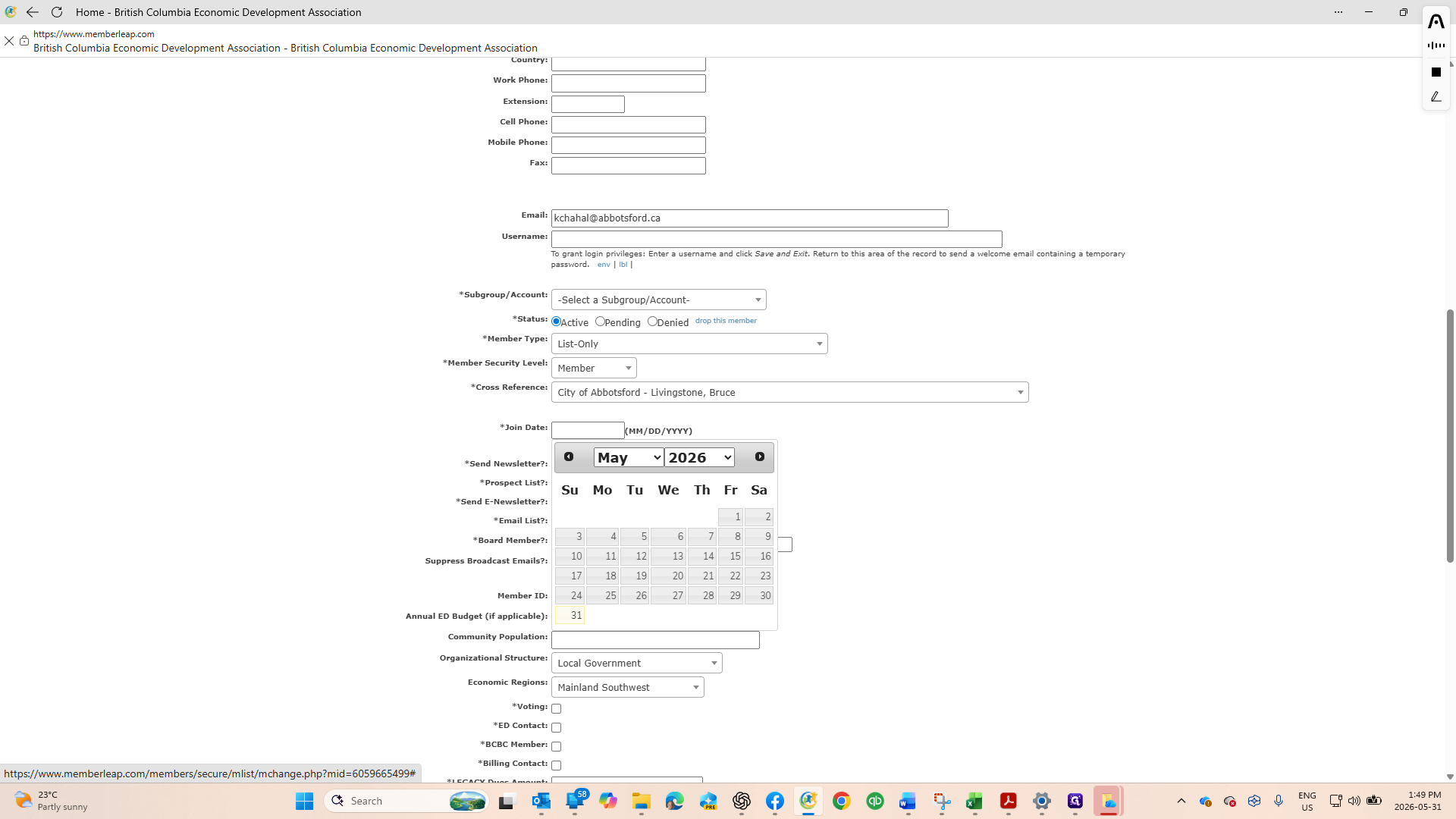
Click the calendar icon under the join date field.
Step #11: Click the calendar icon under the join date field.
12
Select the current date to update the member's join date.
Step #12: Select the current date to update the member's join date.
13
Select the appropriate Economic Region and Organizational Structure from the dropdown menus.
Step #13: Select the appropriate Economic Region and Organizational Structure from the dropdown menus.
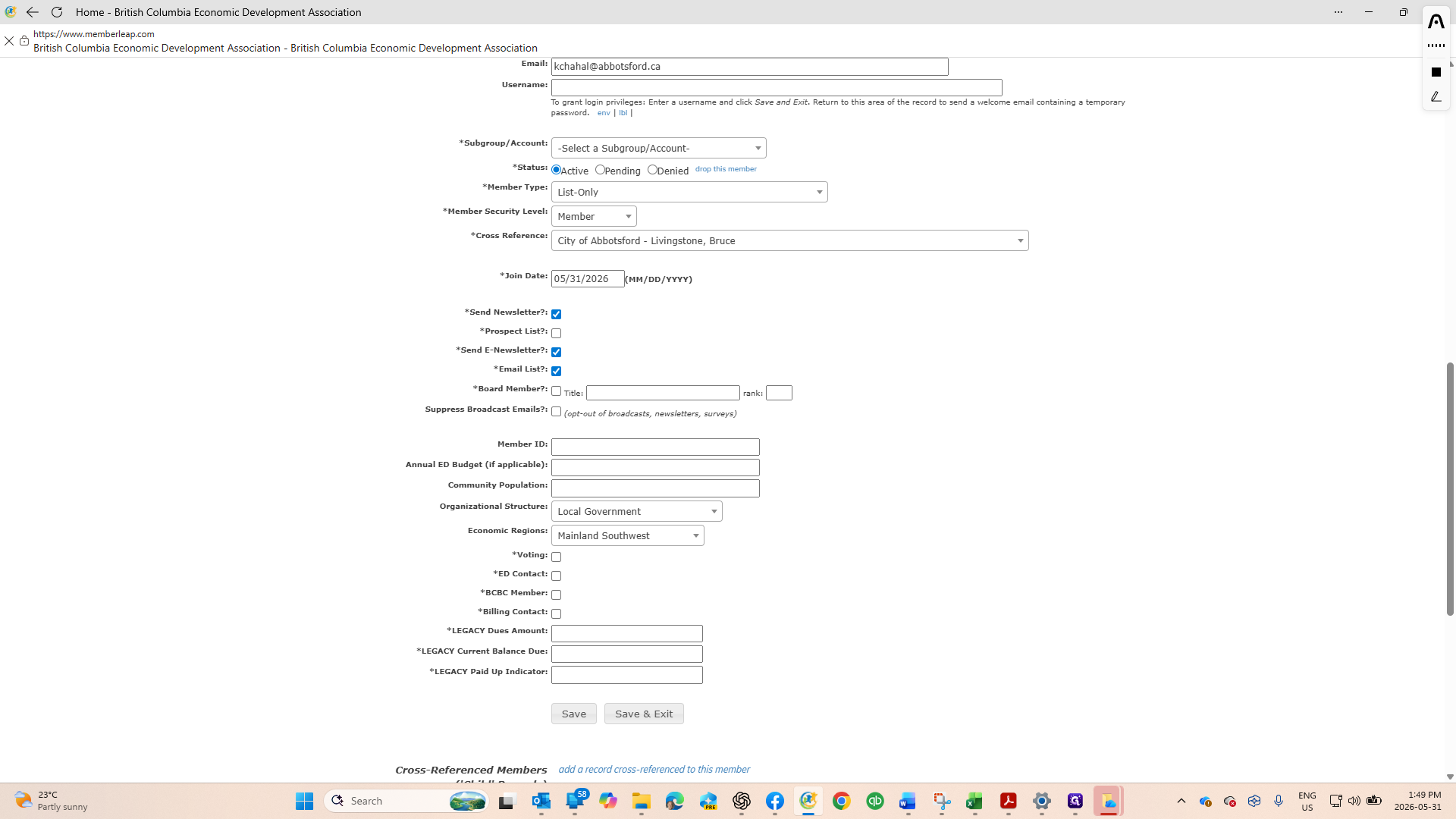
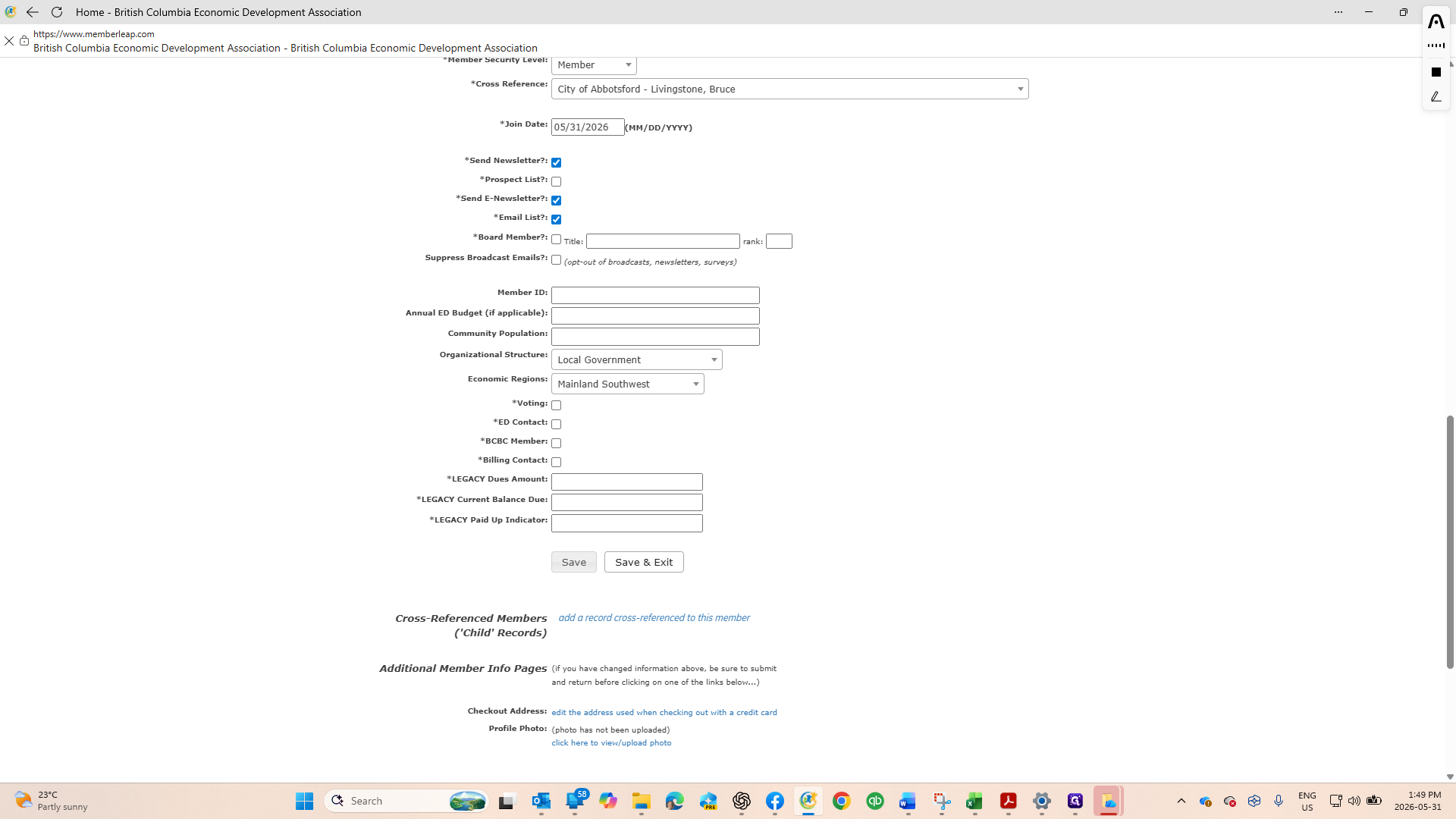
14
Check the boxes for Send Newsletter, Send E-newsletter, and Email List to ensure the member receives communications.
Step #14: Check the boxes for Send Newsletter, Send E-newsletter, and Email List to ensure the member receives communications.
15
Leave the voting, contact, and billing settings unchanged, and click Save & Exit.
Step #15: Leave the voting, contact, and billing settings unchanged, and click Save & Exit.

Track Completion

16
Return to your tracking spreadsheet and enter the primary member's name in the Cross Reference column to mark the update as complete.
Step #16: Return to your tracking spreadsheet and enter the primary member's name in the Cross Reference column to mark the update as complete.

Q: What if an organization doesn't have a clear primary member?

A: Consult the "Organizational Primary Members" spreadsheet in your shared folder to find the designated primary contact for that organization.

Q: Should I update voting or billing settings for list-only members?

A: No, you should leave the voting, contact, and billing settings empty or unchanged for list-only members.

Q: What communication settings need to be enabled for list-only members?

A: Ensure that the "Send Newsletter", "Send E-newsletter", and "Email List" checkboxes are selected on their profile before saving.

Term

Definition

List-Only Member

A contact record in the database that is associated with an organization but does not hold voting, primary contact, or billing privileges.

Cross-Reference

The database field used to link a list-only member to the primary member of their parent organization.

Primary Member

The main point of contact and designated account holder for an organization within the member database.