Locate Disclosure Templates in RE-Sure
Learn how to locate and add buyer and seller informed consent disclosure templates from the Platinum Group folder to your real estate transactions.
By Ali Romero
This guide explains how to locate and apply the new informed consent disclosure templates within a real estate transaction. Completing this ensures all required documentation is securely attached to your buyers' offers and sellers' listings.
Adding Disclosures to an Offer (Buyers)
1
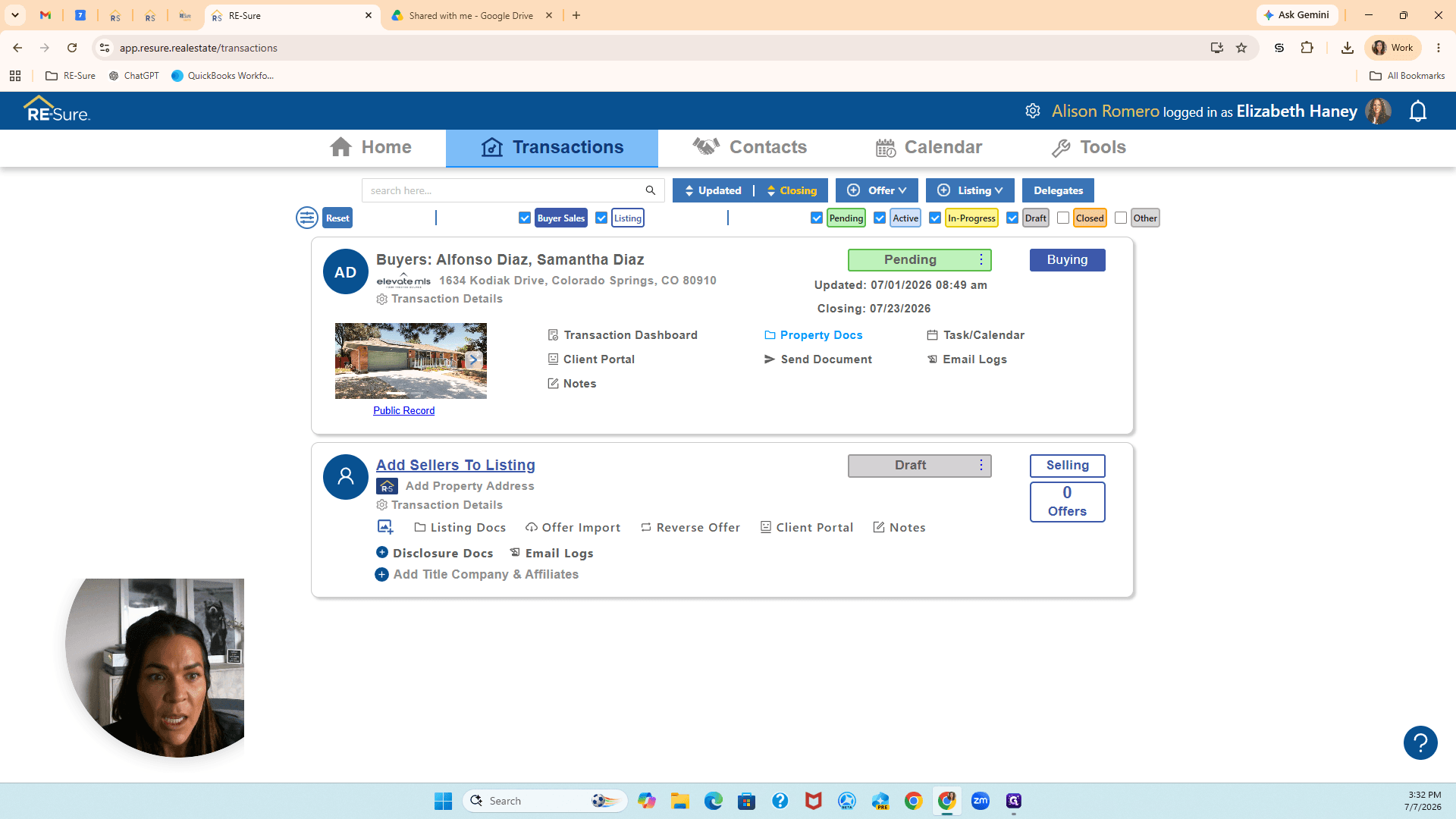
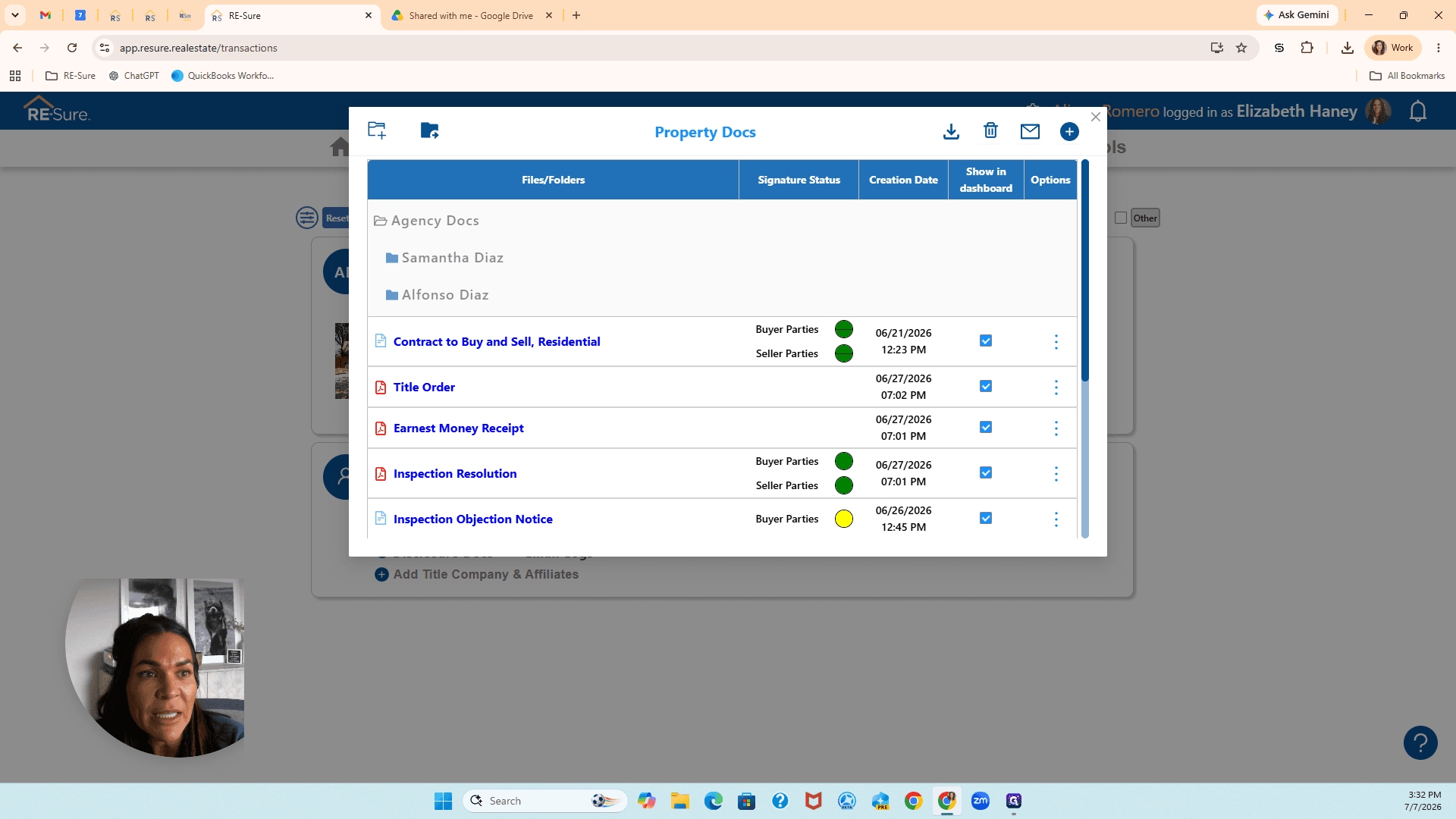
Click Property Docs from the transaction dashboard to view the documents loaded for the offer.
2
Click the + (blue plus button) at the top of the modal window to add a new document.
3
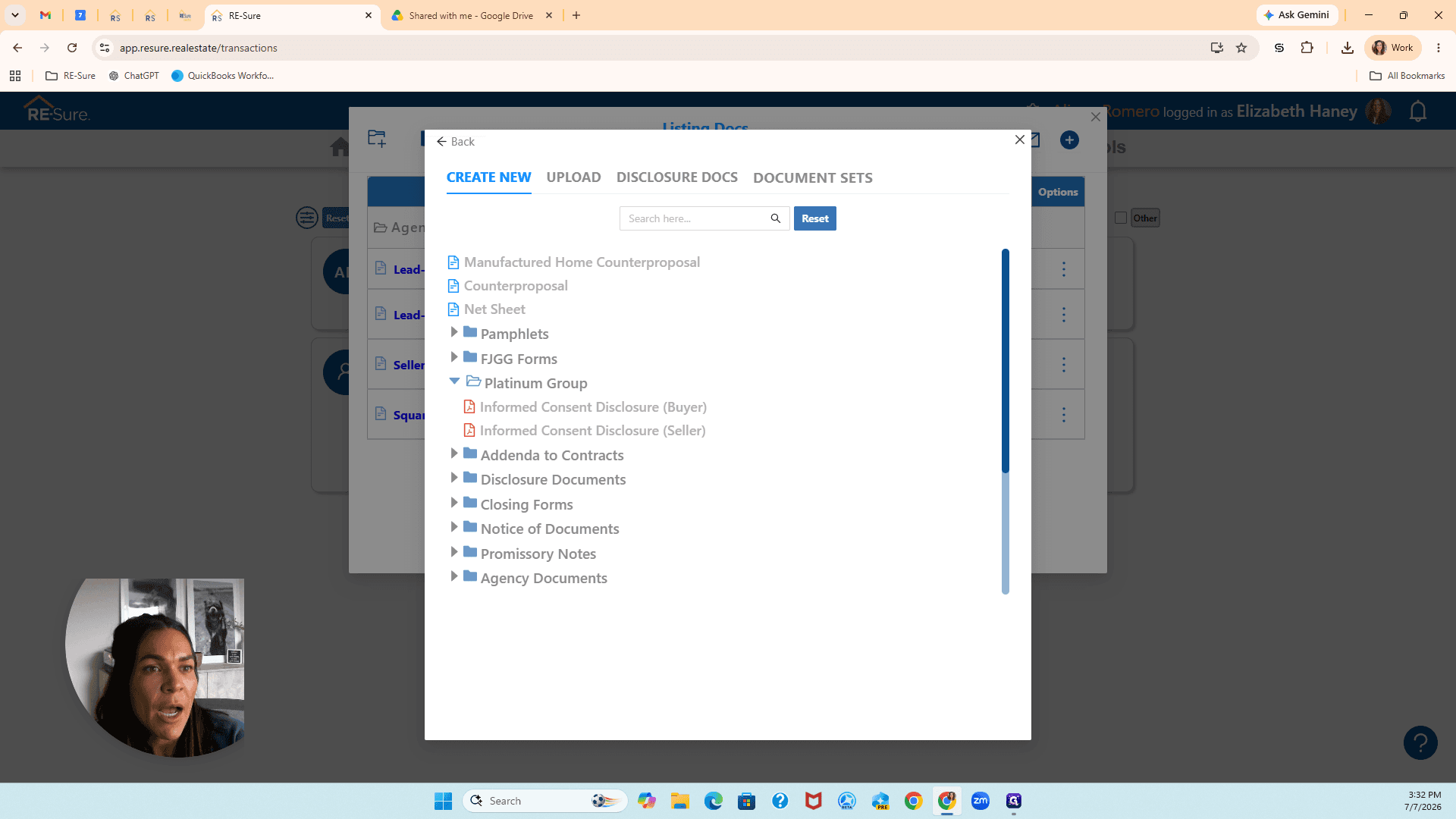
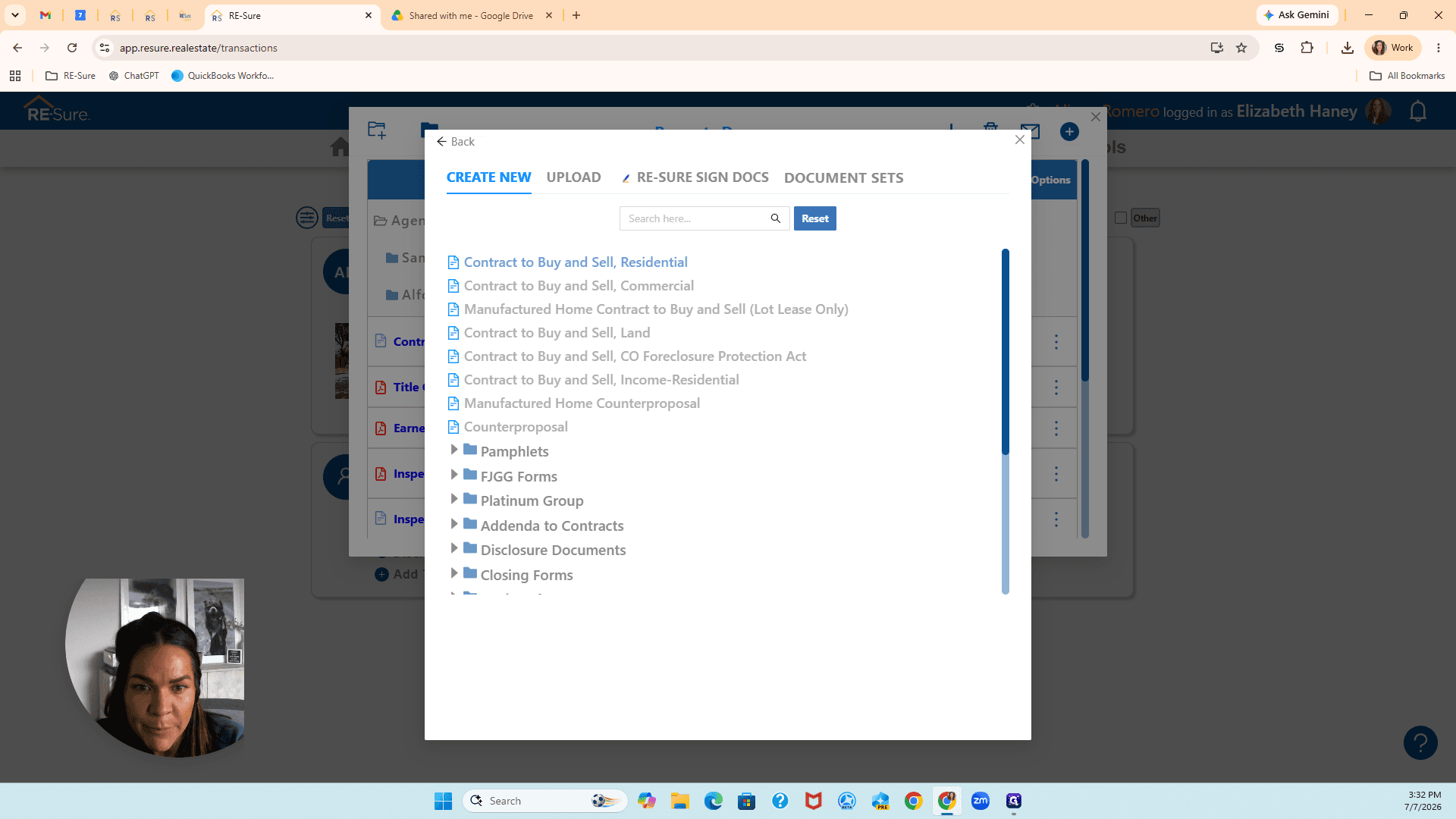
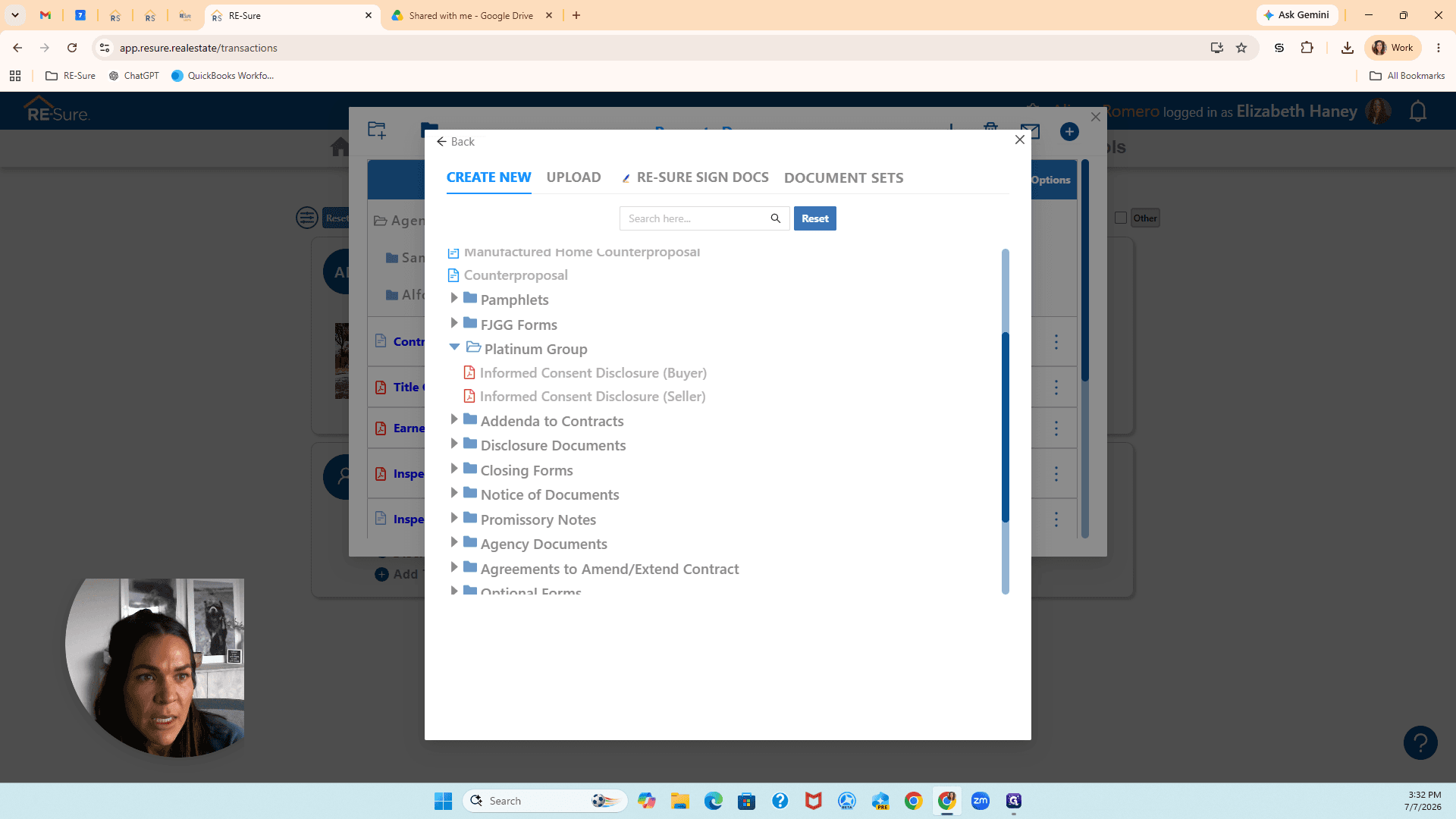
Select the Platinum Group folder to reveal the new templates.
4
Select the buyer's informed consent disclosure to add it to the transaction.
Adding Disclosures to a Listing (Sellers)
5
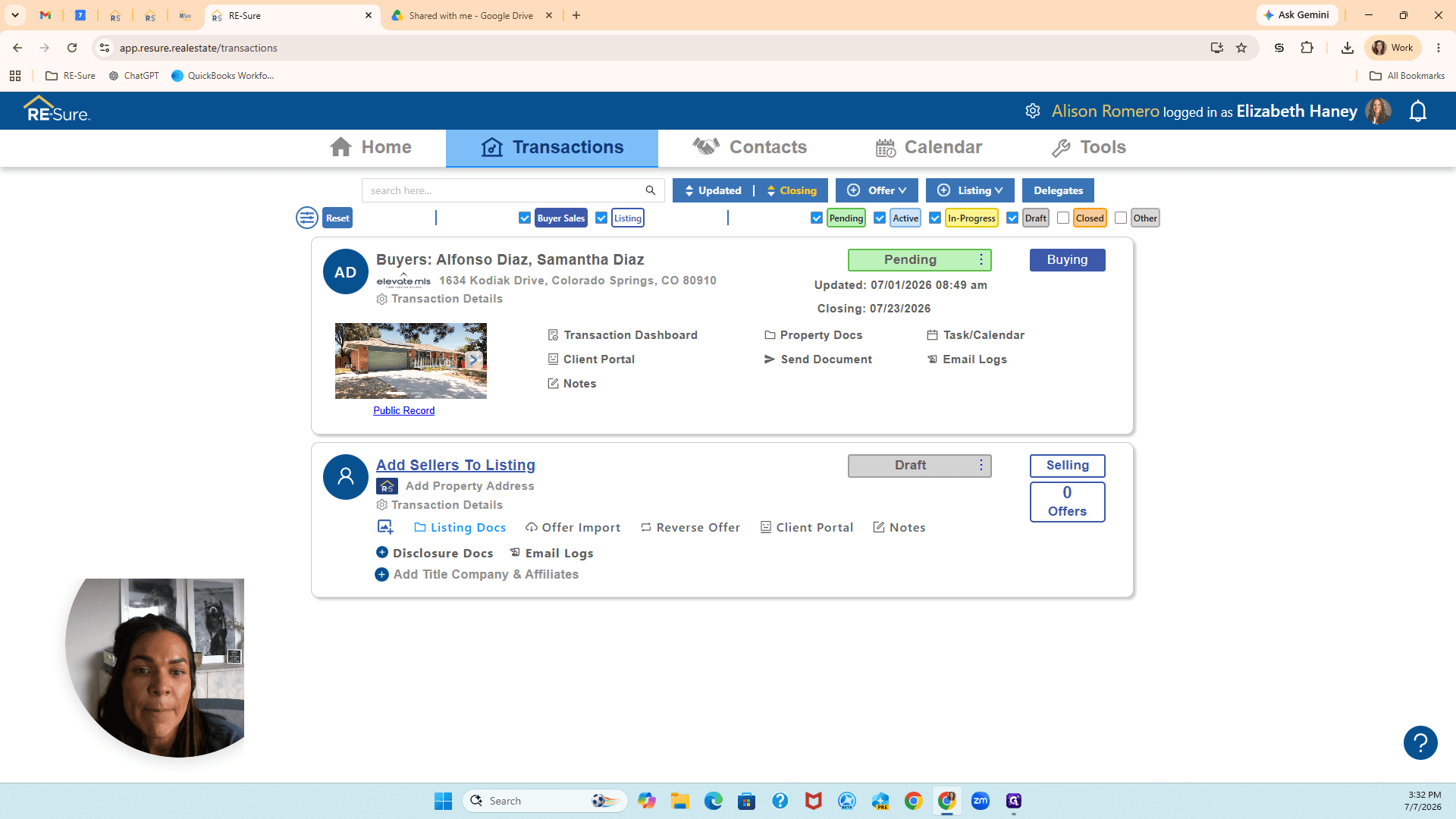
Click Listing Docs on the transaction dashboard to manage the seller's documentation.
6
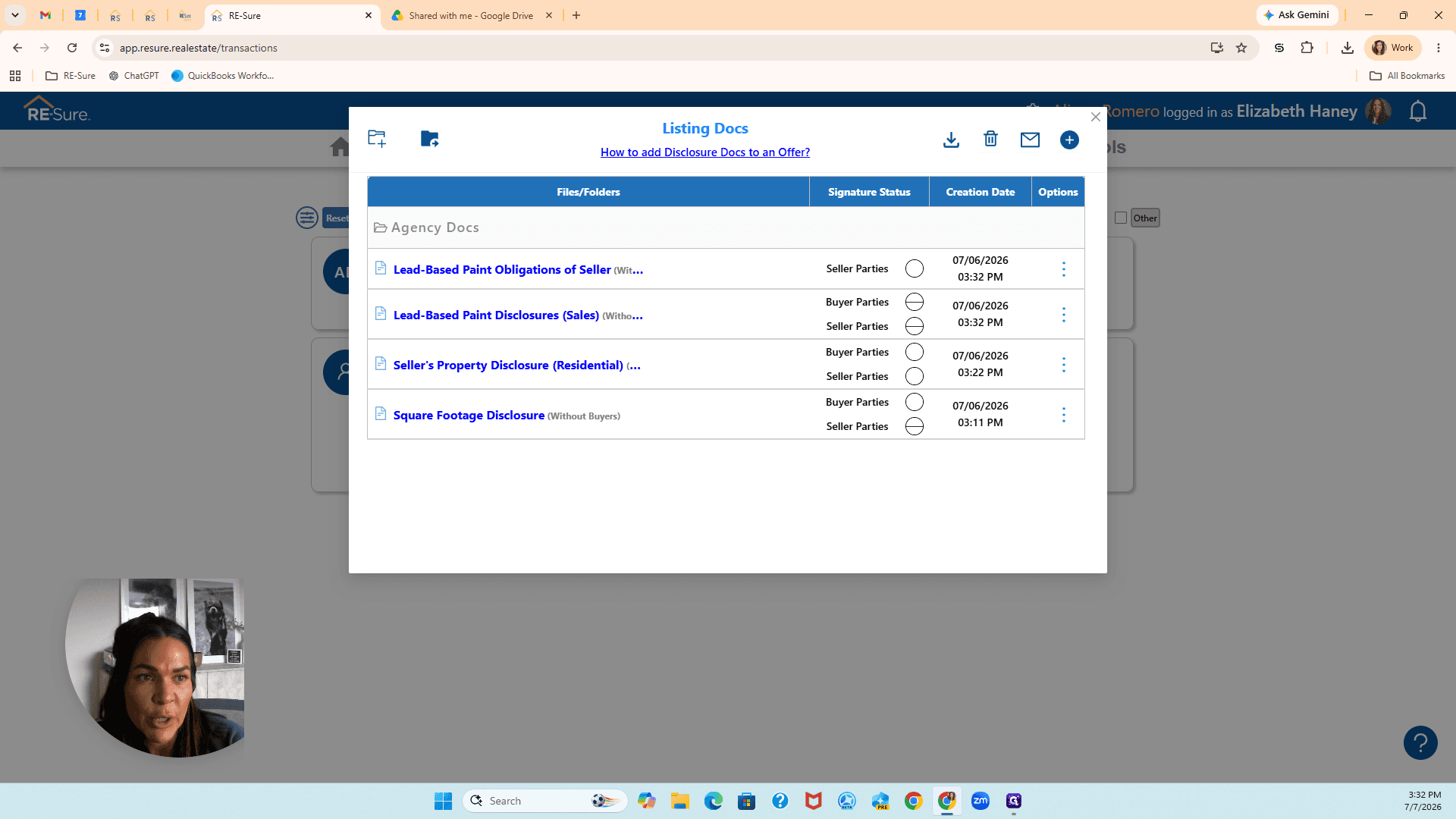
Click the + (blue plus button) to open the document template library.
7
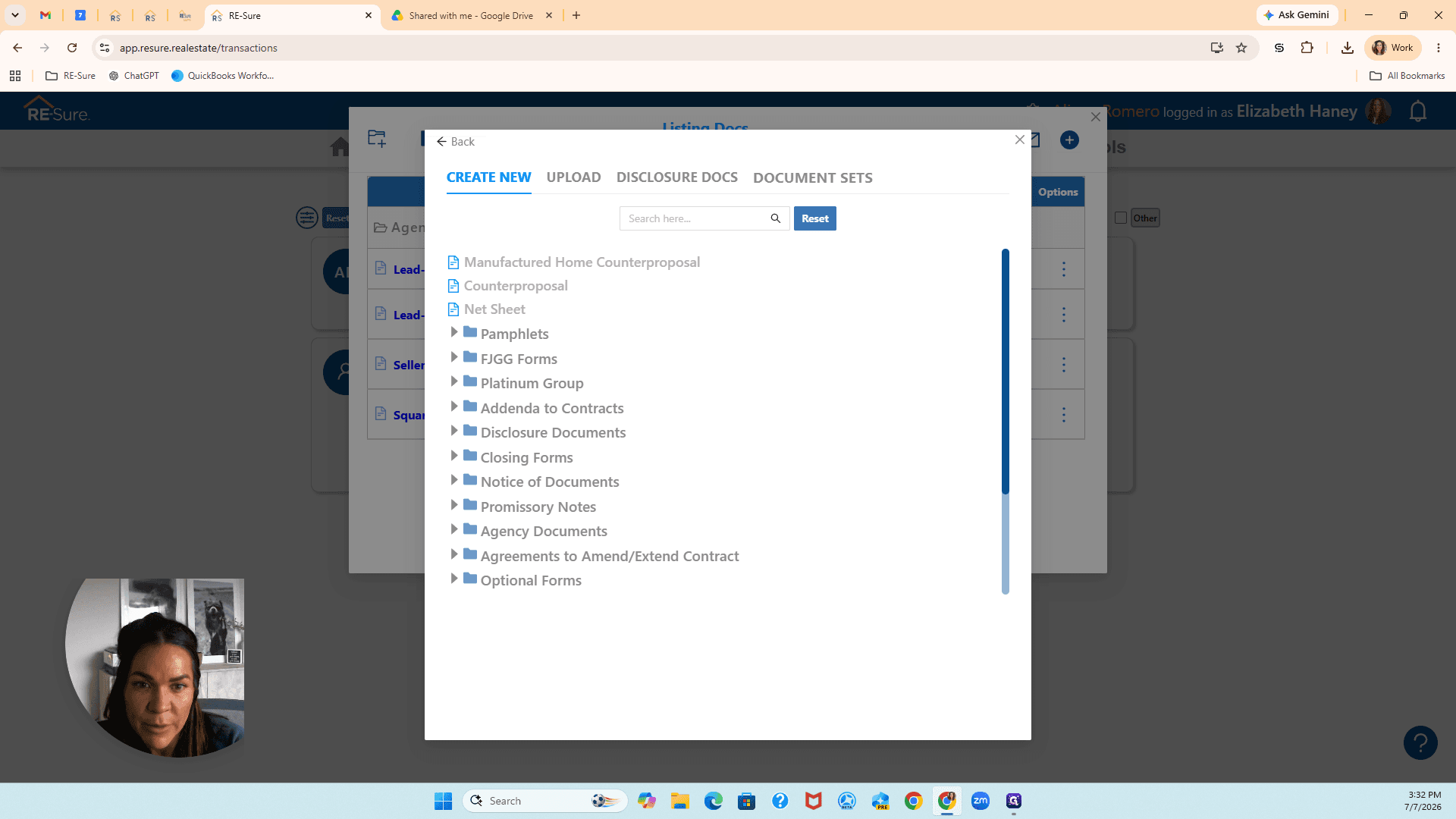
Select the Platinum Group folder.
8
Double-click the seller's informed consent disclosure to select it.