Login and main menus
Learn how to access DATAIE Sustainability Analytics, filter assigned indicators, and manage emission sources across reporting periods.
By Soporte DATAIE
In this guide, you will learn step by step how to log in to DATAIE, how the menus are organized, and how to open the Reporting and Carbon Footprint modules.
This guide is for users with the "Editor" and "Validator" ("Validador") profiles who have access to the Reporting and Carbon Footprint modules.
Log in to DATAIE
1
2
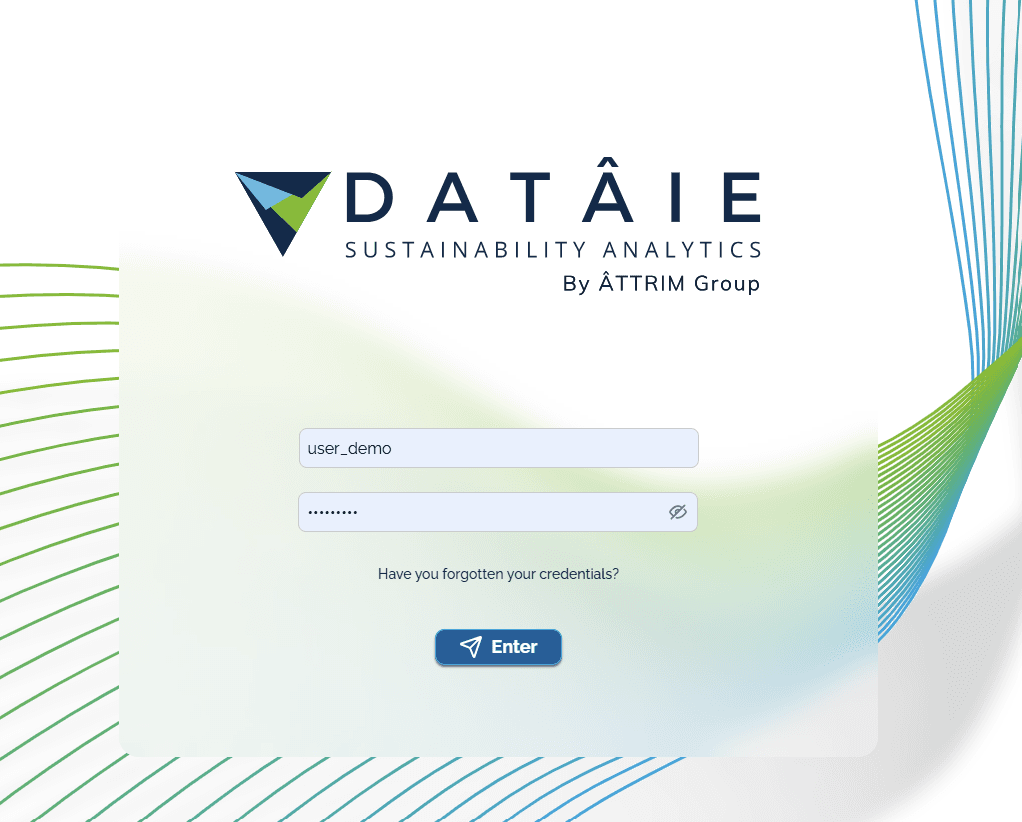
Enter the username and password you created before. Then click "Enter" to enter the platform.
3
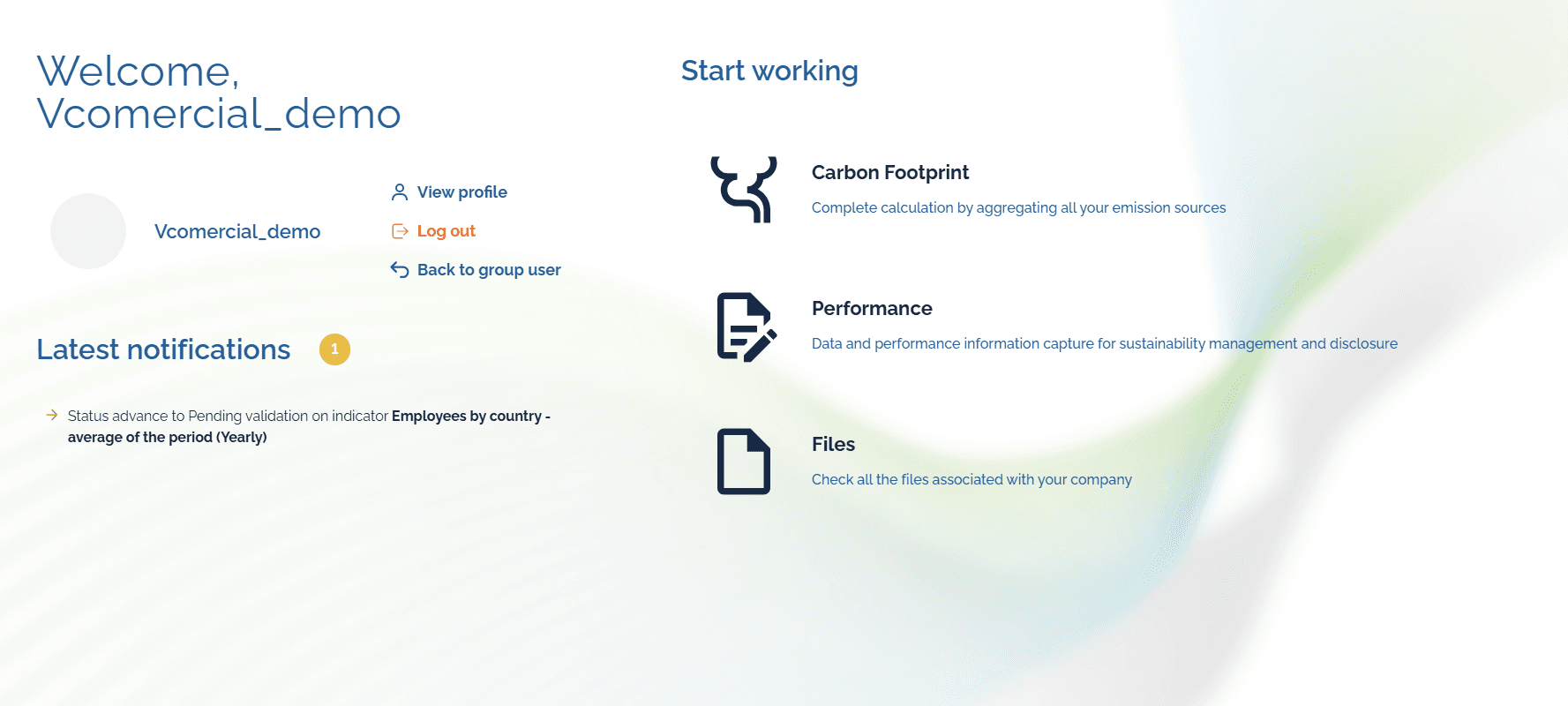
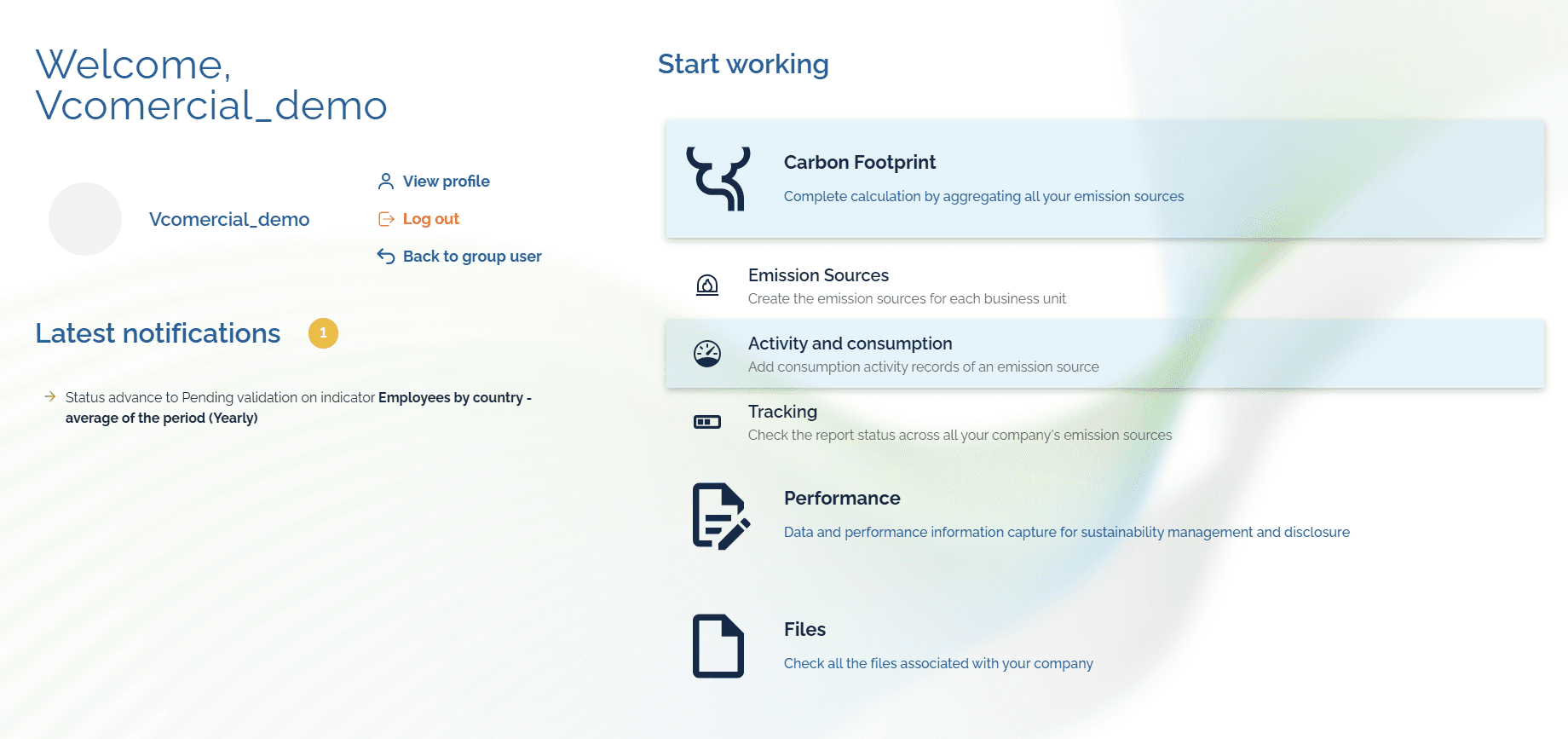
After you log in, you will see the main work areas: Carbon Footprint, Performance and Files.
Open the Performance module
1
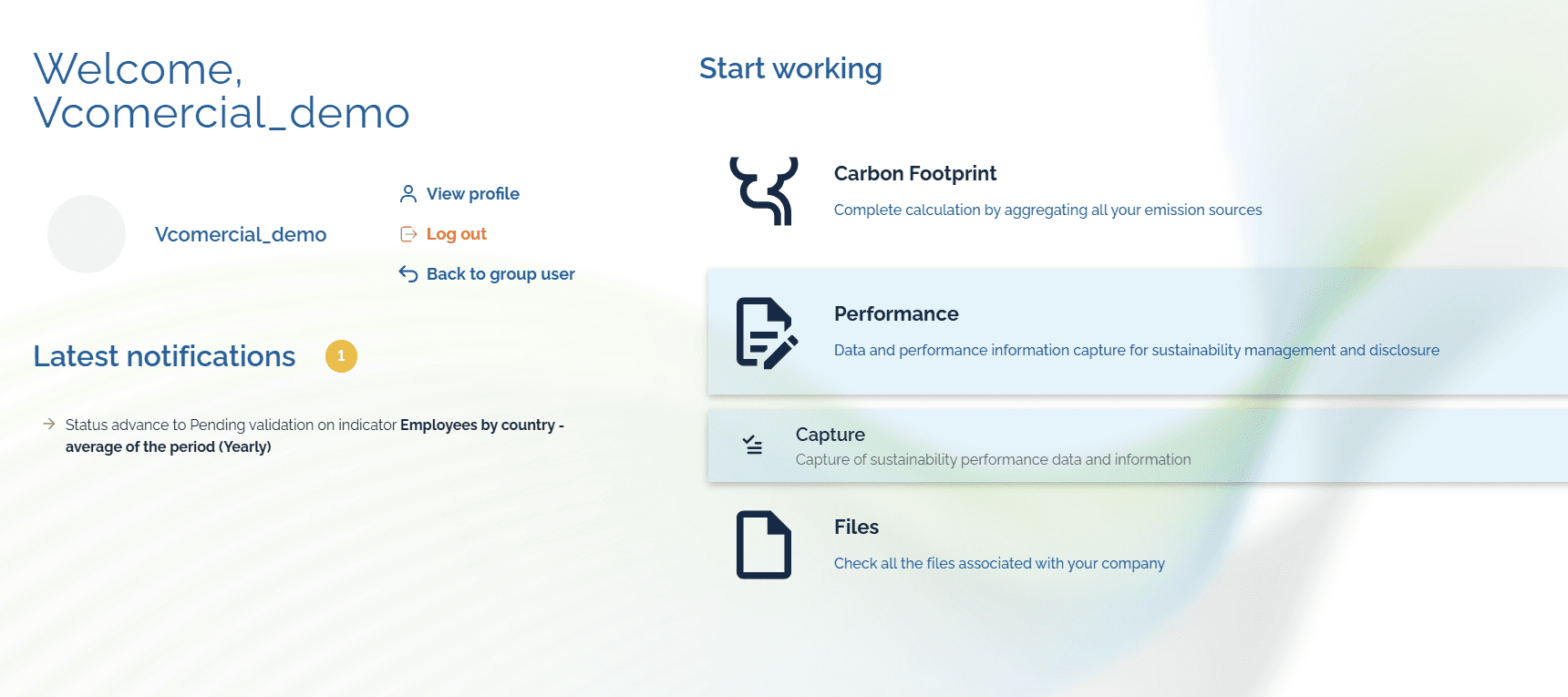
Click "Performance" and then "Capture" to enter.
2
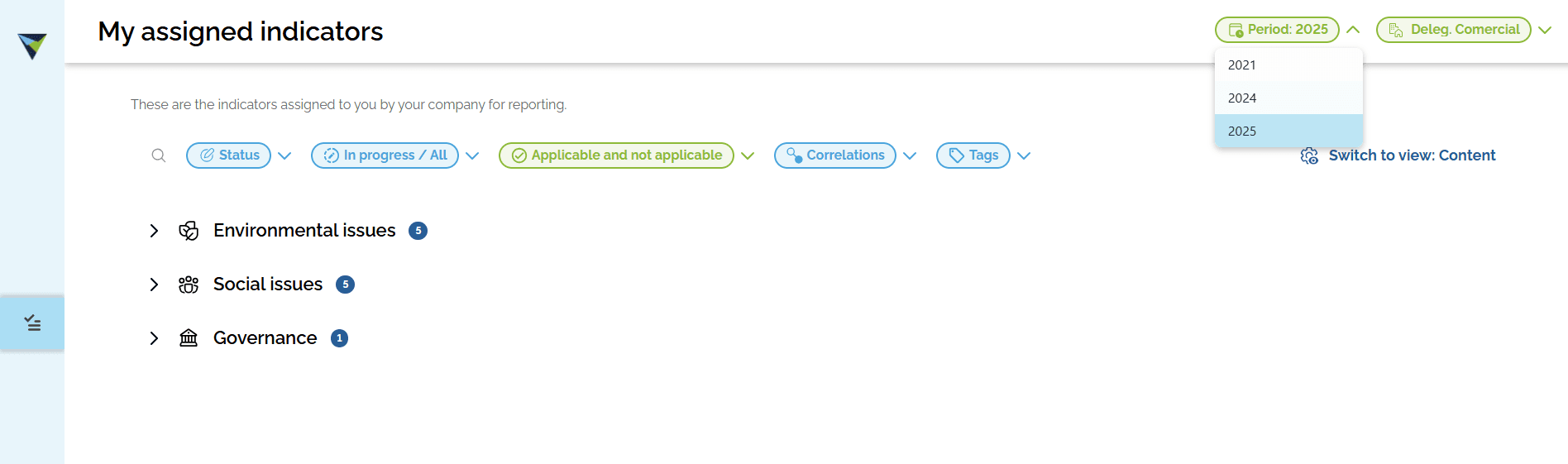
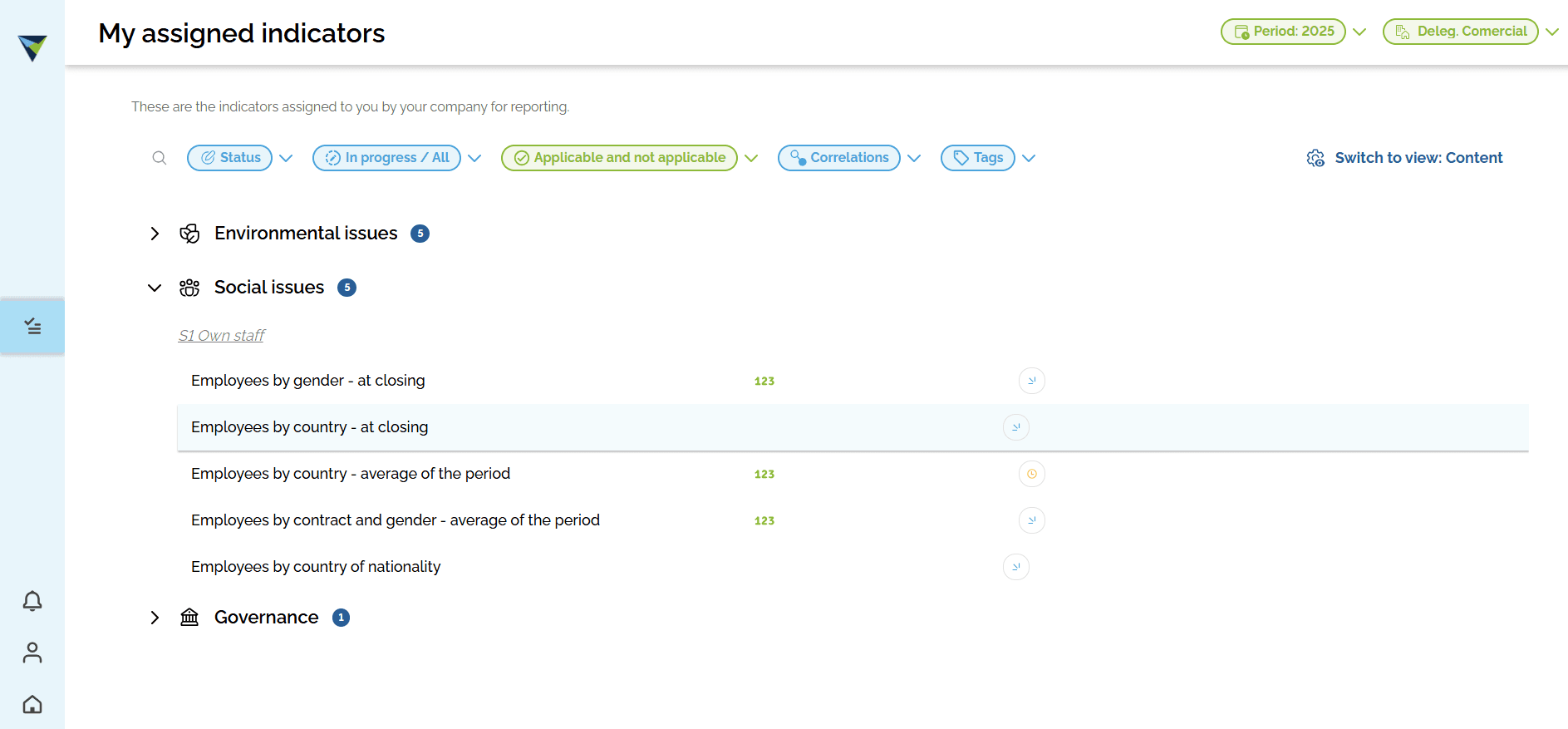
You will see the main panel with different filters. You can filter by what you need, for example by period. You can also filter by indicator status, tags, indicator progress, and more.
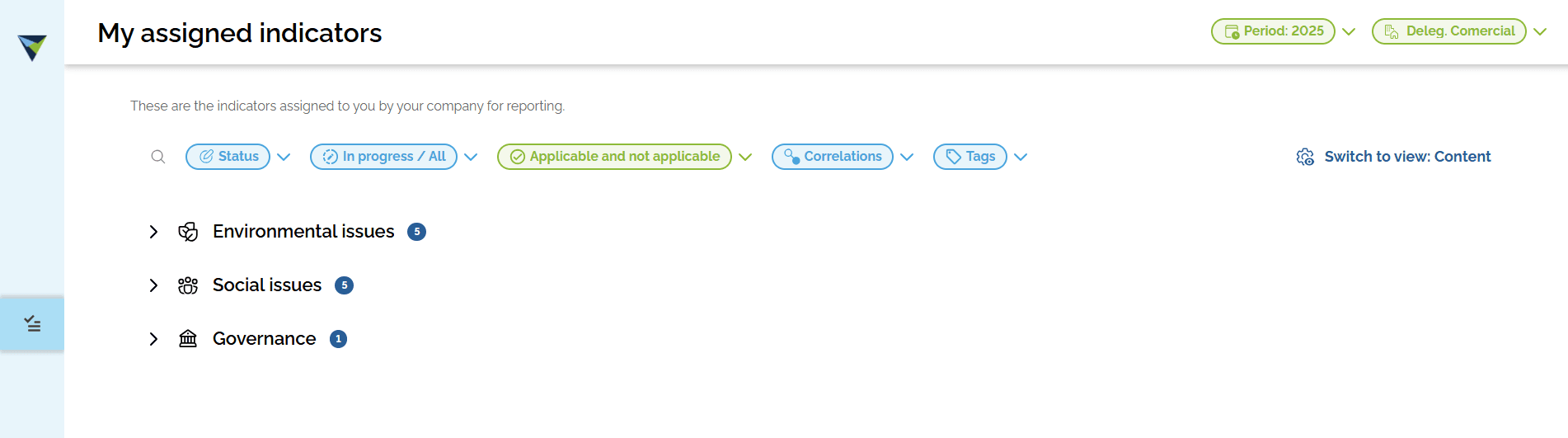
3
For example, you can select the period or the business unit where you want to add data or check information.
View indicators
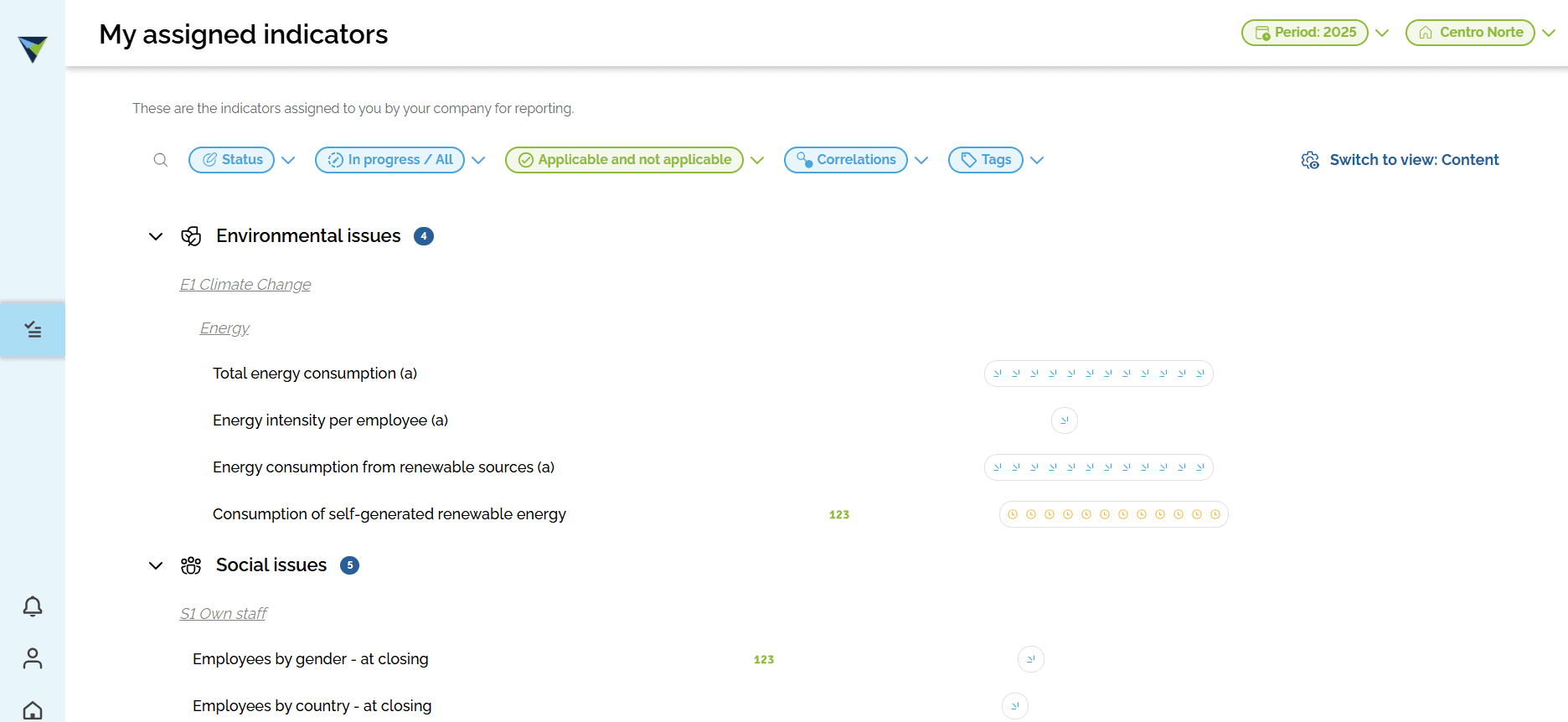
Select the indicators you want. To make this easier, you can first filter by section (environmental, social, general or governance).
1
Click the section you want.
2
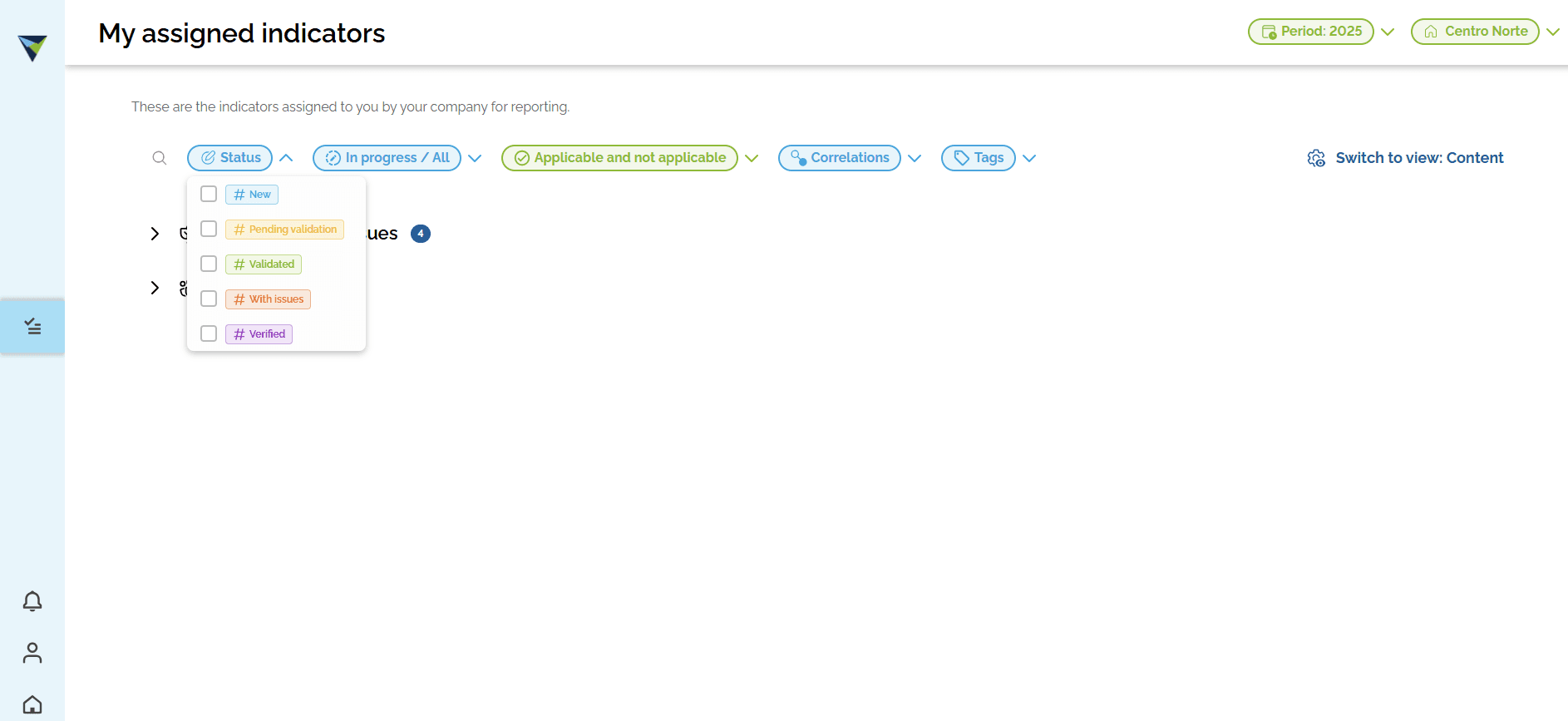
If you want, use the panel filters. For example, you can filter by indicator status.
3
Click the name of the indicator you want to open it.
Open the Carbon Footprint module
1
Click "Carbon Footprint" and then "Activity and consumption" to enter.
2
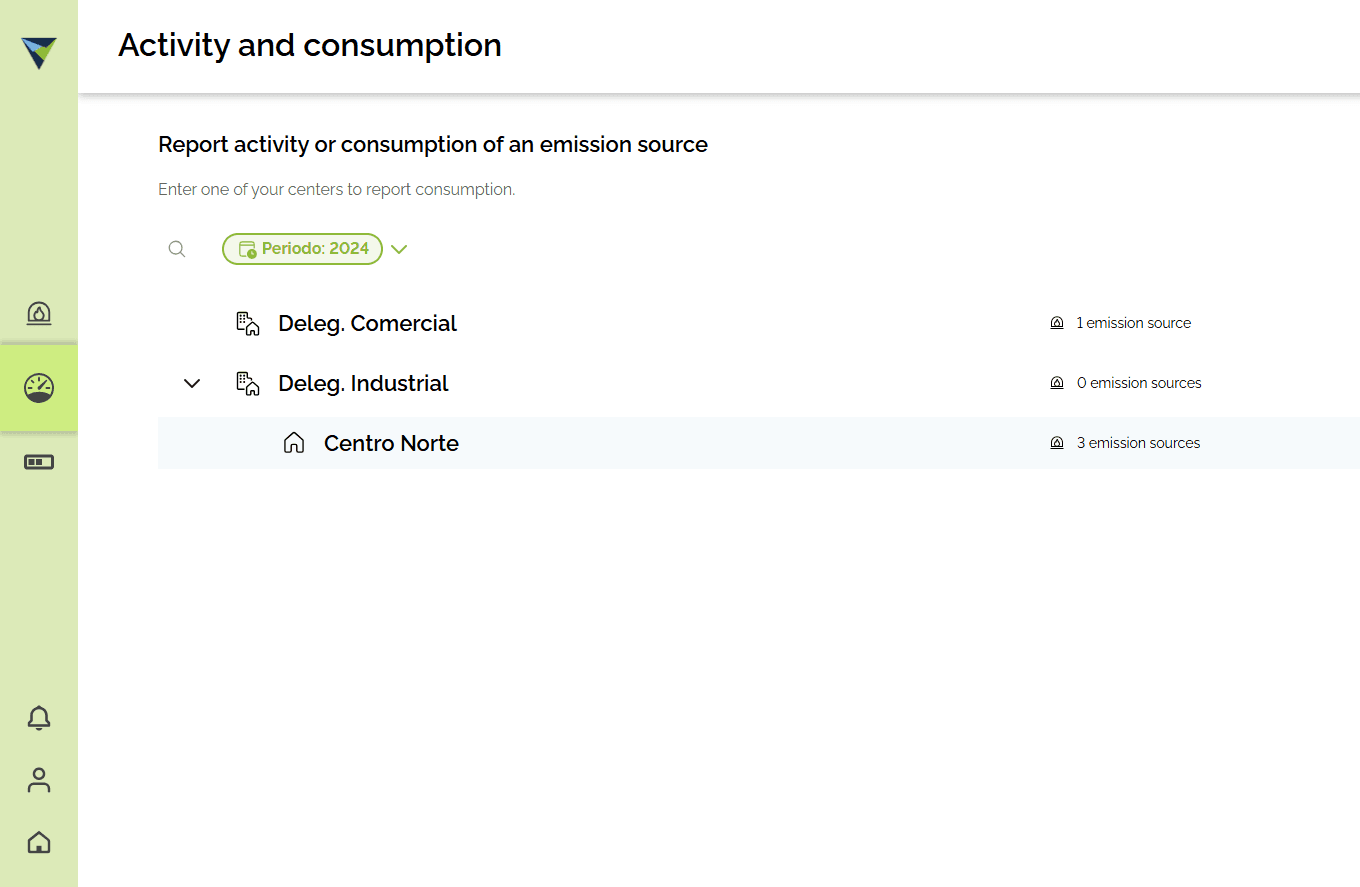
As in the Reporting module, you can move between the business units assigned to you, in the periods that have been set up.
3
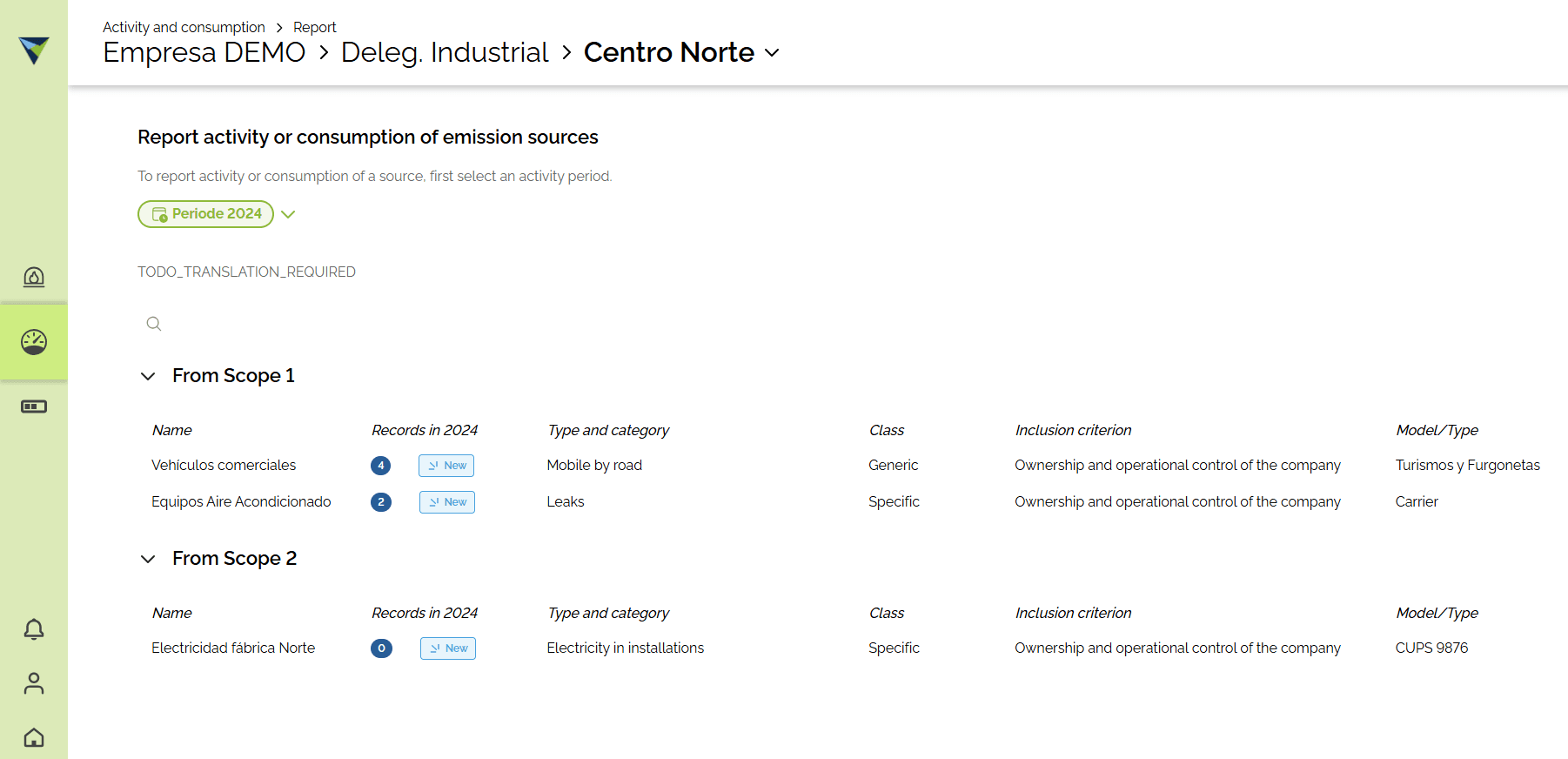
Click the source you want to complete. Then enter the data.
4
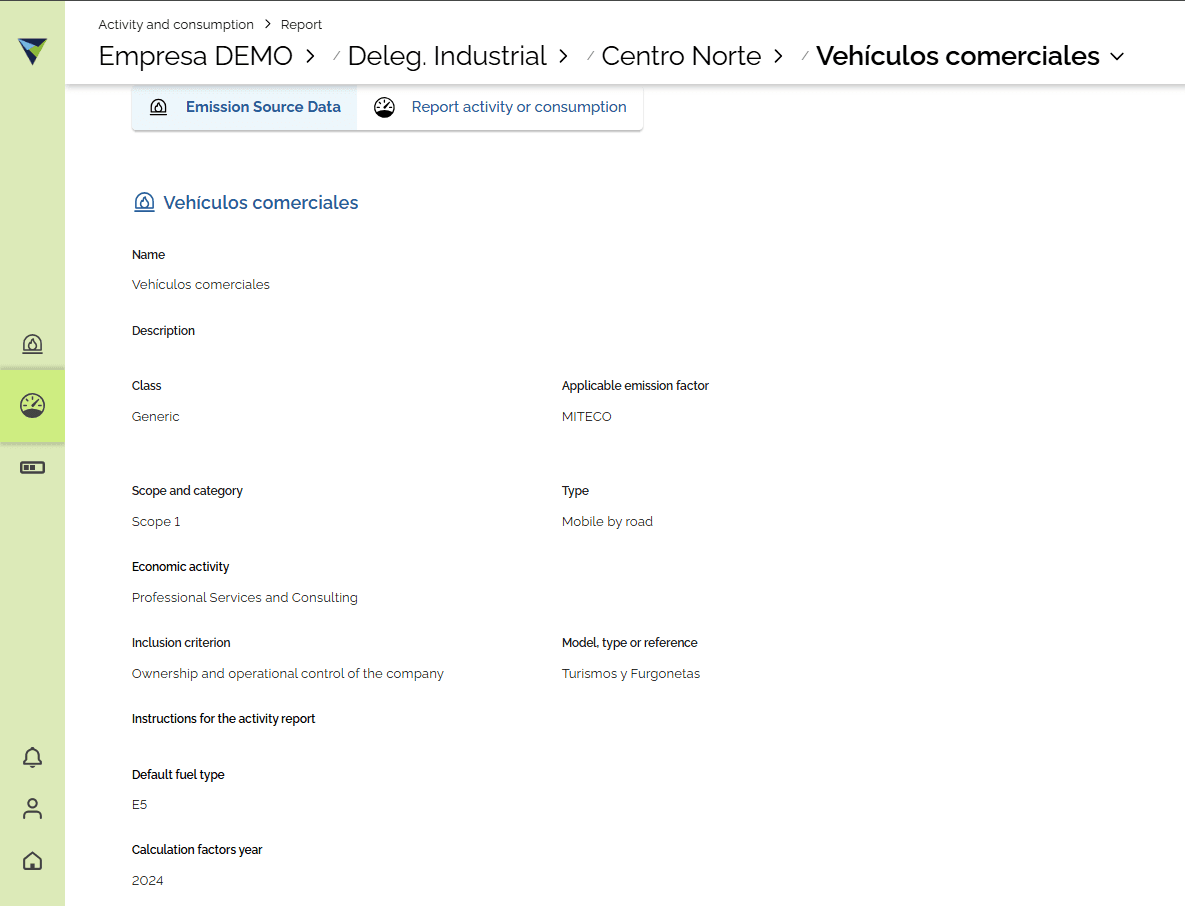
If you want to see the information of the selected emission source, click "Emission Source Data".