How to Make a Copy of a View-Only Google Sheets Template
Learn how to duplicate a view-only Google Sheets template so you can securely edit and customize your own personal copy.
By TheArtistXP
This guide explains how to duplicate a view-only Google Sheets template to your own Google Drive. Completing this task ensures you can freely edit and customize the spreadsheet without altering the shared master document.
This guide applies to anyone who has received view-only access to a shared Google Sheet and needs to create an editable version for their personal workflow.
When you open a shared template, such as a budget planner, you will likely be in viewer mode. To interact with the file, you must first create a personal copy in your own Google account.
1
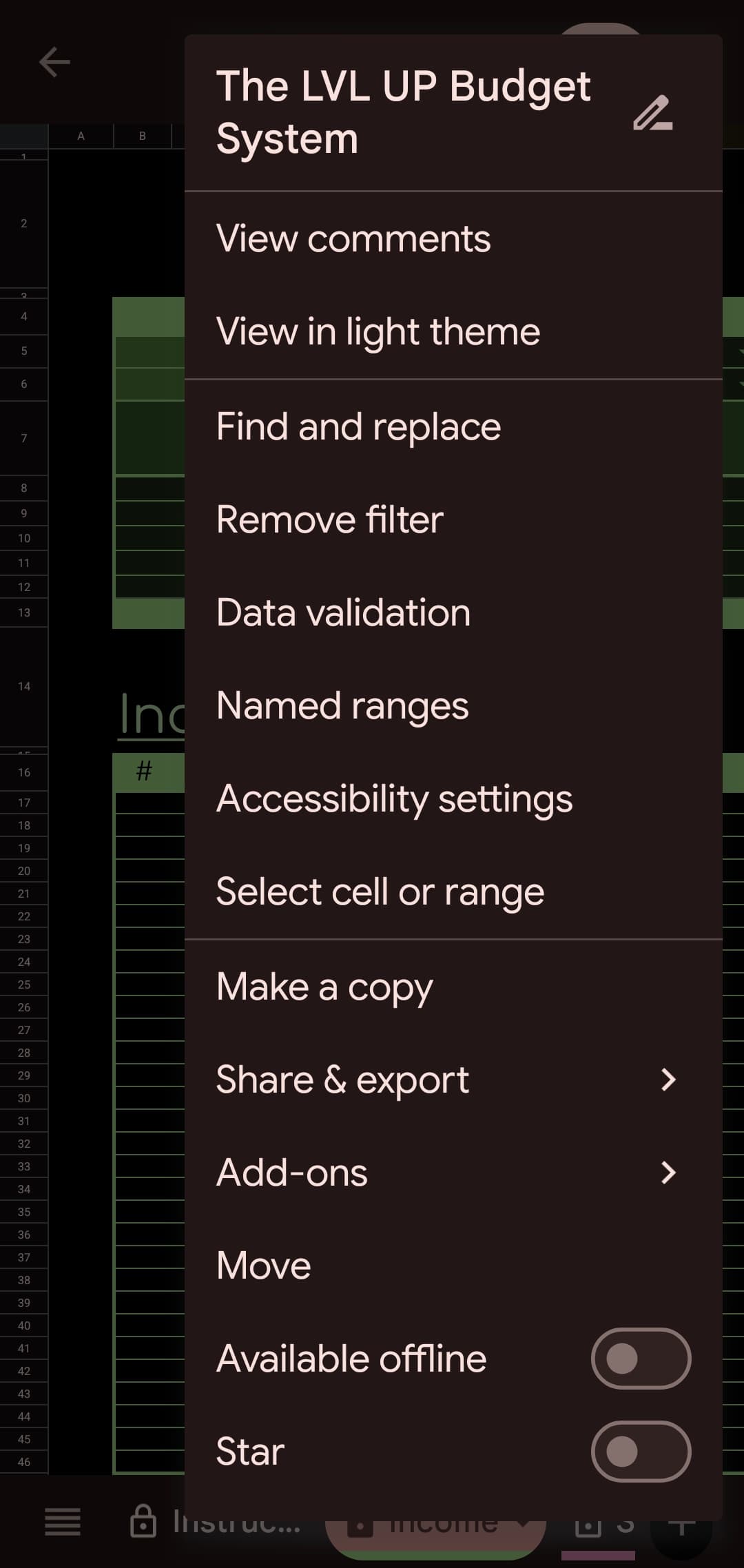
Click File in the top navigation bar of the Google Sheets interface.
2
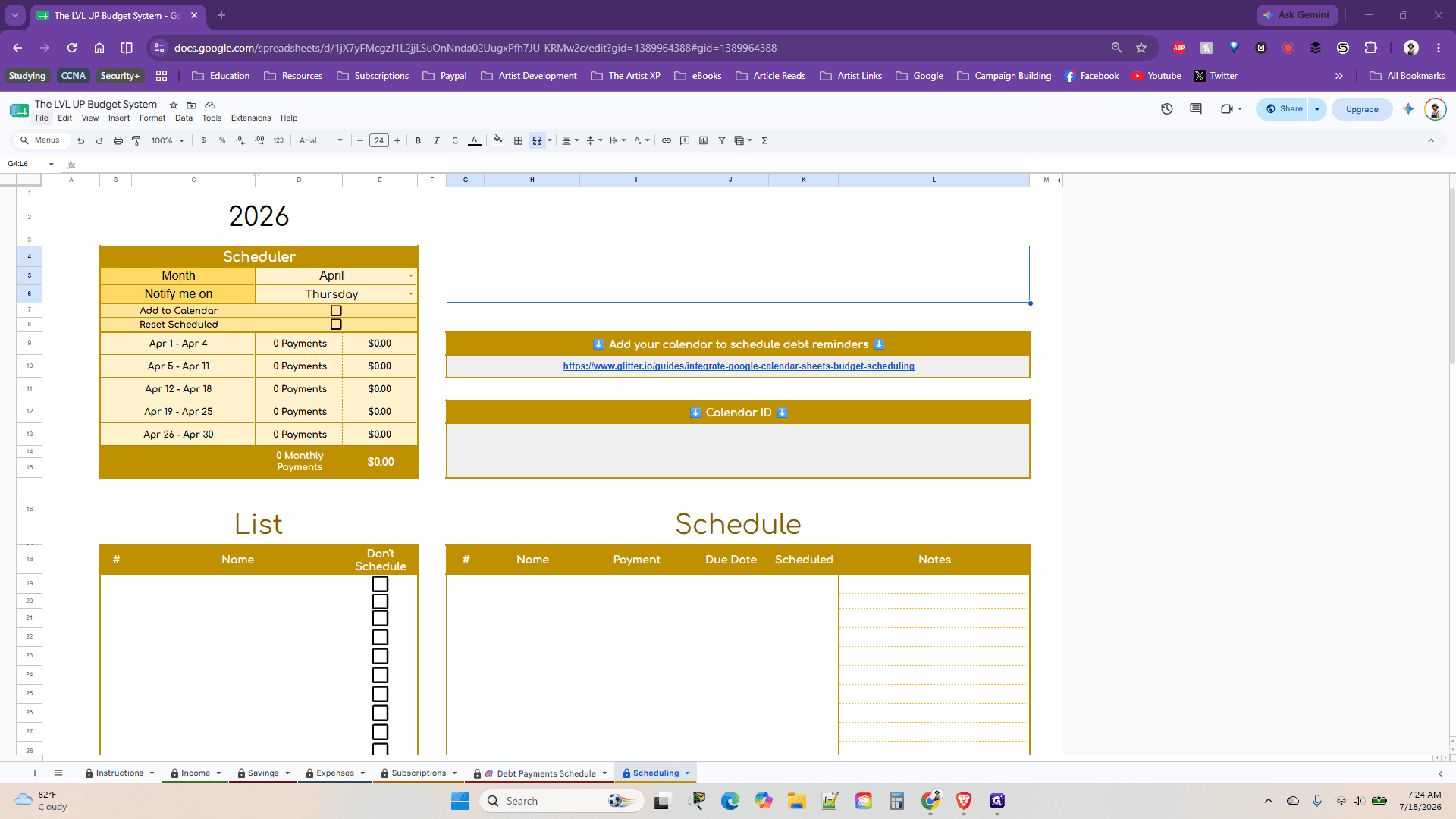
Select Make a copy from the dropdown menu.
Q: Why can't I type directly into the template?
A: The template is shared in "viewer mode" to protect the master sheet from being overwritten or modified by mistake. You must make a personal copy to edit the document.
Q: What if I'm on a phone?
3
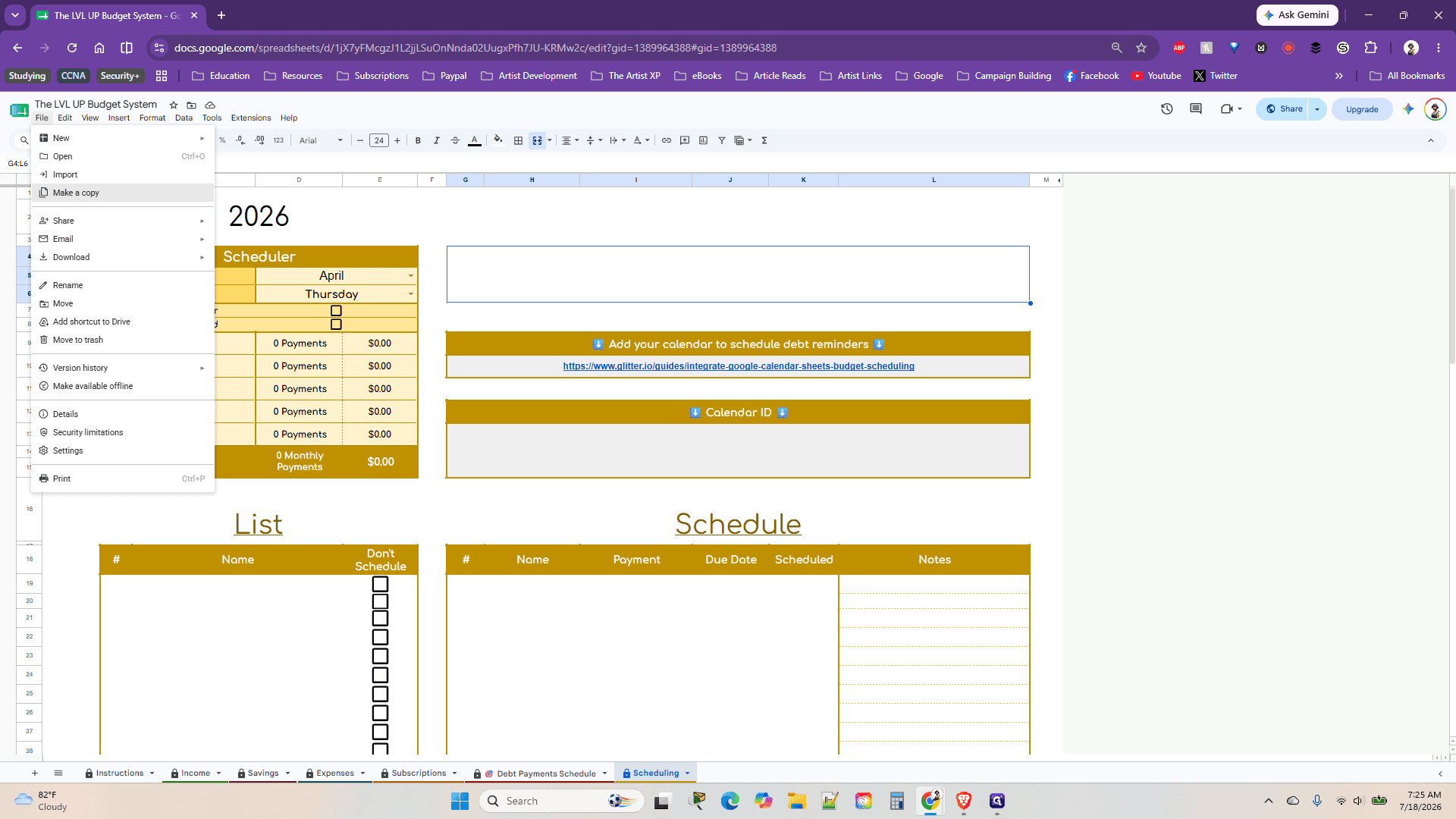
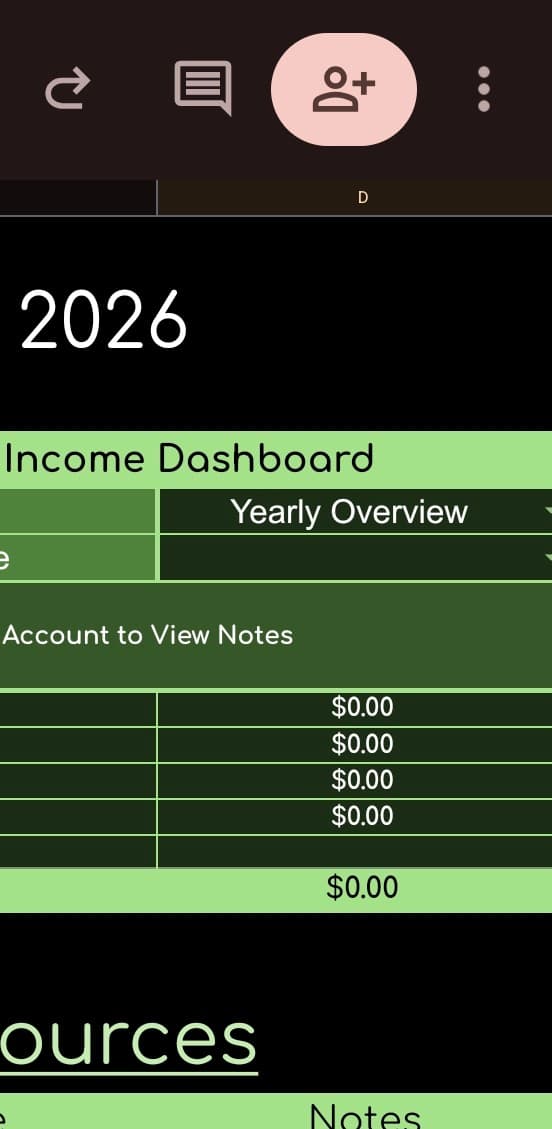
A: Click the three dots in the top right corner and select Make a copy
4