
How to Make Louisiana Estimated Tax Payments Online
Learn how to submit an individual estimated tax payment using the Louisiana Taxpayer Access Point (LaTAP) portal and properly save the confirmation to TaxDome.
By Sieara Williams
Making an individual estimated tax payment for Louisiana is a straightforward process using the state's LaTAP portal. Follow this guide to correctly submit payment information and securely save the receipt for your client's records.
Navigate to LaTAP
1
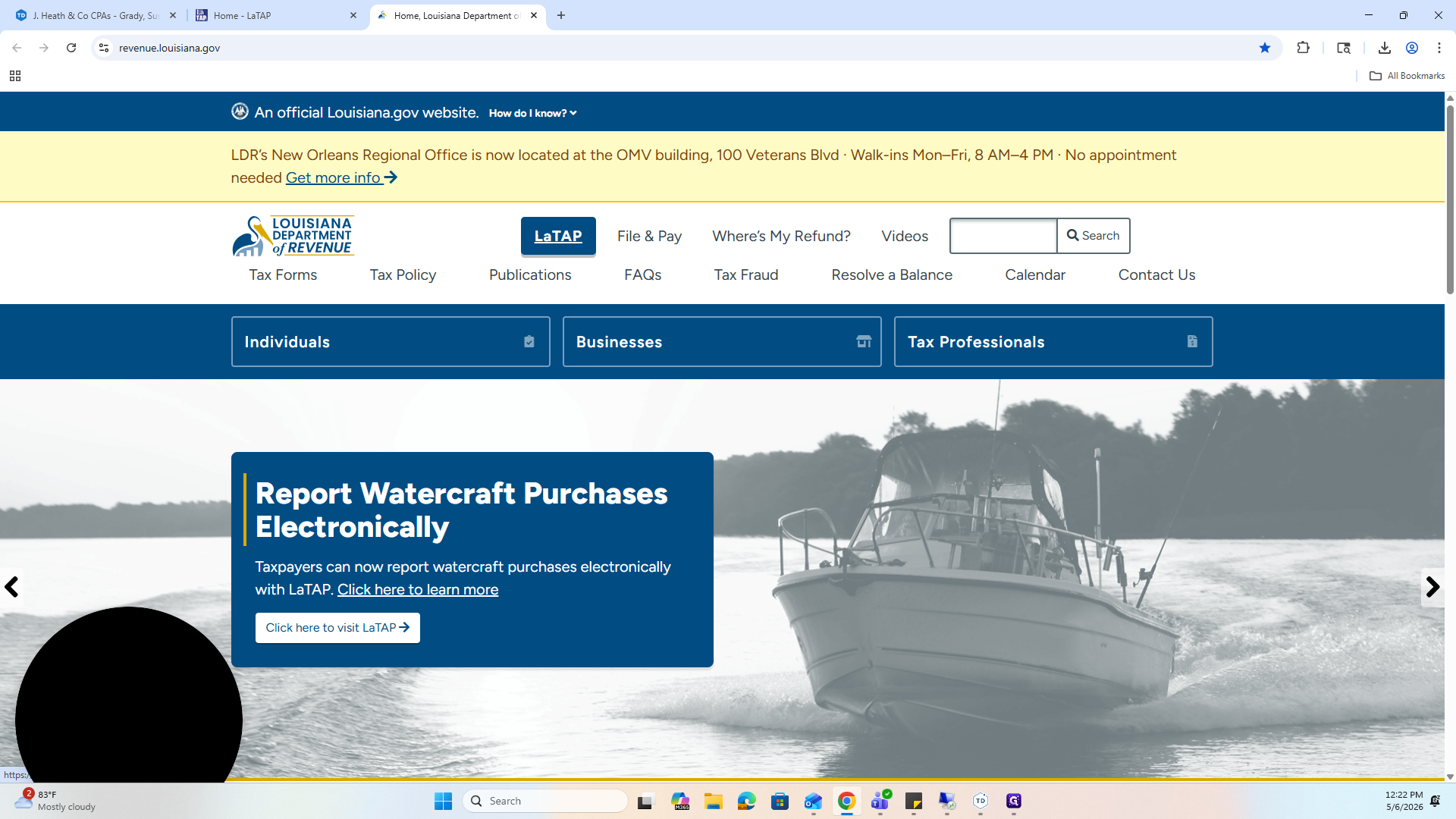
Navigate to the Louisiana Department of Revenue homepage and click on LaTAP.
2
From the LaTAP homepage, click on Make a Payment.

3
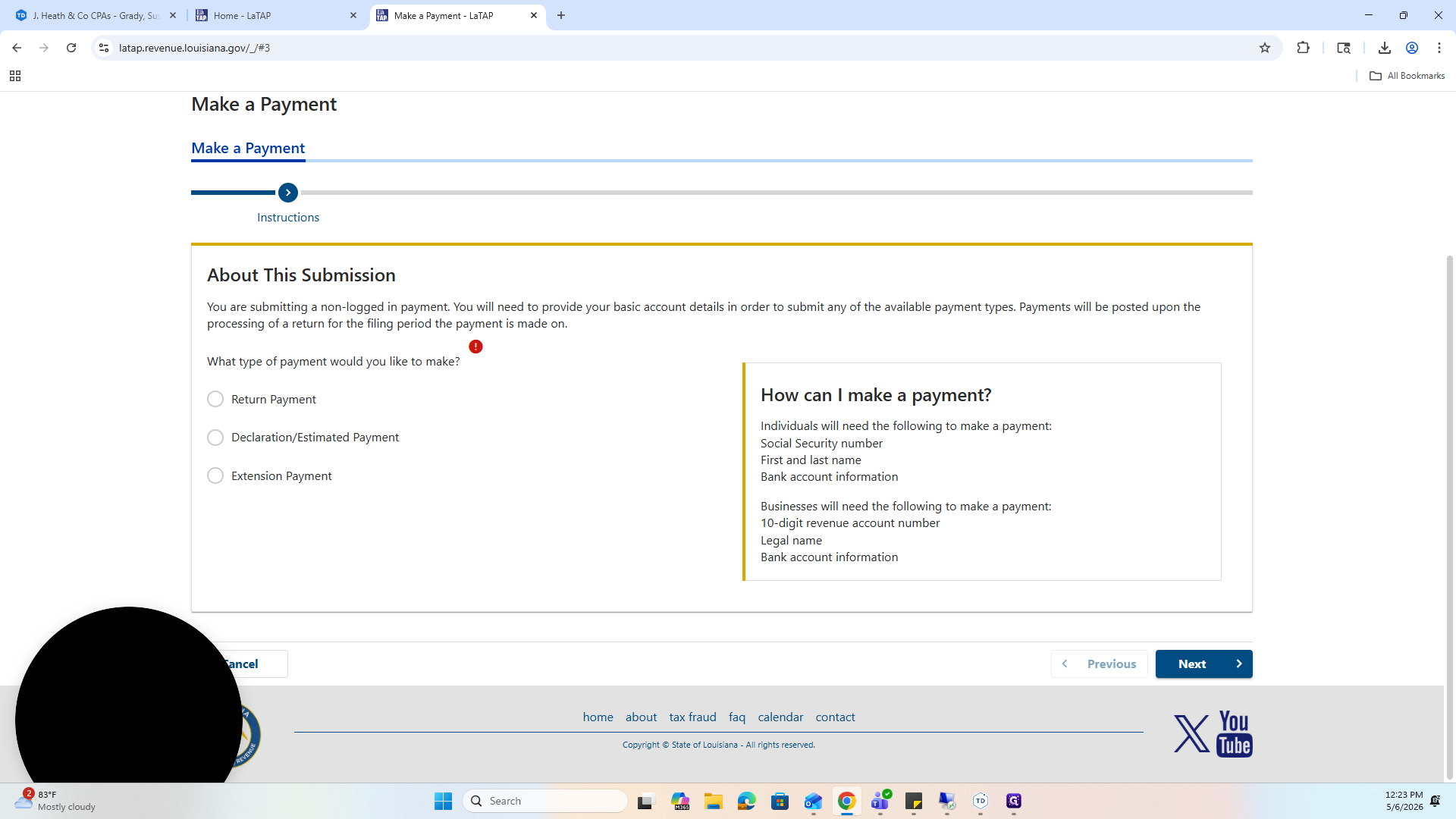
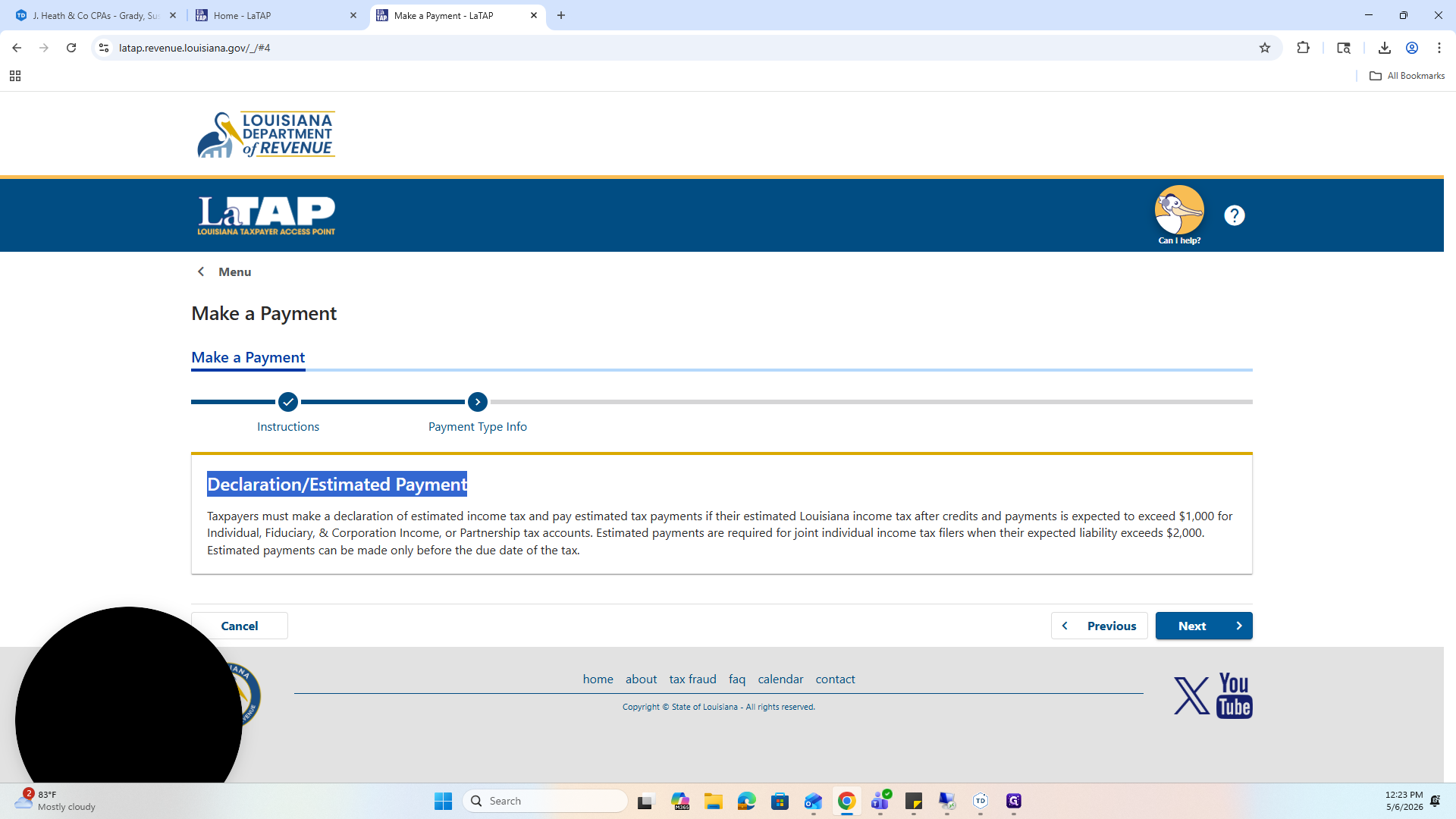
Select Declaration / Estimated Payment as the payment type.
4
Click Next to proceed.
Enter Taxpayer Information
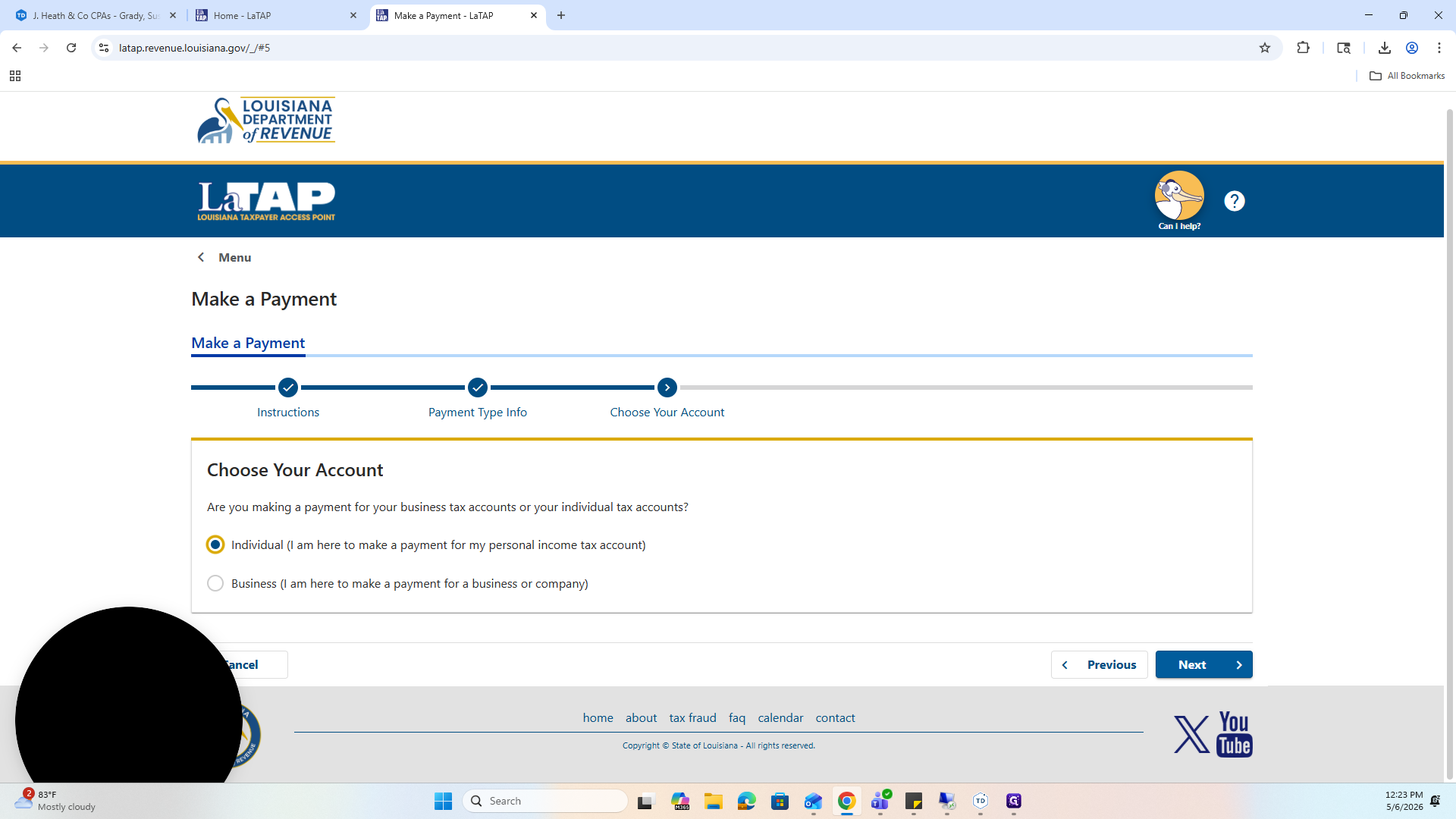
5
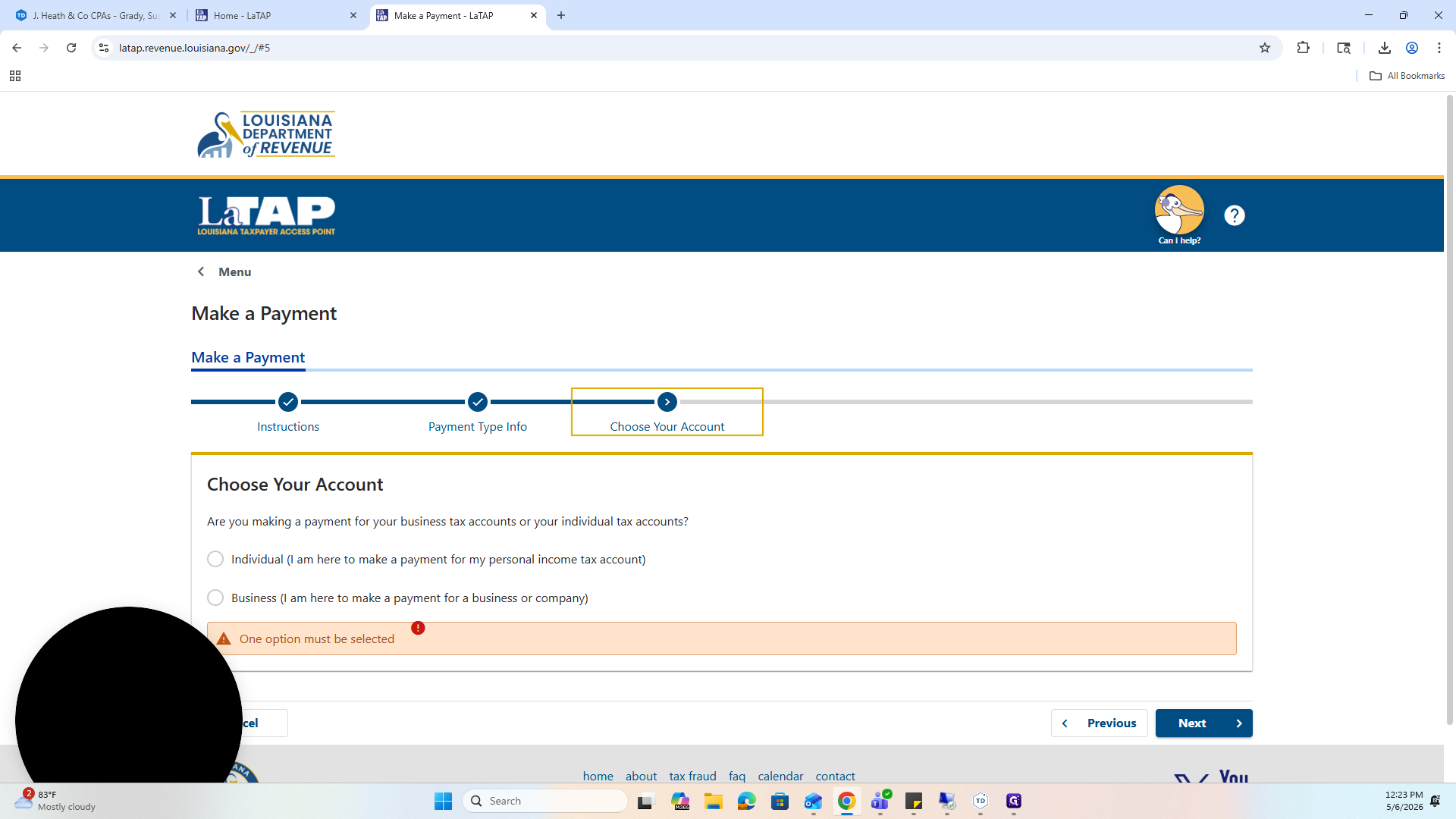
Select Individual for the account type.
6
Click Next.
7
Choose the ID type, such as SSN.
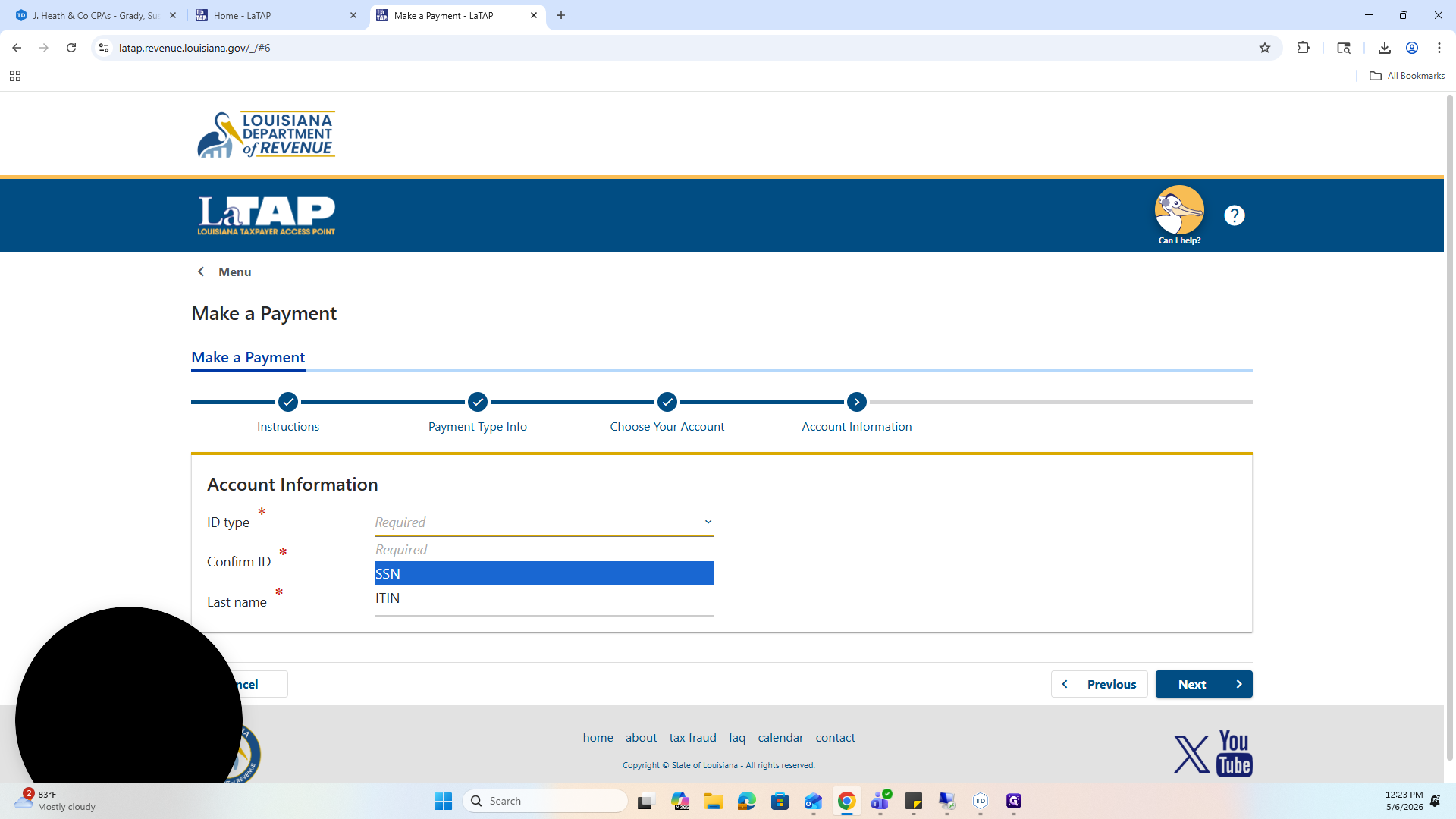
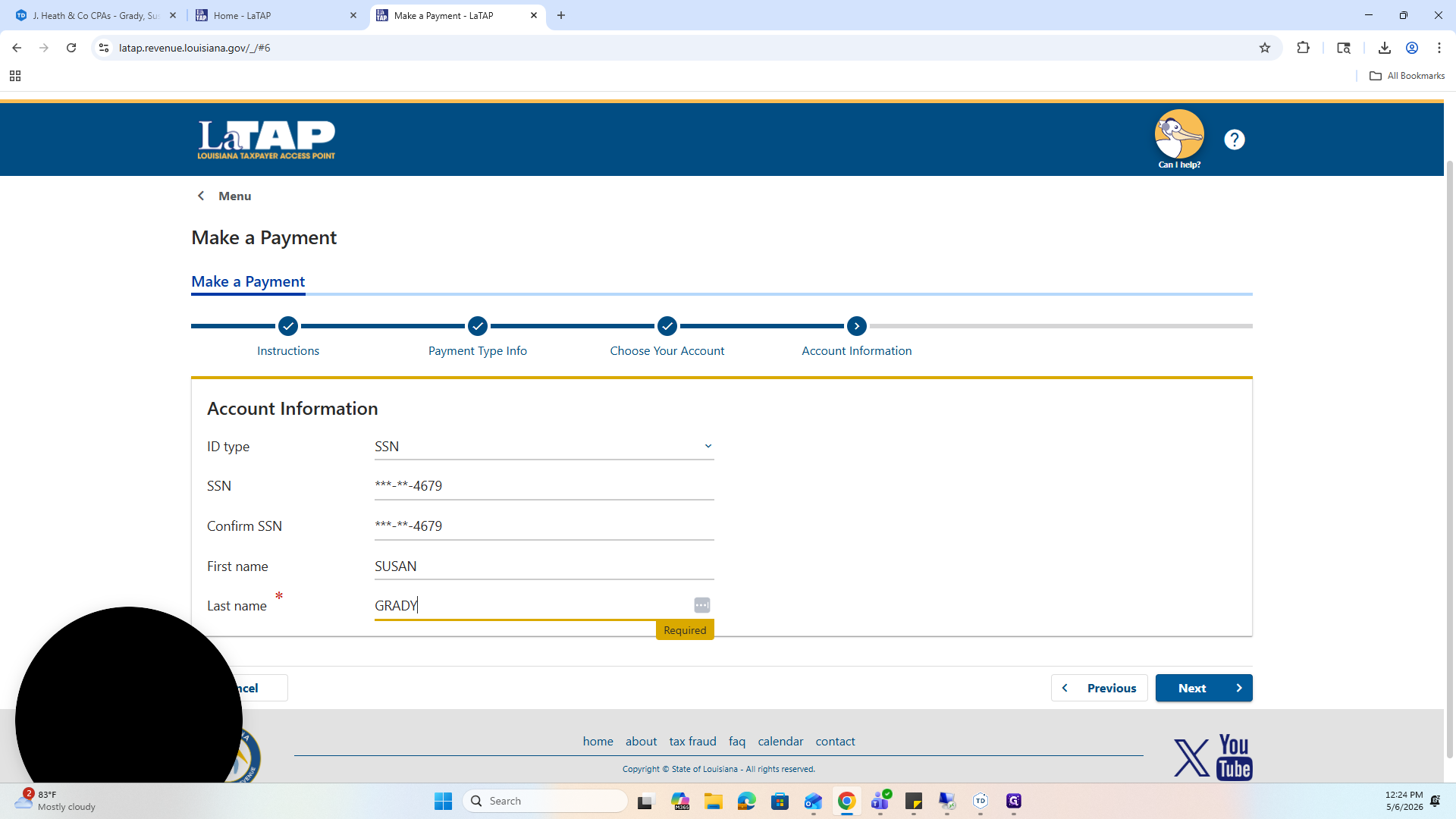
8
Enter the taxpayer's Social Security Number and confirm it.
9
Enter the taxpayer's first and last name.
10
Click Next.
Input Payment Details
11
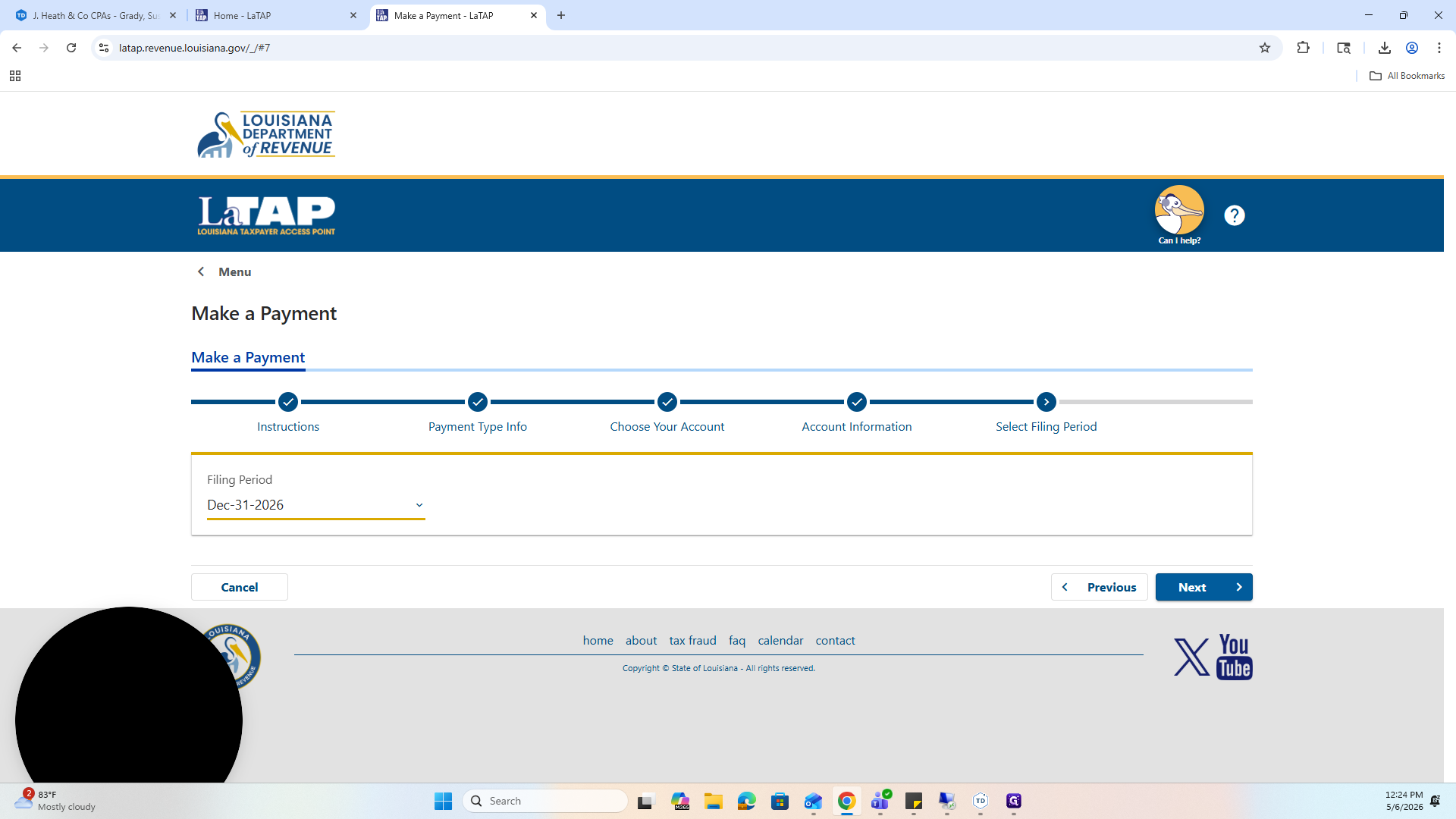
Select the Filing Period. Always choose December 31st of the tax year you are submitting the payment for (e.g., Dec 31, 2026 for a 2026 estimated payment).
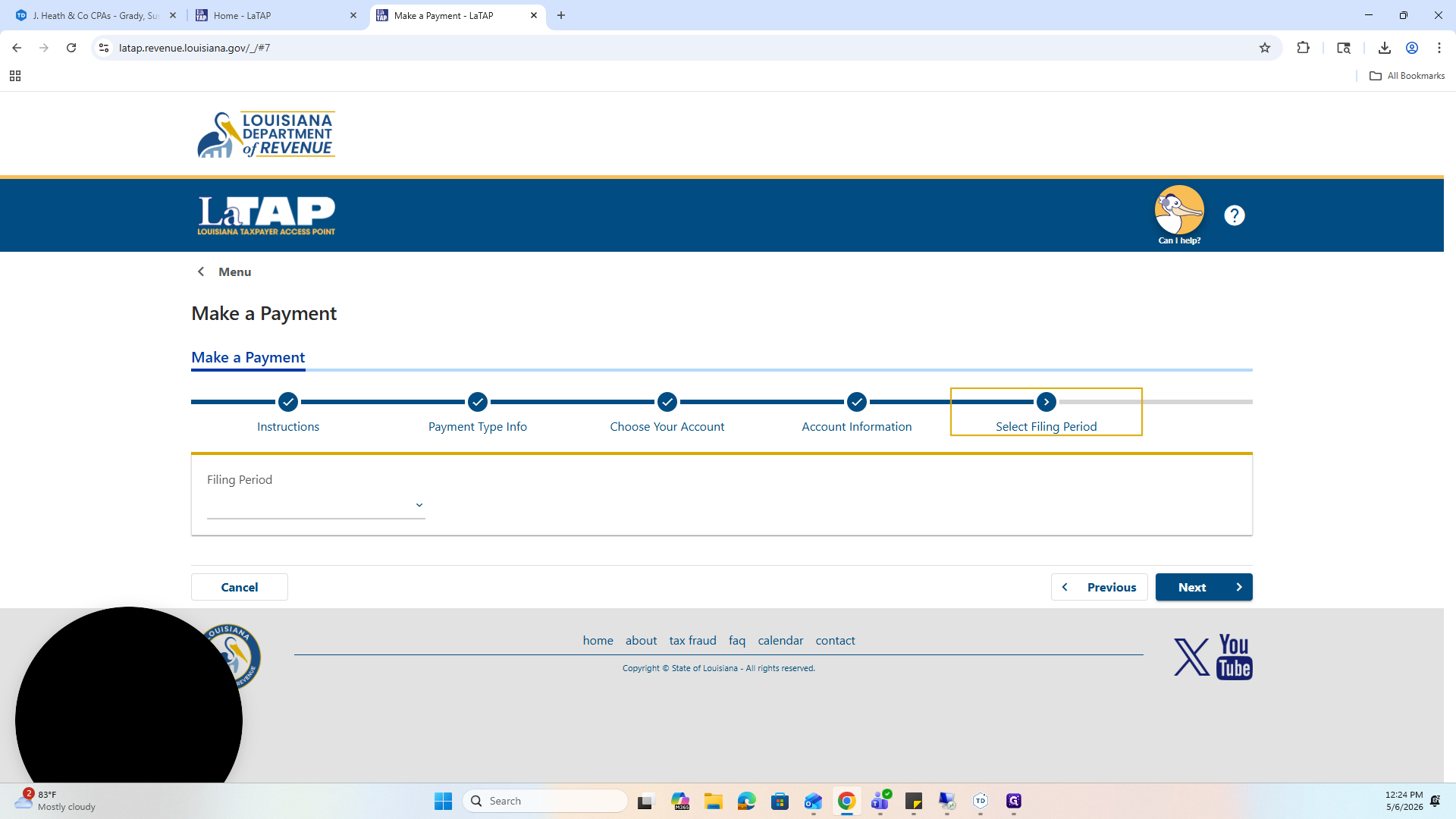
12
Click Next.
13
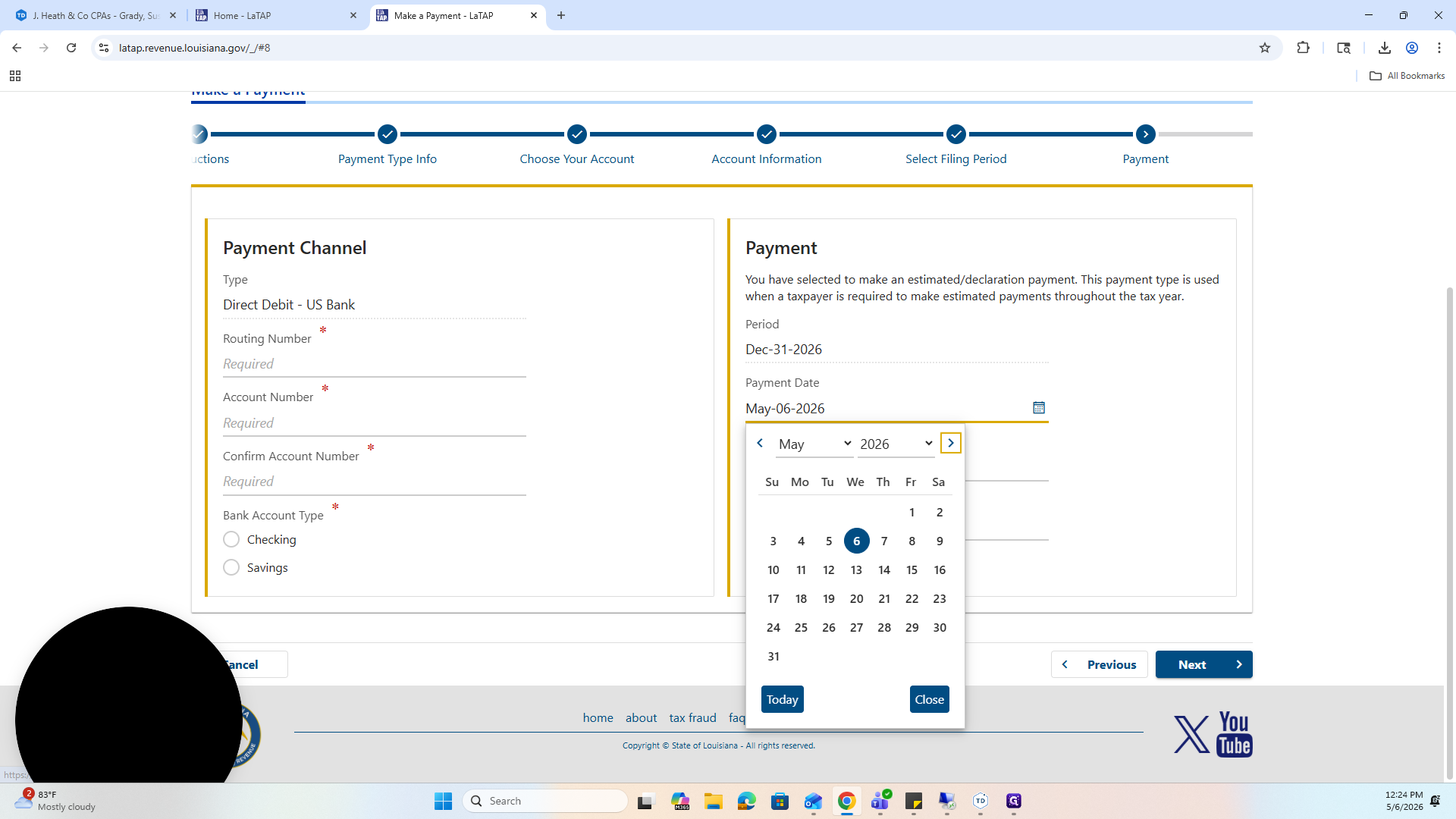
Click the calendar icon and select the correct Payment Date for the estimated payment (e.g., September 15th for Q3).
14
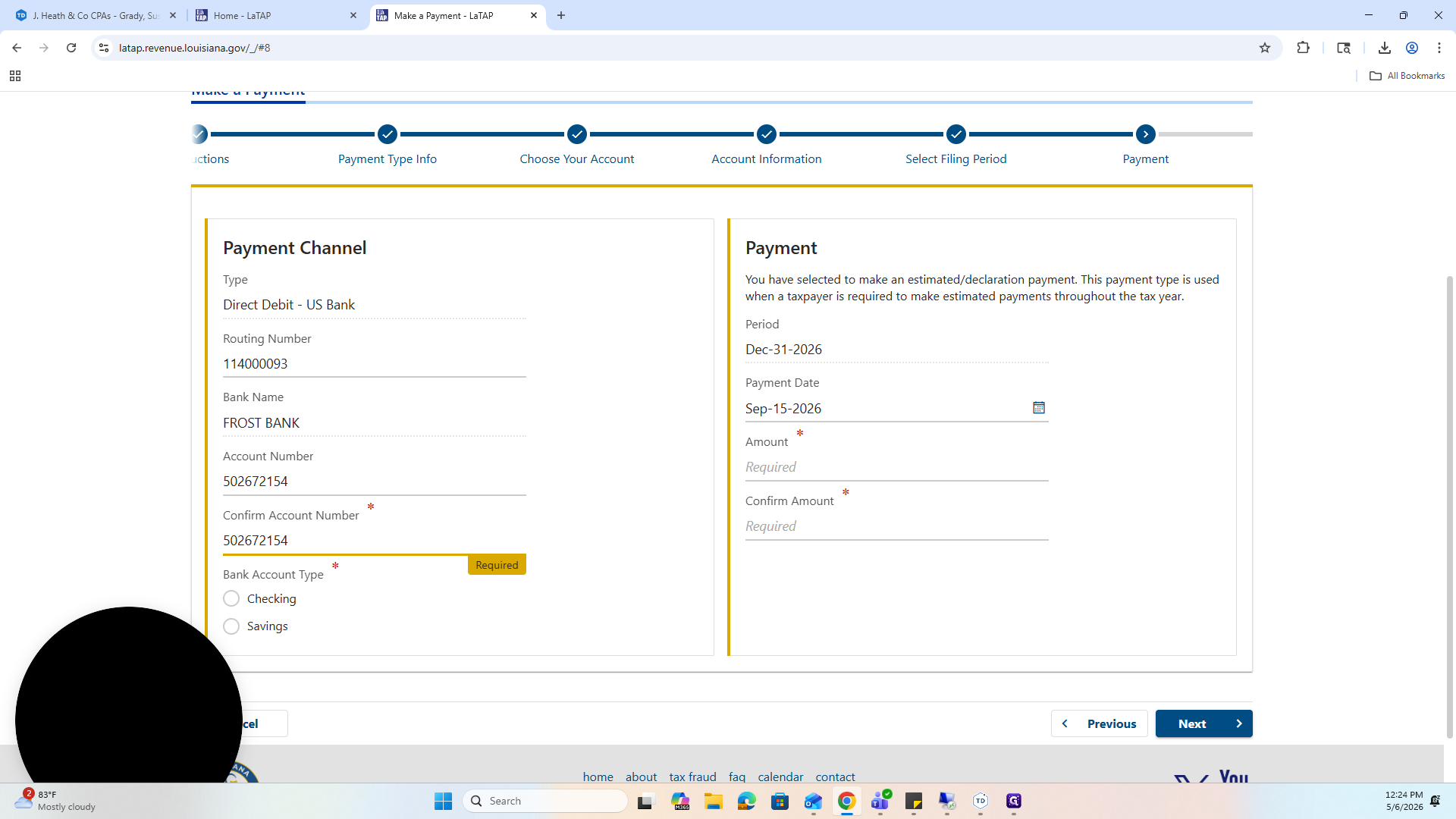
Select the Bank Account Type, which is typically checking.
15
Enter the bank's routing number and account number. Confirm the account number in the second field.
16
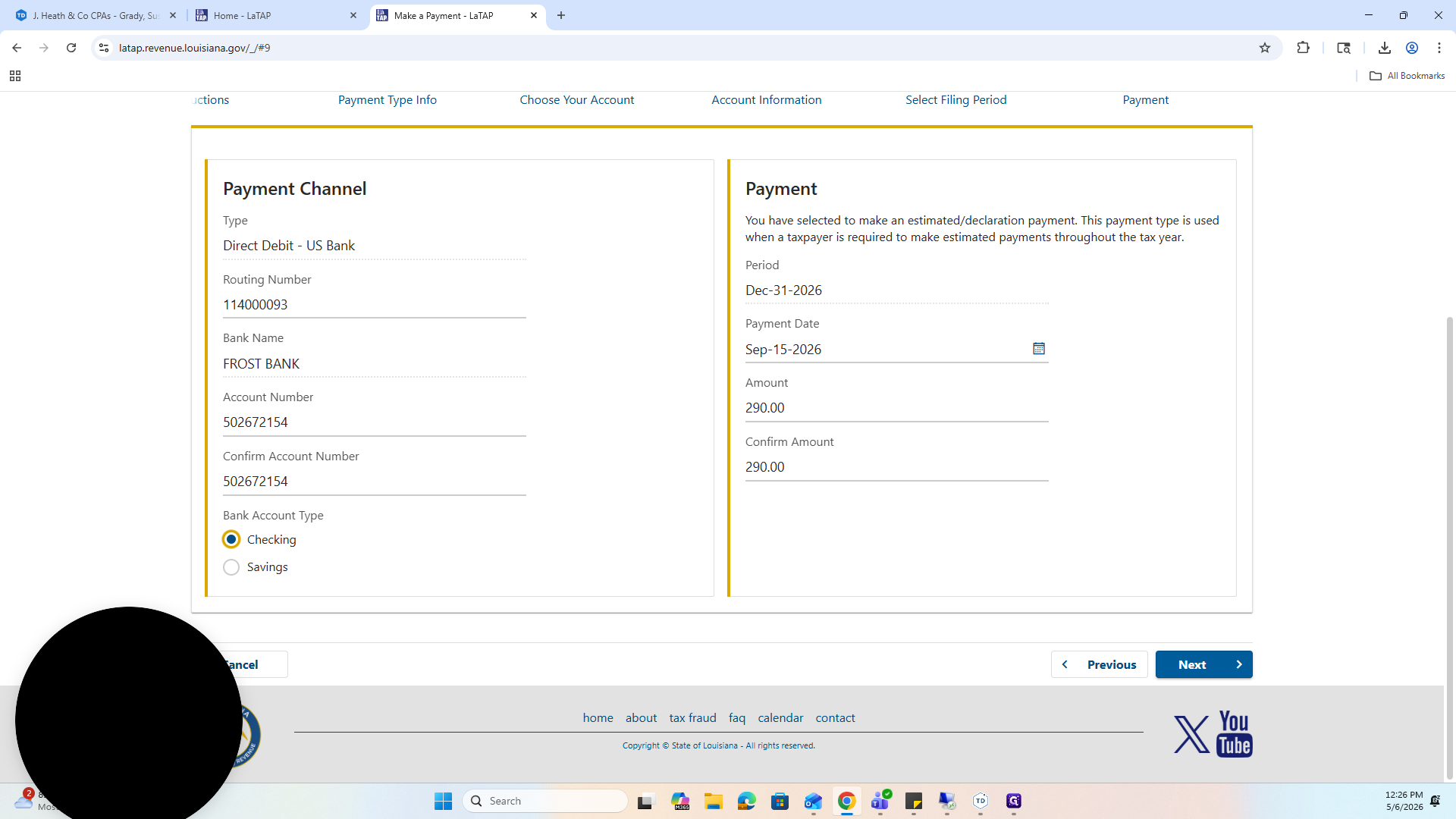
Enter and confirm the specific payment amount.
17
Click Next.
Review and Submit
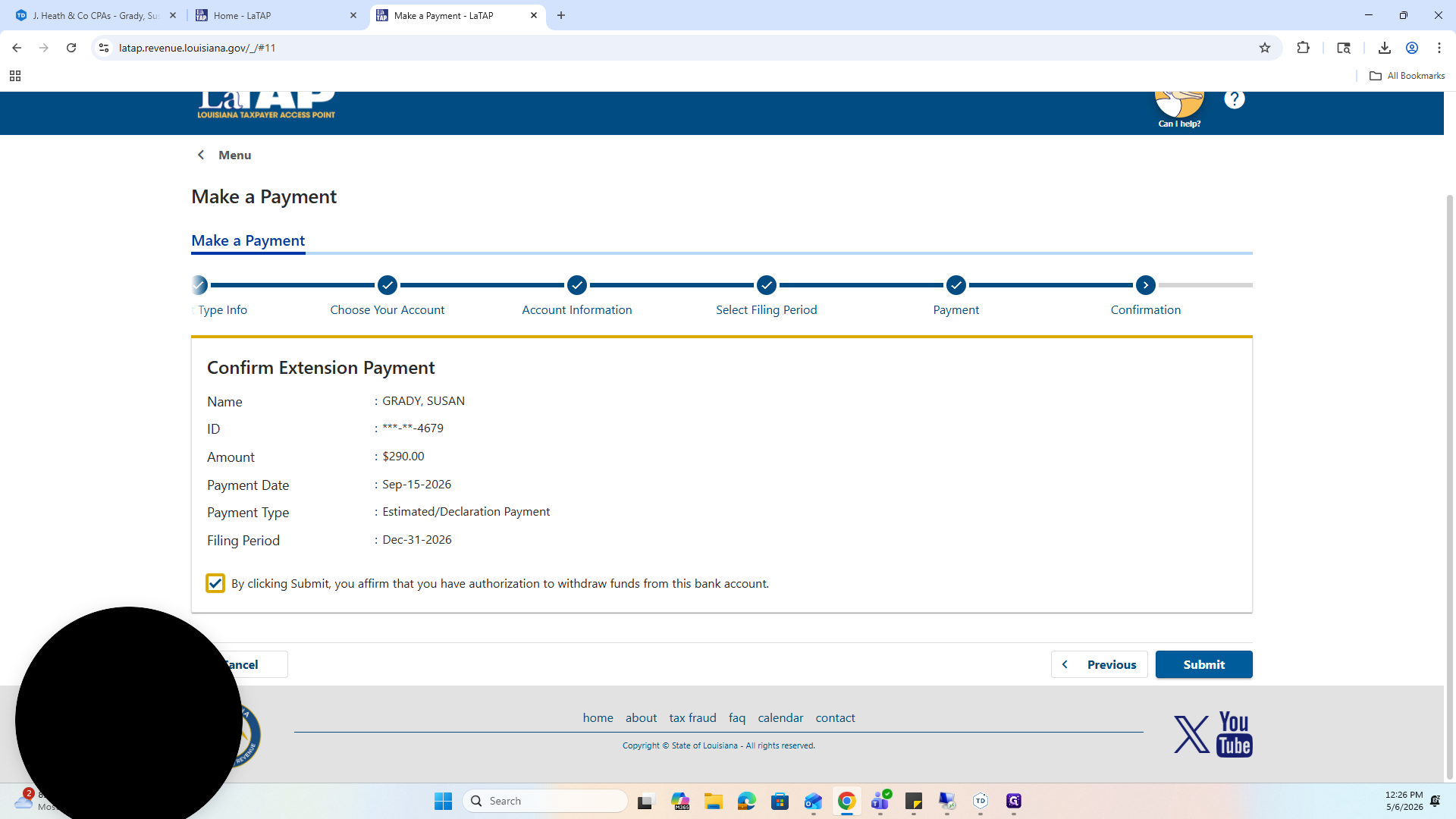
Take a moment to triple-check the filing period, bank routing numbers, payment date, and amount before submitting.
18
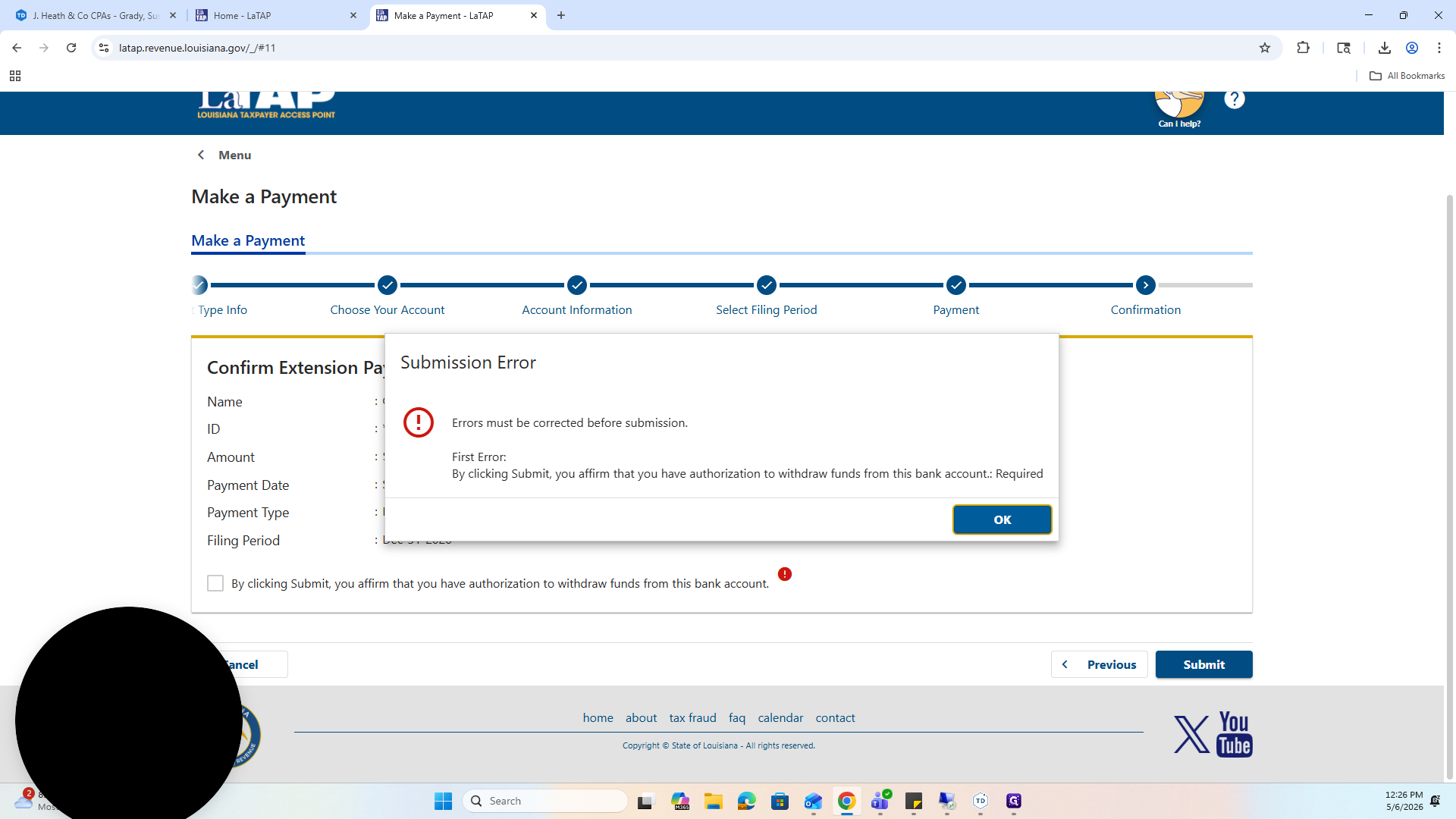
Check the box to authorize the withdrawal of funds.
19
Click Submit.
20
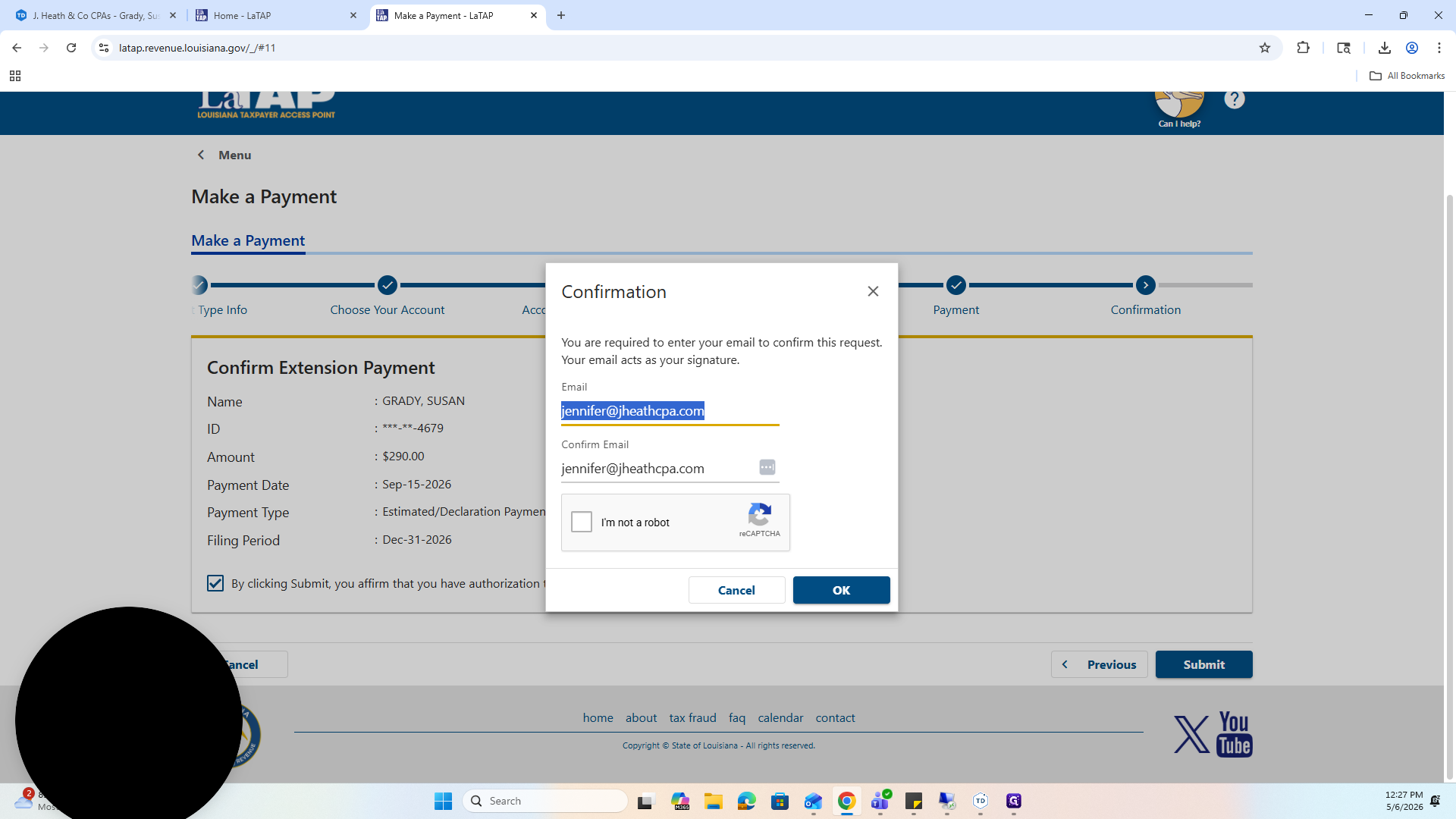
Enter and confirm your email address to receive a digital receipt of the confirmation.
21
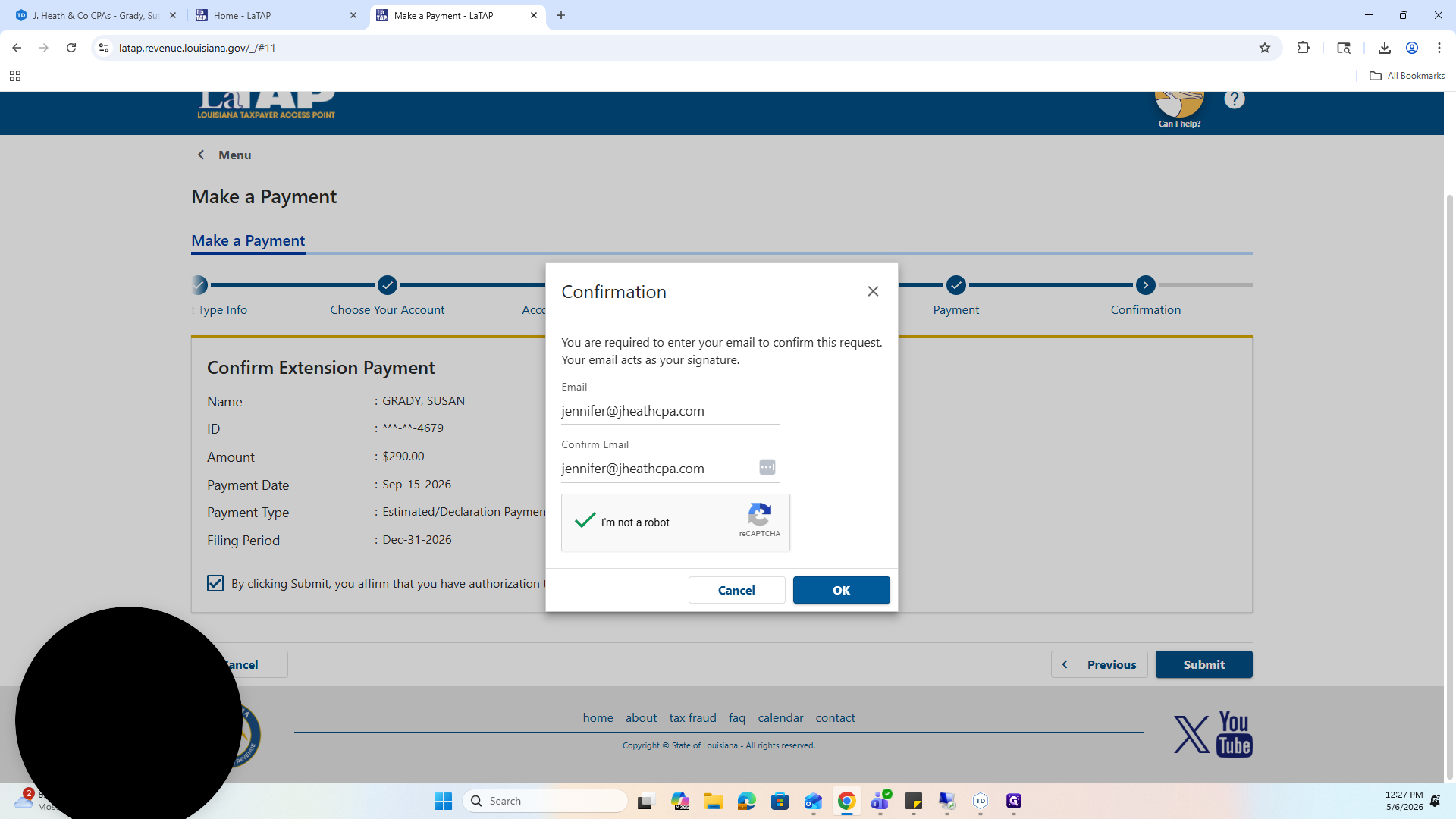
Complete the reCAPTCHA challenge.
22
Click OK to finalize the payment.
Save Confirmation to TaxDome
23
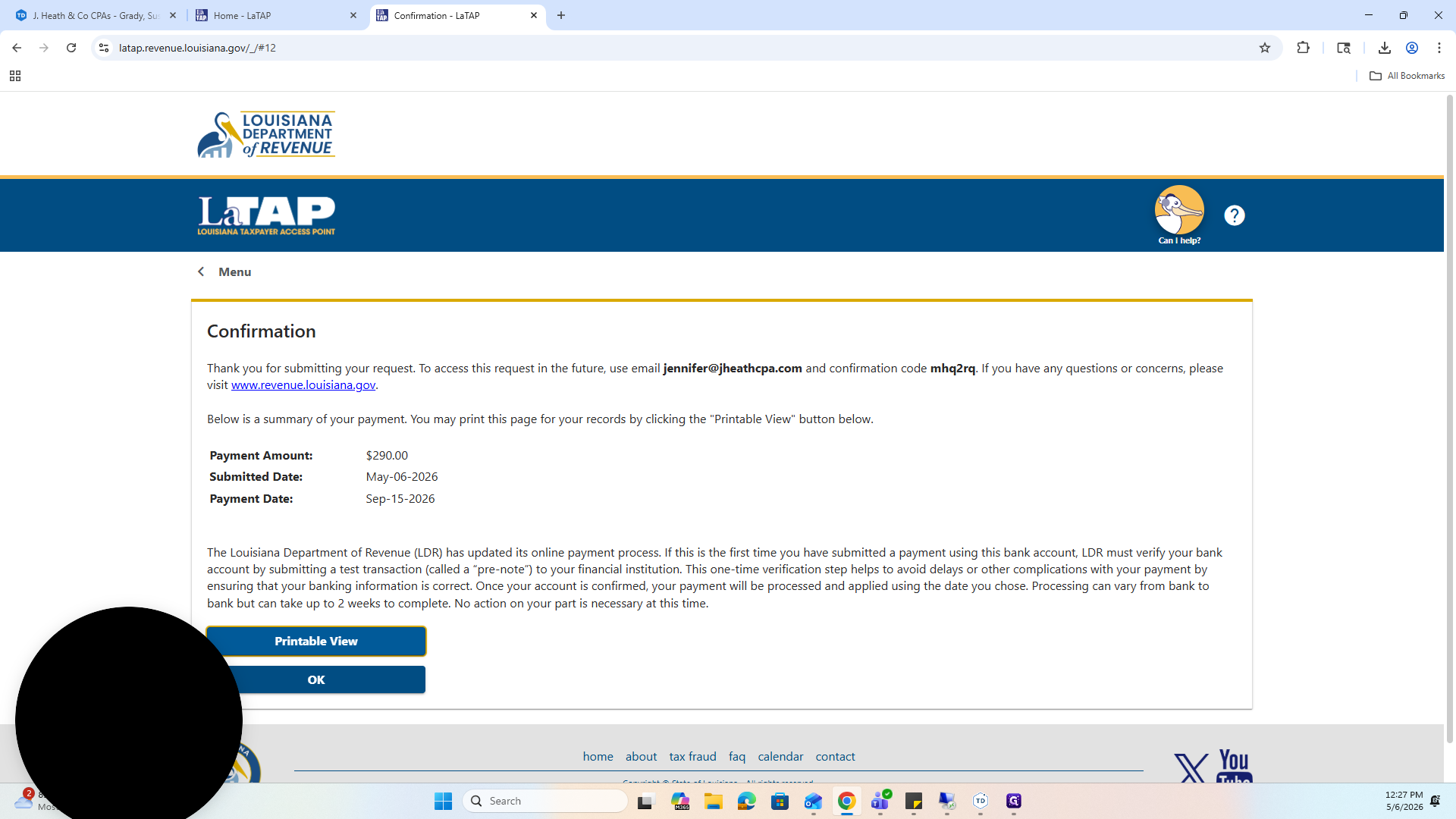
Click Printable View on the confirmation screen.
24
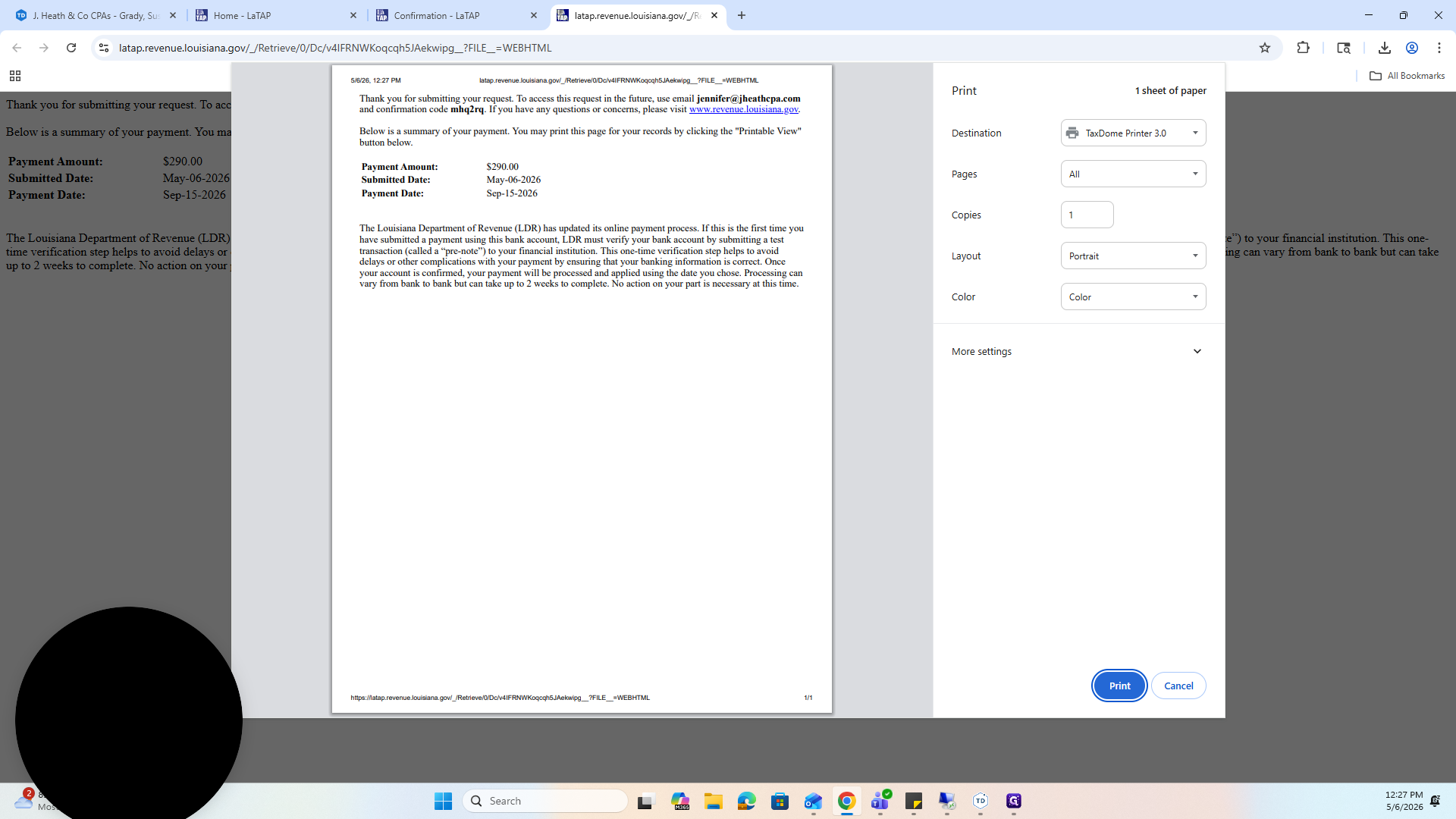
Print the page as a PDF.
25
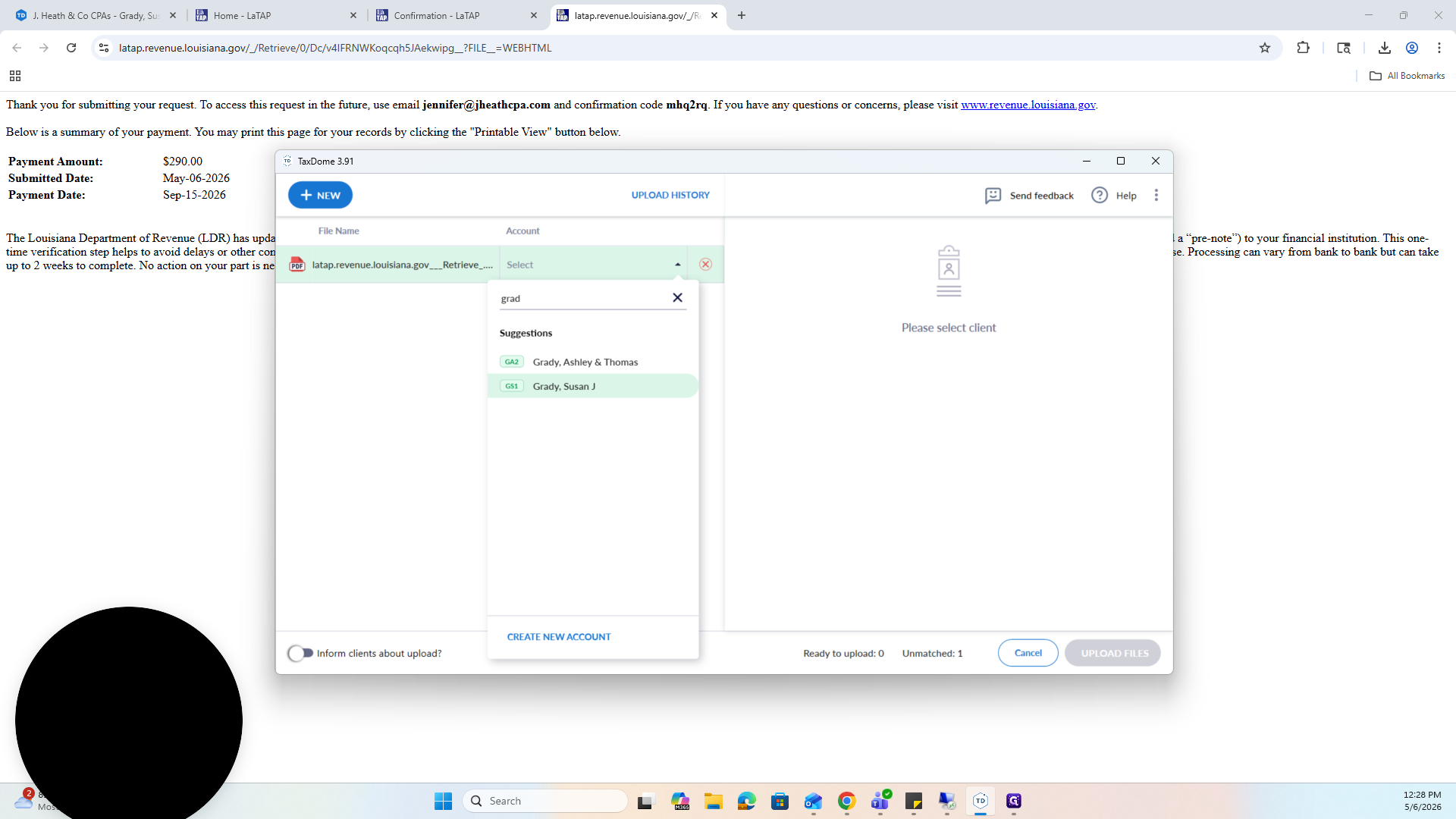
In the TaxDome upload menu, select the corresponding client account.
26
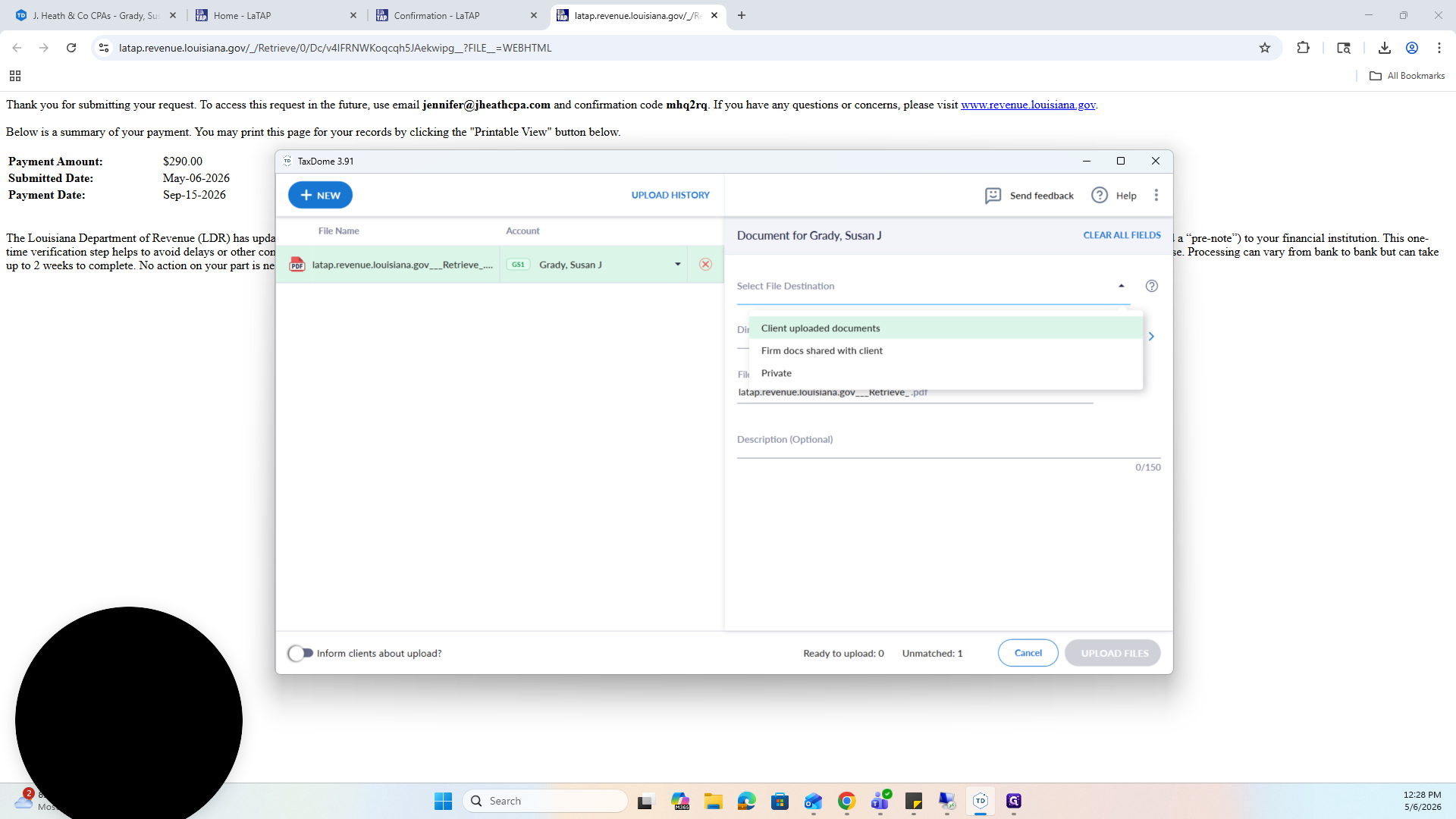
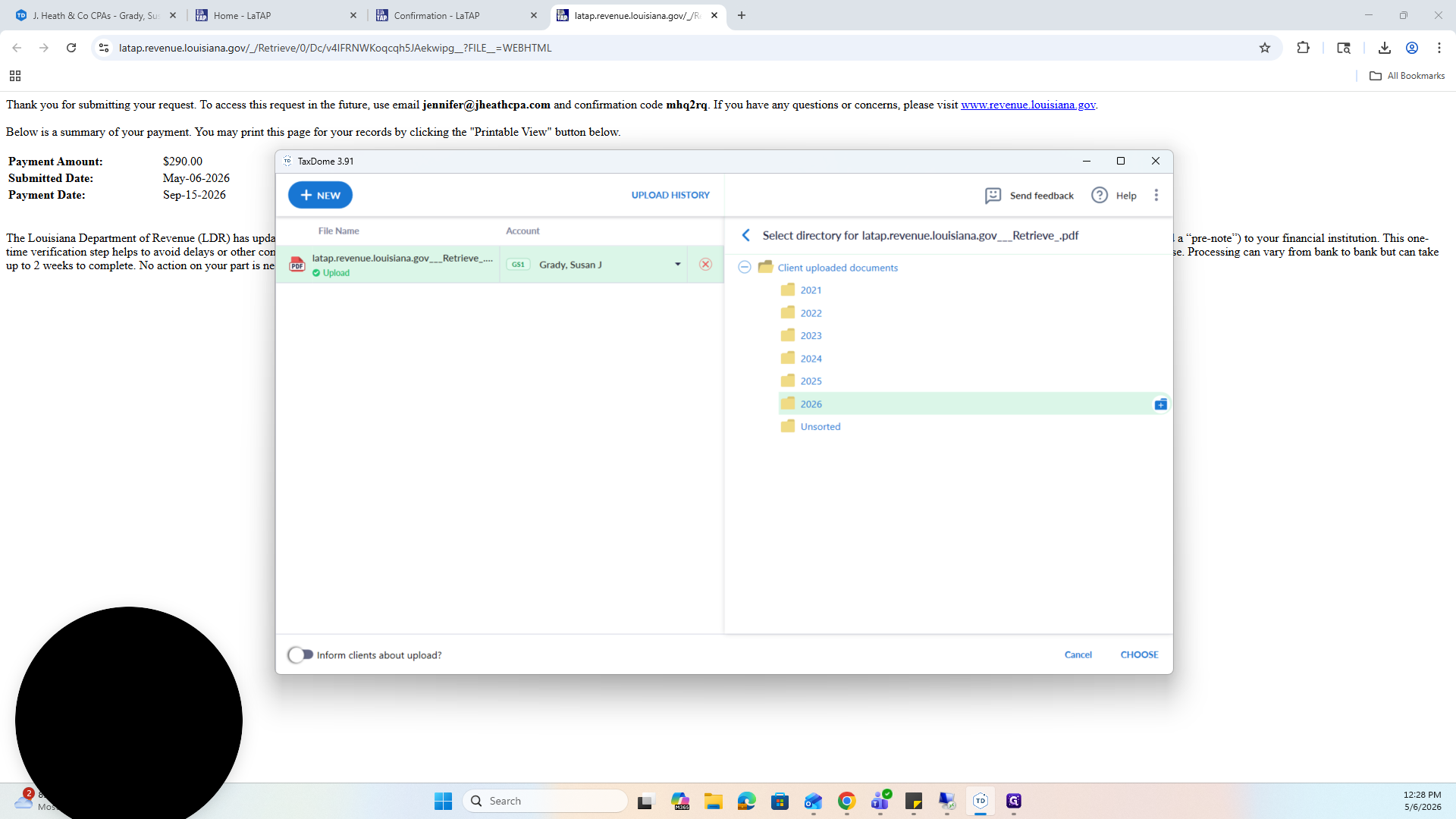
Select Client uploaded documents as the folder destination.
27
Select the correct tax year subfolder (e.g., 2026).
28
Rename the file clearly, identifying the quarter, state, amount, and document type (e.g.,
3Q LA ES Payment Confirmation $290.00).29
Click UPLOAD FILES to save the document to the client's file.
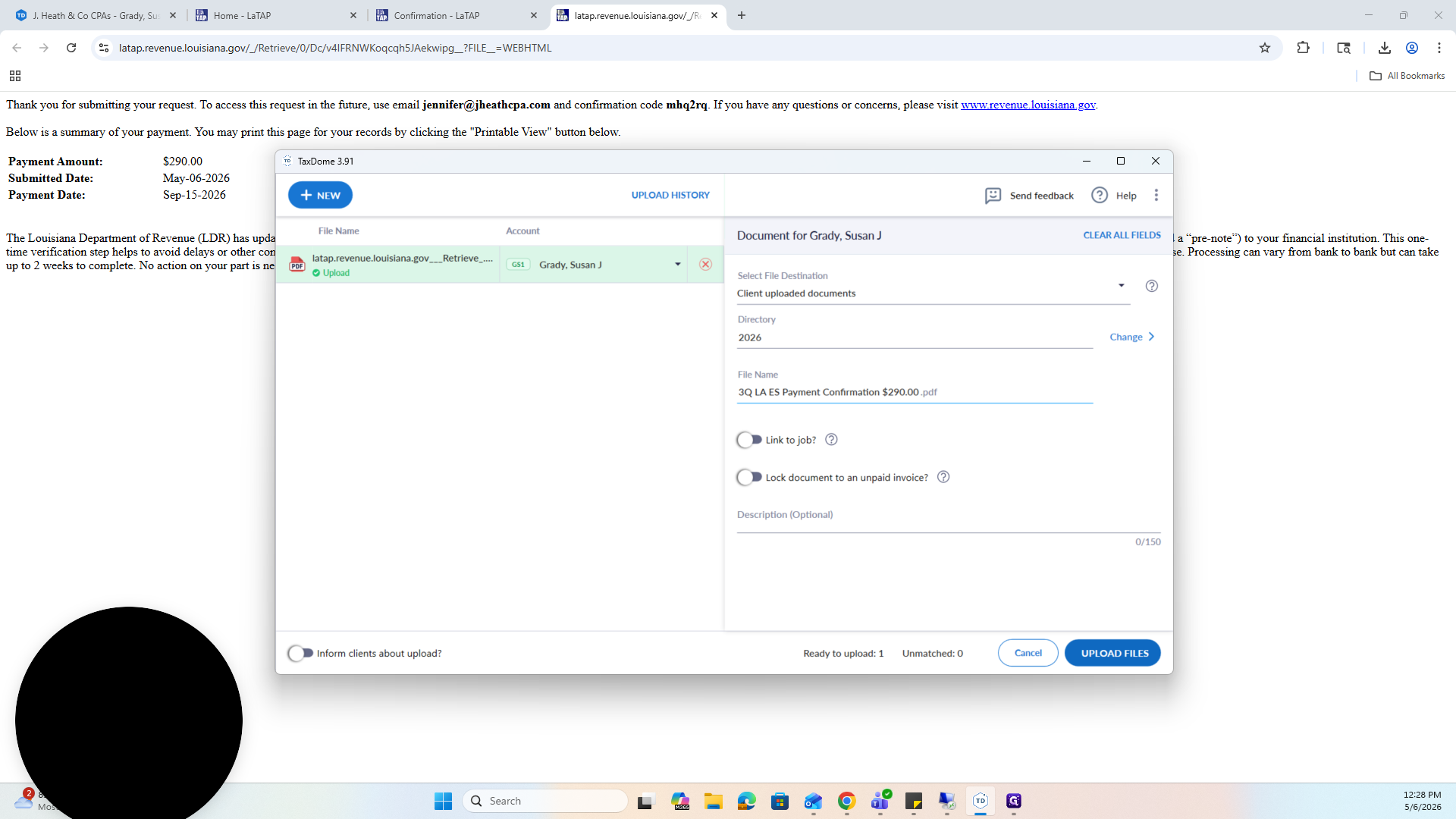
Uploading this source document directly to the appropriate tax year folder ensures that preparers easily locate the estimated payments when finalizing returns.