
Managing Customer Communications and Email Templates
Learn how to manage client communications using Microsoft Outlook email templates for after-hours requests, chute cleaning notices, quotes, and more.
This guide explains how to use pre-configured email templates to standardize customer communications for various service scenarios. By following these steps, you can quickly and accurately send appropriate responses for after-hours requests, account holds, schedule notices, and maintenance quotes.
This guide is intended for customer service representatives, dispatchers, and scheduling teams managing client requests via Microsoft Outlook and Simpro. It should be referenced during daily operations when responding to incoming client inquiries or notifying customers about scheduled service events.
Accessing and Sending Standard Templates
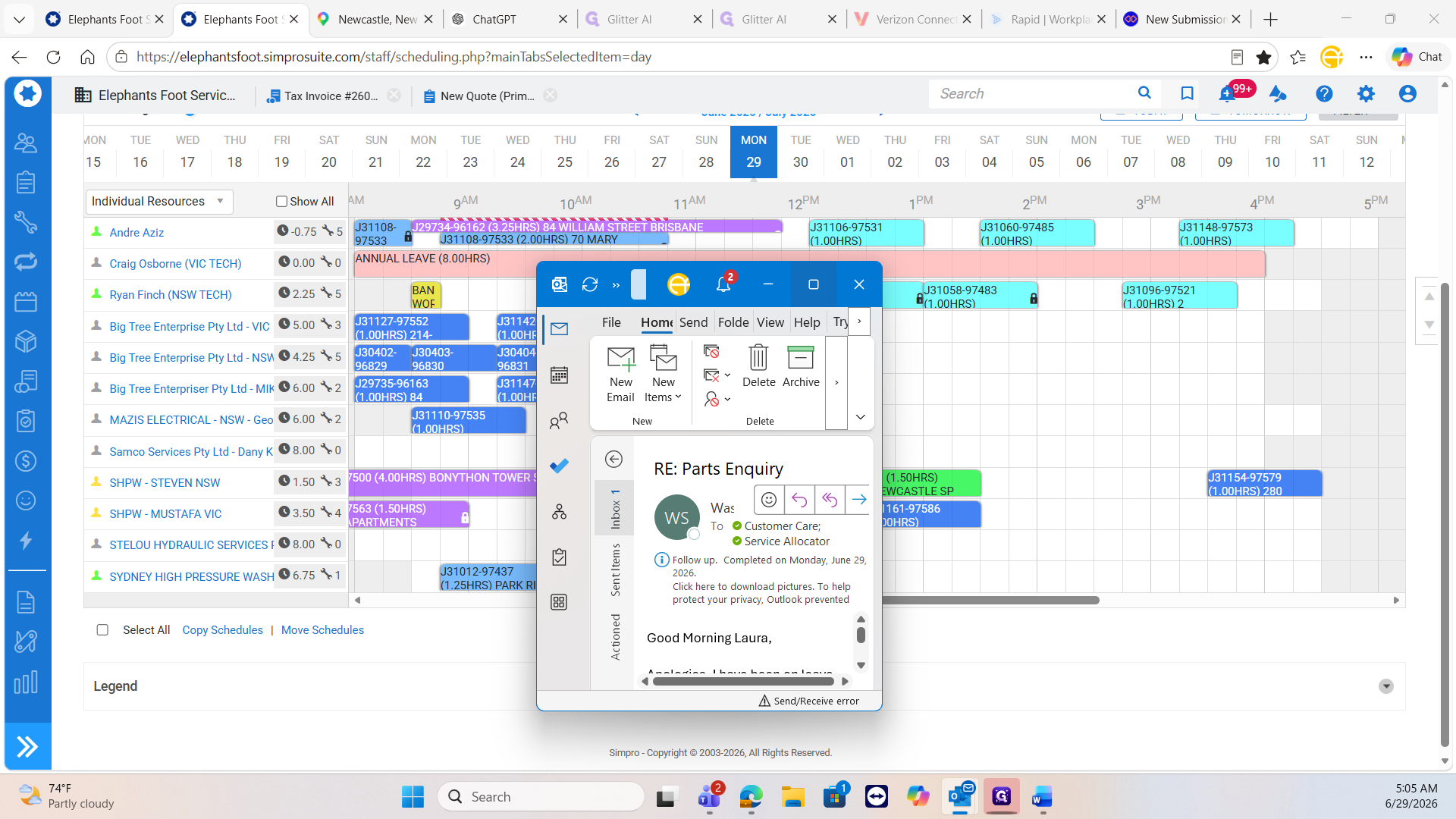
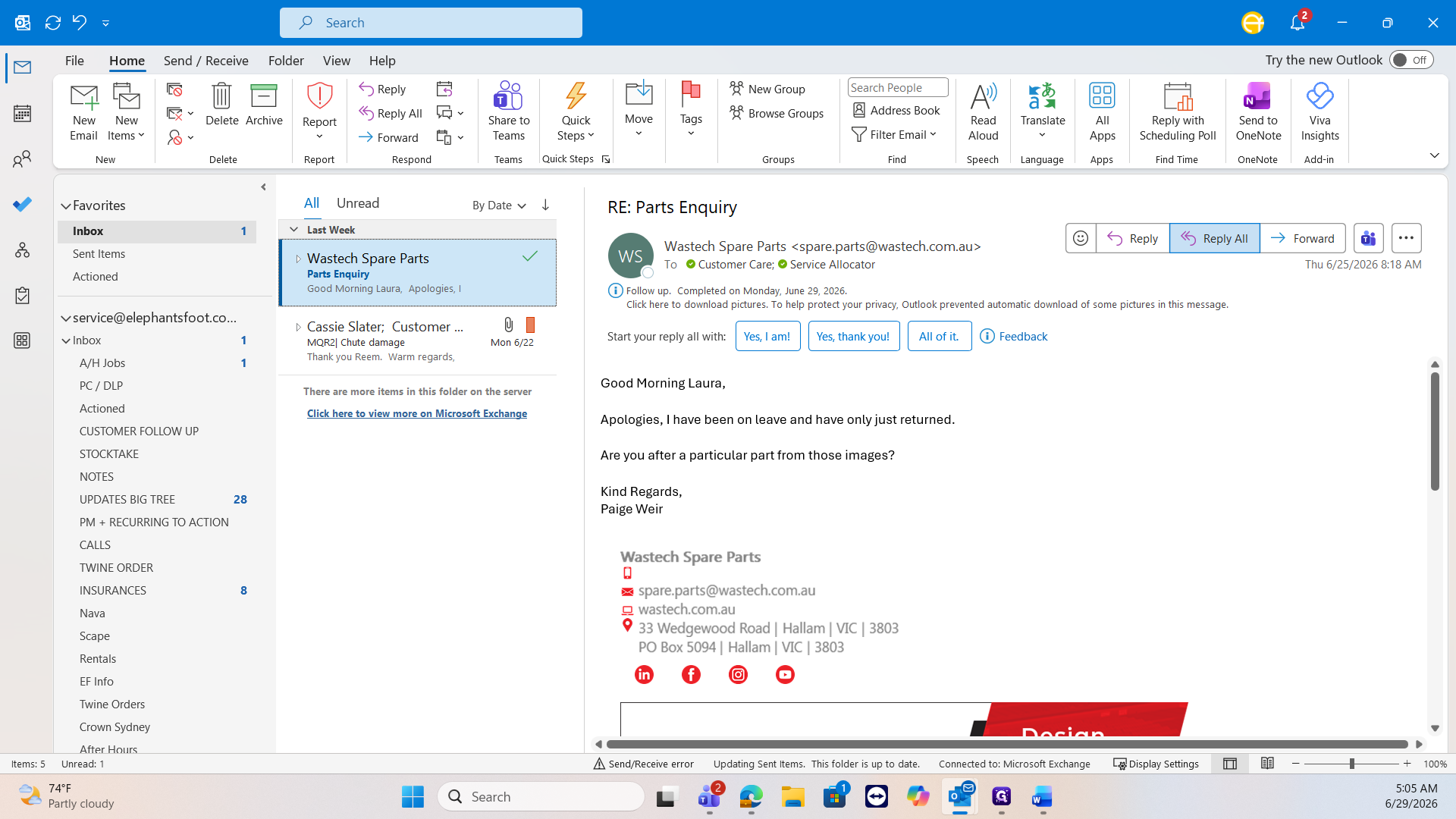
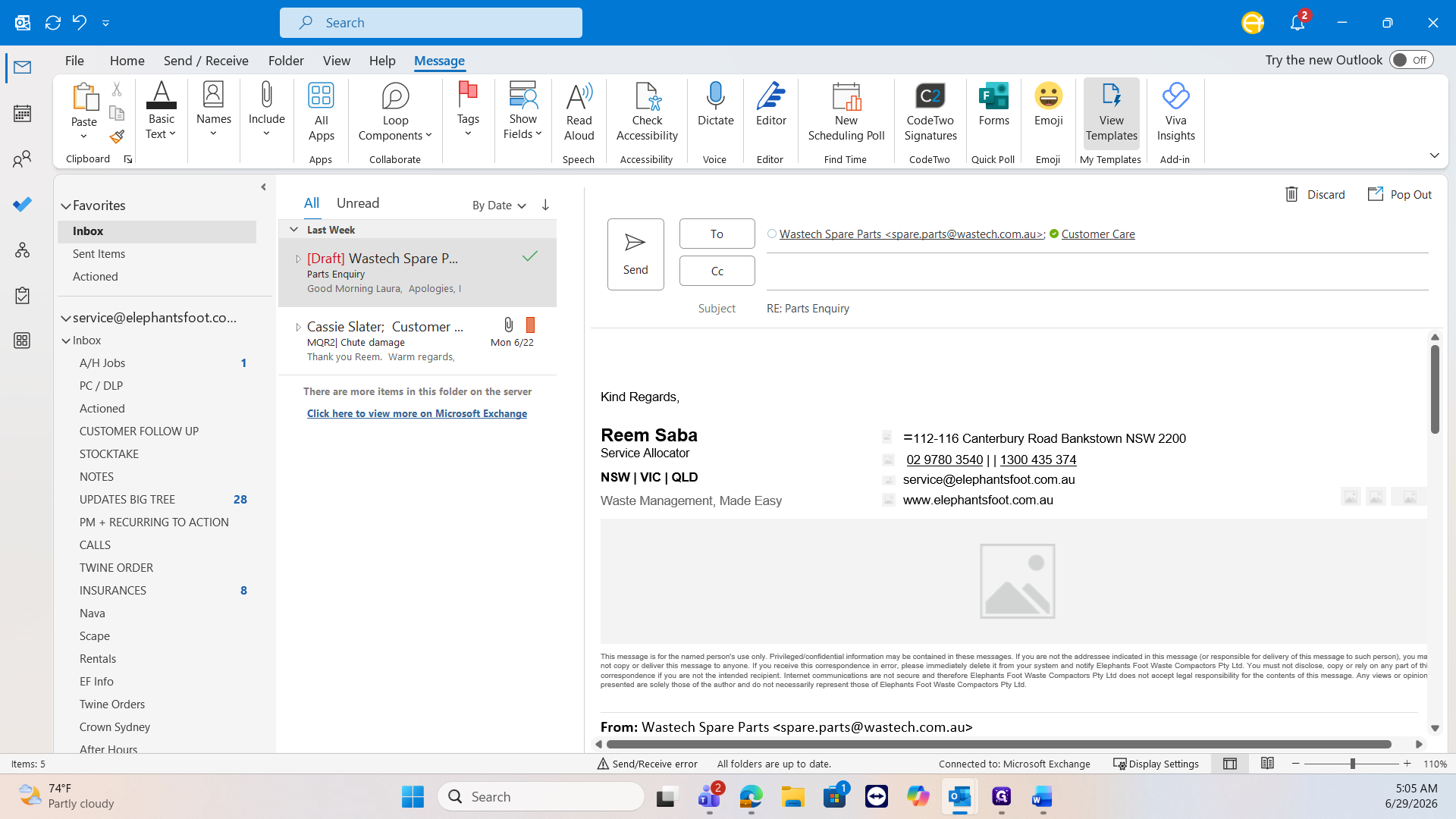
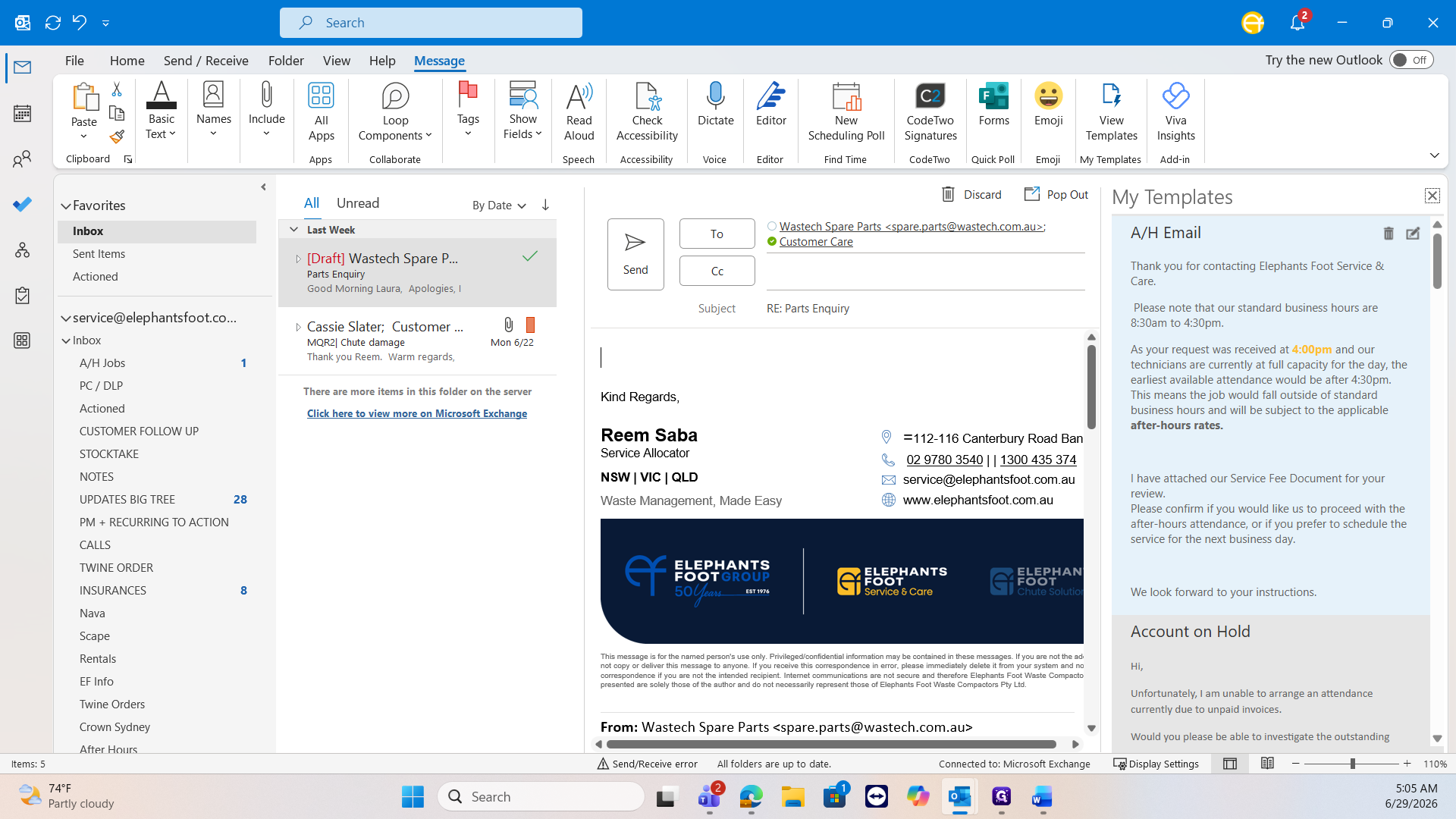
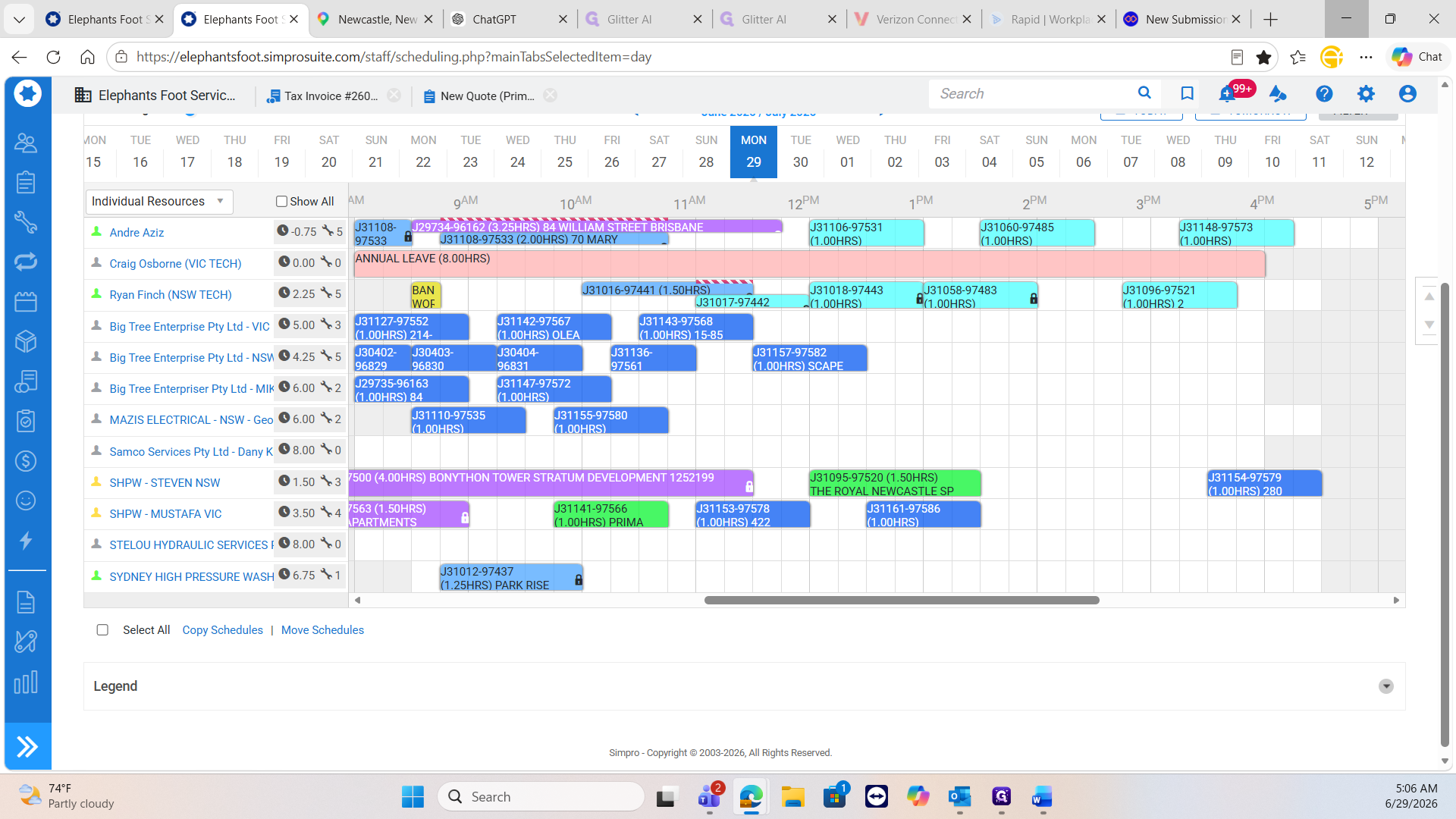
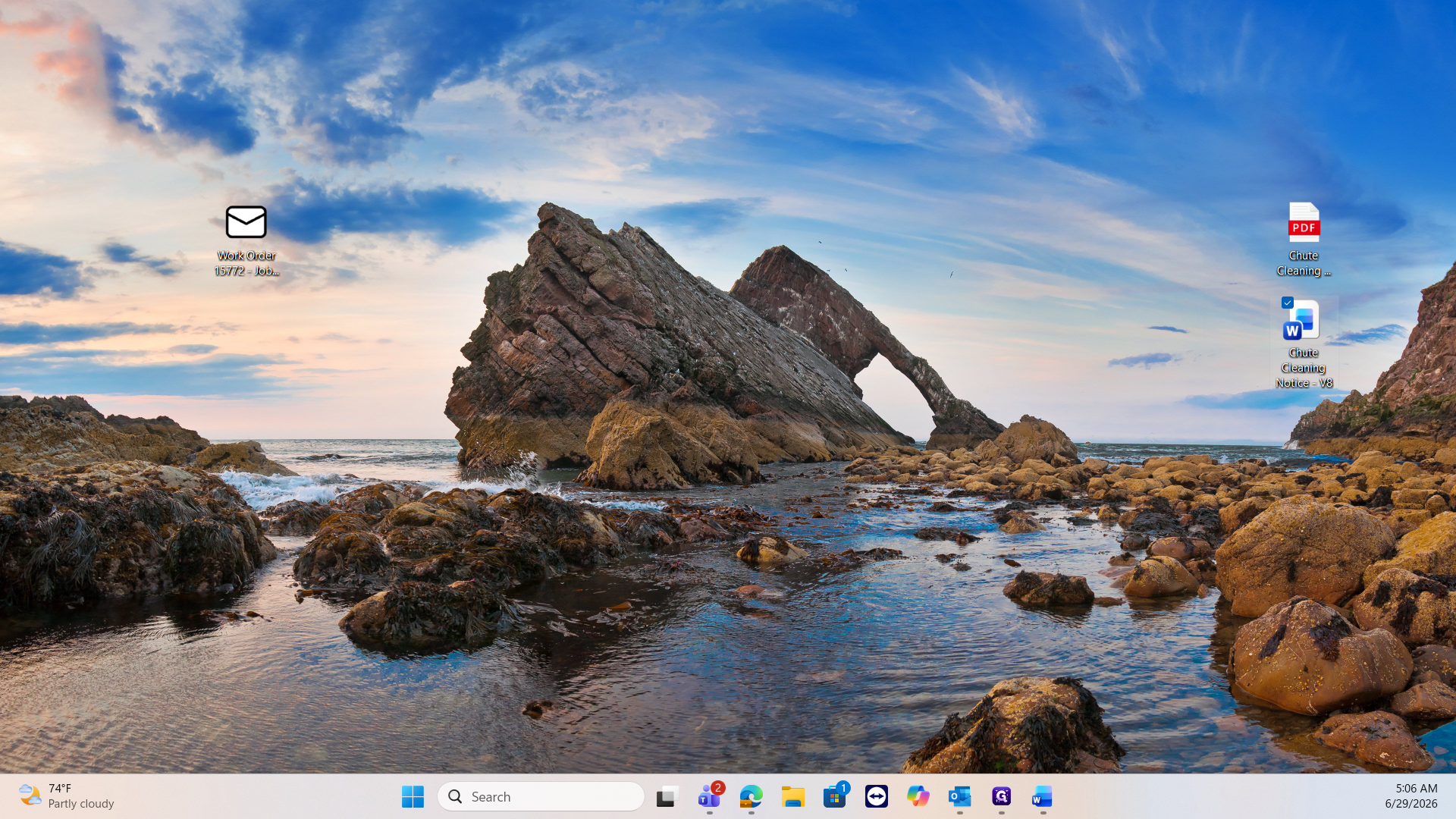
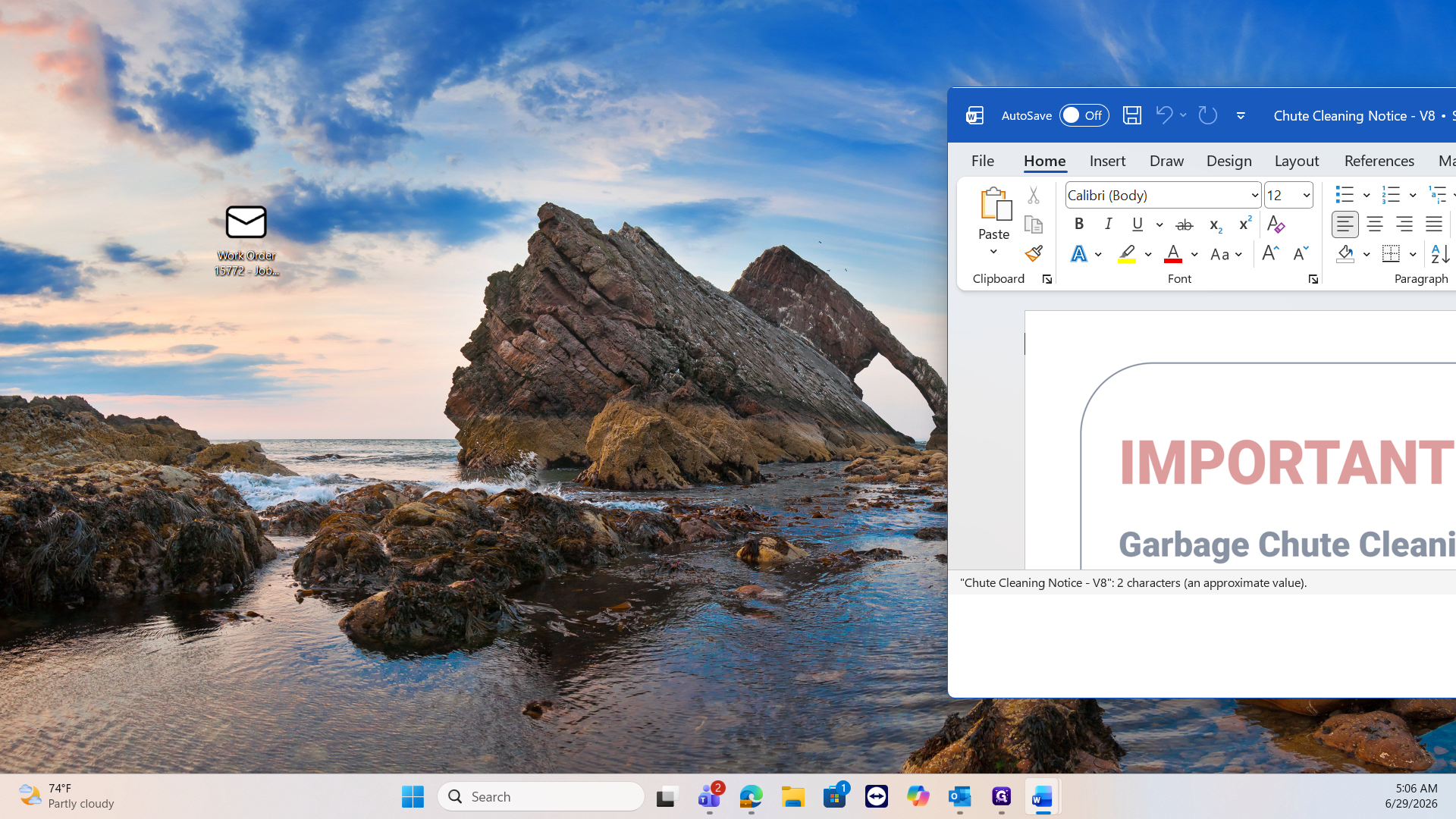
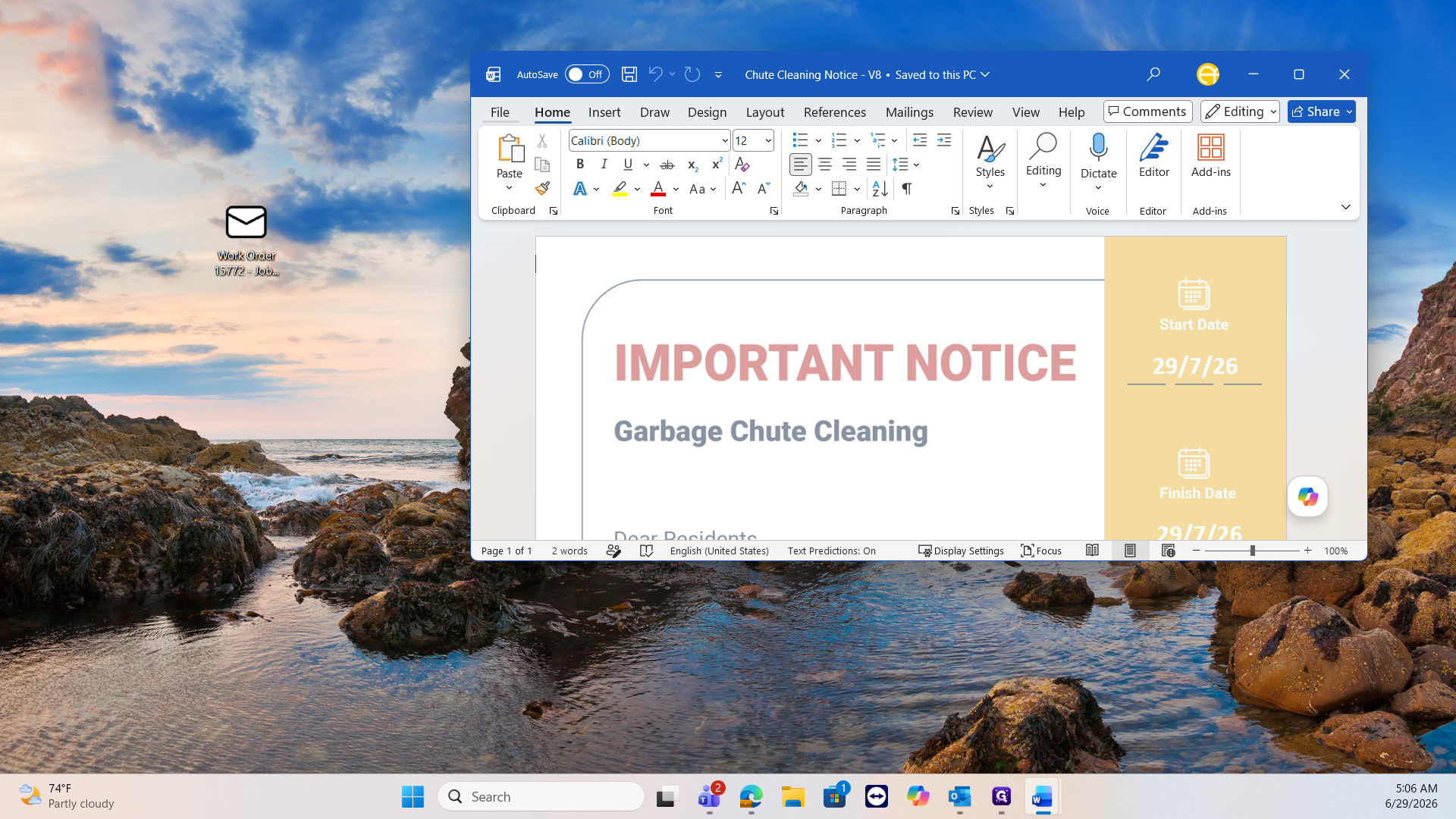
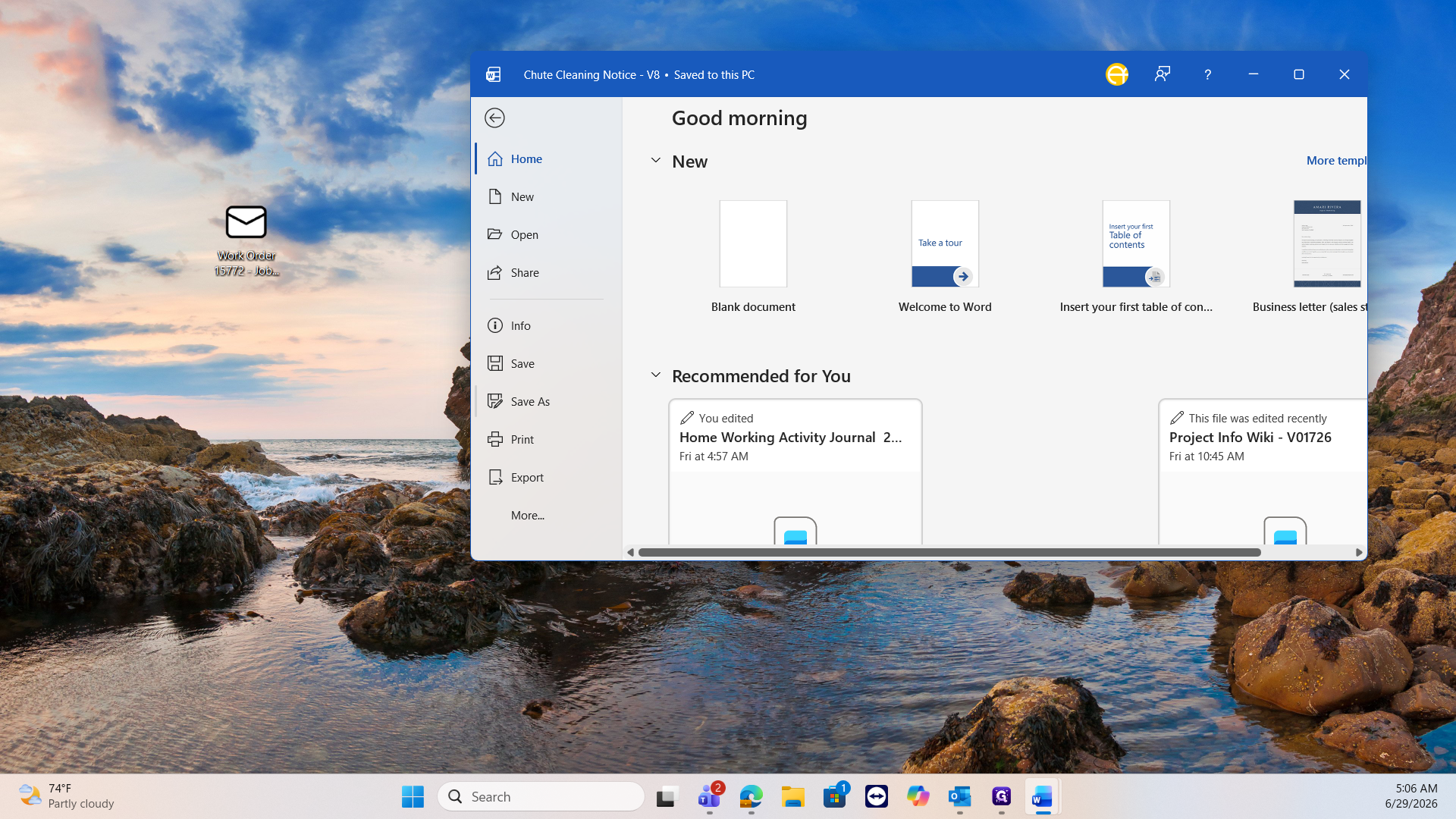
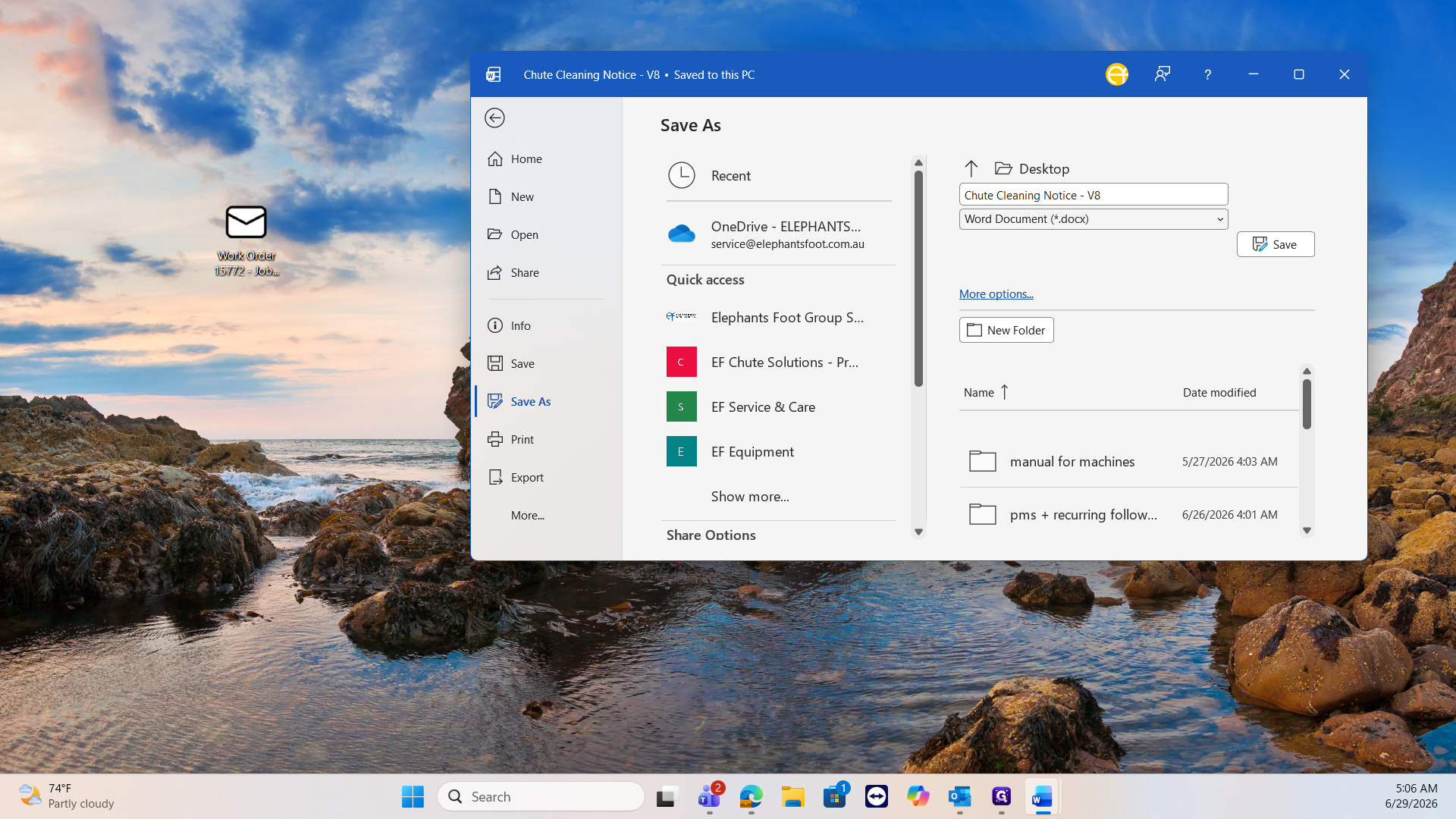
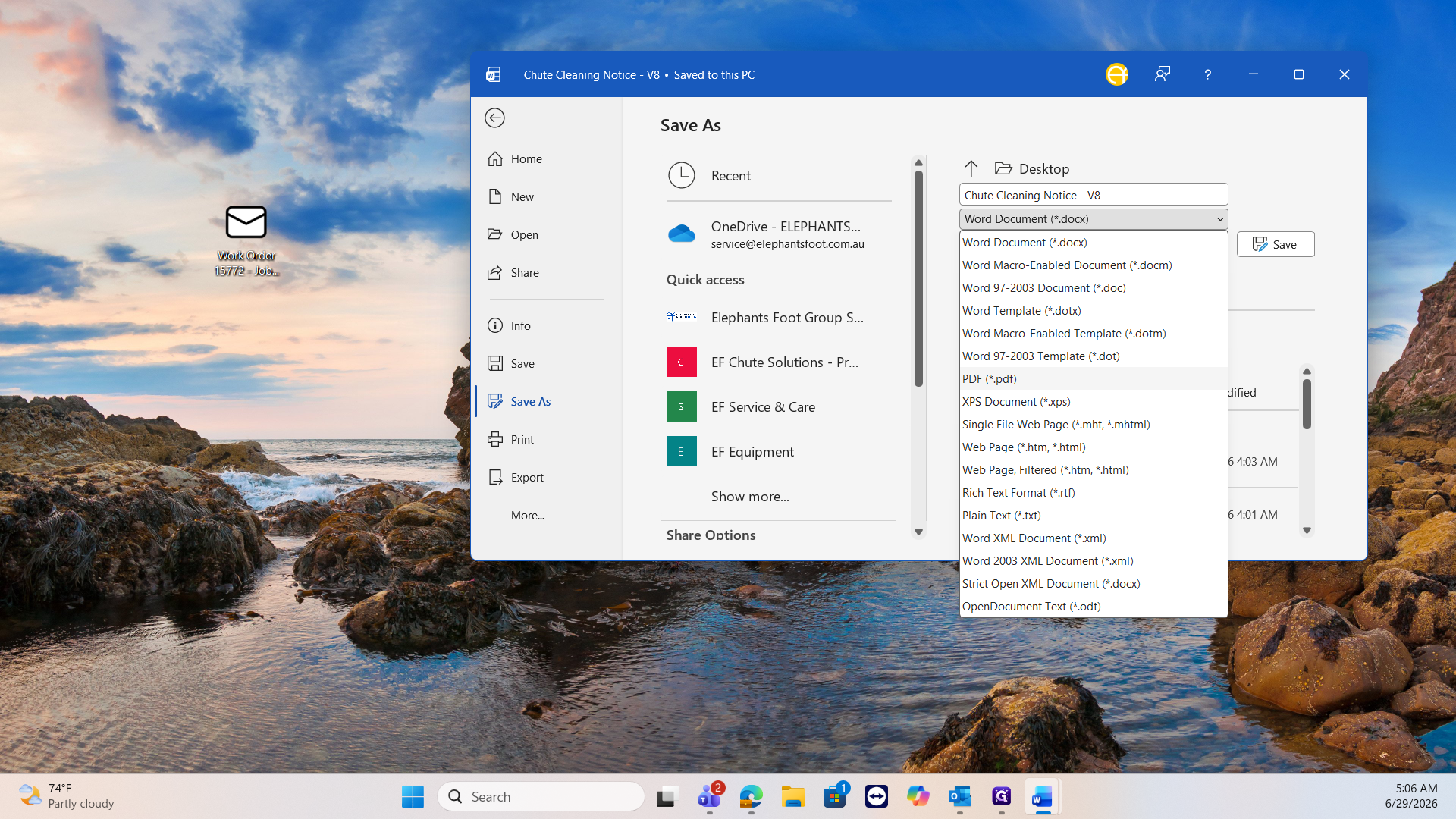
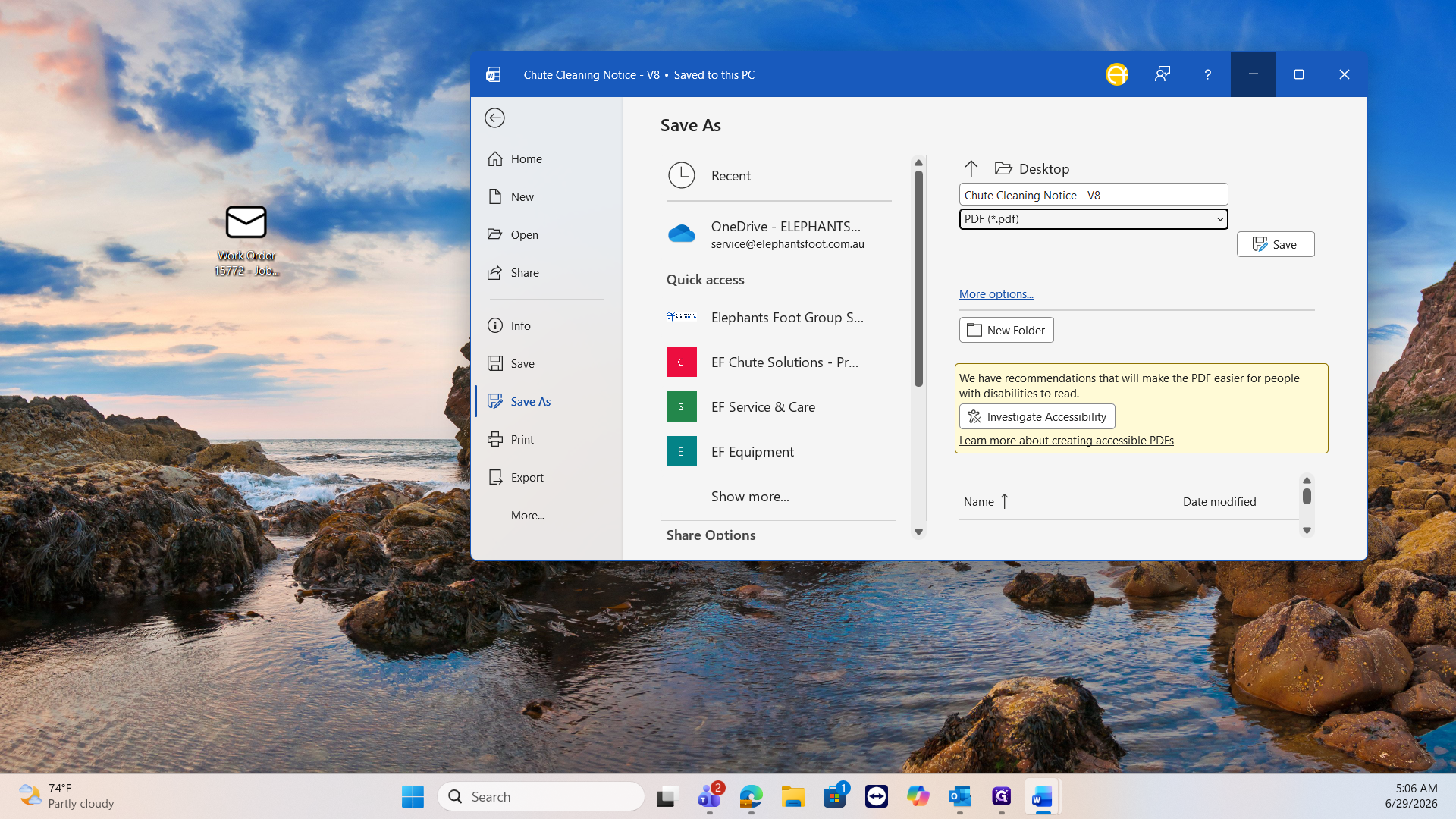
Generating a Chute Cleaning Notice PDF
When scheduling a chute cleaning, you must generate a customized PDF notice to attach to the customer email.
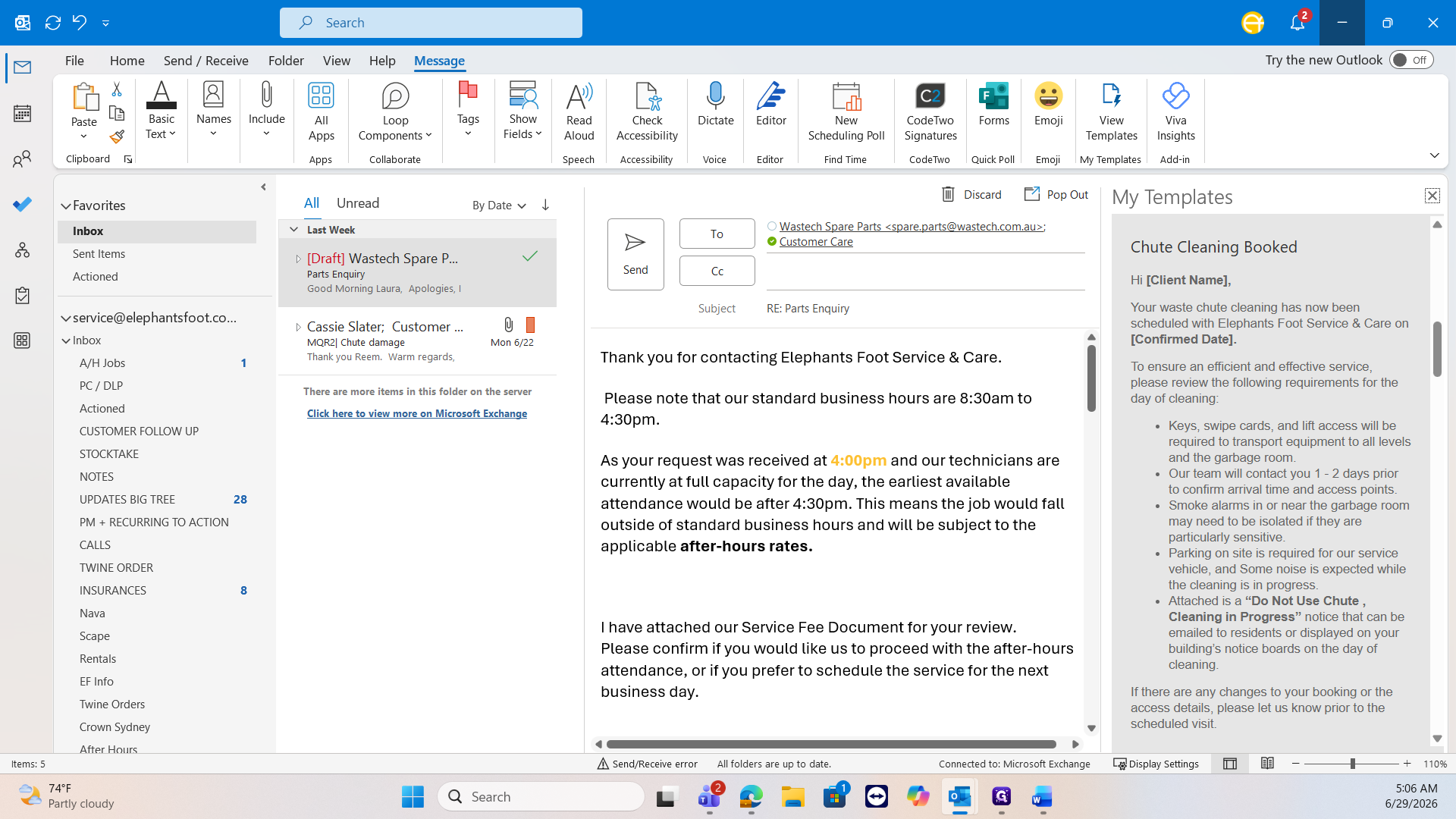
Communication Template Reference
Use the following table to determine which standard response applies to the customer's situation and what additional actions are required.
Template Name | When to Use | Additional Actions |
|---|---|---|
After-hours | Requests received at 4:00 PM or later. | Update the hour mentioned in the text and attach the current fees and rates PDF. |
Account on hold | Client requests a job but has overdue invoices. | Double-check with a manager before booking. Attach the outstanding invoices to the email. |
Attendance | Client specifically requests photos and reports post-blockage. | Retrieve the requested reports from the inbox and attach them. |
Australian public holiday | Client submits a request during an Australian public holiday. | None. |
Chute cleaning quote | Client requests pricing for cleaning, PM, or inspections. | CC the appropriate sales rep (e.g., Chloe) so they can follow up with the completed quote. |
Insurances | Client requests public liability or professional workers documentation. | Attach the relevant insurance certificates. |
Onboarding | Setting up a new client who cannot be found in Simpro. | Use broad search terms in Simpro to ensure they aren't already in the system. |
Order control / Twine order | Organizing parts (like twine) for a customer. | Coordinate with the relevant contact (e.g., Craig Little) to organize the dispatch. |
Overdue maintenance | Reminding a client of an overdue inspection or PM. | None. |
EF foot rental | Scheduling an Elephant's Foot rental. | Ensure the job is booked in the maintenance planner; no prior client permission is needed. |
Remittance | A payment remittance is received. | Forward the email to accounts services (e.g., Nava). |
Service booked | Confirming reactive jobs like chute breakdowns or blockages. | None. |
Q: What should I do if a customer with an account on hold requests a job?
A: You cannot book jobs for accounts with overdue invoices without permission. Double-check with your manager before overriding the hold, and use the "Account on hold" template to notify the client while attaching their outstanding invoices.
Q: Why can't I find an existing client in Simpro during onboarding?
A: The Simpro search function is extremely specific and will fail if even a single space is misplaced. Try narrowing your search query down to one unique word to ensure you do not miss their existing record.
Q: Do I need to request permission before booking an Elephant's Foot (EF) rental?
A: No, permission is not required for EF rentals. You can schedule it directly in the maintenance planner and notify the client using the rental template.
Term | Definition |
|---|---|
Simpro | A scheduling and job management software platform used to track resources, view client data, and book service tasks. |
EF Rental | Elephant's Foot rental, referring to specialized waste compaction or management equipment provided to clients. |
Preventative Maintenance (PM) | Regularly scheduled service and inspection of equipment to ensure proper function and avoid breakdowns. |
Remittance | A notification of payment received from a client, which is typically forwarded to the accounts services team. |
Twine | A consumable material utilized in waste compaction units that must be ordered and scheduled for customer delivery. |