
Manage Domains and Prompts
Learn how to manage your workspace domains, create new domains, and edit existing configurations using version history.
This guide explains how to manage application domains and their associated prompts. Completing these steps ensures your domains are accurately configured, up-to-date, and correctly assigned to your user base.
This applies to system administrators and managers who need to oversee workspaces, update processing prompts, or track document statistics across different domains.
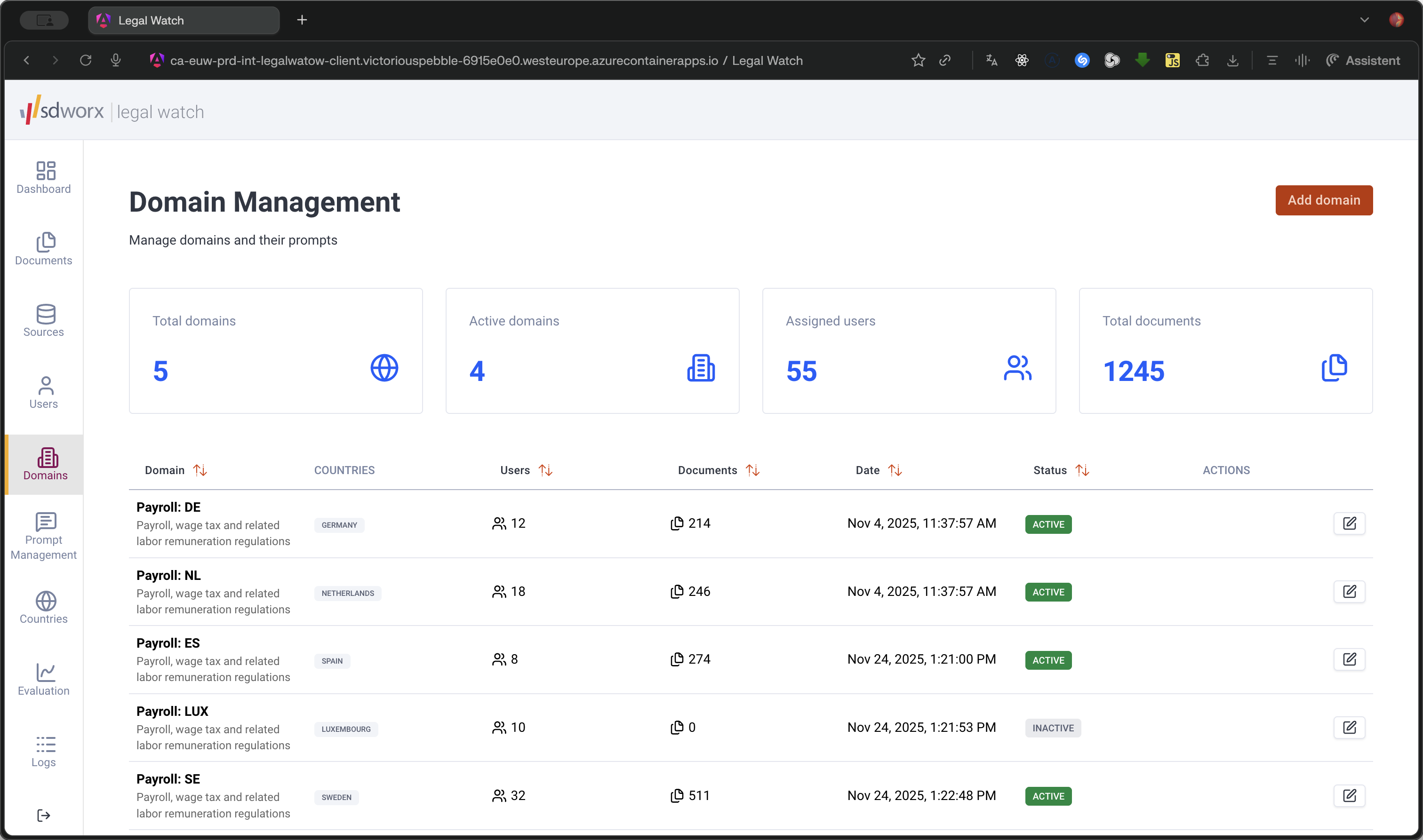
The domain management dashboard provides a quick overview of your system's health, displaying total domains, active domains, assigned users, and total documents. Below these summary cards, a table lists all domains alongside a brief preview of document counts and user assignments.
From this dashboard, you can perform two primary tasks:
Action | Description |
|---|---|
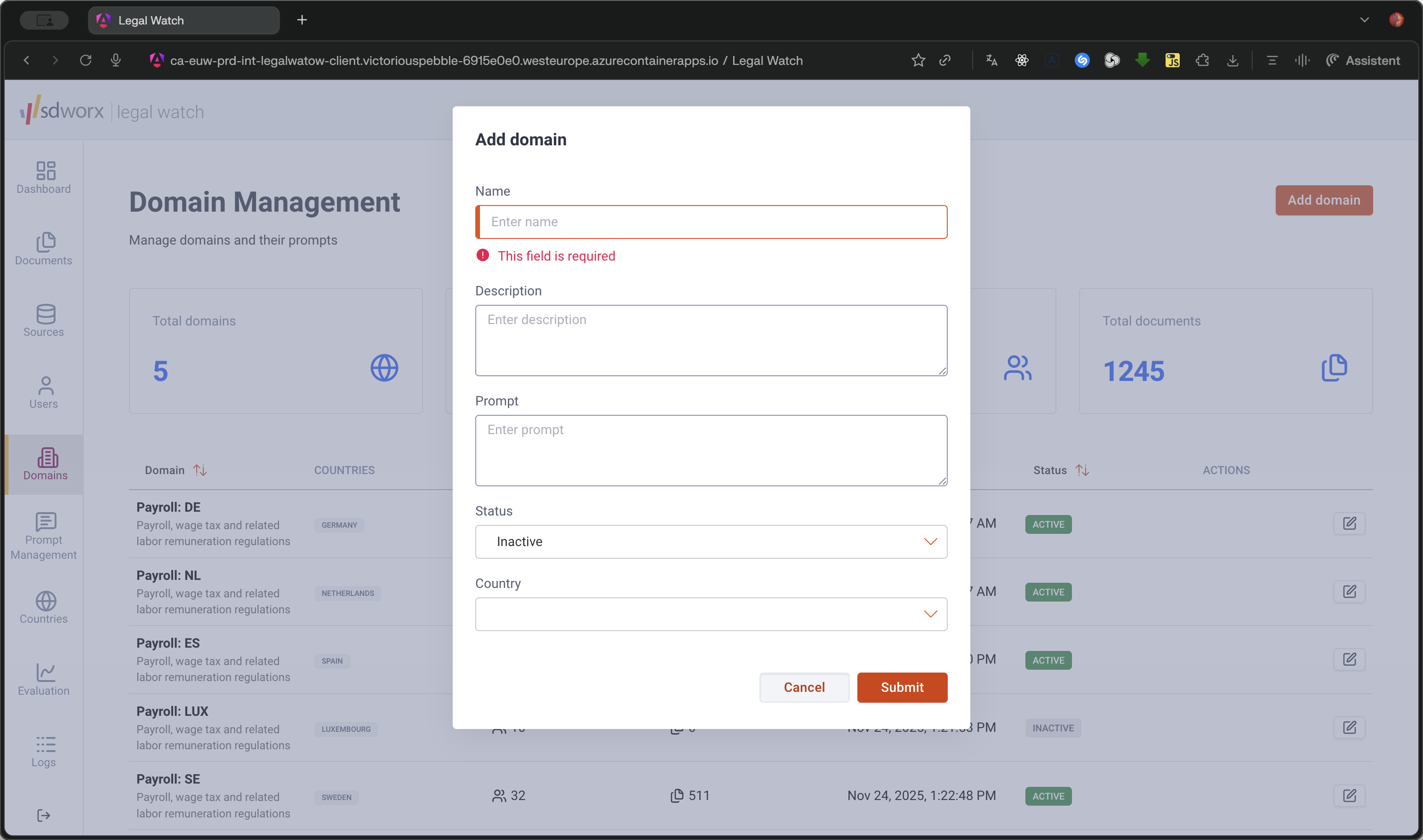
Add a new domain | Create a brand new domain by specifying its name, description, prompt, status, and country. |
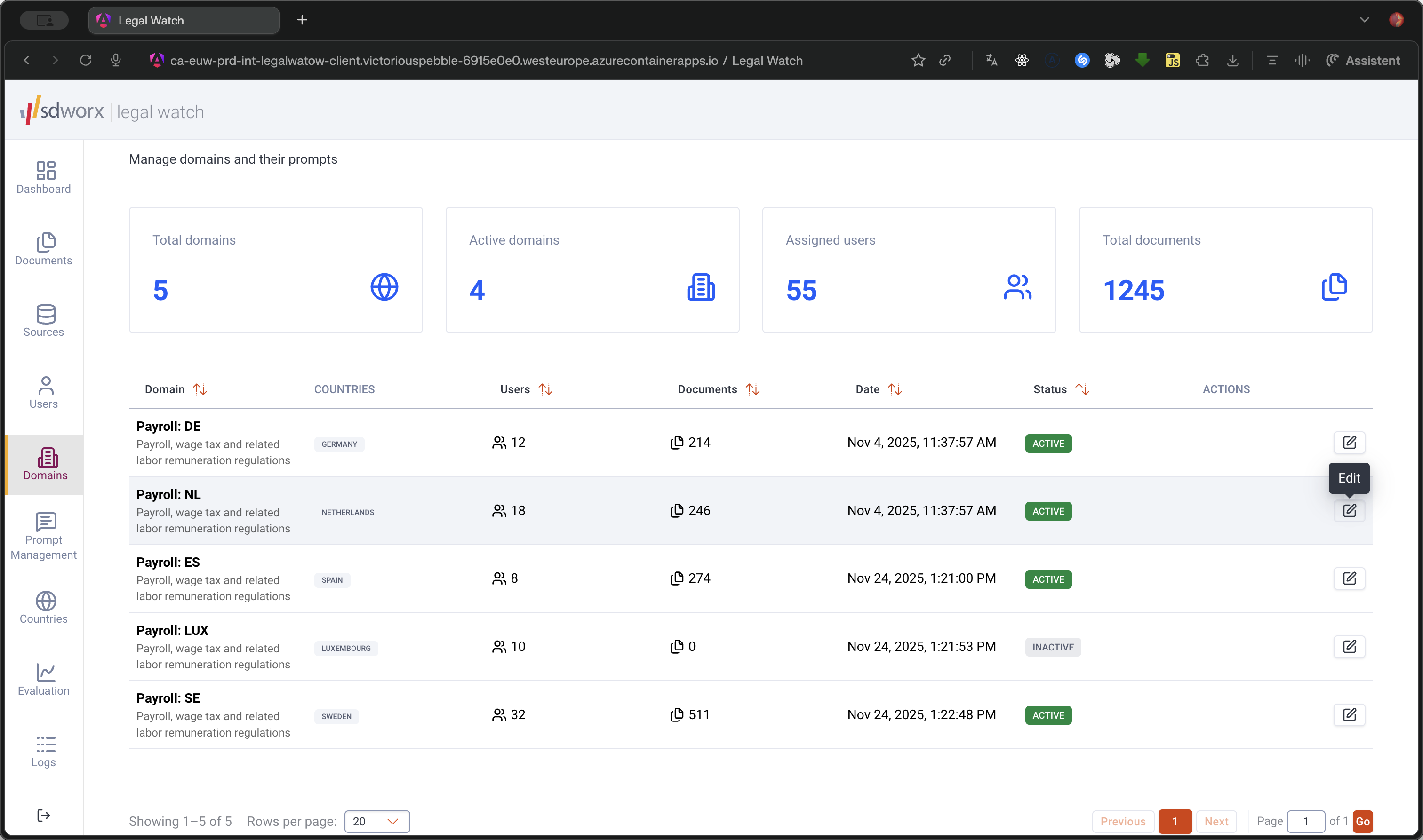
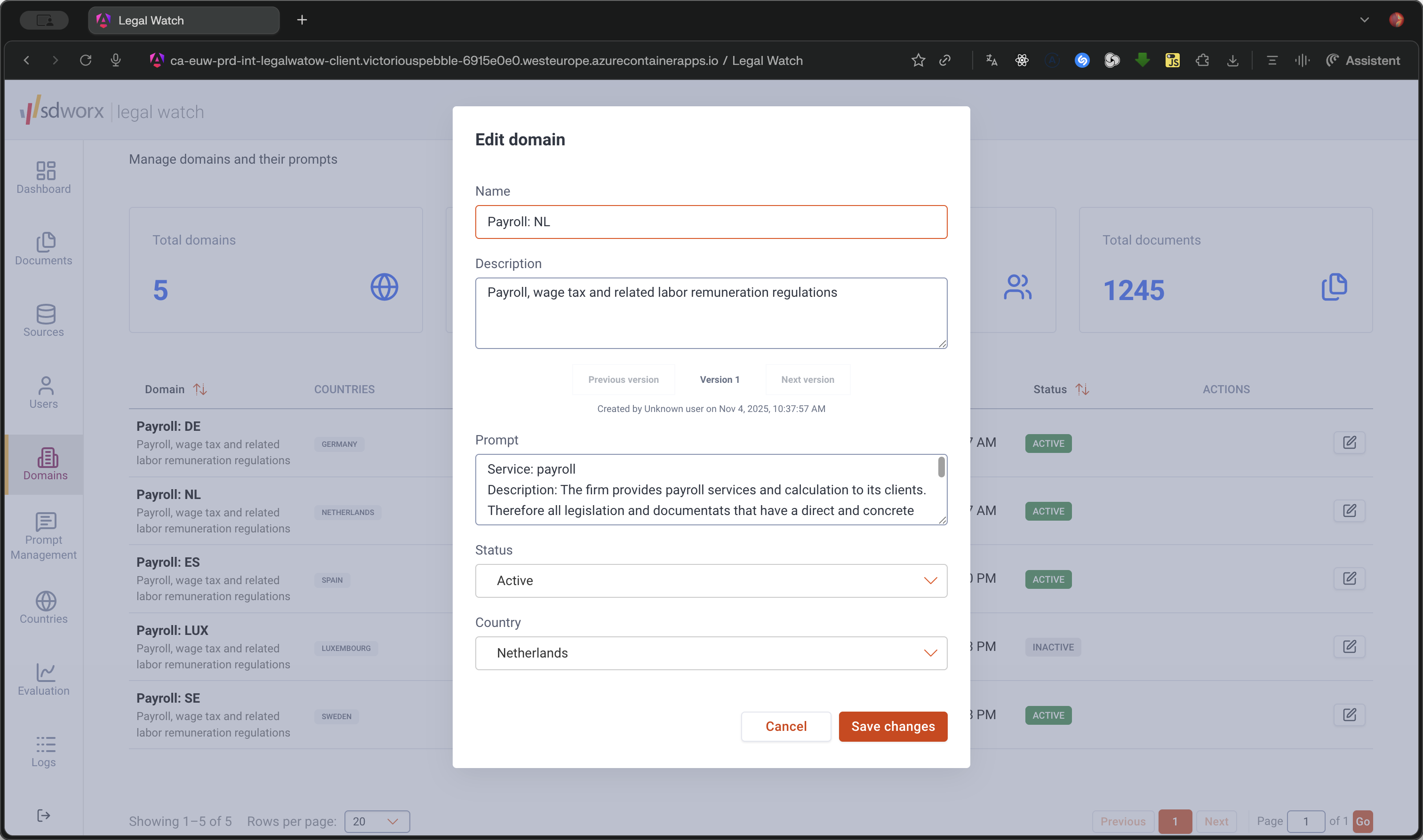
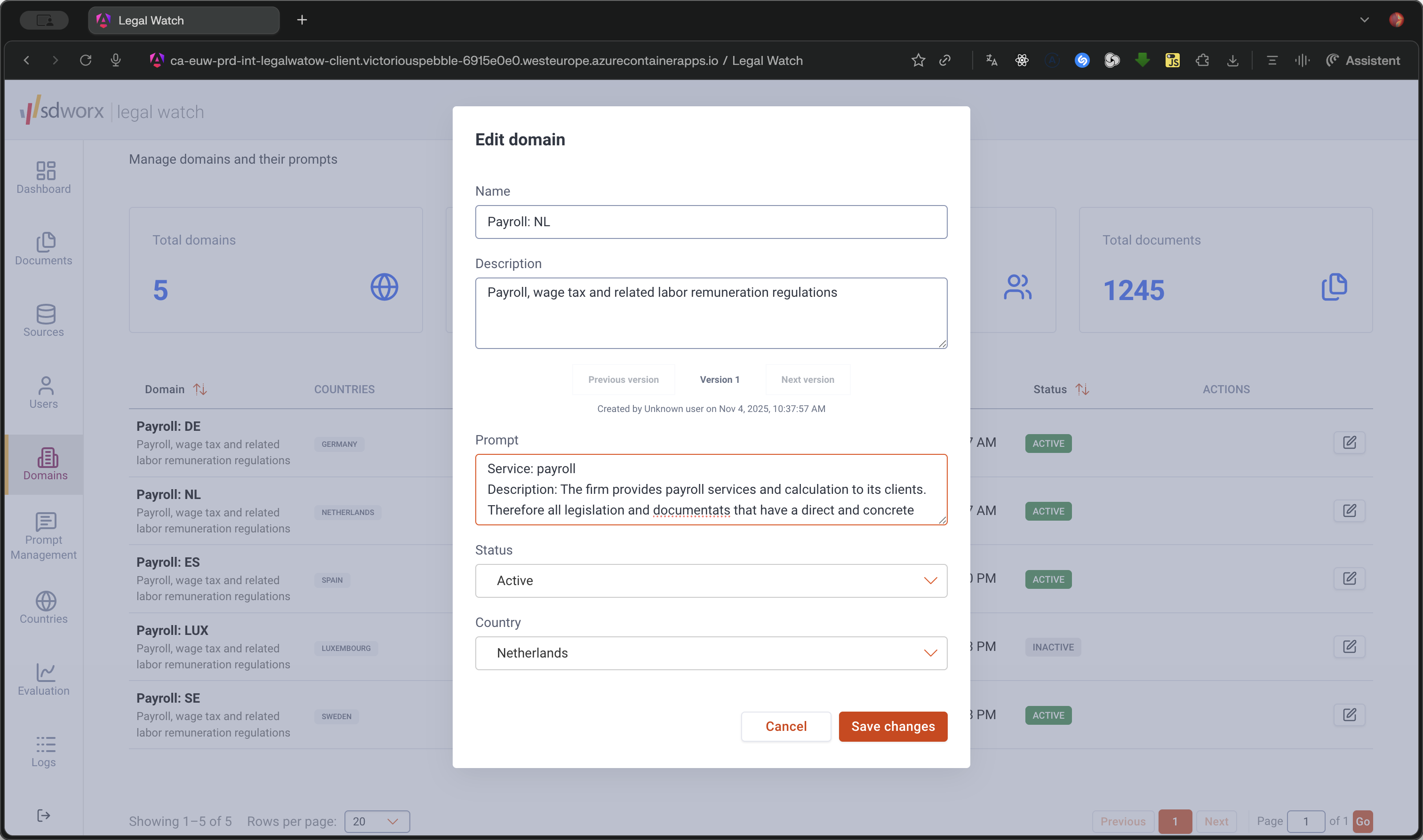
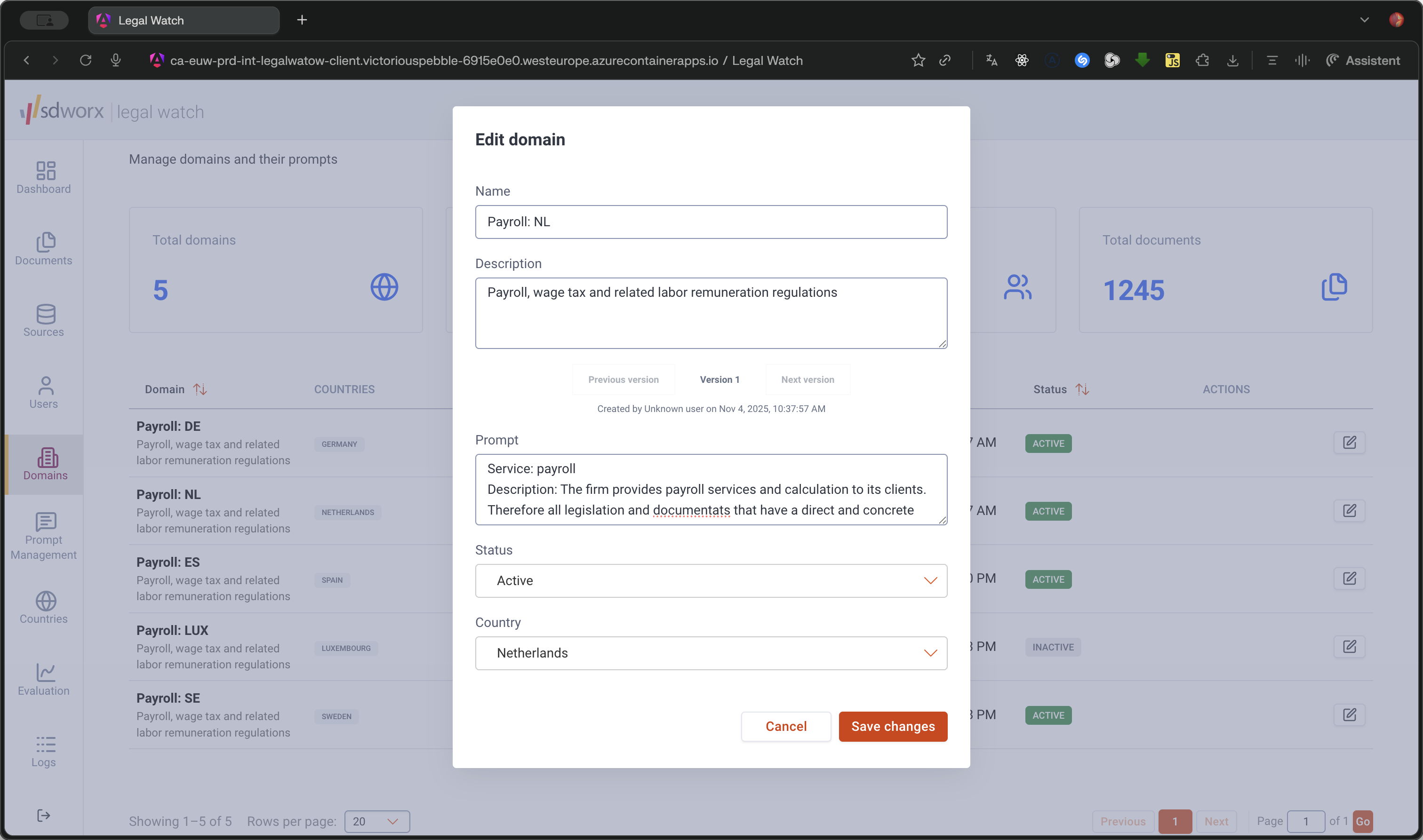
Edit an existing domain | Update an existing domain. Changes are saved as new versions, allowing you to toggle between historical states. |
Add a New Domain
Edit an Existing Domain
Q: What happens when I save changes to an existing domain?
A: Saving changes to an existing domain creates a new version instead of overwriting the previous one. This allows you to easily restore or reference past configurations.
Q: Are all fields mandatory when adding a new domain?
A: Yes, when adding a new domain, you must fill in all available fields, including name, description, prompt, status, and country.
Term | Definition |
|---|---|
Domain | A categorized workspace used to manage specific prompts, track documents, and assign users. |
Prompt | The specific instructions or criteria assigned to a domain that dictate how its associated documents are processed. |
Version History | A recorded log of changes made to a domain's settings, allowing administrators to roll back to previous configurations. |